Home Blog Page 39

Make Your Own Gravity Defying Levitating Top

Make your own gravity defying levitating top using some magnets and some common household items.  This is a nice quick weekend project and is great for science projects on magnetism.

What You’ll Need To Make Your Own Levitating Top

  • 13 1/2″ x 1/8″ Grade N52 Disc Neodymium Magnets
  • 1 3/4″ OD x 3/8″ ID x 1/8″ Thick Ring Grade N52 Magnet
  • 4″ (100mm) Square Piece of Wood At Least 1/4″ (6mm) Thick
  • 1/2″ Forstner Drill Bit
  • Pencil
  • Electrical Tape
  • Plastic or Brass Washers
  • 4″ (100mm) Square Plastic or Cardboard Sheet

How To Make Your Own Levitating Top

Make The Magnet Ring Base

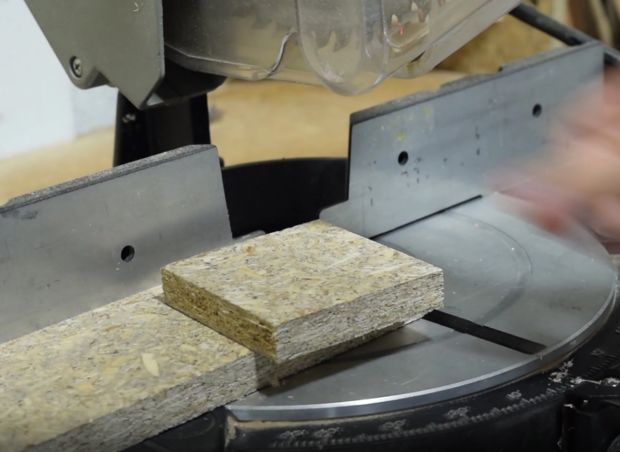
You’ll need a nice and sturdy 4″ square piece of wood. If you’re using a scrap piece of wood, use a handheld or electric saw to cut a 4″ (100mm) square from it.

cut a 4 inch square from the wood

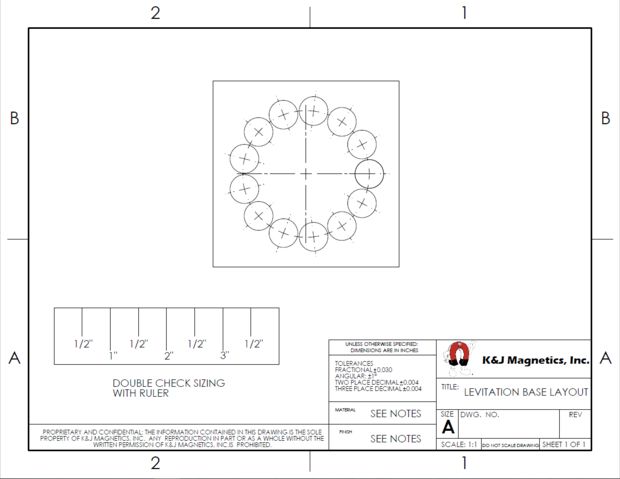
The disc magnets are going to be arranged in a perfect circle on one side of the wood. You can either measure out and mark the wood or print out the diagram below and trace the markings through the paper.

magnet layout drawing

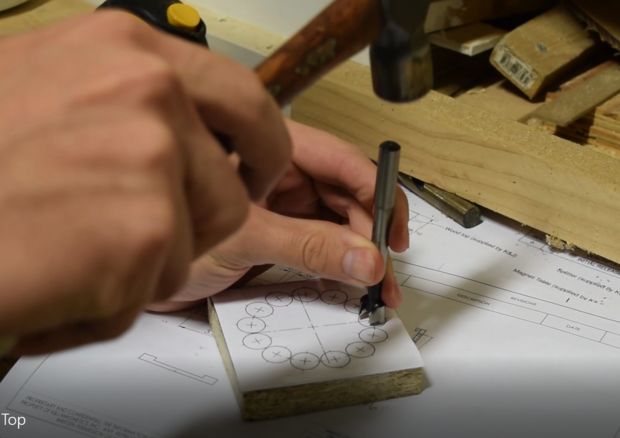
If you’re tracing out the layout, make sure that the scale you’ve printed aligns with the scale on the ruler shown in the diagram. If you have one, use a center punch to mark out the centers of the circles, this makes it easier to drill in the correct place.

use a center punch to mark the circles

Now you can drill out the holes. Use the 1/2″ forstner drill bit to create a nice flat bottomed hole. Drill the hole as deep as possible into the wood without breaking through the other side, make sure they are all consistent. The holes side of the wood is going to be the bottom of the base.

drill out the holes

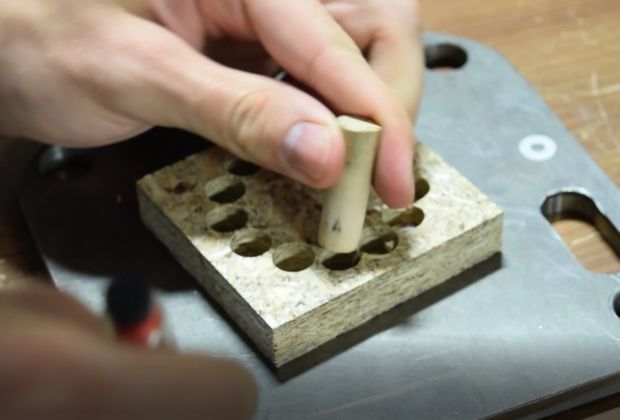
Once you have drilled all of the holes, you can insert the magnets. You want all of the magnets to be facing in the same direction, with the north pole face down in the hole.  Use a small marked magnet to help you determine which is the north pole, the north pole of a magnet will be attracted to the south pole of another magnet. Press each magnet in using a dowel or pencil.

add the magnets

Make The Top

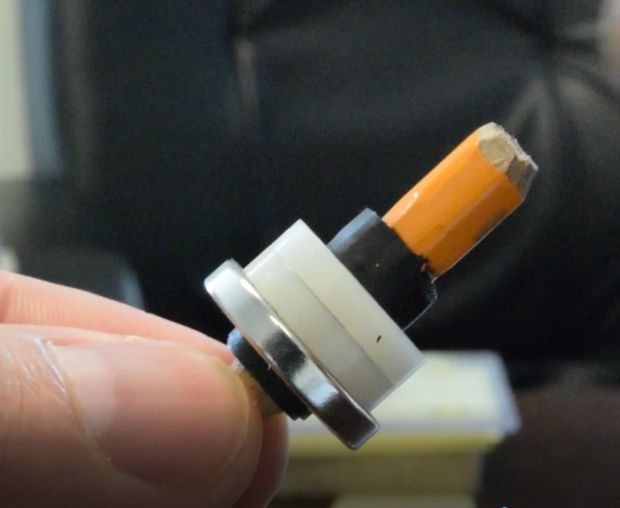
Cut a pencil down to around 1 1/2″ (40mm) length, keeping the sharp end as the tip of the top. Wrap some electrical tape around the pencil to increase the diameter until the ring magnet fits snugly around the pencil. The north pole must be facing down – towards the tip of the pencil.

make the top

Finally, add some plastic or brass washers on top of the magnet to increase the weight of the top.

Test It Out

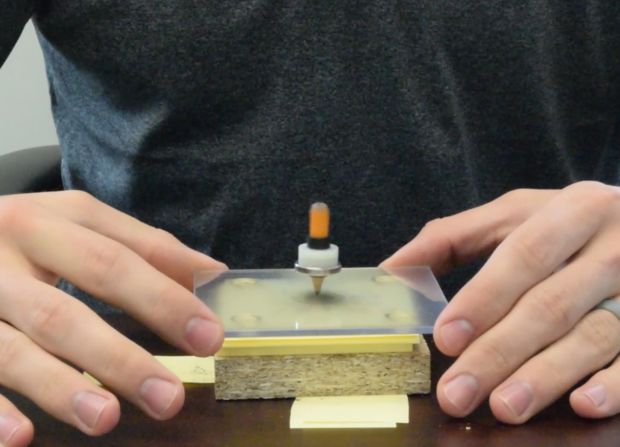
Cut out a piece of plastic or cardboard to create the spinning surface. You’ll place this surface on top of the base, spin the top on it and then raise it up to get the top into the “sweet spot”.

test out the levitating top

This is really tricky and can be frustrating to get right. There are a few factors which come in to get your top spinning correctly.

  • The base needs to be perfectly level. Use post it notes to jack up the sides of the base to level it if the top keeps falling to one side.
  • Play around with the weight added to the top until it stays in the sweet spot. If the top flies off straight away, it needs more weight. If the top doesn’t lift off the plate then it is probably too heavy.

Check out this video to see how it works:

Interested in how/why this top works? Check out this blog article.

This post is based on Levitating Top by KJMagnetics and has been adapted and used under the Creative Commons 2.5 license: CC-BY-NC-SA.

Have you made your own levitating top? Let us know in the comments section below!


How To Replace An iPhone 6 Battery

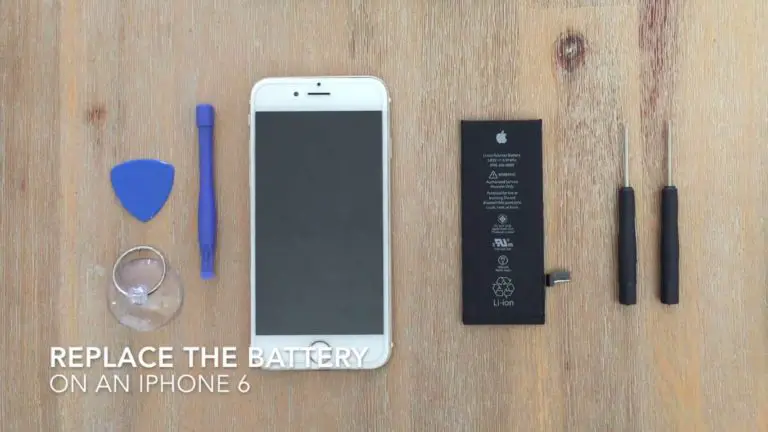
Here’s a full guide to replacing the battery in an iPhone 6. This works for batteries which have failed due to overcharging, through over use or those which have just swollen up over time, like the one in the video. You can save a lot of money by doing this easy and relatively quick repair at home by buying your own inexpensive replacement parts and tools, linked to below. The replacement battery costs between $10 and $20 and you can get the toolkit for a further $5 to $15.

If you’ve shattered you iPhone screen, here’s our guide to replacing the screen on an iPhone 6 or 6s.

What You Need To Replace Your iPhone 6 Battery

The iPhone 6s is very similar internally to the iPhone 6 and this guide can be used for both models.

  • iPhone 6s Replacement Battery – Buy Here

How To Replace Your iPhone Battery

Find yourself a nice, flat desk or counter to work on as you’ll need a bit of space to lay out the components as you take them out. Make sure to keep track of each screw as you’re taking them out as they are different lengths and sizes and you don’t want to damage components by putting long screws in the wrong place. It helps to draw a small sketch of the components and place each screw on the sketch as you remove them, this way you’ll always remember which one goes where.

The battery is held in place with a really strong double sided tape. Gently heating up the back of the iPhone case with a hair dryer or heater softens the adhesive a bit and makes it easier to remove. Be careful not to damage any of the ribbon cables for the side buttons near the top of the phone when you are prying underneath the battery.

Good luck and enjoy the repair. If you found this video helpful, please like it and subscribe to my channel for more tech videos.

Build Your Own Arduino On A Breadboard

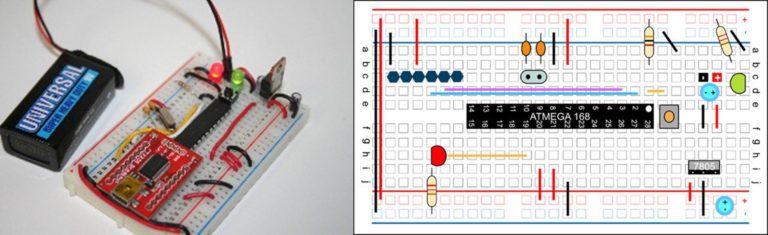
Within a few minutes you could have a fully functional Arduino platform running from a breadboard. This is the perfect project for testing out new ideas and adding your own functionality to an Arduino board. Plus it looks neat with all the components laid out on the breadboard.

Arduino is an open-source electronics prototyping platform based on flexible, easy-to-use hardware and software. It’s intended for artists, designers, hobbyists, and anyone interested in creating interactive objects or environments.

Arduino can sense the environment by receiving input from a variety of sensors and can affect its surroundings by controlling lights, motors, and other actuators. The microcontroller on the board is programmed using the Arduino programming language (based on Wiring) and the Arduino development environment (based on Processing). Arduino projects can be stand-alone or they can communicate with software on running on a computer (e.g. Flash, Processing, MaxMSP. [1] www.arduino.cc

With a few inexpensive parts and a solderless breadboard you can quickly and easily build your own Arduino. This concept works great when you want to prototype a new design idea, or you don’t want to tear apart your design each time you need your Arduino.

If you are wanting to design and build your own Arduino PCB, we suggest reading our post on Building your own Xduino as this covers more of the PCB design and component selection side of the project.

What You’ll Need To Build Your Own Arduino On A Breadboard

Atmel Atmega168 Chip – Buy Here

Breadboard (440 or 840 Tie Point) – Buy Here

22 AWG Wire (Various Colours Help) – Buy Here

7805 Voltage Regulator – Buy Here

2 x 5mm LEDs (Any Colour) – Buy Here

2 x 220Ω 1/4 Watt Resistors – Buy Here

10K 1/4 Watt Resistor – Buy Here

2 x 10uF Capacitors – Buy Here

16 MHz Clock Crystal – Buy Here

2 x 22pF Capacitors – Buy Here

Small Momentary Tact Switch – Buy Here

1 Row Male Header Pins – Buy Here

TTL-232R-3V3 USB to Serial Converter Cable – Buy Here

How To Build Your Own Arduino On A Breadboard

Before we get started, make sure you have all the necessary items in the component list box.

Assemble The Components

Power Circuit

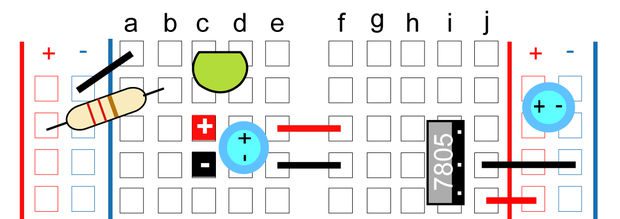
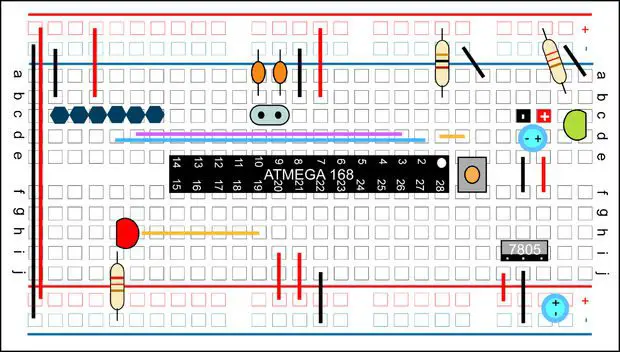
The first thing you need to do is set up power. With this step, you will be setting the breadboard Arduino up for constant +5Volts power using a 7805 voltage regulator.

building your own arduino - power layout

In order for the voltage regulator to work, you need to provide more than 5V power. A typical 9V battery with a snap connector would work just fine for this.

Power is going to come into the breadboard where you see the red and black + and – squares. Then add one of the 10uF capacitors. The longer leg is the Anode (Positive) and the shorter leg is the Cathode (Negative). Most capacitors are also marked with a stripe down the negative side.

Across the empty space on the breadboard (the channel) you will need to place two hook-up wires for positive (red) and ground (black) to jump power from one side of the breadboard to the other.

Now add the 7805 voltage regulator. The 7805 has three legs. If you are looking at it from the front, the left leg is for voltage in (Vin) the middle leg is for ground (GND) and the third leg is for voltage out (Vout). Make sure the left leg is lined up with your positive power in, and the second pin to ground.

Coming out of the voltage regulator and going to the power rail on the side of the breadboard you need to add a GND wire to the ground rail and then the Vout wire (3rd leg of the voltage regulator) to the positive rail. Add the second 10uF capacitor to the power rail. Paying attention to the Positive and Negative sides.

It’s a good idea to include an LED status indicator which can be used for troubleshooting. To do this you need to connect the right side power rail with the left power rail. Add positive to positive and negative to negative wires at the bottom of your breadboard.
For the LED status indicator, connect a 220& resistor (colored as: red, red, brown) from power to the anode of the LED (positive side, longer leg) and then a GND wire to the cathode side.

Congratulations, now your breadboard is set up for +5V power. You can move onto the next step in the circuit design.

Arduino Pin Mapping

arduino pin mapping

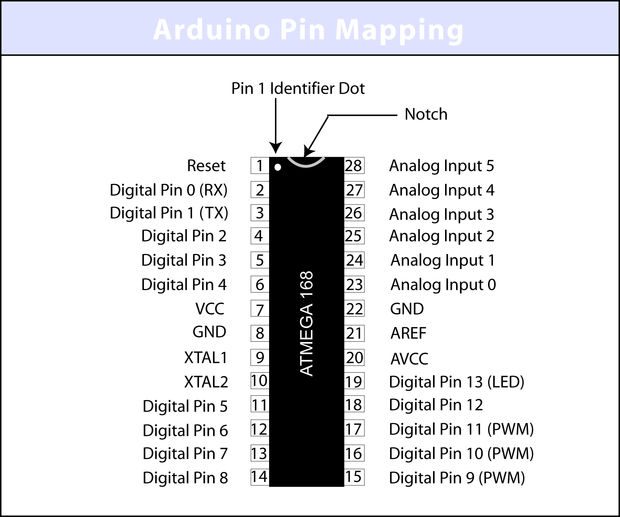
Now we want to prepare the ATmega168 or 328 chip. Before we begin, let’s take a look at what each pin on the chip does in relationship to the Arduino functions. NOTE: The ATmega328 runs pretty much the same speed, with same pinout, but features more than twice the flash memory (30k vs 14k) and twice the EEPROM (1Kb vs 512b).

The ATmega168 chip is created by Atmel. If you look up the datasheet you won’t find that the above references are the same. This is because the Arduino has its own functions for these pins, and I have provided them only on this illustration. If you would like to compare or need to know the actual references for the chip, you can download a copy of the datasheet at www.atmel.com. Now that you know the layout of the pins, we can start hooking up the rest of the components.

Supporting Components

To start, we will build the supporting circuitry for one side of the chip and then move on to the other side. Pin one on most chips has an identifier marker. Looking at the ATmega168 or 328 you will notice a u-shaped notch at the top as well as a small dot. The small dot indicates that this is pin 1.

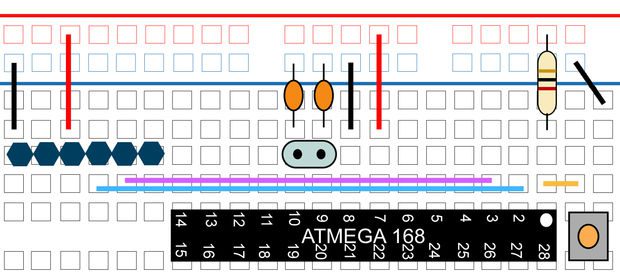
Supporting circuitry pins 1-14

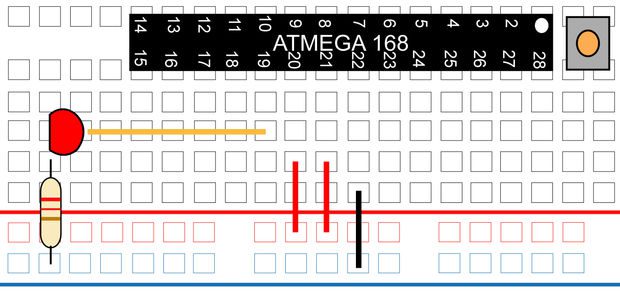
Arduino supporting components side 2

Above the ATmega168 chip near the pin 1 identifier, place the small tact switch. This switch is used for resetting the Arduino. Right before you upload a new sketch to the chip you will want to press this once. Now add a small jumper wire from pin 1 to the bottom leg of the switch then add the 10K resistor from power to the pin 1 row on the breadboard. Finally add a GND jumper wire to the top leg of the switch.

Add power and GND jumpers to pin 7(VCC) and pin 8 (GND). Add the 16MHz clock crystal to pin 9 and 10 and then the two .22pF capacitors from pins 9 and 10 to GND. (See note below for alternative method).

Your basic breadboard arduino is now complete. You could stop right here if you wanted to and swap an already programmed chip from your Arduino board to the breadboard, but since you came this far, you might as well finish off by adding some programming pins. This will allow you to program the chip from the breadboard.

NOTE: Instead of using the 16MHz clock crystal, you can use a 16 MHz ceramic resonator with built-in capacitors, three-terminal SIP package. You will have to arrange your breadboard a little differently, the resonator has three legs. The middle leg will go to ground and the other two legs will go to pins 9 & 10 on the ATmega168 chip.

Referring to Figure 1-7, locate a spot where you have 6 columns on the breadboard that are not in contact with anything else. Place a row of six male header pins here.

With the breadboard facing you, the connections are as follows:
GND, NC, 5V, TX, RX, NC, I am also calling these pins 1,2,3,4,5,6. From your power bus rail, add the GND wire to pin 1 and a wire from power for pin 3. NC means not connected, but you can connect these to GND if you want to.

From pin 2 on the ATmega168 chip, which is the Arduino RX pin, you will connect a wire to pin 4 (TX) of your programming headers. On the ATmega168 chip, pin 3 Arduino TX gets connected to pin 5 (RX) on your header pins.

The communication looks like this: ATmega168 RX to Header Pin TX, and ATmega168 TX to Header Pin RX.

Supporting circuitry pins 15-28

Arduino supporting components side 1

From the GND power bus, add a jumper wire to pin 22. Next, from the positive power bus, add jumper wires to pin 20 (AVCC – Supply voltage for the ADC converter. Needs to be connected to power if ADC isn’t being used and to power via a low-pass filter if it is (a low pass filter is a circuit that cleans out noise from the power source, we aren’t using one)
Then add a jumper wire from the positive bus to pin 21 (Analog reference pin for ADC).

On the Arduino, pin 13 is the LED pin. Note that on the actual chip the pin is number 19. When uploading your sketch code and for all projects you will still reference this as Pin 13.

To hook up the LED, add a 220& resistor from GND to the cathode of the LED. Then from the anode of the LED add a jumper wire to pin 19.

The Complete Breadboard

building your own arduino - breadboard layout

Now you can program your breadboard Arduino.

Programming Your Arduino

Double check your connections, make sure your 9V battery is not connected and hook up your programming option. Open up the Arduino IDE and in the Example sketch files, under Digital, load the Blink sketch.

If you are new to using and programming an Arduino, read through our guide on Programming Your Arduino For The First Time.

programming your Arduino

Under the file option Serial Port, select the COM port that you are using with your USB cable. i.e. COM1, COM9, etc.

Under the file option Tools/Board, select either:
Arduino Duemilanove w/ATmega328
Arduino Decimila, Duemilanove or Nano w/ATmega128
(depending on which chip you are using with your breadboard Arduino)

Now press the upload icon and then hit the reset button on your breadboard. If you are using one of the SparkFun breakout boards, you will see the RX and TX lights blink. This lets you know that the data is being sent. Sometimes you need to wait a few seconds after pressing the upload button before pressing the reset switch. If you have trouble, just experiment a little with how fast you go between the two.

This sketch if uploaded properly will blink the LED on pin 13 on for one second, off for one second, on for one second… until you either upload a new sketch or turn off the power.

Once you have uploaded the code, you can disconnect the programming board and use your 9V battery for power.

Troubleshooting

  • No Power – Make sure your source power is above 5V.
  • Power but nothing works – recheck all your connection points.
  • Uploading error – Refer to www.arduino.cc and do a search on the particular error message you receive. Also check the forums as there is a lot of great help there.

Build Your Arduino Onto A PCB

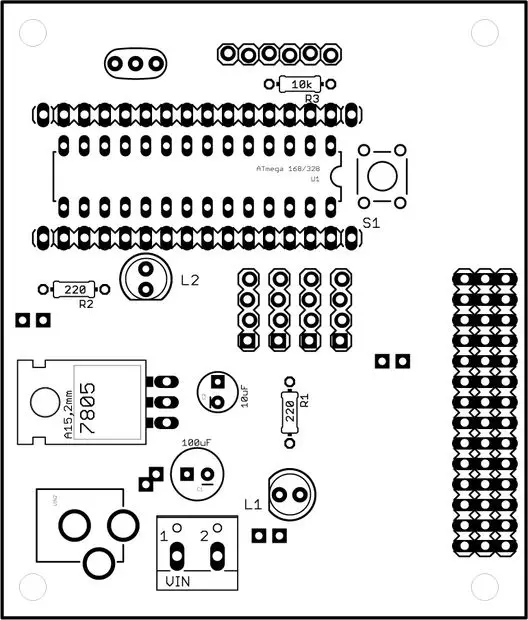
Once you’ve got your Arduino board up and running on a breadboard, you may want to try and turn it into a PCB. If anyone is interested in etching their own PCB (printed circuit board) I have included the component and solder side pcb files.

PCB component side

Homemade Arduino PCB Files

I have added a zip file which contains 300dpi JPG files of the component side and solder side.

Hope you’ve enjoyed this post, let us know if you’ve tried to build your own Arduino in the comments section below.

This post has been adapted from Build Your Own Arduino by ArduinoFun and have been modified and used under the Creative Commons License CC-BY-SA.

Simple 3 Phase Arduino Energy Meter With Ethernet Connection

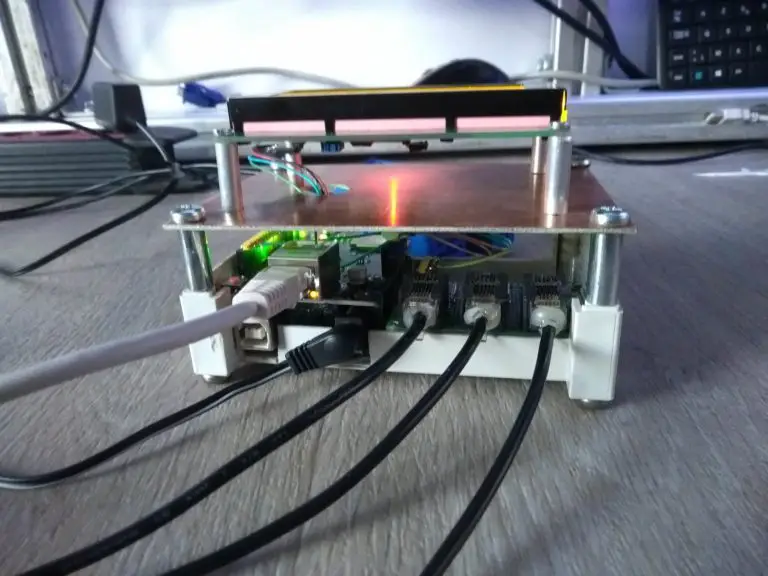
One of our readers, Filip Ledoux, built his own 3 phase energy meter which is based on our original Simple 3 Phase Arduino Energy Meter. He however took the project one step further and integrated an Ethernet connection to enable the data to be seen via a web server. He also used a slightly larger 4×20 character display.

I’m not going to repeat the entire Energy Meter build here, if you’d like detailed instructions on how to build a 3 phase energy meter, visit the original article linked to above. I am rather going to highlight the equipment he has used, the changes and additions to the hardware and the program/sketch he has written.

Thanks again to Filip Ledoux for sharing his code and photos of his build with us! It is greatly appreciated!

What You Will Need To Build A 3 Phase Energy Meter With Ethernet Connection

  • An Arduino (Uno used in this guide) – Buy Here
  • 4×20 Serial LCD Display – Buy Here
  • Arduino Ethernet Shield – Buy Here
  • 3 x SCT-013-000 Current Transformers – Buy Here
  • 3 x 56Ω Burden Resistors – Buy Here
  • 3 x 10µF Capacitors – Buy Here
  • 6 x 100K Divider Resistors – Buy Here

How To Make The Energy Meter

There are essentially three elements to this project which you will need to assemble, the LCD screen, the Ethernet shield and finally the current sensors.

The Ethernet shield simply plugs into the Arduino board and picks up on the pins required through the pin headers.

The LCD screen can be mounted onto a board or breadboard. Filip has built a neat box around his Arduino and Ethernet shield with a panel on the front on which the LCD screen is mounted. The LCD screen is driven using the Arduino’s built in library and can be connected by following this guide – connecting and LCD screen to an Arduino. The LCD screen used here is slightly different as it is a larger, serial screen but the principle remains the same. You’ll also have to pick up on the pins which are not being used by the Ethernet shield.

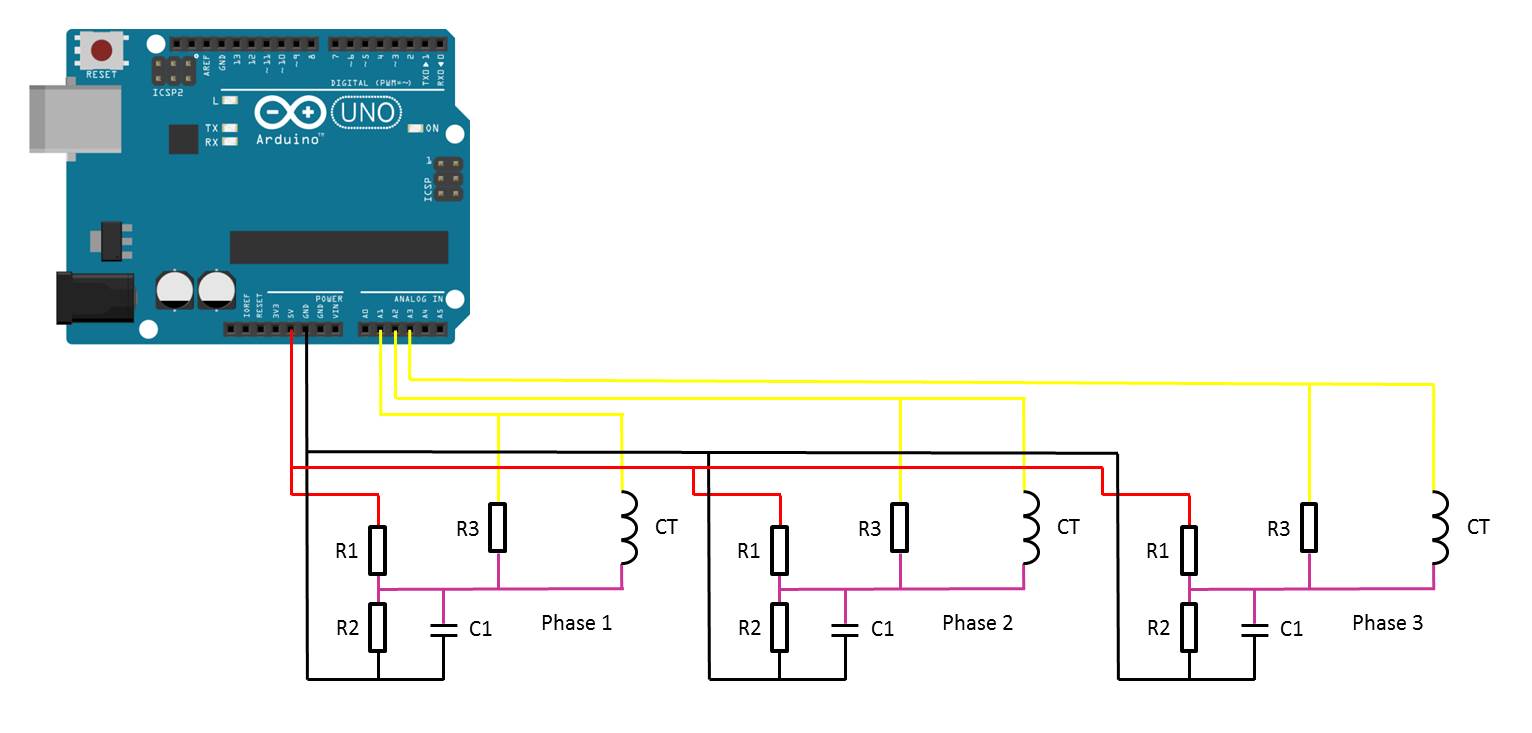
Finally, you’ll need to add your burden resistor and voltage divider circuits to your current sensors.

The basic circuit for the connection of the CTs to the Arduino is shown below:

3 phase energy meter circuit diagram

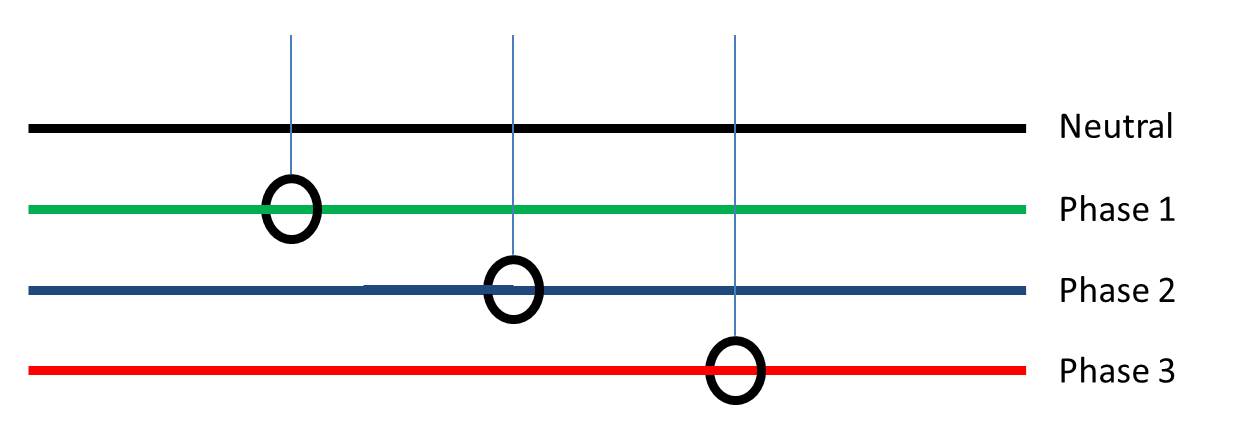
Once you have connected all of your components, you need to connect your sensors onto the supply you want to monitor. For connection to a typical 3 phase mains supply, connect one CT around each of the phases as shown below.

3 phase energy meter connection diagram

NB – Be careful when connecting the CTs to your mains and make sure that the power to your board is switched off before doing anything in the mains box. Do not remove any wires or remove any screws before checking your local regulations with your local authority, you may require a certified electrician to install the CT for you.

If you’d like to measure a larger or smaller amount of power more accurately, you’ll need to select different CTs. There is a detailed guide to selecting different CTs and their associated burden resistors in the original post.

Upload the Sketch

Now you can upload your sketch onto your Arduino, if you haven’t uploaded a sketch before then follow this guide on getting started.

//Michael Klements
//The DIY Life
//26 February 2017
//7 September 2017 Modified by Filip Ledoux
//V2.2
//Serial Display 20x4
//Ethernet 

#include <Wire.h>
#include <LiquidCrystal_PCF8574.h>
#include <EEPROM.h>
#include <SPI.h>
#include <Ethernet.h>

LiquidCrystal_PCF8574 lcd(0x27);        // set the LCD address to 0x27 for a 16 chars and 2 line display

int show;

int currentPins[3] = {1,2,3};          //Assign phase CT inputs to analog pins
double calib[3] = {335.0,335.0,335.0};
double kilos[3];
unsigned long startMillis[3];
unsigned long endMillis[3];
double RMSCurrent[3];
int RMSPower[3];
int peakPower[3];

// Enter a MAC address and IP address for your controller below.
// The IP address will be dependent on your local network:
byte mac[] = { 0xDE, 0xAD, 0xBE, 0xEF, 0xFE, 0xEB };
IPAddress ip(192,168,1,12);
IPAddress gateway(192,168,1,1);
IPAddress subnet(255, 255, 255, 0);

// Initialize the Ethernet server library with the IP address and port you want to use (port 80 is default for HTTP):
EthernetServer server(80);

void setup() 
{ 
  Serial.begin (9600);         // set the serial monitor tx and rx speed
  EEPROM.read (1);             // make the eeprom or atmega328 memory address 1

  // start the Ethernet connection and the server:  
  Ethernet.begin(mac, ip, gateway, subnet);
  server.begin();
  Serial.print("server is at ");
  Serial.println(Ethernet.localIP());
    
  int error;
  
  lcd.begin(20, 4);          // initialize the lcd
  show = 0;

  lcd.clear();
  lcd.setBacklight(255);
  lcd.home();
  lcd.setCursor(0,0);         // set cursor to column 0, row 0 
  lcd.print("3 Phase");
  lcd.setCursor(0,1);
  lcd.print("Energy Meter");
  lcd.setCursor(0,2);
  lcd.print("IP");
  lcd.setCursor(3,2);
  lcd.print(Ethernet.localIP());
  lcd.setCursor(0,3);
  lcd.print("V2.2");
  delay(2000);
}

void readPhase ()      //Method to read information from CTs
{
  for(int i=0;i<=2;i++)
  {
    int current = 0;
    int maxCurrent = 0;
    int minCurrent = 1000;
    for (int j=0 ; j<=200 ; j++)  //Monitors and logs the current input for 200 cycles to determine max and min current
    {
      current =  analogRead(currentPins[i]);  //Reads current input and records maximum and minimum current
      if(current >= maxCurrent)
        maxCurrent = current;
      else if(current <= minCurrent)
        minCurrent = current;
    }
    if (maxCurrent <= 517)
    {
      maxCurrent = 516;
    }
    RMSCurrent[i] = ((maxCurrent - 516)*0.707)/calib[i];    //Calculates RMS current based on maximum value and scales according to calibration
    RMSPower[i] = 235*RMSCurrent[i];    //Calculates RMS Power Assuming Voltage 220VAC, change to 110VAC accordingly
    if (RMSPower[i] > peakPower[i])
    {
      peakPower[i] = RMSPower[i];
    }
    endMillis[i]= millis();
    unsigned long time = (endMillis[i] - startMillis[i]);
    kilos[i] = kilos[i] + (RMSPower[i] * (time/60/60/1000000));    //Calculate kilowatt hours used
    startMillis[i]= millis();
  }
}

void loop() //Calls the methods to read values from CTs and changes display
{
  readPhase();
  displayKilowattHours ();
  delay(3000);
  readPhase();
  displayCurrent ();
  delay(3000);
  readPhase();
  displayRMSPower ();
  delay(3000);
  readPhase();
  displayPeakPower ();
  delay(3000);
}

void displayKilowattHours ()	//Displays all kilowatt hours data
{
  lcd.clear();
    lcd.setCursor(0,0);
    lcd.print("L1->");  
  lcd.setCursor(5,0);
  lcd.print(kilos[0]);
  lcd.print("kWh");
    lcd.setCursor(0,1);
    lcd.print("L2->");
  lcd.setCursor(5,1);
  lcd.print(kilos[1]);
  lcd.print("kWh");
    lcd.setCursor(0,2);
    lcd.print("L3->");
  lcd.setCursor(5,2);
  lcd.print(kilos[2]);
  lcd.print("kWh");
  lcd.setCursor(5,3);
  lcd.print("Energy");
}

void displayCurrent ()	//Displays all current data
{
  lcd.clear();
    lcd.setCursor(0,0);
    lcd.print("L1->"); 
  lcd.setCursor(5,0);
  lcd.print(RMSCurrent[0]);
  lcd.print("A");
    lcd.setCursor(0,1);
    lcd.print("L2->");
  lcd.setCursor(5,1);
  lcd.print(RMSCurrent[1]);
  lcd.print("A");
    lcd.setCursor(0,2);
    lcd.print("L3->");
  lcd.setCursor(5,2);
  lcd.print(RMSCurrent[2]);
  lcd.print("A");
  lcd.setCursor(5,3);
  lcd.print("Current");
}

void displayRMSPower ()	//Displays all RMS power data
{
  lcd.clear();
    lcd.setCursor(0,0);
    lcd.print("L1->");
  lcd.setCursor(5,0);
  lcd.print(RMSPower[0]);
  lcd.print("W");
    lcd.setCursor(0,1);
    lcd.print("L2->");
  lcd.setCursor(5,1);
  lcd.print(RMSPower[1]);
  lcd.print("W");
     lcd.setCursor(0,2);
    lcd.print("L3->");
  lcd.setCursor(5,2);
  lcd.print(RMSPower[2]);
  lcd.print("W");
  lcd.setCursor(5,3);
  lcd.print("Power");
}

void displayPeakPower ()   //Displays all peak power data
{
  lcd.clear();
    lcd.setCursor(0,0);
    lcd.print("L1->");
  lcd.setCursor(5,0);
  lcd.print(peakPower[0]);
  lcd.print("W");
    lcd.setCursor(0,1);
    lcd.print("L2->");
  lcd.setCursor(5,1);
  lcd.print(peakPower[1]);
  lcd.print("W");
    lcd.setCursor(0,2);
    lcd.print("L3->");
  lcd.setCursor(5,2);
  lcd.print(peakPower[2]);
  lcd.print("W");
  lcd.setCursor(5,3);
  lcd.print("Max Power");

 // listen for incoming clients
EthernetClient client = server.available();
  if (client) {
    Serial.println("new client");
    // an http request ends with a blank line
    boolean currentLineIsBlank = true;
    while (client.connected()) {
      if (client.available()) {
        char c = client.read();

     Serial.write(c);
        // if you've gotten to the end of the line (received a newline
        // character) and the line is blank, the http request has ended,
        // so you can send a reply
        if (c == '\n' && currentLineIsBlank) {

              
          // send a standard http response header
          client.println("HTTP/1.1 200 OK");
          client.println("Content-Type: text/html");
          client.println();
          client.println("<HTML>");
          client.println("<HEAD>");
          client.print("<meta http-equiv=\"refresh\" content=\"2\">");//refresh page every 2 sec
          client.print("<TITLE />Zoomkat's meta-refresh test</title>");
          client.println();
          client.println("<!DOCTYPE HTML>");
          client.println("<html>");
          //client.println("<FONT SIZE=12>");
          client.println("<BODY TEXT=black BGCOLOR=white>");
          client.println("<b>""Energy Display""</b>");
          client.println("<hr />");


          client.println("<mark>""RMS current:""</mark>");
          client.println("<p>");
          client.println("<b>""L1:""</b>");
          client.println( RMSCurrent[0]);
          client.println("<p>");
          client.println("<b>""L2:""</b>");          
          client.println( RMSCurrent[1]);
          client.println("<p>");
          client.println("<b>""L3:""</b>");
          client.println( RMSCurrent[2]);
          client.println("<hr />");
          
          client.println("<mark>""KWH:""</mark>");
            client.println("<p>");
          client.println("<b>""L1:""</b>");
          client.println( kilos[0]);
          client.println("<p>");
          client.println("<b>""L2:""</b>");
          client.println( kilos[1]);
            client.println("<p>");
          client.println("<b>""L3:""</b>");
          client.println( kilos[2]);
          client.println("<hr />");

          client.println("<mark>""RMS power:""</mark>");
            client.println("<p>");
           client.println("<b>""L1:""</b>");
          client.println( RMSPower[0]);
          client.println("<p>");
          client.println("<b>""L2:""</b>");
          client.println( RMSPower[1]);
            client.println("<p>");
          client.println("<b>""L3:""</b>");
          client.println( RMSPower[2]);
          client.println("<hr />");

          client.println("<mark>""MAX power:""</mark>");
            client.println("<p>");
           client.println("<b>""L1:""</b>");
          client.println( peakPower[0]);
          client.println("<p>");
          client.println("<b>""L2:""</b>");
          client.println( peakPower[1]);
            client.println("<p>");
          client.println("<b>""L3:""</b>");
          client.println( peakPower[2]);
          client.println("<hr />");


   // give the web browser time to receive the data
   delay(100);
// close the connection:
   client.stop();
Serial.println("client disconnected");
       
      }
    }
  }
    }
}

Here is the link to download the code – EnergyMonitorEthernet

In order to get the Ethernet portion working for your meter, you’ll need to put in the mac address and IP address for your controller in lines 30-33. The mac address can in some cases be made up and in other cases will be printed on a sticker on the board, it depends on the manufacturer of your Ethernet shield. The IP addresses and port will depend on your local network. If you are unfamiliar with using an Ethernet shield with an Arduino board, have a look at this guide on how to set up an Ethernet connection on an Arduino.

Because your setup, CTs , resistors and input voltages may be different, there are scaling factors in the sketch which will need to be adjusted until you get the correct results. These values are stored in an array in line 20 – double calib[3] = {335.0,335.0,335.0}. If everything is connected correctly, at this point you should at least get some figures displayed on the screen although they will most likely be incorrect and some may be negative.

Calibrate the Current Reading

As mentioned above, because your setup, CTs , resistors and input voltages may be different, there is a scaling factor in the sketch for each CT which you will need to change before you will get accurate results.

To calibrate your energy meter, you need to be sure that the current that your meter says is being drawn on each phase is what you expect is actually being drawn. In order to do this accurately, you need to find a calibrated load. These are not easy to come by in a normal household so you will need to find something which uses an established and consistent amount of power. I used a couple of incandescent light bulbs and spot lights, these come in a range of sizes and their consumption is fairly close to what is stated on the label, ie a 100W light bulb uses very close to 100W of real power as it is almost entirely a purely resistive load.

Plug in a small light bulb (100W or so) on each phase and see what load is displayed. You will now need to adjust the scaling factors defined in line 20 accordingly:

double calib[3] = {335.0,335.0,335.0}

In this case 335.0 for phase 1, 335.0 for phase 2 and 335.0 for phase 3 have been used as a starting point. They may be higher or lower depending on your application. Either use linear scaling to calculate this figure or, if you’re not good with math, play around with different values until the load you have plugged in is shown on the energy meter’s screen.

The Energy Meter In Operation

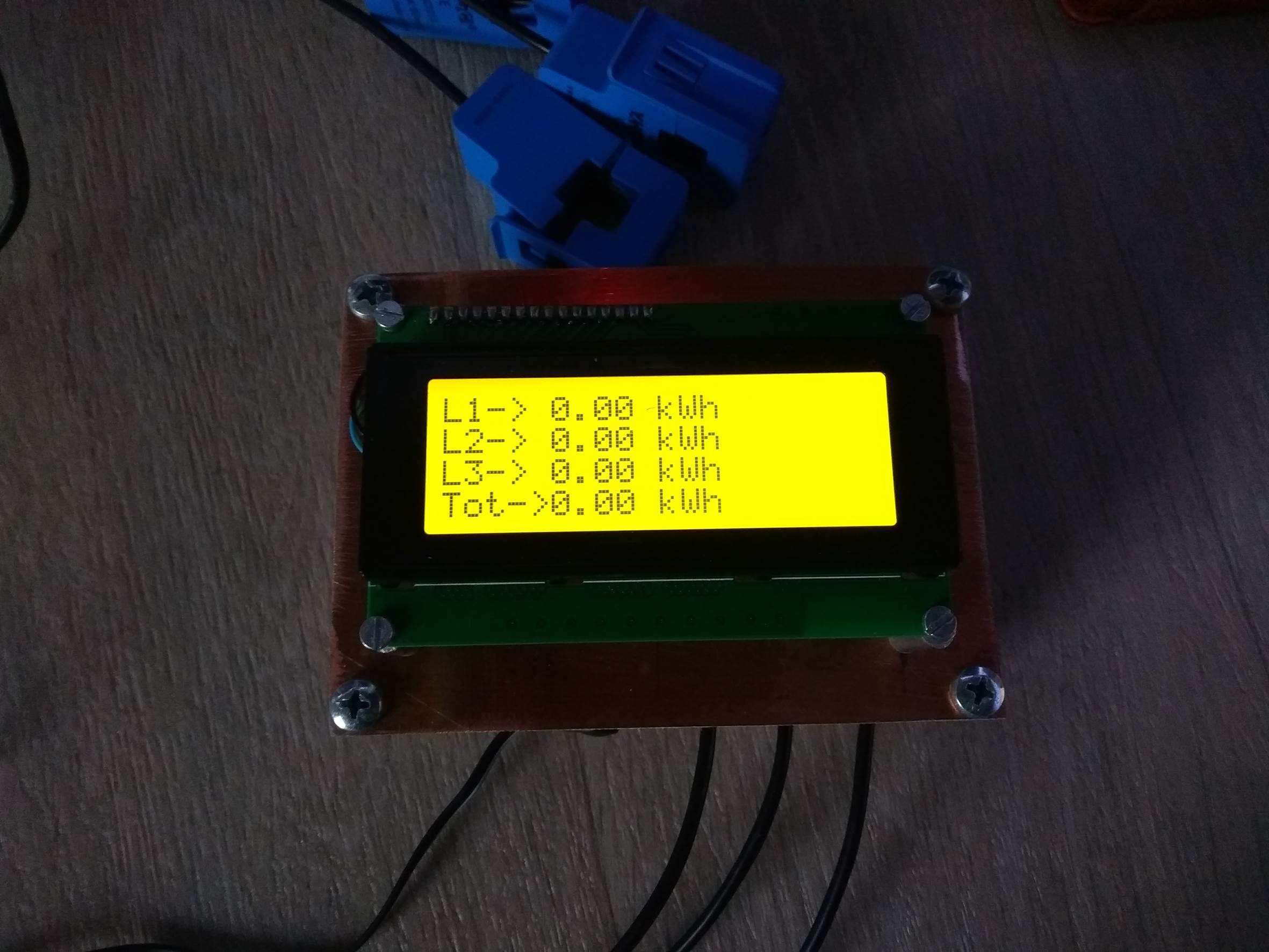
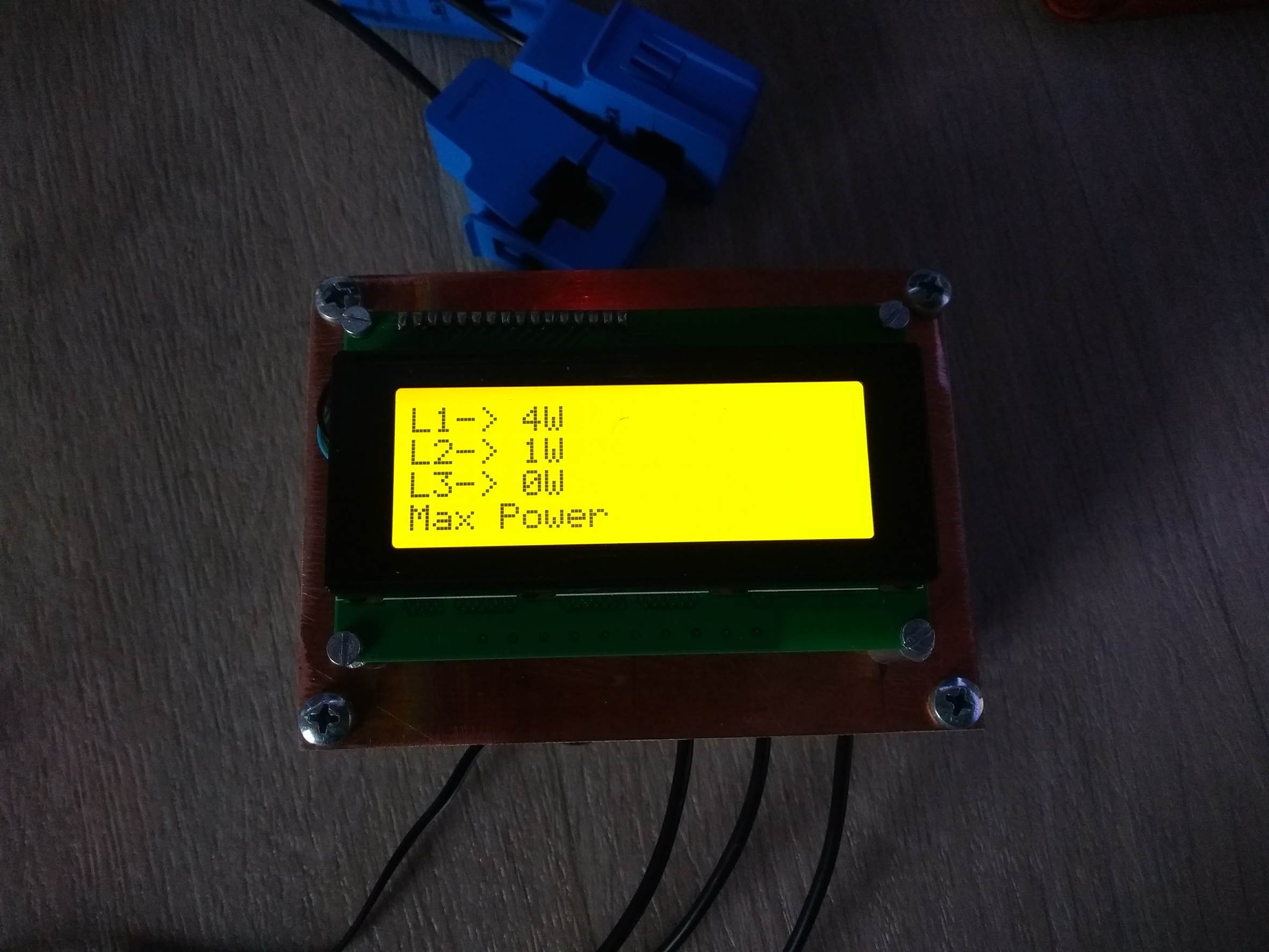
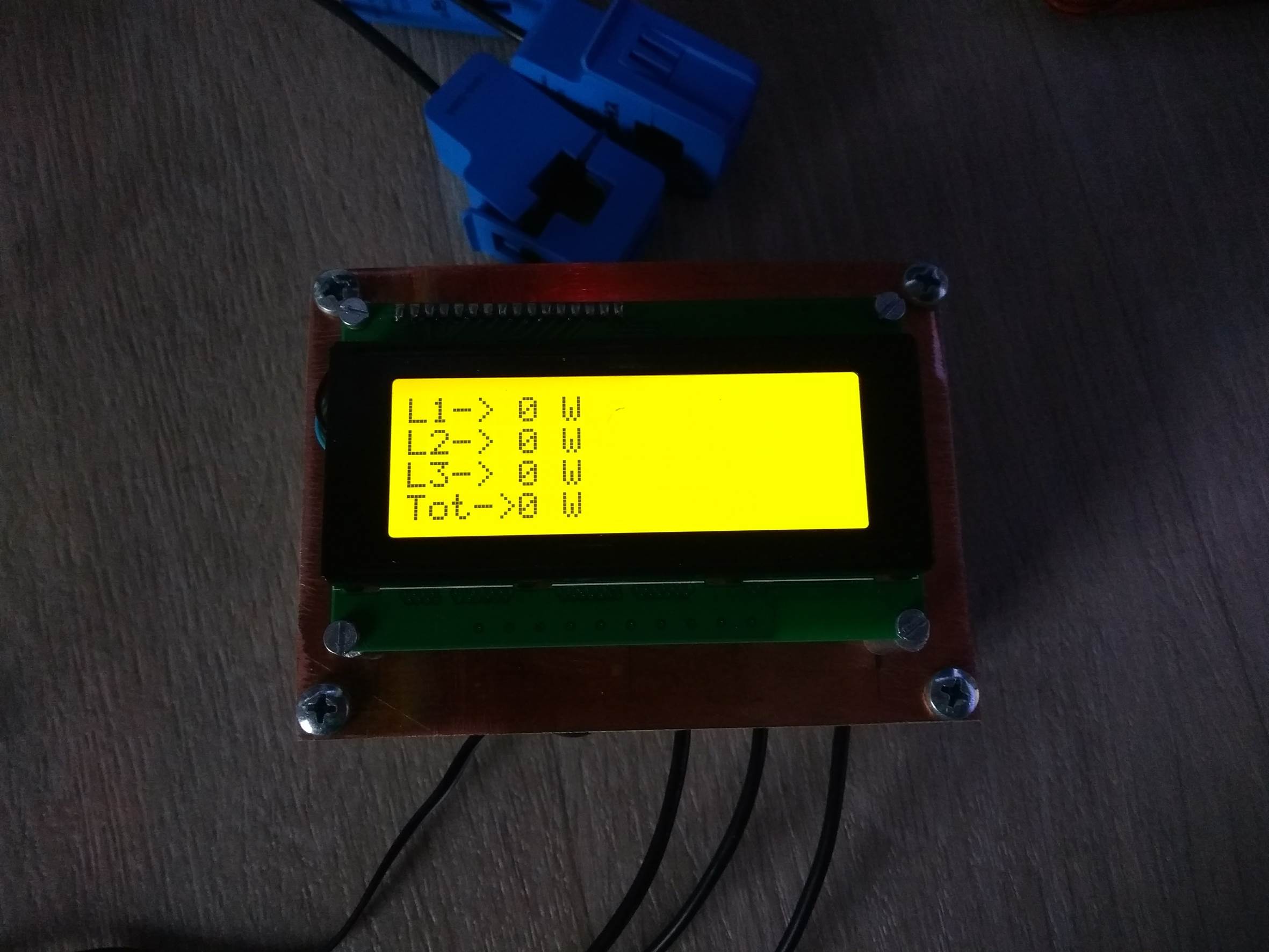
Once you have your energy meter calibrated and the scaling factors have been uploaded onto the Ardunio, your meter should be ready to connect and leave to monitor your energy consumption. Here are some photos of Filips completed energy meter in operation.

Simple 3 Phase Arduino Energy Meter kWh Screen

Simple 3 Phase Arduino Energy Meter

Simple 3 Phase Arduino Energy Meter Total Power Screen

How did this project go for you? What have you used it to monitor? If you have any questions or would like to share your build of this three phase energy meter, please post a comment below or send a mail using the contact form.

How To Make Your Own Xduino Board

This guide takes you through all of the steps required to make your own Xduino board for your own custom projects. I had a project which required an Arduino board to control four servos. I considered using the Seeeduino Lotus because it had a number of Grove ports and I thought it might be convenient for my servo project. Unfortunately, there were a two major problems with using the Seeeduino Lotus:

  • The servos draw too much current from the board’s power supply which caused the board to reboot unexpectedly.
  • The cabling to the servos was a mess as the three pins on each servo had to be wired to different places on the board.

I therefore decided to build my own Arduino board for the project. I decided to call it Servoduino since it would be primarily used to control servos. The board would have the following features:

  • Arduino compatible and easy to program
  • Direct plug in for 8 servos
  • A strong enough power supply to drive the 8 connected servos

Initially, it seemed difficult and expensive to build my own Arduino board, but then I found out about Seed Fusion. They offer PCB and PCBA manufacturing and fabrication which is affordable, quick and of good quality.

Steps To Building Your Xduino

  • List Features Required By Your Xduino
  • Select Components
  • Draw Up A Schematic
  • Design The Component Layout
  • Manufacture The PCB and do PCBA
  • Upload The Bootloader
  • Upload The Servo Control Code

List the Features Required by your Xduino

To start with, you need to know what you’d like your Xduino to be able to do. You need to list the interfaces, number and type of inputs and outputs etc. Here is a list of the requirements for my Servoduino.

  • Arduino Compatible & Easy To Program
  • 8 Servo Connectors – 3 Pins Each
  • A Power Supply Sufficient For 8 Servos
  • 9-12V Input Power
  • Micro USB Programming

Selecting Components

Once you’ve decided on what you’d like your Xduino board to be able to do, you’ll need to choose your major components in order to enable this. The most important part of any Xrduino board is the MCU. For this, I have chosen to use the ATmega328P chip. For the USB to UART part, we commonly use the ATmega16u2 chip. Finally, for the power supply, we will need a strong DC-DC supply chip. I’ve chosen to use the MP1496DJ-LF-2 chip which is able to produce 2A current with a 4.5V-16V input voltage.

Draw Up A Schematic

For the schematic design, I’ve chosen to use Autodesk EAGLE. There are a large number of open source hardware projects which have been designed using EAGLE, it’s easy to use and the free version has enough functionality to suite most people’s requirements. You can download a free version of Autodesk EAGLE here.

If you have not used EAGLE before, then here is a nice guide to get started.

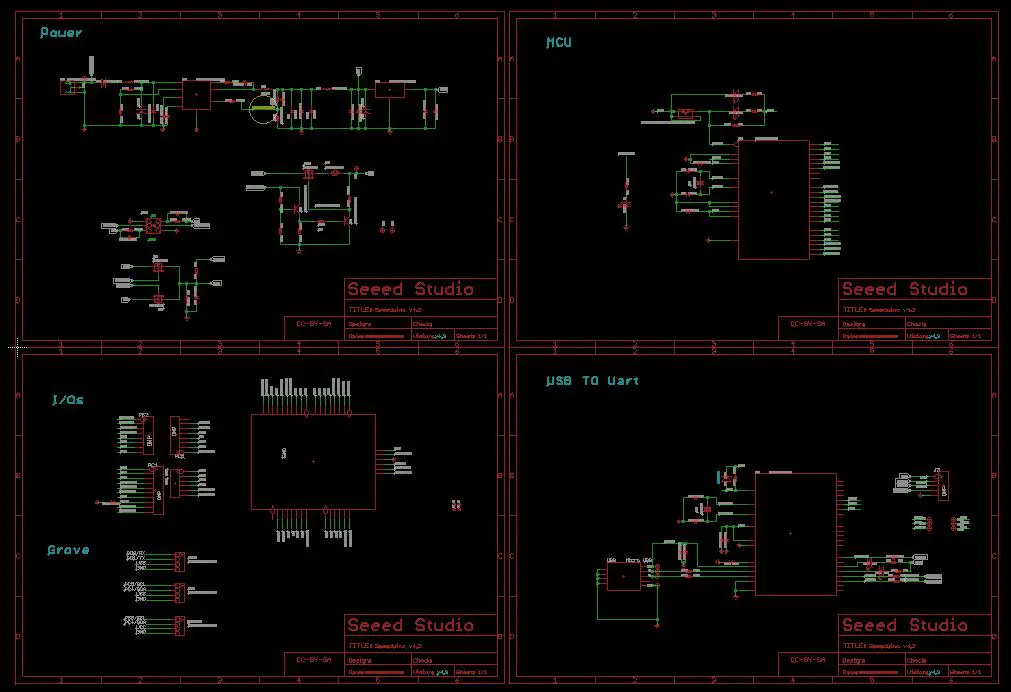
Thanks to the open source EAGLE platform, I don’t have to design the board from scratch, I can choose a similar design and modify it to suite my requirements. I decided to design my Servoduino based on Seeeduino v4.2, which also has an ATmega328P and ATmega16u2 chip and is more stable than the Arduino UNO R3. I downloaded the schematic for the Seeeduino v4.2 from Seeed’s Wiki.

I opened the schematic and found that I didn’t have to change too many things.

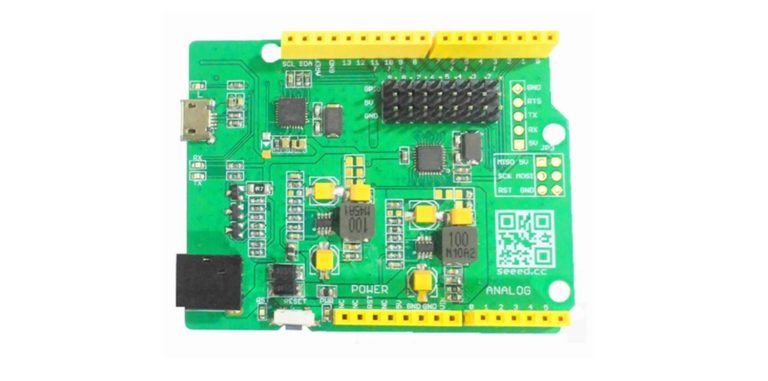
Seeeduino Board Schematic

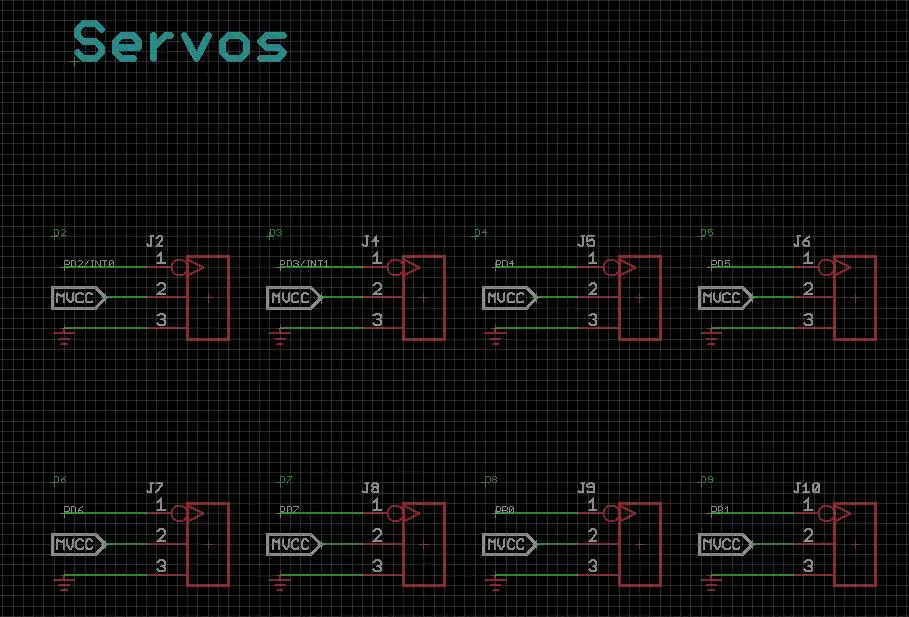
Firstly, I needed to add the 8 3-pin headers for servo plugs. The 3 pins of the header are the VCC (5V), GND and SIG (PWM signal). The VCC pins will be connected directly to the second power chip and the SIG pins will be connected to D2-D9 of ATmega328P.

Servo Connector Pin Headers

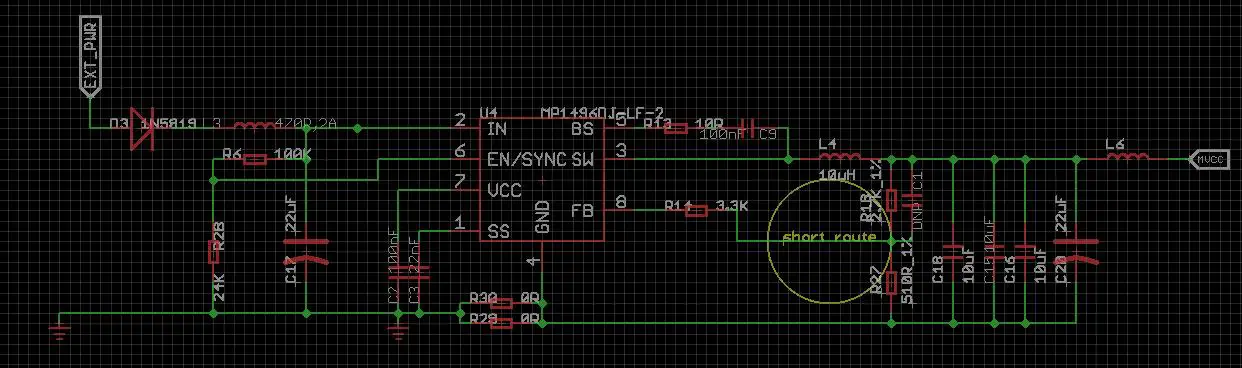
Secondly, I added another MP1496DJ-LF-2 DC-to-DC chip to power the servos. The MVCC net is only for the servos and would not affect the system power supply.

Additional Power Supply Schematic

I also deleted the 3 Grove ports on Seeeduino because I would not need them.

I used as many parts as possible from the Seeed Open Parts Library throughout the design, this would enable me to make used of their PCBA service.

Design The Component Layout

Now that I have completed the schematic design, I could design the PCB layout. In this step, you could either make use of the CAD software to design your layout and base it upon an existing Arduino board or you could make use of a PCB layout services. I sent my schematic through to Seeed and they did my PCB layout for me.

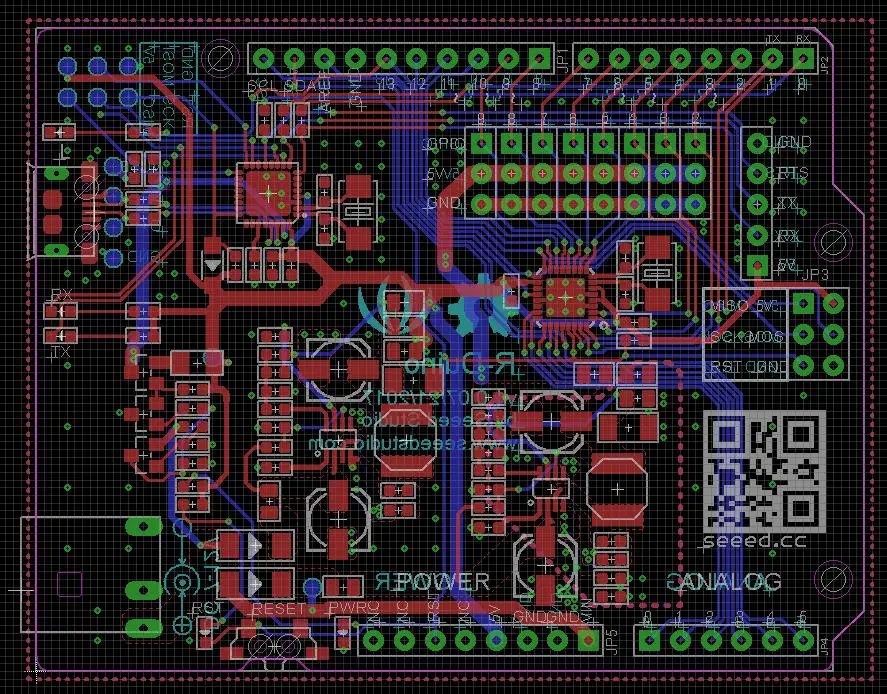
Servoduino PCB Layout Design

Manufacture The PCB and do PCBA

Once your layout is complete, you’ll need to generate your Gerber files for manufacturing the PCB. You’ll then need to find a manufacturer who will be able to produce your board.

I chose to use the Seeed Fusion PCB service, they charged me $4.90 for 10 boards (10cm x 10cm in size) and provided me with great technical support and documentation.

Once you have received your completed boards, you’ll need to buy components and solder the boards. Here, again, I decided to use the Seeed Fusion PCBA service to assemble my boards. They charge a single fee of $25 to set up. Because I used parts from the Seeed Open Parts Library, the delivery time was only 7-15 days.

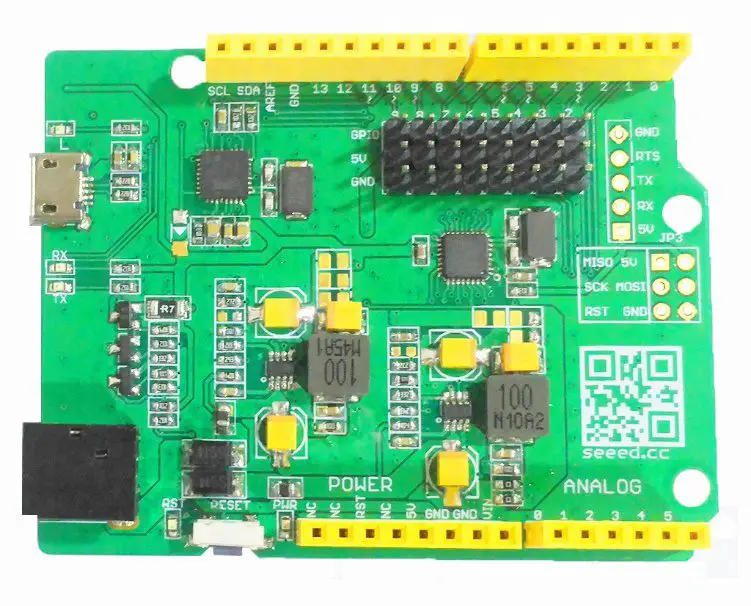
Servoduino PCB Complete

All you need to order your boards is to go to their website, uploaded the Gerber files and your bill of materials and then make the payment to them, it is that easy.

Upload The Bootloader

Now that your boards are complete, you’ll need to program them. The first step is to upload the bootloader to Servoduino using a AVR ISP (In-System Programmer). If you don’t have a AVR ISP, you can use any Arduino/Seeeduino board as an AVR ISP to upload bootloader to your Xduino by following these steps:

  1. Download the code
  2. Upload the code to your Arduino/Seeeduino board you are using as an AVR ISP
  3. Connect the two boards as in the list below:
    1. Seeduino/Arduino D11 – Servoduino/Xduino D11
    2. Seeduino/Arduino D12 – Servoduino/Xduino D12
    3. Seeduino/Arduino D13 – Servoduino/Xduino D13
    4. Seeduino/Arduino D10 – Servoduino/Xduino RST
    5. Seeduino/Arduino 5V – Servoduino/Xduino 5V
    6. Seeduino/Arduino GND – Servoduino/Xduino GND
  4. Open the Serial Monitor in Arudino IDE, type “U”, and then ”G”. If it doesn’t raise any errors, then the upload is successful.

Upload The Servo Control Code

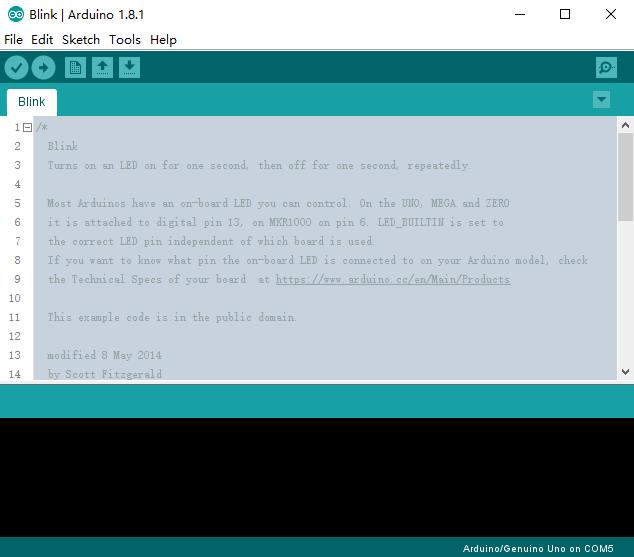
Now that the bootloader has been uploaded, you can try and upload your first program using the Arduino IDE. Select “Arduino UNO” in the Tools>Boards menu and select the correct COM port before uploading. To start with, try and upload the Blink example code built into the Arduino IDE.

Servoduino Blink Test Code

Once you’ve connected power to the board and attempted to upload your test code, you may run into a problem as listed below:

  • Can’t find the COM Port after connecting the board
  • Upload fails
  • The board gets hot

These cases are almost always caused by bad soldering, check the board carefully if any of these happen. If you run the blink example and it works well, you can move onto uploading your servo code.

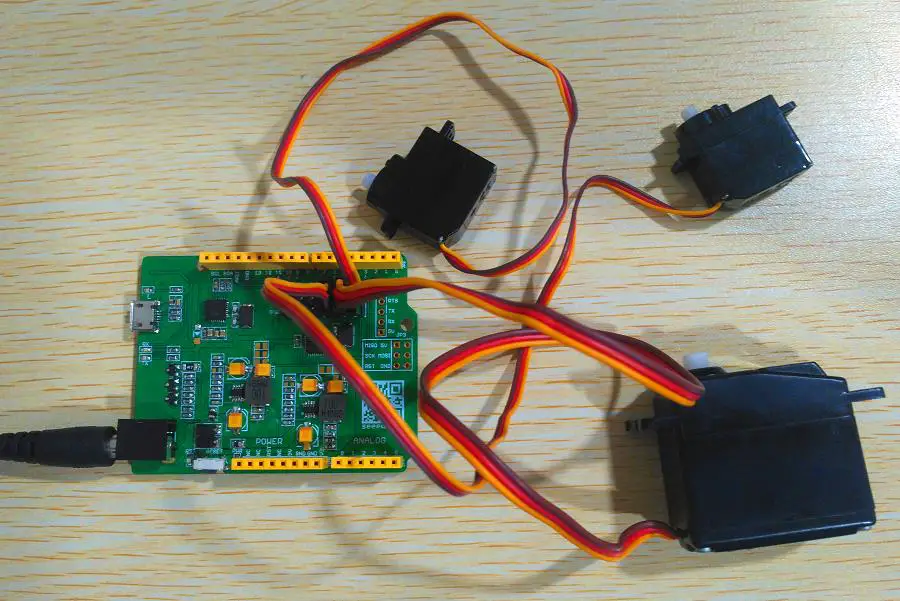
Four servos were attached to the Servoduino board and the following code was uploaded.

/* Sweep
 by BARRAGAN <http://barraganstudio.com>
 This example code is in the public domain.

 modified 8 Nov 2013
 by Scott Fitzgerald
 http://www.arduino.cc/en/Tutorial/Sweep
*/

#include <Servo.h>

Servo myservo;  // create servo object to control a servo
// twelve servo objects can be created on most boards

int pos = 0;    // variable to store the servo position

void setup() {
  myservo.attach(9);  // attaches the servo on pin 9 to the servo object
}

void loop() {
  for (pos = 0; pos <= 180; pos += 1) { // goes from 0 degrees to 180 degrees
    // in steps of 1 degree
    myservo.write(pos);              // tell servo to go to position in variable 'pos'
    delay(15);                       // waits 15ms for the servo to reach the position
  }
  for (pos = 180; pos >= 0; pos -= 1) { // goes from 180 degrees to 0 degrees
    myservo.write(pos);              // tell servo to go to position in variable 'pos'
    delay(15);                       // waits 15ms for the servo to reach the position
  }
}

When the upload was complete, the four servos moved as per the code.

Servoduino with Servos Connected

I can now use my Servoduino to complete my project, please visit my Instructables page to see me projects. My project is currently still made with Seeeduino Lotus but I will publish a new project based on my Servoduino soon.

Connecting An Ultrasonic Sensor To An Arduino

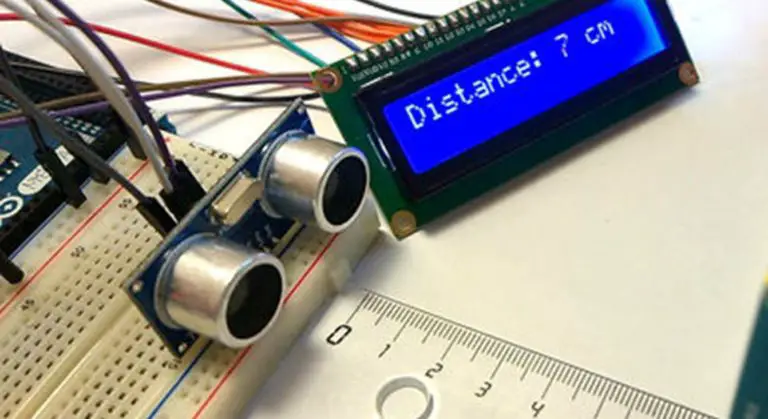
In this project, we will connect an ultrasonic sensor (HC-SR04) to an Arduino and use it to display a measurement on the serial monitor and then an LCD screen. This covers both the physical connections and the programming required to get the ultrasonic sensor to work. If this is your first project then we recommend that you familiarise yourself with programming an Arduino and connecting an LCD to an Arduino.

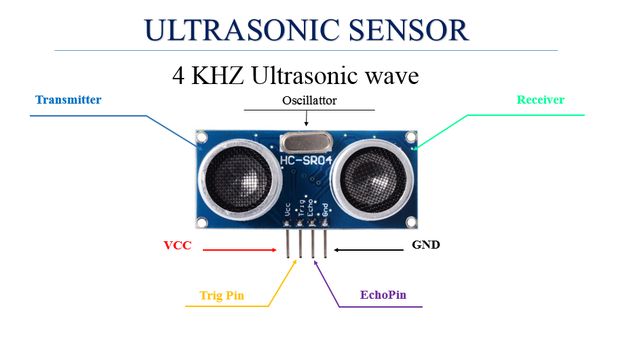
We will be using the HC-SR04 sensor (buy here). The sensor has four pins, the VCC and GND pins for power supply and the trig and echo pins for signal information. The sensor also has an ultrasonic transmitter and receiver with an oscillator to generate a 4 Khz Ultrasonic sound that allows you to measure distances up to 2 meters.

hc-sr04 ultrasonic sensor diagram

The sensor works by creating a 10 microsecond pulse and then measuring the duration taken by that pulse to reach the object then bounce back. Knowing the speed of sound in air, we can then calculate the distance of the object which reflected the pulse. Remember that the pulse travels to the object and then back again so we need to divide the time by two to calculate the distance.

What You’ll Need To Connect An Ultrasonic Sensor To An Arduino

  • Arduino (Uno Used in this Example) – Buy Here
  • HC-SR04 Ultrasonic Sensor – Buy Here
  • Breadboard – Buy Here
  • Jumper Wires – Buy Here
  • Optional – LCD Screen (Hitachi HD44780 Driver) – Buy Here
  • Optional – 10K Potentiometer (To change contrast) – Buy Here
  • Optional – 220Ω LED Backlight Resistor – Buy Here

How To Connect An Ultrasonic Sensor To An Arduino

Assembling The Circuit – Serial Monitor

The ultrasonic sensor has four pins, the first one is the GND pin, the second is the echo pin, we will read the reflection signal from it. Then we have the trig pin which we’ll use to transmit the ultrasonic wave and the last pin is Vcc which is used to provide 5V to power the sensor.

Ultrasonic Sensor Serial Monitor

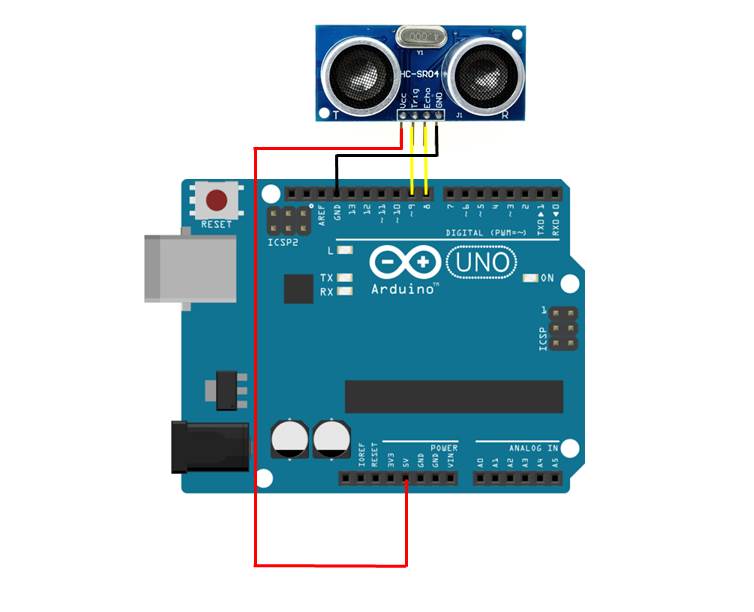
Plug the sensor into your breadboard and then use the jumpers to connect the GND pin to 0V/GND and the Vcc pin to 5V. Make sure that you plug in leads from the Arduino to your 0V and 5V tracks as well.

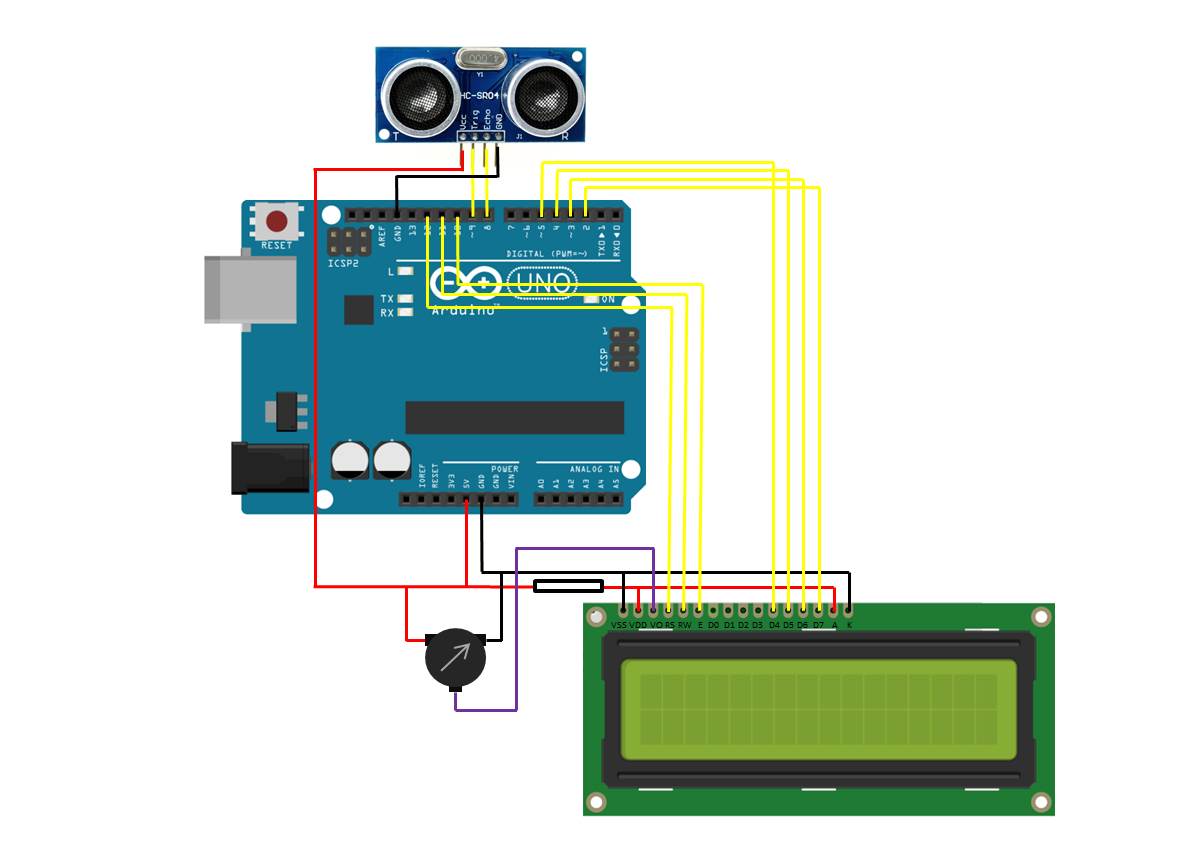
Next connect the Trig pin to the Arduino digital pin 9 and the Echo pin to the Arduino digital pin 8.

Assembling The Circuit – LCD Display

If you’d like to display the distance measurement on an LCD display, connect the ultrasonic sensor as per the above arrangement.

Ultrasonic Sensor LCD Panel

Now connect the LCD screen as per the instructions in our guide on connecting an LCD to an Arduino.

Programming The Arduino

Displaying The Distance On The Serial Monitor

Now you can begin the coding. For the first example, we will display the measurement taken from the ultrasonic sensor on the Serial monitor facility.
// Michael Klements
// Ultrasonic Sensor
// 24 August 2017
// www.the-diy-life.com

int triggerPin = 9;      //Define IO pins
int echoPin = 8;

long duration;
double distance;

void setup()
{
  pinMode(trigerPin, OUTPUT);   //Define pin
  pinMode(echoPin, INPUT);
  Serial.begin(9600);           //Starts the serial communication
}

void loop()
{
  digitalWrite(triggerPin, LOW);   //Reset the trigger pin
  delay(1000);
  digitalWrite(trigPin, HIGH);     //Create a 10 micro second pulse
  delayMicroseconds(10);
  digitalWrite(trigPin, LOW);
  duration = pulseIn(echoPin, HIGH); //Read the pulse travel time in microseconds.
  distance= duration*0.034/2;        //Calculate the distance - speed of sound is 0.034 cm per microsecond
  Serial.print("Distance: ");        //Display the distance on the serial monitor
  Serial.println(distance);
}

You can also download the code here – UltrasonicSerialMonitor

First you have to define the Trigger and Echo pins. In this case they are the pins number 8 and 9 on the Arduino Board and they are named triggerPin and echoPin. Then you need a Long variable, named “duration” for the travel time that you will get from the sensor and a double variable for the distance which is measured in centimeters.

In the setup you have to define the triggerPin as an output and the echoPin as an Input and also start the serial communication to display the results on the serial monitor.

The code then runs through a continuous loop where the trigger is reset, the program waits one second and then creates a 10 microsecond pulse. The time it takes the pulse to return is then measured and this is used to calculate the distance. If the object is 10 cm away from the sensor, and the speed of the sound is 340 m/s or 0.034 cm/µs the sound wave will need to travel for 294 u seconds. But the time you will measure from the Echo pin will be double that because the sound wave needs to travel forward and be reflected backward. In order to get the distance in cm we need to multiply the measured travel time from the echo pin by 0.034 and then divide it by 2.

The result is then sent to the serial monitor. The serial monitor will display a newly measured distance every 1 second.

Displaying The Distance On An LCD Screen

In the second example, we will display the measured distance on an LCD screen which is connected to the Arduino.

// Michael Klements
// Ultrasonic Sensor
// 24 August 2017
// www.the-diy-life.com

#include <LiquidCrystal.h>

LiquidCrystal lcd(12, 11, 10, 5, 4, 3, 2);  //Assign the LCD screen pins

int triggerPin = 9;      //Define IO pins
int echoPin = 8;

long duration;
double distance;

void setup()
{
  pinMode(trigerPin, OUTPUT);   //Define pin
  pinMode(echoPin, INPUT);
  lcd.begin(16,2);              //Start the LCD screen, define the number of characters and rows
  lcd.clear();                  //Clear the screen
  lcd.setCursor(0,0);           //Set the cursor to first character, first row
  lcd.print("Distance:");        //Display this text
}

void loop()
{
  digitalWrite(triggerPin, LOW);   //Reset the trigger pin
  delay(1000);
  digitalWrite(trigPin, HIGH);     //Create a 10 micro second pulse
  delayMicroseconds(10);
  digitalWrite(trigPin, LOW);
  duration = pulseIn(echoPin, HIGH); //Read the pulse travel time in microseconds.
  distance= duration*0.034/2;        //Calculate the distance - speed of sound is 0.034 cm per microsecond
  lcd.setCursor(0,1);               //Set cursor to column 0, row 1
  lcd.print(distance);                     //Display the distance
  lcd.print(" cm");
}

You can also download the code here – UltrasonicLCD

Once you’ve got the basics working, you can try changing the measurement units and experiment with different timing. You could also mount the ultrasonic sensor onto a servo and rotate it to get measurements all around your Arduino.

If you have any questions or comments, please leave them in the comments section below.

Safely View The Solar Eclipse With A Homemade Pinhole Projector

If you’ve left it too late to get a pair of safety glasses to safely view the solar eclipse, here’s a quick any easy projector you can make. The projector uses a pinhole to project and image of the sun (and eclipse) onto the lid of an old chip/pringles container, a slot on the side enables you to view it. This is also one of the safest ways to view the eclipse as you’re never looking directly at the sun!

This article is based on Solar Eclipse Pinhole Projector by Potternum1 and is modified and used under the Creative Commons 2.5 license CC BY NC SA.

What You’ll Need To Build Your Own Solar Eclipse Pinhole Projector

  • An Old Chip/Pringles Tube
  • A Sheet Of White Paper
  • Matt Black Spray Paint
  • Small Drill & Drill Bit
  • Scissors
  • Measuring Tape or Ruler
  • Some Newspaper To Paint On

How To Make Your Own Solar Eclipse Pinhole Projector

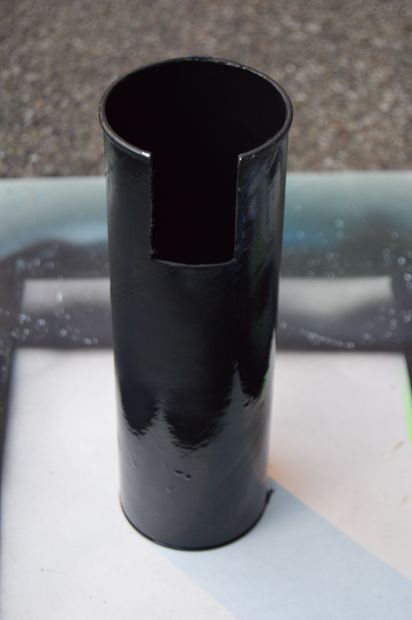
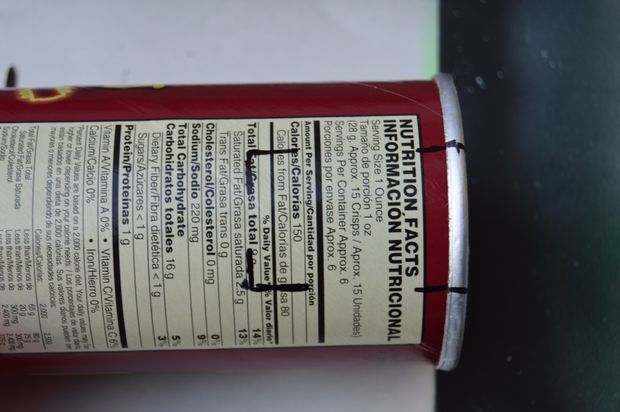
To start off, you’ll need to cut a slot into the side of the container to view the screen. Mark off a 5cm (2″) x 3.5cm (1.5″) rectangle on the side of the container near the open end.

marking the pringles container

Use a sharp pair of scissors or a dremel to cut the marked area out.

cutting a section out of the pringles container

Place the empty tube on a piece of news paper and paint spray the inside black. You can also paint the outside black as well but the inside is the important part. You don’t need to paint the bottom of the tube of the lid.

paint the container black

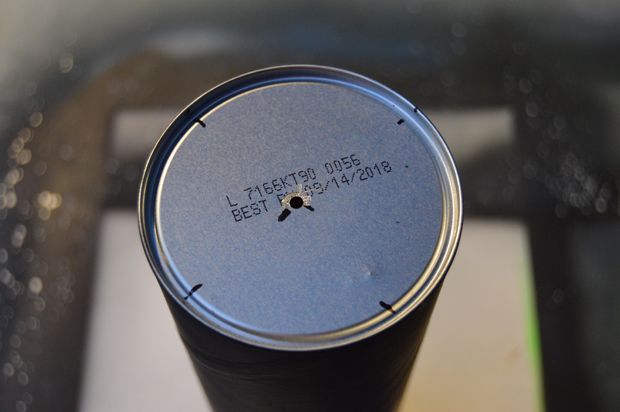
Once the paint has dried, mark the end of the tube in the centre.

drill a holde in the top

Now find the smallest drill bit you have 1-2mm (3/64-7/64″) works well. Drill a small hole where you have marked the centre point. This is where the light form the sun and eclipse is going to enter your tube projector.

hole drilled in the top

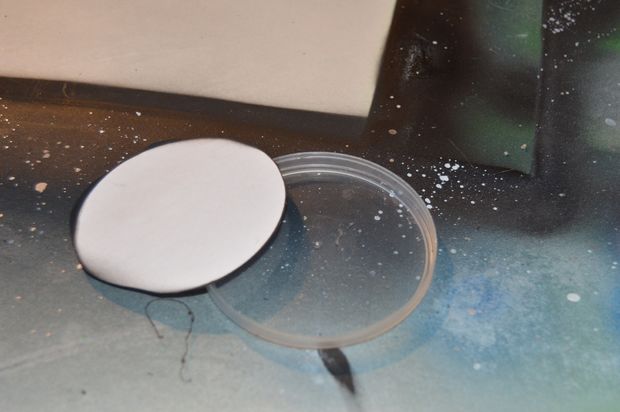
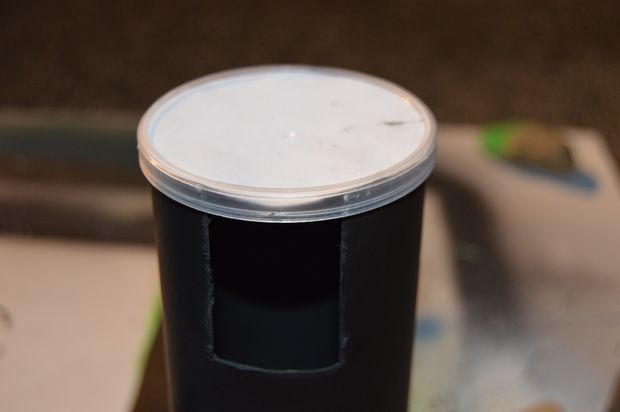
Now you need to cut a circle of white paper to fit snugly inside the lid of your tube. Place the lid onto the piece of paper and trace around the outside with a pencil then use your scissors to the circle out. Press the circle of paper into the lid and put it back onto the tube.

turn the lid into a projector screen

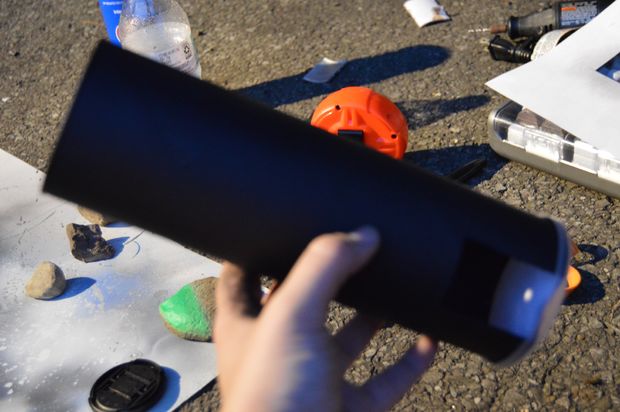
Your projector is now ready to be used. You can test it out with a light bulb. Your projected image will be visible on the screen through the side of the tube.

assemble the projector

solar eclipse pinhole projector complete

You can also experiment with different length tubes. A longer tube, such as those used for shipping drawings and documents should yield a larger image.

If you enjoyed this article, have a look at these 10 Best DIY Solar Panel Tutorials or find out how to build your own DIY Solar Tracker to track the sun and get more power out of your solar panels.


Off Grid Van or RV Power Information System

This off grid solar power information system is perfect for your van or RV. It gives you a complete view of your Van’s power consumption and solar panel generation, it also predicts how long your batteries are going to last for and how much power is being generated by your solar panels.

A quick look at the indicator lights tells you when your solar panels are charging your batteries, when they are generating more power than you are using as well as when your batteries are almost flat. An alarm sounds if your batteries are then further discharged to the point where they are at risk of being damaged.

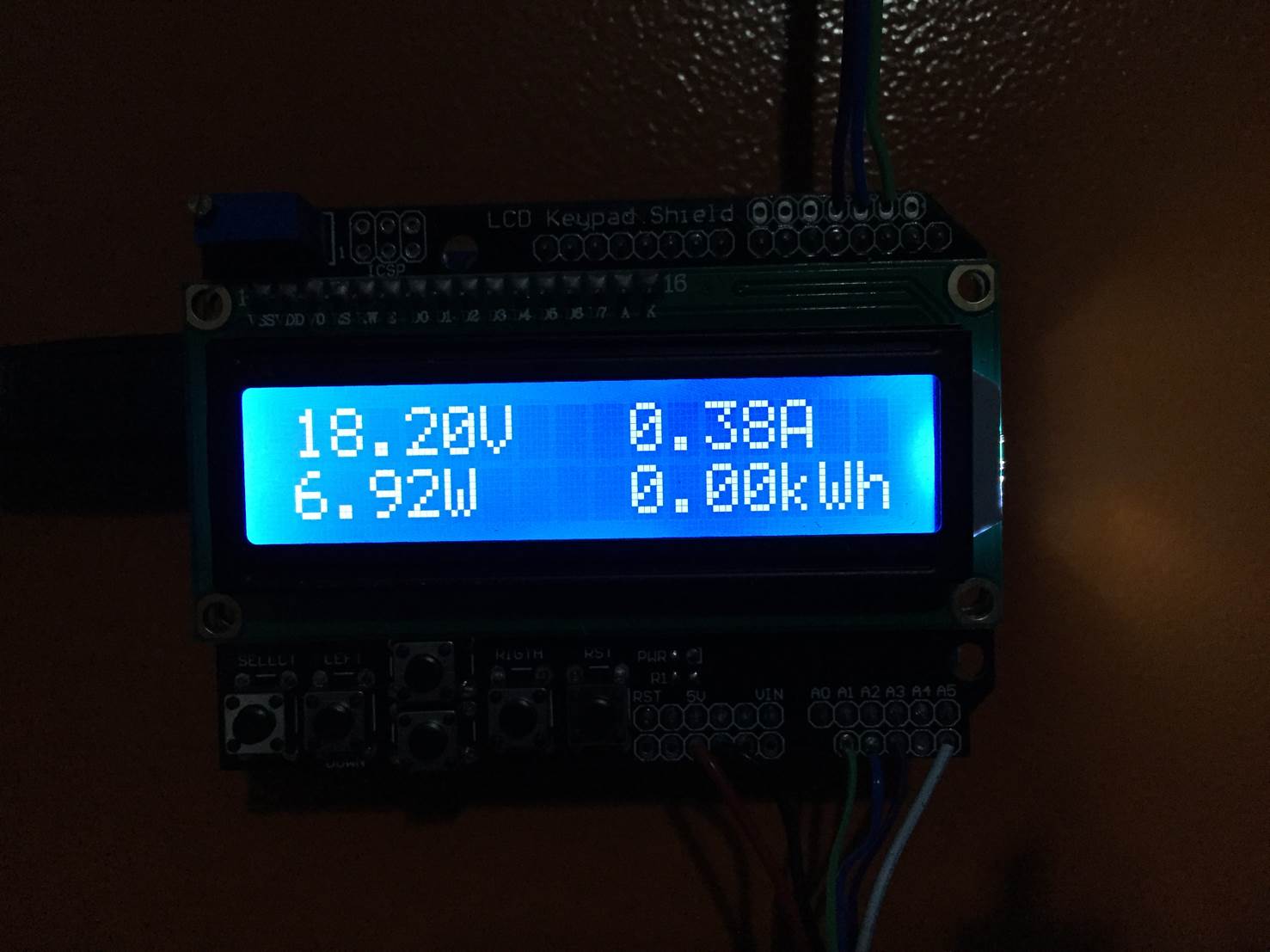
The LCD provides you with detailed information on how much power your batteries have stored, how much is being used, how much is being generated by your solar panels and how long your batteries will last for.

If you’d like to build and energy monitor for your home or other AC installation, here is a simple Arduino based home energy meter.

The circuit is really simple to assemble and doesn’t require much soldering, it can be assembled on a breadboard if you are not confident soldering. You will need to know the basics of programming an Arduino, if you haven’t done this before – here is a useful guide to getting started with Arduino. You will also need to know roughly how to connect an LCD screen to an Arduino.

What You Will Need To Build The Power Information System

How To Make The Power Information System

The control system consists of two separate parts, the power sensing circuits and the feedback and display circuits. It may be useful to separate the two within your van if your batteries and solar panel inputs are kept away from where you’d like the information displayed. This is easily done using a length of 6 core intercom or alarm wire between the sensors and your Arduino box.

The power sensing circuits for the battery and solar panel each consists of a voltage sensor and a current sensor, these two measurements combined are required to calculate the power consumption, battery life, time left etc.

The feedback circuits provide you with information on the system and includes the LCD shield which is mounted on top of the Arduino as well as the indication LEDs and alarm.

Building The Circuits

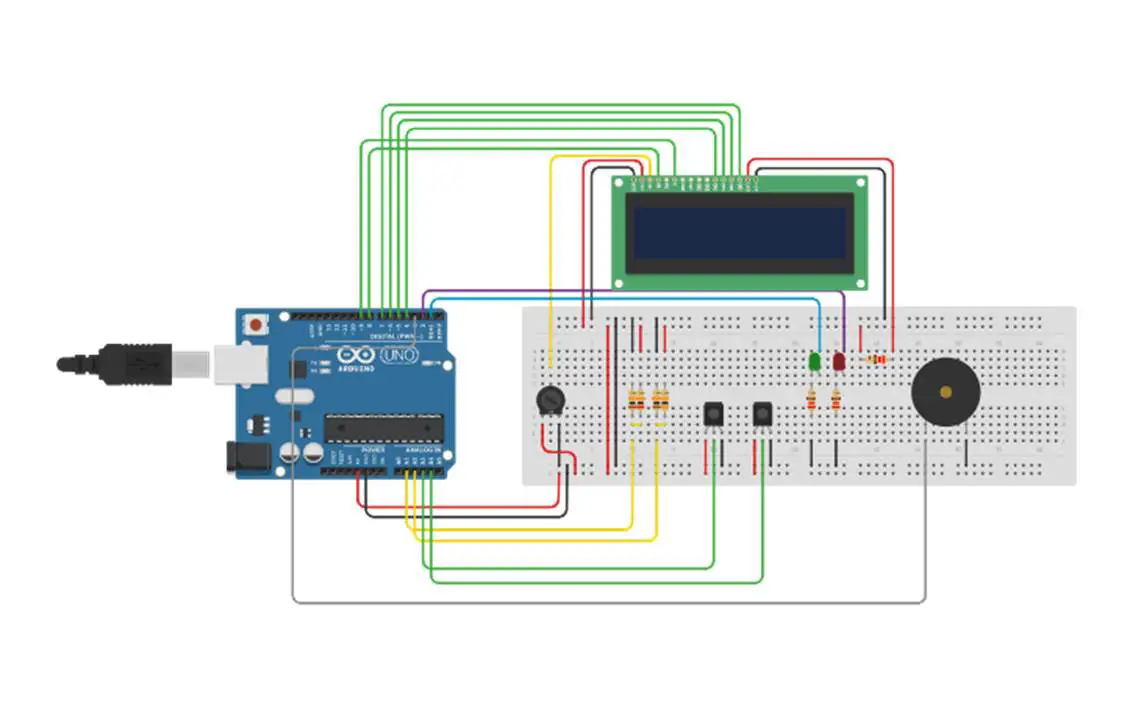
The complete circuit is shown in the diagram below. We will build the complete system up in stages in order for you to understand what each circuit is doing and how it should be connected.

Off Grid Power Information System Circuit Diagram

Voltage Measurement Circuits

For The Batteries

The first circuit is the voltage measurement from the battery which is done through a voltage divider circuit. The Arduino’s analogue inputs can only handle up to 5V and our batteries typically have a voltage of between 11.8V when empty and 14.7 volts when charging. We therefore need to scale this voltage down to under 5V so that we don’t damage the Arduino input.

Looking at the maximum voltage of the batteries during charge, 14.7V and the Arduino input voltage of 5V, you can see that the Arduino requires roughly a third of the charging battery voltage. This means that we will need a voltage divider in the ratio 1/3 to 2/3 which in turn means that we need the one resistor to be double the resistance of the second resistor. You also want the resistors to be of a reasonably high resistance to ensure that only a small amount of current flows through them otherwise you’re simply wasting energy in the form of heat. I’ve chosen to use a 20K and a 10K resistor as these provide round values in the exact ratio I need with a high resistance.

Simply connect the resistors as shown in the circuit diagram with the centre point of the voltage divider connected to the Arduino analogue input 1 and the two legs of the bridge connected to the positive and negative terminals of the battery. Make sure you have the positive and negative on the correct side of the bridge otherwise you scale will be 0-10V instead of 0-5V which will damage the Arduino. The lower value resistor must be connected to the negative terminal of the battery and the higher value resistor to the positive terminal on the battery.

For The Solar Panels

The voltage coming from your solar panels is measured in much the same way as the battery voltage expect that the solar panels typically produce a higher voltage than your battery voltage. Most solar panels have an output voltage of 18V, this also needs to be scaled down to 5V for the Arduino’s analogue inputs.

Using the same calculation as above, the scaled voltage is now roughly a quarter of the solar panel voltage so we will need one resistor to be three times the resistance of the other resistor. If we again use a 10K resistor, we will need a 30K resistor as the second resistor to divide the voltage to give us the correct scaling.

Connect the resistors as shown in the diagram, again with lower value resistor connected to the negative lead from the solar panel, the higher value resistor to the positive solar panel lead  and the centre point connected to the Arduino analogue input 2.

Current Measurement Circuits

Current Being Drawn From The Batteries

The current sensing is done using the ACS712 sensor which can measure up to 30A. This equates to roughly 350W so if you expect to have a peak power consumption of higher than 350W then you’ll need to choose a sensor which can measure higher current or alternately split up your circuits into lighting, chargers, plugs etc each with their own sensor.

The sensor connection is straightforward, it is powered directly from the Arduino using the GND and VCC/5V pins and the OUT pin is connected to the Arduino analogue input 3. The sensor terminals are then connected in series with your load onto the supply lead from your battery.

As mentioned above, you could also get more functionality out of the power meter by installing a current sensor onto each of your power circuits. For example you could have one sensor on your lighting circuit, one on your 12V charger circuit and one on your AC inverter circuit. Each of the sensors would then be connected to their own Arduino analogue input.

Current Being Supplied By The Solar Panel

As we’ve done above for the batteries, we can connect a current sensor in series with the supply from the solar panel before it goes into the solar charge controller. The output from the sensor is then connected to one of the Arduino analogue input 4.

Feedback Circuits

The feedback from the Arduino is done through an LCD which is mounted onto an Arduino shield as well as two LEDs and an alarm.

The LCD shield can simply be plugged on top of the Arduino and provides all of the functionality required to drive the LCD. The contrast may require some adjustment in order to see the text clearly on the screen.

The LCD shield uses the following pins, the rest are available for your sensors and feedback circuits:

  • Analogue 0
  • Digital 4
  • Digital 5
  • Digital 6
  • Digital 7
  • Digital 8
  • Digital 9
  • Digital 10

The LEDs are connected in series with a 220Ω resistor and are each connected to a free digital output pin. The green LED is used to indicate when the solar panels are providing more power than you are using in your van, the batteries are therefore being charged. The red LED is used as an indication that the battery is running low and you should limit your power usage or charge the battery.

The buzzer is connected to the Arduino in a similar way to the current sensors. You will need to connect the GND and VCC pins to the Arduino GND and 5V pins and the input pin to one of the unused Arduino outputs.

Your circuits are now all complete and you can move on to programming the Arduino.

Uploading The Sketch

Now you can upload your sketch onto your Arduino, if you haven’t uploaded a sketch before then follow this guide on getting started.

//Michael Klements
//The DIY Life
//7 July 2017

#include <LiquidCrystal.h>

int battVoltPin = 1;                //Assign battery voltage to pin 1
int solVoltPin = 2;                 //Assign solar panel voltage to pin 2
int battCurrentPin = 3;             //Assign battery current sensor to pin 3
int solCurrentPin = 4;              //Assign solar panel current sensor to pin 4
int greenLEDPin = 1;                //Assign green LED to pin 1
int redLEDPin = 2;                  //Assign red LED to pin 2
int alarmPin = 3;                   //Assign alarm to pin 3
double batteryKWH = 0;
double solarKWH = 0;
int battCapacity = 105;             //The battery's usable capacity in Amp Hours

unsigned long startMillis;          //Variables to track time for each cycle
unsigned long endMillis;

LiquidCrystal lcd(8, 9, 4, 5, 6, 7);  //Assign LCD screen pins, as per LCD shield requirements

void setup() 
{ 
  pinMode(greenLEDPin, OUTPUT);  //Define the pin functions
  pinMode(redLEDPin, OUTPUT);
  pinMode(alarmPin, OUTPUT);
  lcd.begin(16,2);              //Start the LCD, columns, rows.  use 16,2 for a 16x2 LCD, etc.
  lcd.clear();
  lcd.setCursor(0,0);           //Set cursor to column 0, row 0 (the first row)
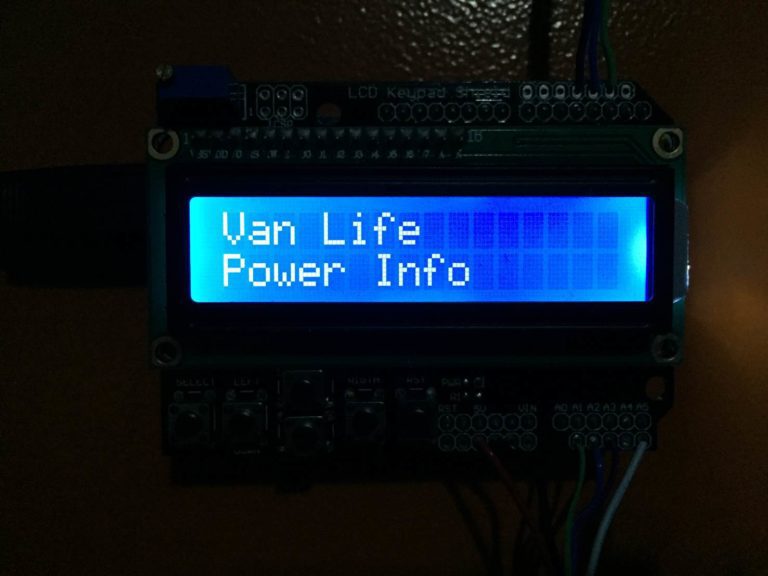
  lcd.print("Van Life");
  lcd.setCursor(0,1);           //Set cursor to column 0, row 1 (the second row)
  lcd.print("Power Info");
  startMillis = millis();
}

void loop() 
{ 
  double battVoltage = 0;
  double battCurrent = 0;
  battVoltage = 15*analogRead(battVoltPin)/1023;            //Read the battery voltage
  battCurrent = 30*(analogRead(battCurrentPin)-511)/512;    //Read the battery current
  double battPower = battVoltage*battCurrent;
  double solarVoltage = 0;
  double solarCurrent = 0;
  solarVoltage = 20*analogRead(solVoltPin)/1023;            //Read the solar panel voltage
  solarCurrent = 30*(analogRead(solCurrentPin)-511)/512;    //Read the solar panel current
  double solPower = solarVoltage*solarCurrent;
  if(solPower>=battPower)                                   //If solar power is greater than power being drawn then battery is charging
  {
    digitalWrite(greenLEDPin, HIGH);
  }
  else
  {
    digitalWrite(greenLEDPin, LOW);
  }
  if(battVoltage<=12.10)                                    //Low voltage indication
  {
    digitalWrite(redLEDPin, HIGH);
    digitalWrite(alarmPin, LOW);
  }
  else if (battVoltage<=11.95)                              //Low voltage alarm
  {
    digitalWrite(redLEDPin, HIGH);
    digitalWrite(alarmPin, HIGH);
  }
  else
  {
    digitalWrite(redLEDPin, LOW);
    digitalWrite(alarmPin, LOW);
  }
  double battPercentage = 100*((battVoltage-11.9)/(12.7-11.9));  //Calculate battery percentage remaining
  double battTime = (battCapacity/battCurrent);               //Calculate battery time remaining
  endMillis = millis();
  unsigned long time = endMillis - startMillis;
  batteryKWH = batteryKWH + (battPower * (time/60/60/1000000));  //Calculate battery kWh used since start
  solarKWH = solarKWH + (solPower * (time/60/60/1000000));       //Calculate solar panel kWh generated since start
  startMillis = millis();
  delay (4000);
  lcd.clear();                  // Start updating display with new data
  lcd.setCursor(0,0);
  lcd.print("Battery");
  delay (1000);
  lcd.clear();
  lcd.setCursor(0,0);           // Displays all battery data
  lcd.print(battVoltage);
  lcd.print("V");
  lcd.setCursor(9,0);
  lcd.print(battCurrent);
  lcd.print("A");
  lcd.setCursor(0,1);
  lcd.print(battPower);
  lcd.print("W");
  lcd.setCursor(9,1);
  lcd.print(batteryKWH);
  lcd.print("kWh");
  delay (4000);
  lcd.clear();
  lcd.setCursor(0,0);           // Displays all battery capacity data
  if(solPower>=battPower)
  {
    lcd.print("Battery");
    lcd.setCursor(0,1);
    lcd.print("Charging");
  }
  else
  {
    lcd.print("Remaining ");
    lcd.print(battPercentage);
    lcd.print("%");
    lcd.setCursor(0,1);
    lcd.print("Time ");
    lcd.print(battTime);
    lcd.print("hrs");
  }
  delay (4000);
  lcd.clear();
  lcd.setCursor(0,0);
  lcd.print("Solar Panel");
  delay (1000);
  lcd.clear();
  lcd.setCursor(0,0);           // Displays all solar panel data
  lcd.print(solarVoltage);
  lcd.print("V");
  lcd.setCursor(9,0);
  lcd.print(solarCurrent);
  lcd.print("A");
  lcd.setCursor(0,1);
  lcd.print(solPower);
  lcd.print("W");
  lcd.setCursor(9,1);
  lcd.print(solarKWH);
  lcd.print("kWh");
}

Here’s a link to download the VanPowerInformation code.

Understanding The Code

The code is fairly simple and follows the standard Arduino sketch format. I will run through the simple things briefly and go into a bit more detail on the lines which do calculations to be displayed on the screen.

The first portion, lines 7 to 21 simply create the variables used in the code, assigns values (mostly pin numbers) and sets up the LCD pin arrangement. The battCapacity variable will need to be adjusted to suite your setup as this is the usable capacity of your battery. For example, if you have a 130 amp hour battery and you want to be able to discharge it to 20% then you have 104 amp hours of usable capacity.

The setup loop is run once when the Arduino is powered up and defines the pin modes as well as starts up the LCD communication time keeping millis function.

The loop function is then run continuously and does the calculations and updates the LCD each cycle.

The code first takes voltage and current measurements from the battery circuit and then from the solar circuit. In both cases the code is similar. The battery voltage measurement (line 41) takes a reading from the analogue pin and then scales the 0-1023 input to a 0-15V reading as this is the output our voltage divider provides.

The battery current measurement (line 42) takes a reading from the analogue pin, removes half of the scale because the current sensor reads 2.5V for zero current. and then scales the 0-511 input to a 0-30A reading as measured by the sensor.

The same two lines are repeated for the solar circuit with a scaling of 0-20V for the solar voltage measurement.

Power is then calculated for each circuit as the product of voltage and current.

The code then checks to see if the battery is charging, if the battery voltage is running low and if the battery voltage is critically low and switches the LEDs and alarm on or off accordingly.

The battery life remaining as a percentage is then calculated. Again, these values can be adjusted depending on the type of battery you are using. You may not want to discharge it below a certain voltage.

Energy used by the battery and supplied by the solar panels are then calculated as a product of the power being drawn and supplied and the time elapsed since the last measurement.

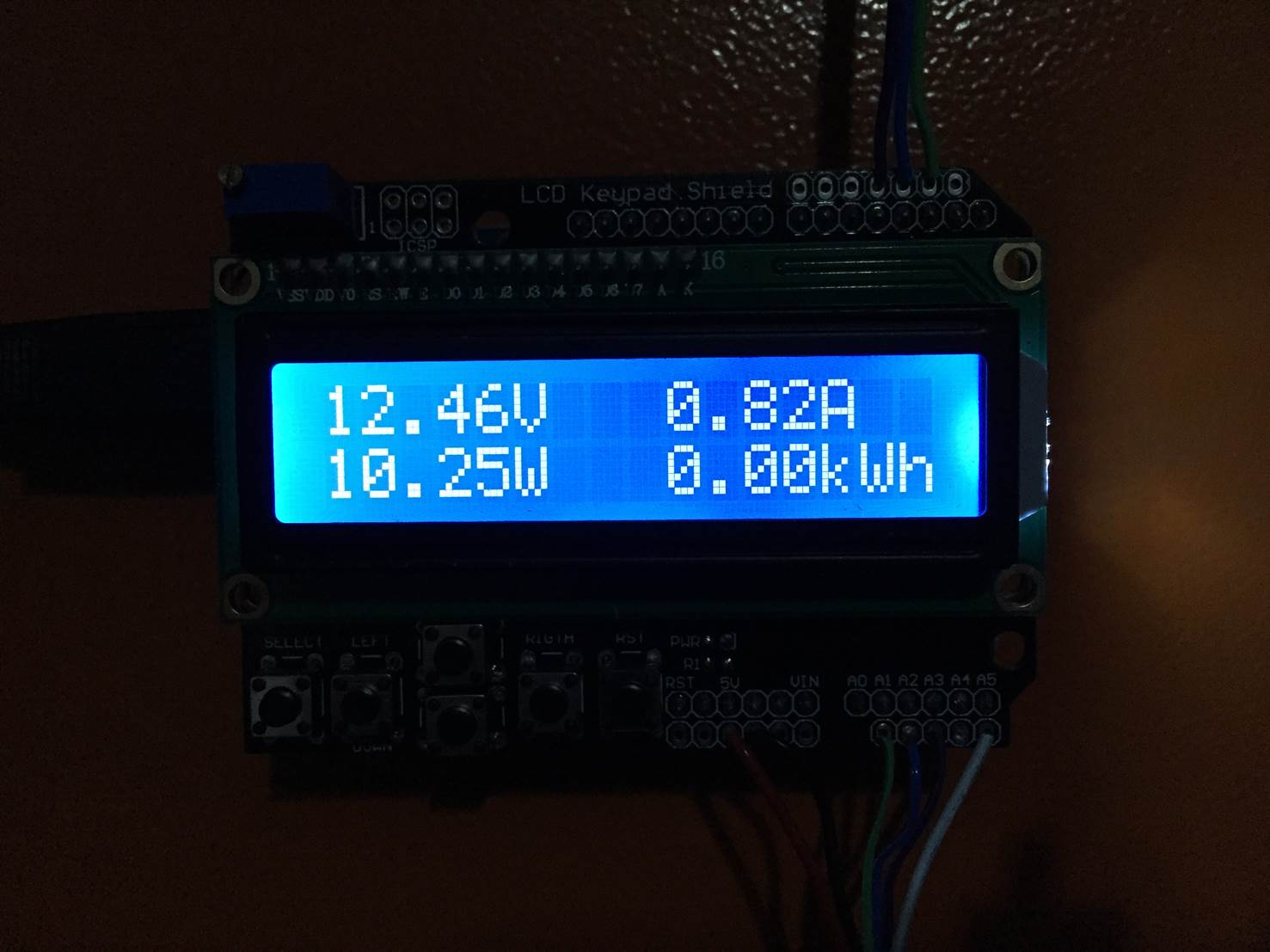
Finally, the LCD is updated by cycling through three different displays. The first displays the battery status and shows the battery voltage, current being drawn, power being used and finally the kilowatt hours consumed since start up.

Battery Power Information

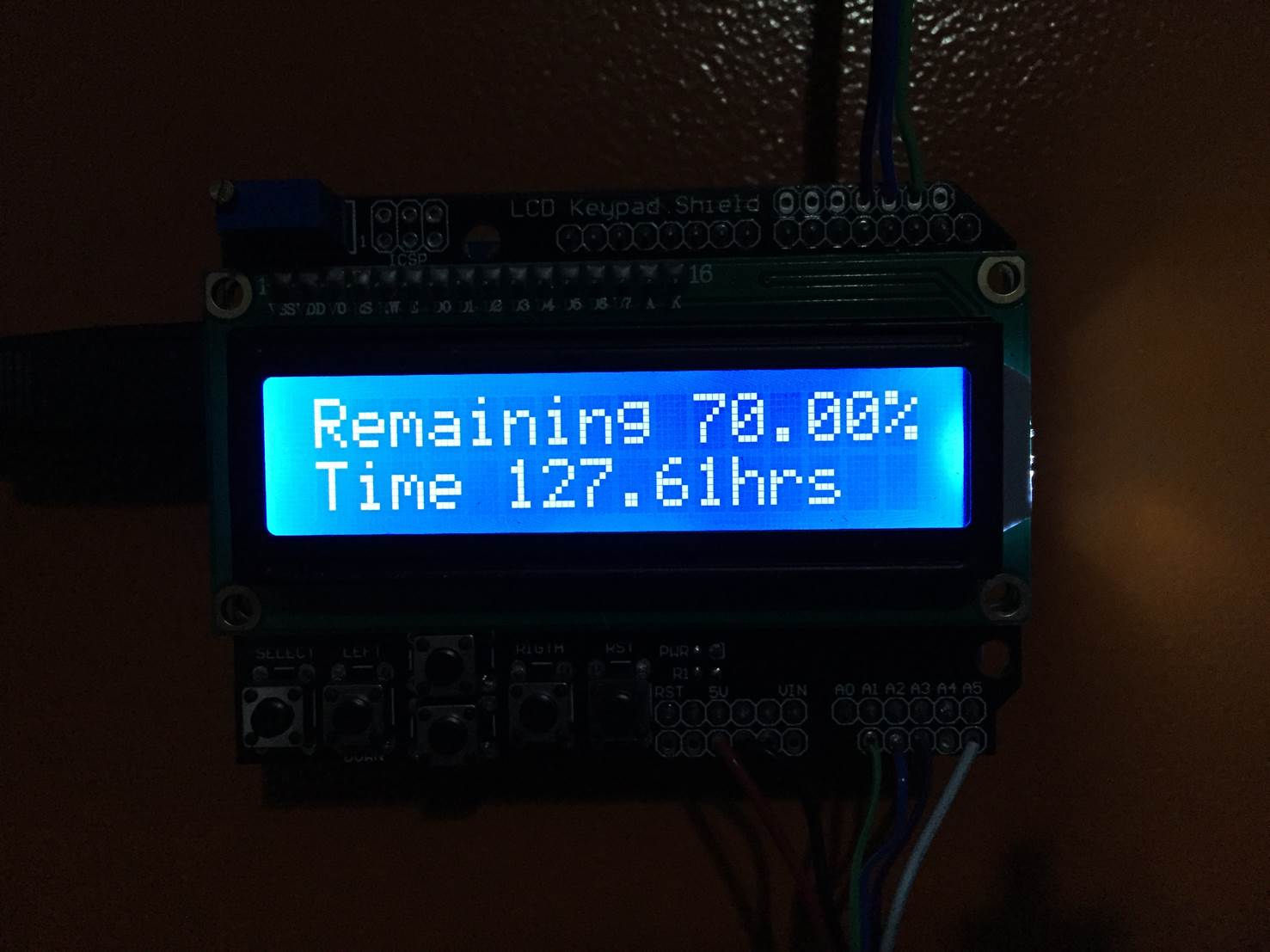
The second screen displays the battery life remaining as a percentage and then in terms of time in hours remaining at the current power consumption. This information is only displayed if the battery is not being charged. If the battery is being charged then obviously the time remaining won’t be realistic and the capacity calculation will be incorrect due to the inflated voltage measurement. In this case, battery charging is displayed instead.

Battery Capacity And Time Remaining

The last screen to be shown is the solar information. This screen displays the solar panel output voltage, the current being supplied and the resulting power output from the panel as well as the total energy which has been produced by the panel since startup.

Solar Panel Power Information

Additions To The Circuit & Display

There are a couple of free inputs and outputs on the Arduino Uno which can be used to monitor a few other parameters. For example, as mentioned in the opening steps, you could separate your current measurement to your lighting, 12V DC and 100V/220V AC circuits and then create three separate displays on the LCD screen to give you information on your usage from all three.

You could also add some relay functionality to the outputs of the Arduino to cut off loads if the battery voltage becomes too low or turn off the solar panel when the batteries are fully charged etc.

If you’d like to take this guide one step further, you could also try building your own solar panels for your Van or RV. they are really easy to build and cost much less than the commercially available ones.

Have you built an energy monitoring system for your Van, RV or solar power system? Let us know your tips and tricks in the comments section below.

Make A Super Easy 9V Emergency USB Charger

This guide shows you how to build a really easy and cheap 9V emergency USB charger. Its perfect to take along on camping trips or leave it in your backpack or your cars glove box. The switch disconnects the battery from the electronics so the battery doesn’t get drained over time and can last for years until you need it in an emergency.

Always check your wiring and the output of the USB socket before connecting your devices to it. Use this guide at your own risk, we take no responsibility for damage caused to your devices due to this circuit or faults with the circuit.

What You Need To Make Your Own 9V Emergency USB Charger

  • 9V Battery – Buy Here
  • 9V Battery Clip On Lead – Buy Here
  • Switch – Buy Here
  • L7805 5V Regulator – Buy Here
  • Thin Heat Shrink Tubing – Buy Here
  • Heat Sink – Optional For Longer Life – Buy Here
  • USB Socket (From Old PC) Or USB Extension Cable – Buy Here
  • 3D Printer & Filament For Housing, Alternately Your Can Use An Altoid Or Similar Tin
  • Optional Mini 5V Solar Panel For Solar Charging – Buy Here

emergency usb charger components required

How To Make Your Own 9V Emergency USB Charger

Assemble The Circuit

The circuit is pretty straight forward and doesn’t require a bread board or component board to mount everything on, you can simply solder the wiring between the components and insulate the ends with a bit of heat shrink tubing or insulation tape.

emergency usb charger circuit diagram

To start, solder the positive wire (red) on the battery lead to one terminal on the switch. Then solder a jumper wire onto the switch which will be used to go to the input pin of the regulator. Remember to slip of piece of heat shrink tubing over each wire before soldering, it can then be slid up over the joint and shrunk with a lighter or solder iron to secure it.

soldering 9V battery clip wire onto switch

switch connections

Now solder the jumper onto the input pin of the regulator, this is usually the left pin when viewed from the front. Solder the negative wire (black) from the battery clip onto the centre pin of the regulator.

solder battery clip to regulator

Next, solder a jumper lead from the output pin (far right pin) of the regulator to the 5V pin on the USB socket or the red wire on the USB cable. Then solder a jumper lead between the centre pin of the regulator and the 0V pin on the USB socket or black wire on the USB cable.

solder USB wires to regulator

If you’re using a USB socket, the pins should be identified on the socket or on the board it is mounted on. You’ll only be using the outer most of the four pins which as the 0V and 5V pins, sometimes identified as GND and Vcc.

If you are using a USB extension cable, cut the socket side off leaving a lead the length you’d like your charger to have. There should be four wires inside, red, white, green and black. The black is the 0V, negative or ground and the red wire is the 5V, positive or Vcc wire, these are the only two wires you need to strip and solder to.

solder regulator output to USB socket

Your circuit is now complete,  double check your connections and your soldering before switching it on.

completed charger circuit

It’s a good idea to check the output on the USB socket before trying to connect a device to it. Use a multimeter and check that the output on the two outer terminals within the socket is reading 5V or reasonably close to 5V |(within 0.2 of a volt).

checking voltage output on USB port

If you are not getting any output, first check the switch, then that the battery is charged and finally check your circuit connections. If you socket is showing a constant and stable 5V then you can try connecting a device and it should start charging.

You may want to add a heat sink onto the regulator if you are going to be using your charger for long periods of time to keep it from overheating, this will dramatically extend its life. Simply place the regulator into the slot on the heat sink and use a rivet or bolt and nut in order to secure it.

adding a heat sink to regulator

Putting The Components Into A Housing

Once you’ve assembled the components, you’ll need to put them into a housing. An old Altoids tin or something similar usually works well otherwise you can 3D print your own using the models below.

super easy 5V emergency usb charger housing

Emergency Charger Housing & End Cap – Download Files

The model allows enough space inside to store the 9V battery with clip as well as the regulator with a small heat sink. There are two holes on the end, one for the USB socket and the second for the switch. The opposite end is open and is closed off with the 3D printed end cap.

housing being 3d printed

Using The 9V Emergency USB Charger

To use your charger, simply plug your device’s USB cable into the socket and turn the switch on.

Super Simple 5V USB Emergency Charger

With the switch off, the battery is disconnected from the circuit and the charger can be stored for a few years (depending on the battery quality) without running flat. It’s therefore perfect to leave in your cars glove box or your backpack for emergencies.

You can replace the battery with a rechargeable 9V battery if you use the charger regularly however after long standing periods the rechargeable battery will run flat.

Emergency USB Charger Improvements

If you’d like to improve on the USB charger and make it slightly more functional, here are a couple of modifications you can make to it.

Enable iPhone Charging

An iPhone won’t charge on this charger with the centre two pins of the USB socket left open circuit. You’ll need to add the following circuit onto the centre pins in order to “fool” the iPhone into thinking that it is connected to a proper charger.

iphone resistor connections

Simply connect the GND to your black 0V wire and the +5V to the output of your regulator.

Smooth Out The Voltage

Add a 100uF capacitor across the input and a 10uF capacitor across the output of the voltage regulator to smooth out any voltage spikes or dips. This makes the chargers output a bit more reliable and protects your connected devices.

Enable Solar Charging

You can easily turn this charger into a solar charger by replacing the 9V battery with a small solar panel such as this one.  Simply solder the positive and negative leads from the panel in place of the battery clip and you’re ready to start solar charging.

You could also try making your own solar panel, its really easy and cheap to build.

Have you built this charger or another USB charger? Let us know in the comments section below. We would love to see your designs and tips.

3D Print Your Own Radial Engine Fidget Spinner

Make your own awesome radial engine fidget spinner, all you need is a 3D printer and a high speed bearing. The spinner can be printed in under an hour and the bearing just presses into the model afterwards. It’s super cheap and easy to make.

What You’ll Need To Make Your Own Radial Engine Fidget Spinner

  • 3D Printer – Buy Here – Alternately Order Printed Part Online
  • HIPS, ABS or PLA Filament – Buy Here
  • 608 High Speed Bearing – 22mm OD, 8mm ID – Buy Here
  • 9 M3 x 8 Socket Head Cap Screws (Optional To Add Weight) – Buy Here
  • Spray Paint (Optional – If You Don’t Have The Right Filament Colour) – Buy Here

How To Make Your Own Radial Engine Fidget Spinner

Making this fidget spinner is super easy, all you need to do is 3D print the radial engine model and then install the high speed bearing. You can also add an optional machine screw into each cylinder head to increase its weight and speed.

Fidget Spinner Parts 2

3D Printing The Fidget Spinner Model

The model was designed in TinkerCAD, the STL file can be downloaded here – Radial Engine Fidget Spinner.

TinkerCAD Radial Engine Fidget Spinner

The fidget spinner model can be printed in any type of plastic filament. It was printed for this guide in both HIPS and PLA with the following temperatures and an infill of 30%.

HIPS

  • Bed Temperature 95°C / 205°F
  • Nozzle Temperature 225°C / 440°F

PLA

  • Bed Temperature 40°C / 100°F
  • Nozzle Temperature 205°C / 400°F

Here’s a time-lapse video of the print. It took around an hour to complete.

Adding Weight With Screws

In order to give the fidget spinner a longer spin time, it needs more weight. This can easily be added by installing a screw into the head of each piston. Drill a 3mm hole into the centre of each piston head, the hole only needs to be about 10mm deep.

Drilling Holes For Screws

Screw a screw into each piston so that the head of the screw is almost flush with the top of the piston.

Screwing In Screws

You’ll need to install one into each piston in order to keep the spinner balanced.

All Screws Installed

Adding The Bearing

The 608 bearing simply presses into the hole in the centre of the engine model.

Before Pressing Bearing In

Line the bearing up with the hole, place it onto a flat surface, bearing side down and then press the 3D printed model down onto the bearing. It should be quite a tight fit and should be squared up with the edges of the model.

Bearing Installed

Paint the Radial Engine Fidget Spinner

Lastly, you can paint the fidget spinner if you don’t have the colour filament you like. If you’re going to paint your spinner, do it before installing the bearing and screws or remove them before painting.

Place the plastic model face up on a sheet of newspaper and spray it as per the directions on your spray paint can.

Painting The Spinner

Once the paint has dried completely, flip it over and paint the other side. It may require a few coats on each side to ensure coverage in all the gaps and ridges.

Painted Spinner

Re-install the screws and bearing and your spinner is ready to use. I’ve brushed some silver paint onto the fins on the pistons to highlight the edges.

Completed Painted Fidget Spinner With Screws

Do you have any cool ideas for fidget spinners? Let us know in the comments section below, we’d love to see your ideas!