Home Blog

I Ran AI on a Raspberry Pi… The Results Were Unexpected

I tried running a ChatGPT-style AI model locally on a Raspberry Pi… and the results were not what I expected.

When you use an online or cloud-based service like ChatGPT, you’re obviously sharing your data with another company. This may be ok in some cases, but there are a lot of instances where you might not want to do this. So running a model locally is a way to still make use of the features or benefits of something like ChatGPT, but keeping it all local, so no private or sensitive information is shared with another party.

This brought me to the question of what hardware you can run it on, so I ended up trying a few models out on a Raspberry Pi. Now a Raspberry Pi is obviously not going to be able to run models like a high-end PC with the latest GPU, but it actually performed a bit better than I expected, and there are some accessories like the AI Accelerator hat that I tried out too. For comparison, I also ran the same model on an N100-based mini PC that comes in at a similar price to the Pi 5 setup.

Here’s my video of my testing. Read on for the write-up:

Hardware Used For Testing LLMs On A Pi 5

Tools & Equipment Used:

Some of the above parts are affiliate links. By purchasing products through the above links, you’ll be supporting this channel, at no additional cost to you.

How I’m Going To Be Testing The Different AI Hardware Setups

I’m going to be running the test on three different hardware configurations, first up a 16GB Pi 5 by itself, then a Pi 5 running the Hailo AI Hat+ 2 accelerator and finally an N100-based mini PC.

To keep testing fair, I’m running the same Qwen2.5:1.5b language model on each setup, and I’ll be using the same prompt, setting the temperature to zero and using a fixed seed. I’m also pulling the timing stats directly from Ollama’s API so we can calculate actual tokens per second rather than guessing from how fast text appears on screen. I chose the Qwen2.5:1.5b model since it’s the most complex model that will reliably run on all three sets of hardware.

I’m going to run a series of three prompts on each, and for the performance testing phase, I’ll run each test three times as well.

These are the three prompts I’m going to be using:

  1. Explain how DNS works in exactly 200 words. Use plain English and include recursive resolver, authoritative server, cache, and TTL.
  2. A ball is thrown straight up from ground level at 14 m/s. Ignore air resistance and use g = 9.8 m/s^2.
    • How long until it reaches the top?
    • What maximum height does it reach?
    • How long until it returns to the ground?
    • Show the equations and the final answers clearly.
  3. Write a 120-word intro for a blog post comparing local LLMs on a Raspberry Pi 5, a Raspberry Pi 5 with a Hailo AI HAT+ 2, and an N100 mini PC. Mention privacy, speed, and cost.

    For the performance tests, the main metrics we’re interested in are the total generation time for a fixed number of tokens, which gives us an indication of the initial processing time, often called time to first token, and then the tokens generated per second.

    Testing The Pi 5 Only Setup

    Let’s start out with the Pi 5 only setup.

    You’ll notice that I have a USB connected mSATA drive connected to the Pi as the boot drive and that’s because I want to keep the PCIe port free to also try add the AI Hat+ 2 and to see how that boosts performance, but I also don’t want the Pi running off a slower microSD card which may affect model loading and startup times.

    I’m running Pi OS Trixie on it, and I’ve installed Ollama and downloaded the Qwen2.5:1.5b model.

    To kind of prime the system, before I run the actual prompts, I always start by just sending the prompt “hello”.

    Then we can start with the prompts. I’ll link a file with the actual prompt outputs in each hardware section.

    So first up is the DNS explanation. I was actually pleasantly surprised by how quickly the Pi ran this. It was outputting around 11 tokens per second. You could also see all four of the Pi’s CPU cores are running at 100% during the output, and the active cooler was spinning up. So you can’t do anything else on the Pi while the response is being generated. This is important to consider for the Hailo test.

    To assess the prompts, it’s going to be a bit subjective, but I’ll check that it includes the things I’ve asked it to, that it gets the details or calculations correct and the quality or structure of the overall response in relation to each other.

    The Pi’s response is quite good, it’s got the correct inclusions that I asked for, and it’s accurately written. It’s a little bit simplified, but I’d say it’s quite clear.

    Next up is the physics question.

    This question requires the model to interpret what is being asked, then choose and apply the correct equations and then work them out correctly.

    This one’s quite easy to assess. It’s got all three of the answers correct, it’s used the correct equations and reasoning, and it’s clean and well-structured.

    Lastly, we’ve got the blog intro.

    This assessment is again quite subjective, but I’d say it’s quite good. It reads a bit like a description rather than an intro, but it mentions privacy, speed and cost and it is quite clearly written.

    I then ran the performance test script, which runs the same three prompts three times each and controls the model and prompts a bit better to give us some performance data to analyse, which I’ll graph and show you at the end.

    Testing The Pi 5 With Hailo AI HAT+2 Accelerator

    Raspberry Pi have an original AI Kit based on the Hailo-8L accelerator, which adds up to 13 TOPS to the Pi. Unfortunately, this hat doesn’t have any RAM on it, and it’s designed around image processing, so it can’t be used to run LLMs. That brings us to the Hat+ 2. This one’s based on the Hailo-10H accelerator, which can do up to 40 TOPS, but more importantly, it’s got 8GB of onboard RAM, which allows it to run generative AI models or LLMs.

    The implementation on the software side is a bit more complex than just running Ollama, but they’ve got some preconfigured models to choose from, one being the Qwen2.5-instruct:1.5b model, which is one of the reasons why I chose it for testing.

    The difference in software means that it’s presented differently in the terminal, the whole response is provided after it has been generated. But in this case, while the prompt is being generated, there is no load on the Pi’s CPU cores. So the Pi is completely free to work on or manage other tasks.

    We’ll go through the numbers a bit later, but the hat was noticeably slower in producing the responses, which honestly wasn’t what I expected. The accelerator is supposed to make this faster.

    And it didn’t end there. The quality of the responses was also quite poor.

    The DNS explanation had inaccurate information, terminology issues and missed explaining resolver flow.

    The physics reasoning prompt got the wrong return time, didn’t provide the total time and in general had weak explanations and incomplete reasoning.

    And lastly, the blog intro mentions the required themes, but the structure is very basic, and it lacks engagement or thought.

    I thought maybe the model was just a bit weak, although it should be very similar to the one being run on the Pi 5 only, so I then tried running one of its Deepseek models, but that didn’t help.

    The DNS explanation was worse, it didn’t produce a usable answer, and it mainly just outputted thinking text.

    It calculated the incorrect height for the physics questions, which then led to the wrong time being calculated. And it again showed confused reasoning and thinking out loud.

    The blog intro contains incorrect technical claims, isn’t aligned with the prompt intent, and just felt hallucinated and unreliable.

    At this point, I started questioning whether this accelerator was actually designed for this kind of workload at all. After all, the models that I’ve tried running are the ones specifically configured for this hat.

    So all up not a great result for the AI Hat+ 2, but I still ran the 3 test script using the Qwen model anyway to compare performance with the other options.

    Testing The N100 Mini PC

    The N100 Mini PC has a faster processor than the Pi 5, so on paper, it should produce better results. At $210, it also costs about the same as the base Pi 5 setup. The 16GB Pi 5, power supply, active cooler, mSATA drive and storage hat come to a combined $205, and that’s going off the list price of the Pi 5, which is often difficult to get.

    This comes ready to run, you just need to plug it in.

    I’ve installed Ubuntu 25.10 on it so that we can run the same Ollama version and Qwen model that we ran on the Pi 5. So it looks and feels very similar to the Pi 5, but lets see how it performs.

    The completed DNS explanation is very good. It’s got the correct inclusions, it’s well structured and it’s easy to follow. There are a couple of minor wording inefficiencies but that’s due to the small model being run.

    I had high hopes for the physics reasoning but it let me down. It got the correct time to top and maximum height but calculated the incorrect total time. The working out and equations are correct but it came to the wrong conclusions. Because it was close, I ran it a second time and it then gave me all three correct answers.

    The blog intro was about the same as on the bare Pi 5. It’s good, mentions the key themes, its clear and readable but slightly generic and not very engaging.

    Prompt Results Summaries

    DNS Explanation

    Physics Reasoning

    Blog Post Intro

    Comparing The Performance Testing Results Between Options

    Overall, the quality of the responses from the bare Pi 5 and the N100 PC is quite good. They’re obviously nowhere near the level of modern cloud-based models, but they’re very usable for light tasks running locally. I was quite disappointed that the accelerator performed worse than the Pi itself, albeit that the Pi was free to do other things while the accelerator worked on the prompts.

    For LLMs specifically, I wouldn’t recommend the Hailo AI Hat+ 2, especially given its $130 price tag. It’s clearly designed more for vision and edge AI workloads and not general language models.

    As for the performance test results, in terms of raw tokens per second output, the N100 PC is the clear winner. It was over one and a half times faster than the bare Pi 5 and almost three times faster than the Hailo accelerator. Running the DeepSeek model on the Hailo accelerator only results in about a 2% improvement.

    Moving on to the total time, the results were quite similar again. The N100 is the fastest by quite a significant margin, and the Hailo accelerator takes more than double the N100s time.

    Interestingly, the total time across the board was significantly faster for the blog intro, and given that the tokens per second were similar to other prompts, this indicates that the models spent significantly longer before generating the first token for the DNS and physics responses. That’s probably because the blog intro prompt is quite open-ended, whereas the DNS prompt asked for specific inclusions, and the physics one has to be numerically correct and use the correct equations.

    Lastly, power consumption, the Pi 5 only uses 11W under full generation load, the Pi 5 and Hailo accelerator use 7W, and the N100 PC uses a much higher 30W. Adjusted for the speed at which each device produces the output, we can calculate the energy consumed per token. Unsurprisingly, the N100 PC is the least efficient, using the most energy per token, but because of the Hailo accelerator’s speed, the Pi 5 only setup comes in slightly better, even though its power draw is higher.

    Comparison With An Online Model

    So is running your own LLM locally worth it?

    Well, to really figure that out, we need something to compare it to. So I found a comparatively low-level cloud-based model that was available through a paid API. For the comparison, we’re going to run the same Qwen2.5 model, but the smallest model size that they have available is their 7 billion parameter one.

    I put the same three prompts and then the test script through this cloud-based model, and these were the results.

    The DNS explanation was a lot better structured and gave the best balance between simplicity and correctness.

    The physics reasoning response was also correct and clearly explained without providing too much fluff.

    And lastly, the blog post had the right inclusions and was well structured.

    Performance was also significantly better. The OpenRouter model dwarfs the other results in tokens per second and runs faster in terms of total time, too, although this was a little bit more comparable.

    Perhaps most interesting is the cost. So after my hello, three test prompts and then 9 performance test prompts. The total cost for all of these tests was just 0.06 cents, or six hundredths of a cent.

    I could run a similar prompt every 3 minutes for about 2 years before I’d spend the same as the hardware cost of the Pi setup, and that’s before electricity costs.

    So, really, I think the answer comes down to privacy and whether or not you have internet access. If you’re handling sensitive information or don’t want to share private data with another company, or if you’re deploying the model in a location that doesn’t have a reliable internet connection, then it makes sense to run a model locally. But if not, it’s probably going to be better value to make use of a cloud-based service. You also have the added benefit of being able to run more powerful models for certain tasks and cheaper models for less intensive ones.

    Let me know in the comments section below what hardware you’ve tried running local LLMs on and what your experience has been with them, or if there’s anything else you’d like to see me try run on them.

    I Built a 5″ Portable Raspberry Pi Homelab

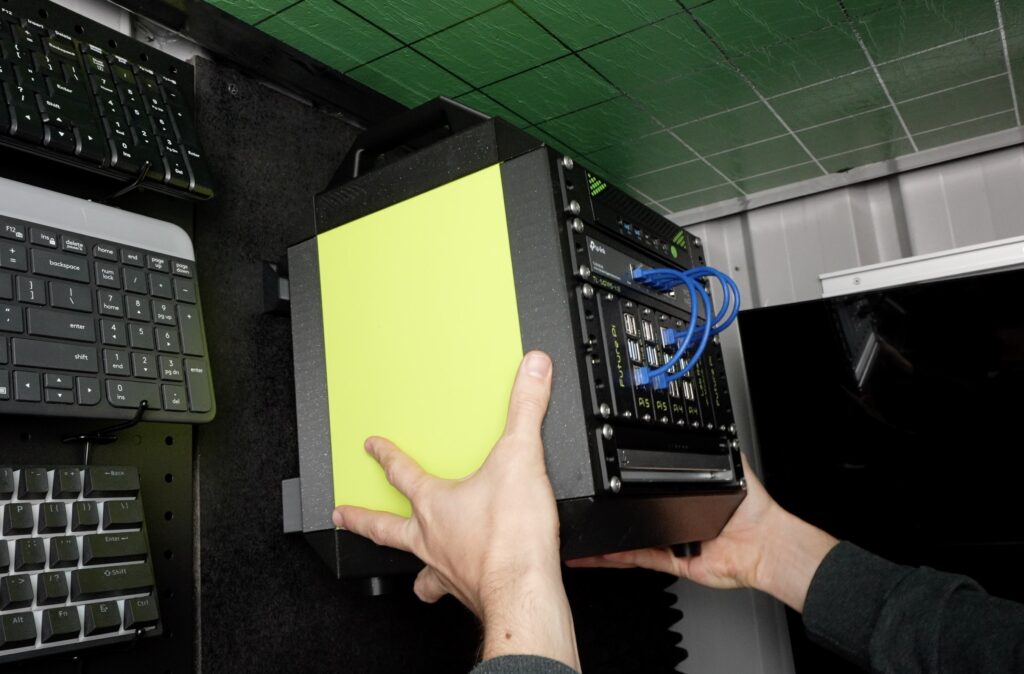
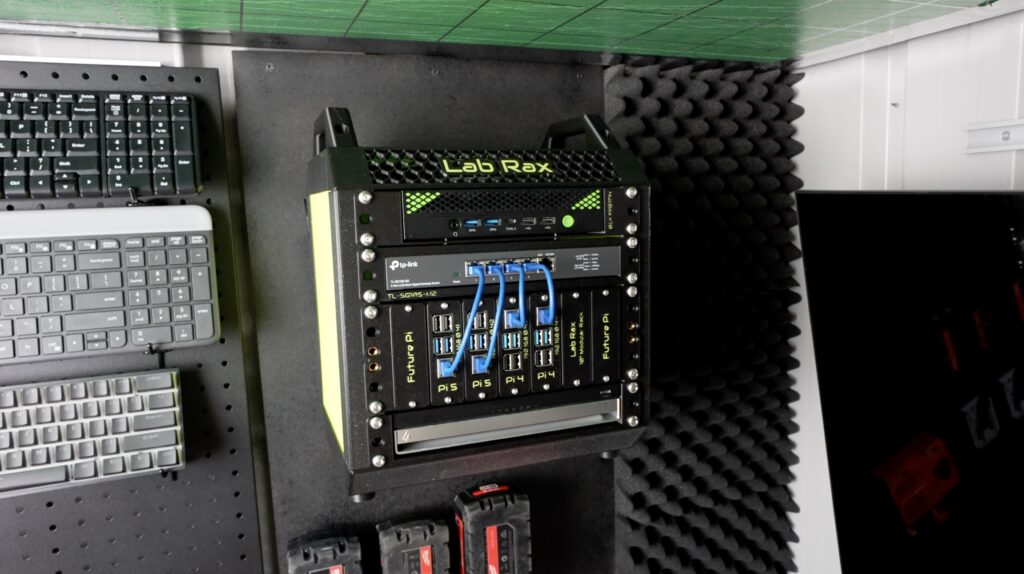
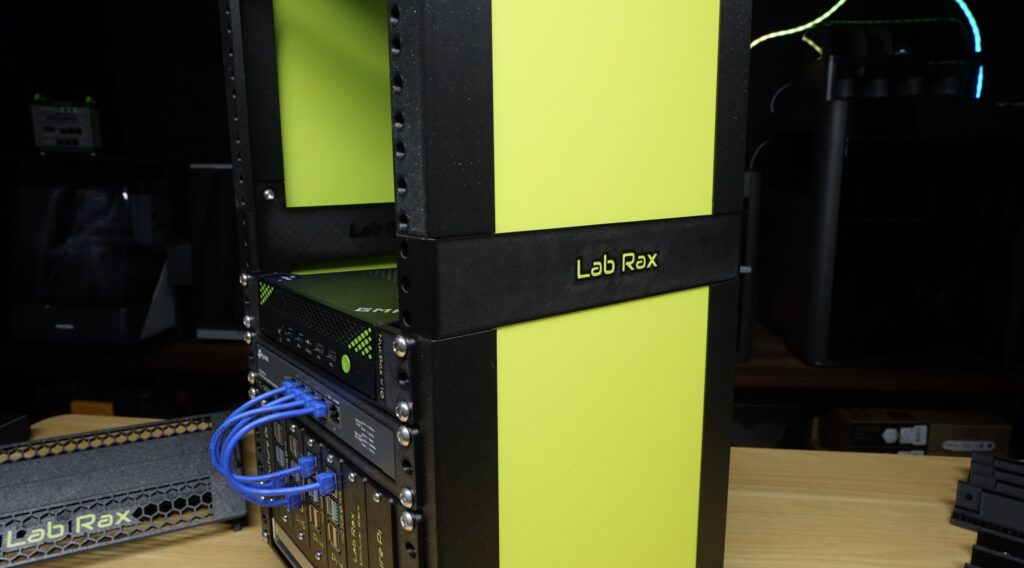
    What if you could take your entire homelab with you when you travel? In this project, I designed a portable Pi homelab by shrinking my original 10″ Lab Rax down to a 5″ rack that can still run a router, NAS and Docker server using Raspberry Pi hardware. In this post, I’ll walk through the design, 3D printing, assembly and hardware setup for this tiny but surprisingly capable homelab.

    Here’s my video of the build. Read on for the write-up.

    Where To Buy The Parts To Build Your Own Portable Pi Homelab

    Tools & Equipment Used:

    Some of the above parts are affiliate links. By purchasing products through the above links, you’ll be supporting this channel, at no additional cost to you.

    Shrinking The 10″ Lab Rax Design Down to a 5″ Portable Pi Homelab

    To start out, I opened up the original model for my 10” 3D printable Lab Rax design and then made some changes to scale it down and still keep it easy to print and assemble. This design keeps a lot of the same proportions for the racks too, so a 1U 10” model can be shrunk down to 50% scale and should then fit into this rack.

    Download the 3D Print Files

    So let’s get the rack printed out. Because it’s been shrunk down, it’s actually really easy to print. The whole print fits onto a single build plate on the H2D and uses just 220g of filament. So you could get four complete prints out of a single 1kg roll of filament.

    I printed it in a grey sparkle filament with translucent yellowish green accents. I also separated the two main colours over two build plates, which makes printing a bit faster. 

    I think the parts have come out really nicely.

    Assembling The 5″ Rack

    This design uses M3 x 8mm screws to hold everything together. Like with my original Lab Rax design, I’ve stuck with one screw size for all of the components, which makes it easy to buy the hardware for the build. I’m also using M3 brass inserts instead of having to press nuts into pockets. I think these make a stronger and easier-to-assemble build.

    The brass inserts are just pressed into place using a soldering iron. Four for the vertical posts and four for the feet or handles, and then the same for the opposite side.

    For the vertical posts, to hold the racks in place, I also used M3 brass inserts. I used slightly shorter ones for these because I had a box of them lying around, but they’re the same diameter as the longer ones and both work just fine. 

    I’m only putting them into the top and bottom hole for each rack unit rather than all three. I usually only secure racks with four screws rather than 6 and I don’t plan on using half units in this rack (although they typically use the same top or bottom holes).

    With the inserts installed, assembly only takes a couple of minutes. We start by installing the four posts on the base with a single M3x8mm screw holding each one in place.

    The side panels then slide down into the recess in the posts. I’ve kept this design feature in the 5” rack as it makes it easy to customise with open sides, or add a fan to or even a cable entry cutout. 

    Then the top cover can go on, with four screws holding that onto the top of the posts.

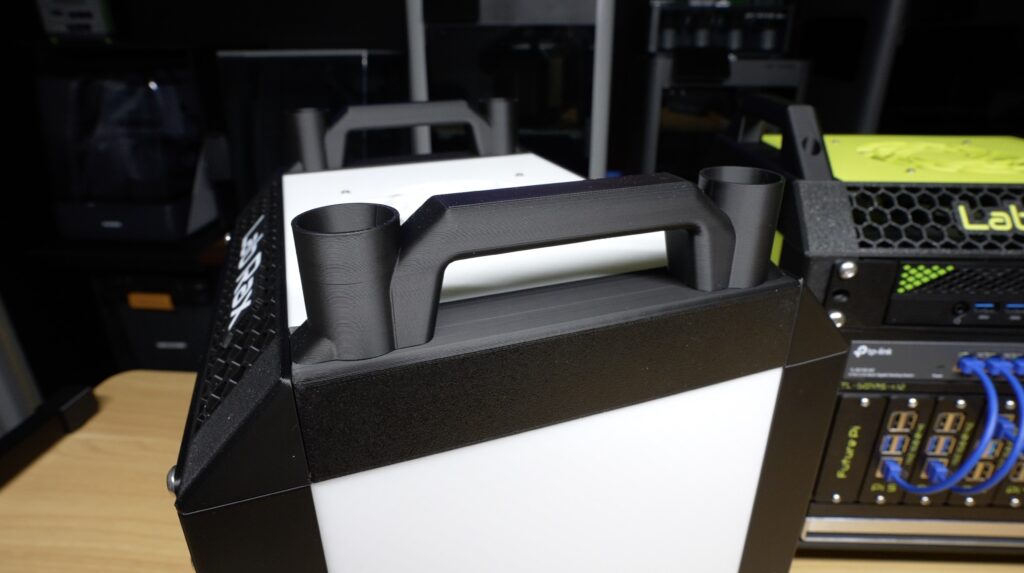
    The tiny handles can then each be screwed onto the top, with two M3 screws holding each on in place. At this scale, the handles are more decorative than functional, but I think they serve their purpose. 

    Lastly, the four feet on the bottom finish it off. These are also held in place with a single M3x8mm screw each.

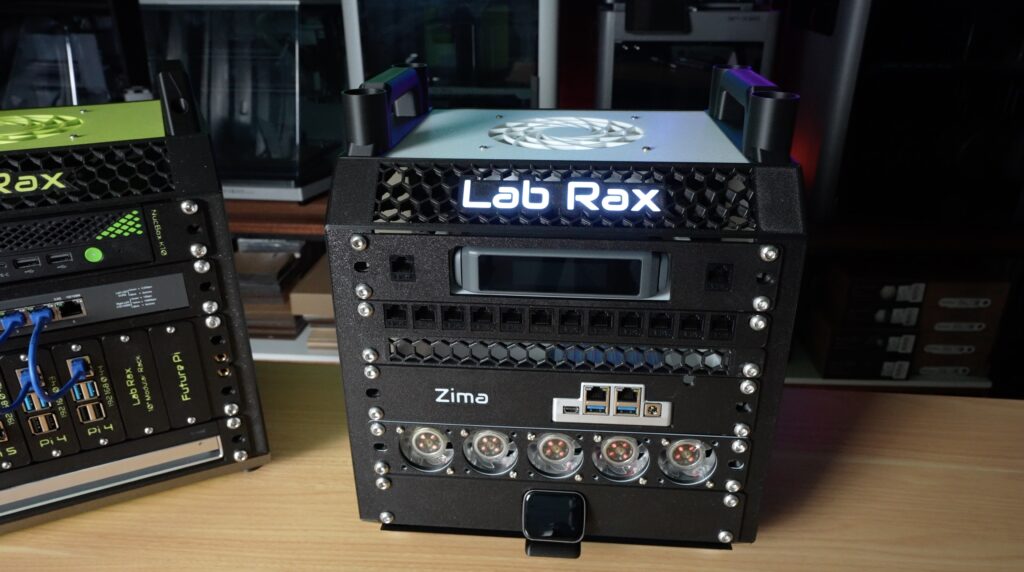
    And that’s the rack complete. Honestly, because it’s been scaled down from the original Lab Rax model, it’s difficult to tell how much smaller it is. But it is quite noticeable alongside the original. 

    It’s actually about 8 times smaller in volume than the original.

    Making Up Hardware To Populate The 5″ Rack

    So what does that mean for components that we can fit into it? Well, at 5” we can still comfortably fit a Raspberry Pi into a single rack unit, and by trimming some fat off a 5-port Ethernet switch, we can build one of those in too. So there’s still potential for a decent setup.

    So to turn this into a real portable homelab, here’s what I’m installing. 

    A 5-port gigabit Ethernet switch, which has been stripped of its TP-Link plastic housing to save on space. This now comfortably fits into a single rack unit. 

    Then I’ve got this little board with dual Ethernet ports and a Raspberry Pi Compute Module 4 (CM4) on the bottom. It’s also got a USB-C port for power on the front and another on the side for peripherals. I’m going to load OpenWRT onto this board as the router for my homelab. I don’t need it at this stage, but WiFi can be added through the USB port too.

    Then I’ve got a single Raspberry Pi 5 with an official active cooler, which I’m going to install Pi OS Lite onto and then run Docker on it for all of my network services and for monitoring.

    And lastly, my setup wouldn’t be complete without a Raspberry Pi 5-based NAS, which takes up two rack units. So I’ve got a Pimoroni NVMe base with a Lexar NM620 drive for storage. And alongside that is an I2C OLED display, which will display my stats script. You could also use a dual NVMe base for two storage drives. These are then all connected to an 8GB Raspberry Pi 5.

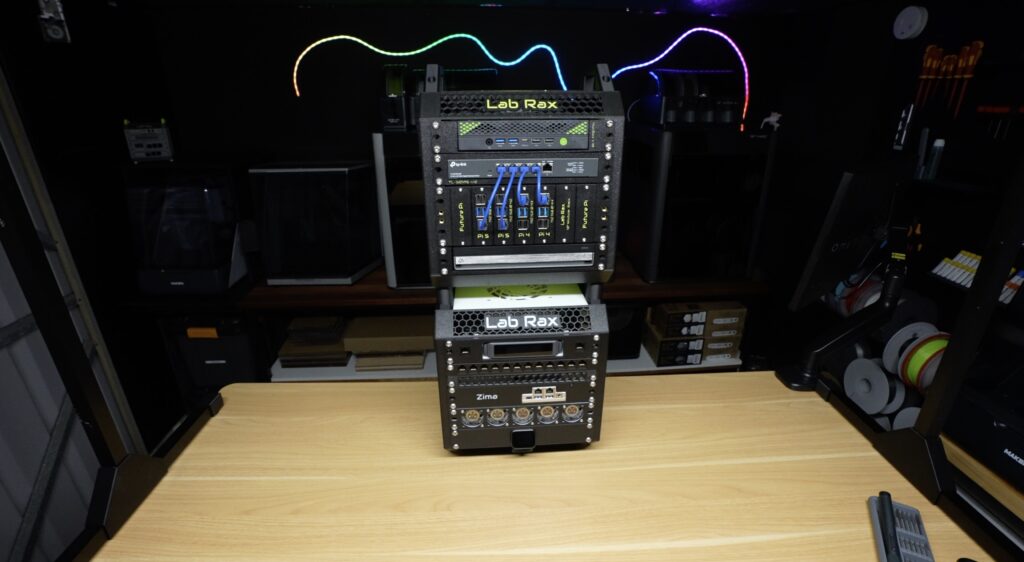
    Now let’s get those installed in the rack. From the top down, I’m installing the router, then the switch, then the Pi NAS and lastly the Pi running Docker at the bottom.

    And my mini travel homelab is now complete.

    There looks like there is lots of room around components for airflow. I’ll keep an eye on temps, and if they become an issue, it’ll probably be best to install a 60mm fan on the side panel blowing across the racks. 

    What I’ve Got Running On The 5″ Portable Pi Homelab

    This little portable Pi homelab actually a really powerful stack for its size. Having its own OpenWRT router means that I can do anything I could have done with a travel router, but now automatically applied to my little homelab. I can create advanced firewall rules and have full control over my network’s DHCP and DNS settings.

    I’ve also got network-attached storage that allows me to share files and folders across all devices on the network, and can do automated backups and even cloud backups when the router is connected to the internet. 

    And the Docker Pi is available to run any other services that I need locally when travelling. So I could have a completely offline and portable local network with all of my files, a media server and automated backups. 

    It’s even got some cool monitoring dashboards available through a browser on the local network. There’s one through Netdata, and I’ve got another one running Prometheus and Grafana.

    So that’s my new 5” portable homelab rack.

    It’s small enough to travel with, but still powerful enough to run a full Pi-based homelab stack. 

    I’m curious, though, what would you put into a rack this small? Let me know in the comments section below because I’m already thinking about some upgrades for version 2.

    This Is the Most Overkill Raspberry Pi 5 Cooler I’ve Ever Built

    The Pi 5 is the most powerful Raspberry Pi that is currently on the market, and with the increase in power comes an increase in heat. While there are already quite a few cooling solutions available, I wanted to tackle this project on my own and design a Pi 5 Peltier cooling system that can modularly be scaled up to ridiculous proportions.

    I’ve always wanted to try cool a Pi with a Peltier cooler or TEC. So today we’re going to try and push Pi cooling further than I’ve ever done before, hopefully getting the Pi’s CPU down to below 10 degrees.

    Here’s my video of the project. Read on for the write-up;

    Where To Buy The Cooling Components

    Since this project is largely a custom build, you won’t be able to replicate it without making up some of the components yourself, but these are all of the bought-out components that I used for my Pi 5 Peltier Cooling build:

    Tools & Equipment Used:

    Some of the above parts are affiliate links. By purchasing products through the above links, you’ll be supporting my projects, at no additional cost to you.

    Designing The Enclosure and Modular Cooling Components

    Ice tower style coolers like this have been around since the Pi 4 and are generally already considered to be overkill, even for a Pi 5. The problem that I’ve got is that there’s no easy way to attach a TEC to one, or to any other standard Pi heatsink for that matter. So I started out by designing a new enclosure in Fusion360.

    Unlike my other enclosures, which are designed to be 3D printed, this one is designed to be CNC machined from aluminium. Best of all, it is designed with a couple of modular brackets and blocks which allow me to step cooling up from a simple passive heatsink, moving through adding fans, to a full-size CPU cooler and finally to two TEC configurations where things get a bit ridiculous.

    There is also a very real chance of condensation on and around the heatsink, which should make testing interesting.

    First and foremost, I want to see how close I can get the CPU temperature to zero, but I’d also like to run a Geekbench 6 benchmark at the two extremes to see if there is any difference in performance. After all, if there’s no performance benefit, then it’s not really worth doing.

    Next, I needed to get the enclosure components made up.

    Now I could have done what I’ve done previously and made them up on my Carvera Air, but milling this amount of aluminium would have taken a long time. So I got PCBWay to assist with making up the parts. I’ve previously used them to make up circuit boards for my electronics projects, so when they reached out asking if I’d like to try their 3D printing or CNC services out, I thought why not?

    They make it really easy through an online order form where you upload your files and then select a couple of options for tolerances and finishes. I went for anodising afterwards, which was their recommendation, and I’m really glad that I did.

    Two weeks later, the parts turned up, and man, do they look better than I was expecting. It’s really cool to see your 3D CAD model turned into something that looks and feels like a premium product.

    The anodising really makes the components look so much better than I’m able to produce.

    I was then quickly sobered by the thought that these components look amazing, but being a first run, I’ve never actually tried assembling them. If you’ve tried designing your own 3D printable parts, then you’ve probably discovered that things don’t always work out the way that they look in a CAD model.

    So next, I moved into assembling the basic Pi setup in the case.

    Assemblying The Basic Pi 5 Test Setup

    The aluminium enclosure is designed to house an NVMe SSD on a hat underneath the Pi. For this particular build, I’m using a Pimoroni NVMe Base and a Lexar NM620 NVMe SSD, which I’ve preflashed with Raspberry Pi OS Trixie.

    That’s installed onto some brass standoffs screwed into the base.

    Next, the Pi is installed above it, and the drive can be connected via the PCIe FPC connector. I’ve used a 16GB Pi 5 for this build as higher memory variants tend to be more stable for overclocking because they’re usually more recently built, although there is still a bit of silicon lottery involved.

    I then trial-fitted the open lid and empty fan cover.

    I’m really happy with the end result. I’m actually quite keen on just using this as my main Pi case going forward.

    So now let’s move into testing.

    For each setup, I’m going to run the same stress-ng test for 15 minutes, which is usually long enough to fully heat soak the cooler and allow temperatures to stabilise. I’ll do the test at both the stock frequency of 2.4GHz and at an overclocked frequency of 3.0GHz.

    To install stress-ng:

    sudo apt install stress-ng

    The test that I’m going to be running on each:

    stress-ng --cpu 4 --cpu-method prime --timeout 15m --metrics

    I’ll also do a Geekbench 6 run for the first cooling solution that can make it through the 15-minute stress test at 3GHz without thermal throttling. I’ll then repeat it for the solution that achieves the lowest stabilised temperature.

    For each test, I’m only changing the cooler; other than that, I’m keeping the same Pi, NVMe drive, case, power supply and software.

    Testing The Pi 5 Cooling Setups

    Simple Passive Heatsink

    First up, let’s start with a simple passive aluminium heatsink, which I don’t expect to do very well. These are usually fine for light loads, a little above idle, but for sustained loads or any form of overclock, you really need a decent cooler on the Pi 5.

    At the stock 2.4Ghz, the CPU temperature started out at 58°C at idle, and it actually managed run for almost five minutes before the first thermal warning. At five and a half minutes, it started thermal throttling. The CPU then stayed at around 82°C for the remainder of the test, but with the CPU running at a reduced frequency.

    This didn’t bode well for the 3.0 GHz test, but I ran that anyway just for comparison. This test ran for about a minute and a half before thermal throttling, and the CPU temperature then stayed around 85°C, so I stopped the test after three and a half minutes to avoid damaging the Pi.

    PWM Fan With Simple Heatsink

    Next, let’s see how adding a simple PWM-controlled fan to the top of the enclosure helps it out. These fans typically use around a quarter of a watt, so they’re a pretty low-power cooling solution. The one that I’ve installed plugs into the CPU fan port on the Pi, which by default turns on around 50°C and then scales up to maximum speed at 75°C.

    At 2.4Ghz, straight away we can see we’ve got a lower start temperature, around 50°C. This run didn’t thermal throttle, and after 15 minutes it had stabilised around 59°C.

    At 3.0GHz, the starting temperature is a little higher at 55°C, and again it didn’t thermal throttle for the duration of the test, with a stabilised temperature around 66°C.

    So adding a simple fan is actually quite effective. Interestingly, I assume because of the fan curves, the CPU temperatures actually ran a little hotter in the beginning and then gradually reduced as the fan ramps up, which you can see in the temperature trends.

    Since this cooling method was able to complete the run, I then ran my Geekbench 6 CPU benchmark. This managed a single-core score of 1,062 and a multicore score of 2,271. These are going to be the scores to beat for the final setup.

    Tower CPU Cooler

    Next, I want to move on to our 120mm tower cooler, which is where things start to get ridiculous.

    We’ve got this block that now mounts onto the Pi and essentially acts as a large heat transfer block. This removes heat from all of the heat-producing components on the surface of the Pi and transfers it to the base of the tower cooler. I’ve used thermal paste for the CPU, and pads for the surrounding components.

    The cooler then bolts onto the top of the case and makes contact with the top surface of this block, which is sized similarly to a PC CPU.

    This already looks a bit crazy.

    For this setup, I’m powering the fan from a separate 12V power supply, and I’ll do the same for the TECs so that we can see exactly how much power our combined cooling system draws. The dual fans draw 8 watts combined. So about the same as the Pi does at full load.

    As you’d expect, this cooler performs really well.

    At 2.4GHz, temperatures start out at 23°C and stabilise at just 25°C under full load. So, barely any difference between idle and under load.

    At 3.0GHz, the temperature starts out a little warmer at 24°C and stabilises at 27°C under full load.

    So both significanlty better than the smaller heatsink we tried first.

    Noise levels are also really low because of the large 120mm fan, although being cheap, unbranded fans, they could be a little quieter.

    But now we’re starting to run into a limitation: the cooler can’t cool the Pi below the ambient temperature in my workshop, which is currently around 23°C.

    So let’s move on to our active cooling options.

    Parallel TEC Cooling Setup

    I’ve got two Peltier coolers or TECs, which can do around 30W each. We’ve also got two options to connect them to the Pi.

    The first is to connect them in parallel using this adaptor block. A small fan and heatsink then cool the hot side of each cooler.

    This setup provides roughly 60W of active cooling capacity.

    With it booted up at 2.4GHz, we can now turn on the TECs and fans and watch the temperature drop. Because of the potential for condensation, I’m only going to run the TECs for a minute before each test to cool the block down and I’ll let them run for a few seconds after. I don’t want to risk drowning the Pi before I’ve tested all of the options.

    After about half a minute, power draw has stabilised at just over 60W, but the results are not as good as I’d hoped for.

    On the CPU side, temperatures have dropped under ambient, and on the opposite sides of the coolers, the heatsinks are really hot. The big downside of this arrangement is obviously efficiency. We’re consuming 60W in cooling, while our Pi is only drawing a maximum of around 8W.

    With this configuration, at 2.4GHz, we have a starting temperature of 19°C and this stabilises at 18°C under full load. Because of the thermal mass of the large heat sink block, the TECs take a while to cool it down. This leads to our loaded temperature gradually reducing to become lower than the unloaded temperature.

    So now, stepping up to 3.0GHz, we have a starting temperature of just 17°C and it stabilises at 21°C under full load. So it’s still running below ambient at full CPU load while overclocked to 3GHz, but for a cooler that’s using over 60W, that’s a disappointing result.

    I don’t think these small heatsinks that came with these TECs can actually handle their heat load. We’ve also got the hot air from the heatsinks being blown down onto the Pi enclosure which is adding to the Pi’s heat load.

    I did start getting some condensation with this setup on the top of the heat sink, which was probably at around 15 degrees, so it could get much worse with the next setup.

    Stacked TEC Cooling Setup

    With that test done, the final configuration is to arrange the coolers in series, called cascading. So instead of running the two coolers alongside a central block, I’m now stacking them so that the first cooler cools the second, which then cools the heatsink. On top of the stack, I’m adding the large CPU cooler to keep the hot side of the top TEC cool. This configuration can move less heat as total throughput, but should result in a higher temperature difference between the extreme hot and cold sides.

    I think that this setup will have the highest potential cooling performance, but it also has the highest complexity and there’s the risk of condensation forming if temperatures drop below dew point, which is currently around 14°C in my workshop.

    With this setup, I initially pushed the power draw up to 70w, but I managed to crank it up a bit more, up to 82w because the CPU cooler performed much better than the small heatsinks.

    With our most extreme cooling solution, at 2.4GHz, we have a starting temperature of just 10°C, and this stabilises at 8°C under full load.

    And finally, stepping up to 3.0GHz increases the starting temperature to 15°C, and it stabilises at 11°C under full load. So we’re now running at over 13°C less than ambient at full load and overclocked. And we also have a pretty ridiculous-looking Pi.

    Condensation is already quite bad, you can’t see it on the outside of the enclosure, but you can see droplets have formed on the cold heat block. The Pi is still running, so I decided to try my Geekbench run. This managed a single-core score of 1,066 and a multi-core score of 2,311.

    So slightly better than with the fan cooler, but this is less than a 4% difference, so for the additional power draw, it’s definitely not worth it.

    Final Thoughts On My Cooling Setups & Test Results

    Putting the logged results side by side, we can see some interesting trends.

    Passive cooling does ok for short bursts, but eventually heat saturates the heatsink, and it becomes ineffective.

    Forced air cooling using a small 30-40mm fan provides the best balance of performance, simplicity, and power efficiency, and you can PWM control it to manage noise too.

    The tower cooler delivers excellent sustained performance and allows higher overclocks, although it looks pretty ridiculous doing so.

    And while the Peltier setups can achieve lower temperatures, they require significantly more power and introduce a lot more complexity into the system.

    The stacked TEC configuration produced the lowest temperatures overall, but at the expense of power draw that’s almost 10 times that of the Pi it’s cooling.

    So… was any of this actually necessary?

    Absolutely not.

    As you can see from the Geekbench results, there was only a marginal improvement in performance between the simple small fan and heatsink and the stacked peltier arrangement that I tried at the end, at the cost of over 80 watts increase in power draw.

    This is also supported by the stress test results. You can see at the end of the fan run that the Pi had performed 4,323,743 bogus operations in the 15-minute period, and with the stacked peltier test this only went up by 42 operations. This is less than a thousandth of a percent improvement.

    As long as your cooling solution can stop your Pi from thermal throttling, at whatever frequency you’re running, then any additional cooling capacity doesn’t really provide any benefit.

    Realistically, a good heatsink and fan or a small tower cooler is probably the sweet spot for most people. In fact, in my past tests, the $5 active cooler that was designed for the Pi 5 does a pretty good job cooling an overclocked Pi too.

    In any case, experimenting with TEC cooling was both fun and interesting, and it shows the advantages and the limitations of active cooling on small computing platforms.

    If you’d like to see more extreme cooling experiments or if you’ve got ideas for other completely unnecessary upgrades I should try, let me know in the comments section below.

    Beelink ME Pro, A Small Form Factor NAS with Serious Home Server Potential

    Today, we’re taking a detailed look at the Beelink ME Pro, a new two-bay NAS that packs some surprisingly unique features into an extremely compact chassis. It’s smaller than most mini PCs, offers 5 gigabit networking, includes three NVMe slots, and even features a slide-out, upgradeable motherboard. There is quite a bit going on inside this small enclosure, so in this review, we’ll take a look at the external and internal hardware, install some drives in it, and run performance testing to determine whether this compact NAS is worthy of storing your data.

    Here’s my video review of the Beelink ME Pro. Read on for my written review:

    Where To Buy The Beelink ME Pro

    • Beelink ME Pro (Beelink’s Amazon Store) – Buy Here
    • Beelink ME Pro (Beelink’s Web Store) – Buy Here
    • 2TB Crucial P3 Plus – Buy Here
    • WD Red NAS Drive – Buy Here

    Tools & Equipment Used

    Some of the above parts are affiliate links. By purchasing products through the above links, you’ll be supporting my projects, at no additional cost to you.

    Unboxing and First Impressions

    Inside the box, Beelink includes a user manual, the ME Pro itself, and a separate accessories box. The accessory box includes a 120W external power brick, a network cable, an HDMI cable, and two sets of drive mounting screws, one for 3.5-inch and one for 2.5-inch drives. The NAS arrives well protected with foam inserts and plastic wrapping.

    The first thing that stands out when removing the ME Pro from its packaging is its size. Measuring only 166 x 121 x 112 millimetres, it is noticeably smaller than most traditional two-bay NAS units. This compact footprint provides obvious space-saving advantages, although it also introduces some design trade-offs that will become clearer later. The chassis features an all-metal unibody construction, giving it a premium feel and a surprisingly solid weight of 1.5 kilograms when empty. In hand, it feels closer to a high-end mini PC than a typical NAS.

    External Design and Connectivity

    On the front of the ME Pro, we’ve got reset and clear CMOS access holes, a USB 3.2 Type-A port, and the power button. The front panel design uses a clean, retro look, a bit like a Marshall amplifier, complete with a dust-filtered grille. The top and sides don’t have any ports or interfaces on them.

    At the back, we’ve got all of the main IO. Power is supplied through a barrel jack from the external 120W power supply, which differs from some recent Beelink devices that incorporate internal power supplies. Networking is handled through two Ethernet ports, a 5-gigabit port driven by a Realtek RTL8126 controller and a 2.5-gigabit port using an Intel i226-V chip. Next to those, we’ve got an HDMI output supporting 4K at 60Hz, two USB 2.0 ports, a USB 3.2 Type-C port, and a 3.5mm headphone jack. Above those are the ventilation holes for the integrated cooler.

    At the bottom we’ve got a little storage bay for the hex key for the trays and covers, which is kinda cool and useful.

    With these interfaces, you can already see that this isn’t just a NAS, it’s designed to be a small home server platform.

    Drive Bays and Storage Design

    Behind the magnetic removable front grille are the two 3.5-inch drive bays. Unlike many modern NAS devices that use tool-less drive trays, Beelink has opted for a screw-mounted design. They’ve said that this approach helps reduce operating noise, which makes sense given that this unit is intended for home or desktop environments. The drive trays use dual-sided silicone plugs and mounting screws to secure drives, while also incorporating thermal pads that conduct heat away from the drive PCBs and into the chassis. This is an uncommon approach, and the first time I have seen thermal pads used directly on drive PCBs in a NAS enclosure. The trays also include mounting points for 2.5-inch SATA SSDs.

    So this NAS is better suited to users who intend to install drives and forget about them for a long time, which, to be fair, is probably most users, especially on a two-bay. I’ve had my main NAS set up for 3.5 years, and I’ve never removed a drive from it.

    Modular Motherboard and Internal Hardware

    Beneath the drives, we’ve got the motherboard, which again has some unique features. By removing a couple of hex screws on the rear and bottom of the unit, the entire motherboard tray can be pulled out, providing direct access to the cooling system, CPU, and NVMe storage slots. This design simplifies cleaning, maintenance, and potential upgrades. The motherboard seems to connect to the drive backplane using a PCIe-style connector, enabling this modular approach.

    Beelink has indicated plans to release additional motherboard options, including an AMD and ARM version, which is really interesting to see. I can’t think of any other NAS solutions that offer this level of modularity.

    This version is equipped with an Intel Twin Lake N95 processor, paired with 12GB of LPDDR5 memory running at 4800MHz. The RAM is soldered to the motherboard and is therefore not upgradeable. The system also includes a 128GB NVMe SSD dedicated to the operating system. The N95 processor provides four cores running at up to 3.4GHz. In addition to the wired networking options, the ME Pro has WiFi 6 and Bluetooth 5.4.

    Storage expansion is handled through three M.2 NVMe slots, each supporting drives up to 4TB. One slot is occupied by the operating system drive and operates at PCIe 3.0 x 2 speeds, while the two additional storage slots run at PCIe 3.0 x 1. Combined with the two SATA bays, each capable of supporting drives up to 30TB, the system can accommodate a maximum total storage capacity of 72TB.

    Cooling System

    Beelink has implemented an unconventional cooling solution in the ME Pro. Instead of relying on a single rear exhaust fan, the system uses an internal blower-style fan that pushes air through a copper heat pipe cooler. The aluminium chassis itself also acts as a large heatsink. Heat generated by installed drives is transferred through thermal pads to the tray and chassis, while the blower fan draws air in across the drives and exhausts it through the heatsink and out the rear of the case.

    Test Setup

    To evaluate thermal and performance characteristics, the system was populated with two full-size 3.5-inch WD Red NAS drives rated at 4TB each, along with 2TB Crucial P3 Plus NVMe drives installed in both available M.2 slots. With all drives installed, the system’s weight increased to 2.6 kilograms. This feels quite solid due to the metal construction and screw-mounted drive trays.

    The ME Pro ships with Windows 11 preinstalled, but it’s not locked to this operating system, allowing users to install alternatives such as TrueNAS, Unraid, or Proxmox, depending on their use case.

    Storage Performance

    Drive performance testing was conducted by reading and writing files directly to each drive without caching. The SATA drives achieved write speeds of approximately 150MB/s and read speeds just under 200MB/s, with both drives delivering nearly identical results. The NVMe storage drives produced read and write speeds just below 800MB/s, again showing consistent results between drives. The operating system NVMe drive performed faster, achieving over 1000MB/s write speeds and just under 1500MB/s read speeds due to its additional PCIe bandwidth.

    These results are right on what we’d expect from the available lanes, so the drives aren’t thermal throttling, and the controller and PCIe routing doesn’t seem to have any issues.

    CPU Performance

    Next, I tested the CPU. Geekbench 6 gives a cpu score of 1,051 single core and 2,935 multi-core. This is a low-power CPU, so we’re not expecting it to win any awards. The results are very roughly comparable to something like a Celeron J4125 or N5105 used in entry-level Synology or QNAP devices, but this one is probably a bit more power efficient.

    Thermal Performance

    To test thermals, I ran Furmark for 30 minutes and had the drives under a read and write load. The CPU temperature began at 34 degrees Celsius while the drives idled between 28 and 30 degrees. After the stress test, the CPU temperature rose to only 50 degrees, and drive temperatures increased modestly to between 32 and 35 degrees. So the single blower fan cooling solution on this NAS is really effective.

    Noise Levels

    Speaking of the fan, in terms of noise level, it runs consistently under 32dB with the CPU fully loaded or at idle. Which is basically the lowest ambient sound level in my workshop and is near silent. With the mechanical drives being written to, you get an odd spike up to 33 dB, but that’s also quite near being silent and not something that you’d find distracting. Beelink have done very well at isolating noise on this unit, it’s by far the quietest NAS that I’ve used that has mechanical drives in it.

    Network Performance

    Network throughput was measured using iperf3 to isolate network performance from storage limitations. Testing on the 5-gigabit Ethernet port produced transfer speeds between 550MB/s and 560MB/s, which is consistent with expected real-world performance for this interface. Testing on the 2.5-gigabit port resulted in speeds of approximately 280MB/s, again matching expected throughput.

    So both NICs are capable of running at their rated speeds. Some low-power mini PCs would struggle to saturate a 5-gigabit connection, but the N95 has no trouble doing so.

    In real-world terms, the two mechanical drives would top out before the network does on the 2.5 gigabit port, and so the 5 gigabit port is only really going to be useful for your NVMe storage or for serving multiple clients at once.

    Power Consumption

    Finally, I tested power consumption. At idle with no drives installed, the system draws about 16W. With all drives installed and spun up, but not under a write load, idle power increases to around 22W and under full CPU and GPU load, as well as actively writing to one drive, power increases to 44W. Even at the top end, this is very good for the networking and drive performance that this NAS can deliver. This also makes it a great option for those in areas where power is expensive, since it’s going to be running 24/7.

    Pricing and Value

    Pricing is pretty good. I think the lower-end models are really good value for money, starting at $369 for the base N95 version with 12GB of RAM and 128GB of OS storage, and increasing to $479 for the same version with 1TB of storage. The N150 versions do go up a bit, so I’d probably only look at these models if you’re really going to be using the increase in CPU and RAM. These top out at $559 for the version with 16GB of RAM and a 1TB OS drive.

    Final Thoughts

    So, if you’re looking for a compact NAS or home server that offers multi-gig networking, NVMe storage, and good power efficiency, the ME Pro delivers exactly that.

    It’s not trying to replace a high-end mini PC or NAS, but as a storage-focused home system, it’s well balanced and does what it says on the product page.

    You get a solid set of ports and features, performance that matches the hardware, and with Beelink already working on additional motherboard options, the platform also looks like it could become quite modular over time.

    As always, if you’ve got any questions or want to see specific workloads tested, let me know in the comments section below, and I’ll try test them out and add them to my results.

    Turn a Raspberry Pi Zero into a Global Ad Blocker with Pi-hole and Tailscale

    Today I’m going to show you how to block ads and trackers, not just at home, but on every network you connect to. We’ll do this for the once-off cost of a Raspberry Pi Zero, which costs about the same as a takeaway meal and has no ongoing subscription fees.

    This is done by running Pi-hole on a Raspberry Pi Zero and pairing it with Tailscale. Your phone, your laptop, your tablet, whether you’re at home, at work, in a coffee shop, or using your mobile data, all your traffic is still filtered through your own Pi-hole.

    Here’s my video tutorial, read on for the written version;

    What You Need To Build Your Own Pi-hole Global Ad Blocker

    Quick Explanation On How Pi-hole Works (Quick Explanation)

    A popular question on my last Pi-hole project was “How can a Pi Zero handle all of your web traffic?” “Isn’t it slow?”. So to clear that up, Pi-hole doesn’t inspect or handle all of your web traffic, and that’s why even a Raspberry Pi Zero can handle it.

    When you visit a website, you type in a name like google.com, but computers don’t actually use names, they use IP addresses. The job of the DNS server is to translate the name into an IP address that your computer can connect to.

    DNS Server

    Most websites don’t come from just one place. The main content might come from one server and the ads from a different server. So when your computer asks where the website is, and where the ads and trackers are, Pi-hole responds by saying the website is here, but there’s no address for that ad server.

    Pi-hole Blocking Ads

    So your computer can load the website, but it can’t load the ads or trackers because it never gets their address.

    Assemble Your Ad Blocker Hardware

    To build the Pi-hole Ad Blocker, you’ll need a few basic components. We’ll start with a Raspberry Pi Zero, which is one of the cheapest Pi’s you can buy at only $10. It’s important that you get the W version with Wifi. If you use a standard Zero, then you’ll need to add a USB network adaptor or wifi adaptor to it, which adds to the cost.

    Raspberry Pi Zero

    You can also use another model Pi, but they’re going to be overkill for this project, so save some money and go with a Zero. You also don’t need the increased processing power of a Zero 2 W, the original Zero W works perfectly for this project.

    In addition to the Pi you need a heat sink. I’m just using a small passive aluminium heat sink. You’ll also need a MicroSD card for the operating system. Get a good quality card as it’s going to be running 24/7.

    Lastly, you need a power supply to power it. The Zero is powered through a microUSB port, and you’ll need one that can do 5V and up to 3A. Most good quality USB power supplies will be able to power it.

    Pi-hole Hardware Required

    That’s it for the hardware. The heat sink goes onto the Pi’s CPU and then we can move on to flashing the operating system to the microSD card.

    All up, this costs around $15-20, depending on where you get the parts.

    Flashing Raspberry Pi OS Lite

    We will use Raspberry Pi Imager. Since we’re not going to have a monitor hooked up to the Pi, it’s quite important to get the setup right here. So don’t skip any of these steps.

    First, we need to select our device as a Pi Zero W.

    Raspberry Pi Imager

    Then for the operating system, we’re going to go to Other and then choose the legacy Bookworm version of Pi OS Lite. This works more reliably than the newer Trixie version for the time being.

    Then select your microSD card as the storage device.

    Under customisation, give your Pi a name. I’m calling it pihole so that it’s easily identifiable on my network.

    Choose Hostname

    Select your localisation settings to match your location.

    Set a username and password, which you should take note of.

    Then you need to enter your WiFi network name and password. It’s very important that you get this right. If your Pi can’t connect to your WiFi, then it’s not going to show up when you power it up, and you’ll need to then either hook it up to a monitor, mouse and keyboard or reflash the card.

    Choose WiFi Network

    It’s also important that you enable SSH, or you won’t be able to log into your Pi remotely.

    Now leave Pi Imager to finish writing and checking the card.

    Booting the Pi

    Insert the microSD card into the Pi, then plug in the power adaptor. You’ll then need to wait 5 minutes for it to boot up. The first boot takes a bit longer, and the Pi Zero is not particularly fast, so be patient with it.

    Find the Pi’s IP Address & Set A Static IP

    After 5 minutes, we then need to find the Pi’s IP address on our network. To do this, you can use a utility like AngryIP Scanner, or the easiest way is to log in to your router and look for the Pi in your list of online devices or DHCP table.

    This is a bit different on each router, but to start, your routers default login details are typically on the bottom or back of the router. You then usually go to the router’s IP address and then use the provided login details to access it’s settings. Finally, look for something called online devices, clients or DCHP.

    Here, you’re looking for a device that recently joined the network, and it should be given the name that you set up when flashing the microSD card.

    Pi-hole on Routers DHCP

    We need this IP address to log in to the Pi to continue setting up Pi-hole and subsequently to maintain it, so write it down somewhere.

    While you’re logged in, we also don’t want this address to change if the Pi or router is rebooted. So we need to set it as a static IP. If you choose change it, reboot the Pi so that the new IP address is assigned to it.

    Making Static IP Address

    Install Pi-hole

    Now that we have the Pi’s IP address, we can log in to it through ssh. This can be done in the terminal on another computer or through a utility like Putty. You’ll need to log in to the Pi using the credentials you set up when flashing the microSD card.

    Next we can install Pi-hole, which is the software that’s actually going to be doing the ad blocking on the Pi. To do that, we just run this single line.

    curl -sSL https://install.pi-hole.net | bash
    Installing Pi-hole on Pi

    Accept all default options during installation.

    You’ll then land up with an installation complete dialogue that has some information on it. The most important bit of information that you need from this page is the password that has been generated. You’ll need this to log in to the Pi-hole dashboard.

    Access the Pi-hole Dashboard

    In your browser, go to:

    http://<Pi-IP-address>:80/admin

    Here you can enter the password that was given to you to log in.

    You will now see the Pi-hole dashboard.

    Pi-hole Dashboard - No Stats

    Now you should see your Pi-hole dashboard, which gives you stats like the number of queries blocked, the top sites and devices blocked and how many domains you’re blocking. You’ll notice that most of these are zero at the moment, and that’s because we haven’t told our router to use the Pi-hole as our DNS server, so let’s do that next.

    Configure Your Router to Use Pi-hole as DNS

    This step again depends a bit on the router you’re using, but you typically need to log in to your router again and then find a page or setting called DNS. This page should have the options to set a primary and secondary DNS server. Set these both to your Pi’s IP address. Some routers have weird rules guiding when they use the primary and secondary servers, so it’s most reliable to just set both of them to the Pis.

    Setting Pi-hole as DNS Server

    And that’s the basic setup complete, and your ad blocker should now be working.

    Verify That Pi-hole Is Working

    To check that your Pi-hole is working, visit a website that normally displays ads. Firstly, and obviously, you should not see any ads on the page. As a secondary check, go to your Pi-hole dashboard and check that the counters are increasing.

    We’ve had 733 requests, 214 blocks and that means over a quarter of all requests are being blocked, mostly because I’m intentionally going to a site that I know serves ads.

    Pi-hole Dashboard - Stats Now Showing

    If we temporarily turn the blocklist off, you can see we now have ads on the same page that we visited earlier.

    So now we’ve got an ad blocker working for all devices on our home network.

    But as soon as I take my phone or laptop away from home, I’ll start seeing ads again. So that’s where Tailscale comes in. Tailscale provides a way for your devices to access your Pi-Hole remotely, so all of your DNS queries from your devices will still be sent through your Pi-Hole even when you’re not at home.

    Install Tailscale on the Pi

    To install Tailscale on your Pi, loging through SSH and run these two commands:

    curl -fsSL https://tailscale.com/install.sh | sh

    Wait for the setup process to complete, then run;

    sudo tailscale up
    Installing Tailscale

    Once complete, it’ll tell you to go to an address to register the device to your Tailscale account. If you don’t have an account, you’ll need to create one.

    Tailscale Add Device To Network

    Configure Your Pi & Tailscale

    Once your Pi-hole is added to your Tailscale network, we need to tell Pi-hole to listen on Tailscale.

    Open up your Pihole dashboard and go to Settings, then DNS. You might need to enable or disable Expert mode to see the right bar.

    Check Permit All Origins and then Save/Apply

    Edit DNS Settings On Pi-hole

    Then head back over to Tailscale and note your Pi-Hole’s Tailscale address.

    Pi-hole On Tailscale Network

    Then go to the DNS tab.

    Scroll down to nameservers and click add name server. Enter your Pi-hole’s Tailscale address and leave the default selections. Click save. Then enable Override DNS servers, and also make sure that MagicDNS below is enabled.

    Adding Pi-hole as Tailscale DNS Server

    And that’s it as far as setup goes.

    Now all of your devices connected to your Tailscale network will have their ads blocked, wherever they are. With it set up on my iPhone. If I’m on my home network, then ads are blocked, and if I turn off WiFi as if I’m away from home, ads are still blocked, now through Tailscale.

    Setting a device up on Tailscale depends on the device, but is usually as simple as downloading an app from the device’s App Store, logging in and following a couple of prompts.

    You Now Have A Global Ad Blocker

    You now have a fully self-hosted, global ad blocker running on a tiny Raspberry Pi Zero W.

    It protects you whether you’re at home or on the move, filtering ads and trackers on any device you connect to your Tailscale network, from phones and tablets to laptops and desktops. Best of all, you’re in complete control of the entire setup. There are no subscriptions, no third-party services deciding what gets blocked, and no limits on how far you can customise it.

    You can tweak blocklists, monitor traffic, add new devices, and expand the system as your needs change, all while knowing exactly where your data is going and how it’s being handled.

    If you found this tutorial helpful, please consider sharing it with others who might benefit from it, and feel free to leave any follow-up questions, feedback, or suggestions in the comments below.

    I Built an AliExpress Homelab, Is It Surprisingly Good or Total E-Waste?

    Today I’m building a complete 10-inch homelab using only components bought from AliExpress. No name brands, no local retailers, no trusted vendors, just the cheapest parts I could find that technically met my requirements.

    For this build, I wanted to find out a few things:

    • Can you actually build a functional homelab by only using parts from AliExpress?
    • Does it perform well enough to be usable and practical?
    • And most importantly, is it actually any cheaper than buying entry-level name-brand gear locally?

    By the end of the build, we’ll know whether this is a budget win, or just future e-waste.

    Here’s my video of the build, read on for the write-up:

    Purchase Links For Parts

    Unlike with most of my builds, I’ve left these links here for reference only. I don’t think that these components are good value for money and don’t recommend that you buy them.

    These are ok to buy:

    Tools & Equipment Used:

    Some of the above parts are affiliate links. By purchasing products through the above links, you’ll be supporting my projects, at no additional cost to you.

    What Does The Homelab Need To Include?

    To set a goal for the build, I defined a basic homelab as something that could realistically live in a home or small office and actually be useful. For me, that means:

    • A 5–6U 10-inch rack
    • A router for internet access
    • A mini PC to run services
    • A gigabit switch to connect the homelab devices and others on my home network
    • A patch panel for clean I/O access
    • Some form of shared storage acting as a NAS

    Every one of these components had to come from AliExpress, and for each category, I deliberately chose the cheapest option that met my minimum specs and obviously didn’t look like a total scam. All the pricing I talk about is in US dollars and includes delivery to my address.

    The Aliexpress Homelab Parts That I Ordered

    After around two weeks of waiting, this is what turned up.

    All Components From Aliexpress Arrived

    Let’s start with the router. My requirements for the router were simple: I wanted Wi-Fi, preferably Wi-Fi 6, and gigabit Ethernet.

    I found this FENVI AX3000 router, which claims Wi-Fi 6 on both 2.4 and 5GHz, gigabit networking, and even has a disclaimer about Australia’s 3G shutdown. That’s interesting, given it doesn’t appear to have 3G at all.

    This cost me just $28.70. If it actually works as advertised, that’s quite a lot cheaper than an entry-level name-brand AX300 router locally, which would usually be closer to $80.

    Next up is the network switch. This was more difficult to find than expected, because AliExpress is absolutely flooded with 10/100 switches that are still being sold for budget CCTV systems.

    After some careful filtering, I found this Ling Pao 8-port gigabit switch, although it had a different name on the product listing. There’s not much to say here. If it switches packets at gigabit speed without dropping out, it’s technically done its job.

    This cost me $9.73. Again, that’s quite good, as something similar locally would cost around $20.

    Next up is the mini PC, and honestly this was a hard purchase. I wanted something that could actually run an OS from this decade, but I also didn’t want to spend a fortune on a component that’s likely going to end up being e-waste.

    I settled for this brandless industrial fanless mini PC with an i3-4005U CPU, 8GB of RAM, and 128GB of SSD storage. It’s got pretty basic IO, including a now archaic VGA port and zero USB-C ports, but at least it has HDMI, gigabit Ethernet, and some USB 3 ports.

    Finding a half-decent mini PC for a reasonable price is also made difficult because they often sell mini PCs on AliExpress without RAM or storage. Or they have listings that advertise an i7 at a cheap price, but when you click through, the i7 is actually much more expensive and the advertised price is for the i3 “coloured” PC.

    For this mini PC I paid $104.26, which I feel a bit ripped off about. We’ll see how it performs, but this is essentially a 12-year-old piece of hardware, and you’d be able to buy a much better second-hand brand-name workstation locally for a similar price. The only things going for it are that it’s probably new hardware and likely low power draw, since it’s fanless.

    Next is storage, and I know that buying storage on AliExpress is pretty high up on the list of things to never do, but for this build it had to be done.

    To try to minimise the chance of being scammed, if that’s even possible, I decided to buy two 1TB drives. 1TB SSDs have been around for a while and aren’t high capacity or pushing any technical limits, so in my mind these were the least likely to be misrepresented or scammy.

    I set out looking for two 1TB SATA SSDs and found these “100% original” drives that look like they’re trying to knock off Western Digital’s colouring, although pricing between colours doesn’t change. They also had 79 reviews, with a lot of them being positive.

    These drives cost me $20.36 each, which is about a fifth of what they should cost locally. They should be closer to $100.

    To plug those into the mini PC, I used SATA-to-USB cables, which were $2.14 each.

    I also picked up a few other components to finish off the homelab, including keystone jacks, patch leads, a cool power switch, and a 120mm fan. We’ll take a look at the total cost of everything once it’s fully assembled and compare that to a name-brand system.

    Finding A 10″ Homelab Rack

    Next comes the homelab rack. Being a 10-inch rack, there aren’t many prebuilt options available. I could buy a DeskPi Rackmate for around $80–120 depending on size and accessories, or I could 3D print my own.
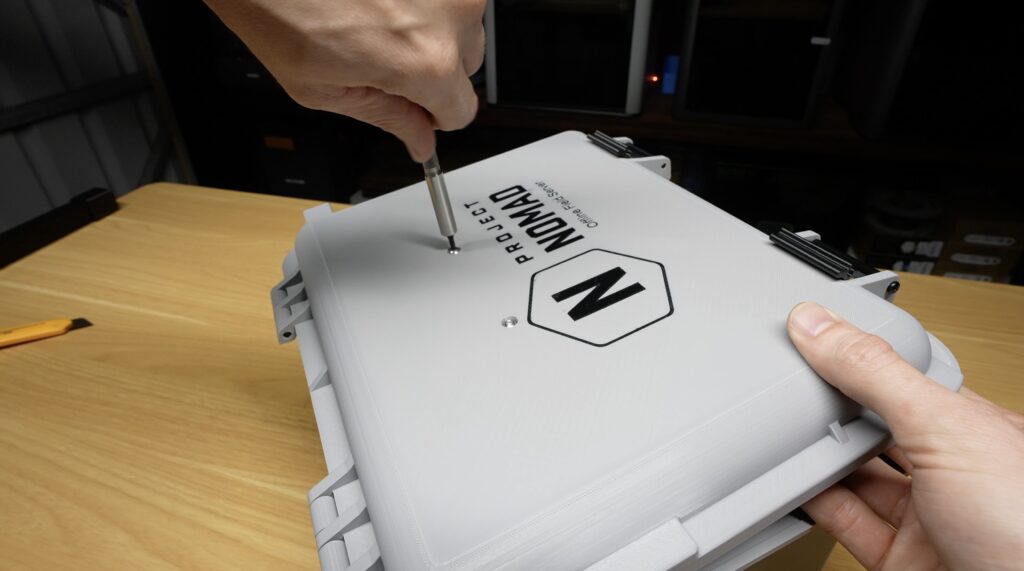
    I went with 3D printing a 5U Lab Rax homelab using materials sourced from AliExpress. I bought two rolls of PETG, some M6 brass inserts, M6 screws, and some coloured M6 screws for the front. All of this came to a total of $34.00 and was enough to print shelves to hold all of the components, so I didn’t need to buy any additional shelving hardware.

    Next, I printed the homelab and shelves. Honestly, this went quite well. I dried the filament for eight hours before printing and all of the parts came out nicely, so I can’t really complain. These two 1kg rolls were each just over $10 including delivery, which is quite good.

    As with my other builds, this version of the Lab Rax system uses brass inserts melted into the parts with a soldering iron and M6 screws to hold everything together.

    And that’s my 3D printed 10″ homelab rack complete and ready for the heardware to be added. I’m quite happy with how this has come out.

    Assembling The Aliexpress Homelab Hardware Into The Rack

    I started off assembling the Aliexpress homelab hardware by installing the 120mm fan on the top panel using M3 screws.

    Next, I started populating the shelves. I initially went top down from smallest to largest so that the fan at the top would be most effective at cooling the lower components. So, at the top is the switch, then the mini PC below that. Under the mini PC I installed the drives in my NAS tray setup, followed by the half-U patch panel and half-U vent panel. The router sits at the bottom.

    When I started plugging in patch leads and other cables, I realised that my layout wasn’t going to work with the hardware that I had available, so I had to rearrange the shelves slightly to get everything to fit. At this point, the AliExpress homelab is effectively complete.

    Totalling everything up, the homelab cost me $216.05. That actually seems like a fairly good deal, assuming all of the components do what they claim and hopefully for longer than a couple of hours. I did a rough estimate of what this would cost using locally available, budget-friendly name-brand components and came out at around $490.00, so this build is less than half the price.

    Testing The Aliexpress Homelab To See If It Was A Good Deal

    Next, it was time to test everything and see how the components perform, or whether they work at all.

    I wasn’t going to hook this homelab up to my main home network. I have no idea what spyware or other questionable software might be installed, so I ran it on an isolated guest network with internet access only, just in case.

    The mini PC arrived with Windows 10 installed, but I wasn’t sure what else might be on it, so I wiped the OS drive and installed Ubuntu, which is more appropriate for a homelab anyway.

    Aliexpress Homelab Booted Up

    Testing The Mini PC

    Starting with the PC, I ran a CPU stress test. It’s passively cooled, but I had the 120mm fan above it turned on, which likely helped.

    CPU Stress Test in Mini PC

    It did reasonably well. Temperatures started at around 35 degrees and stabilised at about 45 degrees after ten minutes.

    Running a Sysbench CPU benchmark, I got an average score of 6,148 over three tests. That’s not great and is roughly on par with a Raspberry Pi 4, which is a bit disappointing, although not entirely unexpected for a 12-year-old CPU.

    Sysbench CPU Benchmark

    Testing the OS drive speed showed around 537MB/s buffered reads, which is quite good for a SATA drive.

    Storage Drive Speed Test

    In terms of power consumption, the mini PC uses 6W at idle and 14W under full load. That’s a bit higher than more modern systems using something like an N100 or N150 CPU, but it’s still reasonable for a simple homelab PC.

    Overall, I can’t really fault the PC. The CPU is old, but that was known going in, and it performed as expected. Being passively cooled is also a plus, as it produces no noise.

    Testing The Router

    Next, I tested the router. The web interface seems fine, it’s in English and has all of the basic features you’d expect. It even includes parental controls and blocklist features.

    I tested internet speed over both wired and wireless connections. Wired, I saw between 850 and 900 Mbps download and around 95 Mbps upload, with a ping of 5 to 7ms.

    Running Internet Speed Test

    Wireless speeds were between 60 and 110 Mbps download and a little over 80 Mbps upload, with similar ping times.

    The wired results were reasonably close to what I get from my main router. The ping was slightly slower, but this router was on an isolated guest network and had the overhead of another router and switch in the path, so the results weren’t too bad. Wireless performance was pretty poor, but the mini PC is using a Wi-Fi 4 adapter from around 2012, which is almost certainly the limiting factor.

    Testing The Network Switch

    Next, I tested the switch. Running iperf3, I saw transfer speeds just over 940 Mbps, which is solid. I didn’t want to connect more of my everyday devices to this network, but heavier traffic would have made the test more demanding.

    Network Speed Test Results

    Testing The Storage Drives

    Then it was time to test the storage drives, where I didn’t have high hopes that I had avoided being scammed.

    I started by formatting the drives on a burner PC, just in case they had anything on them. After that, the drive showed up as readable and appeared to have its stated 1TB capacity, or very close to it at 953GB.

    However, what often happens with these drives is that they actually only have 32GB or 64GB of real capacity. They either refuse to write more data or silently overwrite older data, so files seem fine at first but disappear later.

    To test this, I used H2testw, which writes the drive full and then verifies the data to check for errors or fake capacity.

    The test initially estimated just over an hour. Write speeds started above 250MB/s, dropped under 80MB/s after about ten minutes and around 50GB written, and then fell below 30MB/s for the remainder of the test. There are several reasons for this drop, but it clearly shows the drive is using very budget-tier hardware.

    After two and a half hours, the real issue appeared. The test stopped being able to write at 122GB. I was able to verify the data written up to that point successfully, but the drive would not allow any more data to be written. I ran the test again on the same drive and then on the second drive, and got similar results every time. Sometimes the test ran faster, but it always stopped around 122GB.

    So it looks like these are actually 128GB drives, which aligns much more closely with the price I paid.

    Running transfer tests from the mini PC showed buffered read speeds of just 23MB/s, which is very poor.

    The drives also don’t report any useful manufacturer or model information. I opened one up and found a reasonably normal-looking PCB. These SSDs are never physically full; they’re only that size to match the old 2.5-inch mechanical drive form factor.

    Searching the chip part numbers didn’t bring up technical documentation, only other people complaining about being scammed by drives with the same chips from unreliable sellers.

    So this result aligned with my expectations. I suspected I’d be scammed, and despite trying to avoid it, I wasn’t successful.

    Final Thoughts On My Aliexpress Homelab Build – Was It Worth It?

    Completing my testing leaves the question of whether it’s worth building a homelab from AliExpress, or whether you’re better off buying name-brand hardware.

    From a pure “does it function” perspective, this homelab does work. But realistically, you’d be far better off spending a similar amount of money on higher-quality used hardware.

    The homelab frame itself, made from AliExpress filament, brass inserts, screws, and even the fan, is actually quite good. It printed well, everything fits properly, and there are no issues. If you’re prepared to wait, AliExpress makes sense for these kinds of passive components.

    All Aliexpress Components Homelab

    The mini PC is usable, but it’s already a decade out of date. You could likely get a better deal on a second-hand workstation like a Lenovo ThinkStation or Dell Precision T-Series.

    The router is similar. It works, but you could probably find an older Netgear Nighthawk or TP-Link Archer locally for a similar price.

    The switch is decent value for an 8-port model, but I doubt it will last very long. For an extra $15, you’d be better off buying a name-brand one.

    The drives are a straight-up scam and reinforce the rule that you should never buy storage from AliExpress. At their real 128GB capacity, they’re actually more expensive than equivalent name-brand drives.

    Aliexpress Bought Homelab

    So, my takeaway is this. AliExpress can make sense for passive components like mechanical parts, cabling, hardware accessories, and even racks or enclosures if you’re willing to wait. But for core infrastructure, you’re almost always better off spending similar money on used, name-brand hardware that was designed to last.

    Let me know what you think of the build in the comments section below, and what you think I should do with this homelab next.

    Pi 5 NAS With Custom Carbon Fibre Panels, Made on the Makera Z1!

    Today, I’m going to be building a low-power SSD NAS that is built around the Raspberry Pi 5. This Pi 5 NAS offers flexible storage options, a stats display, and custom carbon fibre panels. To build a NAS on a Raspberry Pi, you typically need to use one of two hats, a SATA hat to connect 2.5″ SSDs or an NVMe hat to connect M.2 NVMe SSDs. I wanted to do things a little differently for this build, so this NAS uses both 2.5-inch SATA SSDs and NVMe storage drives. This is achieved by using an NVMe hat for the M.2 storage, along with USB to SATA adaptors for the 2.5″ drives.

    I’ve used OpenMediaVault (OMV) as the NAS operating system, and I’ll run some real-world tests on the NAs to evaluate real-world performance across different drive options.

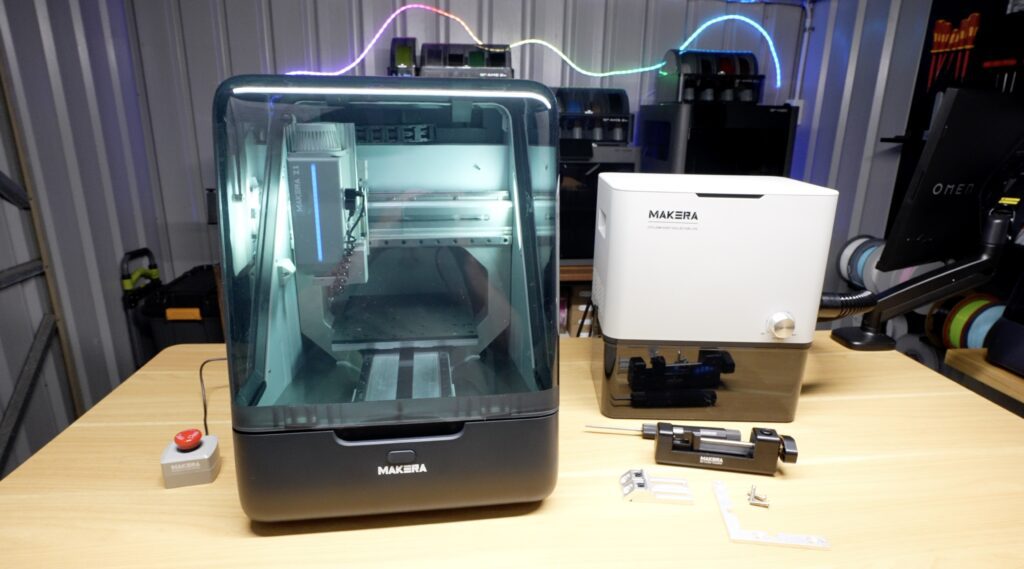
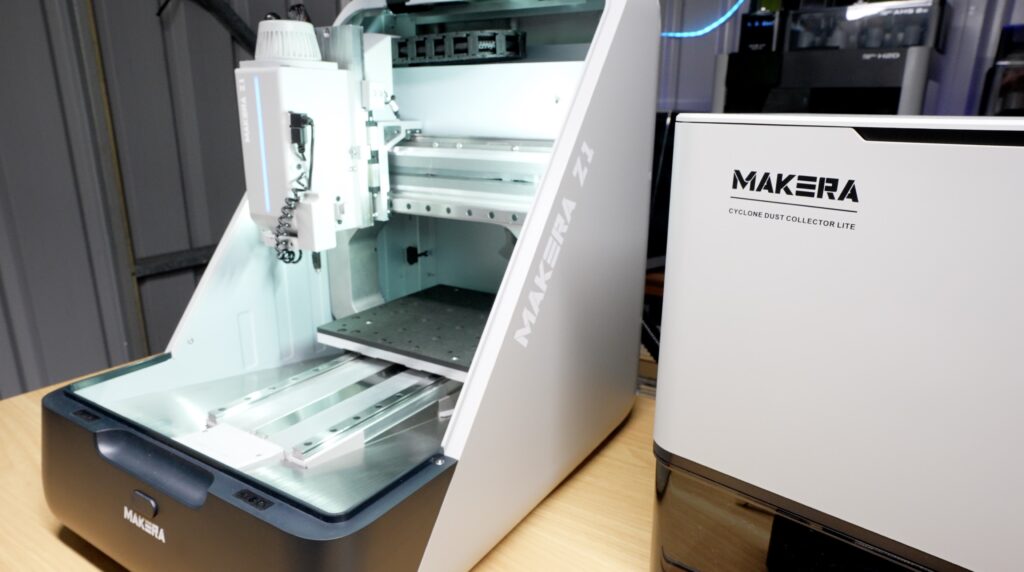
    Makera recently reached out and asked if I’d be interested in trying out their new Makera Z1 Desktop CNC machine, so I’ve used that to create some custom components to assemble the NAS into a compact and standalone device.

    Here’s my video of the build, read on for the write-up:

    What You Need To Build Your Own Pi 5 NAS

    Tools & Equipment Used:

    Use my coupon code below to get $100 off the Carvera or Carvera Air

    MichaelK100off

    Once per order, one use per customer

    Some of the above parts are affiliate links. By purchasing products through the above links, you’ll be supporting this channel, at no additional cost to you.

    Hardware Used To Build The NAS

    As mentioned in the introduction, the Raspberry Pi 5 provides a single PCIe port, which typically forces you to choose between a SATA or an NVMe expansion hat. I wanted to try use both for this build, so in order to avoid the performance limitations of a PCIe switch, this build uses an NVMe hat connected to the PCIe port, while the SATA drives use USB-to-SATA adapters to take advantage of the USB 3.0 ports.

    So, all up in hardware, the list includes:

    • A Raspberry Pi 5 with40mm fan and heatsink
    • An NVMe hat and NVMe storage drive, although a dual hat and two drives could also be used.
    • Two 2.5-inch SATA SSDs with USB adapters
    • An I2C OLED display for system stats.
    • To assemble these components, custom carbon fibre and acrylic panels will be made up.

    Designing the Assembly

    As with most of my projects, the enclosure was designed in Fusion360. Two carbon fibre side panels support the 2.5-inch drives and the acrylic base for the Pi stack. A clear acrylic top panel holds a fan above the Pi’s heatsink, with a carbon fibre accent piece tying it into the side panels. A black acrylic front panel houses the OLED display. The layout is designed around easy of assembly and providing airflow to the drives and Pi.

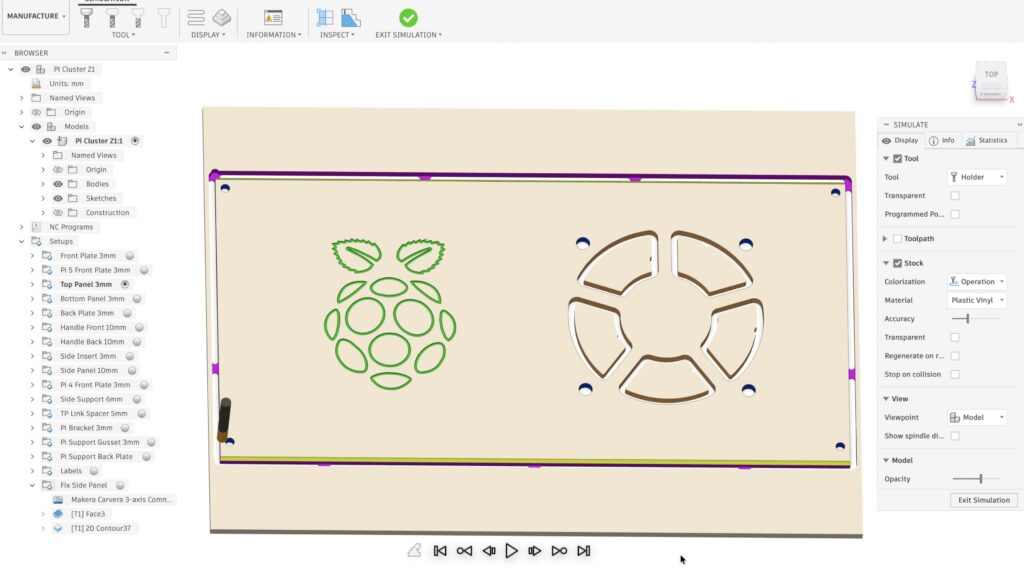
    I then used Fusion360’s manufacturing options to generate the NC toolpaths. It’s simulation function is particularly helpful to validate the cutting processes before moving onto the machine.

    Tool Paths For CNC

    Cutting the Panels on the Makera Z1

    Once the toolpaths were prepared, the NC files were exported and loaded into Carvera Controller for machining.

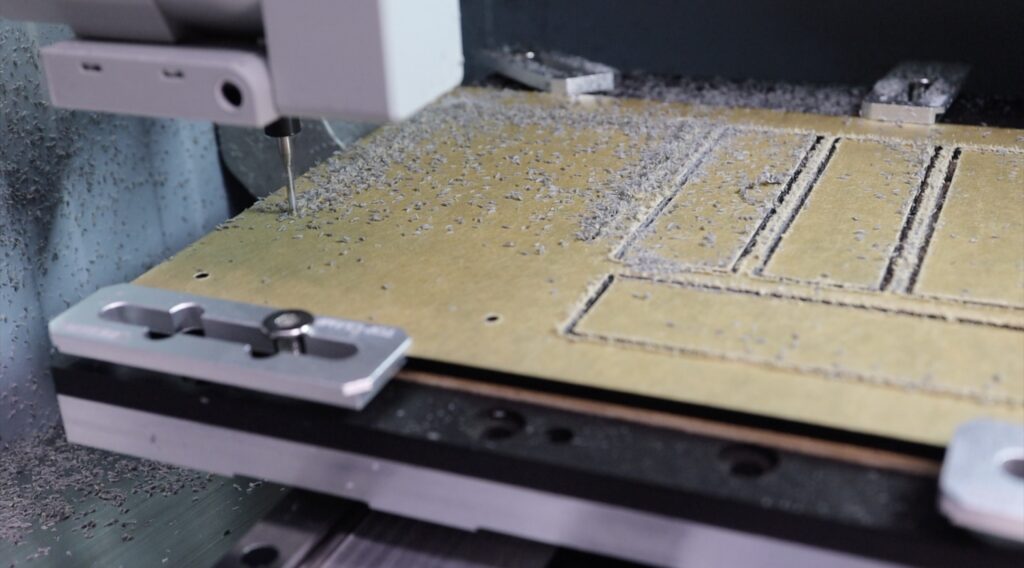
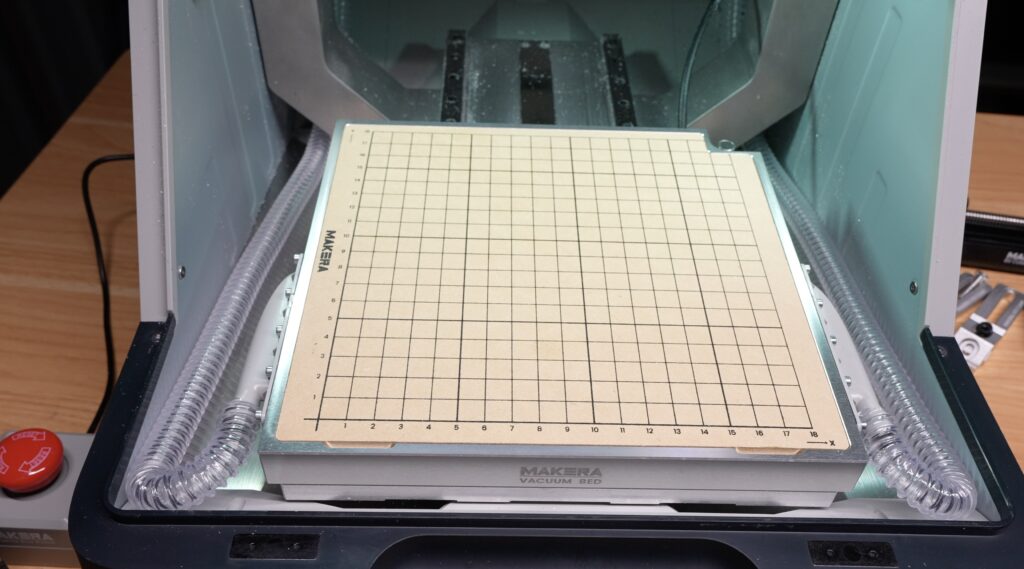
    The Z1 is Makera’s new beginner-friendly CNC, with a 200×200 mm bed and 100 mm of cutting height. This provides more than enough volume for smaller projects like this NAS enclosure.

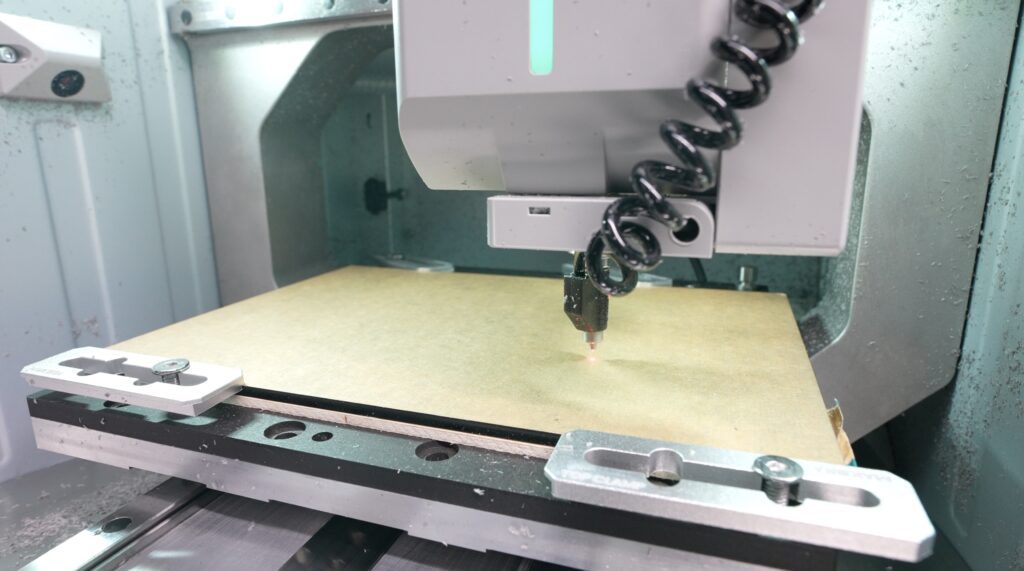
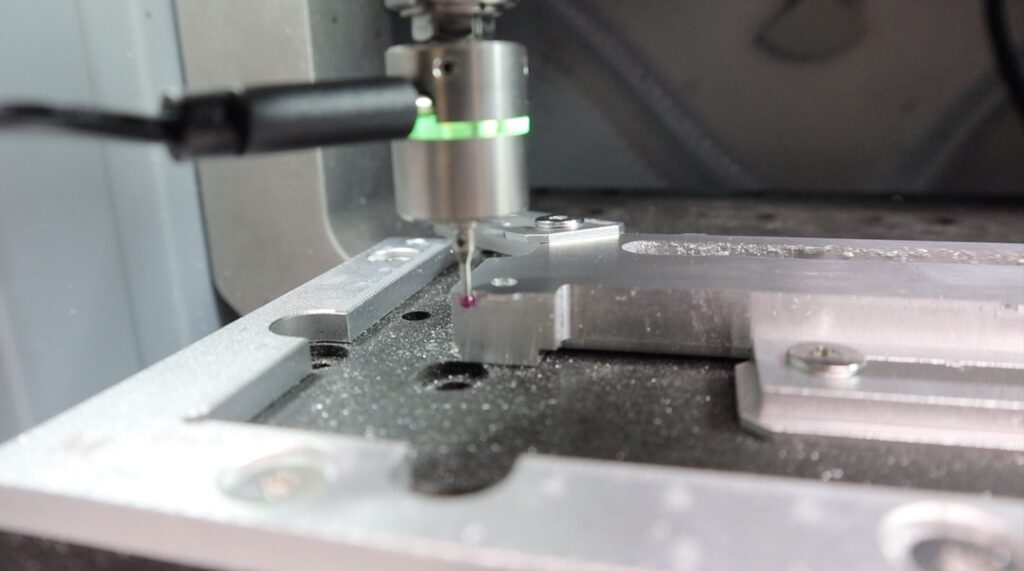
    Like with the Carvera Air, the Z1 uses an integrated auto-levelling probe to probe the stock at a number of places across the surface before machining to account for any height differences. This probe also has an integrated laser pointer so it can be used to trace an outline or cutting margins on your stock for you start cutting, which is a helpful check and useful for alignment.

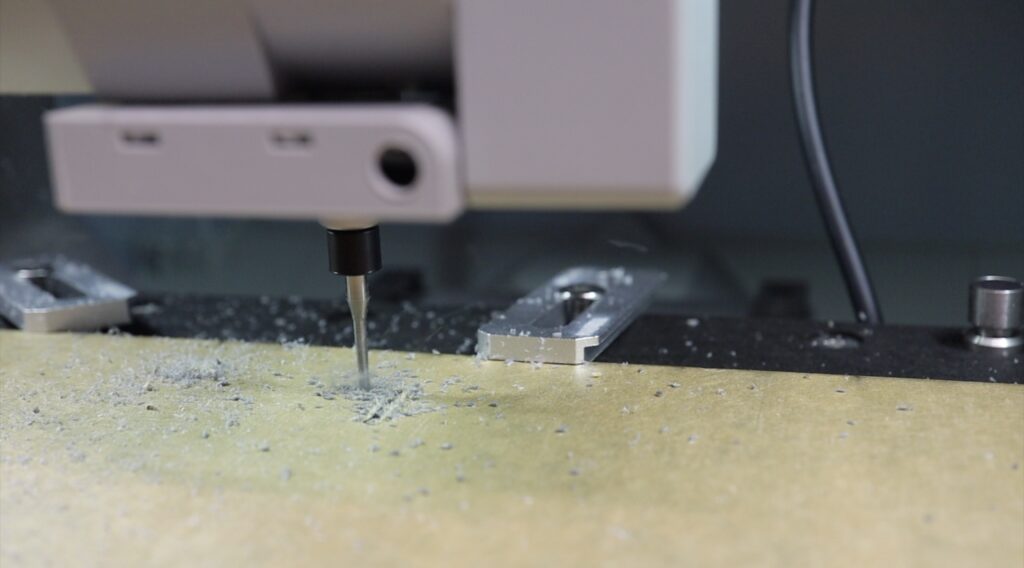
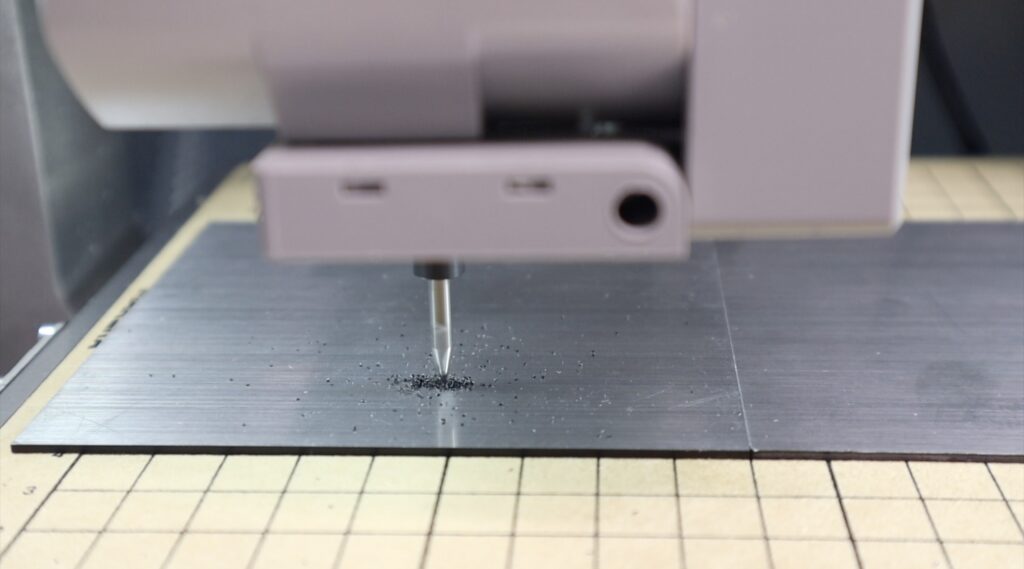
    Once auto-levelling is done, again like the Carvera Air, it also has single level based tool changer which allows you to quickly and easily switch between tools. I’m using three tools for this project, a 2mm single flute endmill for the larger profile cuts, a 0.3mm engraving bit for the Raspberry Pi logo and a 0.6mm corn bit for the small accent details. The Z1 has an LED strip light integrated into the tool head, which amonst other things, helpfully indicates which tool number to change to.

    The dust port can connect to either a standard shop vacuum or Makera’s Cyclone Dust Collector. The Cyclone offers several advantages: automatic control via the Z1, quieter operation (under 70 dB), compact desktop sizing, and a 6 L capacity with a 200 W motor and HEPA filtration. While it does not capture all debris, it reliably removes 80–90% of chips, significantly improving visibility during machining.

    One thing that has changed quite a bit between this machine and the larger Carvera and Carvera Air is how it handles chips and dust. The Z1 has a blower integrated into the tool head. This blows chips and dust away from the work area and towards the back of the machine where there is a port for a vacuum. The base under the bed is also slanted towards the back so chips vibrate their way to the vacumm port on the back of the machine as well.

    This port allows you to hook up a shop vac or Makera’s Cyclone Dust Collector.

    Their Cyclone Dust Collector has a few advantages over a shop vac, it can be automatically controlled by the Z1, both in switching it on or off and in setting the power level, it’s also noticeably quieter than a shop vac, running at under 70dB, and its compact enough to sit on the desk next to the Z1.

    This dust extraction system obviously doesn’t catch everything but it does get 80-90% of the chips and particles out of the way so you can keep an eye on your project while it’s cutting. For comparison, this is what is looks like when you turn the blower and extraction off while cutting a side panel.

    To make up the panels, this is what I used for each:

    • Side Panels: Cut from 1 mm carbon fibre using a 2 mm endmill, 0.3 mm engraving bit for the Raspberry Pi logo, and a 0.6 mm corn bit for accent details.
    • Acrylic Base Panel: Cut from 5 mm black acrylicusing a 2 mm endmill, requiring only contour and hole cuts.
    • Clear Acrylic Top Panel: Double-sided machining for fan mount pockets and contours using a 2 mm endmill. The laser outline assisted in aligning the fan cutout after flipping the stock over.
    • Front Panel: Machined with the pocket and cutout for the OLED display, again using a 2 mm endmill.

    The Cyclone dust collector looks like it’s worked really well, you don’t realise how much it’s collected until you open it up.

    Dust & Chips Collected By Cyclone Dust Collector

    To finish the components off, I’ve sanded the edges and added the holes for the side screws to screw into.

    Clear Acrylic Top Panel Finished Off With Tapped Holes & Sanded

    I’ve also added some metallic silver paint to the engraved portion of the Pi logo so that it stands out a bit more. Carbon fibre always looks great, but machining it this cleanly on a desktop machine is really satisfying.

    Carbon Fibre Side Panel With Engraving

    Assembling the Pi 5 NAS

    With the components all made up, we can get the Pi 5 NAS assembled. Let’s start with installing the NVMe drive onto the hat and connecting it to the Pi’s PCIe port. The hat mounts beneath the Pi using the included standoffs, and the Pi stack is then mounted onto the acrylic base plate using four 5 mm brass standoffs. A small stick-on aluminium heatsink is added to the CPU.

    I’ve installed Pi OS Lite, along with OMV onto a microSD card and I’ll be using that to run the OS. If you’d prefer, you can use a dual NVMe hat and run the OS from one of your NVMe drives, keeping the other for storage, or you can use my configuration but run the OS from one of the available drives and keep the others for storage.

    To make up the fan assembly, we need to mount the 40mm fan beneath the clear acrylic and carbon fibre accent piece, and then secure it with four M3x16mm screws and nuts.

    Lastly, the I2C OLED display is held in place with some hot glue along the edges. I didn’t want to use screws to mount the display as I prefer this clean look on the front.

    Gluing OLED Display Into Place

    The storage drives are mounted between the carbon fibre side panels, followed by installation of the Pi stack, front panel, and top fan panel. The drives are held in place with M3x8mm button head screws and the acrylic components with M2.5x6mm button head screws. The display connects to 5V, GND, SCL, and SDA. The fan connects to 3.3 V and GND.

    Once fully assembled and squared up, the screws can be tightened up. Then the SATA adapters, power cable, and Ethernet cable are connected to finish off the Pi 5 NAS.

    And thats the Mini Pi 5 NAS complete.

    Configuring OMV and Testing the NAS

    As I mentioned previously, I’ve installed OMV on it as the NAS software, which requires a bit of setup. You’ll need to mount your drives and create file systems and shared folders on them, setup user access accounts and create shares so that they’re accessible over your network. You can set up the SATA drives in a RAID configuration but I wouldn’t recommend this for USB connected drives.

    The OLED stats display script provides live system information on the front panel.

    OLED Stats Display Running on Pi

    File shares are easily accessible from any computer on the same network.

    NAS Drives Mapped To Windows PC

    Performance Testing

    To test the Pi 5 NAS, I first ran some automated tests using AJA System Test

    NVMe drive:

    • 1 GB file: ~110 MB/s reads and writes
    • 16 GB file: ~105 MB/s writes and ~95 MB/s reads

    2.5-inch SATA SSD:

    • 1 GB file: ~110 MB/s reads and writes
    • 16 GB file: ~105 MB/s writes and ~95 MB/s reads

    The CPU temperature remained around 40°C throughout all tests. This confirms that the 40 mm fan and heatsink work well in this application.

    Next, I tried copying a 30 GB video file as a real-world test:

    • NVMe drive: ~110 MB/s writes with small dips; ~112 MB/s reads
    • SATA drive: Similar average speeds with fewer dips

    So the gigabit ethernet connection is now the bottleneck for file transfer speeds. On some of my other Pi based NAS builds, I’ve used a 2.5G USB adaptor to significantly improve transfer speeds. With this build it’s not as easy an option as we have both drives hooked up to the USB 3 ports. But you could use a hub and since you’d then be limited by the 2.5G throughput of the network adaptor, there should be enough remaining bandwidth on the USB bus to handle this same throughput to the drive as well.

    USB Network Adaptor For 2.5G Networking

    Power Consumption

    The entire Pi 5 NAS draws only 6 W at idle and 7–7.5 W under full write load, making it a silent, energy-efficient storage solution.

    Power Consumption During Idle and Load

    Final Thoughts On My Pi 5 NAS

    This custom carbon fibre Raspberry Pi 5 NAS turned out really well, it’s a clean build that performs better than expected for such a compact system. It offers ample storage flexibility, strong performance within gigabit limits, and extremely low power usage.

    If you want to check out the Makera Z1 that I used in this build, they currently have an active campaign on Kickstarter which has over 6,000 backer and only a few hours to go. Go check it out to learn more about the Z1 or support their campaign. It’s a really great desktop machine and they have a proven track record with their Carvera and Carvera Air.

    If you liked the build, please comment on what features you’d like to see added to it for a future build!

    I Built a Pi 5 AI Chatbot That Talks, Blinks, and Looks Around!

    There’s something fun about bringing tech to life, literally. Today’s project is all about that, building an AI chatbot that blinks, looks around, and even talks back using a set of custom animatronic eyes and a mouth made from a Neopixel LED light bar. The AI chatbot runs on a Raspberry Pi 5, and the result is a lively little assistant sitting on your desk.

    Animatronic Eyes on Chatbot

    This idea started after I experimented with the Whisplay Hat by PiSugar. It’s a clever add-on for the Pi Zero 2W that turns it into a compact, portable AI chatbot. You press a button on the side to speak, and it replies through a small onboard speaker while also showing text and emojis on its built-in display.

    PiSugar Whisplay Hat Chatbot

    It’s a surprisingly capable setup considering its size. After playing around with it for a while, I wondered whether I could build my own version with a bit more life-like appeal. There’s something fascinating about giving an AI a face, not just a screen, but expressive eyes that blink and move around while it talks. This makes it feel more “alive”, which is exactly what I wanted to explore.

    Here’s my video of the build and the AI Chatbot in action, read on for my write-up;

    Where To Buy The Parts For This Project

    Tools & Equipment Used:

    Some of the above parts are affiliate links. By purchasing products through the above links, you’ll be supporting my projects, at no additional cost to you.

    Revisiting My Animatronic Eyes Design

    To bring the AI chatbot to life, I used a Raspberry Pi 5 as the brain and went back to my old animatronic eyes design from a few years ago.

    The original version worked, but it relied on fishing line between the servos and the eyes, and the servos were glued in place, which made adjustments and repairs a bit of a pain. So for this build, I updated and expanded the design. I added a proper supporting stand, a mouth, and a mount for the Pi 5 and electronics on the back.

    Design of Animatronic AI Chatbot

    Download the 3D Print Files

    So with that sorted, it was time to print out and assemble all of the parts. I printed out the parts in PLA, black for most of the components, white for the eyeballs (aside from the pupils) and mouth diffuser and then grey for the eyelids.

    3D Printed Parts For Chatbot

    Each eyeball uses a small universal joint to give it a full range of motion. They’re held in place with a drop of hot glue.

    The new base includes screw-in mounts for the servos, each one attached using two M2 screws.

    The eyes are driven using small RC pushrods for each axis. The z-bend goes through the printed arm on the inside of each eye-ball and the rod attaches to each servo with the included screw-on clamp. Don’t worry too much about adjusting these at this stage. It’s actually better to leave them loose so that they can be adjusted when the servo’s are centred in the code.

    Each eye gets three servos: one for horizontal movement, one for vertical movement, and another for the eyelids.

    The eyelids pivot around adjustable M2 screws on either side of each eye. These are screwed in from the outside of the bracket towards the eyeball and should almost touch the eyeball (about a 0.5mm gap). The eyelids can then be snapped into place on these screws, starting with the upper eyelid (larger one) first.

    A two-part pushrod connects the eyelids to the servo. This also attachs to the eyelids with M2 screws and a single M2 screw acts as the pivot point in the middle to make the two parts into a single pushrod.

    With six servos in total, the mechanism is a bit more complex than it needs to be, but it gives you independent movement of both eyes and eyelids. That means winking, going cross-eyed, or expressing more subtle movements becomes possible.

    The mouth uses an 8-LED Neopixel bar. A soldered on jumper cable runs through the holder and the bar then screws into the stand again with some M2 screws. A white clip-on cover plate acts as a simple diffuser. If you’d like a more or less diffused mouth, play around with the infill settings on this part when printing it out.

    With the mouth done, we can add two M2 screws to join the left and right eye bases to make a single assembly. The whole eye assembly then mounts onto the stand and is held in place with four M2 screws.

    Electronics: Giving It a Brain

    All six servos connect to a PCA9685 control board, which handles their power and PWM signals. This makes servo-control much easier, since the Pi just sends position commands over I2C and the board deals with the actual movement. It also avoids voltage-level issues, because the Pi’s 3.3V logic often isn’t compatable with servos that expect a stronger 5V PWM signal. This board is connected to the Pi’s I2C pins (SCL and SDA) as well as 5V and GND.

    The Raspberry Pi 5 is mounted below the servo board, and the Neopixel bar connects directly to GPIO 13, physical pin 33. It also needs a 5V and GND input.

    Circuit Diagram

    Animatronic AI Chatbot Circuit

    Wiring Connections Summary:

    Servos to PCA9685 Board:

    • Left Eye X Movement – Servo Port 0
    • Left Eye Y Movement – Servo Port 1
    • Left Eye Blink – Servo Port 2
    • Right Eye X Movement – Servo Port 3
    • Right Eye Y Movement – Servo Port 4
    • Right Eye Blink – Servo Port 5

    PCA9685 Board to Pi 5:

    • GND – Pi 5 Pin 6 (GND)
    • OE – None
    • SCL – Pi 5 Pin 3 (SCL)
    • SDA – Pi 5 Pin 5 (SDA)
    • VCC – Pi 5 Pin 4 (5v)
    • V+ – External 5V Power Supply +
    • GND – External 5V Power Supply –

    NeoPixel Bar to Pi 5:

    • 5V – Pi 5 Pin 5 (5V)
    • GND – Pi 5 Pin 9 (GND)
    • Din – Pi 5 Pin 33 (GPIO13)

    Building the Chatbot: Three Stages

    With all of the electronics wired up, I put together a short Python test script to make the eyes roam around and blink at random intervals. This was just to test the movement and controls out, it makes the eyes feel alive even before adding the chatbot. I also added variables in the script so you can adjust things like movement speed, blink frequency, travel limits etc.. You can download this version of the code from my GitHub repository.

    Animatronic Eyes Basic Eye Movement Script

    With the animatronics working, the next step was building the actual chatbot. I broke this into three stages:

    1. OpenAI API for Conversation

    I started with a simple terminal-based chatbot using OpenAI’s API. To get started, you need to register an account and create an API key. You’ll also need to load some account credit to be able to generate responses, a chatbot uses very little so just load the minimum allowable balance to start out.

    The OpenAI API also makes it easy to experiment with tone and personality, so you can tailor it to be friendly, sarcastic, calm, chaotic, or create your own custom personality prompt by changing these lines in the code.

    2. Text-to-Speech

    Once the text conversation worked, I added text-to-speech so the chatbot could talk back. This code takes the return text response and converts it into speech and then plays back the generated audio file.

    Adding A Voice To The Chatbot

    The voice options are also very flexible. You have different basic voice options, but can also tailor accents, styles, and levels of expression through the same text prompt as the previous step. You can go flat, dramatic, natural, robotic or whatever suits the personality of the chatbot you’re building.

    3. Speech Recognition

    Lastly, I added speech recognition. This code listens for spoken audio, which it then saves as an audio clip. It then converts it to text which is then used as the chatbot prompt and the rest of the code the same as in the previous steps. At this point, the system can listen, think, and respond entirely on its own.
    Adding Listening For Input To The Chatbot

    Adding Expression: The Neopixel Mouth

    With the AI chatbot’s logic complete, I tied in the Neopixel mouth. The 8-LED bar lights up dynamically based on the volume and intensity of the speech. Soft sounds only light the middle LEDs, while louder or more expressive moments light the whole bar.

    It’s a small detail, but it adds a lot of personality. Paired with the blinking animatronic eyes, the chatbot now feels quite lifelike.

    The Complete AI Chatbot (And It’s Few Personalities)

    And that’s the full AI chatbot build, complete with its animatronic eyes and a responsive Neopixel mouth, all powered by a Raspberry Pi 5. It’s best to watch my Youtube video linked at the begining of the post to see it in action.
    Download the code from my GitHub repository.

    I then experimented with different personalities:

    • A mad scientist
    • A grumpy, sarcastic chatbot
    • A chilled, laid back and casual chatbot

    Seeing it blink, look around, and talk back never really gets old.

    While I could have tried running the language model locally on the Pi 5, using cloud-based models gives significantly better results. There’s still about a 1–3 second delay between speaking and getting a reply, but it’s noticeably faster and far more natural than local models. And using the OpenAI API means you can access models like GPT-4 or GPT-4 Mini, which provide richer and more context-aware responses.

    What Should I Add Next?

    If you enjoyed this AI chatbot project, I’d love to know what you think I should add next. Should it track your face? Respond with emotions? Use gestures? There are a lot of possibilities for upgrading its personality and expressiveness.

    Before we wrap up, here’s the chatbot’s final message to everyone:

    “Goodbye, humans. May your code always compile and your servos never jitter.”

    I think it has been spending a little too much time on GitHub…

    Thanks for reading, and I’ll see you in the next one!

    A Pi Cluster That Fits in the Palm of Your Hand – The Sipeed Nanocluster

    Building a Raspberry Pi cluster usually means dealing with messy cables, stacks of boards, and a tangle of power supplies. But what if you could shrink all of that into a single, compact board?

    That’s exactly what the Sipeed Nanocluster does. It’s a small board and enclosure that lets you run multiple Raspberry Pi Compute Modules together as a compact cluster computer, and it literally fits in the palm of your hand.

    Here’s my video review of the Sipeed Nanocluster, read on for the write-up;

    Where To Buy The Sipeed Nanocluster

    • Sipeed Nanocluster Preorder – Buy Here
    • Raspberry Pi CM5 Lite Modules – Buy Here
    • Sandisk Ultra MicroSD Card – Buy Here

    Tools & Equipment Used

    Pricing and Packages

    The Sipeed Nanocluster is still in development, but you can preorder it from Sipeed’s website. Pricing depends on the configuration you choose. The basic package, which includes the barebones board and fan, starts at $49, while the fully loaded version with four of Sipeed’s M4N modules and adapters goes up to $699.

    That might sound steep, but when you consider what’s included, an 8-port managed gigabit switch, eight power supplies, and all the necessary cabling and cooling, it’s actually quite good value. You’re getting everything you need to build a clean, functional cluster for less than the cost of a single Raspberry Pi Compute Module 5.

    Sipeed sent me what appears to be their CM45 package, which includes the Nanocluster board, fan, and seven adapter boards for Raspberry Pi CM4 or CM5 modules (with a small caveat I’ll get to later). This kit sells for $99. They also included a 3D-printed two-part enclosure with clear and white top options. It doesn’t seem to be part of the preorder packages yet, but Sipeed has shared the 3D print files on Makerworld, so you can print your own if you’d like to.

    Exploring the Nanocluster Board

    The Nanocluster board itself features seven SOM (System on Module) slots, each using dual M.2 M-key vertical connectors. These connect to an 8-port RISC-V-based gigabit managed switch located at the bottom of the board. The switch includes a web dashboard for configuration, somethingthat’s quite nice to see in such a tiny setup.

    The slots are directly compatible with Sipeed’s Longan 3H as well as their M4N module and Raspberry Pi CM4 and CM5 modules via the included adapter boards. You can even mix and match different module types if that suits your project.

    For power, the board uses a USB-C port supporting up to 20V (65W) or an optional PoE expansion module (up to 60W). Both can be connected simultaneously for power redundancy, so your cluster keeps running even if one source drops out. It’s a thoughtful design that eliminates the usual mess of cables and power bricks. With your modules installed, you just plug in a power supply and Ethernet cable, or a single PoE cable, and you’re ready to go.

    Alongside the USB-C port, you’ll find two USB 2.0 ports, a gigabit Ethernet port, and an HDMI port. These are all connected to slot 1, which acts as the master node and can manage power for the other slots too.

    Cooling and Connectivity

    Mounted to the back of the enclosure is a 60mm 5V fan. It’s a simple two-pin fan that runs at full speed permanently, it’s not PWM controlled, so it’s a bit noisy, but it ensures all modules stay cool regardless of what’s running.
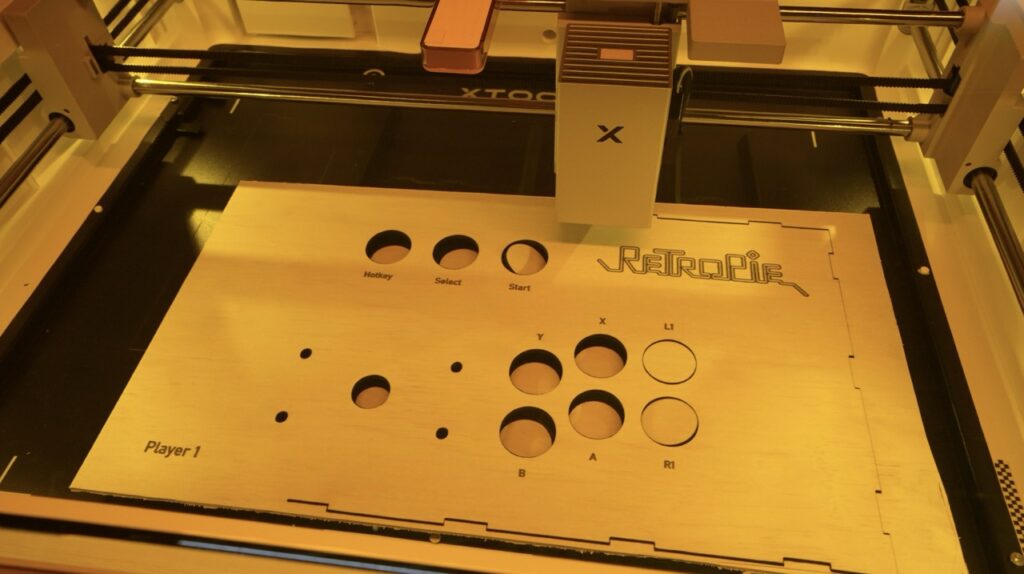
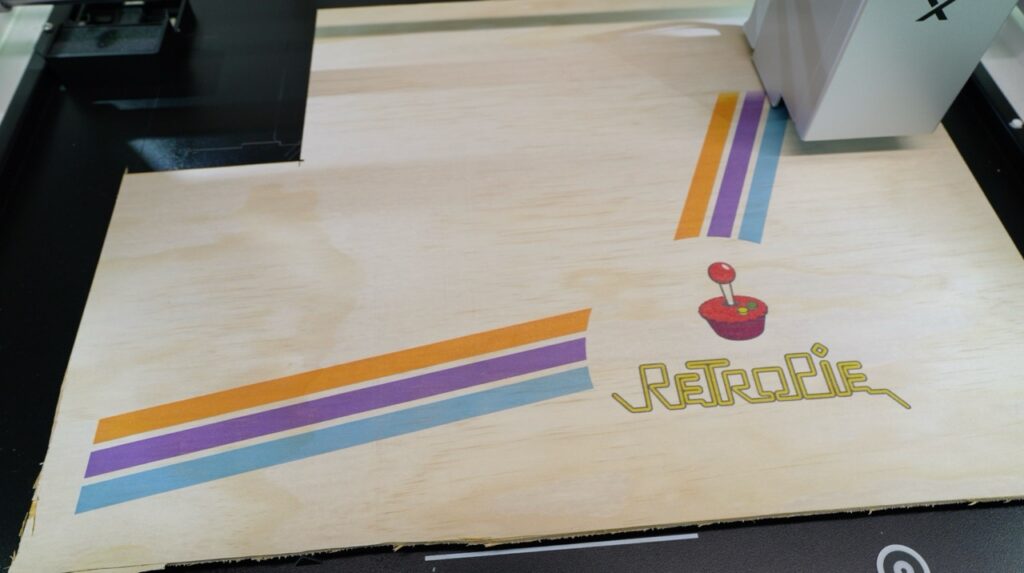
    In front of the fan are seven indicator LEDs showing the status of each node, and seven UART ports for debugging and control.

    The board measures just 88 x 57 mm, or the whole assembly is roughly 100 x 60 x 60 mm with the fan and modules installed.

    Computer Module Adapter Boards

    If you’re using Sipeed’s LM3H modules, you don’t need adapters. But if you’re running Pi CM4, CM5, or M4N modules, these adaptor or carrier boards are required.

    Each adapter board includes:

    • A connector for the compute module
    • A USB-C port for flashing
    • A boot button
    • A microSD card slot for the OS image
    • An M.2 slot (2230/2242) for an NVMe SSD

    In terms of performance, the LM3H modules are the most affordable option, while the M4N modules offer the most processing power, featuring up to eight cores.

    Power and Thermal Limits

    As compact as the Nanocluster is, there are some limitations. Because of its 60W power limit and small form factor, you can’t populate all seven slots with high-power modules.

    Sipeed recommends:

    • Up to 4 CM5 or M4N modules (especially with SSDs or PoE)
    • Up to 6 CM4 or LM3H modules
    • All 7 slots only if you’re using CM4s without SSDs and powered via USB-C PD

    Space is also a factor, if you’re using heatsinks and SSDs, you’ll likely only fit four modules comfortably, skipping every other slot for airflow.

    Setting Up the Cluster

    For testing, I used four Raspberry Pi CM5 Lite modules (no Wi-Fi or Bluetooth) and microSD cards for storage. I also tried to use the official CM5 heatsinks, but they were too thick to fit, so I ran the tests without them. More on this during my thermal tests.

    Once the modules were installed in their adapters and plugged into the board, I set up the cluster in the enclosure and prepared for some benchmarks.

    Performance Testing

    To test the cluster, I ran the prime number test script I used a few years ago on my 8-node water-cooled Pi cluster. The Python script checks each number up to a defined limit to see if it’s prime. It’s intentionally inefficient and CPU-intensive, perfect for testing performance scaling.

    I ran the test three times per setup (single node vs. 4-node cluster), with limits of 10,000, 100,000, and 200,000.

    Single Node Results:

    • 10,000 → 0.68s
    • 100,000 → 56s
    • 200,000 → 213s (≈4 minutes)

    4-Node Cluster Results:

    • 10,000 → 0.19s
    • 100,000 → 14s
    • 200,000 → 58s

    Each test ran roughly four times faster across the cluster, and the 4-node Pi 5 cluster even beat my old 8-node Pi 4 cluster, despite the Pi 4s being overclocked to 2.0GHz. The Pi 5s, running at stock 2.4GHz, showed how much progress the hardware has made.

    Thermal and Power Tests

    At idle, the cluster drew about 14W, which is around 2.5W per Pi, plus 3.5W for the board. Under full CPU load using cpuburn, total consumption rose to 33W, which is an increase to around 7.5W per Pi.

    Thermally, the results were excellent. Even without heatsinks, temperatures started around 26–29°C and stabilised at around 60°C after 30 minutes of full load. The large fan does a great job pushing air across the exposed CPU heat spreaders, keeping all nodes within safe limits. The outer modules ran a bit warmer, but still comfortably low.

    Fan noise measured about 58dB, which is noticeable but not unbearable for a lab setup.

    Network Performance

    I also ran an iPerf network test between nodes, and each link hit around 950 Mbps, which is right on target for gigabit networking.

    Final Thoughts

    The Sipeed Nanocluster is an impressive little system that makes cluster computing accessible and tidy. It packs power delivery, cooling, and an integrated managed switch into a form factor smaller than your palm.

    I really appreciate that Sipeed thought about practical usability, power redundancy, active cooling, and clean integration all make this much easier to work with than a DIY setup full of cables and adapters.

    It’s obviously not going to replace your cloud server or main NAS, but as a learning platform, IoT hub, or compact homelab, it’s a brilliant piece of hardware. And at under $100 for the board and adapters, it’s hard to beat.

    What would you run on your own Nanocluster? Let me know in the comments section below and if you’re curious to see it in action, check out the video on my YouTube channel.

    LattePanda’s New IOTA SBC – A Palm-Sized N150 Board for Makers

    LattePanda’s latest release, the IOTA, packs Intel’s new N150 processor into a board barely larger than a Raspberry Pi. Despite its small size, it’s packed with features and IO aimed squarely at makers who want desktop-class power with microcontroller flexibility.

    In this review, we’ll unbox the LattePanda IOTA, take a look at its hardware and available accessories, then boot it up to test video playback, run some benchmarks, and check its power consumption and thermal performance.

    Here’s my video review of the LattePanda IOTA, read on for the written review;

    Where To Buy The LattePanda IOTA

    Add Ons

    Tools & Equipment Used

    Unboxing the LattePanda IOTA

    The LattePanda IOTA is a single-board computer (SBC) available in several kit configurations with optional add-ons. I’ve got a few of those accessories here as well, which we’ll explore later. In the box is the IOTA, a user manual and a battery for the real-time clock.

    The board measures just 88mm x 70mm x 19mm, making it impressively compact for what it offers. It keeps the same dimensions and general port layout as the original LattePanda V1, meaning it’s compatible with most existing enclosures, perfect for anyone looking to upgrade or drop it into an older build.

    At first glance, you might think the CPU is on the top side, but it’s actually mounted on the back. The IOTA uses a 4-core Intel N150 CPU running up to 3.6GHz, paired with LPDDR5 RAM at 4800MT/s, available in 8GB and 16GB variants.

    For storage, it includes onboard eMMC. It’s got 64GB on the 8GB RAM version, and 128GB on the 16GB version. The model I’m reviewing has 8GB of RAM and 64GB of storage.

    Hardware Overview

    One of the standout features of the IOTA is its onboard RP2040 microcontroller, which sets it apart from most x86-based mini PCs. This dual-core Cortex coprocessor manages I/O through the GPIO pins, similar to how the Raspberry Pi handles hardware interfacing.

    Looking around the board:

    • On the bottom, there’s a power management connector for alternative power options and a fan connector.
    • On the top, you’ll find all the ports and interfaces:
      • Three USB 3.2 ports
      • HDMI 2.1 port (supports 4K @ 60Hz)
      • I2C connector for touch displays
      • eDP display connector
      • PCIe 3.0 x1 interface (similar to the Raspberry Pi 5)
      • Battery connector
      • USB-C Power Delivery input
      • MicroSD card slot
      • Headphone jack
      • Gigabit Ethernet port
      • Power and reset buttons
      • GPIO header
      • MCU reset and boot buttons
      • M.2 E-key slot for adding a Wi-Fi adapter.

    The IOTA has a configurable TDP between 6W and 15W, letting you balance performance and thermals. At lower settings, it can run silently with a passive heatsink; crank it up, and you’ll want the active cooler (which I’m using for this review).

    Pricing

    I think the LattePanda IOTA is priced fairly well;

    • 8GB RAM / 64GB storage – $129
    • 16GB RAM / 128GB storage – $175

    You’ll want to budget an extra $12 for the cooler, bringing the total to under $150 for the base setup. I think this is fair for what you are getting.

    Optional Add-Ons

    LattePanda also offers several add-ons to expand the IOTA’s functionality:

    Smart UPS Hat

    A plug-and-play uninterruptible power supply, capable of keeping the IOTA running for up to 8 hours depending on the batteries you use. It includes smart features like automatic power-on and safe shutdown when voltage gets too low, connecting via the IOTA’s power management connector.

    51W PoE++ Expansion Hat

    This expansion board lets you power the IOTA via Ethernet through its onboard gigabit port. It connects to the IOTA’s power input and PCIe port, effectively giving you two network ports.

    M.2 Expansion Boards

    There are two M.2 expansion options available for the IOTA:

    • One with an M-key slot for NVMe SSDs (2230 or 2280 sizes).
    • Another smaller one for a 4G LTE module for mobile connectivity.

    The NVMe board connects through PCIe, while the LTE board uses a USB 2.0 interface via the GPIO pins.

    Performance Testing The LattePanda IOTA

    Video Playback at 1080P and 4K

    For testing video performance, I ran playback at both 1080p and 4K, setting the system display resolution to match each test.

    • 1080p playback both in a window and fullscreen ran perfectly, with no dropped frames.
    • 4K playback dropped some frames, both windowed and fullscreen, but remained smooth enough for casual use. It’s near the performance limit, but still usable.

    Benchmarks

    I then ran a few standard benchmarks to get a sense of performance:

    Unigine Heaven (1080p, High Quality)

    • Score: 221 points
    • Frame rate: 5–20 FPS

    As expected, this isn’t a gaming system. The integrated graphics can handle light 3D workloads, but performance is roughly on par with other Intel N100 systems.

    Geekbench 6

    • Single-core: 910
    • Multi-core: 2002

    That’s enough for everyday tasks like browsing, media playback, and light productivity. It’ll struggle with heavier workloads like video editing or gaming.

    CrystalDiskMark (eMMC Storage)

    • Sequential Read: 288 MB/s
    • Sequential Write: 206 MB/s
    • 4K Random Read/Write: ~40 / 46 MB/s

    The onboard storage feels snappy for booting and launching apps, but it’s far slower than NVMe storage.

    Power and Thermal Performance

    At idle, the IOTA draws about 3–5W, rising to 15W under a full CPU and GPU load, with spikes up to 19W.

    Reducing the TDP to its minimum 4W limit drops total draw to around 5W, but performance takes a big hit. Windows 11 becomes laggy, so a lightweight OS would be better suited for that mode. Still, it’s impressive that an x86 board running Windows can idle that low.

    Thermals with the active cooler are solid:

    • Idle: 45–50°C
    • Full Load: ~70°C

    Fan noise is the only real issue that I encountered with this board. It runs at 34–35 dB at idle (20cm away) and up to 50 dB under full load. The tone is fairly high-pitched, which makes it more annoying than the numbers suggest.

    GPIO and Maker Features

    Since the IOTA is designed for makers, the GPIO pins and RP2040 microcontroller are central to its appeal, and they’re very easy to use.

    For a quick test, I connected two LED to the GPIO pins through 220Ω resistors, then opened the Arduino IDE directly on the IOTA. Selecting the RP2040 board profile, I uploaded a basic blink sketch and the LEDs flashed as expected.

    That means you get the full power of an Intel PC plus a built-in microcontroller for sensors, motors, or other real-time hardware control, with no extra boards required.

    Final Thoughts on the LattePanda IOTA

    The LattePanda IOTA is a compact, power-efficient, and feature-rich little board that bridges the gap between a mini PC and a maker’s microcontroller platform.

    The integrated RP2040 is what truly sets it apart, allowing hybrid projects that combine PC-level processing with real-time hardware control for robotics, automation, or experimental electronics.

    If you’re looking for a cheap everyday mini PC, there are better options for pure desktop use. But if you’re a maker who wants something you can build projects with, the IOTA is a strong and flexible choice.

    Let me know in the comments what you think of the LattePanda IOTA and what kinds of projects you’d use it for.