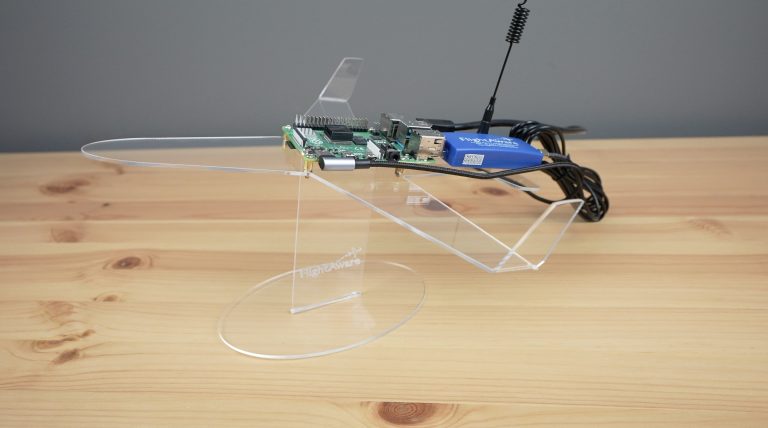
Have you ever seen a flight overhead and wondered where it is going? Or seen a unique-looking aircraft and wondered what type or model it was? Well, today I’ve got something exciting to share with the aviation enthusiasts out there. We’re going to set up our own flight tracker using the FlightAware Pro USB stick and a Raspberry Pi. This is a really easy and fun project that allows you to track aircraft in your area in real-time.
Here’s my video of the project, read on for the write-up;
What You Need To Build Your Own FlightAware Tracker
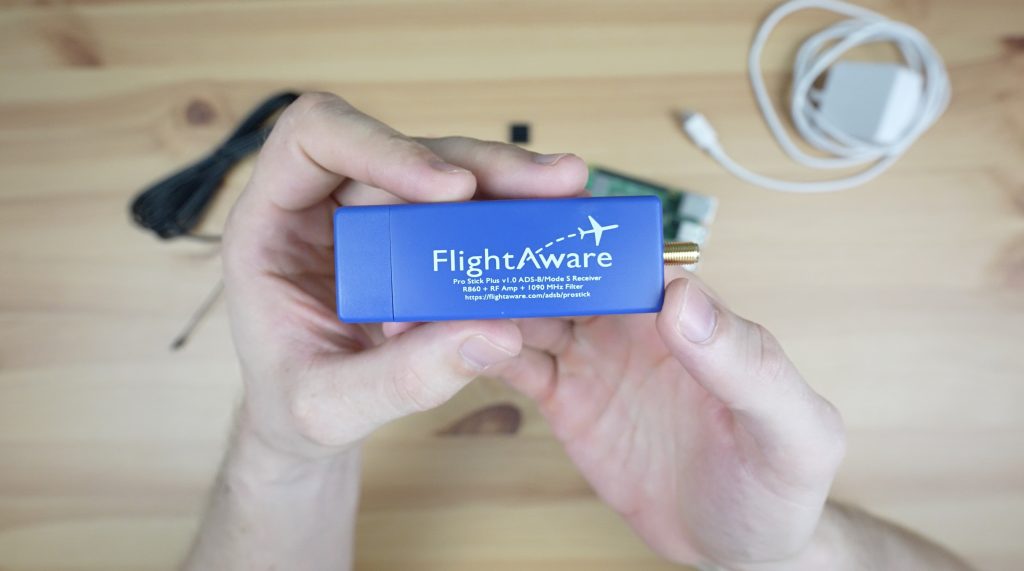
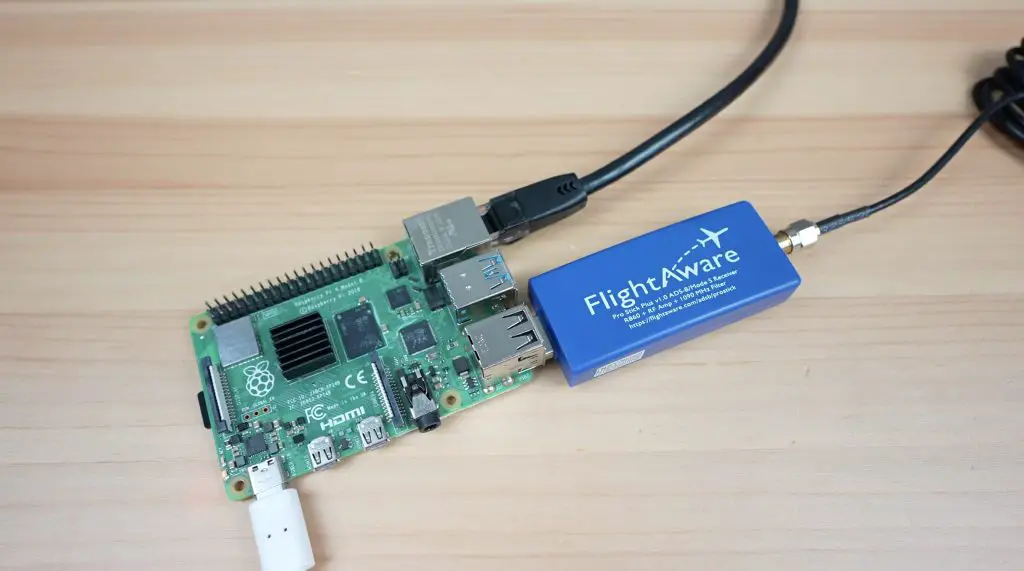
First things first, let’s talk about the FlightAware Pro USB stick. This little device is a dedicated ADS-B, or Automatic Dependent Surveillance-Broadcast, receiver that simply plugs into a free USB port on your Pi.
ADS-B is a technology that enables aircraft to determine their position via satellite and then broadcast it. This information can be received by ground stations, like the one we’re going to be building, and this enables aircraft to be tracked. Using an antenna with the FlightAware USB stick, you can track aircraft up to 400km or 250 miles away.
Before we jump into the assembly and setup process, let’s take a look at what FlightAware actually is. FlightAware is an online platform that provides real-time flight tracking, and not just the flight information like departure and estimated arrival time that you can find on Google, this gives you full flight tracking of airspeed and altitude, flight paths, aircraft information and historical data.
You’re also not limited to only commercial aircraft, you can track commercial and private traffic and even the occasional military aircraft. By creating your own tracker, which is called a PiAware tracker, you’re contributing to FlightAware’s network of over 30,000 ground stations, enhancing the accuracy of global flight tracking.
In exchange for this, they provide you with a free Enterprise user account which gives you full access to their platform, so you can see flights that are out of range of your receiver as well!
Assembling Your PiAware Tracker
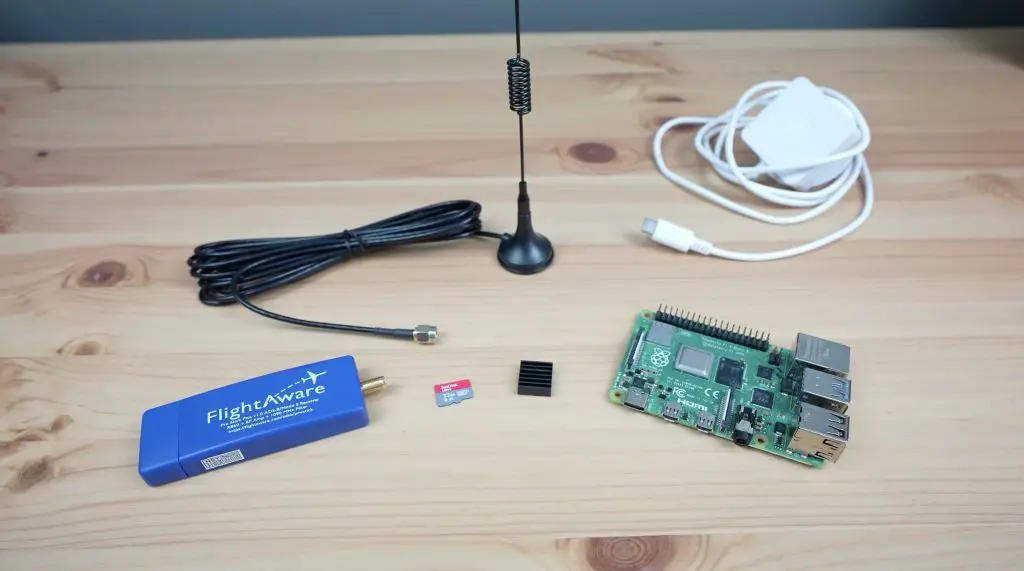
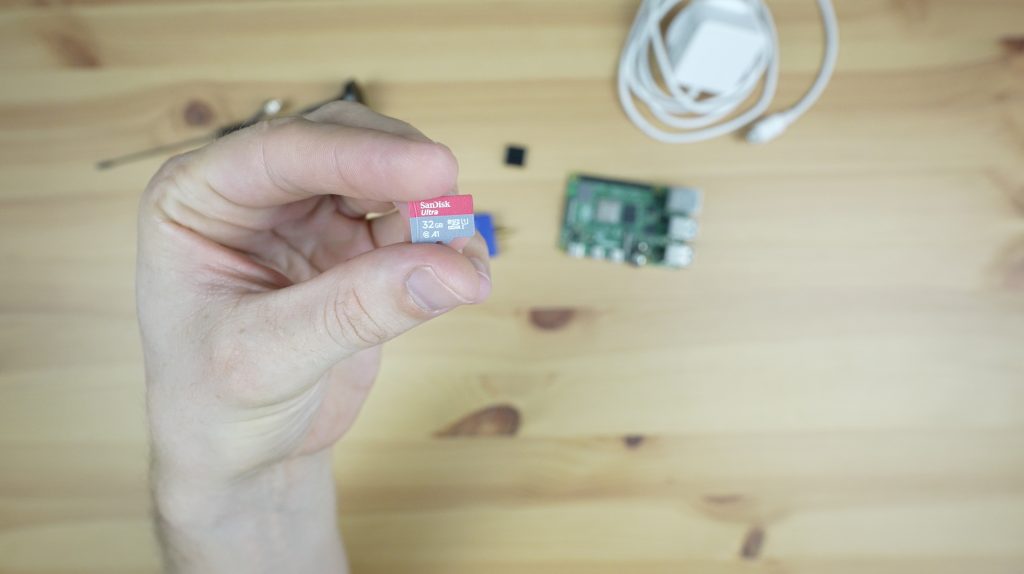
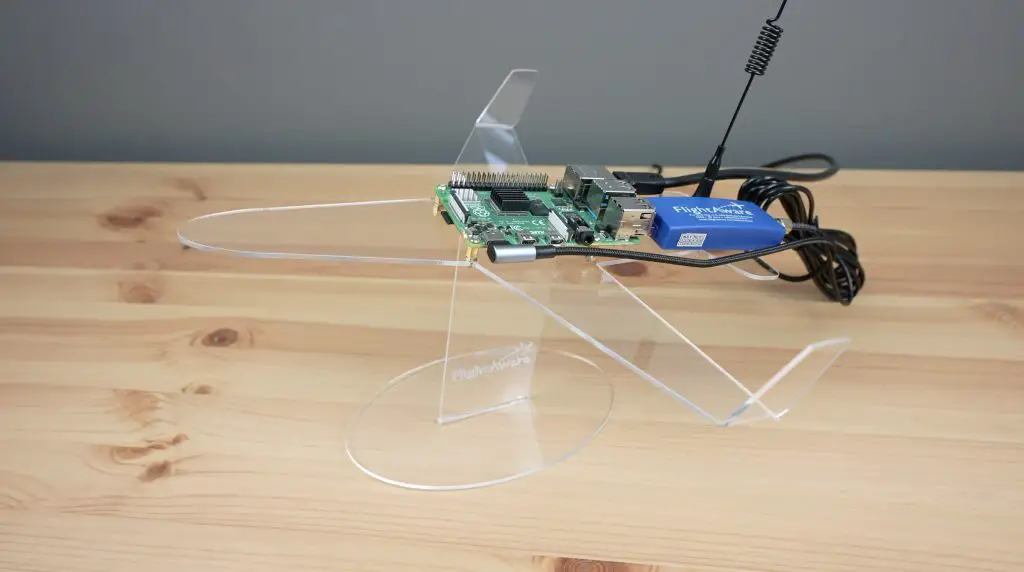
To build your own FlightAware flight tracker you’ll need to add a Raspberry Pi, microSD card and power supply to the FlightAware USB stick and antenna.
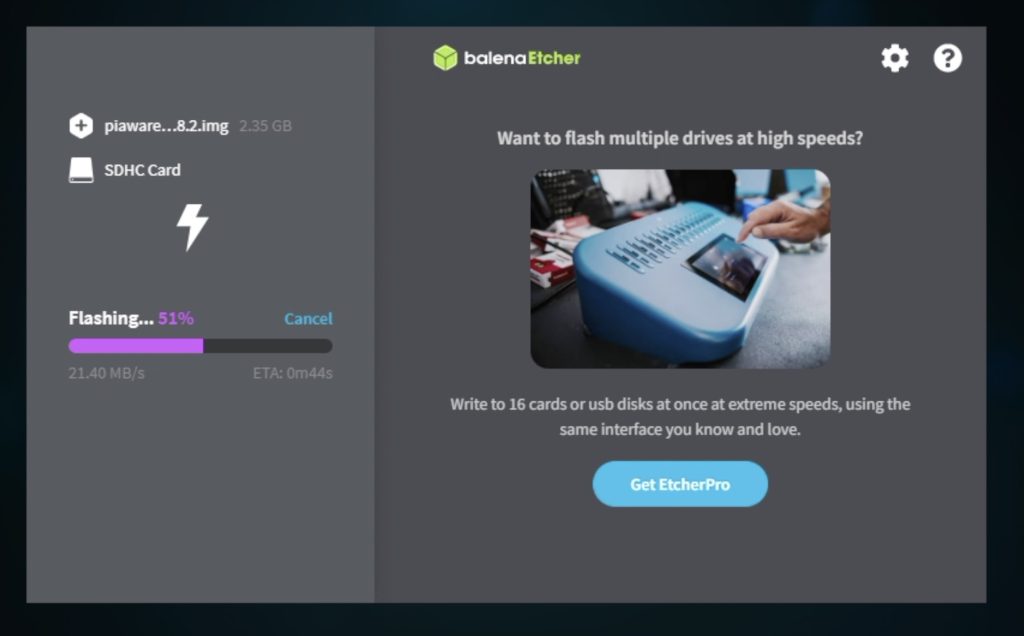
Next, let’s dive into setting one up, and there really isn’t a whole lot to it. First, we need to flash the operating system to our microSD card. This is done by downloading the prepared OS image from the FlightAware website and then burning it to the microSD card using an imaging utility like Etcher.
The image is ready to run so you don’t need to do anything else if you’re using a wired Ethernet connection like I’m going to. If you want to use WiFi then you’ll need to follow their configuration steps (under item 3) to add your WiFi network’s information to the card so that your Pi knows how to connect to it.
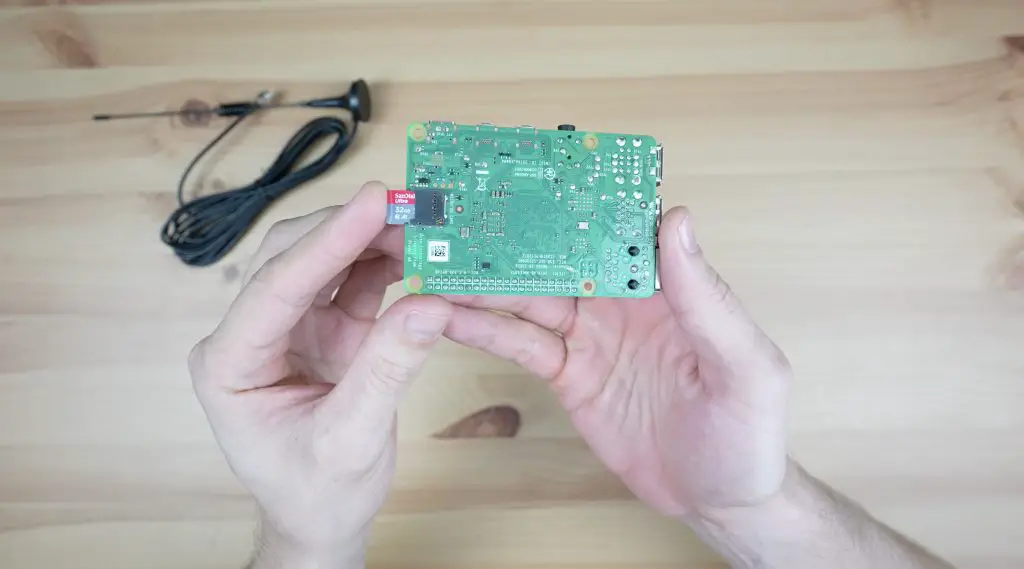
Once your card has been flashed, plug it into your Pi’s microSD card slot.
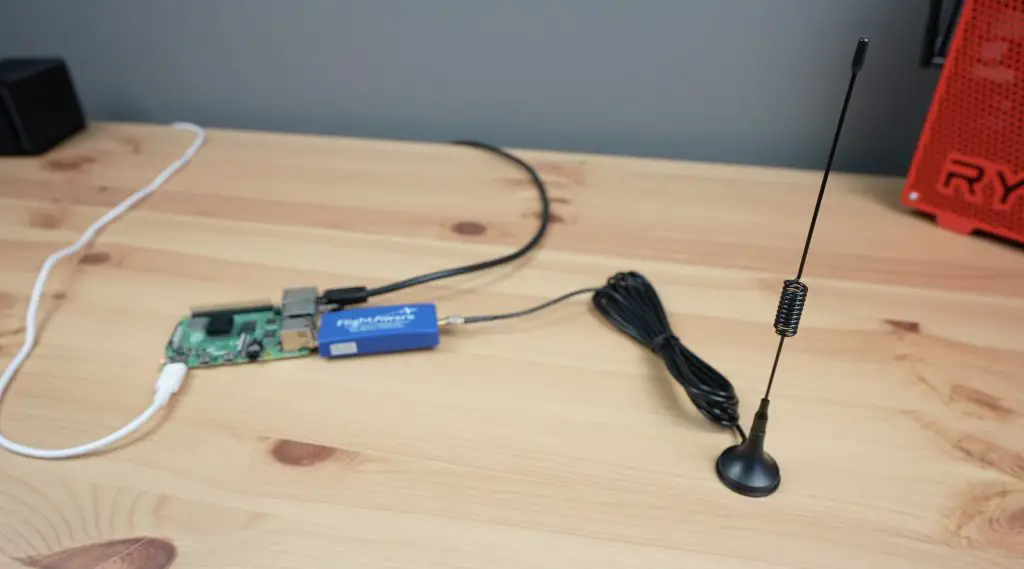
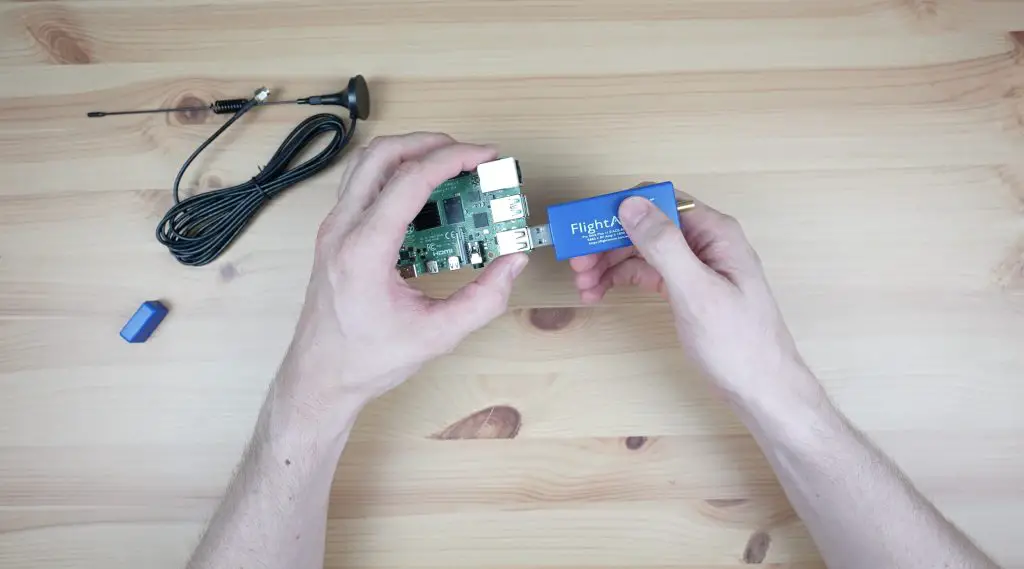
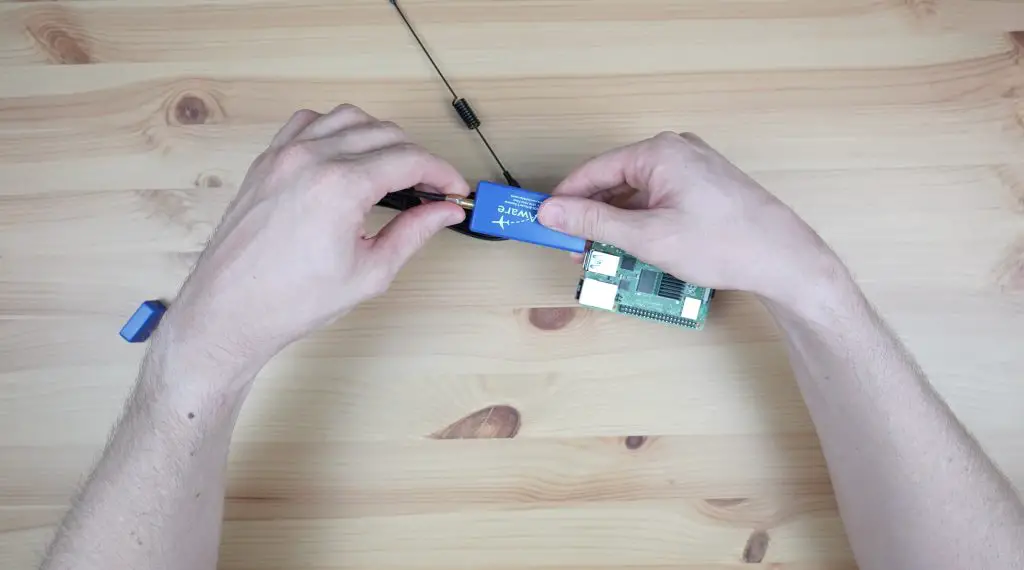
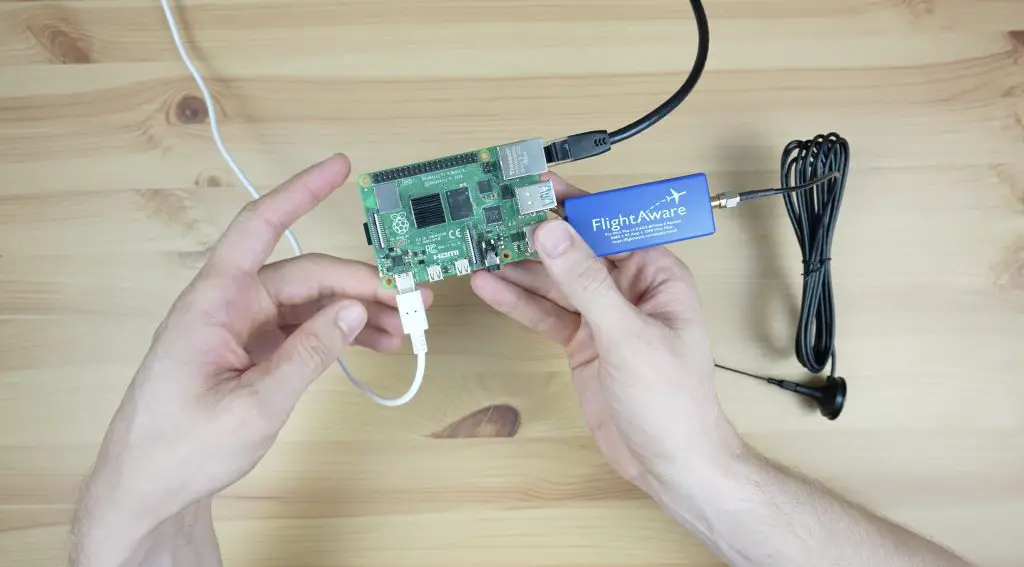
To complete the assembly, we need to plug the components into the Pi. The Flight Aware USB stick goes into one of the USB ports – you’ll need to use the USB 2.0 ports as the USB 3.0 ports are too close to the Ethernet port to allow a cable to plug in next to it.
The antennae plugs into the USB stick and a little retaining nut locks it into place.
Then add the Ethernet cable and plug in the power supply to boot it up.
First Boot & Associating It With Your Account
It’ll take a couple of minutes for the first boot and while that’s happening, let’s head over to FlightAware’s website to sign up for a free account.
Once that is done we need to find our tracker’s IP address on our local network. There are a few ways to do this, you can use a utility like Angry IP Scanner or your can look at your network’s DHCP table. I’ve looked in my DHCP table and found my PiAware device and IP address.
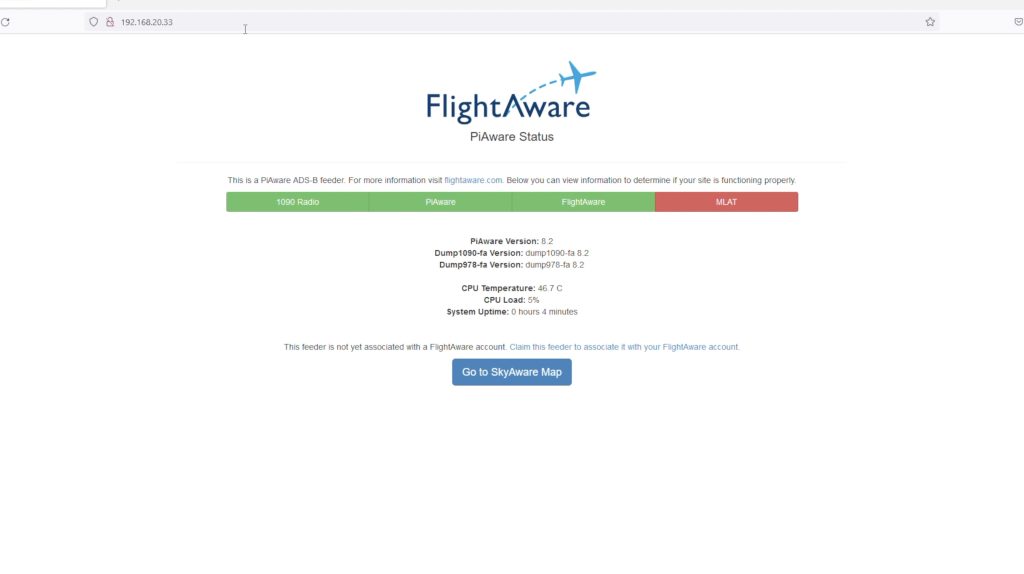
We can then enter the IP address into a browser on the same network to access the Pi. From here you’ll be asked to associate your PiAware tracker with your account by logging into it. Once you’ve done that, you’re now officially part of the FlightAware network and you’ll see your account has been upgraded to an enterprise account.
Your Pi will then immediately start contributing data to the FlightAware network.
What You Can See Through The FlightAware Web Interface
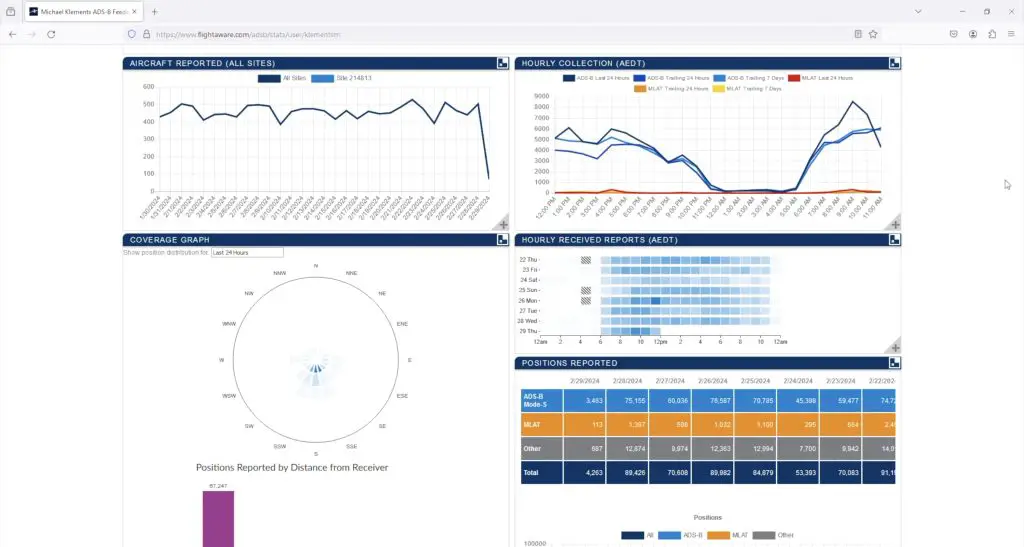
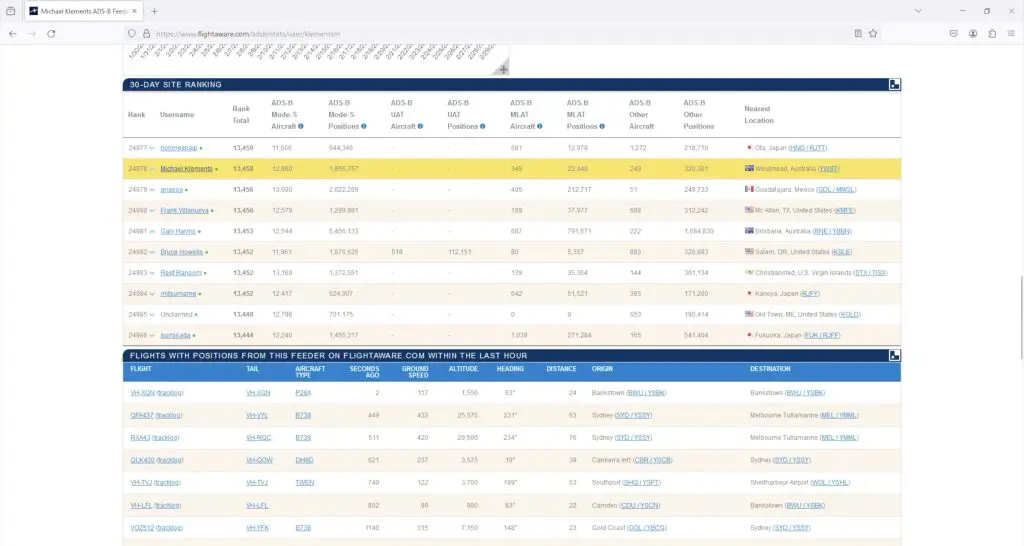
I’ve had my Pi running now for a little under three months. From the FlightAware site, you can see your feeder’s status and when last information was received from it. You can also see stats and graphs for the number of aircraft reported throughout the past 24 hours, which direction they were reported from and even the type of aircraft positions received.
They also give you a ranking that ranks your FlightAware feeder against other contributors. I’m still not too sure how they arrive at the total rank position but they give you some stats on your reported positions relative to others. Obviously, if you’re in a busier airspace then you’re going to be contributing far more to the network than others, but the network relies on having contributors in remote locations too.
You can also see the flights that have been tracked by your feeder in the last hour and the sites around you, including when last they reported positions.
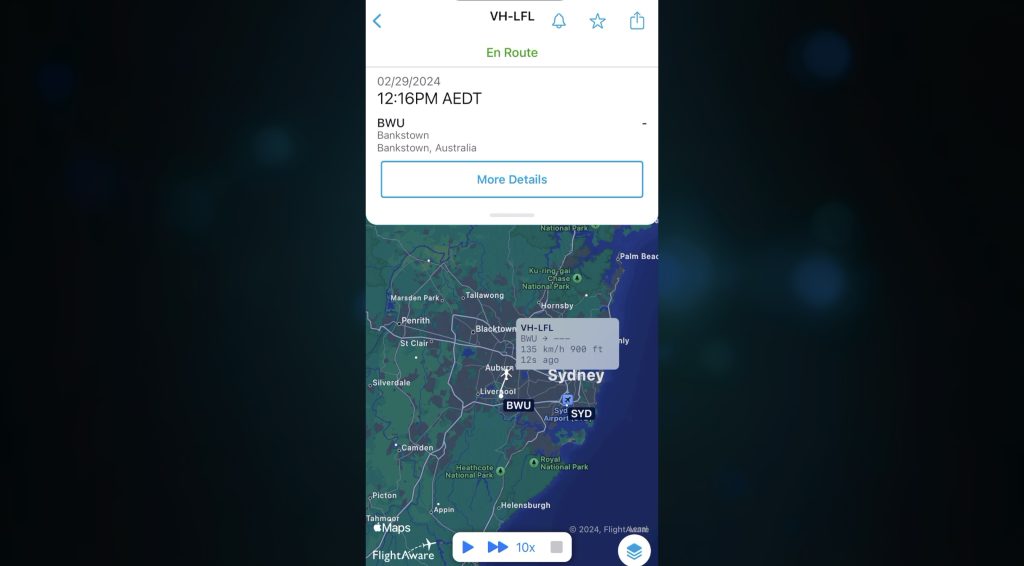
The really exciting stuff is on the SkyAware Anywhere page. Here you can watch flights around the world in real-time. This is the area around Sydney where my feeder is based and the aircraft are coloured according to their altitude.
You can see a summary of those in view on the right but you can also click on aircraft to get more detailed information on them and show their flight path since you opened the window. We can also visit an aircraft’s flight page to show even more information about it.
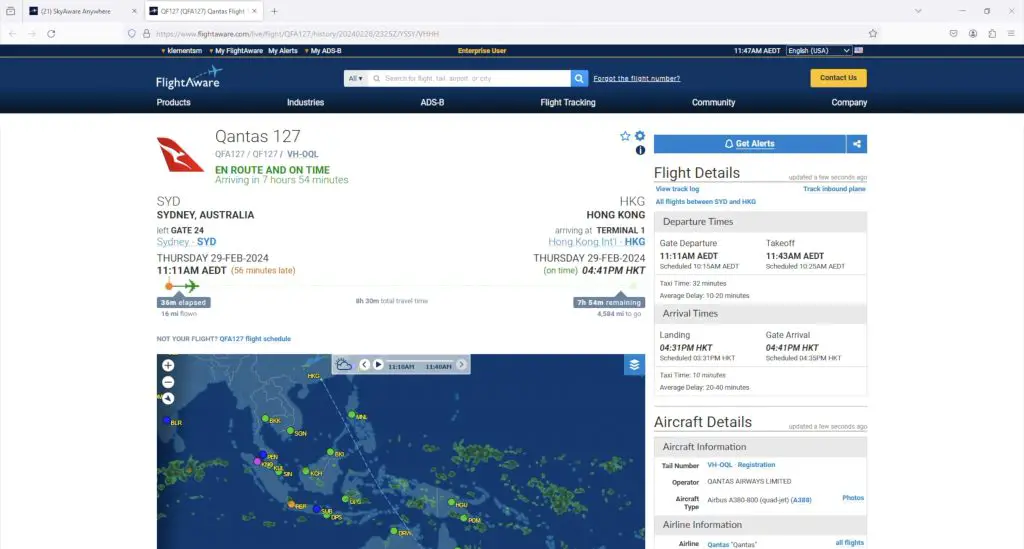
At the top of the page is the flight information that you’d typically see if you did a Google search for the particular flight number.
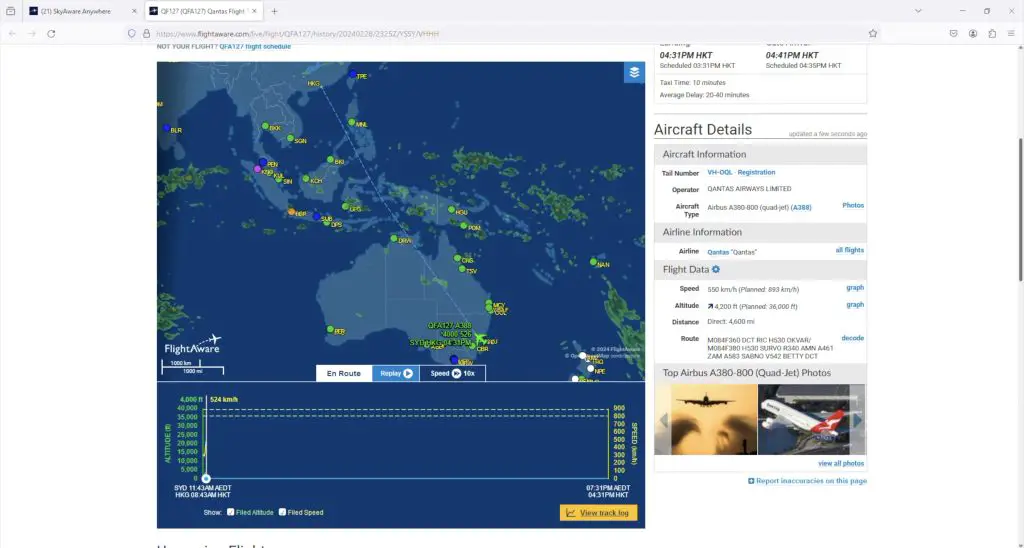
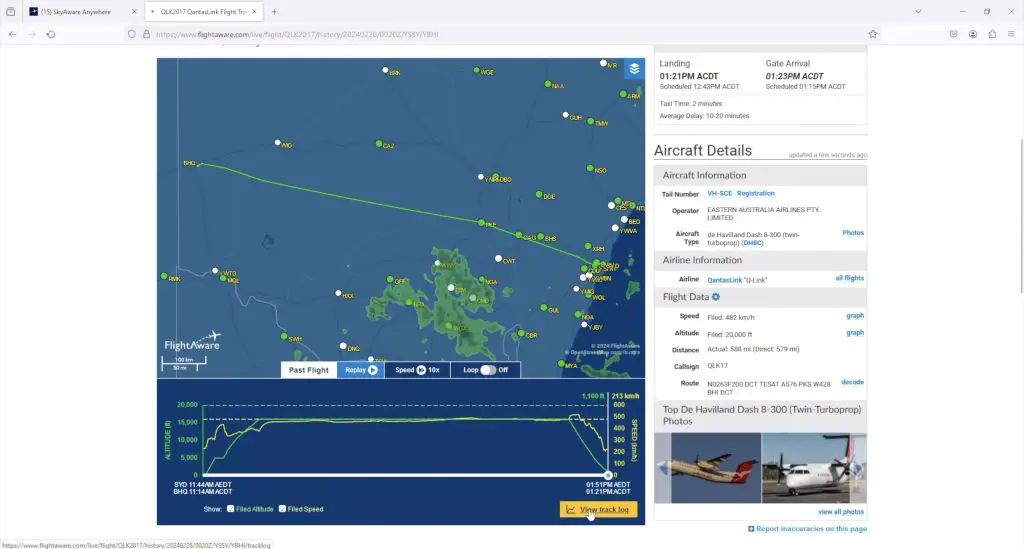
Below that is a map showing the planned flight path and the planned and actual altitude and airspeed.
The flight that I chose has only recently taken off, flying to Hong Kong. Let’s pick a different flight that looks like it is coming in to land and we’ll be able to see the altitude and airspeed history for the flight.
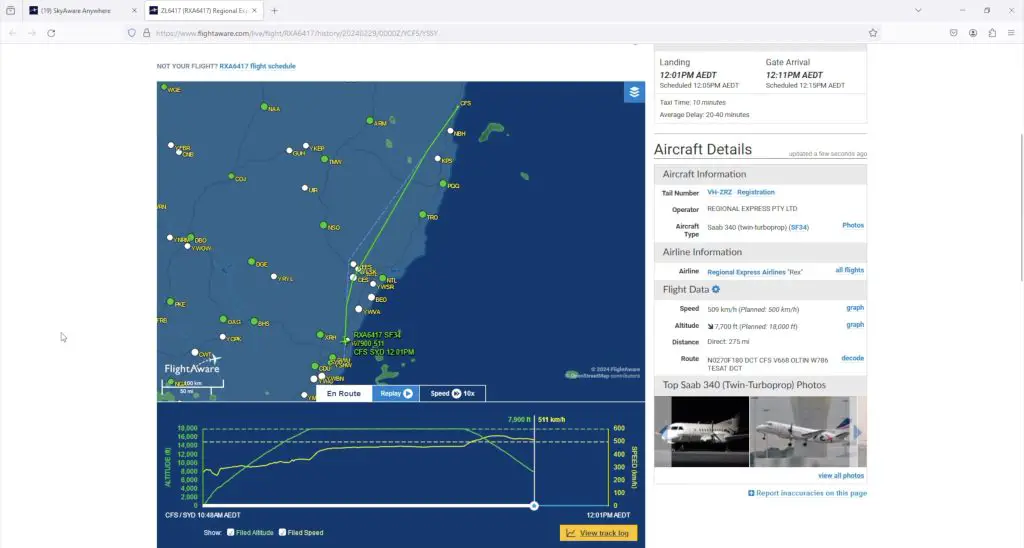
The next one that I chose is a regional domestic flight by REX from Coffs Harbour to Sydney. Now we can see the actual flight path taken alongside the plan and also the altitude and airspeed history – we can see that it is in its descent phase and coming in to land soon.
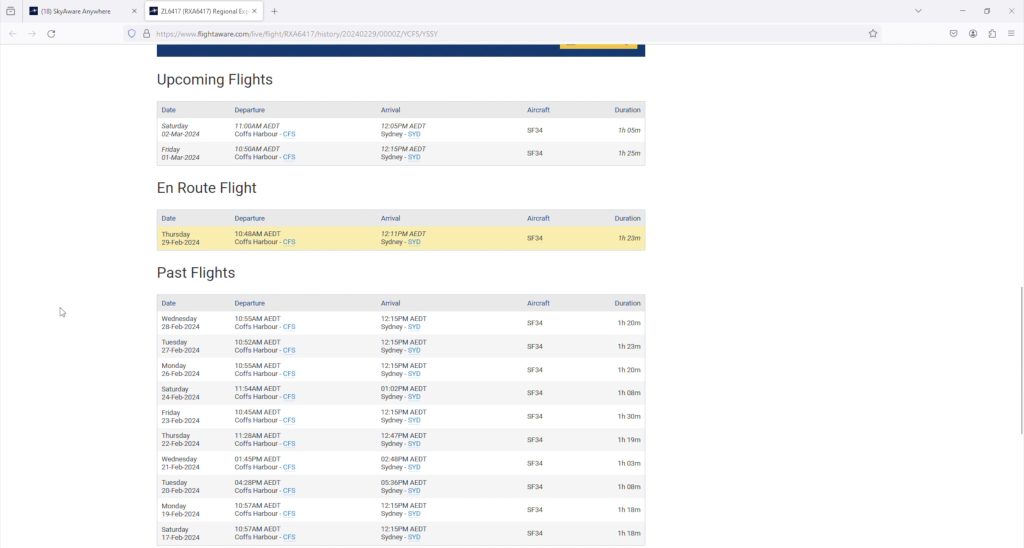
For each aircraft, you can also see its planned upcoming flights, the current flight in progress and a log of past flights. You can click on any of these to see the flight plan and/or actual flight data.
On the right-hand side are the aircraft details like the owner and operator, registration details and the current flight data. They also give you a gallery showing images of that aircraft type.
So on the top right is a similar aircraft by the same carrier but with a different tail number.
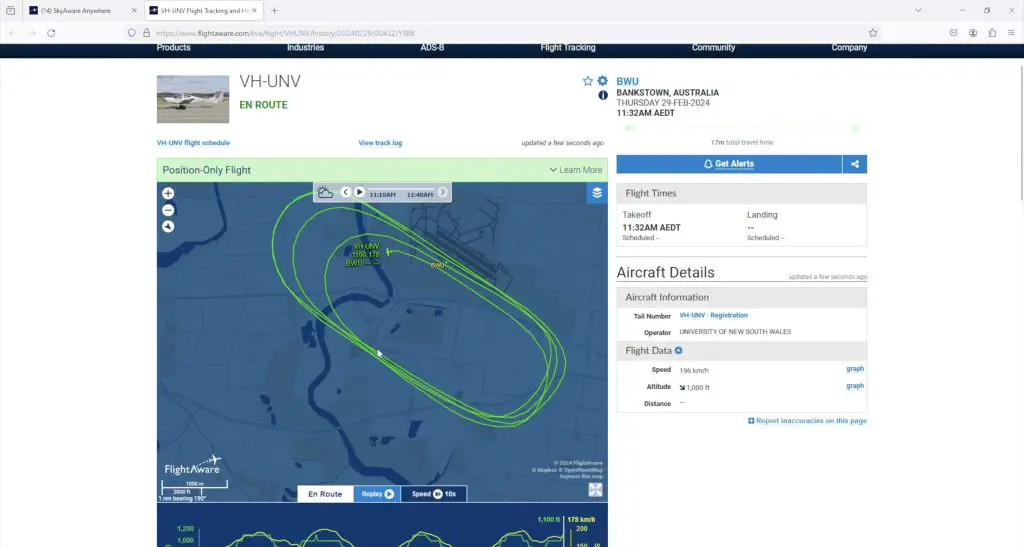
FlightAware doesn’t only track commercial aircraft, we can also see small private aircraft. Here is one doing circuits around a small airport, so it’s probably a flight training exercise.
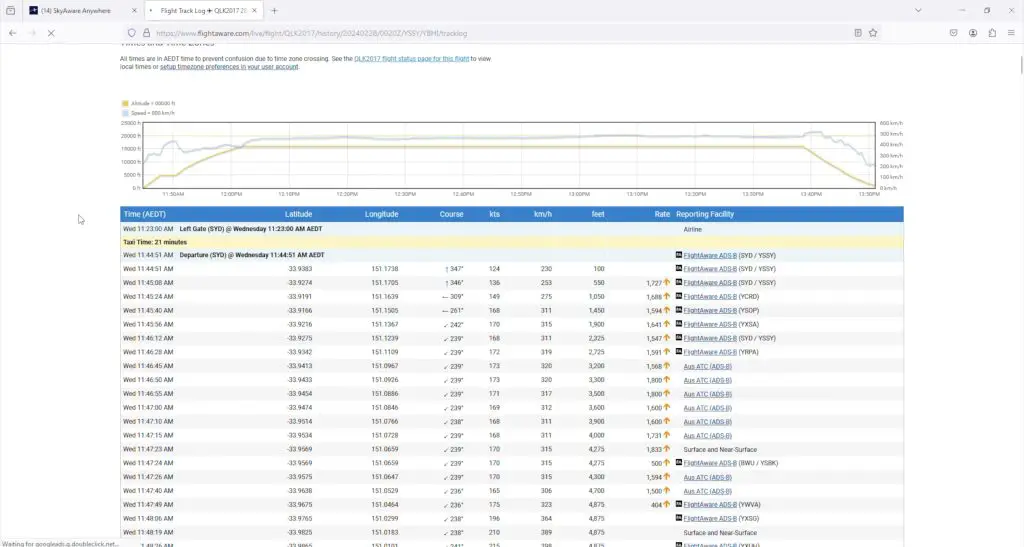
You can also go into an aircraft’s flight history and have a look at the details from any past flights. This will show the flight path taken, airspeed and altitude and you can even open up a full log and see all of the position reports and which facility reported them.
There is also a mobile app for iOS and Android that offers the same information as the web page but in a mobile-friendly format. I actually prefer using the app and find it a bit more intuitive.
Final Thoughts On The FlightAware Tracker
So this is an exciting way to dive into the world of aviation tracking and contribute to a global network of aviation enthusiasts. It is a relatively inexpensive project that can even be set up on a Pi Zero W or Zero 2 W to save costs and you get a lot out of it, especially if you have an interest in aircraft.
Mine has been running flawlessly for 3-4 months now and I’ve really enjoyed routinely hopping onto the app when I see an aeroplane or helicopter overhead and wonder what it is doing or where it is going. It’s also amazing to have access to detailed flight logs for any flight or aircraft number.
Let me know what you think of the FlightAware tracker in the comments section below and if you’ve got any questions on what it can and can’t do.
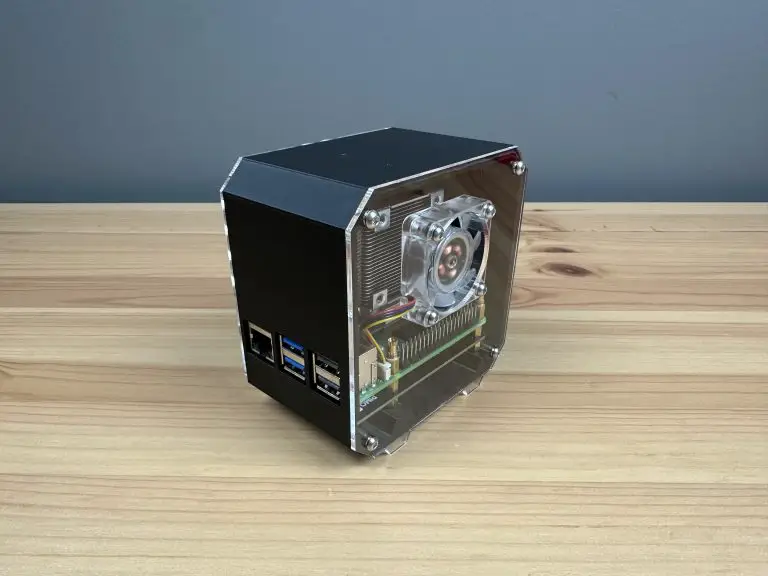
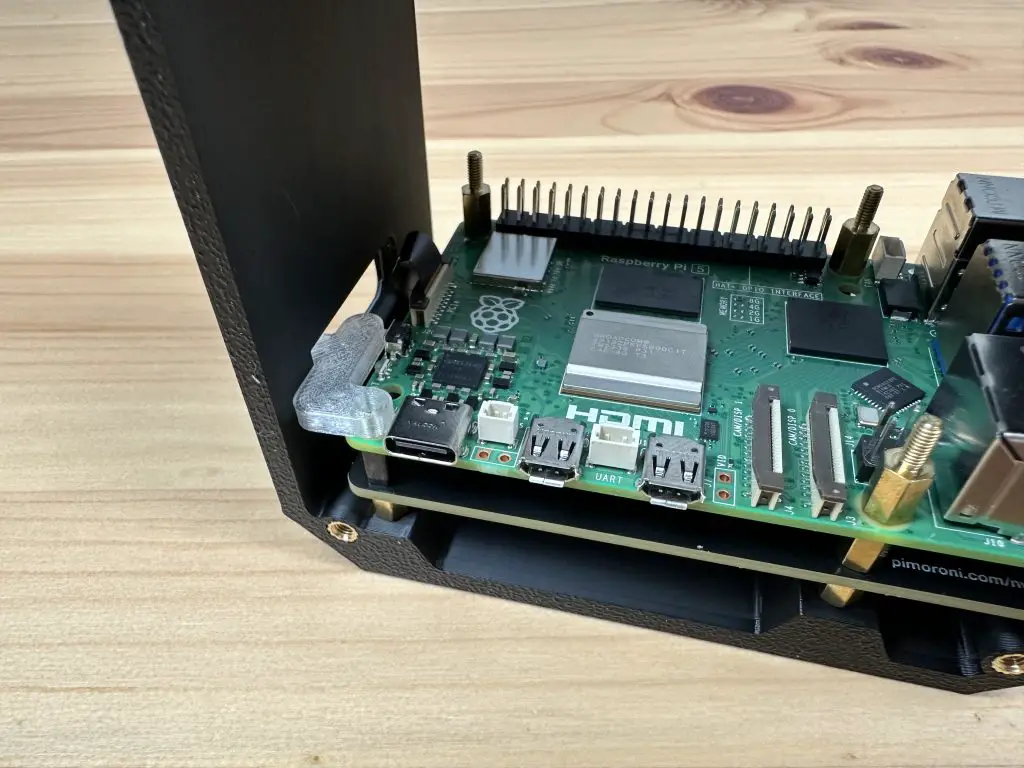
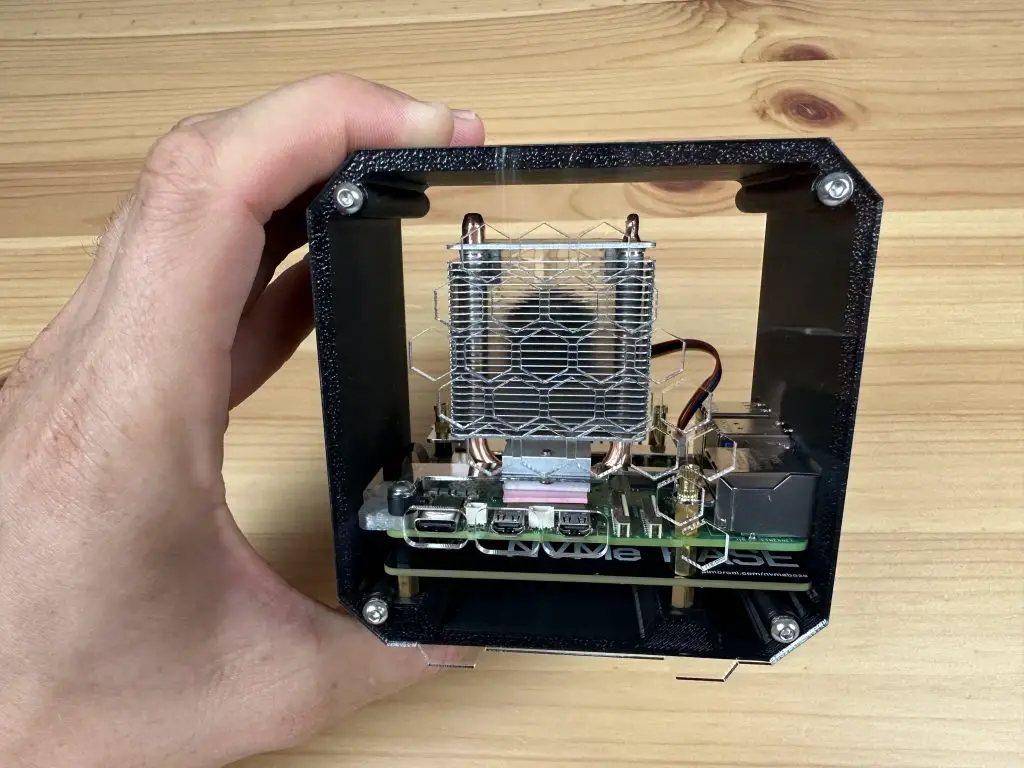
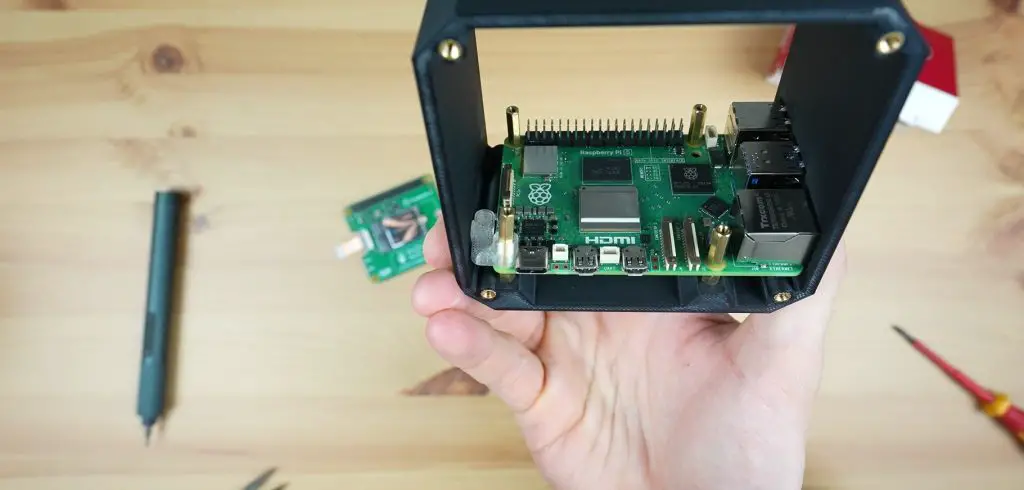
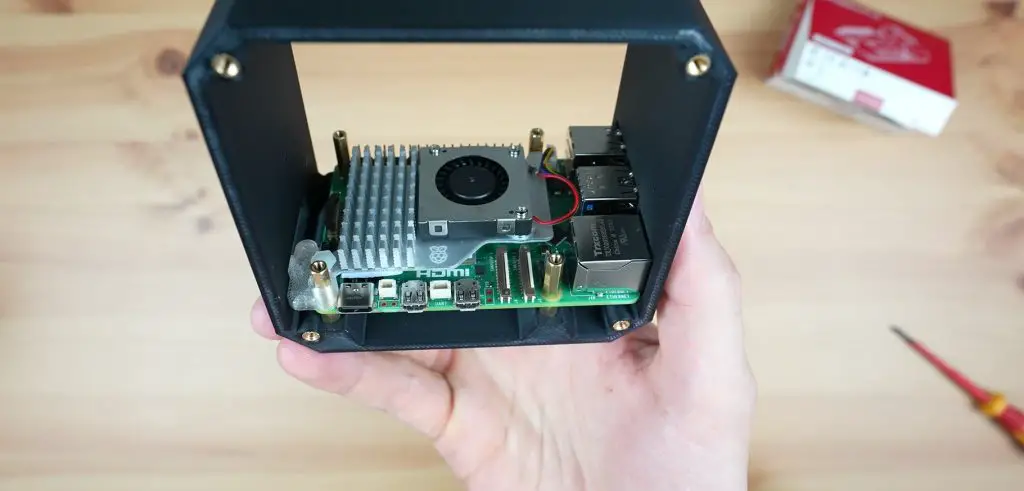
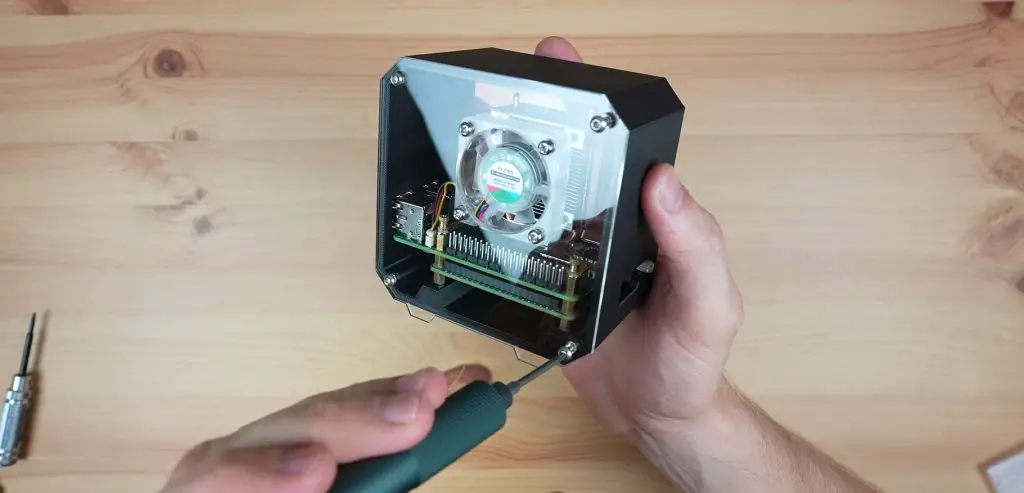
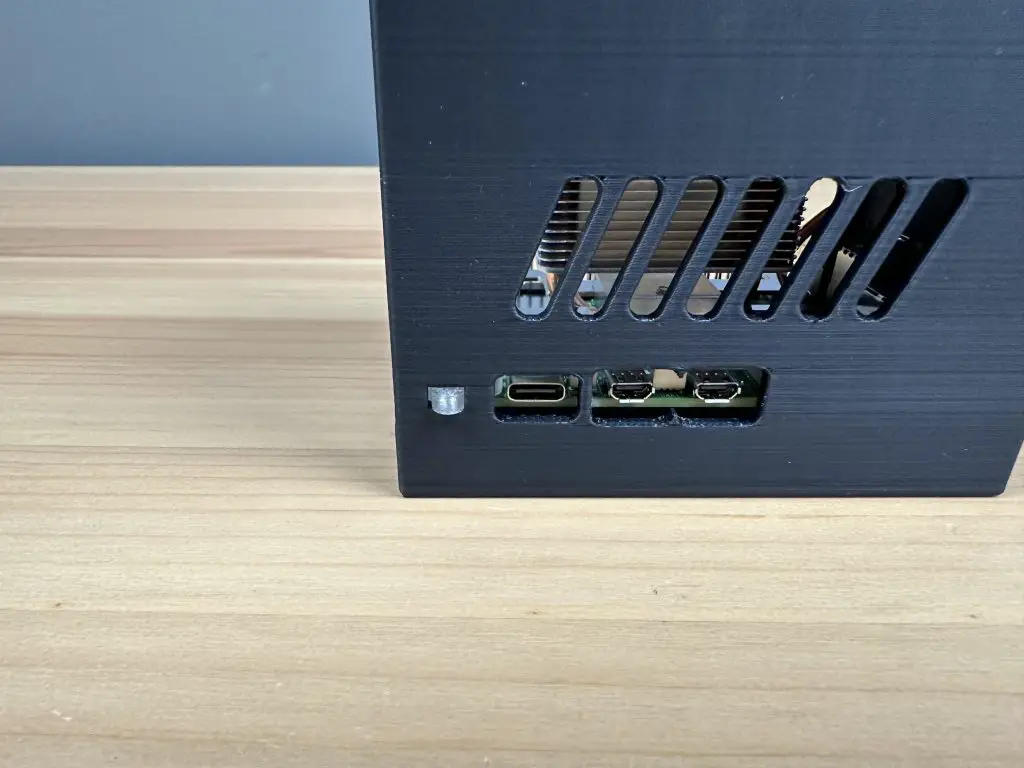
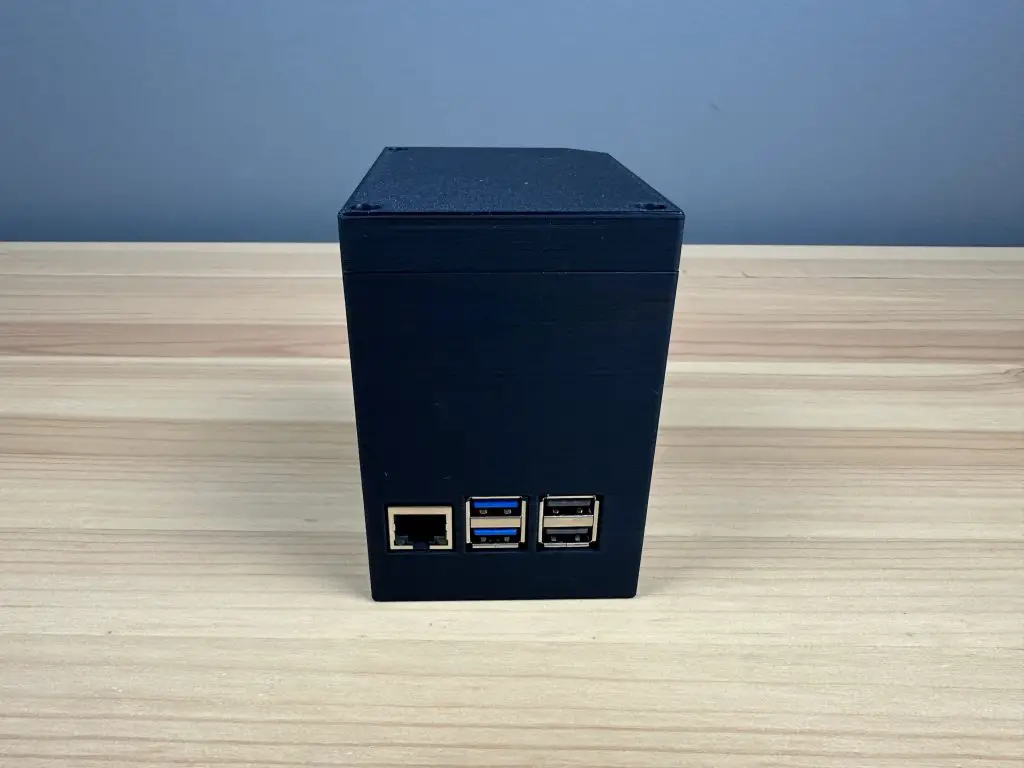
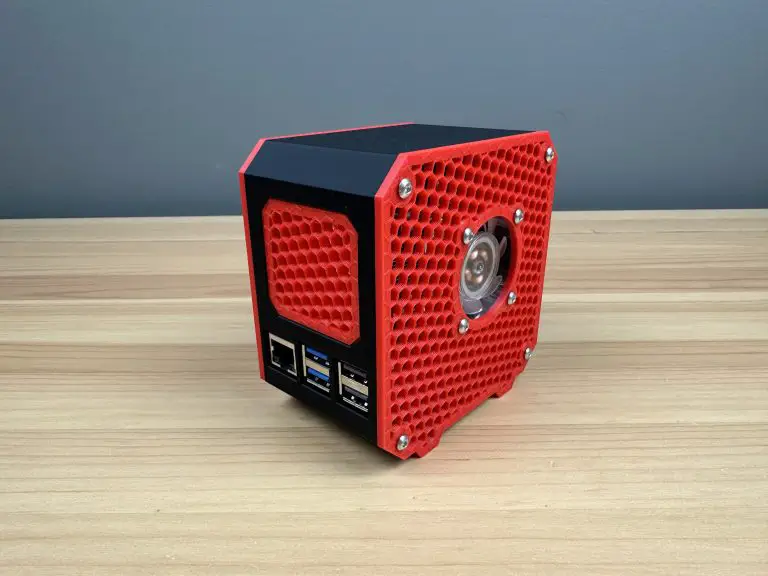
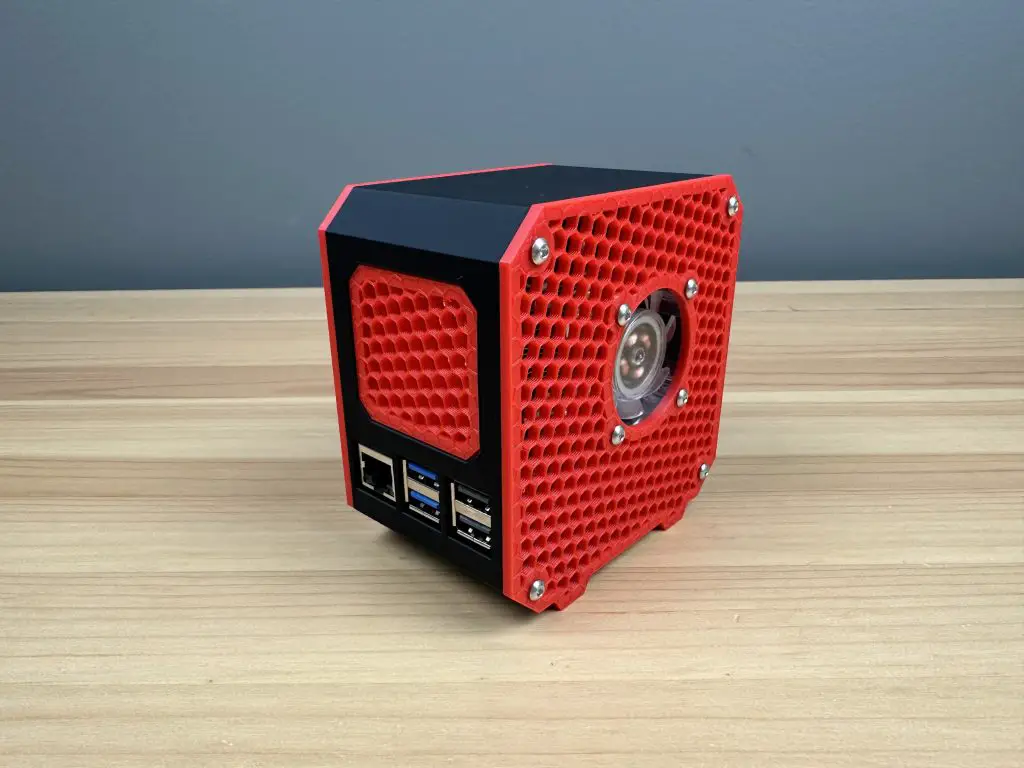
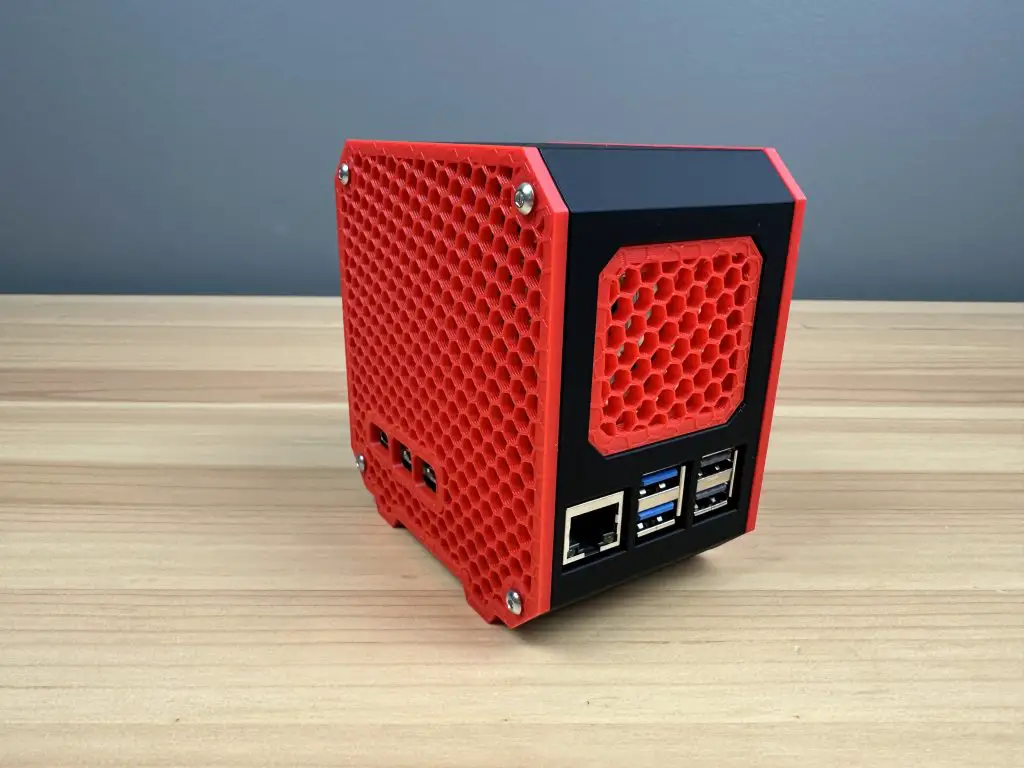
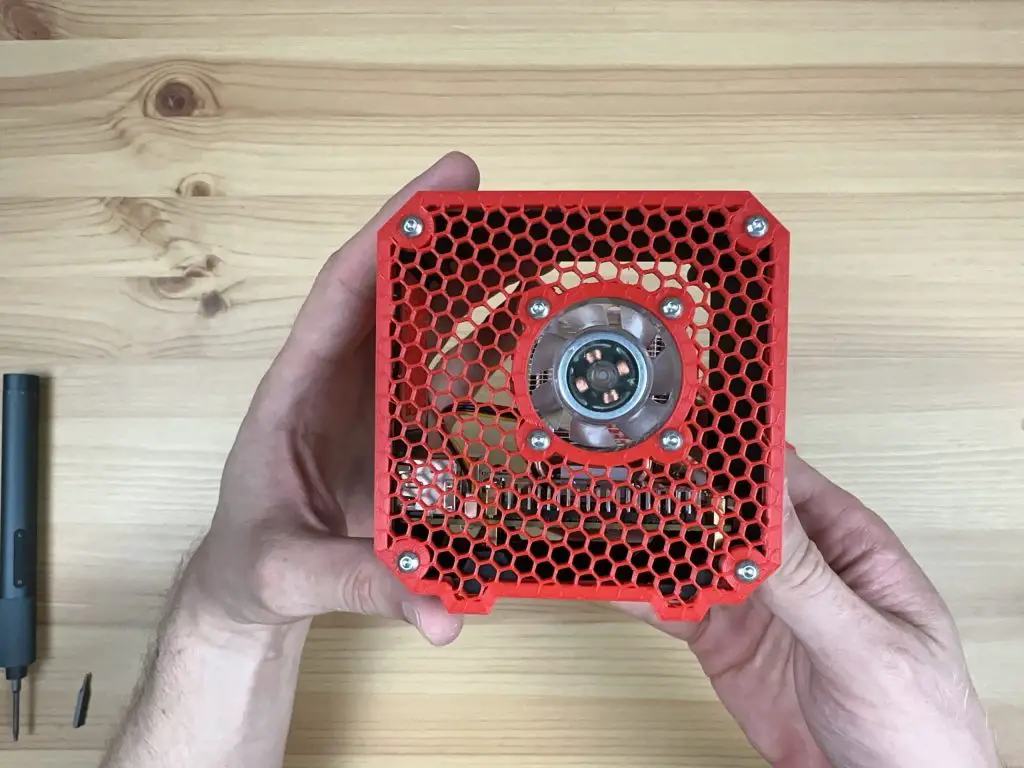
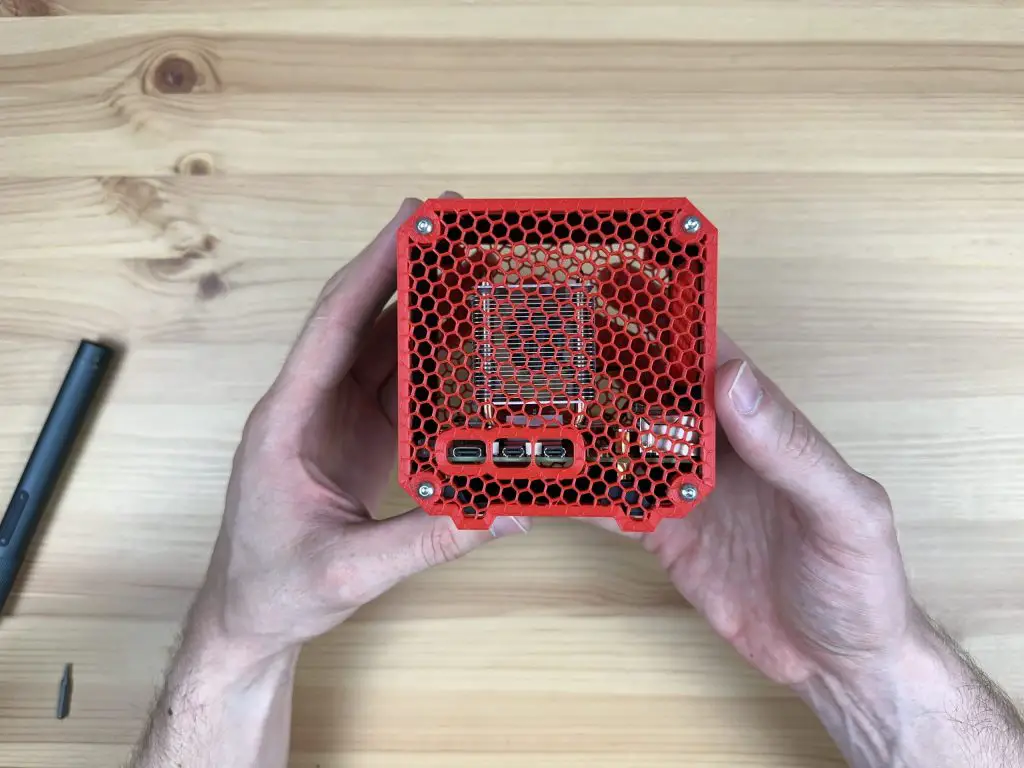
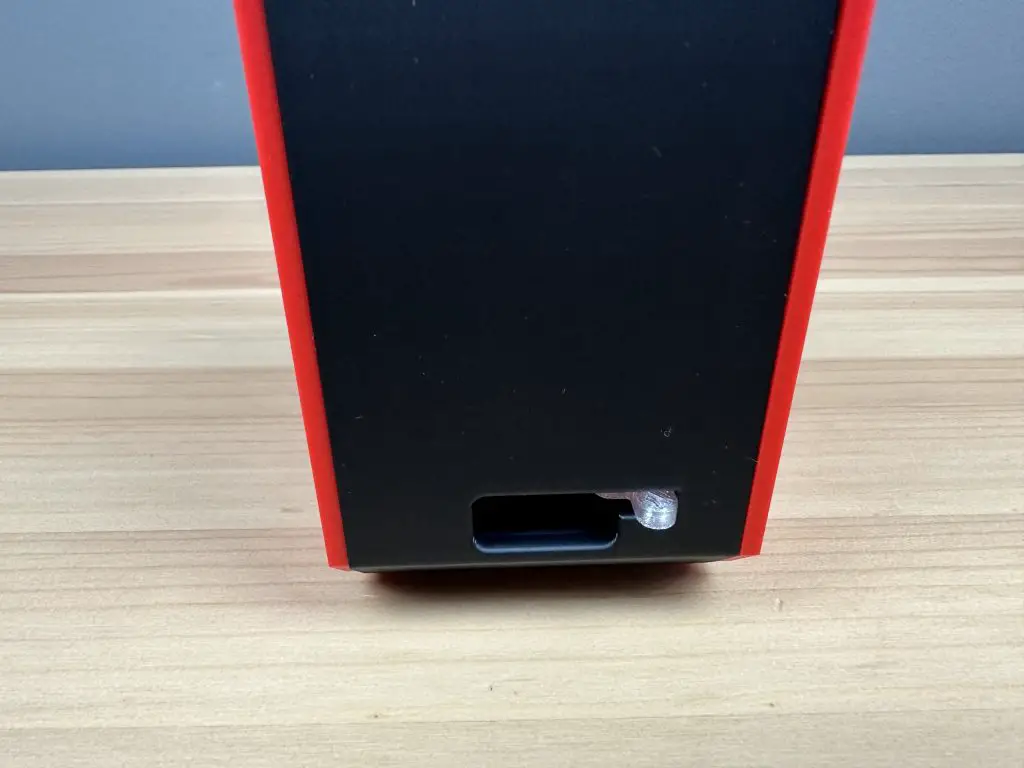
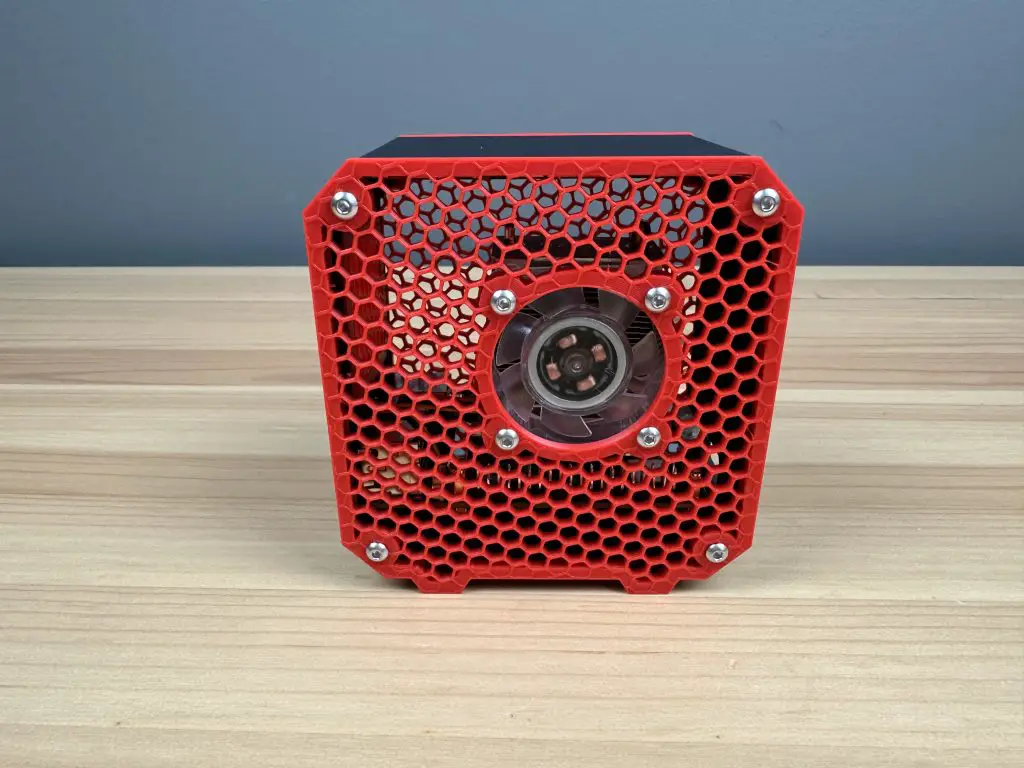
Today we’re going to be assembling a 3D-printed case for the Raspberry Pi 5 and Pimoroni’s NVMe Base or Pineberry’s HatDrive! This is an adaptation of my standard desktop case for the Raspberry Pi 5, with adjustments made for the bottom-mounted NVMe hat. This case also includes an adaptor so that you can still use the power button on the back of the Pi 5.
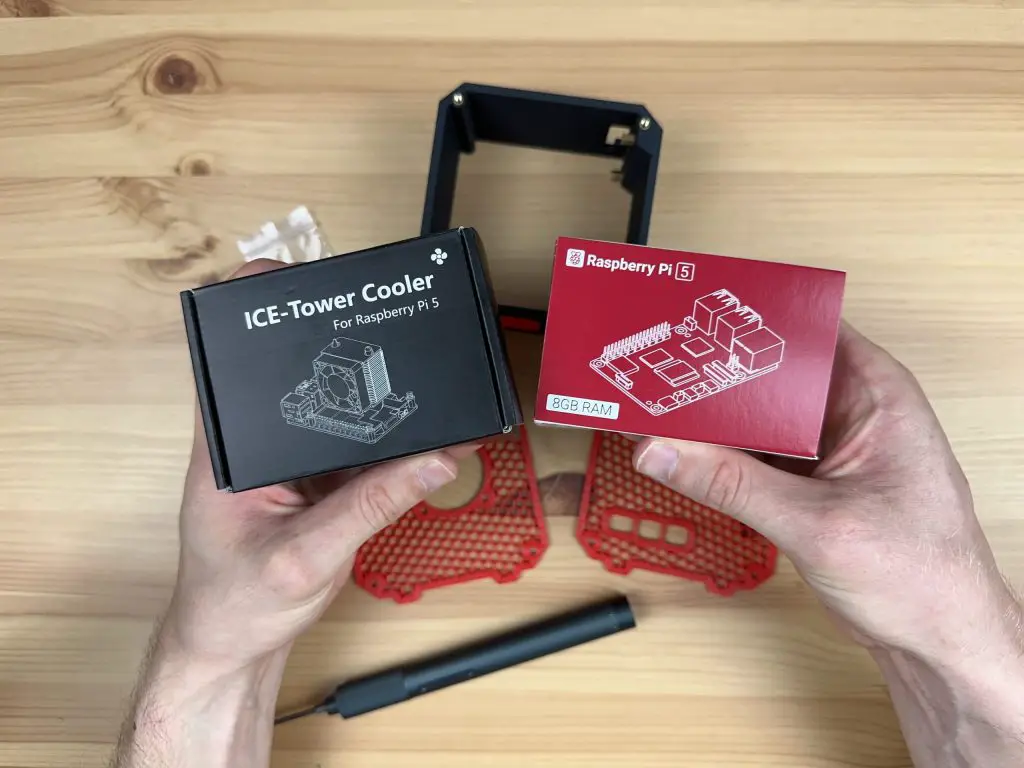
Ensure that you get the Ice Tower cooler for the Raspberry Pi 5, the cooler for the Pi 4 will not fit.
Assembling The Raspberry Pi 5 NVMe Base Case
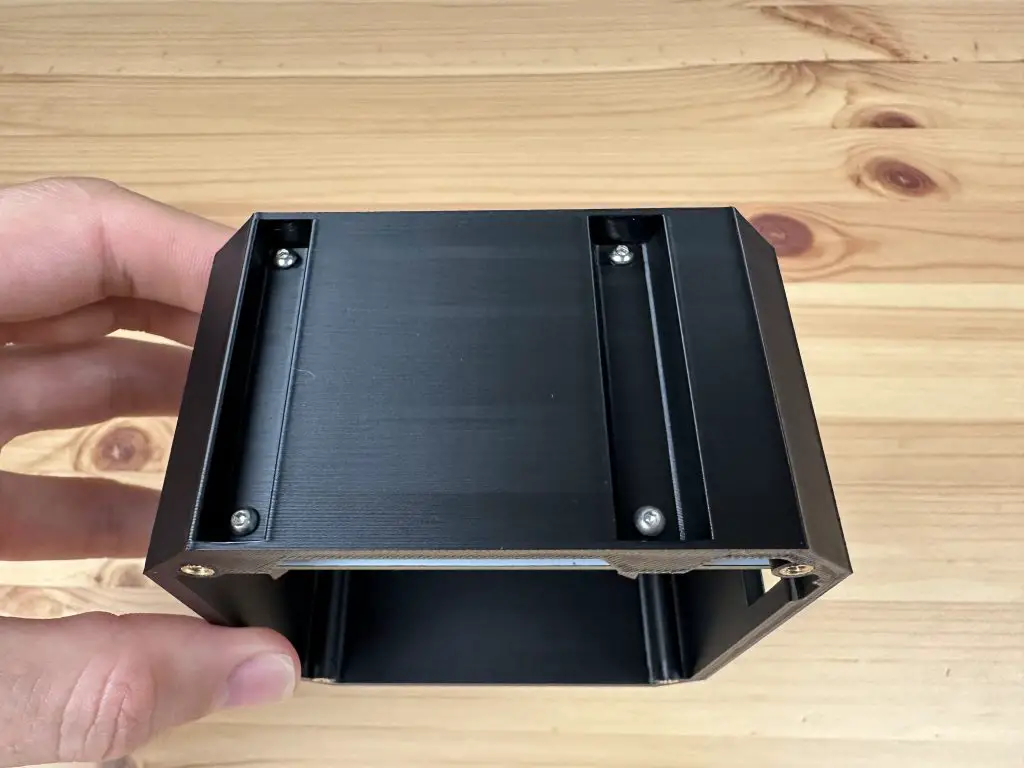
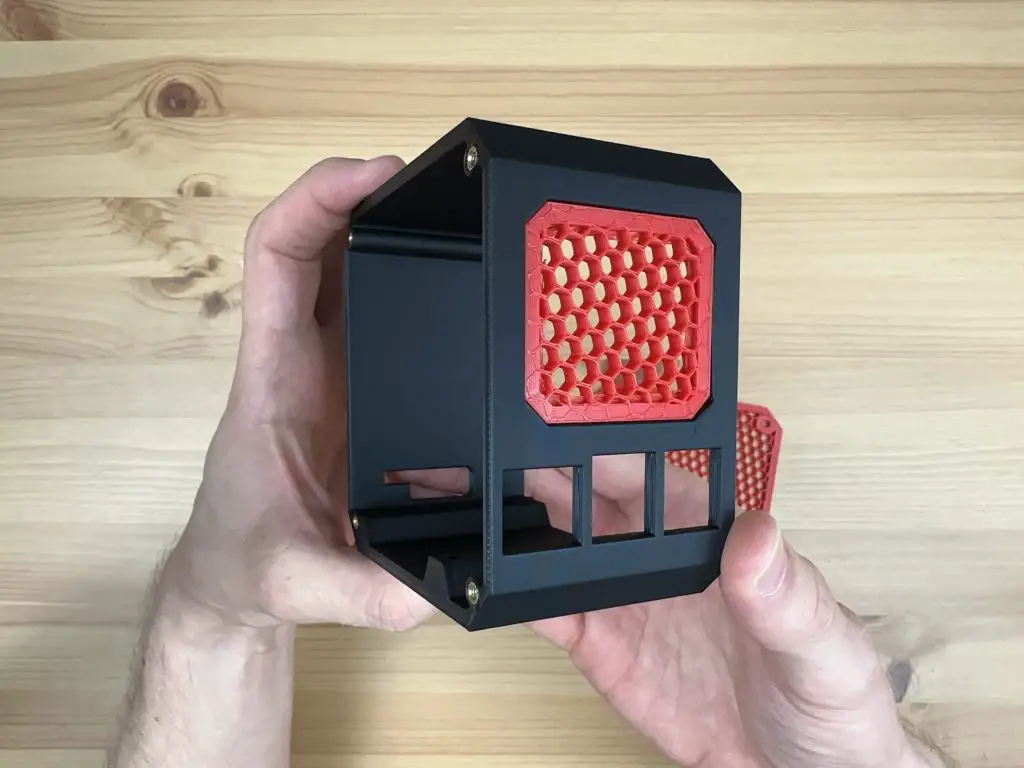
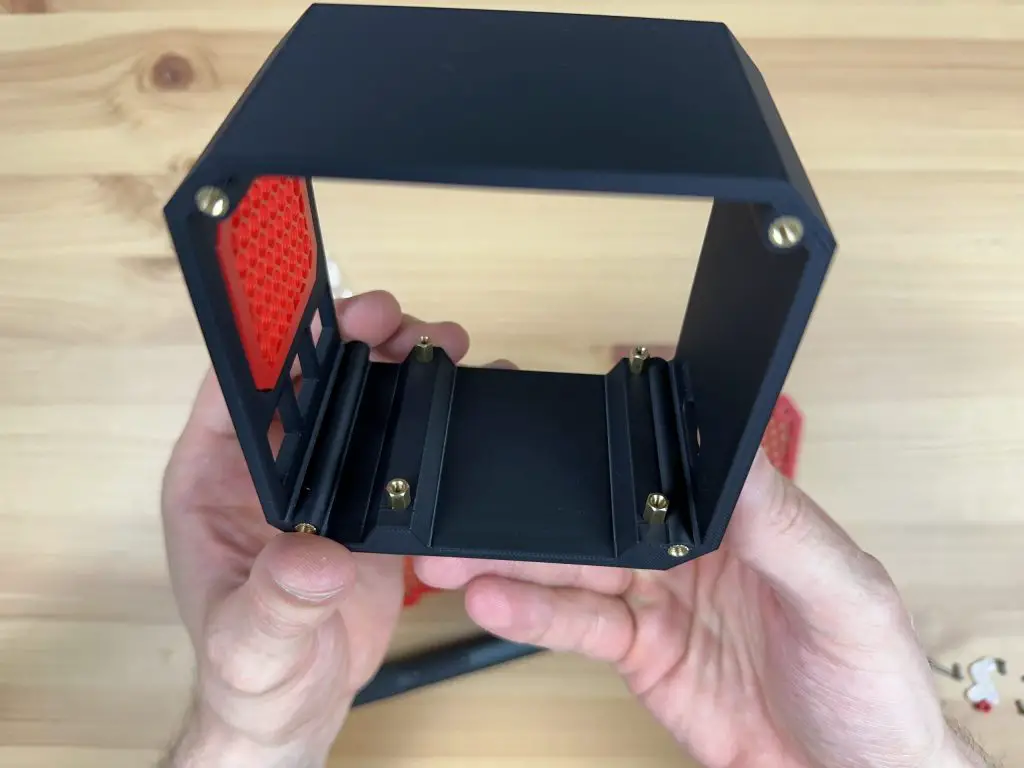
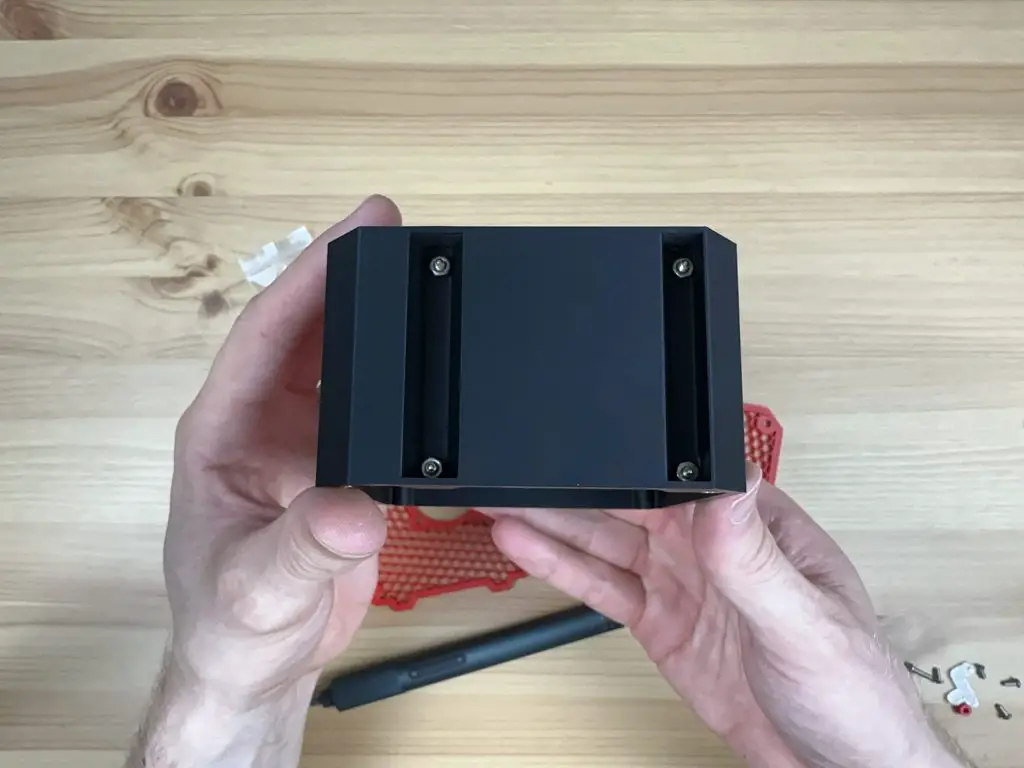
To start, we need to install the M2.5x6mm brass standoffs that come with the case kit on the bottom of the case. These are installed with the male thread facing upwards into the case and are each held in place with an M2.5 button head screw through the base of the case.
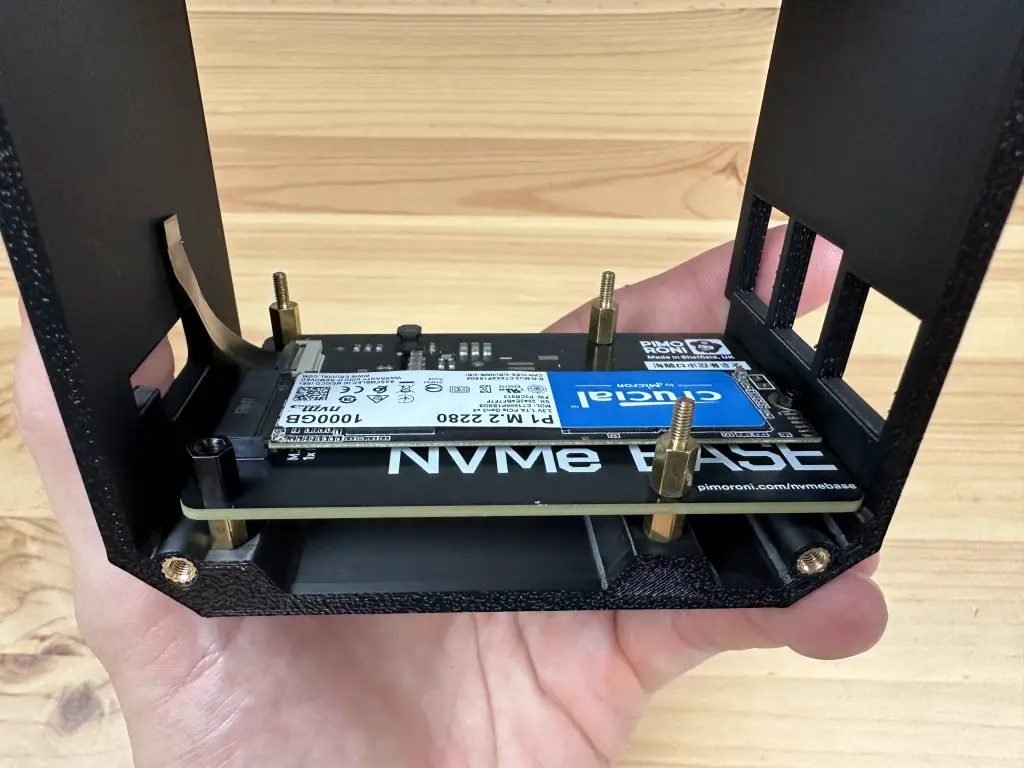
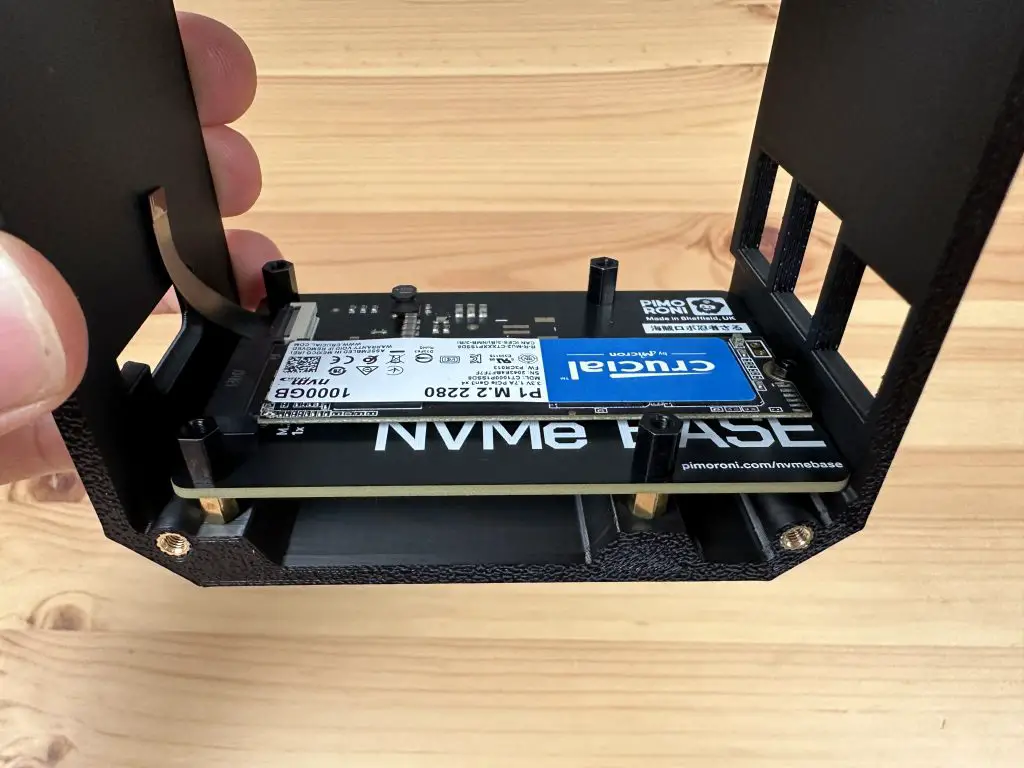
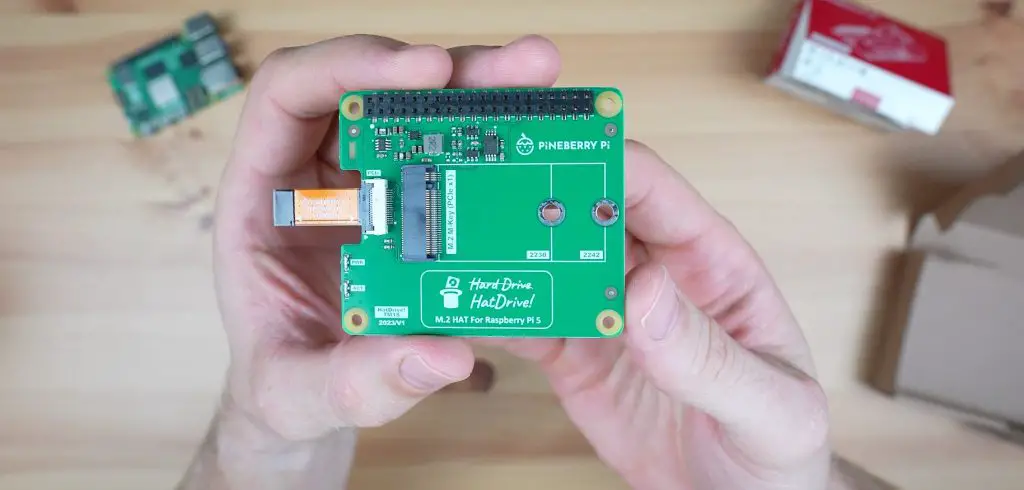
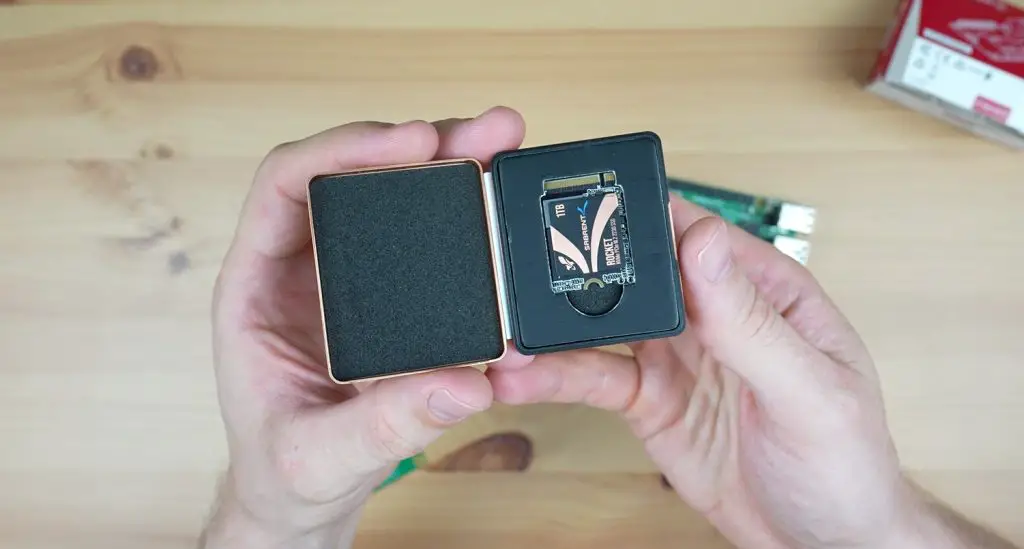
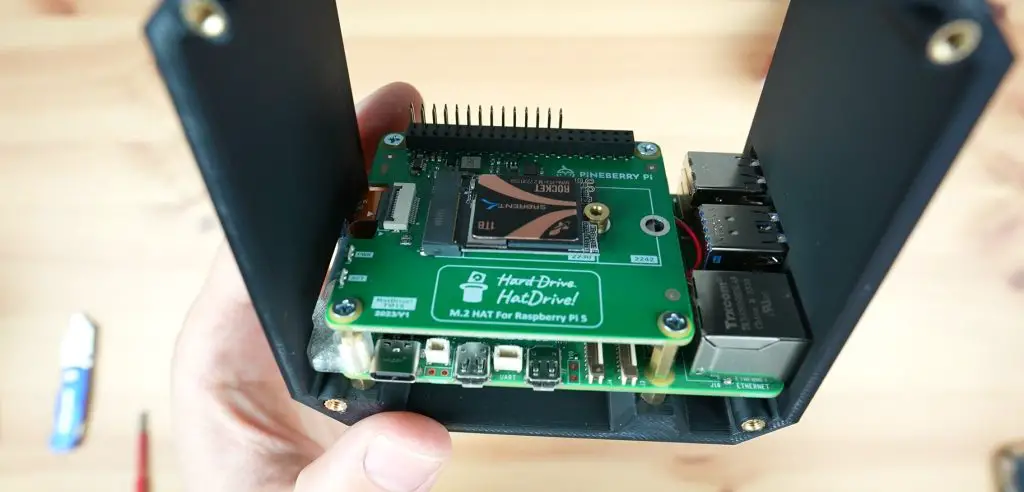
Next, install your NVME SSD onto your hat. I’m using a Crucial drive on mine. Both Pimoroni and Pineberry also have a list of compatible drives that have been tested on their website. Plug your PCIe ribbon cable into the socket on the hat as well – make sure that the orientation is correct.
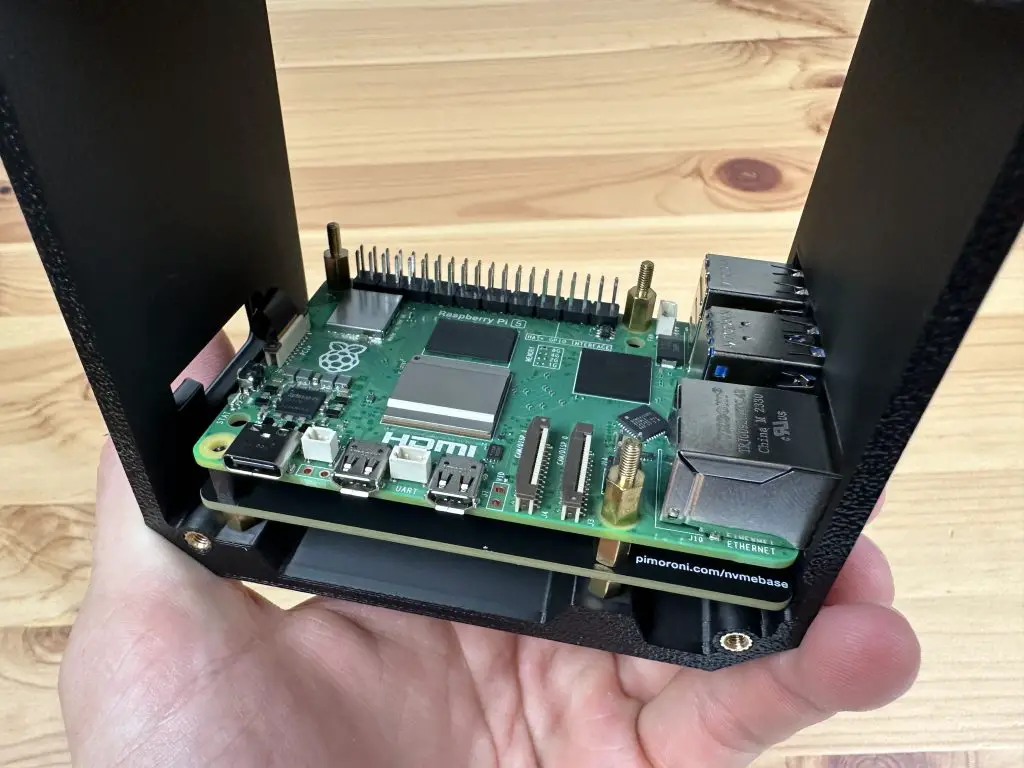
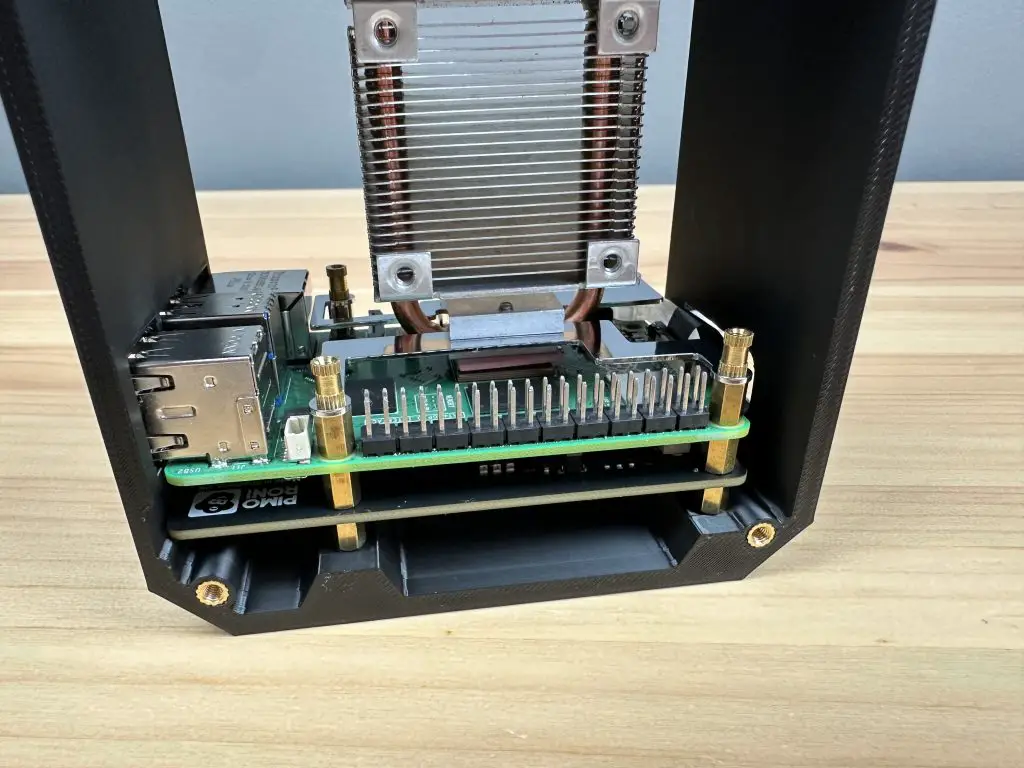
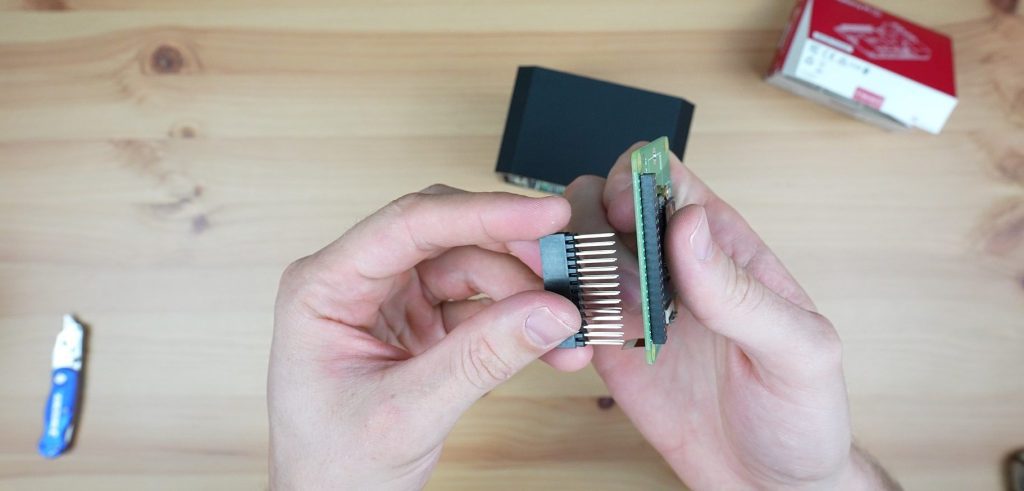
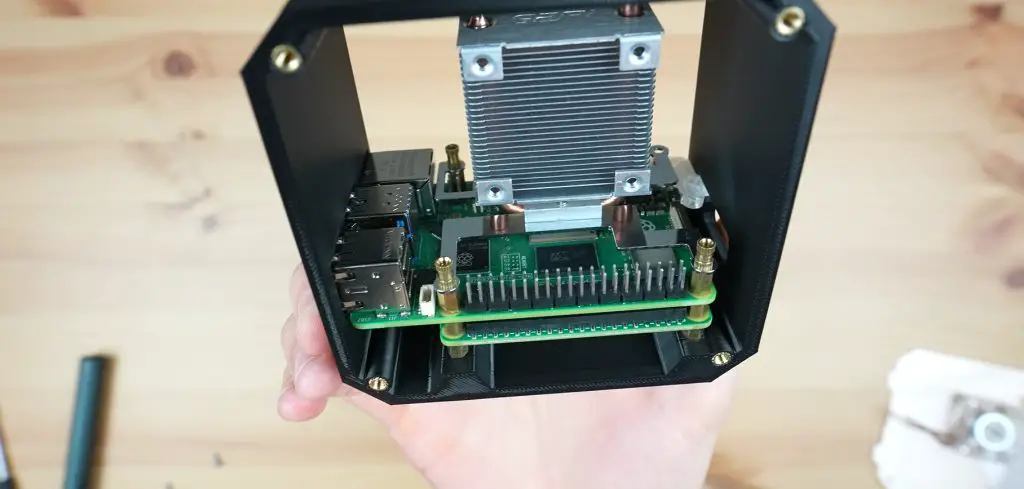
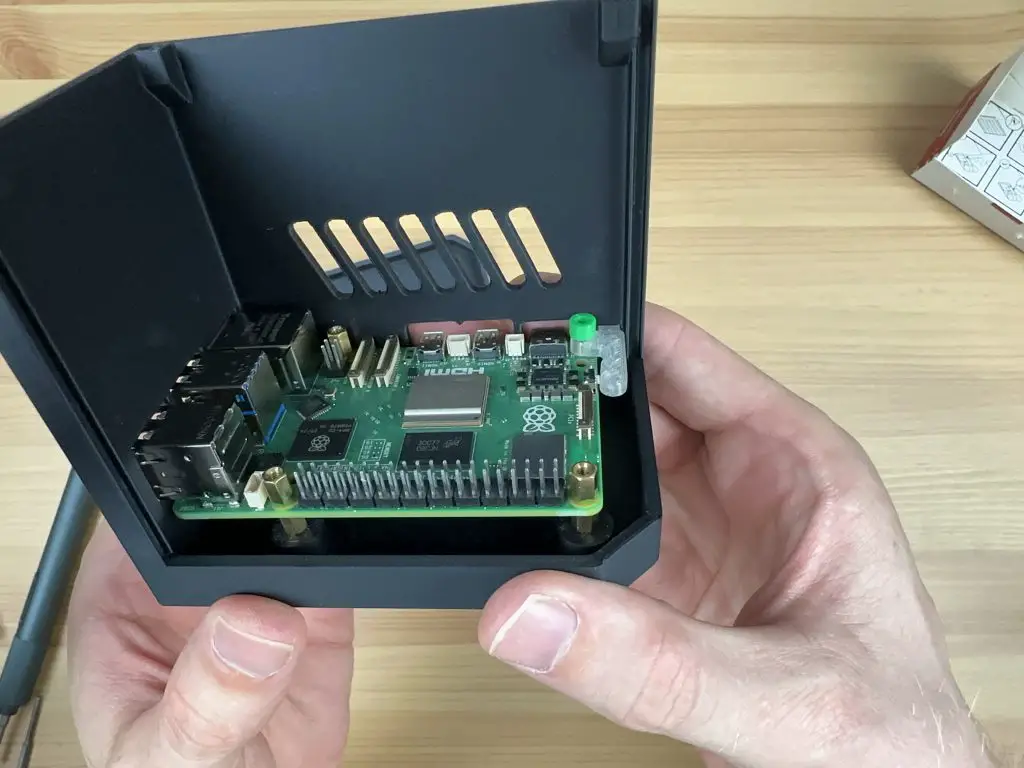
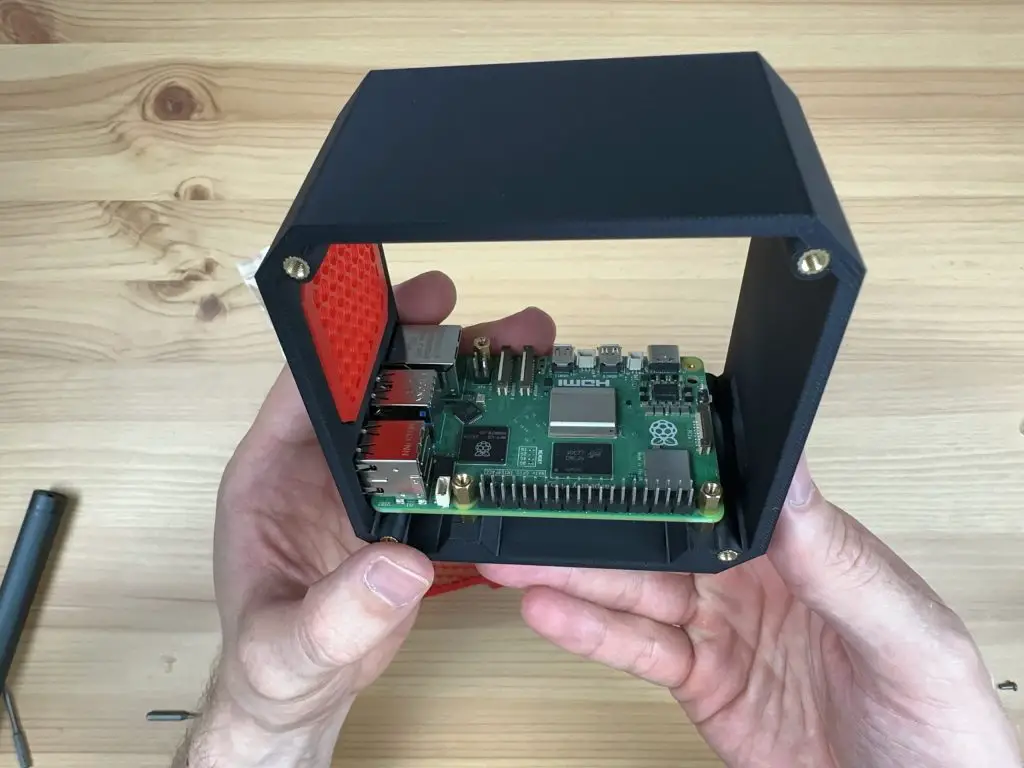
Place the assembled shield onto the brass standoffs and then use the M2.5x7mm brass standoffs supplied with your Ice Tower cooler to hold it in place. Don’t install an Ice Tower standoff on the hole nearest to the power port, this is where the button adaptor will go. Instead, install one of the female-to-female standoffs from your hat kit. If you are using the Pineberry HatDrive! then you’ll need to install a small 1mm black spacer from the case kit underneath this standoff as it is 1mm shorter than the Pimoroni ones.
If you are not using an Ice Tower cooler with your hat, then install four female-to-female standoffs to hold the hat in place. You’ll then use the short screws included with your hat kit to hold the Pi in place on the hat. If you’re using the Pineberry Hat, you’ll need to use the four 1mm black spacers supplied with the case kit underneath the hat as the standoffs are slightly shorter than the ones supplied with the Pimoroni kit.
Next place the Raspberry Pi on top of the hat and secure it with three of the M2.5x7mm brass standoffs that came with the Ice Tower cooler. Don’t install a standoff on the hole nearest to the power port, this is where the button adaptor will go.
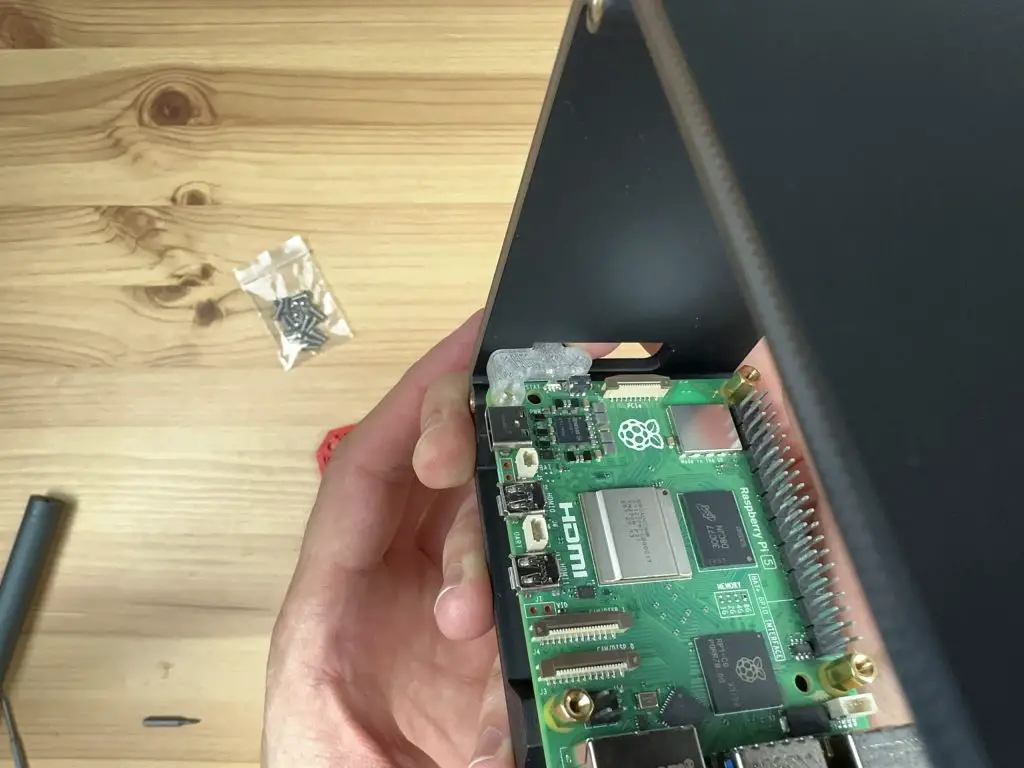
Plug the PCIe cable into the Pi. The tab on the connector can be pushed down to secure the cable through the microSD card slot. Likewise, to release it, the tab can be pushed up through the slot as well.
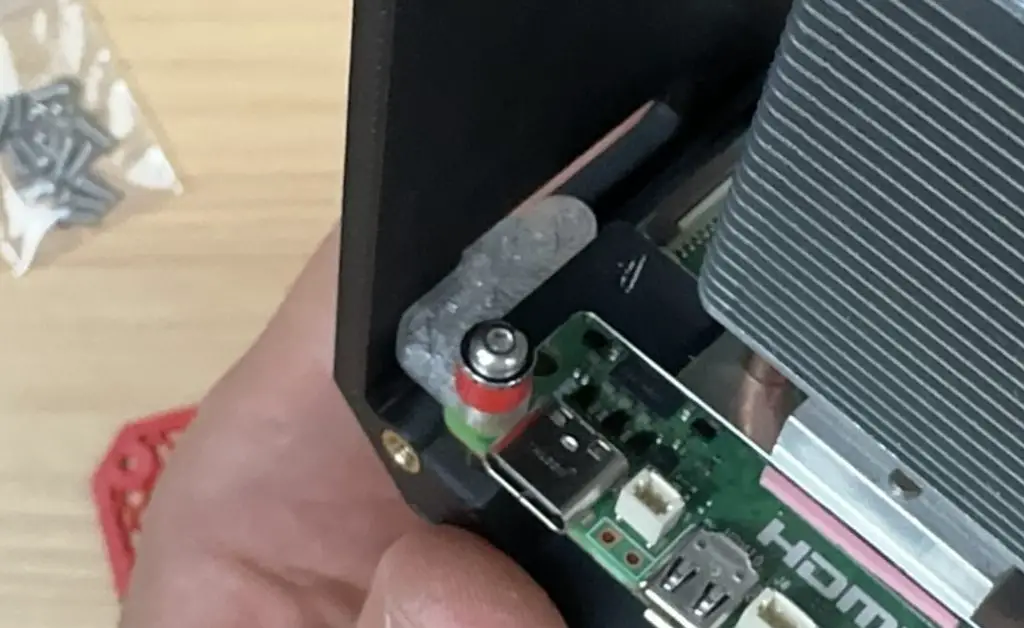
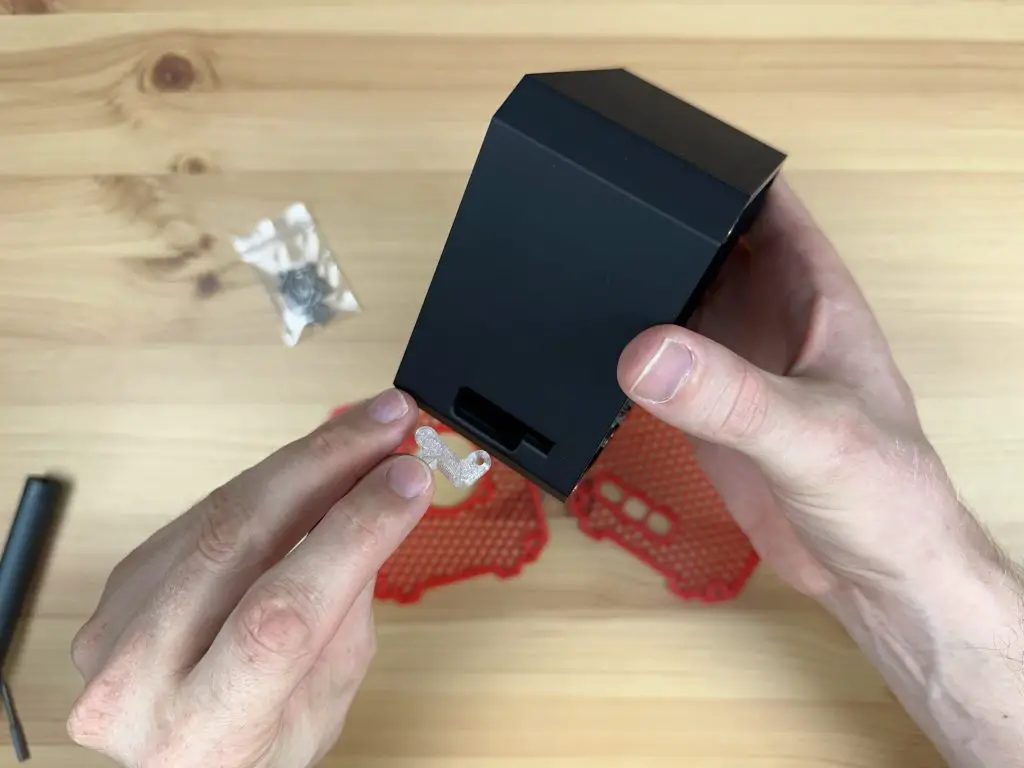
Next, we can position the button adaptor over the remaining mount. Slide the button adaptor into position through the microSD card slot at the back of the case in the orientation shown below. It should go in easily – do not force it past the LED or button as you may damage them. If you feel resistance, rather try to remove and reposition it until it slides into place without interfering with the surrounding components.
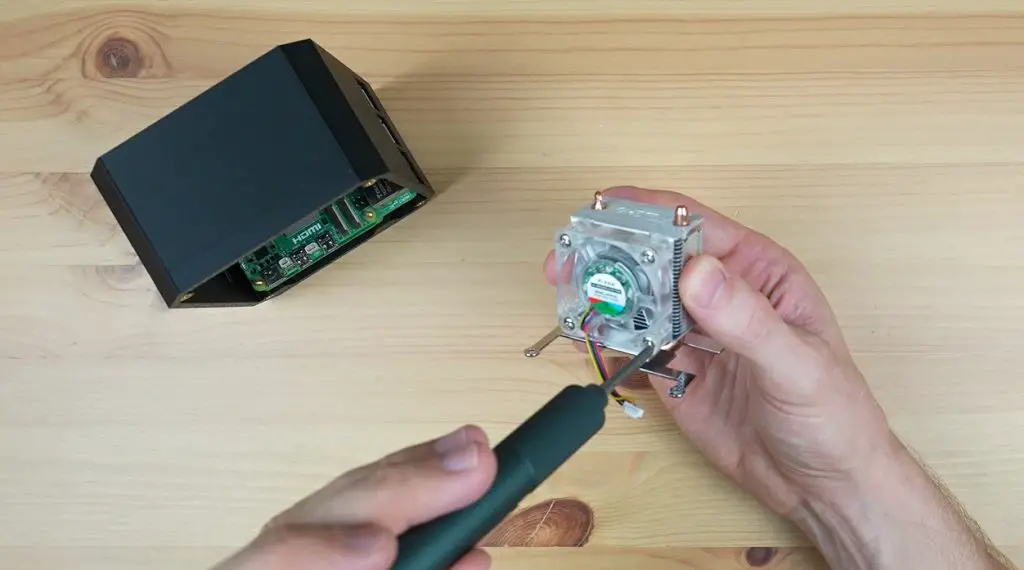
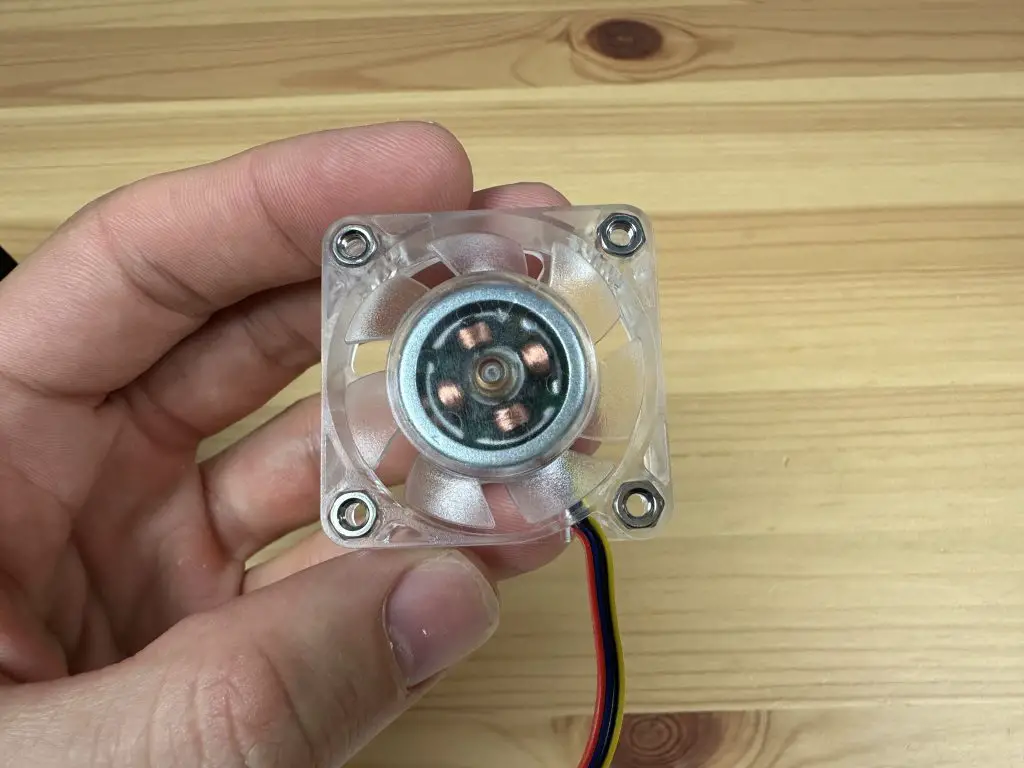
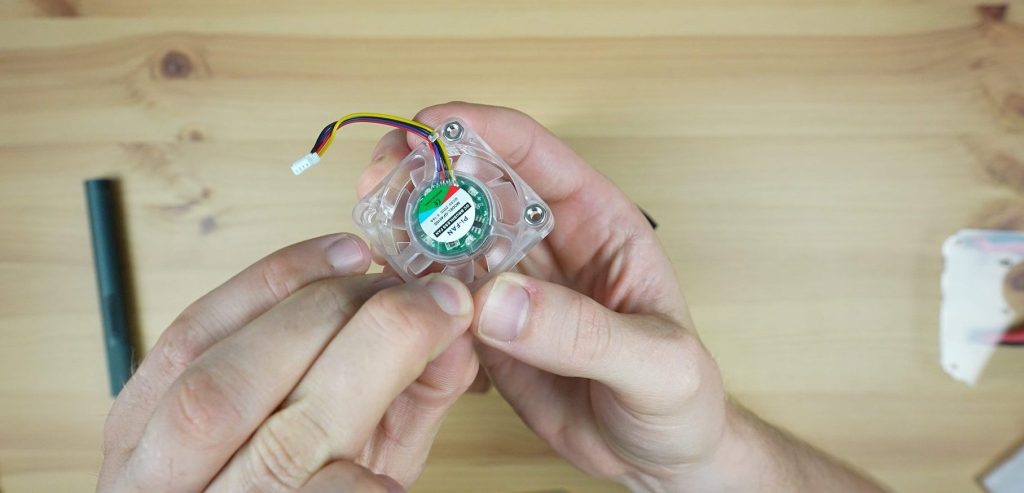
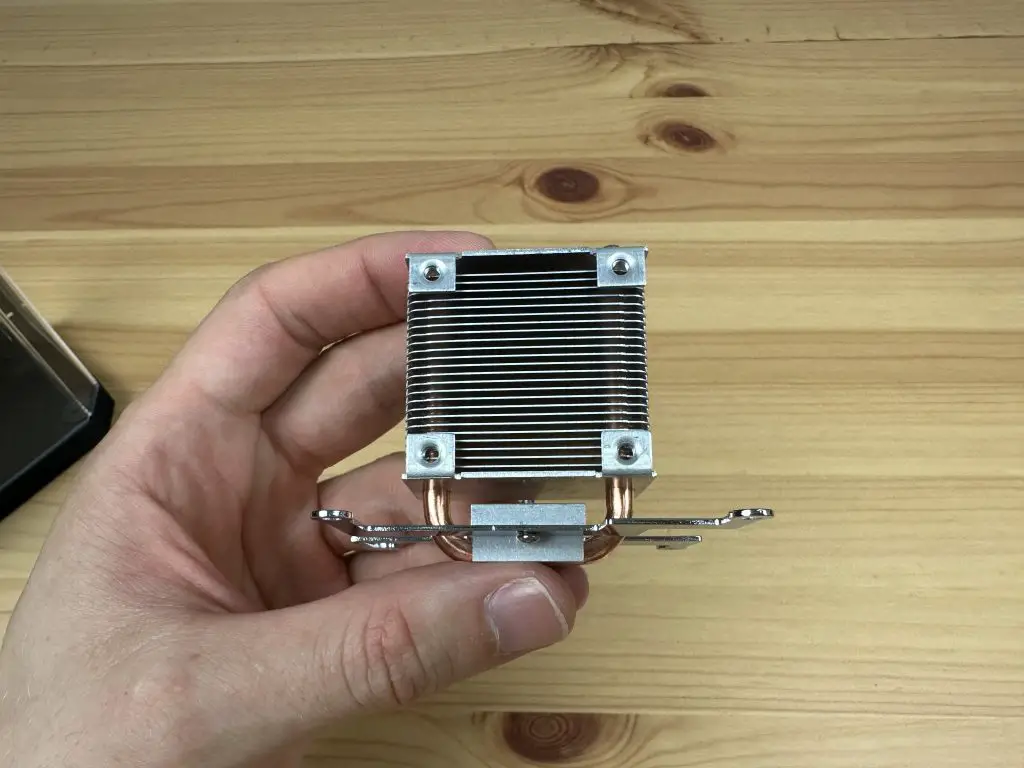
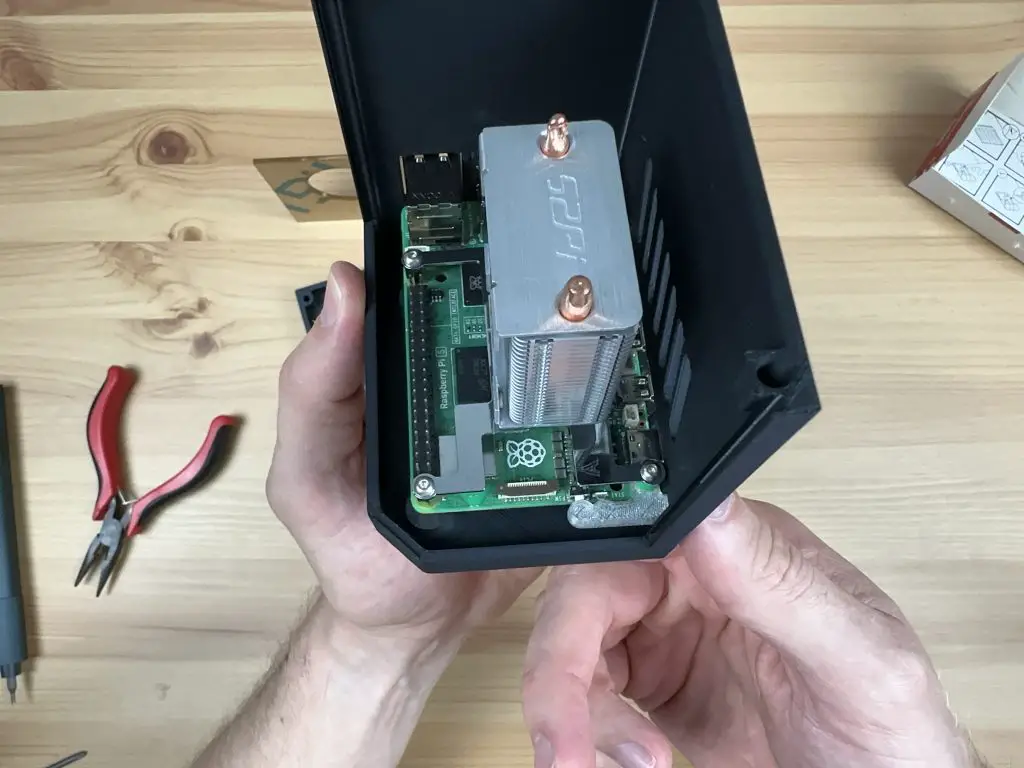
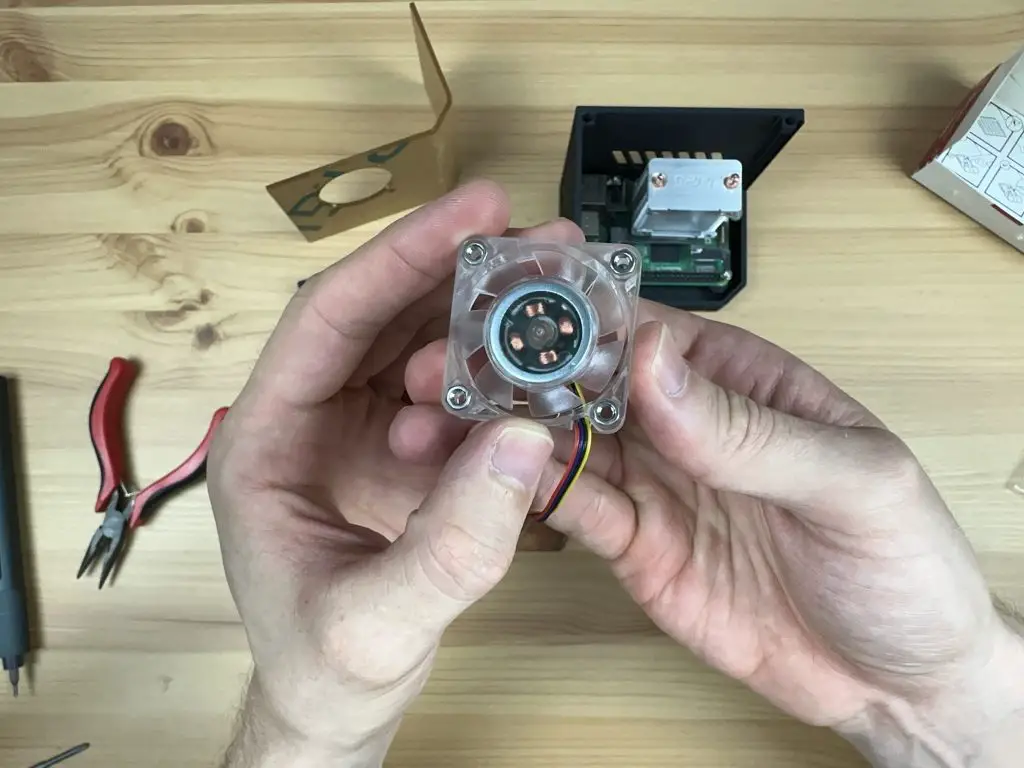
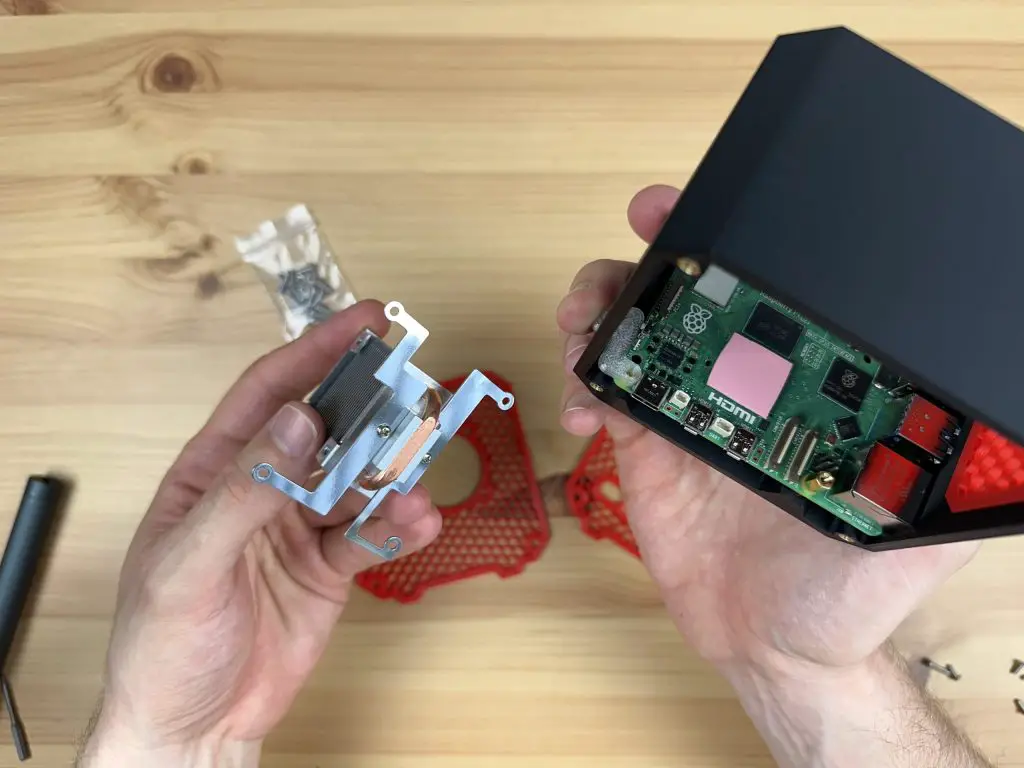
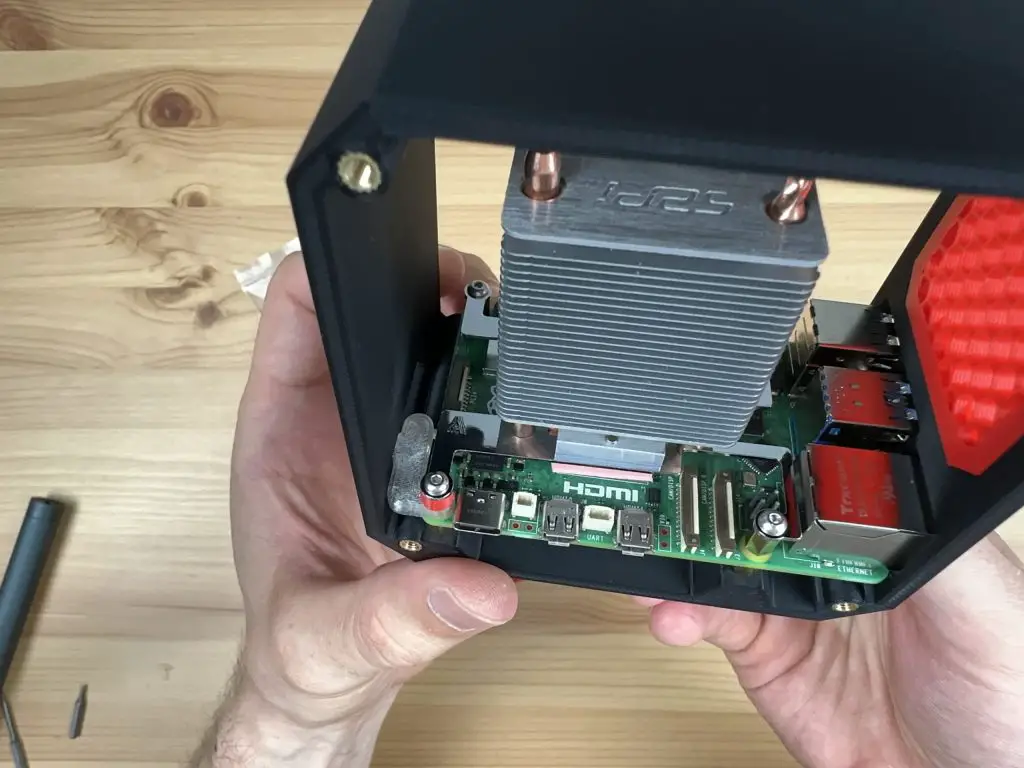
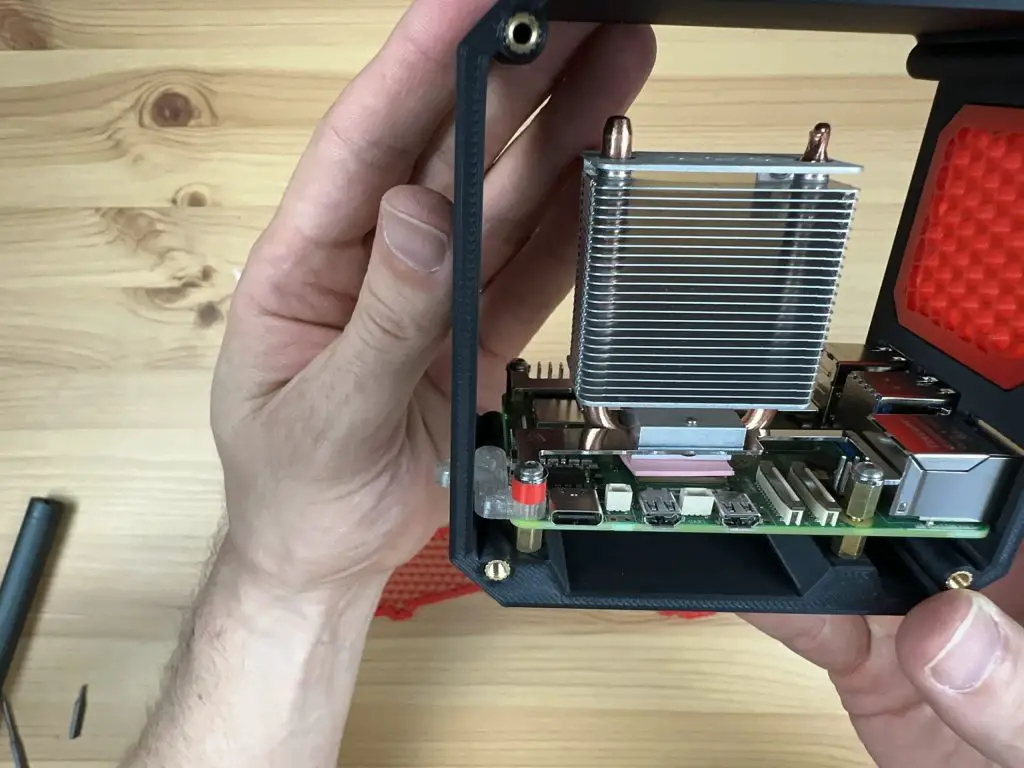
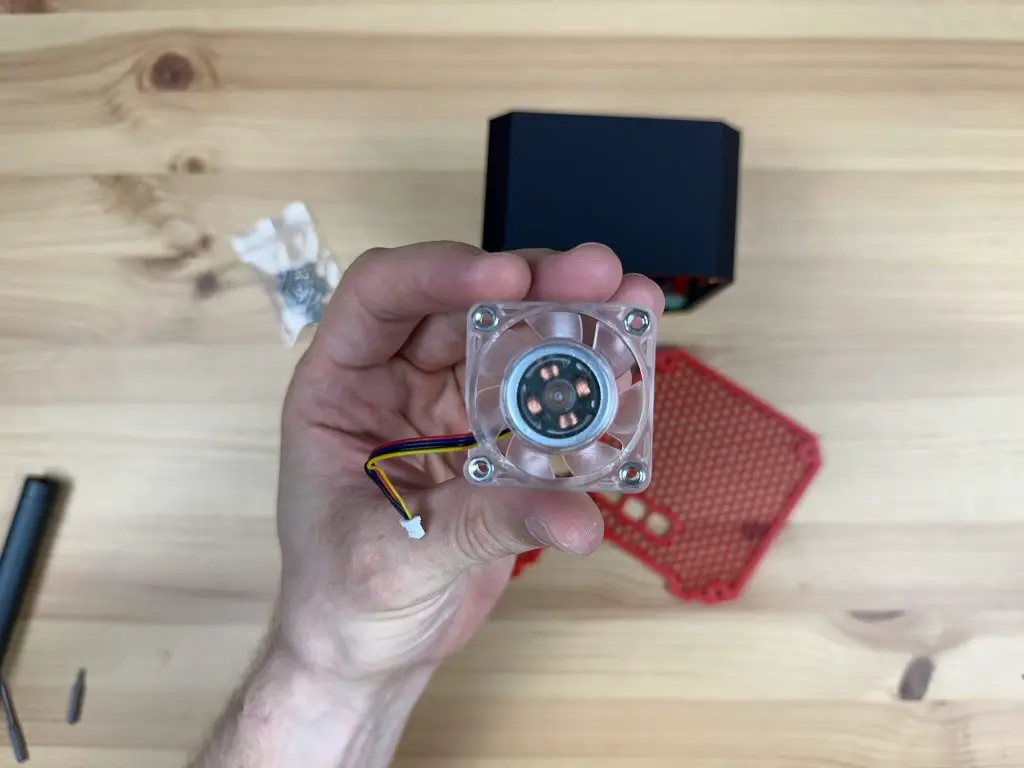
Now we can install our Ice Tower cooler. Before we install it, we need to remove the fan by removing the four M3 screws in the corners. We’re going to be installing the fan onto the side panel.
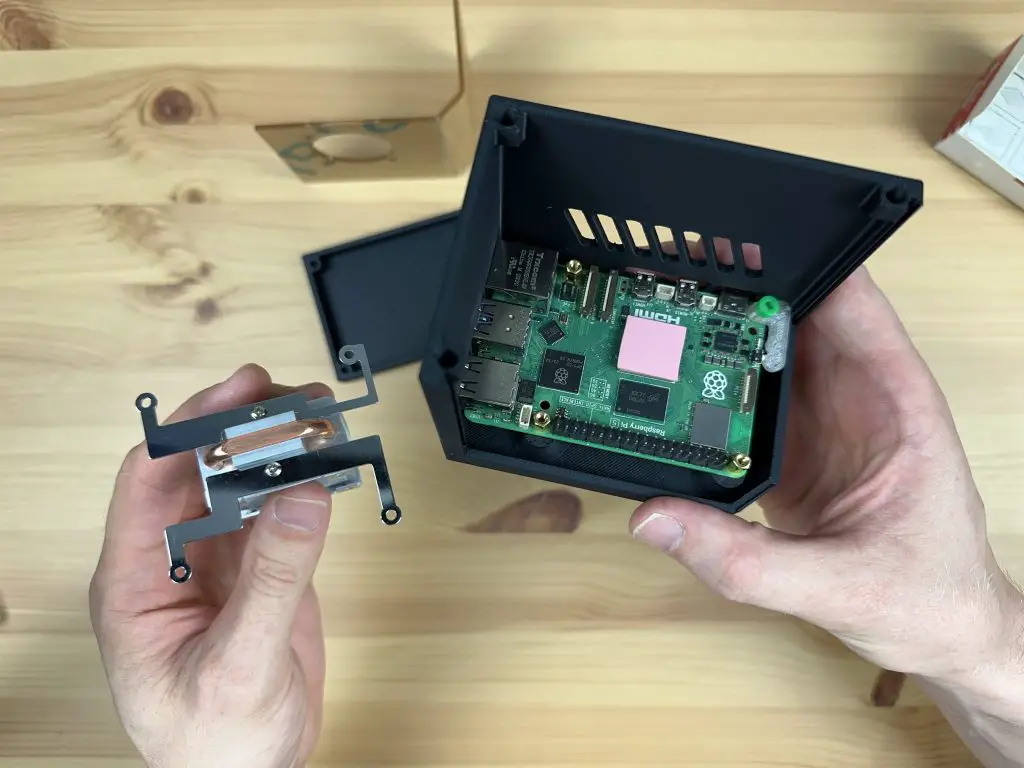
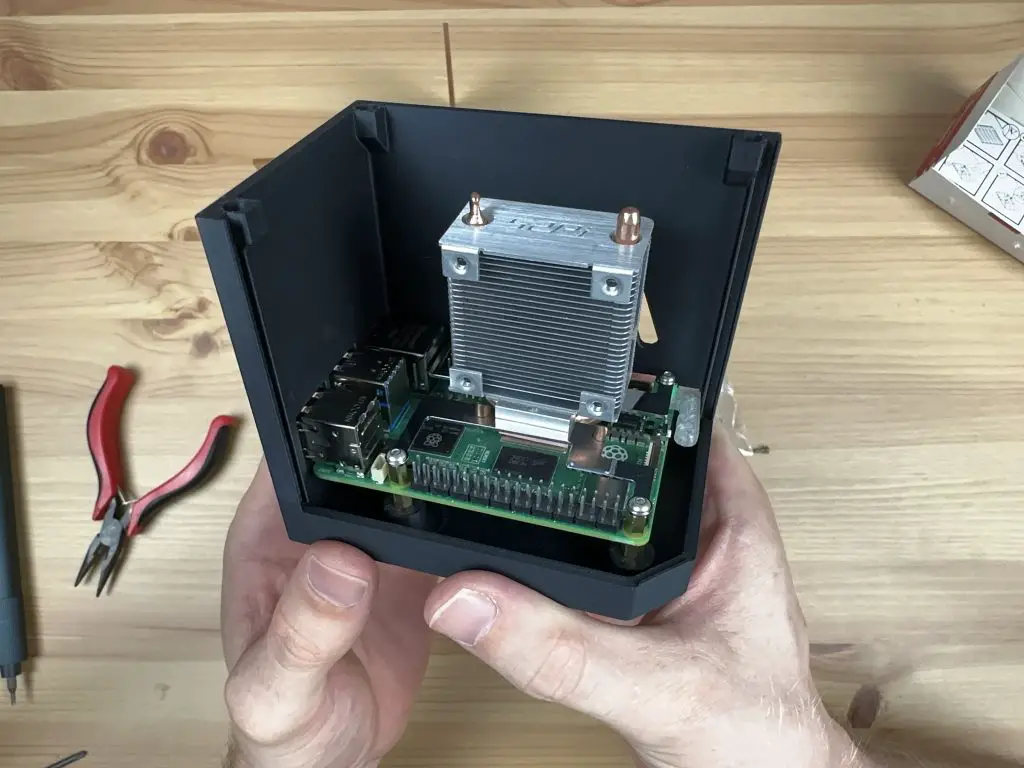
Remember to add the thermal pad to the CPU before putting the cooler into place. Secure the cooler with three M2.5 thumb screws, one into each of the brass standoffs. Again leave the button adaptor unsecured for this step.
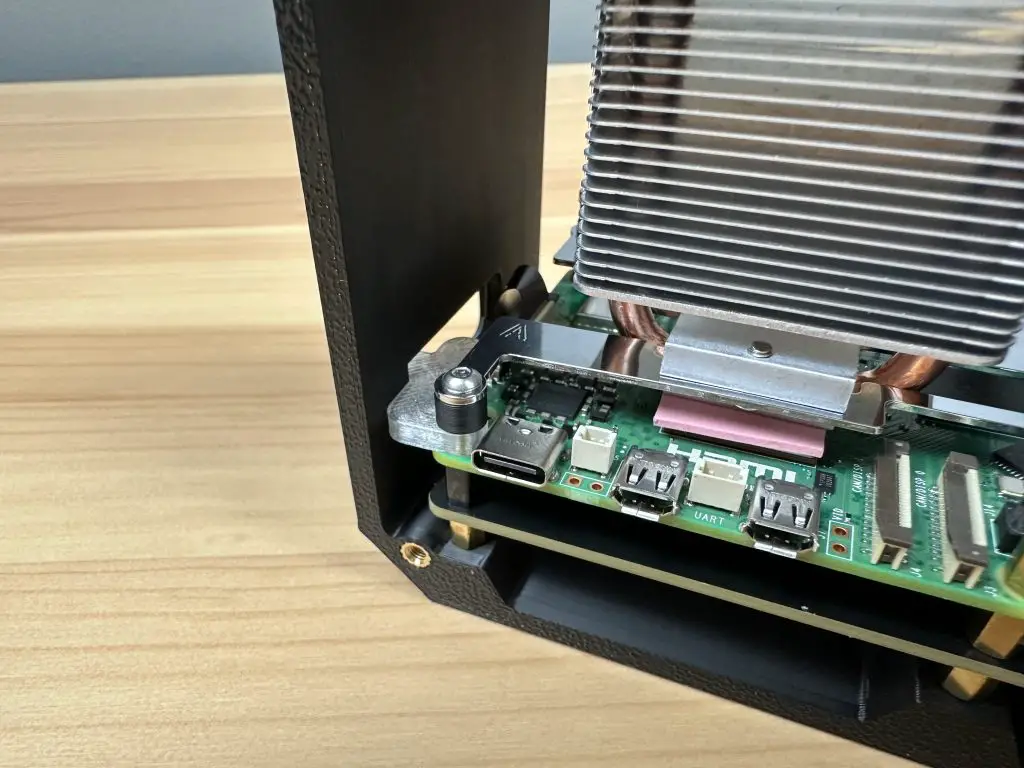
Now use the M2.5x12mm button head screw that was supplied with the case kit to hold the button adaptor in place. You’ll need to add the thicker black spacer supplied with the kit between the button adaptor and the leg of the Ice Tower cooler as well.
Do not overtighten the screw as you need the button adaptor to be able to still move slightly to push and release the button. You should be able to feel the button press and release easily through the button adaptor.
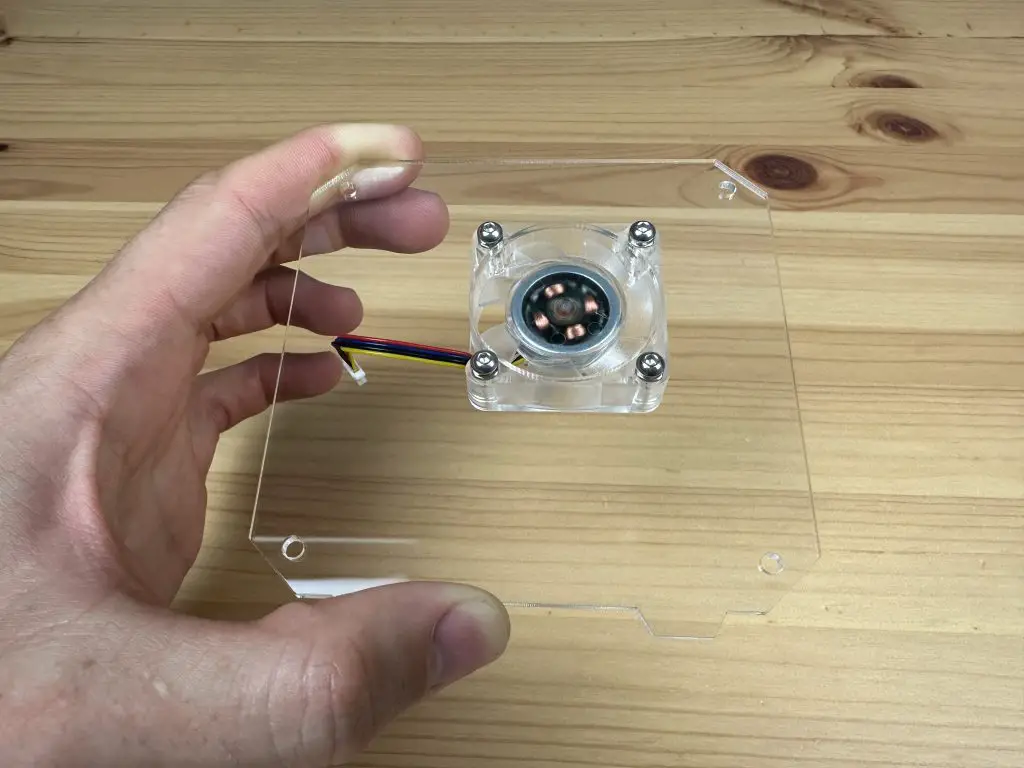
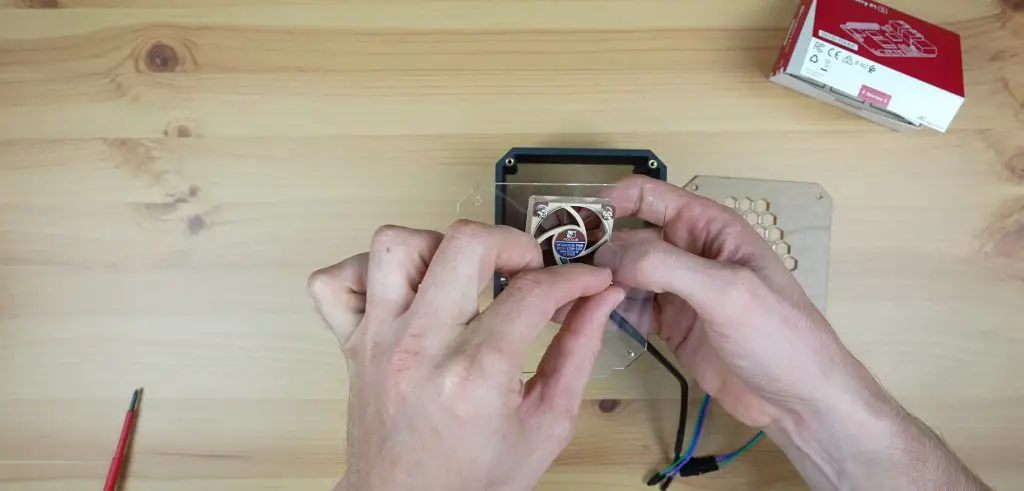
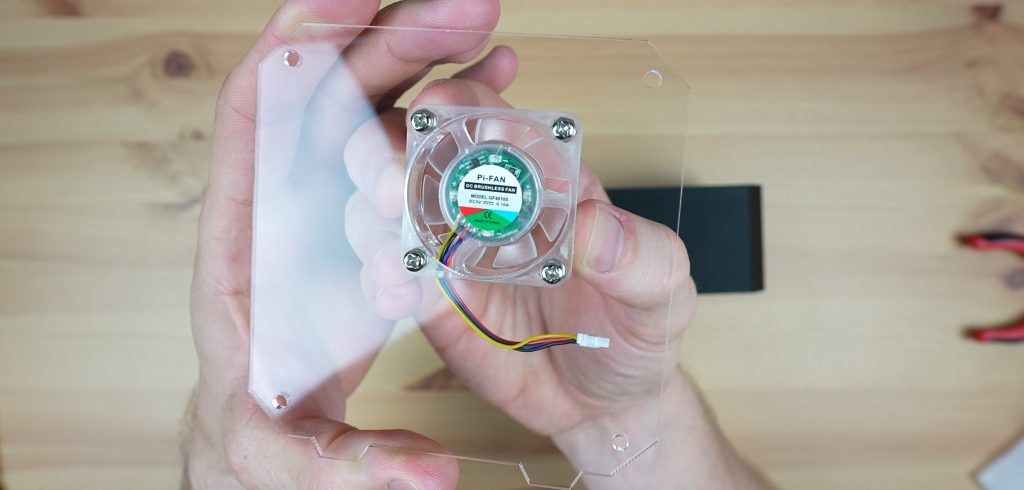
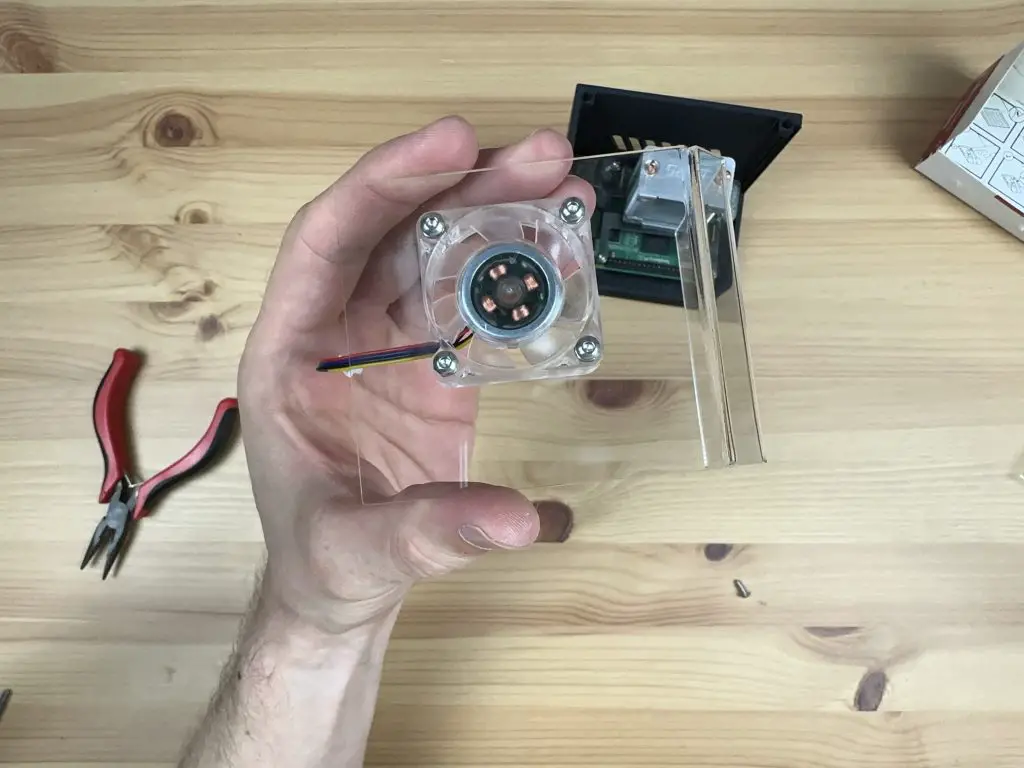
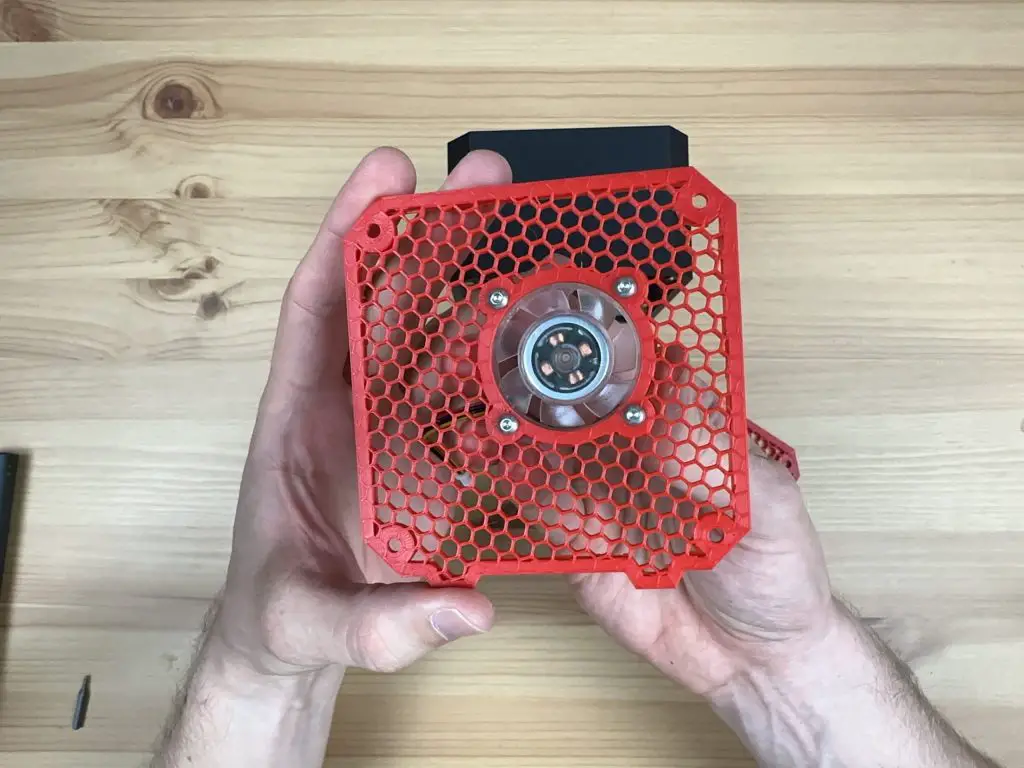
To install the fan, we’re going to use the same method that I used on my other case designs where the screws do not go all the way through to the back of the fan. We instead press the M3 nuts into the front of the fan and the screws then hold these in place against the side panel.
It is easiest to press these into place by placing the nuts onto a flat surface and then pushing each pocket in the corner of the fan down onto the nut. The nut is in position when it is flush with the face of the fan.
Screw the fan to the side panel using four of the included M3x8mm button head screws.
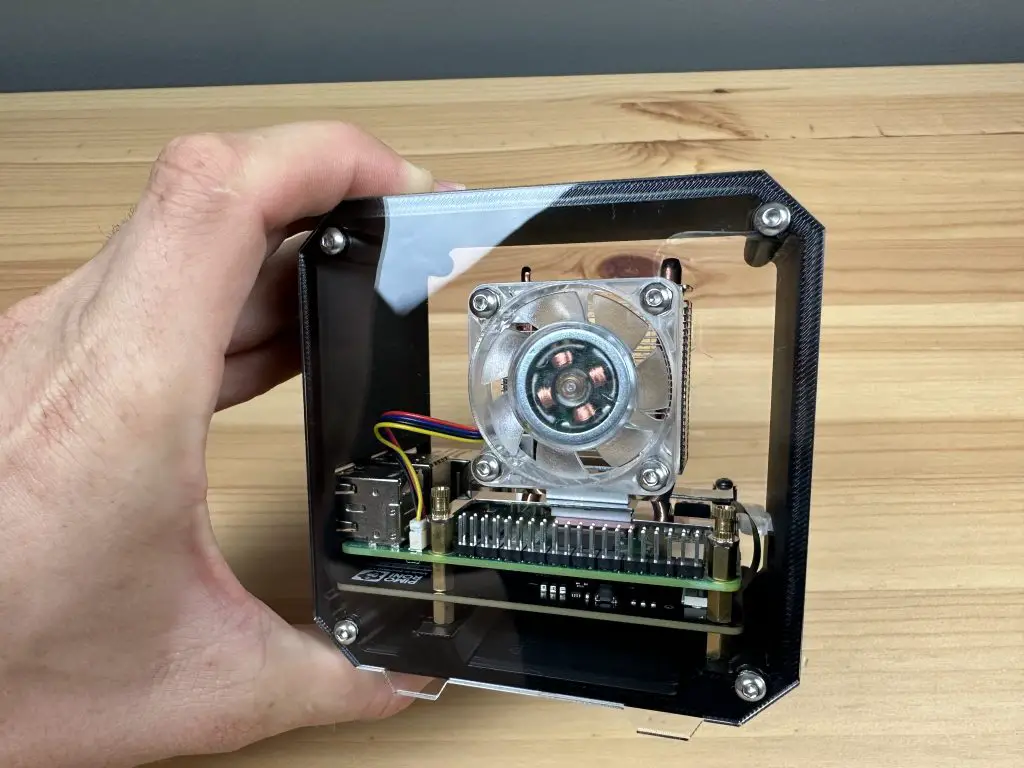
Then plug the fan into your Raspberry Pi’s fan port or GPIO pins (if you’re using your own fan) before screwing the side panel into place.
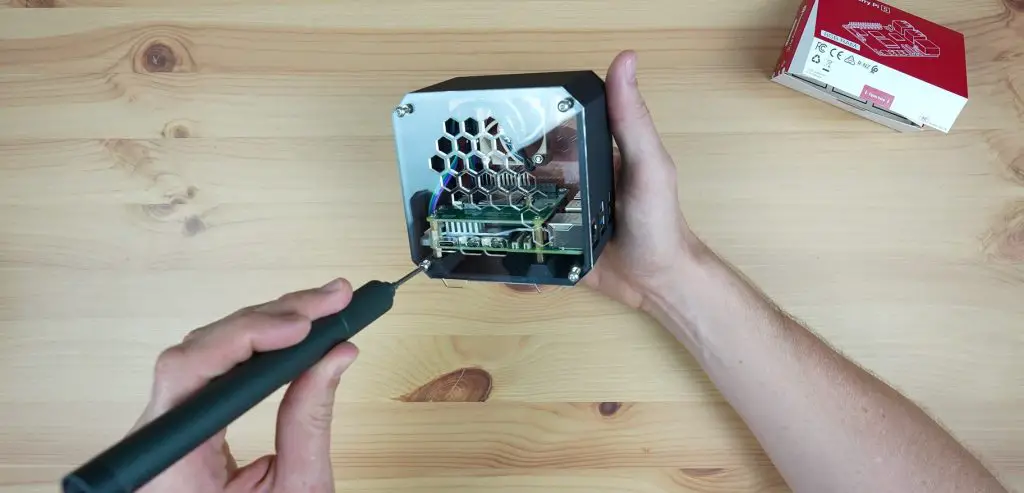
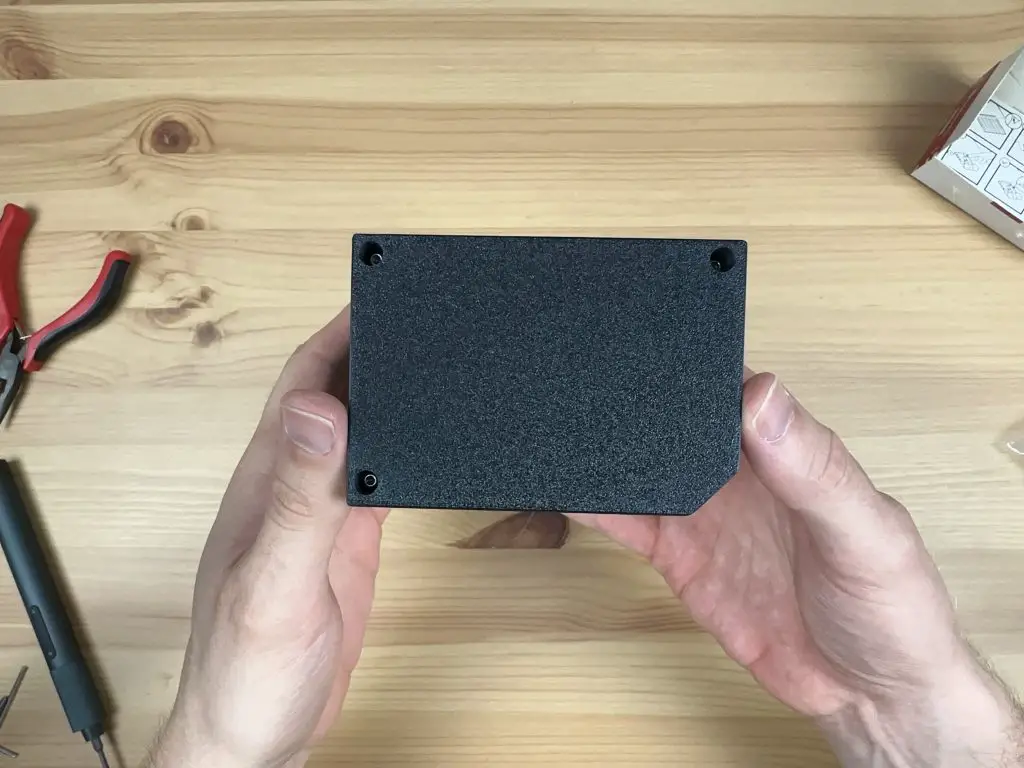
Close up the case with the two side panels and four M3x8mm button head screws on each side.
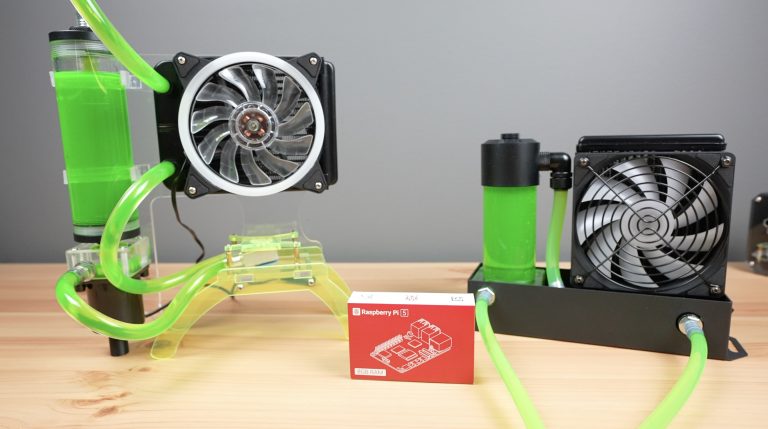
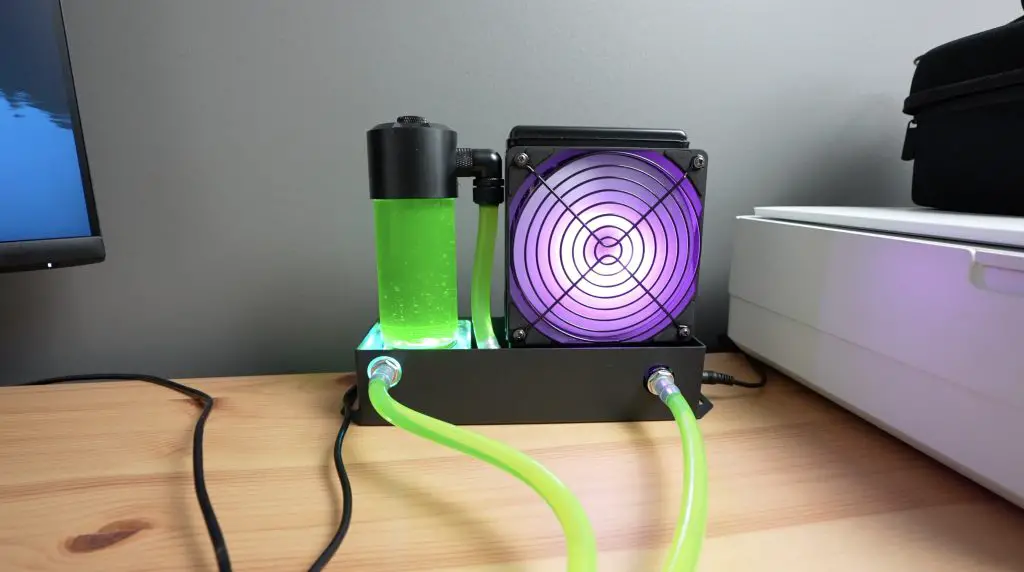
Today we’re going to be taking a look at a new water-cooling kit that has been designed for a Raspberry Pi 5. We’ll see how its custom water block and performance stack up against the DIY solution that I built for my Pi 4 a few years ago. I also used this solution on my Pi cluster, cooling 8 Raspberry Pi 4s at once. It worked really well for that too, so I expect it’ll also work well on the more powerful Pi 5.
Here’s my video of the comparison, read on for my write-up:
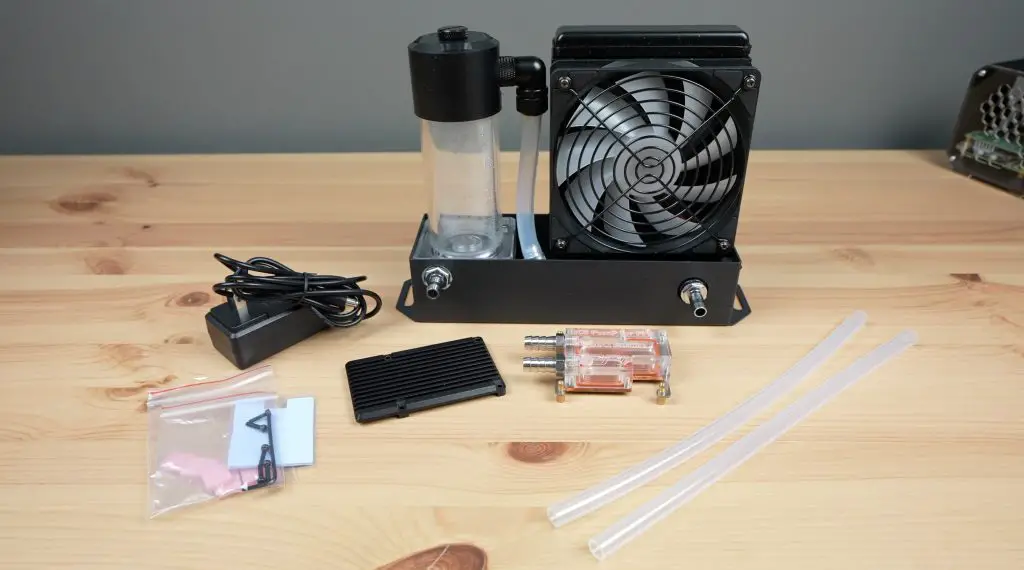
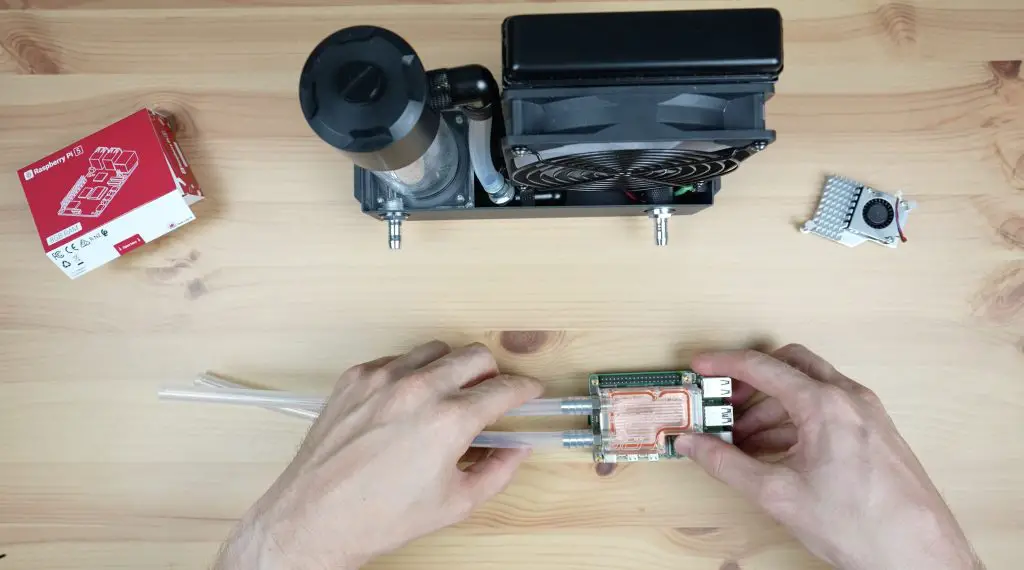
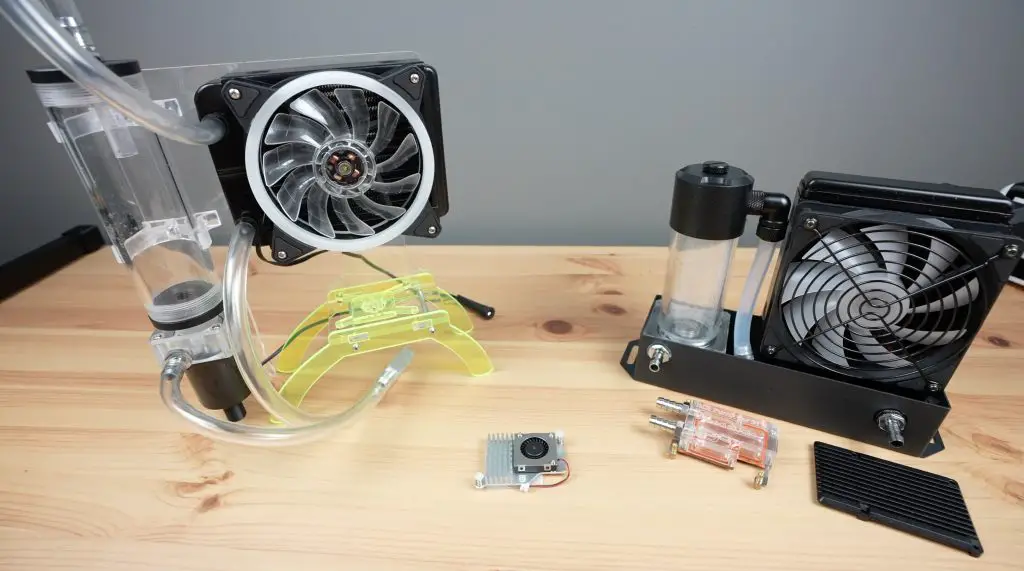
The water cooling kit that we’re going to be using has just been launched, it is available from Seeed Studio’s web store and currently costs $120.
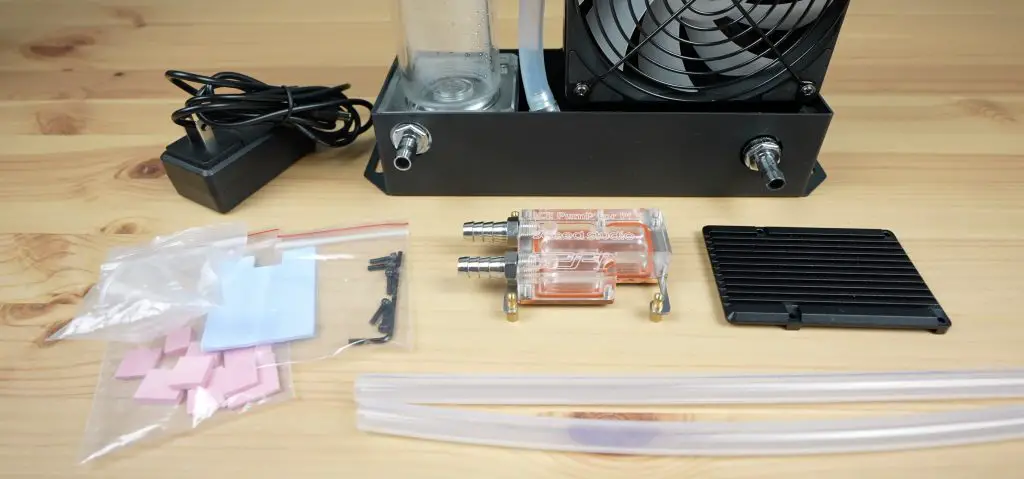
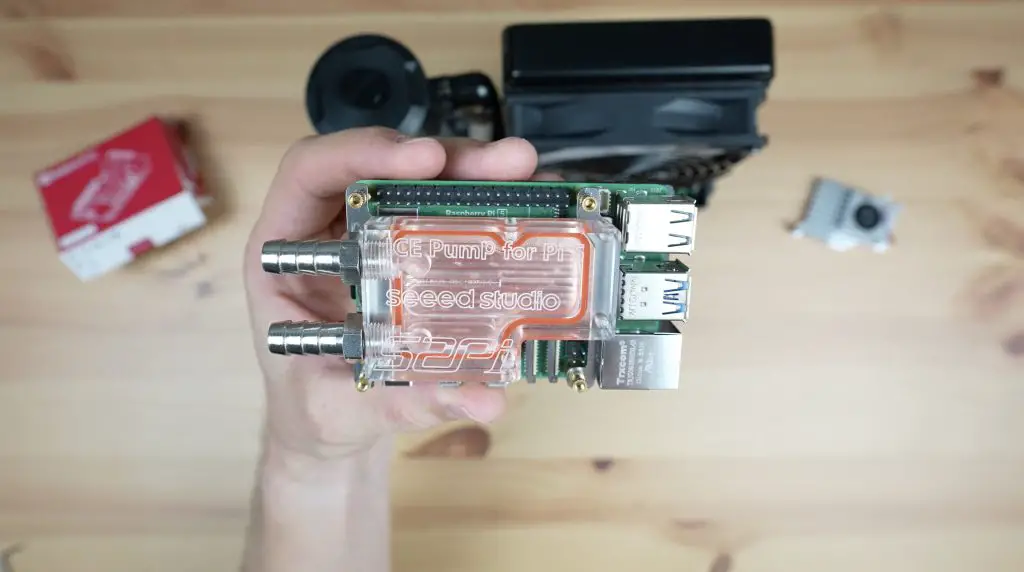
It includes a fan and water pump assembly, a cooling block, a 12V power adaptor, the installation hardware like some thermal pads and screws as well as some flexible tubing to run to the water block.
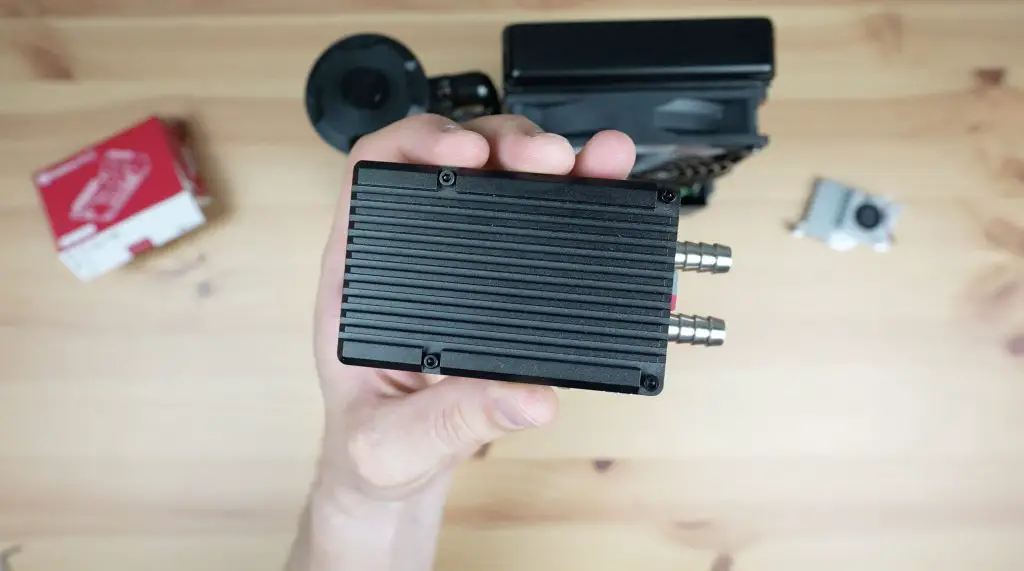
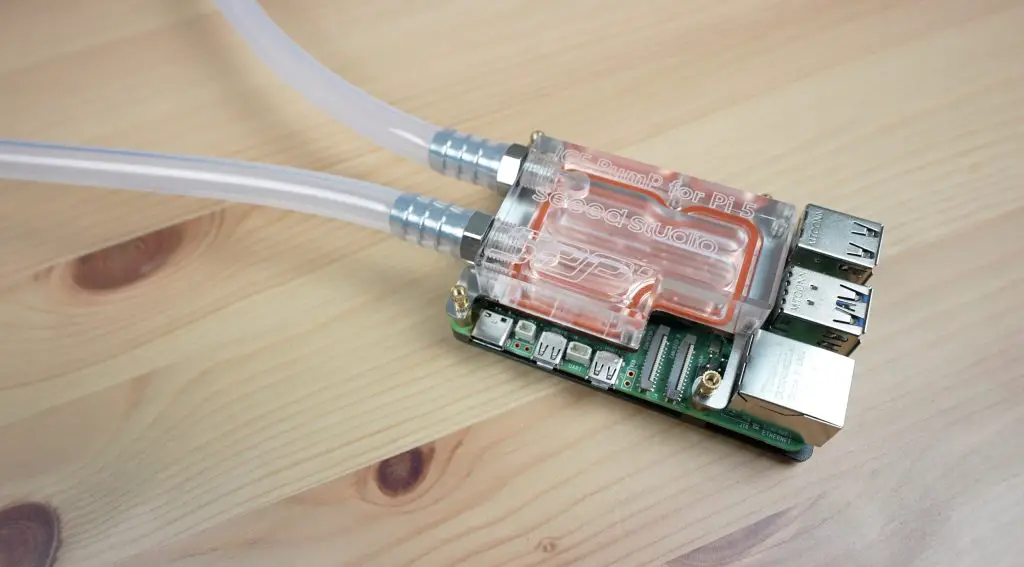
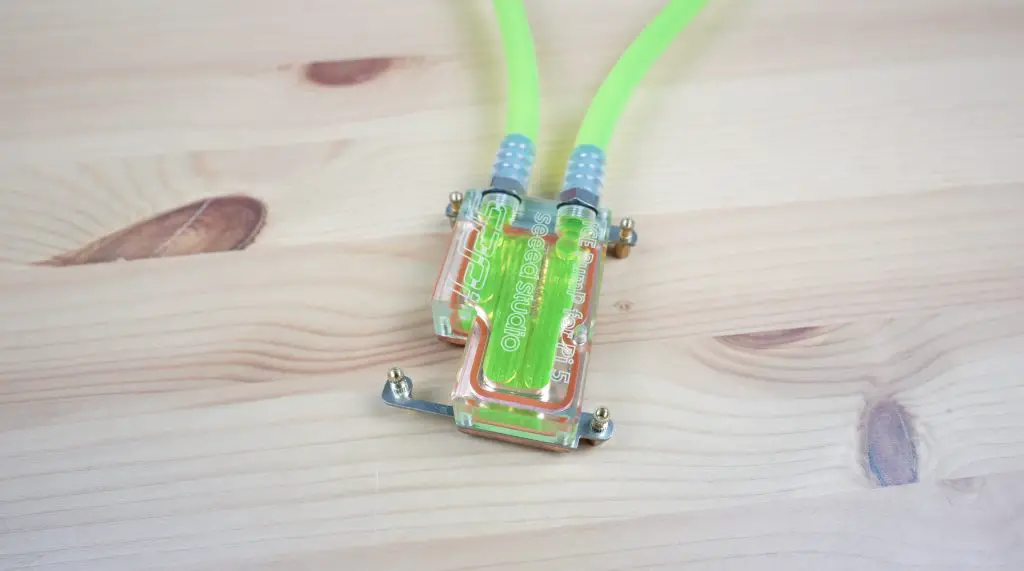
The water block is a custom design for the Pi 5 and the kit comes with a black aluminium heatsink for the bottom of the Pi as well.
Outlining The Thermal Testing Process
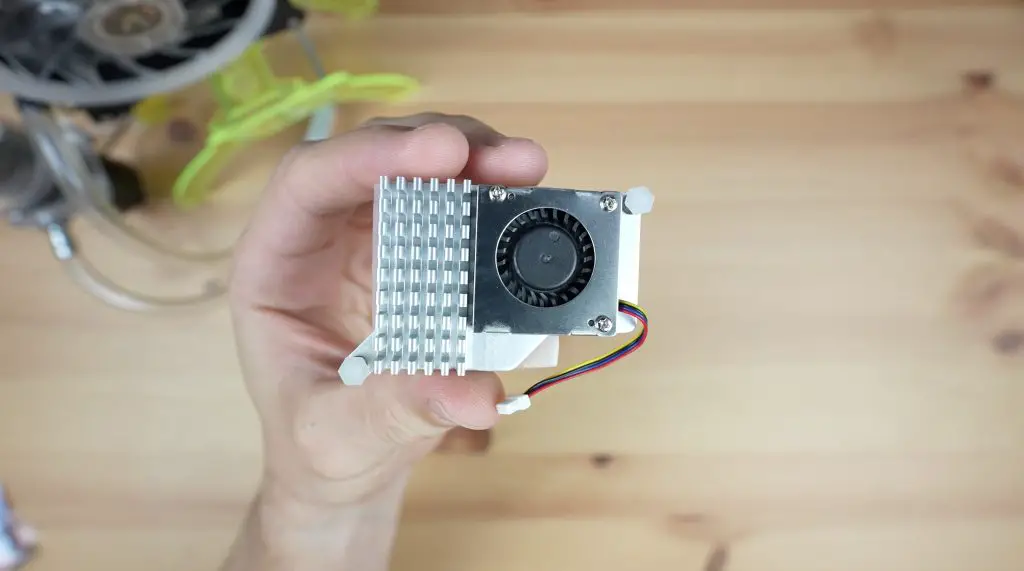
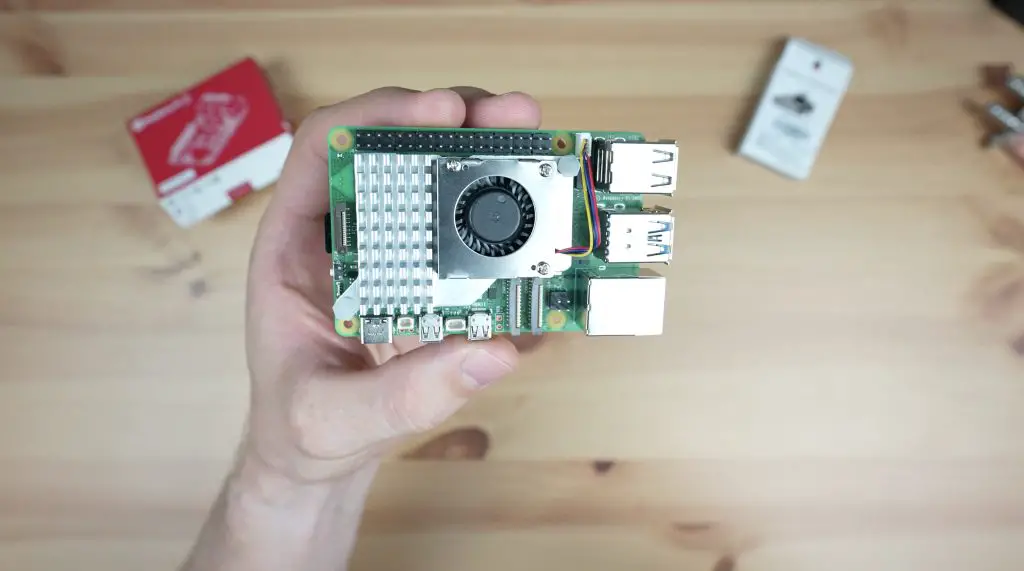
To test the thermal performance of the manufactured water cooling option, we need something to compare it to. For that, I’m going to try two different cooling solutions. The first is the active cooler that is designed for the Pi 5. This is a cheap and simple solution, costing just $5, and is also commonly available. It’s got an aluminium heatsink covering the CPU and surrounding heat-generating components with a small PWM fan on it.
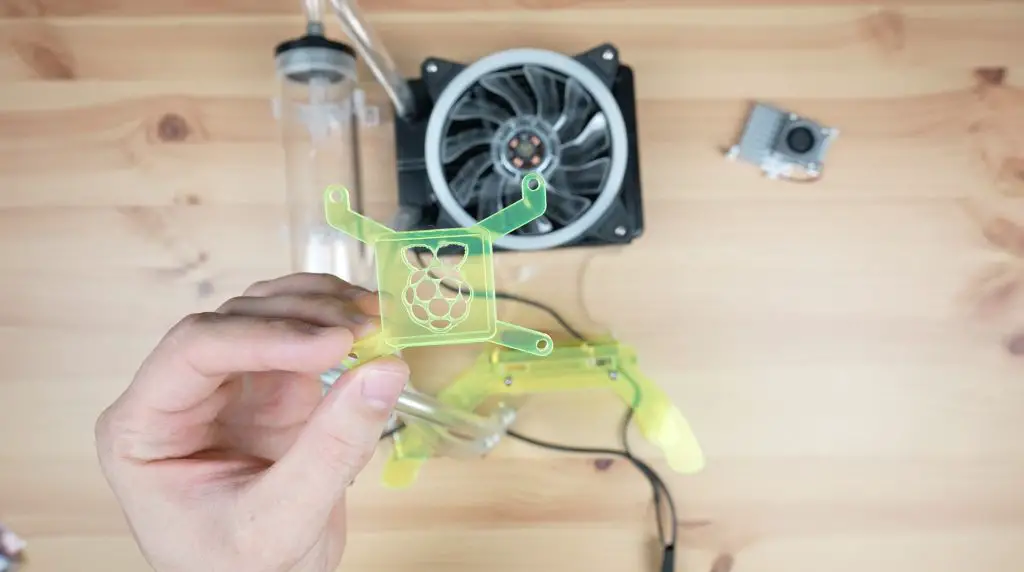
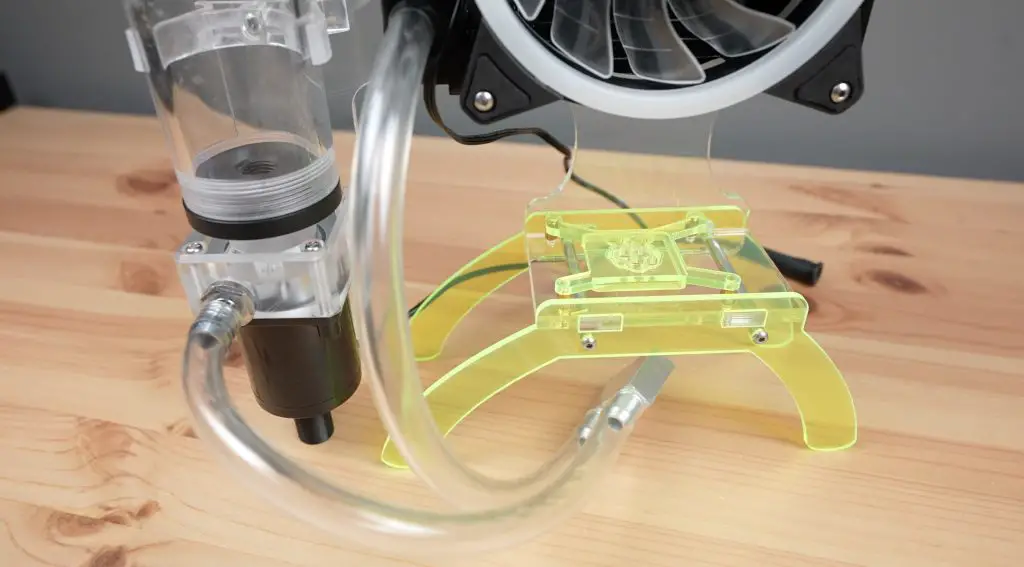
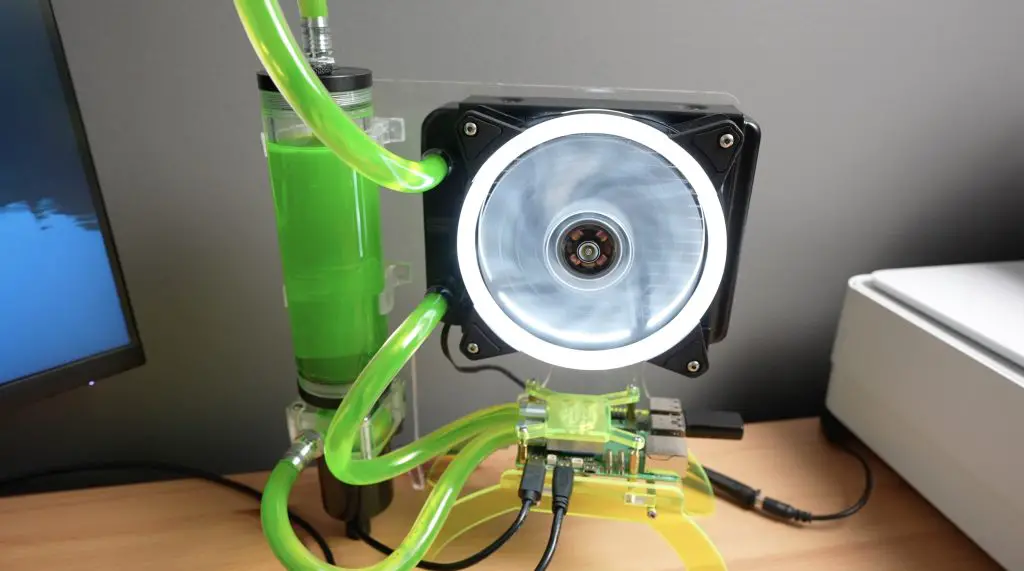
The second is my original water cooling setup from my Pi 4. I’ve had to make some changes to it to work with the Pi 5 – I’ve redesigned the heatsink bracket for the new CPU location and I’ve strengthed the legs and holder for the Pi as these were a little flimsy on the original. Other than that it’s pretty much the same set of components, especially in the cooling loop.
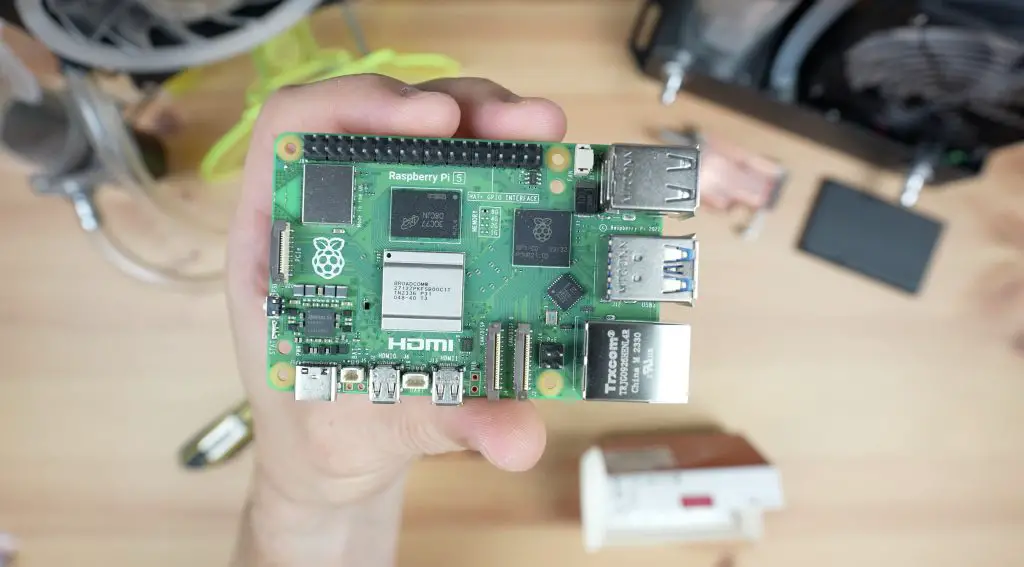
I’m going to use the same Raspberry Pi 5 with each cooling solution for consistency and I’ll just switch it between each solution for the test. I’m also going to be using the official Pi 5 power supply so that we don’t run into any power or undervoltage issues.
To test the thermal performance of each solution, I’m going to use a utility that I used to test my previous setup called CPU burn. It can be installed on your Pi using the following commands:
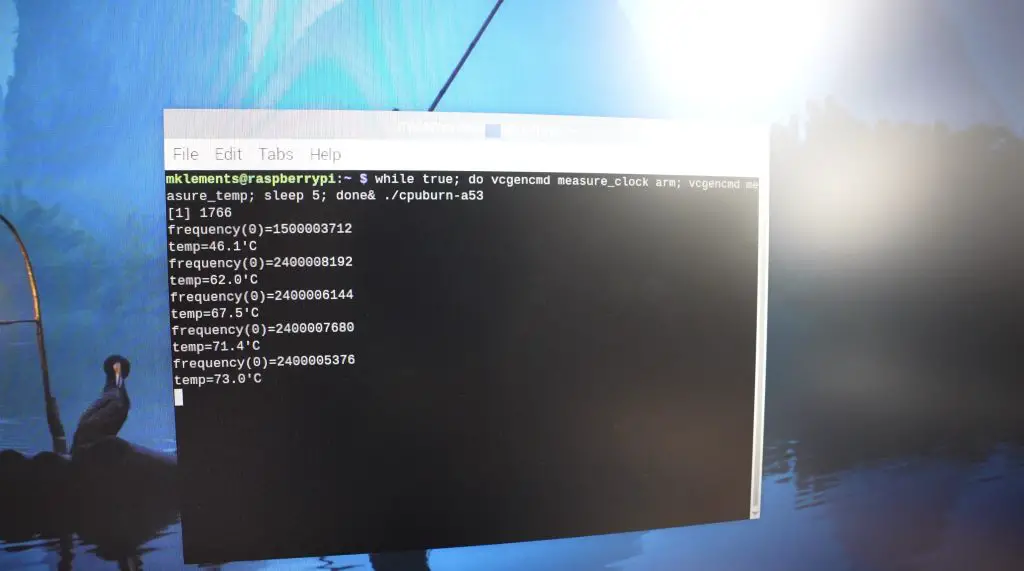
It is then run in the terminal with the below command, which will also display the CPU temperature and clock frequency:
while true; do vcgencmd measure_clock arm; vcgencmd measure_temp; sleep 10; done& ./cpuburn-a53
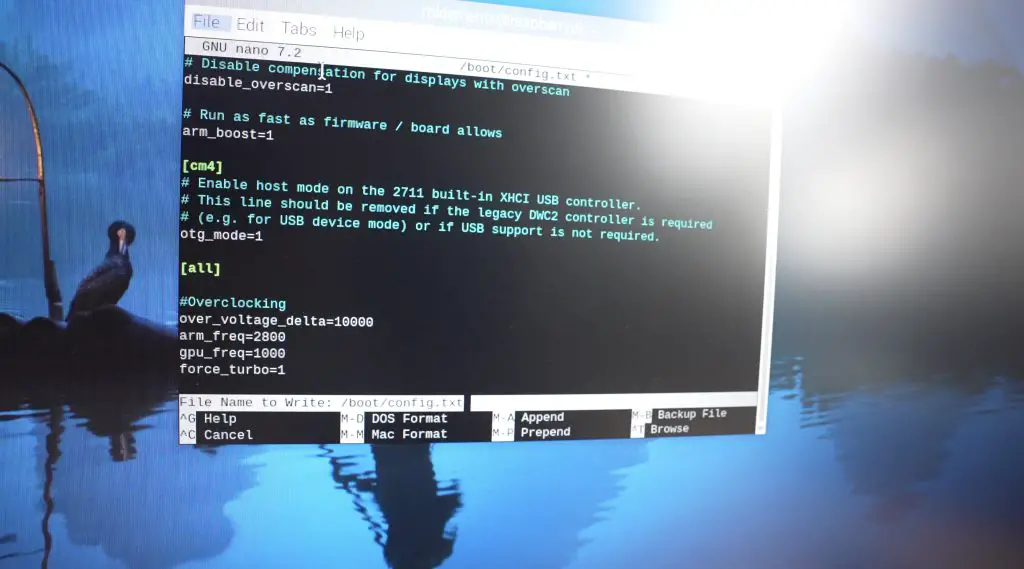
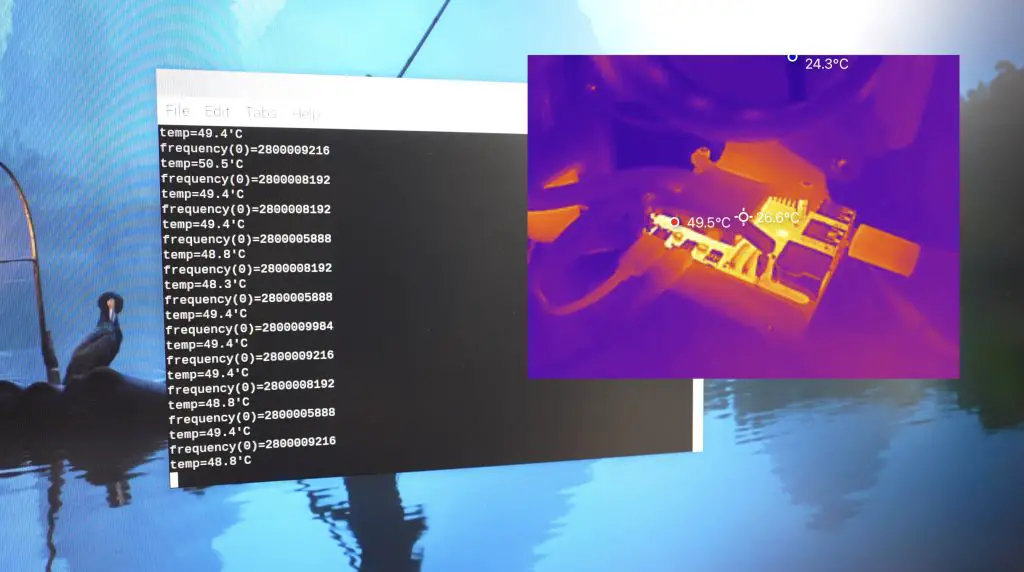
This utility fully loads each of the CPU cores. I’ll leave this running for about 10 minutes on each so that we reach the point of equilibrium every time. I expect both of the water cooling setups to perform quite well, so we’ll also try overclocking the Pi to 2.8GHz and see how each handles the additional overclocking heat as well.
I did try to get my Pi overclocked to 3Ghz but I couldn’t get it to be stable enough to survive a 10-minute stress test with CPU Burn at this CPU frequency.
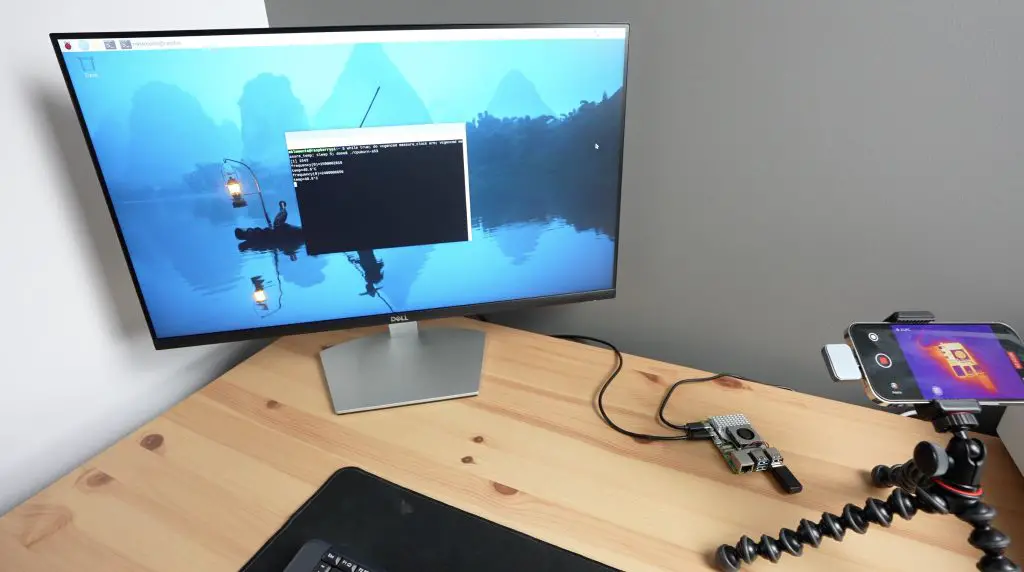
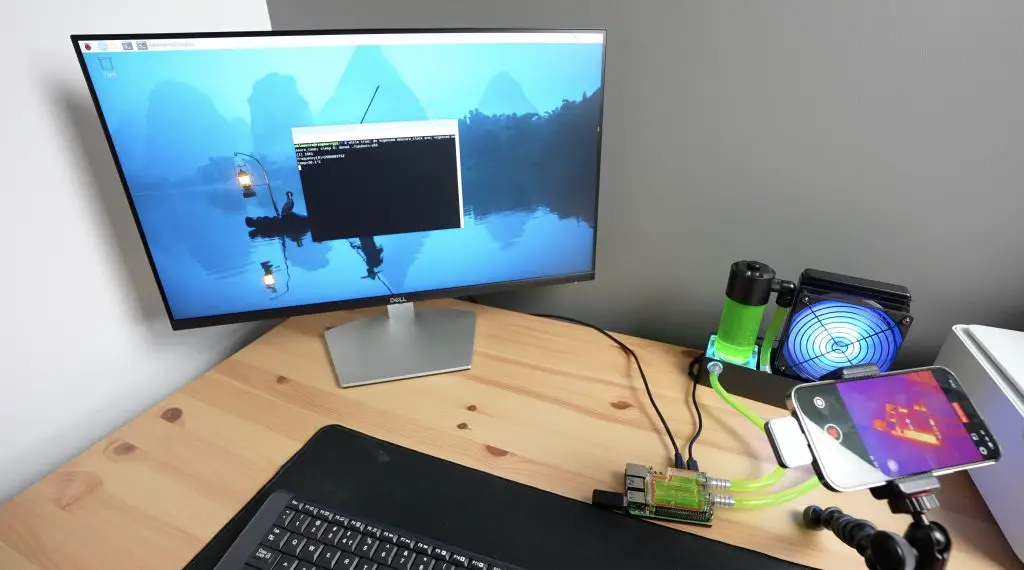
I’m going to set up a thermal camera to watch each solution during the test so that we can see any hot spots. The thermal camera doesn’t work on metallic surfaces, so it will be a bit limited but we should still be able to see any significant issues.
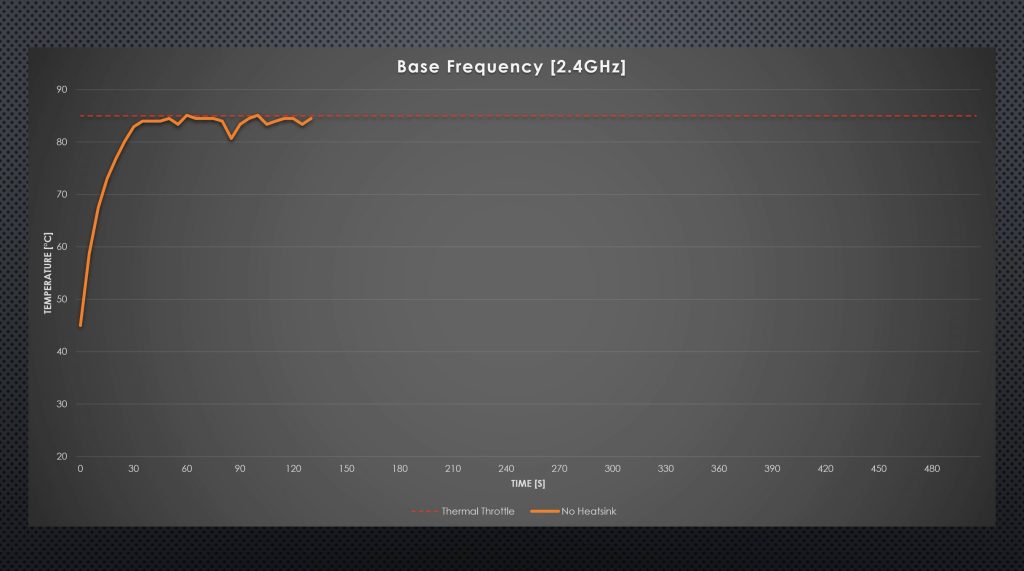
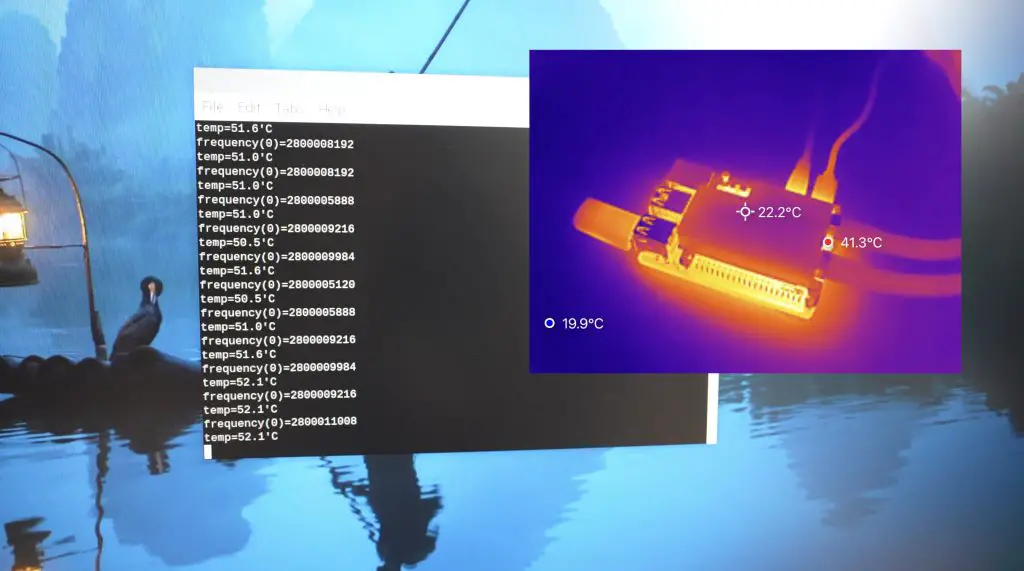
Just out of interest, I ran the test first without any cooling solution connected and ran into thermal throttling after about half a minute. Thats evident by the drop in CPU clock frequency once we hit 85°C.
Thermal Testing The Three Cooling Solutions
Testing The Raspberry Pi 5 Active Cooler
I’m going to start with the Pi 5 Active cooler as a baseline.
With the active cooler installed on the Pi, running CPU burn at the base CPU frequency of 2.4Ghz, the starting temperature is 41°C and the temperature climbs pretty quickly. Starts to stabilise after about 5 minutes and we have an average stabilised temperature of about 66°C.
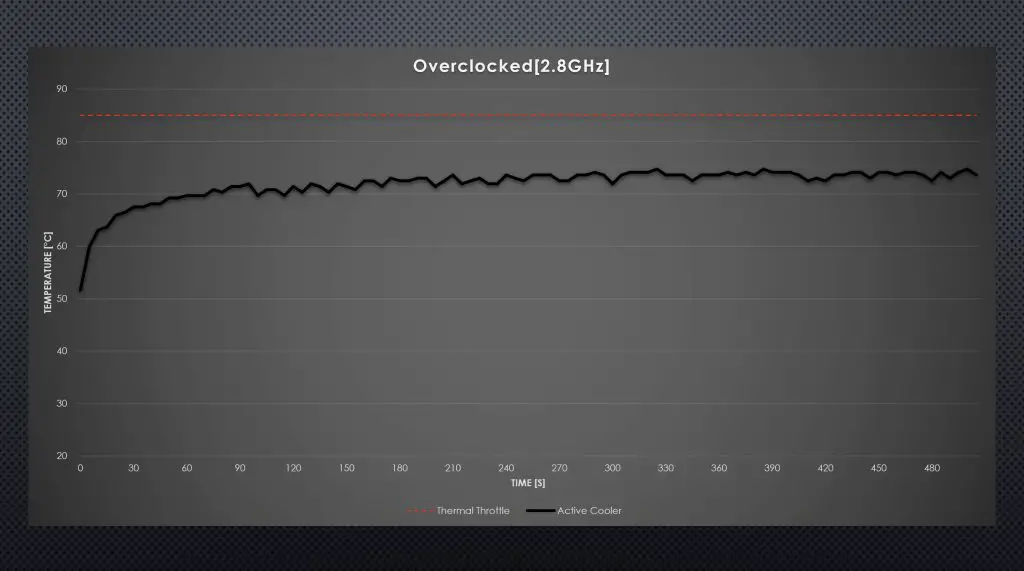
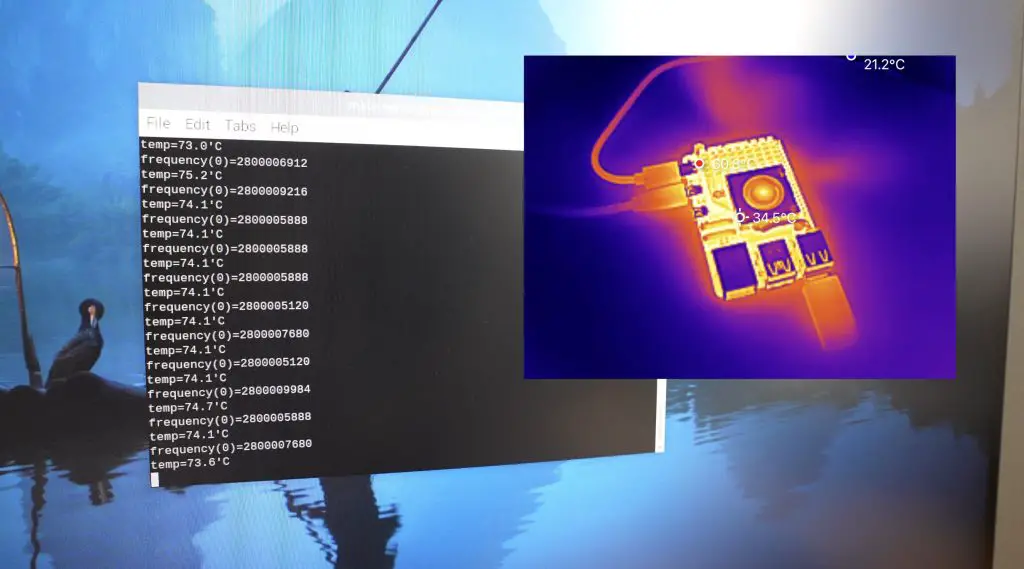
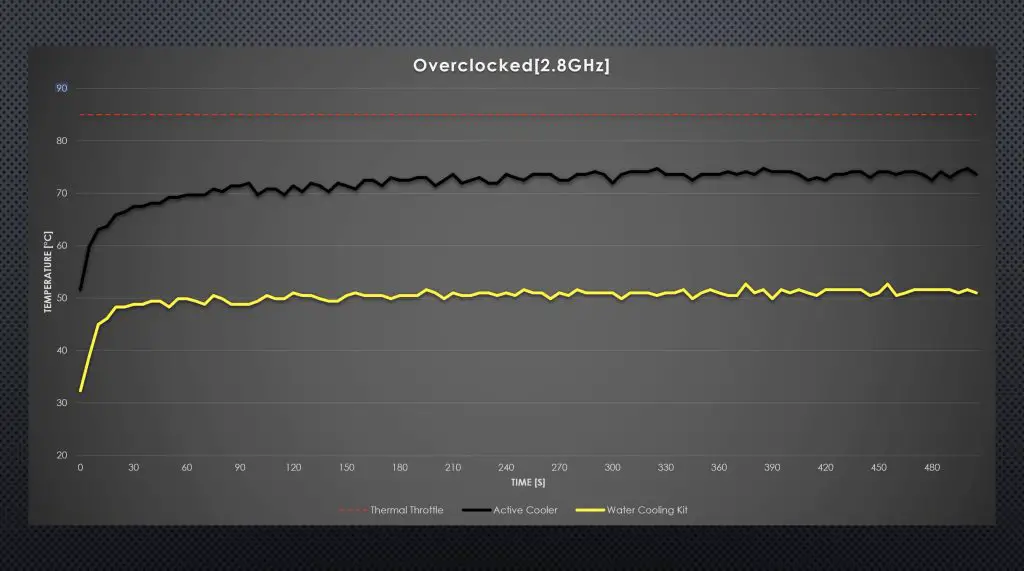
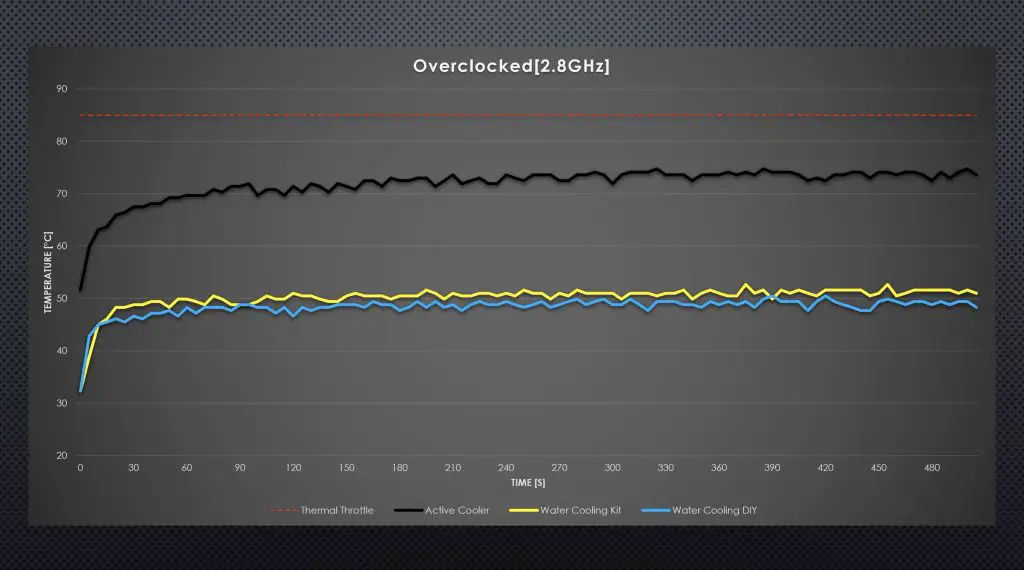
With the Pi overclocked to 2.8GHz, the temperature starts at about 54°C and climbs a bit faster. This time it stabilises after about 4 minutes at an average of 74°C. At this temperature, the fan steps up to its highest rpm and this actually brings the pi down to about 71°C quite quickly and it then floats between 71°C and 74°C depending on the fan speed.
I’m actually quite impressed by this result, I didn’t expect this $5 cooler to handle a fully loaded overclocked Pi without thermal throttling.
Testing The Seeed Studio Manufactured Water Cooling Kit
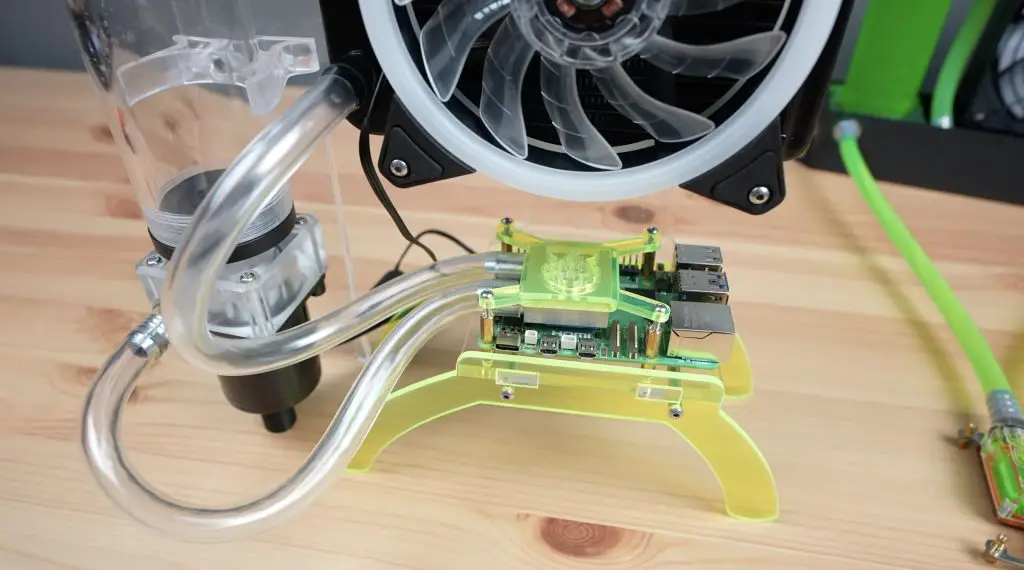
Next, let’s get the Pi fitted to the water cooling kit. Assembly is pretty straightforward, the water block obviously goes onto the top of the Pi with the thermal pad between it and the CPU and surrounding chips.
The aluminium heatsink goes underneath the Pi. This provides a bit of additional cooling but also protects the Pi and prevents any shorts on the contacts on the bottom if you’ve got it on a desk or workbench.
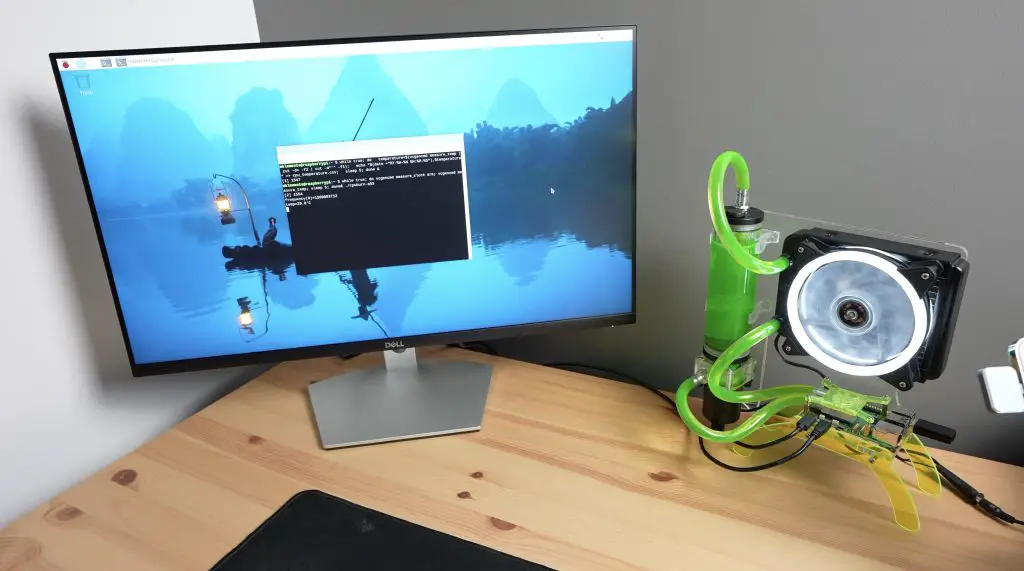
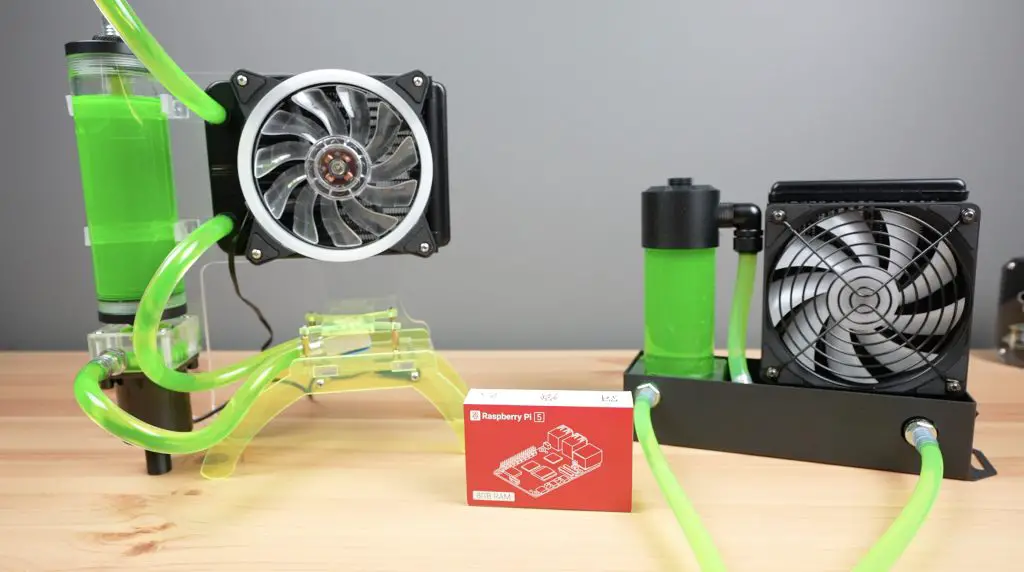
We then connect up the flexible tubing between the water block, pump and radiator. There isn’t a place to mount the Pi to the assembly, so we’ll just leave it on the desk alongside it. This is by design though as the kit can be used with multiple Pi’s running in a cluster as well.
I have to say that this custom water block with a copper base does look pretty good on the Pi, even if it’s a bit unnecessary. It fits well around the taller components and still looks like it will allow you to hook up an SSD to the PCIe port.
Next, let’s fill up the loop with coolant (don’t use water – more on that in my final thoughts) and then boot up the Pi and start our tests.
This block handles the base frequency of 2.4Ghz really well. We start off at about 30°C, then there is a small spike in temperature when the test ramps up but the temperature doesn’t climb much after that. It stabilises after around one and a half minutes at a temperature of about 45°C.
With the Pi overclocked to 2.8GHz, we now get a marginally higher starting temperature of 33°C and again it stays relatively flat, stabilising after a minute and a half at about 51°C.
So this cooling solution works really well and we’re still way under the thermal throttling limit for the Pi. Now let’s see if my DIY version can compete with it.
Testing My DIY Water Cooling Kit
I used thermal paste for my original Pi 4 build, but I want to try to keep the comparison to the manufactured option fair, so I’m using a thermal pad between the CPU and heatsink as well.
I like that my solution has a place to mount the Pi but the kit’s custom cooling block looks a lot better than my simple square block and bracket.
Through testing, similar to the previous solution, this block handles the base frequency really well. We start with a slightly lower temperature of 29°C, then there is a small spike in temperature when the test is started but again, the temperature doesn’t climb much under full load. It stabilises after about one and a half minutes at a temperature of about 42°C. So actually around 2-3°C lower than the kit.
With the Pi overclocked to 2.8GHz, we again get a higher starting temperature of 35°C and it stabilises after a minute and a half at about 49°C, also about 2°C lower than the kit.
Testing Results Discussion and Final Thoughts
Both the water cooling kit and my DIY solution work significantly better than the active cooler on an overclocked Pi. That’s not to say that the active cooler isn’t a good option, it is actually quite capable of cooling an overclocked Pi at full load as well.
I’m a little surprised that my DIY solution with the simple aluminium block performed better than the kit’s copper-based block. I assume this is most likely because of a difference in the thermal pads, mine has a really thin and good-quality pad. Another possible reason may be that mine has a greater metallic surface area with the water whereas the kit’s block only has a copper surface on the bottom. The acrylic is a poor conductor of heat.
I think the main benefit of a water cooling setup, besides looking cool, is that they have the capacity to cool a few more than one Pi. Typically a good 120mm radiator can dissipate over 200W. Given that the Pi 5 uses about 12W, even if all of this energy was being converted into heat, we’d still be able to cool over 16 Raspberry Pi 5’s with one pump and radiator set. So while these are overkill for a single Pi, they’re actually quite a good cooling solution for clusters.
There are a couple of things that I like about each water-cooling solution over the other;
The manufactured option has a really good-looking water block and it offers better coverage to the surrounding components.
The cooling block from the manufactured kit is also available individually so it’s possible to buy one pump and radiator set and use it across multiple Pis, which is great!
I do have some concerns that they’ve used copper for the cooling block and supplied an aluminium radiator, so you may run into issues with galvanic corrosion in your loop long term. So, I’d definitely stay away from using water in the loop and I’d use proper coolant to try and assist in limiting this.
My only other comment on it is that the included reservoir’s return line pushes a lot of air back into the loop which makes it noisy. My DIY solution is significantly quieter and you only really hear the fan noise.
I think my stand looks better overall and offers a place to mount the Pi but I am probably a bit biased. I’ve said a water-cooling solution is really better suited for a cluster, so the stand is unnecessary in any case.
Let me know in the comments section below which solution you prefer and also if there is something else you’d like me to test it on.
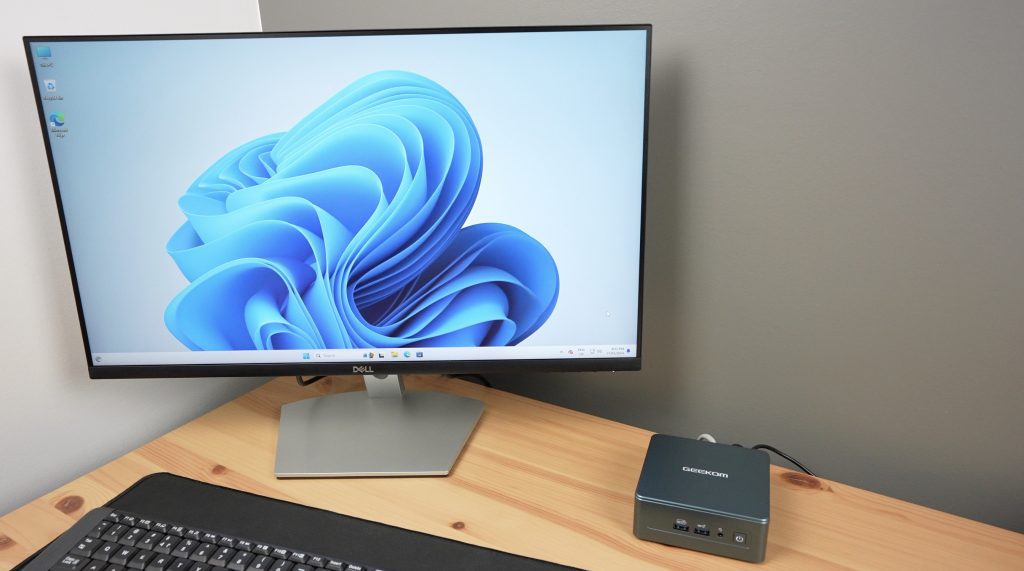
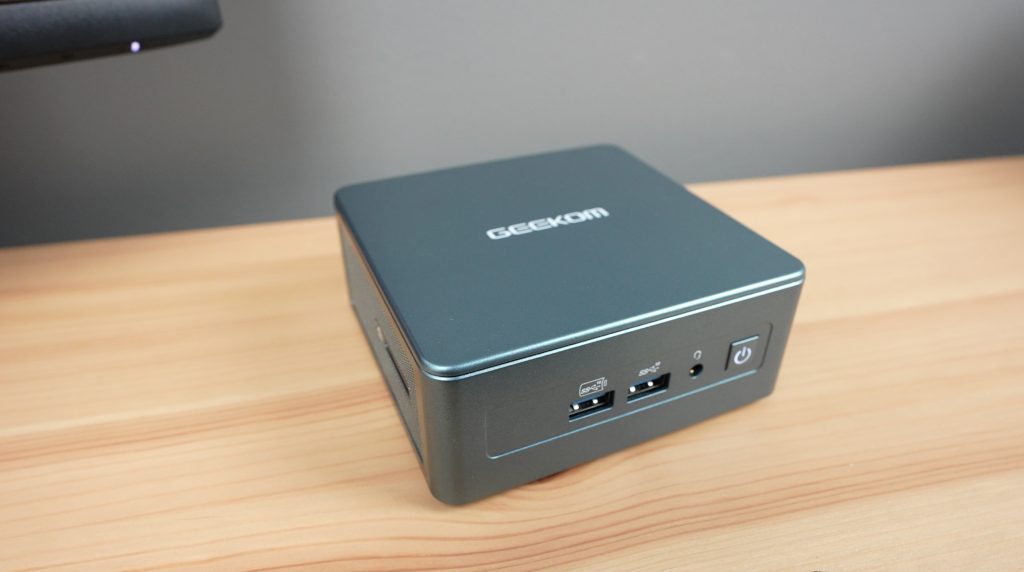
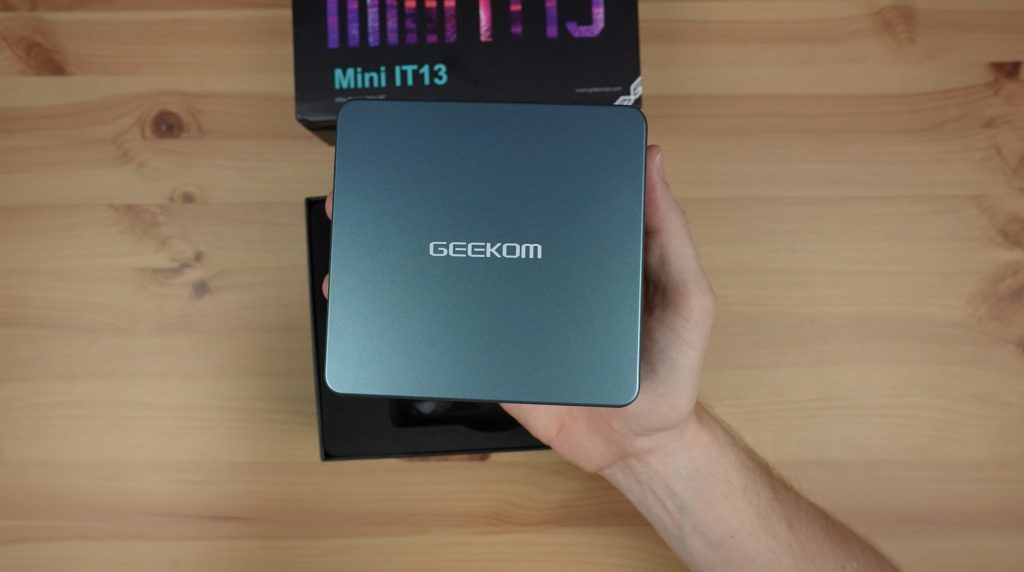
Today we’re going to see if we can game on the new Geekom IT13 mini PC. This mini PC is powered by a 13th Gen Intel Core i9 13900H with 14 cores – 6 performance cores running at up to 5.4Ghz and 8 efficiency cores running at up to 4.1Ghz. It has 32GB of DDR4 RAM running at 3200Mhz and a 2TB NVMe SSD, so while not the latest generation of components it should still be a fairly powerful mini PC.
Where To Buy The Geekom IT13
The Geekom IT13 is currently available from their official web store or on Amazon in the following countries;
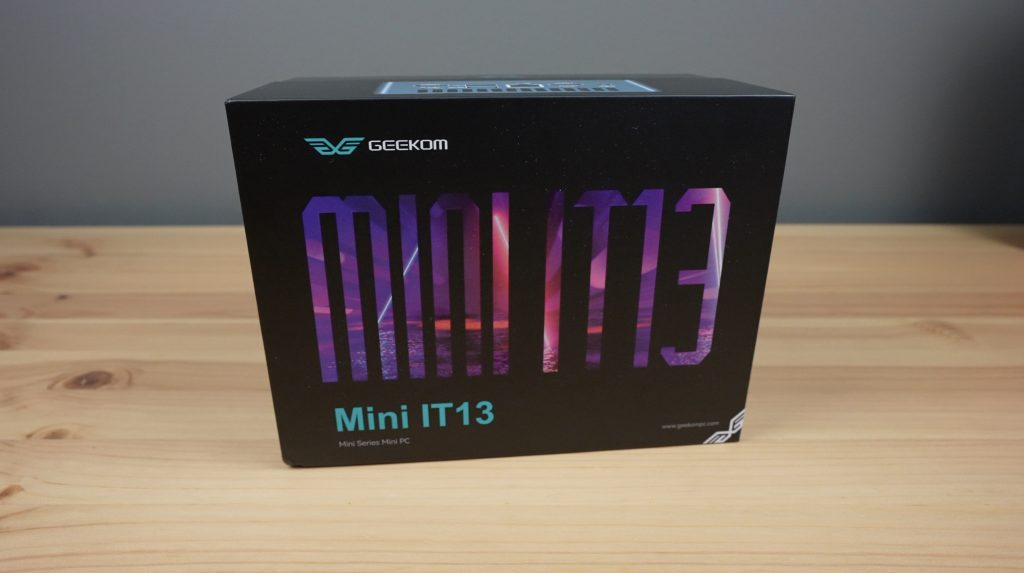
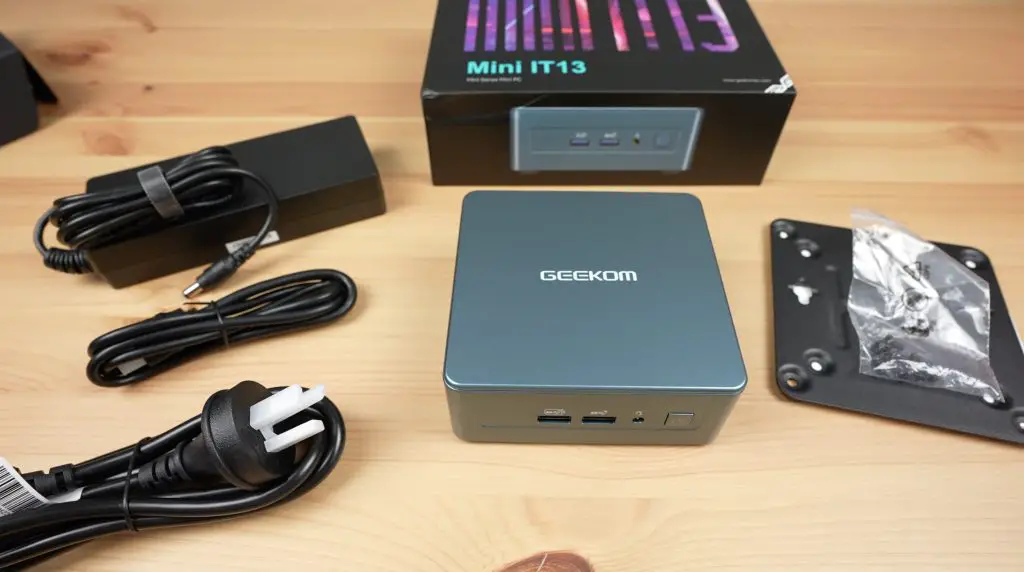
The Geekom IT13 Mini PC comes in a black branded box and is fairly well protected. The PC is at the top as you open the box and the manuals and cables are beneath it.
In the box, you get the Geekom IT13 mini PC, a 120W power adaptor, HDMI cable and vesa mount.
Graphics are likely to be the bottleneck when gaming as we’ll be relying on integrated Intel Iris Xe graphics, but we’ll see how this performs.
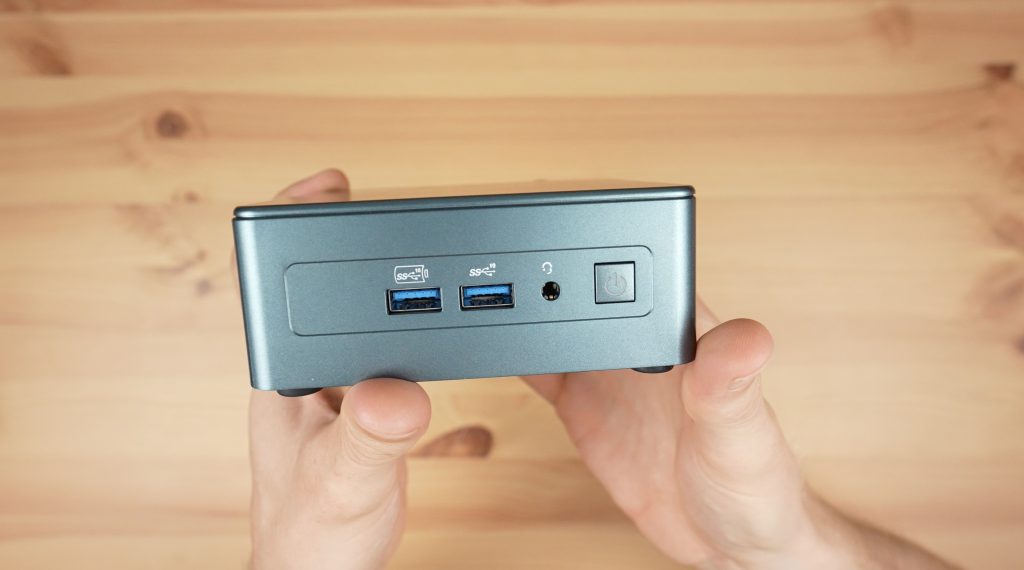
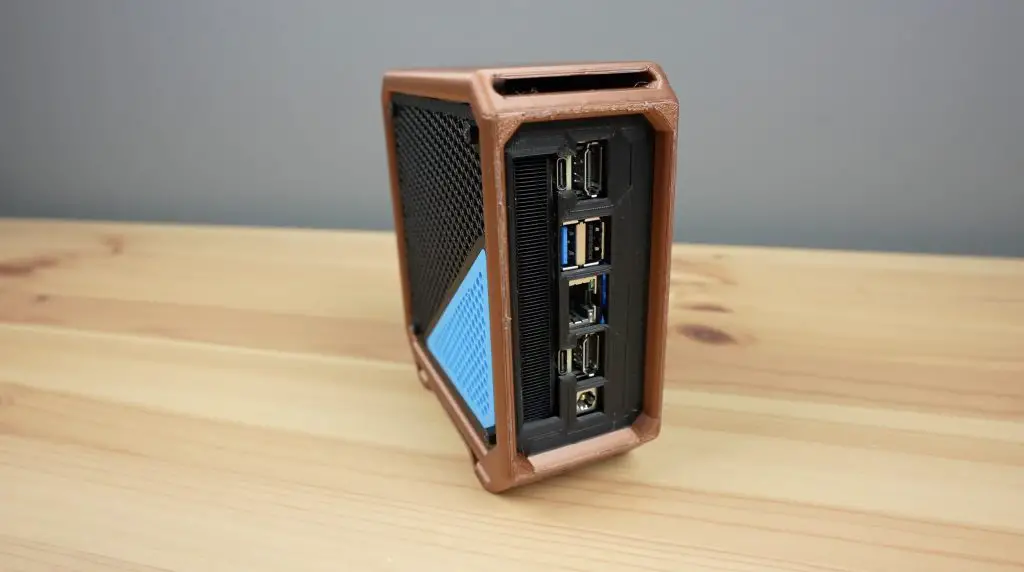
Taking a look around the PC, on the front we’ve got two USB 3.2 gen 2 ports, a 3.5mm audio port and the power button.
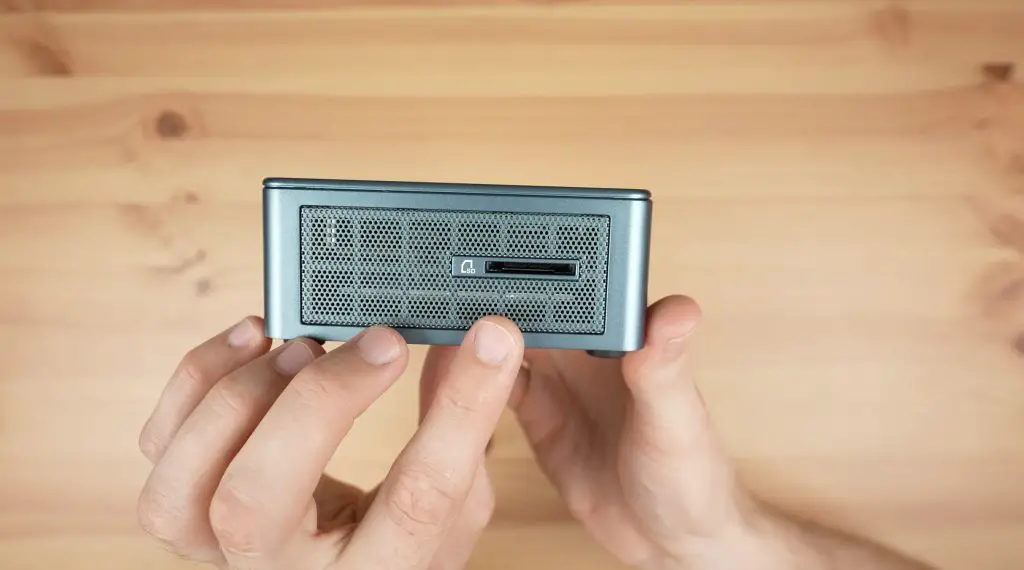
The sides are mainly just ventilation holes but we do have a full size SD card slot on the right-hand side.
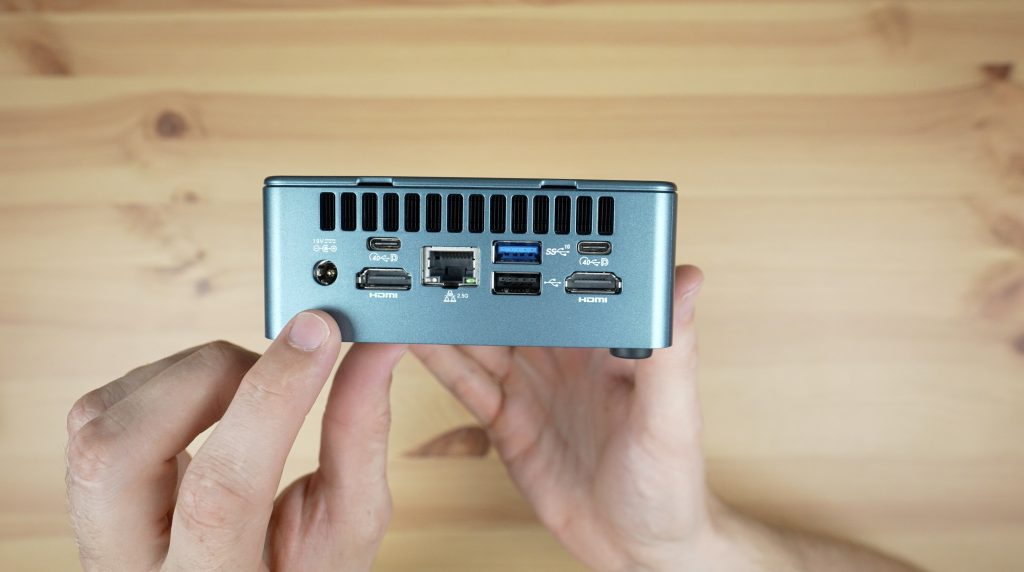
On the back, we’ve got the main set of IO, including the DC input, two HDMI 2.0 ports and two USB 4 ports. So you can connect up to four displays, two 4k displays through HDMI and two 8k displays through USB 4. We’ve also got a 2.5G Ethernet port in the middle as well as one USB 3.2 gen 2 port and one USB 2.0 port. Adding to connectivity, internally we’ve got WiFi 6e and Bluetooth 5.2.
First boot & Initial Performance Tests
Next, let’s get it booted up. I’m pleased to say that the Geekom IT13 comes with a fresh install of Windows 11 Pro and it doesn’t have any pre-installed bloatware, which is good to see.
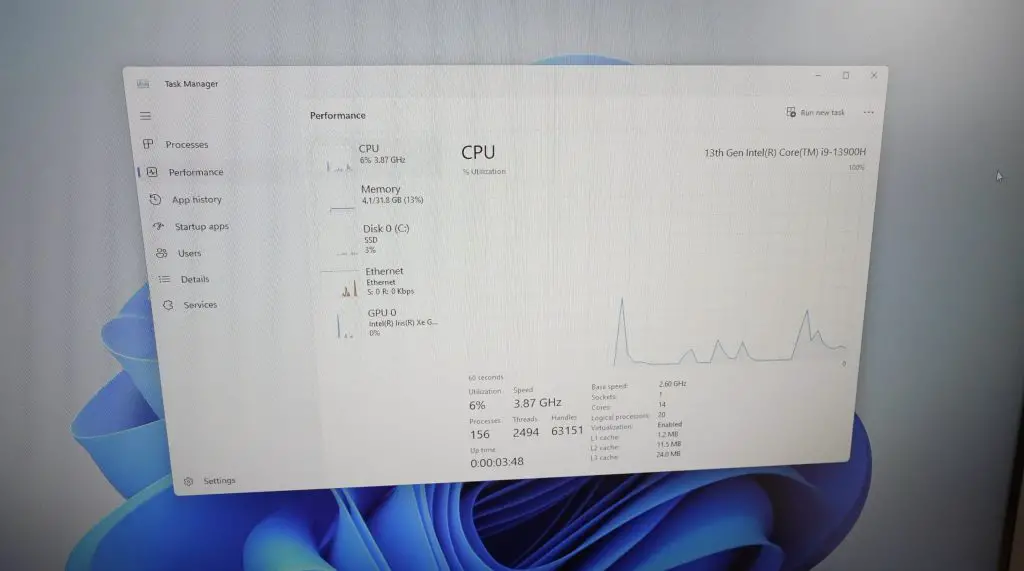
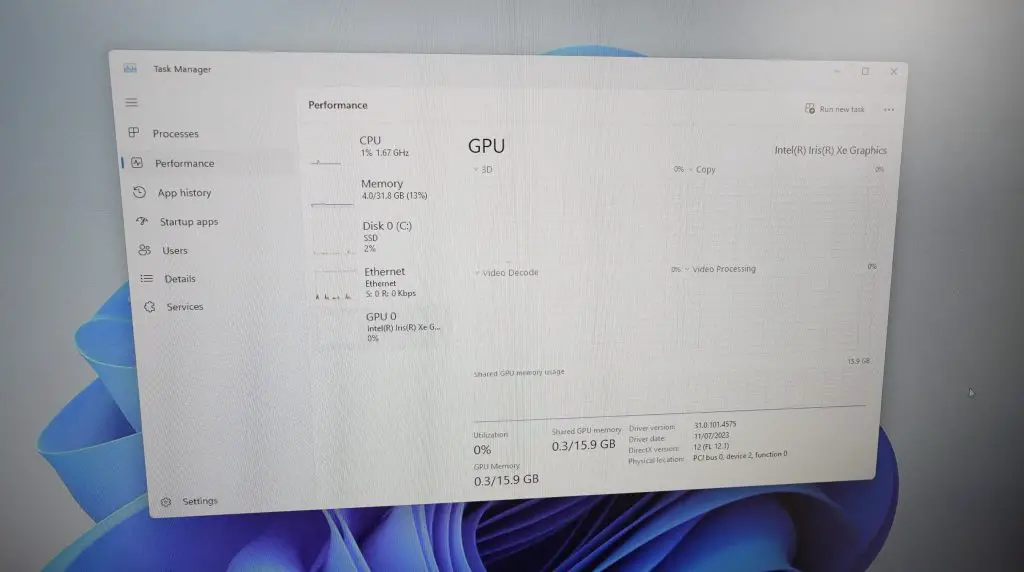
If we open up the performance monitor, we can see our CPU is a 13th Gen i9, we’ve got 16GB of RAM running at 3200Mhz, the 2TB SSD is showing up and the GPU is the integrated GPU with shared memory.
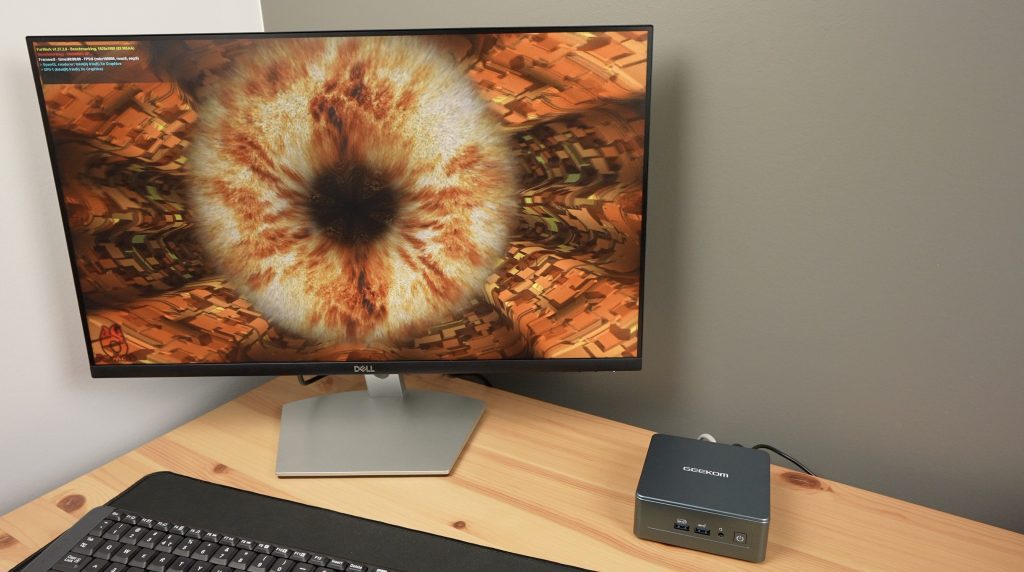
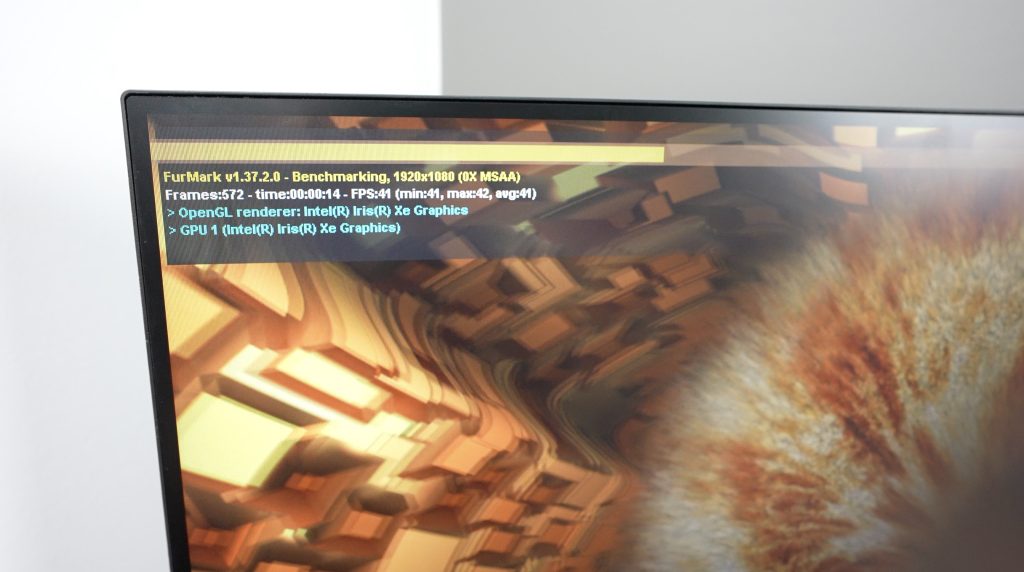
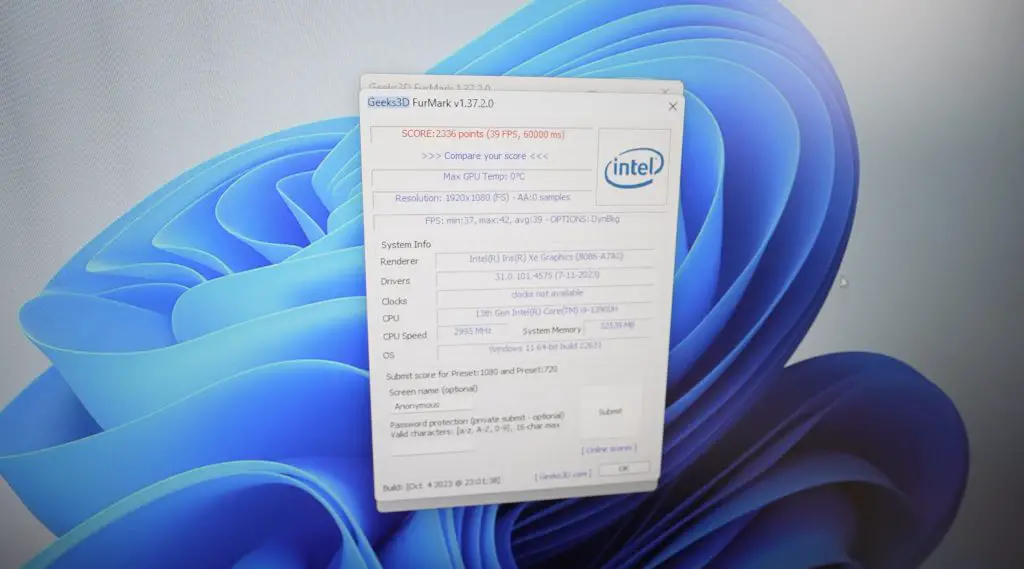
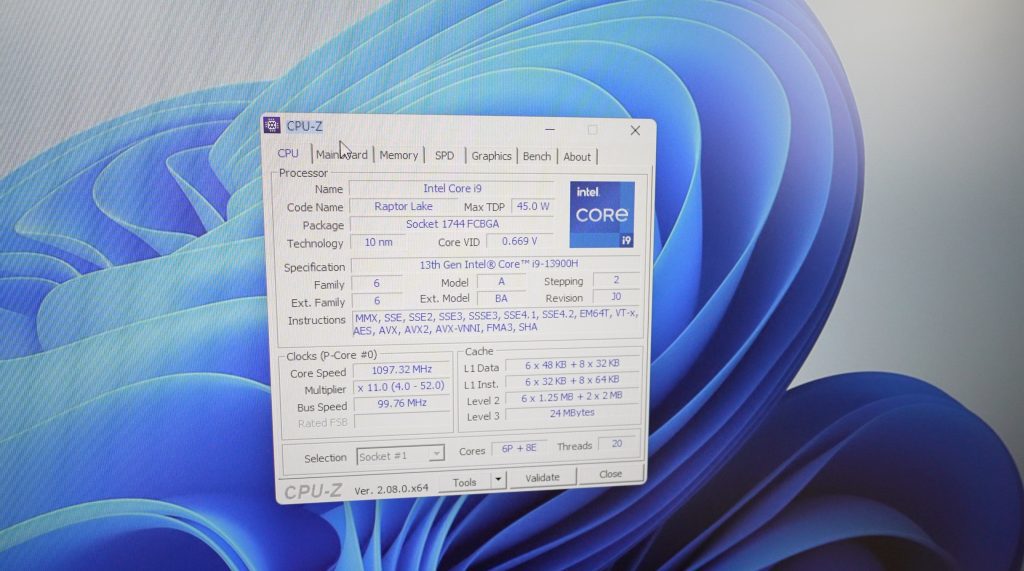
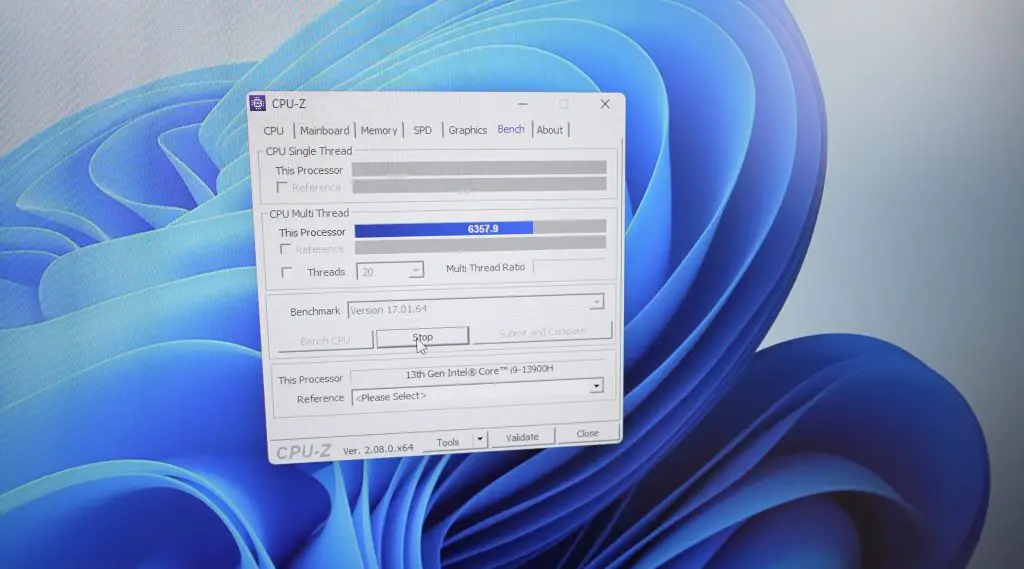
Next, I want to run two benchmarks, Furmark to test the GPU and thermals and CPU Z to test the CPU.
Running the 1080p Furmark benchmark, under full load, the IT13’s fan does get quite loud. I’ve provided a clip of the fan noise in my Youtube video. The smaller cooler also probably doesn’t have enough thermal capacity to handle a sustained full load indefinitely.
On completion, we get a score of 2,336 and an average over three tests of 2,338. This is not great but is fair for a PC that is relying on integrated graphics.
Next, let’s open up CPU Z. Here we can see a bit more information than we could in the performance monitor but it all looks as expected.
Running a CPU benchmark, similar to the Furmark benchmark, the fan ramps up quite quickly. The score does also drop on consecutive tests and under a sustained load so it looks like the cooling solution is fine for a small base load and for short spikes in load but doesn’t handle a full sustained load for a long period of time. We’ll look at this a bit closer when we open it up.
Over three tests we get an average multithread score of 7,618, which is pretty good for the Geekom IT13’s low-power CPU.
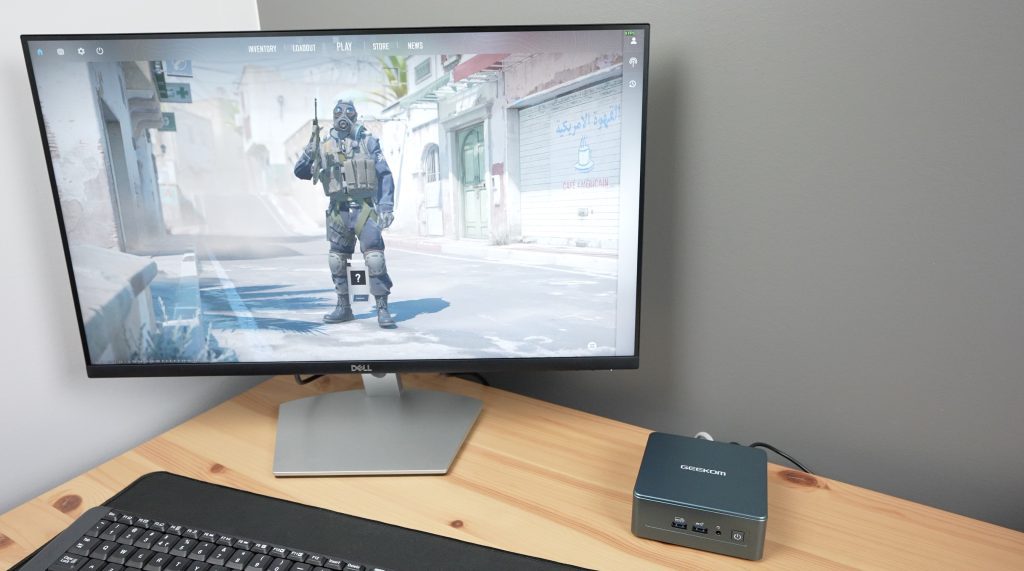
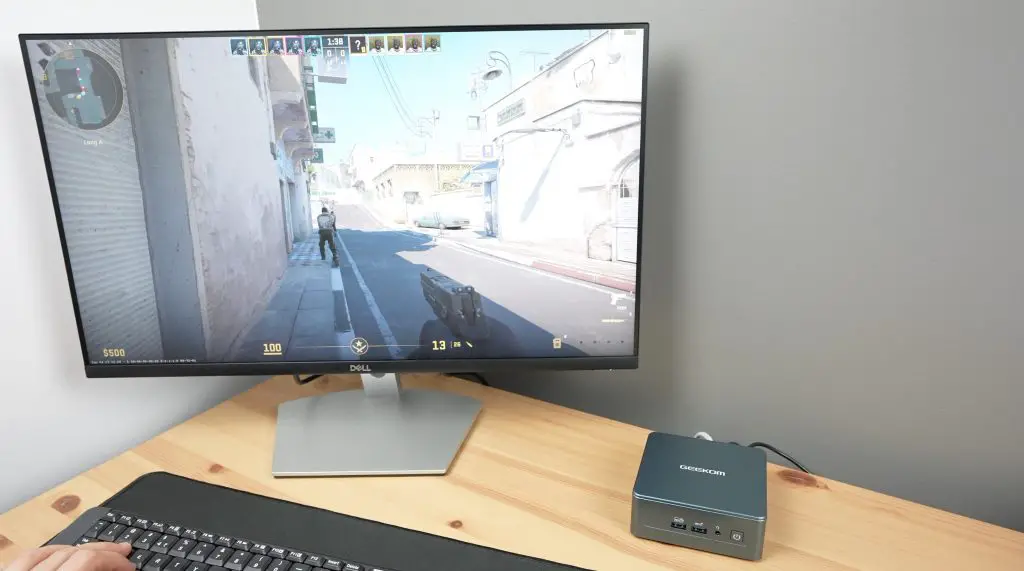
Now that we’ve done some benchmarking, let’s try gaming on it. I’m going to open up Counterstrike and see how it performs.
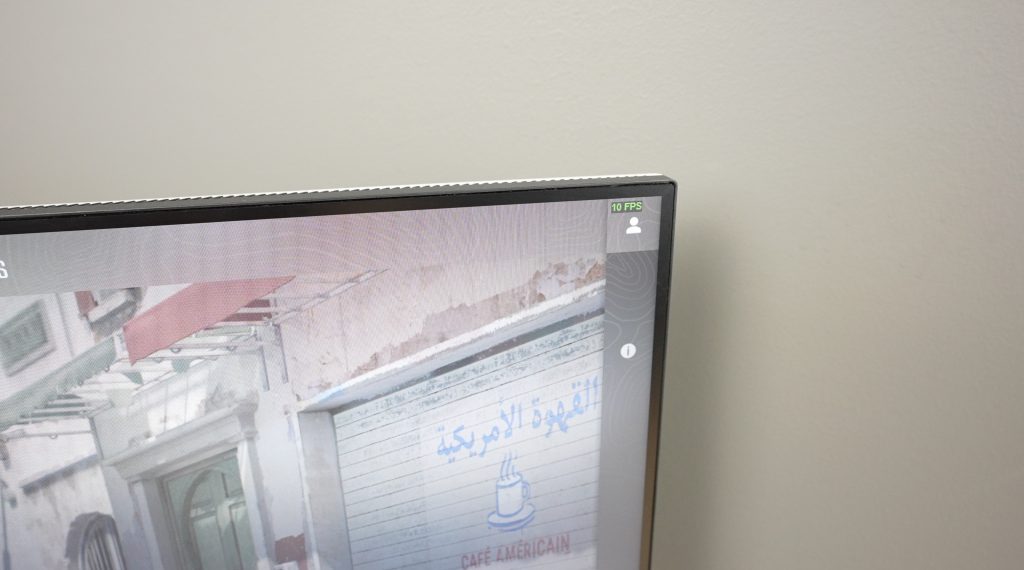
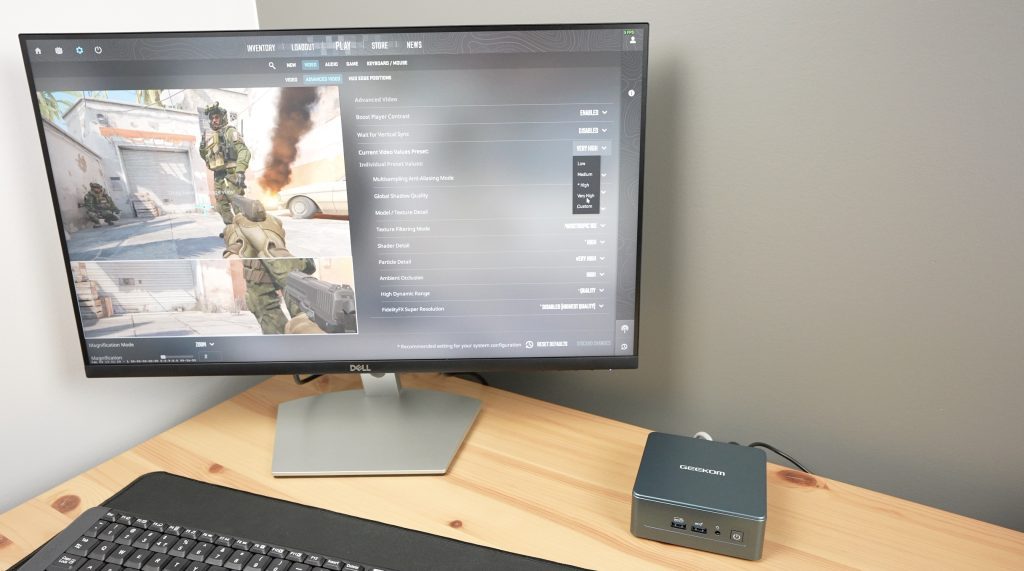
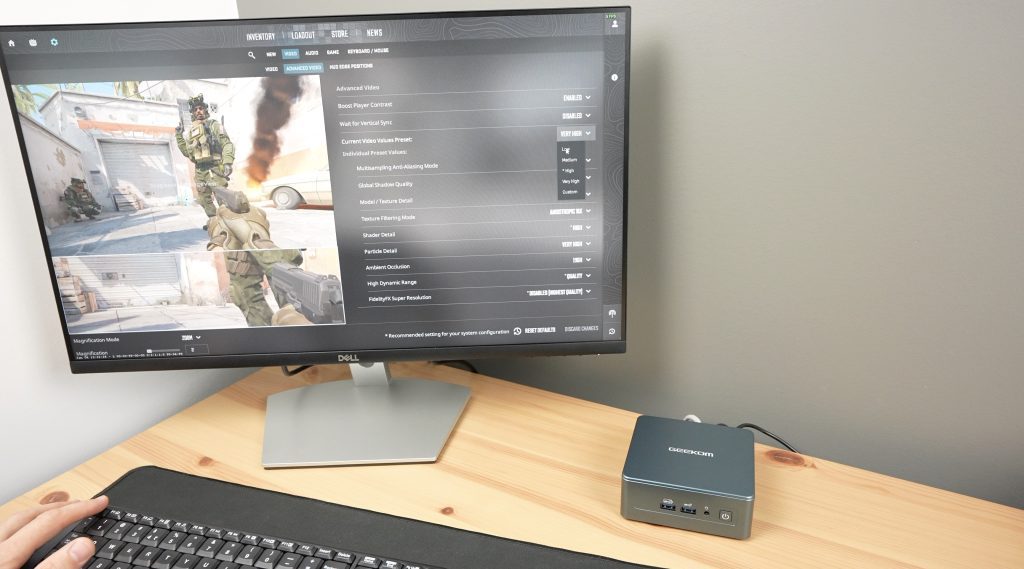
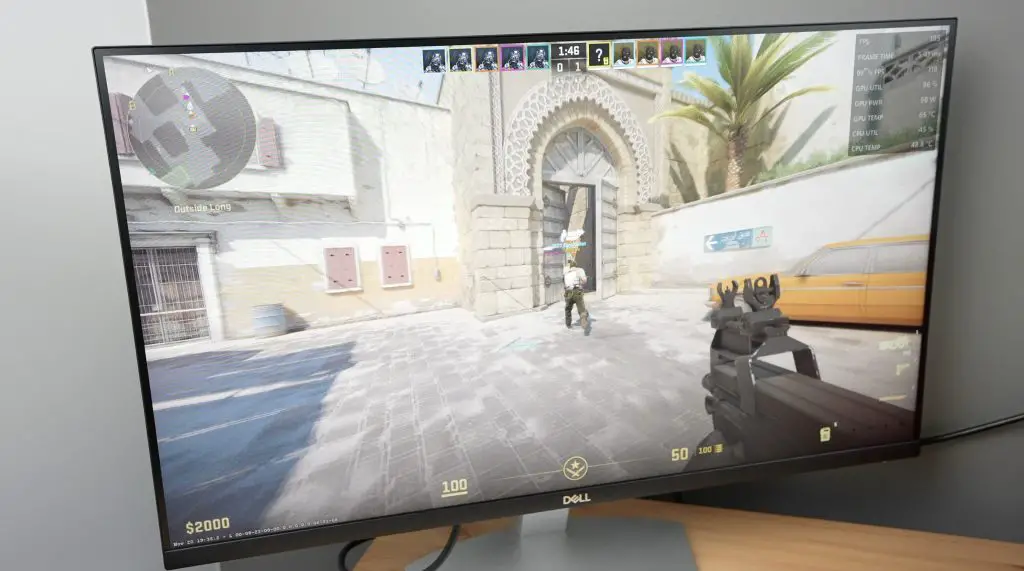
We’re not off to a good start, on the Home Screen we’re already at a dismal 9-10 fps. This is with the graphics set to “Very High” but the integrated GPU is really struggling.
In the game, the performance is oddly a little better but still hovers around 10-15 fps. I guess technically I could play like this but it gives me a headache after a few minutes and it’s almost impossible to aim at anything.
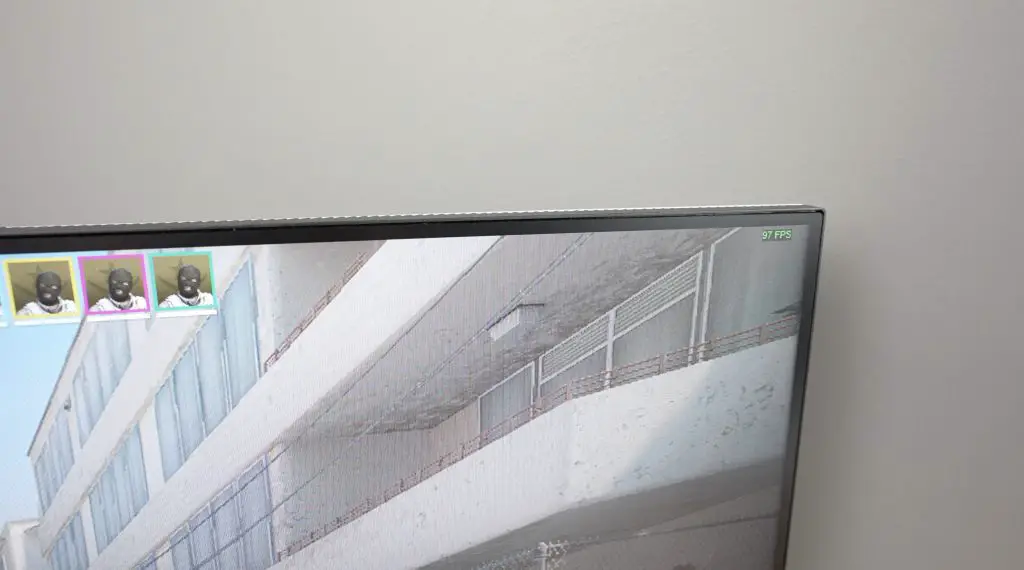
With the graphics set down to “Low” we get over 90 fps, which is much more playable. It looks terrible, but at least we can now participate in the game.
On “Medium” settings there is a fair balance between playability and appearance. I feel like you wouldn’t be disappointed playing on these settings given that the Geekom IT13 can fit into your pocket.
But I don’t want to leave it at that, let’s open it up and see what’s on the inside and what we can do to improve the GPU performance.
Opening Up The Geekom IT13
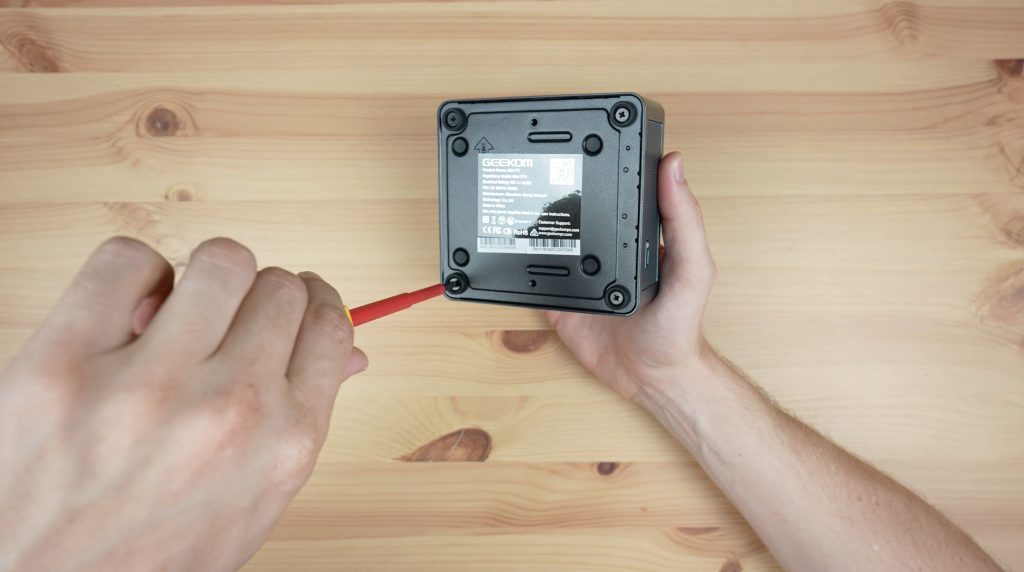
I think the best place to start is by removing the screws at the bottom.
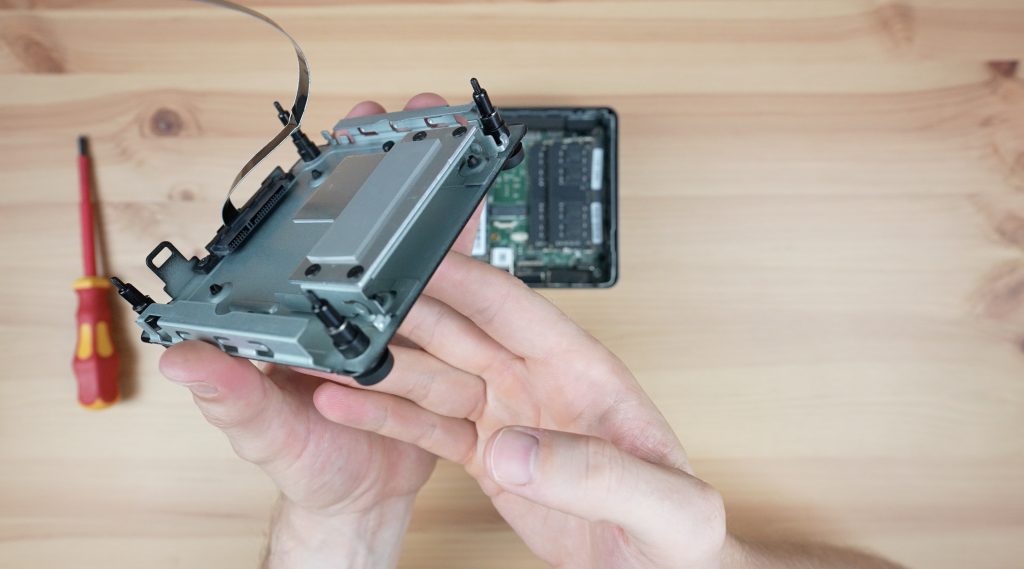
Under the bottom cover, we’ve got a bay for a 2.5” drive.
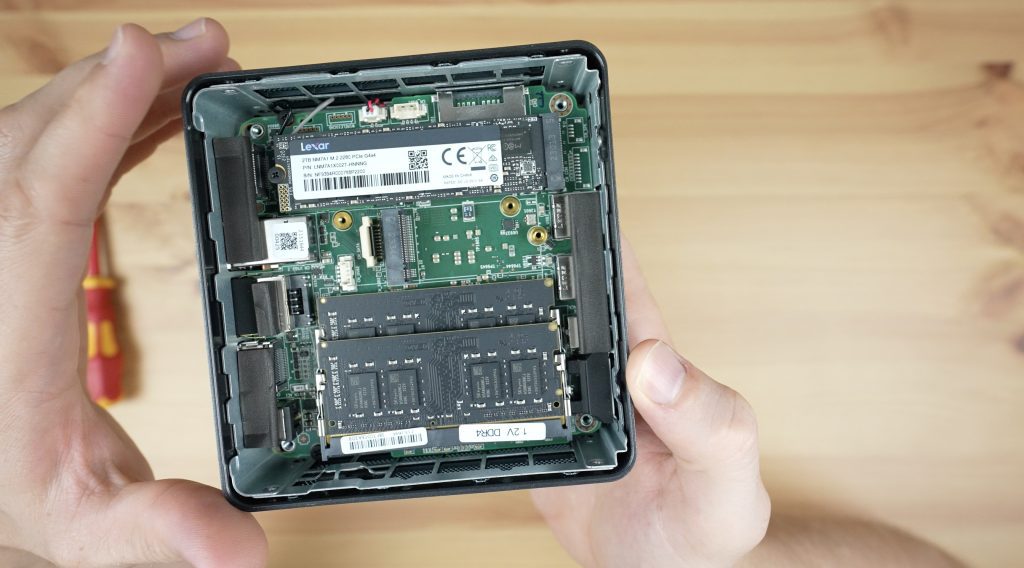
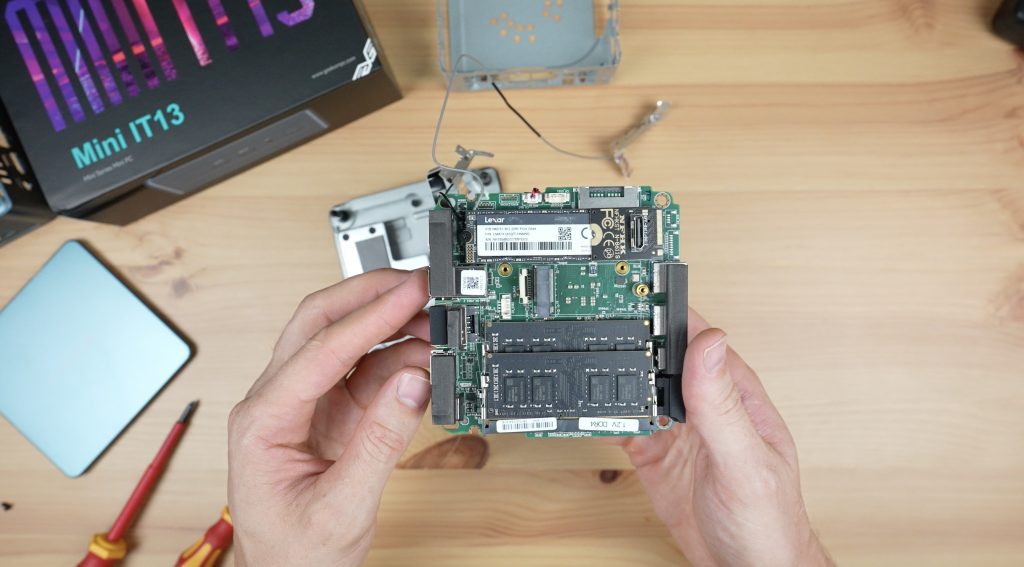
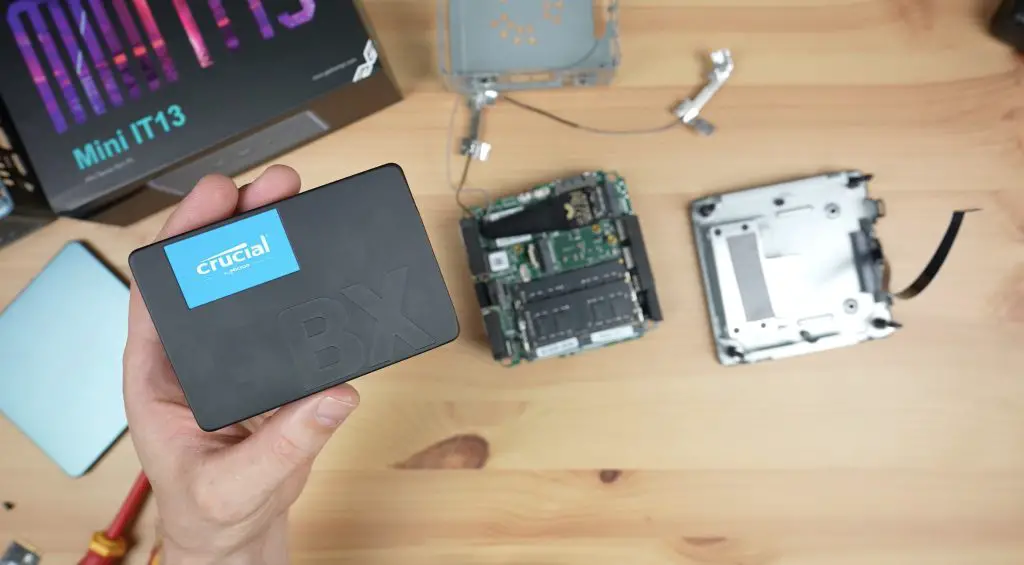
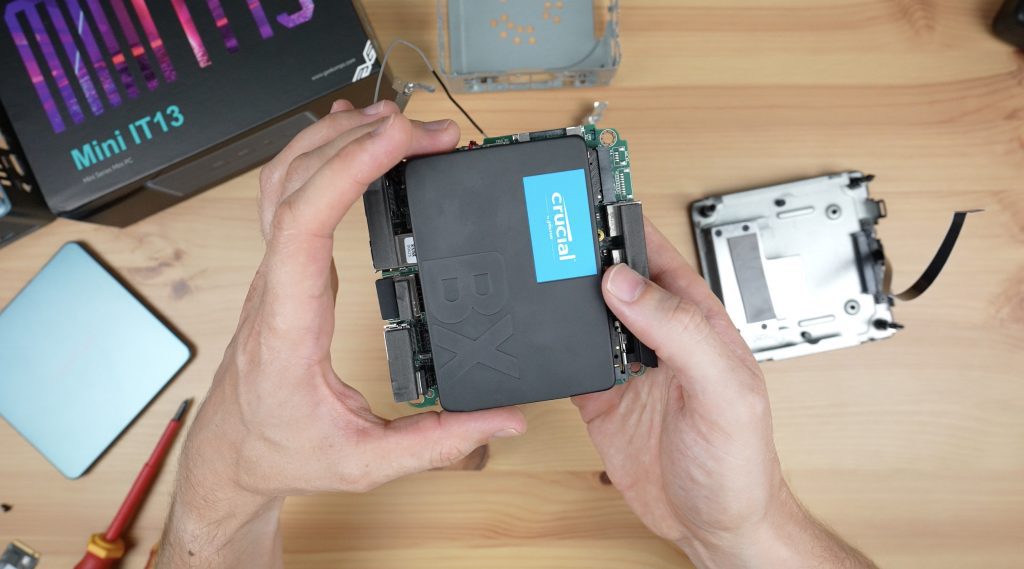
On the motherboard, we’ve got a 2TB Lexar NVMe drive and two sticks of DDR4 RAM. We’ve also got an M.2 SATA port. They claim that the Geekom IT13 is user-friendly to upgrade and it certainly looks that way. You could easily swap out the RAM, replace the NVMe drive or add additional storage through the second M.2 port or 2.5″ drive bay.
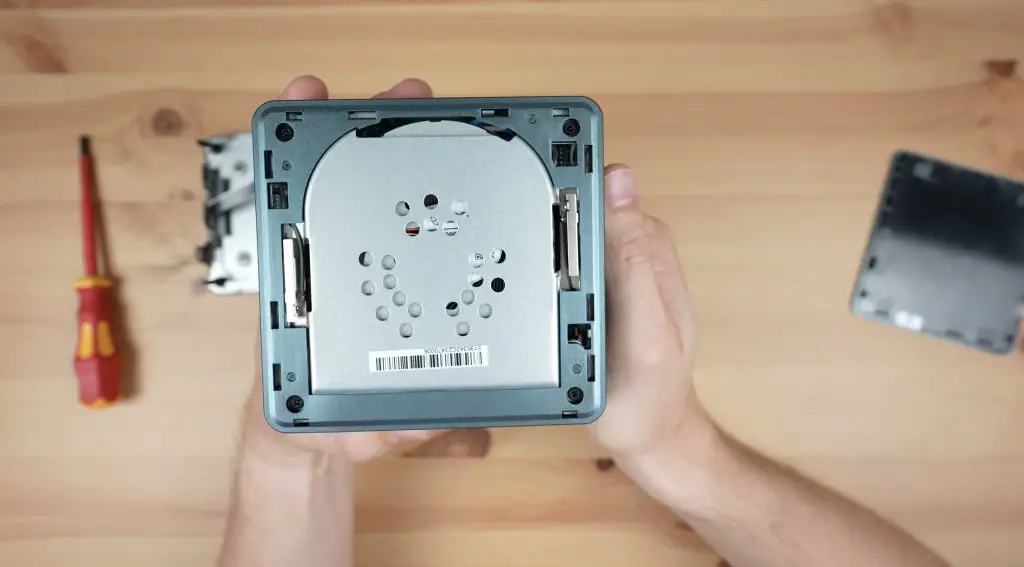
I presume we’ll need to remove the screws on the top to get the motherboard out and I want to take a look at the cooling solution so let’s get that done.
Under the fan, the heatsink has a very small contact area with the CPU so I wonder if trying to replace the thermal paste with some better quality paste will make any improvement.
With the heatsink removed, the thermal paste looks like it is applied evenly but looks a little dry so I’m going to try clean it off with some alcohol and then use better quality thermal paste on it.
After re-applying the thermal paste, I think that’s about all we can do to the cooling setup without replacing it.
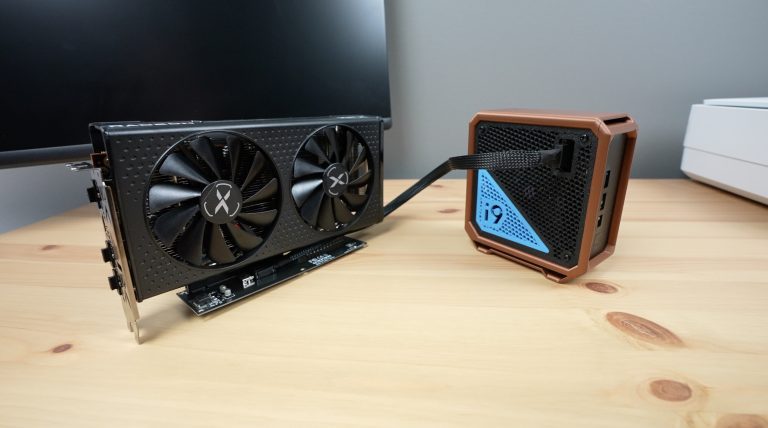
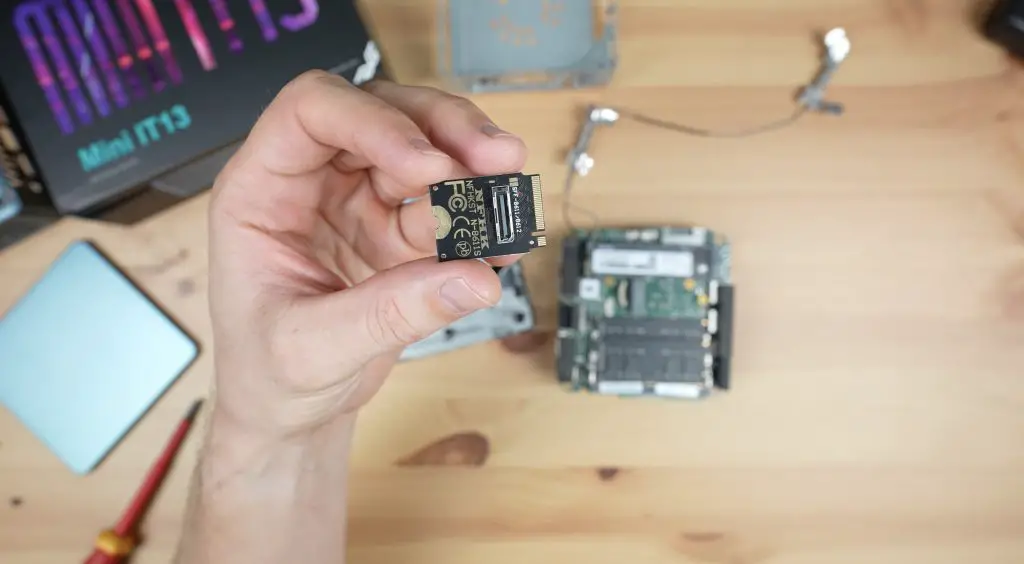
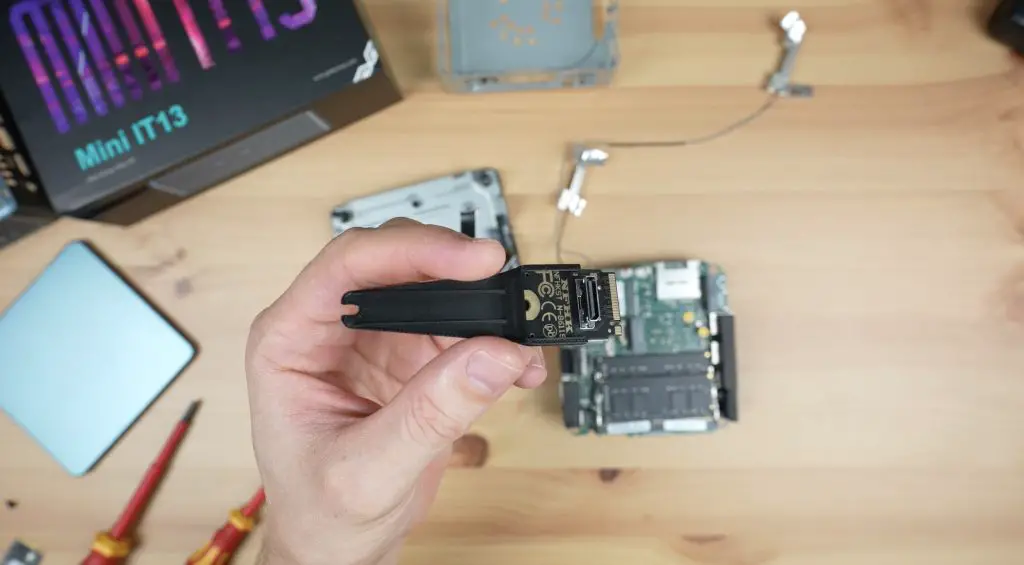
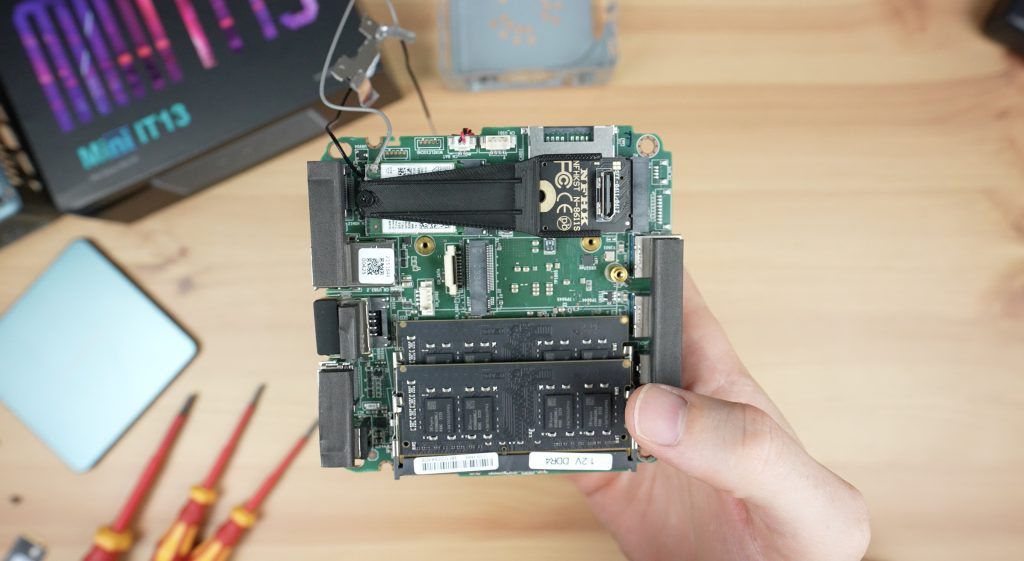
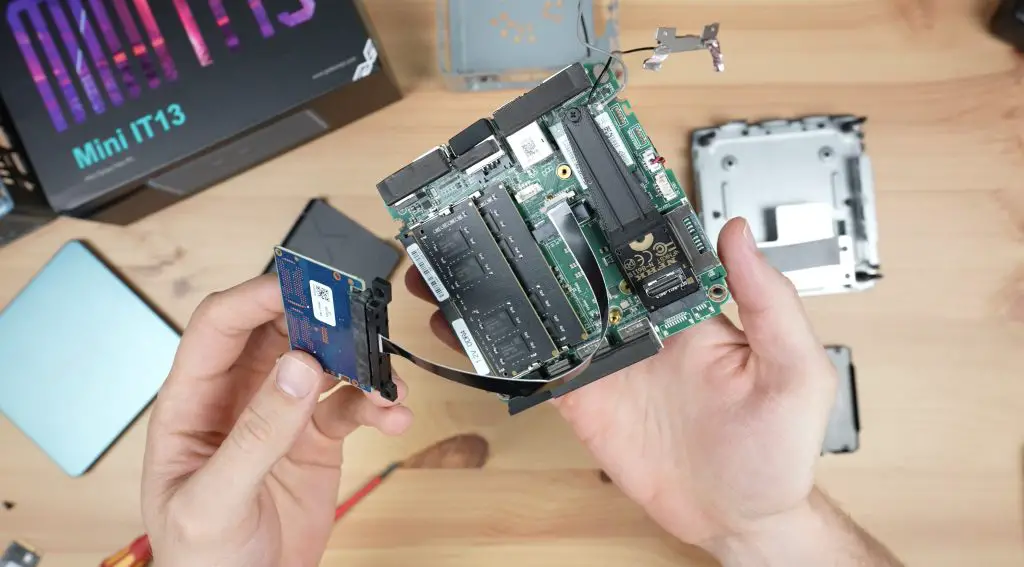
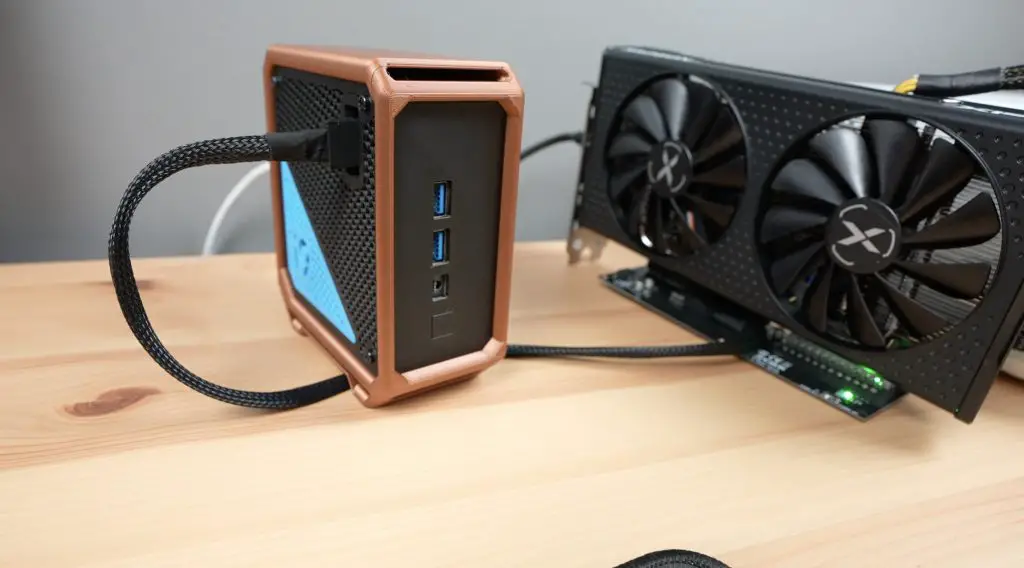
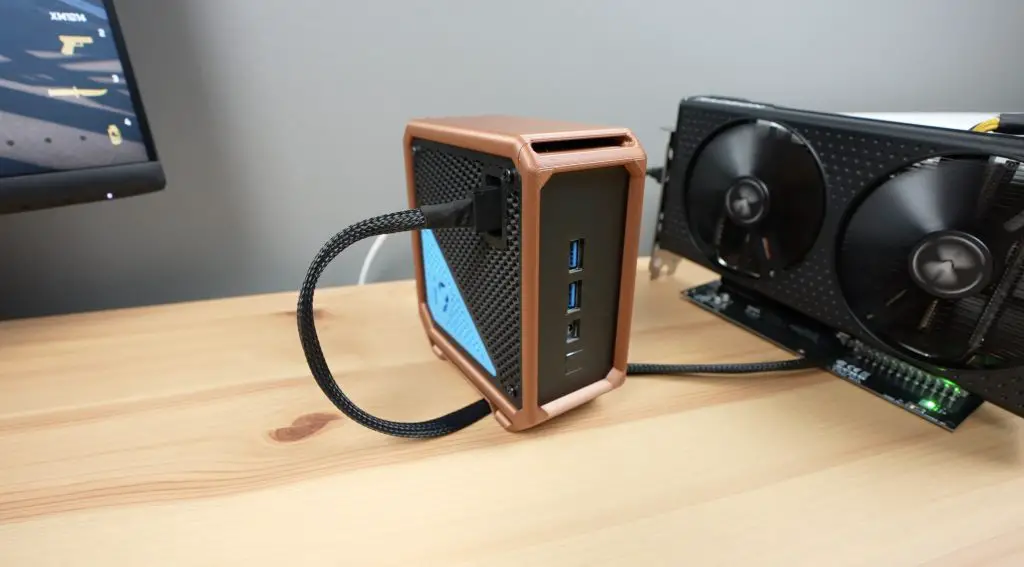
Next, I’m going to try a bit of a hack job. I’ve got a small M.2 adaptor that’ll plug into the port that the NVME drive is in. If we swap that out then this adaptor allows us to use an Oculink cable to plug in an external GPU.
The adaptor is a bit small so I’ve 3d printed another adaptor for the adaptor so that it’ll fit into the same slot.
This now allows us to use a GPU which will dramatically improve gaming performance but we don’t have a boot drive anymore. If I had an M.2 SATA drive I could plug that into this port, but I don’t, so I’m going to instead use the SATA port on the 2.5” bay to add a 2.5” SSD.
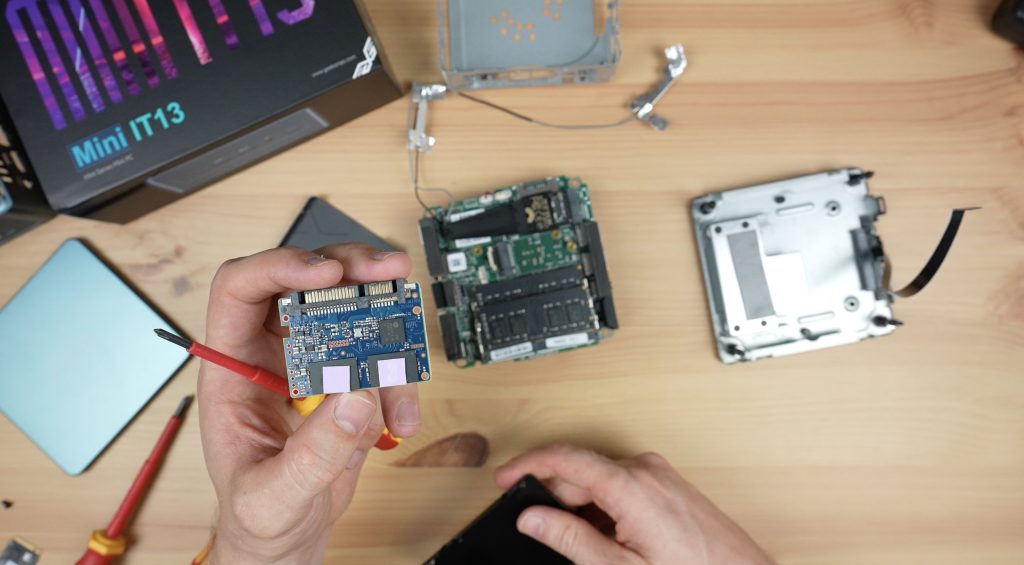
If I put the drive into place over the motherboard then it’s going to block access to the Oculink port so I’m going to remove the drive from its enclosure as well and this will make the whole build more compact.
And that’s the hardware complete and ready for a second round of tests.
Designing & 3D Printing A New Case For The Geekom IT13
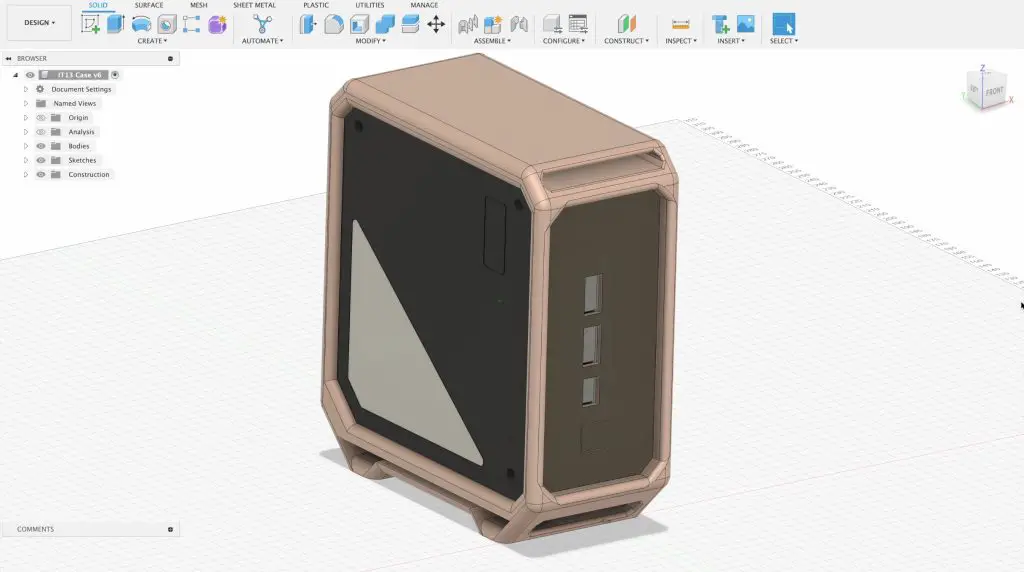
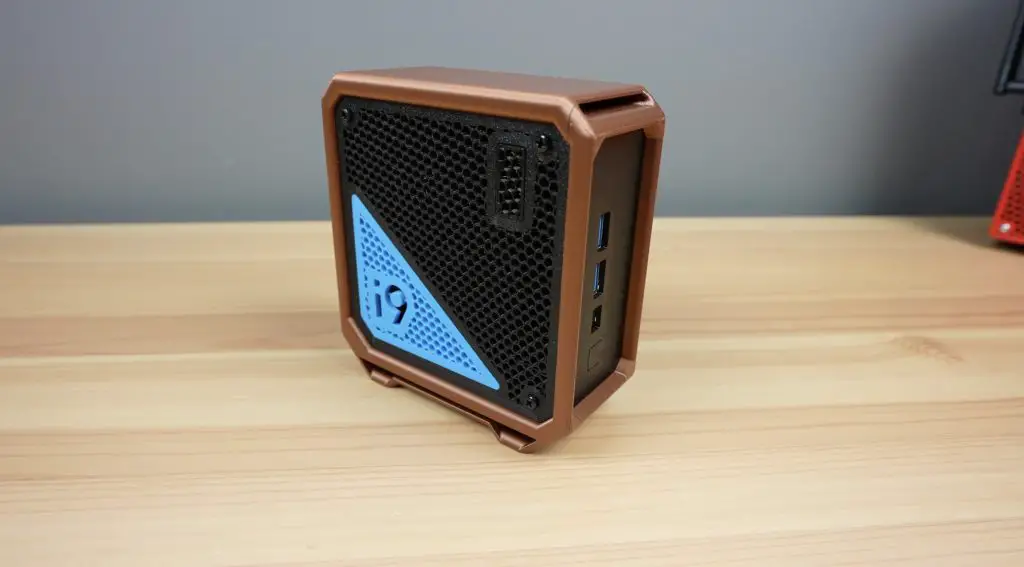
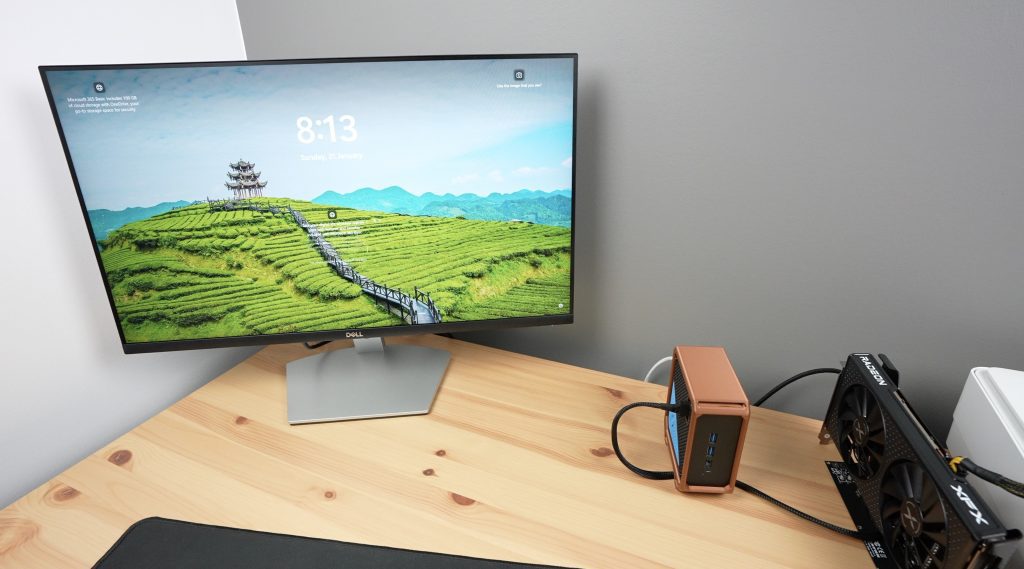
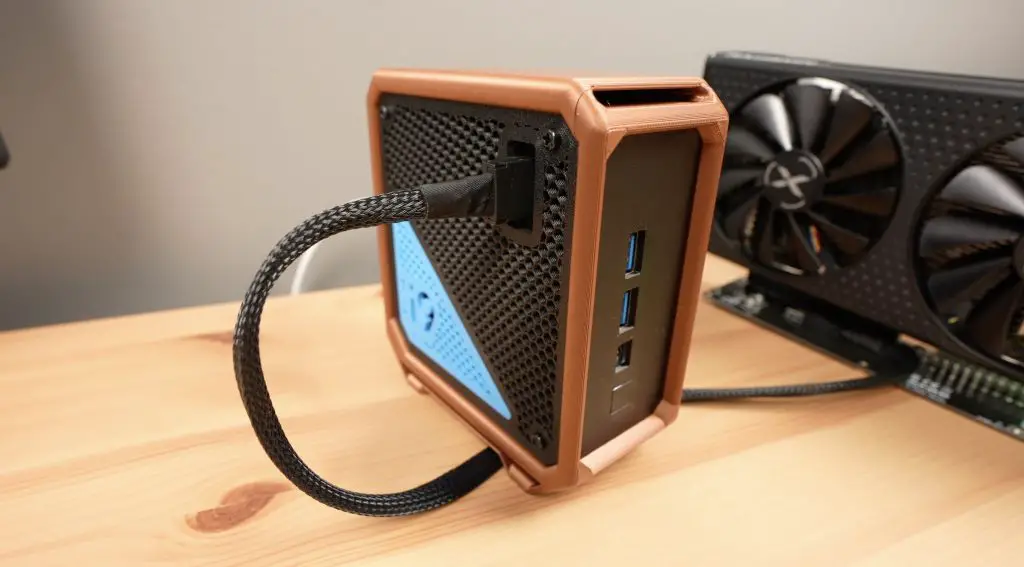
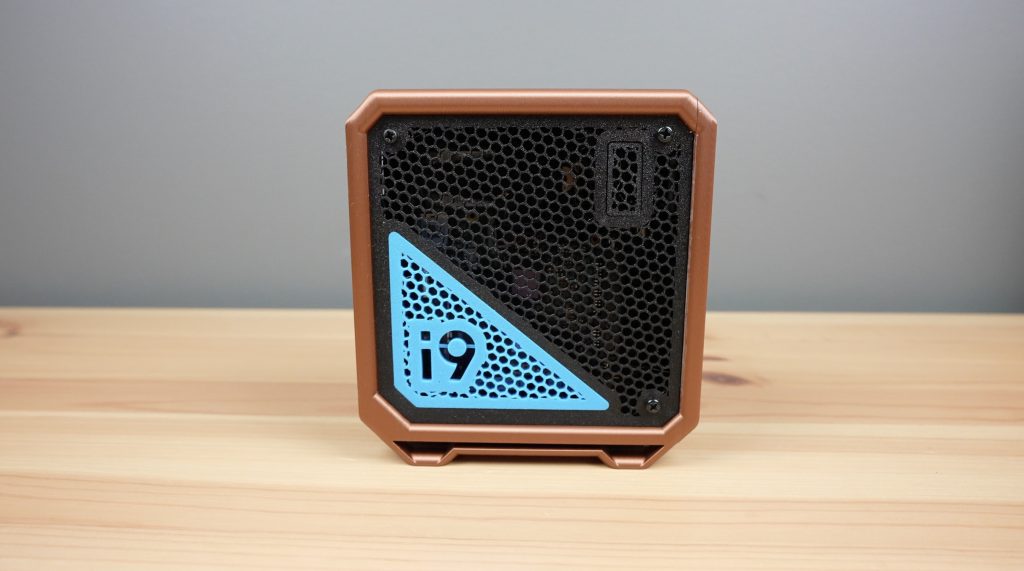
I obviously can’t put the computer back into the Geekom IT13 case as the Oculink port would be facing the bottom and there isn’t a cutout for it. So, rather than have a Frankenstein mix of computer parts on my desk, I’ve designed and 3D printed a new case for it.
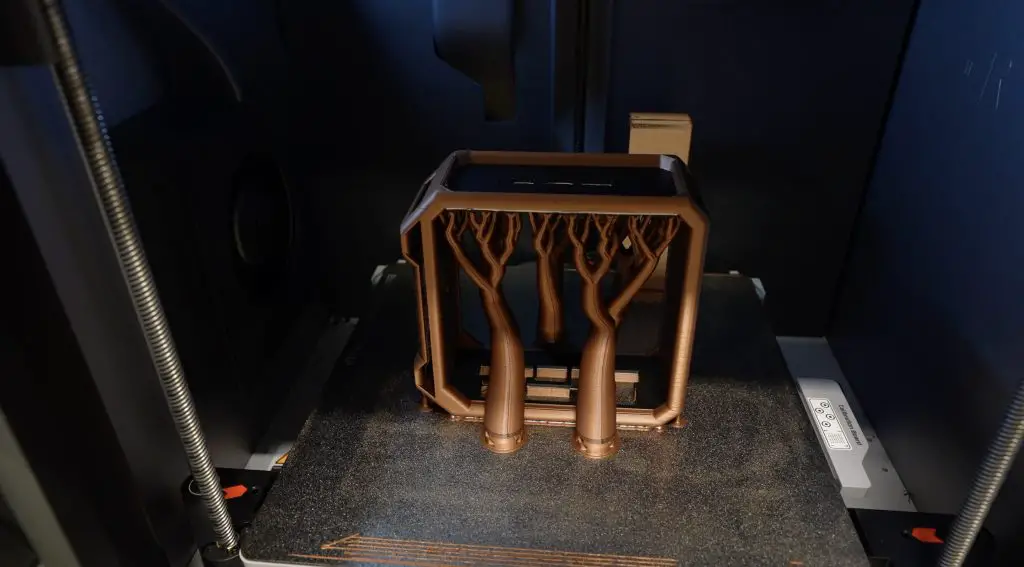
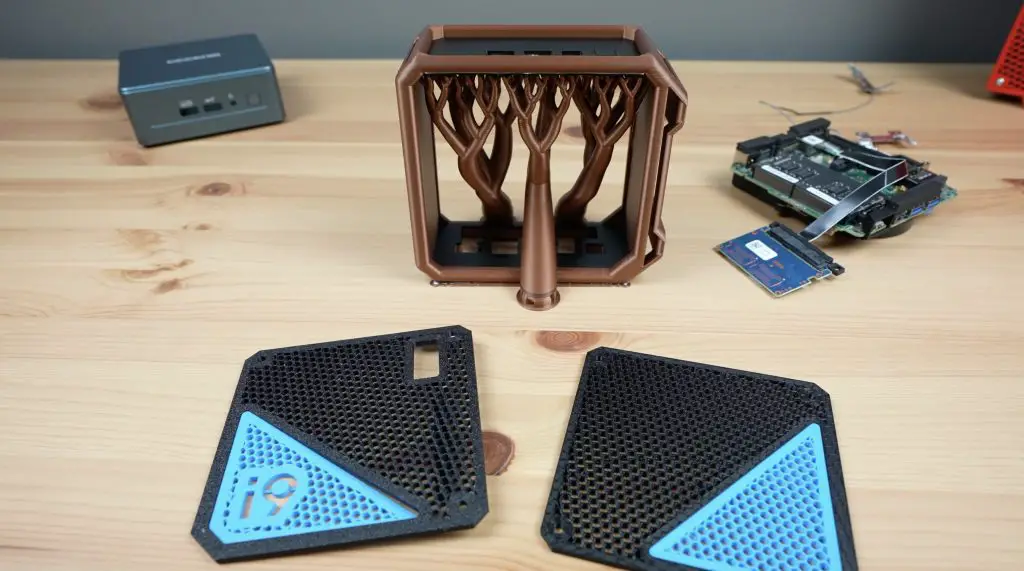
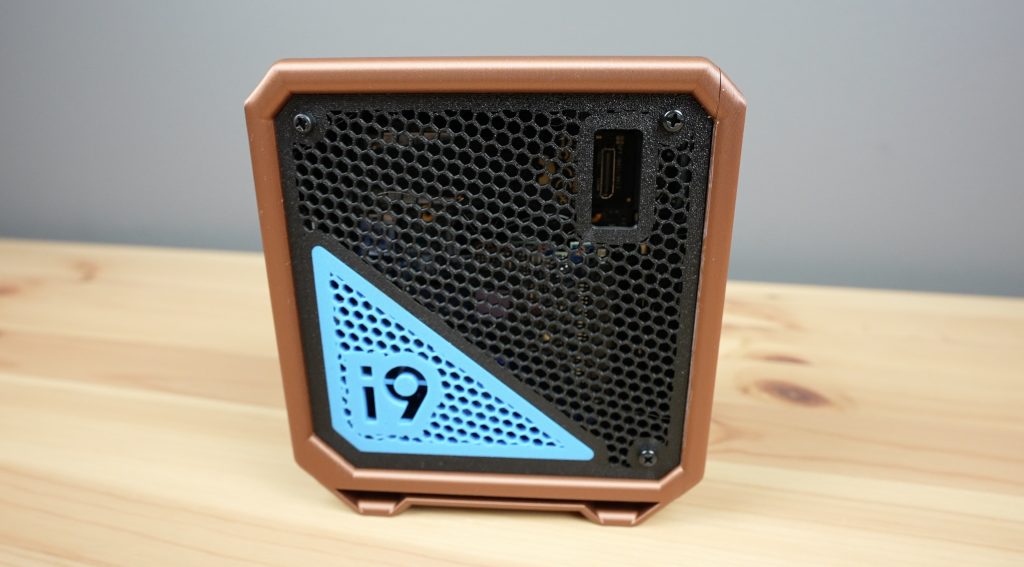
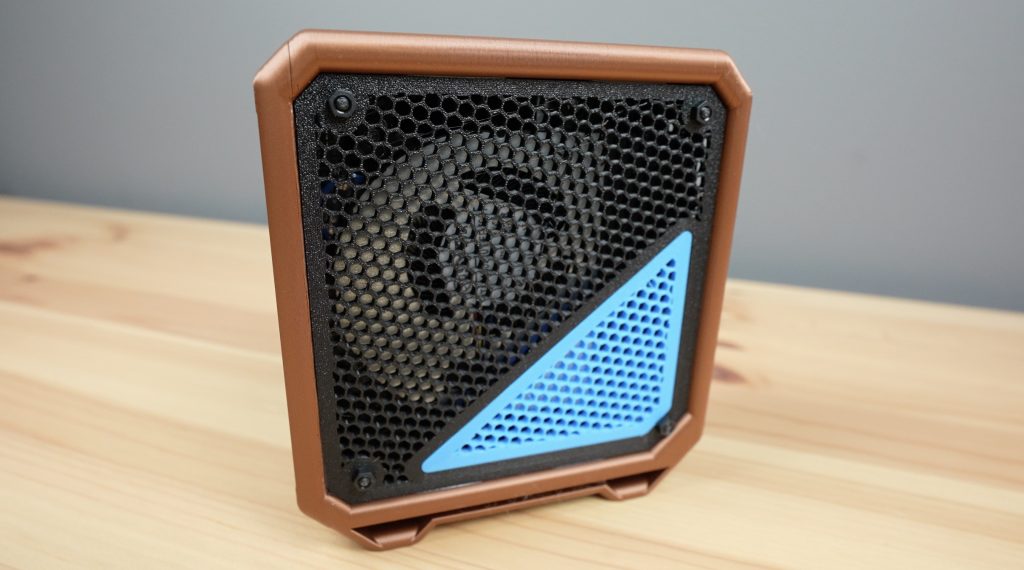
I printed it out of copper, black and blue PLA. I initially wanted to print the case on it’s side to reduce the number of supports required but this then required a large number of filament changes to get the copper and black colour scheme. I rather printed the case in the vertical orientation which significantly reduced the number of filament changes and the associated print time.
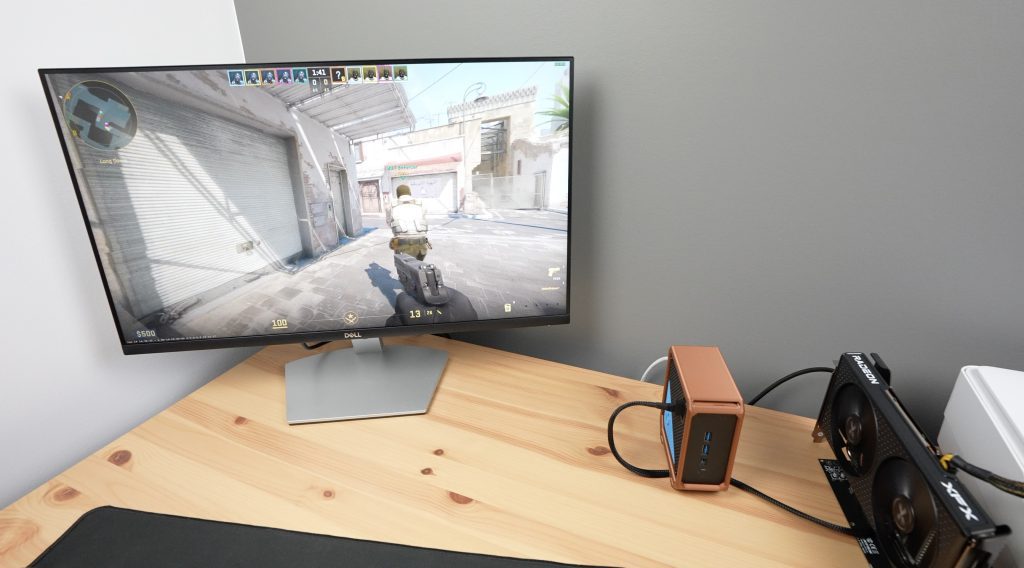
This case stands the Geekom IT13 upright and allows easy access to the Oculink port on one side. It’s also got space to mount the SSD and has a lot of airflow on both sides through the hexagon mesh for cooling.
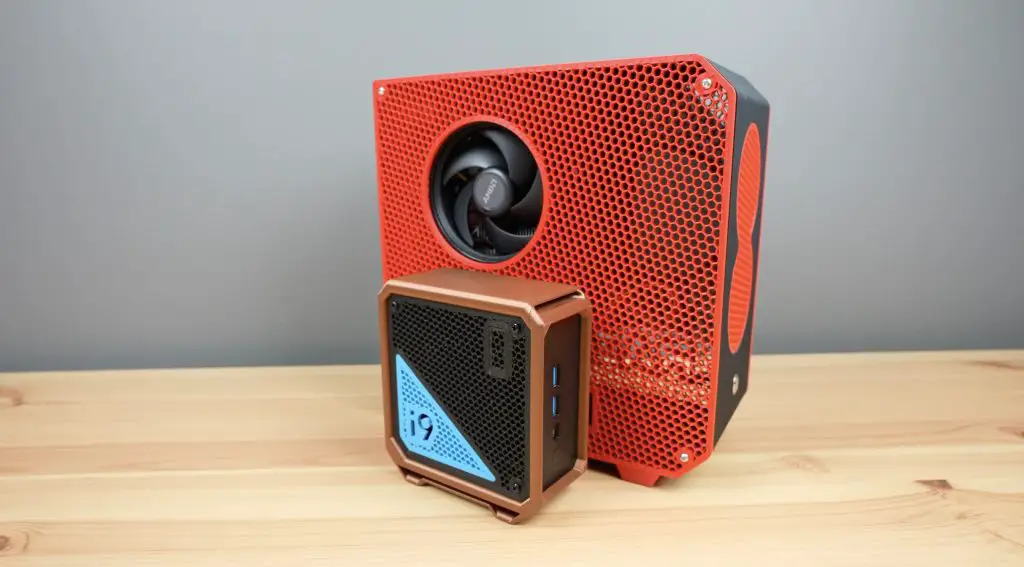
It’s probably difficult to tell on camera but this computer is tiny. It is even dwarfed by my recent mini-ITX computer build which I thought was quite small.
Testing My Modifications To The Geekom IT13
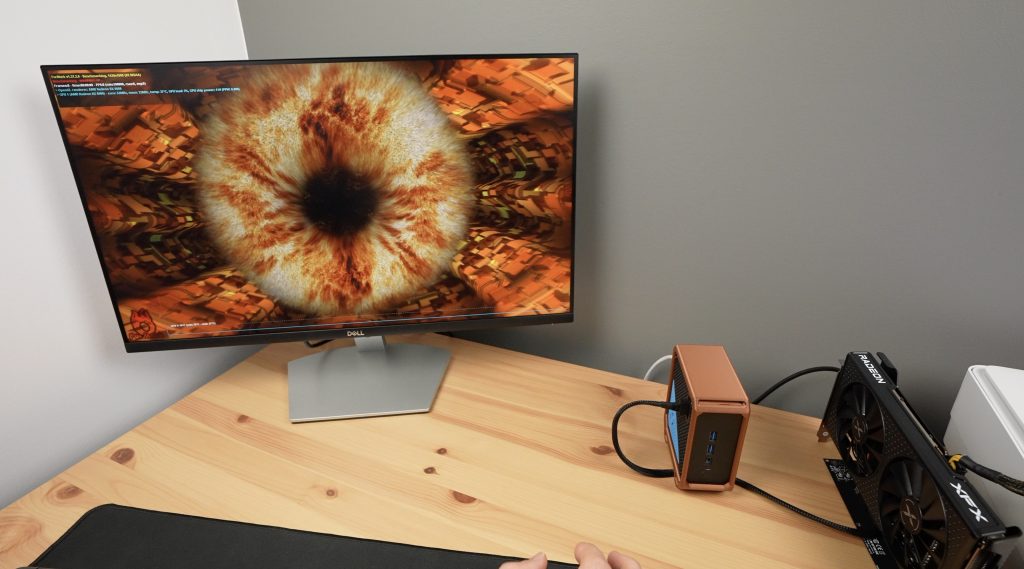
Next, let’s get it booted up and then see what kind of performance we get from it with the new thermal paste, new SSD and the external GPU. With the Oculink cover removed, we can plug our external GPU in.
I can’t tell much difference in the boot time with the SATA SSD instead of the NVMe drive, but honestly I’m just happy that this setup actually boots.
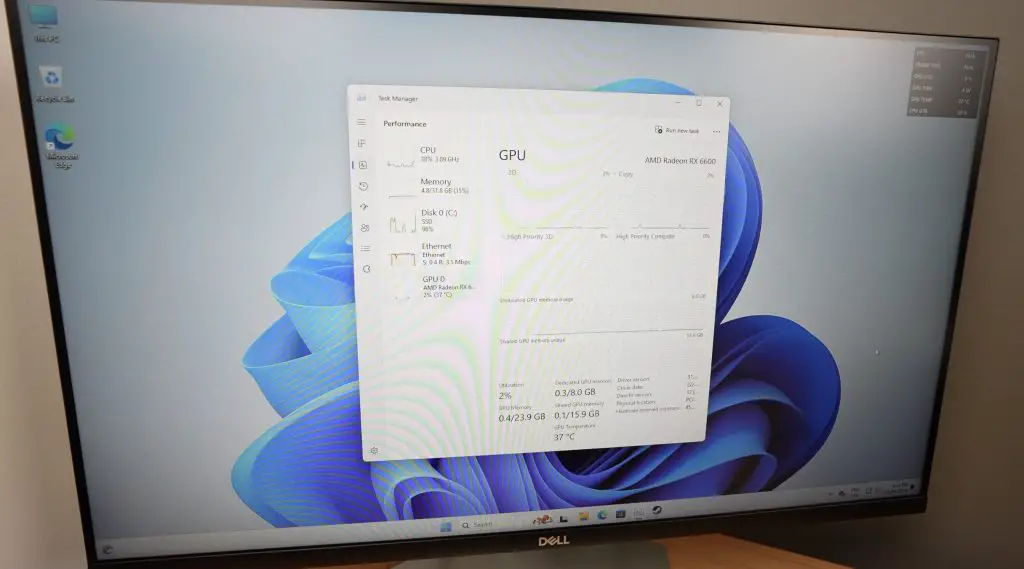
Opening up Task Manager, we can now see our Radeon RX 6600 GPU connected.
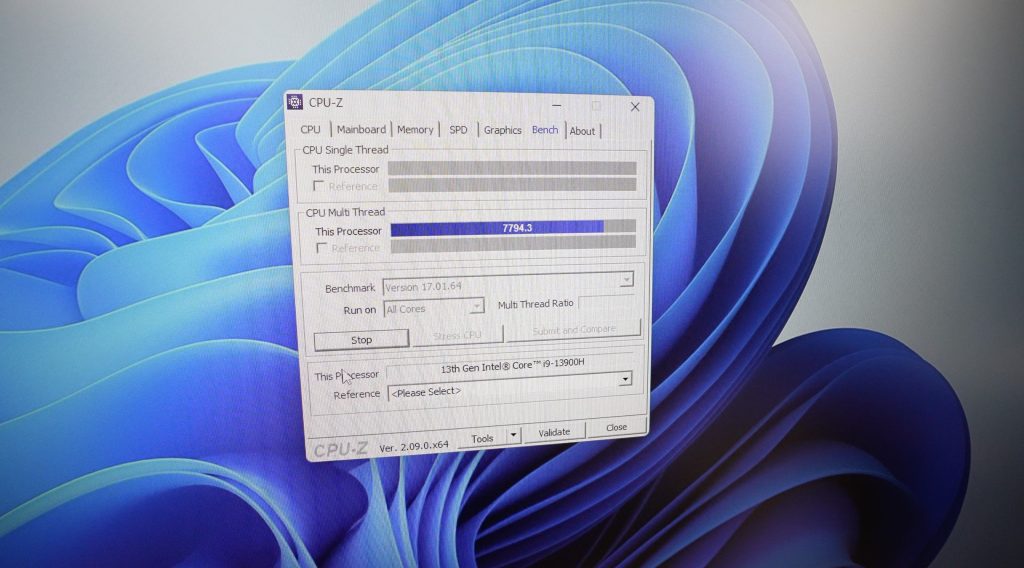
In CPU-Z we can see the same, but I’m really interested to see if the thermal paste makes any difference to the CPU benchmark figures. So let’s try that.
It still seemed to thermal throttle but it felt like it took a bit longer for the fans to spin up this time around. Again, you can hear the fans running in my Youtube video.
After a few seconds, the result was 7,756 and an average of three tests was 7,749. So we got a little over 100 extra points. This is only a bit over a 1% improvement so probably not worth removing the heatsink for if you pick one up, but I think it was worth trying out.
Next, let’s try Furmark and see what the new external GPU does.
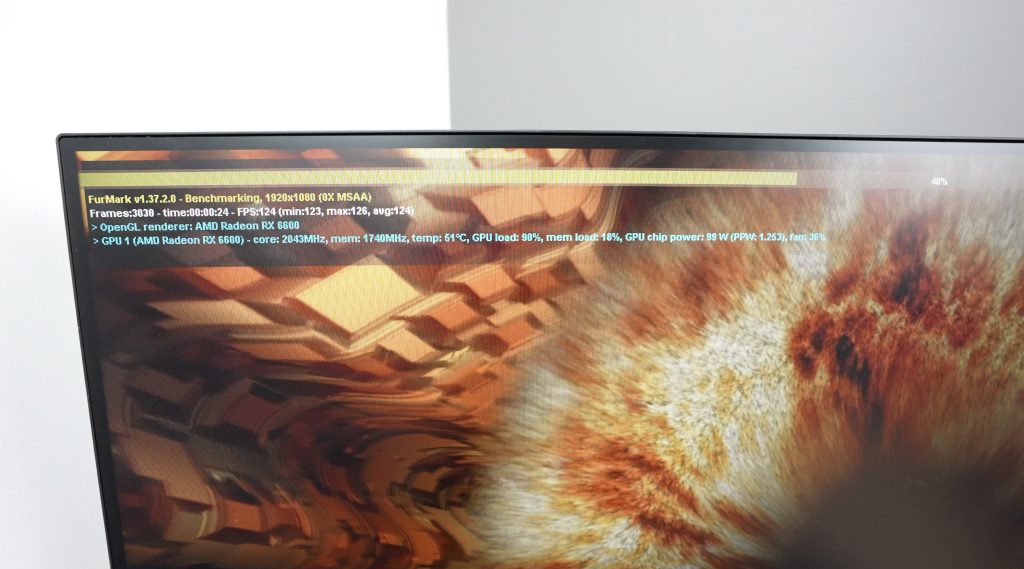
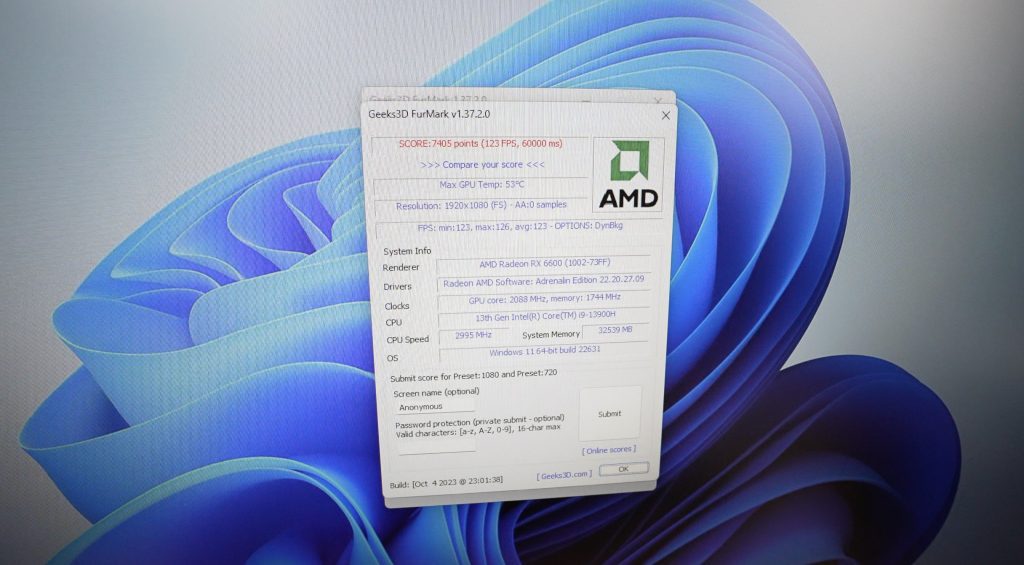
Even a few seconds in, the external GPU is obliterating our previous score. We’re getting significantly better performance with a new average of 123 fps.
Over three tests I got an average score of 7,411 – which is over three times better than what we got with the integrated GPU.
Lastly, let’s see if we can do better than 10 fps in Counterstrike.
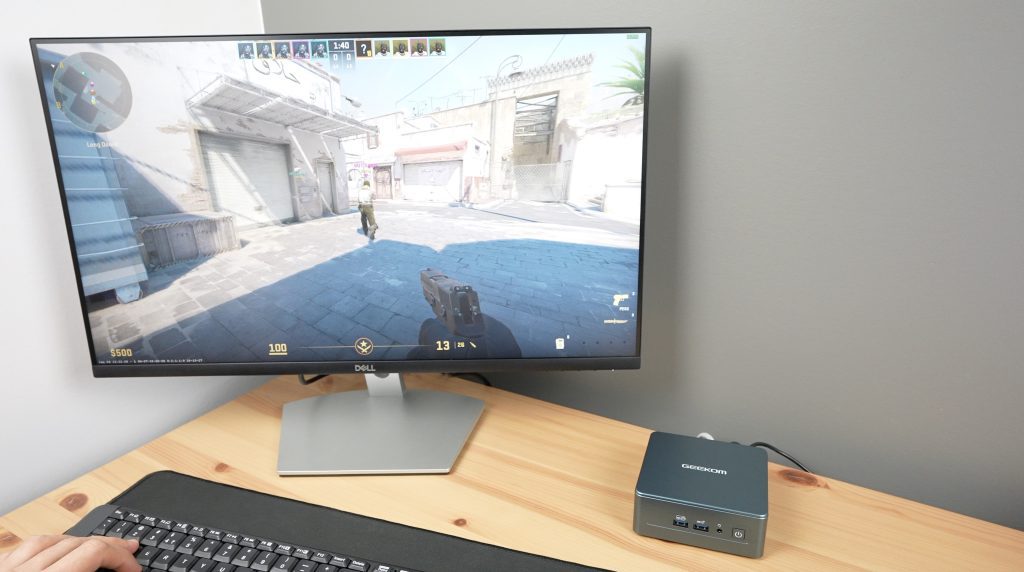
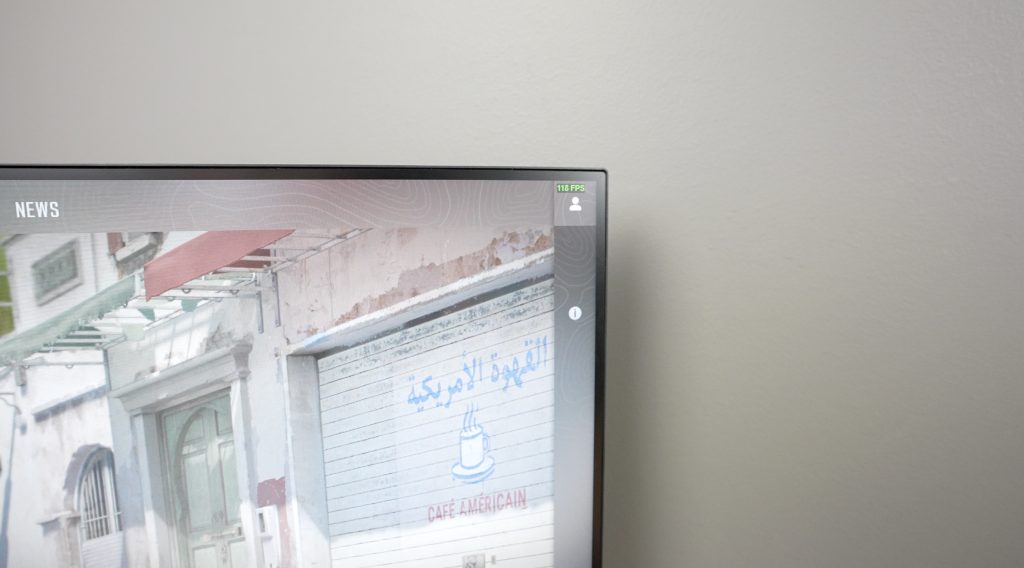
With graphics set to “Very High” we’re now getting around 110-120fps in the home screen. This is already an order of magnitude better than what we got with the integrated graphics.
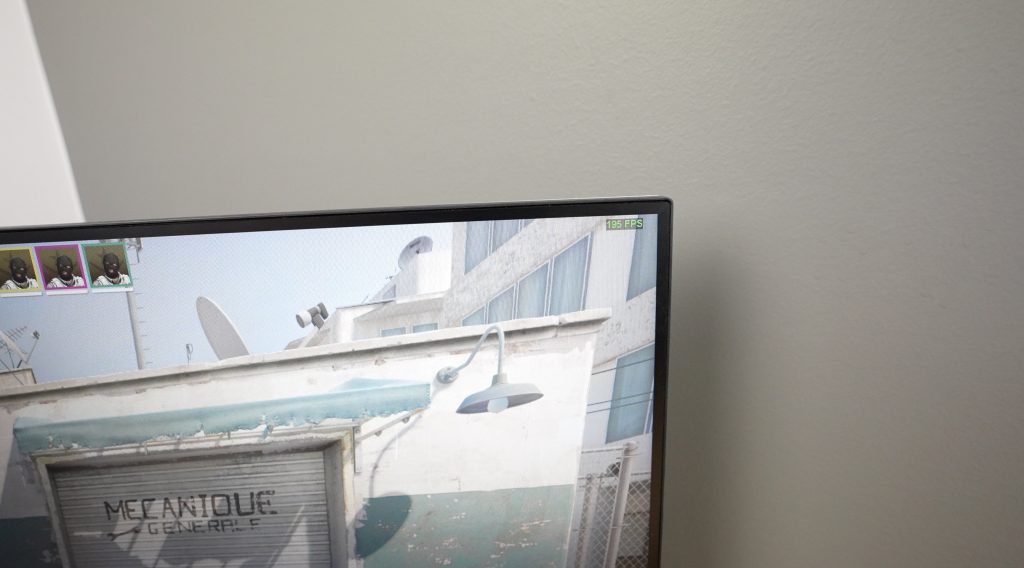
In-game is even better, we now get around 180-200fps.
Final Thoughts On The Geekom IT13
I knew that adding an external GPU would give us a big improvement, but I didn’t expect it to be an improvement of almost 13 times the original fps. I guess that’s what happens when your GPU is bigger than the computer.
I think this is a really cool little PC. It’s ultra-portable when you need it to be. You can just unplug the GPU and it’ll revert back to the integrated graphics if you need to take it somewhere, but you’ve still got the power of a dedicated GPU at home when you need it. The base Geekom IT13 is a really powerful mini PC that’ll tackle a wide range of workloads, it’s upgradable in future, and you can even add a GPU to it to significantly improve gaming performance if you really want to but it’ll handle mid-tier games on medium 1080p settings without any issues.
Check out Geekom’s web store to get your own IT13. Let me know what you think of it and my case design for it in the comments section below.
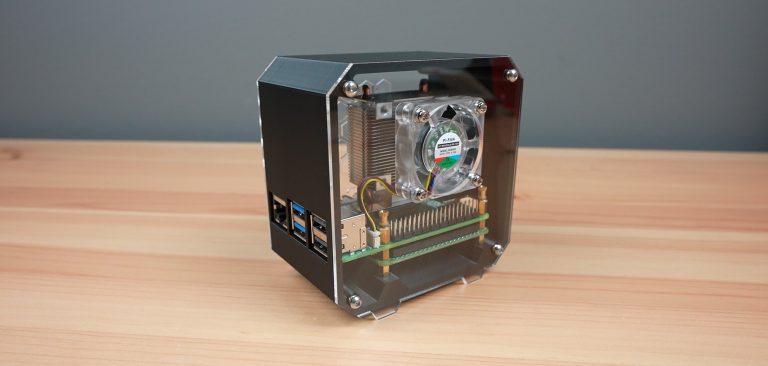
Today we’re going to be assembling a 3D-printed case for the new Raspberry Pi 5 and Pineberry’s HatDrive! This is an adaptation of my standard desktop case for the Raspberry Pi 5, with adjustments made for the top and bottom hat versions of the HatDrive! This case also includes an adaptor so that you can still use the power button on the back of the Pi 5.
Ensure that you get the Ice Tower cooler for the Raspberry Pi 5, the cooler for the Pi 4 will not fit.
Assembling The Raspberry Pi 5 HatDrive! Case
To start, we need to install the M2.5x6mm brass standoffs that come with the case kit on the bottom of the case. These are installed with the male thread facing upwards into the case and are each held in place with an M2.5 button head screw through the base of the case.
HatDrive! Top Installation
If you are using a top-mounted HatDrive!, the next step is to install your Raspberry Pi. Position the Pi onto the standoffs and secure it with three M2.5 brass standoffs (female to female) that came with the HatDrive.
Don’t install a standoff on the hole nearest to the power port, this is where the button adaptor will go.
Next, install the button adaptor. Guide the adaptor into position from the inside of the case through the larger SD card slot area. Then move it across into the narrower button slot area and over the threads on the standoff.
Screw the fourth standoff through the button adaptor and onto the brass standoff. This will now hold the button adaptor in place but still allow the power button to be pressed.
Press your Pi Active cooler into place with the two included plastic studs, these go through the holes in the Pi’s PCB. Remember to add the thermal pad or remove the film from the included thermal pad first.
Plug the fan into the fan port between the GPIO pins and the USB ports.
Next, install your NVME SSD onto your HatDrive! I’m using a Sabrent Rocket drive on mine, Pineberry also have a list of compatible drives that have been tested on their website.
Next, add the GPIO extensions through the HatDrive if you’re using them for an accessory like a second fan.
Add your HatDrive with SSD installed, plugging in the PCIe cable into the Pi first. The tab on the connector can be pushed down to secure the cable through the microSD card slot. Likewise, to release it, the tab can be pushed up through the slot as well.
Secure the HatDrive! with the screws included with it.
HatDrive! Bottom Installation
If you are using a bottom-mounted HatDrive!, the first step is to install your NVME SSD onto your HatDrive! I’m using a Sabrent Rocket drive on mine, Pineberry also have a list of compatible drives that have been tested on their website.
Place it onto the brass standoffs and then use the female-to-female brass standoffs supplied with the HatDrive! to hold it in place. Next place the Raspberry Pi on top of the HatDrive! and secure it with three of the M2.5x7mm brass standoffs that came with the Ice Tower cooler. Don’t install a standoff on the hole nearest to the power port, this is where the button adaptor will go.
Plug the PCIe cable into the Pi. The tab on the connector can be pushed down to secure the cable through the microSD card slot. Likewise, to release it, the tab can be pushed up through the slot as well.
Next, we can position the button adaptor over the remaining mount. Slide the button adaptor into position through the microSD card slot at the back of the case in the orientation shown below. It should go in easily – do not force it passed the LED or button as you may damage them. If you feel resistance, rather try to remove and reposition it until it slides into place without interfering with the surrounding components.
Now we can install our Ice Tower cooler. Before we install it, we need to remove the fan by removing the four M3 screws in the corners. We’re going to be installing the fan on the side panel.
Remember to add the thermal pad to the CPU before putting the cooler into place. Secure the cooler with three M2.5x6mm screws that are supplied with the cooler (I’ve used thumb screws in the below image), one into each of the brass standoffs. Again leave the button adaptor unsecured for this step.
Now use the M2.5x12mm button head screw that was supplied with the case kit to hold the button adaptor in place. You’ll need to add the small black spacer (shown in red below) between the button adaptor and the leg of the Ice Tower cooler as well.
Do not overtighten the screw as you need the button adaptor to be able to move to push and release the button. You should be able to feel the button press and release easily through the button adaptor.
Fan & Side Cover Installation
Install the fan onto the side cover with its included screws or rubber mounts.
If you are using the fan from an Ice Tower cooler, we’re going to use the same method that I used on my other case designs where the screws do not go all the way through to the back of the fan. We instead press the M3 nuts into the front of the fan and the screws then hold these in place against the side panel.
It is easiest to press these into place by placing the nuts onto a flat surface and then pushing each pocket in the corner of the fan down onto the nut. The nut is in position when it is flush with the face of the fan.
Then plug the fan into your Raspberry Pi’s GPIO pins before screwing the side panel into place.
Close up the case with the two side panels and four M3x8mm button head screws on each side.
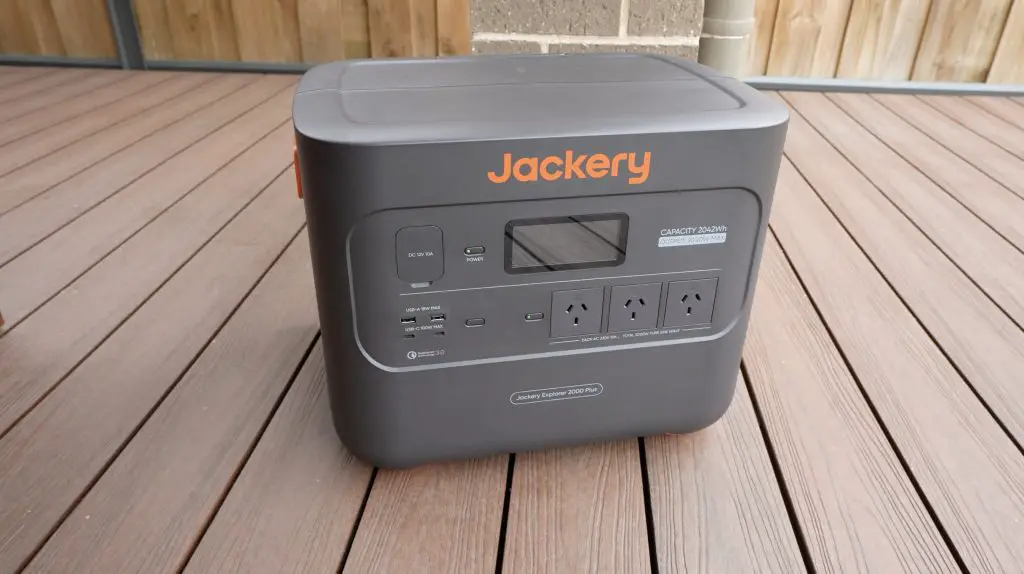
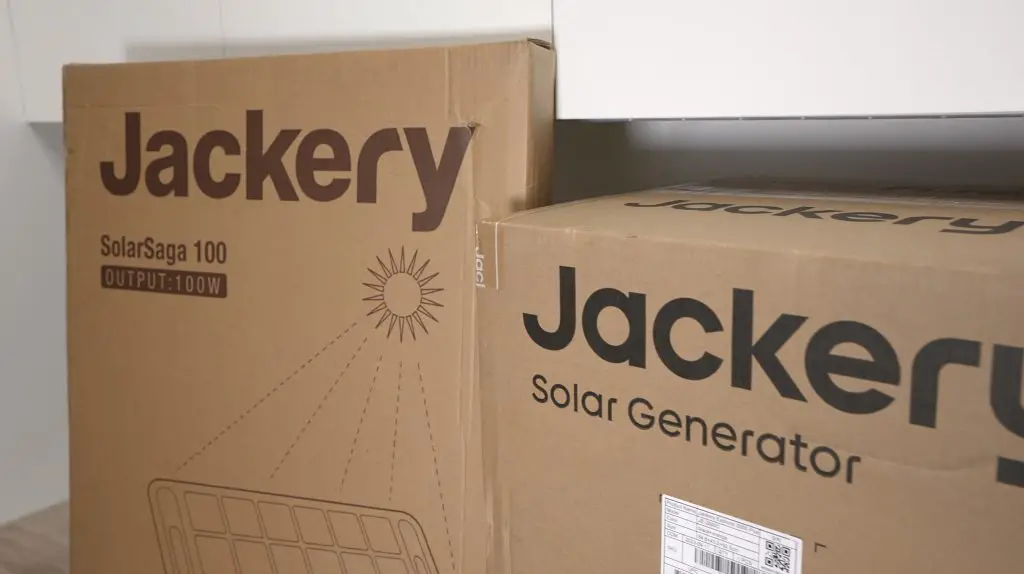
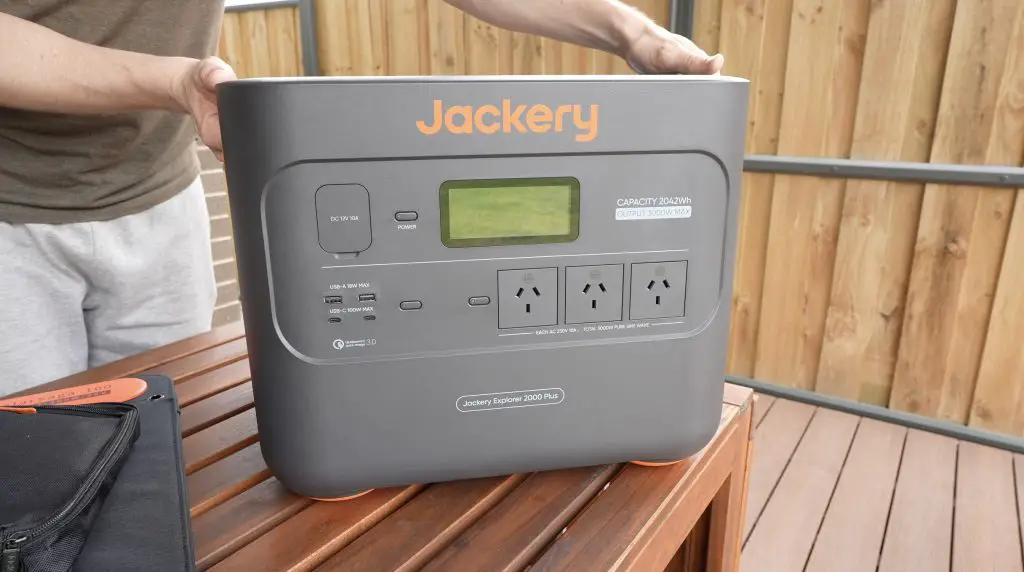
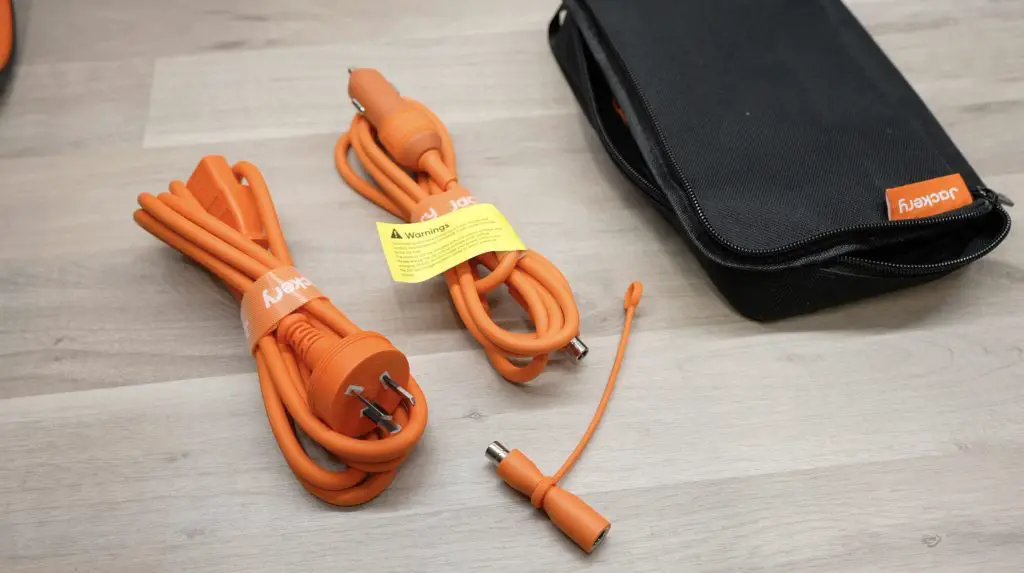
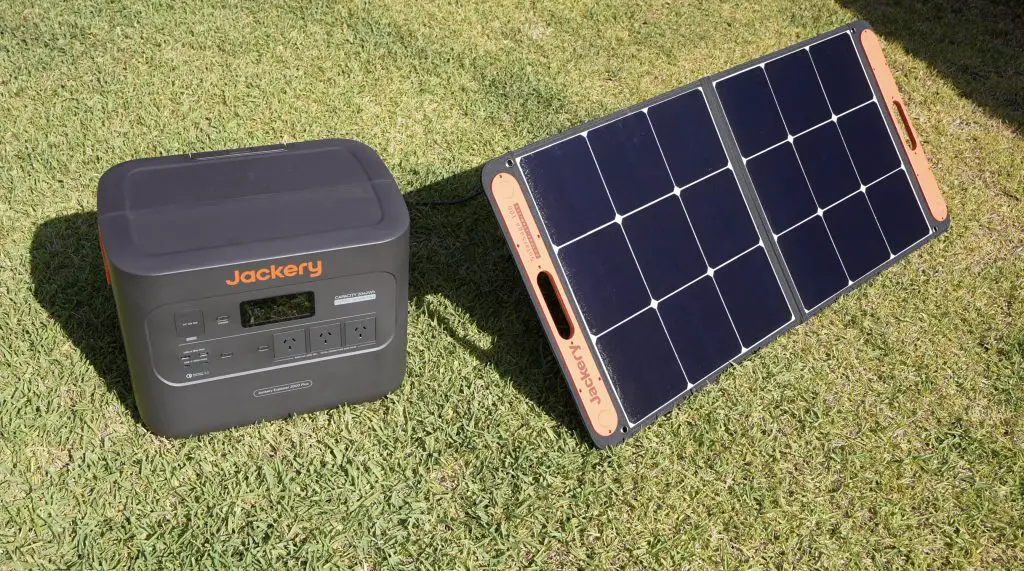
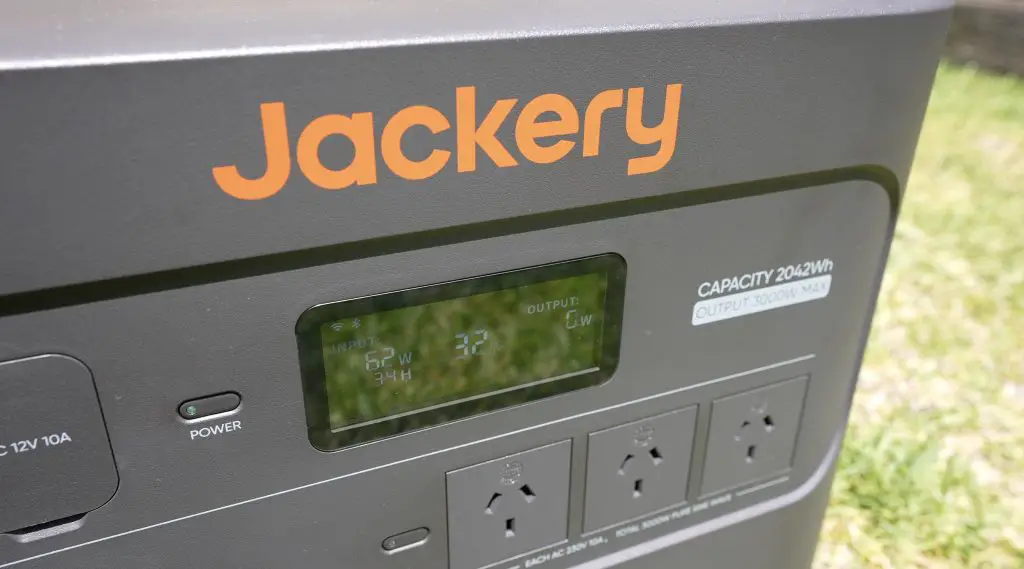
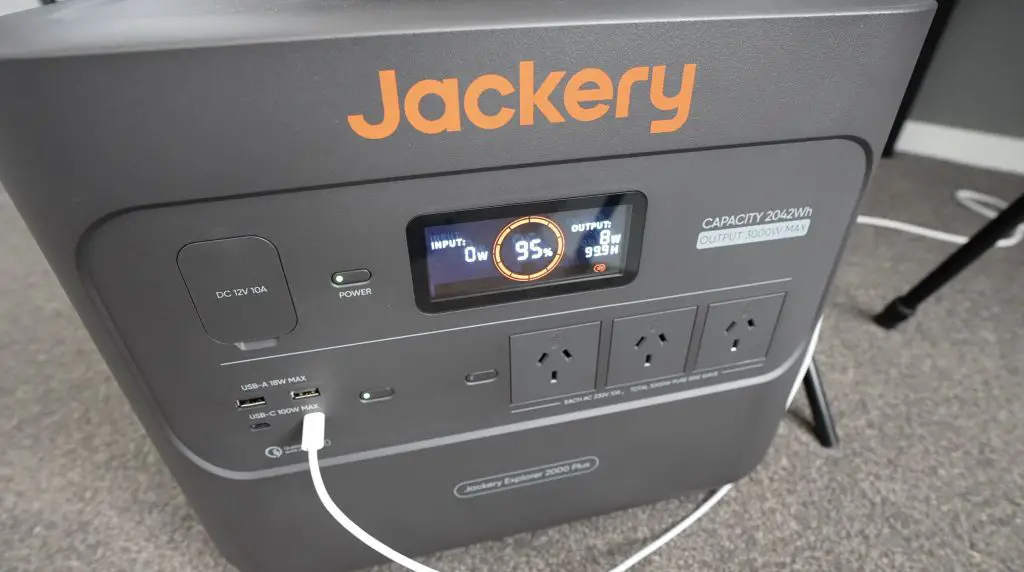
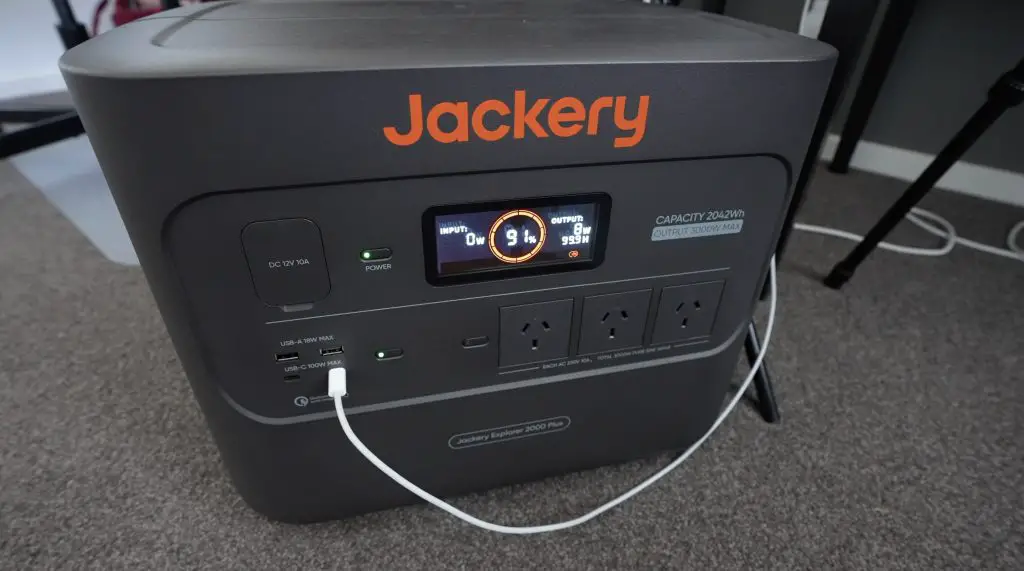
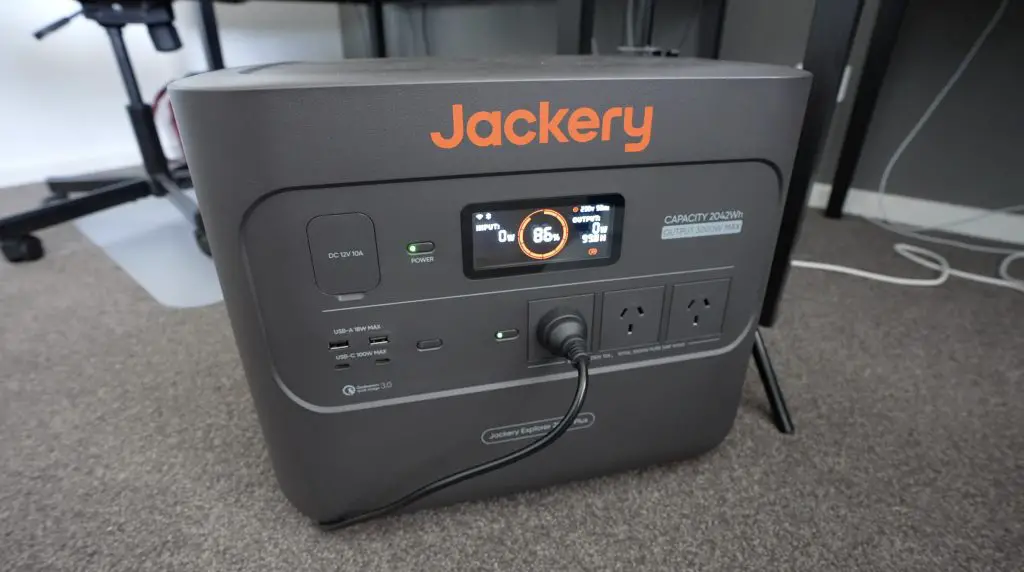
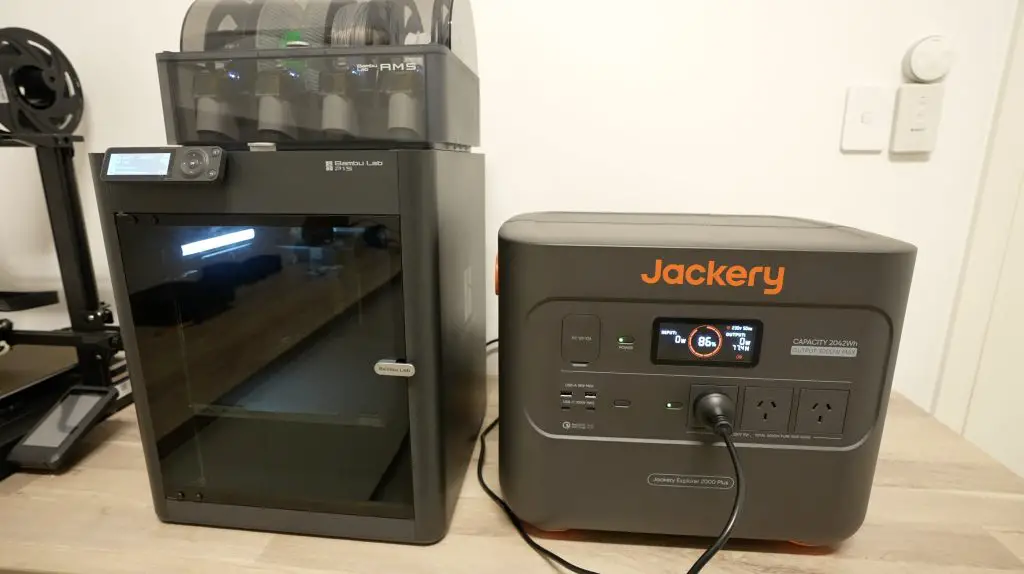
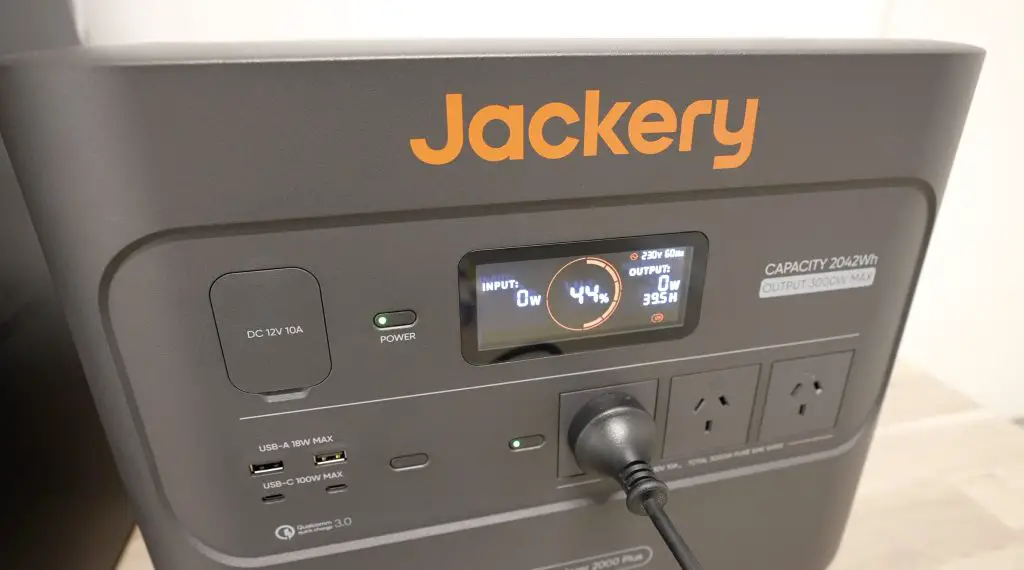
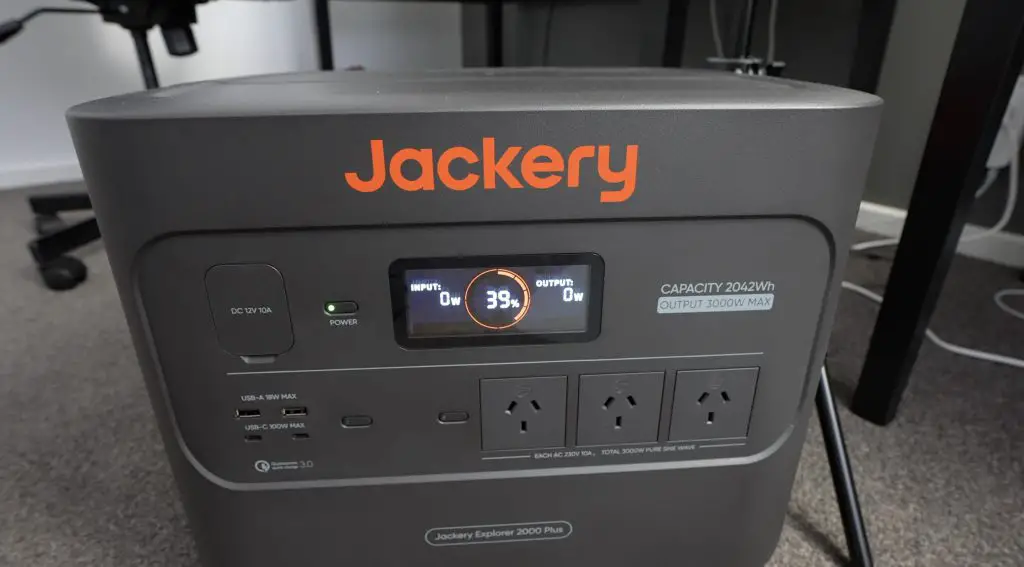
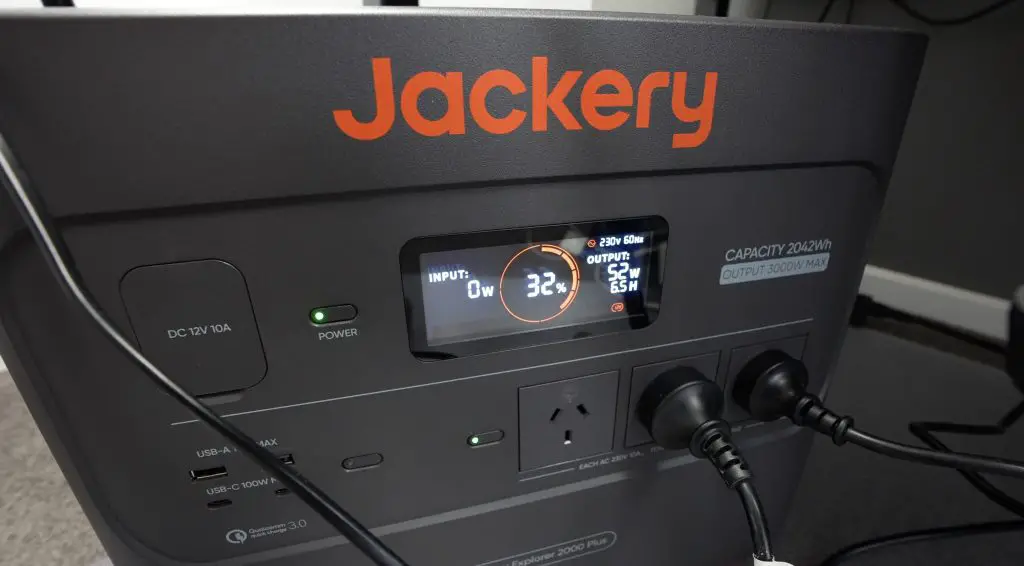
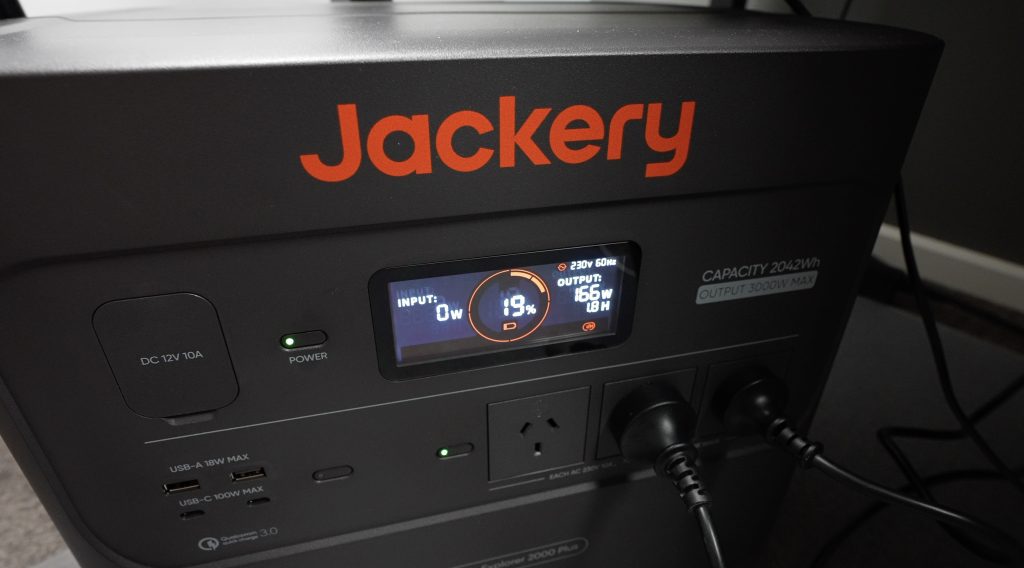
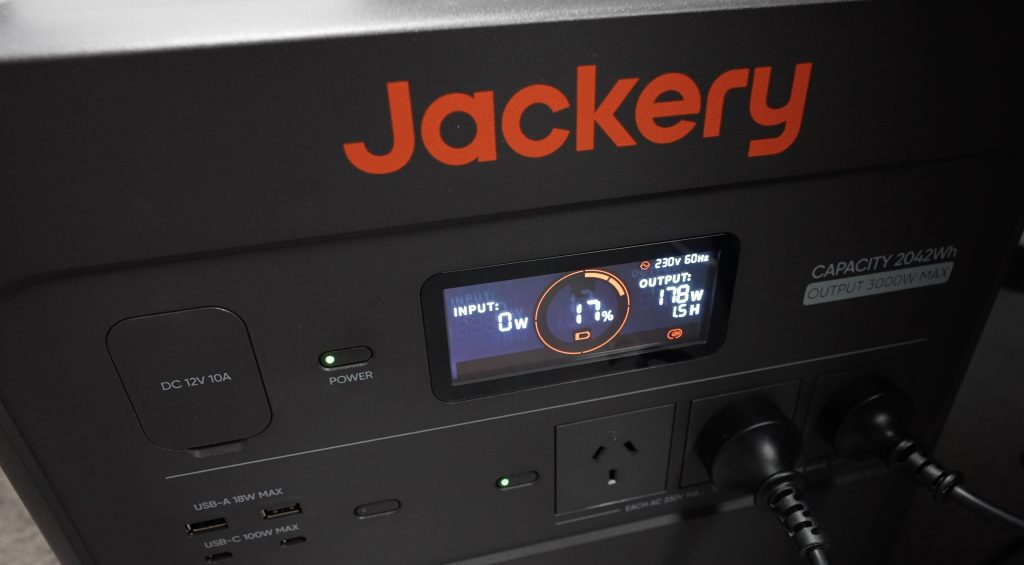
Jackery recently asked if I’d like to try out their new Solar Generator 2000 Plus portable power station. It’s got some great features like 3000W continuous output and a 2042Wh capacity. I’ve done a full review on it if you’d like to check that out for some more of the technical specs and my thoughts on it – full review. The Solar Generator 2000 Plus is a kit that is made up of the Explorer 2000 Plus portable power station and a 100W SolarSaga solar panel.
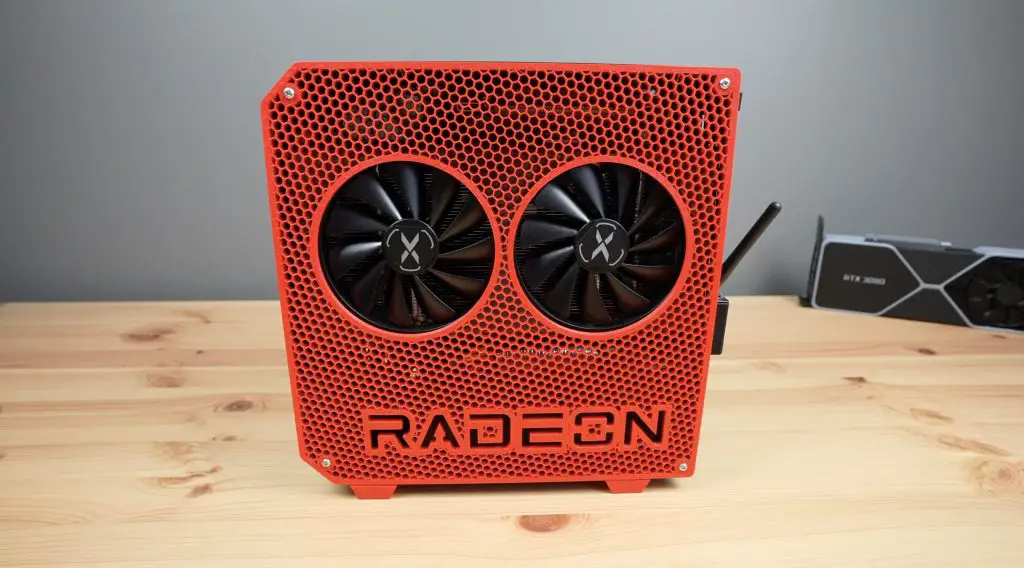
The review got me thinking, could I design, 3D print, laser cut and assemble a Mini ITX computer using a single charge of the Explorer 2000 Plus? 2042Wh is a lot for a portable power station, but would that be enough to last when using my computer for a couple of hours worth of design time, possibly a full day of 3D printing and then to power the tools and computer through assembly and setup?
Here’s my video of the project, read on for the write-up;
Before starting with the design, I need to set some ground rules for the project.
I’m going to be limited to a single charge of the Explorer 2000 Plus. I’ll charge it up at the beginning of the project and I can only use power from it to power any computer equipment, printers, tools or chargers that I need to get the mini ITX computer designed, printed, assembled and booted up.
I also can’t use previously stored power in battery-powered devices. If I have to use a battery-powered device like my laptop then I’ll drain it completely before starting and I’ll need to use the Explorer 2000 Plus to charge it as well.
Charging The Jackery Solar Generator 2000 Plus
To start, let’s get the power station charged up.
There are three ways to charge it, the fastest is going to be plugging it into mains power, which will fully charge it from empty in just 2 hours.
The second way is through solar power. This varies by how many panels you connect to it and how strong the sun is, but with 6 of their 100W panels, you can get it fully charged in just 5.5 hours.
The third is through a car’s 12V DC socket. This is the slowest option and will take around 20-22 hours to get it fully charged.
We’re heading into summer here and we have nice bright long days, so I’m going to use the solar option.
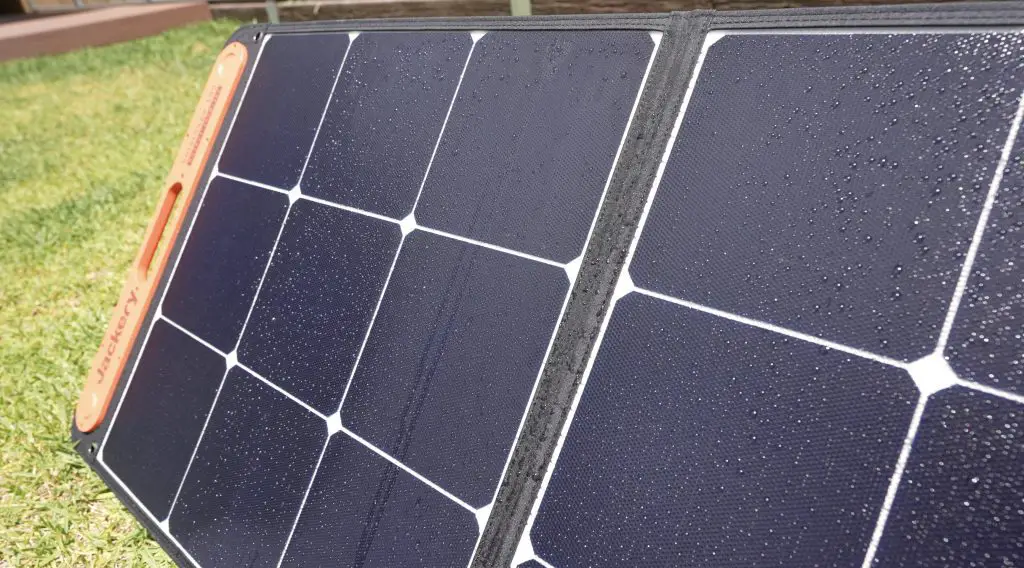
The SolarSaga 100 panel is a 100W foldable design that is IP65 waterproof and includes integrated USB ports for charging directly from the panel.
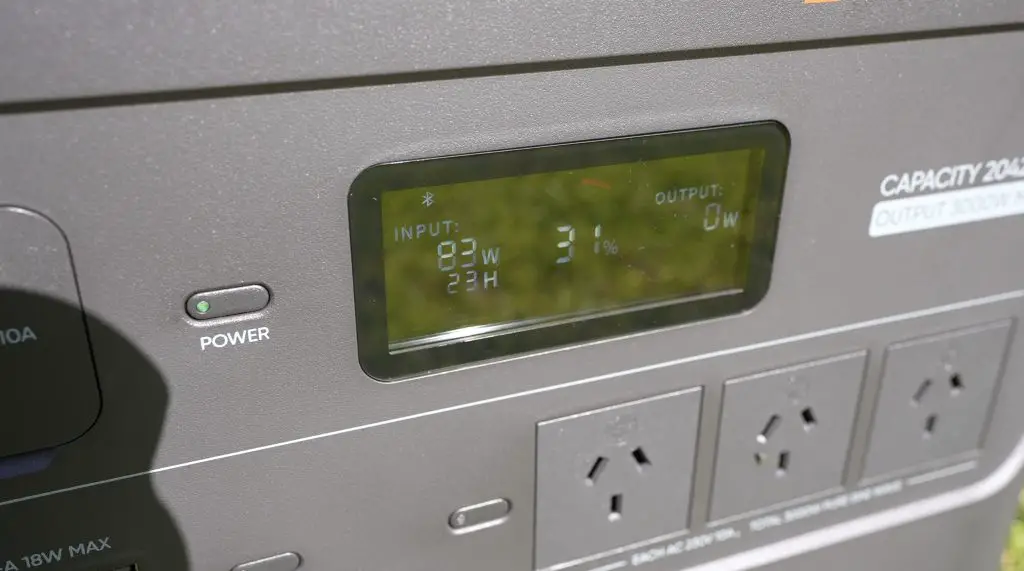
I’ve got the panel hooked up to the Explorer 2000 Plus and it’s set up outside in full sun to charge. In the morning sun it’s outputting around 60-70W, by midday it was outputting around 83W. Even at 83W, it’s still going to be a while but that’s an improvement on the morning results and it’s essentially free energy.
After two days of charging, it’s now full and ready to start the challenge.
Mini ITX PC Components Chosen For The Build
Next, let’s take a look at the components that I’ve chosen for the PC build.
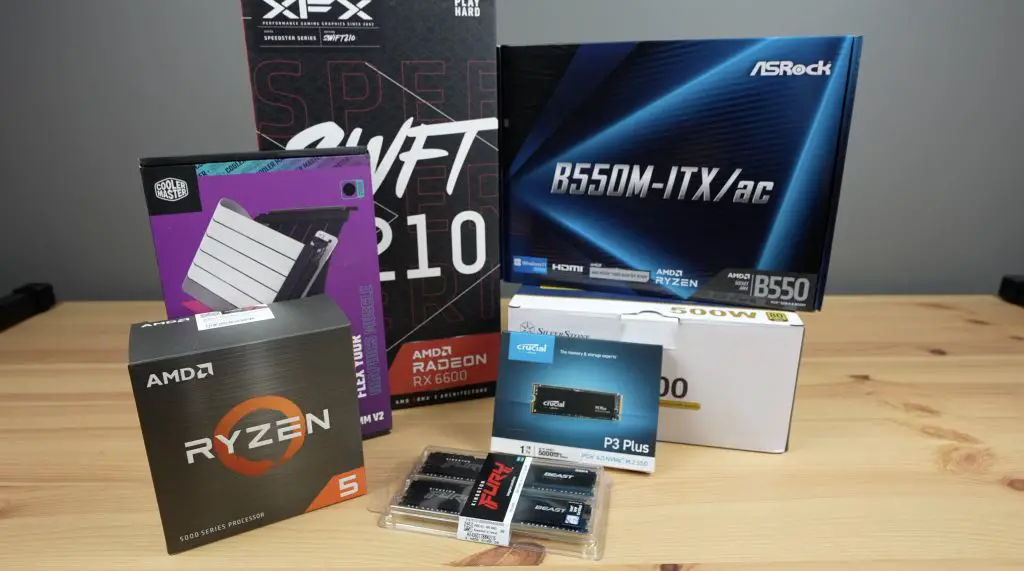
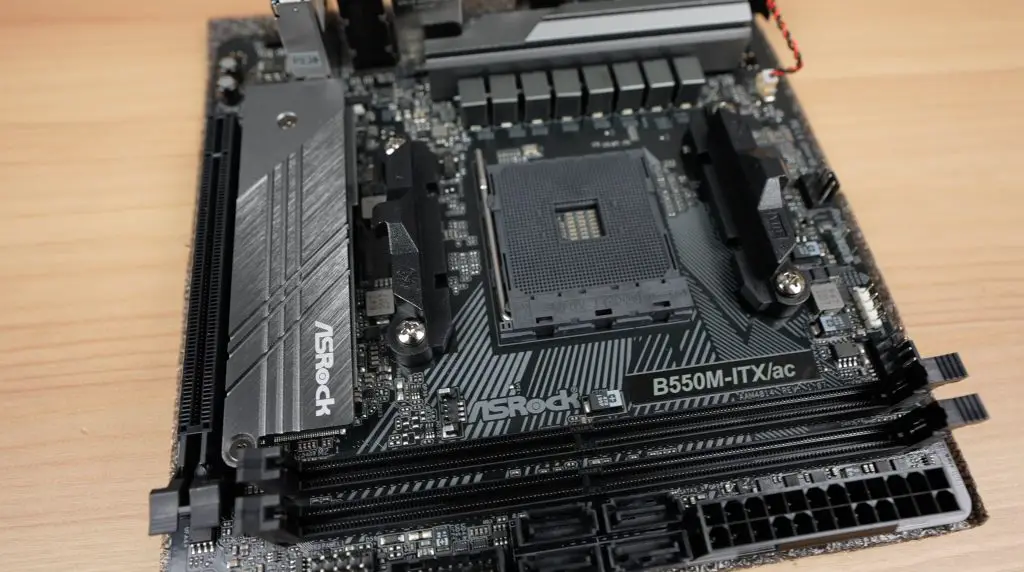
I want this to be a compact but still reasonably powerful computer so I’ve gone with this ASRock B550M-ITX Mini ITX form factor motherboard.
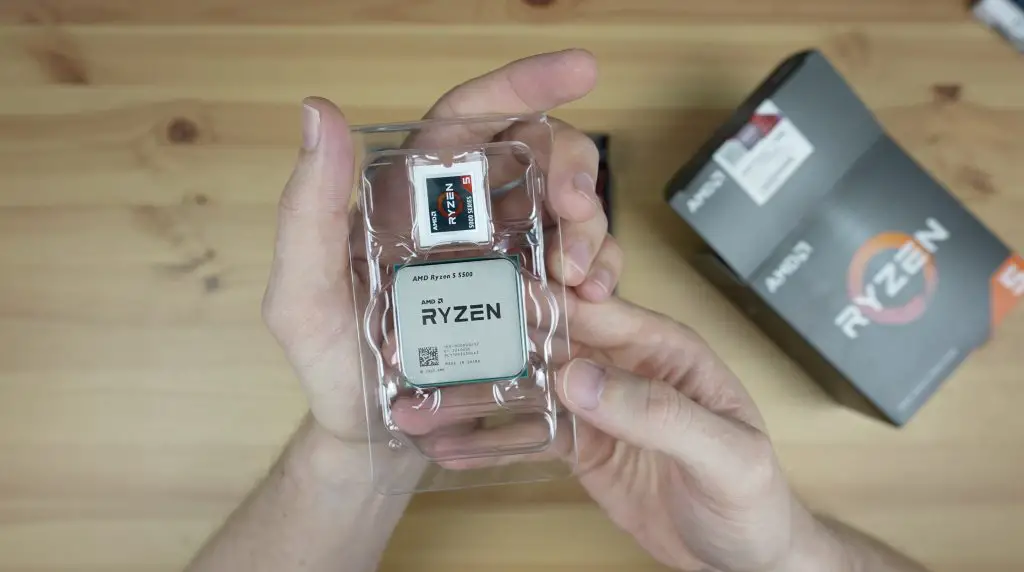
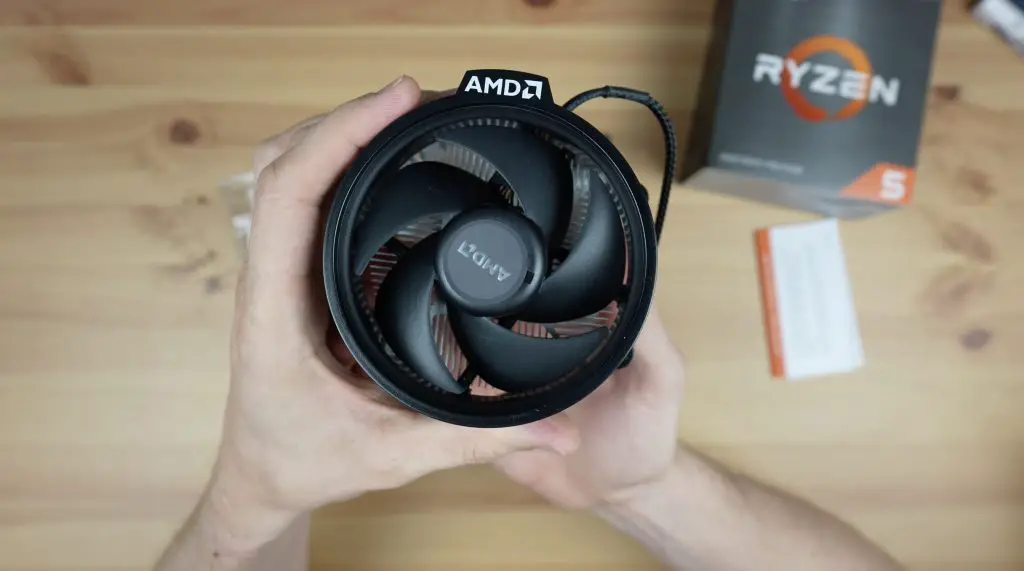
For the processor, the Ryzen 5 5500 is a good balance between value for money and performance. It also doesn’t require a large amount of power so we can get away with a compact power supply. It also comes with a basic cooler to keep the cost down.
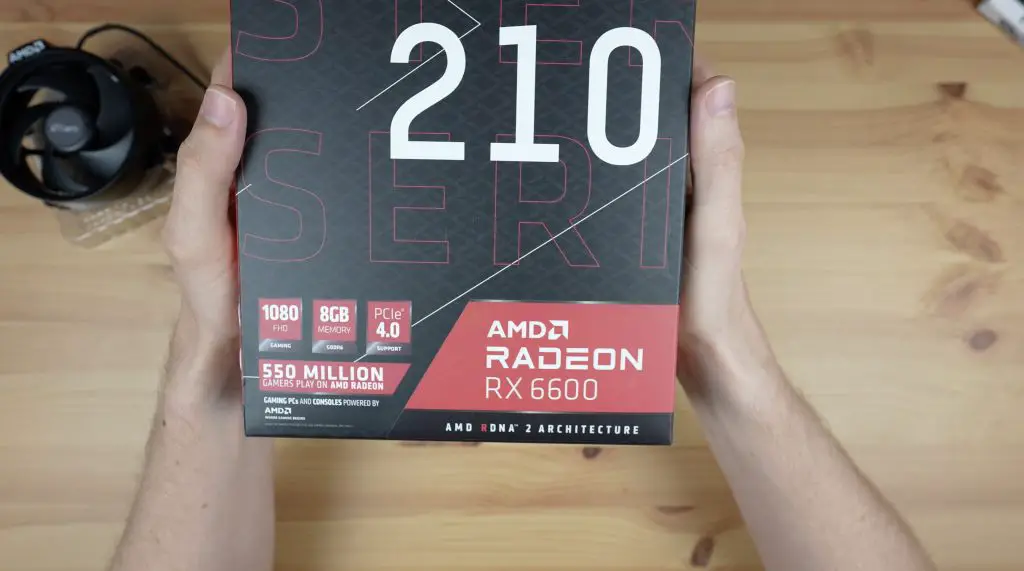
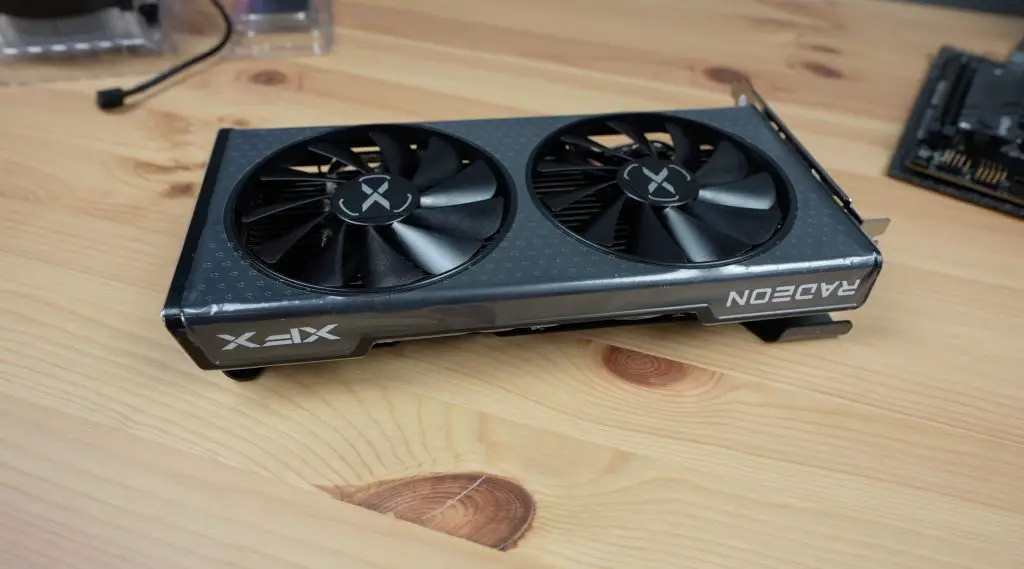
For graphics, since the Ryzen 5 5500 doesn’t have integrated graphics, I’ve got a dedicated Radeon RX 6600 GPU. This card also strikes a good balance between value for money and performance.
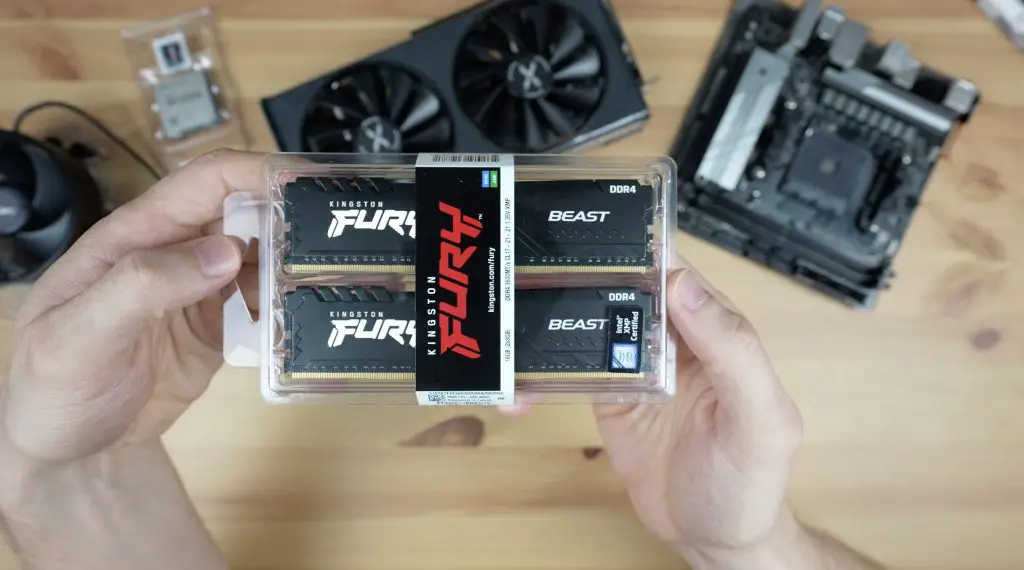
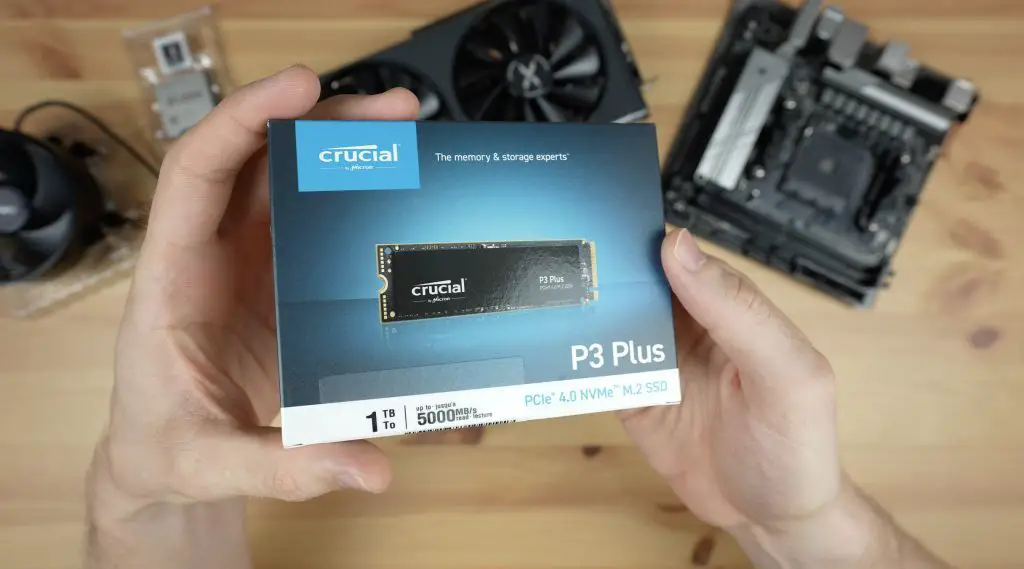
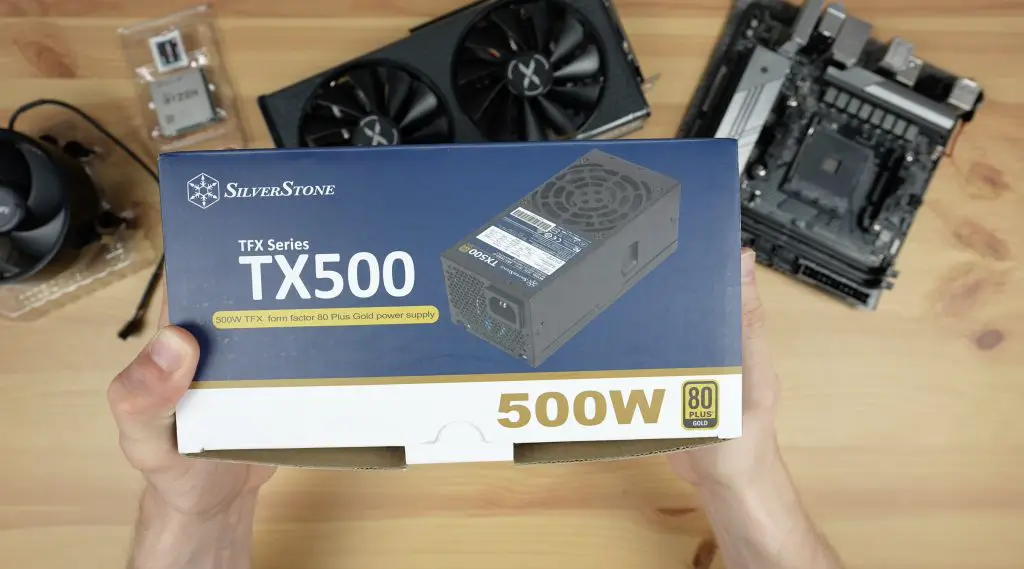
Lastly, I’ve got two 8GB sticks of DDR4 RAM and a 1TB NVME SSD. To power the computer I’ve got a 500W Silverstone TFX power supply.
This setup should be perfect to run most modern games at 1080P and reasonably high settings.
Designing The Mini ITX Computer Case
In terms of layout, I’m going to go with the power supply beneath the motherboard as it’s got a fan on the top and I’ll mount the GPU vertically on the back of the motherboard to save space. The GPU is quite big so is going to be the limiting factor in how compact we can get the case.
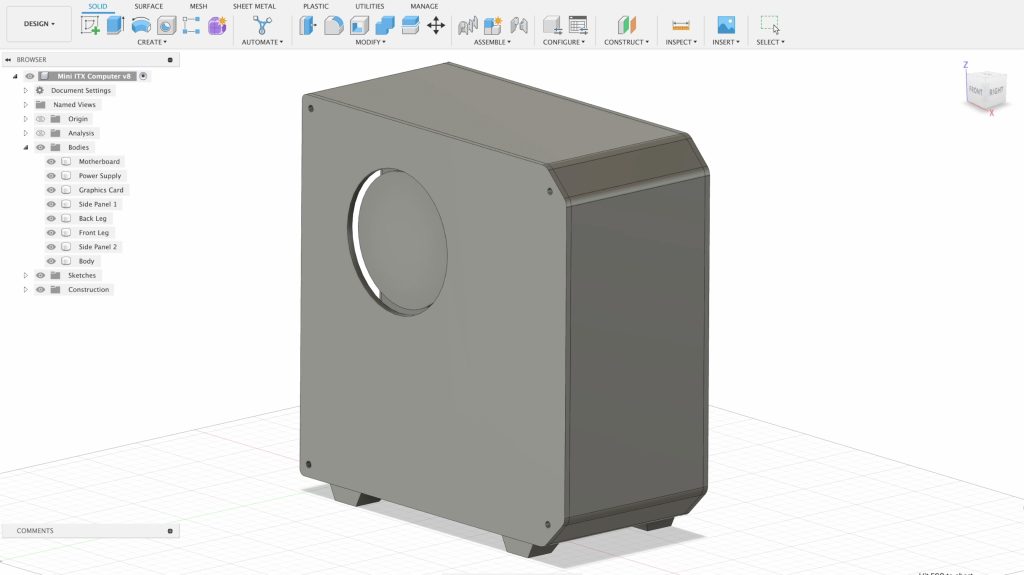
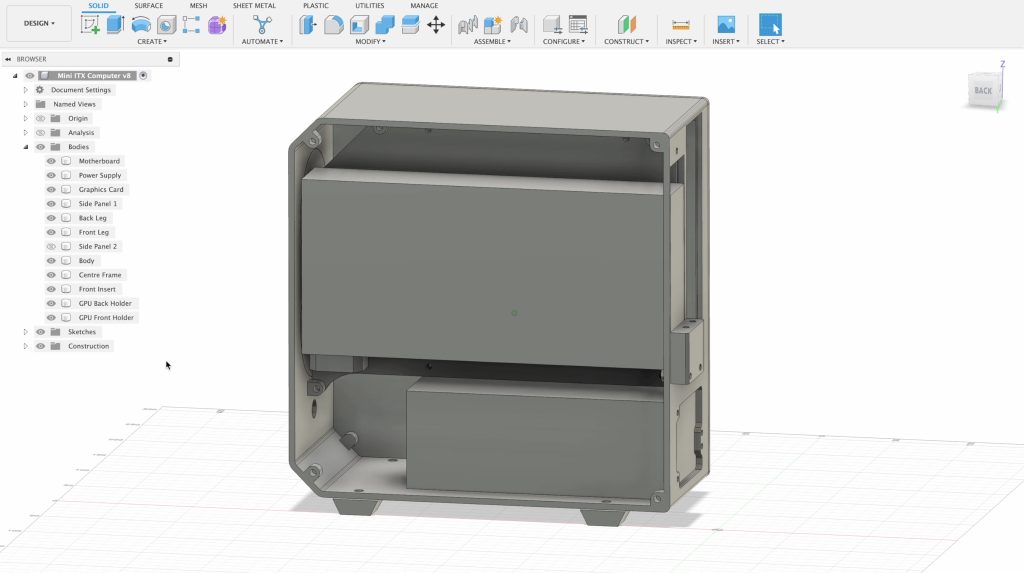
Let’s get started with the CAD design and for that, I’m going to use my Macbook which is now dead. So let’s plug it into a USB C port on the Explorer 2000 Plus and use that to charge and power it. My Macbook uses around 90W when charging up from dead but this should settle to under 10W once charged. Then we can open up Fusion360 to do the design.
I’m going to go with an almost square design that’ll just fit onto my 3D printer’s 256 x 256mm print bed. I drew inspiration from my Raspberry Pi mini desktop case design that I did a couple of years ago.
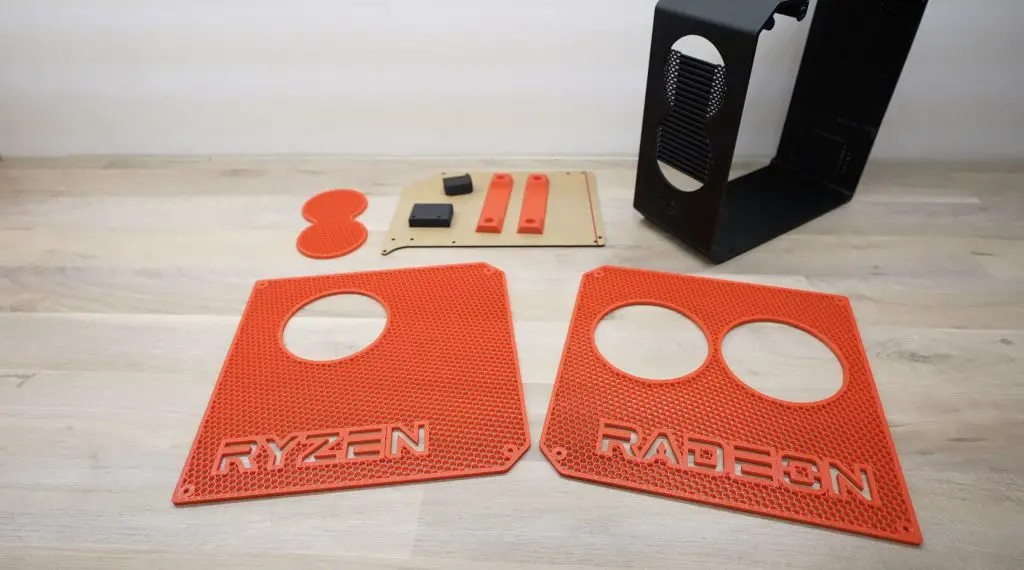
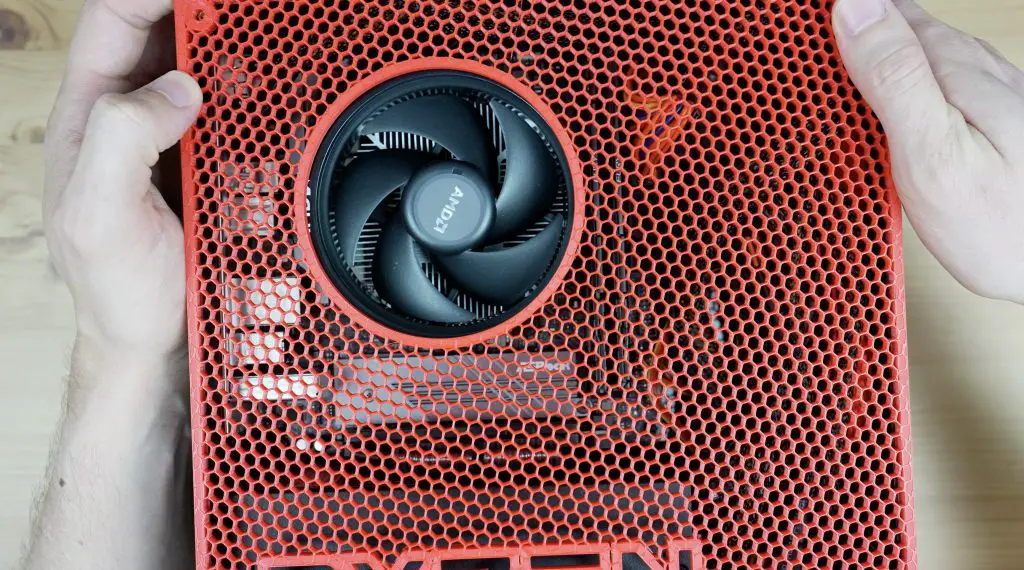
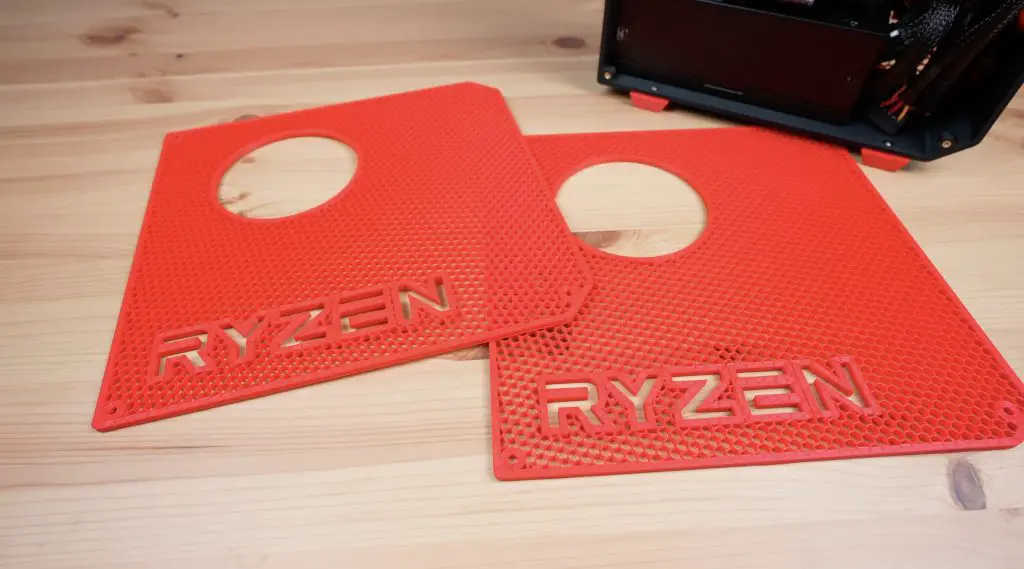
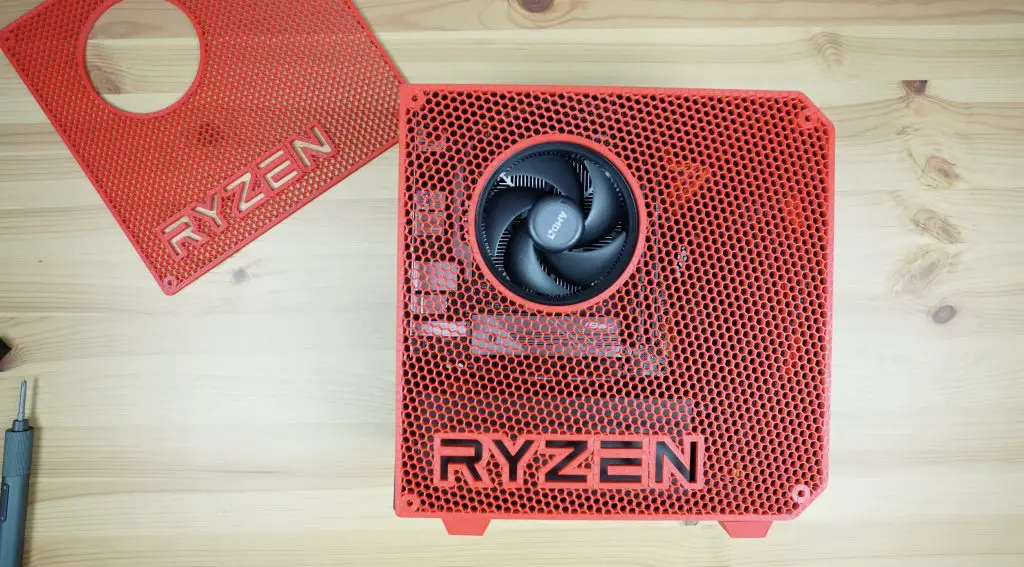
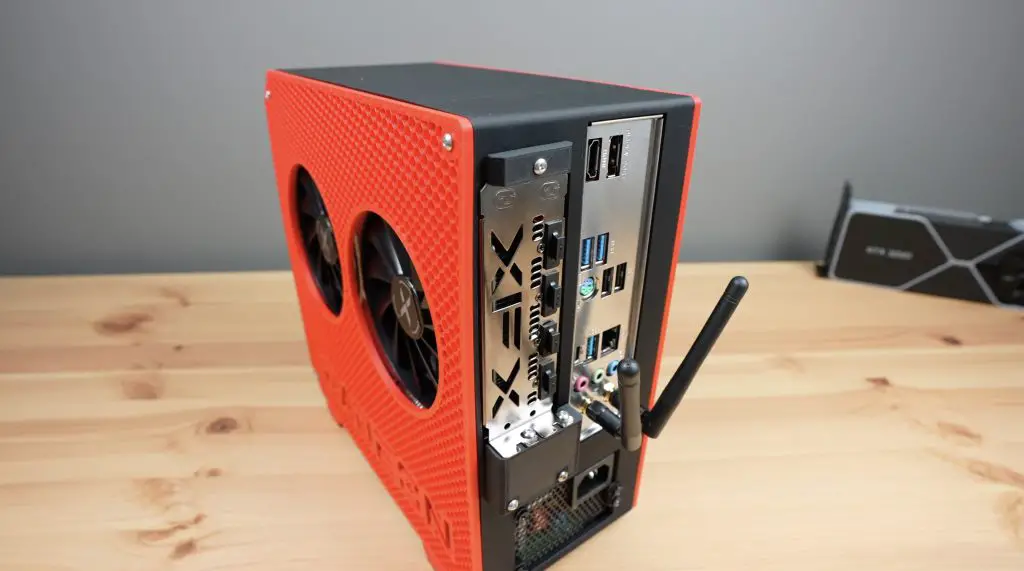
The main body of the mini ITX case will be a single part for rigidity. I’ll then laser-cut an acrylic panel for the middle which will be used to mount the motherboard and GPU. The side panels will each be removable with cutouts for the fans. I’m going to pattern the side panels with a hexagon mesh but I’ll do this with an infill trick in the slicer rather than try to do it in Fusion360. I also want to add some text cutouts to the side panels which I think will look pretty cool once the hexagon mesh is in place.
Halfway through the design I’ve used about 5% of the capacity, which is a bit less than I was expecting.
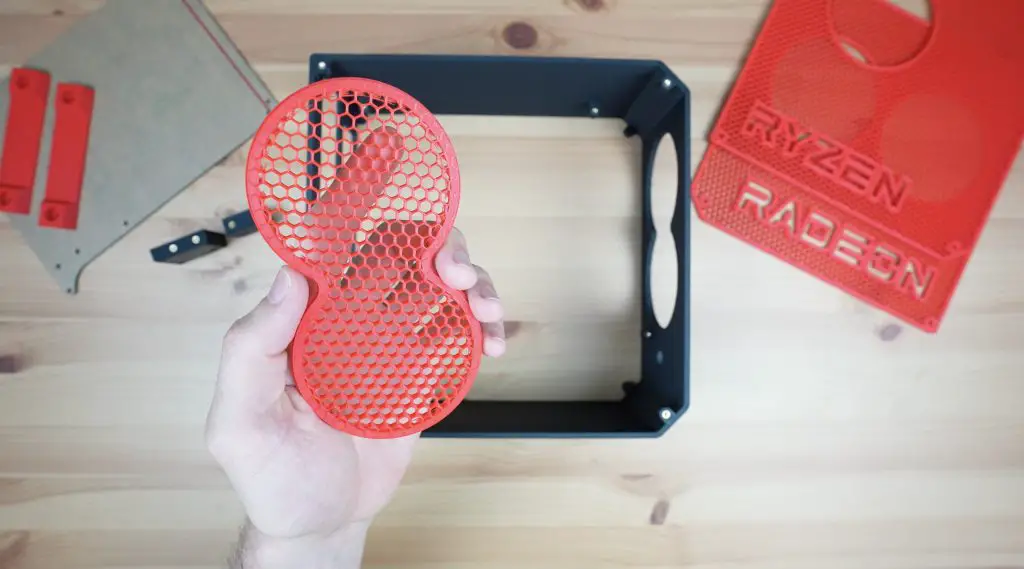
To make the front panel more appealing, I’ve added an insert that will have the same hexagon mesh pattern as the sides and there’s a cutout for the power button as well.
The back has cutouts for the power supply, motherboard IO shield and the GPU. The GPU mounting arrangement is a little bit unconventional as the case already takes up the whole print bed, so there is a small bracket that will need to be screwed onto the back of the case during assembly. I’ve also added some legs that screw onto the underside of the case.
And that’s the mini ITX computer design complete. We’ve used 9% of the total charge, which is about 184Wh. That leaves quite a lot for printing and laser cutting but as with most projects, there is a strong possibility that I’ll need to come back and make tweaks to the model. I may even have to reprint parts of it at a later stage.
Slicing The Mini ITX Case For 3D Printing
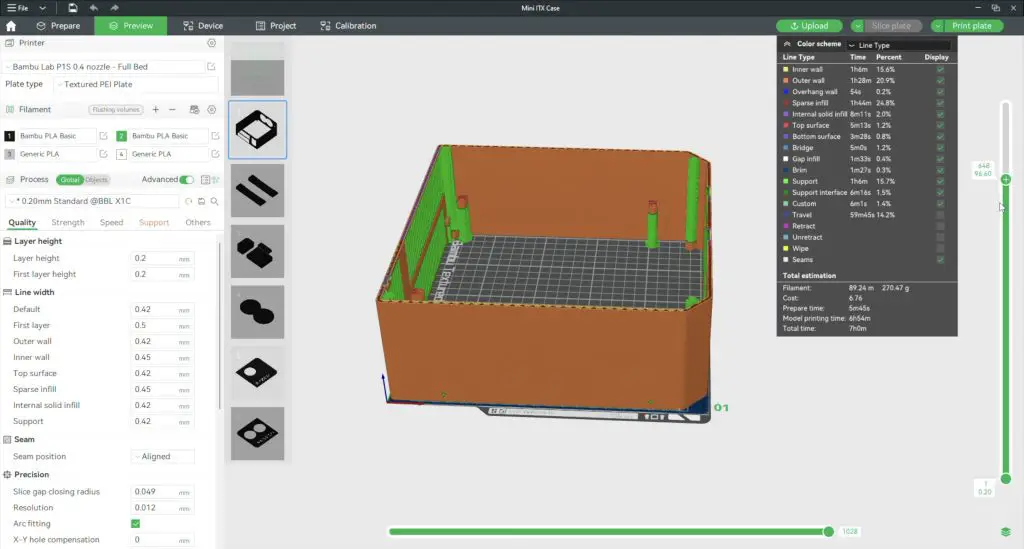
With the design done, we need to export the model files for the components and then open them up in the slicer software. I’m using Bambu slicer and I’m going to use black PLA for the body of the case and red PLA for the sides, legs and front accent.
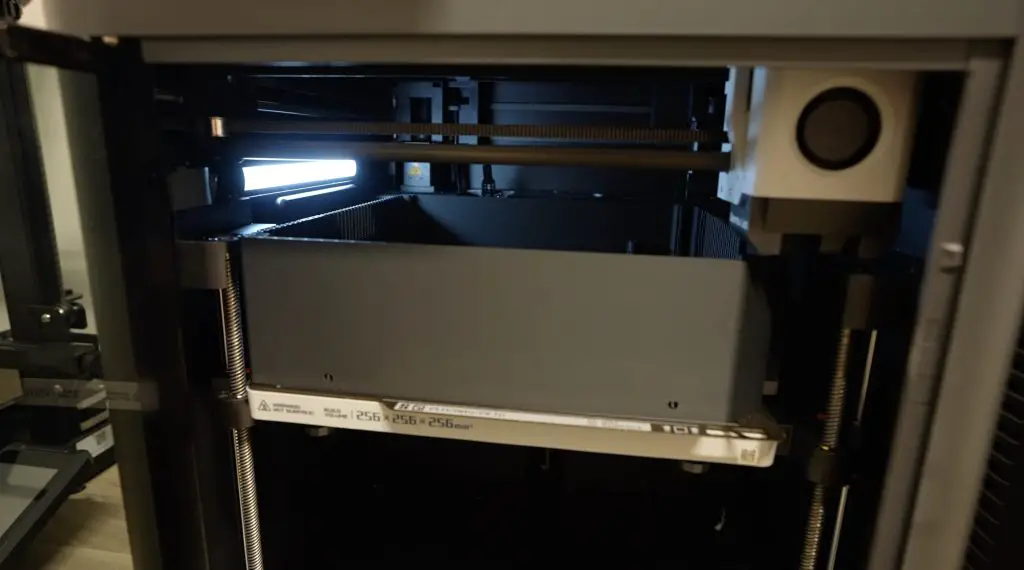
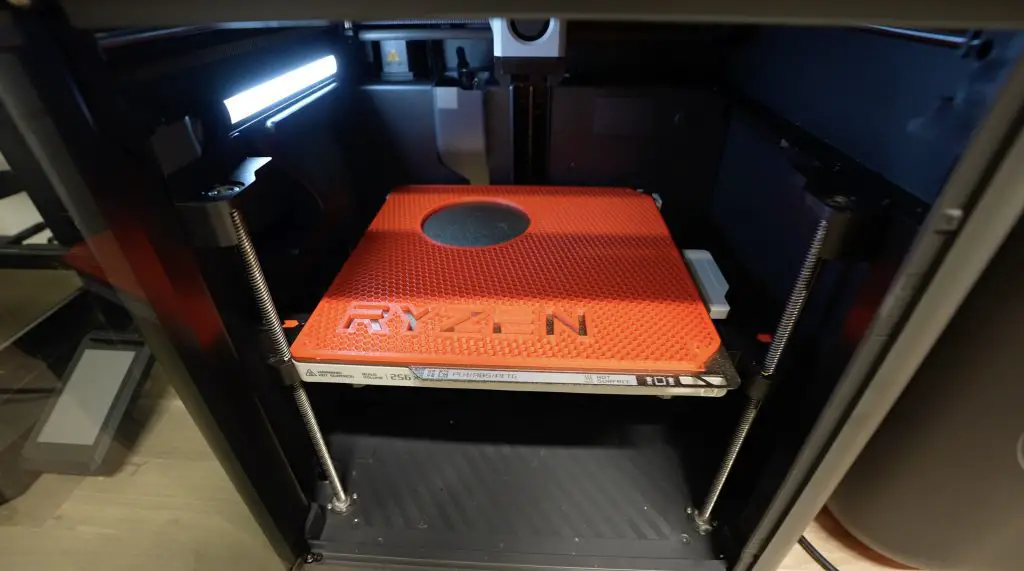
As I mentioned before, the case and side panels only just fit onto my print bed. On the Bambulab P1S, we need to make some modifications to the G-code and use a 3D printed adaptor to block off the cutting arm to be able to use the full bed.
With all of the slicing done, we’ve now got 86% of the capacity available for printing and laser cutting, so let’s get started.
Making Up The Case Components
My P1S 3D printer uses a lot of power to warm up – just under 1000W. This will drop down to about 150 to 200W once warm and will remain at this level for the duration of the print.
While the printer is running, I’m going to use the second AC output on the Explorer 2000 to power my laser cutter. We’ll use this to cut out the acrylic internal panel to mount the motherboard and GPU onto. I’m cutting this panel from a piece of 3mm grey tinted acrylic. I’ve included a 3D printable version in the design files if you don’t have a laser cutter but acrylic works well as a backing plate because it’s quite rigid.
The laser uses about 500W, which is added to the 150 to 200W that the 3D printer is already using. The laser is only running for a very short period so it won’t make much difference to the remaining capacity.
With the panel cut, we can move back to finishing off the 3D printing.
After a full day of 3D printing, all of the components are printed out. We’re now down to just 44% capacity. That’s quite a lot left to get through for what we still need to do, but that’s if we don’t have to re-print anything. I hope the parts all fit together properly and that the PC components fit into the case!
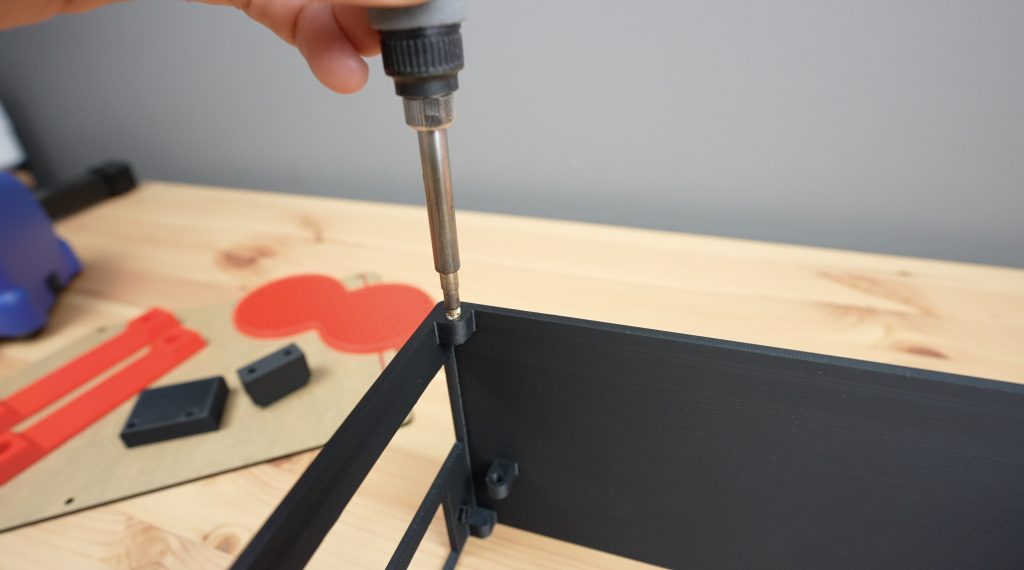
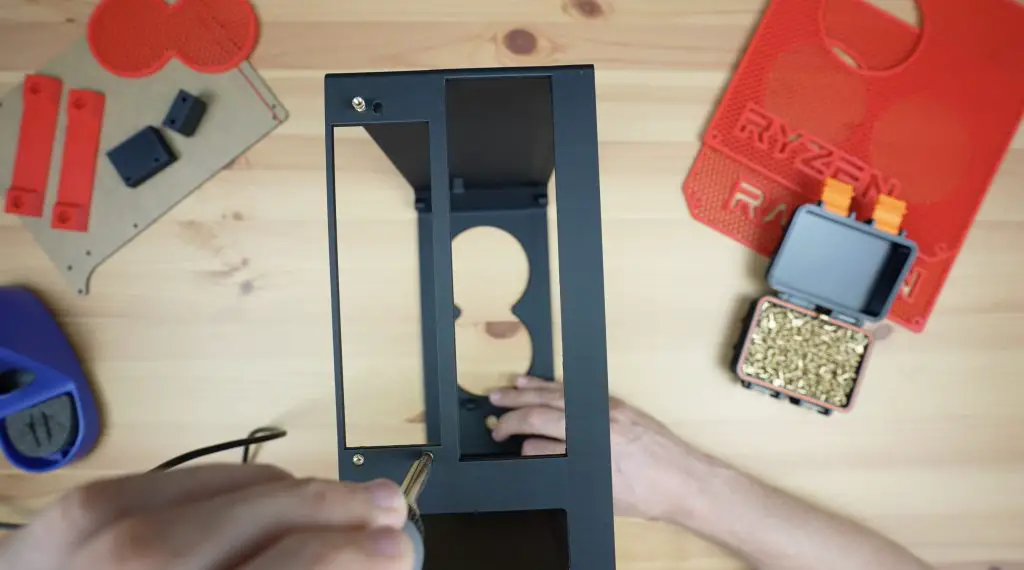
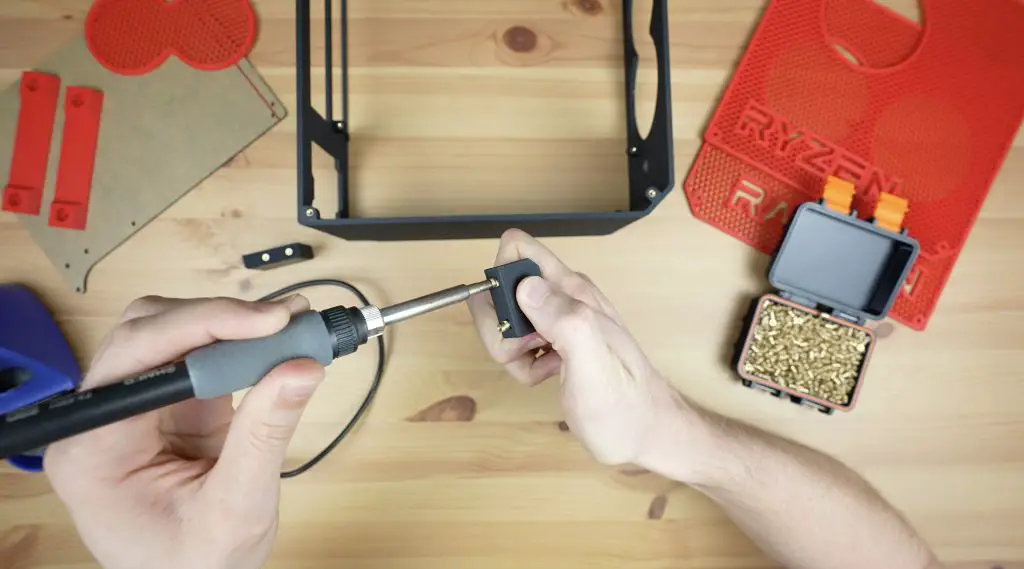
To complete the case components, we need to add a couple of M3 brass inserts into the main body of the case. To melt these into place I’m using a soldering iron with a brass insert tip and this too is running off the Explorer 2000.
We also need to add two to each of these graphics card support brackets.
We need four on each side to mount the side panels onto, four to hold the acrylic panel in the middle and three to hold the graphics card at the back.
Assembling The Mini ITX Computer
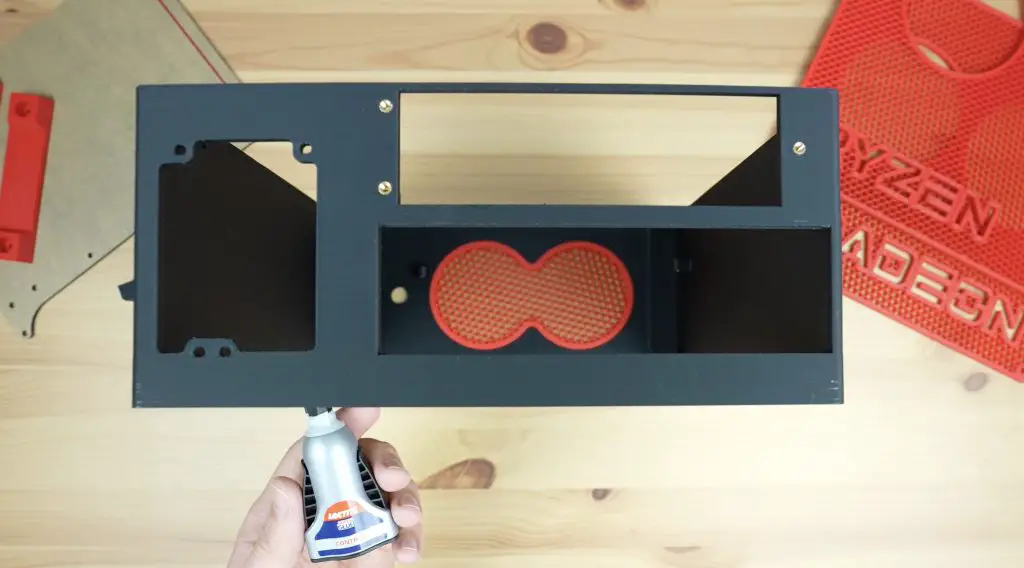
The front grill is press-fitted into place and we can add a couple of drops of superglue to secure it. I didn’t want to put any screws through it as it doesn’t need to be removable.
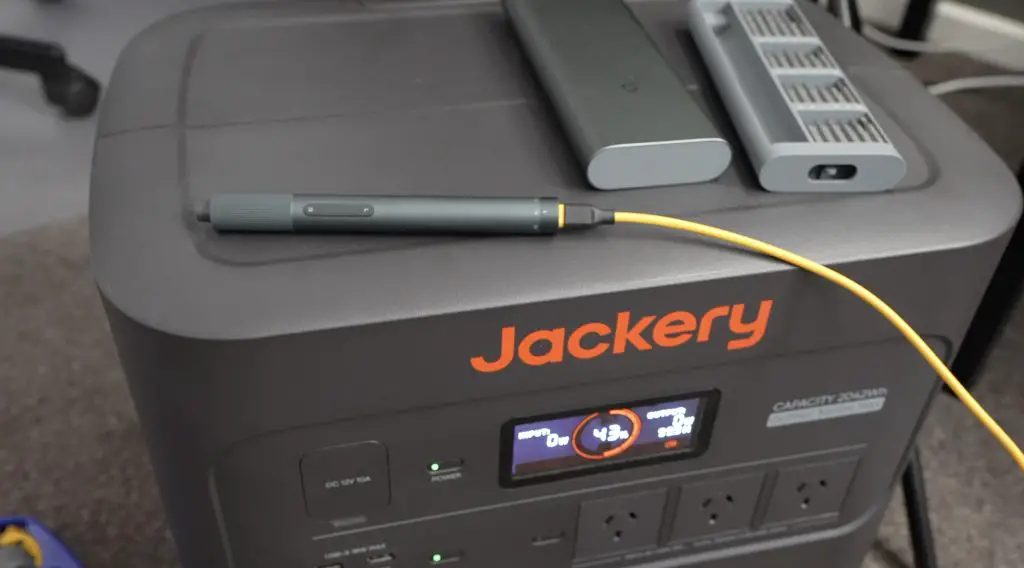
In keeping with the rules, I charged my USB C screwdriver on the power station, so that’s ready to go.
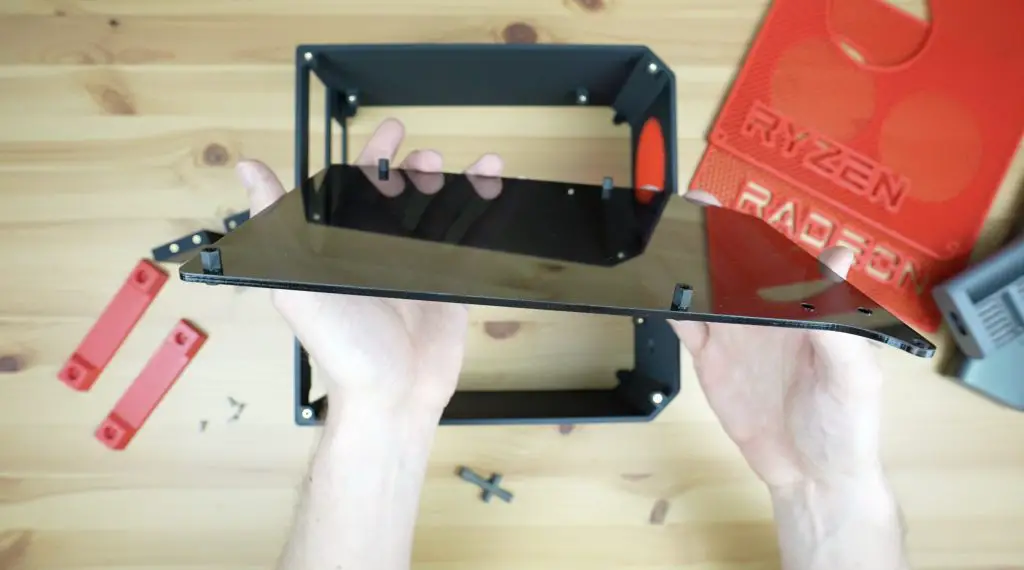
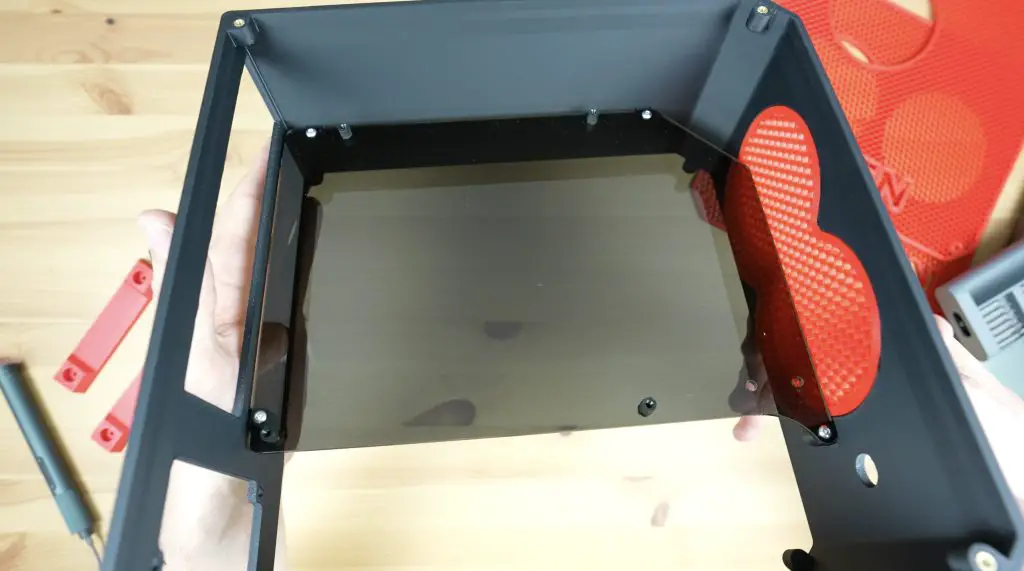
I’m going to add some M3x6mm nylon standoffs to the acrylic centre panel before I install it to mount the motherboard onto. You could use brass standoffs as an alternative, but I like nylon’s black appearance and we won’t have to worry about shorting components if they come loose.
We can then install the acrylic centre panel with some M3x8mm button head screws.
Next, we can assemble and add our motherboard.
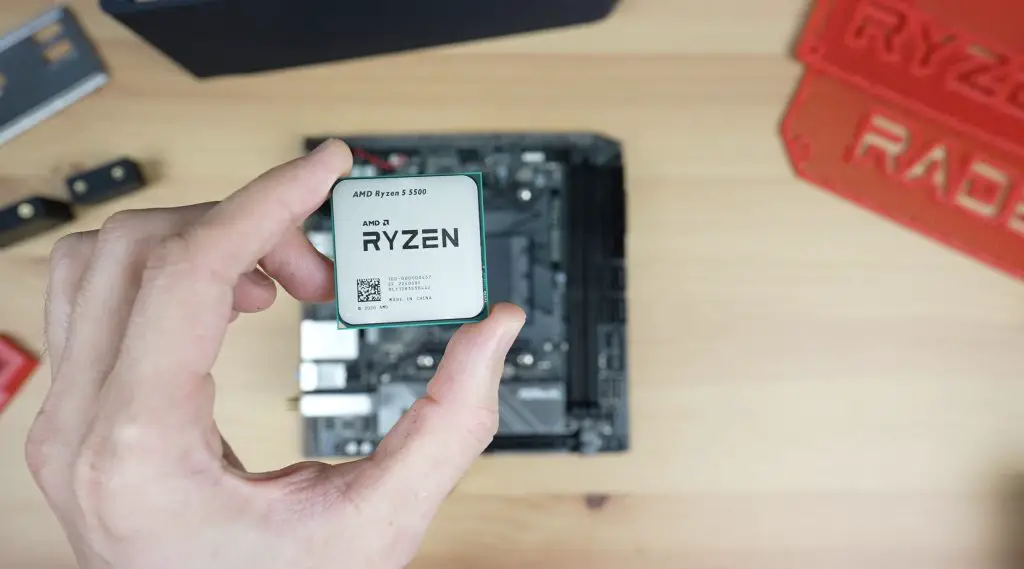
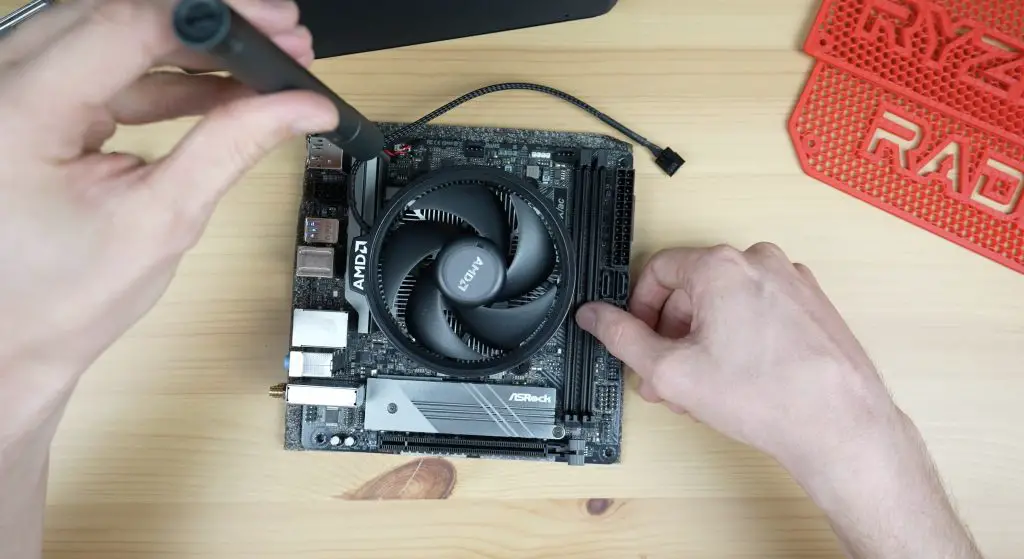
First, let’s install the processor and heatsink. The heatsink comes with thermal compound pre-applied, so we don’t need to add any onto the CPU.
Then we can add our RAM to the two RAM slots, and add our SSD.
We can then push our faceplate into the case cutout and mount the motherboard on the standoffs, securing it with some M3 nylon screws.
Before we add in the power supply, we need to install the legs and add the riser cable for the GPU. The legs are held in place with some M3x12mm button head screws and M3 nuts which go through some rubber feet for vibration isolation. The head of the M3 button head screw sits in the recess in the base of the case and the nut goes on the underside of each foot.
The riser cable plugs into the PCIe slot and then runs under the centre panel and to the GPU side of the case.
The power supply goes in underneath the motherboard and is held in place with four included screws at the back.
Problems…
With the motherboard and power supply in place, the graphics card gets mounted on the opposite side.
At this stage, I found my first issue. I hadn’t considered that the PCIe riser cable has quite a large plug on it and this makes the depth of the card a lot more than what I had allowed for. Even if I remove part of the centre panel, there isn’t even enough room between the card and the motherboard for this size plug.
I ordered a second one with a straight connector instead of a 90-degree one. This improved the depth issue but was then too wide for the space in the case. I removed the plastic shroud around the PCB joints and this allowed just enough room for it to fit into the case. This obviously puts strain on the soldered joints, which is not ideal, but I don’t plan on moving the computer around much so it shouldn’t be an issue.
I’m going to leave it like this in my build as changing the card position would mean having to reprint all of the case components and I’m pretty sure I don’t have enough power left for that. The best solution would be to find a more compact 90-degree riser and allow for a cutout in the centre panel behind the motherboard for some additional clearance.
The card is held in place with a few brackets. The main one at the back is secured with two M3x16mm screws and then the card is screwed onto the bracket with M3x8mm screws. Then the one at the top clamps the card with another M3x16mm screw.
I was going to put this inside support in place with some M3x8mm screws and have the GPU rest on it. But I’m rather going to use these holes to zip-tie the GPU to pull it down into the case.
We can also plug our power supply into it.
It’s a tight fit, the graphics card only just makes it into the case but I like that it’s a nice compact build.
Lastly, let’s add the power button to the front of the case. I’ve pre-soldered leads to it and we can plug them into the motherboard pins.
Now we can plug the power supply connections into the motherboard and close it up.
The side panels are also both held in place with some M3 button head screws. The graphics card side aligns really well with the fans but it looks like my guess on the motherboard side was a little off.
I’m going to tweak that by a few millimetres and get it printed again with my remaining charge, I’ve got 39% left and these panels used less than 10% each to print so I think that’s worthwhile.
The new panel is now made up and we’ve only used an additional 7% so I’m really happy with that. It looks like it lines up perfectly this time.
Assembly Of The Mini ITX PC Is Complete
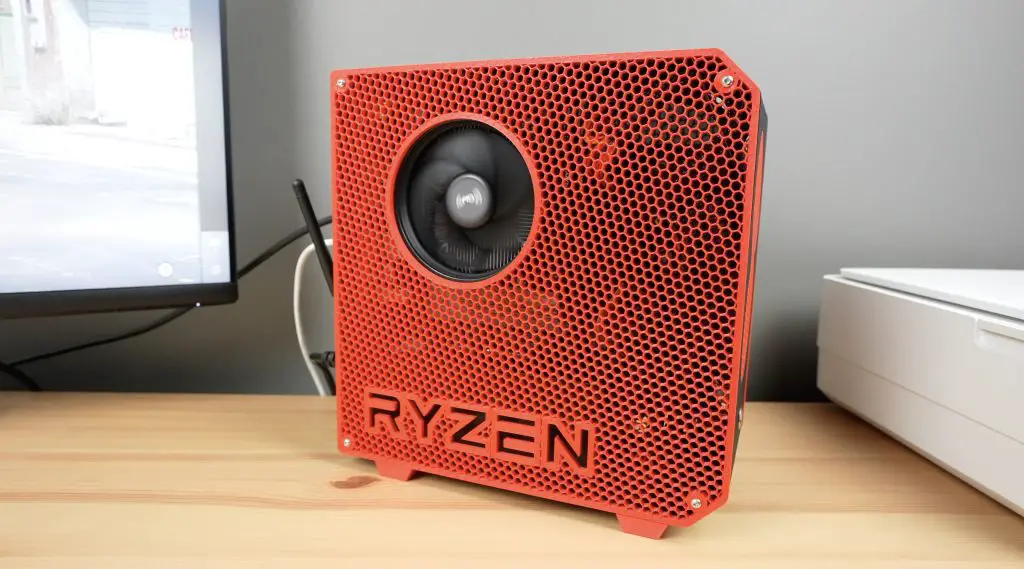
With the side panels in place, the assembly of the mini ITX computer is now complete and I think it has come out looking great!
Setting Up & Testing The Computer
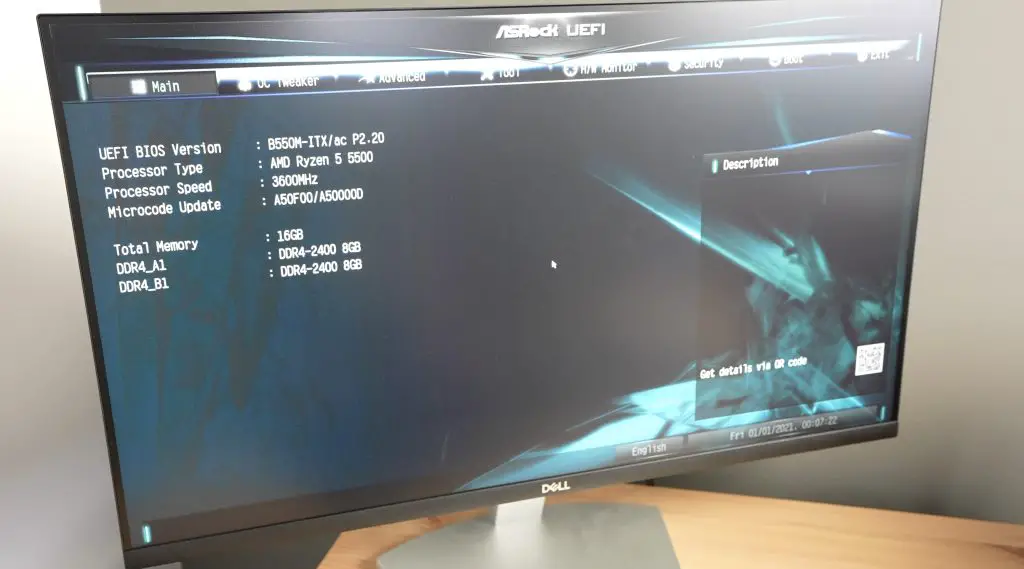
Now we need to set up the BIOS and install windows. I’ll do that with the computer running off the Explorer 2000 as well. In the BIOS, we can see we’ve got our Ryzen 5 processor detected as well as our two 8GB sticks of RAM and we can see our 1TB SSD.
We’ve got 32% remaining and I’m drawing about 50W with the computer and monitor running off it but it is essentially at idle without an OS running.
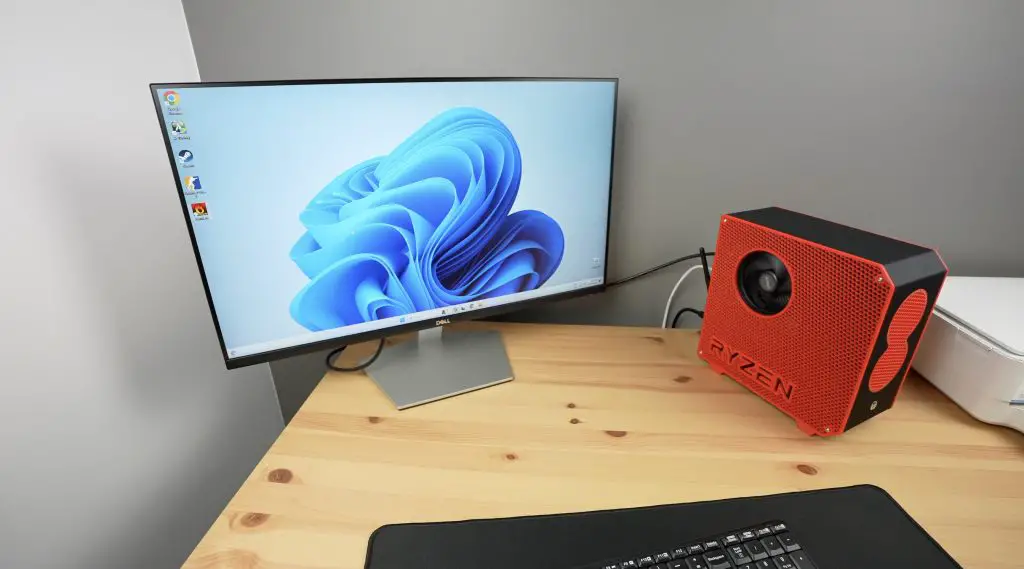
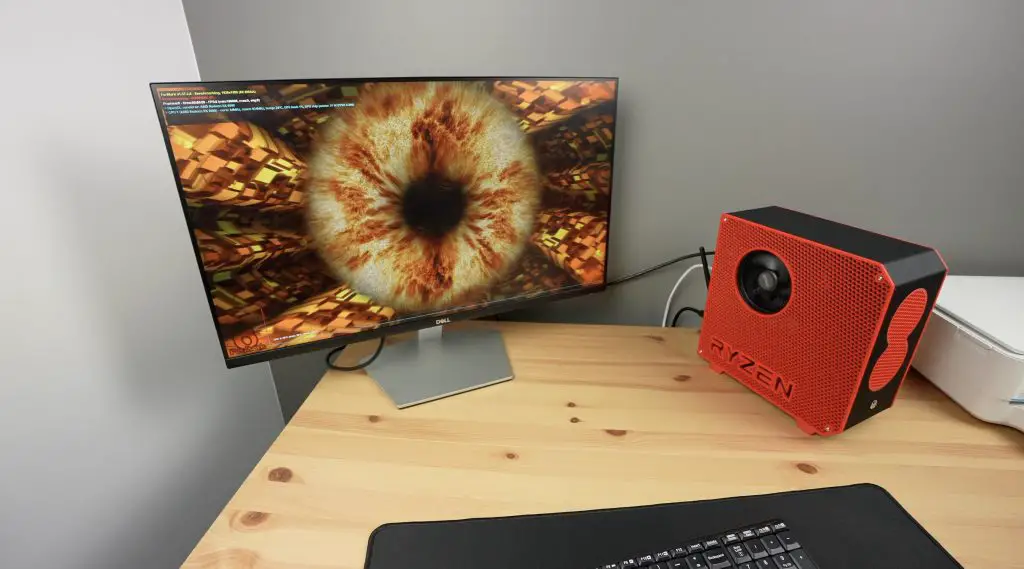
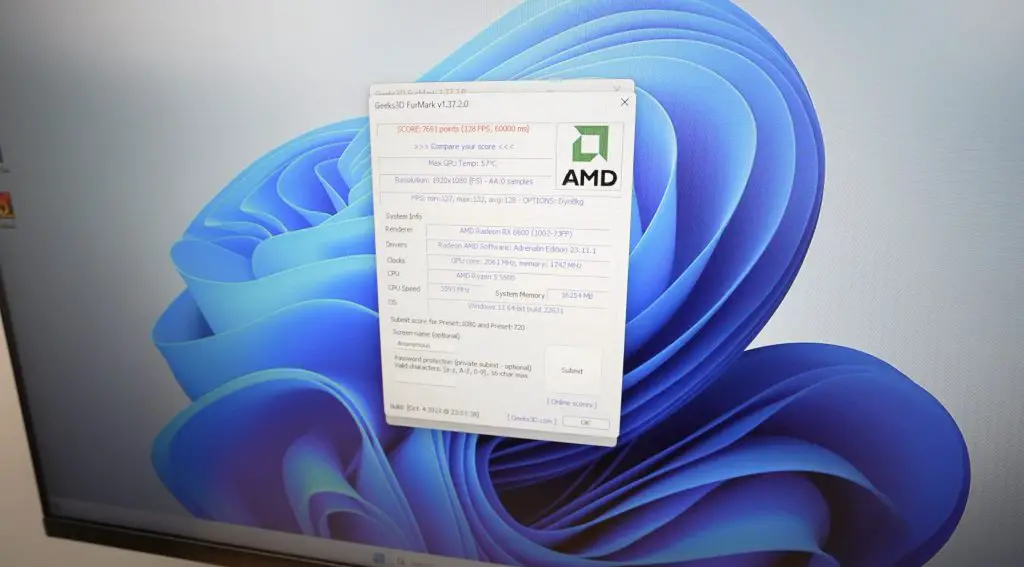
With Windows installed on the mini ITX computer, let’s try running Furmark at 1080P.
I get a score of 7691, with a maximum GPU temperature of 57 degrees and a total system power draw of about 160-170W. So there’s definitely a lot of room for overclocking. I ran the test two more times and still got an average score of around 7700 and the GPU temperature increased to a maximum of 64 degrees.
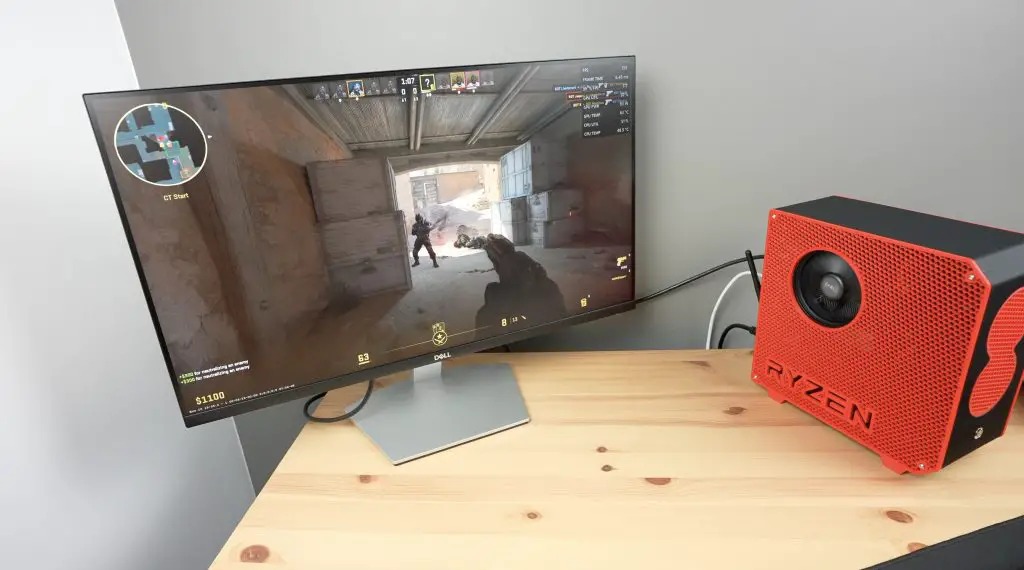
Running Counterstrike 2 at 1080P with all settings on Very High, we get between 150 and 200 fps. This is pretty good for this size computer. The power draw is also a little under 180W.
Final Thoughts On The Project & Jackery Solar Generator 2000 Plus
So I managed to design, print, assemble and configure a mini ITX computer using a single charge of the Solar Generator 2000 Plus. I even had 17% to spare, and better yet, the charge was free using solar power.
Check out Jackery’s web store if you’re interested in getting your own Solar Generator 2000 Plus kit. I think they’re really useful to have around the house or to take on day trips or camping trips for portable power. It’s quiet and clean, and power is essentially free with the solar panel.
Let me know what you think of the computer build in the comments section below. Let me know if you have a go at printing and building your own mini ITX PC as well. I’ve tried to keep the design generic enough that you’ll be able to use different components if you’d like to. I’ve included solid side panels as an option if you use a different cooler or GPU so that you don’t have the fan cutouts in the wrong places.
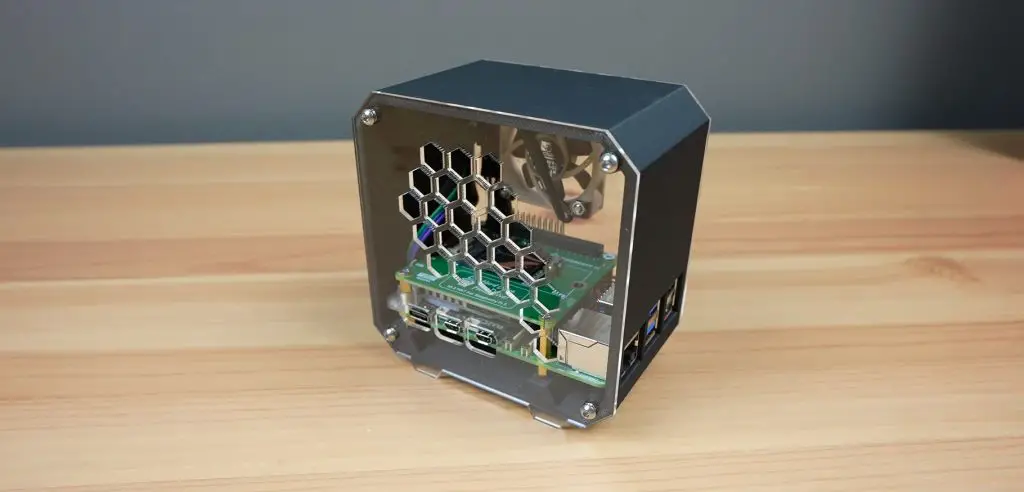
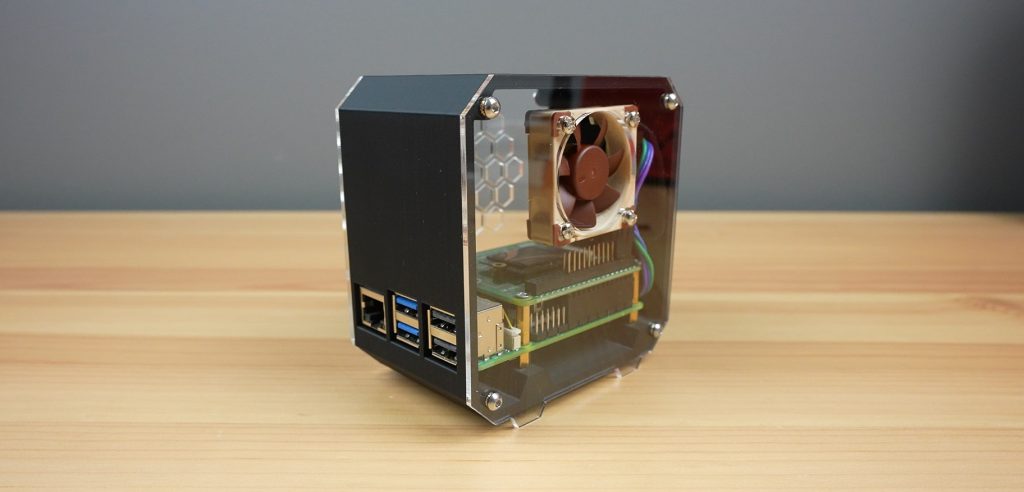
I’ve adapted the case with a wrap-around window that I made last year to fit the new Raspberry Pi 5. This new design includes modifications to the port cutouts since the USB and Ethernet ports have been swapped around and they’ve removed the audio jack. A welcome feature is the addition of a power/shutdown button at the back of the board and I’ve added an adaptor to make it possible to press this button from the side of the case. The adaptor also runs past the status LED and partially lights up, making it easier to see.
Ensure that you get the Ice Tower cooler for the Raspberry Pi 5, the cooler for the Pi 4 will not fit.
How To Assemble The Pi 5 Window Case
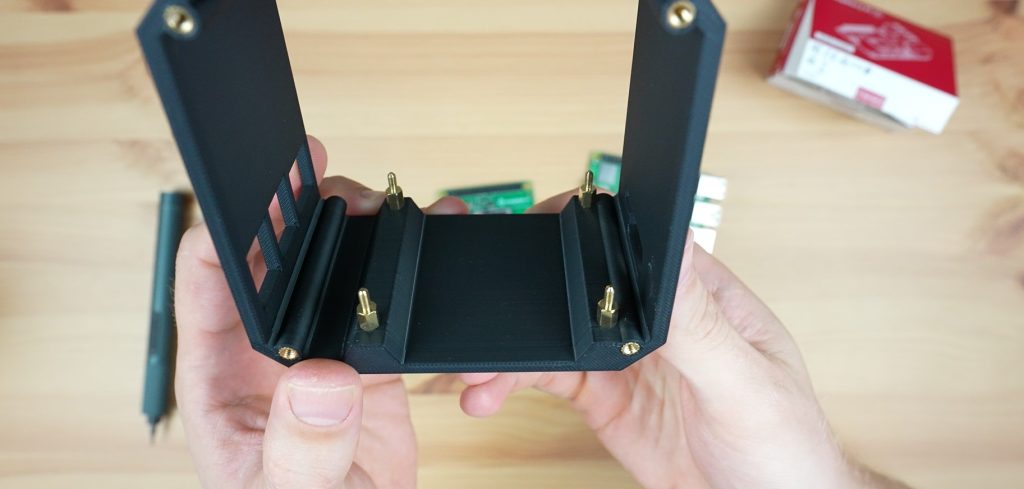
Let’s start by installing the M2.5x6mm brass standoffs to mount the Pi onto. We’re going to use the four M2.5x6mm standoffs that are supplied with the kit. Don’t use the ones with the Ice Tower assembly as these are often M2.5x7mm standoffs which are too high for the port cutouts on the front and sides. Secure each standoff with an M2.5 nut on the bottom.
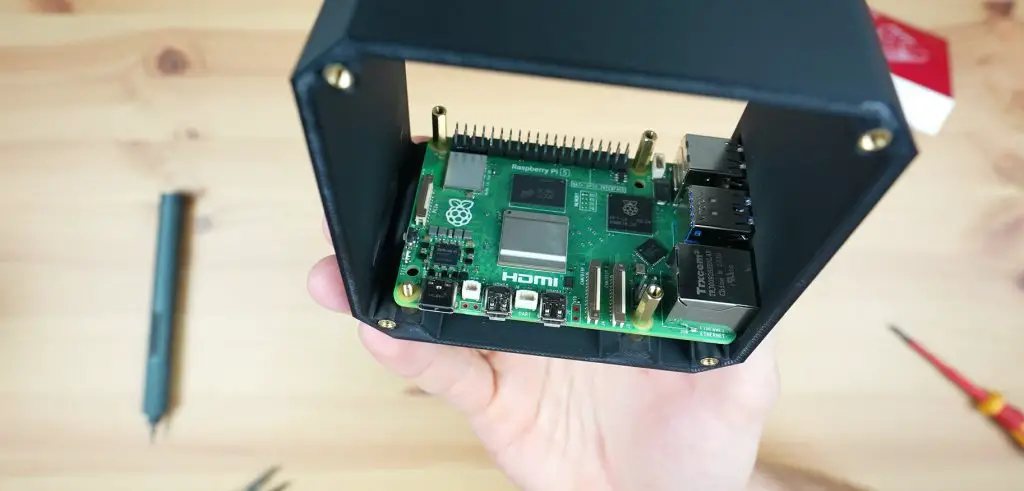
Next, we can install our Raspberry Pi 5 on the standoffs. This is held in place with three M2.5x7mm standoffs that come with the Ice Tower cooler kit. We do not need to install a standoff on the mount closest to the power port as this is going to be used for the button adaptor. Leave this hole empty for now.
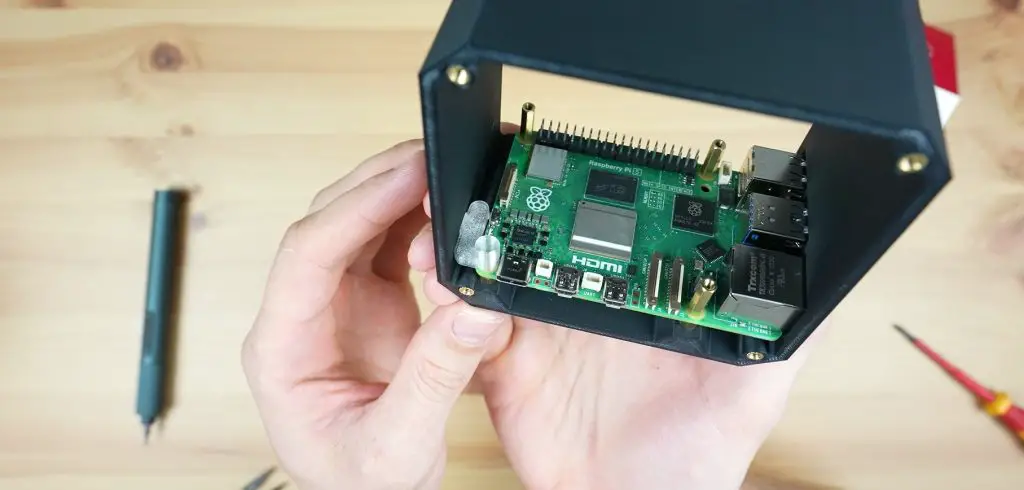
In place of the fourth standoff, we can install the button adaptor and the spacer. I’ve coloured the spacer green in the image below so that it is easier to see, yours will match the colour of your case. The hole in the adaptor should be positioned over the hole in the Pi and the brass standoff below with the smaller arm protruding through the hole in the side of the case. The spacer then goes above the adaptor to make up the additional height required for the Ice Tower cooler.
We can then install the Ice Tower cooler on the Raspberry Pi 5. Before we do so, remove the fan from the cooler by removing the four M2 screws in the corners. We’re going to be mounting this fan onto the side panel of the case.
Remember to add the thermal pad to the CPU before installing the cooler on the Pi 5.
Secure the Ice Tower with three M2.5x6mm screws that are supplied with the case kit, one into each of the brass standoffs. Use the M2.5x12mm screw from the case kit to hold the fourth cooler arm, spacer and button adaptor in place. The spacer goes between the button adaptor and the leg of the Ice Tower cooler.
Don’t over-tighten this screw, the button adaptor needs to be able to move a little to press and release the button.
Mounting the fan onto the side panel is our next step. Using the same approach that I’ve utilized in my previous case designs, we won’t have the screws extend entirely through to the rear of the fan. Instead, we’ll press the M3 nuts into the front of the fan, and the screws will secure them in position against the side panel.
It is easiest to press these into place by placing the nuts onto a flat surface and then pushing each pocket in the corner of the fan down onto the nut. The nut is in position when it is flush with the face of the fan.
The fan can then be mounted onto the side panel using either the M3 screws that held the fan onto the Ice Tower cooler or the M3x8mm button head screws supplied with the kit. The ones supplied with the kit will give the case a more uniform appearance as they match the side panel screws.
Position the fan cable on the bottom left when looking at the fan as shown below. This allows it to be as close to the fan port on the Pi 5 as possible.
Before installing the side panel, now is a good time to flash your operating system to your microSD card and insert it into the Pi. Once the side panel is installed, you’ll no longer have access to this slot.
Slide the side panel into place in the retaining lip along the two vertical edges. Plug the fan into the fan port on the Pi 5 while you do so.
We can then put the top cover on and secure it with three M3x8mm button head screws.
And that’s the case complete. You can now plug in your peripherals and press the power button to boot it up.
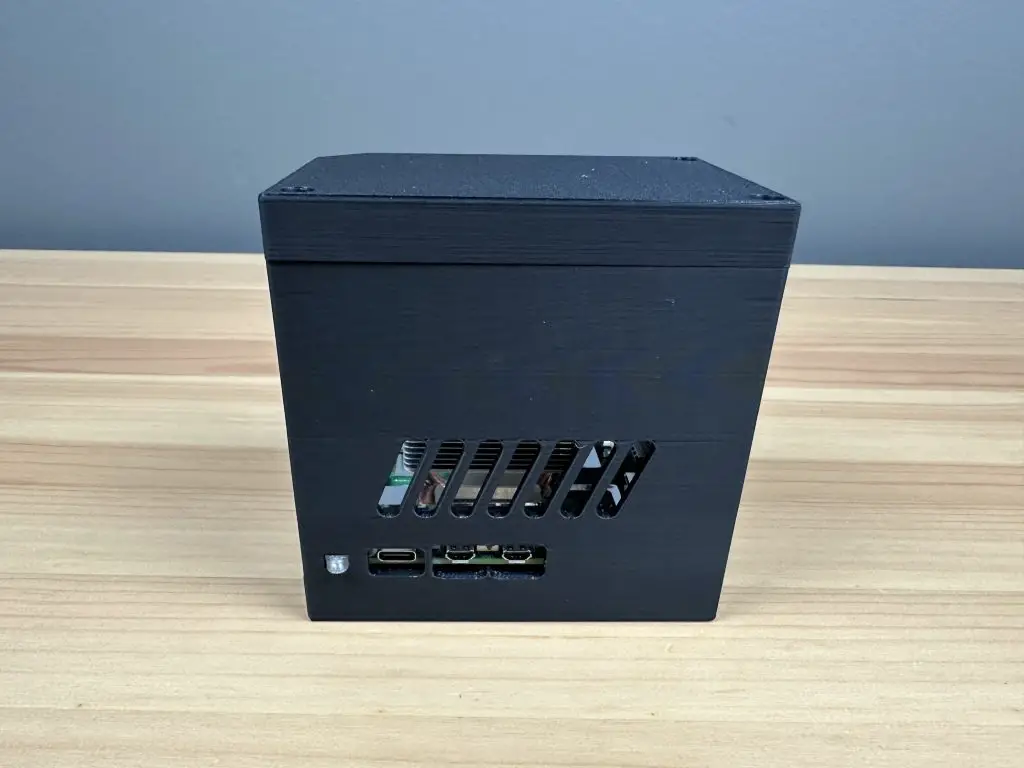
Today we’re going to be assembling a 3D-printed case for the new Raspberry Pi 5. This case is a redesign of my popular case for a Raspberry Pi 4, with adaptations to accommodate the new port layout and the power/shutdown button at the back. Let me know what you think of it in the comments section below.
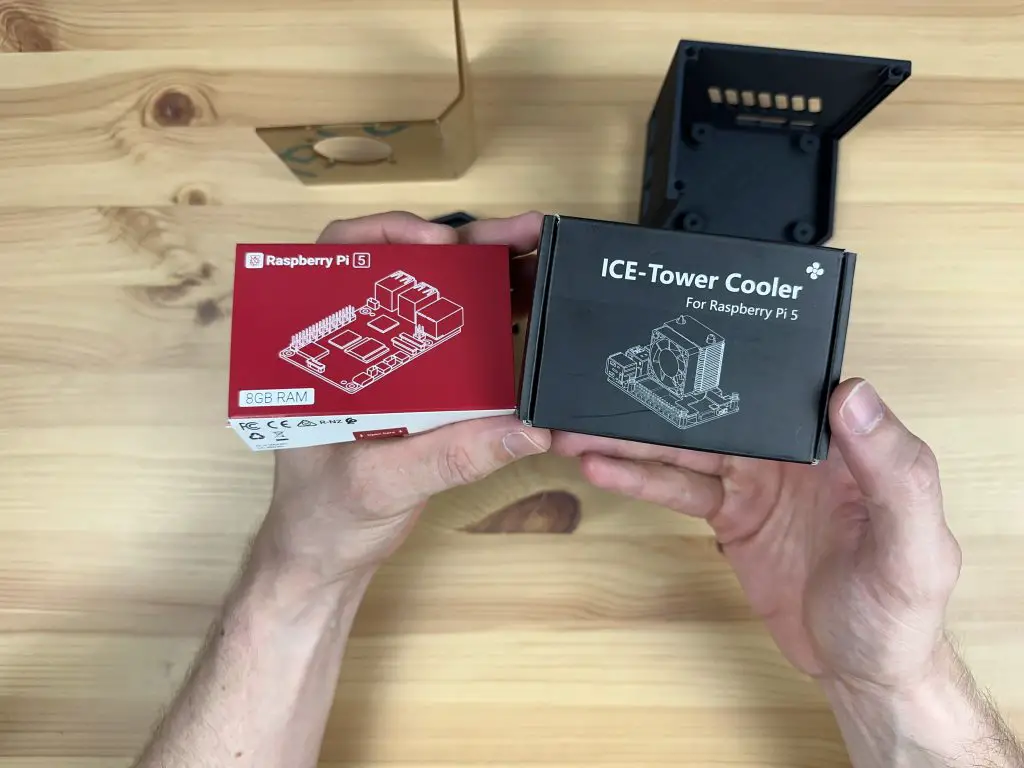
Ensure that you get the Ice Tower cooler for the Raspberry Pi 5, the cooler for the Pi 4 will not fit.
Assembling The Raspberry Pi 5 Desktop Case
To start we need to install the front ventilation grill. This is simply pressed into place from the inside of the case with the smaller face facing outward. Because of the orientation of the print, it is best to put the right-hand edge (when looking at the front of the case) into position first and then push the left-hand edge into position until it snaps into place.
The press fit should keep the panel in place in most instances but if you’d like to make it a bit more secure, you can add a few drops of superglue or CA glue to the inside edge.
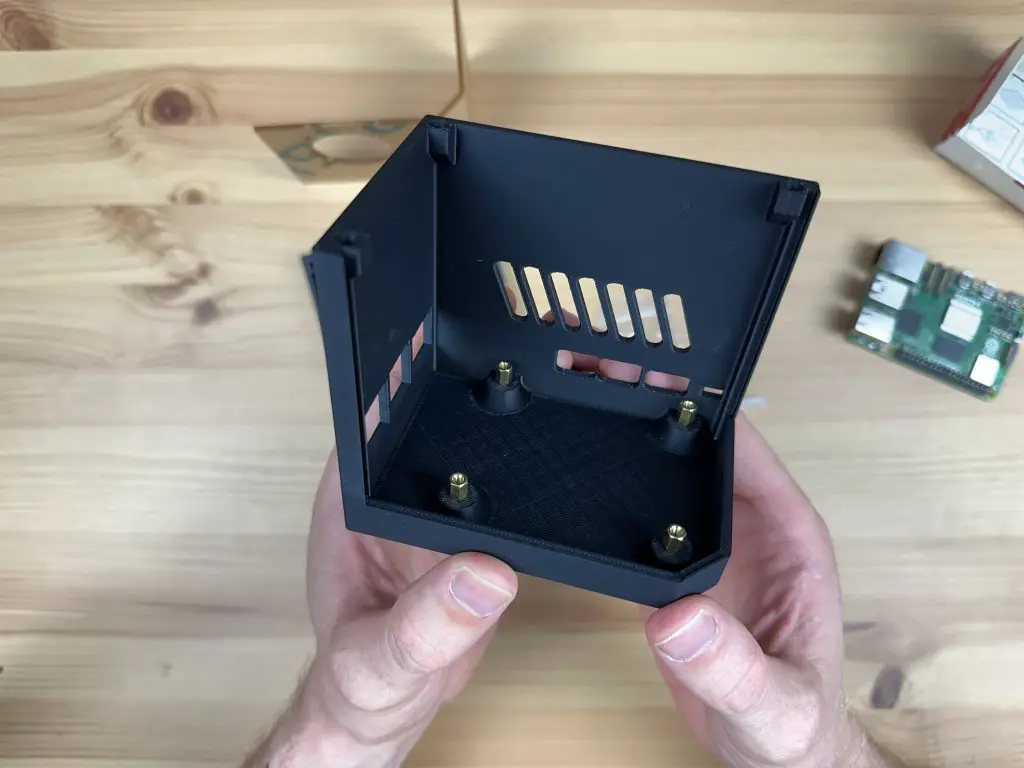
Next, let’s install the brass standoffs to mount the Pi onto. We’re going to use the four M2.5x6mm standoffs that are supplied with the kit. Don’t use the ones with the Ice Tower assembly as these are often M2.5x7mm standoffs which are too high for the port cutouts on the front and sides.
Secure each standoff with an M2.5 nut on the bottom. It can be quite fiddly to hold these in place while tightening them if you don’t have small fingers, a pair of needle nose pliers help with this step.
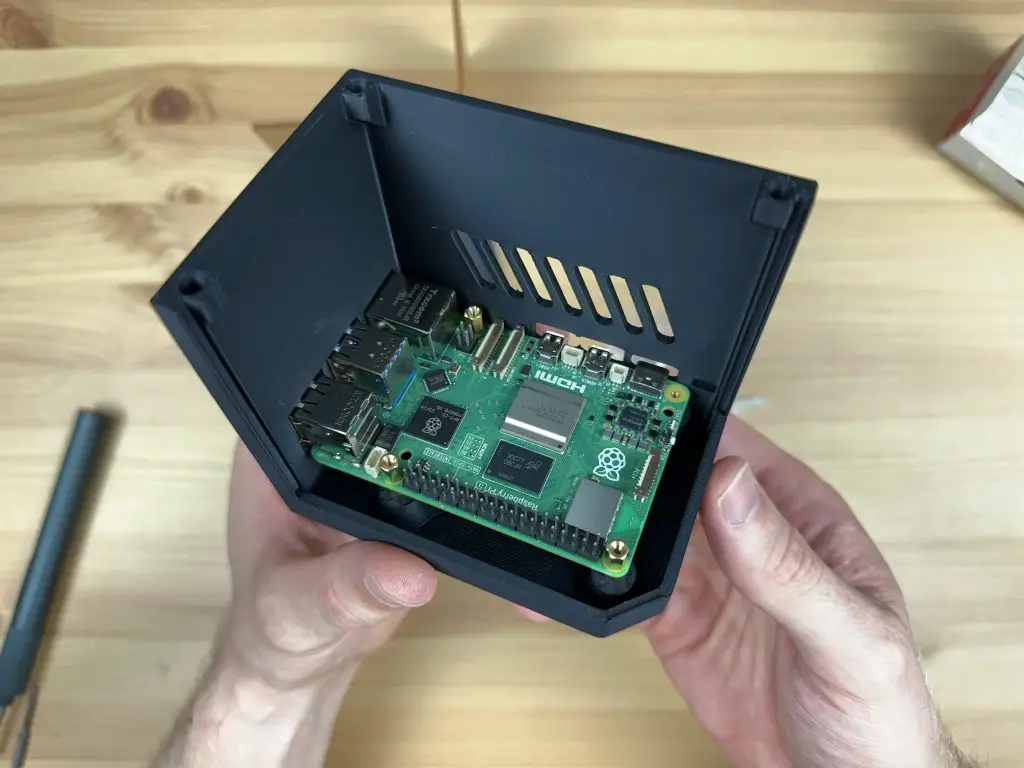
Now we can install our Raspberry Pi 5 on the standoffs. This is held in place with three M2.5x7mm standoffs that come with the Ice Tower cooler kit. We do not need to install a standoff on the mount closest to the power port as this is going to be used for the button adaptor. Leave this hole empty for now.
Next, we can position the button adaptor over the remaining mount. Slide the button adaptor into position through the slot at the back of the case in the orientation shown below. It should go in easily – do not force it passed the LED or button as you may damage them. If you feel resistance, rather try to remove and reposition it until it slides into place without interfering with the surrounding components.
Now we can install our Ice Tower cooler. Before we install it, we need to remove the fan by removing the four M3 screws in the corners. We’re going to be installing the fan on the side panel.
Remember to add the thermal pad to the CPU before putting the cooler into place. Secure the cooler with three M2.5x6mm screws that are supplied with the cooler, one into each of the brass standoffs. Again leave the button adaptor unsecured for this step.
Now use the M2.5x12mm button head screw that was supplied with the case kit to hold the button adaptor in place. You’ll need to add the small coloured spacer between the button adaptor and the leg of the Ice Tower cooler as well.
Do not overtighten the screw as you need the button adaptor to be able to move to push and release the button. You should be able to feel the button press and release easily through the button adaptor.
Next, we can mount the fan onto the side panel. We’re going to use the same method that I used on my other case designs where the screws do not go all the way through to the back of the fan. We instead press the M3 nuts into the front of the fan and the screws then hold these in place against the side panel.
It is easiest to press these into place by placing the nuts onto a flat surface and then pushing each pocket in the corner of the fan down onto the nut. The nut is in position when it is flush with the face of the fan.
The fan can then be mounted onto the side panel using either the M3 screws that held the fan onto the Ice Tower cooler or the M3x8mm button head screws supplied with the kit. The ones supplied with the kit will give the case a more uniform appearance as they match the side panel screws.
Position the fan cable on the bottom left when looking at the fan as shown below. This allows it to be as close to the fan port on the Pi 5 as possible.
Next secure the two side panels on the body of the case with 8 M3x8mm screws, four for each side panel. Remember to plug the fan into the fan port on the Pi 5 before closing up the side panel.
And that’s the case complete. You can now flash your operating system to your microSD card and insert it into the Pi through the slot at the back.
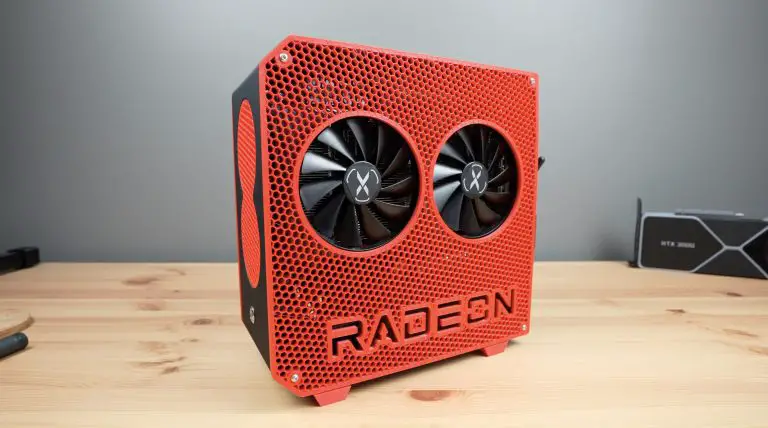
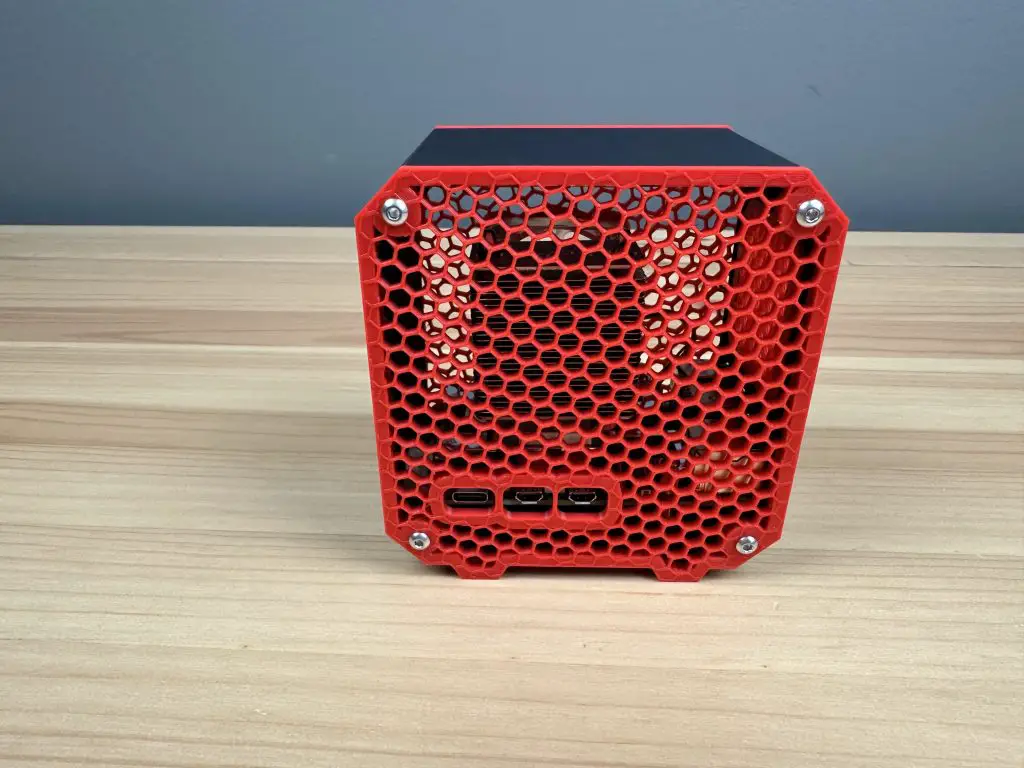
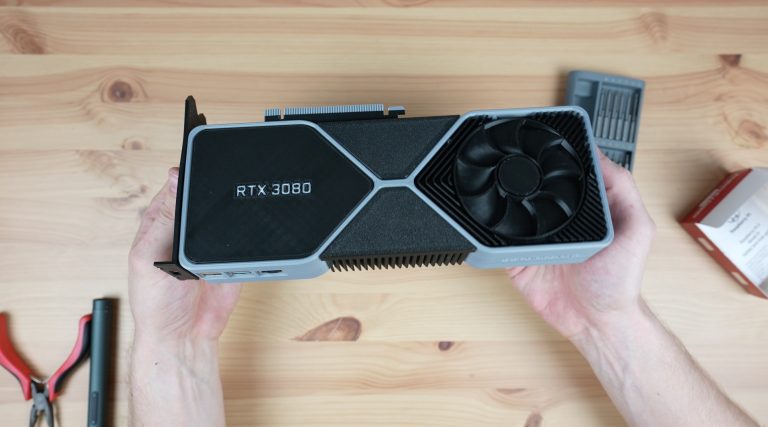
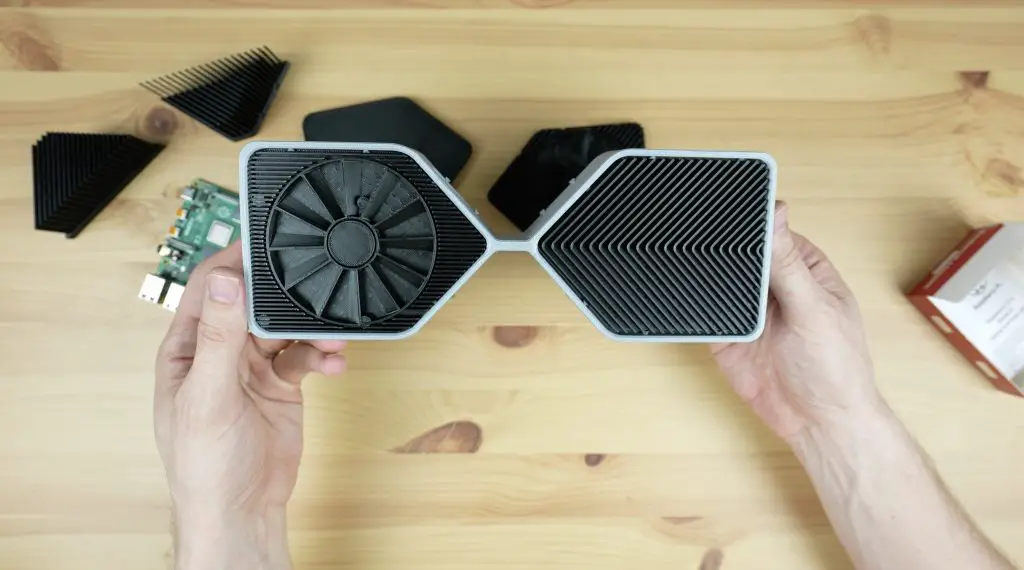
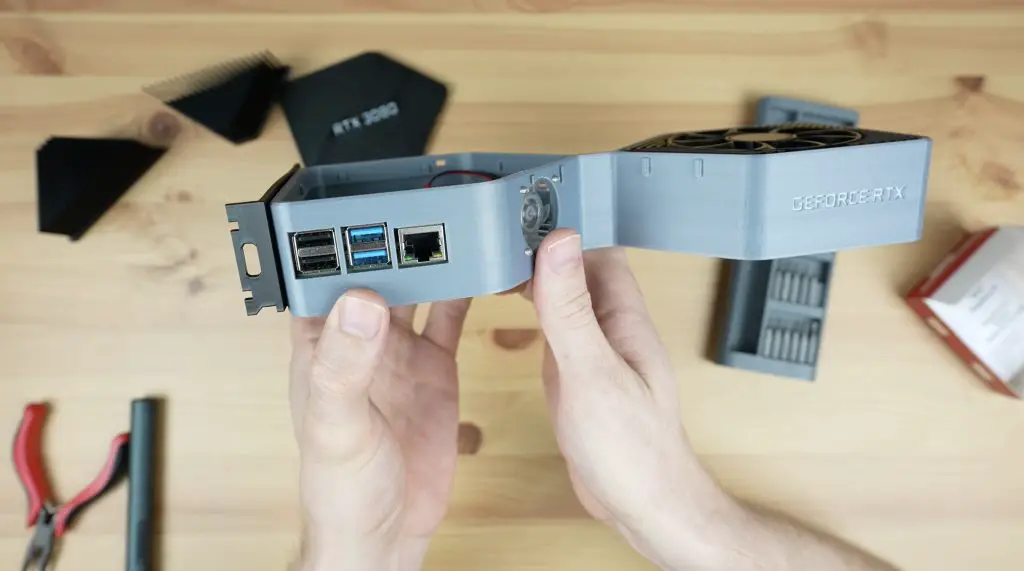
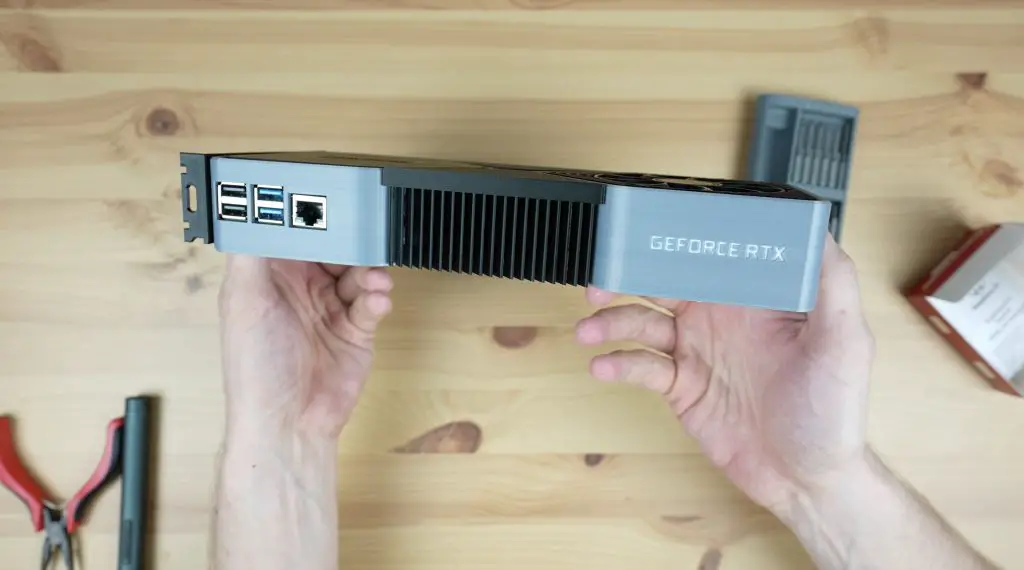
I think we can all agree that the size of modern graphics cards has gotten a little bit out of control. It’s not uncommon for the graphics card to be the deciding factor in how big your computer case needs to be. So that got me thinking, what if instead of putting a graphics card into a computer, I rather put a computer into a graphics card? Well at least into a graphics card enclosure.
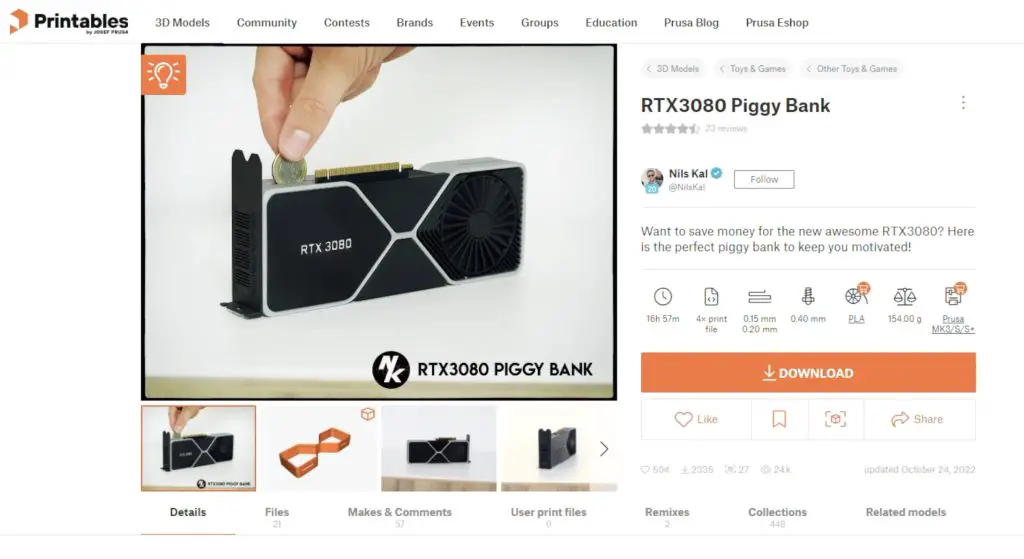
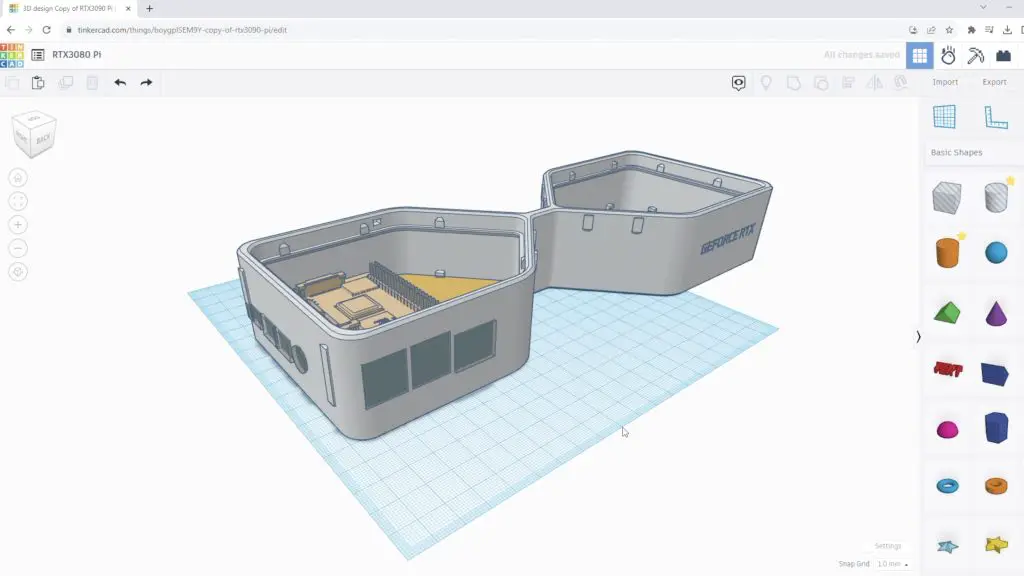
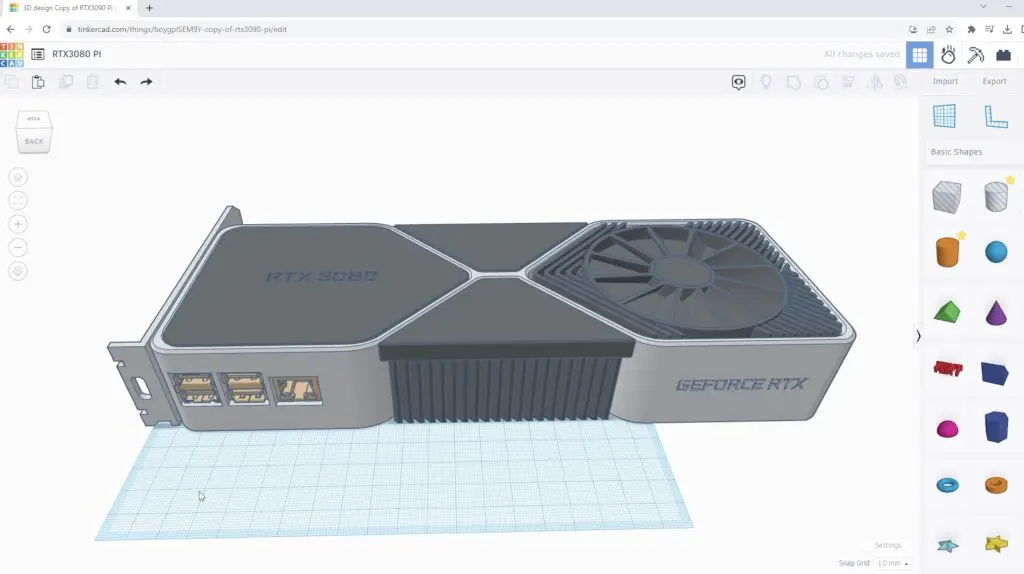
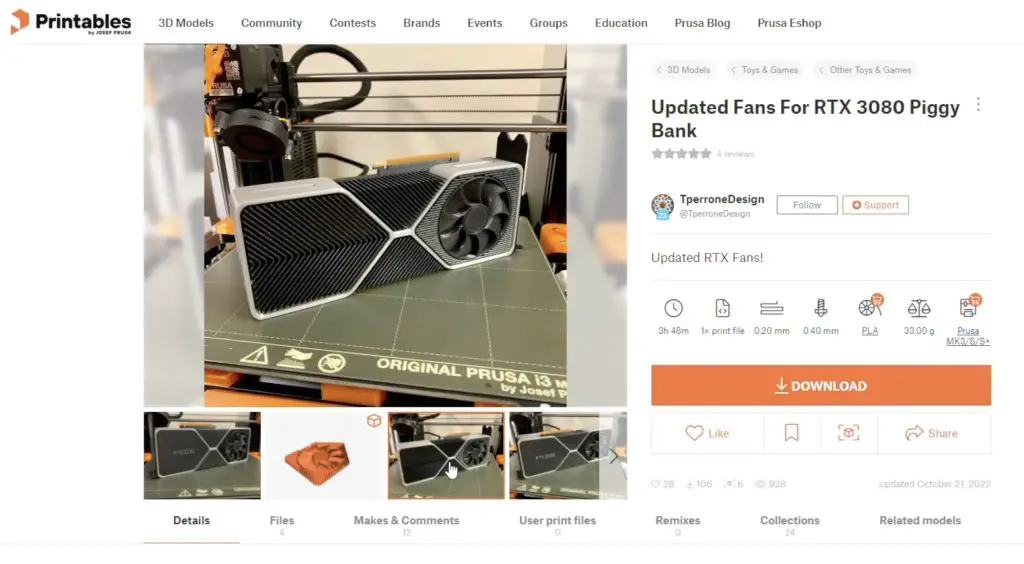
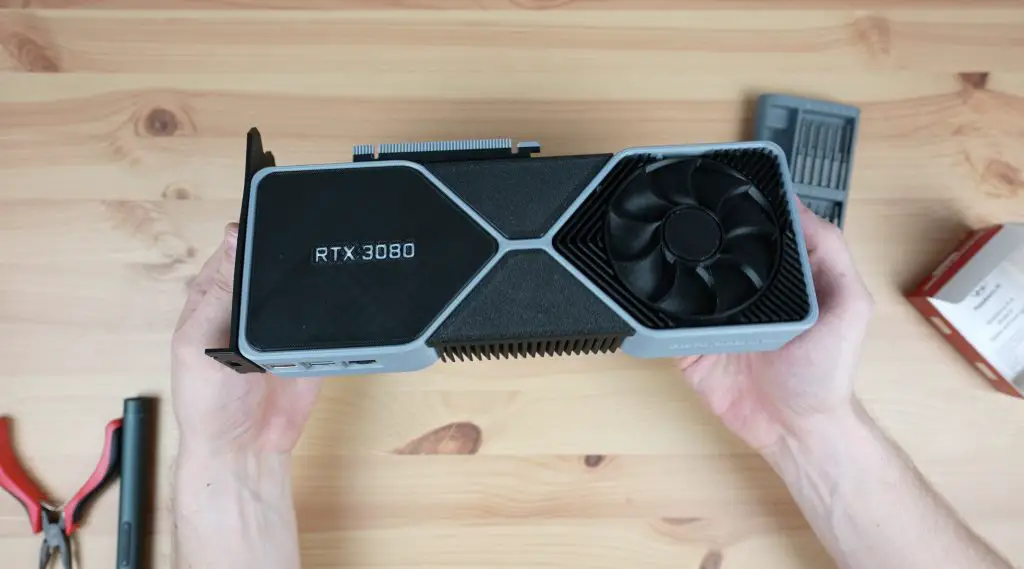
I kind of forgot about this idea for a few months and then the other day while I was browsing Printables, I found this cool money box that is designed to look like an RTX 3080.
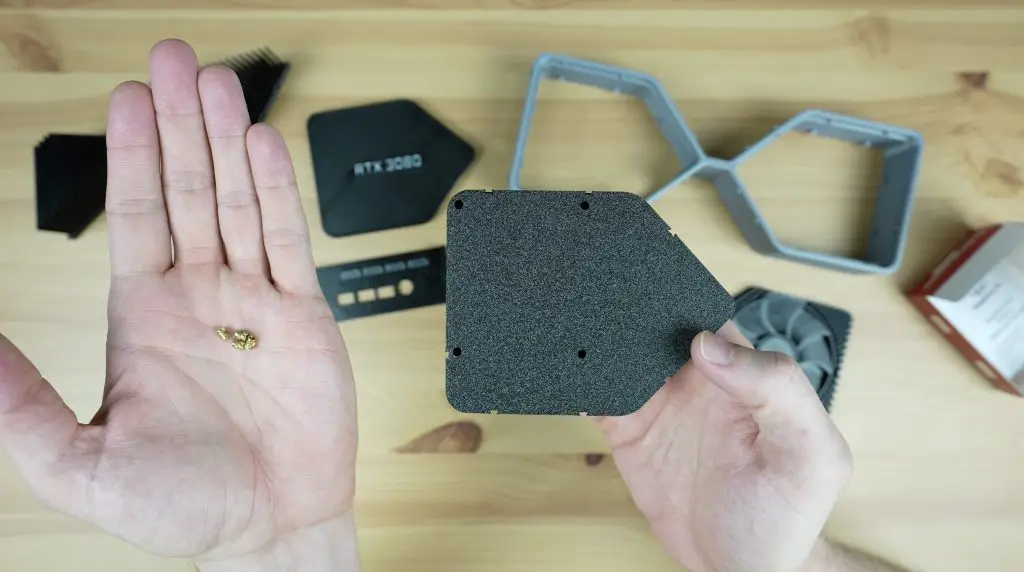
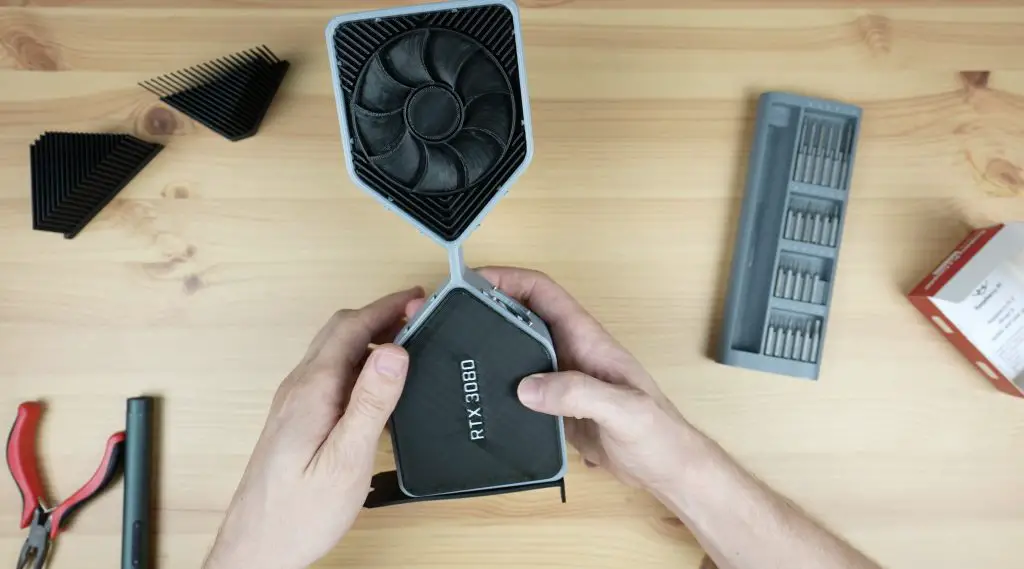
It’s obviously partially hollow, so that’s perfect to put a small single-board computer into. So I’m going to be using this model as a basis to build an RTX3080 all-in-one computer.
Here’s my video of the build, read on for the written project;
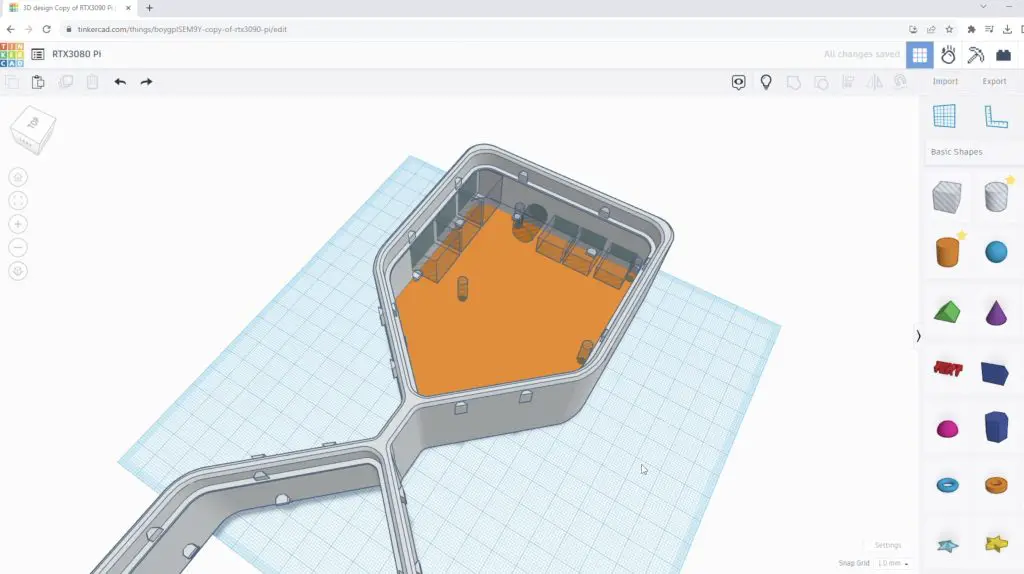
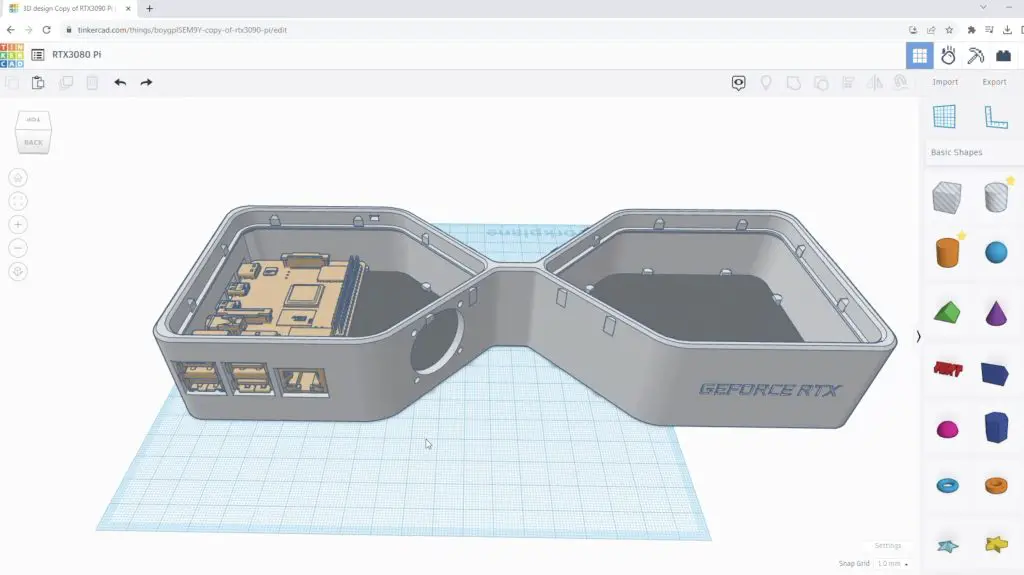
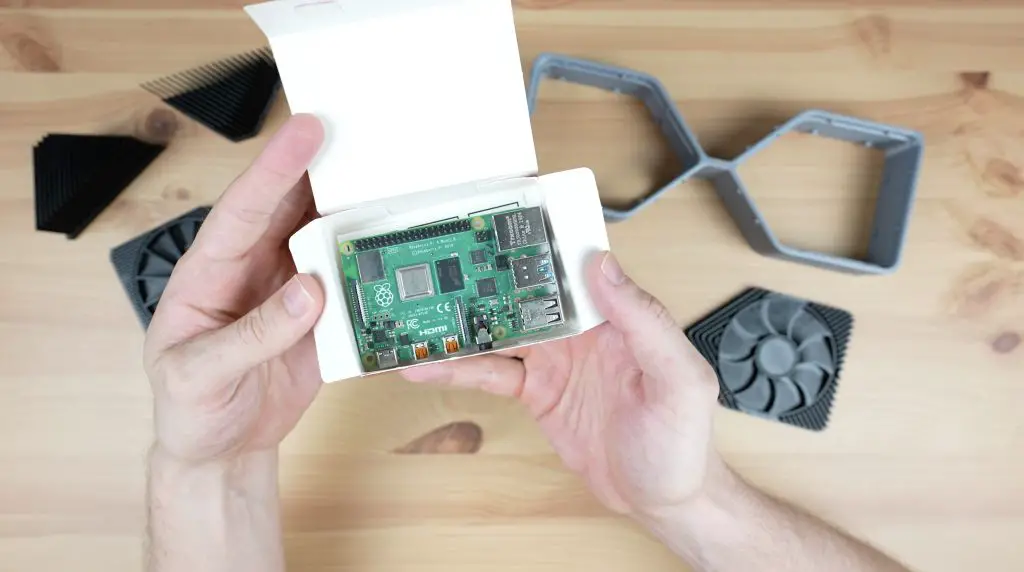
I downloaded the model files and then imported them into TinkerCAD to make the modifications required to fit a Raspberry Pi into it.
The money box model is scaled down from a full-size RTX3080, so you need to scale it up to 142% to be size for size. This exceeds my print bed size by a few millimetres, so I scaled it up to 130%.
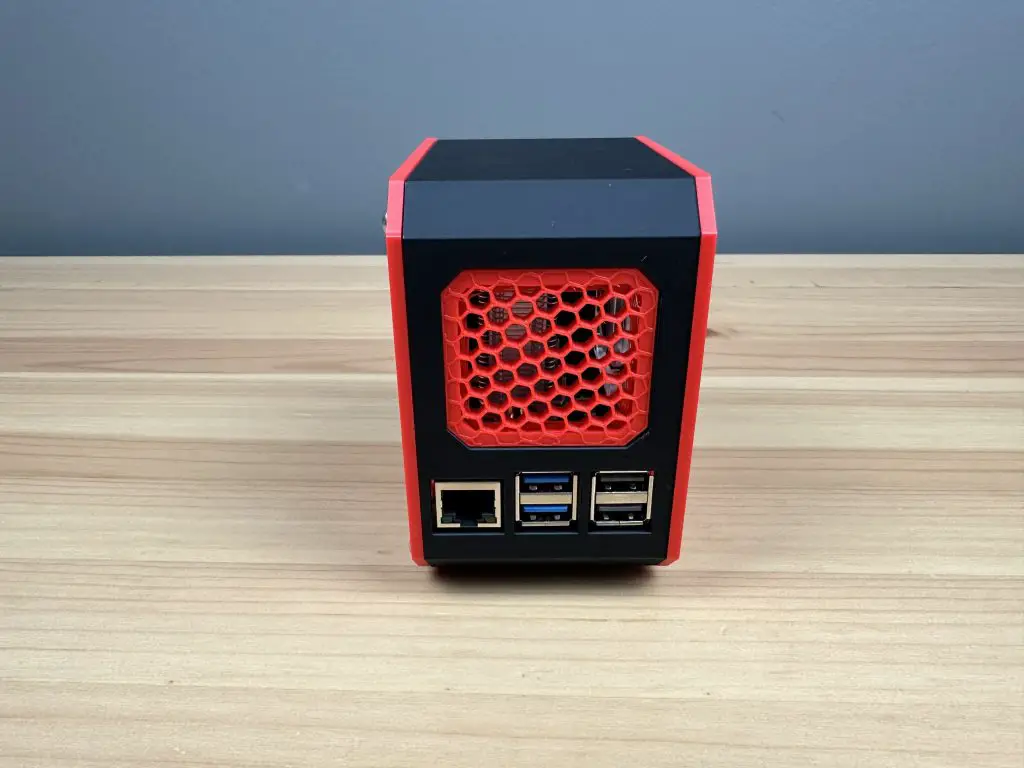
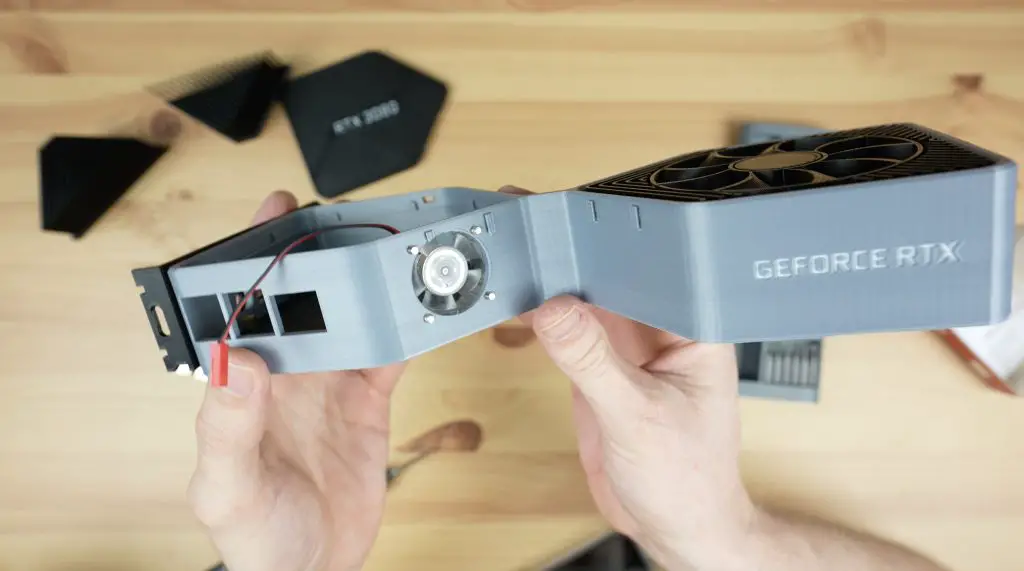
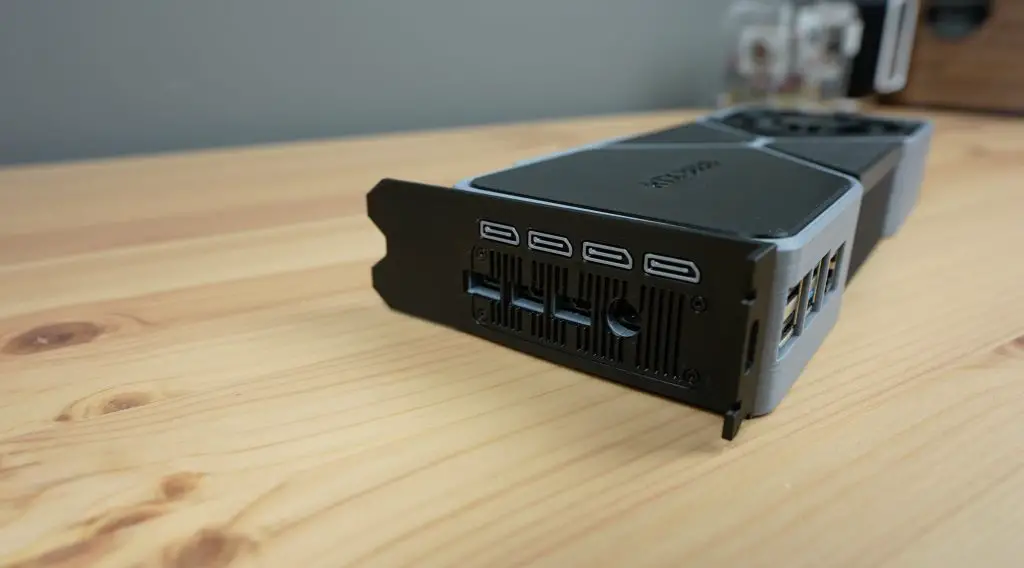
I oriented the Raspberry Pi in the back end of the RTX3080 so that the HDMI ports are in the same general area as the original display ports. We also have a power input here, which, unlike the RTX3080, can run on a USB-C power adaptor rather than requiring a small power station.
The USB and Ethernet ports then extend out the side of the GPU, which I think looks pretty cool.
I then added supports and holes to accommodate some brass inserts in the base to mount the Raspberry Pi.
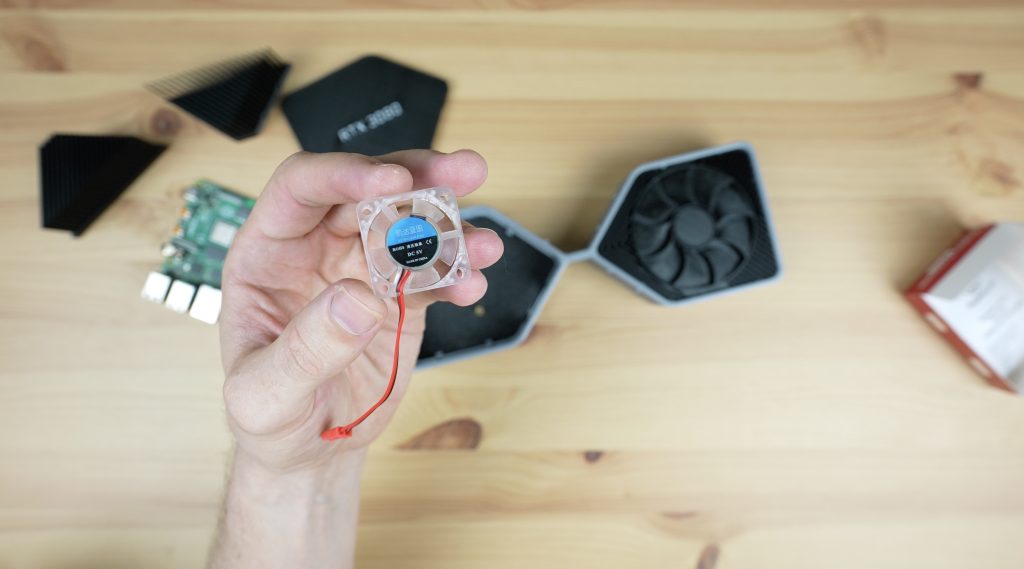
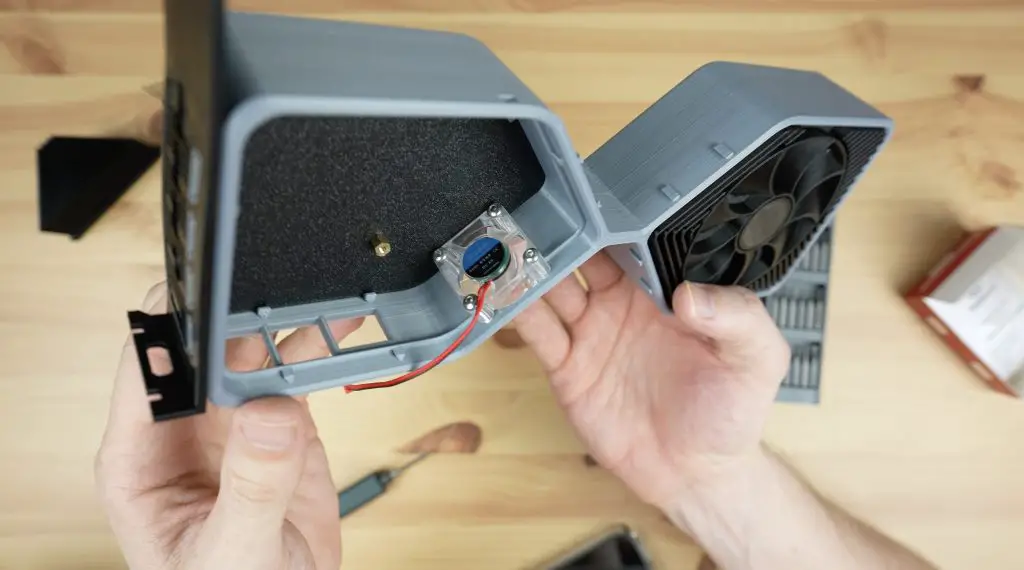
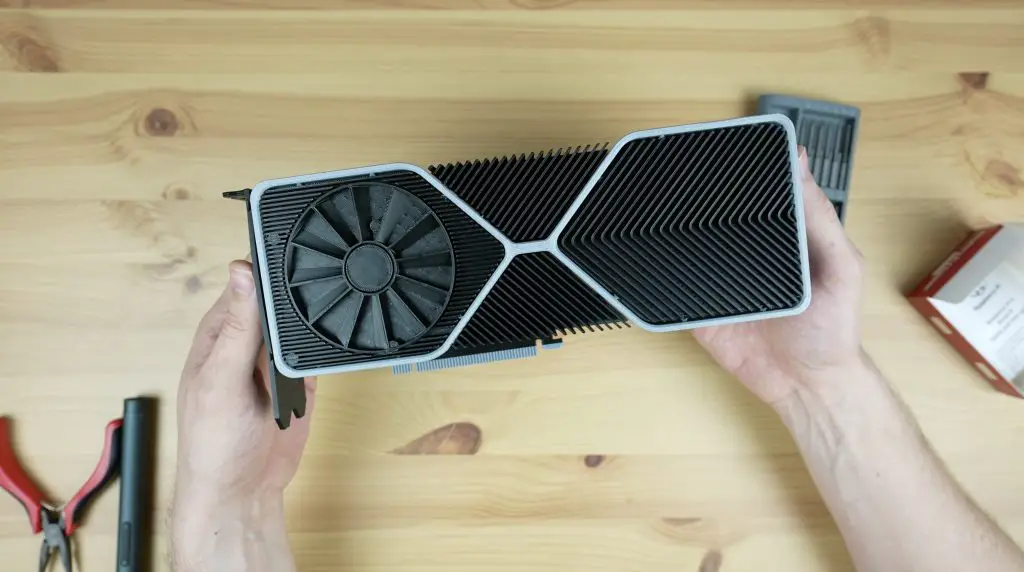
And lastly, we need to think about cooling. I initially wanted to use an actual fan in place of the 3D-printed fan covers but the fan on the Pi’s side of the card is underneath the Pi, which means that the GPU would need to be lifted off the desk to get airflow to it. It also gets in the way of mounting the Pi. So I decided to instead mount a more appropriately sized 30mm fan onto the inside of the housing and have it draw air in through the fin stack on the side. This required a fan cutout to be added to the side and a few cutaways to the surrounding heatsink parts to make some space for it.
With that done, we’ve got the 3D model complete and ready for printing.
I also noticed that another user had made fans for the RTX3080 money box model that were a bit more accurate to the original design. So I went with this fan design for the top fan. The bottom one I left as the original as it was better suited to holding the supports that were needed for the brass inserts to mount the Pi onto.
3D Printing The RTX3080 Parts
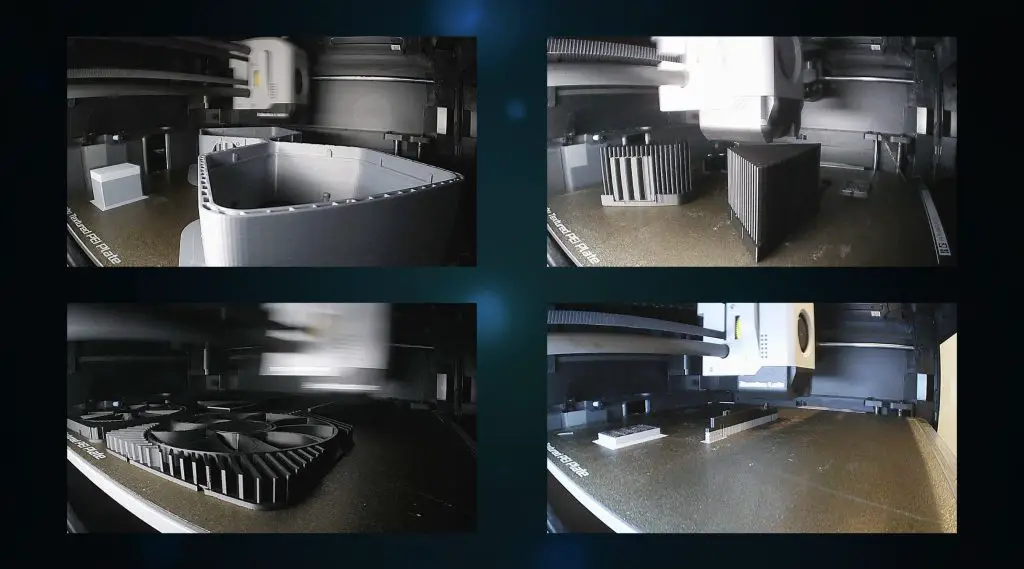
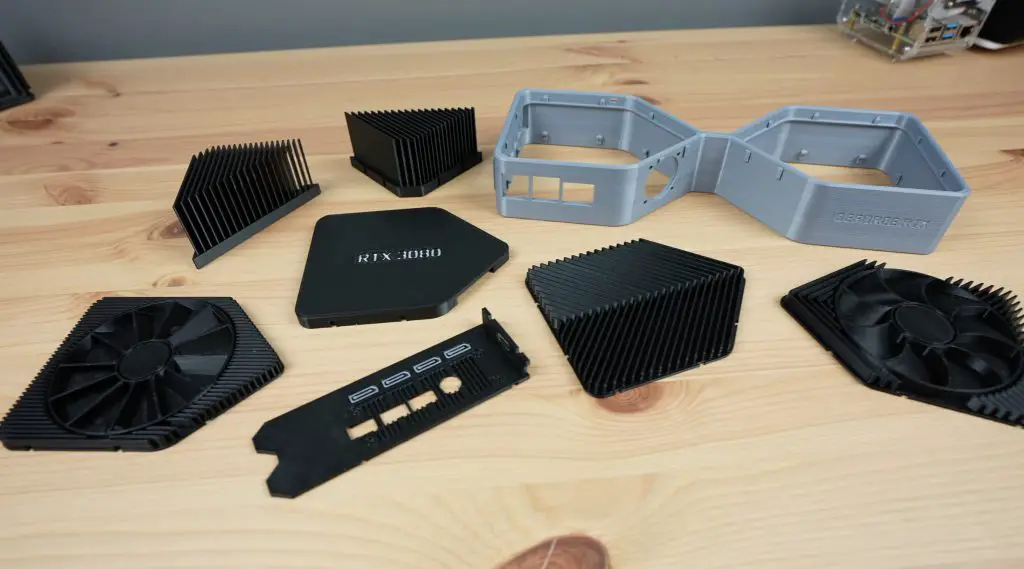
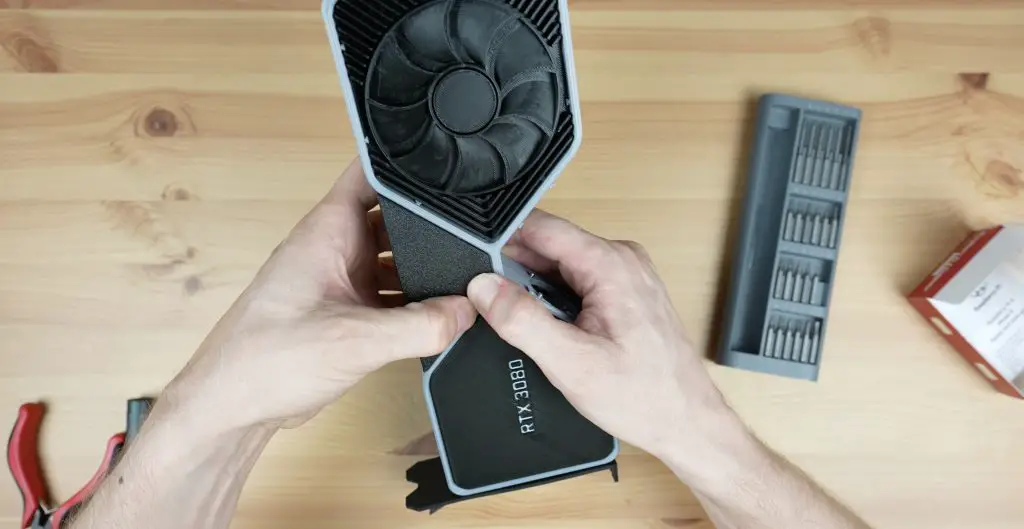
I printed out the components using grey for the main body and black for the heatsinks, fans and backplate. I coloured the text in white so that it stands out better and looks a bit more like the original card too.
I use PLA for most of my 3D printing, as I’ve used here, and I think the parts have come our really well – particularly the heatsinks!
Assembling The RTX3080 Pi Case
Now we can move on to installing the Pi into the enclosure.
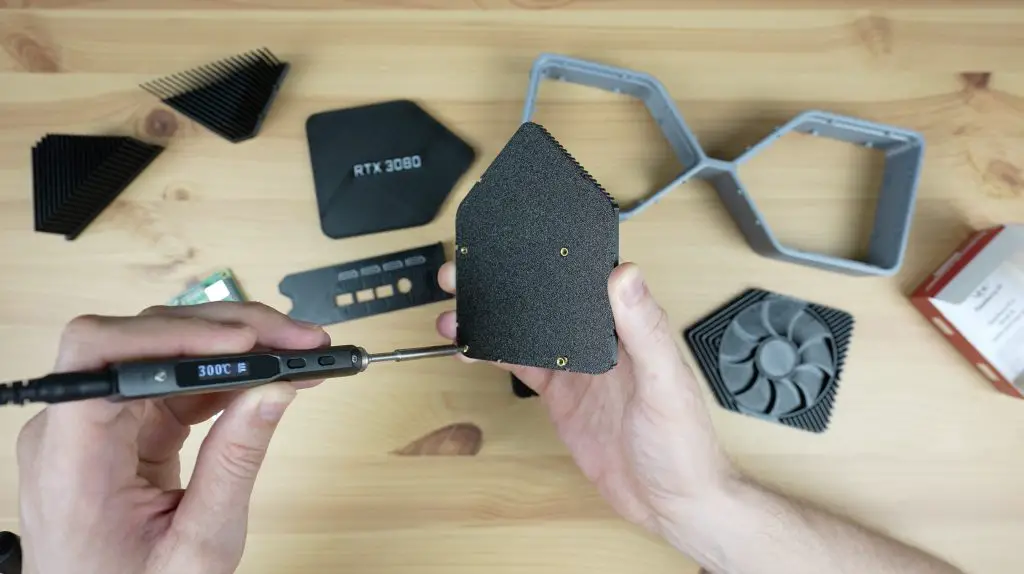
First, we need to add some M2.5 brass inserts into the bottom fan piece. We just melt these into place using a soldering iron.
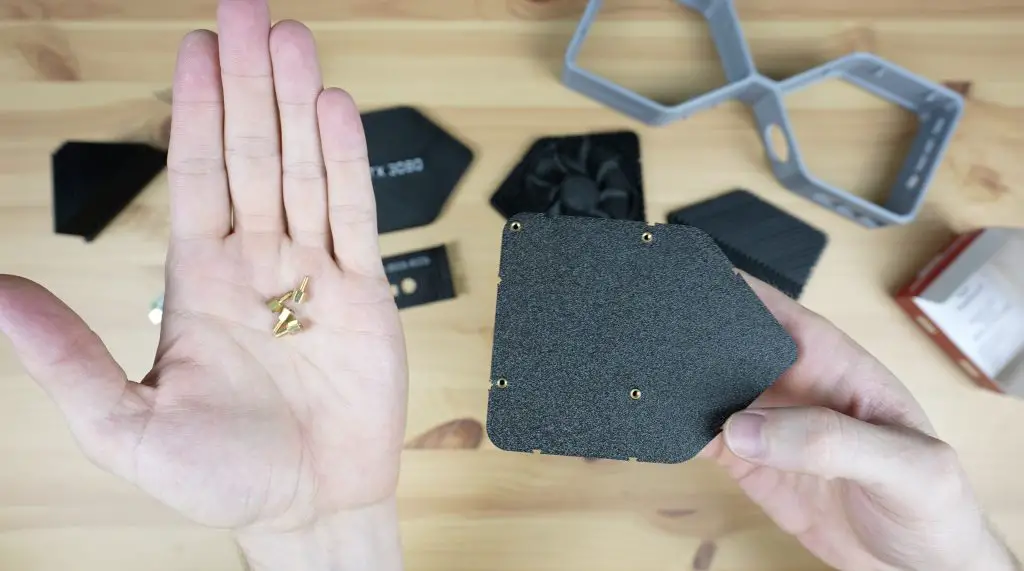
Next, we can add some M2.5 x 4mm brass standoffs to mount the Pi onto. I didn’t have 4mm ones so I’ve cut the top off some 6mm ones with a Dremel to shorten them.
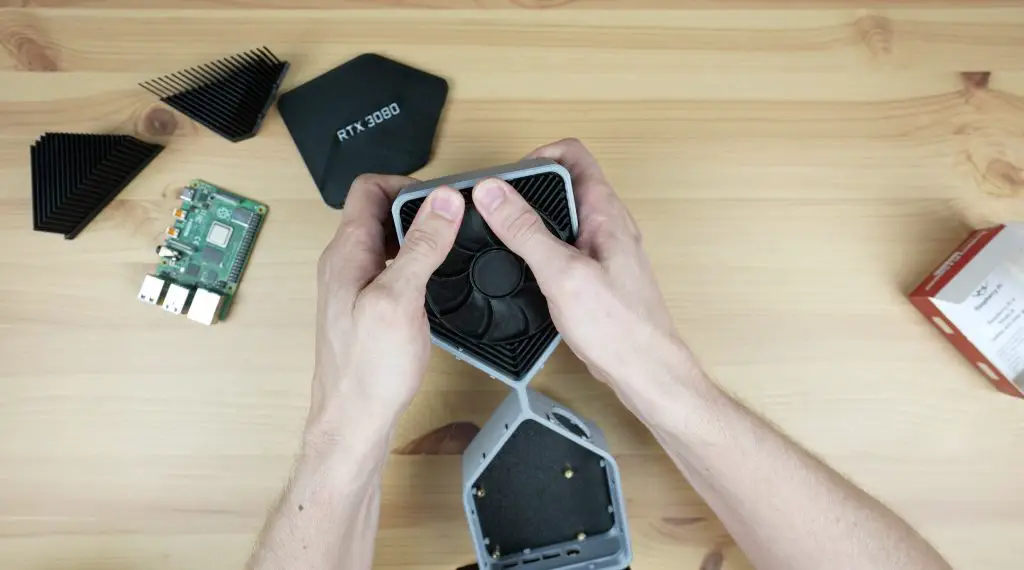
I’m not going to mount the Pi onto the standoffs until we have partially assembled the card, so let’s snap the components into place first.
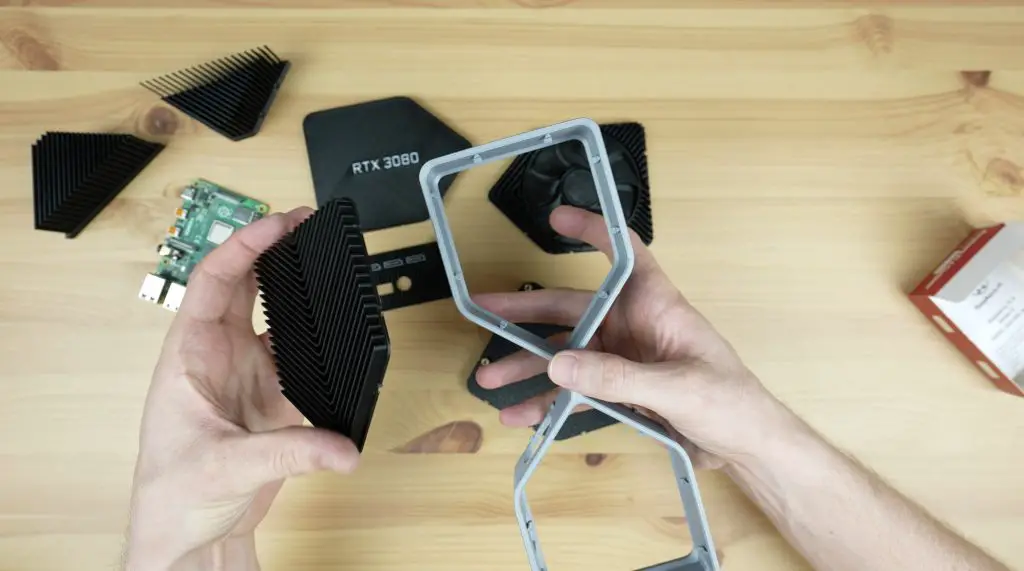
We can push the bottom fan and heatsink pieces into place.
Then add the back plate and the top fan plate.
Before we add the side heatsinks, we need to mount the fan. This is just held in place with four M3 button head screws and is oriented to pull air into the enclosure.
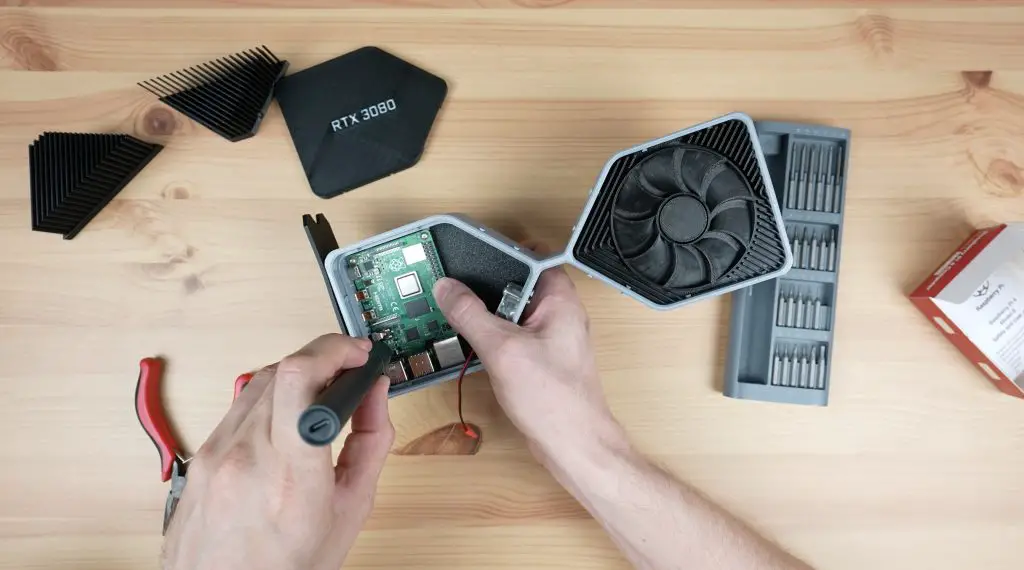
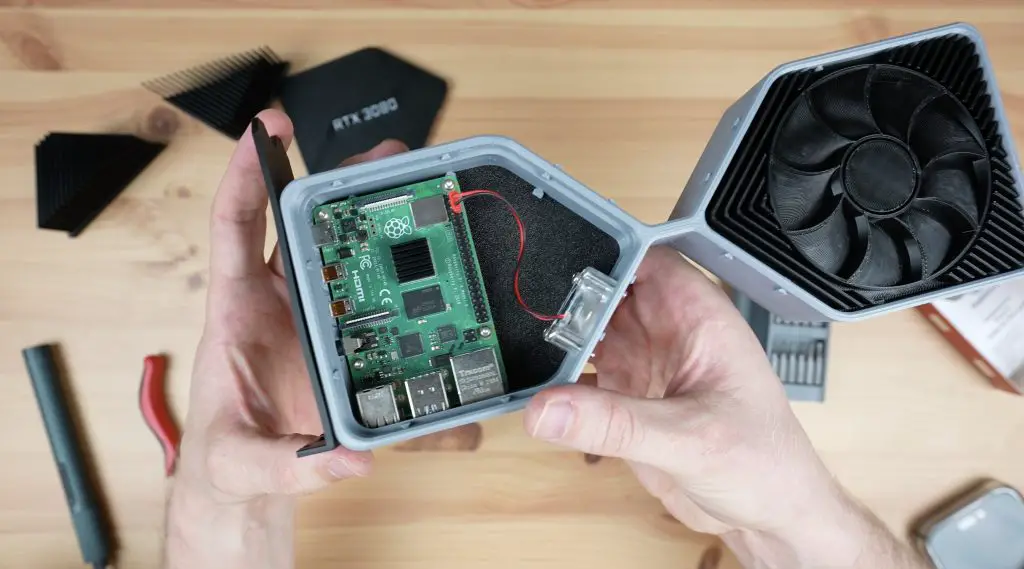
Now we can mount the Pi on the brass standoffs and secure it with some M2.5 screws.
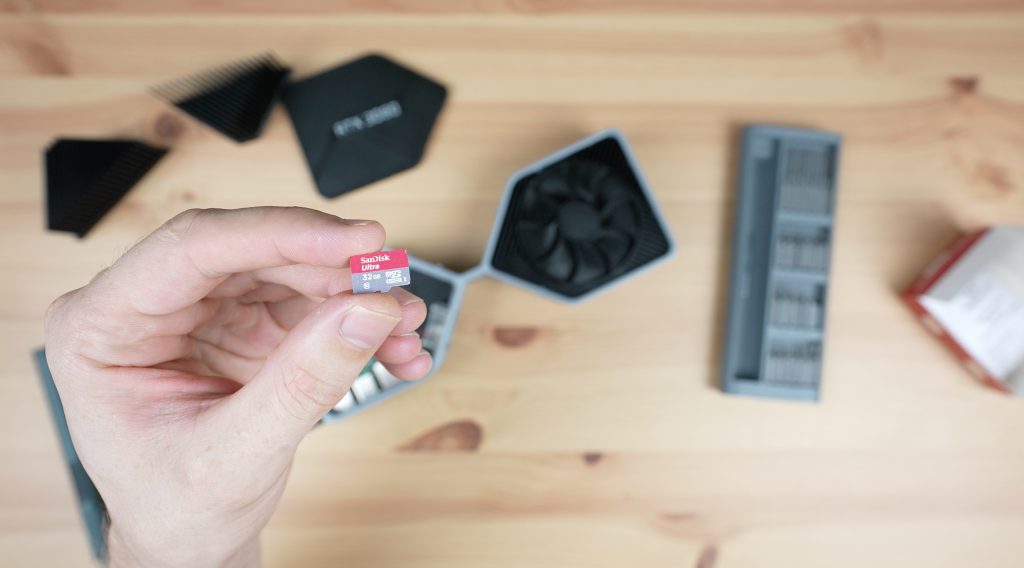
Before doing this, install your microSD card with your OS image flashed to it. I forgot about this and had to remove the Pi again as you’ll see later on.
Then plug the fan into 5V and GND. If you’ve got a fan with separate pins on the plug (mine is a combined double-pin plug) then you can plug the fan into GND and 3.3V instead and it’ll run quieter.
And lastly, having forgotten about the microSD card, we can remove the Pi again, add our card with the OS image and then put it back in and close up the top cover plate.
Then we need to snap the side heatsinks into place.
And that’s my GPU computer complete, now let’s plug it in and try it out.
First Boot & Gaming On My RTX3080 Graphics Card
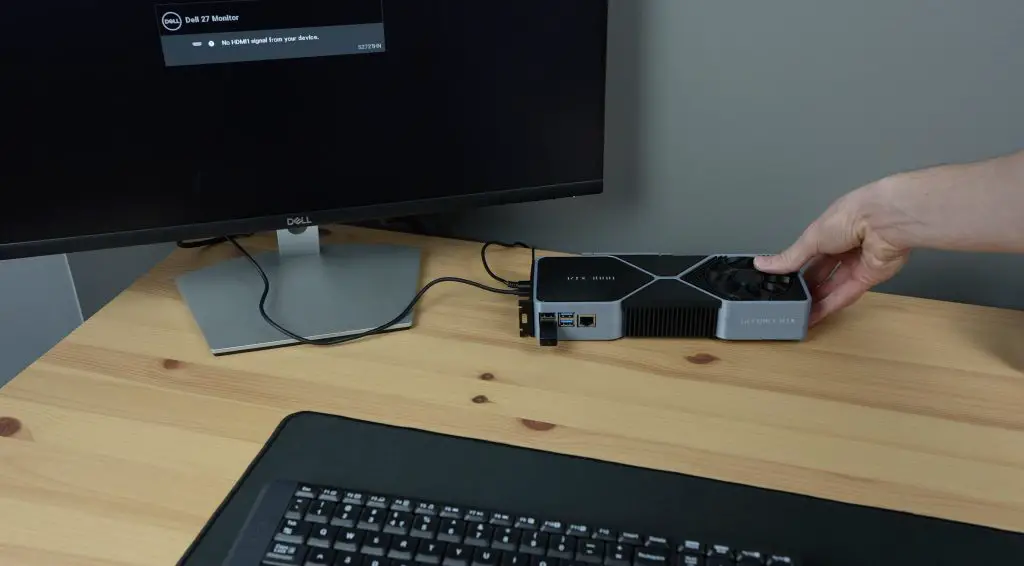
To boot up my RTX3080 graphic card computer, I need to add a power adaptor, plug in a monitor and add a keyboard and mouse.
The first boot takes a bit longer to work through but once it has booted up, you’ll then have a fully functional graphics card computer.
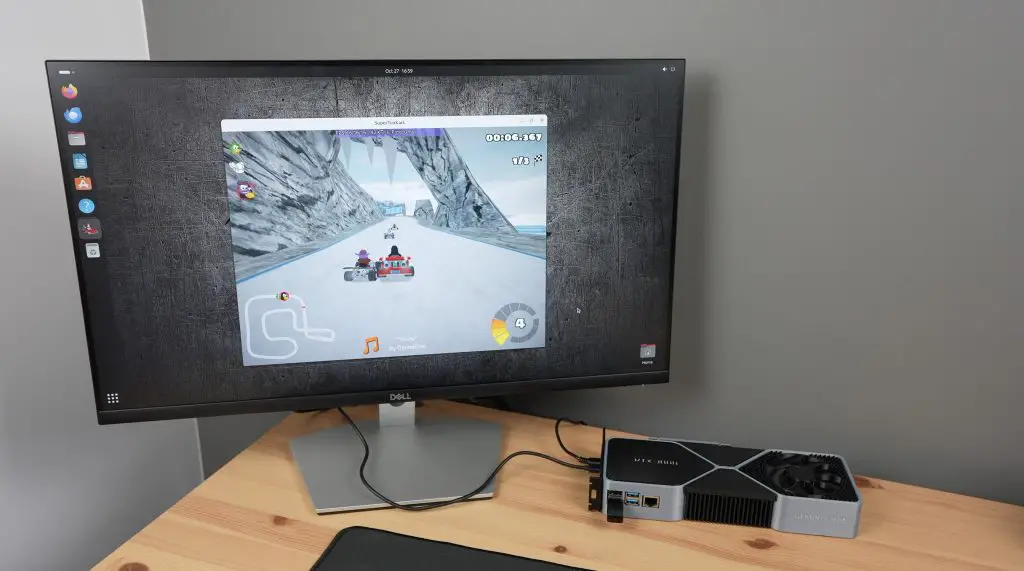
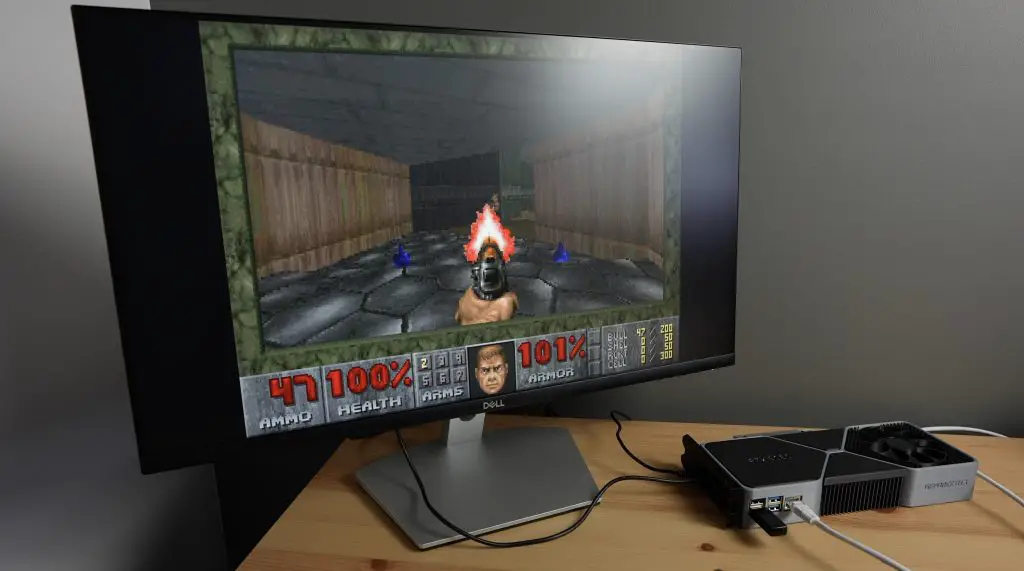
I’m running Ubuntu on the Pi. This does seem to be a bit more resource-intensive than Raspberry Pi OS but still runs reasonably well. I’ve also overclocked the Pi to 2Ghz.
My graphics card computer has actually got a lot of benefits. It is still able to output 4K and it does so using just 3-4W, which is almost a hundred times less than a real 3080 would. I can even run it from a power bank.
It takes up a fraction of the desk space that a full-size desktop computer would.
It’s got no motherboard to fall out of during shipping or transport.
And I can still game on it, although granted the gaming quality and framerate is quite a bit lower than what you’d get from a 3080.
Super Tux Kart – Very low FPS, not playable unless the Pi is significantly overclocked.
Doom – Runs well, a bit more involved to install and find levels for but easy to play.
Let me know what you think of my improved RTX 3080 gaming graphics card in the comments section below and if you have any suggestions on how I can further improve on it.
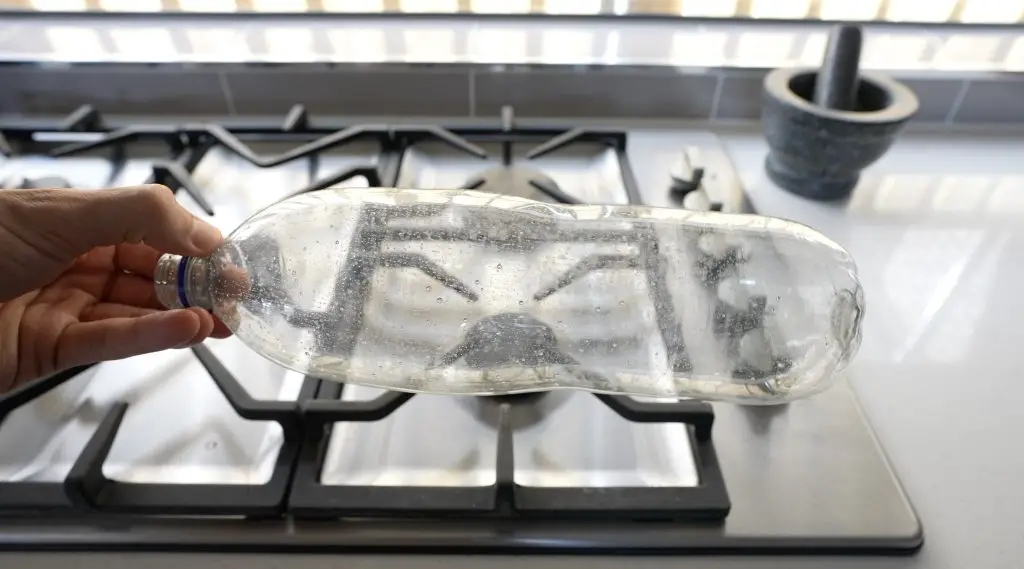
A few weeks ago I published a project on the controller that I designed for a PET bottle recycler that I’ve been working on. I’ve now completed the rest of the design and at the end of the project, I’m going to use it to turn a few old PET bottles into a new case for my Raspberry Pi.
Let me start by saying that the concept for a PET bottle recycler is not something that I came up with, there are a number of other designs (like the ReCreator 3D) for these recyclers available online already. I liked the concept but couldn’t really find one that suited my needs, so I decided to make my own.
Here’s my video of the build, read on for the written guide;
What You Need To Make Your Own PET Bottle Recycler
Some of the above parts are affiliate links. By purchasing products through the above links, you’ll be supporting my blog, at no additional cost to you.
Designing The PET Bottle Recycler
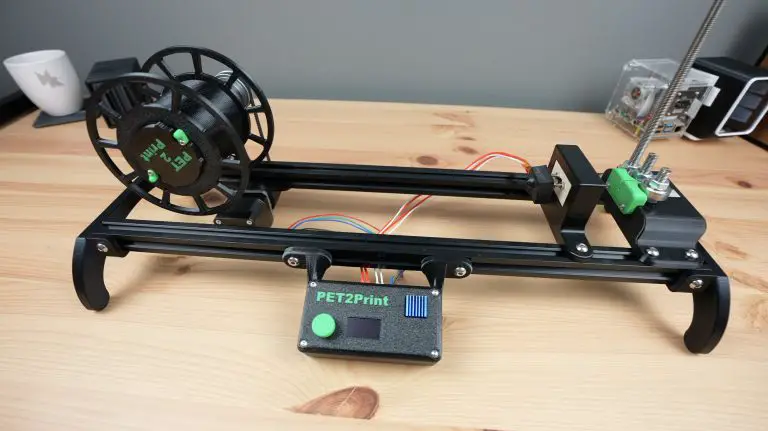
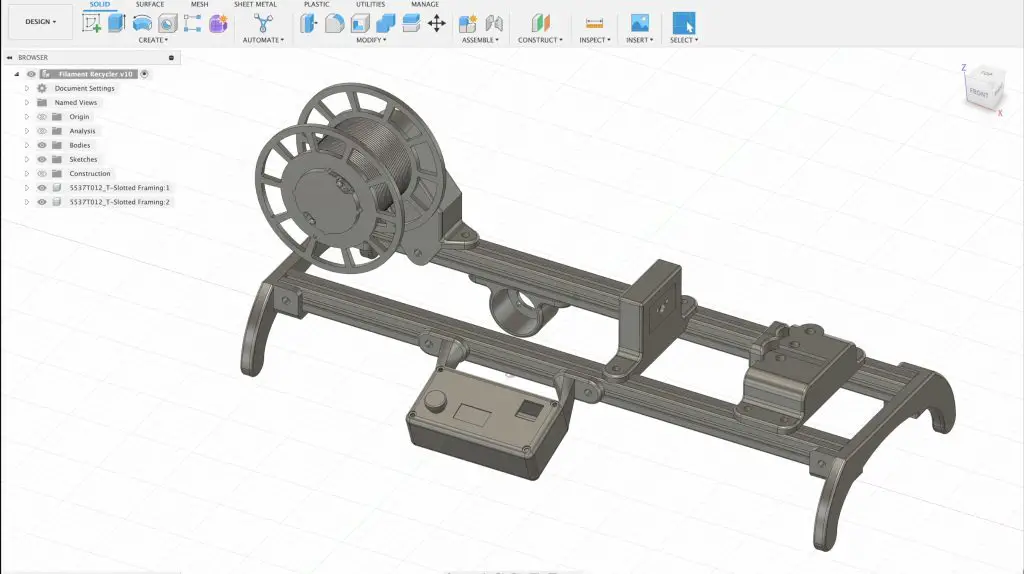
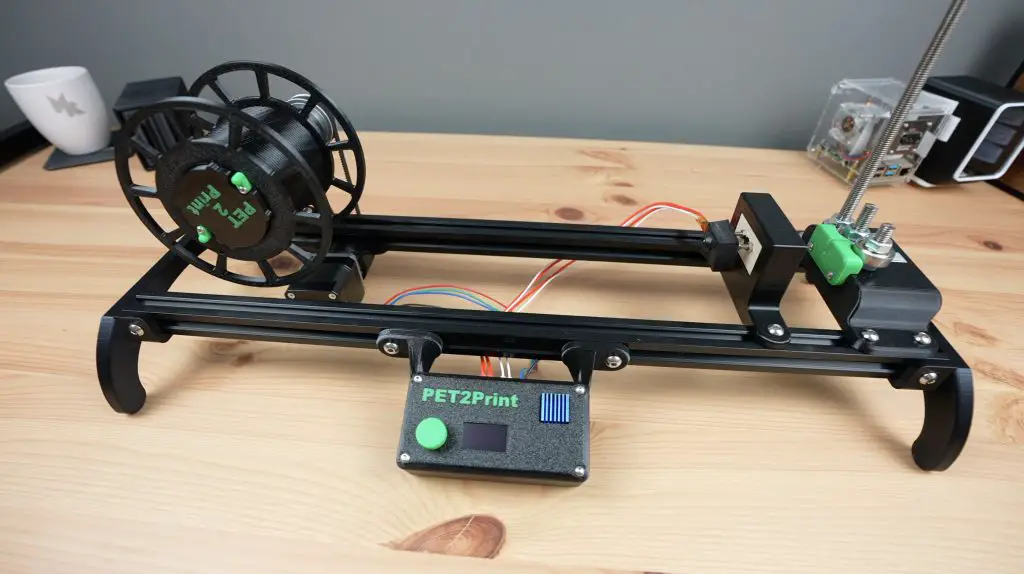
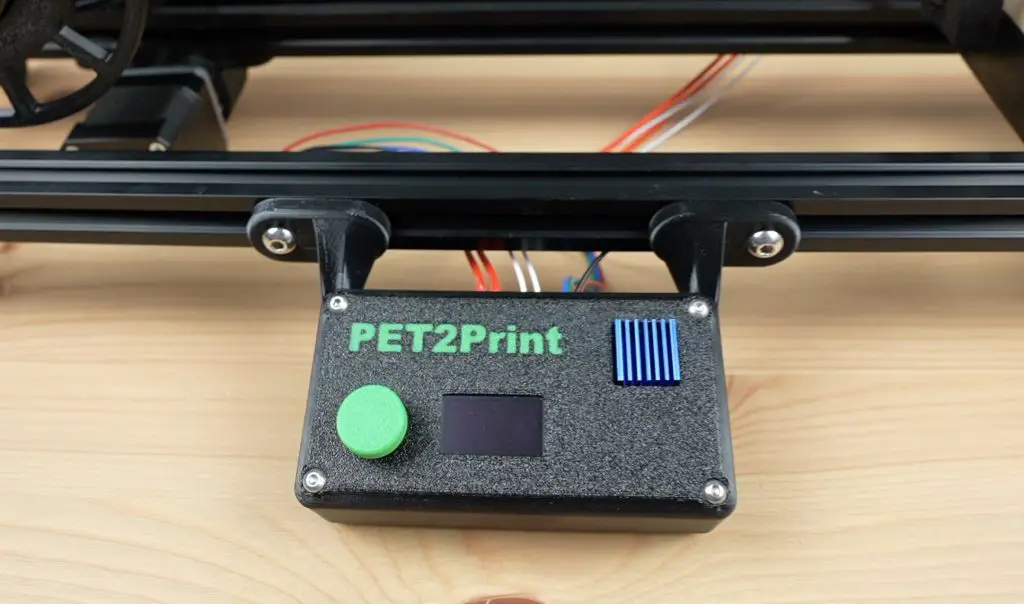
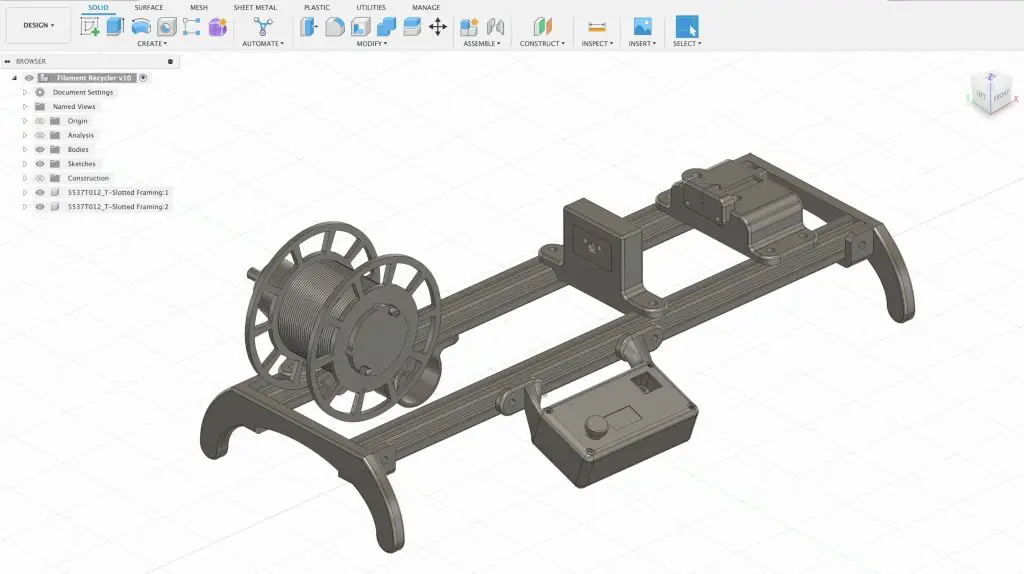
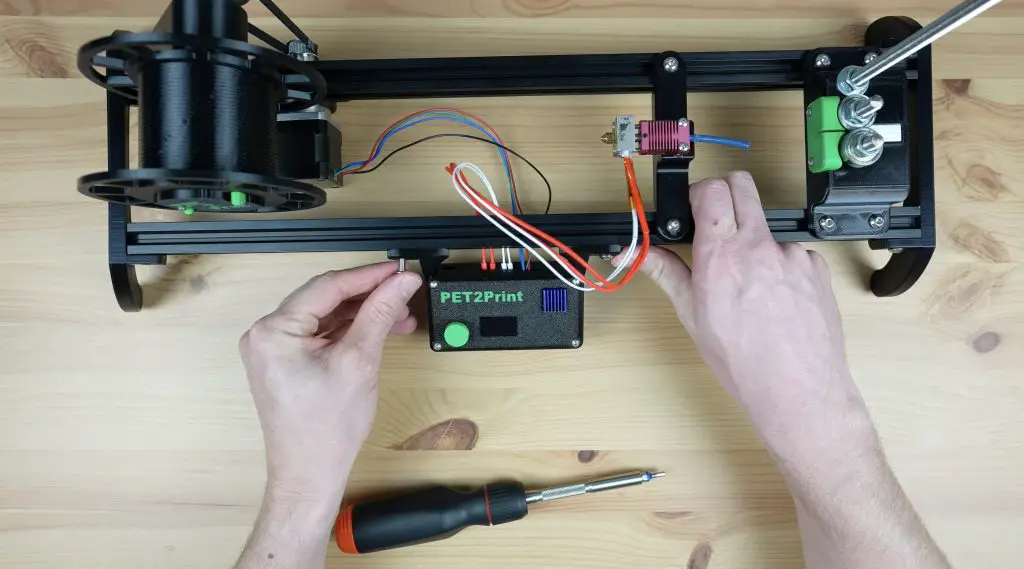
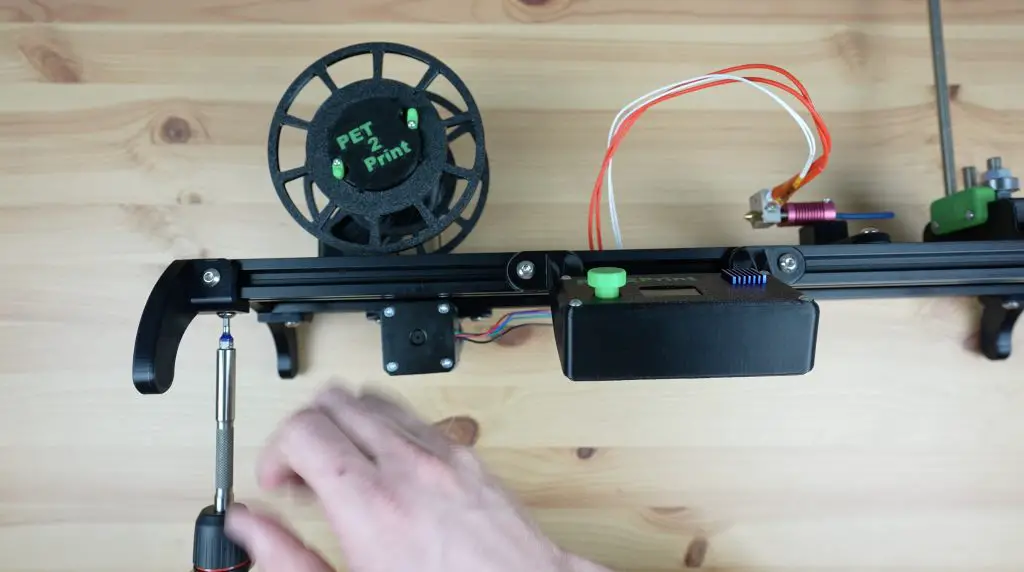
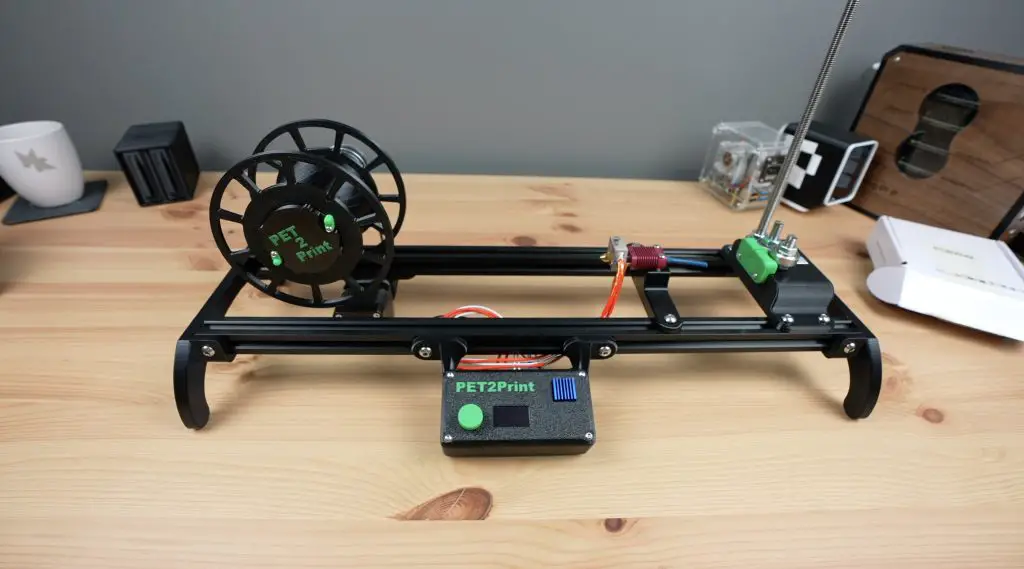
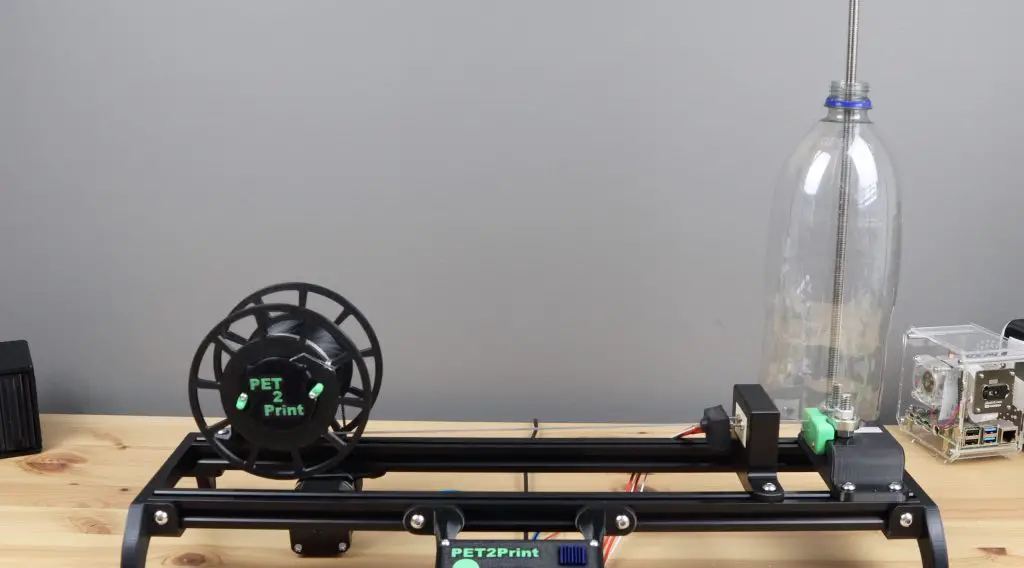
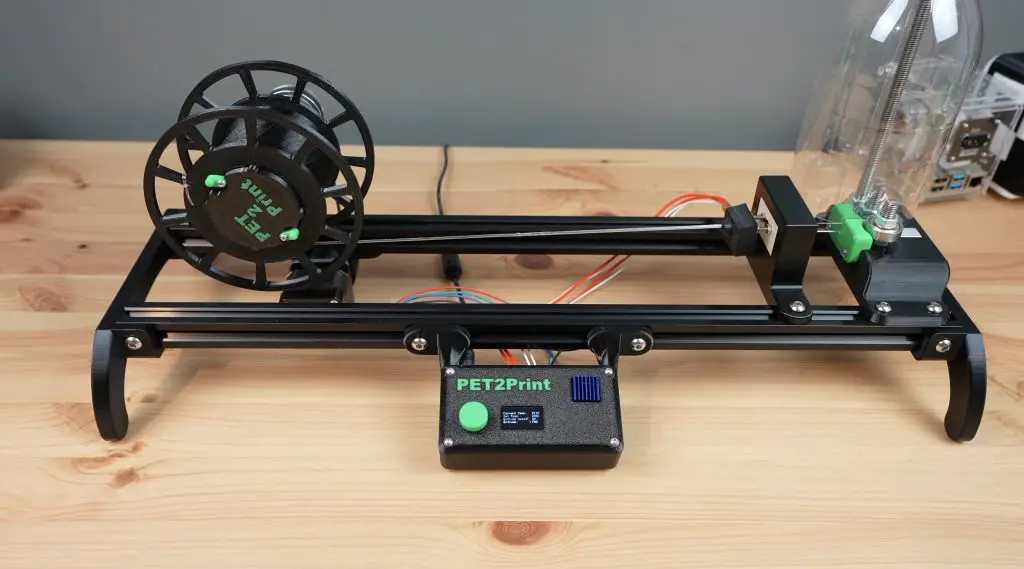
There are four main elements to the PET bottle recycler, which I’ve named PET2Print.
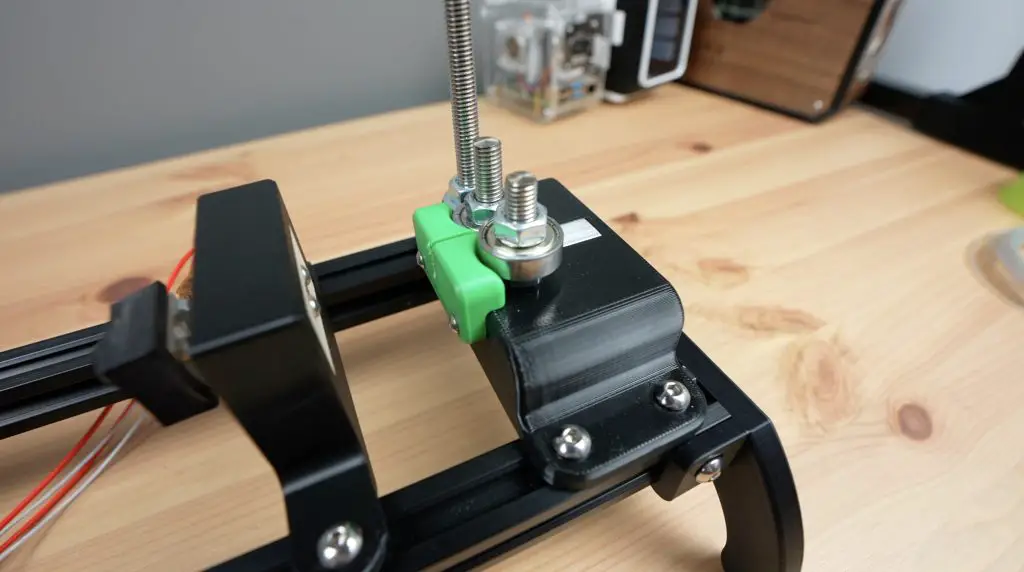
Starting from the bottle side, we’ve got a cutter that cuts the bottle into an even-width continuous strip.
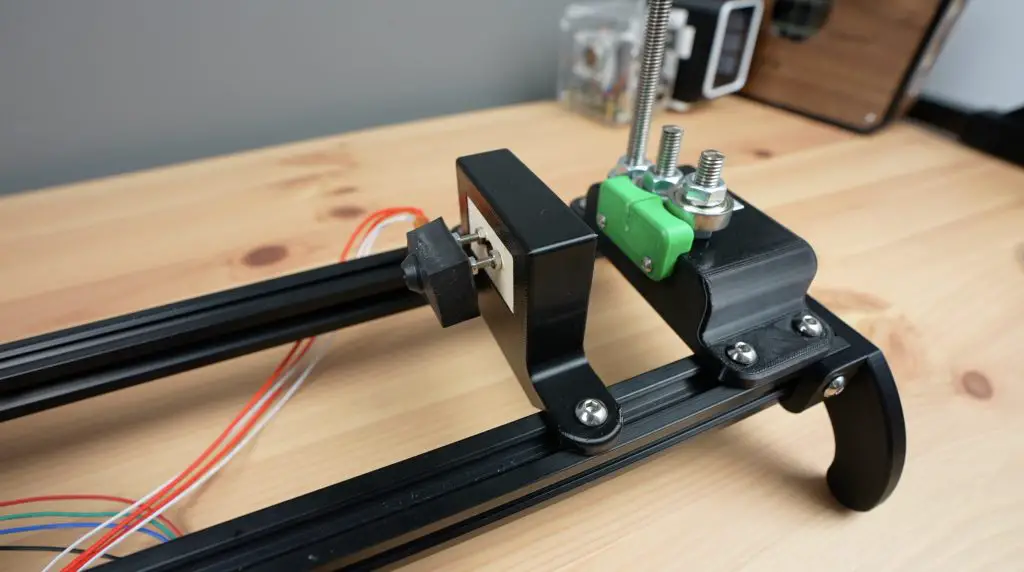
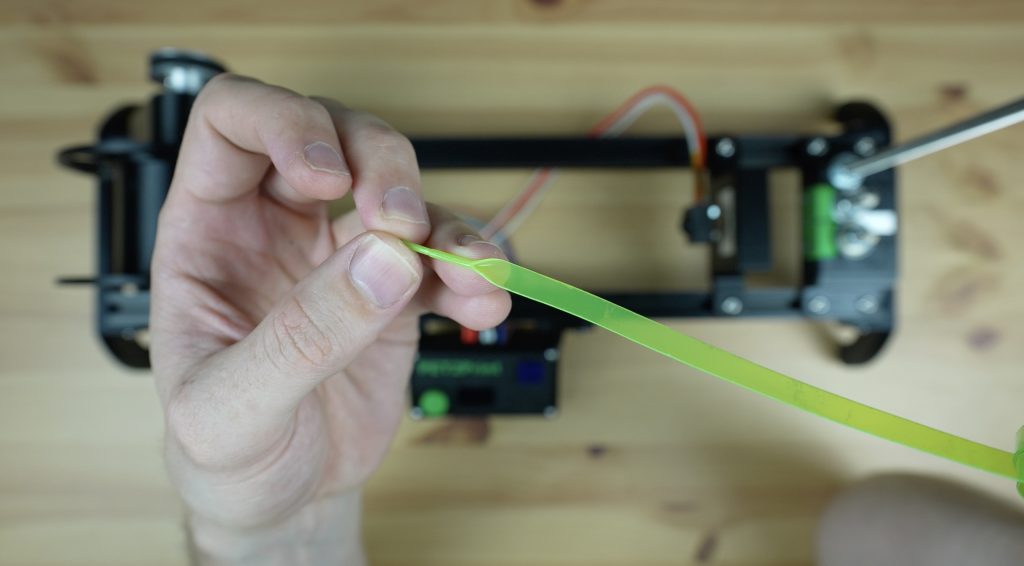
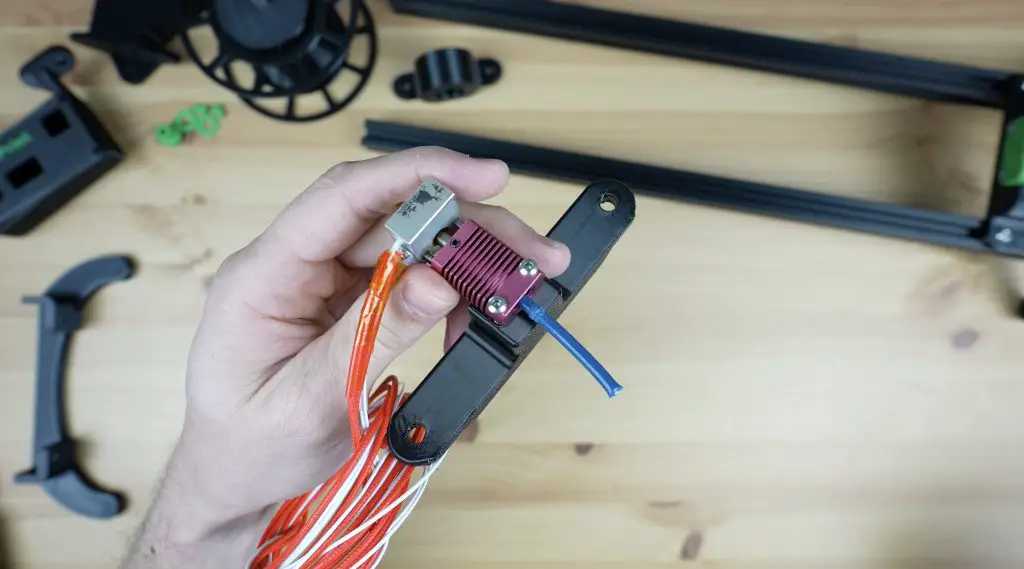
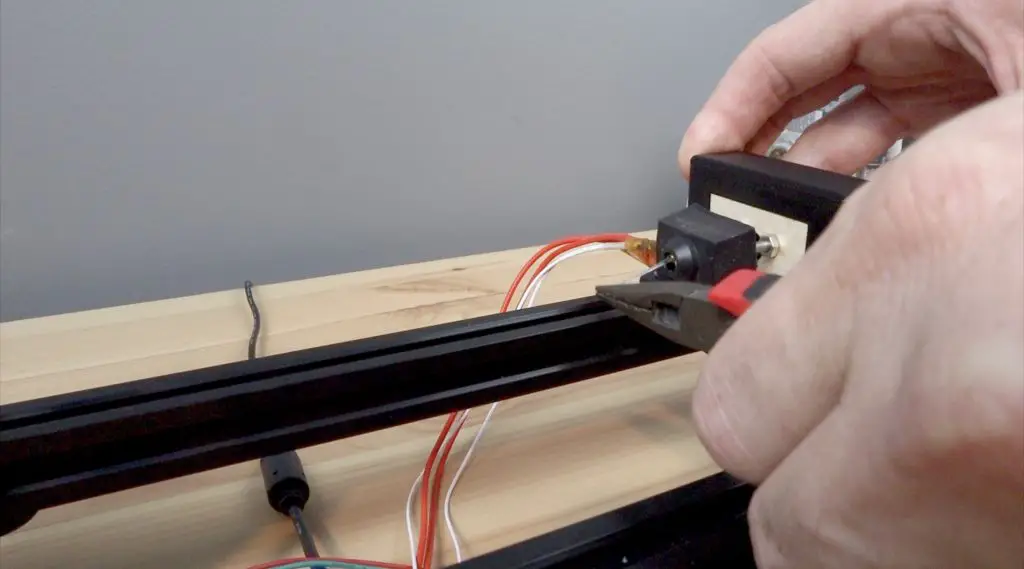
Then we’ve got the hot-end which the strip is pulled through to partially melt and convert it into the size and shape for filament.
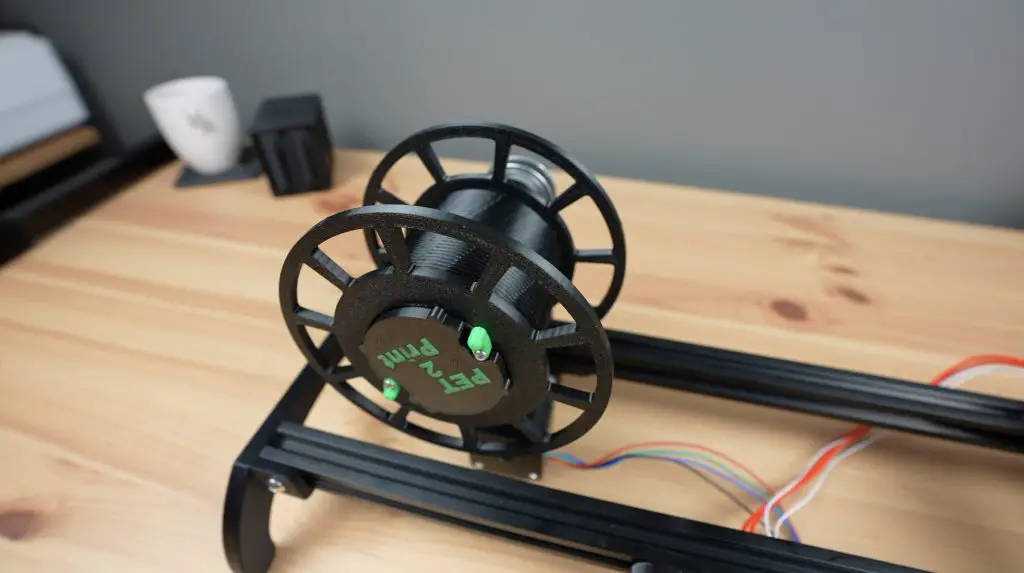
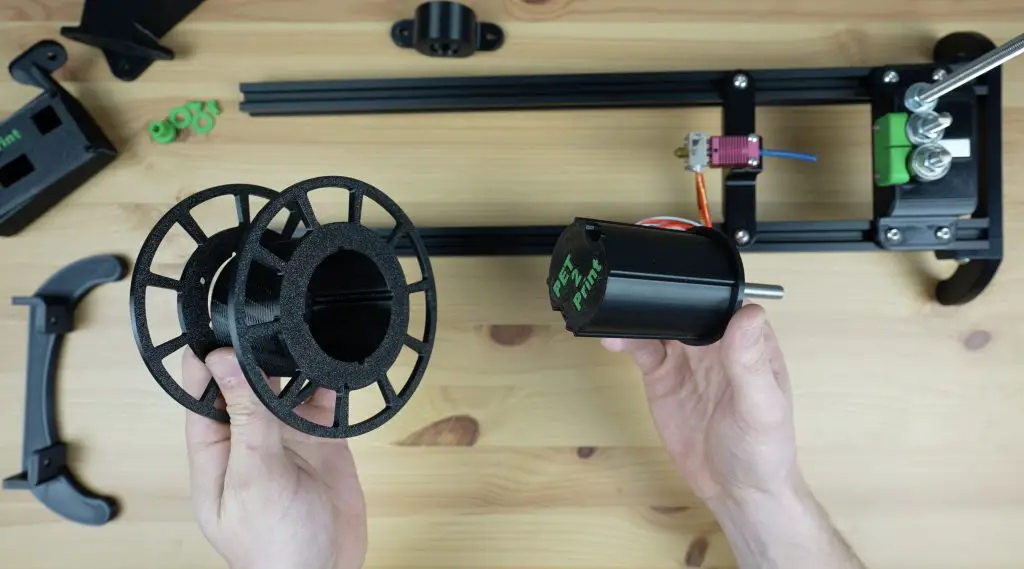
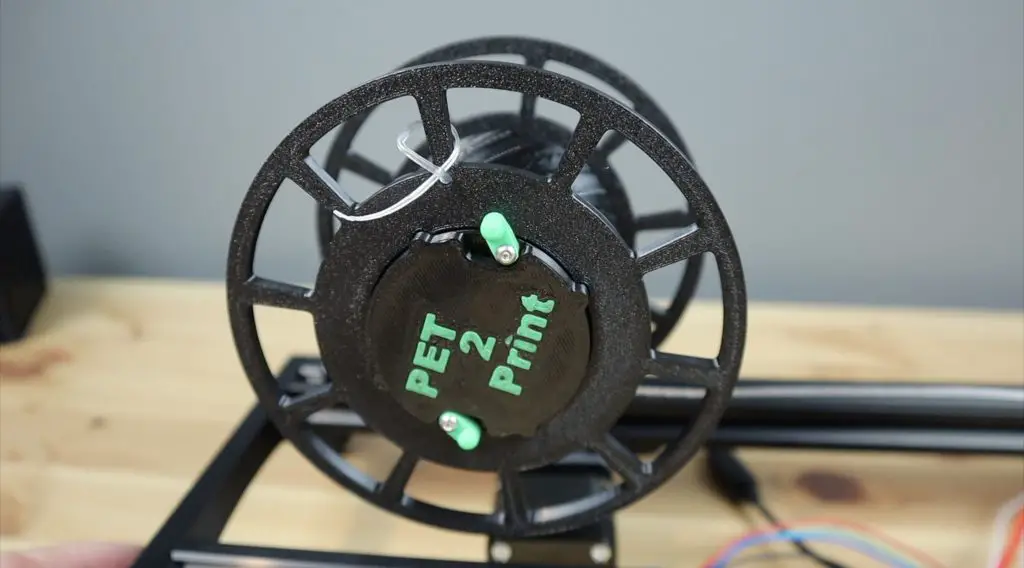
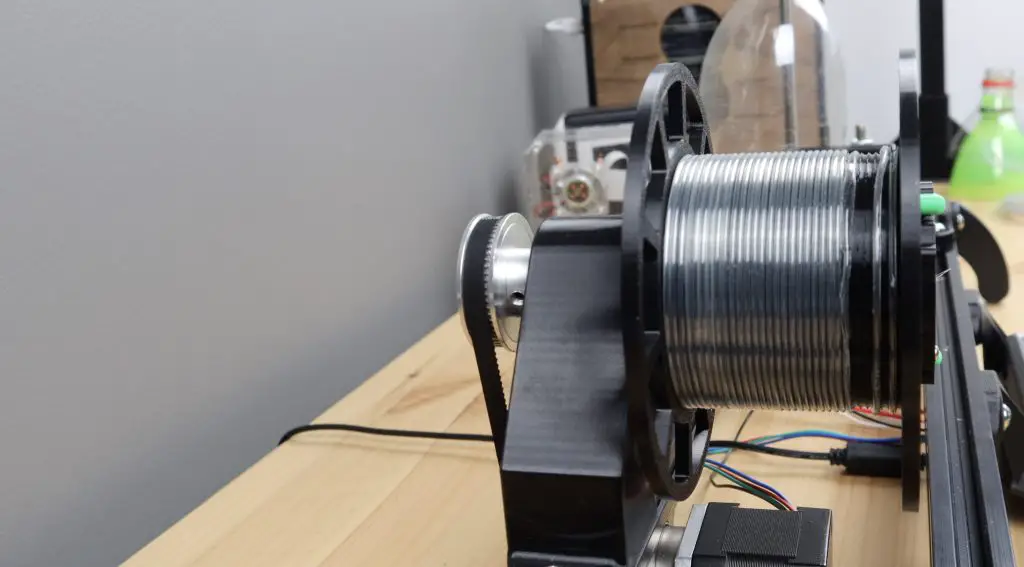
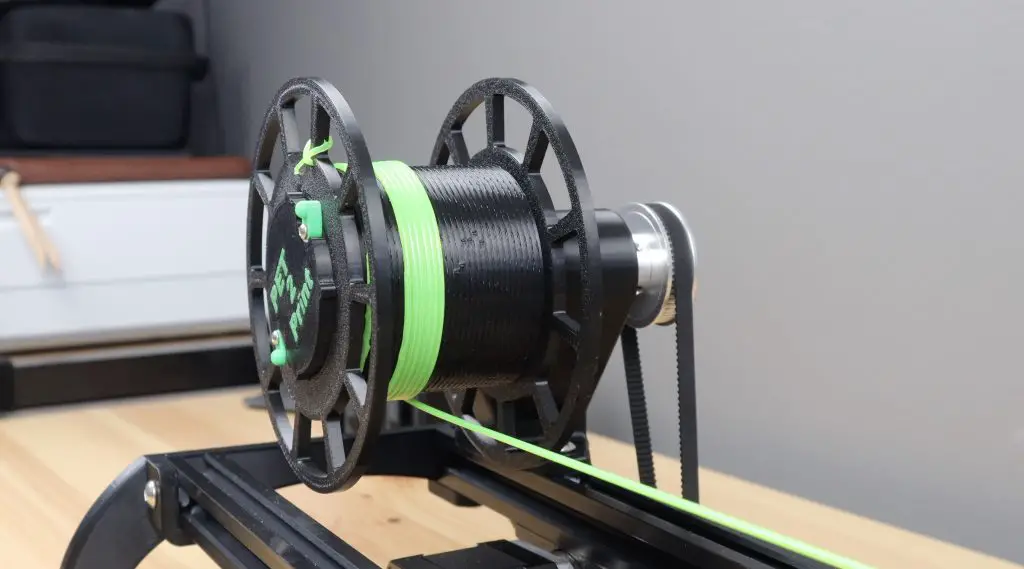
Then there is the reel which pulls the filament through the system and stores it for printing.
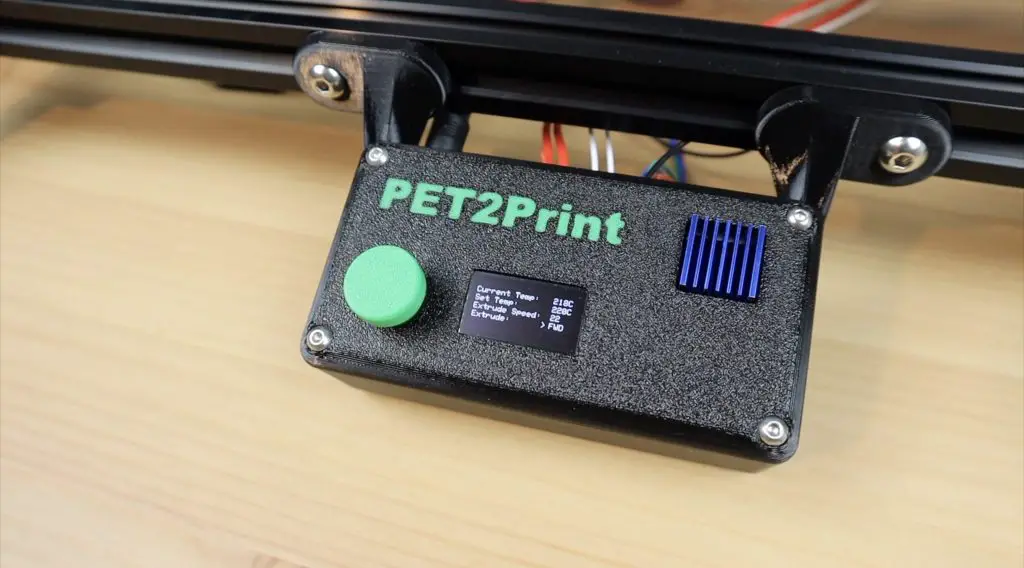
Lastly, we’ve got the controller on the front which controls the hot end temperature and the reeler motor.
The device doesn’t fully melt the PET strip, it just softens it enough to be folded over into a cylindrical shape that is the same 1.75mm diameter as common 3D printer filament.
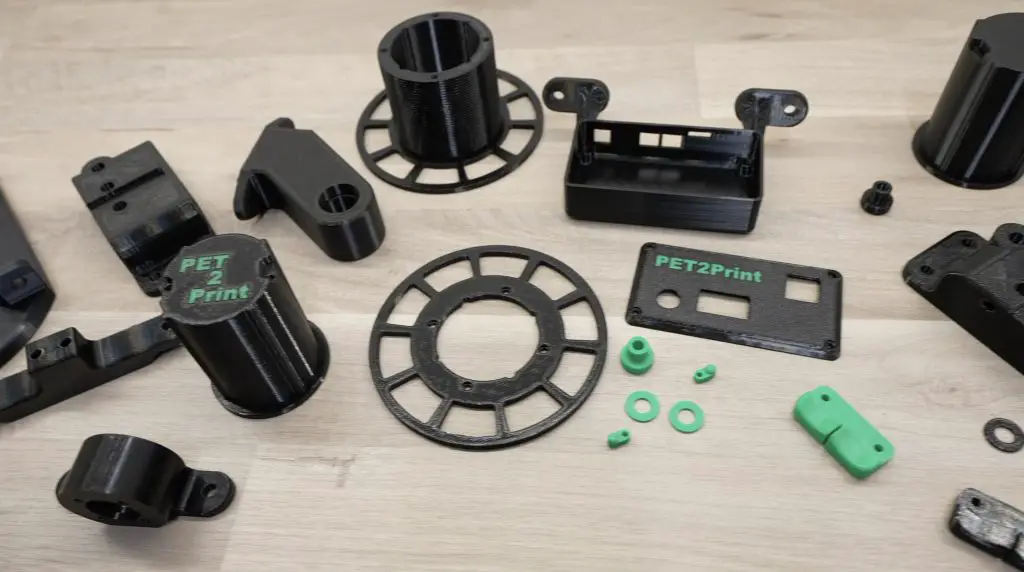
I started out by 3D modelling the design in Fusion360. I designed all of the 3D printable components and modelled some of the main bought-out elements to get the general shape and design right.
Then came a lot of 3D printing. I printed the parts out in PETG for added strength and I had to make adjustments and redesign some of the parts until I was happy with them.
Assembling The PET2Print
With all of the parts printed, we can start assembling the PET bottle recycler. We’ll again start on the bottle side with the cutter.
Assembling The Bottle Cutter
There are two main 3D printed parts for the bottle cutter, the base which holds the cutting mechanism and bottle support, and then the guide which just keeps the strip in the same orientation through the cutting bearings and when it feeds into the hot end.
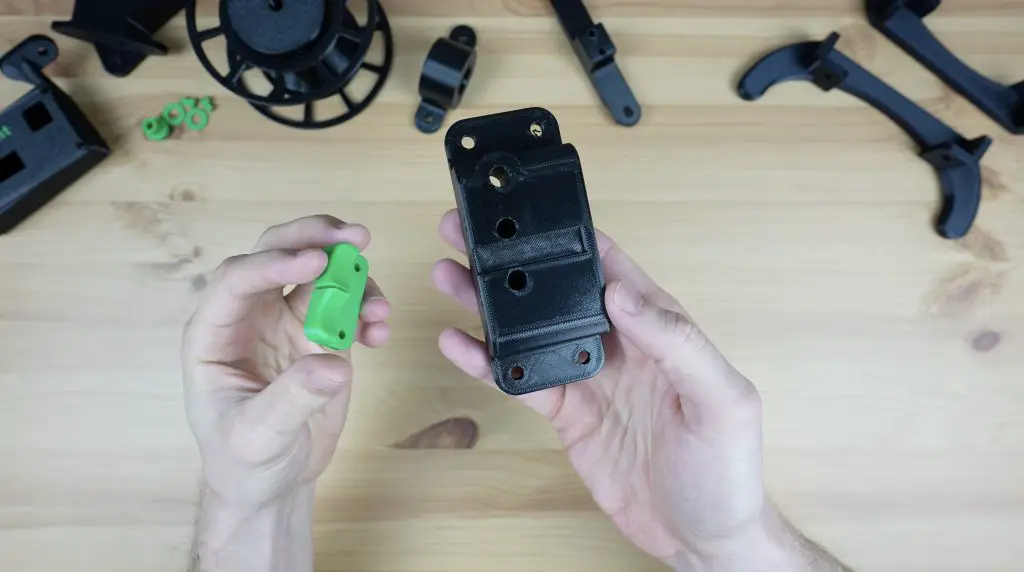
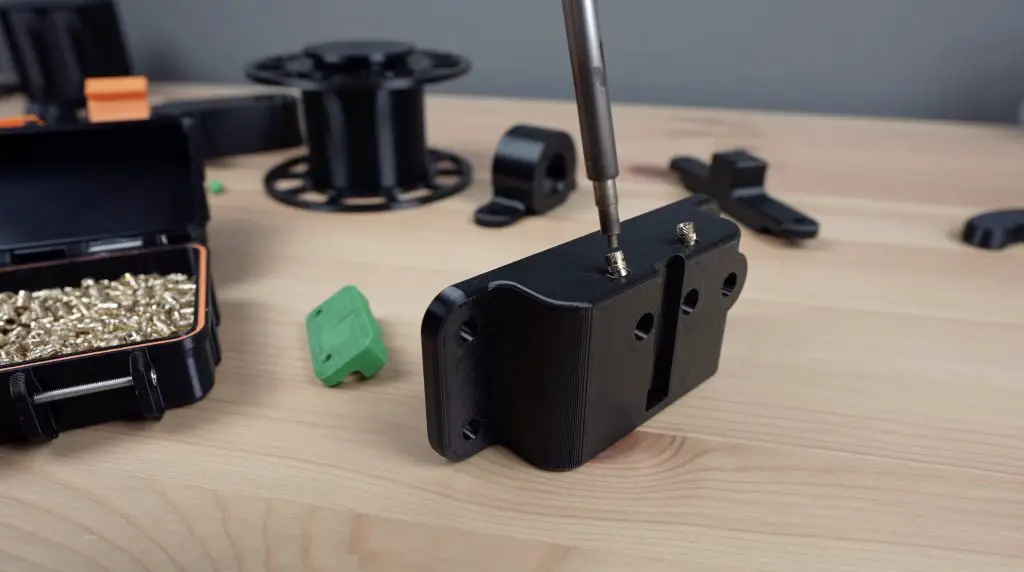
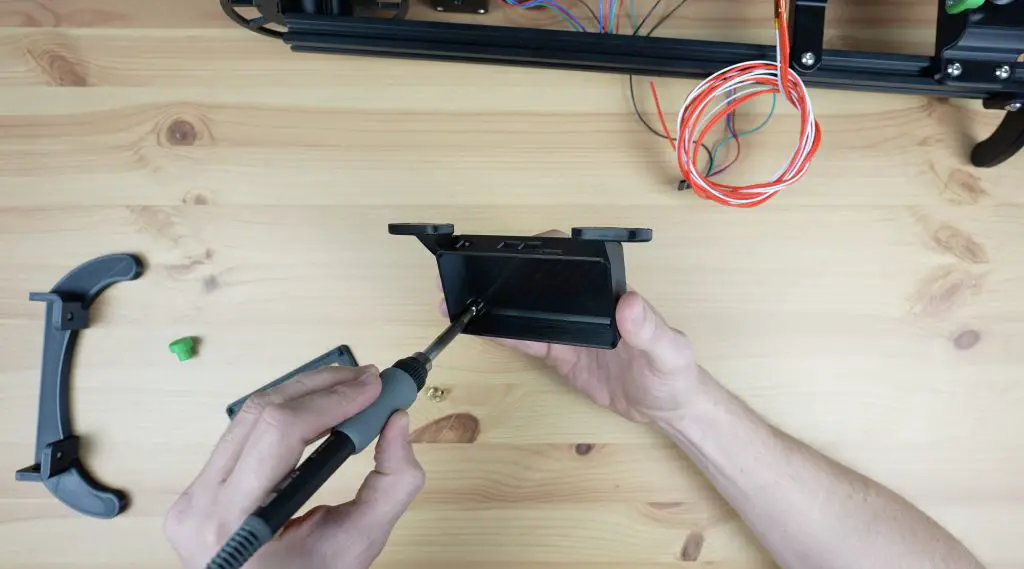
To join the two pieces, we need to add some M3 threaded brass inserts to the side of the base, which we’ll melt into place using a soldering iron.
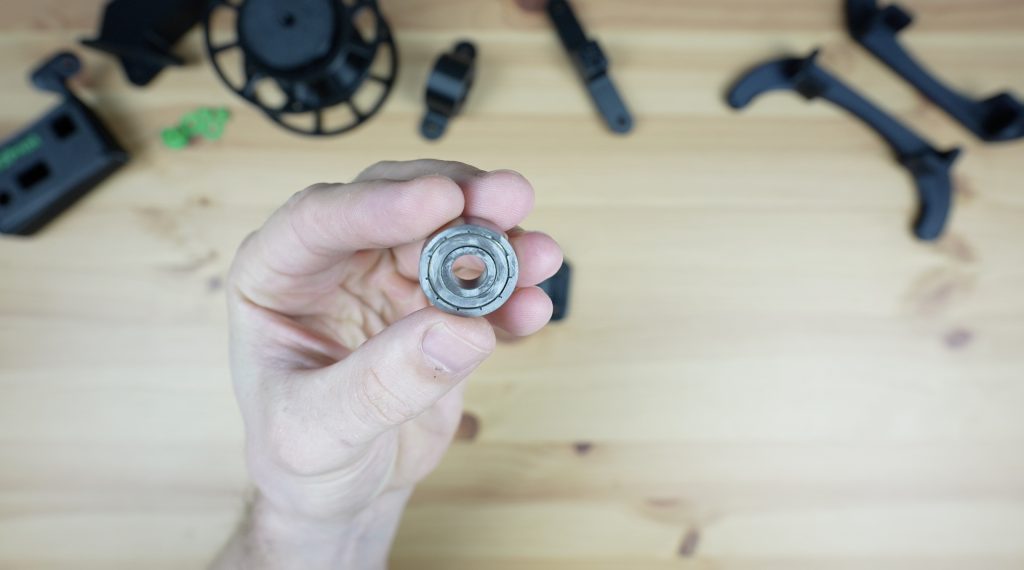
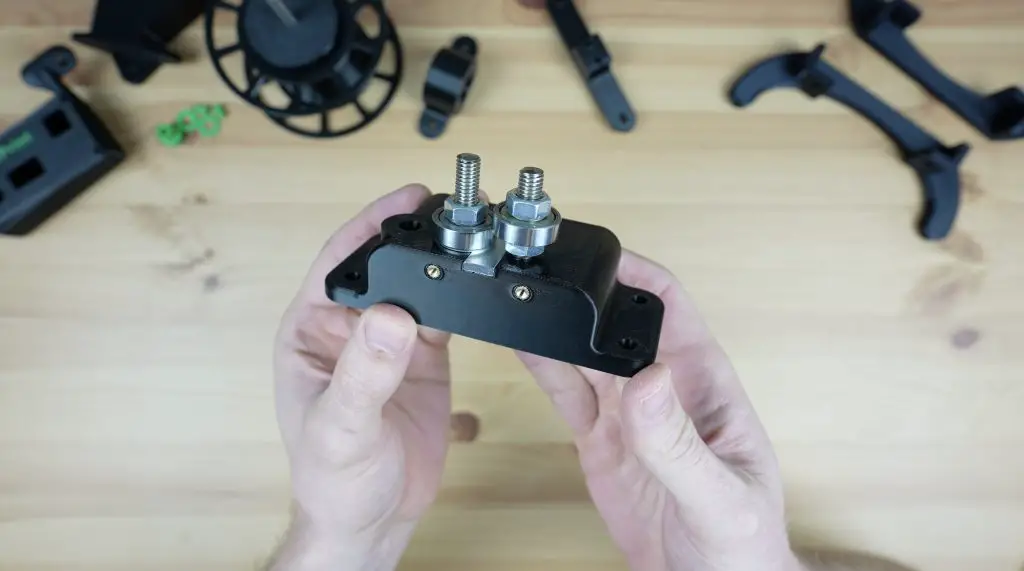
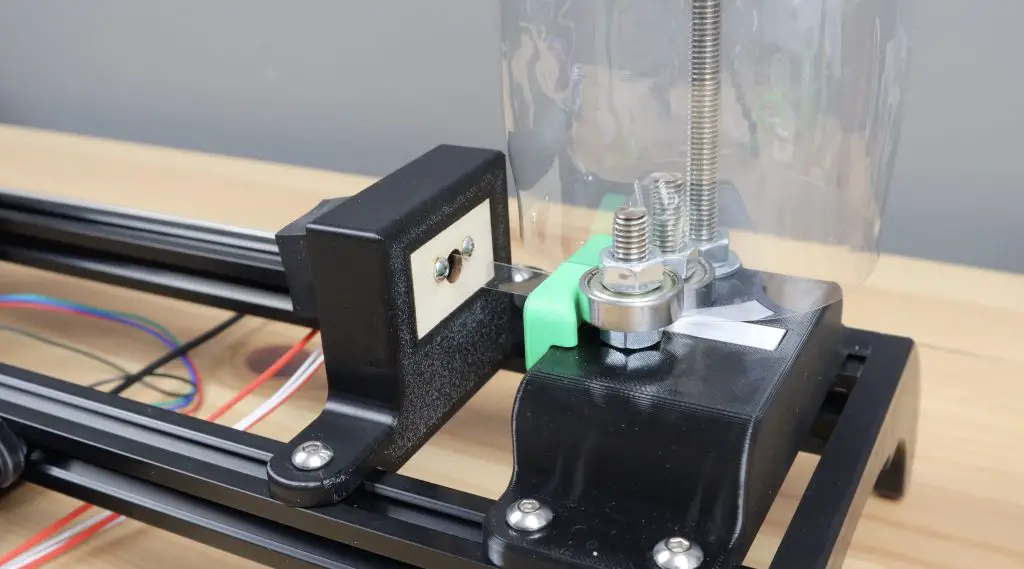
Before we screw the guide into place, we need to add the cutting mechanism. This uses two 608 ball bearings to cut the filament. These are really cheap and easy to get as they’re the same size bearings that are used for skateboard wheels and fidget spinners.
To turn them into a cutter, we need to sharpen one face of each bearing by grinding it flat. I did this on a bench grinder to make sure they’re kept square. You can also use a sanding disc or grinding disc on a grinder.
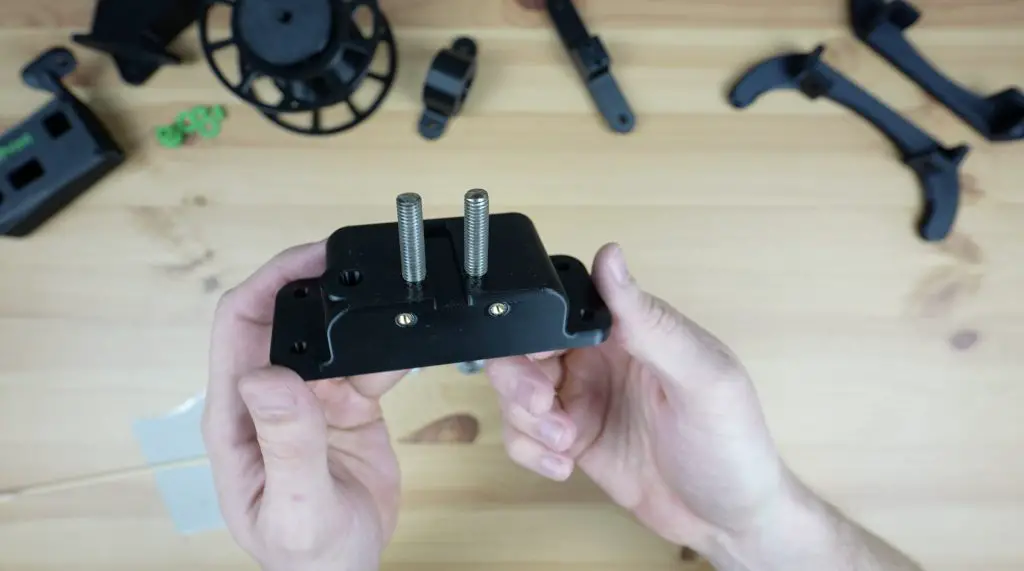
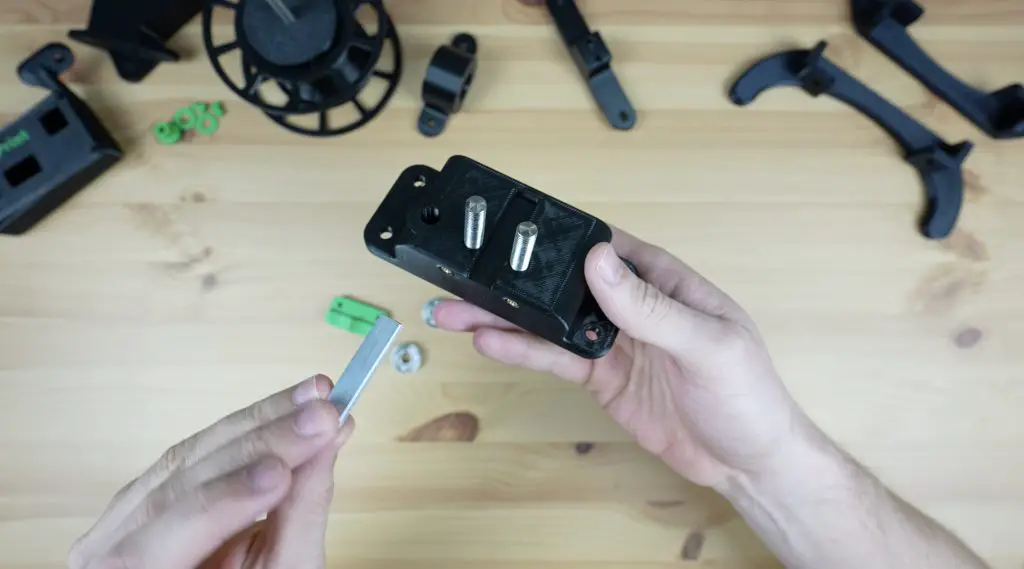
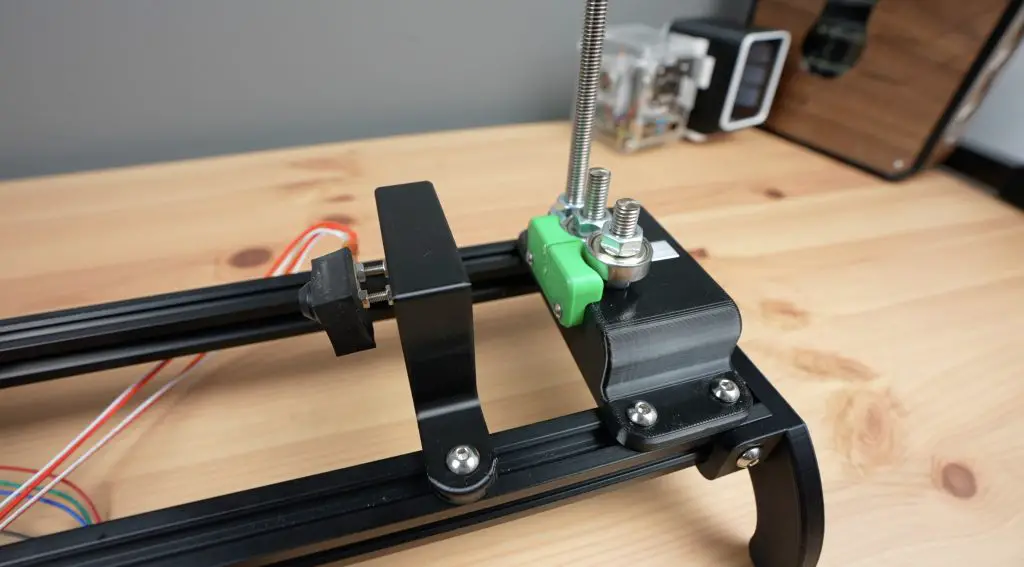
We then need to epoxy two M8 studs that are approximately 60mm long into the base to mount the bearings on. You can cut the M8 threaded rod using a cutting disc on a grinder, a Dremel or a hacksaw.
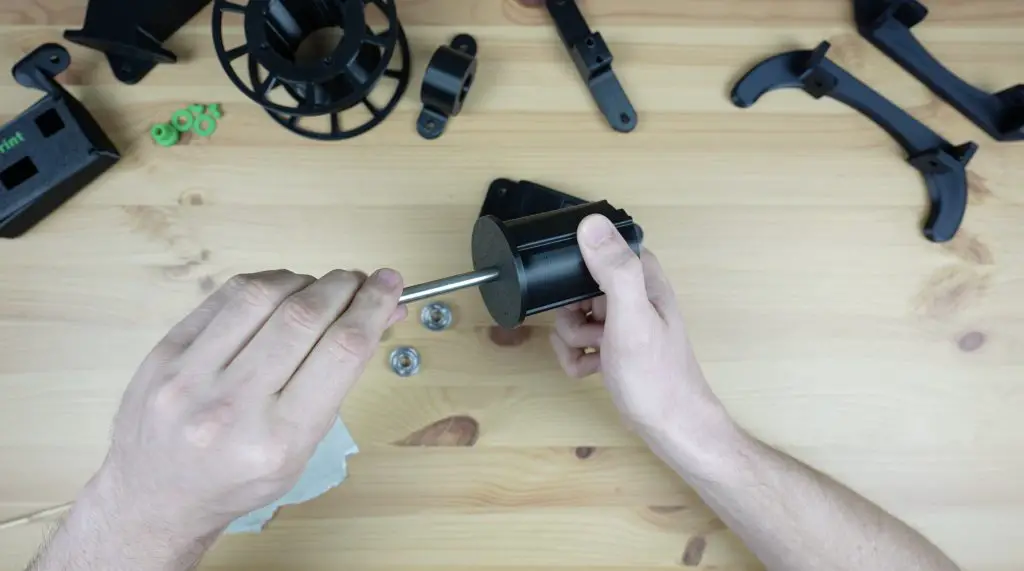
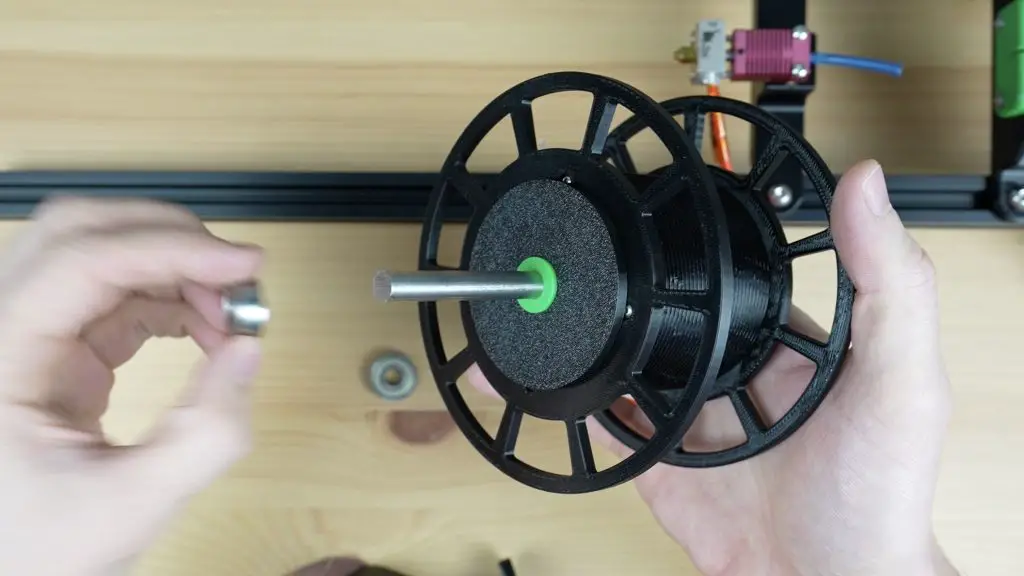
While we’ve got some epoxy mixed up, I’m also going to epoxy the 8mm shaft into the reel holder to use later.
Once the epoxy has cured, we can mount the bearings onto the studs.
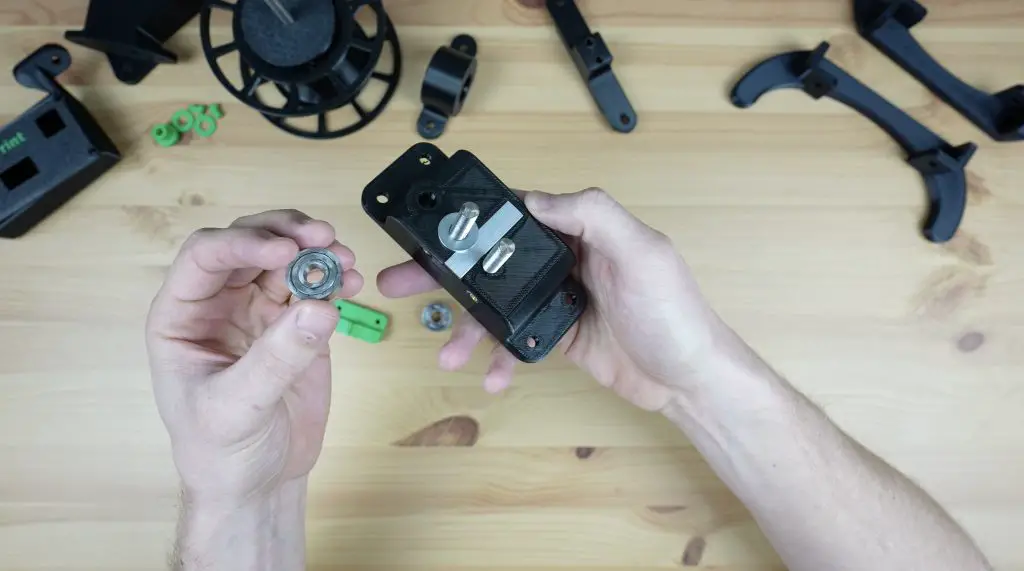
We also need to add a metal strip underneath the bearings, this stops the bottle from quickly wearing out the printed base. The strip will need to be trimmed from a piece of aluminium flat bar so that it fits into the cavity in the holder.
A small washer is used under the first bearing. The bearing then goes onto it with its flattened or ground face up, so that it doesn’t rub on the base. A nut holds it in place. We then add a nut to the second stud, then the bearing with the ground face down, just at the right height to contact the face of the first. A second nut holds the second bearing firm against the first bearing and the nut below it.
We can then screw the guide onto the front of the base with some M3 x 8mm button head screws.
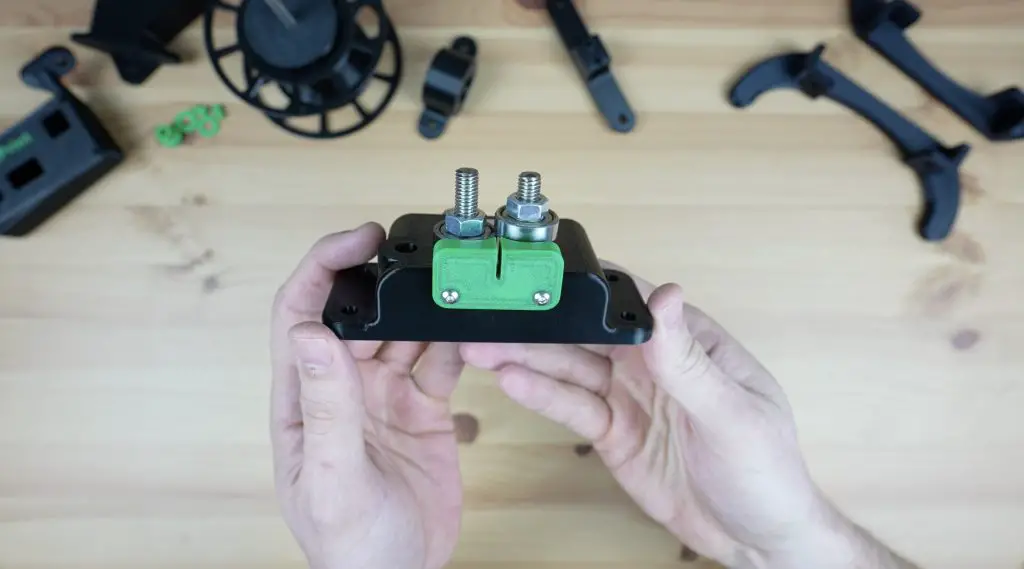
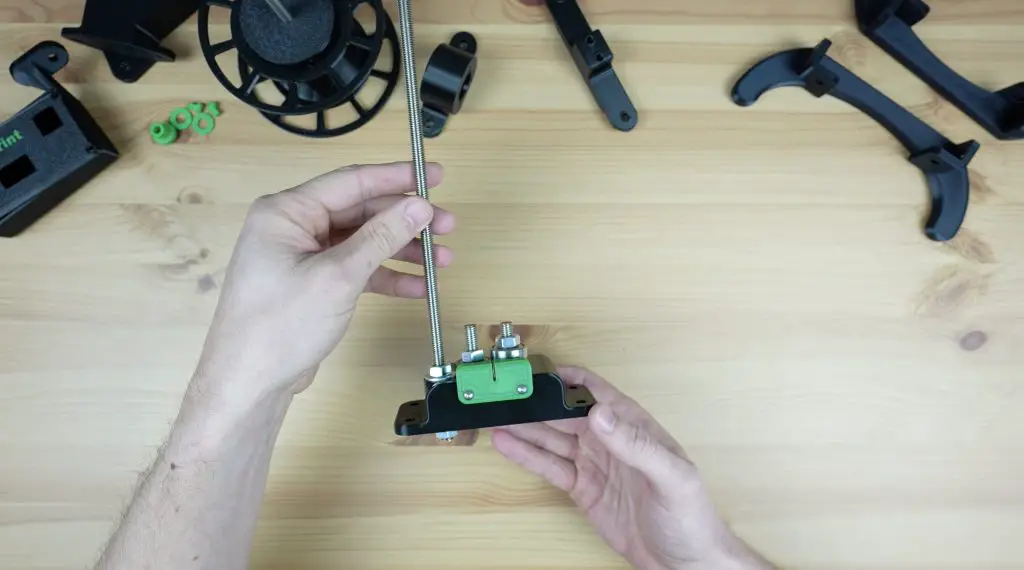
To finish it off, let’s also add a M8 rod for the PET bottle stand. You can make this from the leftover length of M8 threaded rod, it needs to be long enough to hold the tallest bottle that you’ll use on the PET 2 Print (around 300-400mm). This will hold the bottle upright to feed the end into the cutter and it is held in place with a nut and washer on each side of the base.
And that’s the cutter complete and ready to be mounted onto the stand.
Assembling One Side Of The Stand
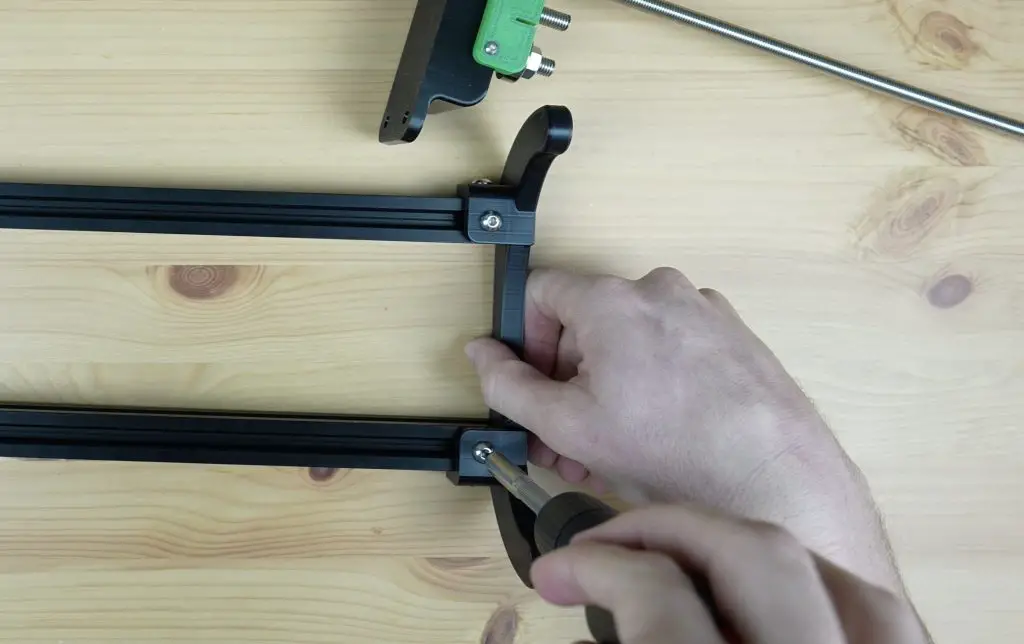
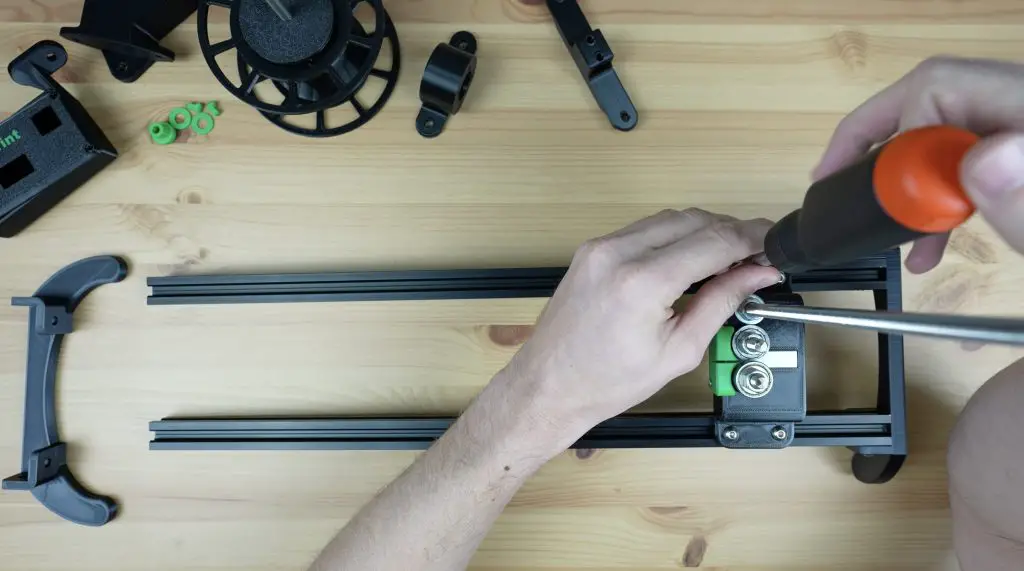
The stand consists of two 500mm lengths of 2020 aluminium v-slot extrusion and two sets of legs, one on each end. These are mounted with some M5 v-slot nuts and M5 x 10mm button head screws.
We can add one set of legs onto one end and then slide the cutter into position.
First Attempt At The Hot End
The hot end is a really simple part of the recycler, but it actually turned out to be one of the more tricky parts to get right. I’m going to skip through this initial design because there were a couple of things I didn’t think through when I designed it and it didn’t work.
Because the nozzle is going to be over 200 degrees celsius, we need a way to stop the heat from reaching the 3D-printed plastic holder. I thought I could use the heat break on the current hot end assembly, but I overlooked the fact that this meant that the strip wouldn’t fit into it. So I was back to the drawing board shortly after finishing it.
Assembling The Reeler
Next let’s move on to the most complicated part of the recycler, the reeler. This is the part that is driven by a stepper motor to pull the filament through the cutter and hot end.
We’ll start by making up the reel.
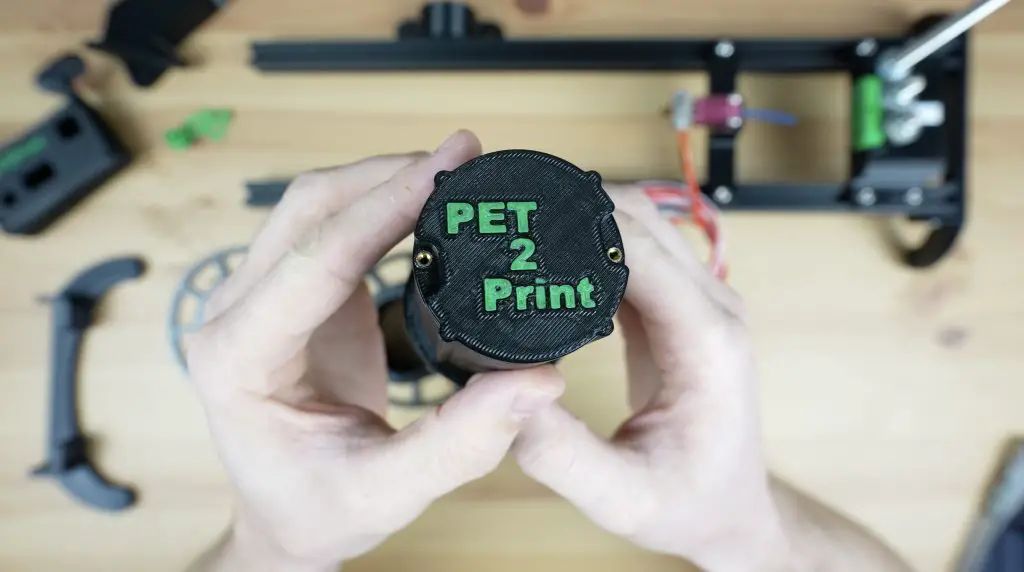
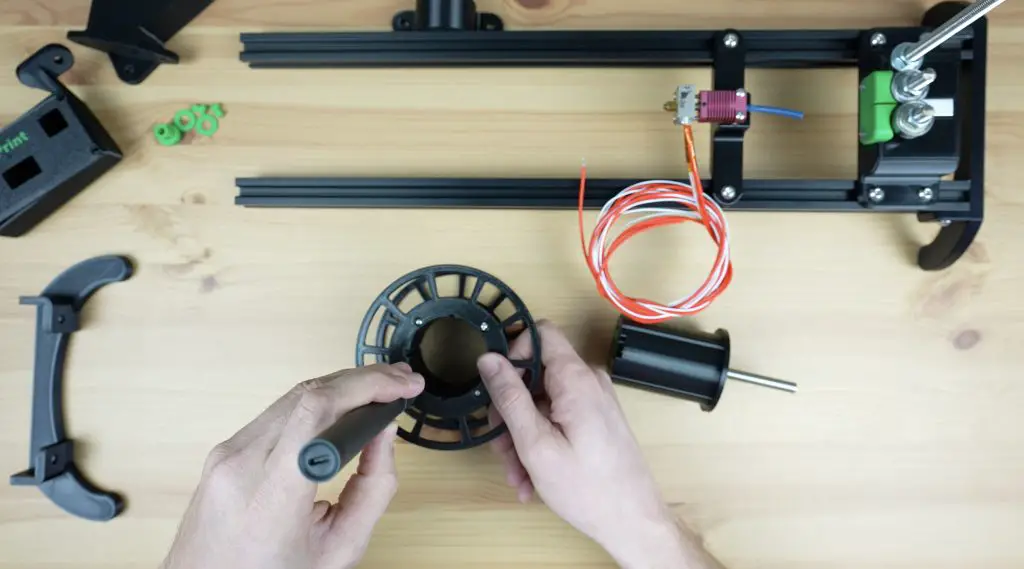
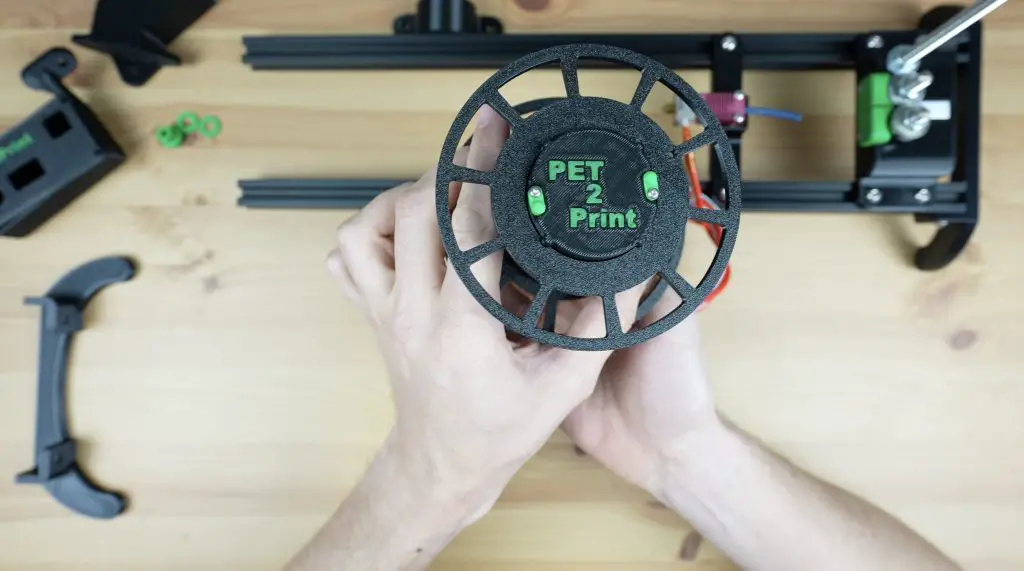
The reel is something that I’ve changed quite a lot from the others I’ve seen online. On most other machines, the reel is fixed on both sides and you need to unwind the filament from the reel once it’s done. I wanted to avoid this, so I made the reel removable which makes it much easier to get the completed filament off of afterwards.
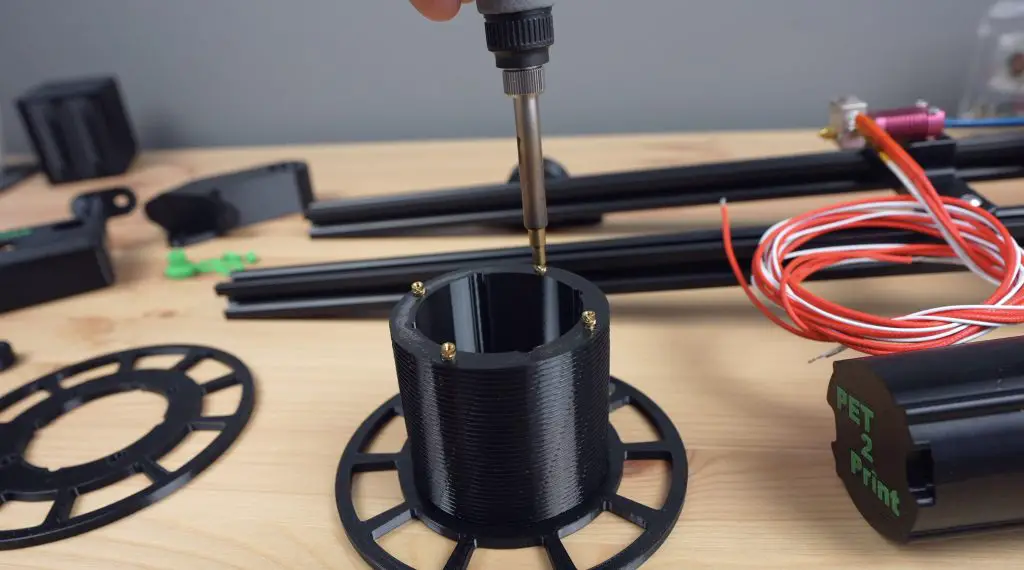
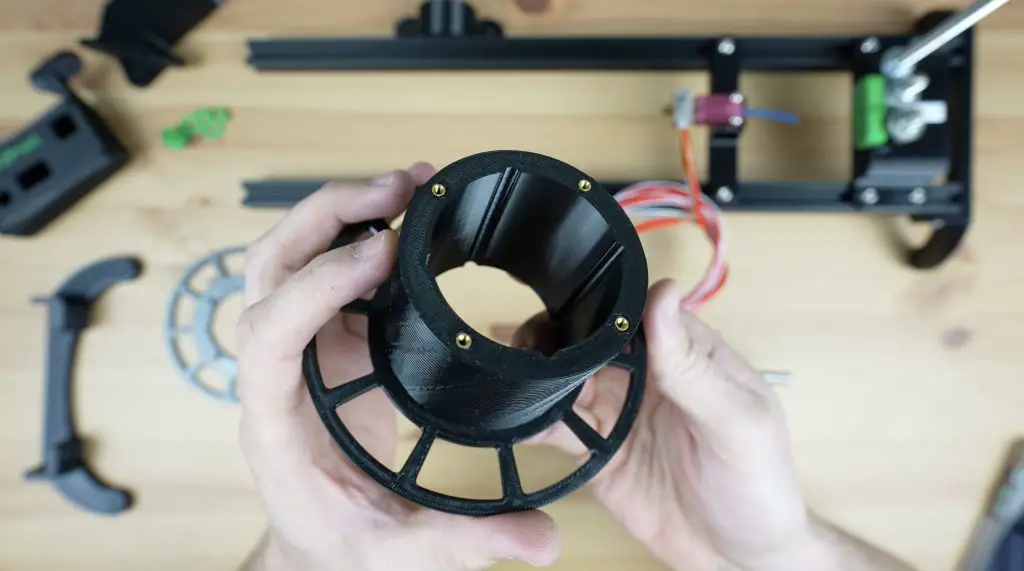
To finish the reel off, we need to melt some M2.5 threaded brass inserts into one half of the reel for the opposite end to screw onto. This is split to make it easier to 3D print without requiring supports.
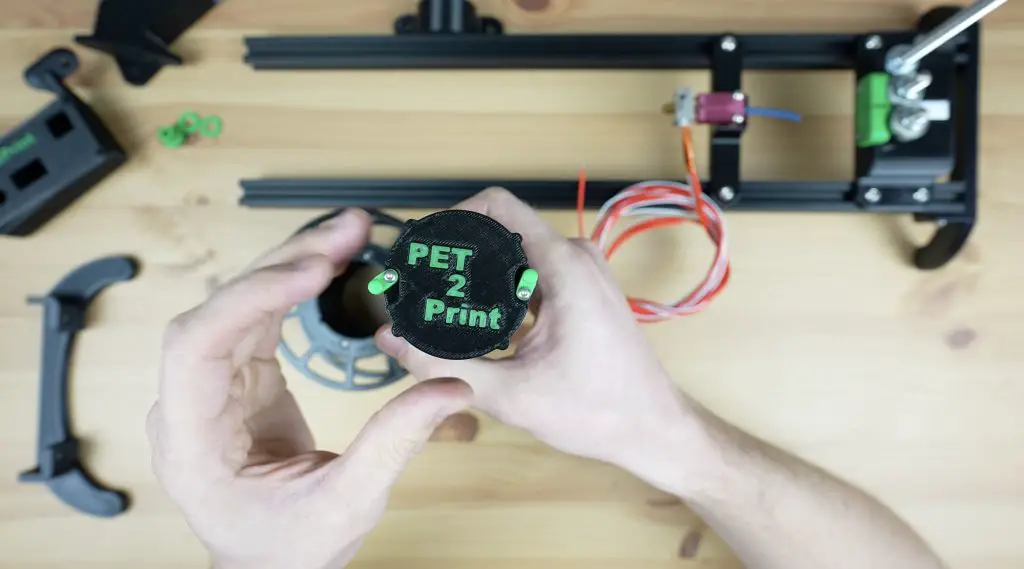
We also need to add some inserts to the other end of the reel holder for the small catches that hold the reel in place while it is running.
Then we can screw the reel parts together with some M2.5 x 6mm screws and the catches with some M2.5 x 12mm screws to finish them off.
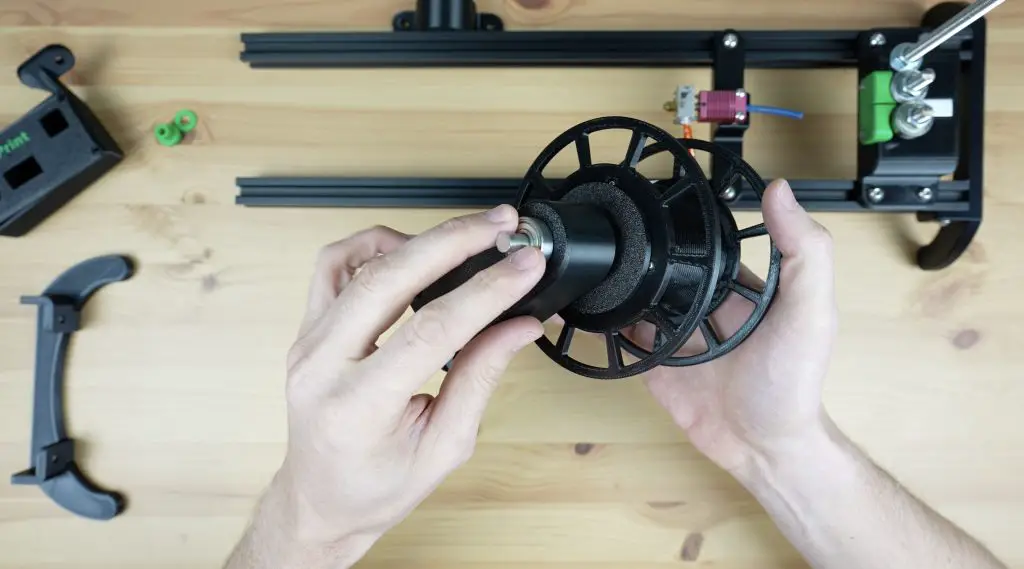
Next let’s press another two 608 size bearings into the reel stand, one on each side. We’ll use an 8mm shaft as a guide to keep them aligned while pressing them into place.
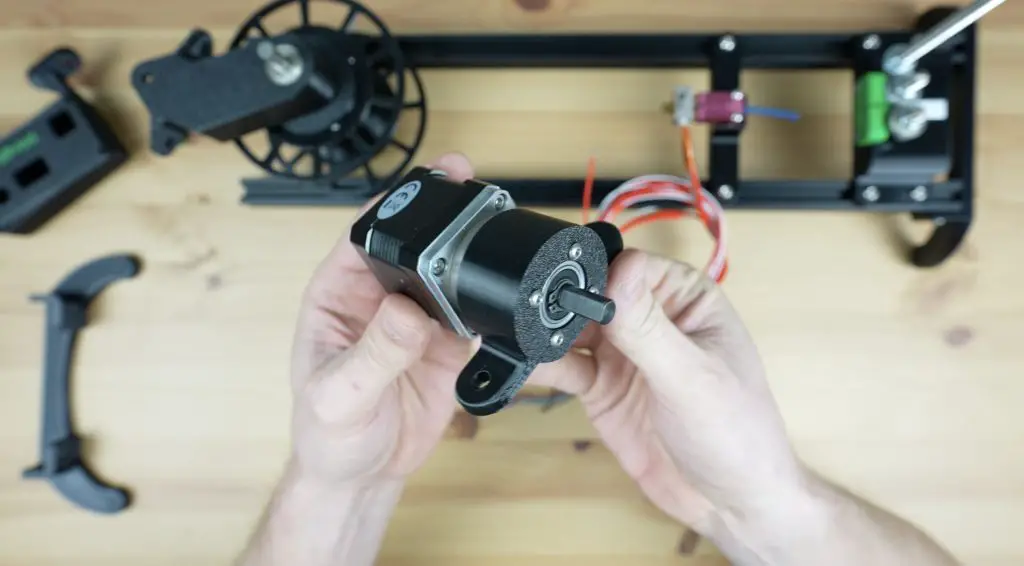
Next, let’s mount the motor onto its holder using four M3 x 8mm button head screws.
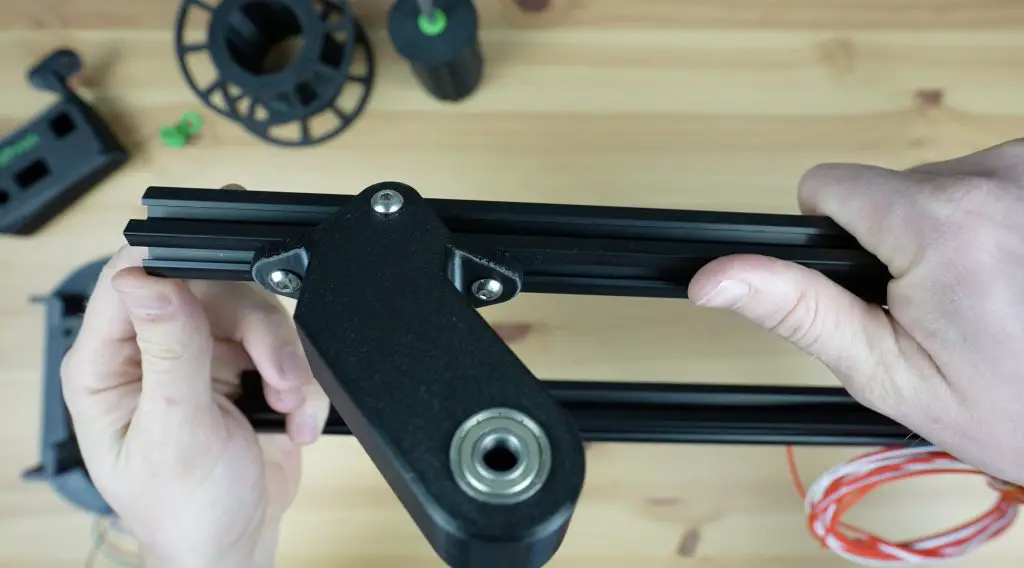
Then we can mount the base onto the top of the v-slot extrusion.
And the motor holder onto the underside.
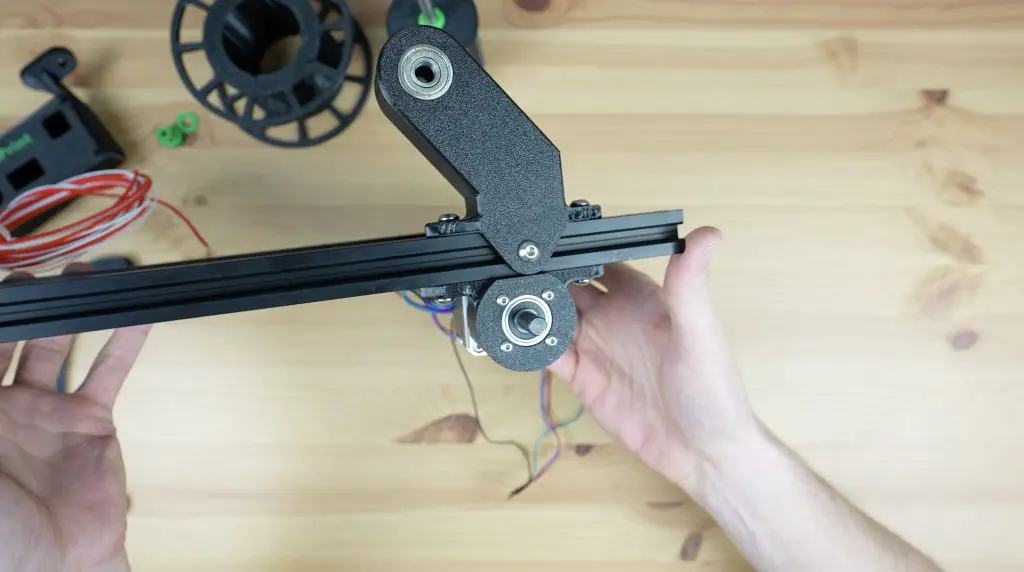
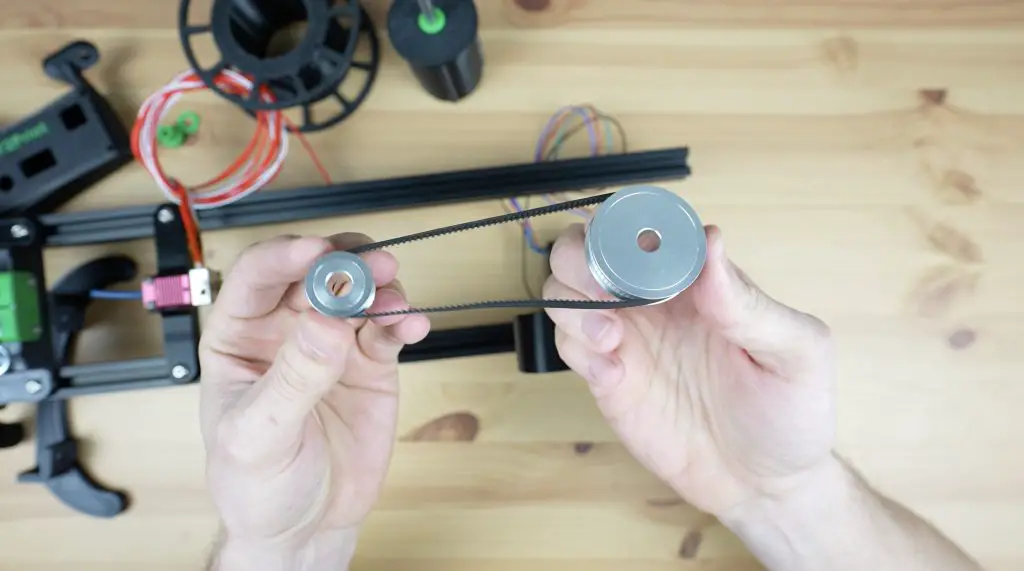
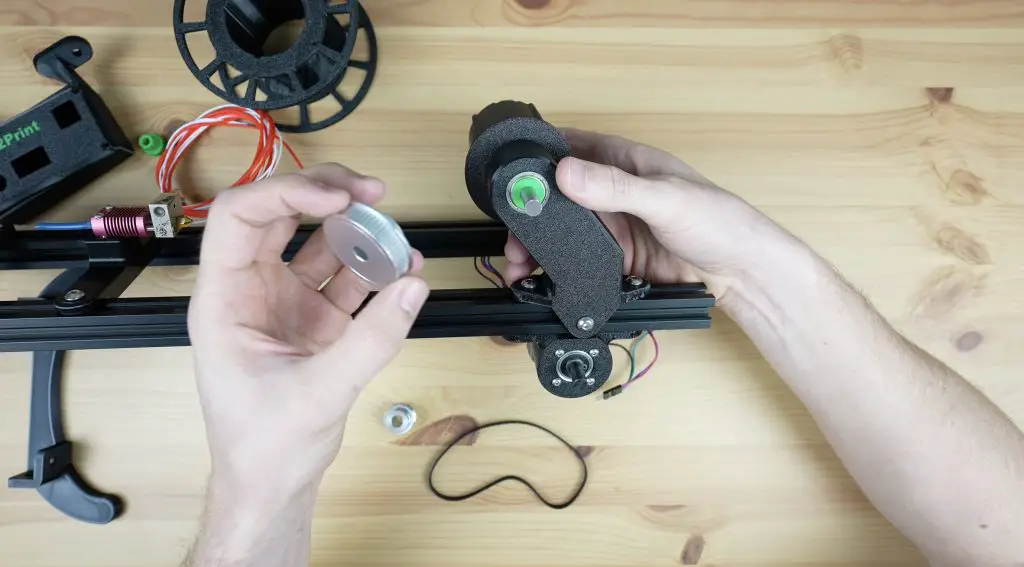
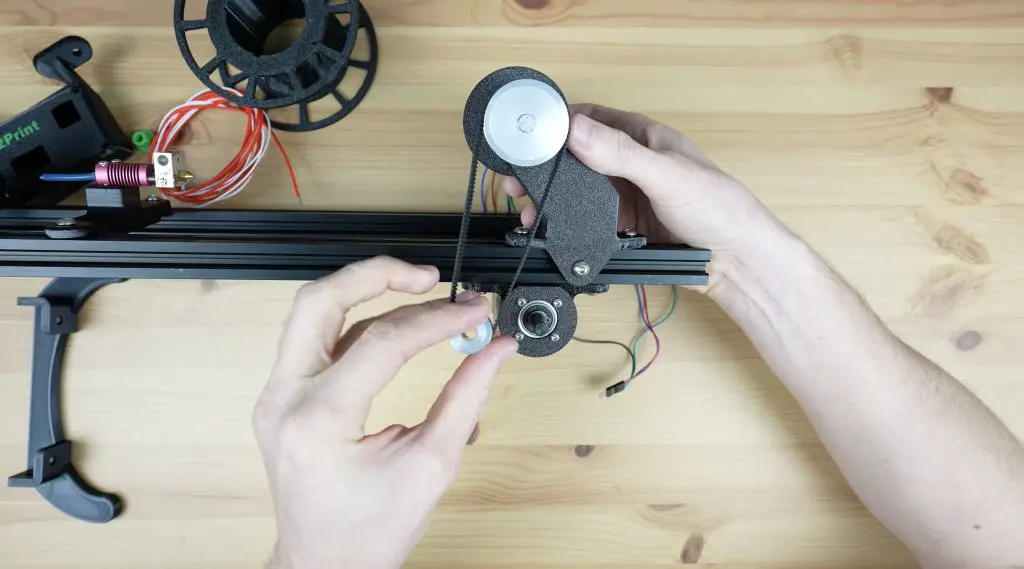
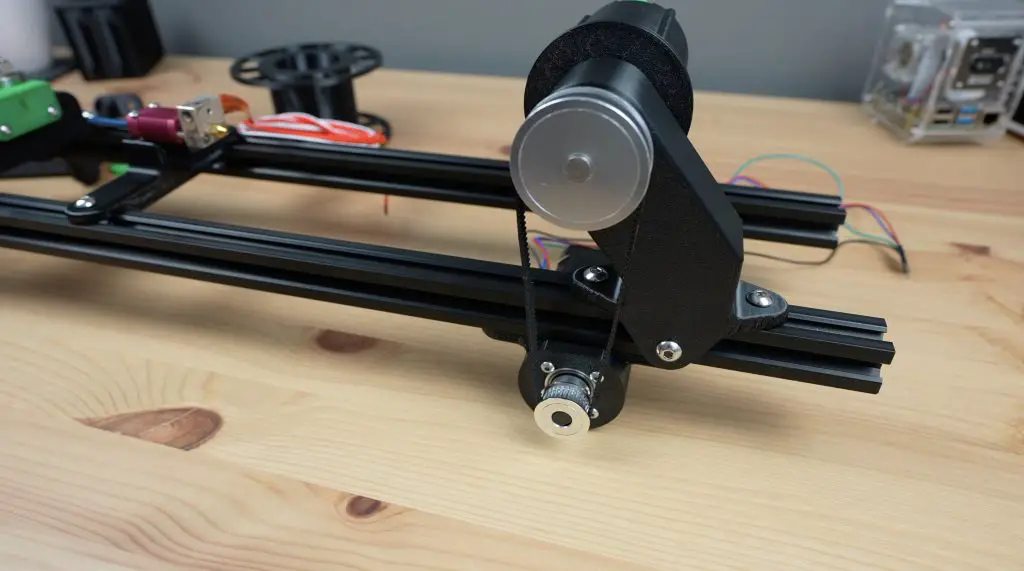
The reel is driven by the motor through a GT2 belt and pulley system on the back.
So we can push the reel’s shaft through its base with a spacer between it and the bearing, then another spacer on the opposite side. We then add the 60-tooth pulley to finish it off and the grub screw holds it in place. A 30-tooth pulley is pushed onto the motor shaft, with a belt connecting the two. Once complete, the shaft on the reeler can be trimmed to be flush with the face of the 60-tooth pulley.
The belt is tensioned using the relative movement between the reel base and the motor holder, pulling them further apart puts more tension on the belt. This needs to be fairly well-tensioned but shouldn’t put enough stress on the components to bend or distort any of the 3D printed parts.
Assembling & Programming The Controller
Now that we’ve got the mechanical parts in place, we need to add the controller.
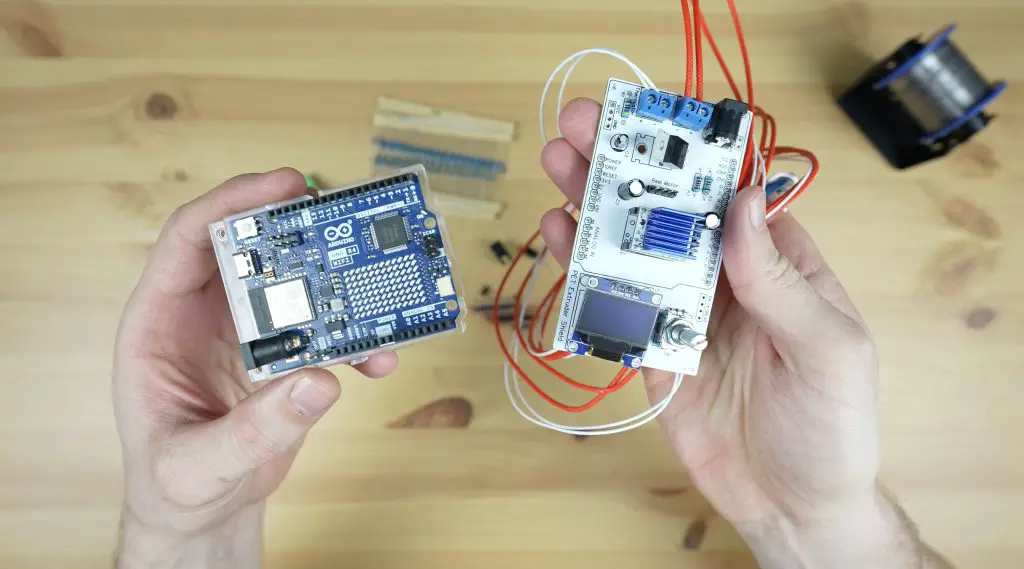
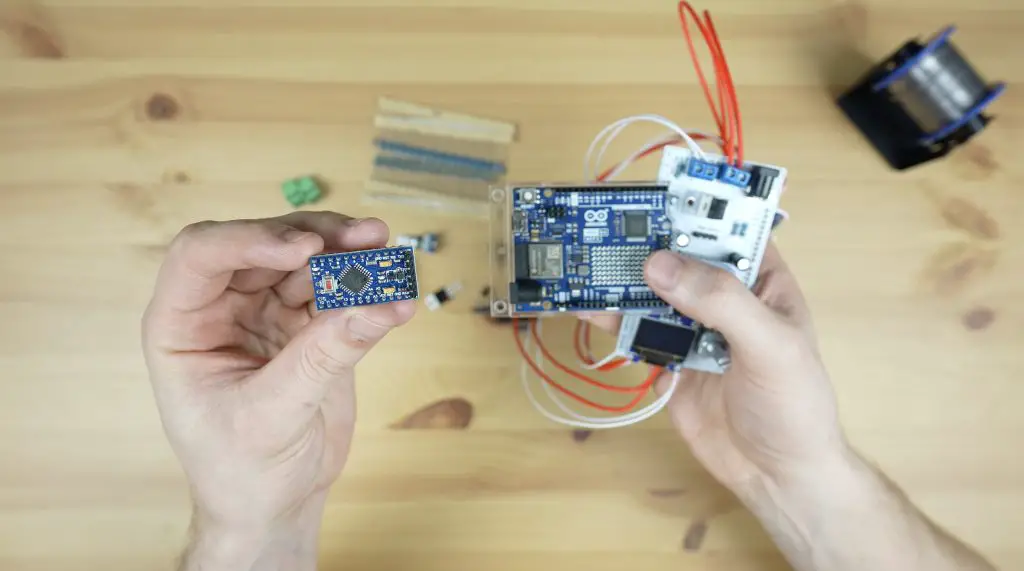
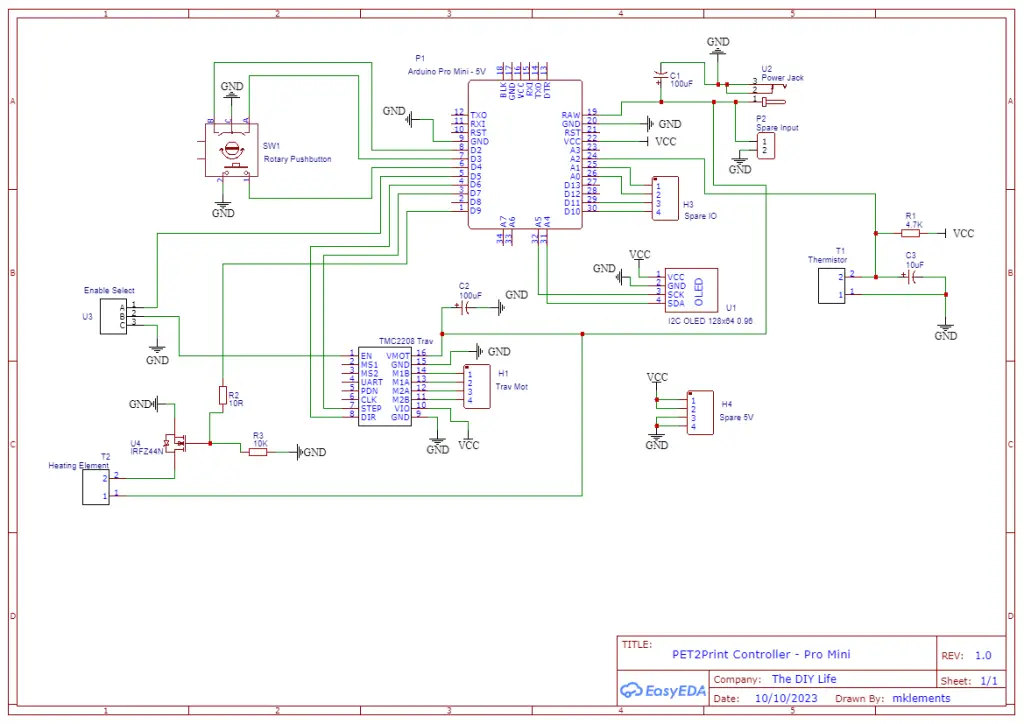
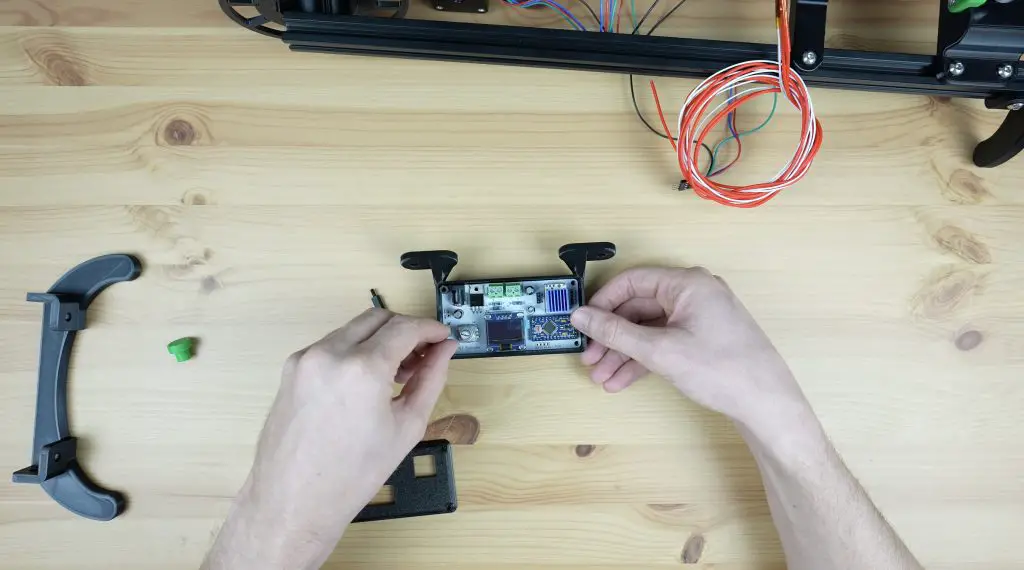
If you read my previous design and build of the controller, I ended that off by saying that I wanted to make it a bit more compact. It was designed as a shield for an Arduino UNO, but by using an Arduino Pro Mini, we can make it much smaller.
So I designed a new PCB that swapped the UNO out for a pro mini and brought the components a little closer together.
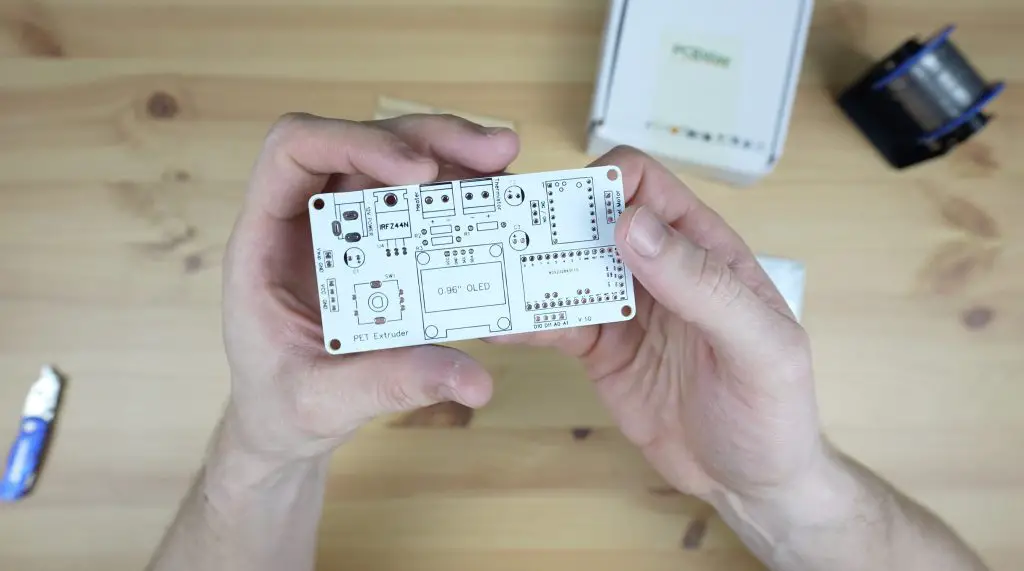
PCBWay then made them up for me in the same colour scheme as my previous shield.
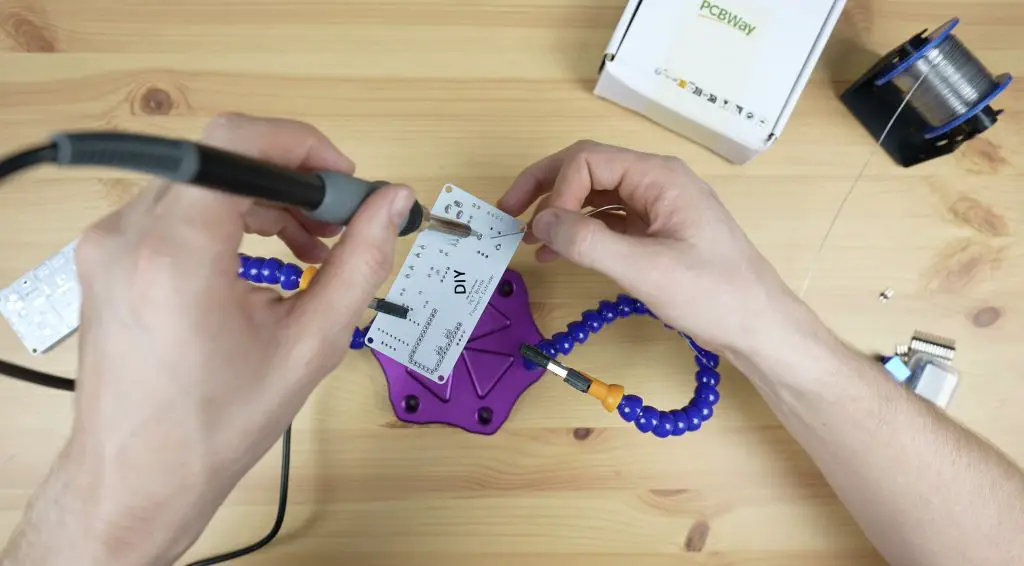
I soldered the components onto the PCB, starting with the smallest and working to the largest, with the Arduino going on last.
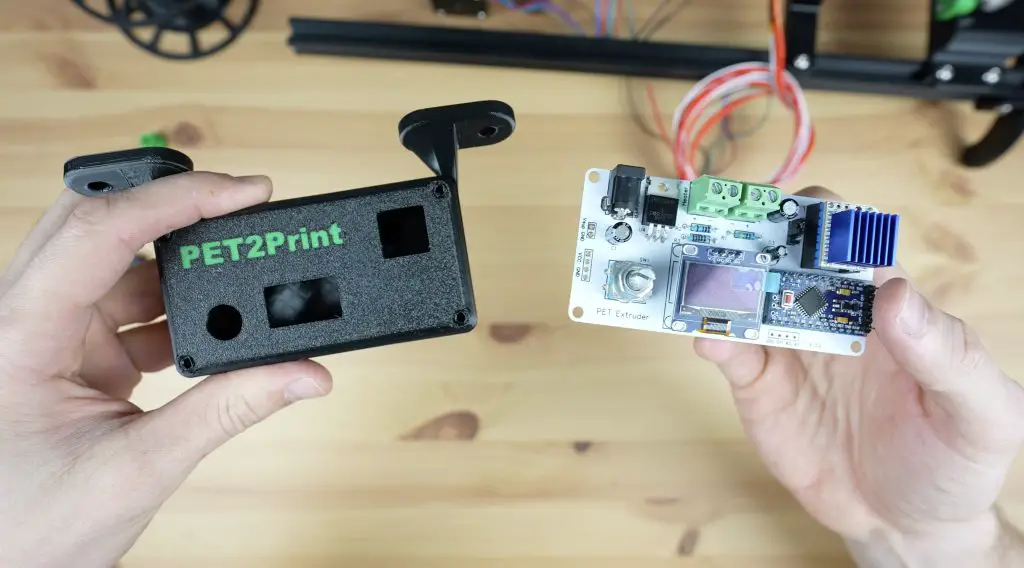
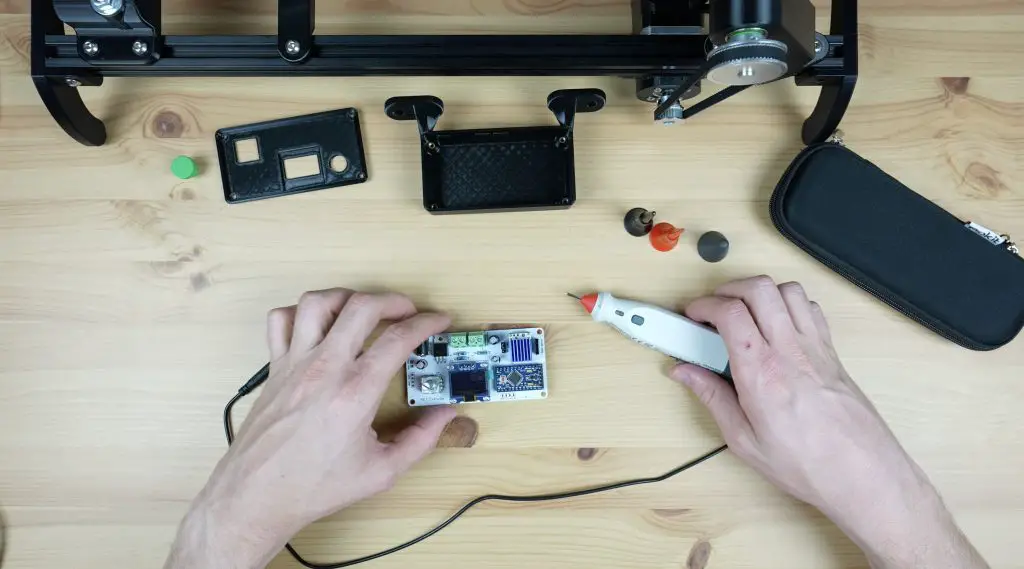
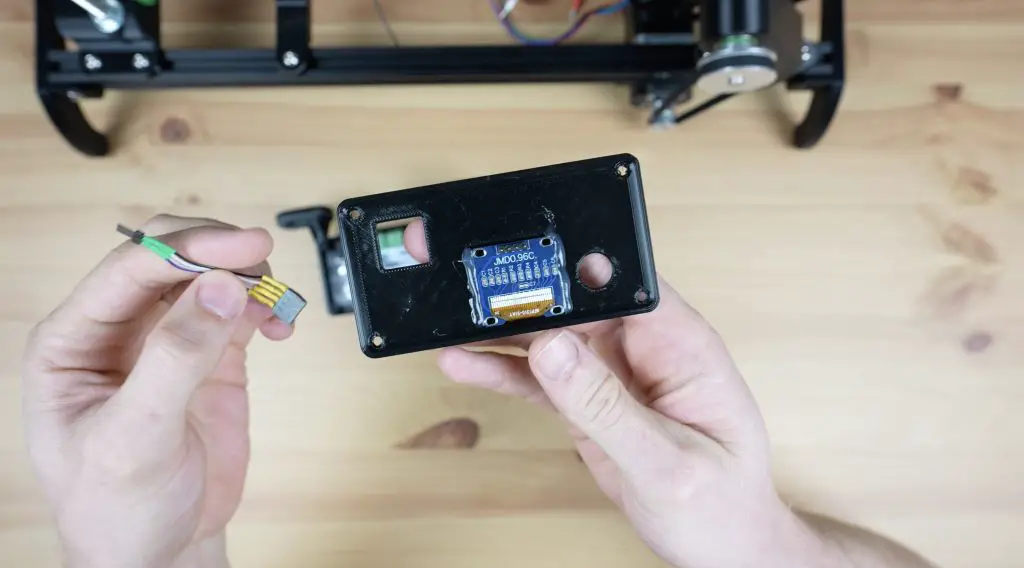
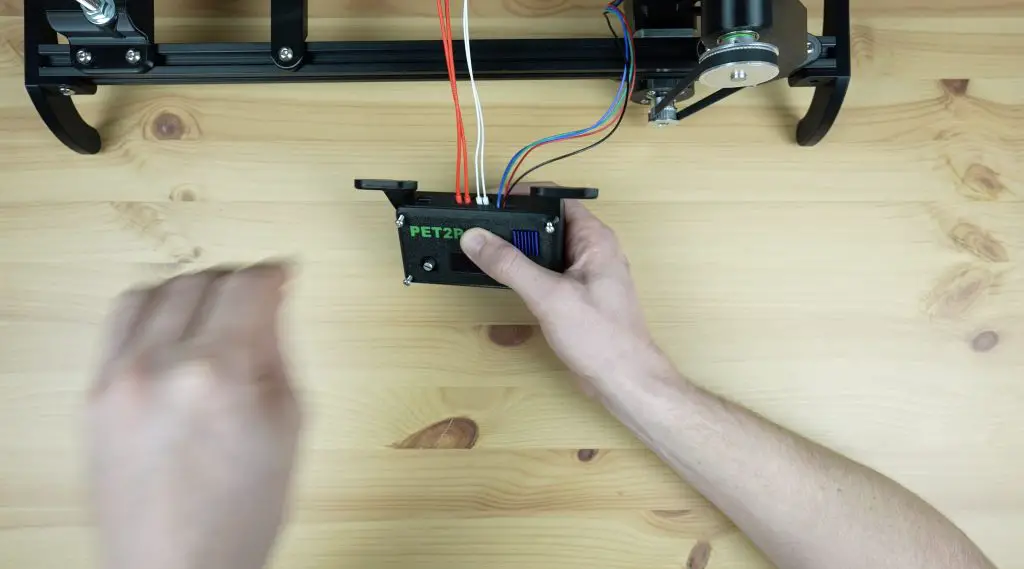
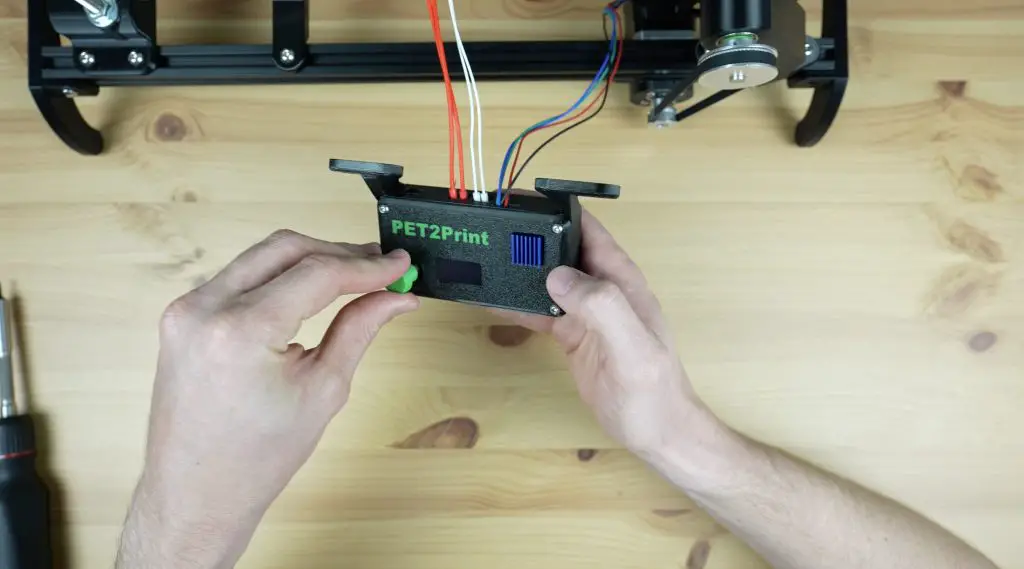
I also 3D printed a housing for the controller, but before we put it into the housing we need to program it and set up the stepper motor driver’s current limit.
Programming The Arduino
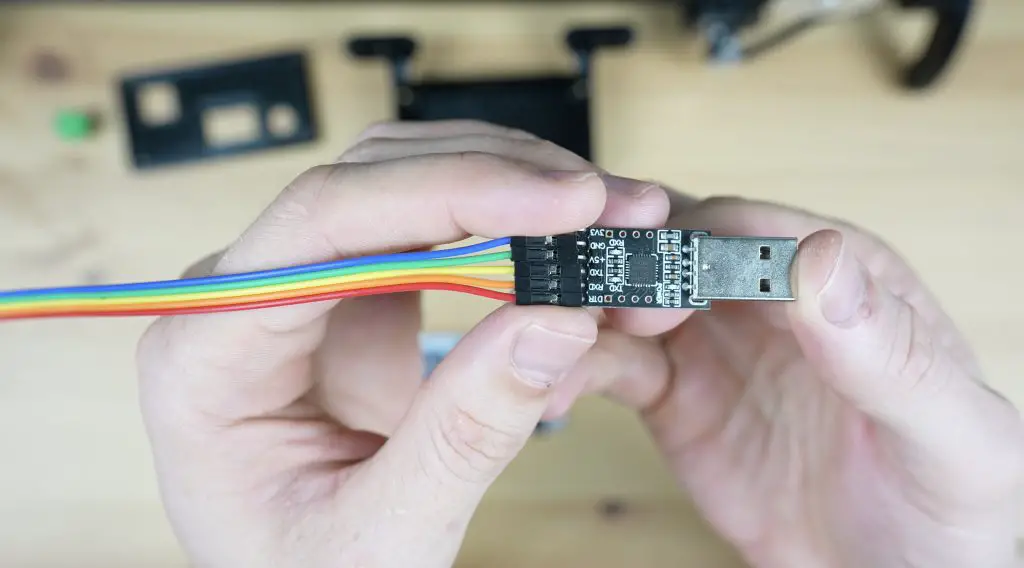
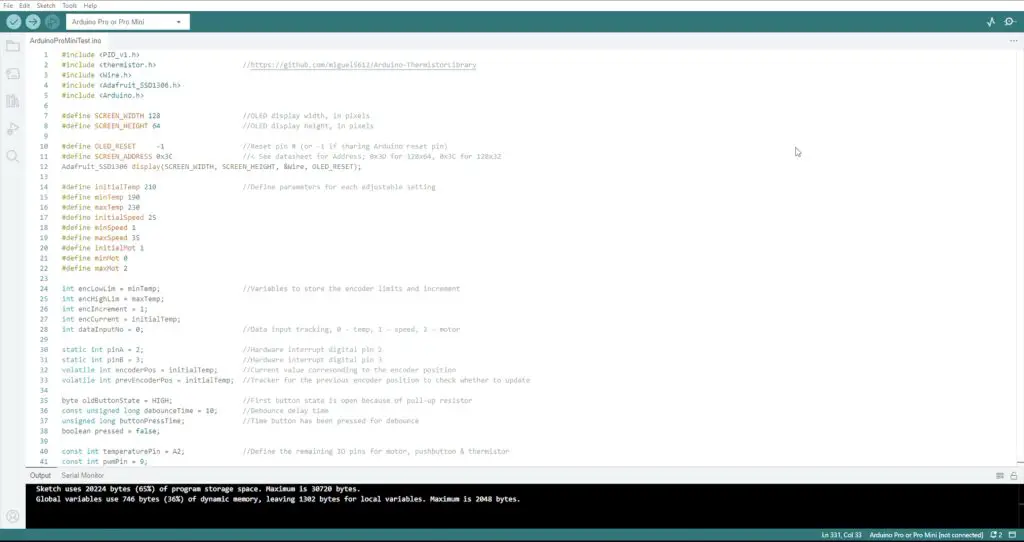
To upload the code to the Pro Mini, we’ll need to use a USB programmer. We just plug this into the Pro Mini and then into the computer to upload the code to it.
Make sure that you select the “Arduino Pro or Pro Mini” board type. Also check that you have the “Atmega328P (5V, 16MHz)” processor selected and that your programmer type is set to “USBasp”.
The sketch is available from my GitHub repository so that people can make changes and improvements to it.
Setting The Stepper Motor Driver Current Limit
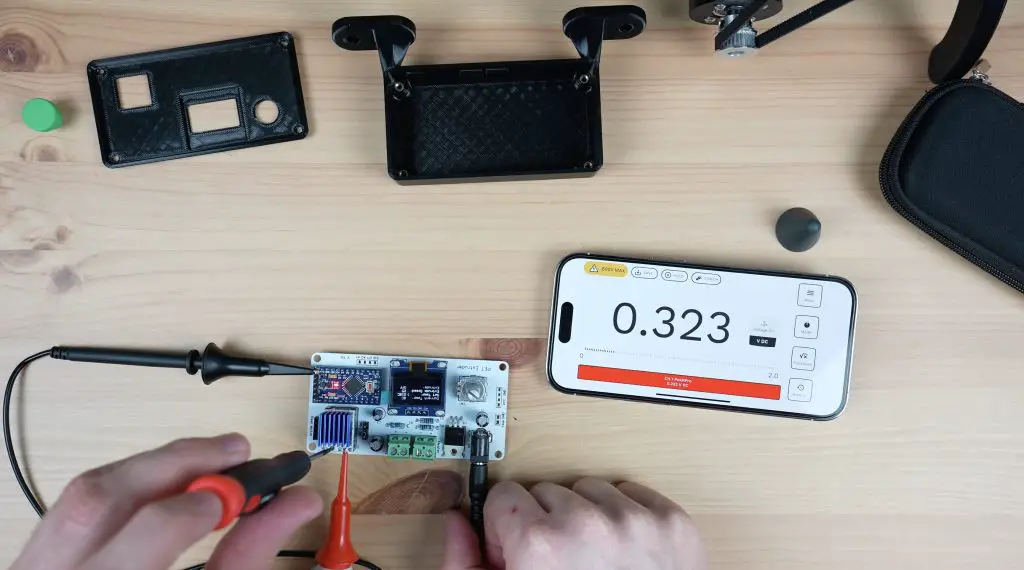
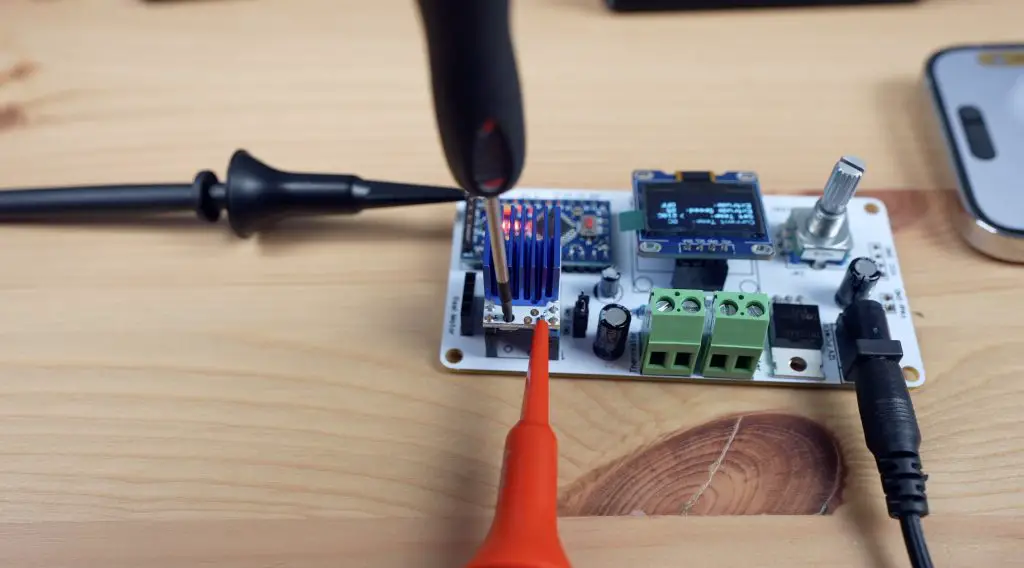
To set the current limit, we need to measure the driver’s reference voltage using a multimeter. I’m using my Pokit Pro multimeter with clamp leads.
We then adjust the limit using a screwdriver to turn the onboard potentiometer to suit the rated current of the motor, which in my case is the same as the maximum current limit for the driver. So I’m aiming for a reference voltage of exactly 1V.
Display Update Issue
After setting the driver’s current limit and attempting to run the motor, I found another issue. When running the stepper motor, it sounded like it was intermittently skipping steps or stopping and this seemed to get worse if I sped the motor up.
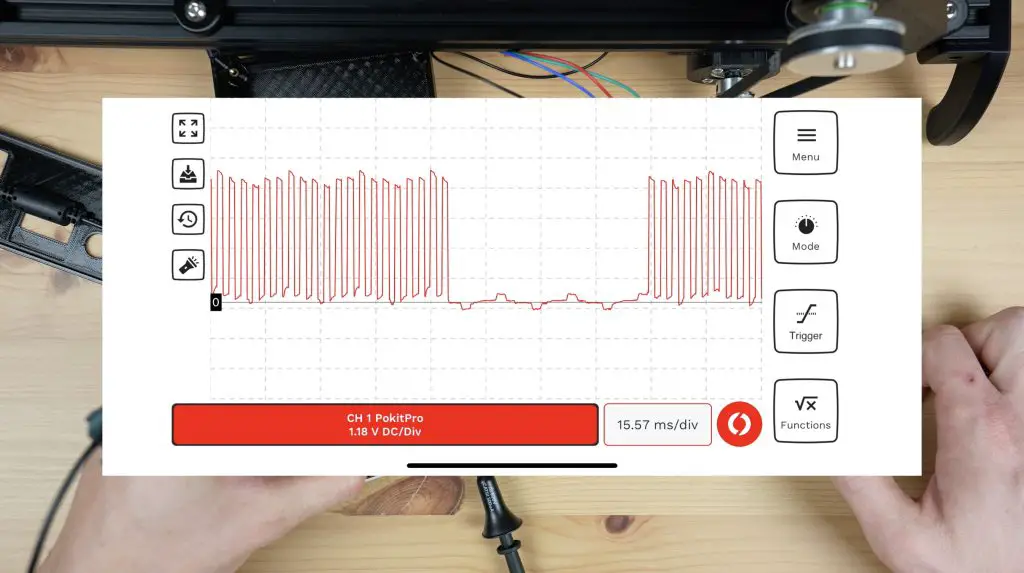
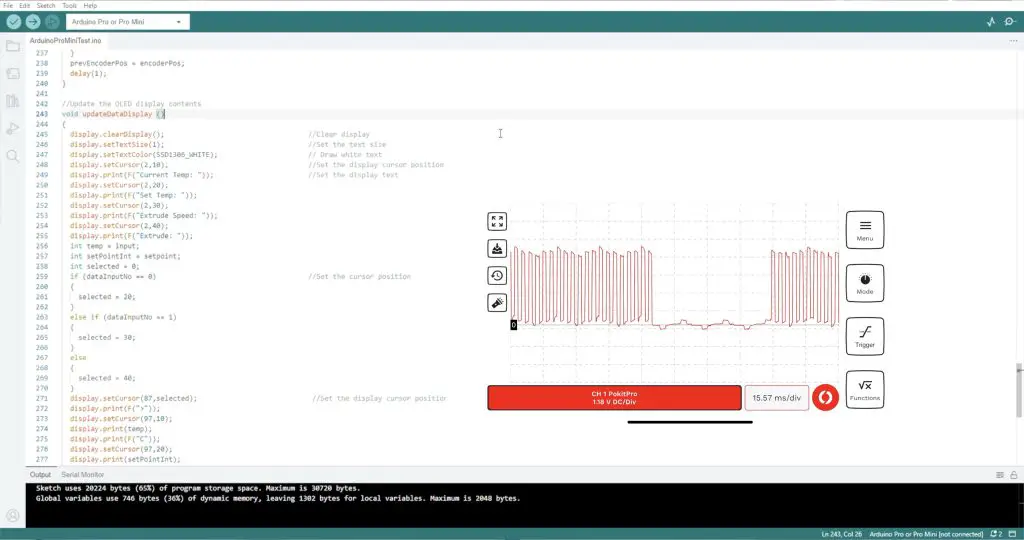
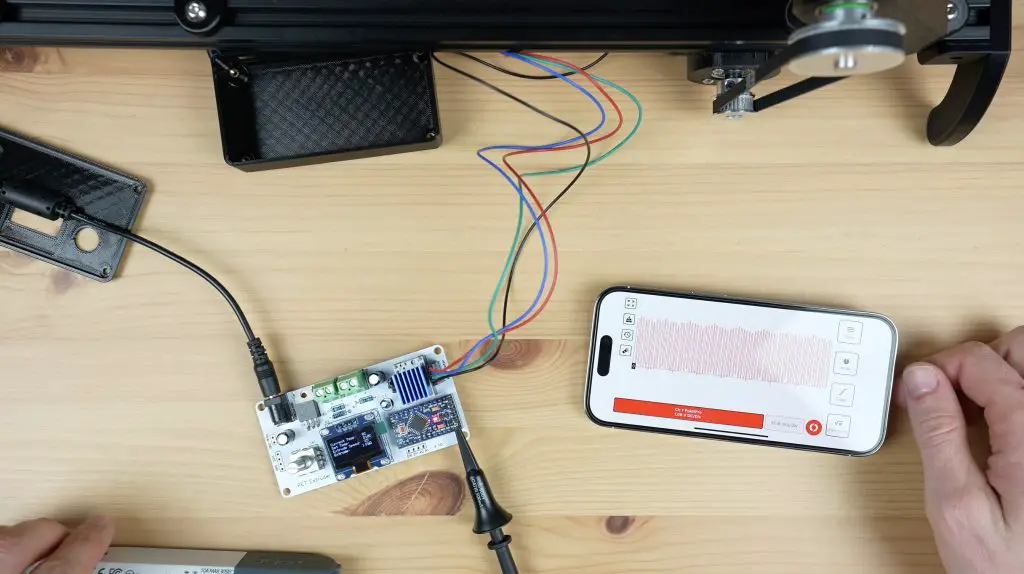
I put the Pokit Pro’s oscilloscope onto the output and found that the Arduino stopped pulsing the stepper motor driver for brief periods of time, which was causing the driver to stop turning the motor.
In working through the code, it seems like this happened each time the display was being updated. It looks like the Arduino takes longer to update the display than the period of time between pulses. So it just stops pulsing the driver while it finishes updating the display, which is obviously not going to work when we need a consistent pulling force. I tried making the display loop faster but didn’t have any luck with this. In the end, I had to modify the code so that it no longer updates the display when the motor is running.
This does limit the feedback on the display during operation, but won’t affect the overall design or functionality. I’ll have to investigate whether I can make the display or portions of the display update more quickly in the future.
In any case, we now get smooth pulses from the Arduino and a consistent motor speed.
Mounting The Controller
To finish off the enclosure, we first need to add some M3 threaded brass inserts into the bottom to screw the PCB to.
The PCB is then held in place with some M3 nylon standoffs which double up as a means to hold the top cover in place.
I’m glued the OLED display to the inside of the top cover with some hot glue and I’ll connect it to the PCB with a short ribbon cable.
We can then screw our element and thermistor into the terminals, plug in the stepper motor and then close it up with some M3 x 8mm button head screws.
A 3D-printed knob gets pushed onto the rotary push button and we can mount it onto the base.
With all the components in place, we can install the second set of legs to close off the ends of the extrusions.
Second Attempt At The Hot End
Now that we’ve got the other parts working, let’s go back to the hot end. As mentioned earlier, the device makes filament by softening the strip and rolling it over in the hot end to form a cylinder. This means that the strip needs to start being heated right from the time it enters the hot end or it’ll be very difficult to pull through. So, I redesigned the hot end holder so that the strip passes through the holder and directly into the heat block without any restrictions from the heat break.
The nozzle is a standard 0.4mm nozzle, so we need to first drill that out to the filament diameter. We’re aiming for 1.75mm but the filament expands a little after it leaves the hot end, so we’ll drill it out using a 1/16″ drill bit, which is just under 1.6mm.
The back of the heat block has a small tapped hole for the heat break. We’re going to open this up with a tapered drill bit so that it is slightly larger than the strip width. The taper will then help to gently fold the edges over until we reach the nozzle diameter.
We can then mount the heat block onto the holder. I’ve used some M3 x 40mm button head screws through the heat block and then nuts to hold it onto the plywood plates on each side of the 3D-printed holder. The plywood plates act as the heat break in this design and stop the screws from melting the plastic holder.
We can then re-attach the terminals and we’re ready to try it out.
Turning A PET Bottle Into Filament
To run the PET bottle recycler, we first select the target hot end temperature. I’ve found that 215°C to 220°C work well with my bottles. We can then select the motor speed, for which I use 22 to 25. These are just arbitrary units, they don’t relate to rpm or rotational speed. We can then turn the motor on or off, forward or in reverse, with the last menu item.
Now we just need a PET bottle to turn into filament. To prepare a bottle, we first need to wash it out and then remove the label and residue as well as any date markings. I found that acetone works well for this. If you don’t remove the label residue, it’ll clog up the hot end and/or cause your printed layers to delaminate.
The bottle cutter works best with a smooth surface and most bottles are rippled in some way. You can smooth them out over some heat, like a stovetop, with a drop or two of water inside the bottle to pressurise it slightly. Be very careful when working with and opening the bottle as the hot air or steam can cause burns – it is best to use gloves.
We can then cut off the end of the bottle, cut a starter strip and feed it into the cutter.
We’ll need some needle nose pliers to pull the end of the strip through the hot end, which has now preheated to 220°C, and then onto the reel.
The reel has a small hole on one spoke which we can feed the end through to tie it off. You might need to keep a finger on the knot until there is tension on the filament to lock it into place.
Finally, we can turn on the reeler motor to continue pulling the filament through the hot end and onto the reel.
Now we just wait for it to turn the PET bottle into filament. You can also cut the bottle beforehand to reduce the load on the motor, you’ll then just feed the strip directly through to the hot end without the bearing cutter in place.
Test Prints With PET Bottle Filament
Once the bottle has been converted into filament, we can transfer it from the reel over to the 3D printer to try a print.
I started out by printing a benchy and calibration cube to see how they turn out. There is a bit of adjusting to do on the first few prints as the PET filament is not quite a solid 1.75mm section, it is hollow in the middle. I found that increasing the flow rate to about 135% gets good results. I printed with a bed temperature of 70°C and a hot end temperature of 260°C.
Once I had the settings right, I was actually pleasantly surprised by how well this filament prints. The calibration cube came out looking really good.
The benchy showed a few signs of stringing and a little under-extrusion in places but is also really good for homemade filament. It’s obviously not as consistent as factory-produced filament but it’s usable for home projects.
3D Printing A PET Case For My Raspberry Pi
Once I was getting consistent printing results, I converted a few more bottles so that I could print a case for my Raspberry Pi.
This highlights one of the drawbacks of this process. You get about 6-7m of filament from a 1-litre bottle, but with the hollow centre and having to increase the flow rate to compensate for this, it gets used up quite a lot faster than the standard solid 1.75mm filament. It’s also messy to store on the filament holder as it doesn’t like being coiled up.
To print my standard Pi case with no supports, I need 25m of PET filament and this is with a really low infill density and only 2 walls. So I need to swap a new roll of filament onto the printer 5 times for a relatively small print. This is manageable if your printer has a filament runout sensor but it’s still a bit of a nuisance.
The case body also came out surprisingly well with just a little stringing and again some under-extruded areas. With the partially transparent walls and infill visible, it’s not obvious.
I even used the coloured Mountain Dew bottle for the printed side panels as well.
What do you think of the completed case? It’s really cool to think that this was once 5 Coke bottles and 2 Mountain Dew bottles. It also looks great in the dark as the RGB fan illuminates the body of the case.
Final Thoughts On The PET2Print
Overall I’m really happy with how my PET2Print recycler has come out. There are a couple of improvements I’d like to make to it, like getting the displayed temperature to be able to be updated while the motor is running, and perhaps designing a spool mount for precut bottle strips instead of the bottle cutter. It would also be helpful to be able to splice two lengths of PET filament together to avoid having to change the filament during a print but to date, it doesn’t look like anyone has found a reliable process for this.
Let me know what other suggestions you have to improve upon it in the comments section below. As mentioned earlier, I’ve put the code up on GitHub if you’d like to have a go at improving it – I’m sure there is a lot of room for improvement.
To provide the best experiences, we use technologies like cookies to store and/or access device information. Consenting to these technologies will allow us to process data such as browsing behavior or unique IDs on this site. Not consenting or withdrawing consent, may adversely affect certain features and functions.
Functional
Always active
The technical storage or access is strictly necessary for the legitimate purpose of enabling the use of a specific service explicitly requested by the subscriber or user, or for the sole purpose of carrying out the transmission of a communication over an electronic communications network.
Preferences
The technical storage or access is necessary for the legitimate purpose of storing preferences that are not requested by the subscriber or user.
Statistics
The technical storage or access that is used exclusively for statistical purposes.The technical storage or access that is used exclusively for anonymous statistical purposes. Without a subpoena, voluntary compliance on the part of your Internet Service Provider, or additional records from a third party, information stored or retrieved for this purpose alone cannot usually be used to identify you.
Marketing
The technical storage or access is required to create user profiles to send advertising, or to track the user on a website or across several websites for similar marketing purposes.