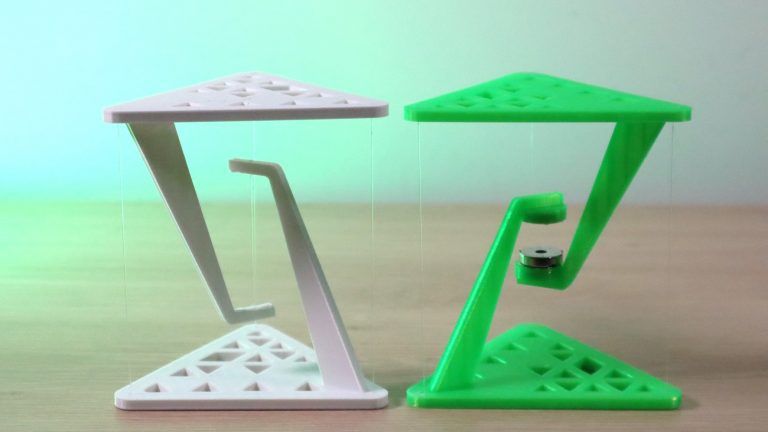
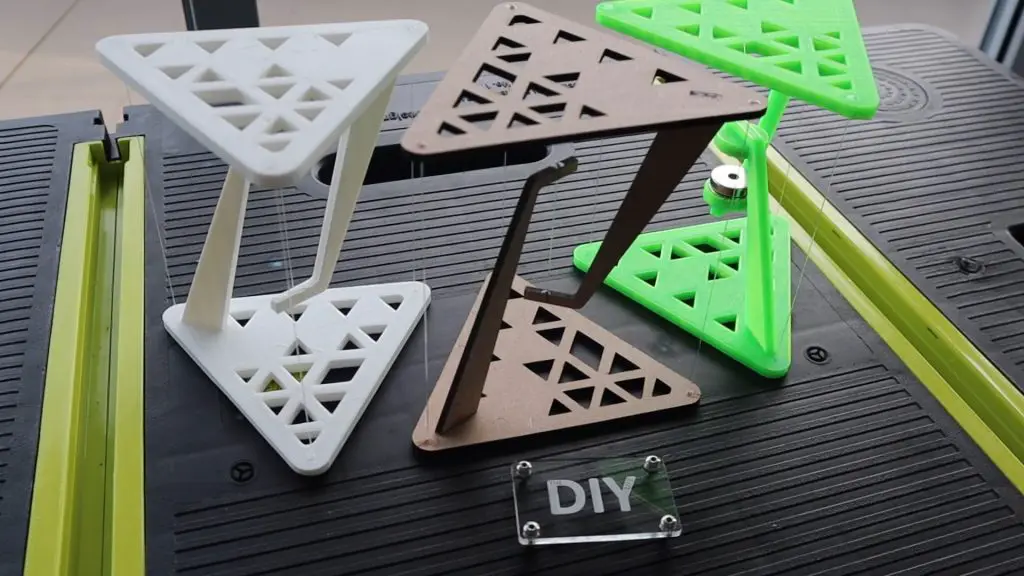
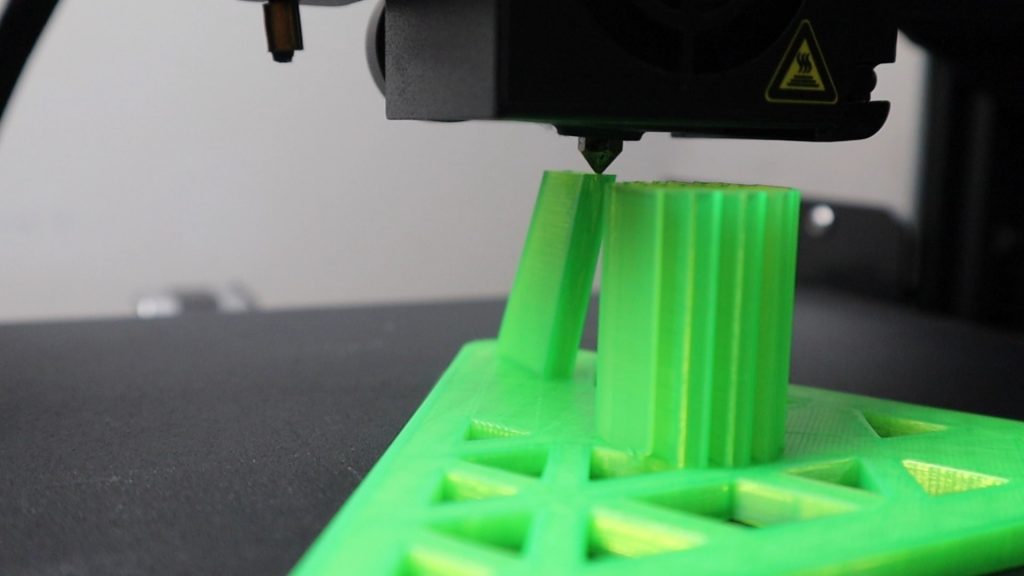
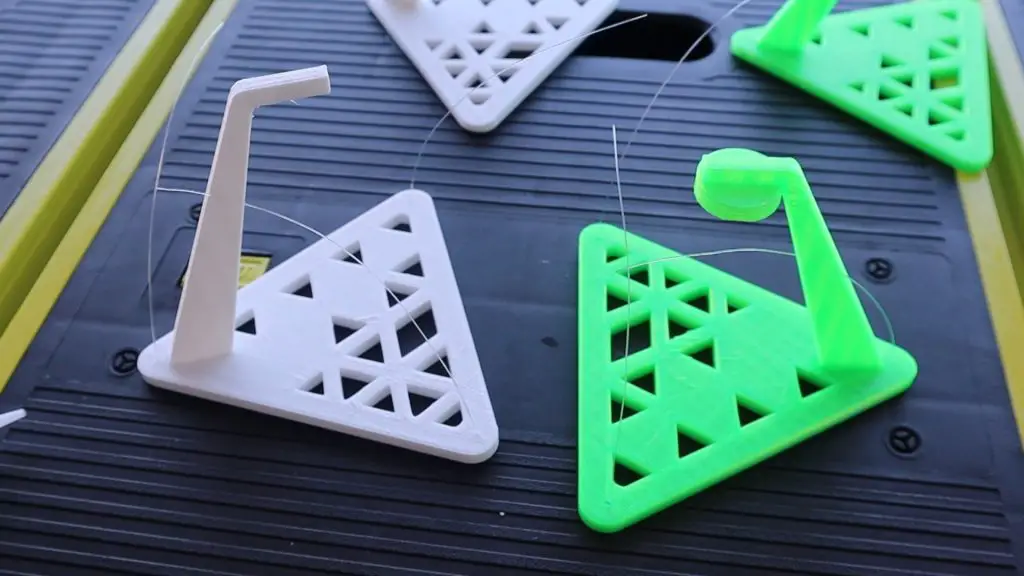
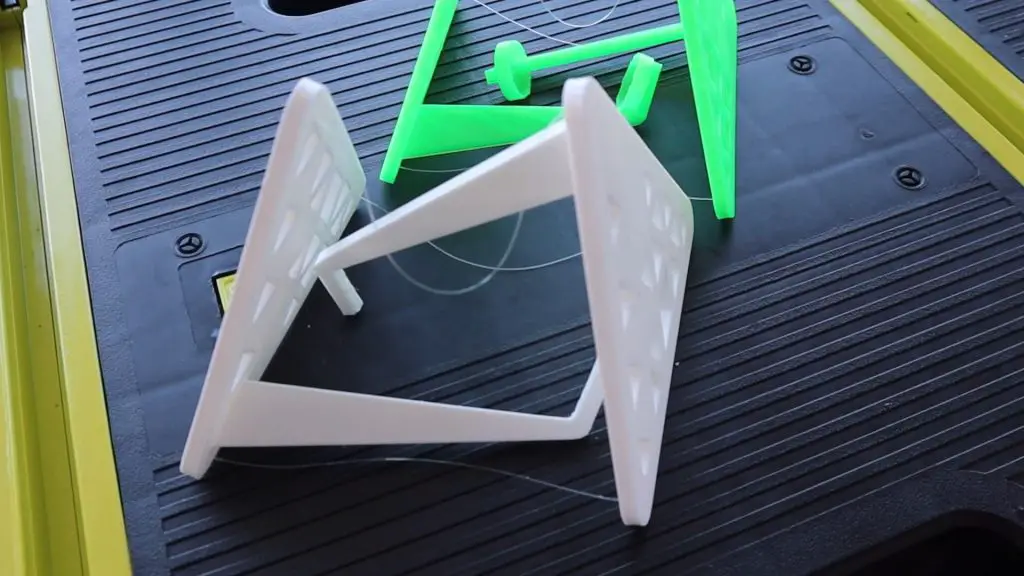
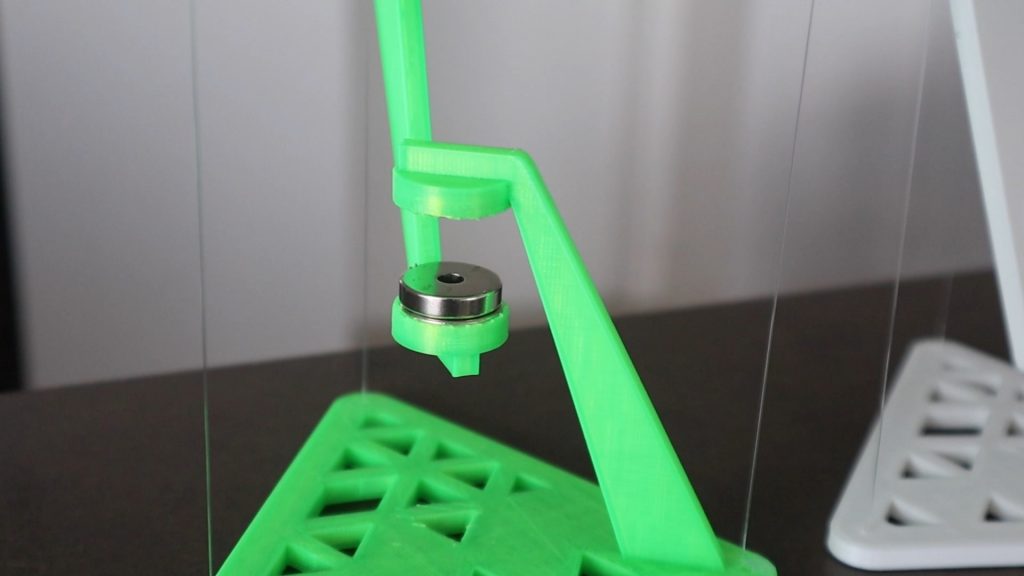
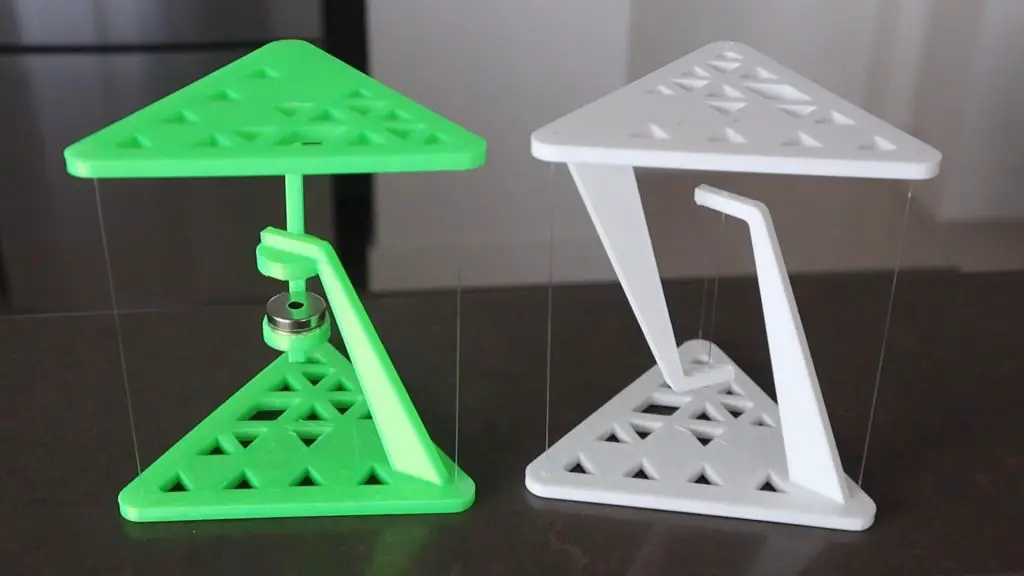
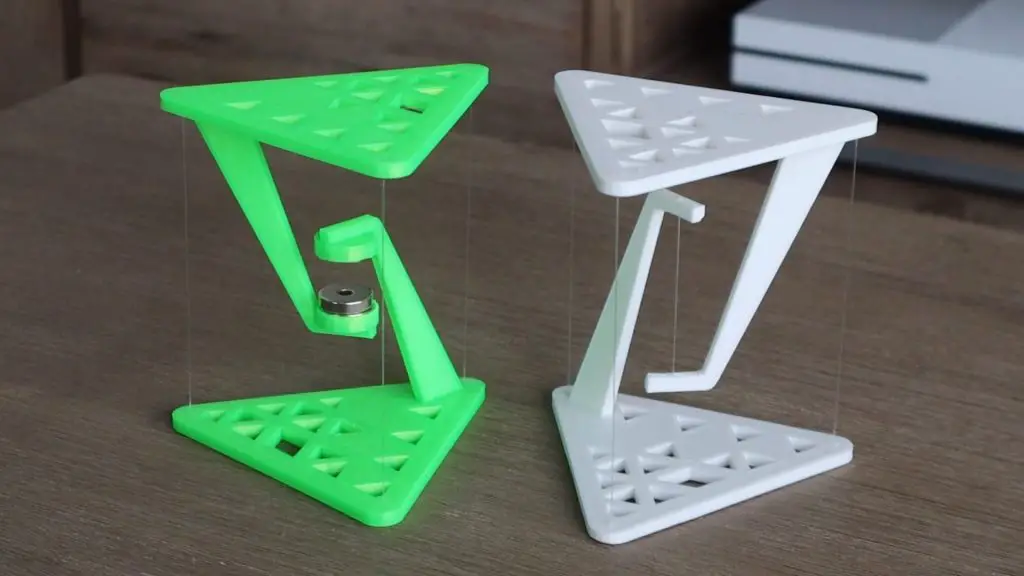
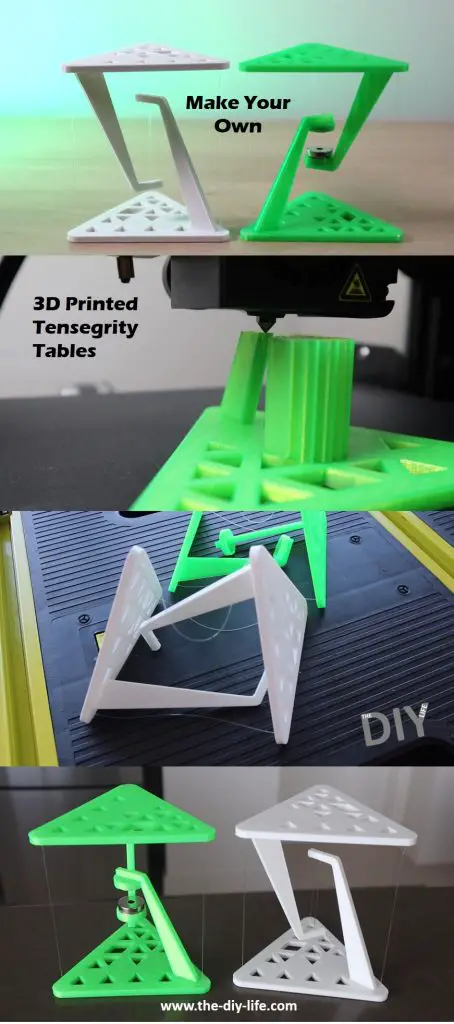
I made a laser-cut desktop tensegrity table set a few weeks ago and since then a number of people have asked for a similar 3D printable version. Have a look at those tables if you haven’t already. I made two designs, one which uses fishing line as the center support and another which uses two magnets. I’ve converted both of them into 3D printable parts as more people have 3D printers at home than access to a laser cutter.
The tables look like they’re floating, but they’re actually a clever demonstration of the principle of tensegrity. The principle of tensegrity originated in the nineteen fifties and is still used in the design of modern buildings and structures. The world’s largest tensegrity structure is currently the Kurilpa Bridge in Brisbane, Australia.
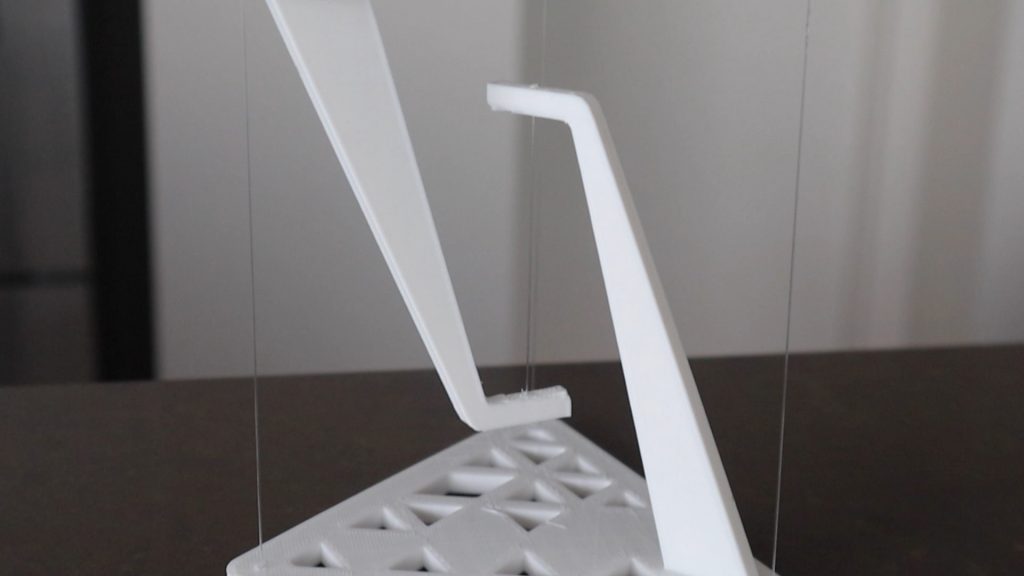
When you first look at them, it appears that the top surface is being supported by the three outside pieces of fishing line, but taking a closer look, you will see that the line doing all of the work is actually the one in the centre. The piece of fishing line in the centre of the structure is in tension and is supporting the load of the surface of the table and whatever is placed onto it. The three pieces of line on the outside are simply holding the top surface in place so that it remains directly overhead the centre line and doesn’t fall over. If any of these four lines are cut, the table will collapse under its own weight.
Here’s a video of the build, read on for the full step by step build instructions.
What You Need To Make Your 3D Printed Tensegrity Tables
Creality Ender 3 Pro used in this guide – Buy Here
How To Build The Tables
To start off, you’ll need to 3D print the table parts.
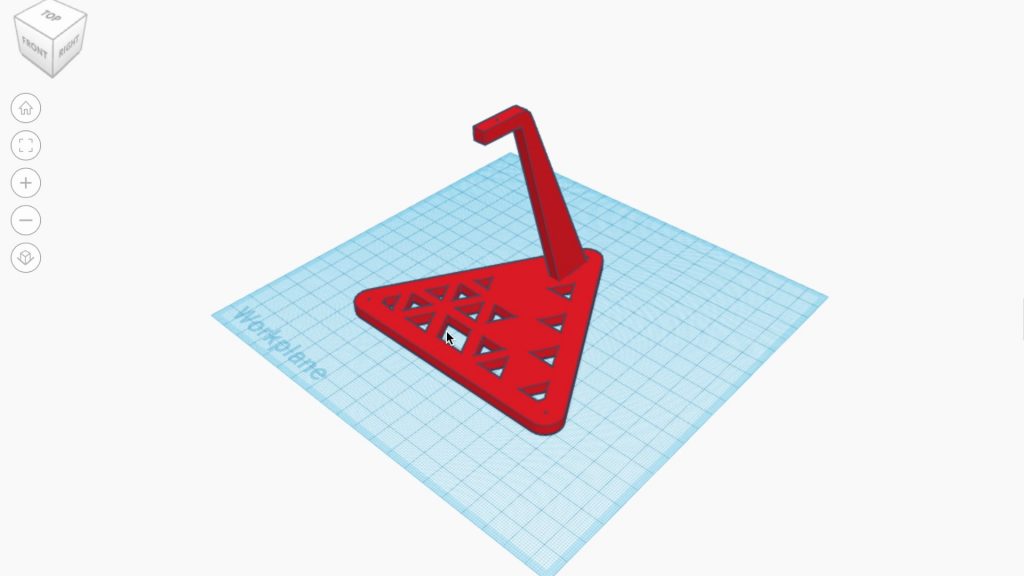
For each version, there are two print options. One which is a print in place model which requires some support structure to be printed to support the overhanging arm.
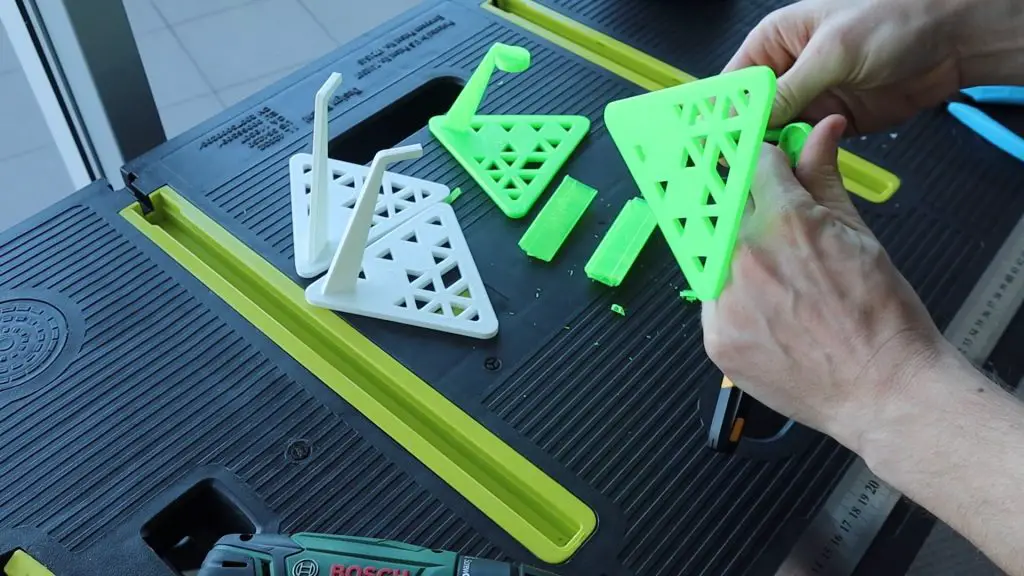
Then another flat version which allows the table surface and the arm to be printed separately and then glued together. If you choose this option then you’ll need to simply clean up the edges and then glue the arm into the slot.
Print the models using PLA or ABS and a 15-30% infill.
Once your models are printed, remove the supports and clean up any excess print material.
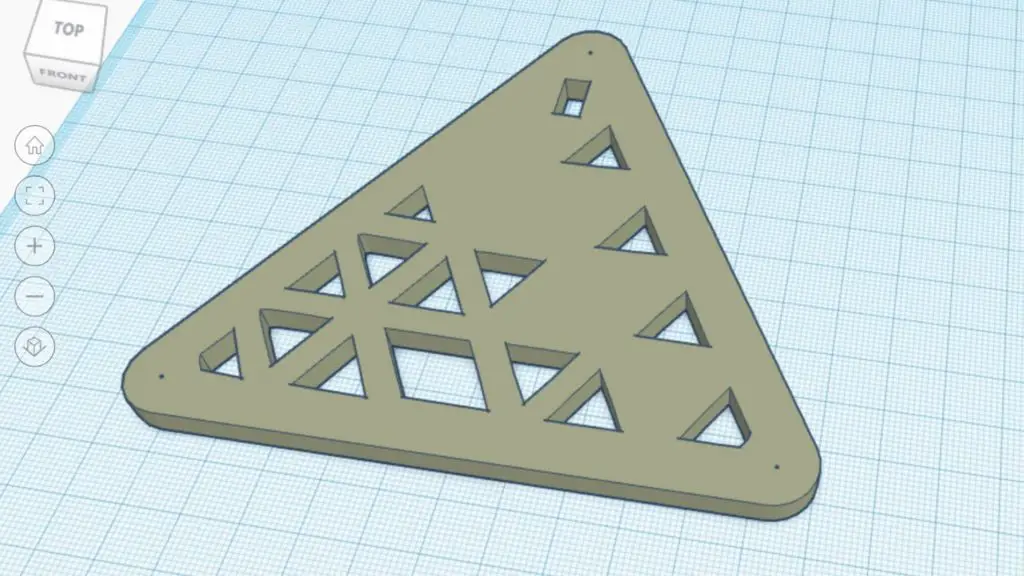
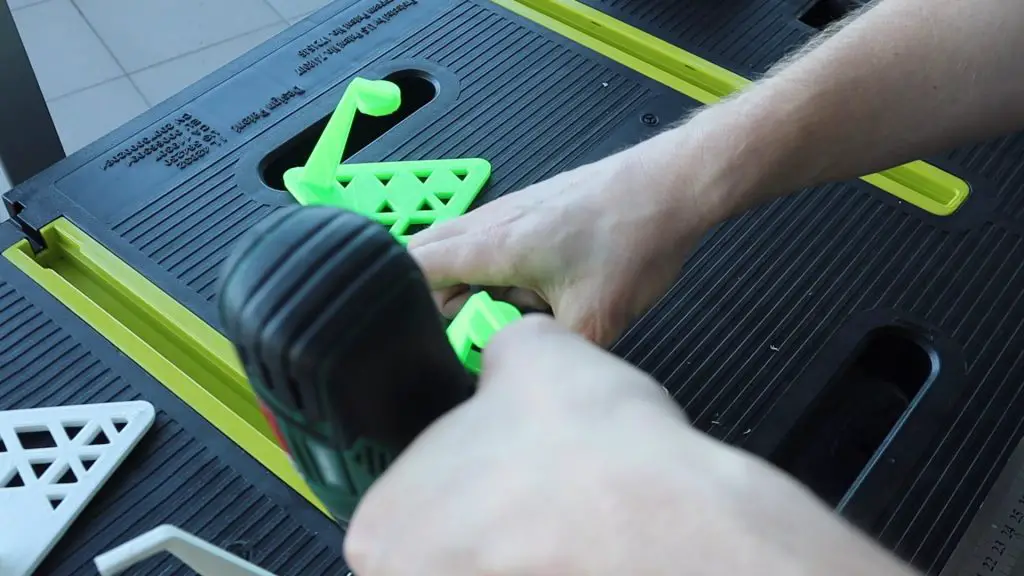
I’ve added a 0.5mm hole in each corner of the table surfaces for the fishing line. Your 3D printer probably won’t be able to print these accurately enough to use right away but at least the slicing software will add the necessary walls in the area so that you can clean up the holes with a 0.5mm or 1mm drill bit, depending on your fishing line diameter.
I used fishing line because it doesn’t fray and it’s a bit more rigid than cotton or string, so it’s easier to thread through the holes.
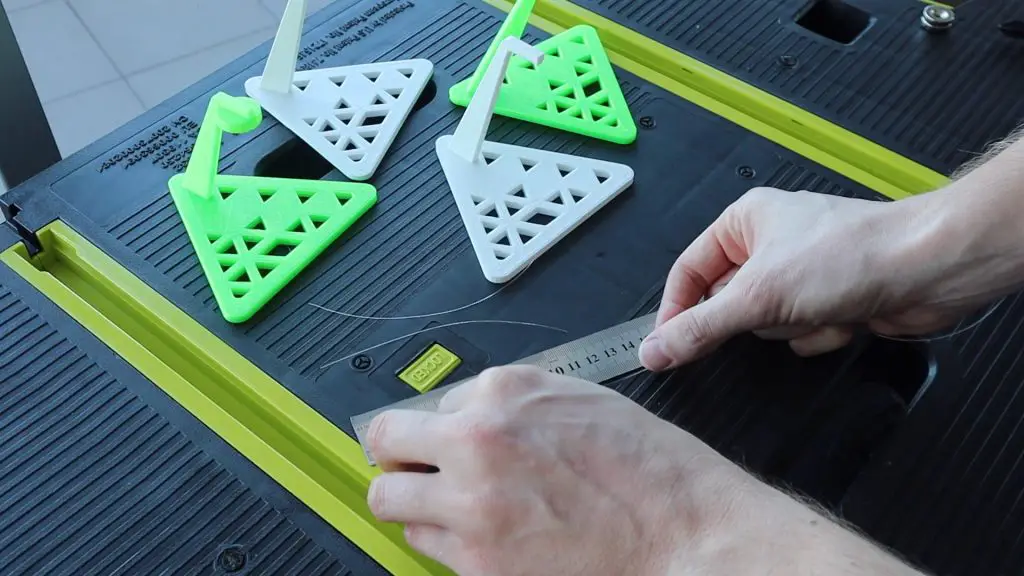
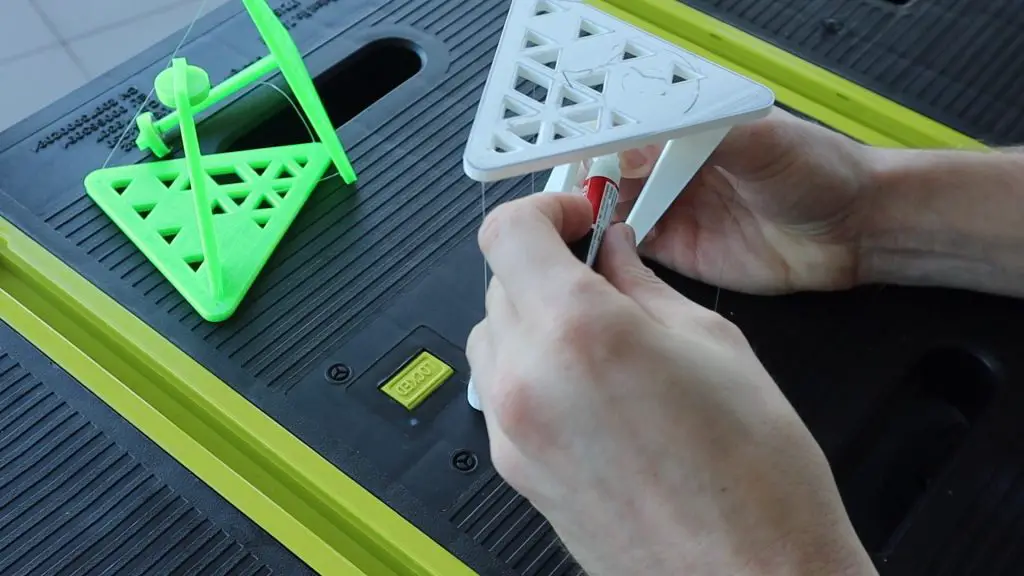
Cut four lengths of fishing line, one around 8-10 cm long and another three of exactly the same length, around 12 to 13cm. If you’re using knots instead of glue then cut them a bit longer to allow for the knots.
Start by gluing the three longer pieces into either the top or the bottom table end.
Next, glue them to the second half, making sure that they’re exactly the same length on each of the three sides. This part is more difficult if you’re knotting the line.
Then glue the centre line into place to pull on the three outside lines and hold the table up. It should be tight enough that the table stands without feeling loose or wobbling around but not too tight that the ends of the table bend.
Once you’re happy with your table, trim any excess fishing line and make sure that the glued joints are secure and dried.
If you’re using magnets, glue the outside three lines into place at the correct and even length and then add the magnets to the middle afterward with opposite poles facing each other.
The magnetic table can’t really hold much weight, but you could get more by positioning the magnets closer together. There is a bit of a tradeoff here though because if they’re too close together then you can’t see the gap between them well and then it just looks like the magnets are rigidly holding up the tensegrity tables.
I tested the fishing line table in my previous guide, to see if it could hold up my phone. It held up around 200 grams but the outside lines did start flexing, so it probably couldn’t take too much more than this.
Enjoy making your own tensegrity tables. Let me know how it goes in the comments section below.
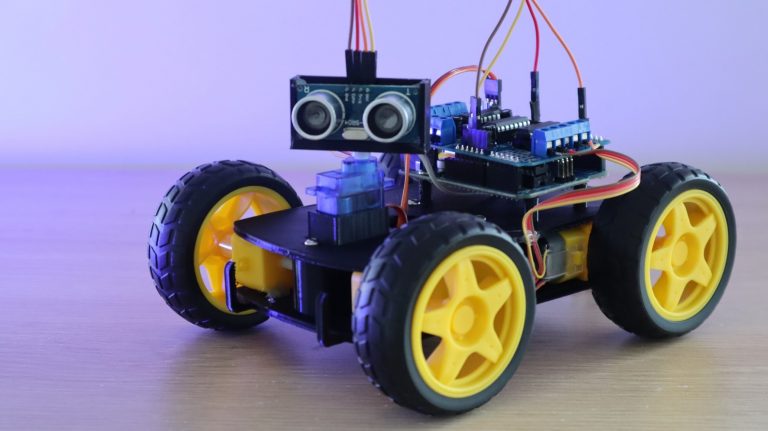
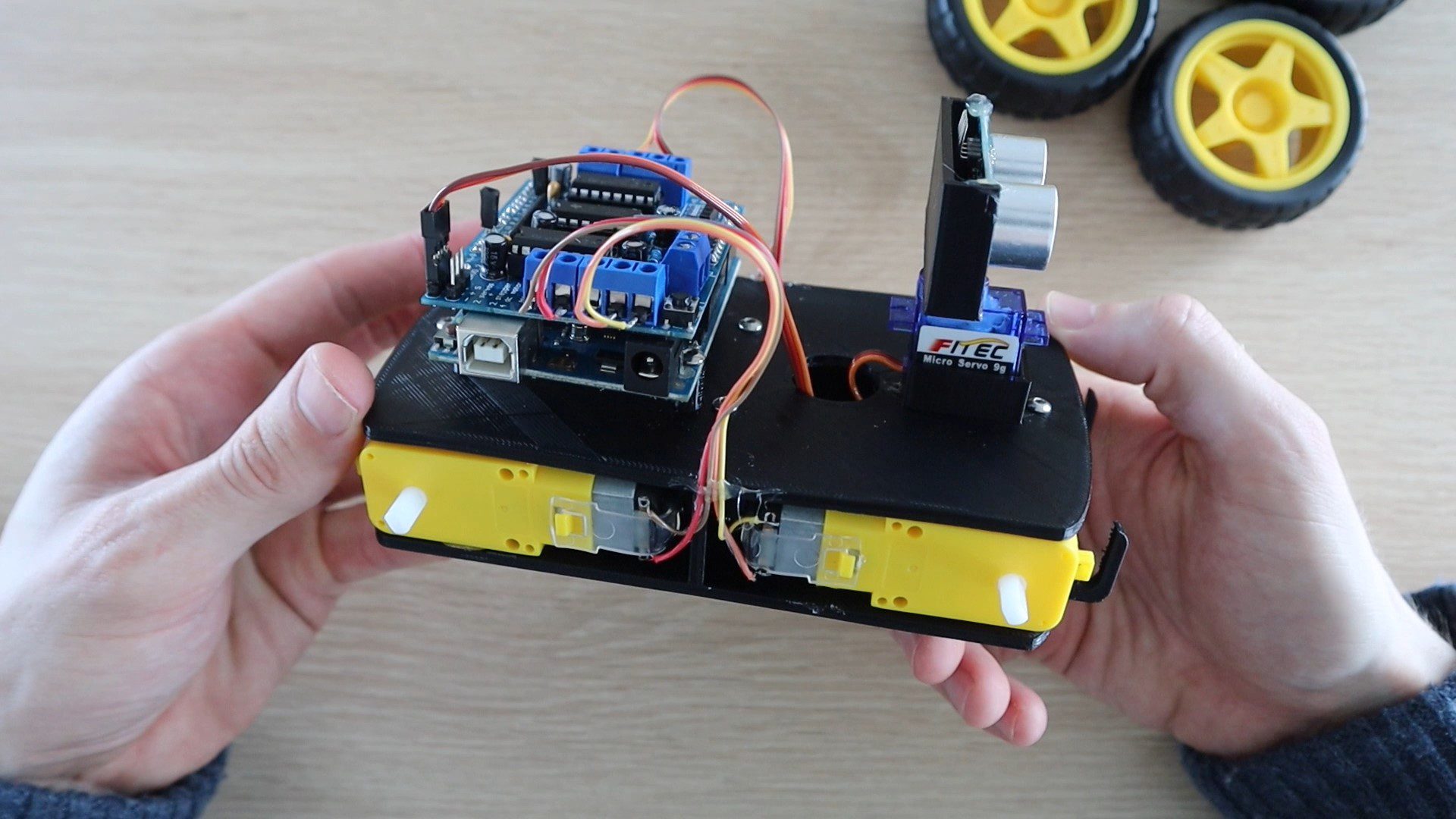
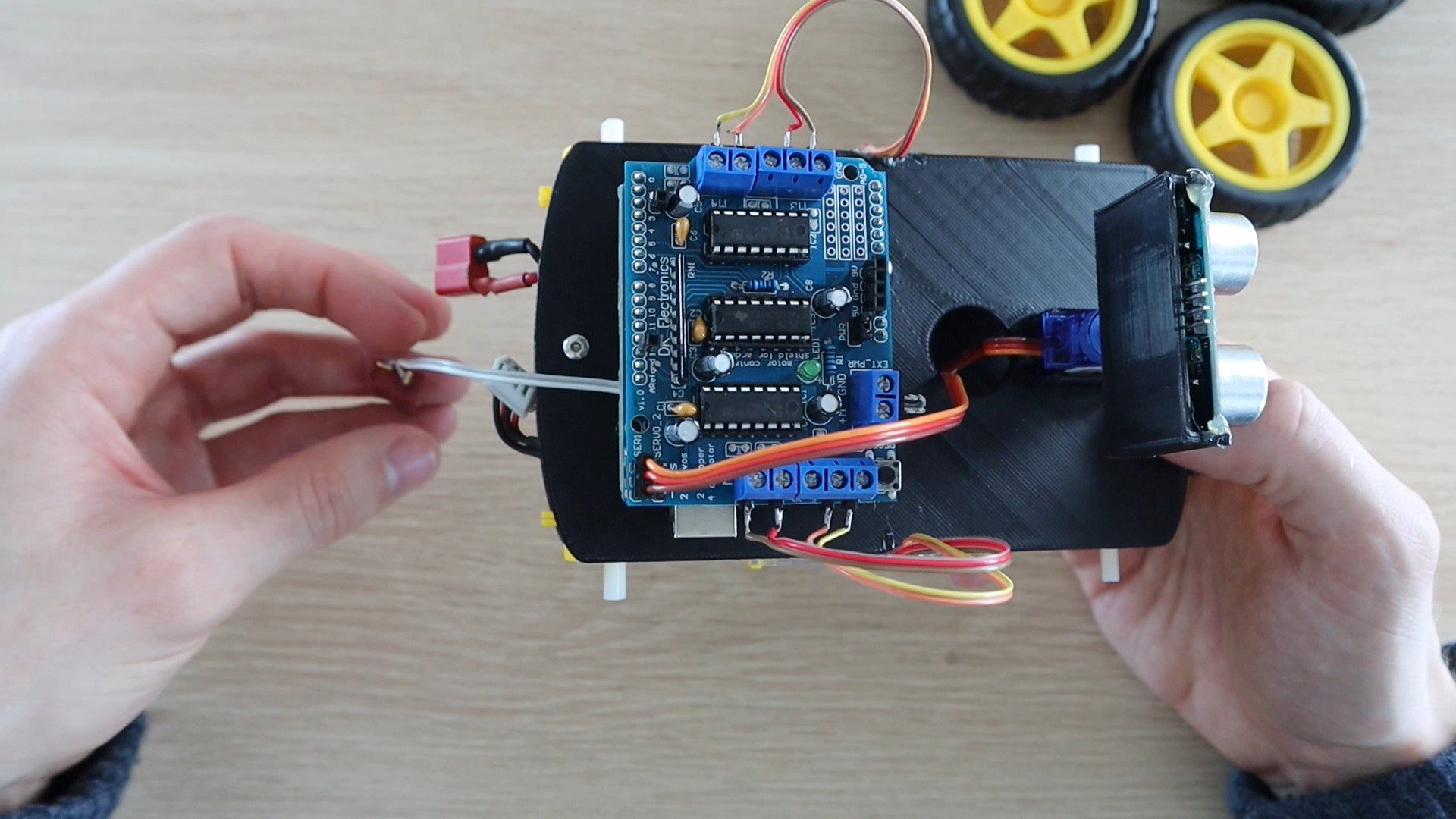
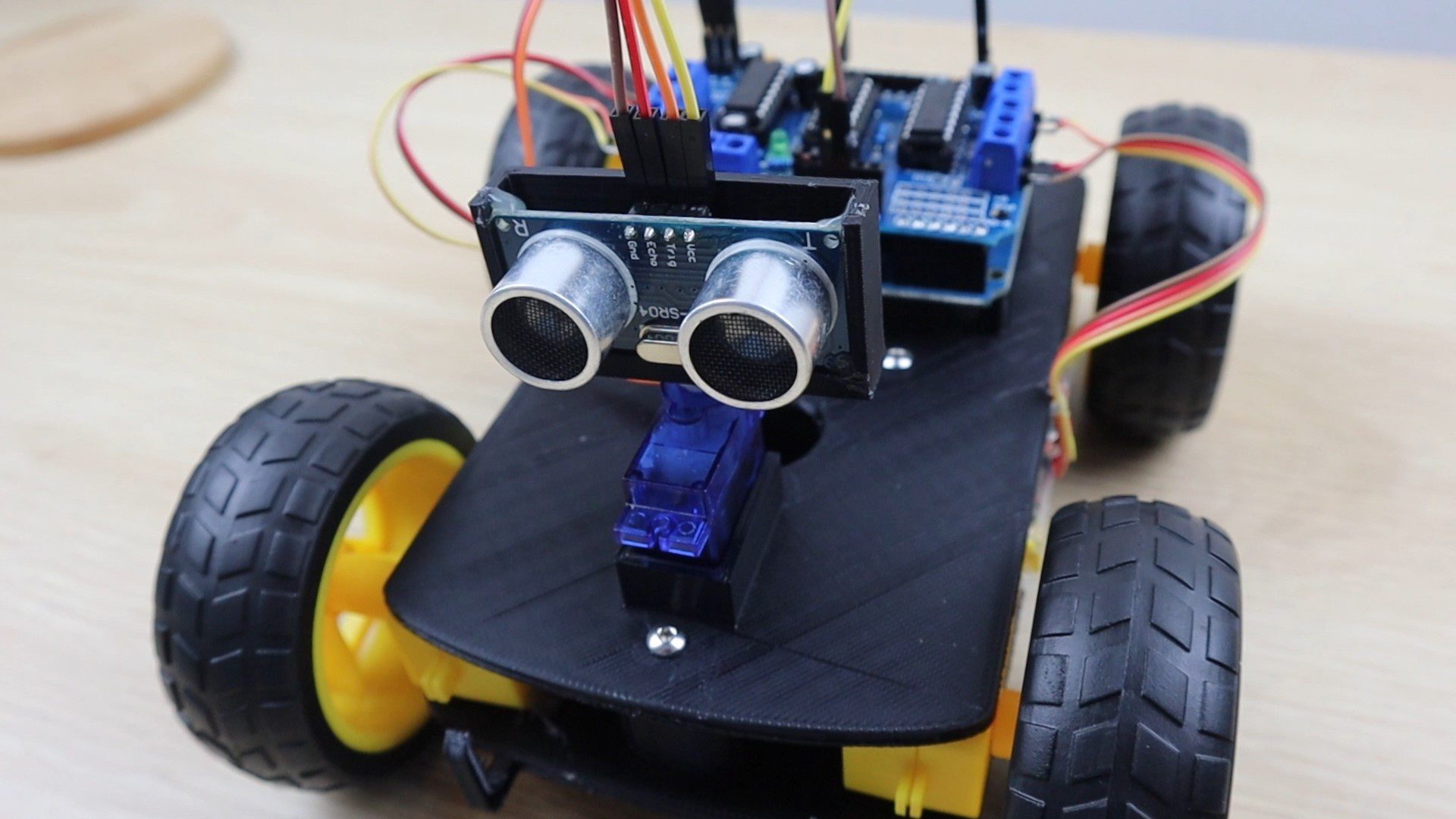
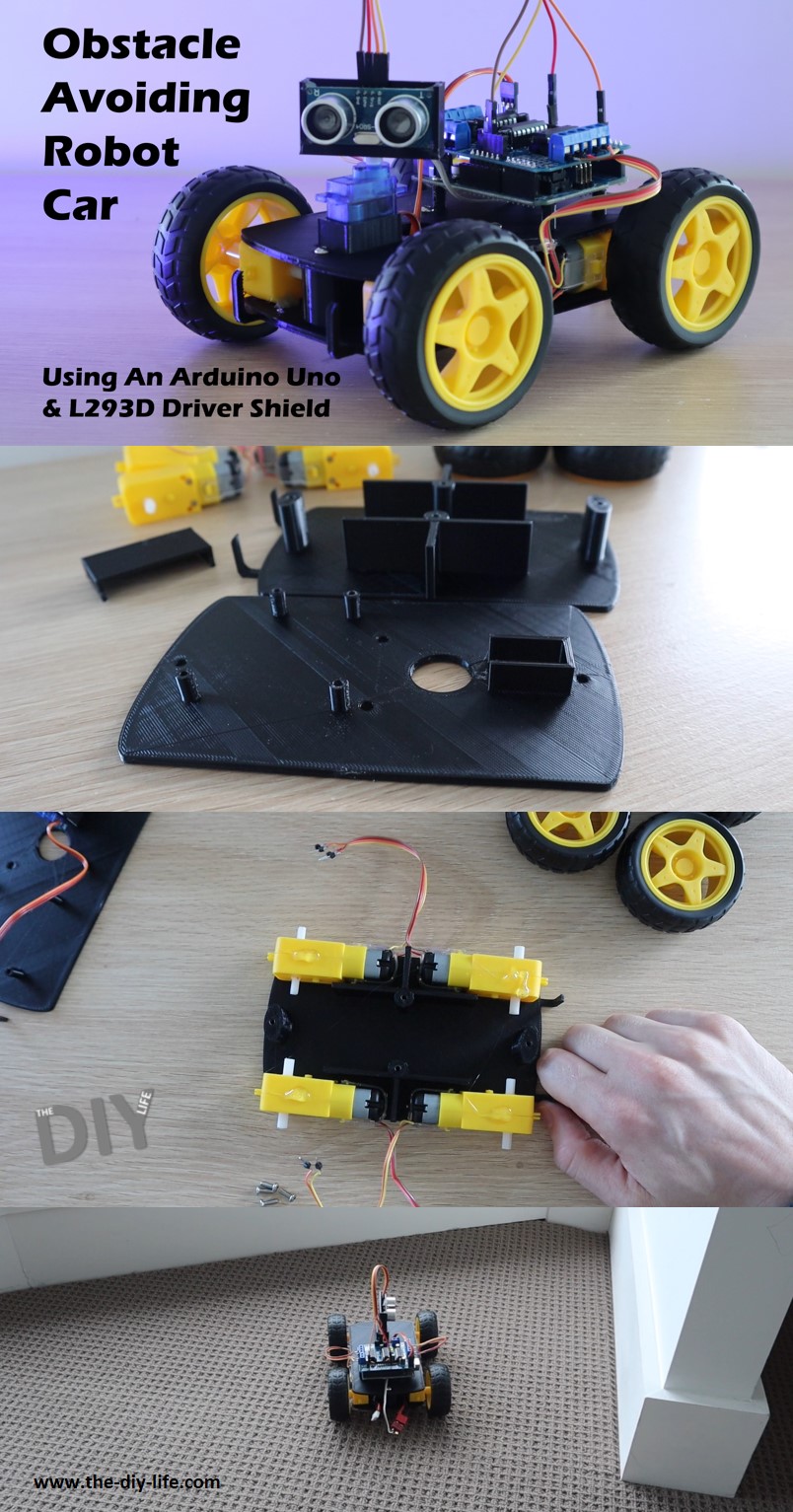
In this guide, I’ll be showing you how to build your own Arduino based obstacle avoiding robot car. The car uses a servo mounted ultrasonic sensor to detect objects in front of and on either side of the car and an L293D DC motor driver shield to drive four geared motors, one on each wheel. An Arduino Uno underneath the motor driver controls the motor shield, ultrasonic sensor and the servo.
Because all four wheels are driven, we can drive two on one side of the car forward and two on the other side backwards in order to turn the car, so we don’t need a steering mechanism and the car can turn around on the spot, instead of requiring forward movement.
Here’s a video of the build and the car running. Read on for the full step by step instructions.
Here’s What You Need To Build An Obstacle Avoiding Robot Car
A 9V block battery can’t usually produce enough current to drive the four motors. Rechargeable battery packs for RC cars tend to work best for this project.
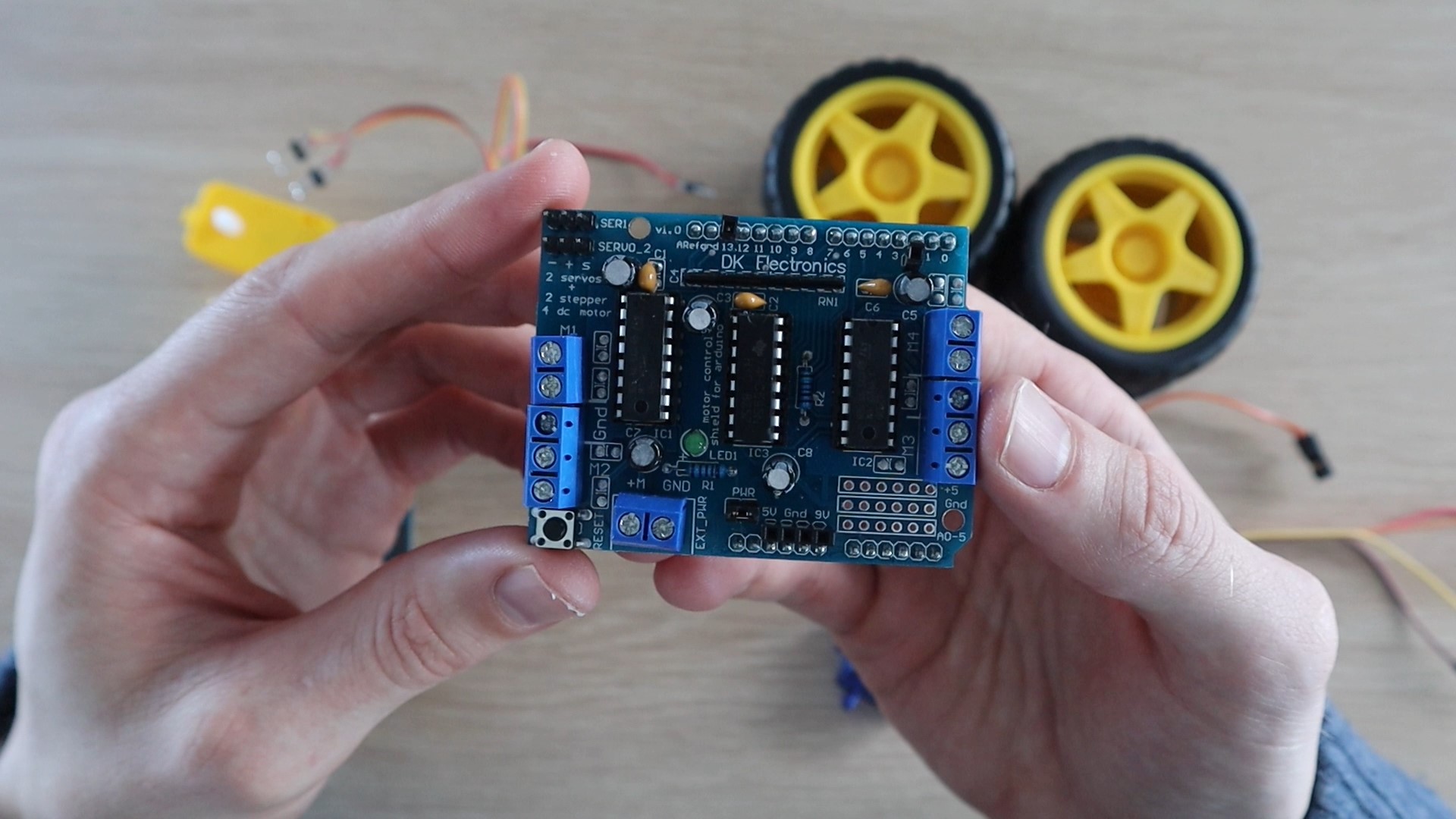
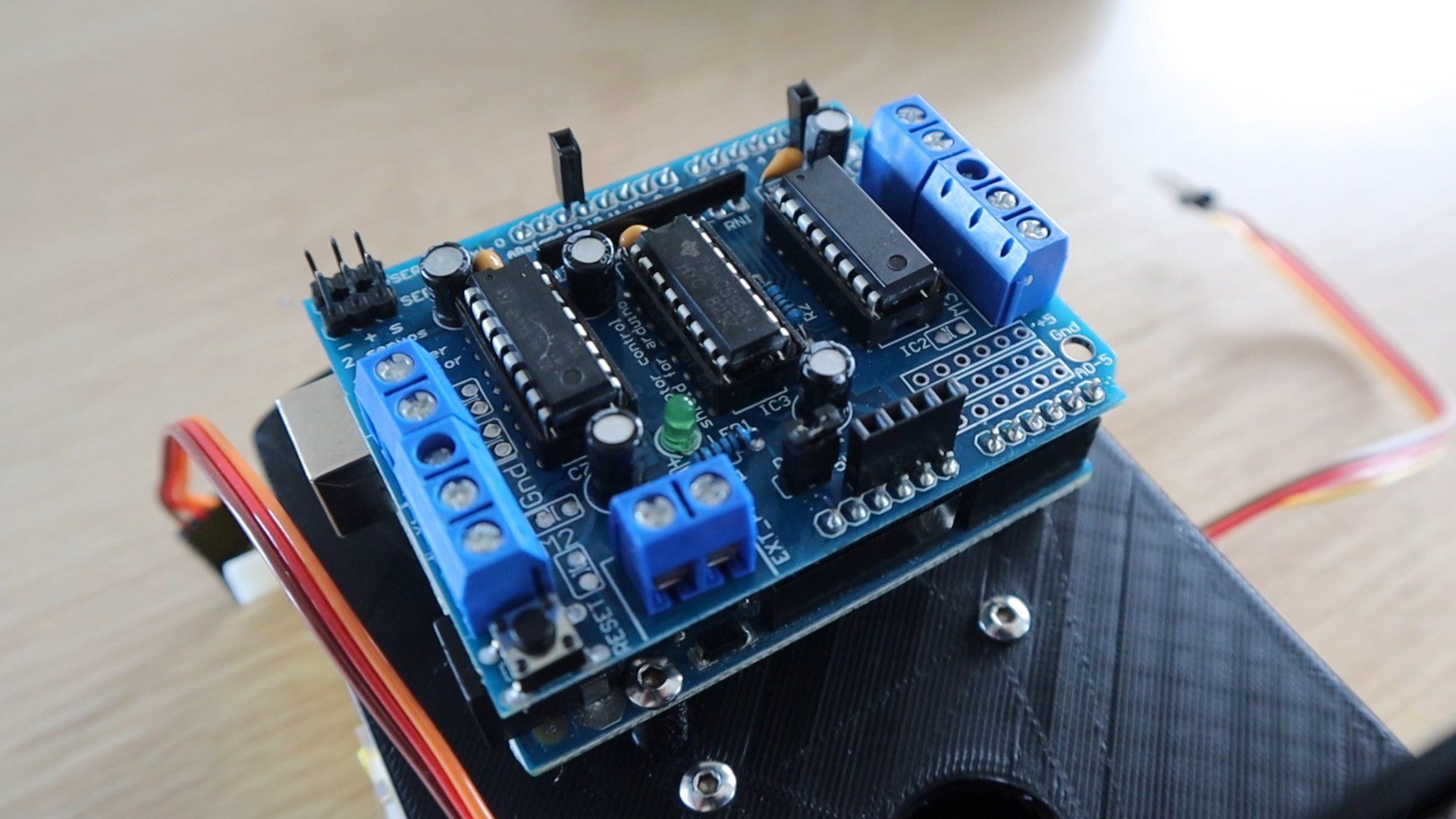
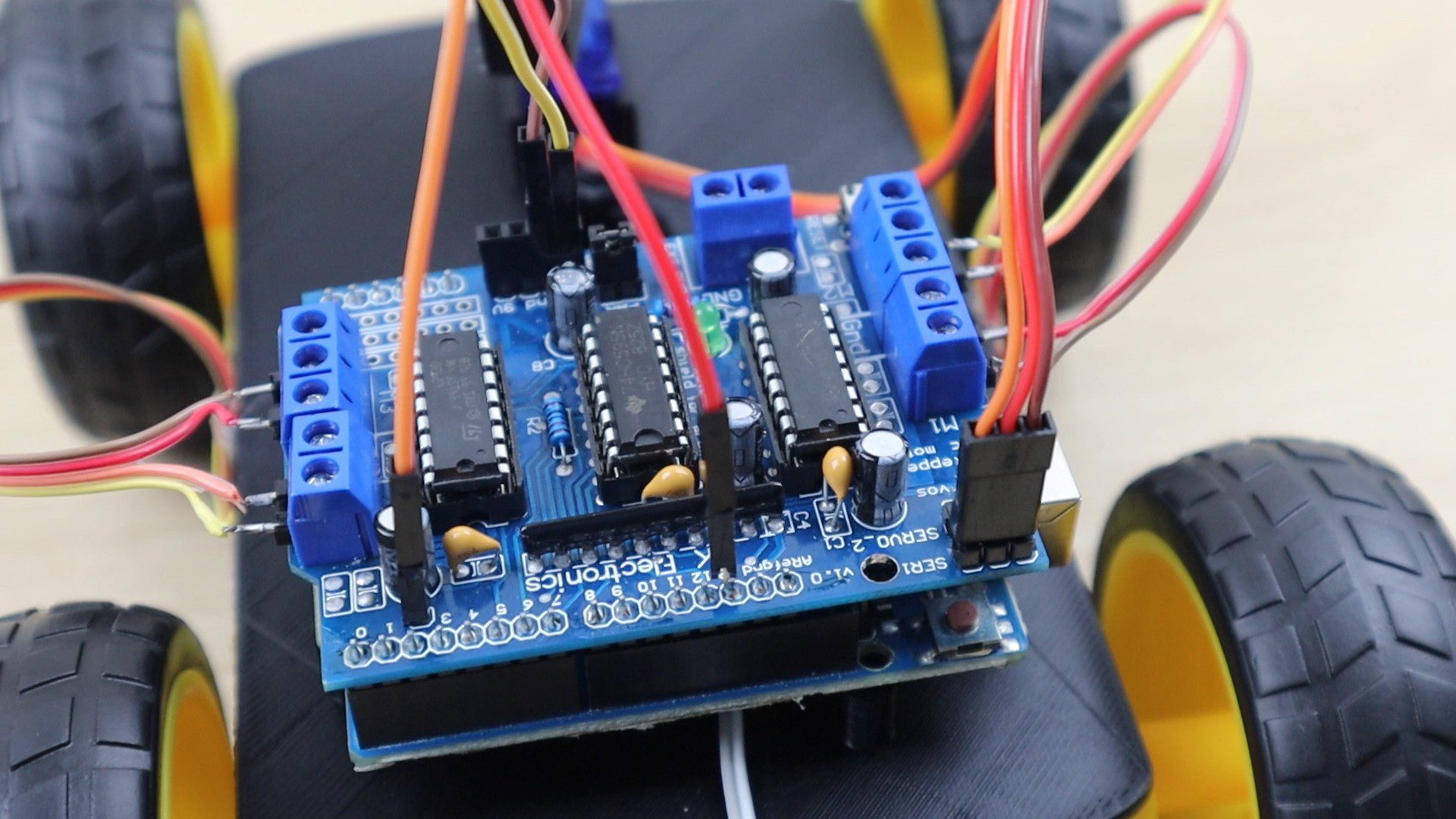
Before we start building the actual obstacle avoiding robot car, let’s take a look at the motor driver shield. The control of the motors is done through an L293D motor driver shield which uses two L293D driver chips and a shift register. It also has some power breakout pins, pins to connect two servos and a breakout for IO pin 2. Oddly, pin 2 and pin 13 are unused by the board but only pin 2 has a breakout for a solder joint.
You’ll need to solder some female pin headers to the power pins along the bottom of the shield and one for pin 2 and one for pin 13. Pin 2 you can solder into the breakout hole, pin 13 you’ll need to solder directly onto the back side (top) of the shield’s pins.
The object sensing is done by an ultrasonic sensor that uses ultrasonic sound waves to measure the distance to an object by timing how long it takes the pulse to bounce off of the object and return to the sensor. Because we know the speed that sound waves travel through air, we can use the time it takes a pulse to return to the sensor to calculate the object’s distance using the formula:
Distance = Pulse Time x Speed of Sound In Air / 2
We need to divide by two since the pulse travels to the object and then back to the sensor, so it is traveling twice the object’s distance.
Each of the four wheels on the obstacle avoiding car is driven by a geared DC motor, you will need to attach a short power lead to each with some pins to screw into the terminals on the shield.
Assembling The Car
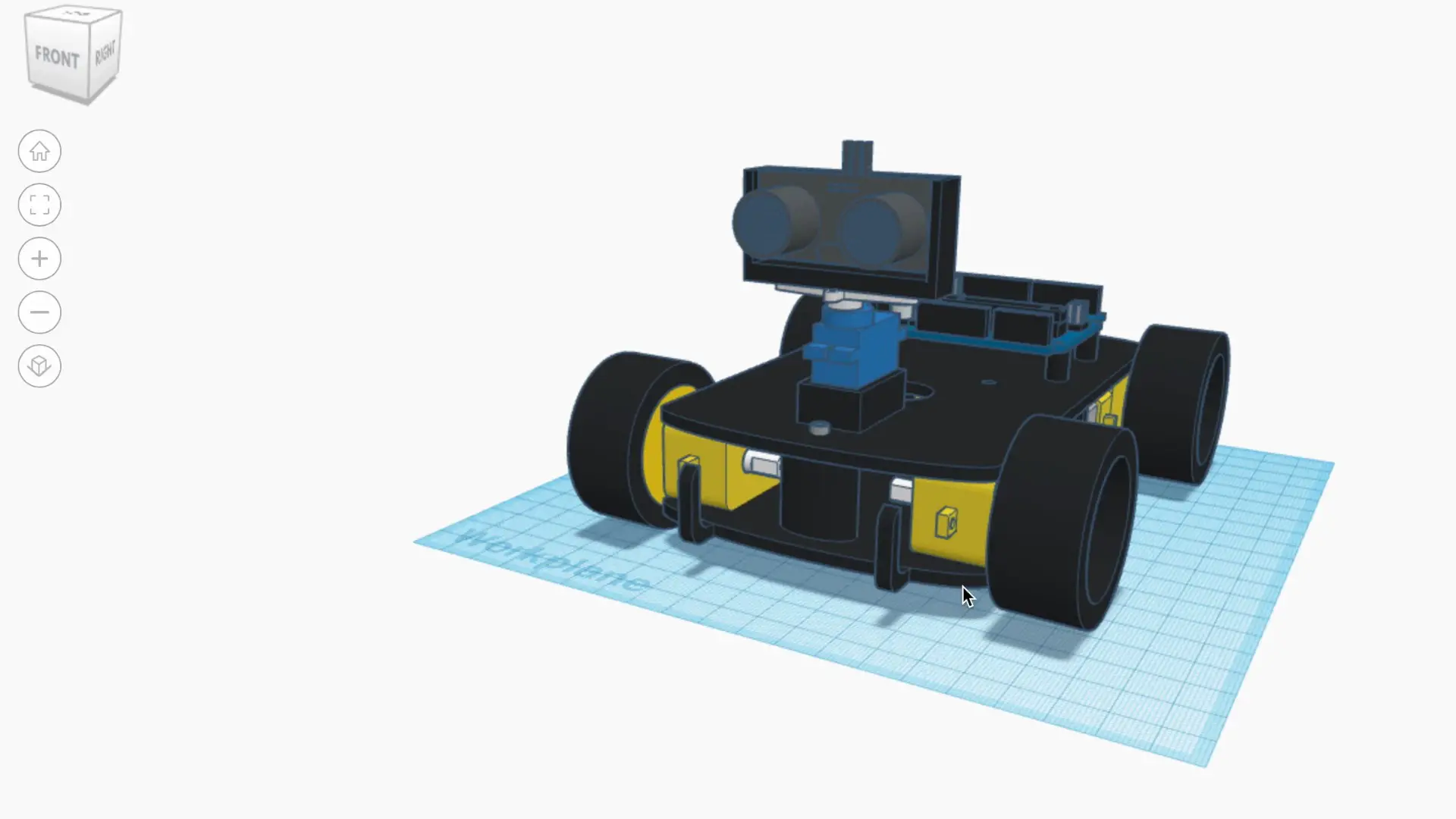
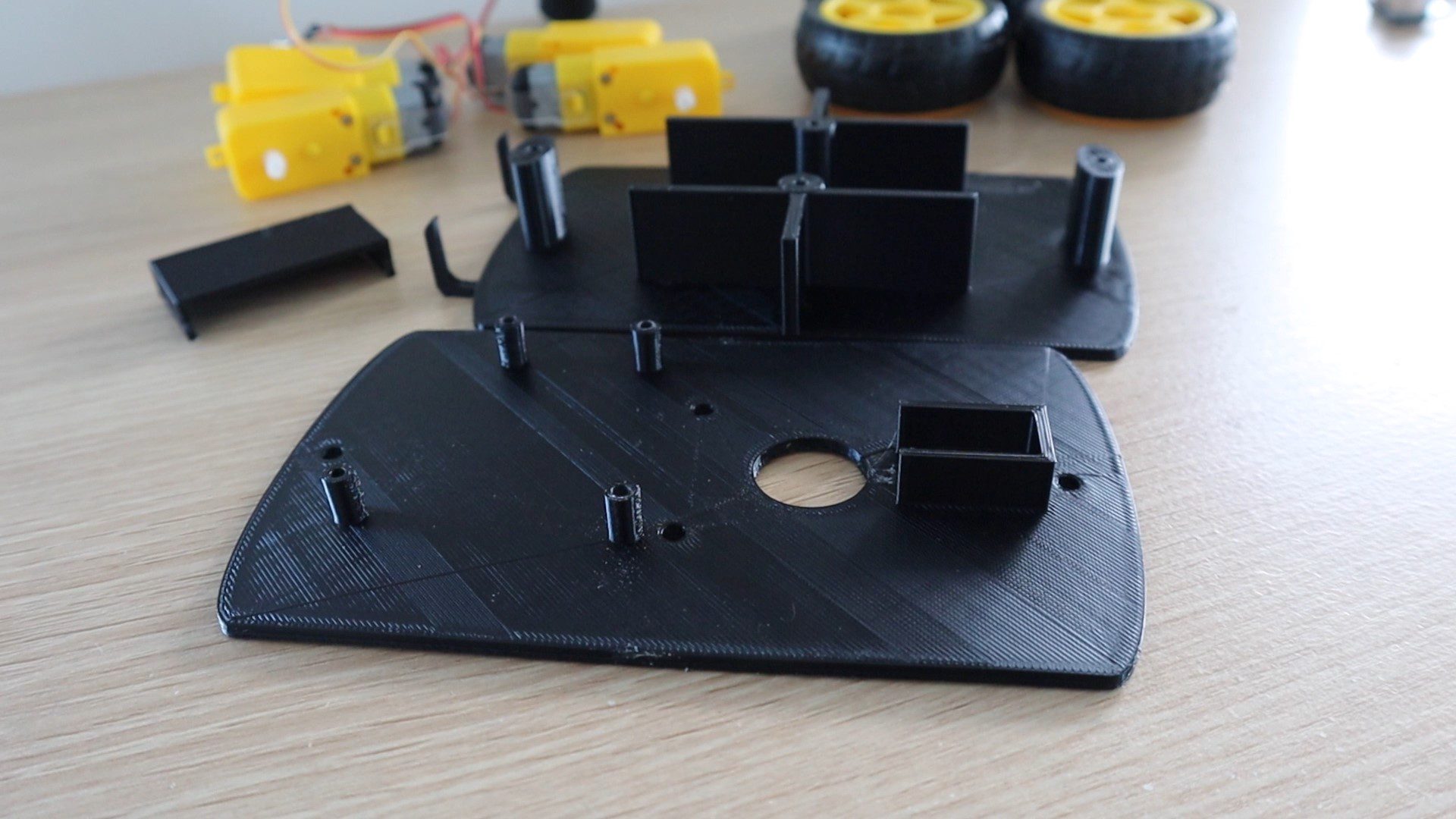
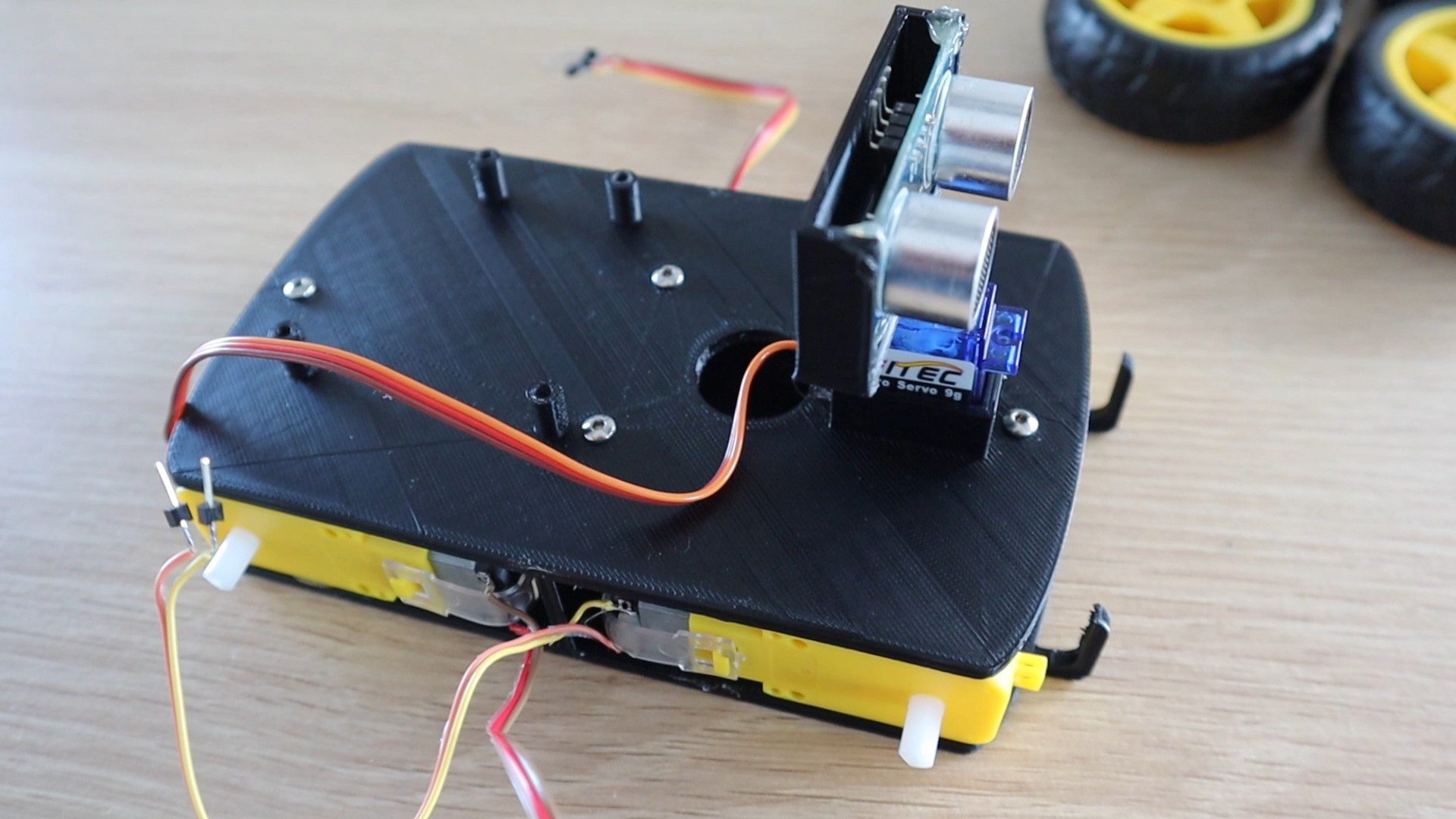
I designed a simple chassis for the car to be 3D printed. I printed mine using black PLA with a 30% infill for the vertical supports.
There are three printed components, the top and bottom chassis sections and then a holder for the ultrasonic sensor.
Once you’ve got all of your components together, let’s start assembling the obstacle avoiding robot car.
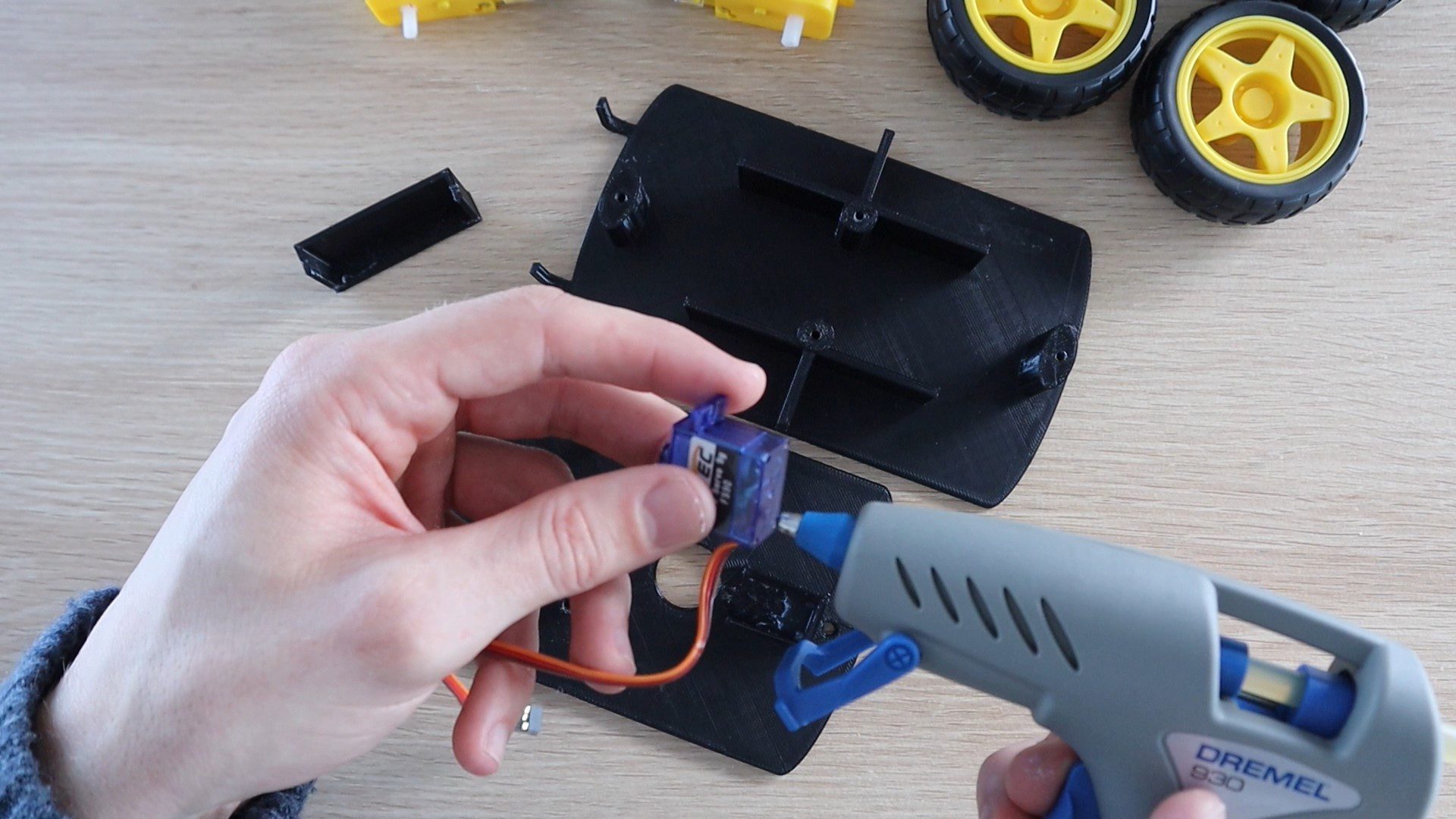
The components are mostly glued into place using a glue gun. Start off by gluing the servo into place with the ribbon cable facing towards the back of the car.
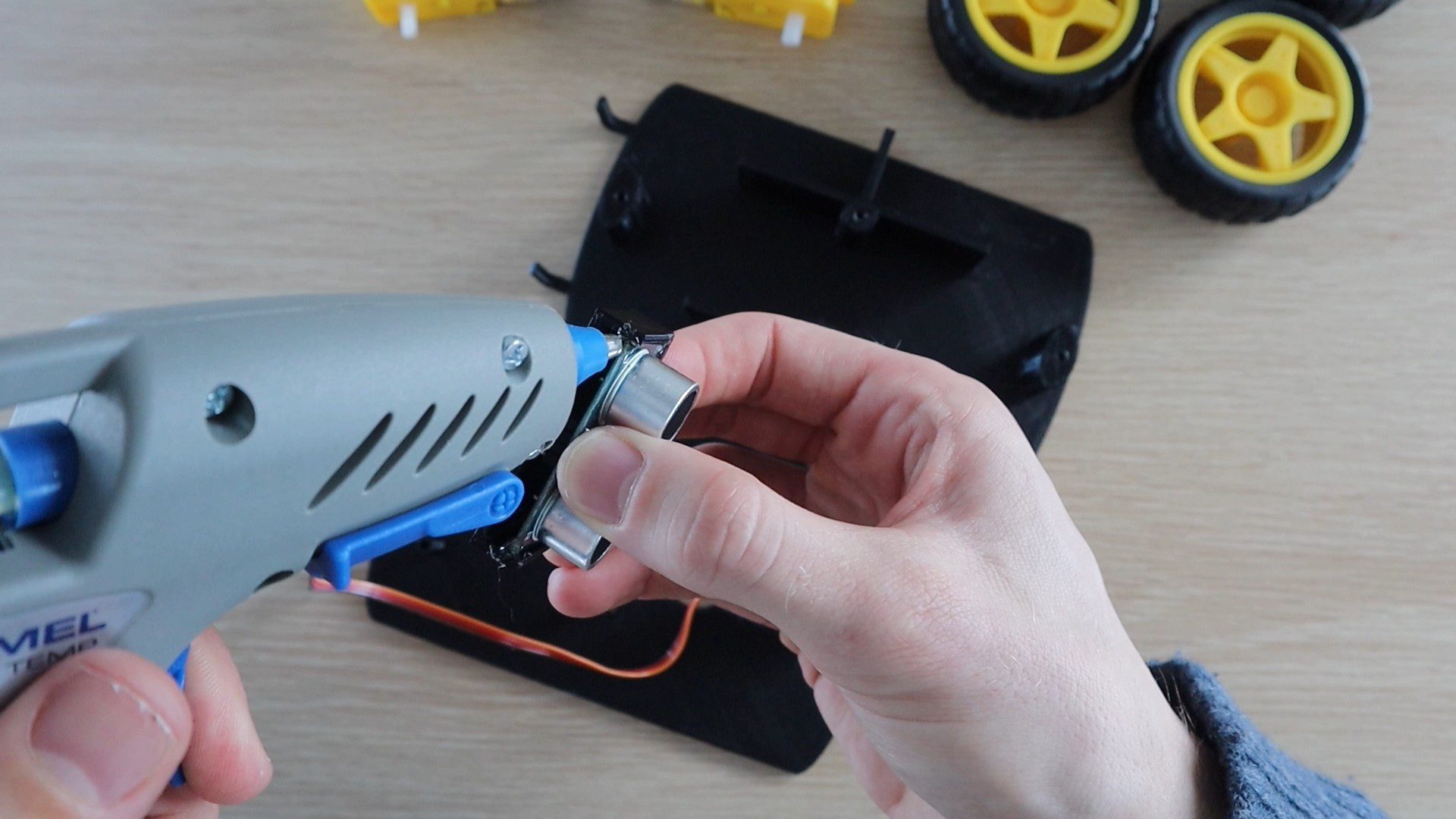
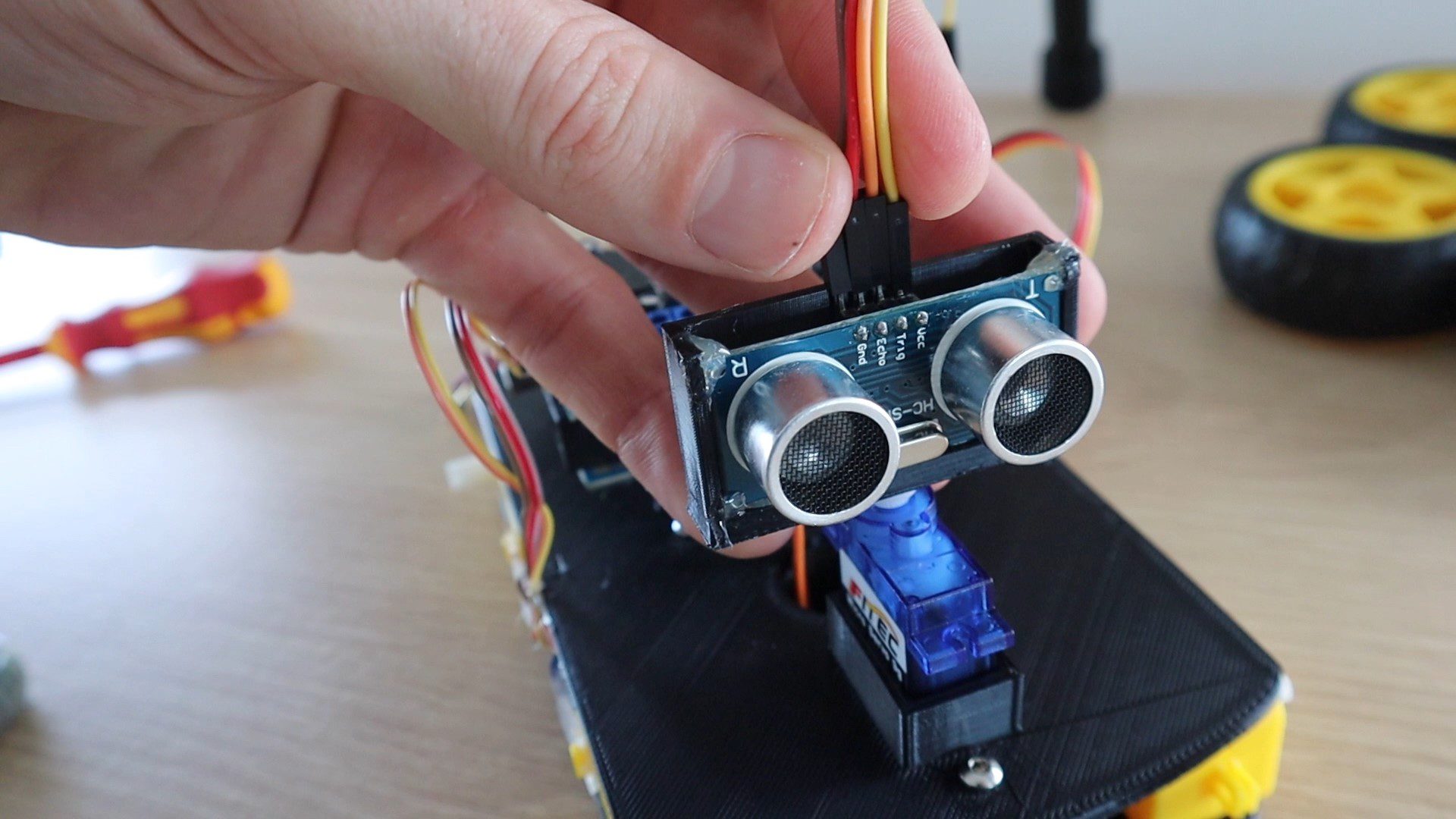
Next, glue the ultrasonic sensor into the housing, making sure that there is some space around the pins for the plug connectors. Then glue the servo arm into the bottom of the holder, so that it can be pushed onto the servo.
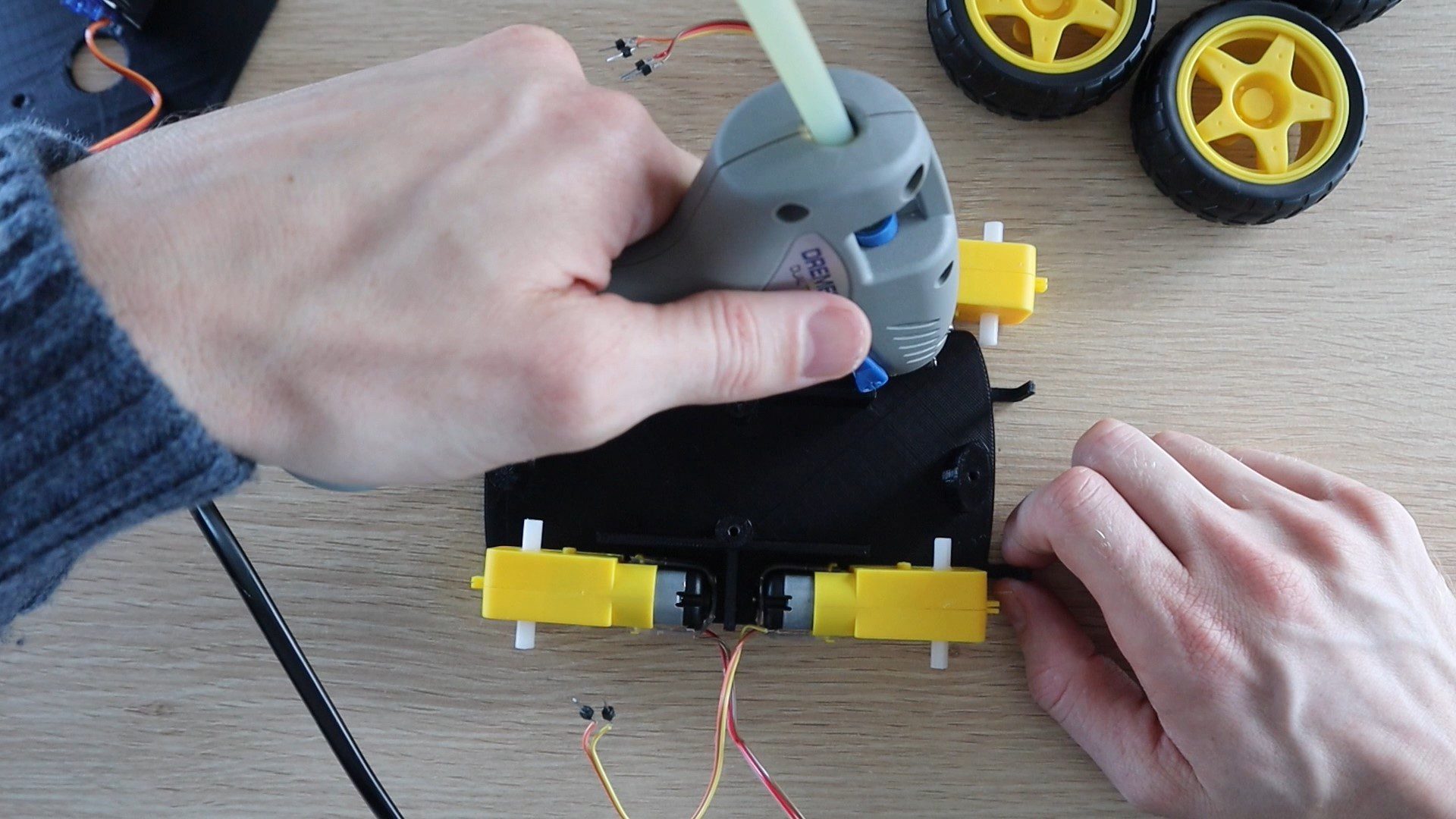
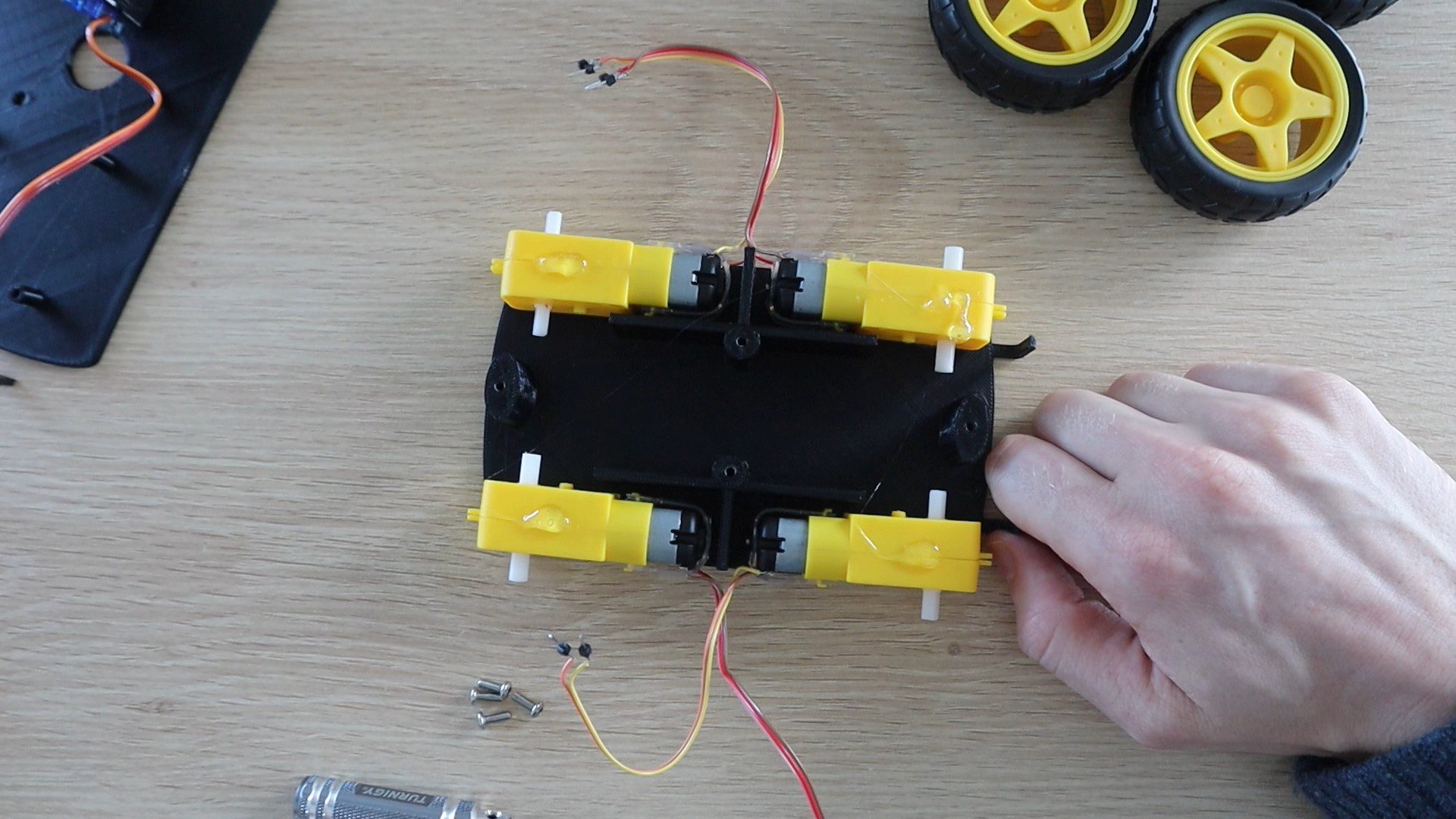
Next, glue the motors into place. Try to keep the wiring to motors on the outside so that you can get to them if any come loose. Don’t worry about the directions that the motors turn, this can be changed by swapping the wires at the shield terminals later.
Glue each motor into place on the bottom chassis plate.
If you are using a rechargeable battery, put the battery into place in the middle section between the motors to free up from space on the top chassis plate. Once the top plate is in place, you won’t be able to get to the battery pack without removing it, so may sure that any leads you to need to get to in order to charge it are available out the back of the car.
Put a drop of glue onto the top of each motor and then screw the top chassis plate into place.
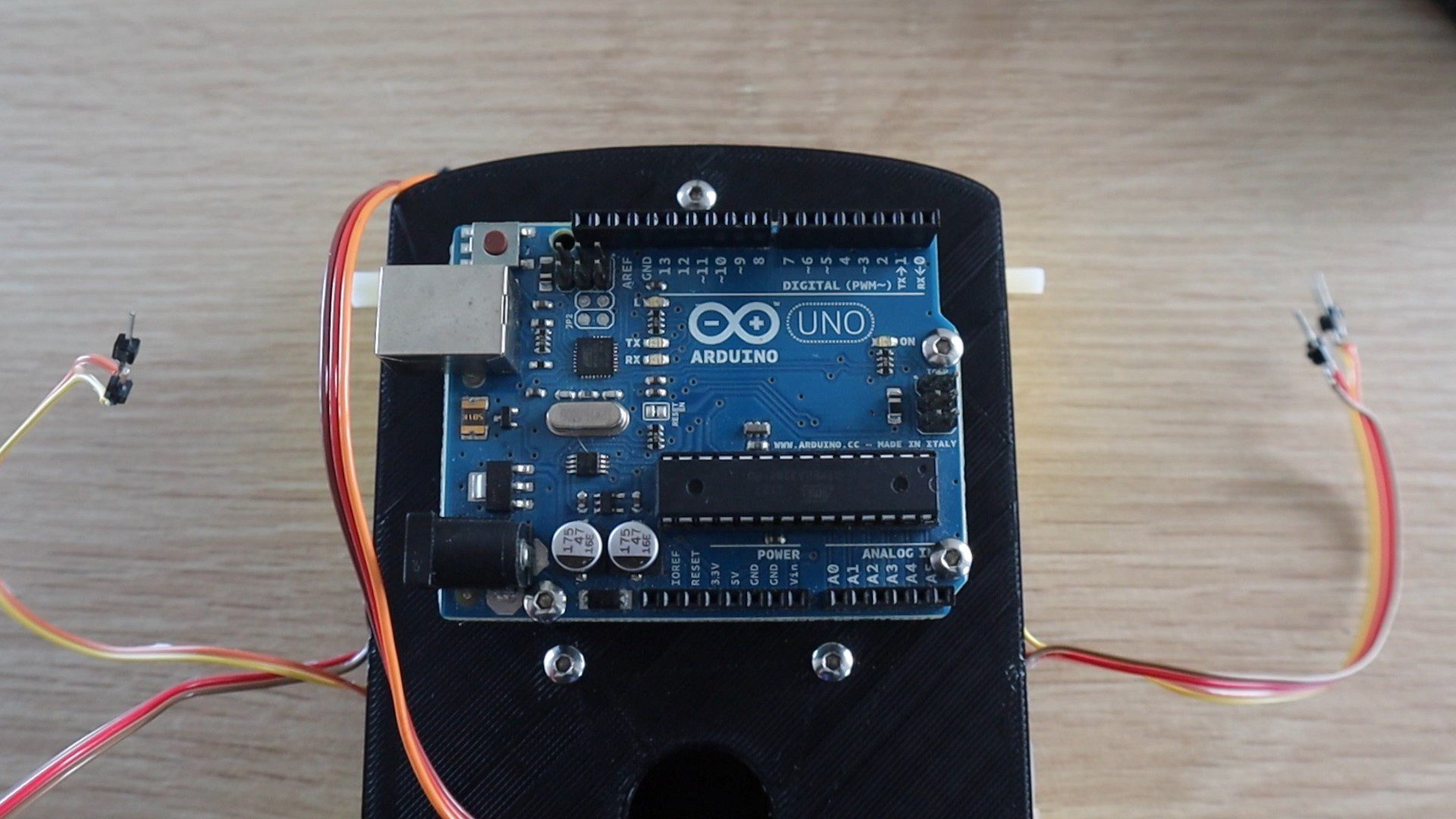
Next, screw your Arduino onto your top chassis plate.
Then plug your motor driver shield into your Arduino.
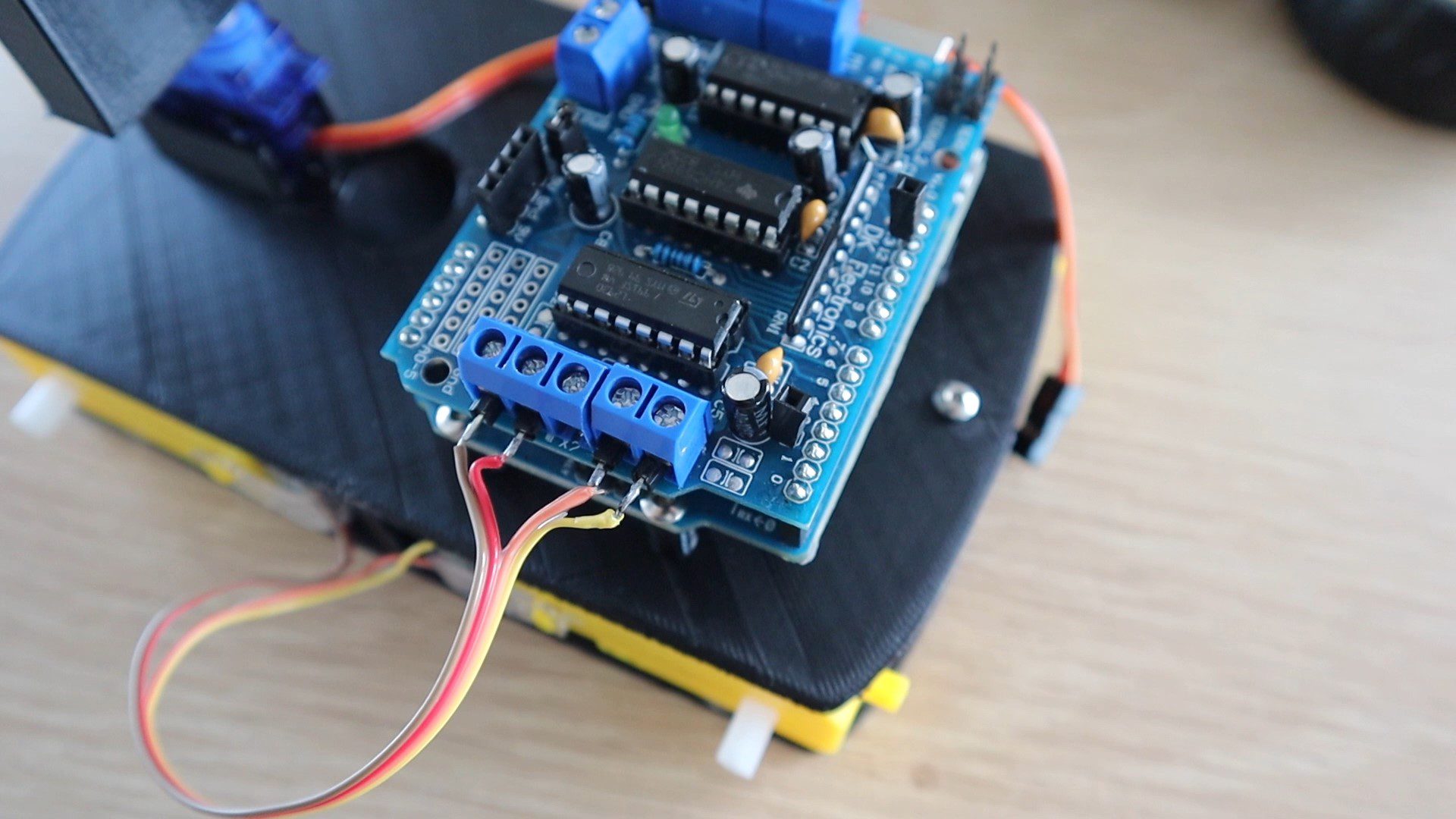
Now screw your motors into each terminal pair. Make sure that each motor is connected to the correct pair of terminals, the front motors to the front terminals, and the back motors to the back terminals. Don’t worry about the polarity of the motors yet, if any turn the wrong way around when you power the car up then simply swap the two wires for that motor around and it’ll then turn the correct way.
Put a drop of glue on the sides of the car to hold the wires away from the wheels so that they don’t get caught up while the wheels are turning.
Plug the servo into the servo 1 header pins on the shield with the signal wire facing inwards.
Feed a power cable for your battery in under the board and to the power terminals. If you are not using a rechargeable battery, then place the battery pack into the space between the servo and the Arduino, making sure that it doesn’t get caught on the sensor when it moves.
Important – Don’t plug the battery into the motor shield and a power supply into the Arduino as you’ll damage the Arduino or the shield. Only ever have the battery connected to the shield and feeding power to the Arduino OR the supply plugged into the Arduino (or USB cable) and feeding power to the motor shield.
Then plug four wires into the sensor and over to the shield. Plug the ground and Vcc wires into the ground and 5V pins on the shield and then the trigger pin to pin 2 and the echo pin to pin 13.
Lastly, put the four wheels onto the geared motors and the car is now complete.
Programming The Arduino
Now that the obstacle avoiding robot car is complete, let’s have a look at the code.
//The DIY Life
//Michael Klements
//29 June 2020

#include <AFMotor.h>                              //Import library to control motor shield
#include <Servo.h>                                //Import library to control the servo

AF_DCMotor rightBack(1);                          //Create an object to control each motor
AF_DCMotor rightFront(2);
AF_DCMotor leftFront(3);
AF_DCMotor leftBack(4);
Servo servoLook;                                  //Create an object to control the servo

byte trig = 2;                                    //Assign the ultrasonic sensor pins
byte echo = 13;
byte maxDist = 150;                               //Maximum sensing distance (Objects further than this distance are ignored)
byte stopDist = 50;                               //Minimum distance from an object to stop in cm
float timeOut = 2*(maxDist+10)/100/340*1000000;   //Maximum time to wait for a return signal

byte motorSpeed = 55;                             //The maximum motor speed
int motorOffset = 10;                             //Factor to account for one side being more powerful
int turnSpeed = 50;                               //Amount to add to motor speed when turning


void setup()
{
  rightBack.setSpeed(motorSpeed);                 //Set the motors to the motor speed
  rightFront.setSpeed(motorSpeed);
  leftFront.setSpeed(motorSpeed+motorOffset);
  leftBack.setSpeed(motorSpeed+motorOffset);
  rightBack.run(RELEASE);                         //Ensure all motors are stopped
  rightFront.run(RELEASE);
  leftFront.run(RELEASE);
  leftBack.run(RELEASE);
  servoLook.attach(10);                           //Assign the servo pin
  pinMode(trig,OUTPUT);                           //Assign ultrasonic sensor pin modes
  pinMode(echo,INPUT);
}

void loop()
{
  servoLook.write(90);                            //Set the servo to look straight ahead
  delay(750);
  int distance = getDistance();                   //Check that there are no objects ahead
  if(distance >= stopDist)                        //If there are no objects within the stopping distance, move forward
  {
    moveForward();
  }
  while(distance >= stopDist)                     //Keep checking the object distance until it is within the minimum stopping distance
  {
    distance = getDistance();
    delay(250);
  }
  stopMove();                                     //Stop the motors
  int turnDir = checkDirection();                 //Check the left and right object distances and get the turning instruction
  Serial.print(turnDir);
  switch (turnDir)                                //Turn left, turn around or turn right depending on the instruction
  {
    case 0:                                       //Turn left
      turnLeft (400);
      break;
    case 1:                                       //Turn around
      turnLeft (700);
      break;
    case 2:                                       //Turn right
      turnRight (400);
      break;
  }
}

void accelerate()                                 //Function to accelerate the motors from 0 to full speed
{
  for (int i=0; i<motorSpeed; i++)                //Loop from 0 to full speed
  {
    rightBack.setSpeed(i);                        //Set the motors to the current loop speed
    rightFront.setSpeed(i);
    leftFront.setSpeed(i+motorOffset);
    leftBack.setSpeed(i+motorOffset);
    delay(10);
  }
}

void decelerate()                                 //Function to decelerate the motors from full speed to zero
{
  for (int i=motorSpeed; i!=0; i--)               //Loop from full speed to 0
  {
    rightBack.setSpeed(i);                        //Set the motors to the current loop speed
    rightFront.setSpeed(i);
    leftFront.setSpeed(i+motorOffset);
    leftBack.setSpeed(i+motorOffset);
    delay(10);
  }
}

void moveForward()                                //Set all motors to run forward
{
  rightBack.run(FORWARD);
  rightFront.run(FORWARD);
  leftFront.run(FORWARD);
  leftBack.run(FORWARD);
}

void stopMove()                                   //Set all motors to stop
{
  rightBack.run(RELEASE);
  rightFront.run(RELEASE);
  leftFront.run(RELEASE);
  leftBack.run(RELEASE);
}

void turnLeft(int duration)                                 //Set motors to turn left for the specified duration then stop
{
  rightBack.setSpeed(motorSpeed+turnSpeed);                 //Set the motors to the motor speed
  rightFront.setSpeed(motorSpeed+turnSpeed);
  leftFront.setSpeed(motorSpeed+motorOffset+turnSpeed);
  leftBack.setSpeed(motorSpeed+motorOffset+turnSpeed);
  rightBack.run(FORWARD);
  rightFront.run(FORWARD);
  leftFront.run(BACKWARD);
  leftBack.run(BACKWARD);
  delay(duration);
  rightBack.setSpeed(motorSpeed);                           //Set the motors to the motor speed
  rightFront.setSpeed(motorSpeed);
  leftFront.setSpeed(motorSpeed+motorOffset);
  leftBack.setSpeed(motorSpeed+motorOffset);
  rightBack.run(RELEASE);
  rightFront.run(RELEASE);
  leftFront.run(RELEASE);
  leftBack.run(RELEASE);

}

void turnRight(int duration)                                //Set motors to turn right for the specified duration then stop
{
  rightBack.setSpeed(motorSpeed+turnSpeed);                 //Set the motors to the motor speed
  rightFront.setSpeed(motorSpeed+turnSpeed);
  leftFront.setSpeed(motorSpeed+motorOffset+turnSpeed);
  leftBack.setSpeed(motorSpeed+motorOffset+turnSpeed);
  rightBack.run(BACKWARD);
  rightFront.run(BACKWARD);
  leftFront.run(FORWARD);
  leftBack.run(FORWARD);
  delay(duration);
  rightBack.setSpeed(motorSpeed);                           //Set the motors to the motor speed
  rightFront.setSpeed(motorSpeed);
  leftFront.setSpeed(motorSpeed+motorOffset);
  leftBack.setSpeed(motorSpeed+motorOffset);
  rightBack.run(RELEASE);
  rightFront.run(RELEASE);
  leftFront.run(RELEASE);
  leftBack.run(RELEASE);
}

int getDistance()                                   //Measure the distance to an object
{
  unsigned long pulseTime;                          //Create a variable to store the pulse travel time
  int distance;                                     //Create a variable to store the calculated distance
  digitalWrite(trig, HIGH);                         //Generate a 10 microsecond pulse
  delayMicroseconds(10);
  digitalWrite(trig, LOW);
  pulseTime = pulseIn(echo, HIGH, timeOut);         //Measure the time for the pulse to return
  distance = (float)pulseTime * 340 / 2 / 10000;    //Calculate the object distance based on the pulse time
  return distance;
}

int checkDirection()                                            //Check the left and right directions and decide which way to turn
{
  int distances [2] = {0,0};                                    //Left and right distances
  int turnDir = 1;                                              //Direction to turn, 0 left, 1 reverse, 2 right
  servoLook.write(180);                                         //Turn servo to look left
  delay(500);
  distances [0] = getDistance();                                //Get the left object distance
  servoLook.write(0);                                           //Turn servo to look right
  delay(1000);
  distances [1] = getDistance();                                //Get the right object distance
  if (distances[0]>=200 && distances[1]>=200)                   //If both directions are clear, turn left
    turnDir = 0;
  else if (distances[0]<=stopDist && distances[1]<=stopDist)    //If both directions are blocked, turn around
    turnDir = 1;
  else if (distances[0]>=distances[1])                          //If left has more space, turn left
    turnDir = 0;
  else if (distances[0]<distances[1])                           //If right has more space, turn right
    turnDir = 2;
  return turnDir;
}
We then create an object for each motor and one for the servo.
We then define the ultrasonic sensor pins and create variables for the maximum sensing distance, the distance before an object to stop and calculate the timeout time to stop the sensor from waiting if an object is further than the maximum sensing distance. The timeout is automatically calculated to account for any adjustments which are made to the maximum sensing distance.
We then create variables for the motor speed as well as one to compensate for one sides motors being slightly more powerful causing the car to slowly turn while driving. If you find that your car pulls left or right while driving in a straight line, then make adjustments to this variable to correct it. Lastly, we have a variable for the turn speed, which is the amount of speed to add to each motor when turning to give the car more turning power as the motors are working against each other to rotate the car.
In the setup function we set the motor speed to the defined motor speed, then disable all of the motors to make sure that they’re off and then assign the servo and ultrasonic sensor pin numbers.
In the loop function, we turn the servo to look straight ahead, then wait for the servo to turn. We then call a function called getDistance to measure the distance of an object in front of the sensor. If no object is within the stopping distance we then start the motors to drive the car forward.
We then continually measure the distance to objects in front of the car every 250 milliseconds until an object is within the stopping distance.
We then stop the motors and call a function called checkDirection to decide whether to turn left or right or turn around.
A switch statement then calls the correct method to turn the car. Because we don’t have any movement sensors on the wheels, we have to turn the car for a certain amount of time before we know that it has turned 90 or 180 degrees. If you make adjustments to the motor speed or the turning speed then you might need to adjust these times up or down until you get a 90 degree turn again.
Now let’s have a look at the movement and sensing functions.
I’ve created an acceleration and deceleration function which ramp up and down the motor speeds. I haven’t used these in this version of the code, but they may be useful for future projects.
We then have two functions to set all of the motors to turn in the forward direction and another to stop all motors and then another two to turn left and right. The turn left and right functions turn the wheels on opposite sides of the car in opposite directions in order to turn the car around. So the car can turn around on the spot without needing any forward movement or a steering mechanism.
We then have two sensing functions.
The first is to measure the distance to an object. This function uses the ultrasonic sensor to send a 10 microsecond pulse out and time how long it takes to return. We can then use this time to calculate how far the object is away from the car.
The second function uses the first and turns the ultrasonic sensor to the left and then to the right, taking measurements in each direction. These measurements are then compared in order to decide whether to turn left or right. The car will always turn towards the direction with more space. If both sides have less space than the stopping distance, then the car will turn around and drive back the way it came. This decision is returned to the main loop as a 0, 1 or 2, which then uses the switch statement to execute the turning.
Let’s upload the code and see how the car works.
Setting Up The Obstacle Avoiding Robot Car
The first thing to do is to check your wheel rotation directions when you first run the code. All of the wheels should be turning in the forward direction when the car first starts moving. If any turn in the wrong direction, swap the motor leads around in the terminals to change the motor direction.
Next check that when an object is detected in front of the car, the servo moves left first and then right. On some servos, the signal direction is reversed which will cause the robot car to look right and then left and to turn towards the closer object rather than away from it.
Next allow your car to drive in a straight line with no objects in front of it. If the car pulls left or right, make adjustments to the motorOffset variable to compensate by increasing or decreasing power to the motors on that side. The offset is added to the motors on the left, so if the car turns to the right, you’ll need to decrease the offset and if the car turns to the left then you’ll need to increase the offset.
Lastly, allow the car to detect and object and then try to turn left or right. The car should turn approximately 90 degrees. If it turns too little then you’ll need to increase the turning times in the switch statement. If the car turns too much then you’ll need to decrease the times.
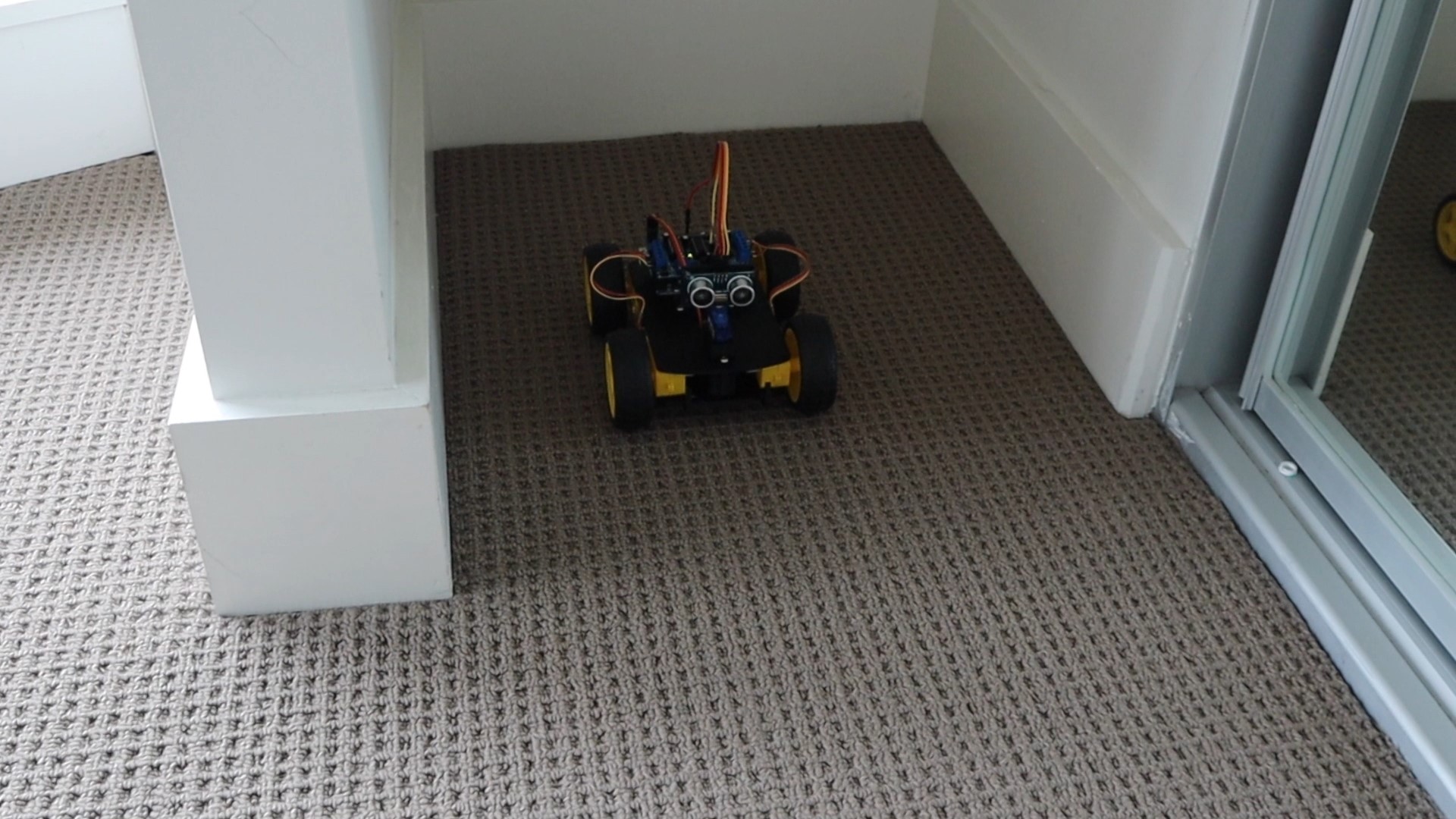
If the car drives into a tight space, it will turn around and drive back out the way it came.
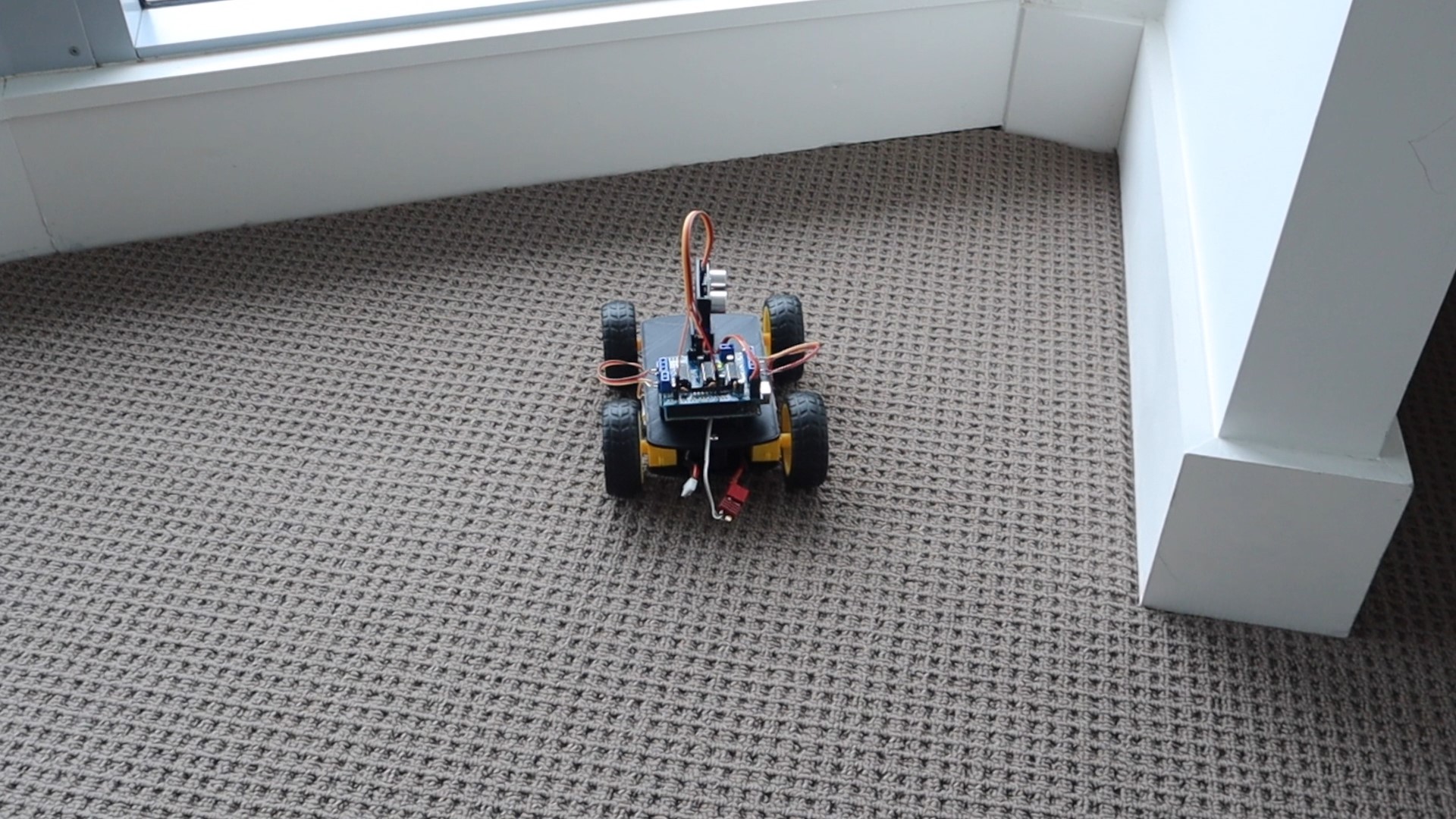
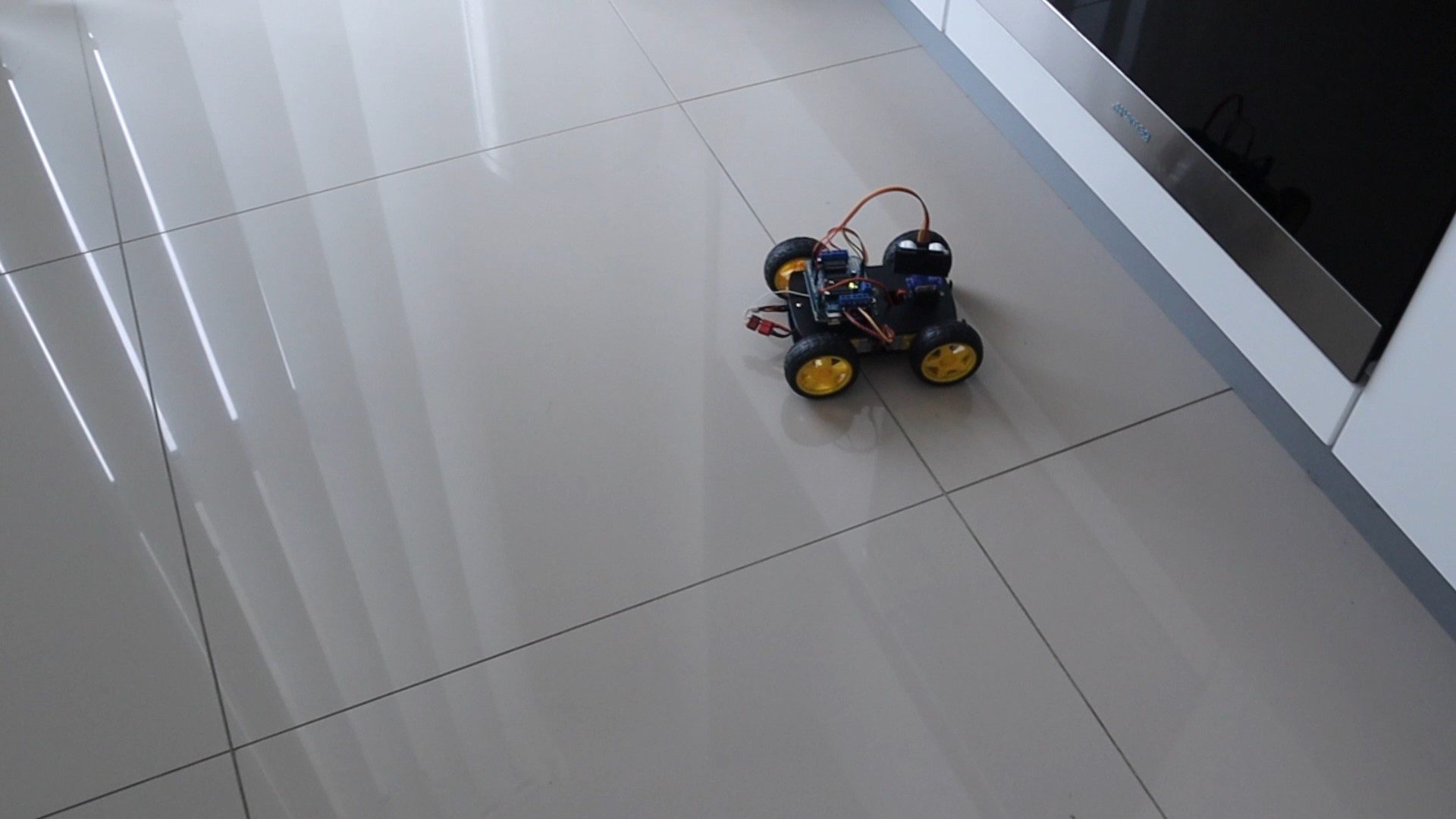
The obstacle avoiding robot car runs well on both carpeted and tiled surfaces as all four wheels are driven. You might need to add a bit extra motor speed on carpeted areas if you find your car has difficultly.
In future, I’ll be adding left and right movement to the ultrasonic sensor during forward movement to detect objects slightly off-center which may come into the robot’s path, and then gently turn the robot car away from them. At the moment if the robot gradually drives towards a slightly off parallel wall, it eventually drives into it and gets stuck because the wall hasn’t come into the sensor’s range. By looking slightly left and right while driving, we should be able to detect this wall slowly getting closer and add some speed to the motors on that side to drive the car away from the wall.
Have you built your own Arduino based obstacle avoiding robot car? Let me know what modifications and additions you made to yours in the comments section.
I’ve seen quite a few people have added an air assist system to their K40 laser cutters using either an aquarium air pump or a radial fan. There are a couple of different reasons given, but most say that the fan blows the smoke away and improves engraving quality, that you get better cutting results and that you have less chance of your material catching fire. I’ve never had significant problems with any of these but I thought I’d try one of these solutions out and see what the results were. I chose to go with the radial fan air assist option as a fan is only a couple of dollars, which is much cheaper than an aquarium compressor.
Here’s a video of the modification, read on for the step by step instructions, and print files.
Make sure that you turn off and unplug your K40 laser cutter before working on it and allow the machine to stand for 10 minutes before working on it. While this addition is made to the low voltage DC side of the supply, there is always a risk in working in the open electrical compartment with the power still on.
How To Install The Radial Fan Air Assist On Your K40
Mount The Radial Fan And Duct
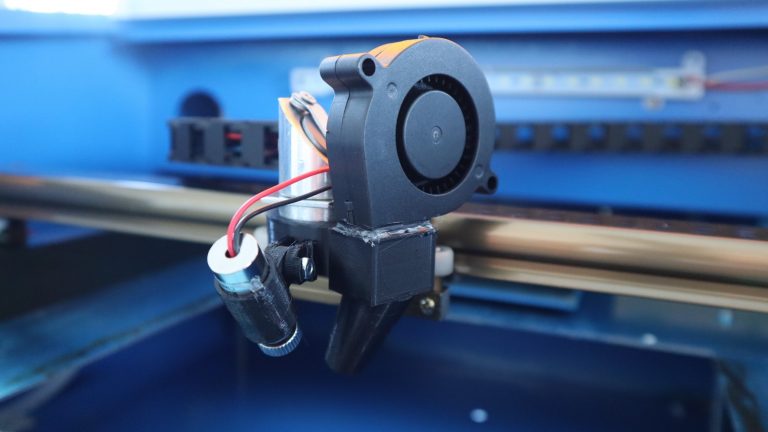
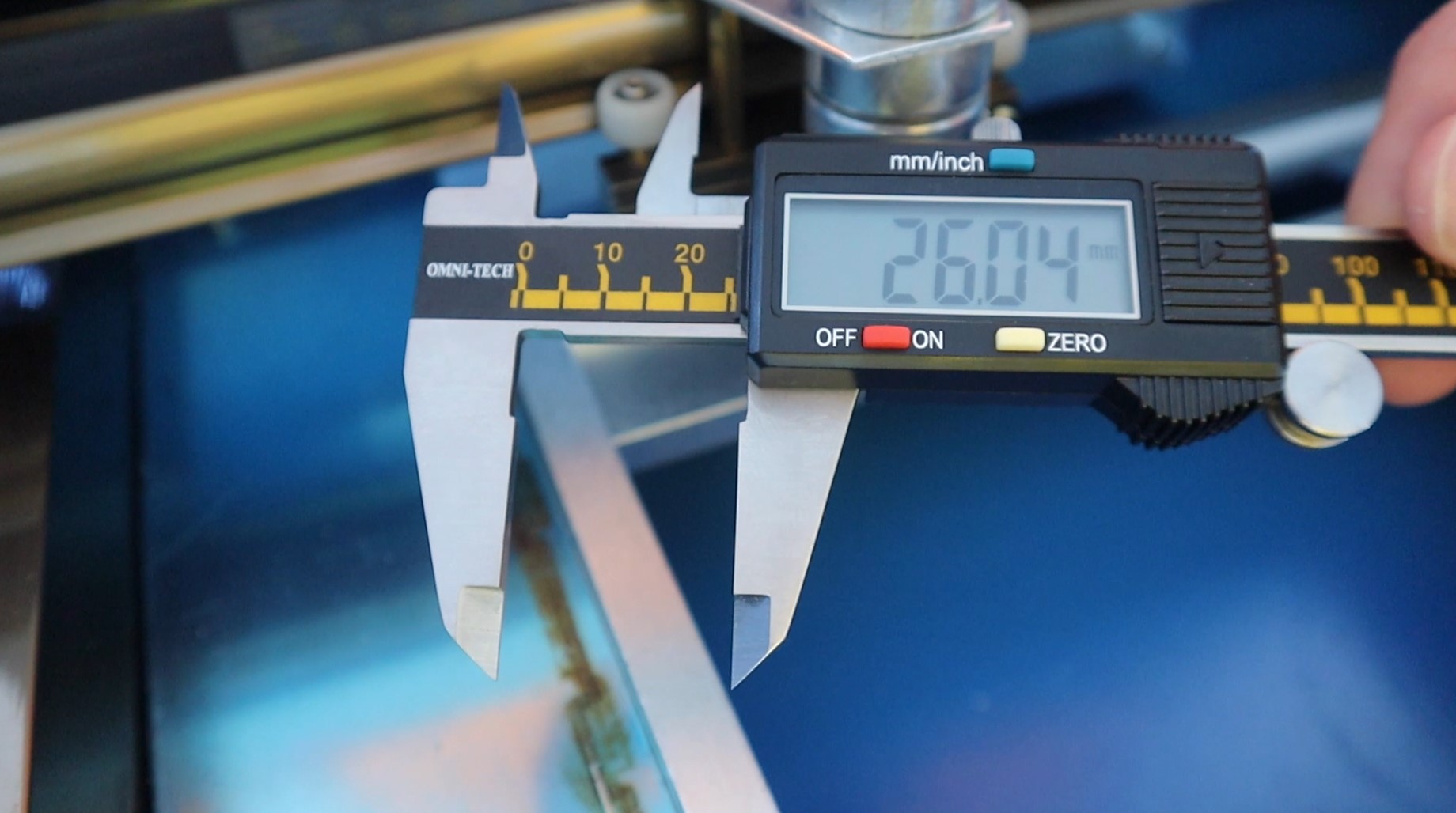
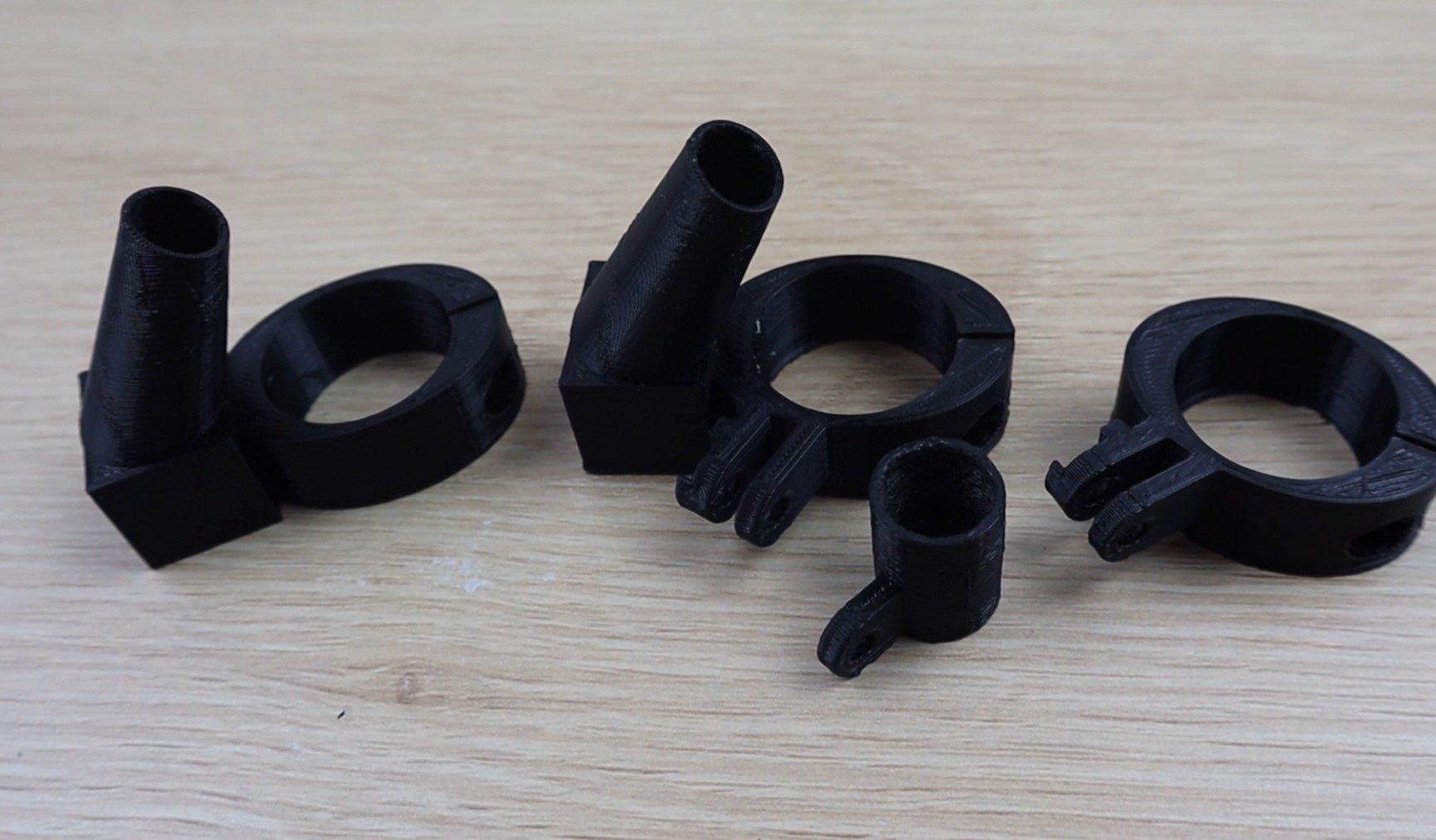
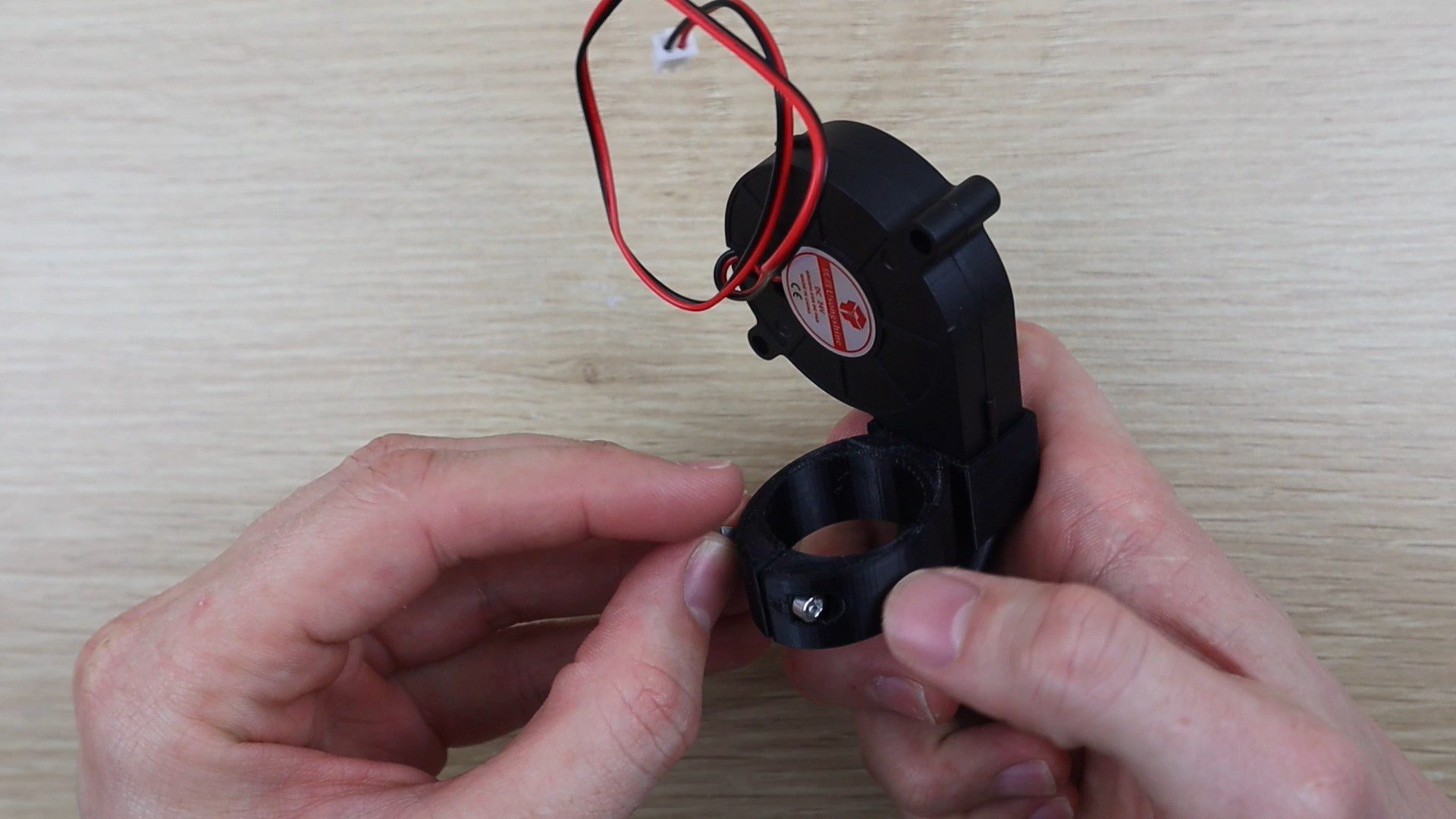
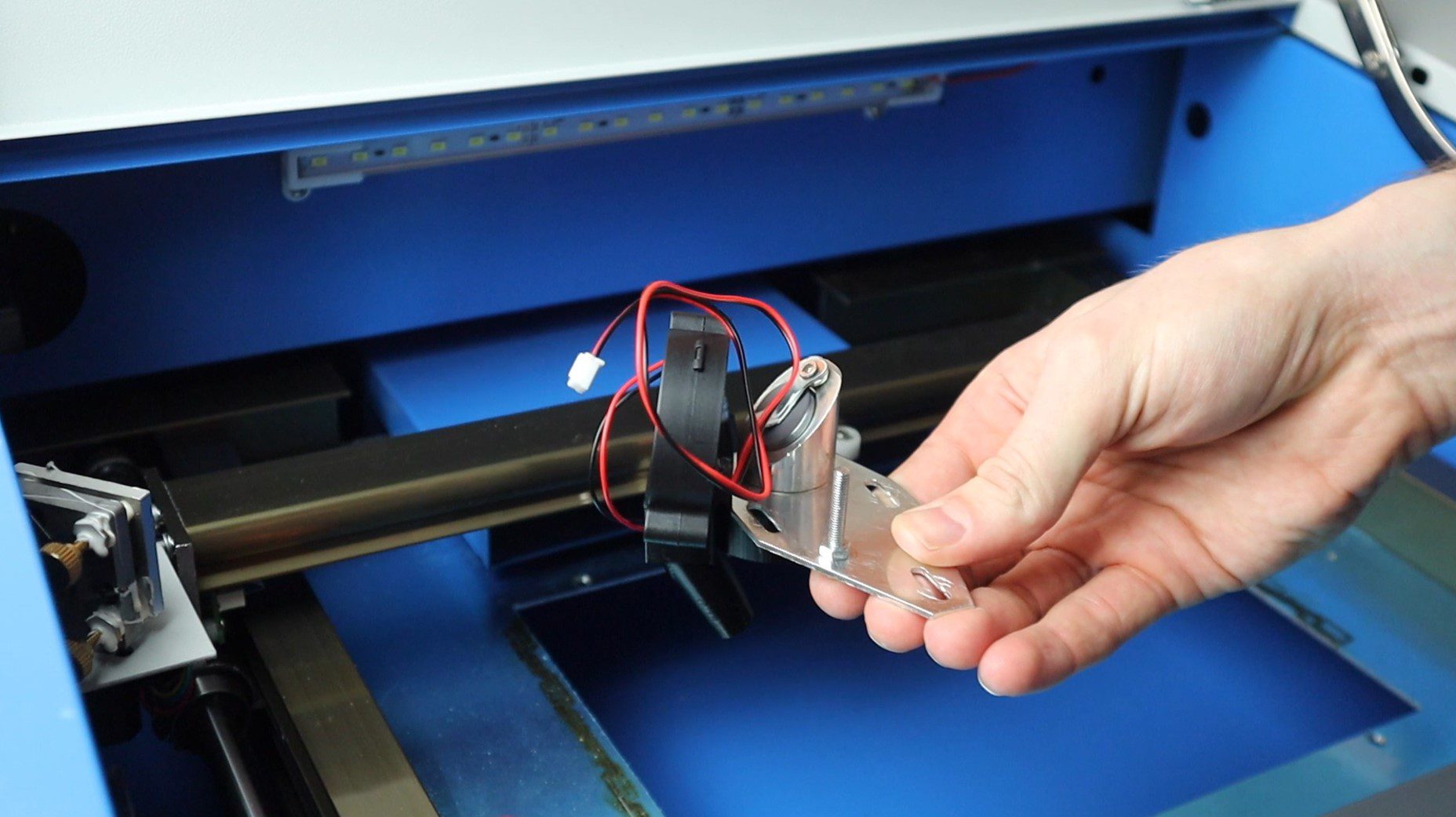
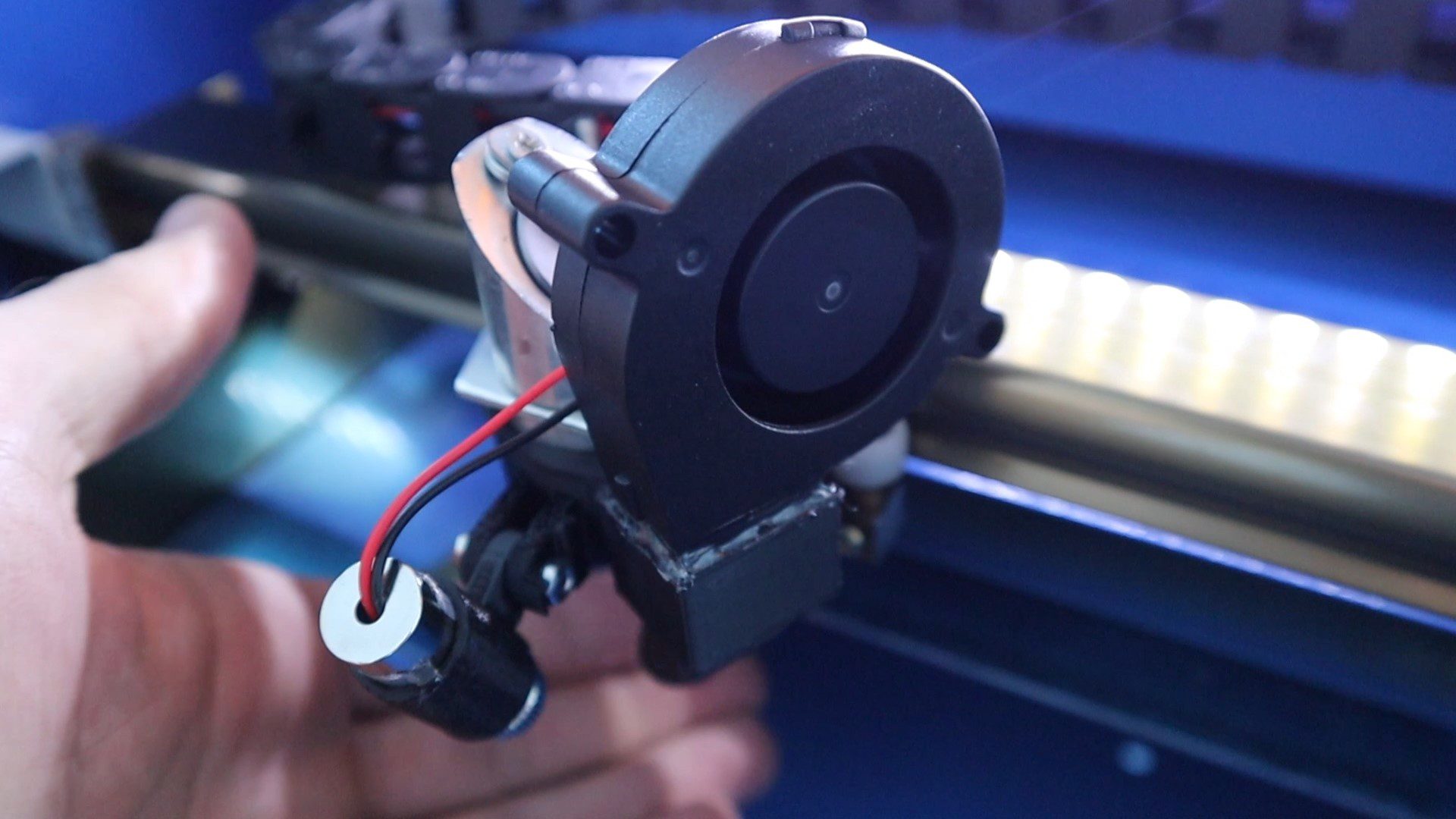
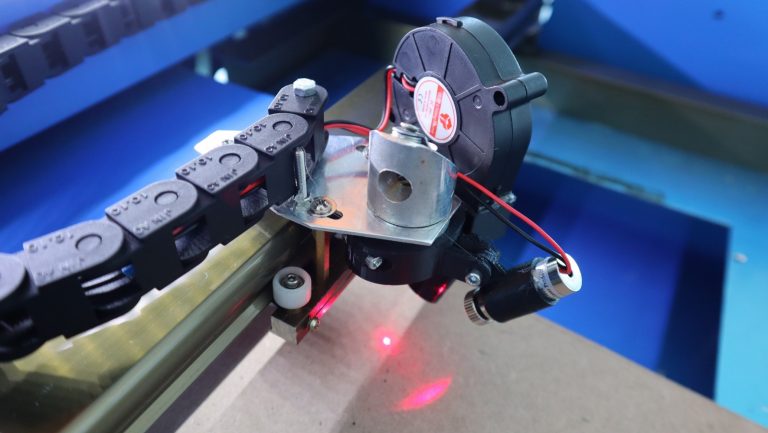
I started out by measuring the head of the laser cutter in order to design a 3D printed bracket to hold the fan and a duct to direct the flow towards the cutting area. I designed the duct away from the lens rather than around the lens as it didn’t seem like a good idea to direct dirty air from inside the cutting chamber towards the lens. On compressor systems where the clean air is being drawn in from outside the cutting chamber, it makes sense to direct the airflow past the lens to keep it clean.
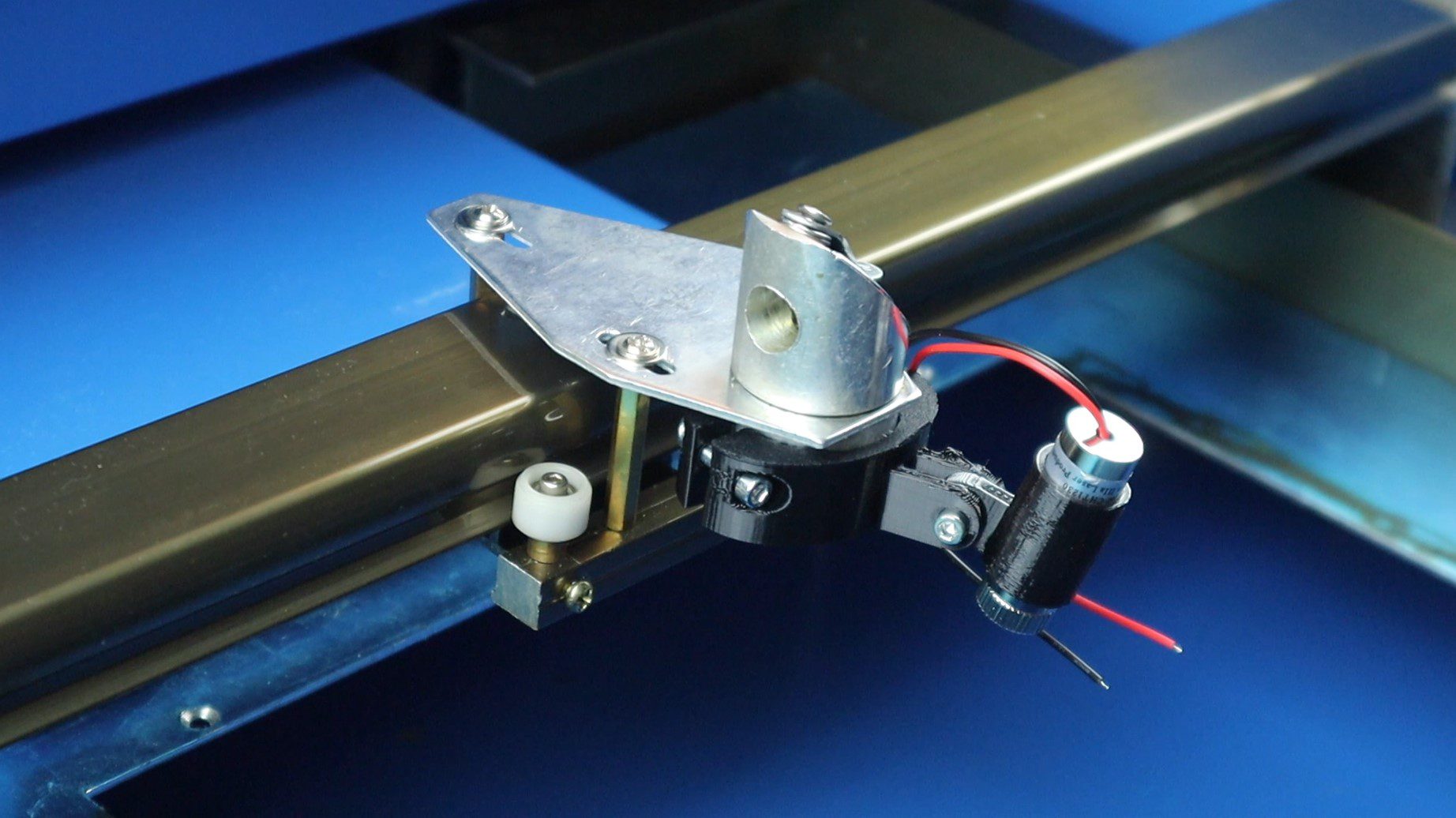
At the same time, I designed an arm to support a red dot laser pointer to make it easier to see exactly where the laser is going to be cutting and avoid wasting materials. I’ve included print files for the model with and without the pointer. Have a look at my other guide on adding a red dot laser pointer to your K40 laser cutter if you’re interested in that option as well.
I printed out the bracket using black PLA with a 50% infill.
There are three included models in the download, one for the pointer only, one for the fan assist only and one for the pointer and fan assist.
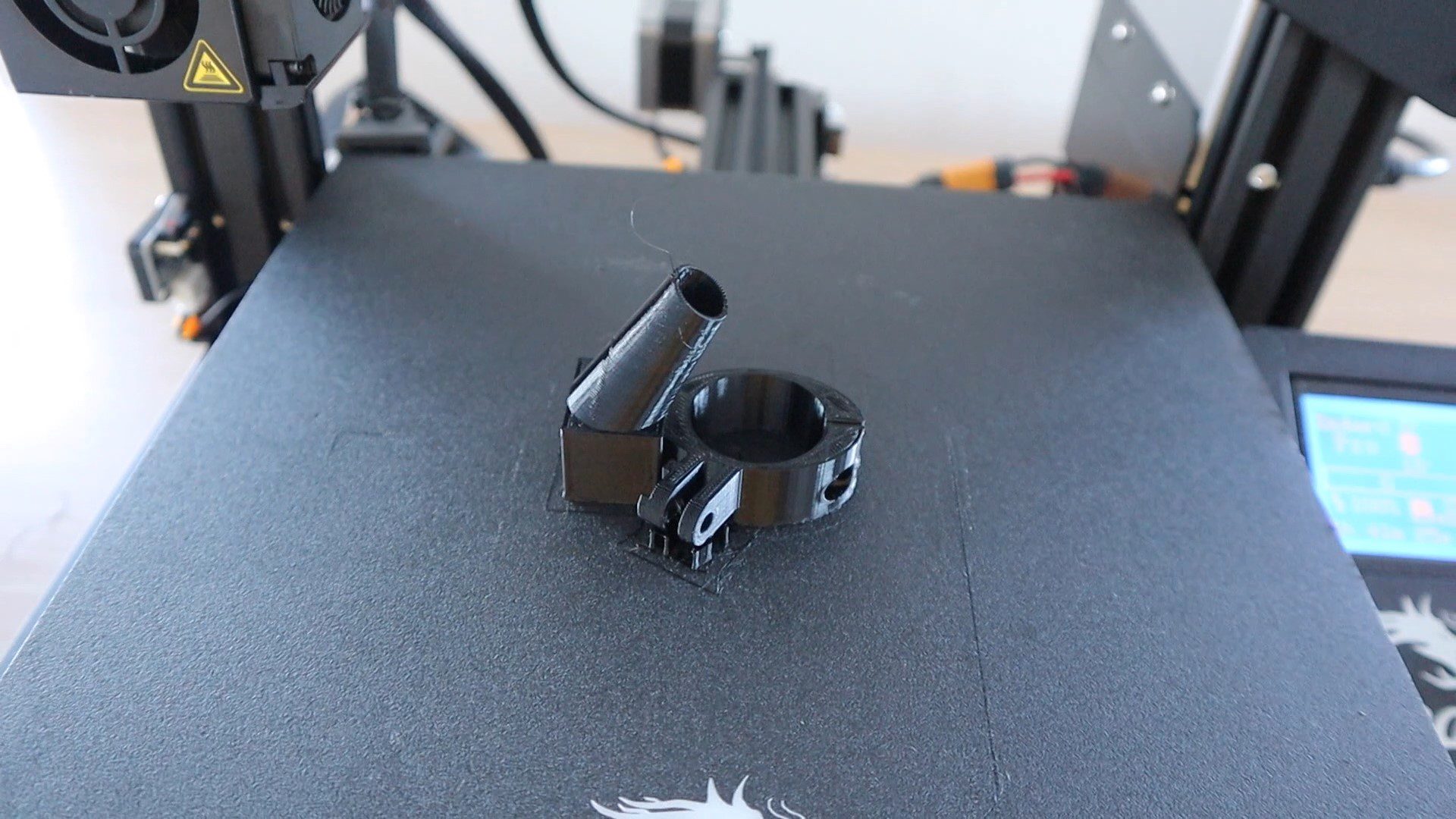
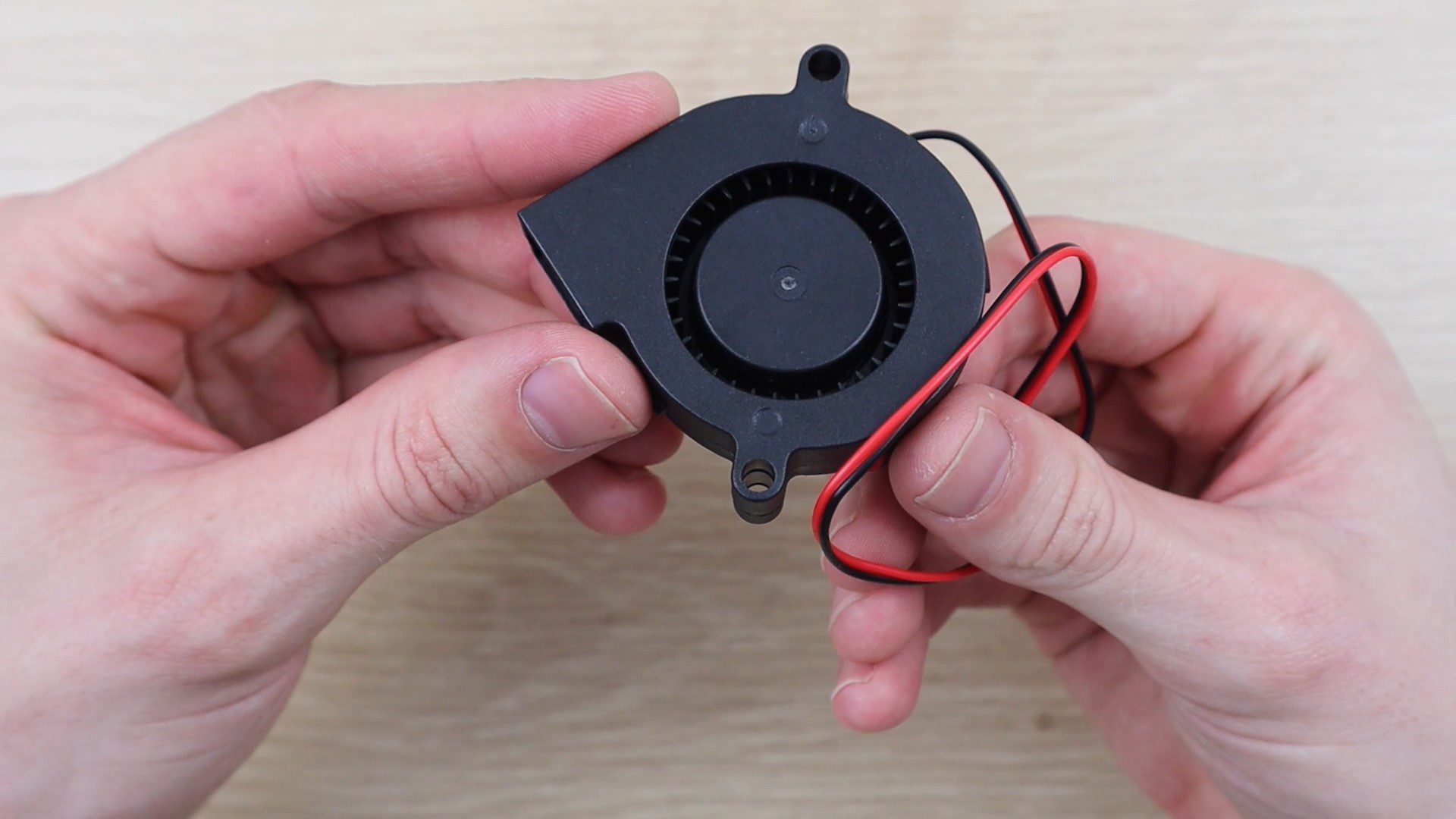
I ordered one of these 24V radial fans which are said to be designed as laptop cooling fans as this can be powered straight from the existing 24V supply and the fan outlet is perfect to attach to a duct to direct the airflow towards the cutting area.
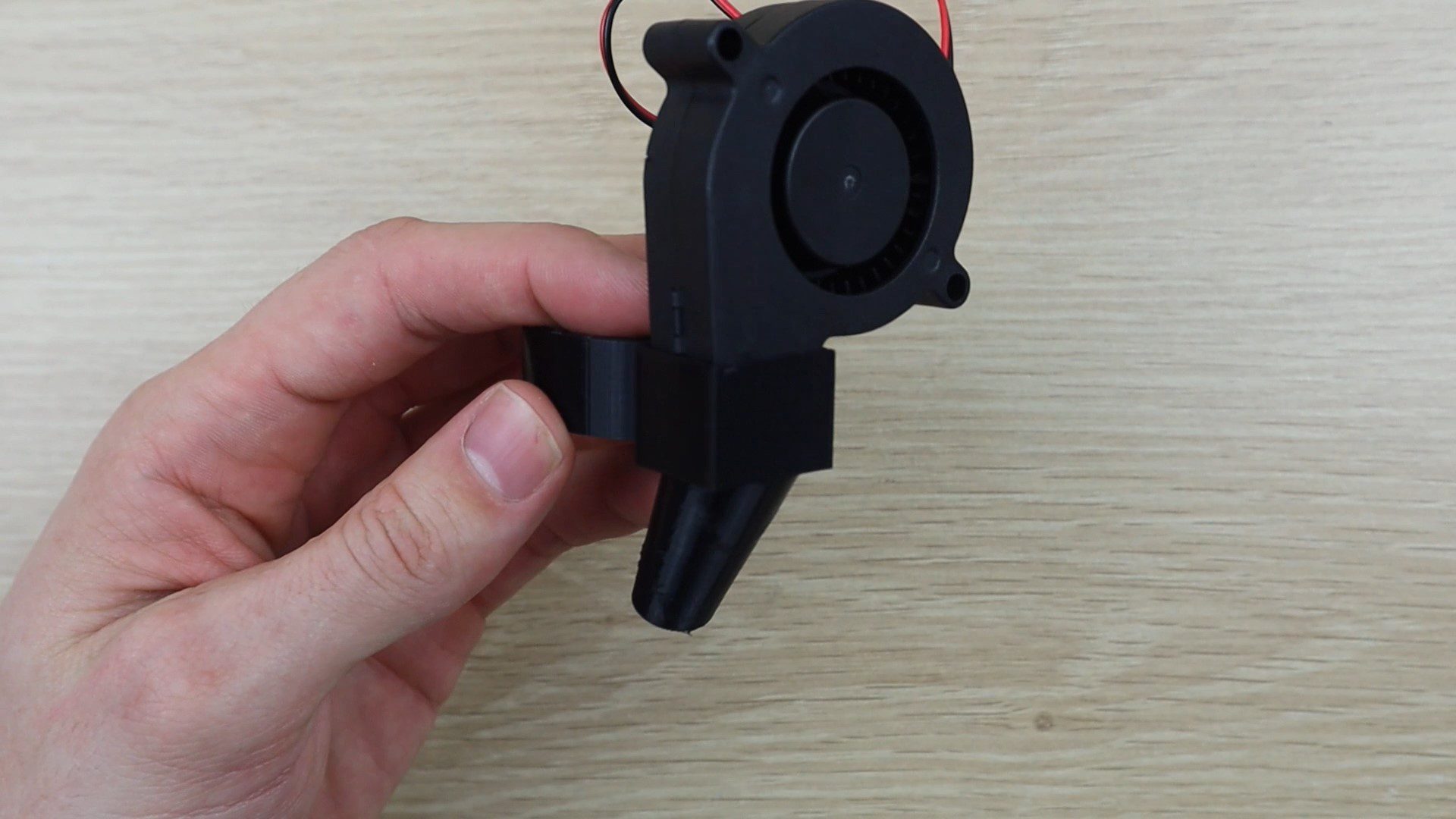
Push the fan into the top of the ducting. It should be a fairly snug fit and you can add a bead of hot glue around the edges to seal it up and hold the fan in place.
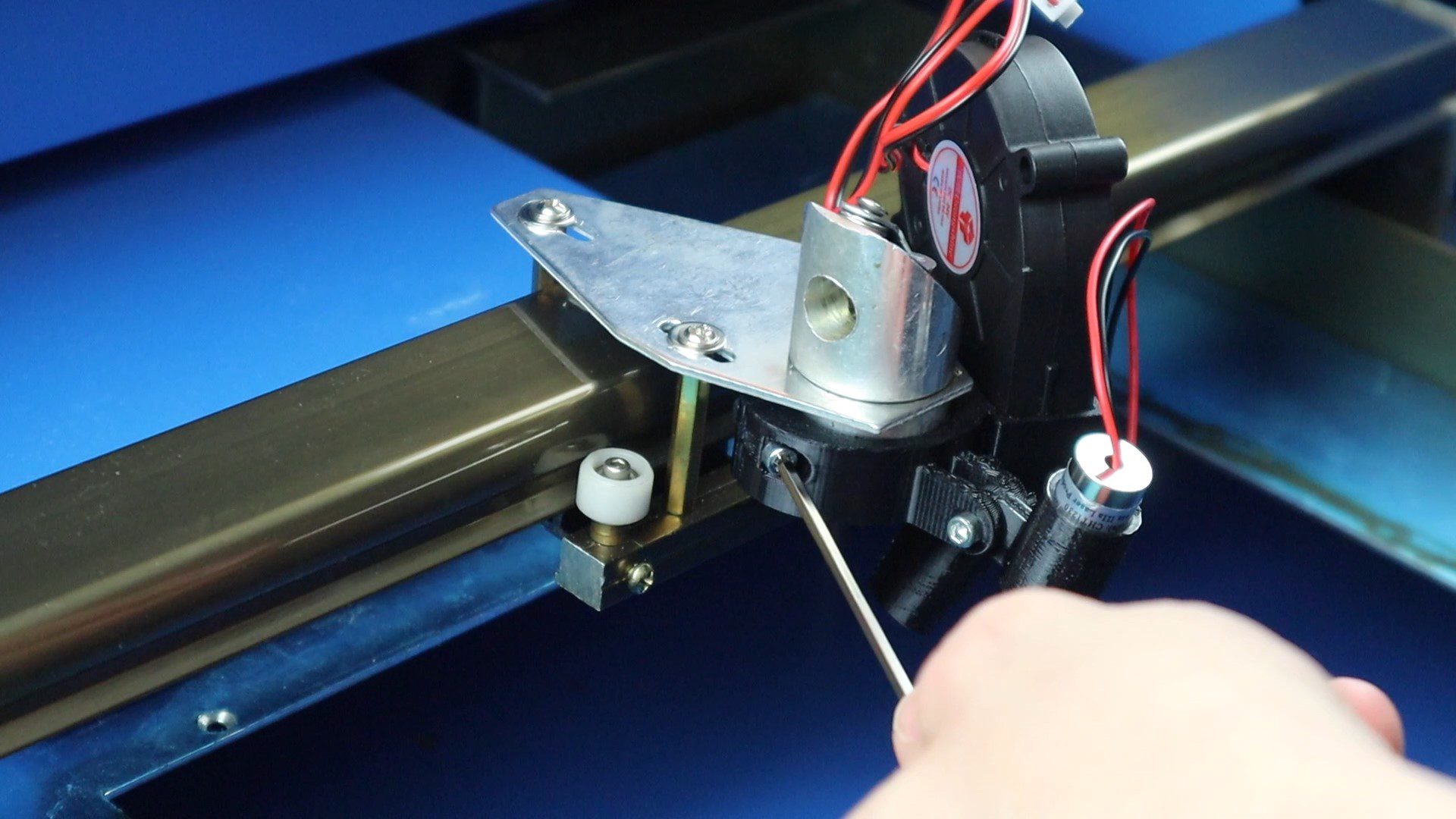
An M3 x 15 hex head screw and nut is used to clamp the bracket around the head of the laser.
Slide the bracket onto the bottom of your head of your laser and then secure it by tightening the screw.
Now that the fan is in place, we need to add the power connection and a pushbutton to turn it on. I’m going to be doing this next step in conjunction with the red dot pointer addition, but the method is exactly the same whether you’re doing one or both modifications.
Supply Power To The Radial Fan
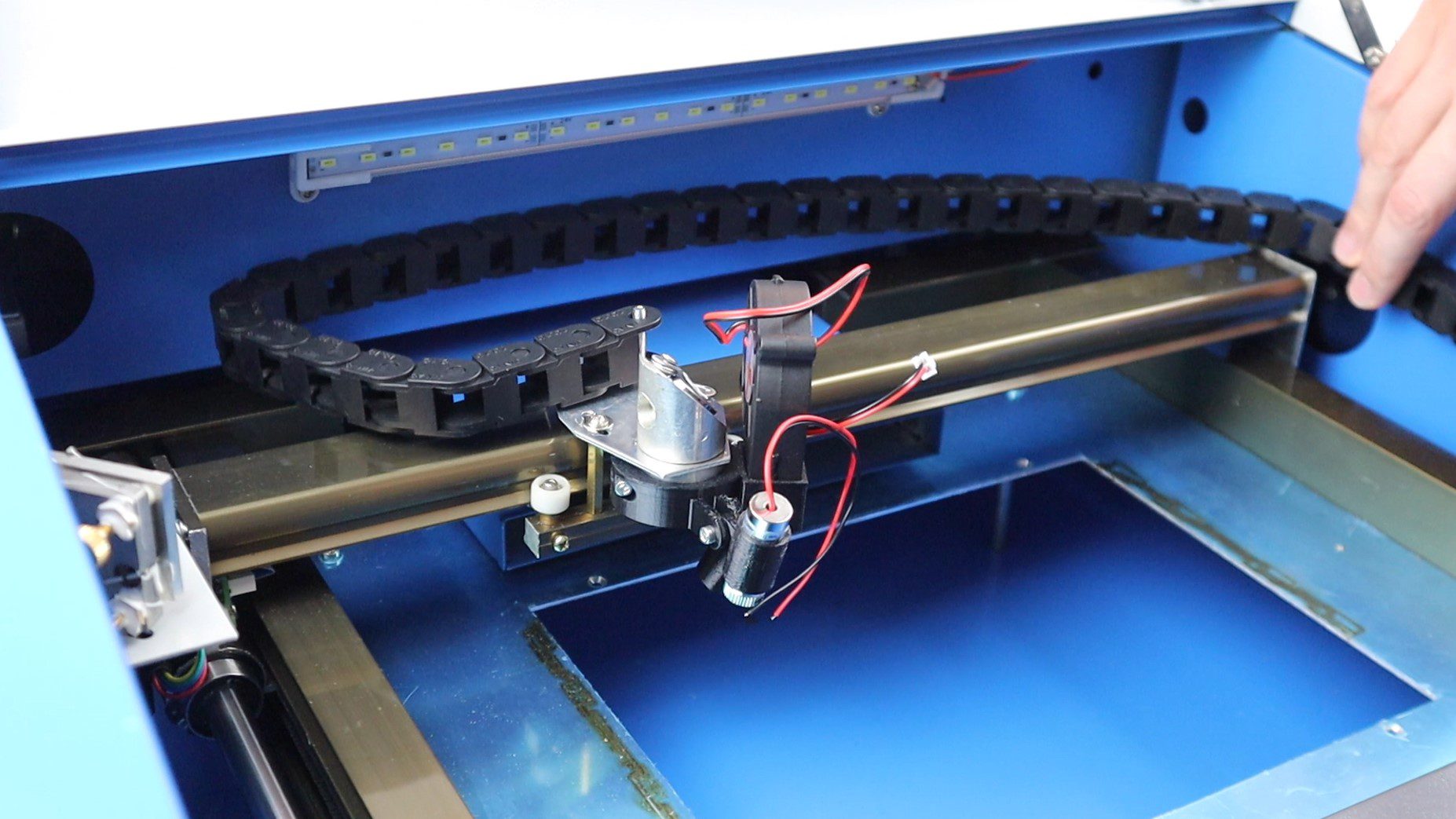
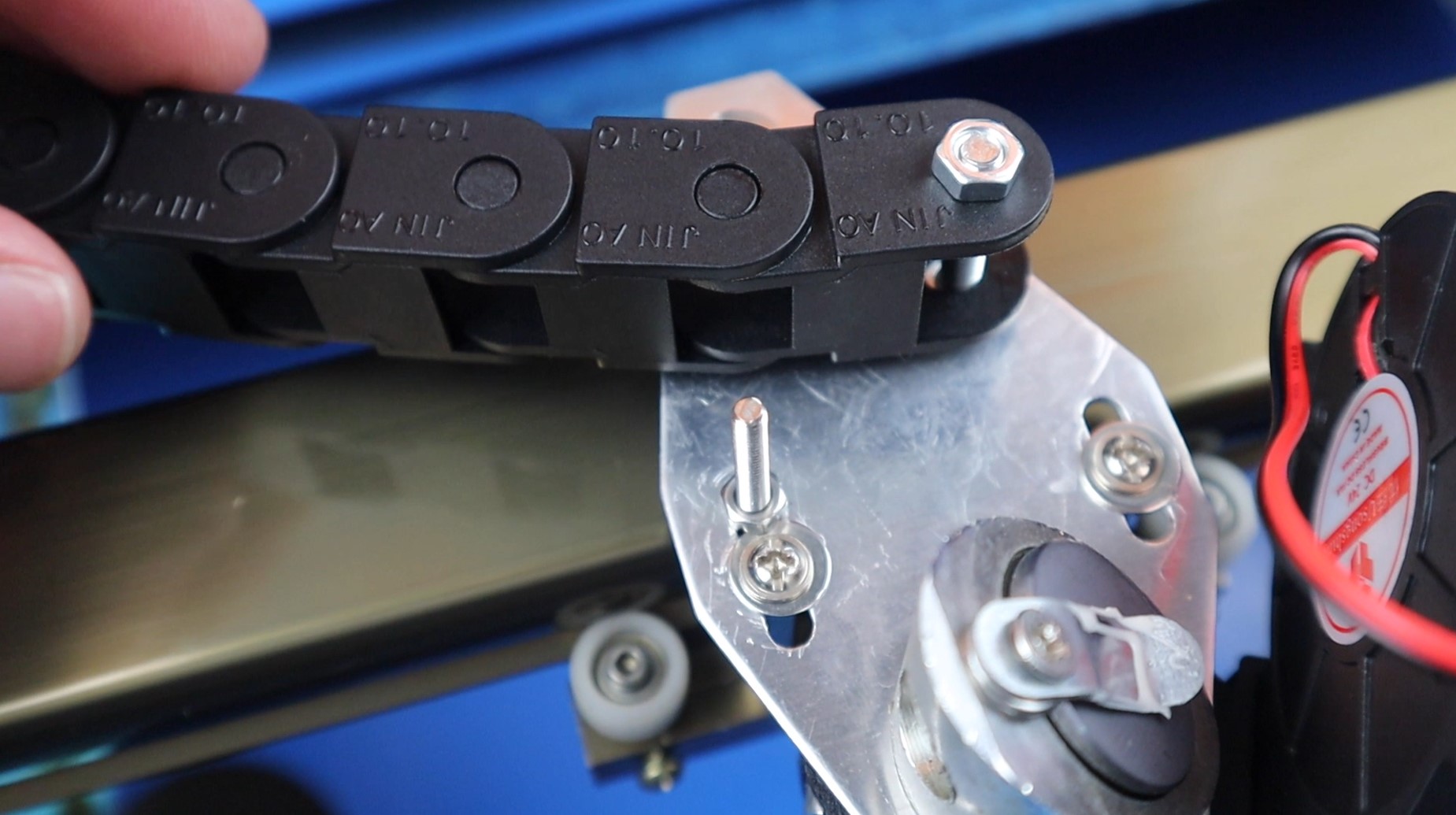
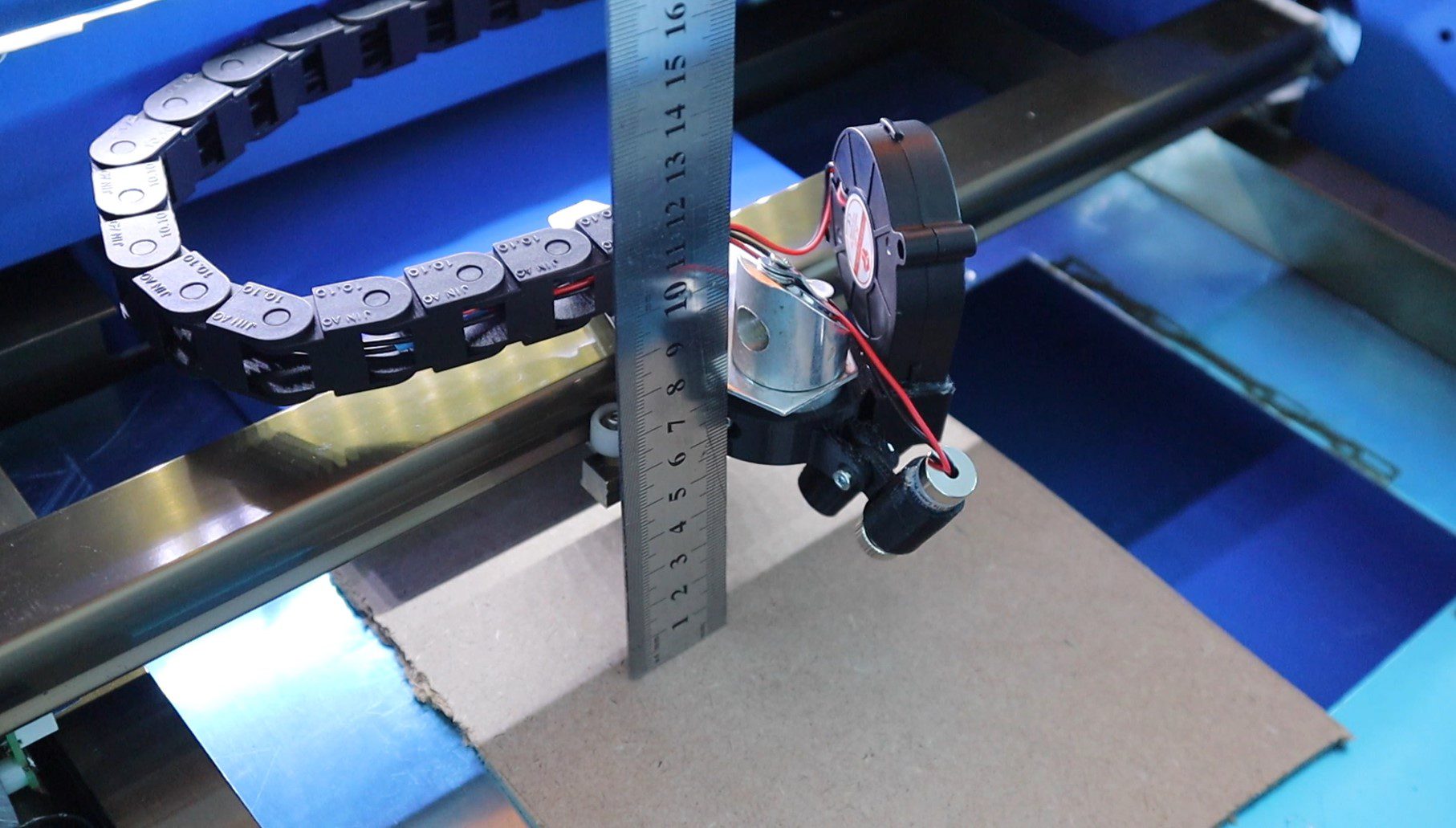
You’ll need to add a drag chain to support the power cables to the head of the laser so that they don’t get caught up when the laser is moving. The one end of the drag chain gets connected to the head of the laser and the other onto the sidewall of the machine.
First, we’ll need to add an anchor screw onto the laser cutter head. I took the head off for this step as its easier to work with. I drilled a 4mm hole on one side of the head and add an M4 x 25mm screw which was long enough to fit through the drag chain and then replaced the head.
Place the end of the drag chain onto the laser cutter head and then measure out the length that you need. You want it to be long enough to reach all four corners of your bed but not too long that it gets in the way.
Remove the spare links so that it’s the correct length and then add the end support.
Mark off the two holes for the end supports so that you can drill the required holes.
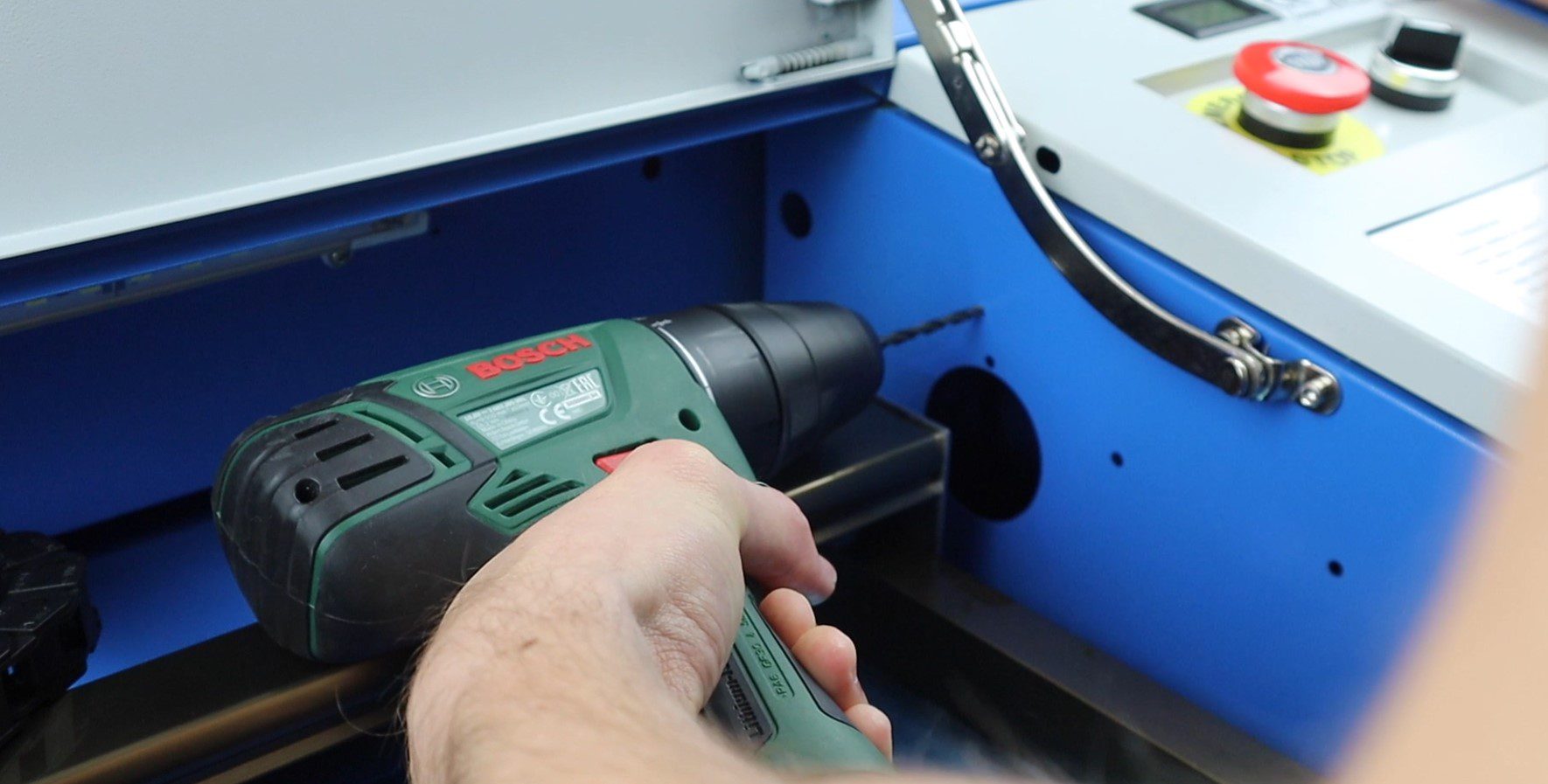
I used a 4mm drill bit to drill two holes for some M4 x 15mm screws which I then secured through the sidewall.
You might also want to add a thin screw or rod onto the head to stop the drag chain from being able to move into the path of the laser. This will interrupt the laser’s path, causing your cut to fail and potentially damage the drag chain or cause it to catch on fire.
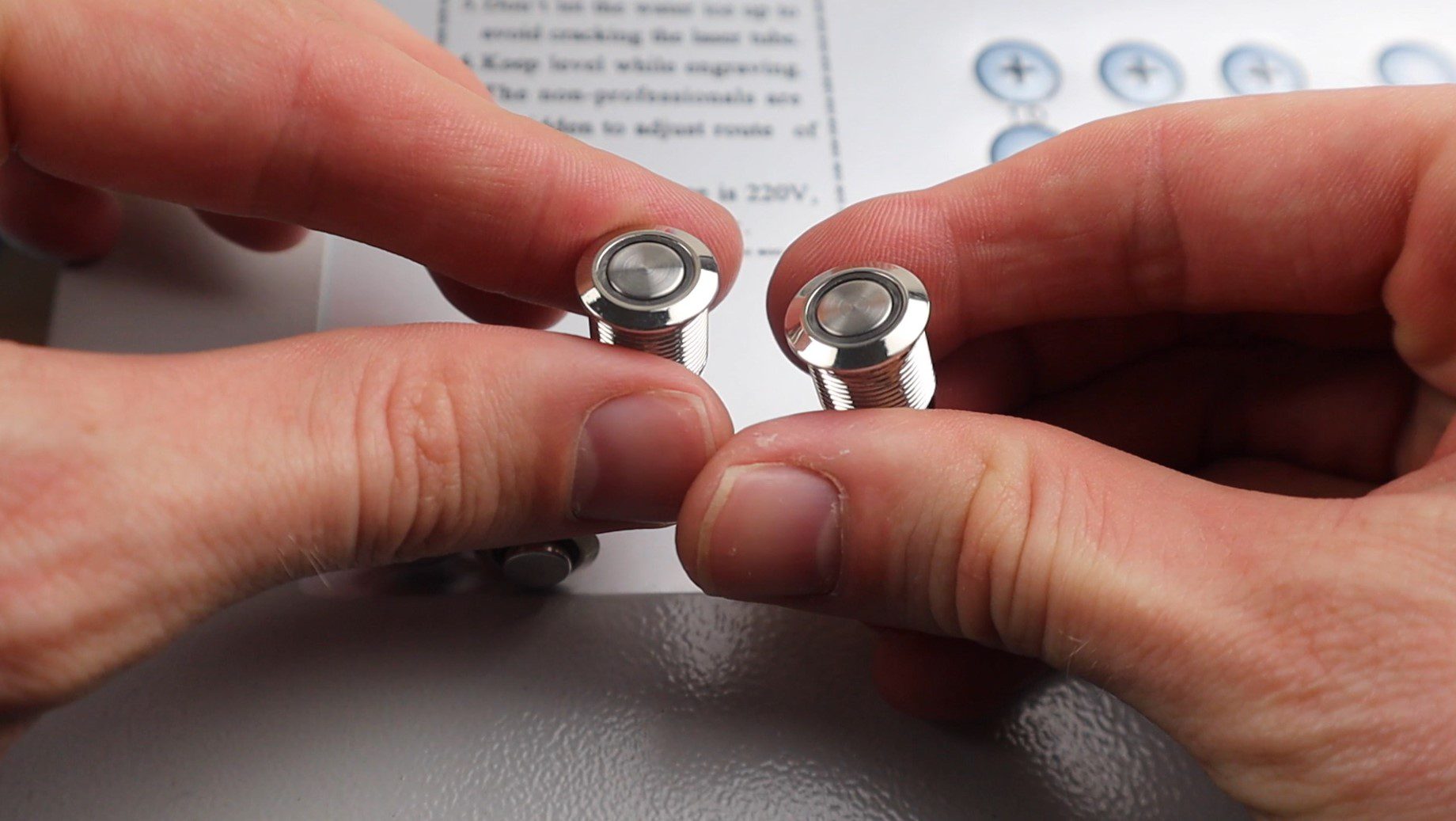
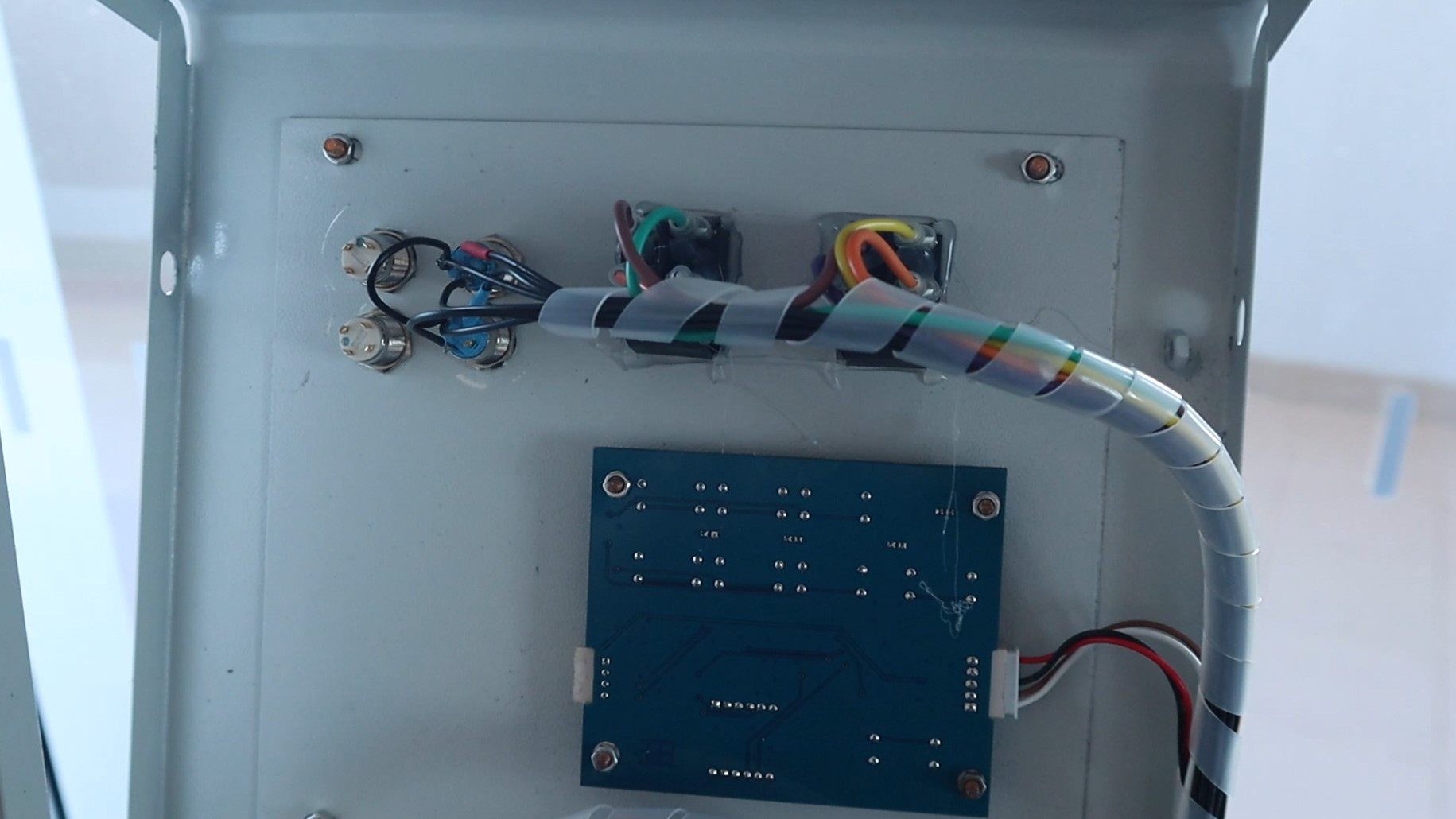
Next, I added some pushbutton to the control panel. I added four buttons, one for the pointer and one for the fan assist and then another two which I plan on using for a height-adjustable print bed in the future. I wasn’t too worried about keeping them neat as I’m planning on replacing the front panel in the near future as the LCD display is not very useful and the more basic ammeter panel is actually a better and more accurate option.
I removed the control panel to drill the holes and install the pushbuttons.
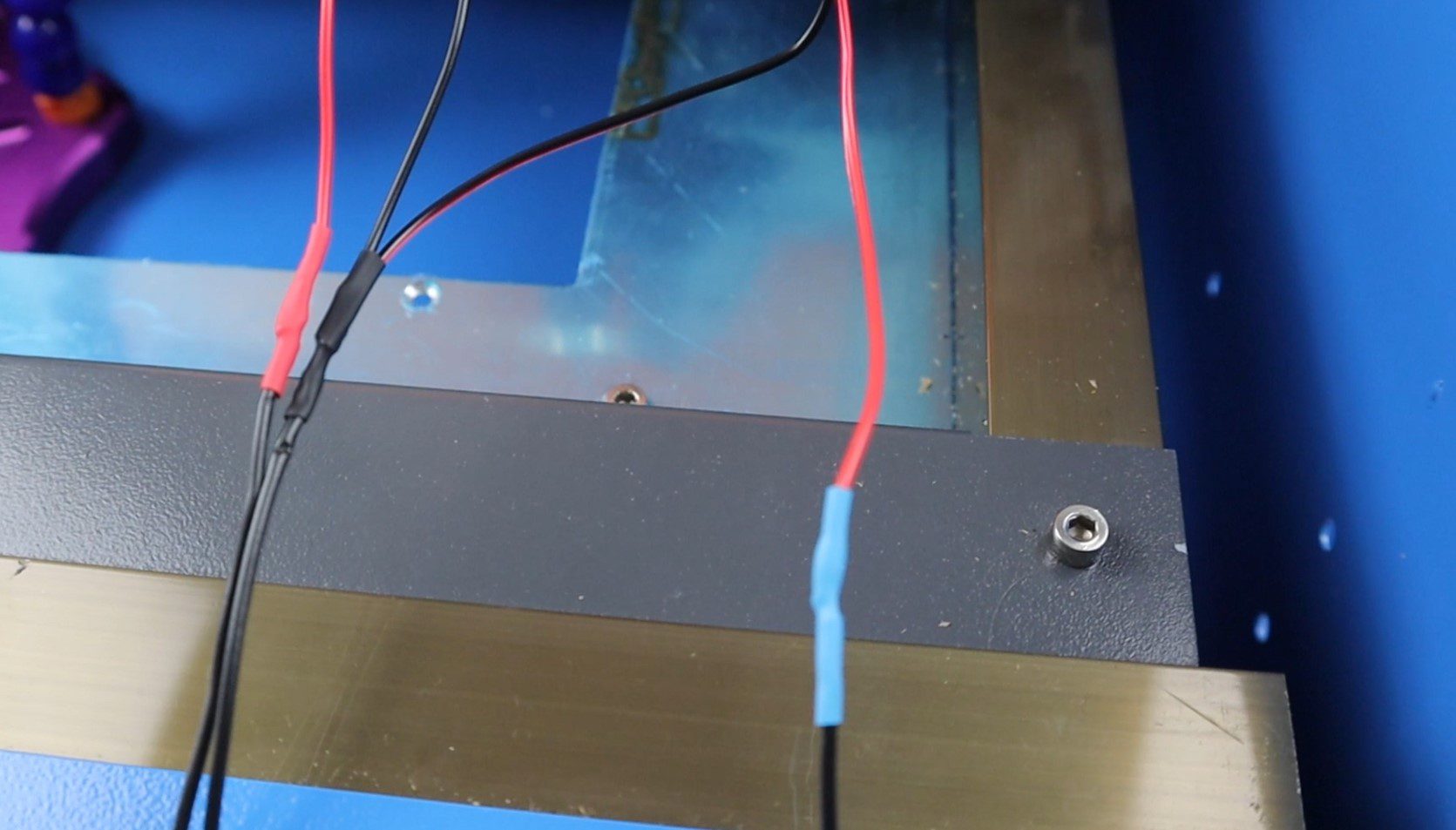
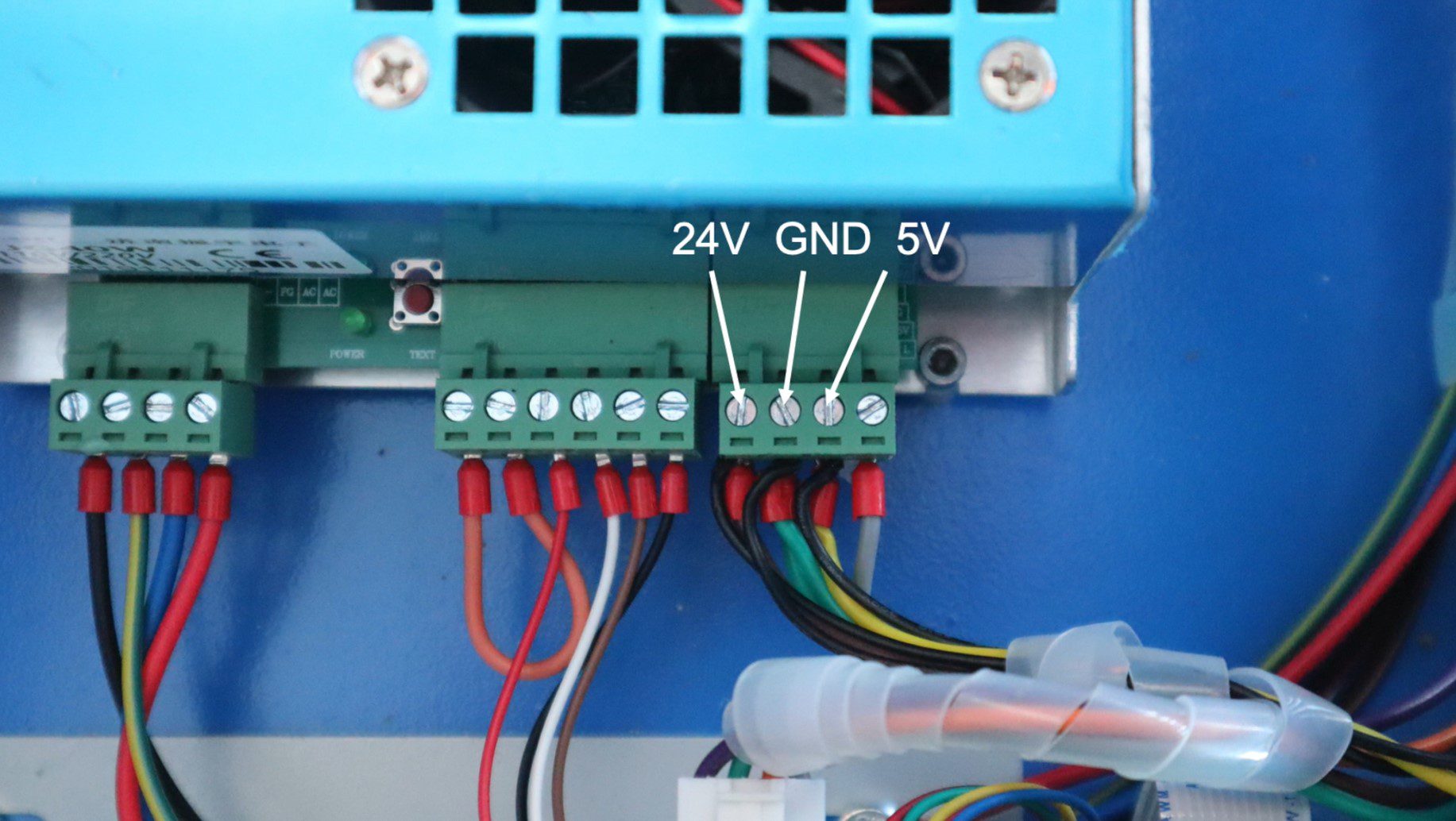
I then got to work on the wiring. I needed three wires to the head, one for 24V for the fan, one for 5V for the pointer, and one common/ground. If you’re not using the fan or not using then pointer then you’ll only need two.
Feed then wires through the side of your machine and into the electronics compartment. I ran them in the existing cable bundles so that the wiring is kept neat. I ran the wires up to the pushbuttons and then down to the power supply for power.
You’ll need to hook your wires up to these three terminals on the power supply, depending on what you’re supplying. Keep in mind that this power supply is not really designed with much extra capacity, so don’t add anything which will draw a lot of power or you may burn it out.
Once all of the wiring is done, check the connections and then turn it on to try it out.
Test The Radial Fan Air Assist On Your K40 Laser Cutter
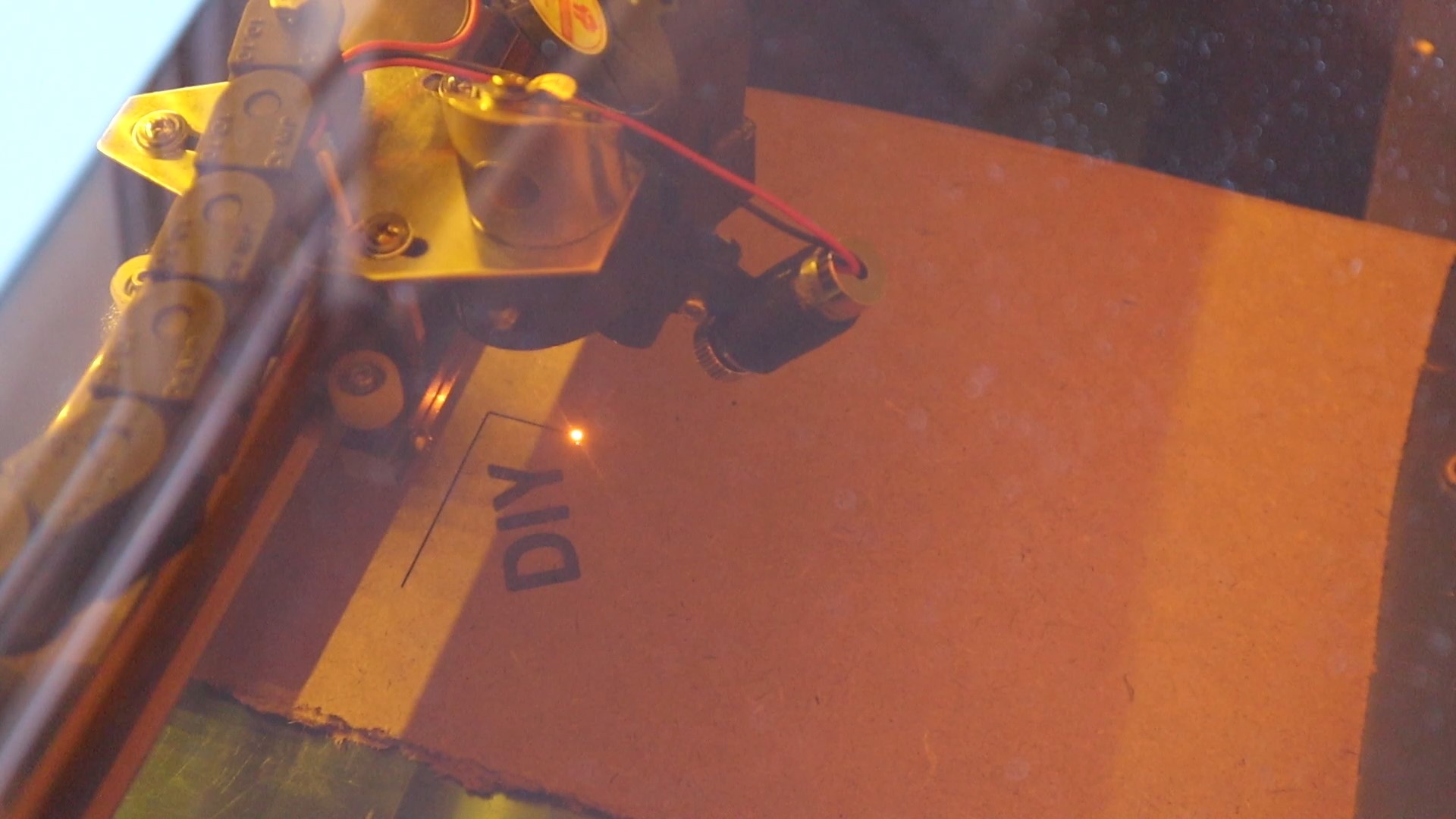
Now that all the wiring is done, let’s turn on the fan and test it by doing an engraving and a cut.
There’s actually an impressive amount of airflow from such a small fan.
I designed a small logo engraving and a rectangular cutout around it to test on a piece of 3mm MDF. I engraved and cut the two side by side so that you can see the difference.
I did the engraving on 15% power and 100mm/s and the cutting at 35% power at 20mm/s. I didn’t want it to cut all the way through the MDF as I wanted to see how deep the cut was with each test.
This is the result, which wasn’t what I was expecting.
The engraving is actually more dirty with the fan assist on. It seems like instead of allowing the smoke to rise up and away from the wood, it was being blown back down onto the wood, causing more significant marking. The cutting performance was improved with the fan assist on. The cut was just under halfway through the MDF without the air assist and was a little more than 2/3 of the way through with the air assist on.
I’ll probably land up removing the fan air assist as I tend to engrave with masking tape in any case as it produces much cleaner results and since I still need to do 2 passes to cut through the MDF with or without the air assist, there isn’t much benefit to it. I might look at trying out an air assist solution using a workshop compressor in the future and see if more airflow leads to a better quality engraving or even more improved cutting performance.
Have you tried doing any modifications to your K40 laser cutter? Let me know in the comments section below.
If you’ve used a stock k40 laser cutter, then you’ll know that positioning the laser for a cut is a bit of a guessing game. So in this guide, I’ll show you how to add a small red dot laser pointer to the laser cutter head to indicate exactly where the laser is aiming. This way you can accurately position your cuts along the edges of your material without wasting material or starting a cut off the edge.
Here’s a video of the modification, read on for the step by step instructions, and print files.
Make sure that you turn off and unplug your K40 laser cutter before working on it and allow the machine to stand for 10 minutes before working on it. While this addition is made to the low voltage DC side of the supply, there is always a risk in working in the open electrical compartment with the power still on.
How To Install The Red Dot Laser Pointer On Your K40
Mount The Red Dot Laser Pointer
I started out by measuring the head of the laser cutter in order to design a 3D printed bracket to hold the pointer.
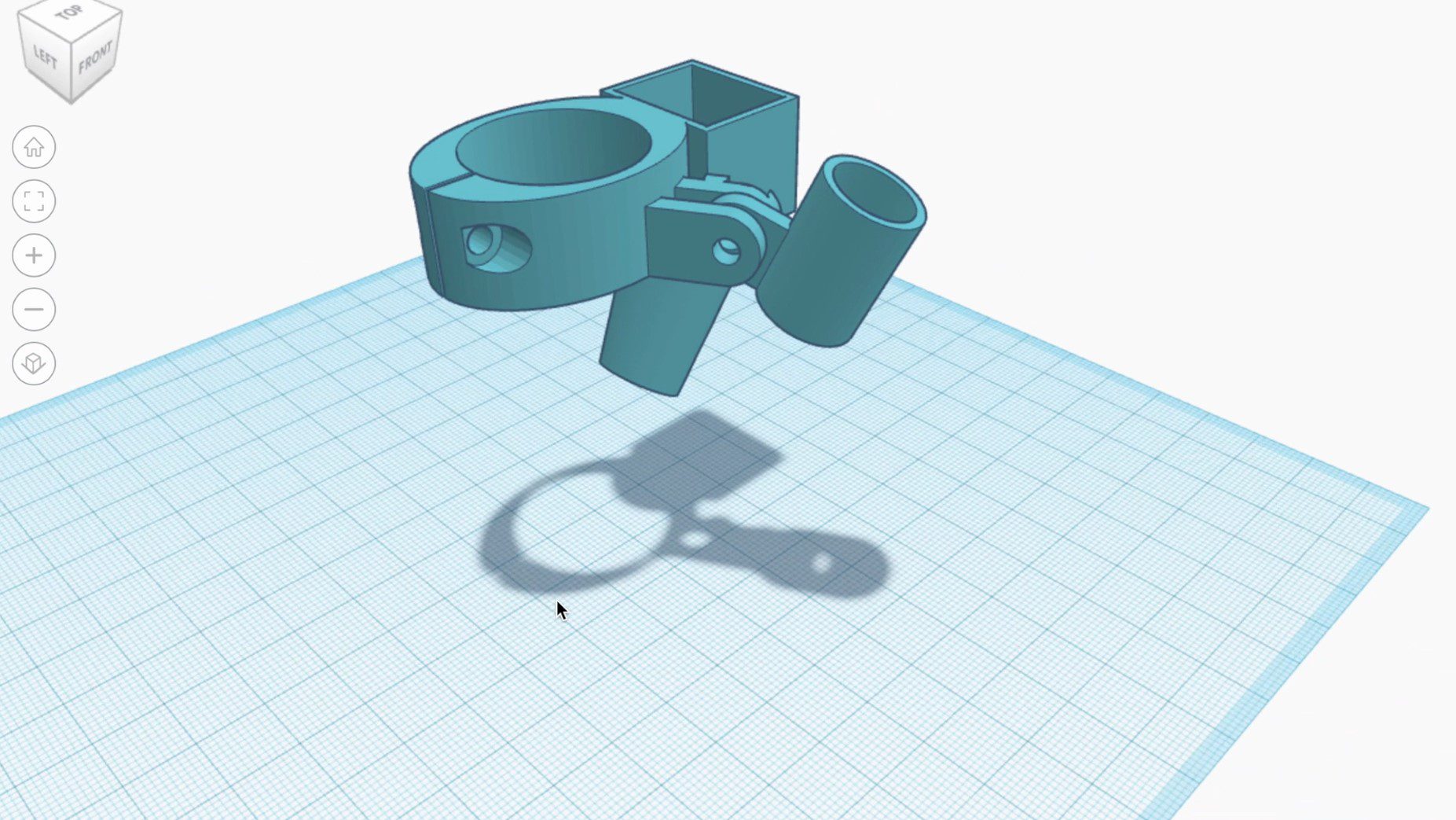
I wanted the red dot laser pointer to be adjustable so that you can make changes to the dot position for different thickness materials and different focal points on a range of lenses.
This is the design that I came up with. I designed a bracket and duct to support a small radial fan at the same time to try out a fan air-assist modification and see how well it works. I’ve included print files for the model with and without the fan bracket, so you can decide which works best for you. Here is the other guide if you’re interested in adding a radial fan air assist system to your K40 as well.
I printed out the bracket using black PLA with a 50% infill.
There are three included models in the download, one for the pointer only, one for the fan assist only and one for the pointer and fan assist.
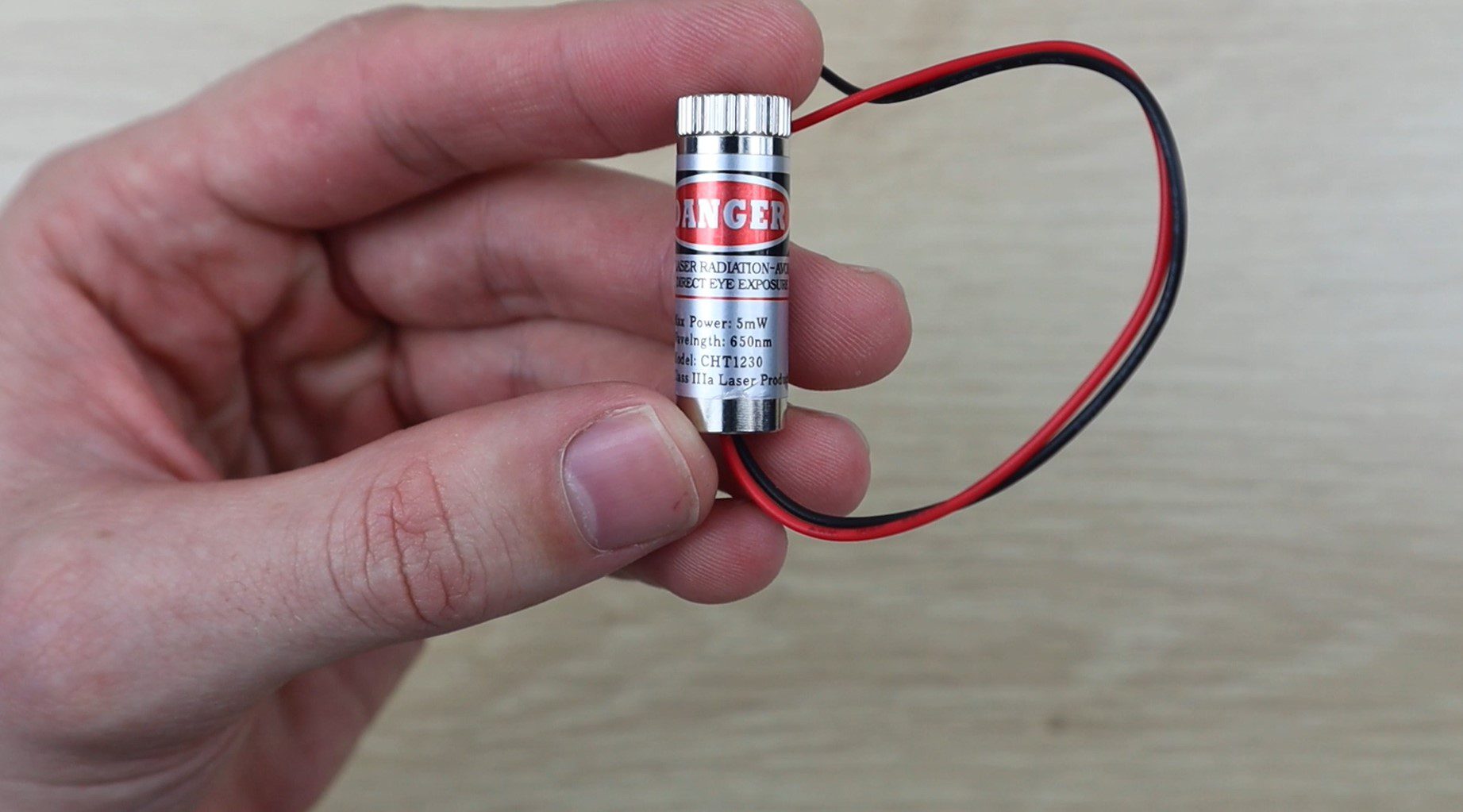
For the red dot pointer, I chose to use one of these focusable 5mW 5V laser pointers which are available from a range of online stores. They’re low power and have an adjustable focus ring on the end to accurately focus the pointer.
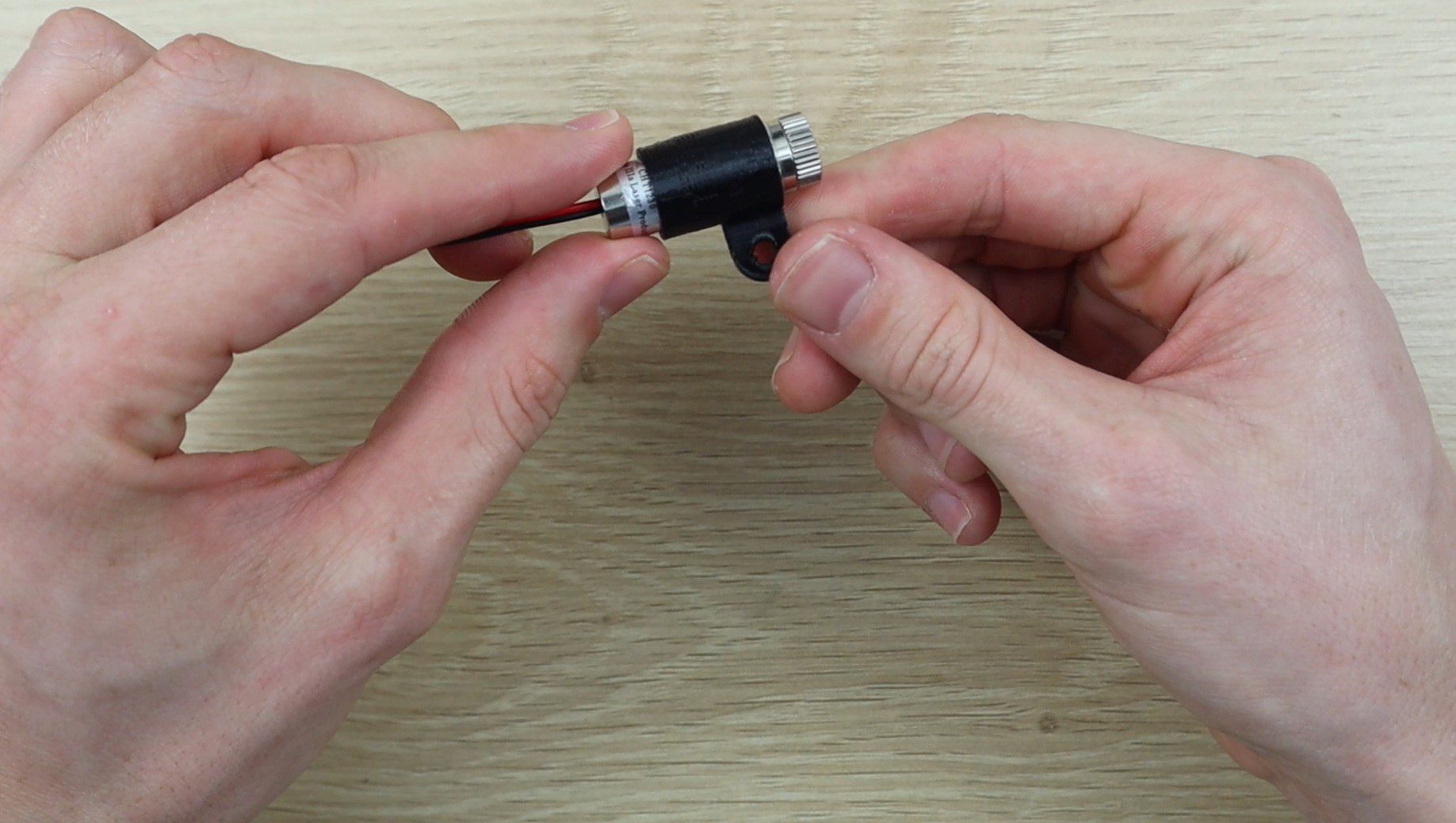
Push the laser pointer into the laser holder, it should be a snug fit.
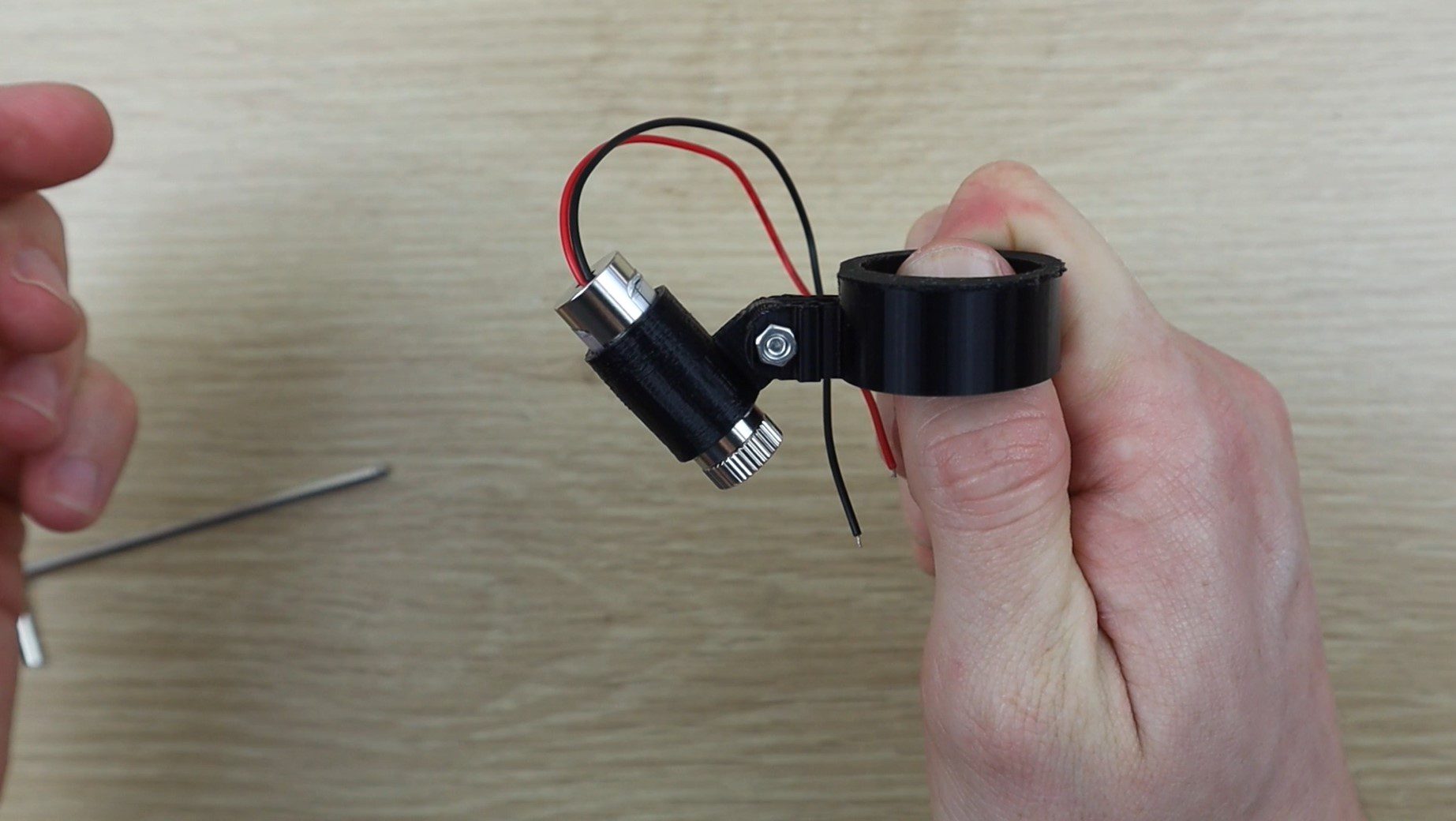
Now screw the laser holder onto the main bracket using an M3 x 15 hex head screw.
This screw allows you to adjust the angle of the pointer in order to line it up with the laser at different heights and focal points.
Slide the bracket onto the bottom of your head of your laser and then secure it with another M3 x 15 hex head screw.
Now that the pointer is in place, we need to add the power supply and a pushbutton to turn it on. I’m going to be doing this next step in conjunction with the fan assist addition, but the method is exactly the same for either or both done together.
Supply Power To The Pointer
You’ll need to add a drag chain to support the power cables to the head of the laser so that they don’t get caught up when the laser is moving. The one end of the drag chain gets connected to the head of the laser and the other onto the sidewall of the machine.
First, we’ll need to add an anchor screw onto the laser cutter head. I took the head off for this step as its easier to work with. I drilled a 4mm hole on one side of the head and add an M4 x 25mm screw which was long enough to fit through the drag chain and then replaced the head.
Place the end of the drag chain onto the laser cutter head and then measure out the length that you need. You want it to be long enough to reach all four corners of your bed but not too long that it gets in the way.
Remove the spare links so that it’s the correct length and then add the end support.
Mark off the two holes for the end supports so that you can drill the required holes.
I used a 4mm drill bit to drill two holes for some M4 x 15mm screws which I then secured through the sidewall.
You might also want to add a thin screw or rod onto the head to stop the drag chain from being able to move into the path of the laser. This will interrupt the laser’s path, causing your cut to fail and potentially damage the drag chain or cause it to catch on fire.
Next, I added some pushbutton to the control panel. I added four buttons, one for the pointer and one for the fan assist and then another two which I plan on using for a height-adjustable print bed in the future. I wasn’t too worried about keeping them neat as I’m planning on replacing the front panel in the near future as the LCD display is not very useful and the more basic ammeter panel is actually a better and more accurate option.
I removed the control panel to drill the holes and install the pushbuttons.
I then got to work on the wiring. I needed three wires to the head, one for 24V for the fan, one for 5V for the pointer, and one common/ground. If you’re not using the fan or not using then pointer then you’ll only need two.
Feed then wires through the side of your machine and into the electronics compartment. I ran them in the existing cable bundles so that the wiring is kept neat. I ran the wires up to the pushbuttons and then down to the power supply for power.
You’ll need to hook your wires up to these three terminals on the power supply, depending on what you’re supplying. Keep in mind that this power supply is not really designed with much extra capacity, so don’t add anything which will draw a lot of power or you may burn it out.
Once all of the wiring is done, check the connections and then turn it on to try it out.
Align The Pointer With Your Laser
Put a piece of wood, cardboard or acrylic into the cutting area.
Make sure that the piece is at the correct focal point for your lens. Most stock k40s come with a 50.8mm focal point lens. This means that your workpiece should be 50.8mm from the bottom side of the lens for best engraving results.
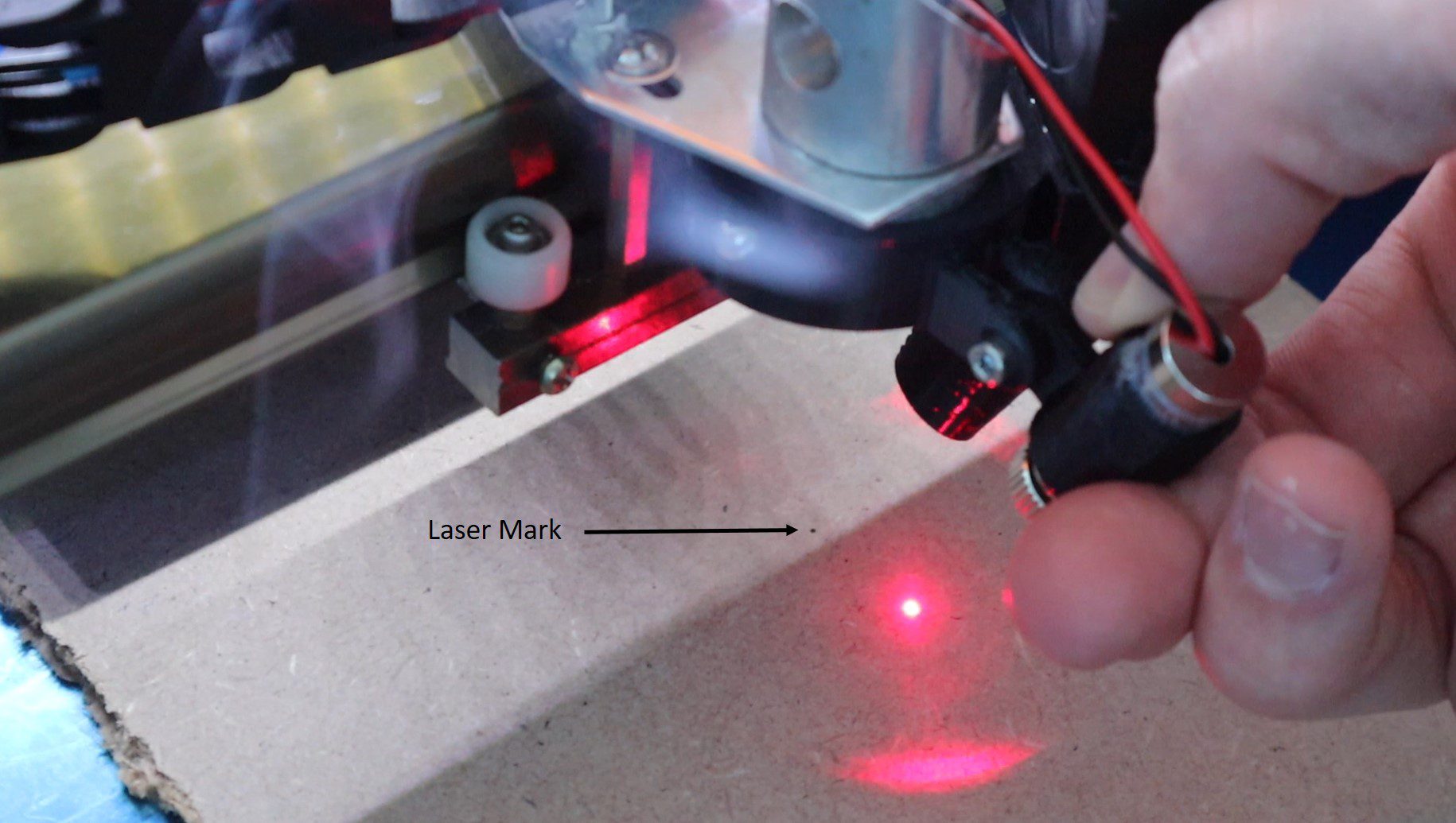
Now turn the pointer on using your pushbutton and adjust the focus ring until a small focused dot is made.
Briefly turn your laser on using a low power setting (15% / 5mA) in order to make a mark to adjust the pointer onto.
Now tilt the pointer so that it is pointing at the mark and then tighten the screw to lock it into position
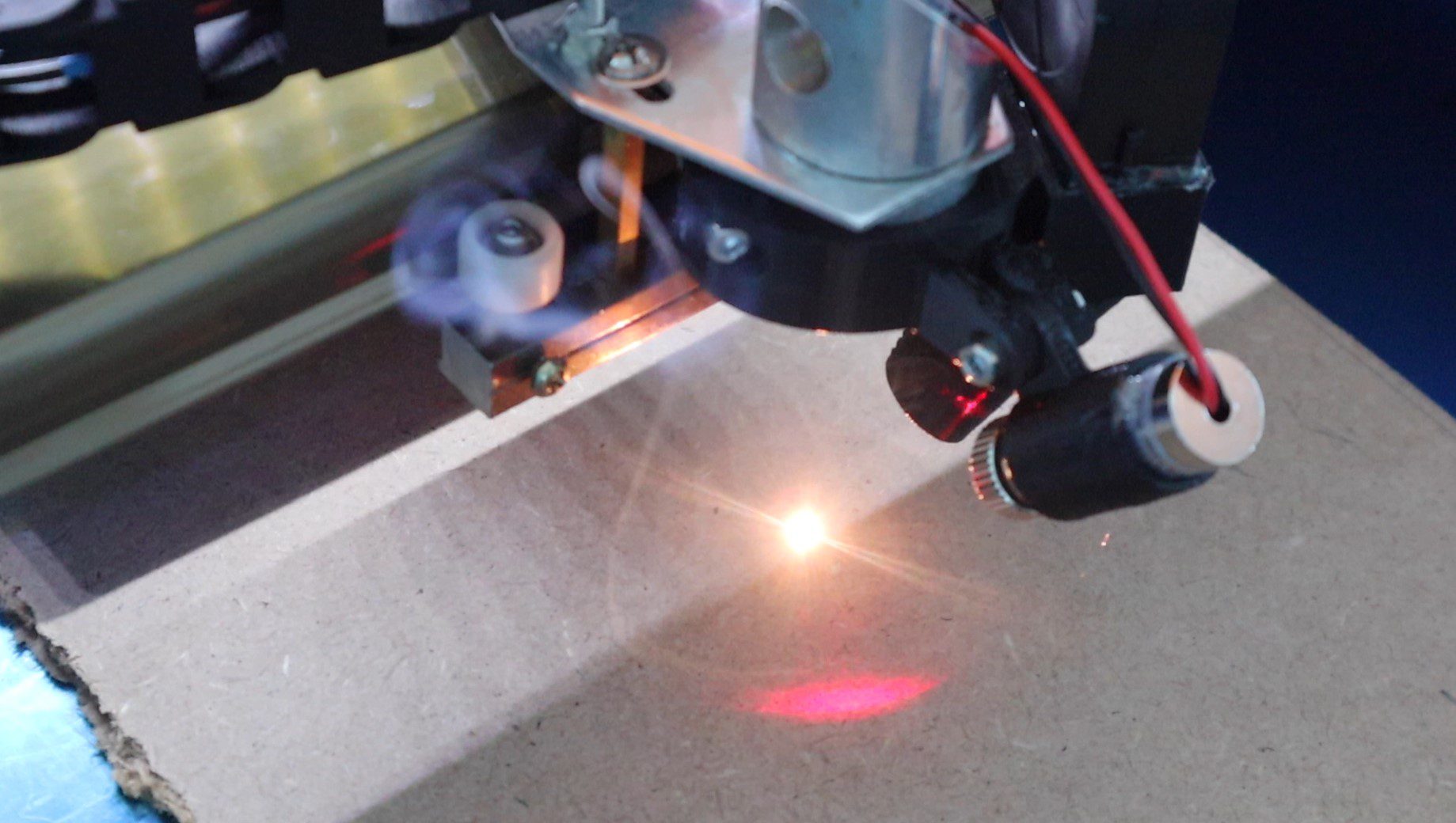
Check the laser again, the pointer and the laser should be in exactly the same spot on your material. Remember that this is now set up at this specific distance from the lens. If you use a different thickness material or work at a different bed height then you’ll need to adjust the pointer again, which is quite quick and easy to do.
You now have an easy way to see exactly where your laser is going to cut, allowing you to position it accurately and avoid wasting material or overrunning the edges of your material.
Let me know if you’ve built a laser pointer onto your laser cutter in the comments section below. What other additions have you made to your k40?
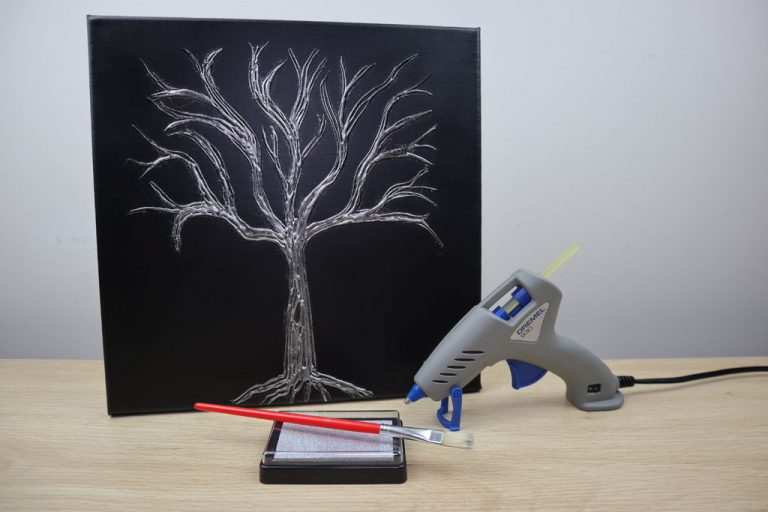
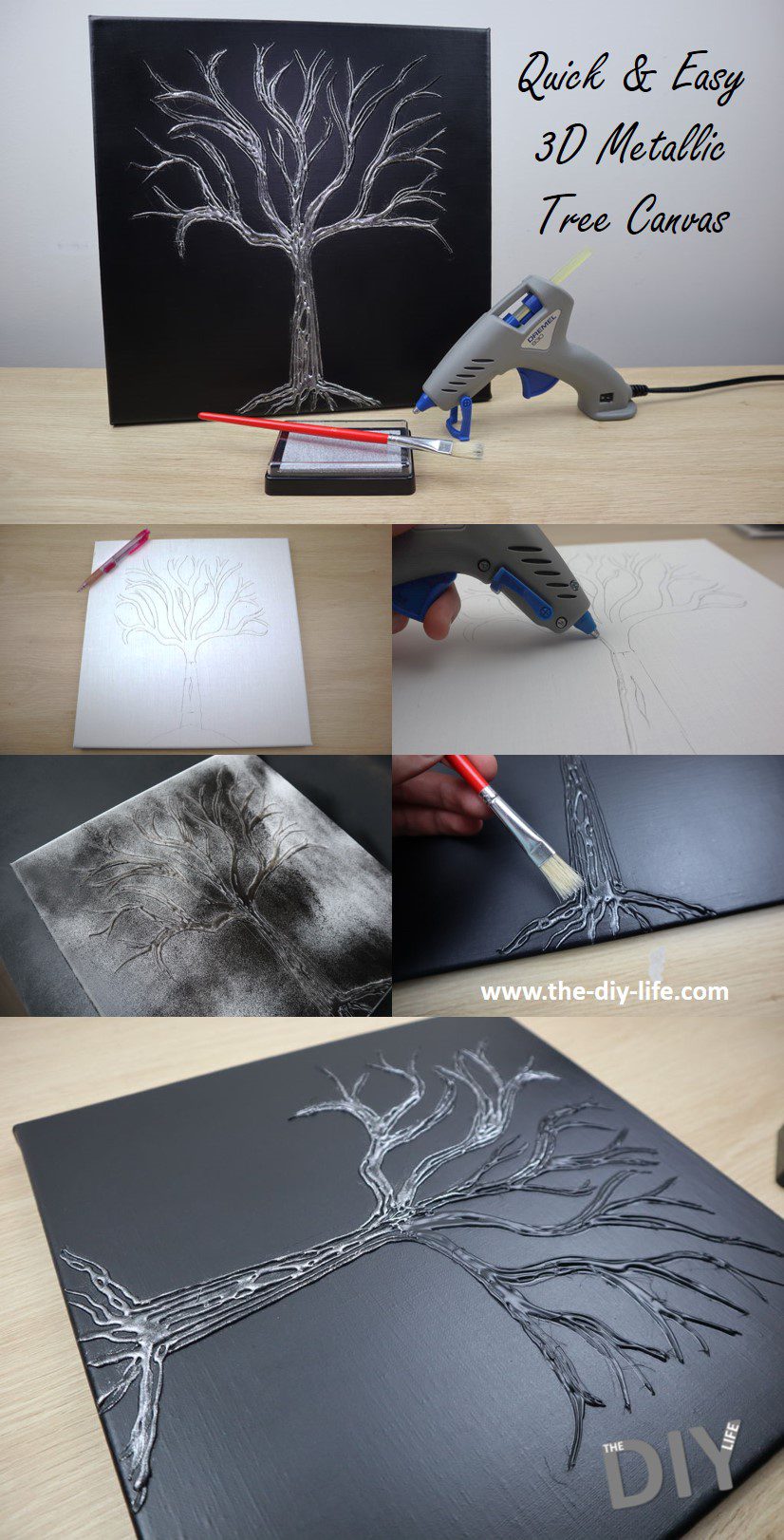
In this project, we’re going to be making a really easy tree canvas using hot glue and some basic craft supplies. They’re really cheap and easy to make and they look great. Each one costs around $2 to $6 depending on the size of the canvas and where you get the supplies from and it takes about an hour to make. You can pick up most of the supplies from your local dollar store, packs of two or three canvases are usually cheaper.
It’s worth making a couple at a time, they’re quite effective as an arrangement of four together or as three or four in a line down a passage or hallway.
What You Need To Make Them
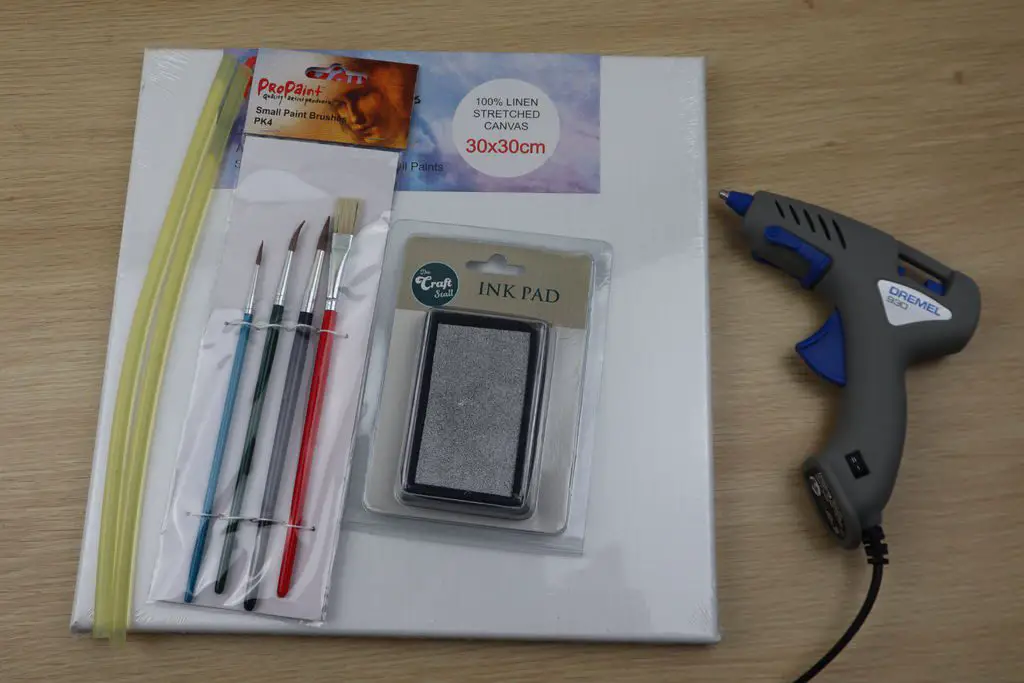
To make one canvas you’ll need:
A blank craft canvas, 40cm x 40cm (16″ x 16″) or larger – Buy Here
A metallic ink stamp pad, silver, gold or copper works well – Buy Here
Black spray paint (you can use craft paint too, it just takes longer to apply) – Buy Here
Note: The purchase links above are affiliate links, provided as a guide to the type of product to buy. The products are suitable for the project, but you’re likely to be able to get the products at much better prices from a local craft or dollar store.
How To Make The Hot Glue Tree Canvas
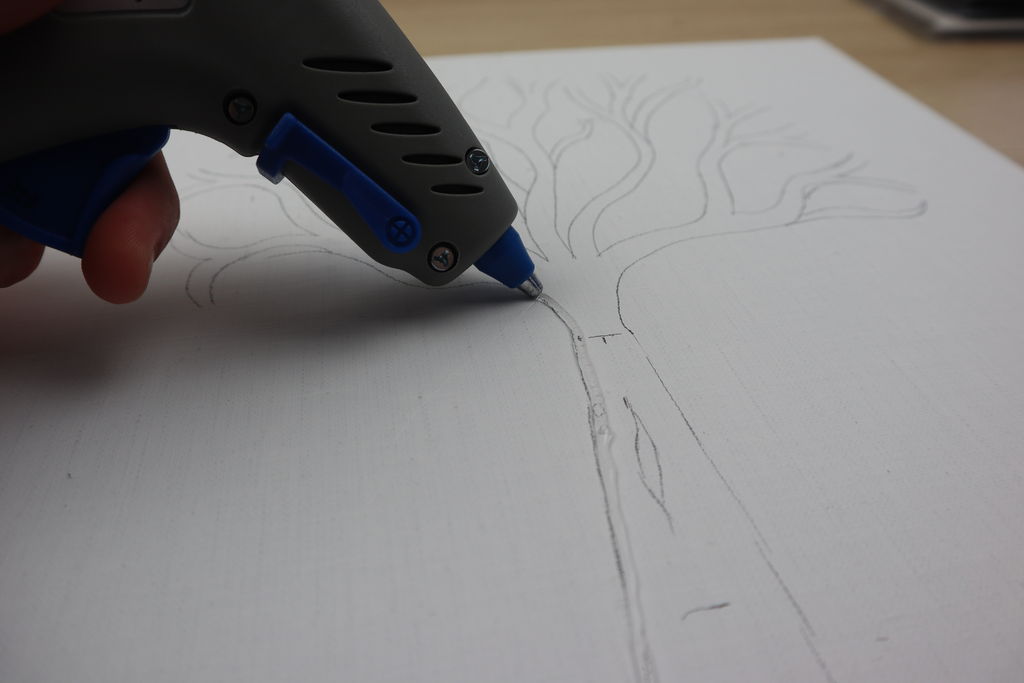
To start with, we’re going to make a rough sketch of the tree.
You don’t have to be an artist for this step and you can make as many mistakes as you need, you’re going to cover it up with paint anyway.
I started by dividing the canvas up with some basic marks for the roots, trunk, and branches in order to get the proportions correct. Mostly because I’m pretty bad at drawing.
Use your marks as a guide to sketch your trunk, then add the roots and then the branches.
You can sketch over areas that don’t come out well and add branches as you need. Try not to make the branches too thin and get them relatively evenly spaced out so that they fill most of the upper half of the canvas.
Once you’re happy with your tree sketch, its time to add the glue.
Add stripes of glue along your trunk, root, and branch lines. You want them to be thick and rounded. It’s ok if there are gaps between the stripes of glue, you don’t want to put them too close together and have them join up.
Fill in all of the lines you’ve drawn until you’ve completed the tree.
Once the glue has hardened, pull off any stringy ends and make sure that there aren’t any drops or sharp ends.
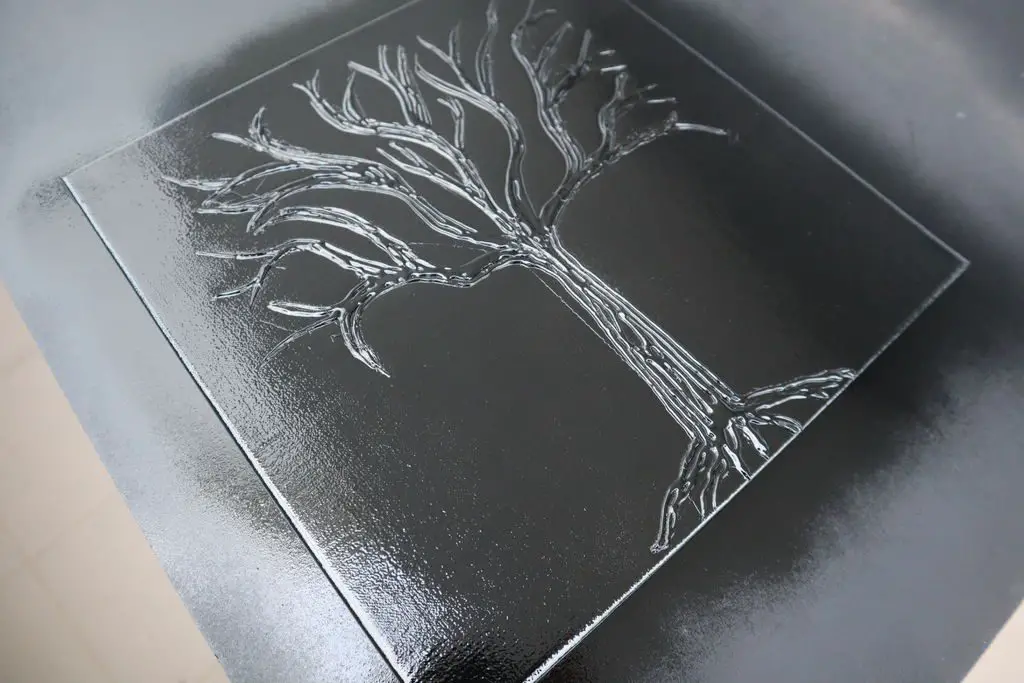
Now you’re going to cover up your canvas and glue with the spray paint.
You don’t have to use black paint, you can use any paint that’ll match your theme, just try to use a colour which contrasts well with your stamp colour. So use a light paint with a dark stamp or a dark paint with a light stamp.
I used spray paint because it’s quick and easy to apply and it dries quickly too.
Spray the whole canvas and the edges. Make sure that you get in between the glue stripes as well, there shouldn’t be any white showing when you’re done.
Allow the canvas to dry properly before moving on to the next step. This usually takes half an hour to an hour, depending on how thick your paint layer is.
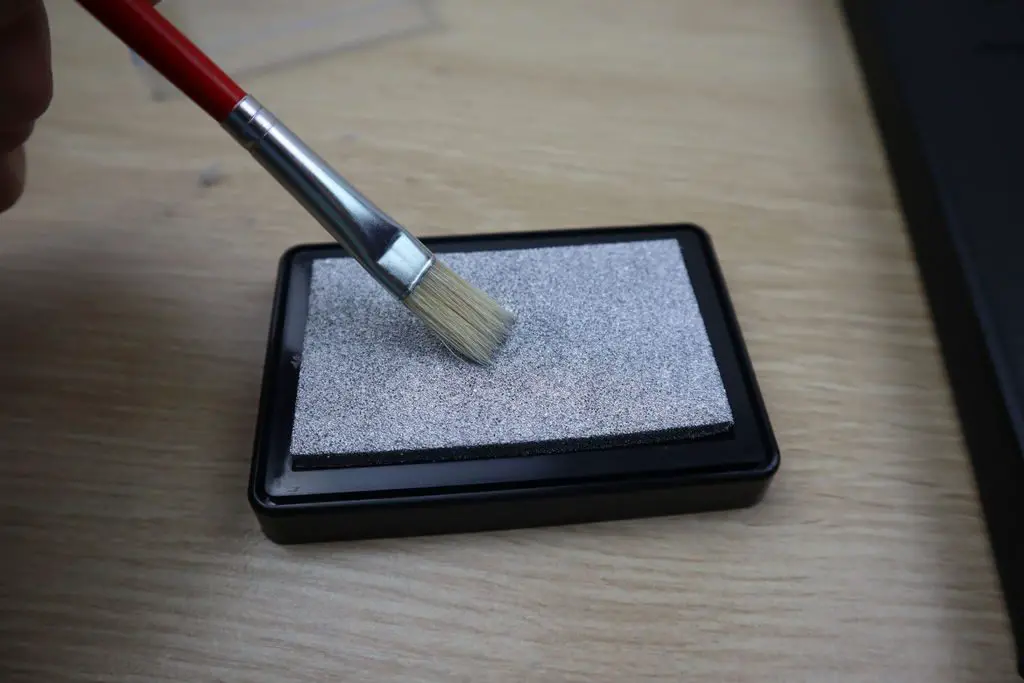
Once it is dry, use your paintbrush to highlight the glue.
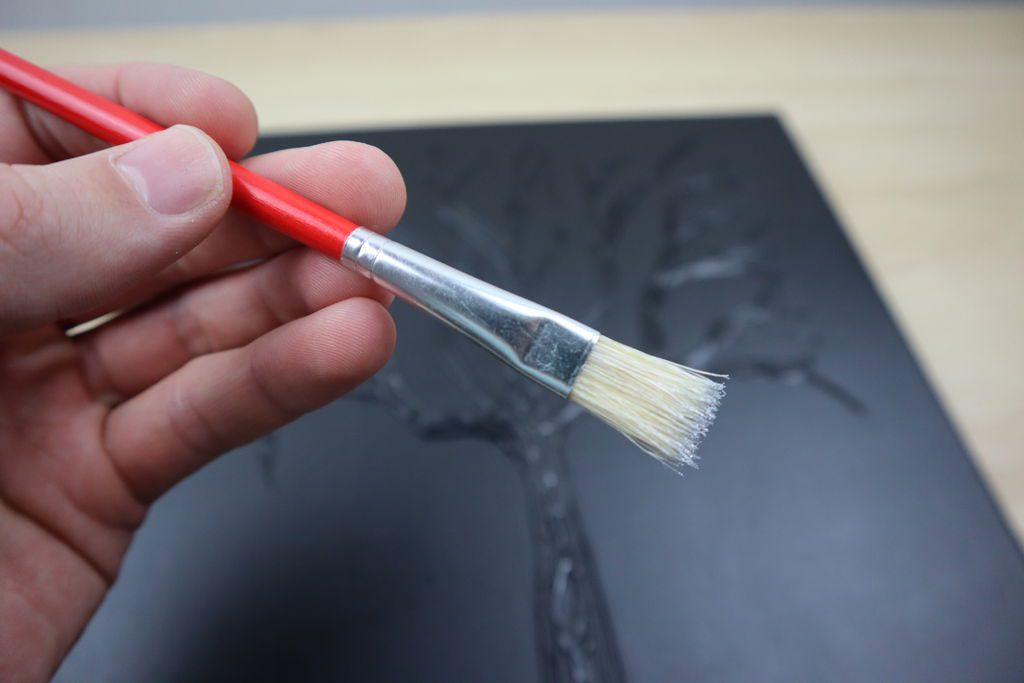
Brush your paintbrush on the stamp pad so that the tip of the paintbrush has some metallic ink on it.
Don’t put a lot of ink onto it, you want the brush to still be relatively dry. Next, brush the ink across the glue stripes to highlight them, use quick and light brush strokes perpendicular to the length of the stripes (90 degrees to the direction of the glue).
Don’t press down too much and try not to get the ink onto the canvas, you just want to highlight the glue.
Highlight the trunk, roots, and branches.
Once the ink is dry, your tree canvas is ready to hang. Your canvas should come with a picture hook on the back or the sides.
While you can often sell your old iPhone to help pay for your next one, sometimes you’re left with one which is a bit too old or damaged to be worth trying to sell. Or you may want to keep it as a backup phone just in case. Either way, instead of letting your old iPhone waste away in a drawer, here are some creative ideas to put it to use again.
Combined Dash Navigation & Camera
While built-in GPS navigation and Apple Carplay has become quite common in modern vehicles these days, there are plenty of older cars that don’t have a GPS. Purpose-built dash-mounted GPS systems typically don’t have any internet connectivity and as a result, their maps quickly become outdated and they don’t display traffic information, but your old iPhone does.
Grab a dash phone mount and you can take advantage of your old iPhone’s up to date maps and traffic information as well as use the built-in camera as a dashcam. There are also options to mount your iPhone to your windscreen, from your review mirror, air vents, and even your old CD slot.
Home Automation Controller
Old tablets and mobile phones make excellent home automation controllers. Pair them with your smart home hub, like the Samsung SmartThing Hub, and then mount them onto the wall or even leave them on your coffee table. They’re perfect for parties and guests, allowing people to control your smart home functions without having to hand your phone over to them.
Baby or Security Monitor
There are a number of baby monitor and home surveillance apps that are perfect for turning your old iPhone into a remotely accessible video camera, some with two way audio communication as well. Dedicated WiFi-enabled cameras can be expensive, especially if you consider that you may have a free one just lying around. All you need is a phone mount and a dedicated charger cable and you’re good to go.
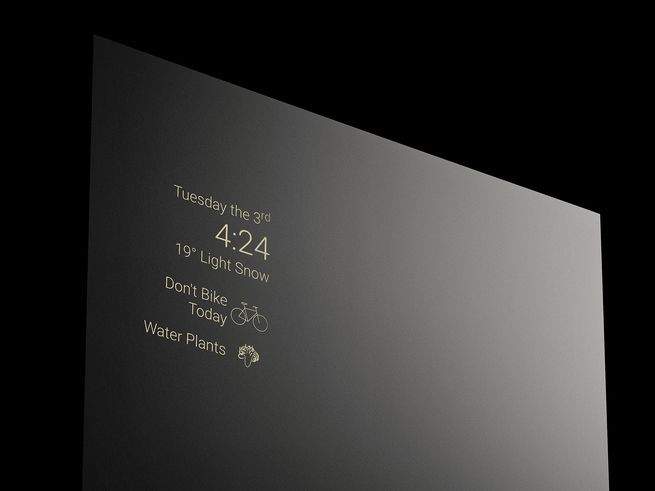
Download a barometer or weather app and you’ve got yourself an interactive weather station dashboard. You can even mount your old iPhone behind some two-way glass and make your own mobile phone smart mirror, you can then display notifications and reminders as well.
Wireless Music Hub
If you’ve got Apply TV or an Apple Device playing music through your home entertainment system, you can use another iPhone and the iTunes remote app to control the music, playlists, and even access your library and add and remove songs to the current playlists. Pair this with a home automation app as mentioned earlier and you’ve got a really powerful smart universal remote.
Turn It Into A Handheld Gaming Console
You can buy a few different gaming grips and control adaptors for iPhones which turn them into functional handheld gaming consoles. Rather than using your new iPhone, which would require you to add and remove the grips all the time and rapidly degrades your battery life, use your old iPhone as a permanent handheld gaming console.
What have you used your old iPhone or mobile phone for? Let us know in the comments section below.
In this tutorial, we’re going to be looking at how to correctly set the current limit on an A4988 stepper motor driver. These stepper motor drivers have become increasingly popular for CNC, 3D printing, robotics, and Arduino projects because they’re really cheap and easy to use, requiring just two pins to control them.
One important thing to set up when using these drivers is the motor current limit. This is especially important when you’re using a higher input voltage than what the motor is rated for. Using a higher voltage generally enables you to get more torque and a faster step speed, but you’ll need to actively limit the amount of current flowing through the motor coils so that you don’t burn your motor out.
There are two methods to do this, the one is to use a multimeter to physically measure the current flowing through one of the coils and the second method, which is the one we’re going to look at, is to calculate and then adjust the reference voltage on the driver, which doesn’t require the motor to be hooked up or powered.
Here’s a step by step video on how to set up your A4988 stepper motor driver’s motor current limit.
What You Need To Set The Current Limit On Your Stepper Driver
How To Set The Current Limit On Your A4988 Stepper Motor Driver
In each motor driver pack, you’ll get a small heatsink which should be stuck onto the driver chip and you’ll need to use a small screwdriver to adjust this pot to set the current limit.
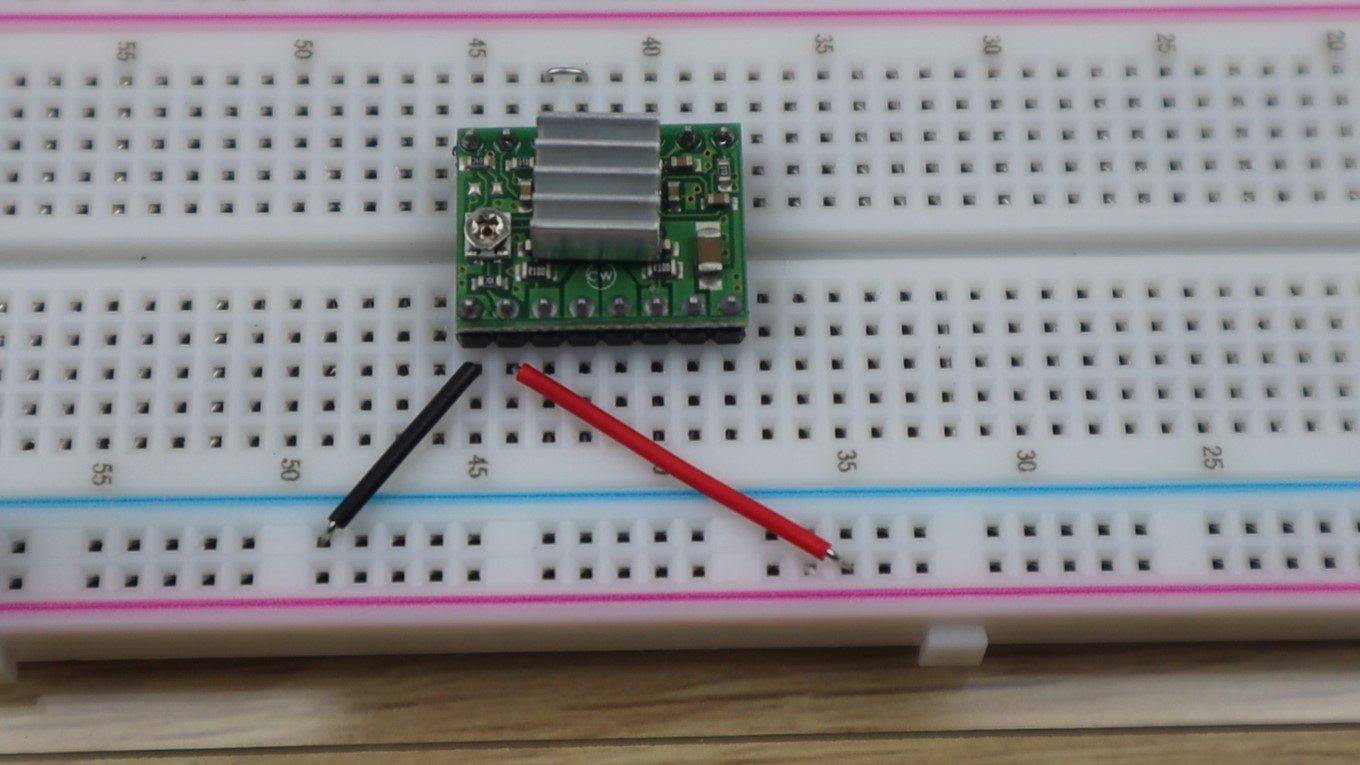
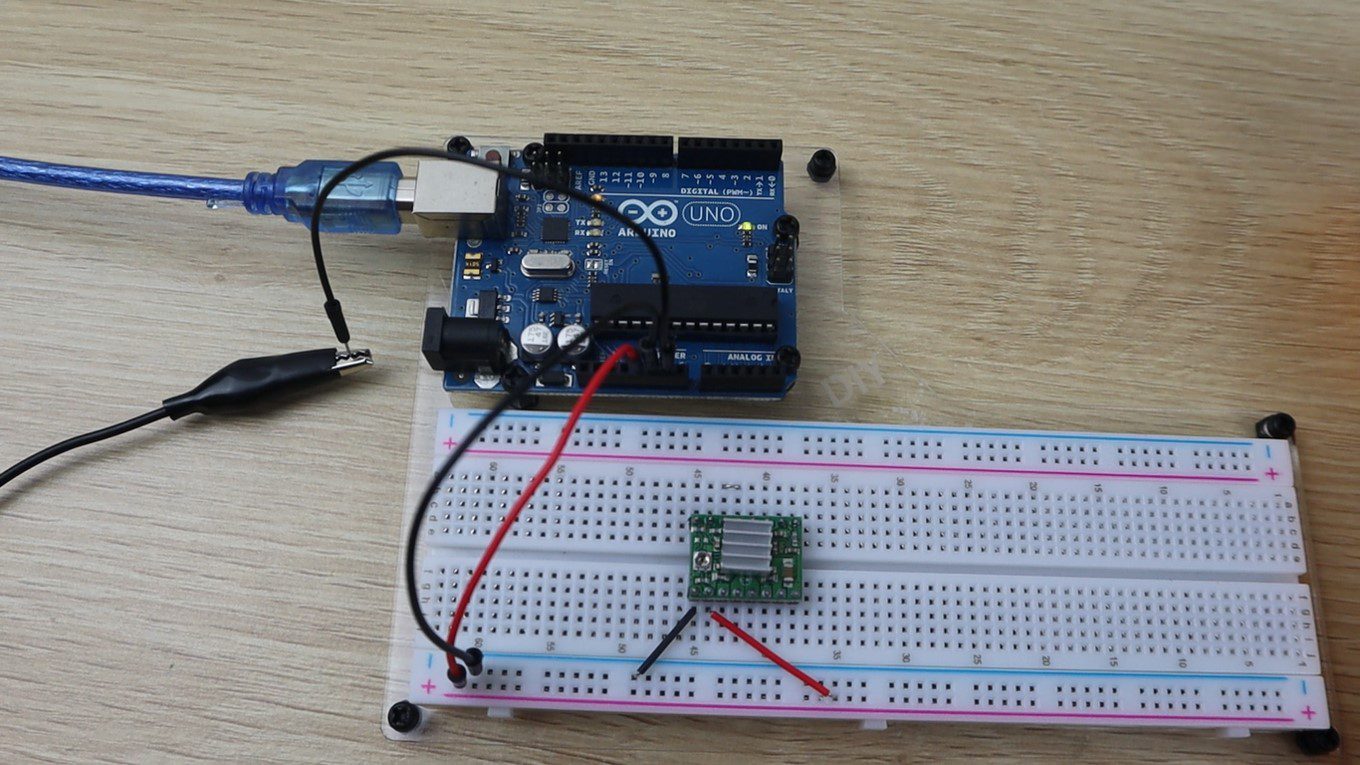
We’re going to be setting the motor current limit on a breadboard, as we need to bridge the sleep and reset pins and then supply power to the board’s logic circuit through the ground and VDD pins. The power can be supplied from the 5V supply on your Arduino.
Let’s start by hooking up our driver.
Now we need to calculate the reference voltage that we’re going to be setting.
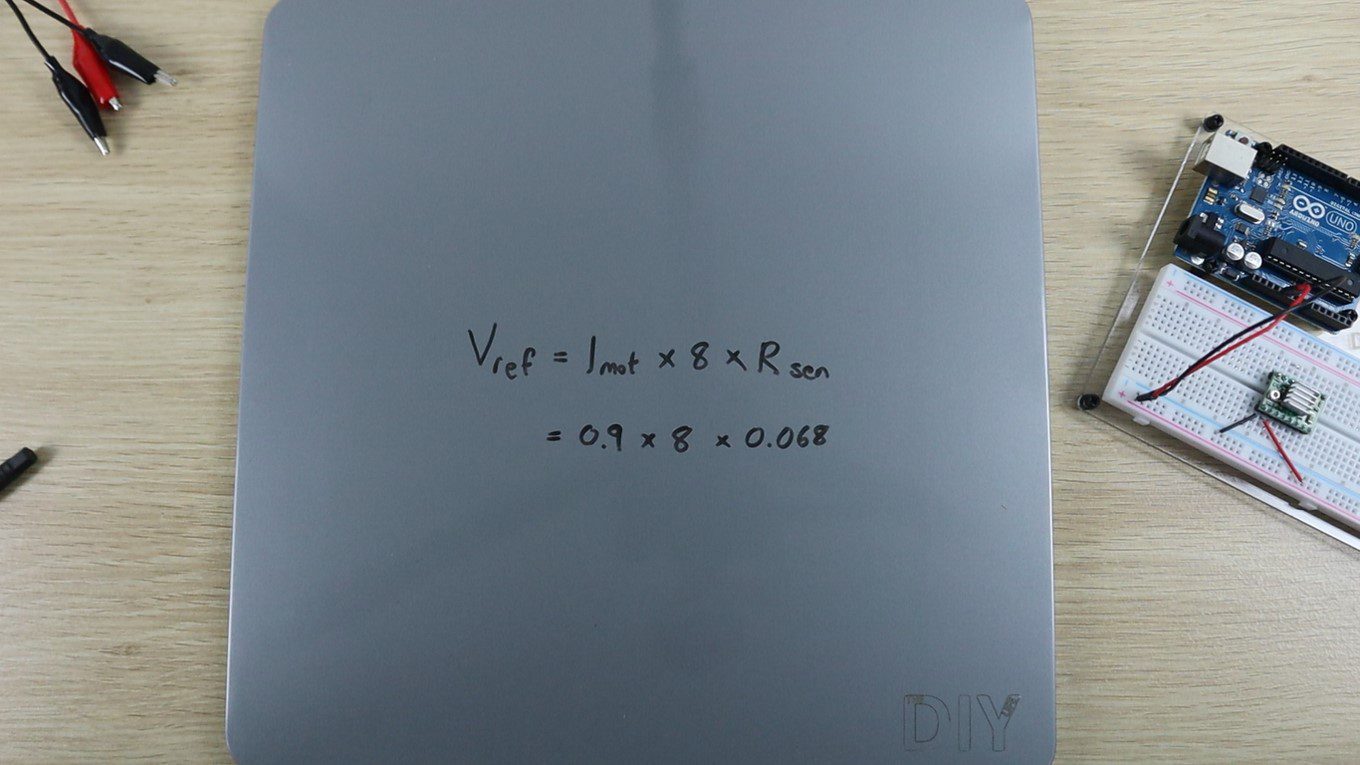
This is done by using the following formula:
Vref = Imot x 8 x Rsen
The reference voltage is equal to the maximum motor current, multiplied by 8, and then by the current sensing resistance.
The maximum motor current can be found on the motor datasheet, ours is 0.9A. The current sensing resistance can be found on your driver’s datasheet but is most commonly 0.068 ohms for newer drivers.
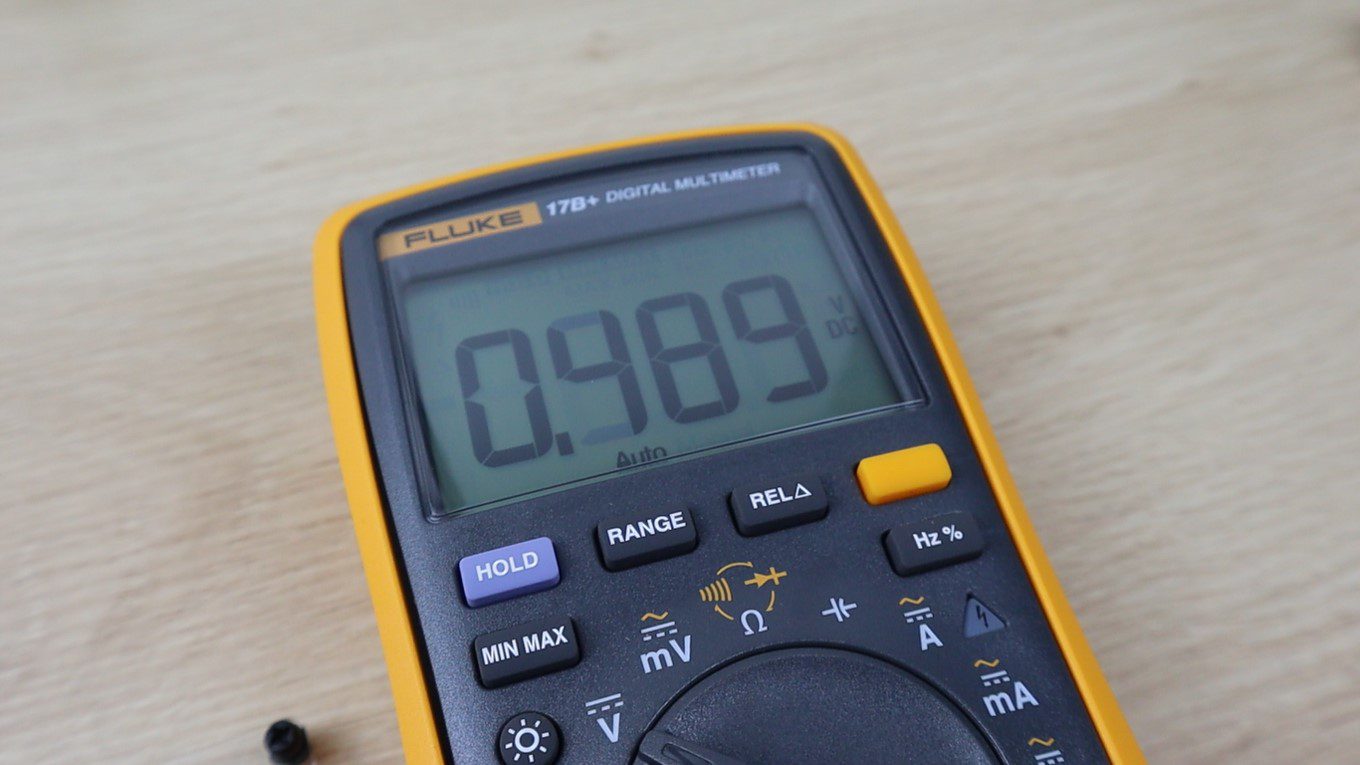
Using this formula, we calculate that our reference voltage should be set to 0.49 volts.
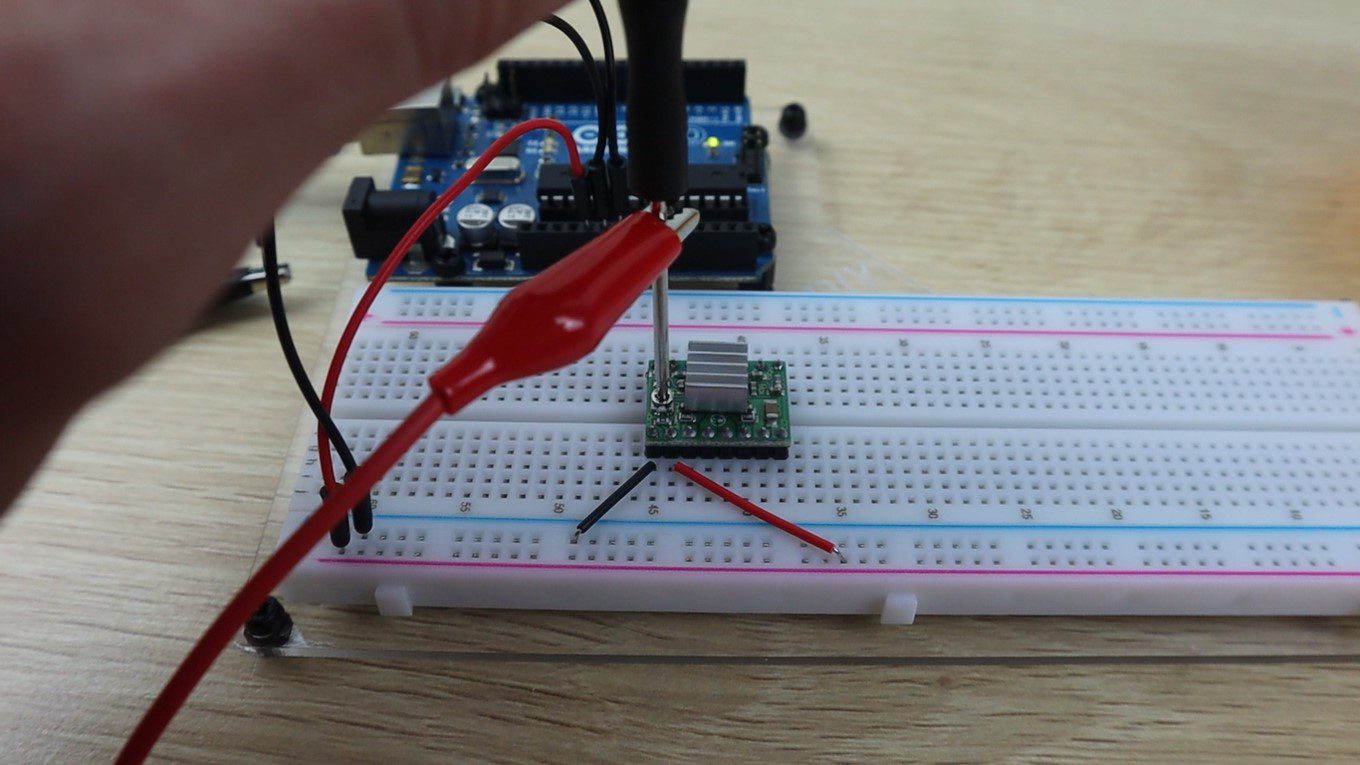
The easiest way to set the voltage is to clip the negative multimeter lead to your Arduino’s ground pin using one alligator lead.
And then connect the positive lead to the metal part of a small screwdriver using another alligator lead.
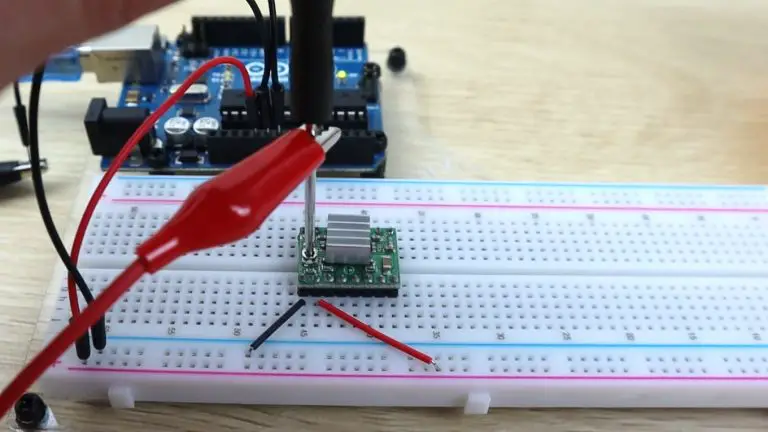
You can now simultaneously make changes to the reference voltage and read the voltage on your multimeter, making it easy to adjust.
Set your multimeter to the DC voltage measurement setting and then place the head of the screwdriver onto the potentiometer. You should now get a reading for the reference voltage. Turning the screwdriver anticlockwise decreases the voltage and clockwise increases the voltage.
We set it to 0.49 volts, then remove and replace the screwdriver to recheck it, and you’re done. You can now finish off the rest of the connections to the Arduino or plug it into your 3D printer or stepper motor driver shield.
How do you usually set up your A4988 stepper motor driver’s motor current limit? Let me know in the comments section.
At the beginning of the year, you probably planned to have a blast this summer and travel to an interesting destination. However, the travel situation is very uncertain and all experts recommend we stay safely at home. But just because you can’t go anywhere, it doesn’t mean you can’t enjoy your beautiful backyard! In order to make it even more entertaining, here are some of the hottest gadgets and outdoor tech you can incorporate in your outdoor space.
Alarm and Surveillance
Safety at home should always be your number one priority, so make sure to equip your house with quality surveillance and alarm system. With one of these, you can relax in your backyard knowing you and your property are safe. Also, thanks to new technology, you can check who’s at the door with your smartphone or alert the police quickly and efficiently in case you have an intruder.
Propane Fire Pit
Traditional fire pits are nice, but they are not exactly practical, so most people never use them. Well, a modern propane model can be fired up in seconds and all you have to do is enjoy its warmth and ambient glow. And propane is also suitable for roasting marshmallows and preparing various other things, so you can have delicious desserts every night of the week—there’s no better way to cheer everyone up during these uncertain times.
Infrared Heaters
Sure, summers are hot (and they are getting hotter and hotter every year) but if you love to enjoy your backyard deep into the night, you might get chilly. Don’t let the cold chase you inside! You can install practical infrared heaters on your ceiling and enjoy a nice warming glow. Unlike gas heaters and propane-powered poles, these infrared heaters light up on command, are efficient and space-saving.
Outdoor TV System
If you’re planning to staycation, you’ll need plenty of entertainment in your backyard to keep away the boredom. In that case, look into some outdoor TVs that will not only fit perfectly on your wall and provide you with hours of fun, but they will also look pretty nifty at your patio. If you find it hard to keep up with the best TV tech, you can check out the latest outdoor entertainment options from TVs to soundbars. Best models come with practical mounts for your wall, but you can also find TV covers that will ensure your tech has a long life.
Mosquito-Repelling Lanterns
Everyone who lives in a mosquito-populated area knows that it’s impossible to enjoy any outdoor space when these little buggers are buzzing around. As soon as the sun goes down, mosquitos are ready to bite and play with your nerves. But, with some tech on your side, you can be ready to chase them away from your yard. Natural mosquito-repelling lanterns release a mist that repels insects while providing you with a nice soft glow.
Outdoor Spa
If you have a pool in your backyard, you’re indeed the lucky ones. However, if an in-ground pool is a little too much for your wallet, you can opt for a nice outdoor spa. New models are perfect for relaxation, massage, and fun splashy time with your kids. And the best part is that these can also be used in the winter if you’re looking for that Aspen-inspired vacation.
Robotic Mower
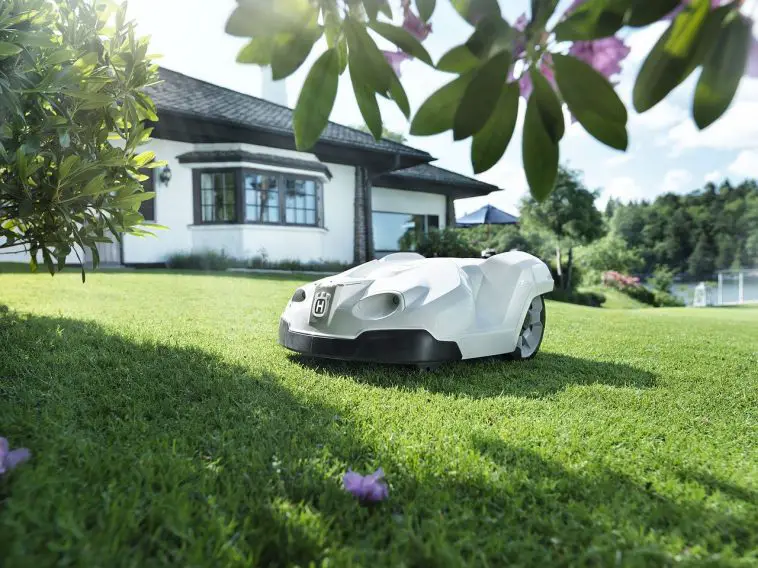
In order to feel pleasant and luxurious during your staycation, you need to keep your backyard neat, which includes mowing the lawn. Luckily, thanks to technology, you don’t have to lift a finger to have manicured grass. Robotic mowers work just like Roombas—they automatically mow your lawn without any supervision. These robo-mowers produce zero-emission and provide your lawn with tiny clippings great for the soil and plants.
Charging Station Umbrella
You and your family members probably can’t stand being separated from your devices and why should you? No matter if you want to surf the internet, play music or enjoy some games, you can just plug your device (phone, tablet, or gaming console) into your charging station umbrella and continue using your gadgets in pleasant shade. The charging station is solar-powered so you can save money and the environment.
Who says you have to travel in order to have an amazing summer? With these outdoor tech innovations, you can turn your backyard into an oasis of fun and relaxation and you’ll wait out Corona like a true champion!
I found an iPhone conversion kit online for $35 to convert an old iPhone 6 to a 2020 model iPhone SE lookalike. The front of both iPhones look virtually identical, so this kit changes the back of the iPhone to a glossy black finish (white is also available) like the glass back on the 2020 iPhone SE. It also changes the shrouding around the camera lens to be a bit bigger like the newer model iPhones.
This upgrade doesn’t change any of the iPhone’s functionality, so you don’t get any performance benefit, you still won’t have wireless charging and you will still have the headphone jack.
The kit didn’t come with any instructions and there were a couple of things to look out for in doing the conversion, but I managed to get all of the components swapped over to the new body without and issues and it looks pretty good once it’s done. I’m not sure how long this body will last though as it is mostly plastic, not aluminium like the original and I’m not convinced that the glossy back is actually glass.
Here’s my video of the swap over:
I now have an iPhone 6 which looks like a 2020 model iPhone SE, and it only cost $35.
If this is something you are interested in doing, here are some tips to help you out with the conversion:
Make sure that you keep your screws really well organised. There are a number of different size and length screws, even on the same components. Make sure that you know which one goes where or you’ll have an almost impossible task in putting it back together again.
Be extra careful when removing the ribbon cables which are stuck to the iPhone body, it is really easy to tear them if you use too much force. I found that using a plastic spudger to gently pry them up worked well.
Remember to move the metal contacts across to your new buttons if yours don’t come with them. This is easy to miss and you’ll then land up with buttons that don’t work. It’s also a mission to add them afterwards, you’ll basically need to disassemble the whole phone again.
If your iPhone is old, this is a good time to replace the battery as you’ll be removing the old one anyway.
If you enjoy tinkering with electronics and building your own Arduino and Raspberry Pi based projects then you’ve likely run into the question of how to power your project if you want it to be mobile and not plugged into an outlet somewhere. Batteries are the obvious answer, but standard AAs don’t last very long and lithium-ion battery packs can be a hassle to wire up, charge and keep balanced.
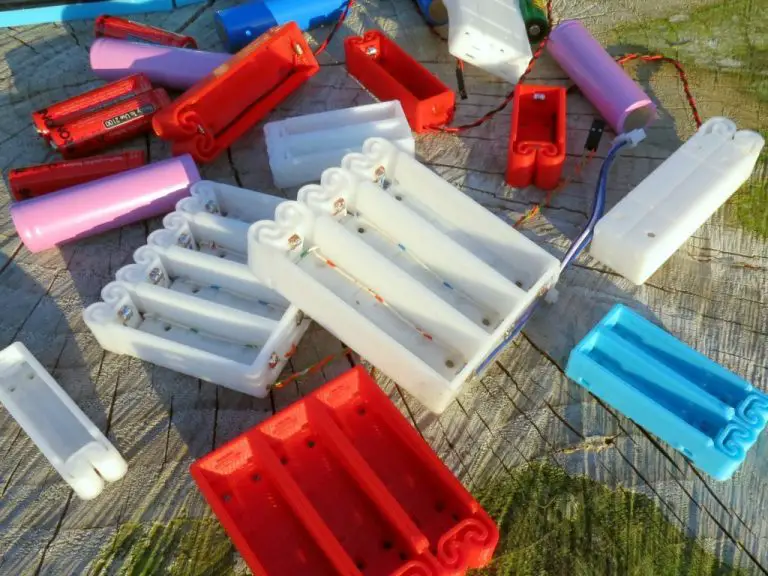
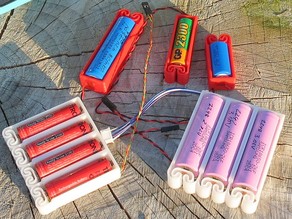
My favourite solution is to use 18650 lithium-ion cells in a 3 cell 3D printed holder. These batteries offer a relatively high storage capacity and are affordable and widely available. They can also be easily taken out of the battery holder and safely charged in a plug-in wall charger.
Having 3.7 cells means that for most applications, you’ll want to use 3 cells to get 11.1V, as 12V is commonly recommended for DC motor and stepper motor drivers, and they’ll usually handle 4 to 8A. Your Arduino will be fine running at 11.1V and you can also get an inexpensive DC to DC converter to step the voltage down and regulate the supply for your Raspberry Pi.
Be careful when using batteries for your Raspberry Pi projects, especially for things like unattended solar-powered weather stations as repeated low voltage related shutdowns without any protection can damage your Pi or corrupt the memory card.
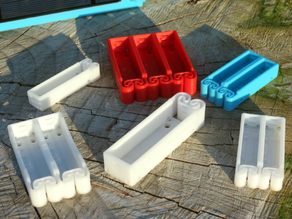
They’re 3D printed and offer cell configurations in 1 to 4 cells. It’s recommended that you print them using ABS filament to give the plastic springs some flexibility. The contacts can be made by twisting and soldering a short length of uninsulated wire or using some copper strips. Each holder also has a number of holes for mounting screws to secure it to your project or housing.
It’s also quite easy to add solar charging to these batteries, the perfect solution for long term weather station or data logging projects. There are a number of small charge controllers available for these batteries, so you’ll just need to integrate one into your charging circuit.
If you’re interested in batteries, did you know that you can recondition your old lead-acid batteries rather than replacing them?
What do you use to power your mobile Arduino and Raspberry Pi projects? Let me know in the comments section below.
To provide the best experiences, we use technologies like cookies to store and/or access device information. Consenting to these technologies will allow us to process data such as browsing behavior or unique IDs on this site. Not consenting or withdrawing consent, may adversely affect certain features and functions.
Functional
Always active
The technical storage or access is strictly necessary for the legitimate purpose of enabling the use of a specific service explicitly requested by the subscriber or user, or for the sole purpose of carrying out the transmission of a communication over an electronic communications network.
Preferences
The technical storage or access is necessary for the legitimate purpose of storing preferences that are not requested by the subscriber or user.
Statistics
The technical storage or access that is used exclusively for statistical purposes.The technical storage or access that is used exclusively for anonymous statistical purposes. Without a subpoena, voluntary compliance on the part of your Internet Service Provider, or additional records from a third party, information stored or retrieved for this purpose alone cannot usually be used to identify you.
Marketing
The technical storage or access is required to create user profiles to send advertising, or to track the user on a website or across several websites for similar marketing purposes.