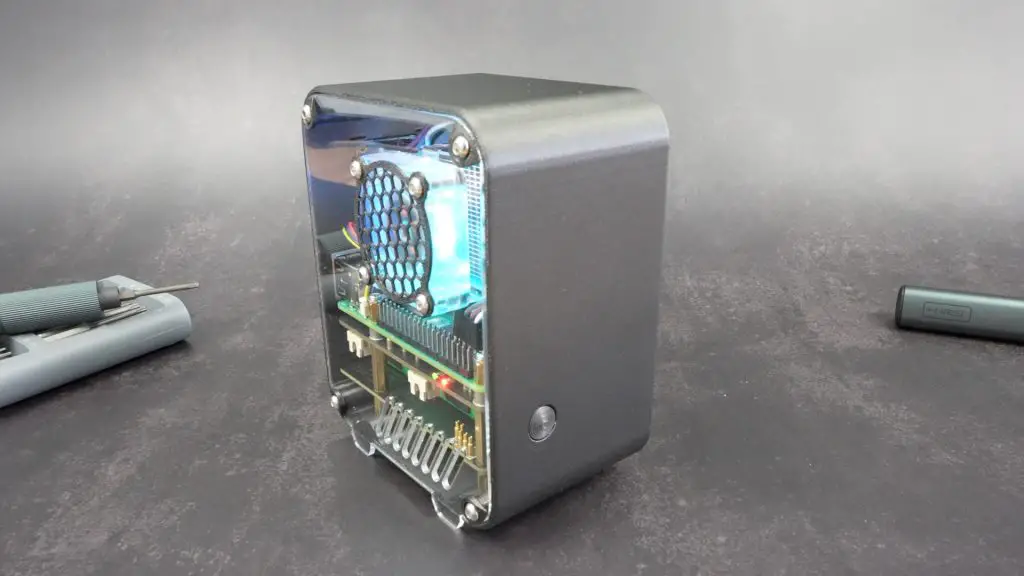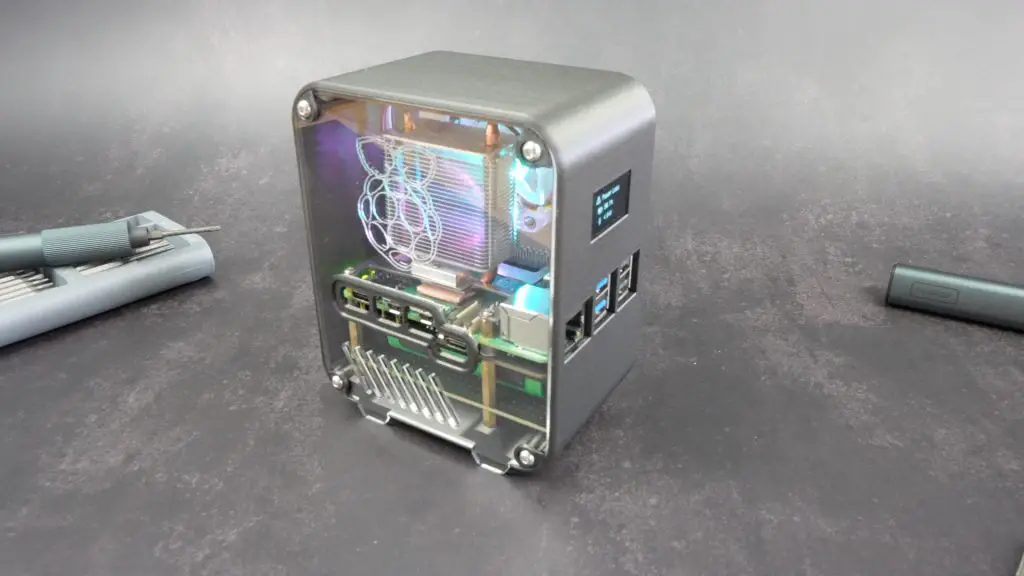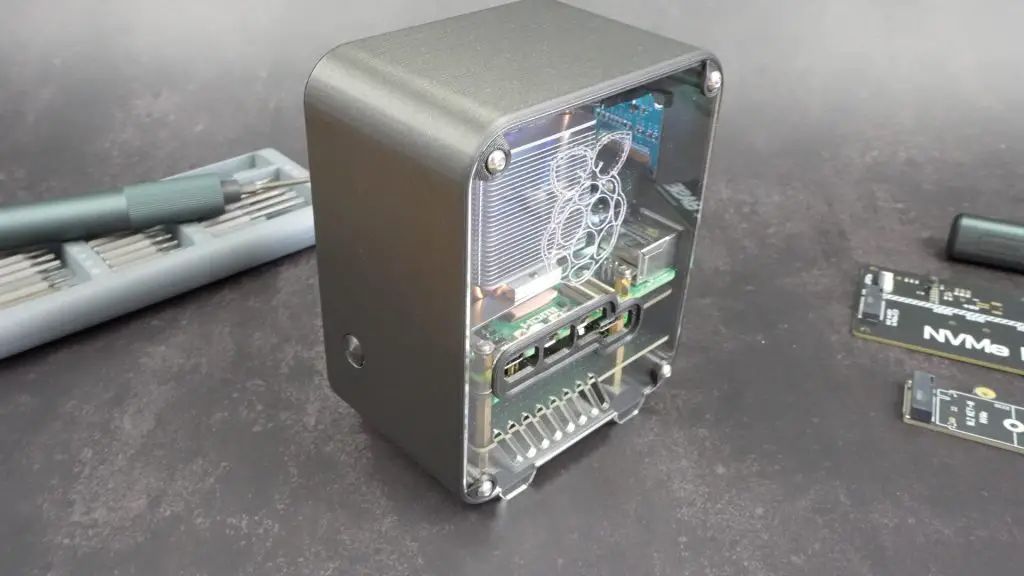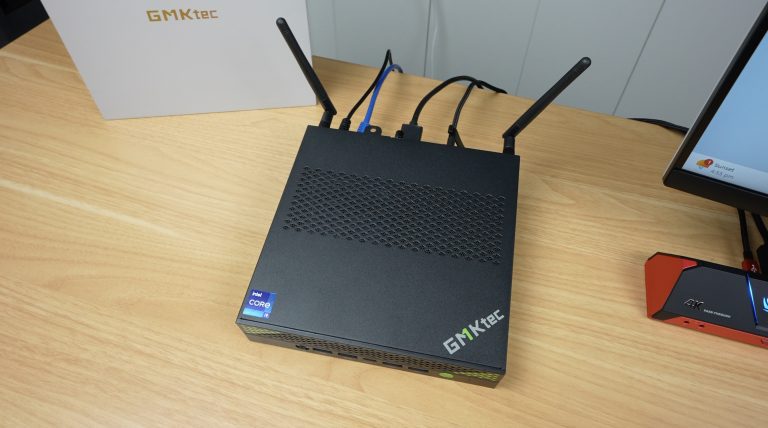
Home Blog Page 3

Zimaboard 2 Review – A Sleek, Silent Upgrade for Your Homelab

Today we’re taking a look at the new Zimaboard 2, this is the second generation Zimaboard from Icewhale, the company that have also brought us the Zimablade and Zimacube. With upgraded hardware, a new aluminium chassis, and IceWhale’s CASA OS pre-installed, the Zimaboard 2 is targeted at homelab and personal cloud enthusiasts. In this review, we’ll unbox the new board, compare it with the original Zimaboard, put it through some performance and thermal tests, and see how it handles additional storage.

Here’s my video review of the Zimaboard 2;

Where To Buy The Zimaboard 2

At this stage, the Zimaboard 2 is being crowd-funded on Kickstarter, so is only available to backers of their campaign;

Tools & Equipment Used

  • FNIRSI Power Supply with Display – Buy Here
  • Infiray P2 Pro Thermal Camera – Buy Here
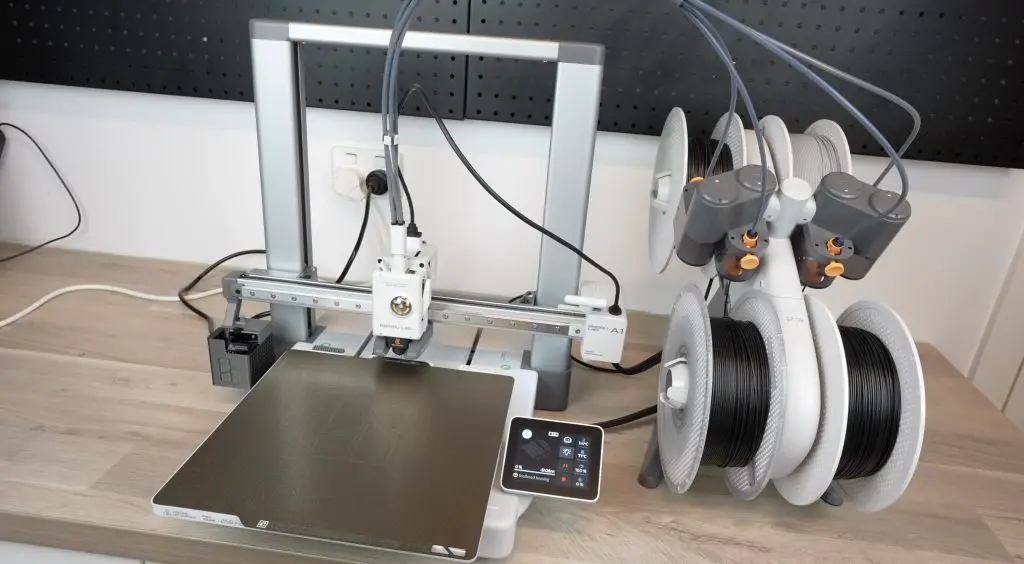
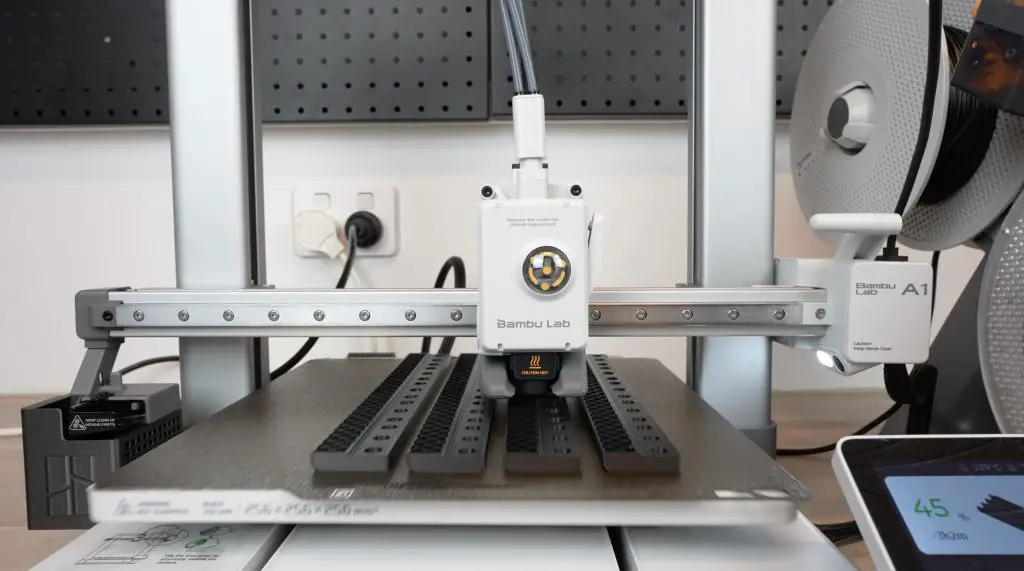
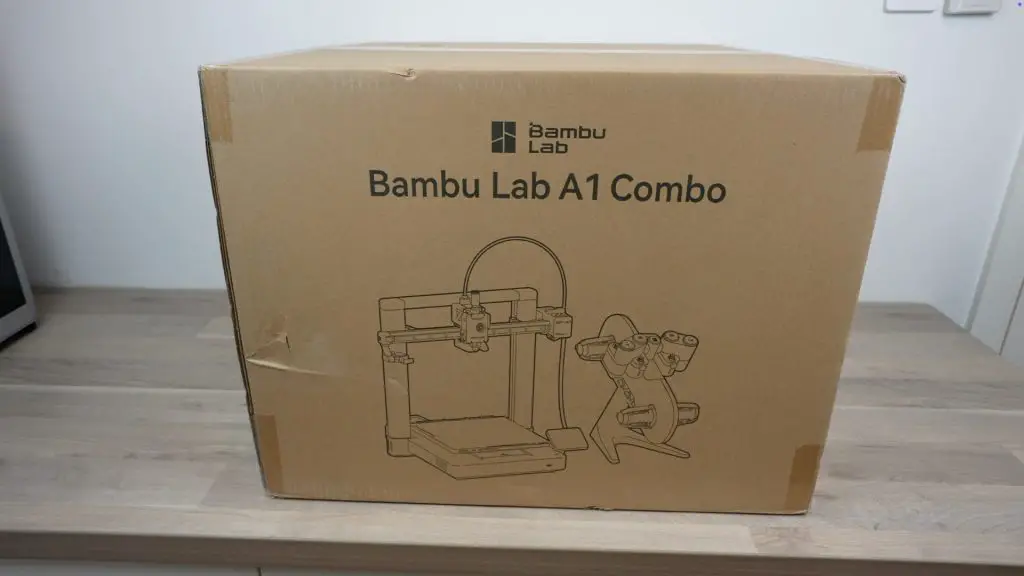
  • Bambulab A1 Combo (To Print Lab Rax System) – Buy Here

Some of the above parts are affiliate links. By purchasing products through the above links, you’ll be supporting this channel, at no additional cost to you.

Unboxing the Zimaboard 2: What’s Included

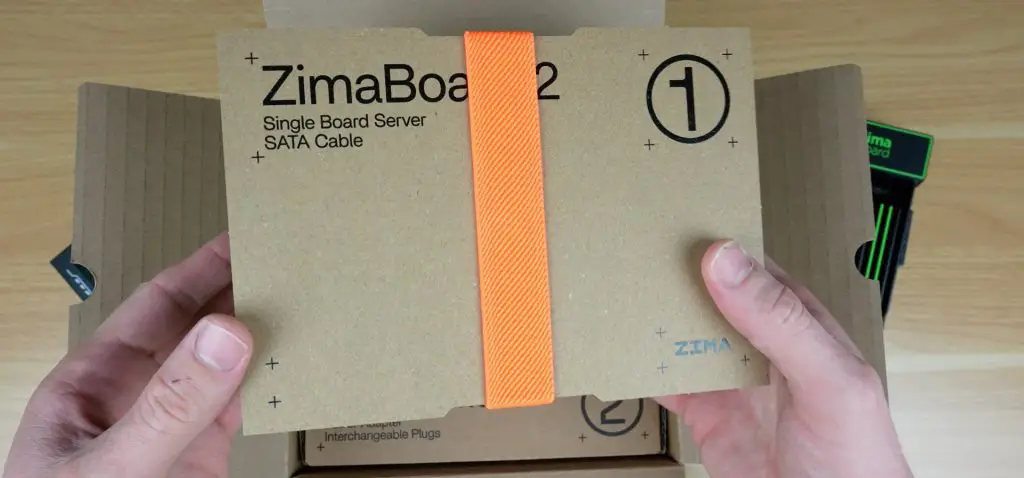
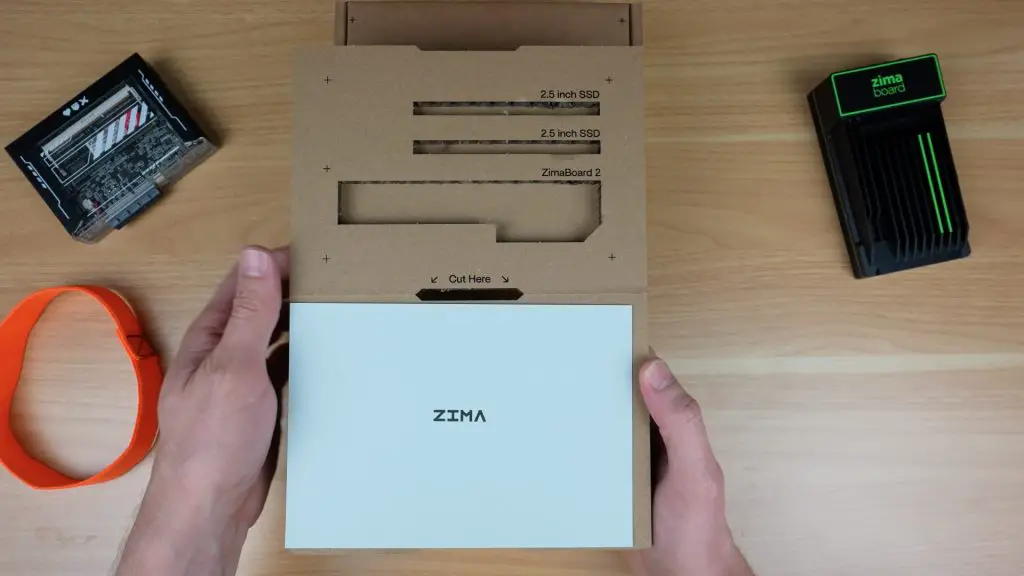
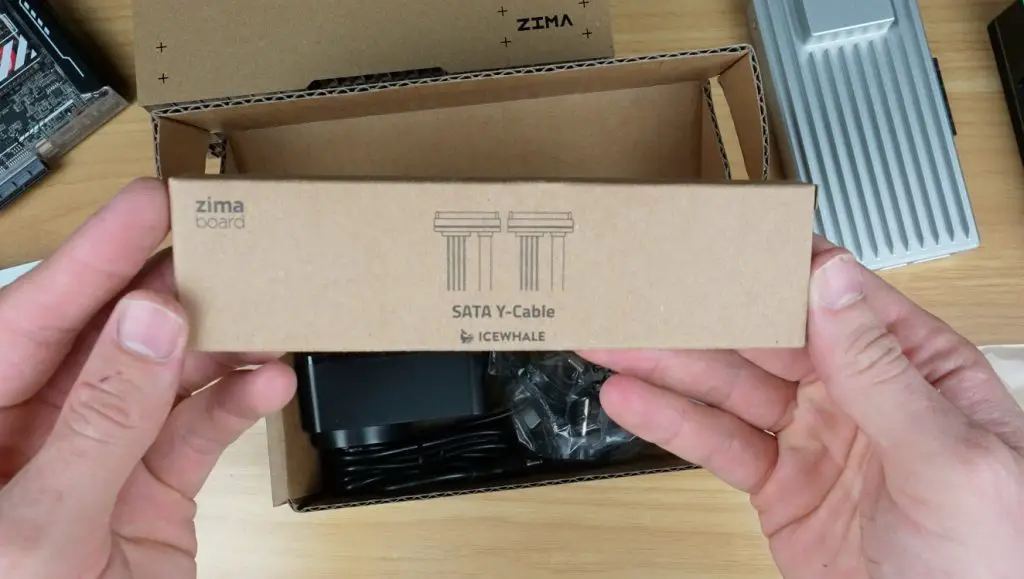
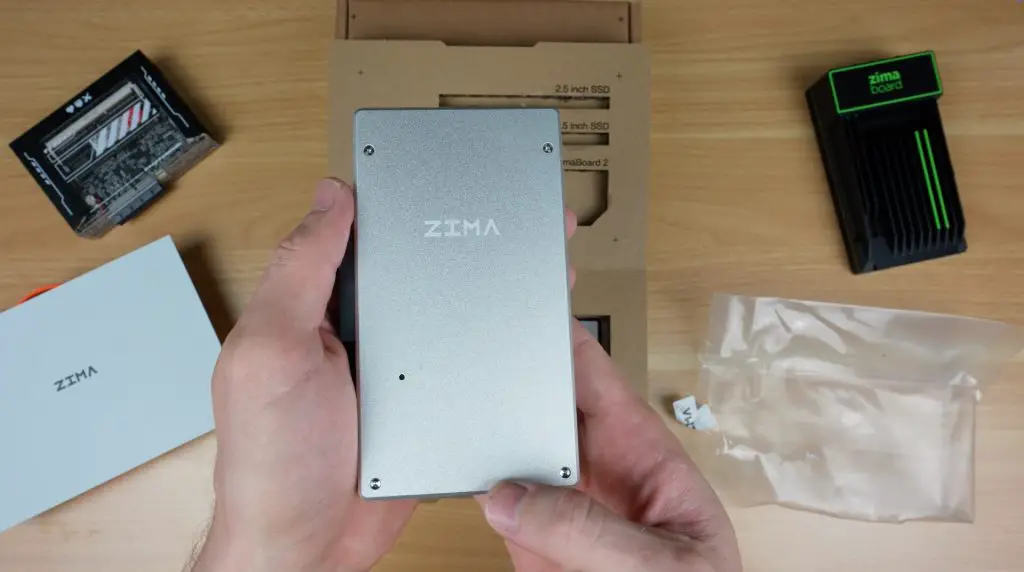
The Zimaboard 2 ships in a well-designed cardboard carrier that doubles as a holder for the board and up to two 2.5″ drives. Inside the box, you’ll find the Zimaboard 2 in a protective sleeve and a separate accessory pack.

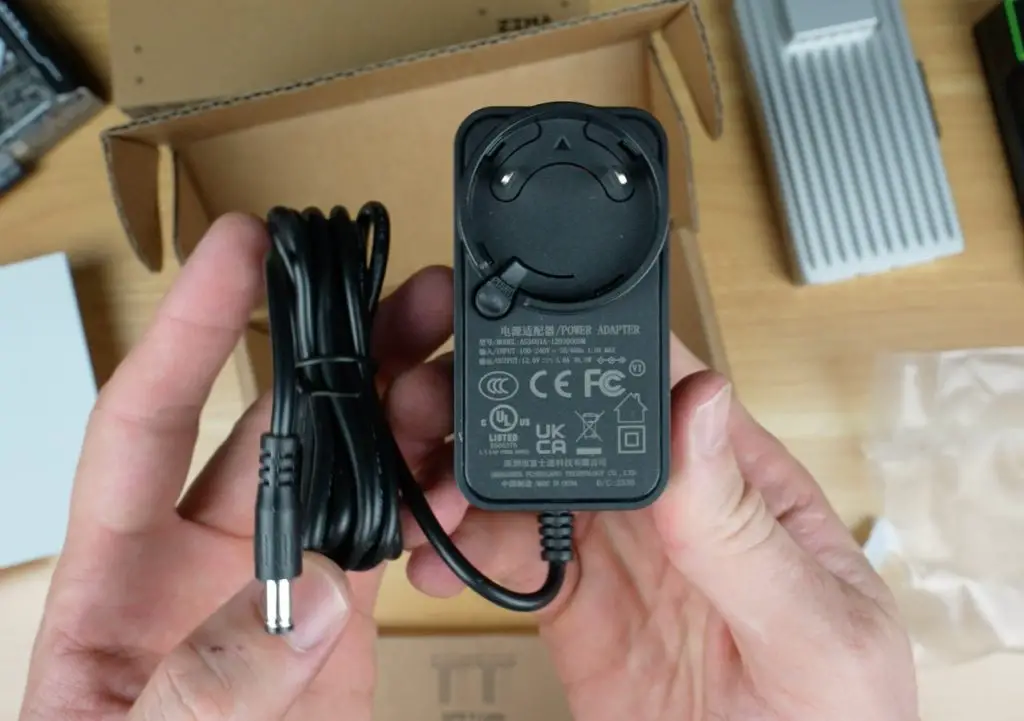
The accessory pack contains:

  • A dual SATA cable
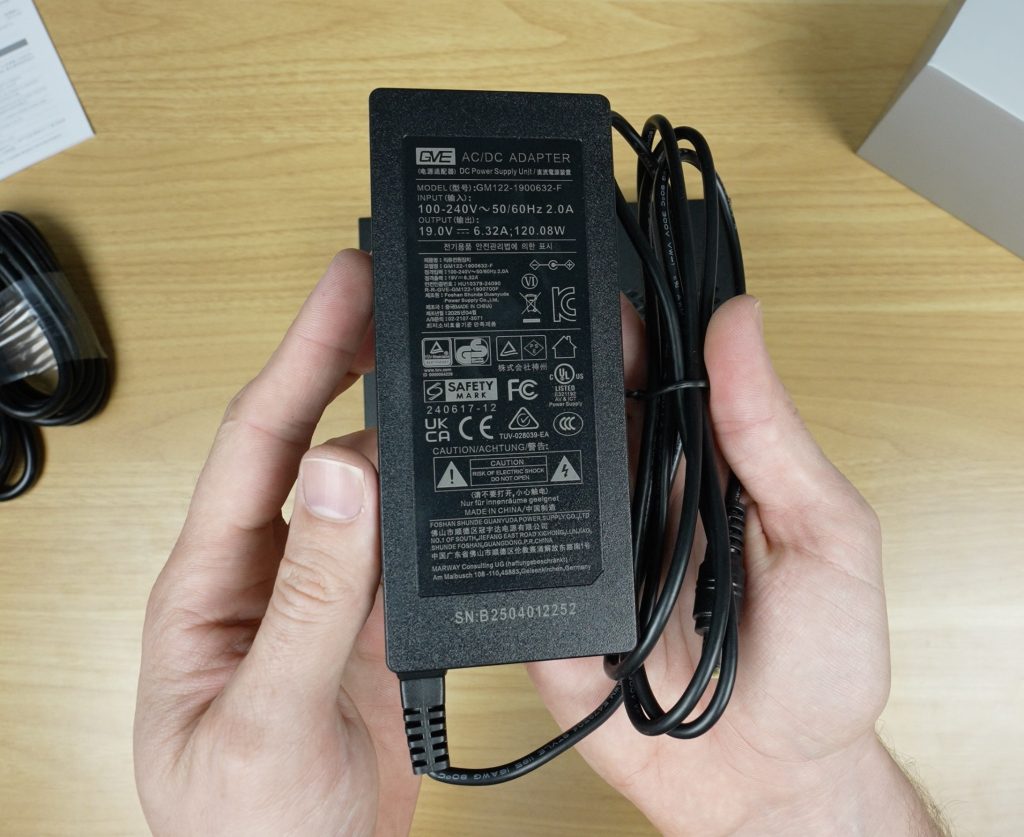
  • A multi-region 12V/3A power supply
  • A quick start guide

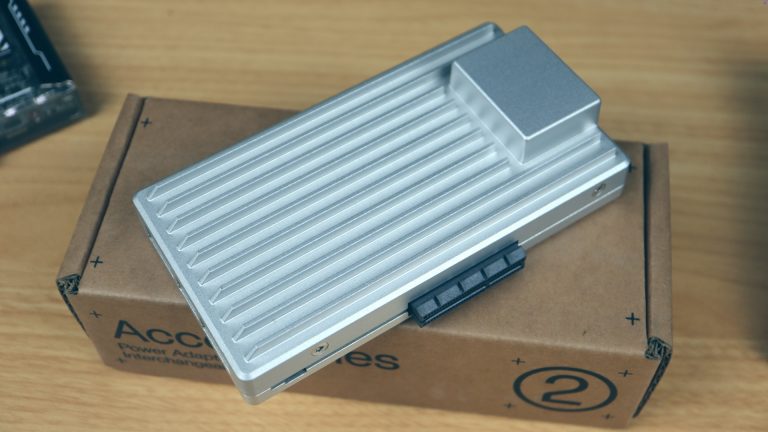
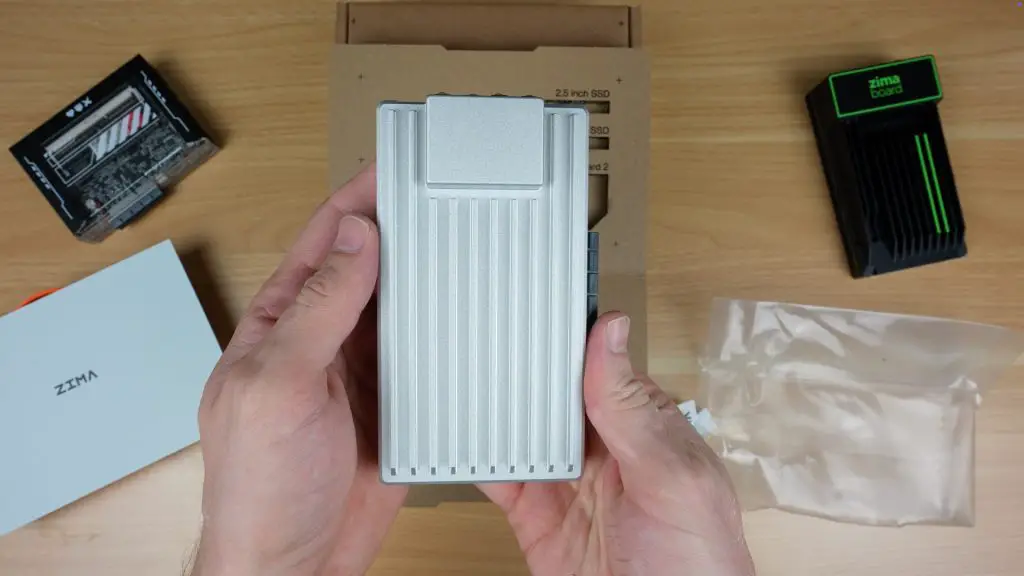
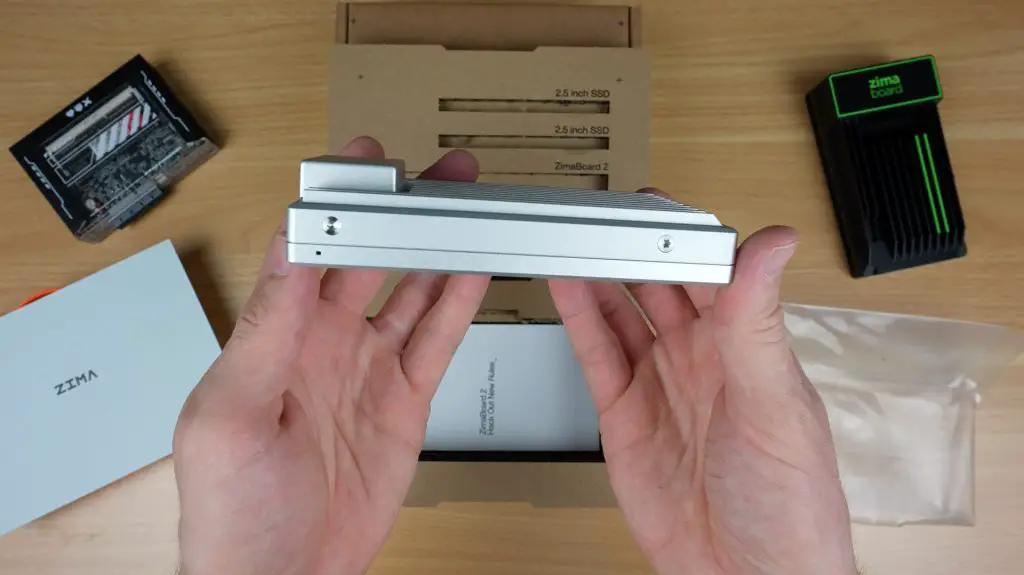
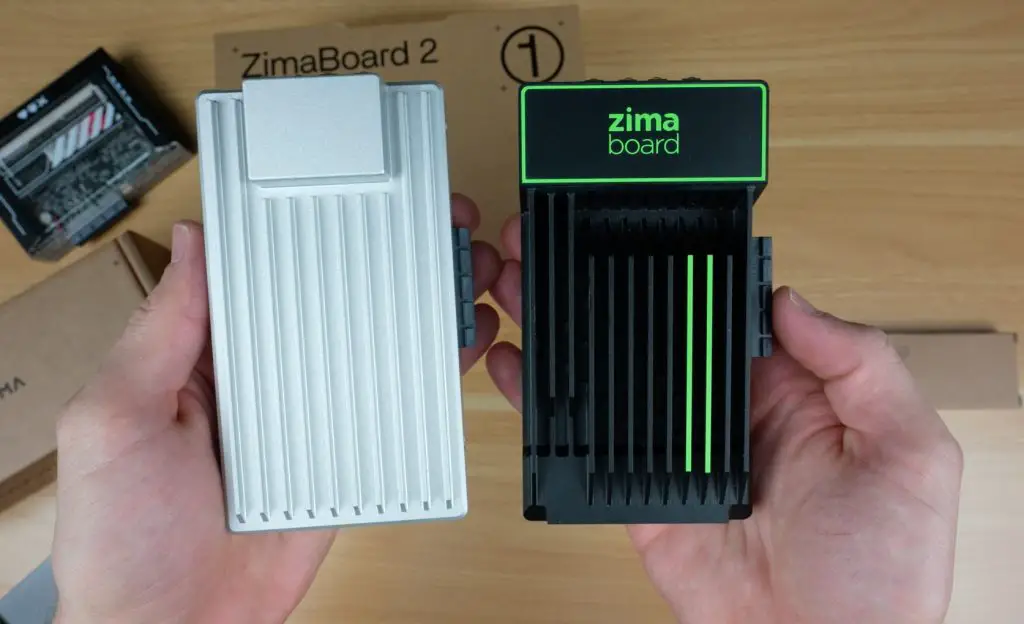
Right out of the box, the Zimaboard 2 looks and feels like a premium upgrade to the original. It now features a cast aluminium casing, giving it a sturdier, more refined appearance while remaining completely passively cooled — there are no onboard fans or ventilation holes.

Tech Specs and Comparison to Zimaboard 1

Key Hardware Upgrades:

  • CPU: Intel N150 (4 cores, up to 3.6GHz) vs. the original’s Celeron N3450 (up to 2.2GHz)
  • GPU: Upgraded integrated graphics with 24 execution units (vs. 12) at up to 1GHz
  • RAM: 8GB LPDDR5 @ 4800MHz (vs. 8GB LPDDR4)
  • Storage: 32GB eMMC (unchanged)
  • PCIe: Gen 3.0 x4 slot (vs. Gen 2.0 x4)
  • Networking: Dual 2.5G Ethernet ports (up from Gigabit Ethernet)
  • Ports: 2x USB 3.1, mini DisplayPort, SATA III ports (6Gbps), 12V barrel jack

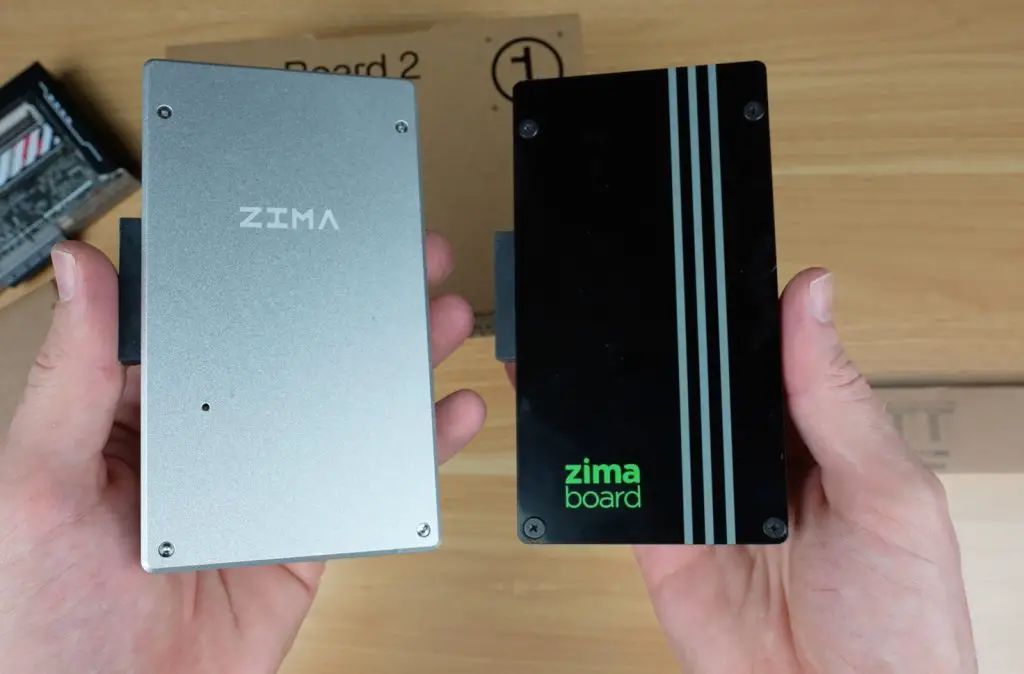
Physically, the board is just 1mm longer and 4mm thinner than the original, but noticeably more robust thanks to the new aluminium housing.

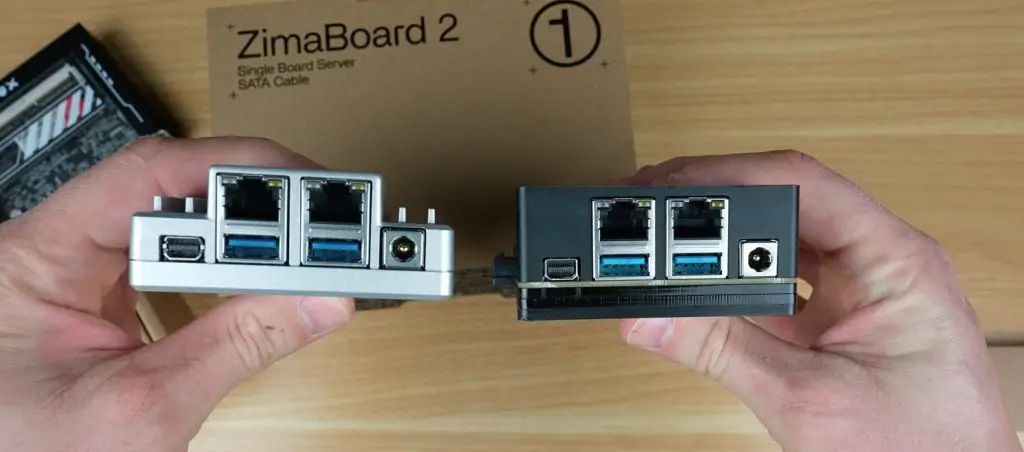
Port placement remains nearly identical, making it easy for users upgrading from the original, but there are some differences.

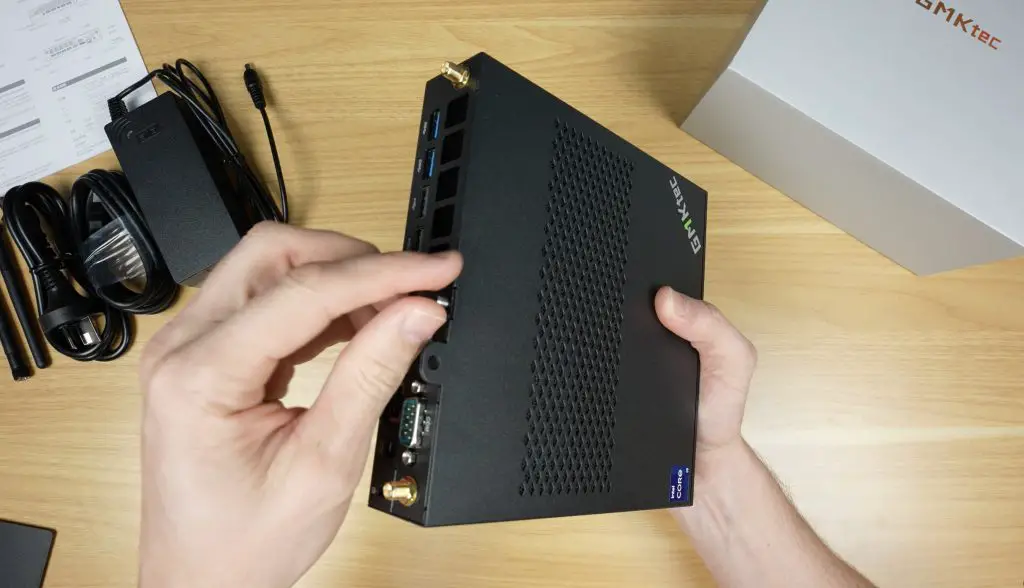
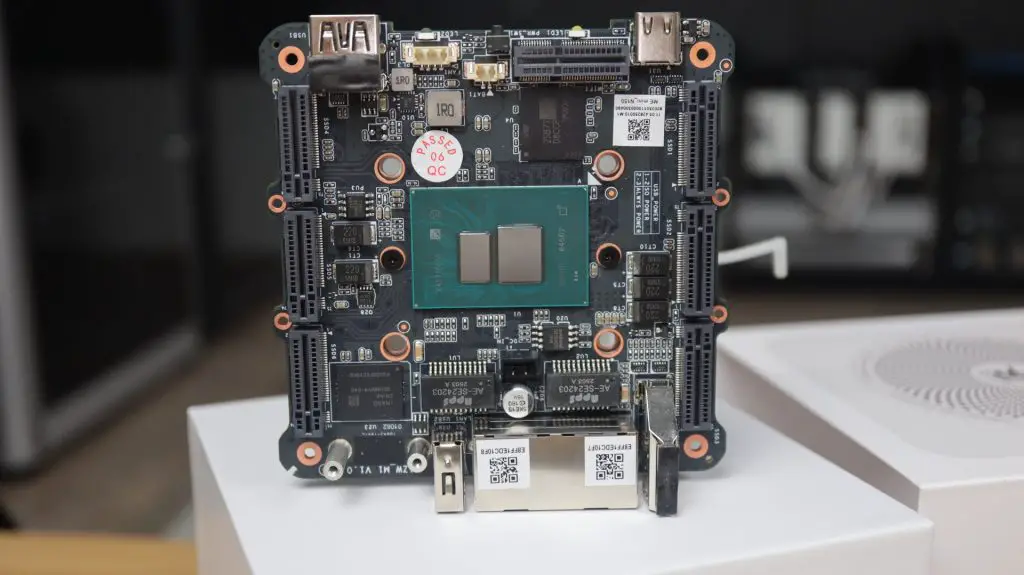
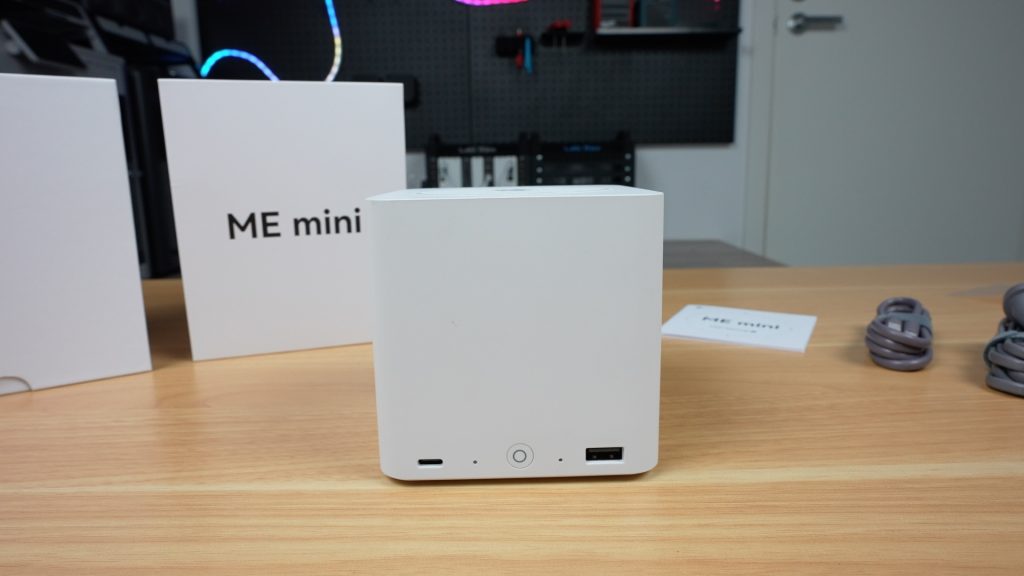
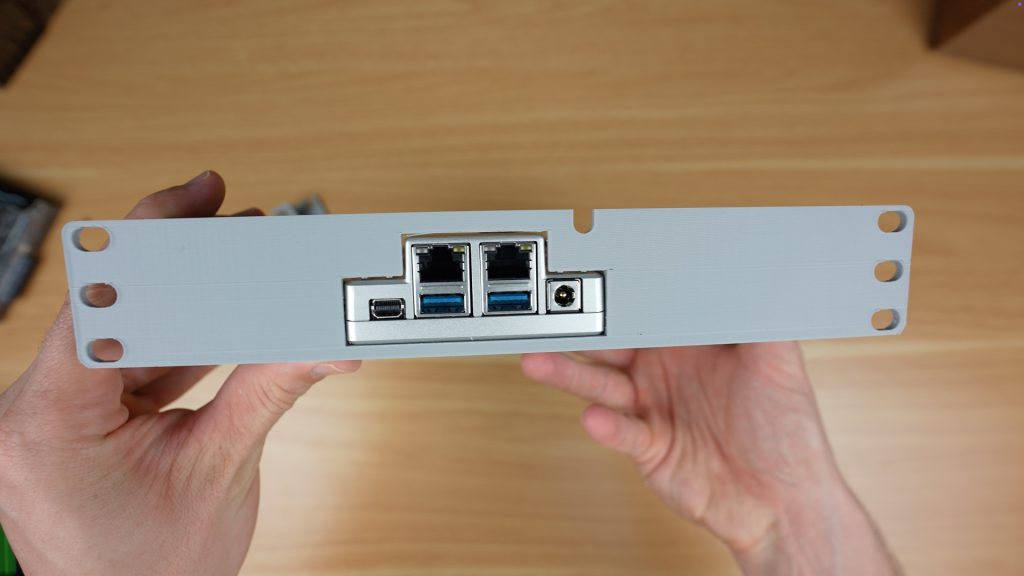
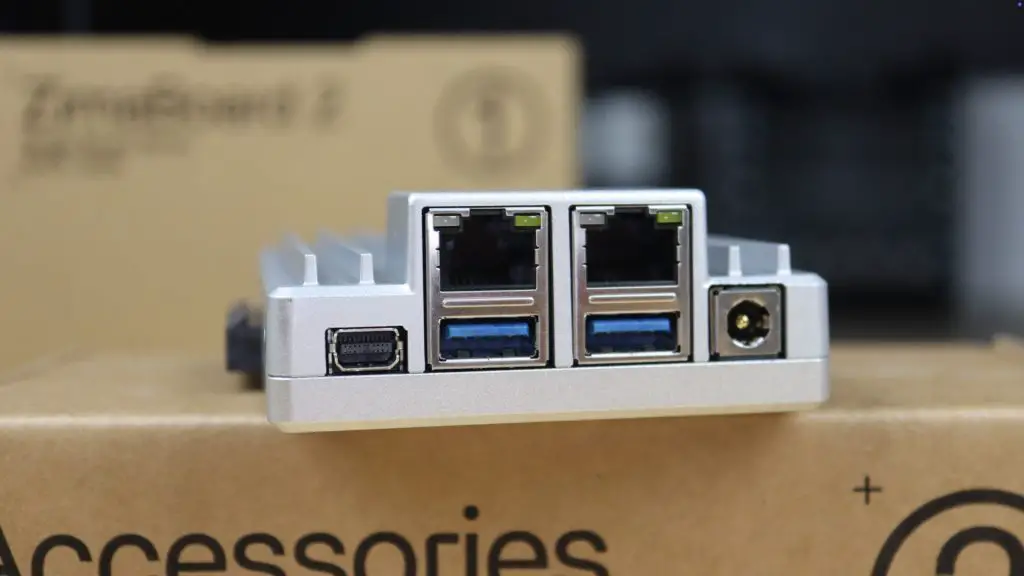
On the front we’ve got the same mini DisplayPort, but then we’ve got improved dual 2.5GB Ethernet ports and beneath those are two USB 3.1 ports. Next to those is the power supply barrel jack input. On the side is a PCIe 3.0 x 4 slot, which is an improvement on the 2.0 x 4 port on the original.

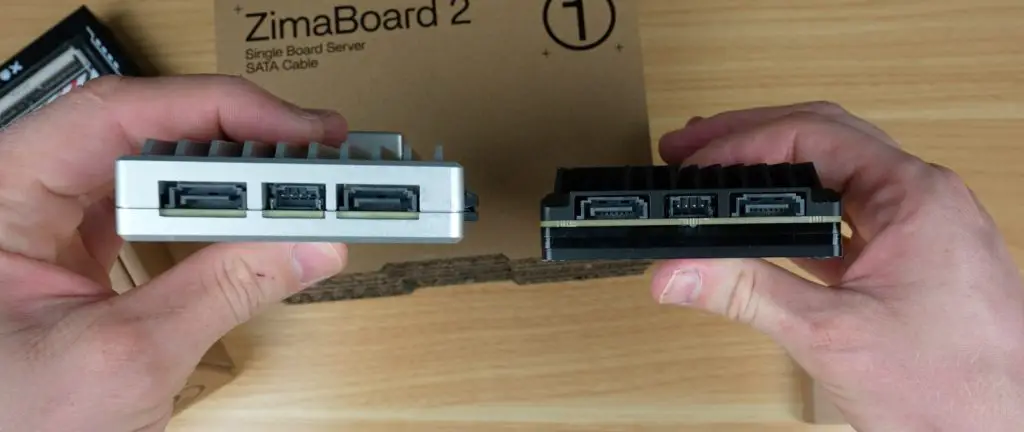
On the back of the board, we’ve still got two SATA ports alongside a central power port. These are the same SATA 3.0 ports that can do up to 6 Gbps.

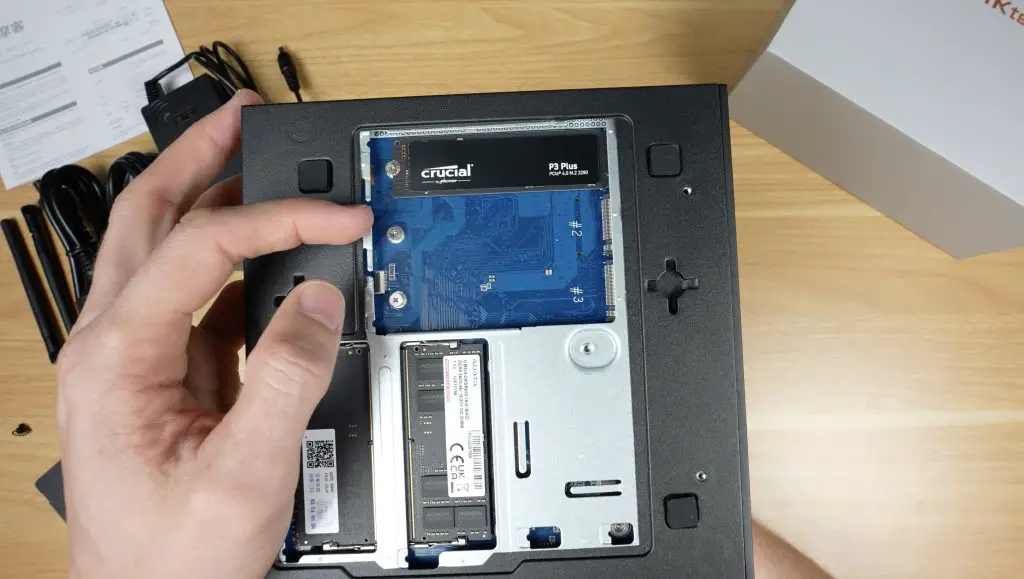
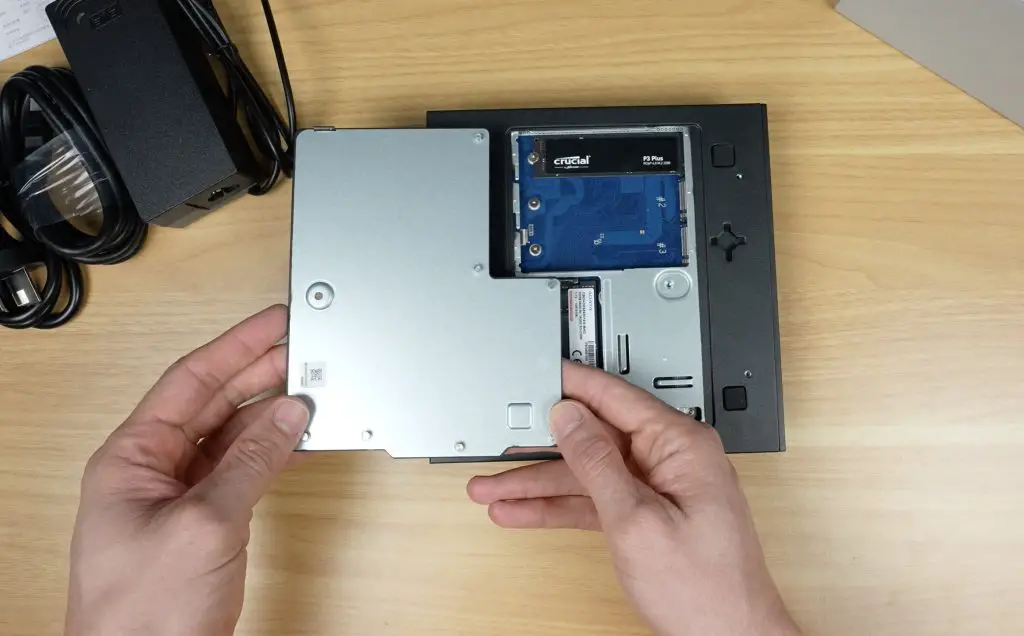
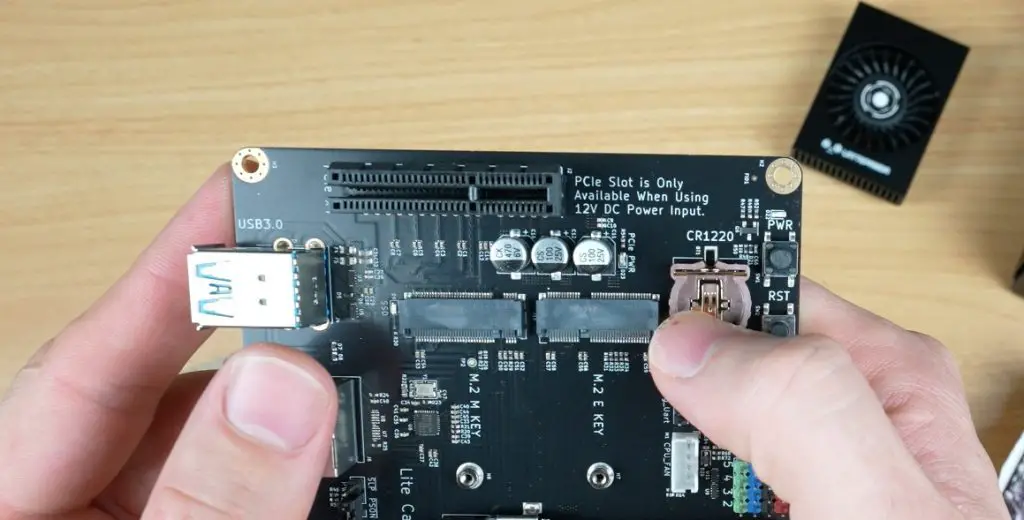
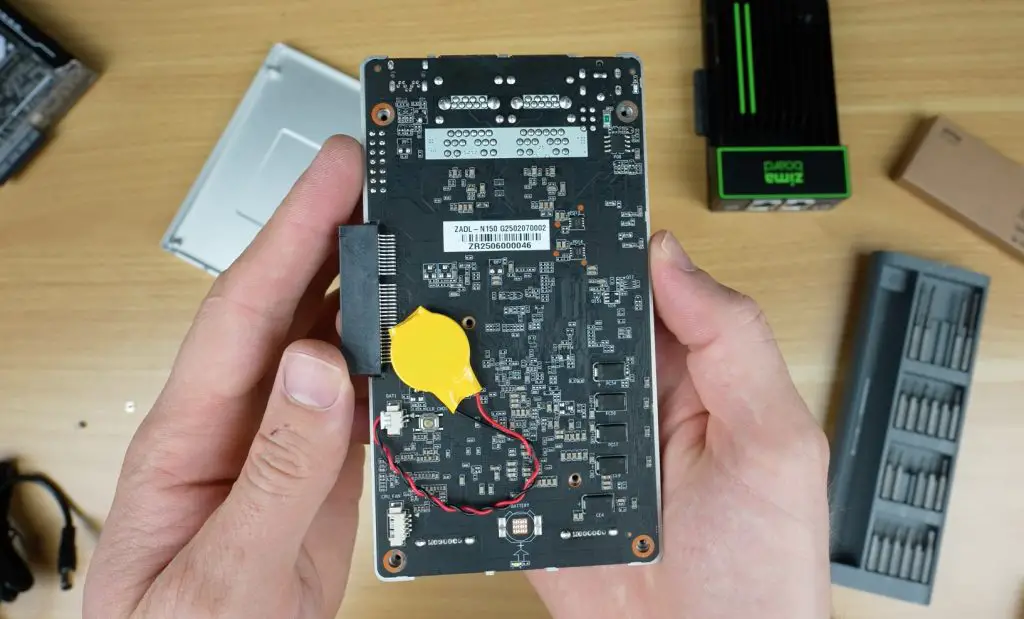
Internally, there isn’t much on the bottom of the board other than the CMOS battery and clear CMOS button near it.

CMOS Battery On Inside Underside

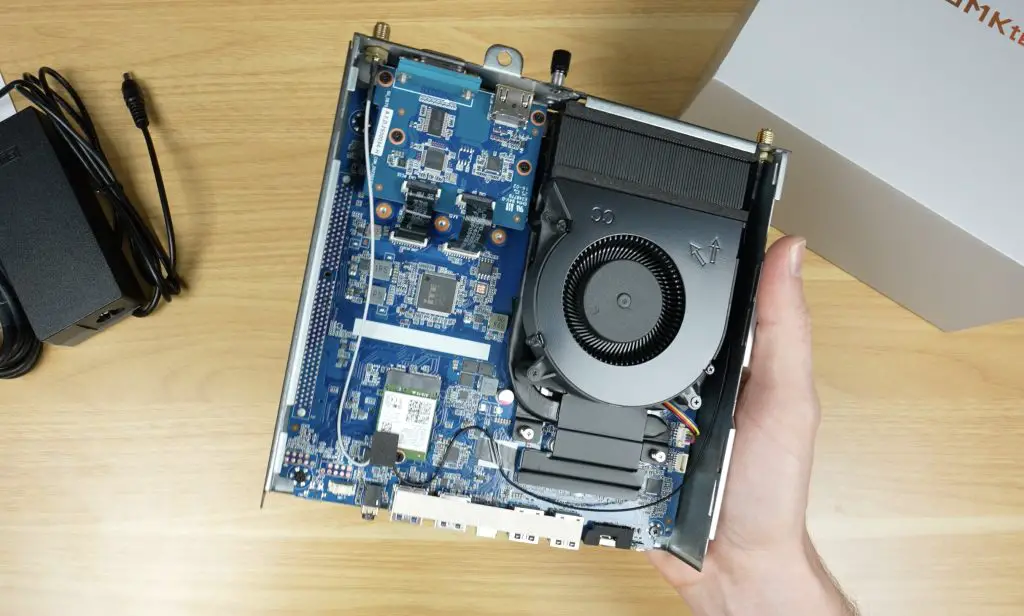
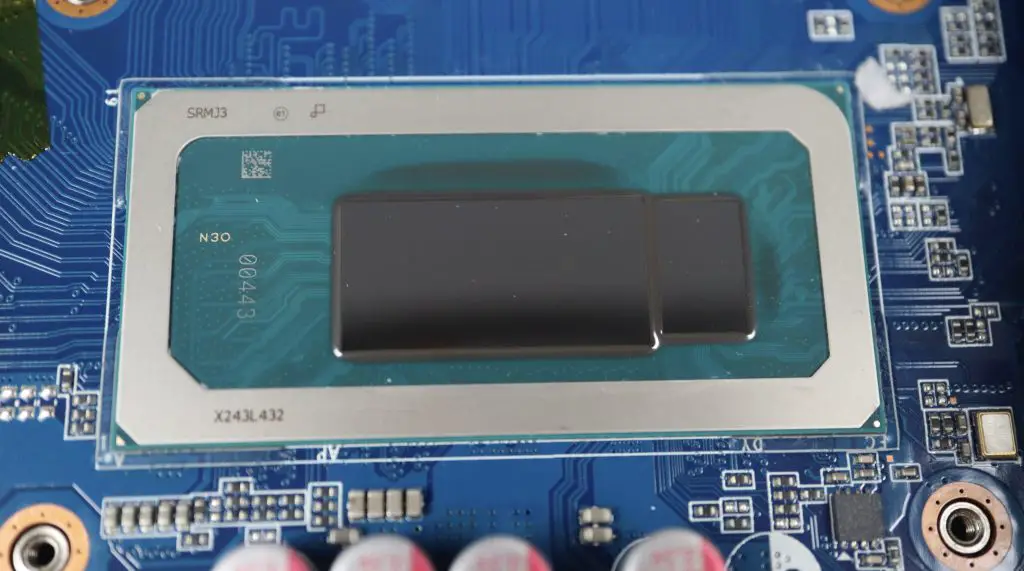
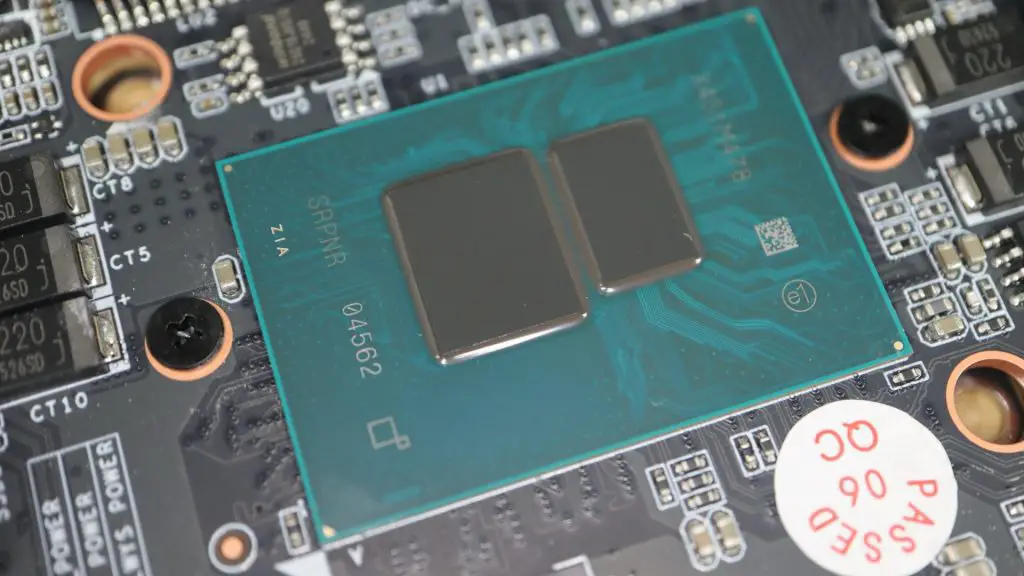
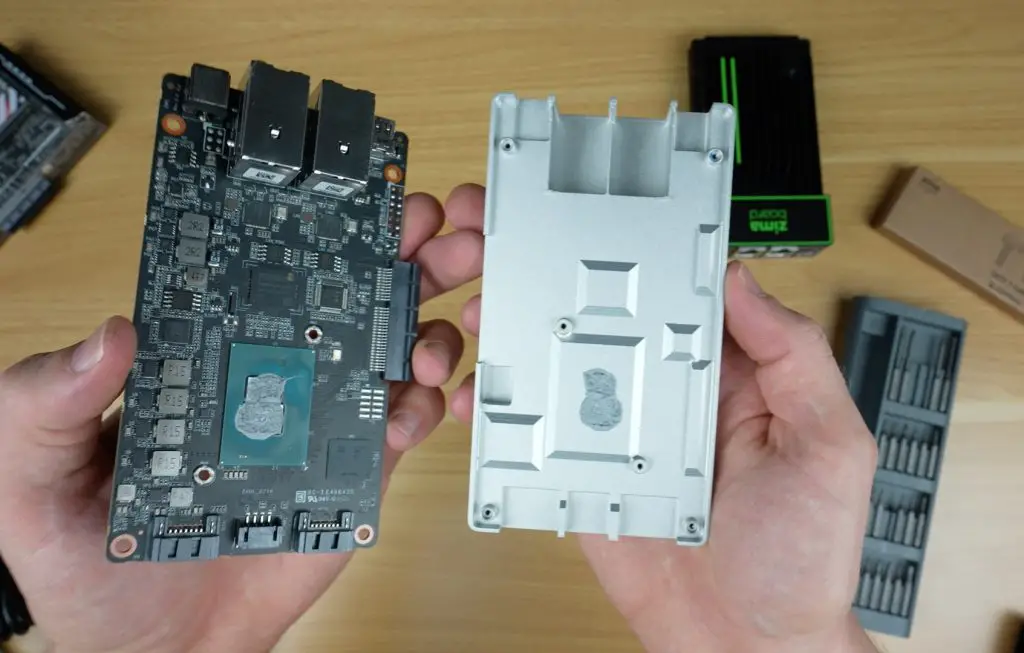
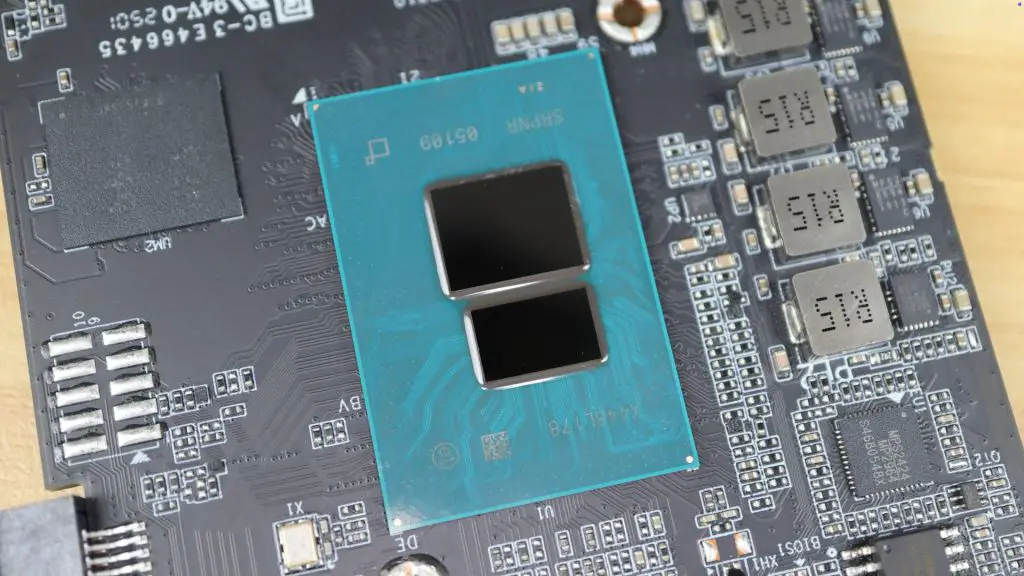
On the other side, the Zimaboard 2 has an improved 4 core Intel N150 CPU. This has the same number of cores as the original Celeron N3450 CPU, but they now boost to up to 3.6GHz instead of 2.2GHz. It’s also got 3 times the cache and 9 PCIe gen 3 lanes instead of the 6 gen 2 lanes on the original.

Zimaboard 2 Top Of Board

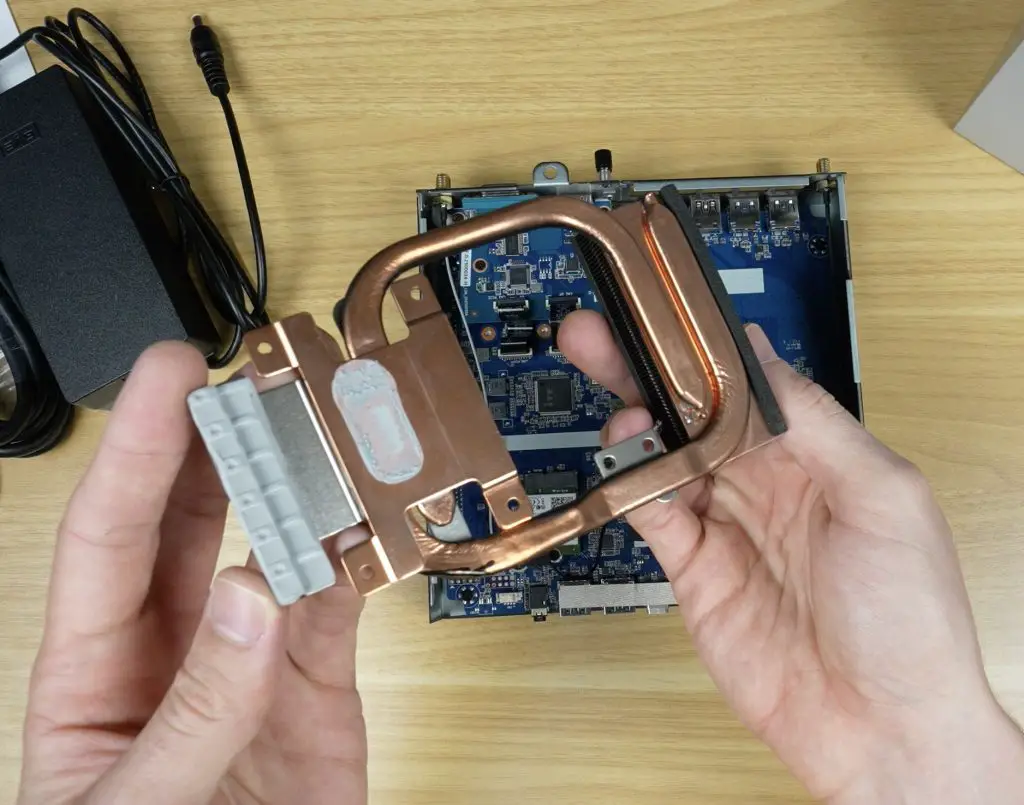
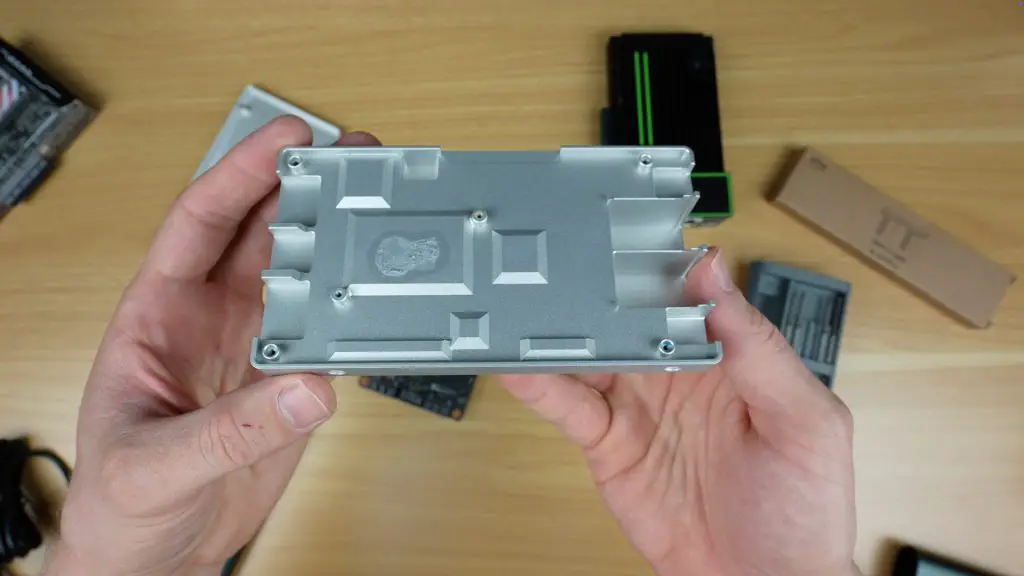
The top shell is quite thick, so probably has a good thermal capacity.

Cast Aluminium Heatsink

It also has an improved integrated GPU, now with 24 execution units over the original 12, which boosts up to 1Ghz.

Intel N150 CPU Zimaboard 2

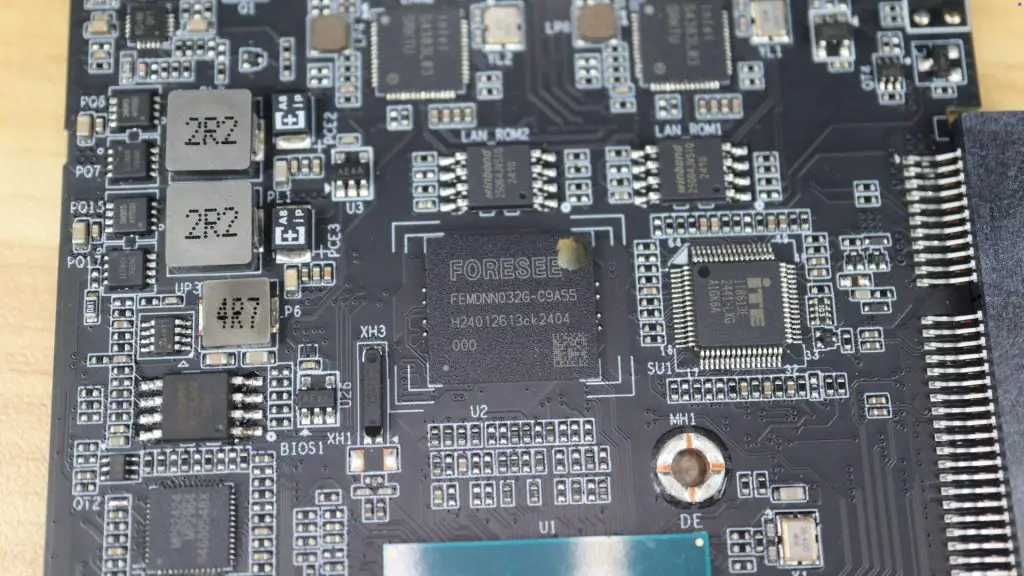
Storage remains the same, we’ve got 32GB of eMMC storage and RAM stays at 8GB but is now DDR 5 instead of DDR 4 and runs at an increased 4800MHz. Both are soldered to the board and therefore aren’t upgradeable.

eMMC Storage and RAM

First Boot Into CASA OS

Like its predecessor, the Zimaboard 2 is meant to be run headless. Setup is simple: plug in the power and connect an Ethernet cable. WiFi is still absent, so a wired connection has to be used.

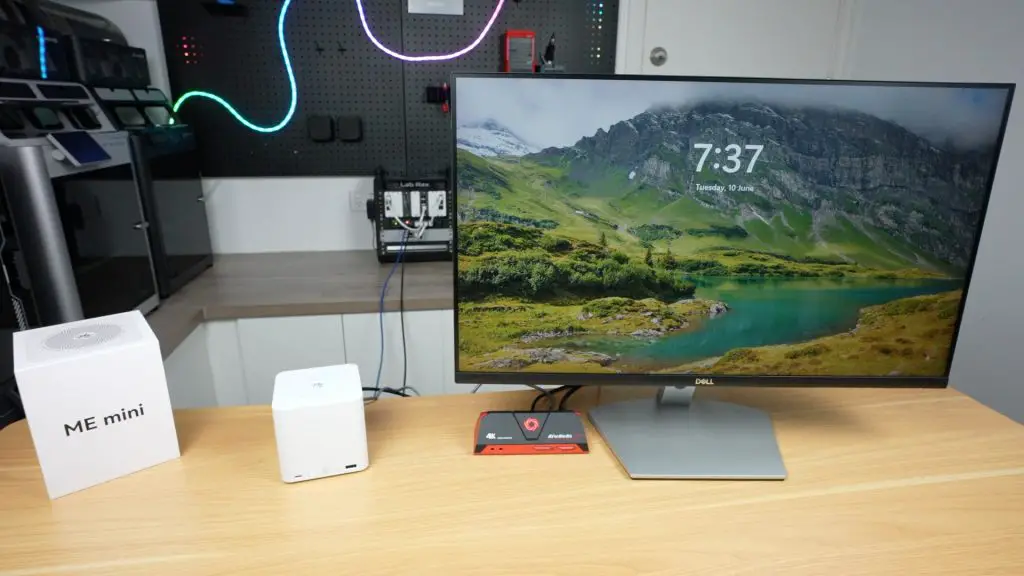
Zimaboard 2 First Boot

Once booted (after a few minutes), you can access the dashboard by entering the device’s IP address in a browser. IceWhale provides a handy utility called Zima Client to help locate the IP if needed. It’s best to assign a static IP address through your router for easier future access and to set up network storage.

The board came preloaded with what appears to be the Zimacube version of CASA OS — likely to be updated following the Zimaboard 2’s full release. You’ll need to set up a local user account to begin using the dashboard.

CASAOS First Boot

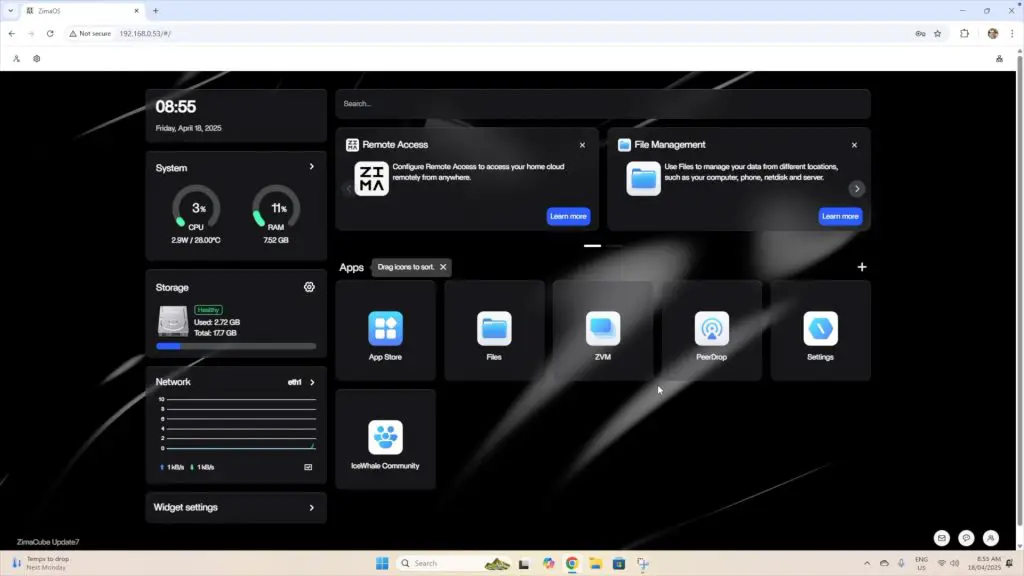
CASA OS is essentially a web-based Docker frontend built on Debian, designed for homelab and personal cloud setups. It’s a clean, customizable dashboard that includes:

  • System monitoring
  • App Store with 50+ preconfigured Docker apps
  • VM and storage management
  • PeerDrop for local file sharing (more on that later)
Zimaboard 2 First Boot On CASA OS

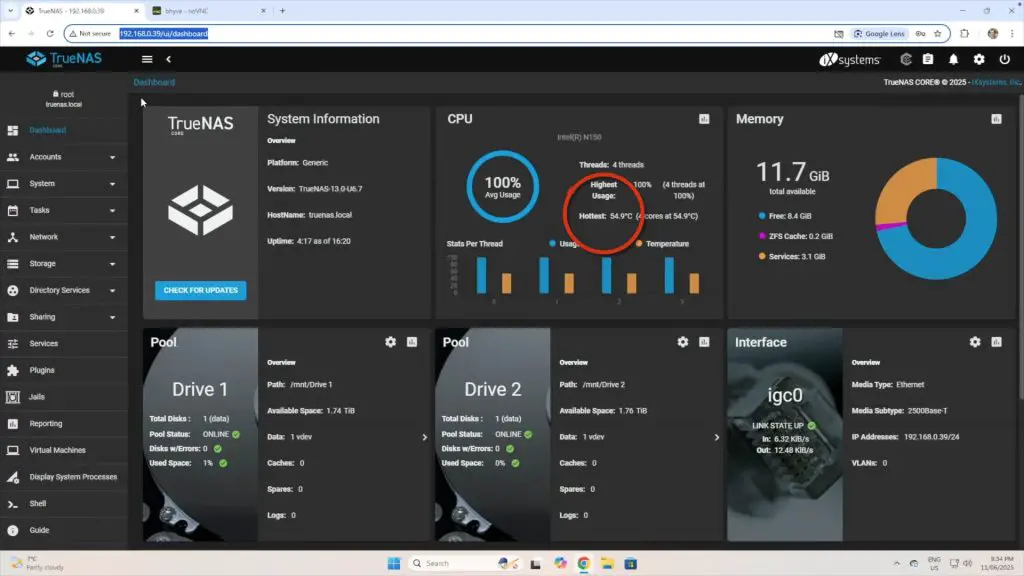
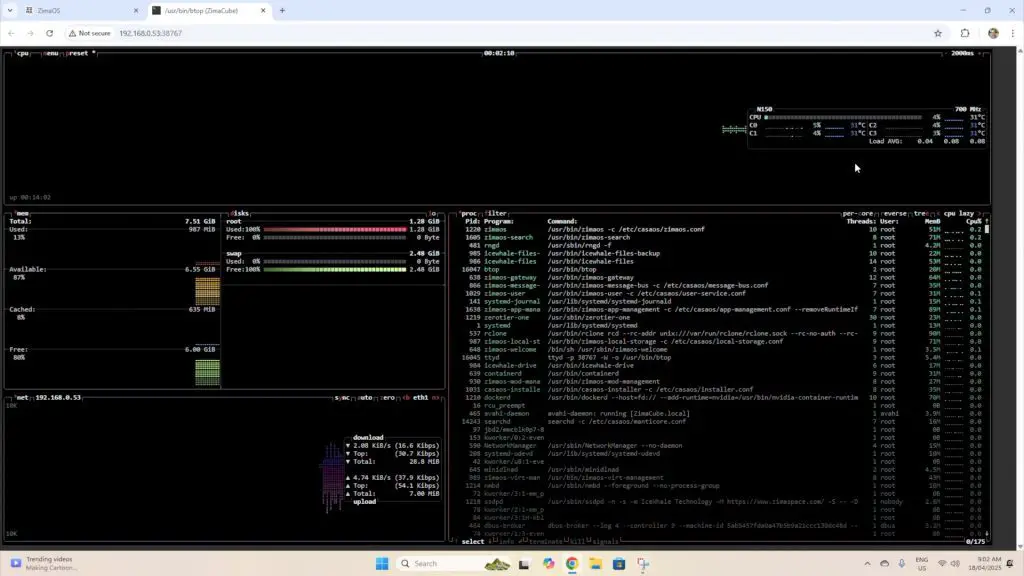
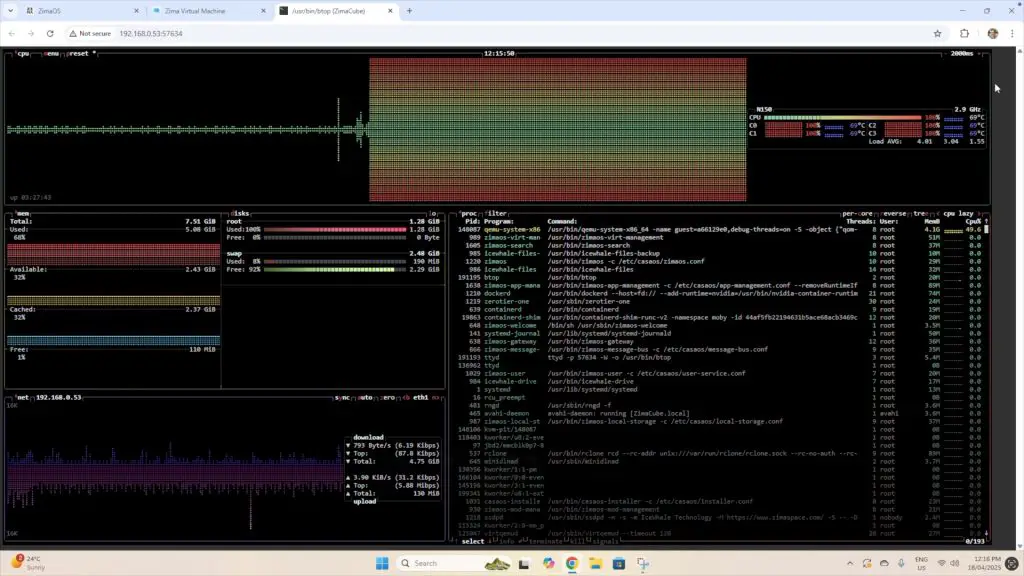
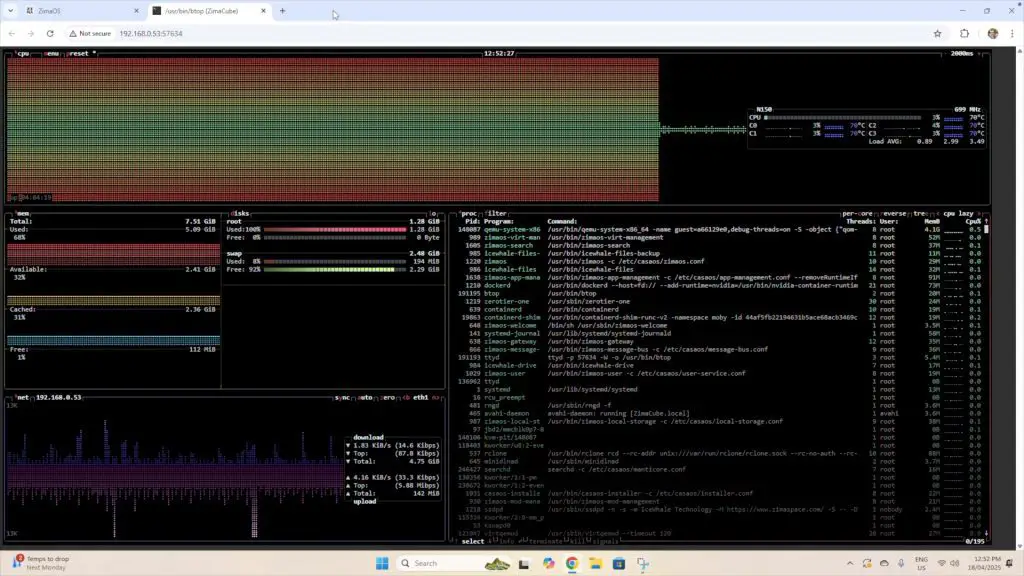
System usage was minimal on idle, with CPU at near-zero and RAM usage at 11%. Using btop, you can view per-core CPU loads, memory usage, active processes, and network activity.

btop Hardware Monitor CASA OS

Power Consumption

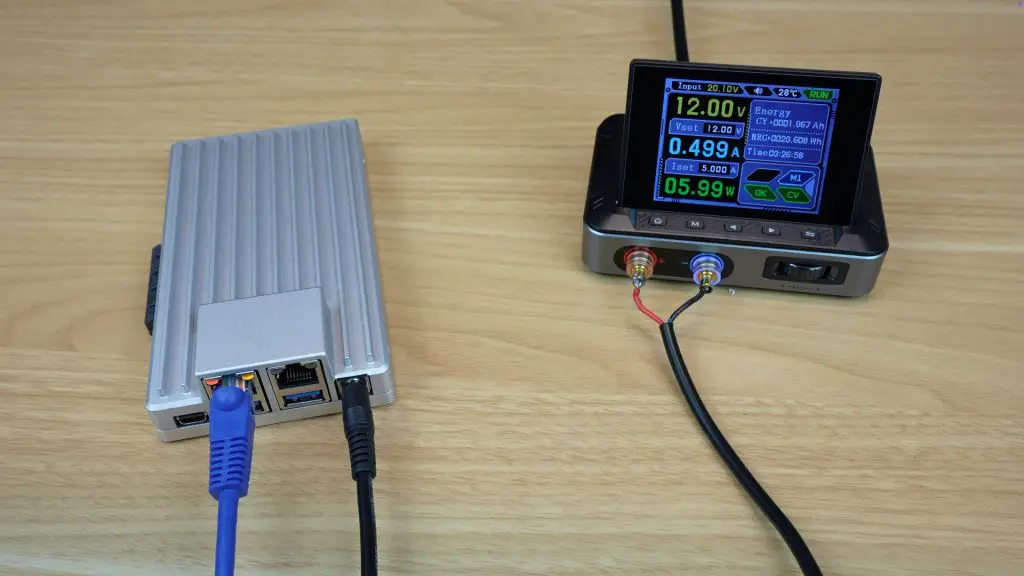
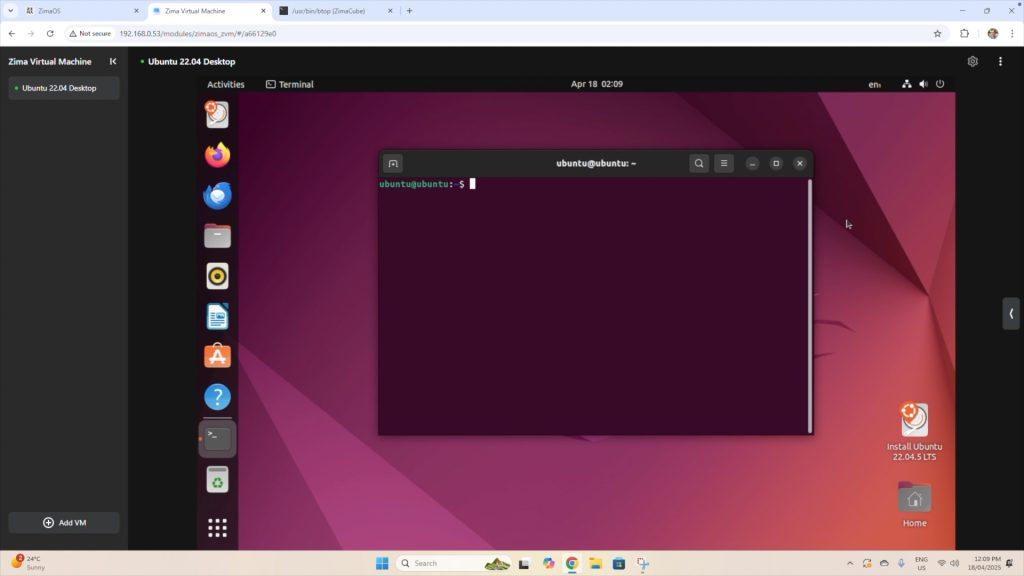
To assess power consumption and thermal performance, an Ubuntu virtual machine was set up to run a CPU stress test. Here’s how the board handled the load:

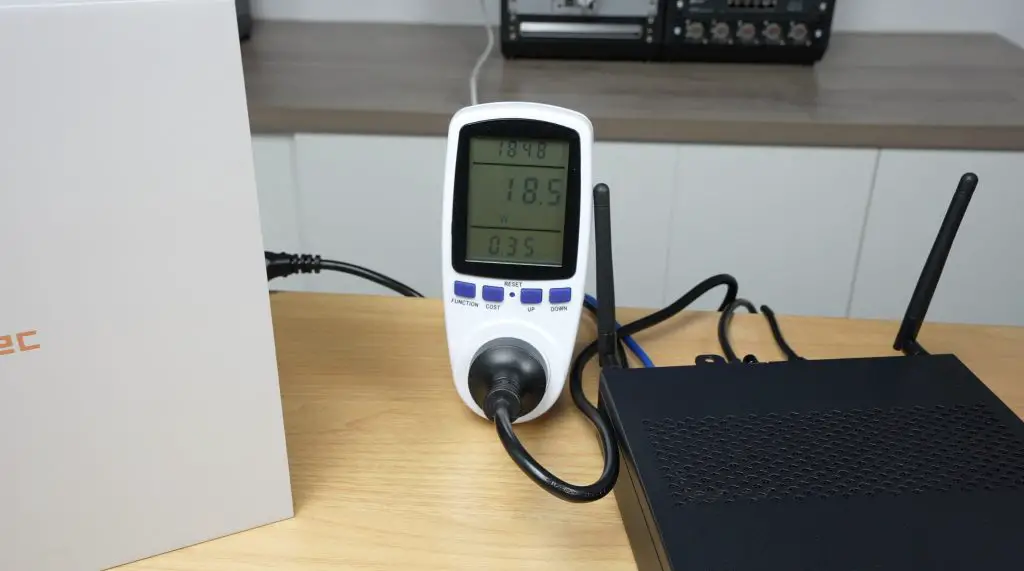
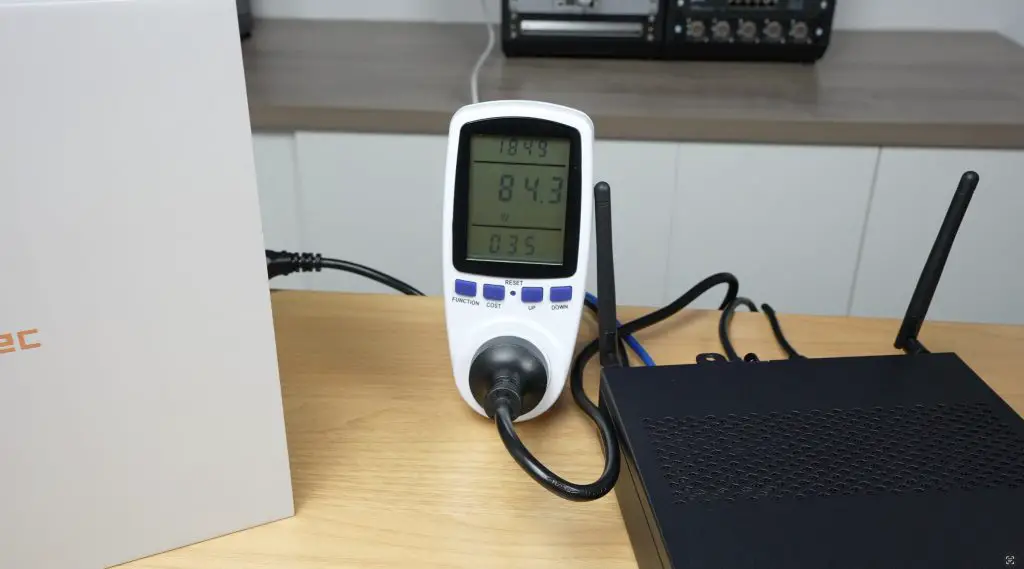
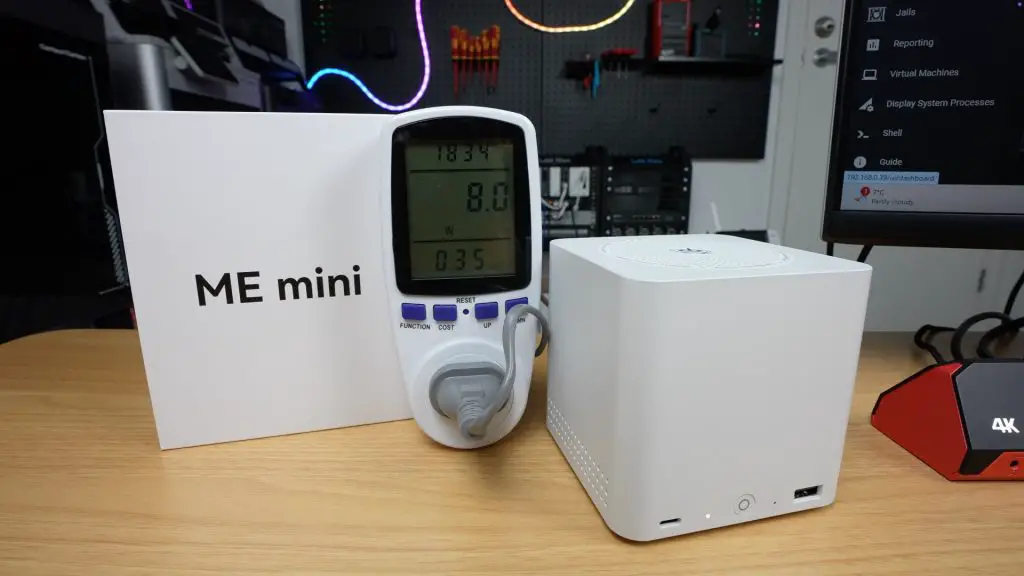
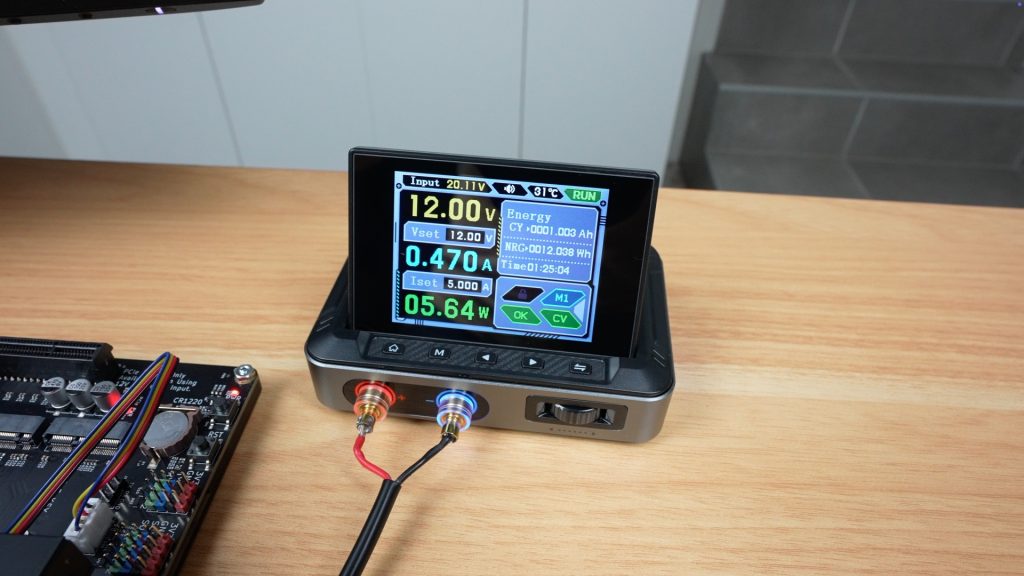
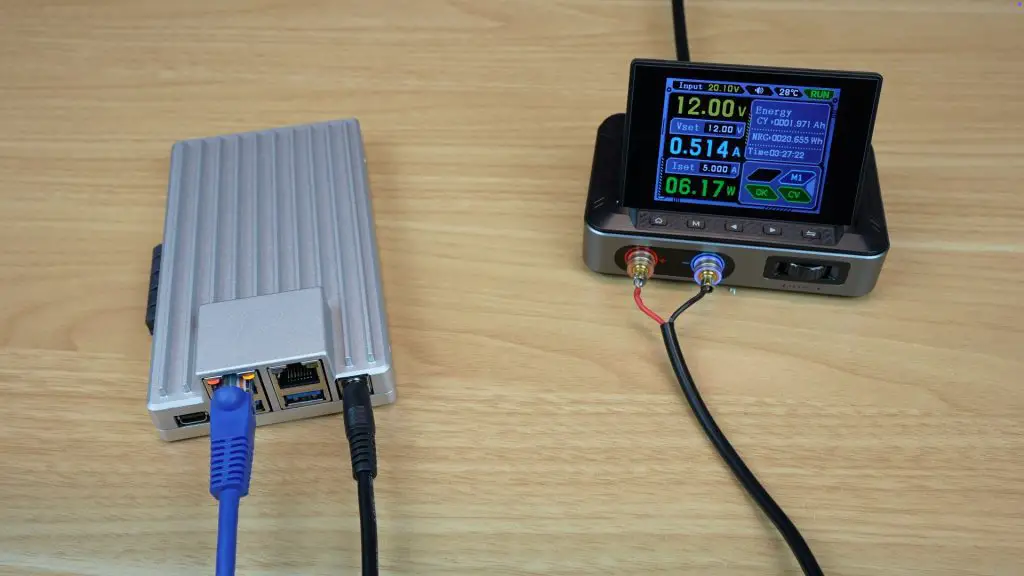
  • Idle: 7W at 3% CPU use
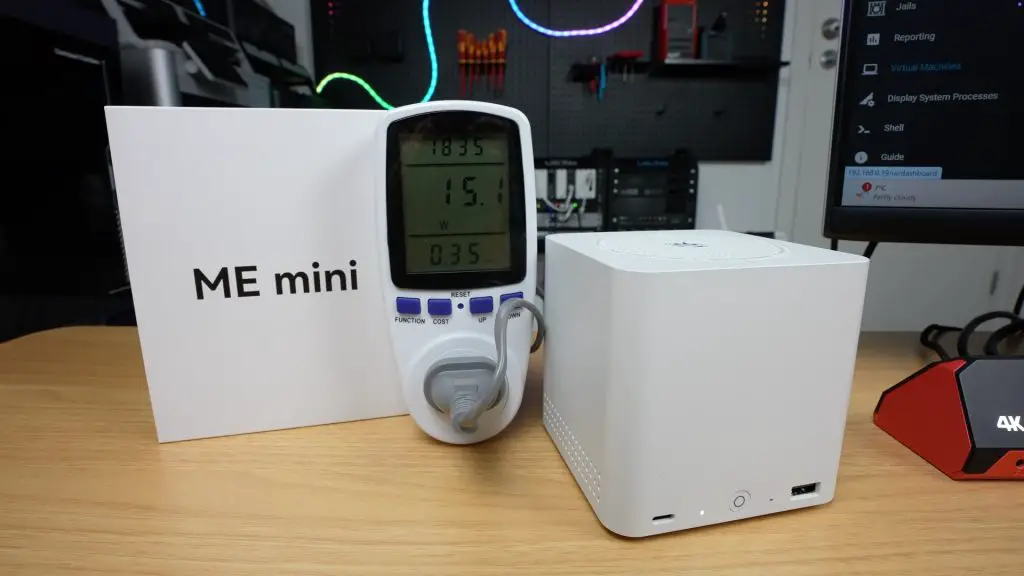
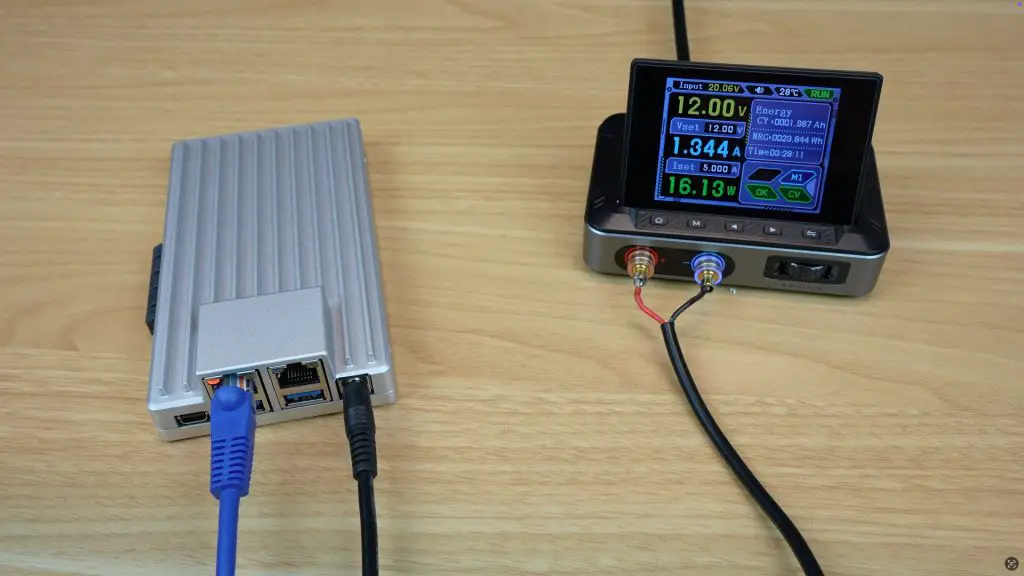
  • Full load: 16W with VM stress test

This is the bare board without any additional drives, PCIe cards or peripherals attached to it.

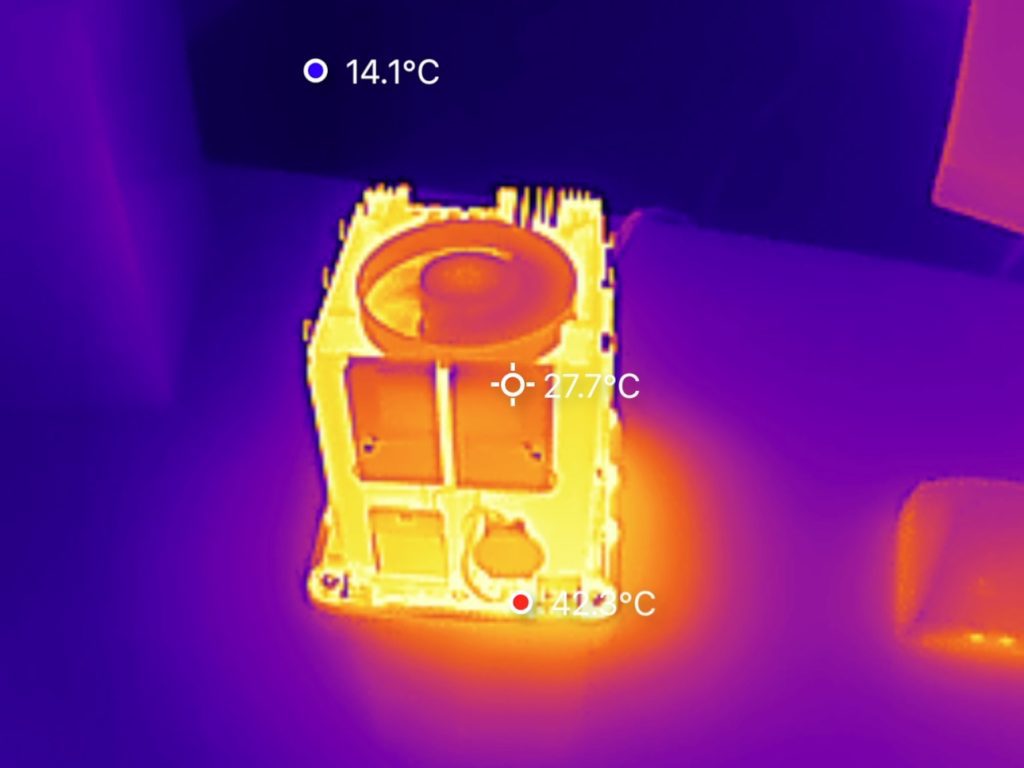
Testing The Zimaboard 2’s Thermal Capacity

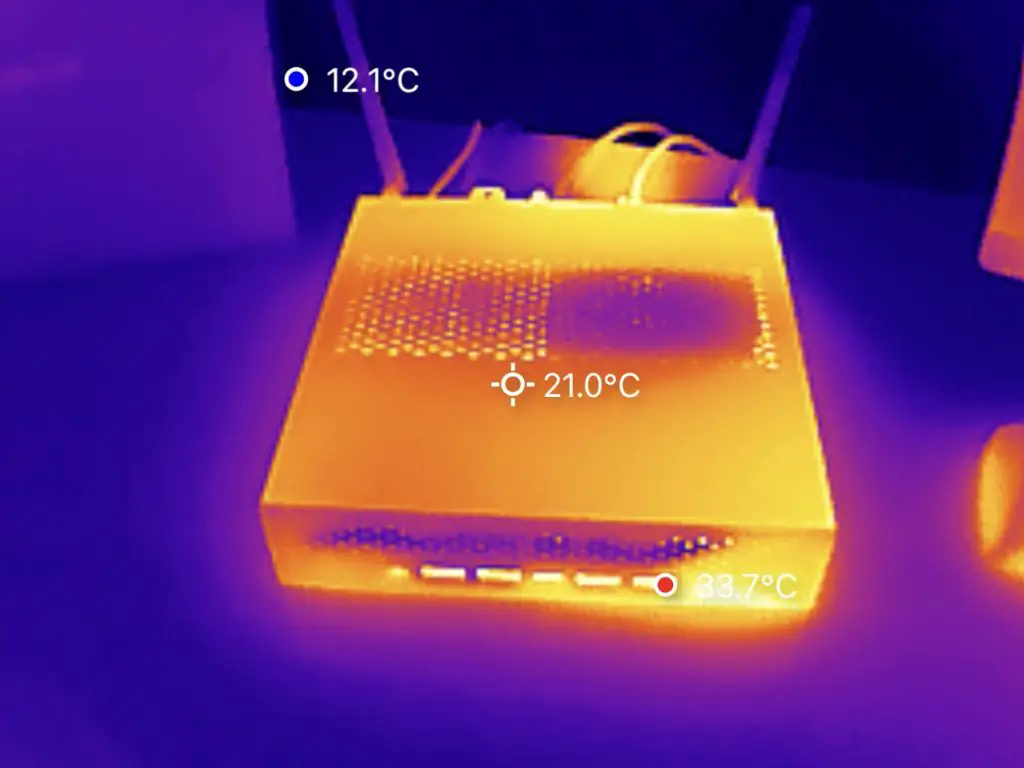
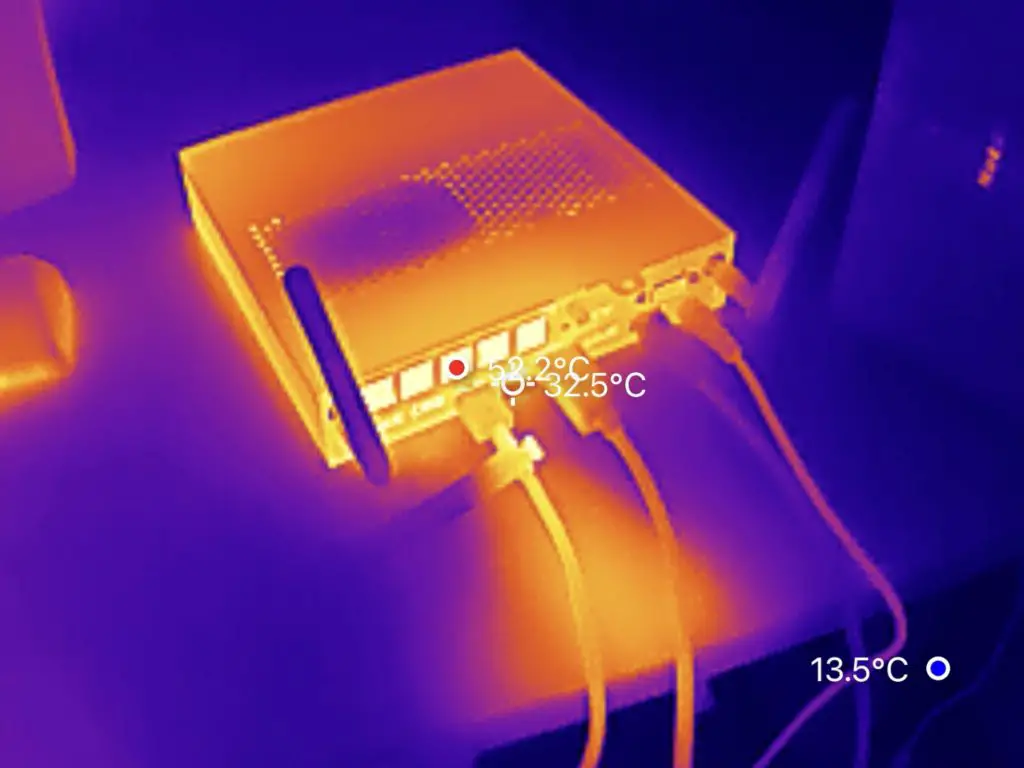
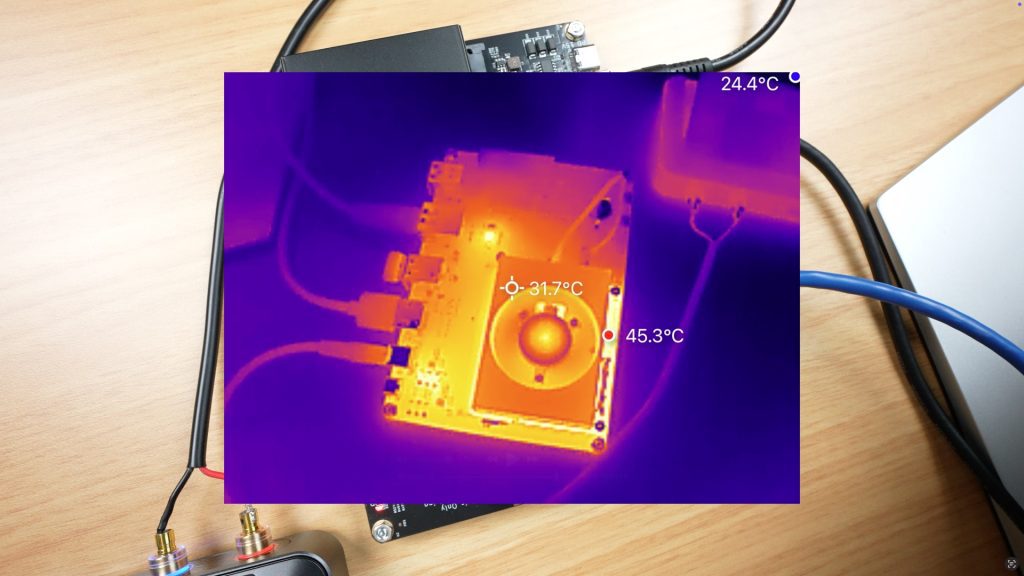
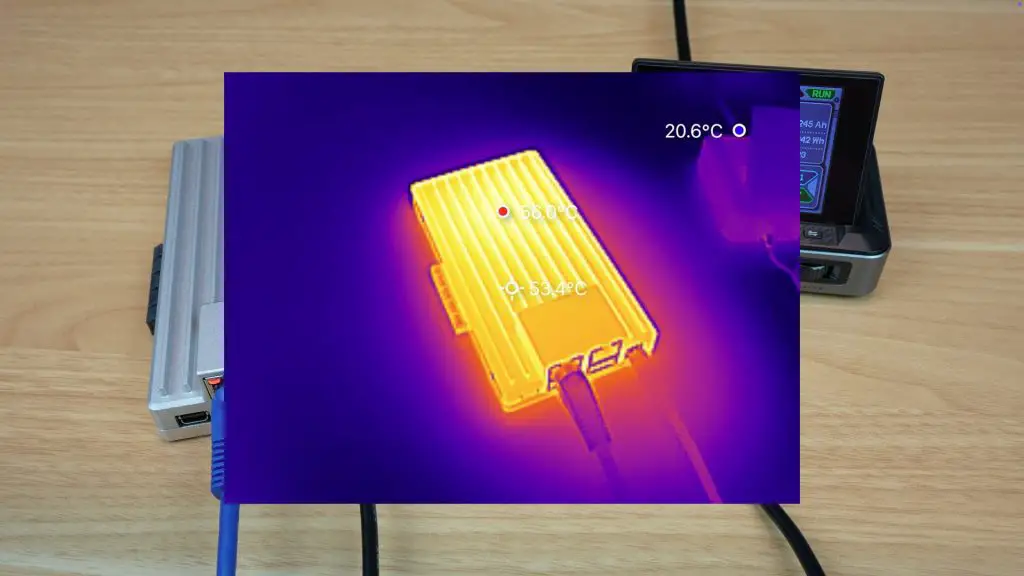
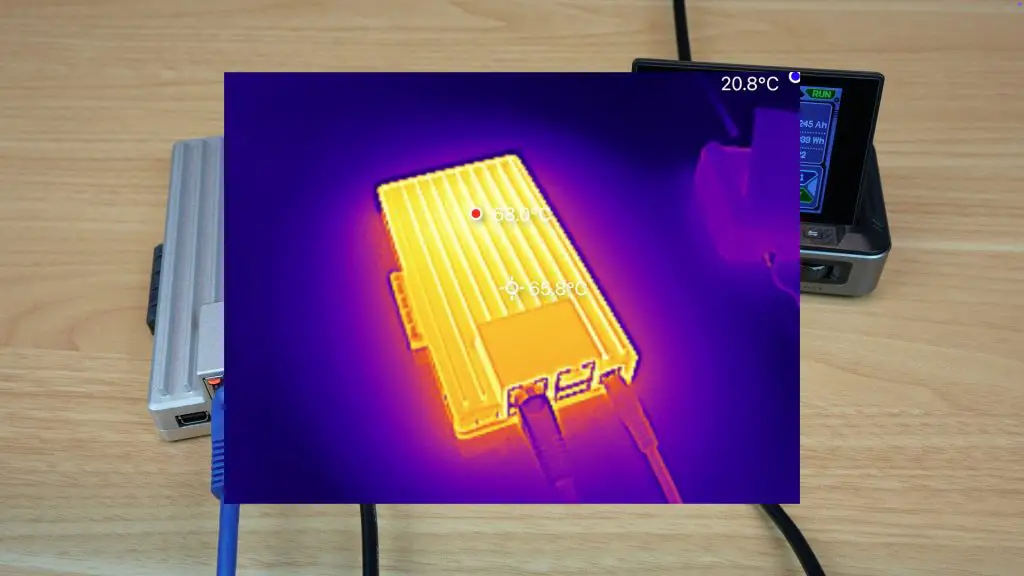
Thermally, the passive heatsink enclosure does quite well under full load. With the same stress test running, putting the CPU under full load, we get the following results;

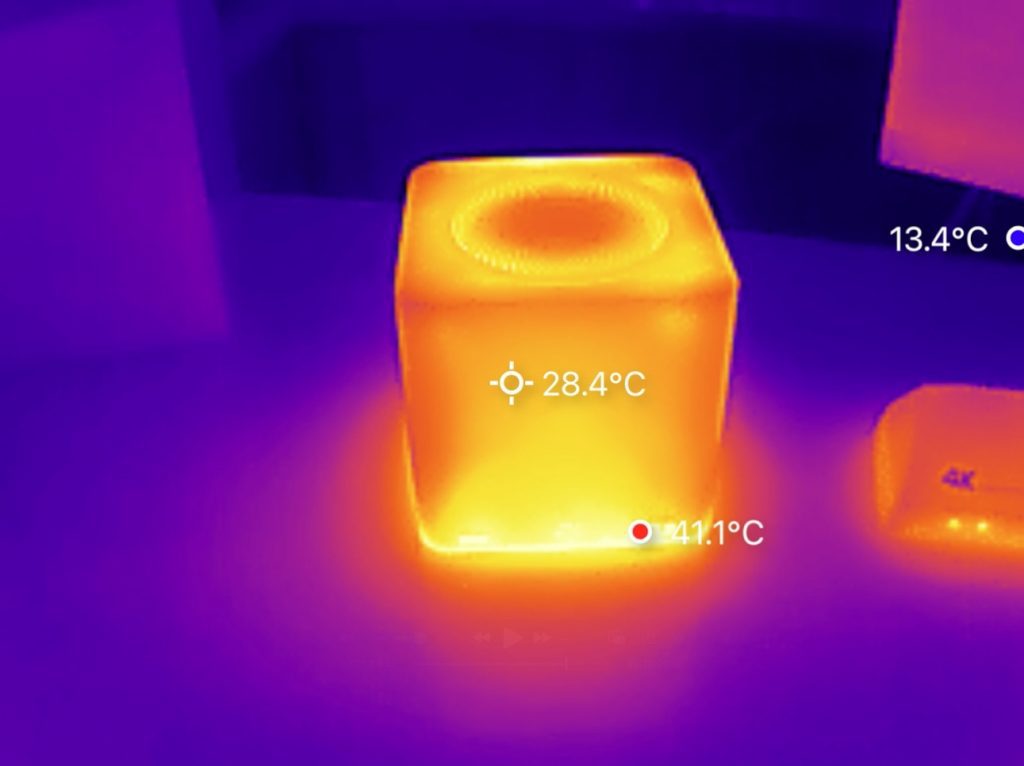
  • 7 minutes: CPU ~70°C, case surface 56°C (room at 20°C)
  • 15 minutes: CPU at 77°C
  • 30 minutes: CPU at 87°C, case at 68°C
  • 41 minutes: Hit 90°C, test stopped

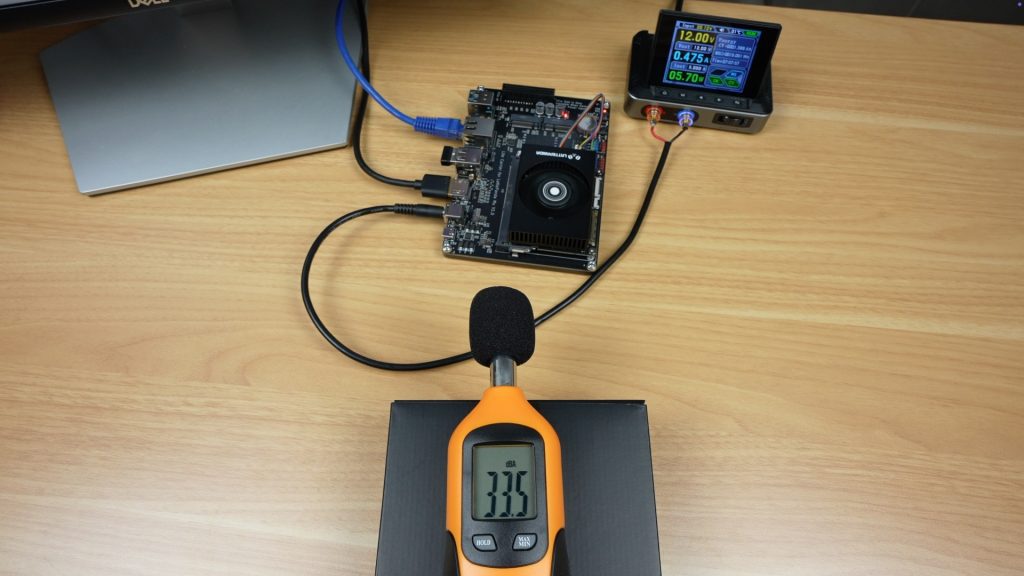
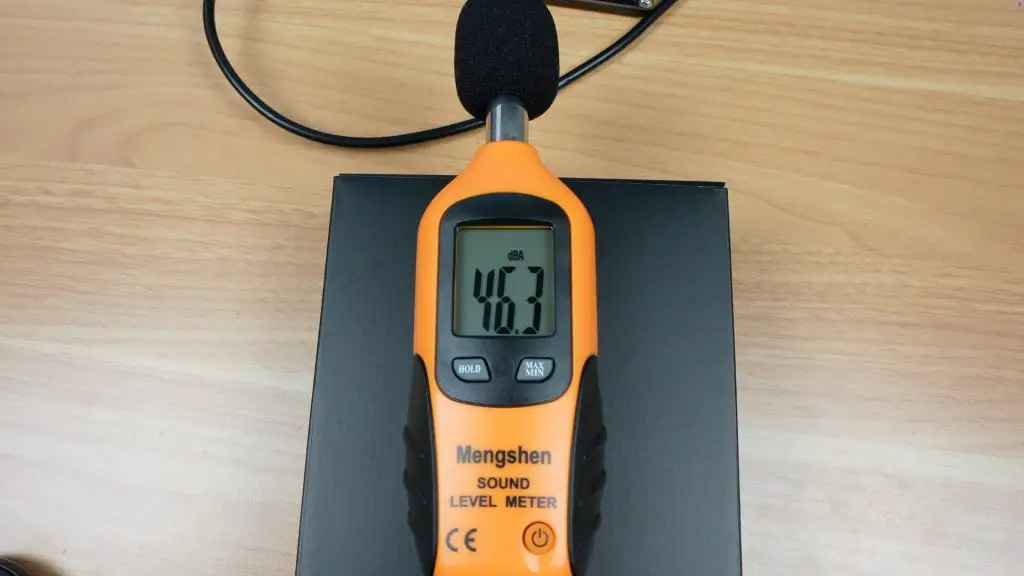
Despite these high temps under sustained load, the system stayed stable and silent. Once the load stopped, temperatures dropped quickly. So provided you’re not subjecting the Zimaboard 2 to a full load for long periods of time, the passive heatsink works quite well, and it’s great that it’s silent.

Adding Storage Drives & Using It As A NAS

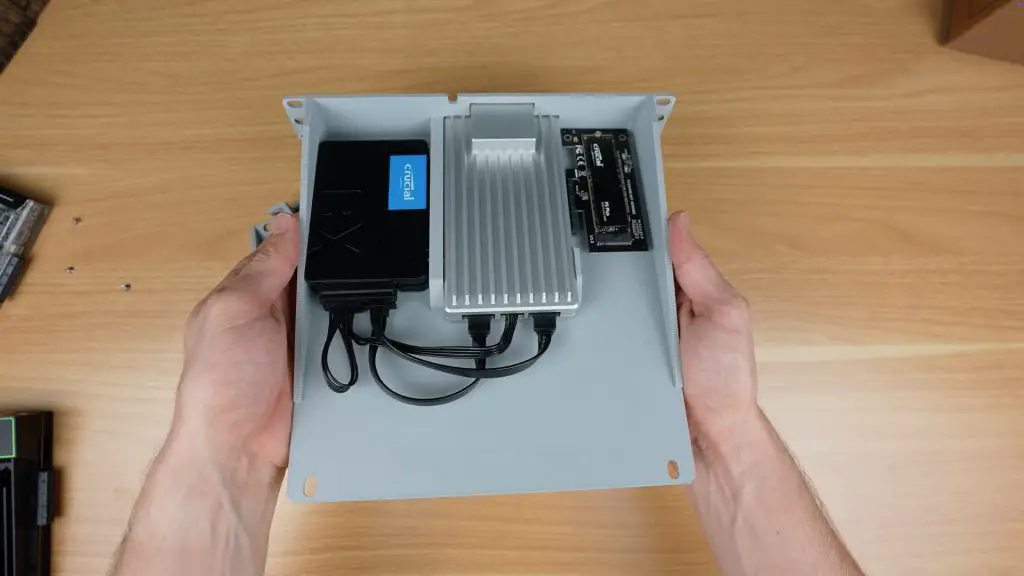
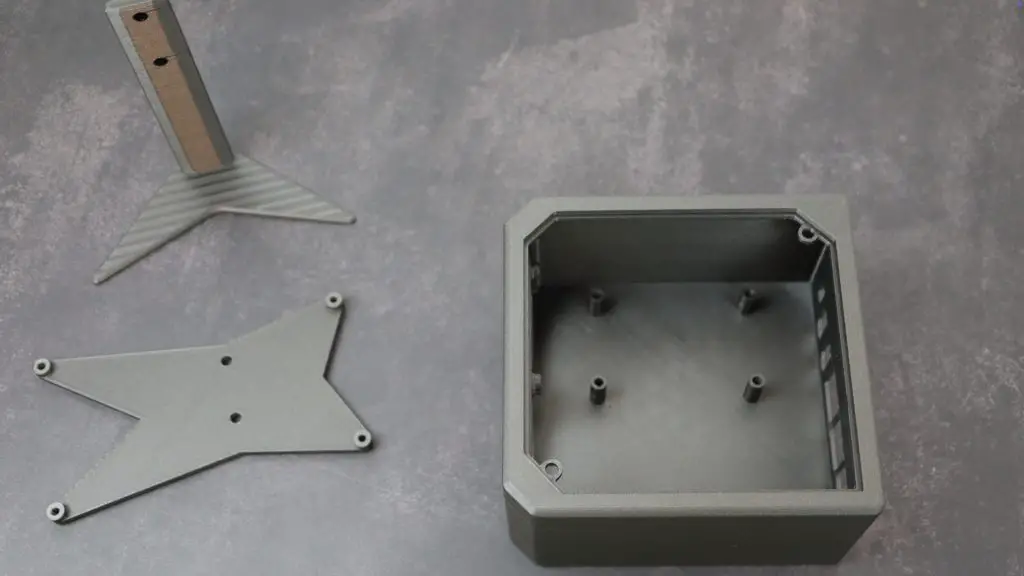
To expand storage, the Zimaboard 2 was installed in a 3D-printed 1U shelf and fitted out with:

  • 1 x 2TB NVMe drive (on the PCIe port)
  • 2 x 1TB 2.5” SATA SSDs

The board features four M3 mounting points to install it into a case or rack. I used these to secure it to my 1U shelf.

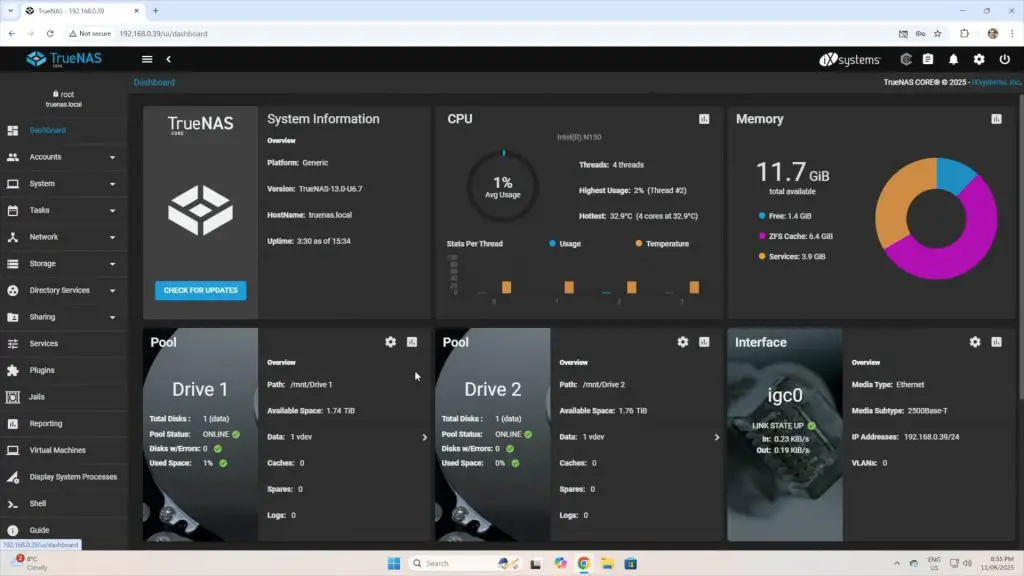
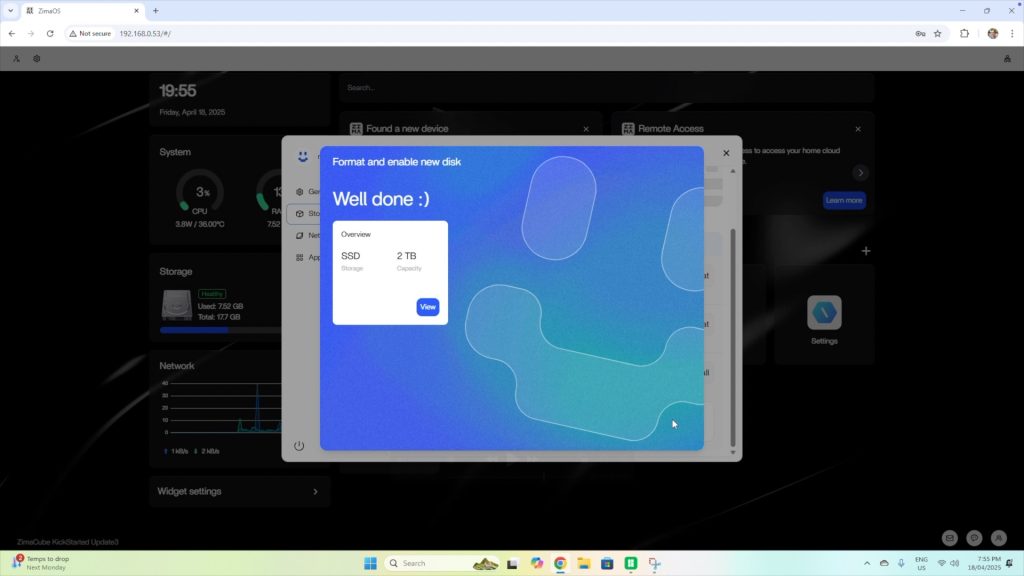
Upon reboot, all three drives were recognized in CASA OS.

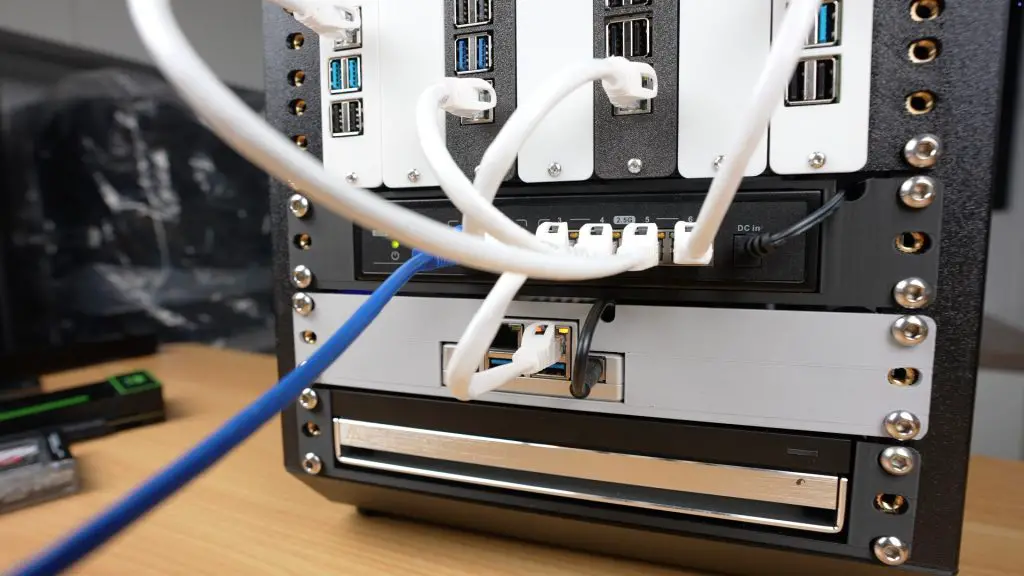
Zimaboard 2 In Lab Rax

The NVMe drive was formatted for general storage. The two SATA SSDs were combined into a RAID 0 array using CASA OS, ideal for non-critical media storage (e.g. for a Plex server).

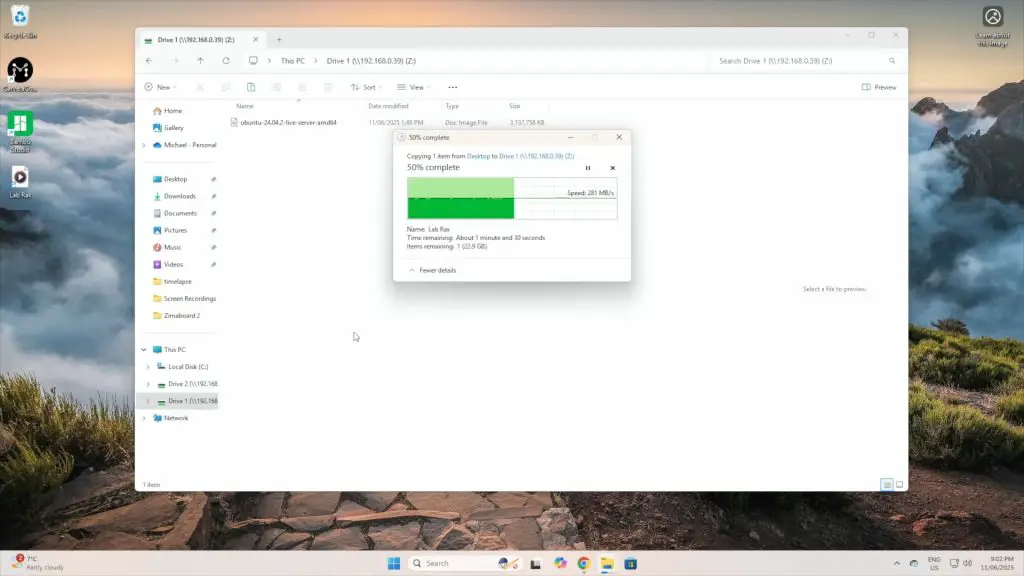
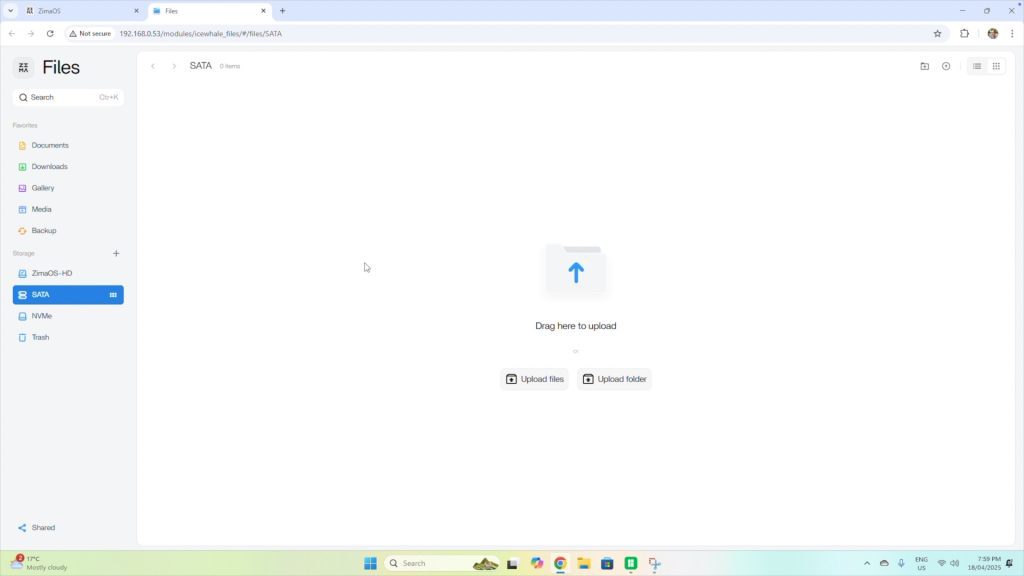
File access via the Files app was seamless, and the storage was also visible under the Storage tab. Drives were mapped to a PC for use as a basic NAS.

Drives Now Showing In Files App

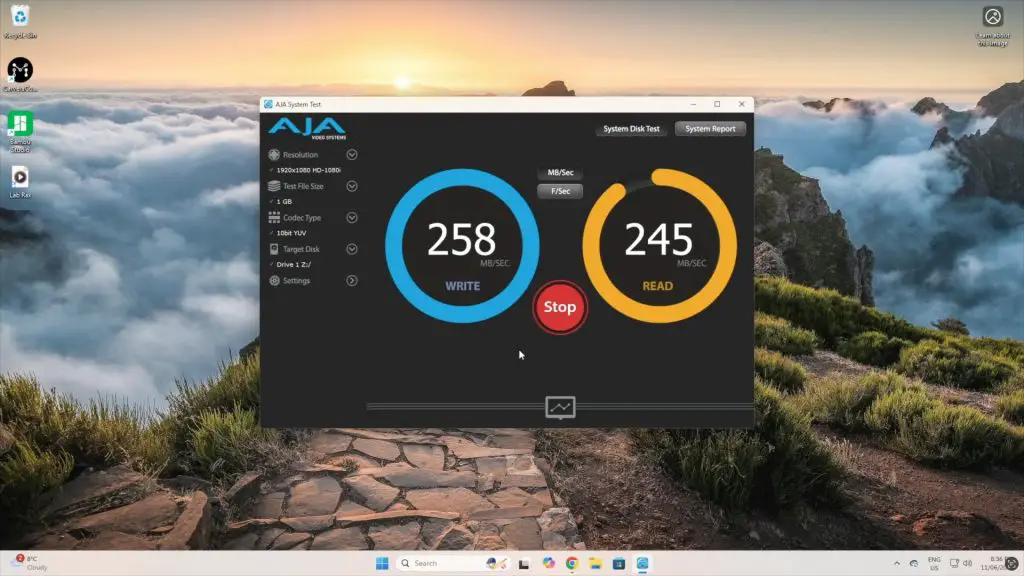
Storage Performance

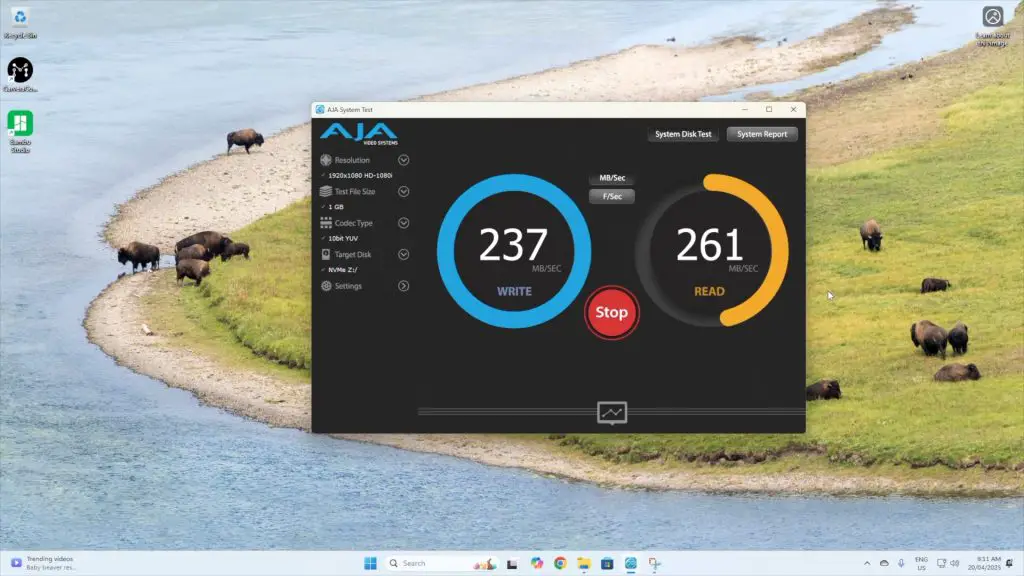
  • NVMe:
    • Write: ~240MB/s
    • Read: ~260MB/s
  • SATA RAID 0 array:
    • Write: ~230MB/s
    • Read: ~260MB/s

These are quite good results, especially over a 2.5G network connection, making the Zimaboard 2 very capable as a networked storage server.

Final Thoughts On The Zimaboard 2

The Zimaboard 2 delivers a meaningful upgrade over the original. With faster CPU and RAM, better graphics, and a sleek aluminium case, it looks and feels like a premium homelab device. The inclusion of dual 2.5G Ethernet ports and a PCIe Gen 3 x4 slot opens up many more possibilities for custom setups.

Zimaboard 2 Close Up Ports

Thermal performance is impressive for a fanless design, although the case does get hot under prolonged full load. Storage expansion is easy, and CASA OS continues to offer a smooth and beginner-friendly platform for managing containers, apps, and storage.

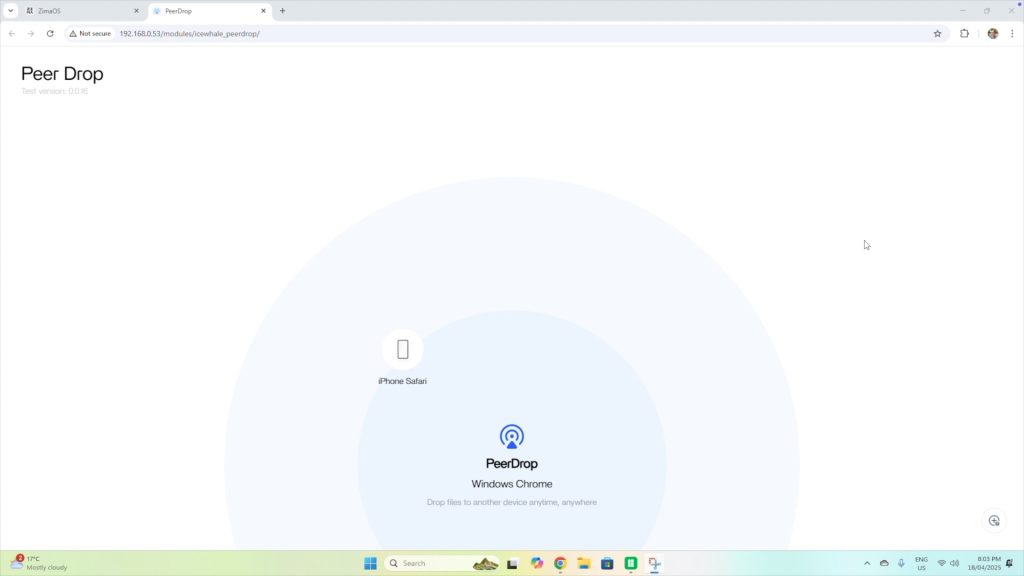
One standout feature is PeerDrop, which enables file sharing between devices on the local network using just a browser — a handy Apple AirDrop-style tool that works across all platforms.

Peer Drop On CASA OS

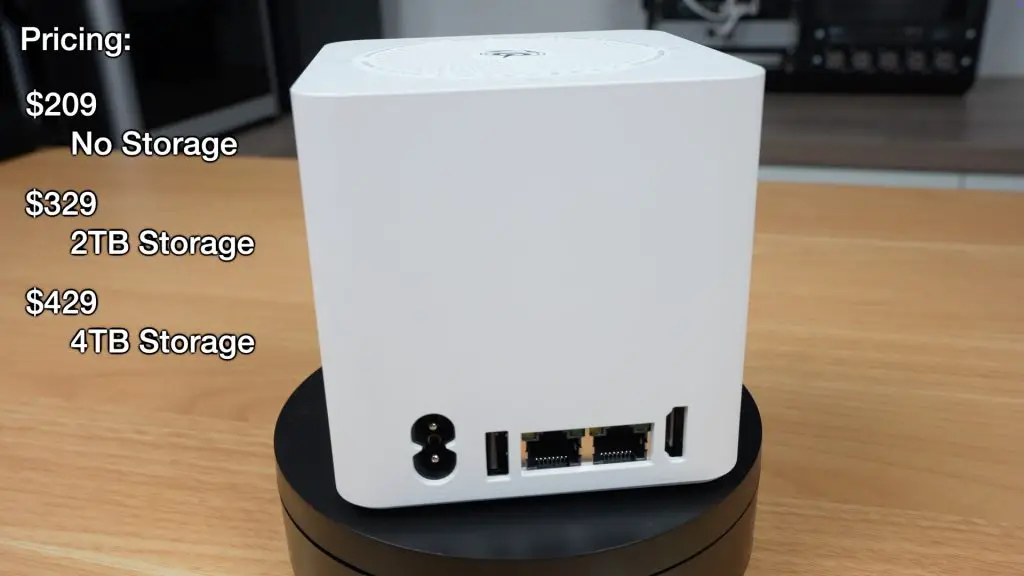
The Zimaboard 2 is a powerful and quiet mini-server board, ideal for DIY NAS, media servers, and homelab projects. Pricing is still unconfirmed at the time of writing, but if it lands between $180–$240, it will be a competitive option. Any higher, and it may start to overlap with more capable mini PCs.

Let me know what you think of the Zimaboard 2 in the comments section below.

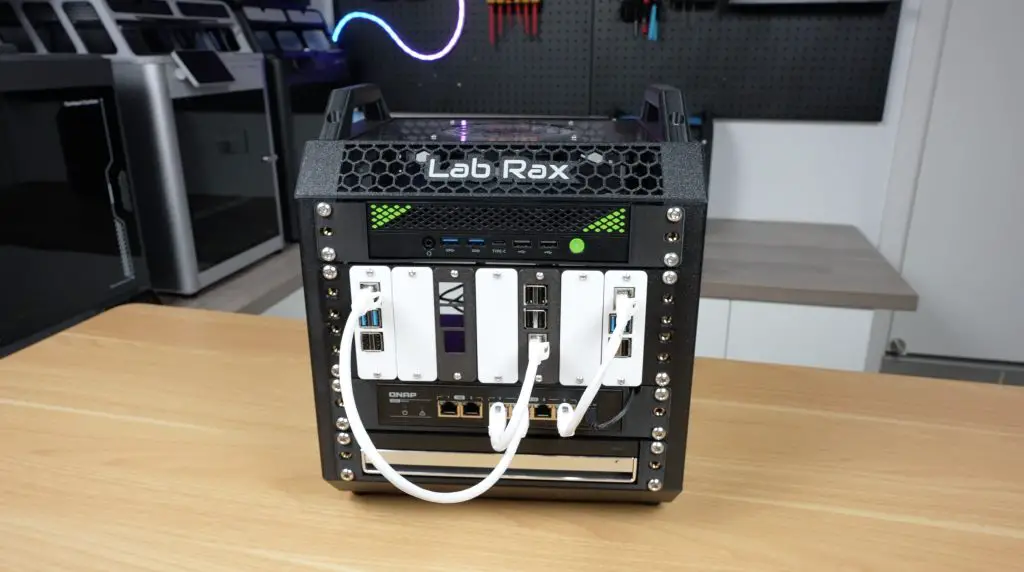
Introducing Lab Rax: A 3D Printable & Modular 10″ Rack System

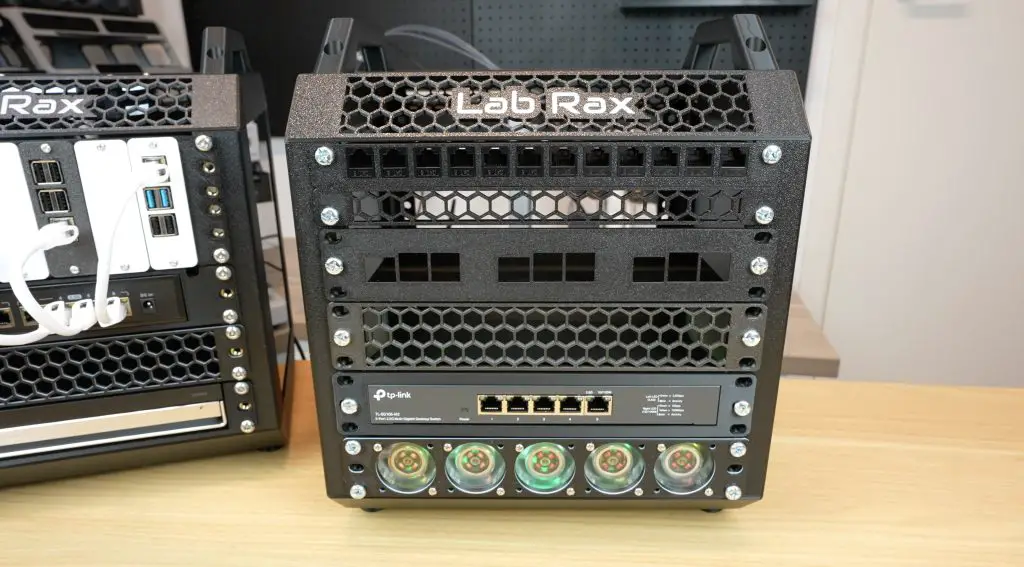
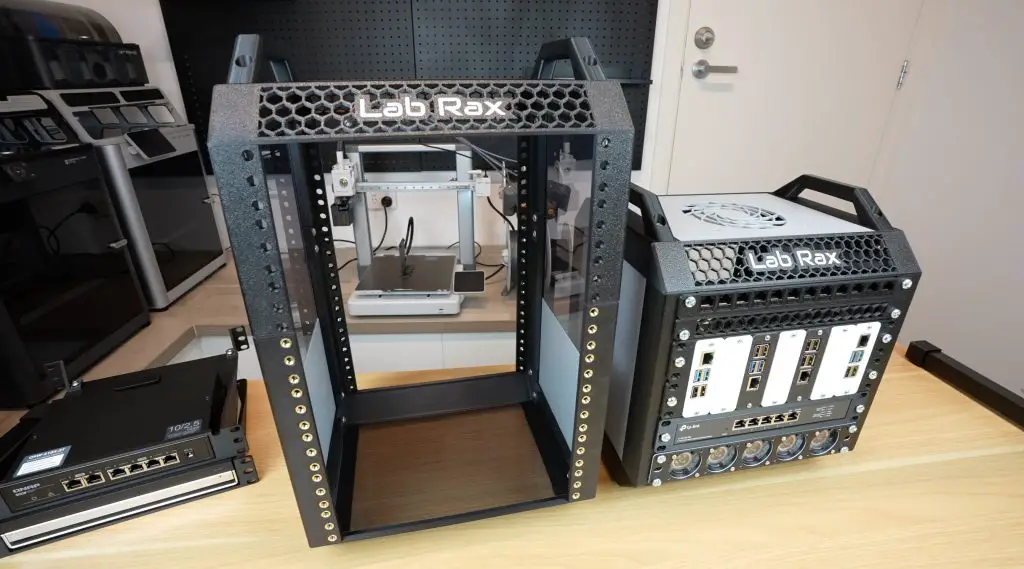
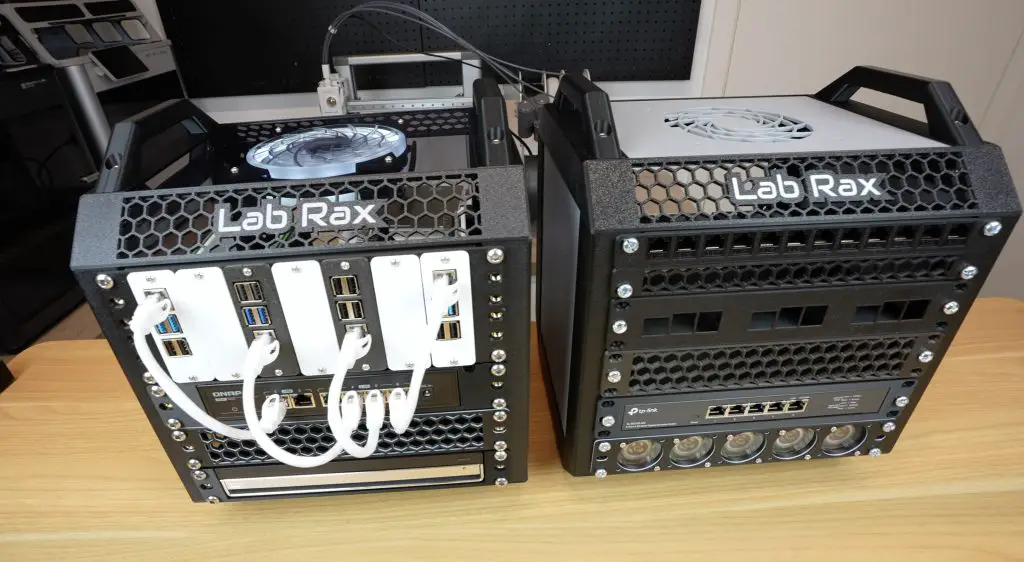
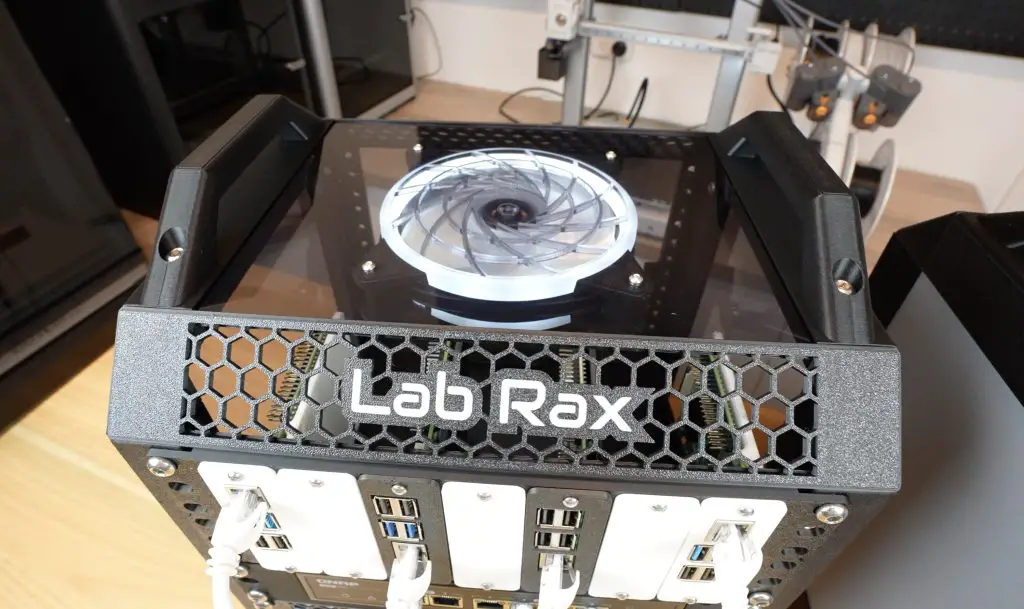
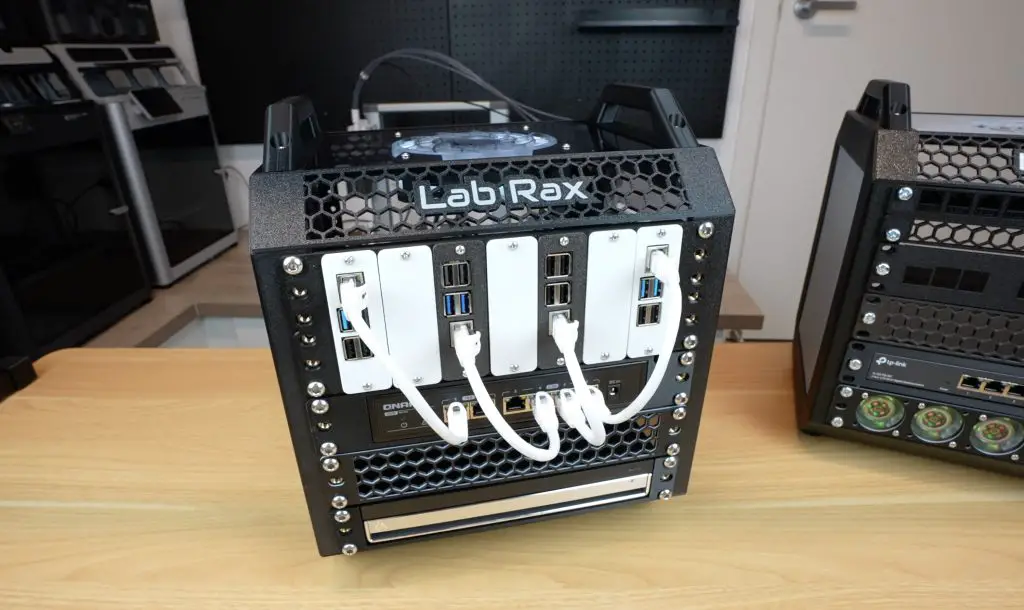
Today, I’m excited to introduce Lab Rax, my latest 3D-printable project—a fully modular and customizable 10-inch server rack system for homelab enthusiasts. Whether you’re managing Raspberry Pi setups, mini PCs, or networking gear, this rack is designed to keep everything organized, adaptable to your needs, and look great on your desk.

Here’s my video of the build, read on for the write-up;

What You Need To Assemble Your Own Lab Rax

  • M6x10mm Button Head Screws (16 Required For Frame + Additional For Racks) – Buy Here
  • M6 Brass Inserts (8mm OD, 4mm Length) – Buy Here

For Bolted Version

Metric

  • M6x12mm Button Head Screws (16 Required For Frame + Additional For Racks) – Buy Here
  • Optional Black Version of Above to Match Print – Buy Here
  • M6 Nuts (16 Required For Frame + Additional For Racks) – Buy Here

Imperial

  • #10-32 x 1/2 Button Head Screws (16 Required For Frame + Additional For Racks) – Buy Here
  • Optional Black Version of Above to Match Print – Buy Here
  • #10-32 Nuts (16 Required For Frame + Additional For Racks) – Buy Here

Equipment Used

What Makes Lab Rax Special?

Fully 3D Printable

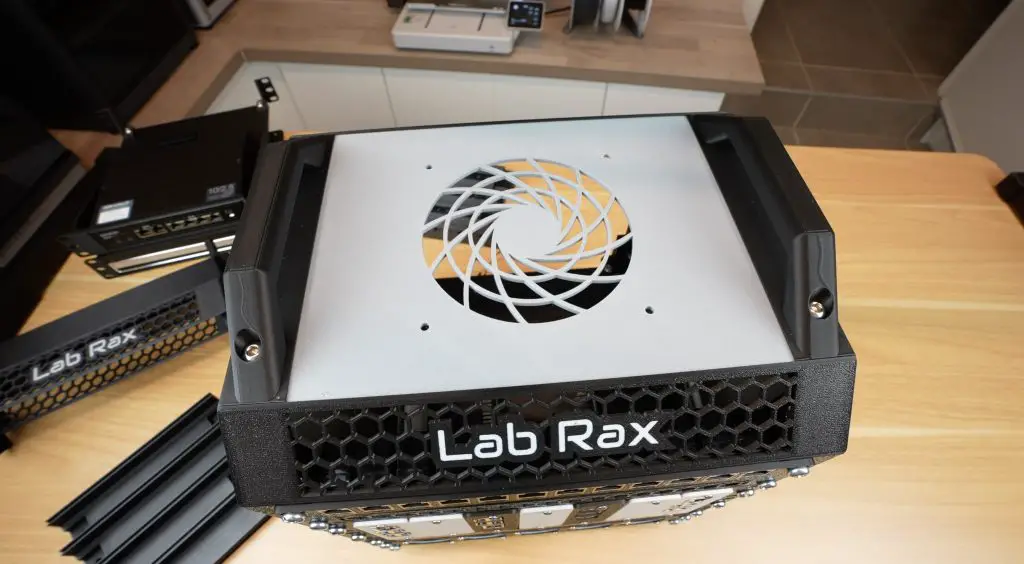
Lab Rax is designed to be completely 3D printable, except for a few fasteners and brass inserts that hold it together. It’s optimised for common 3D printer bed sizes of around 250mm square, meaning you don’t need a large-format printer to produce it. The design also requires minimal support material, just four thin strips on the edge pieces, so there’s very little filament waste and hardly any post-processing needed.

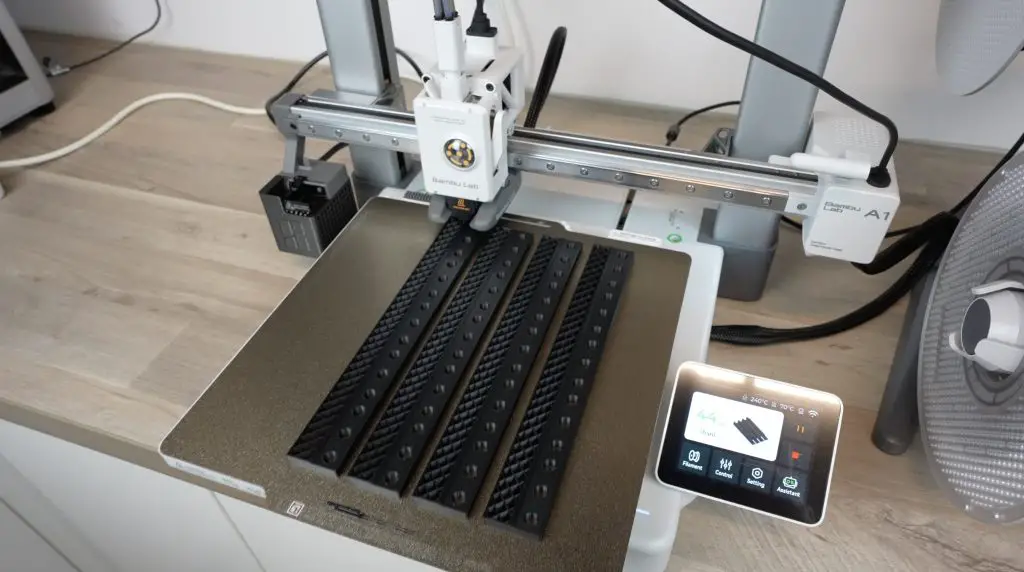
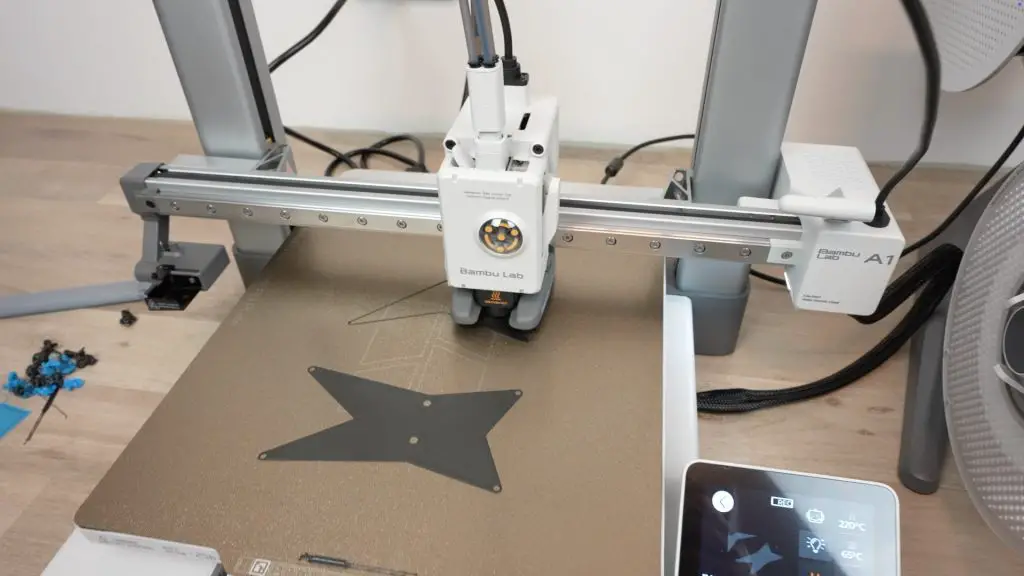
Bambulab A1 combo Printing Lab Rax

Modular Design

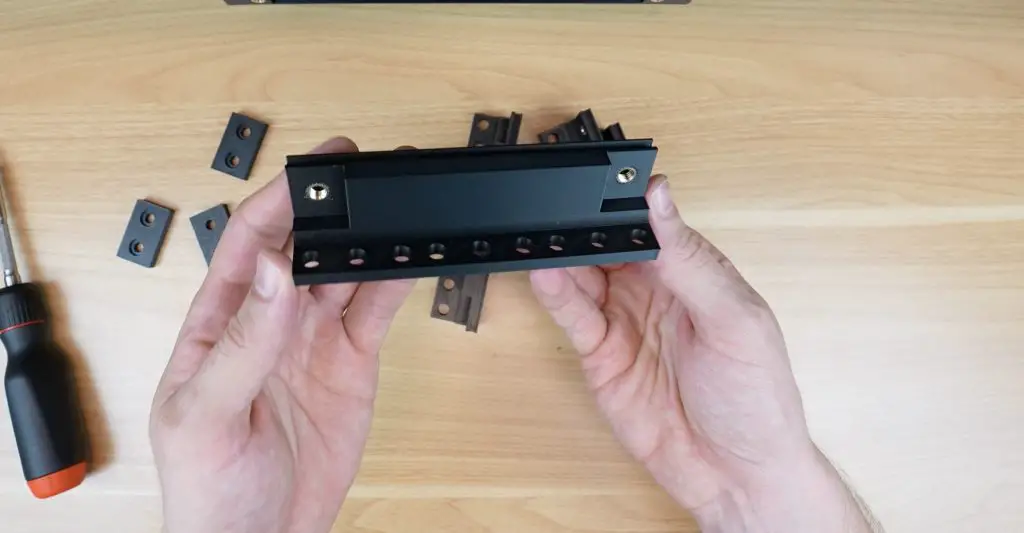
The side panels and posts come in increments from 1U to 5U (5U being the largest that fits a 250mm print bed). You can also combine two sections to create any combination of units up to 10U. You can technically add a second joint and extend the rack beyond 10U, but the strength of the 3D-printed parts becomes an issue when going beyond that with a rack full of equipment.

Lab Rack Sizes

Cost-Effective

Pre-made 10-inch mini racks typically cost between $80 and $150 for the frame alone. In contrast, a 5U Lab Rax frame uses about 580g of filament and an additional 360g for side panels (if you choose to add those). A single 1kg spool of PETG is enough to print out a complete rack and side panels and costs around $15. Add about $6 for the brass inserts and M6 screws, and the total cost is only $21 – nearly a quarter of a commercial version’s price.

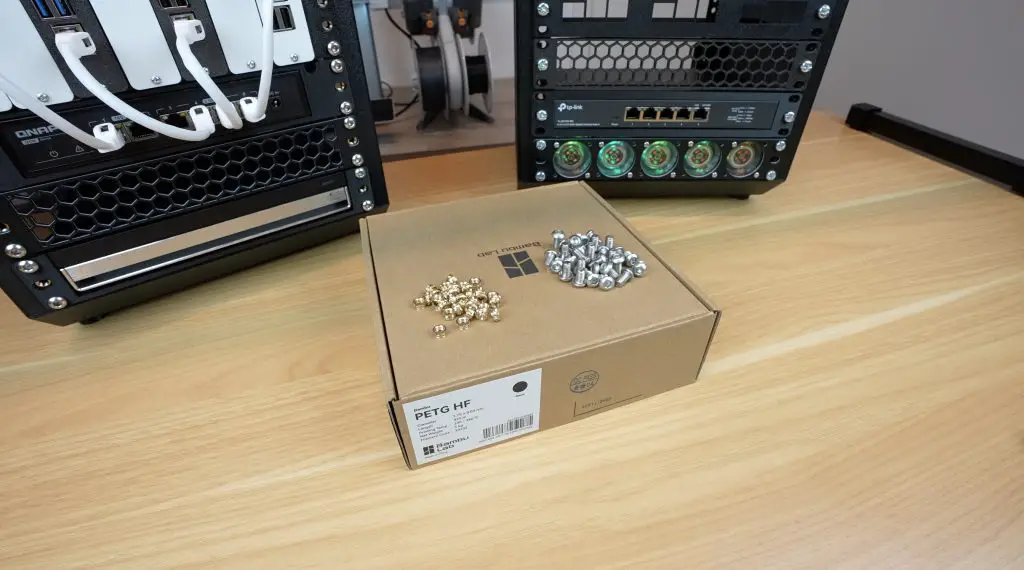
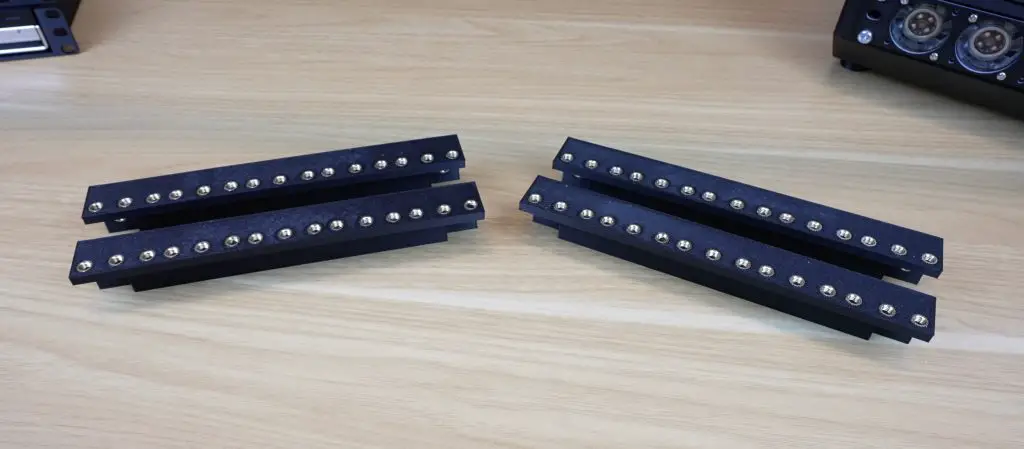
M6 Screws and Brass Inserts

Lab Rax Dimensions & Compatibility

There is no strict standard for 10-inch racks, but Lab Rax follows the most commonly accepted dimensions.

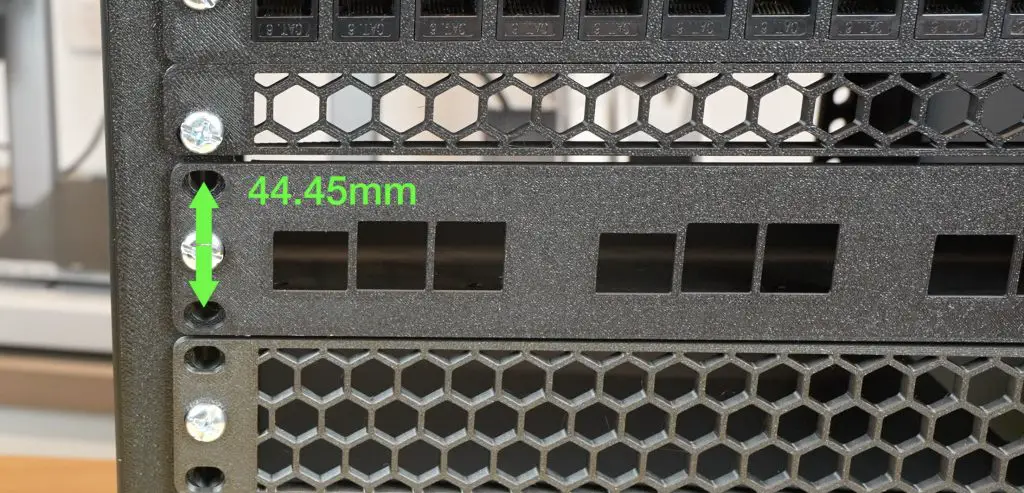
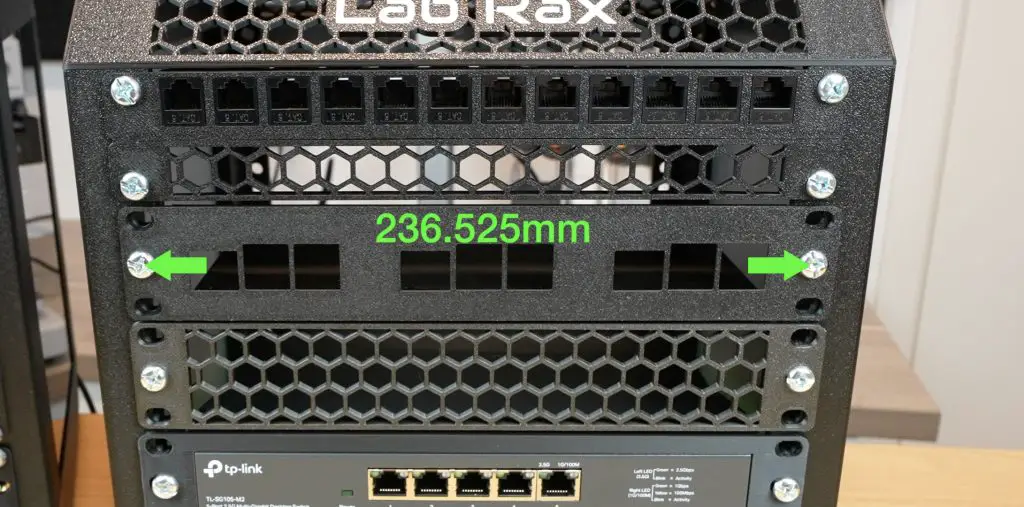
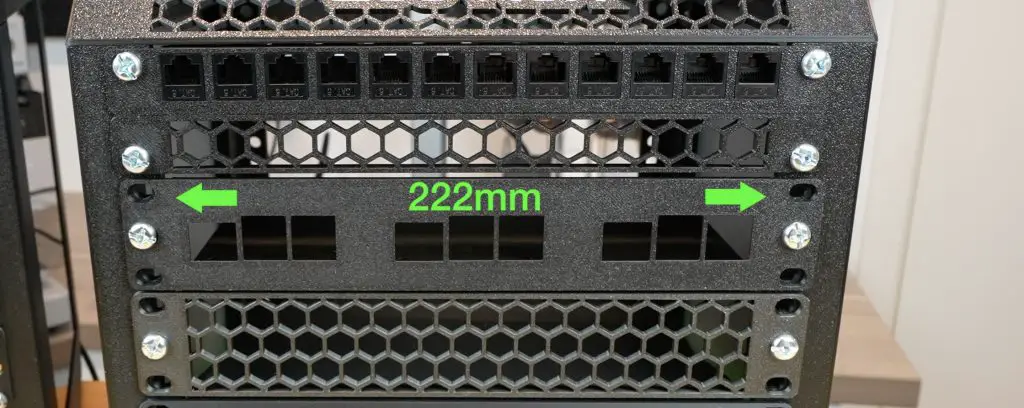
It uses the standard 44.45mm rack unit spacing that is used on larger 19-inch racks, with holes 236.525mm apart and a usable width of 222mm between posts. This makes it compatible with most commercially available 10-inch hardware.

I opted to use M6 screws over 10-32 screws because they are easier to find in Australia, Asia, and Europe. Lab Rax is designed to use M6x10mm screws both for securing the racks and assembling the frame, so you don’t need to buy a bunch of different screw sizes.

Update: I have now put together a bolt-together version that used standard nuts instead of brass inserts. This is compatable with M6 and #10-32 hardware.

Customing Lab Rax

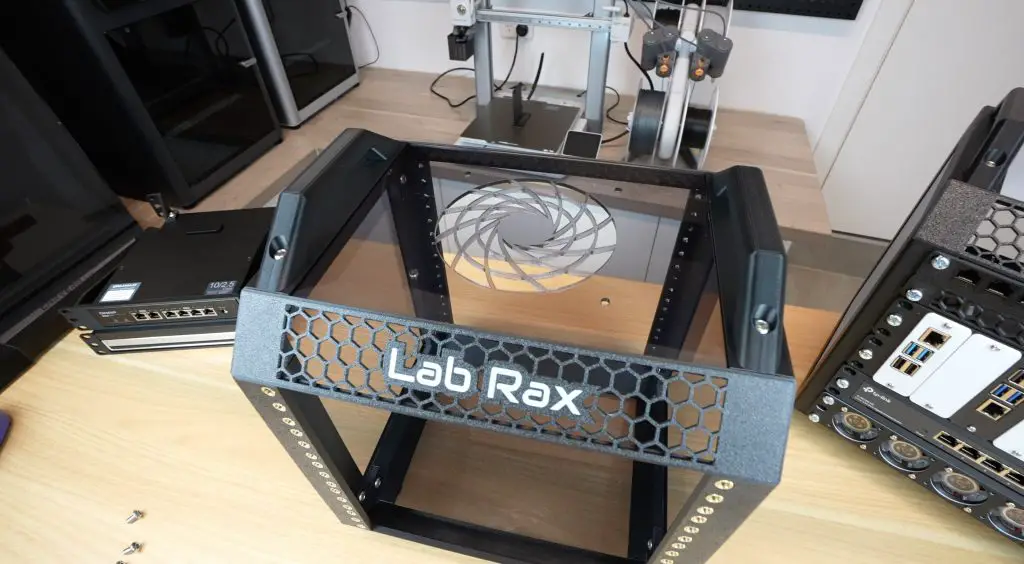
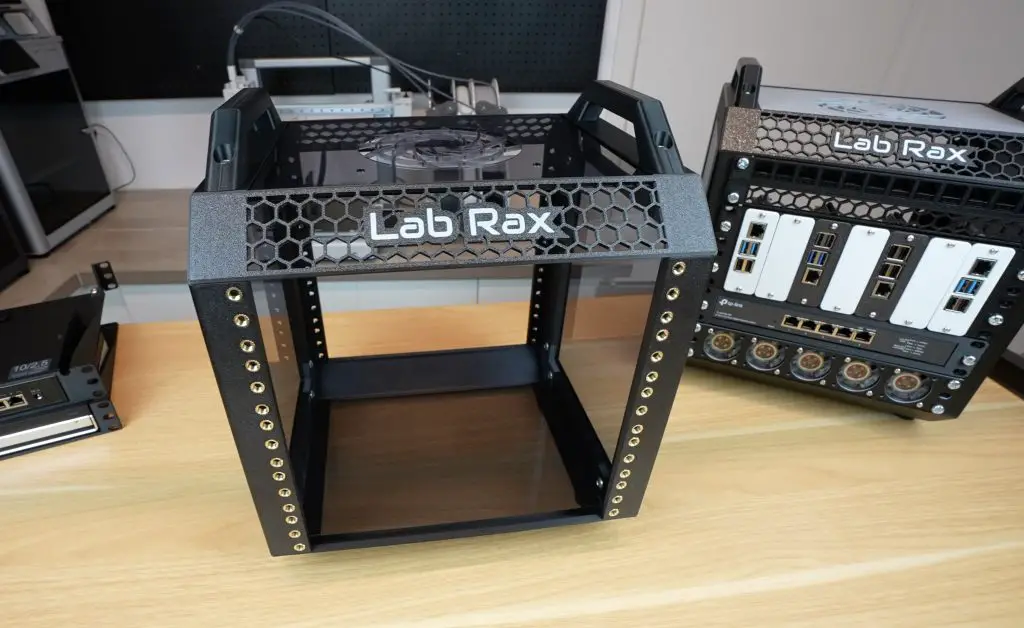
One of the best things about Lab Rax is its customizability! Being 3D printed, you can choose from a wide range of filament colors. I’ve used PETG for durability and heat resistance, but PLA works fine for setups with minimal heat, like a few Raspberry Pis and a small networking switch.

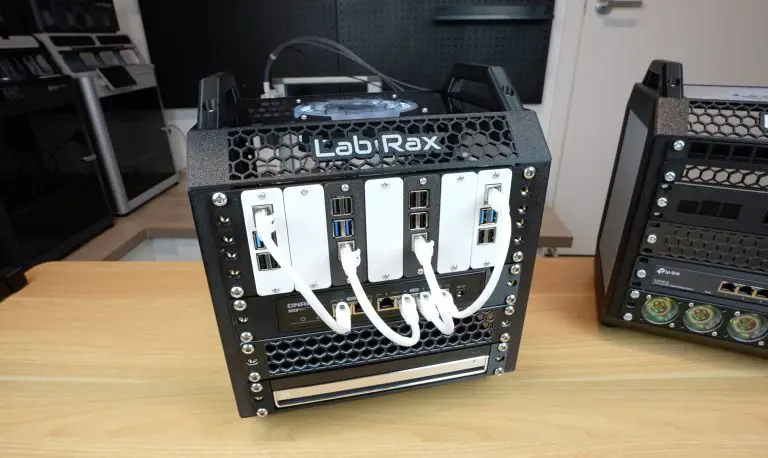
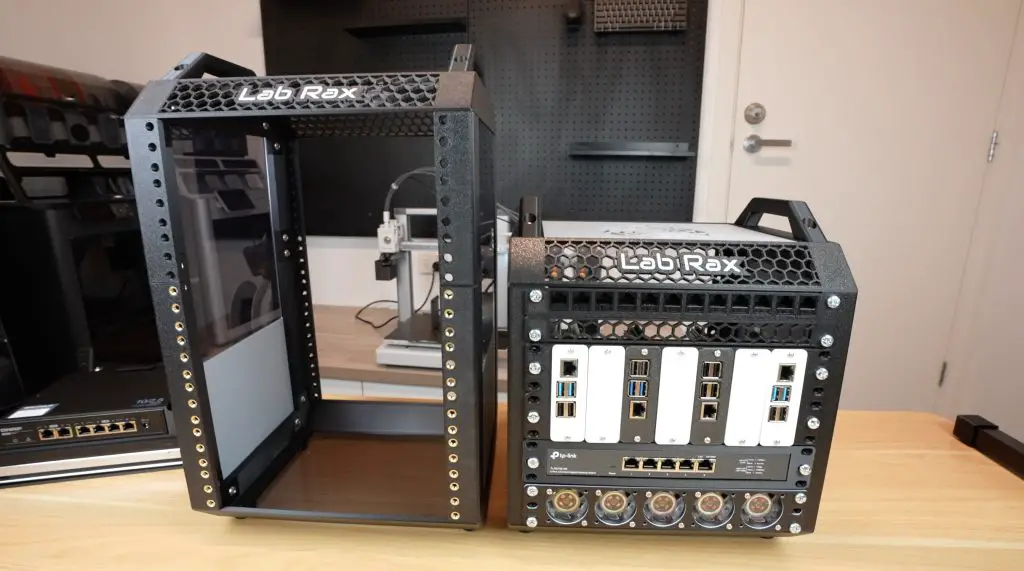
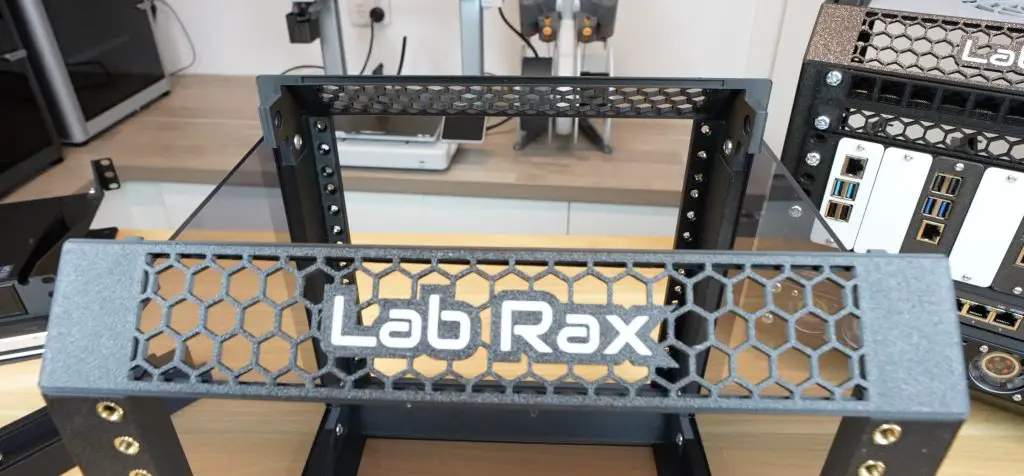
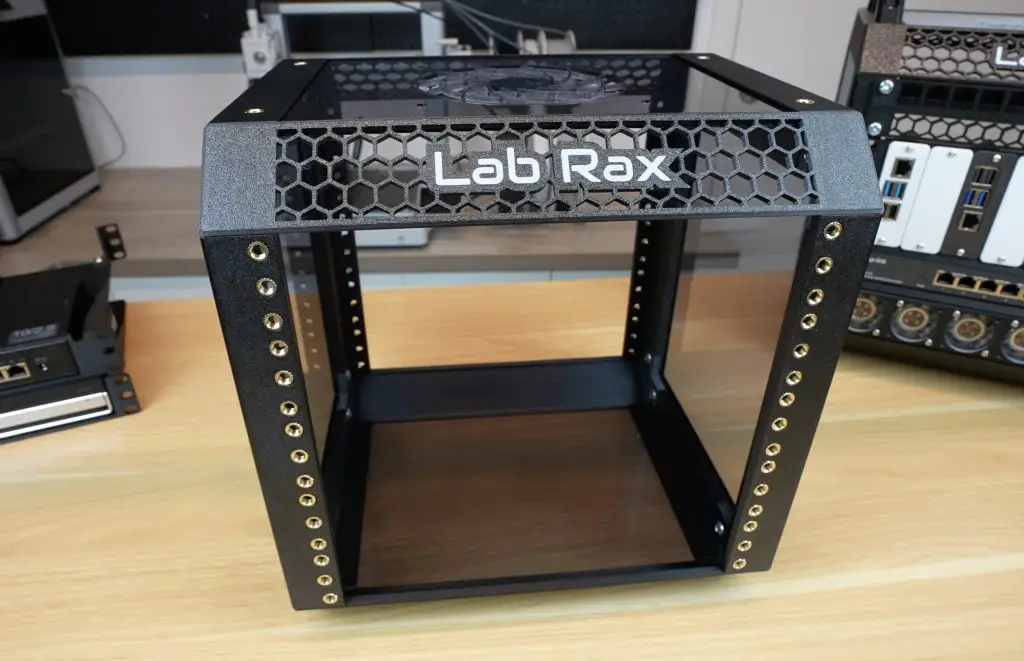
Lab Rax Empty Rack

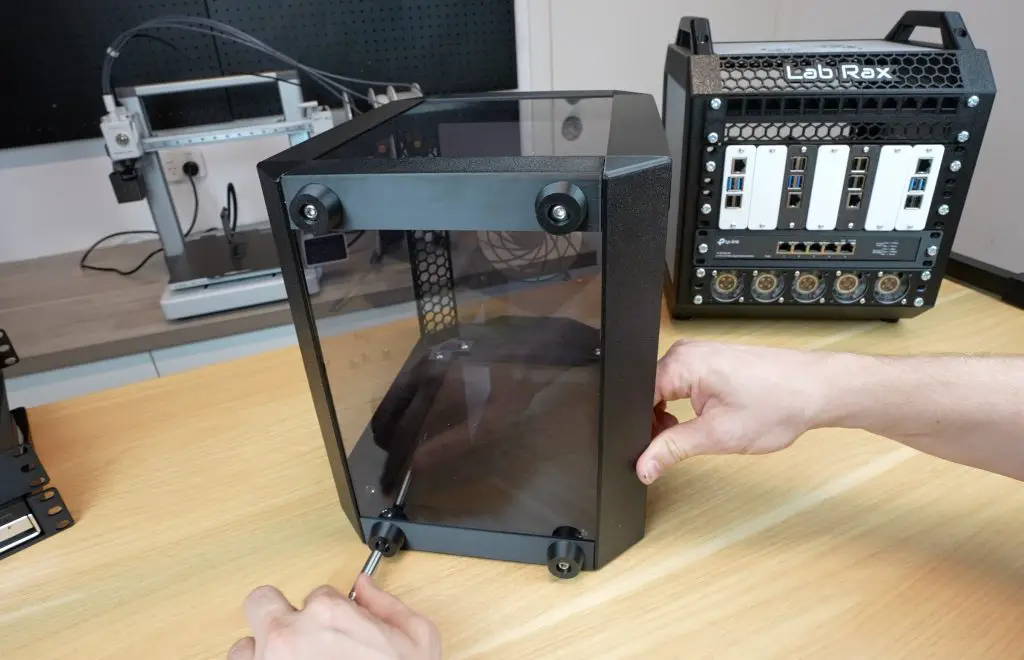
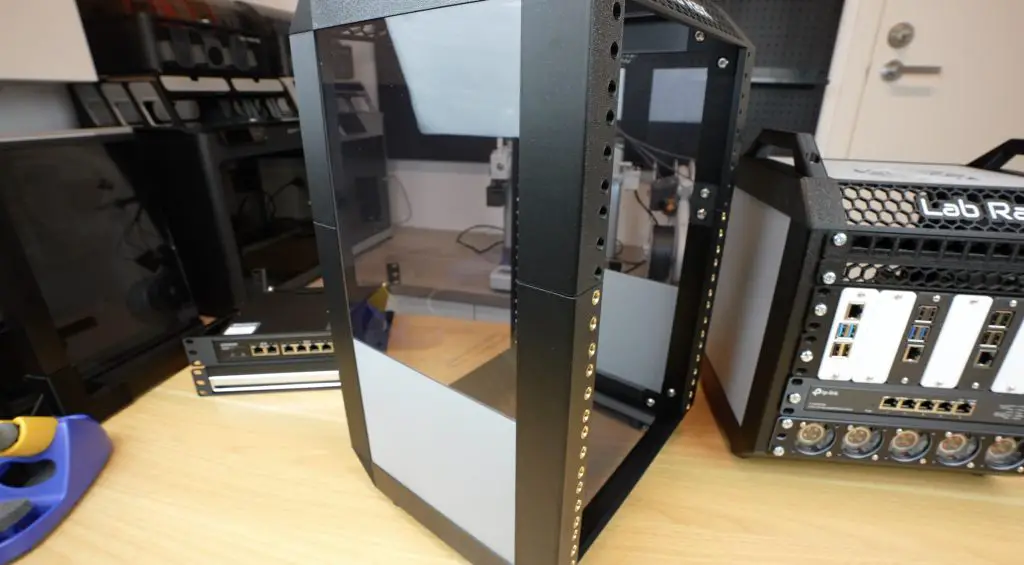
For the two sides, top and bottom panels, you can either 3D print them to match or contrast the frame or cut them from 3mm acrylic or plywood. This allows for clear or tinted window panels or even stylish wooden accents.

Printing Out The Components

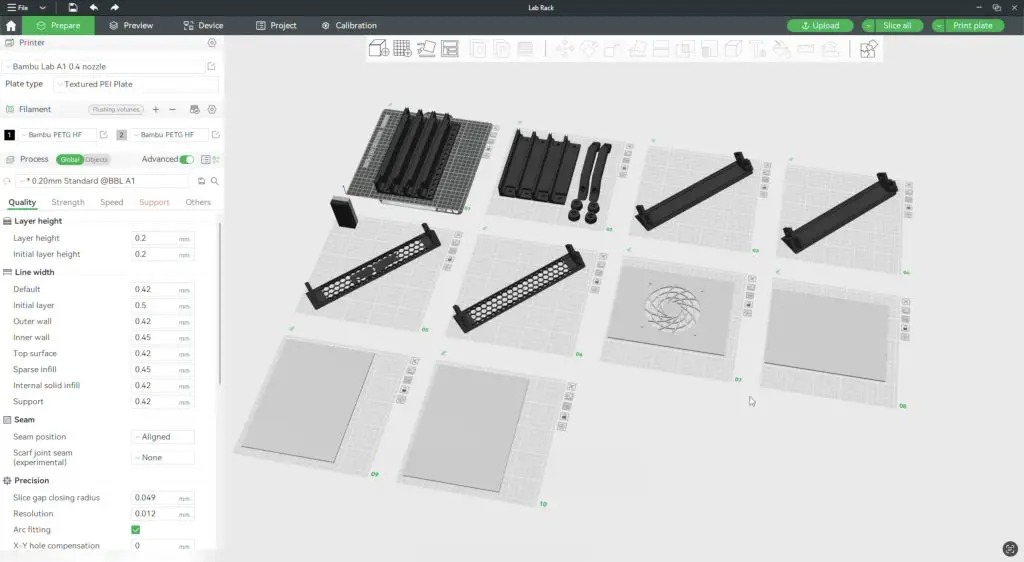
I printed all the parts using the Bambulab A1 Combo, which has a 256mm x 256mm print bed. A full 5U frame and side panels prints across 10 plates in about 26 hours.

Download the 3D print files

Download the additional sizing options

Download the Bolt Together Version (M6 and #10-32 Compatable)

This includes;

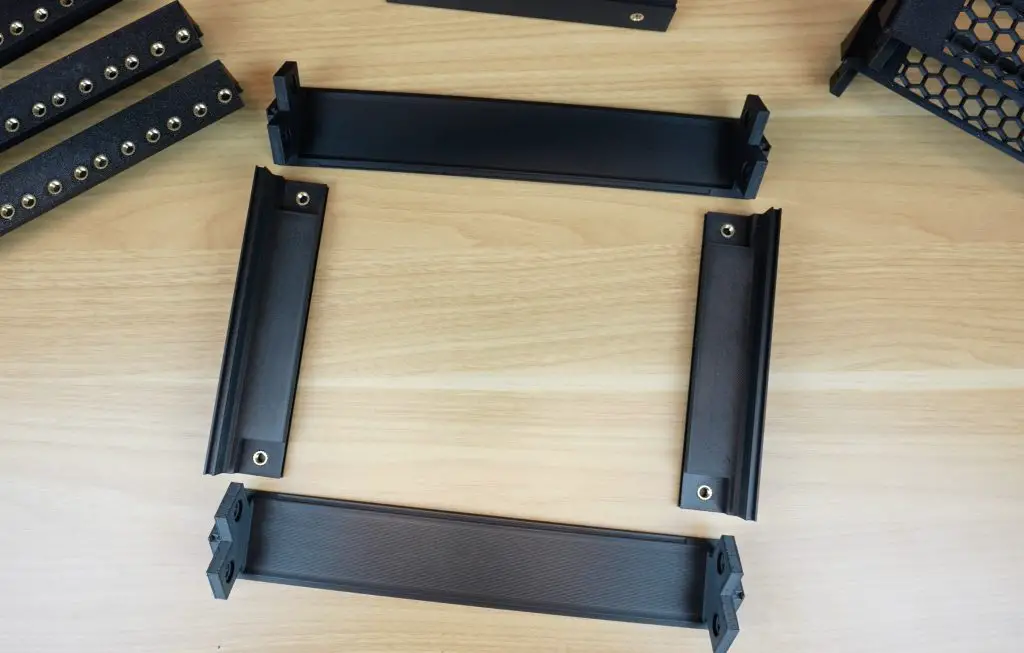
  • Four vertical posts, printed in a set of four.
  • Four edge pieces, two handles, and four feet.
    • The feet can also be printed separately in TPU for vibration dampening if you’re running fans or harddrives in your rack.
  • Four individual horizontal pieces: These only fit diagonally on the bed, so they need to be printed individually, but they print quite quickly—about 1.5 hours each.
  • Four individual panels, a set for the two sides, and a set for the top and bottom. The top can be printed with a fan cutout for a 120mm fan.

The next section has a full bill of materials to ensure that you have the right quantities.

A1 Printing Vertical Posts

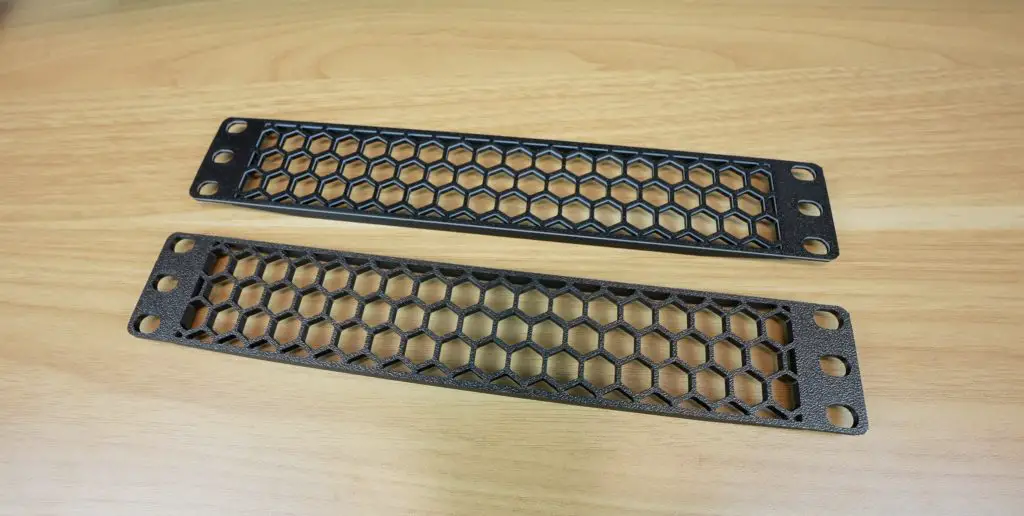
Using the AMS Lite on the A1, you can print in multiple colors to further customise your rack. You can add coloured accent layers, like I’ve done on the vent and fan panels, or add text labels to identify rack components.

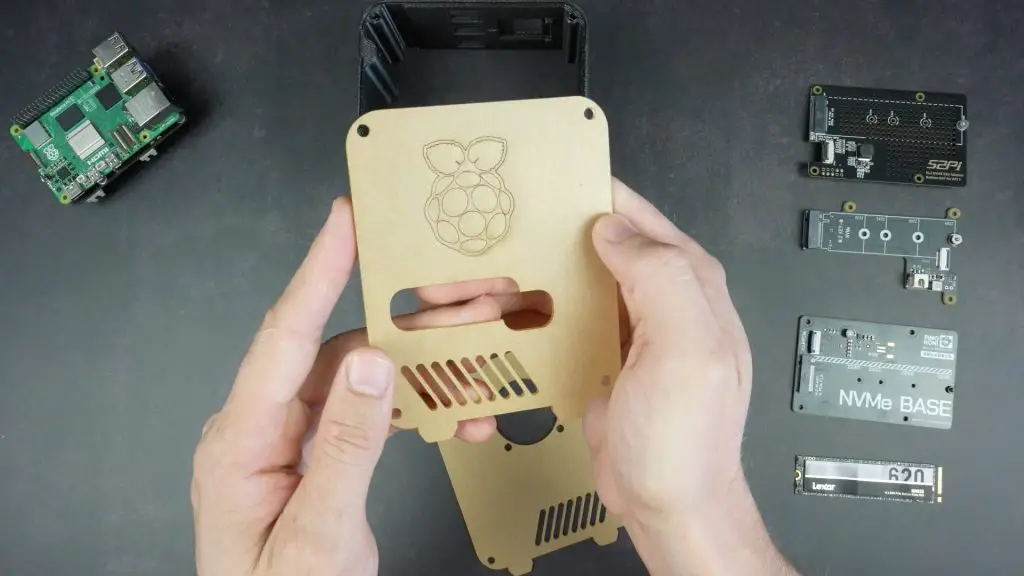
I also tested two styles of side panels: a set of 3D-printed panels in grey on my first rack and a set of laser-cut 3mm tinted acrylic panels on my second rack. I personally prefer the acrylic panels for a sleek look.

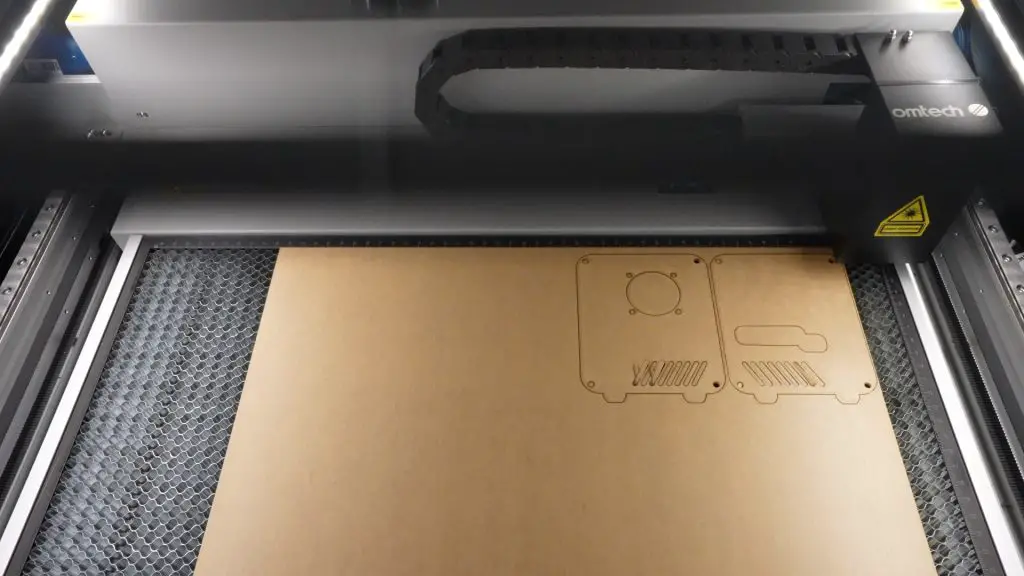
Laser Cutting Acrylic Panels

Bill of Materials

Now that we’ve had a look at the design and 3D print requirements, here is a full Bill of Materials to help out with ensuring that you have all of the components you need to build your Lab Rax frame;

Item NoDescriptionQuantity
1M6x10mm Button Head Screw24
2M6 Brass Insert (8mm OD, 4mm Length)24
3M6 Brass Inserts (To Mount Equipment)6 per rack unit (U)
4Vertical Post4
5
Horizontal Edge (Either Solid Or Vented)
4
6Edge4
7Handle2
8Foot4
9Side Panel2
10Top Panel1
11Bottom Panel1

Assembling Lab Rax

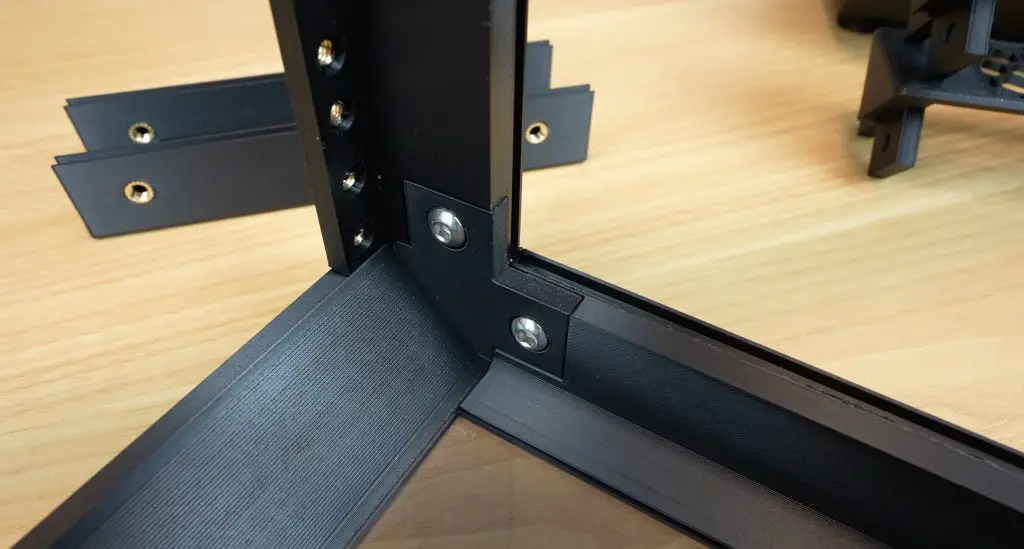
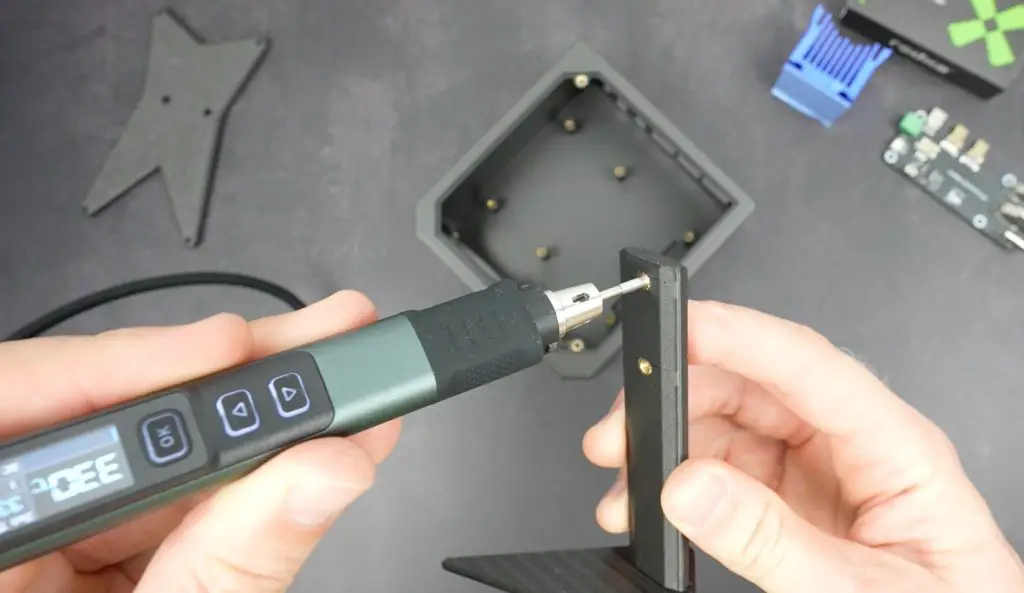
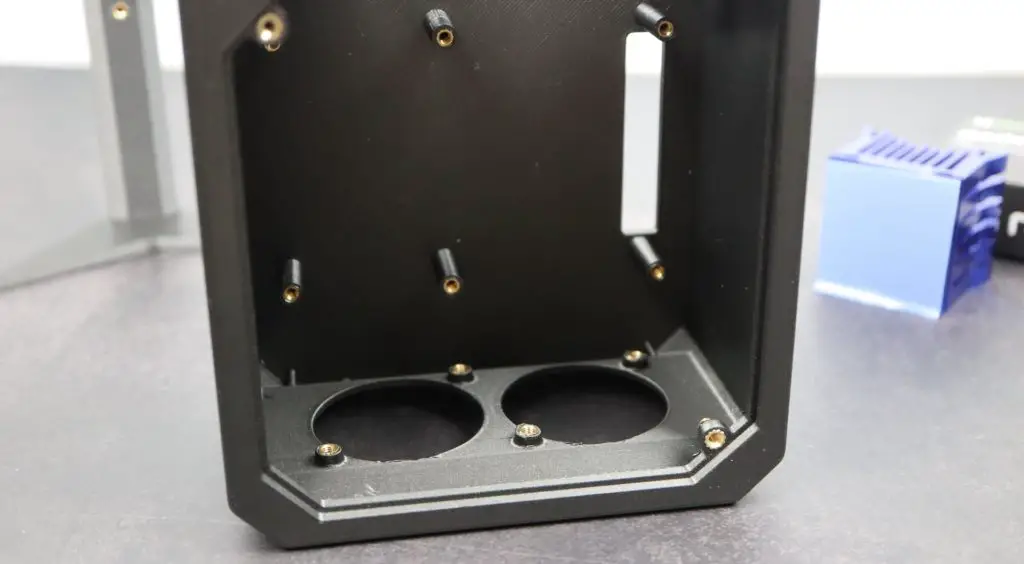
Lab Rax is assembled using M6x10mm screws and brass inserts. Each of the four posts and four edge pieces need two brass inserts, which are melted into place using a soldering iron. There are also brass inserts in the top and bottom of the edge pieces to mount the handles and feet onto.

There is the option of either using nuts on the back of the M6 screws to secure the racks or you can add brass inserts to the vertical posts so that they can just be tightened from the front, sort of like a captive nut used on a 19″ rack. I made my first up to use nuts and the second one I’ll make up using brass inserts.

With those melted into place we can start assembling the base.

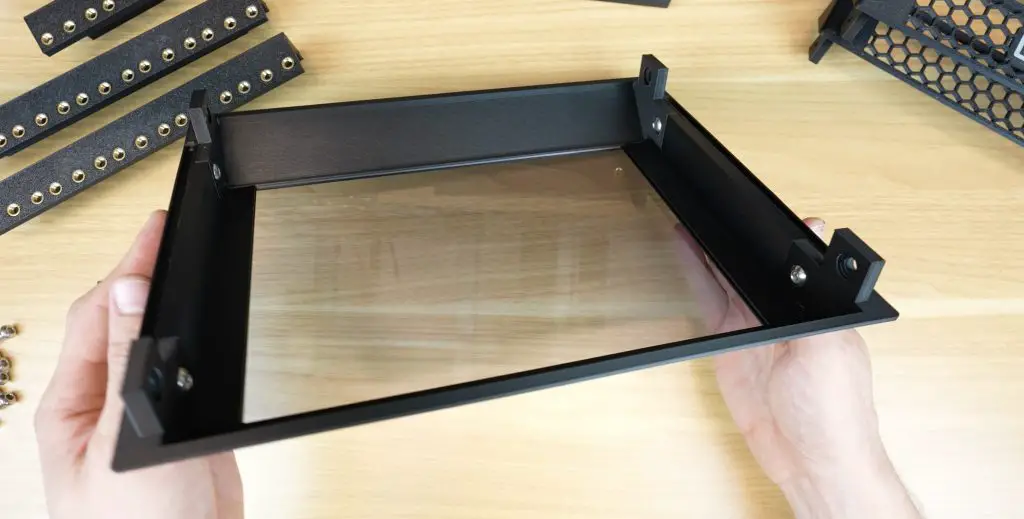
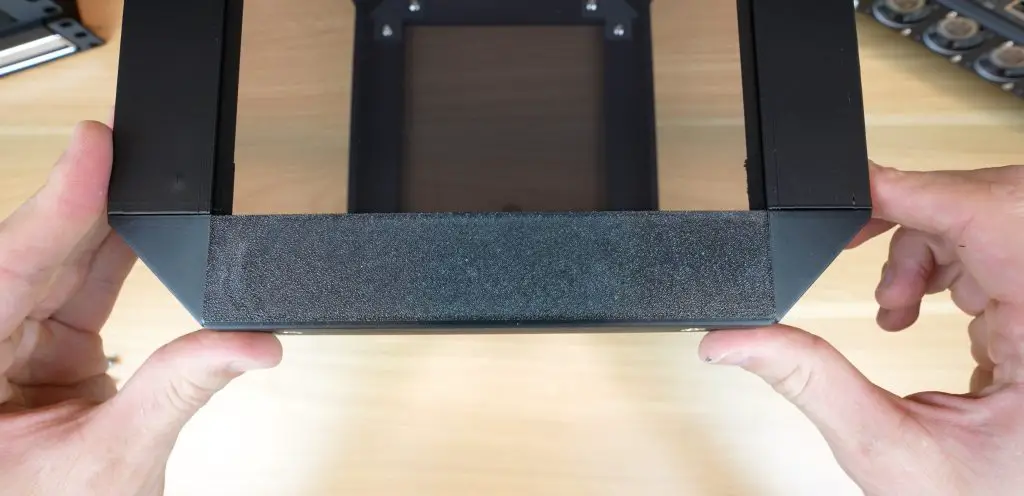
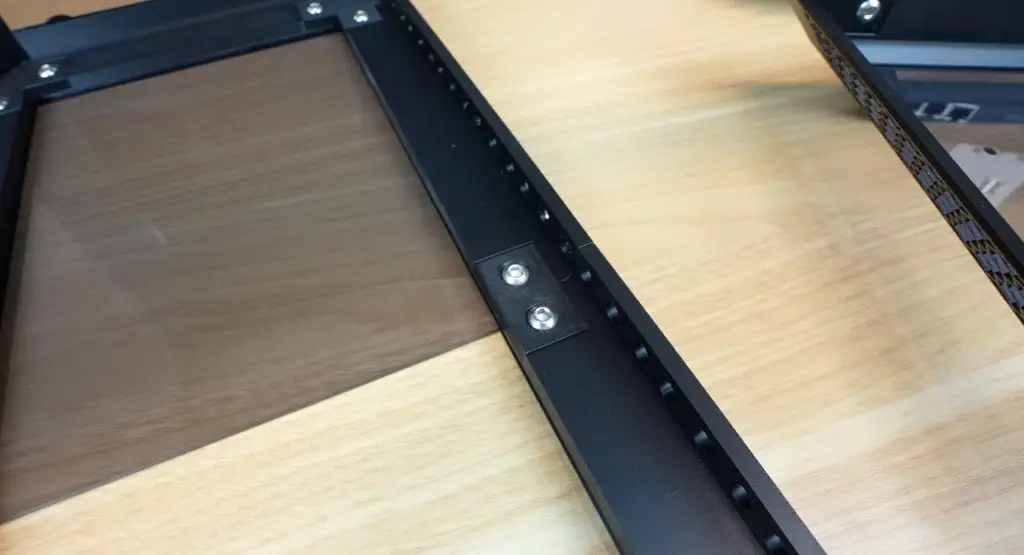
Two of the side edge pieces and two horizontal pieces are assembled around the 3D printed or acrylic base panel, with a single screw at each joint. I’ve used solid horizontal pieces around the base, and I’ll use the vented ones at the top. These are also interchangeable so you can use any combination you’d prefer.

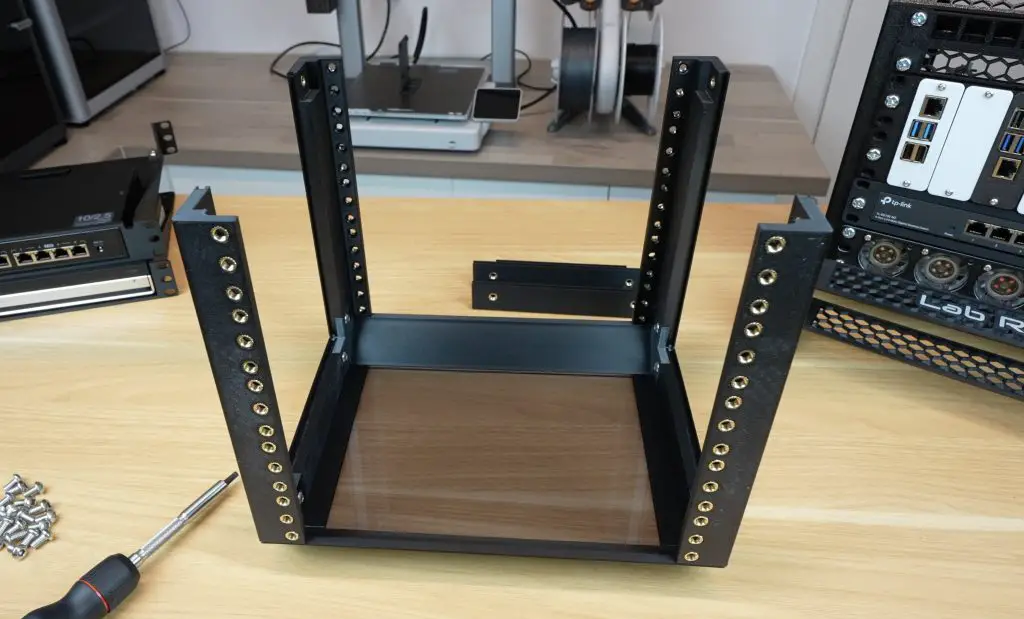
We can then add the four vertical posts, again requiring a single screw at each joint.

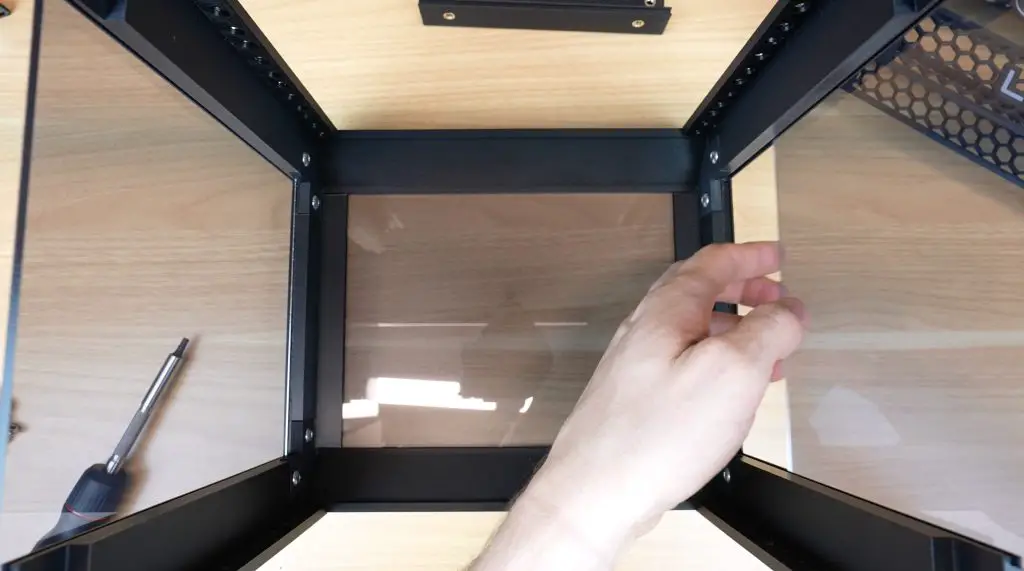
With the vertical posts as guides, we can slide the two 3D printed or acrylic side panels into place.

Sliding Side Panels Into Place

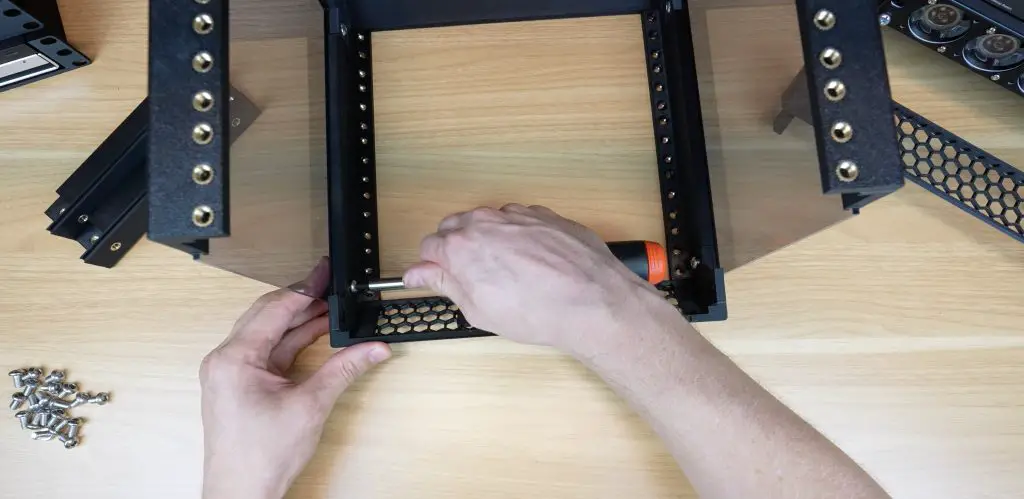
Then add the top two horizontal pieces.

We can add the top panel into the gap and close it up with the last two edge pieces.

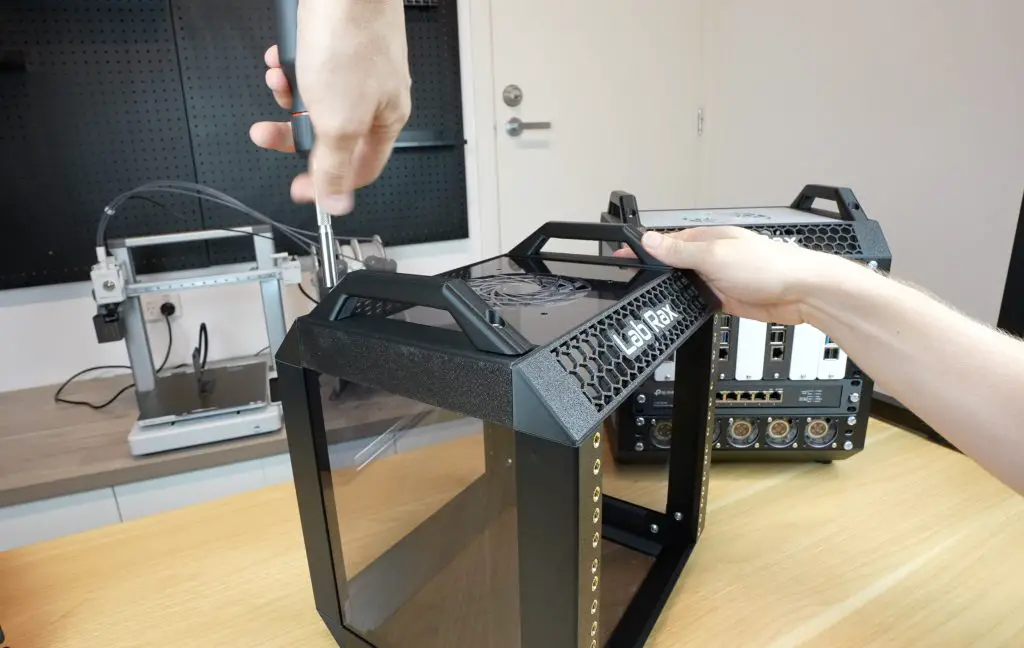
To finish the rack off, we can add the two handles to the top and the four feet to the bottom. These also use the same hole pattern, so you can put handles on the bottom as a stand if you’d like to or feet on the top to stack two racks together.

And that’s the basic rack complete.

Expanding and Customizing the Rack

I mentioned earlier that you can configure the rack to any number of rack units from 1U to 10U and reuse most of the parts. The only parts that need to be swapped out or added to are the four vertical posts and the two side panels.

Model Files For Extension Side Panels & Joiners

If we reprint the 5U posts as smaller sections, we can make up a 3U rack and if we combine the 3U posts with the 5U posts using the designed joiners then we can make up an 8U rack.

If you aren’t using two of the same length posts then it’s a good idea to put the side panels in the opposite way around to the posts so that the joints don’t line up as this gives it a bit more rigidity.

3D Printable 10″ Rack Accessories

To populate the rack, I designed several accessories:

As I find new hardware to add to my rack, I’ll continue to add to the accessory collection. I’m also open to suggestions or request, so leave a comment down below if you have a particular requirement.

Final Thoughts On My Lab Rax Project

So that’s an overview of my Lab Rax project – a modular, fully 3D printable homelab solution that you can customise to fit your needs. If you’re interested in building one yourself, I’ve put all of the Lab Rax system components and the racks and trays shown in this video up on Makerworld.

I’d love to hear your feedback! Let me know if there are any features you’d like to see added or if you’d be interested in a 10-32 screw version. And if you build your own, tag me on social media or drop a comment on Makerworld or my blog – I’d love to see your creations!

This Tiny 3D-Printed Gaming PC Actually Runs Counter-Strike!

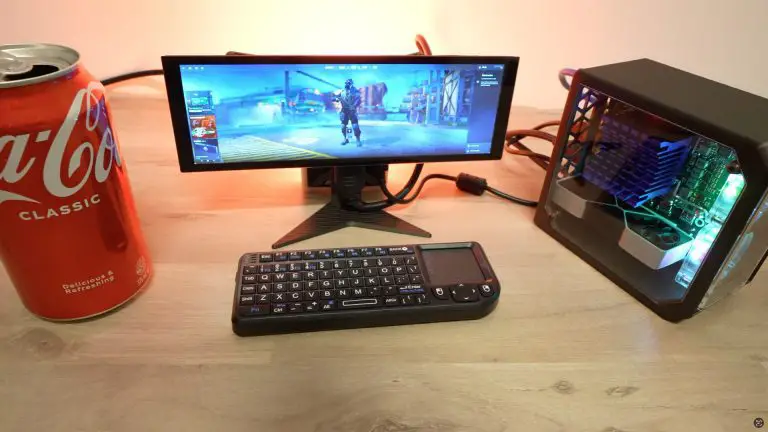
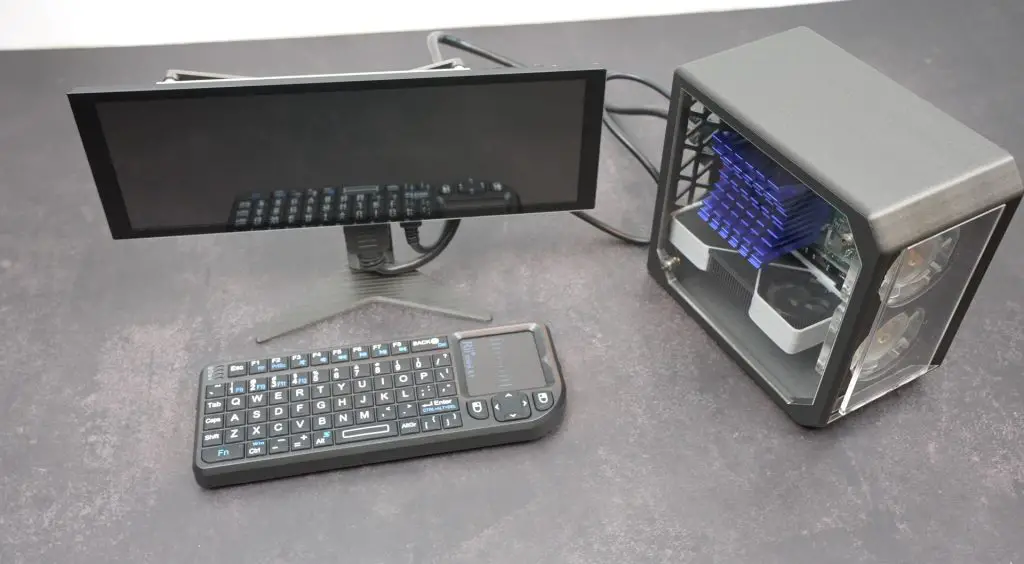
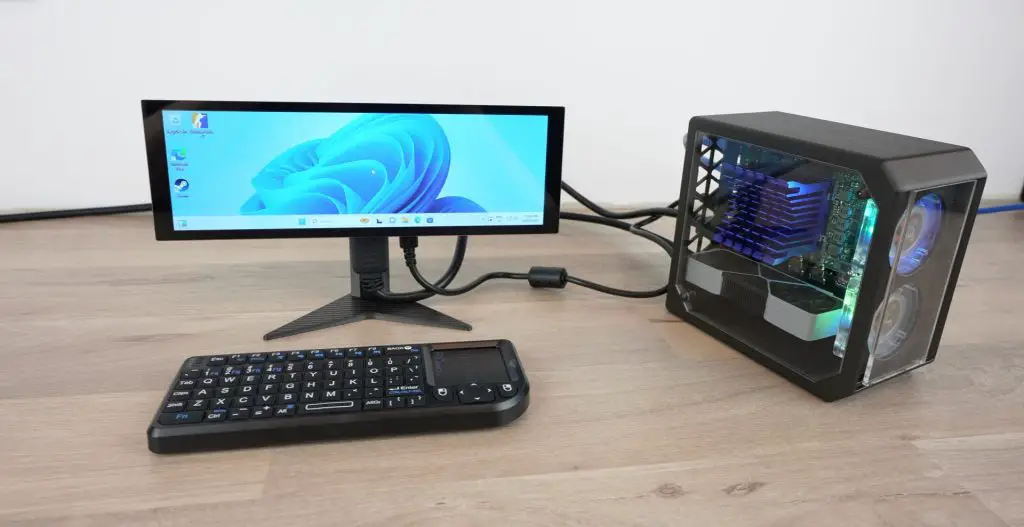
This tiny gaming PC is smaller than a can of Coke, runs Windows 11, and can even play Counter-Strike 2! While this might not be the most practical gaming setup, the Radxa X4 is an impressive single-board computer (SBC) for its size and has plenty of potential.

Here’s my video of the build, read on for the write-up;

What You Need To Build Your Own N100 Mini Gaming PC

Tools & Equipment Used:

Some of the above parts are affiliate links. By purchasing products through the above links, you’ll be supporting this channel, at no additional cost to you.

What Is the Radxa X4?

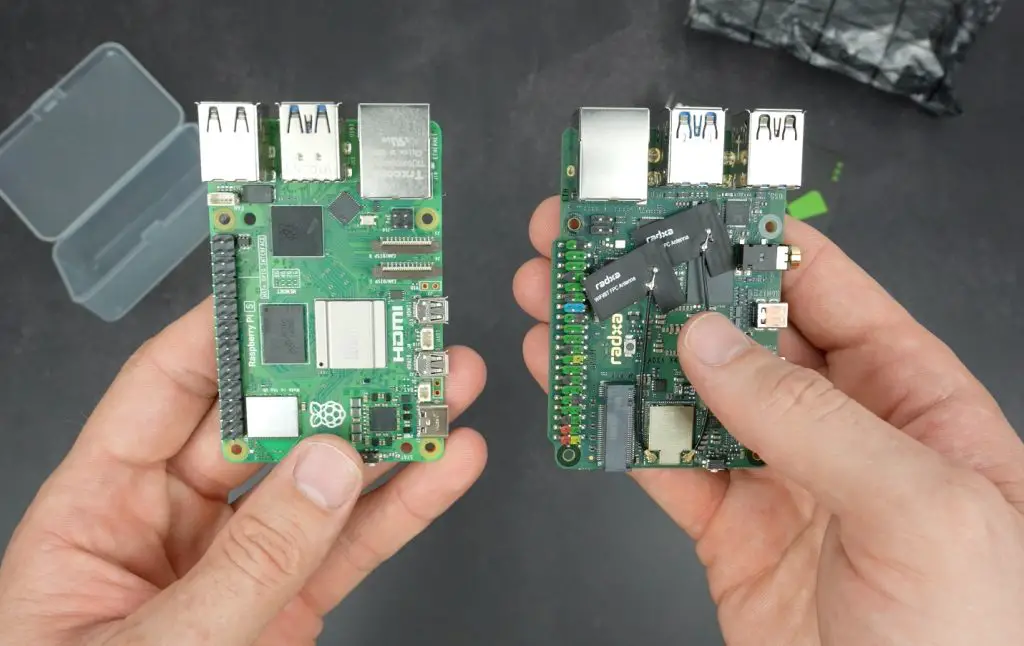
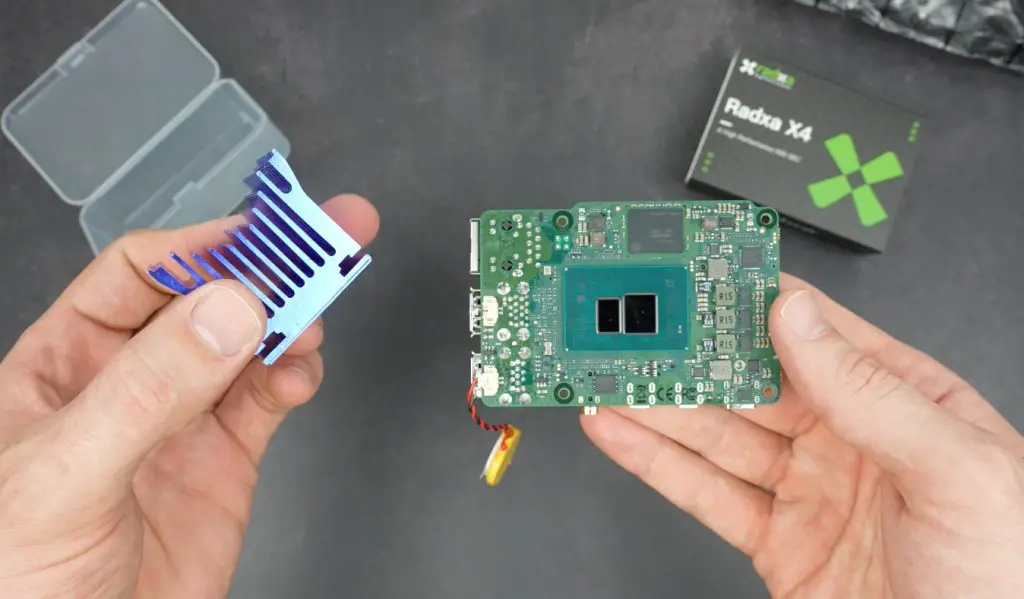
The Radxa X4 is a single-board computer powered by an Intel N100 CPU. It’s nearly the same size as a Raspberry Pi 5, with the only difference being a slight step out where the GPIO pins are located.

The N100 processor features four efficiency cores that run up to 3.4GHz, with integrated Intel UHD graphics capable of reaching 750MHz.

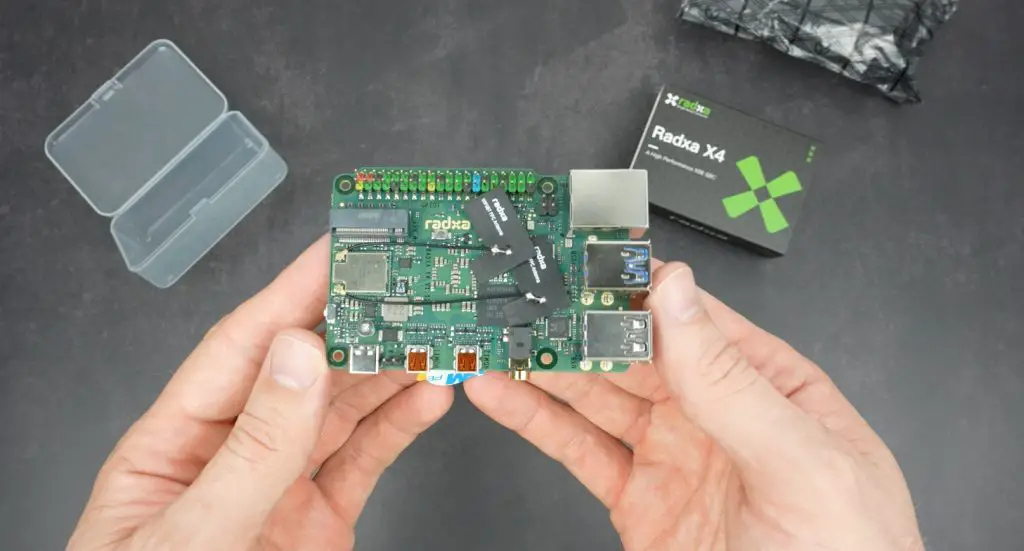
Radxa X4 Unoboxed

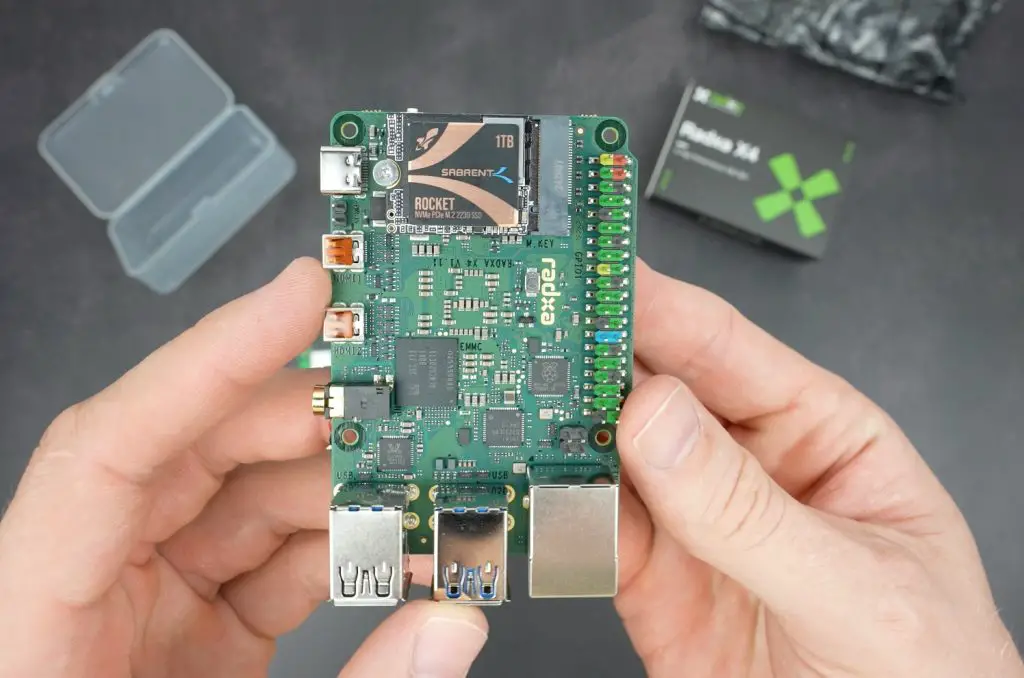
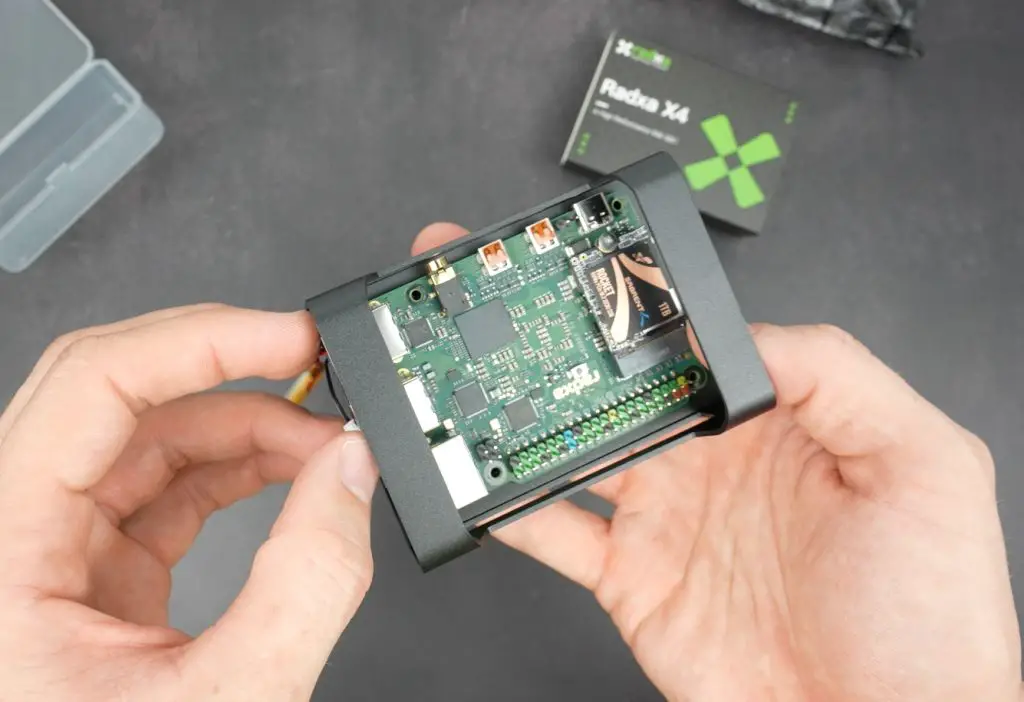
It is available in a range of RAM and storage options. This particular version of the Radxa X4 comes with 8GB of LPDDR5 RAM and 64GB of onboard eMMC storage, though I’m using it with a Sabrent Rocket NVMe drive as the boot drive for additional performance.

Sabrent Rocket NVMe Drive

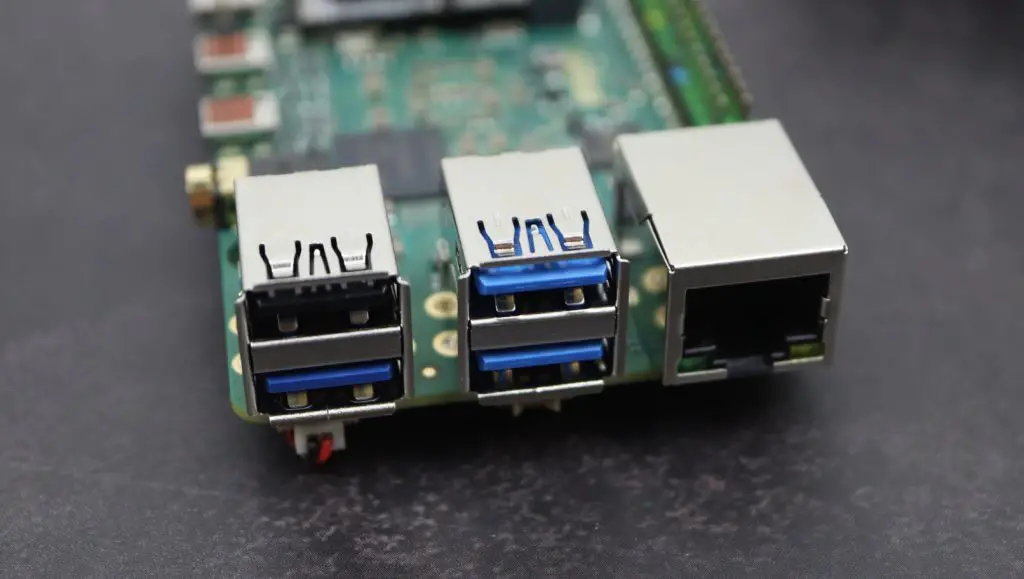
Connectivity wise, it’s got a 2.5G Ethernet port, WiFi 6, three USB 3.0 ports and one USB 2.0 port.

USB and 2.5G Ethernet Ports

In terms of raw hardware, the Radxa X4 significantly outperforms the Raspberry Pi 5 while remaining quite affordable. I paid $90 for this 8GB version, which is just $10 more than the 8GB Pi 5, and it includes the 64GB of eMMC storage (which is a $9 add-on).

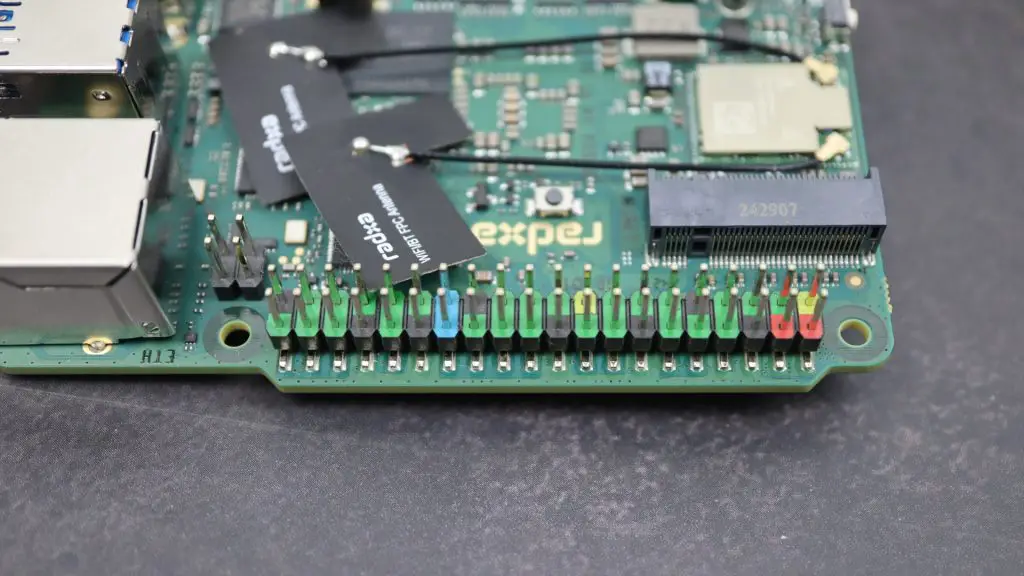
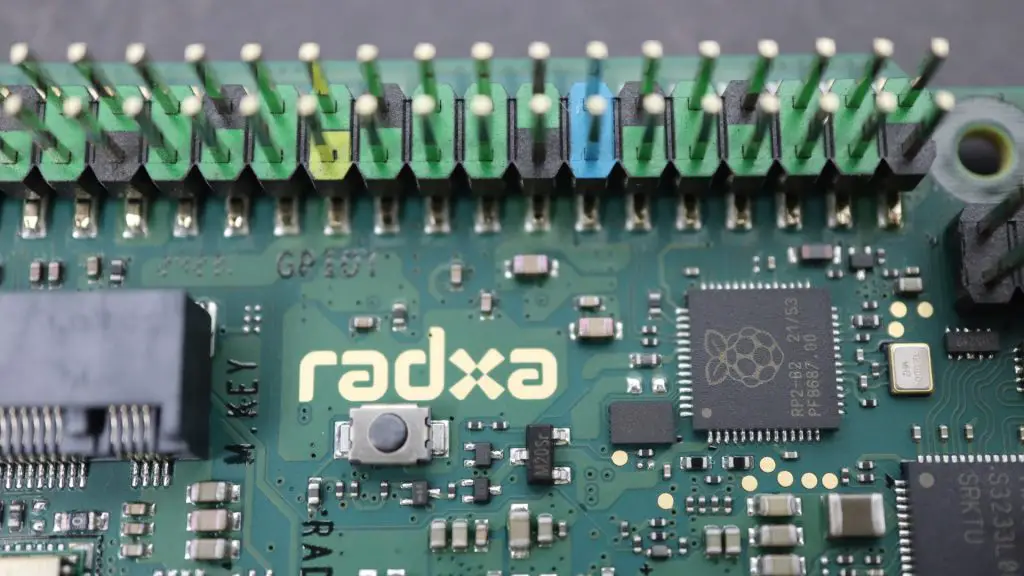
As I showed earlier, it’s even got a 40-pin GPIO header which is powered by an onboard RP2040 chip, so you can tinker with electronics projects with it too. This is conveniently mountable through the adjacent pushbutton.

RP2040 Chip Powering GPIO Pins

Cooling Challenges On The Radxa X4

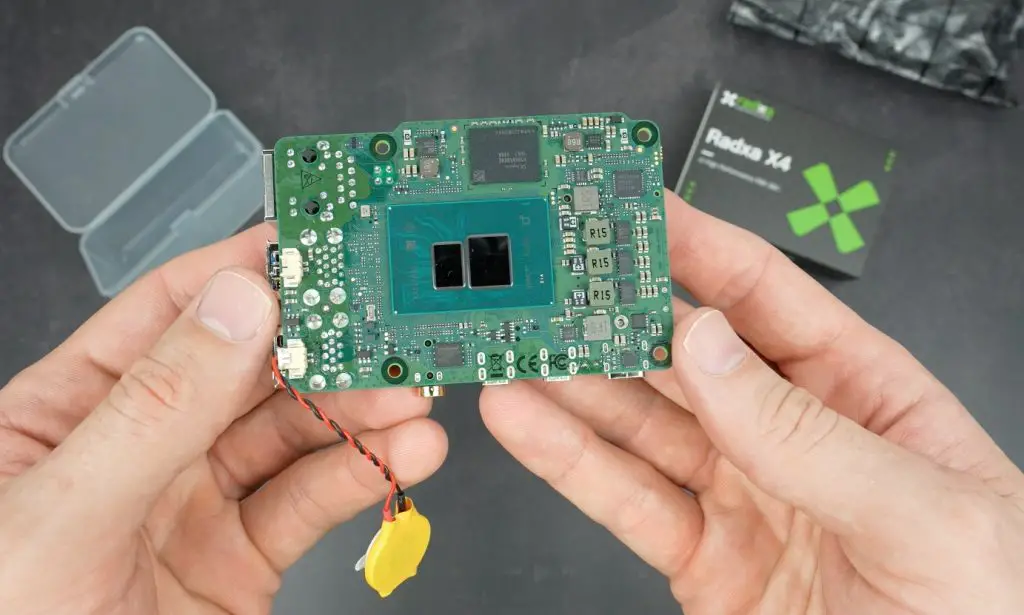
Unfortunately, it’s not all rainbows. While the X4 has excellent features, it does come with a fairly significant issue – cooling. The N100 processor gets quite hot, and on the Radxa X4 it is on the bottom of the board, which doesn’t help!

N100 CPU

They did this because it doesn’t fit in among all of the ports on the top of the board, but we all know hot air rises, so having the heatsink underneath the board is not the best place for it. It also makes it clumsy to use because the assembly is either going to be resting on the heatsink on a desk, or if the heatsink is at the top, then the board is upside down.

The board is upside down in the Radxa X4’s official heatsink case, which makes it difficult to access things like the GPIO pins.

Official Radxa X4 Case

I’m going to hopefully help out with the cooling issue by mounting it on its side.

I also needed to find a suitable heatsink for it, which was a challenge in itself. Traditional CPU coolers are too large for the board, and Raspberry Pi coolers don’t fit the X4’s mounting arrangement. I ended up purchasing a 40mm square northbridge heatsink from AliExpress, which looked like it could do the job.

Heatsink Install On N100 Processor

Custom 3D Printable Case Design For The Radxa X4 and Monitor

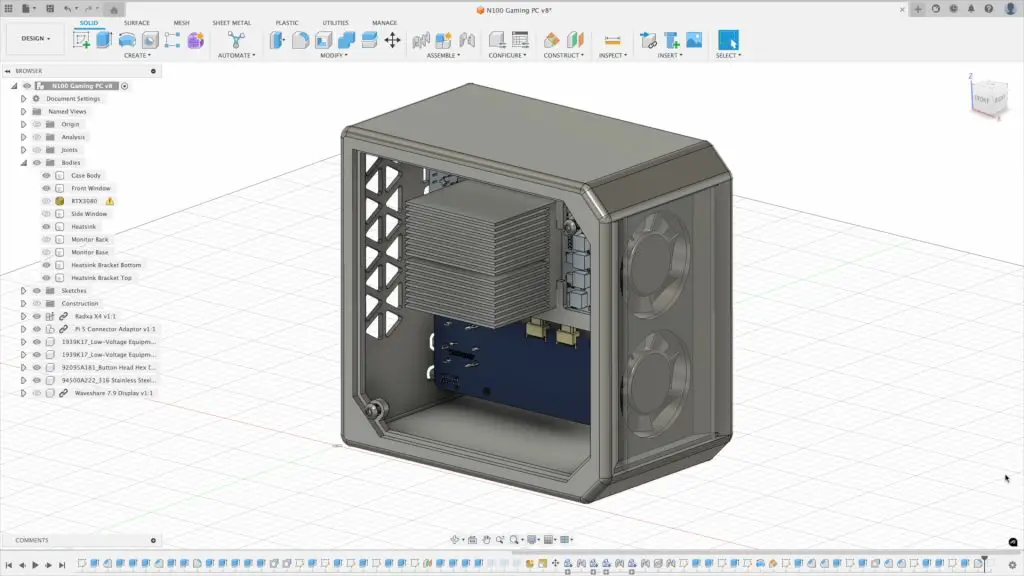
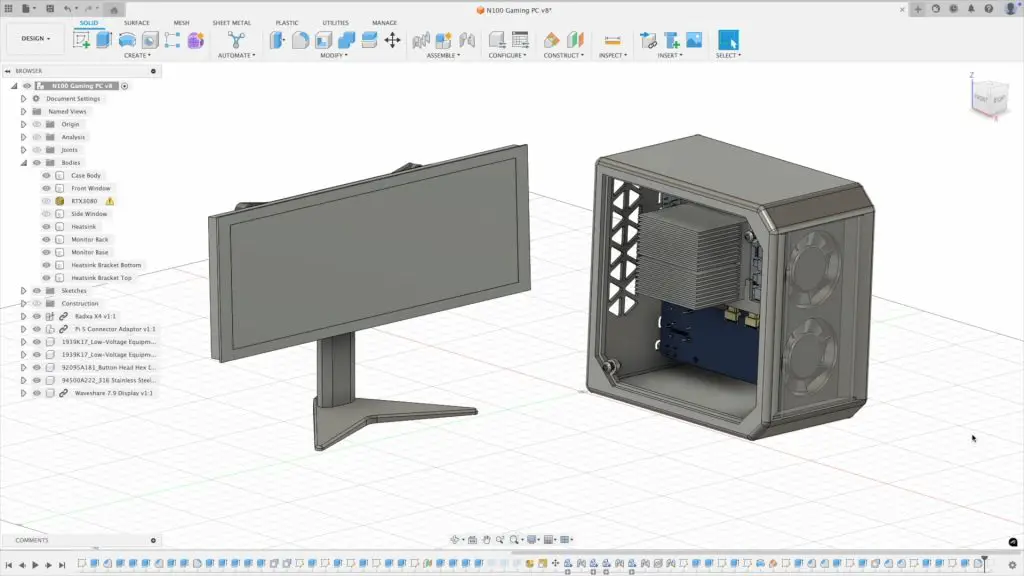
Now, obviously, I couldn’t just leave the board exposed, so I designed a custom 3D-printed case using Fusion360. The goal was to give it a full-sized gaming PC aesthetic while keeping it functional.

N100 Mini PC Case Design

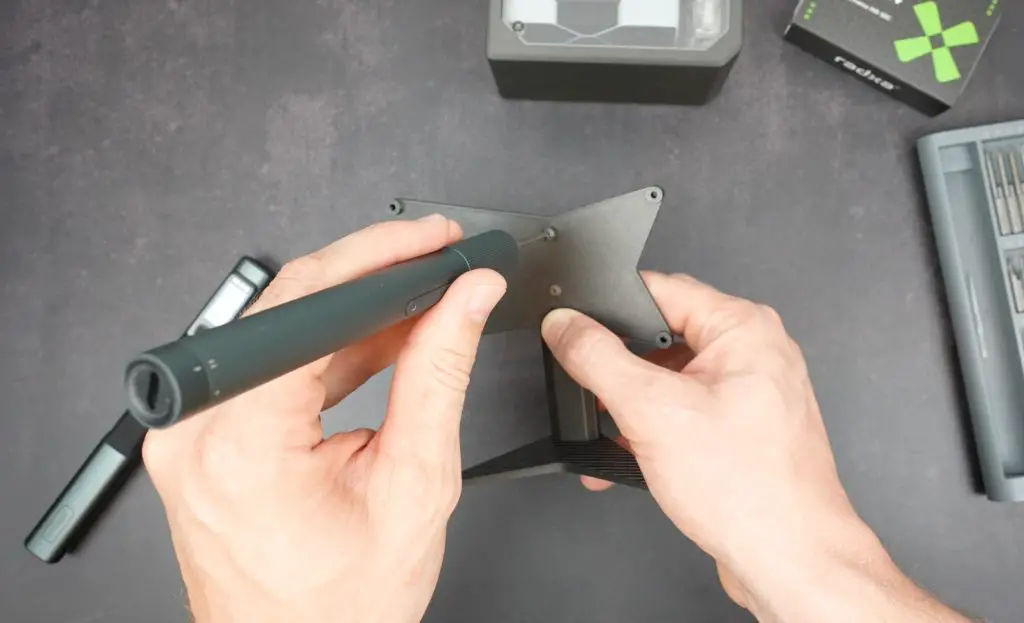
I also designed a monitor stand that holds a 7.9″ Waveshare display to look like a scale ultra-wide monitor to compliment the mini gaming PC.

Monitor Stand Designed Too

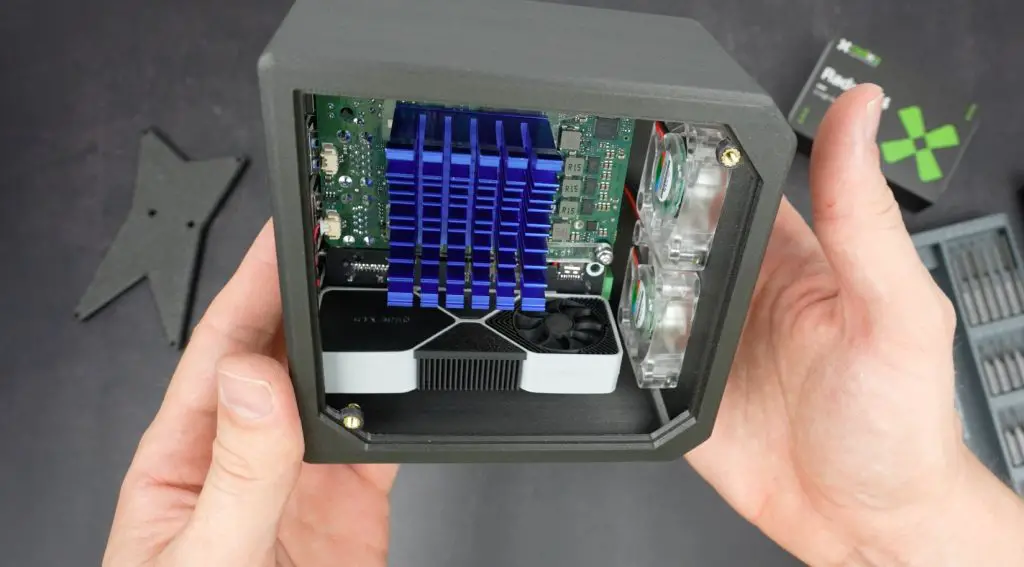
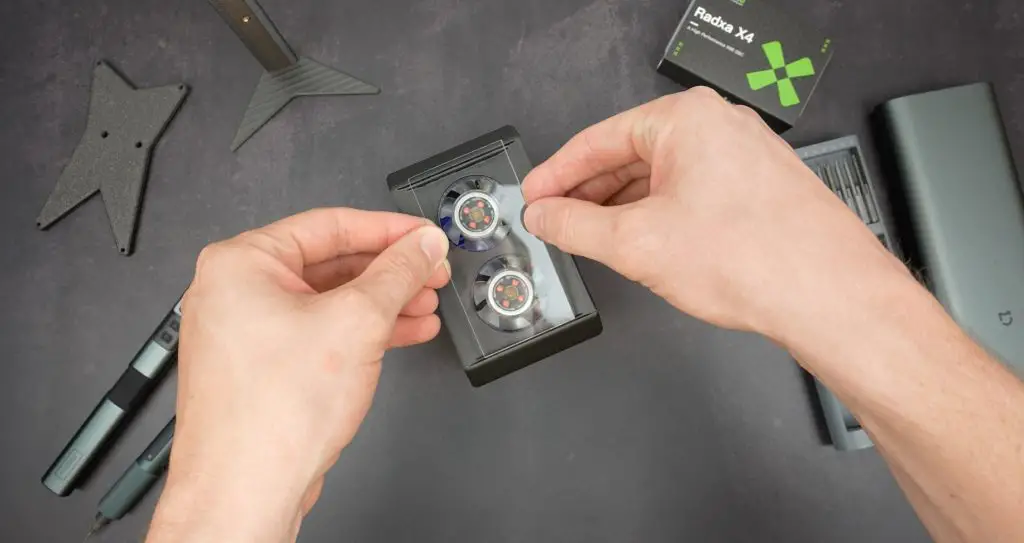
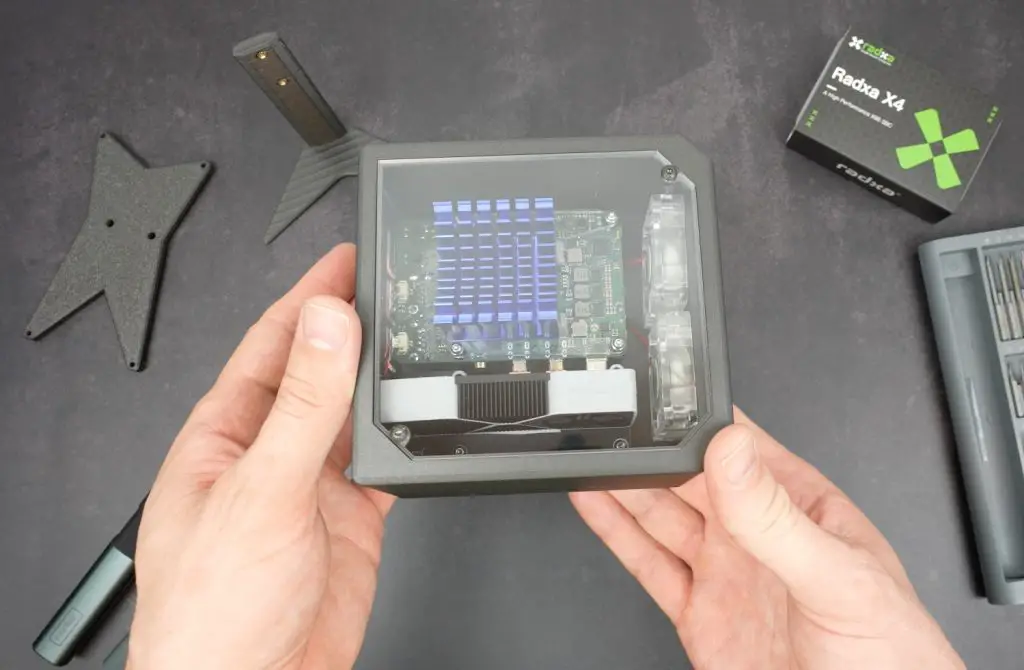
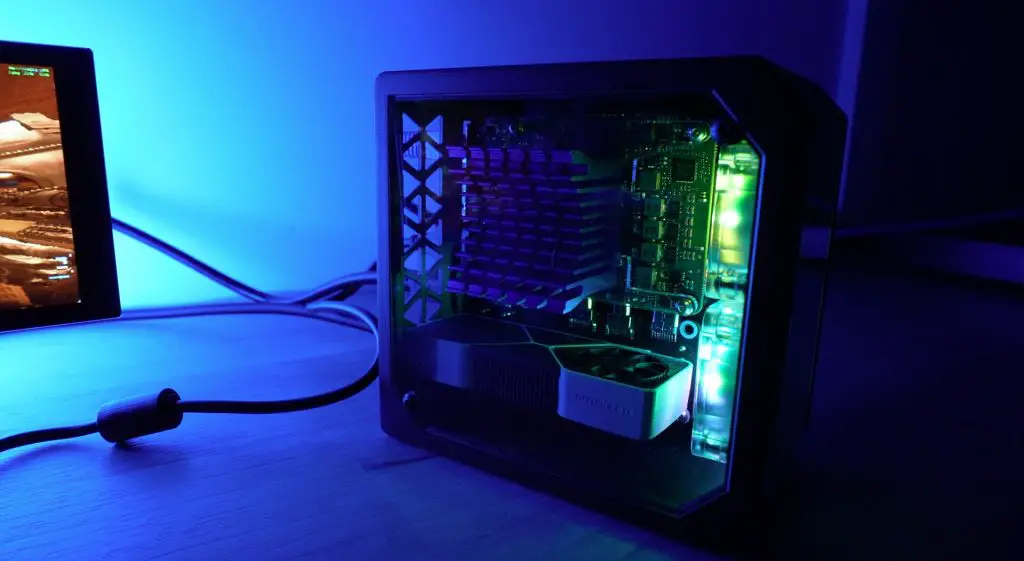
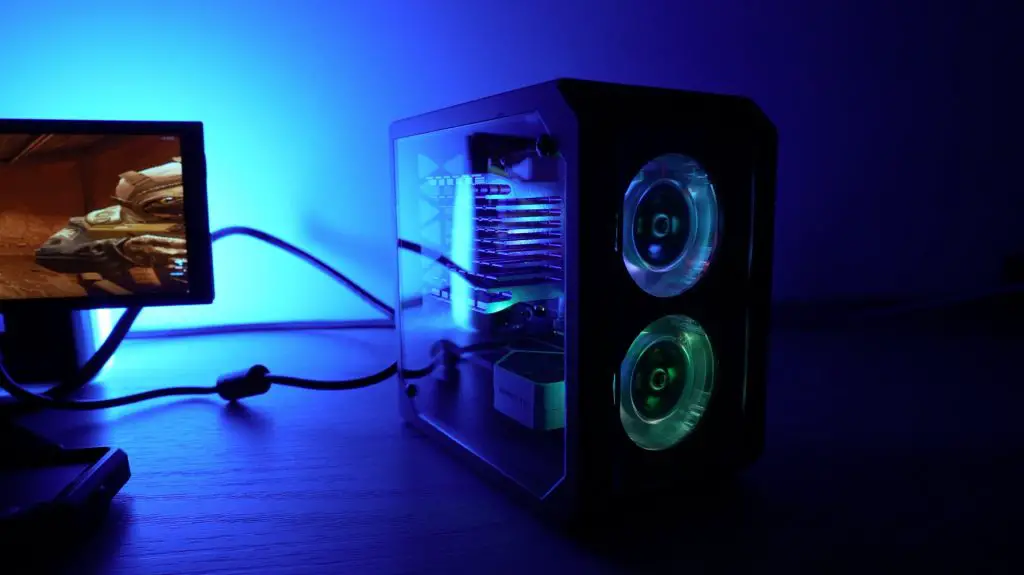
The case has a clear acrylic side panel to keep the internals visible and a clear panel on the front as a kind of fan guard that allows airflow into the case down the sides.

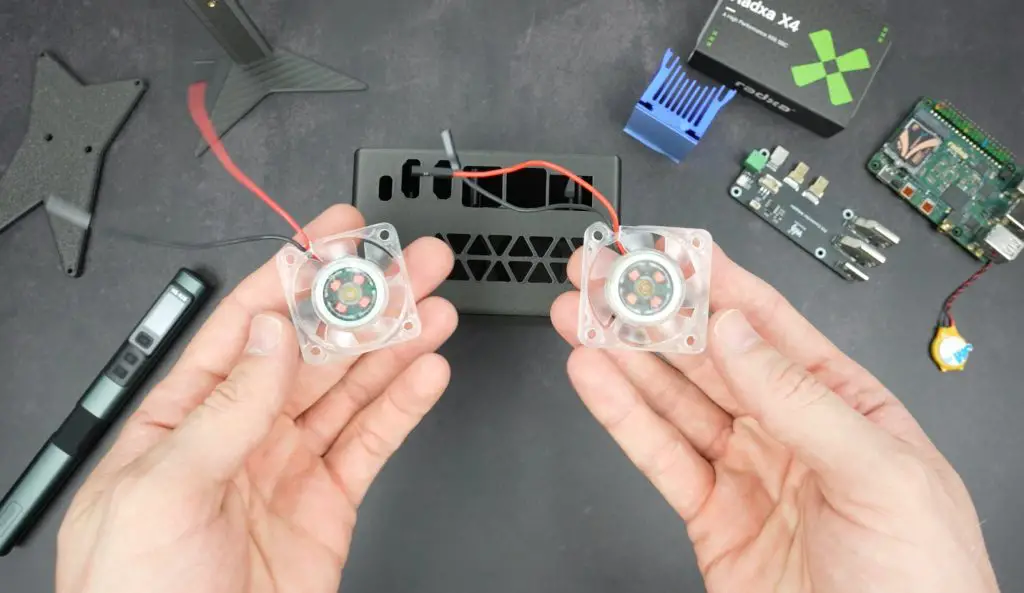
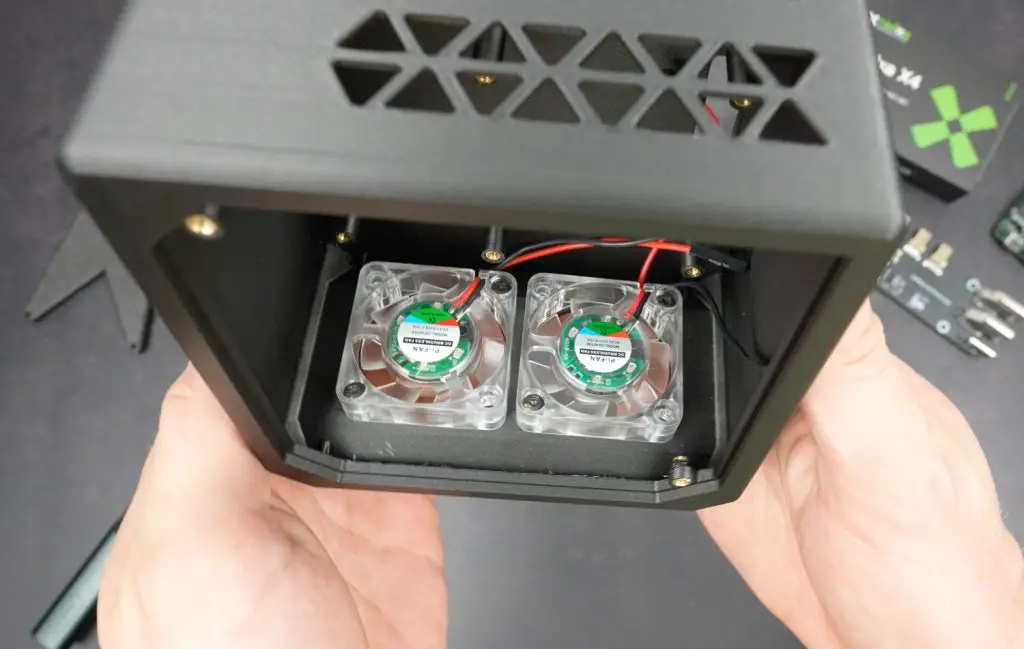
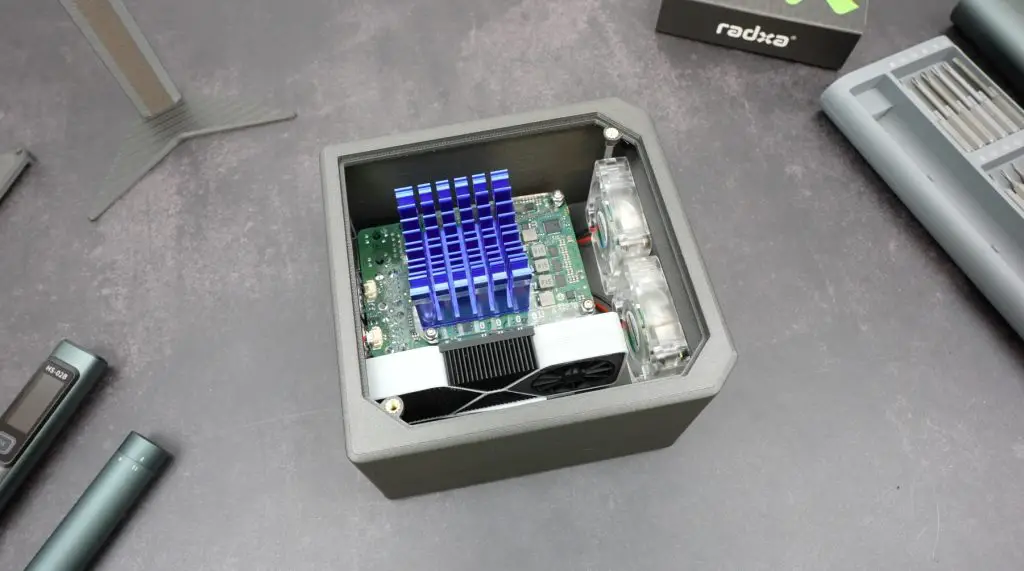
Two 40mm fans provide cooling to the CPU, blowing across the heatsink and out of vents on the back of the case. The heatsink is held in place with some custom brackets that I’ll cut from clear acrylic as well.

With the Radxa X4 positioned vertically, we need a way to bring the ports out to the back and for that I’ve used a Waveshare port adaptor that is meant to be used with the Pi 5. The ports on the X4 are the same, so it works on both.

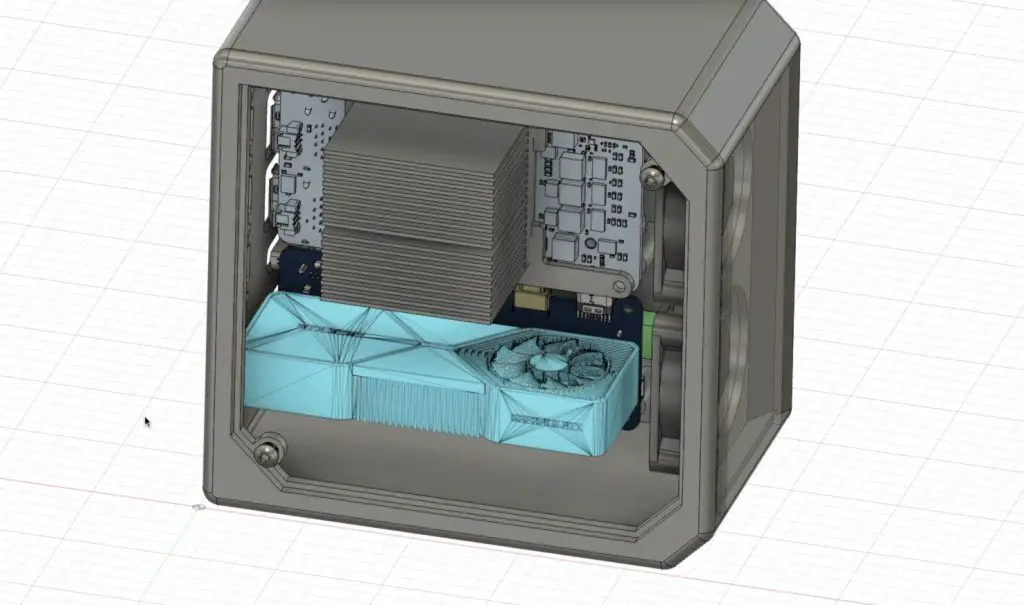
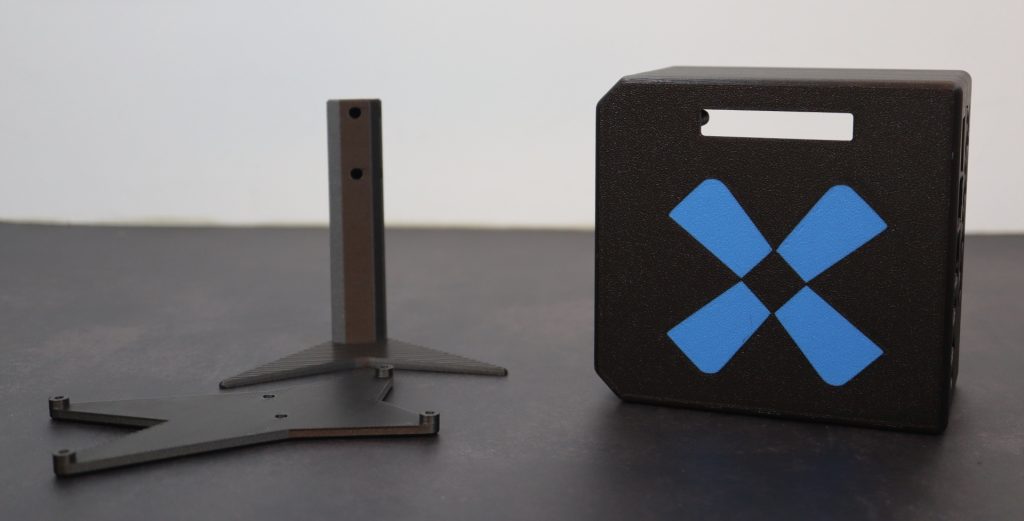
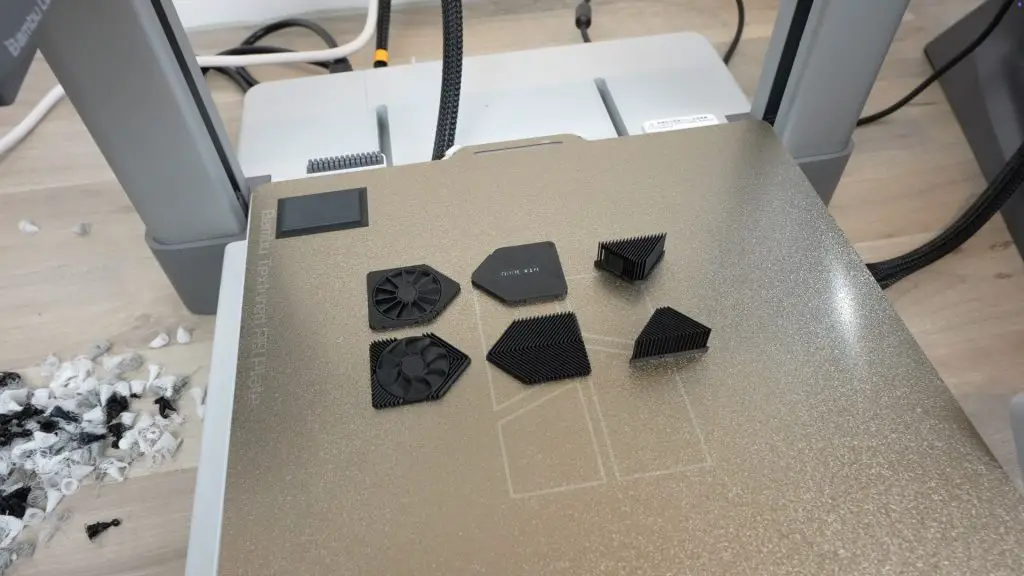
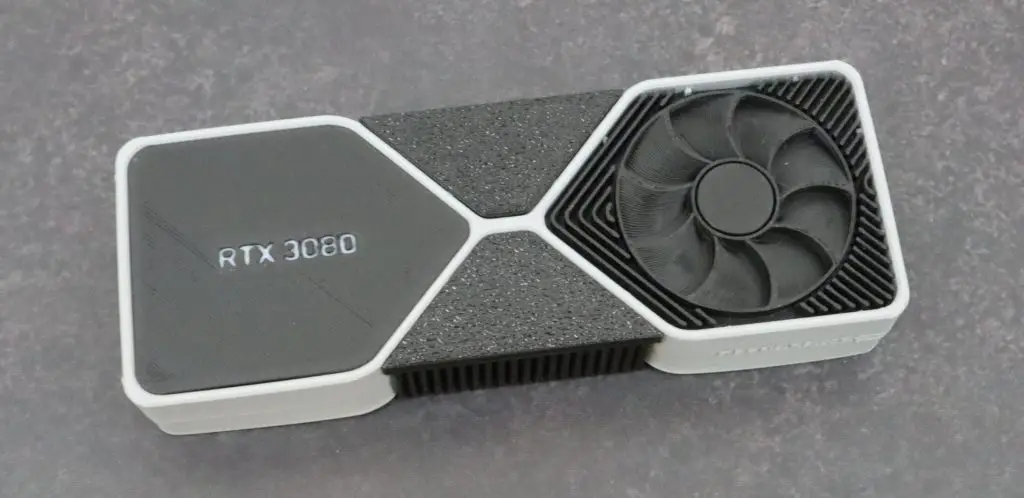
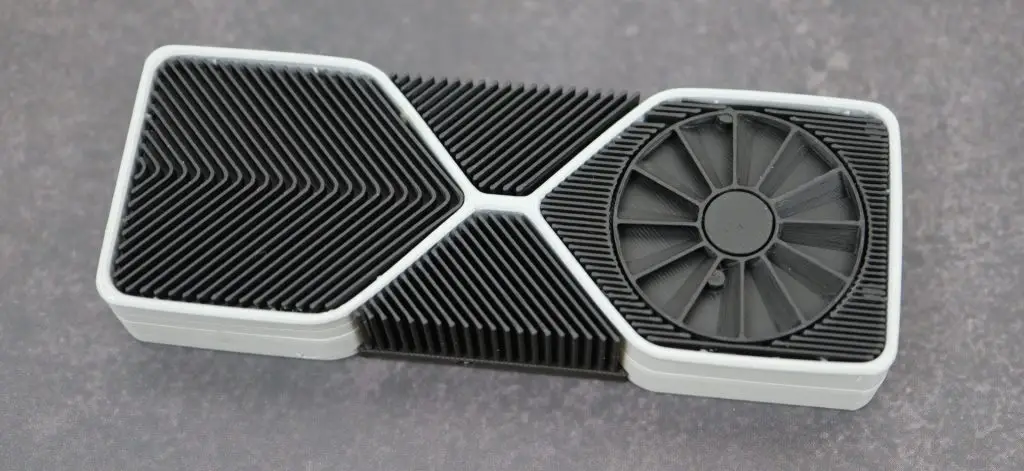
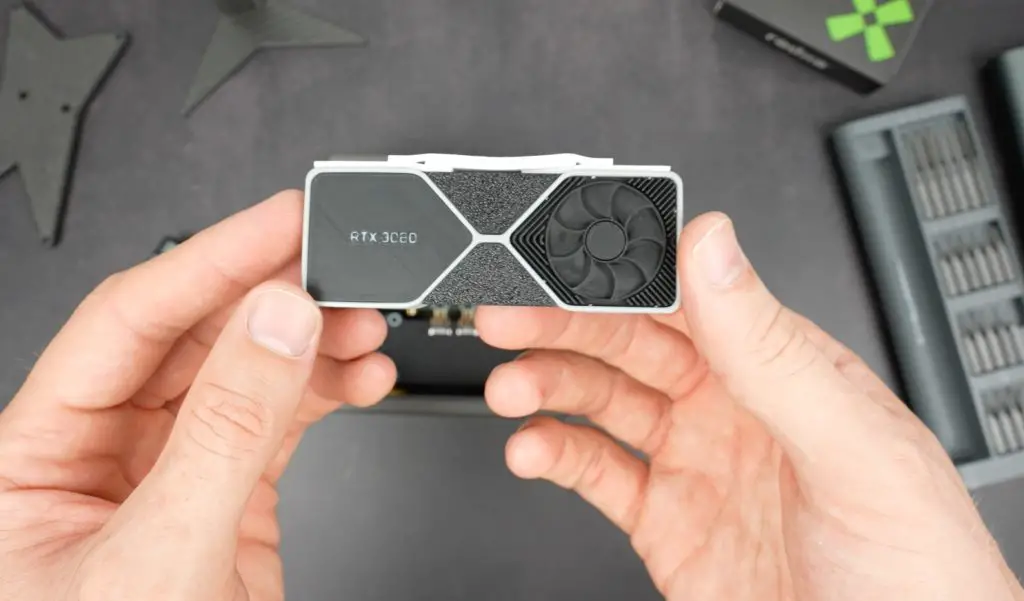
To complete the gaming PC look, I also scaled down a version of an RTX3080 that I previously built a Pi 4 into. This will be attached to the back side of the port adaptor.

Adding RTX3080 Print Into Case

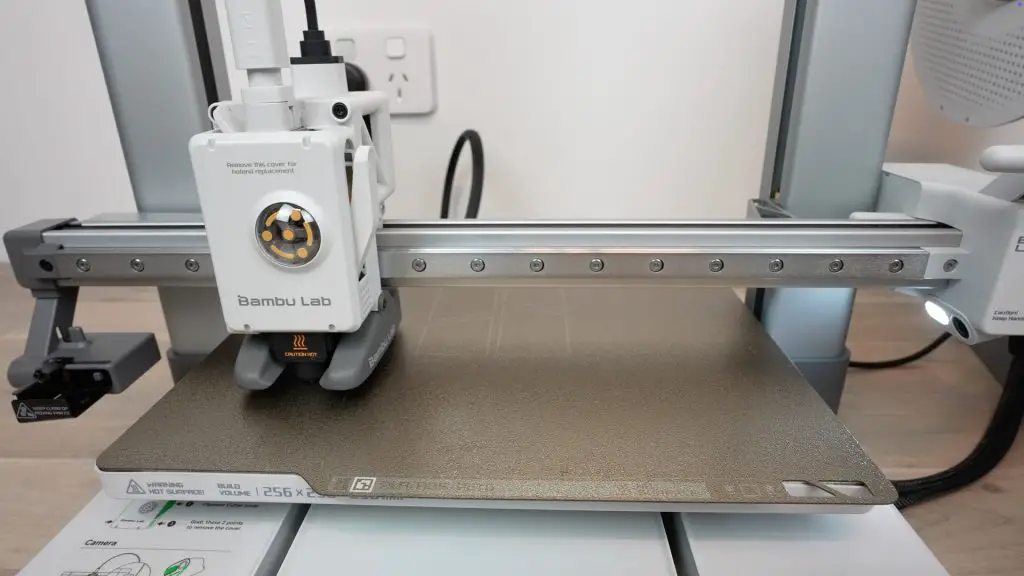
Printing the Case with the Bambu Lab A1 Combo

To print the case, Bambu Lab have sent me their A1 Combo to try out.

Bambulab A1 Combo

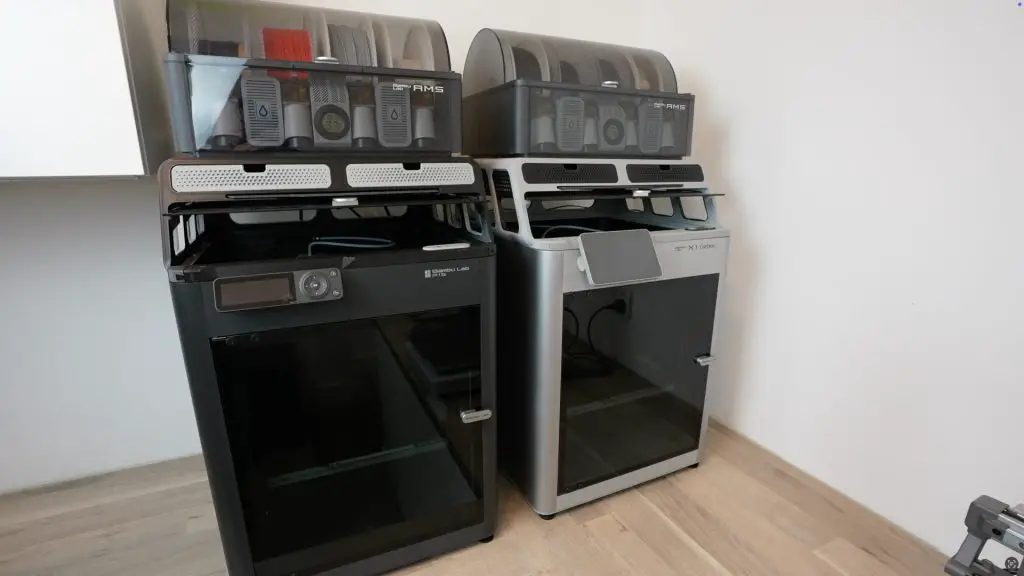
I’ve been using their X1C and P1S for the past year and a half, and compared to my old desk full of Ender 3s and spare parts, the upgrade has been a game-changer. These two printers are significantly faster and more reliable than my old printers.

Bambulab P1S and X1C

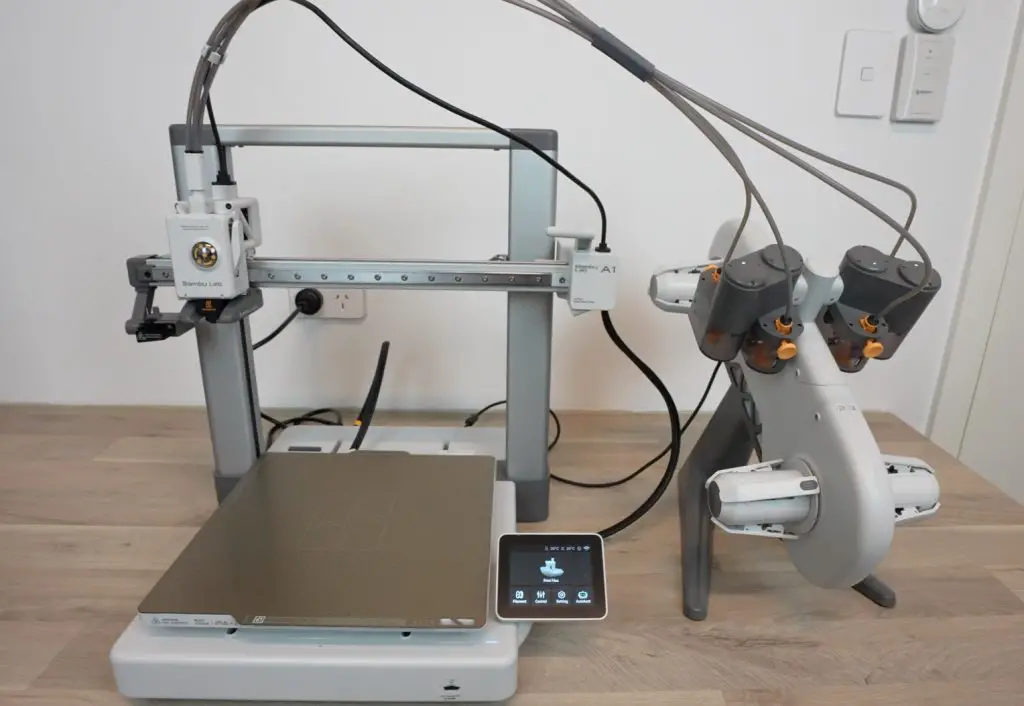
The A1 series is Bambu Lab’s entry-level printer lineup, with the A1 Mini priced at $239 and the A1 Combo (with AMS Lite for multi-color printing) at $529.

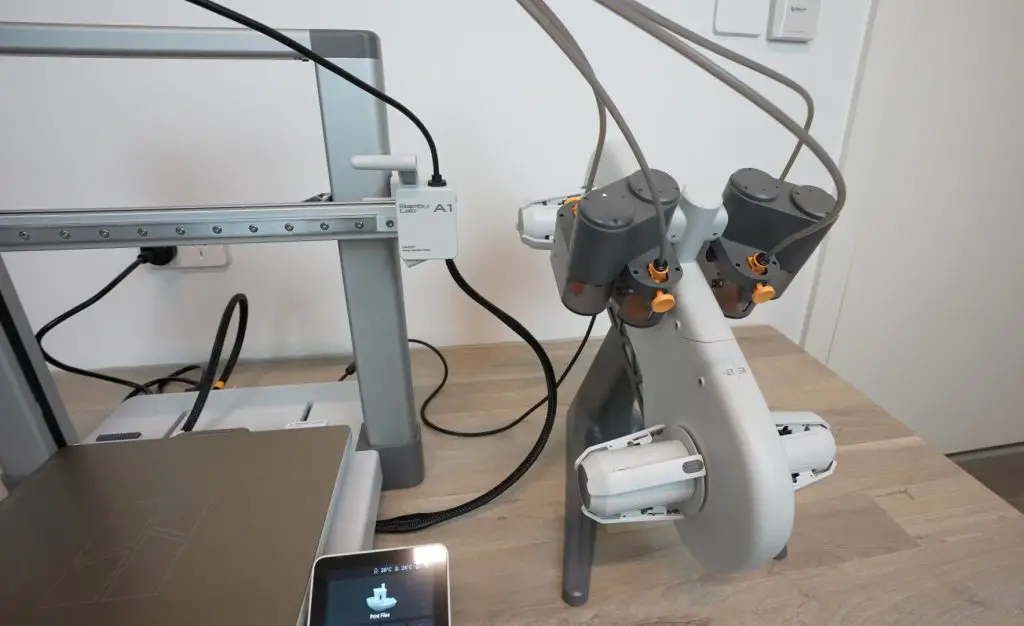
Bambulab A1 With AMS Lite

The A1 is incredibly easy to use; it loads the filament automatically, calibrates itself and does automatic bed levelling before every print. It even monitors the belt tensions and will notify you if a belt needs adjustment.

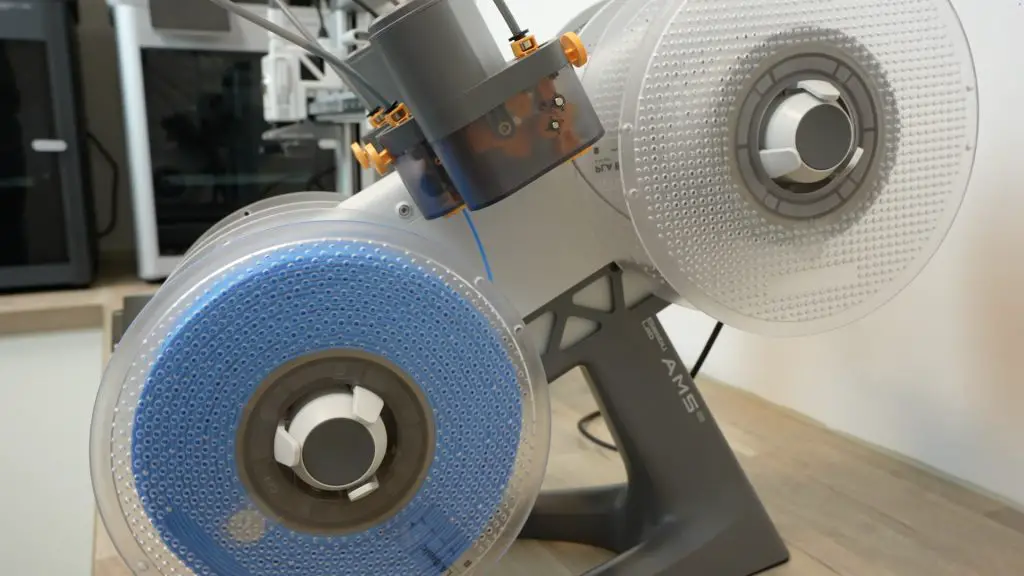
The AMS Lite is a stripped-down version of the AMS, the main difference being that it is not enclosed. This means you can’t store filament that absorbs moisture like PETG on it long-term, but it otherwise offers the same functionality.

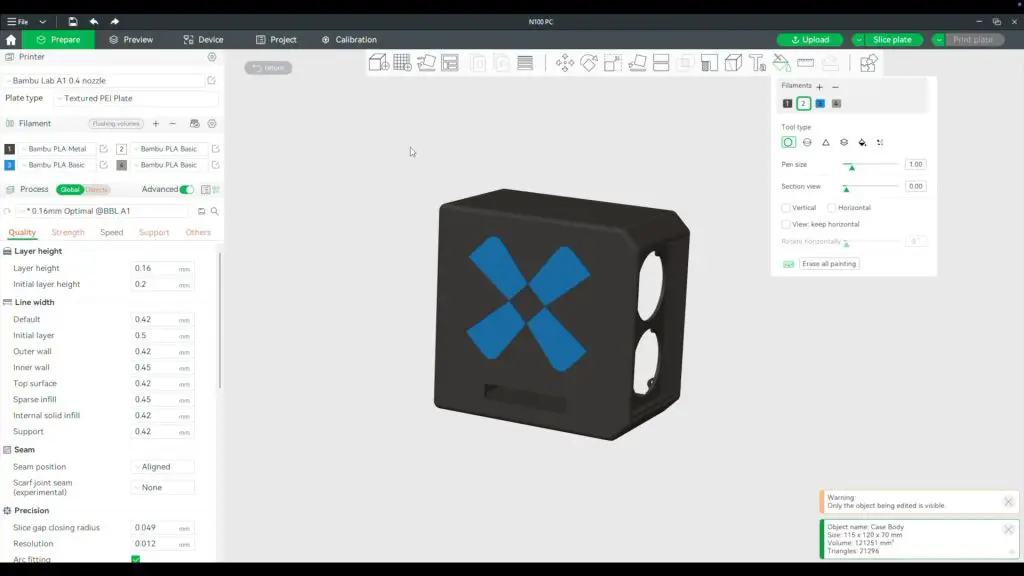
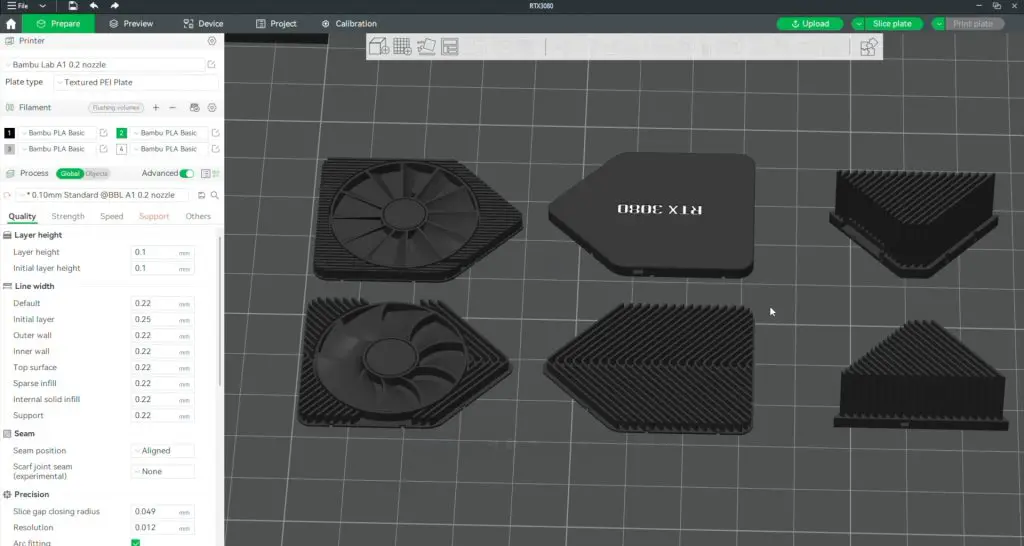
I opened the case and monitor stand up across two beds in Bambu Studio. I’ve coloured the Radxa logo on the back of the case in blue to match the heatsink.

N100 Mini PC Radxa Logo Coloured

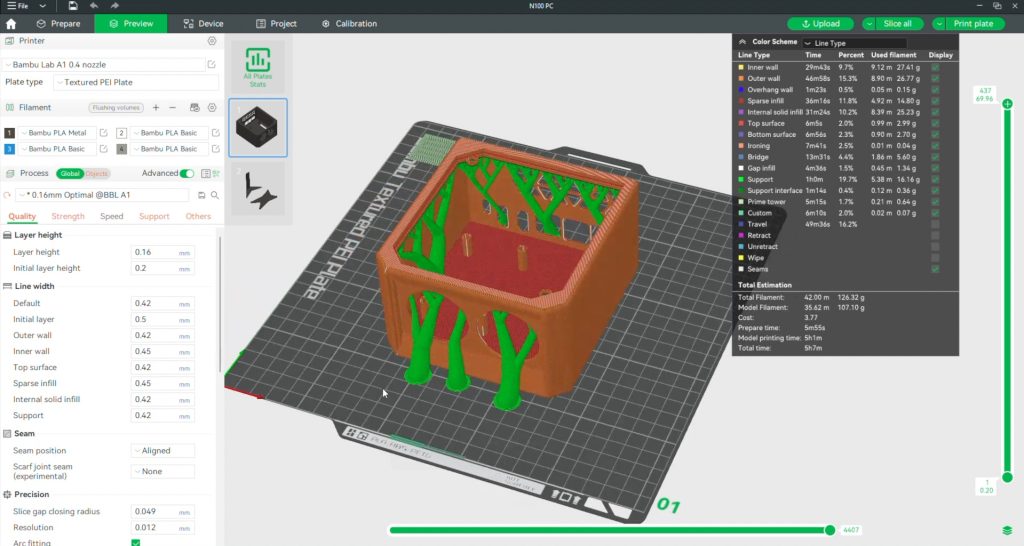
I then sliced the plates and sent them to the A1.

Sliced For Printing

I printed the case in metallic PLA, which came out great. The quality and speed of the prints are impressive for a traditional bed-slinger printer.

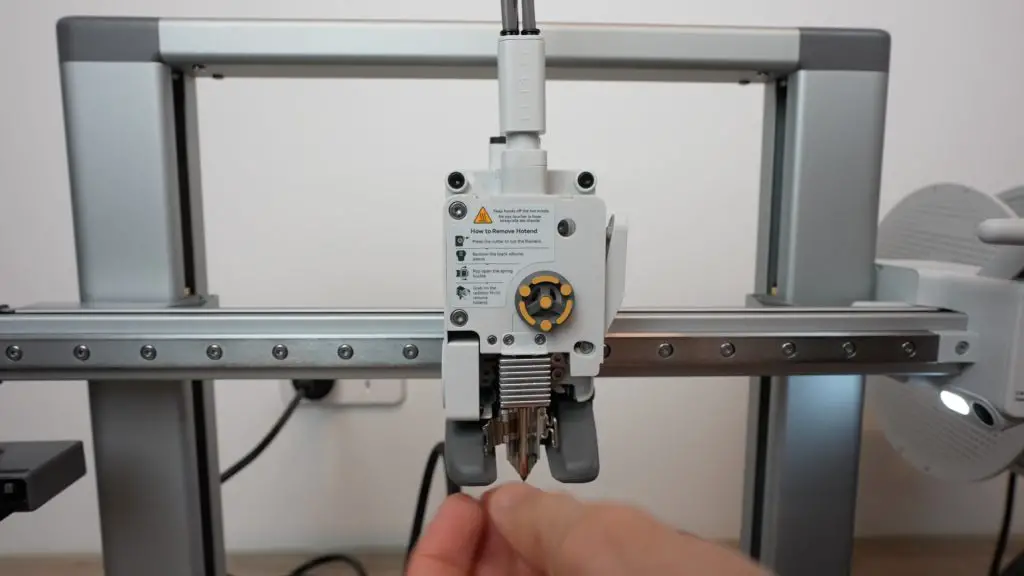
With the case and monitor stand complete, we can move on to the graphics cards. Because it is so small, and I’d like to try to get the text to come out, I’m going to swap nozzles on the A1 over to a 0.2mm nozzle. This is also an improvement over the P1 and X1 printers, which involve quite a bit of effort to swap nozzles. The whole hot-end on the A1 is held in place by a single clip, so it’s a quick process to swap nozzles over. It would be great if they were able to put an RFID tag onto the hot-ends on their printers so that the printer automatically knows what the nozzle size is.

I really like how the GPU came out. The text on the side is readable, although the white doesn’t show up as clearly as I hoped, and there is a step in the side where the text is. It looks like too much filament is extruded in this area, so it probably needs a bit of dialing in. But the text on top is clear, and the heatsink fins came out looking great!

The assembled GPU looks amazingly detailed for its size.

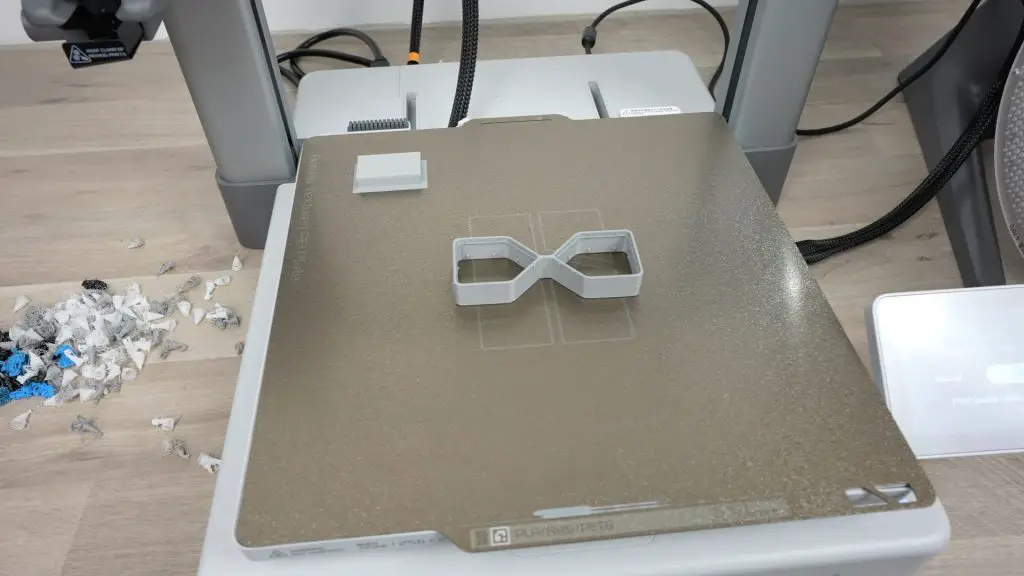
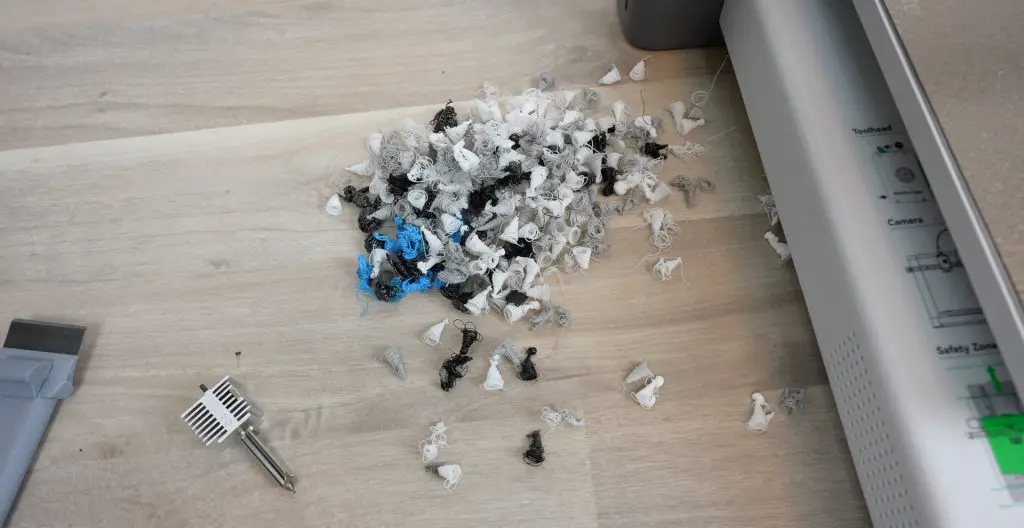
Multicolour printing produces quite a lot of waste, but if you’re smart about the layout and print order, you can minimise it. Try not to have different colours span across too many layers.

Multicolour Print Filament Waste

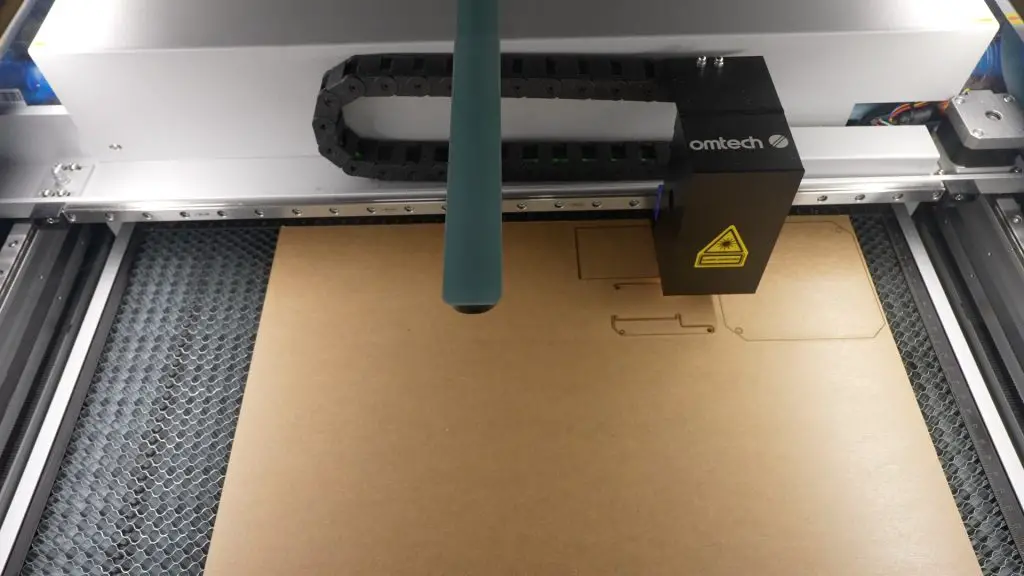
Next, I need to cut out the clear components. These are all cut from a sheet of 2mm clear acrylic.

Laser Cutting Acrylic Components

Assembling The Radxa X4 Mini PC Case

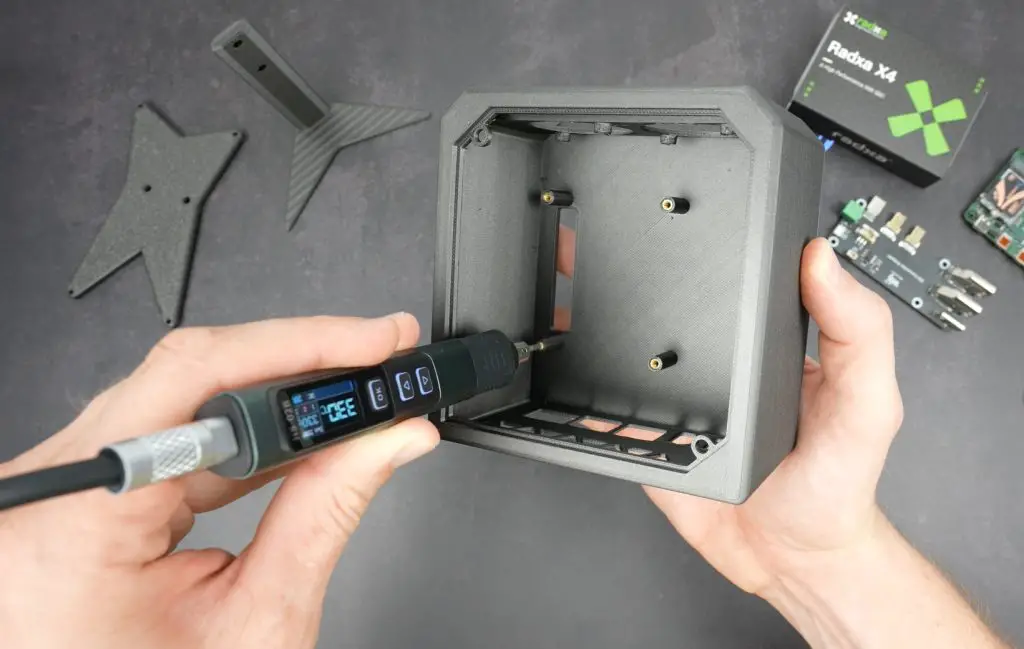
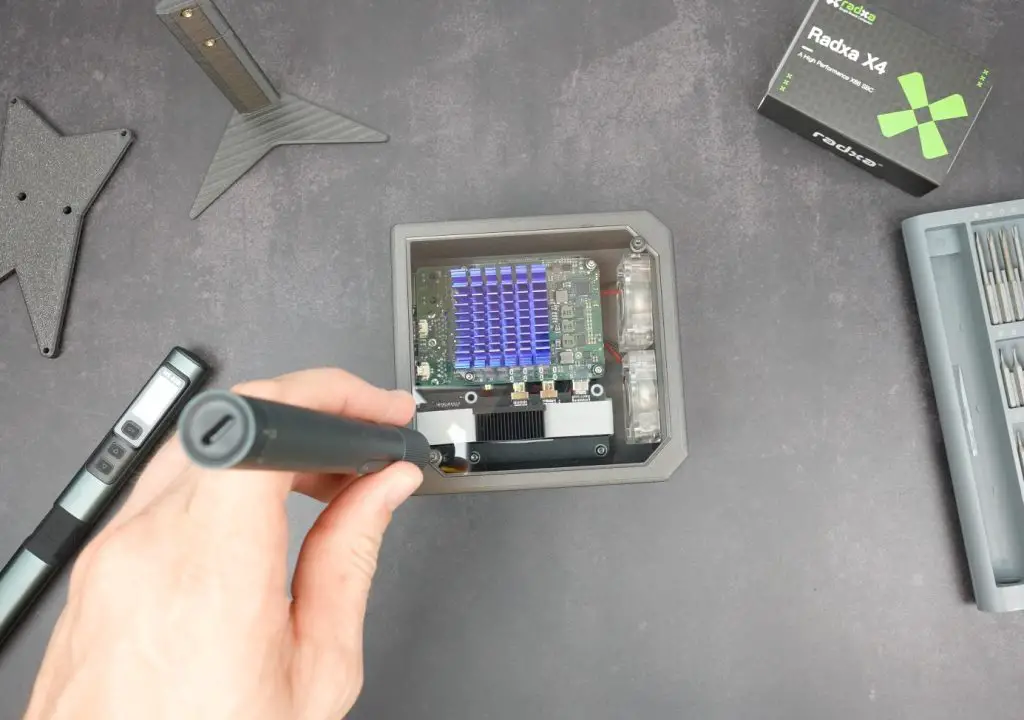
To assemble the mini PC, we need to start by installing some brass inserts in the body of the case. These are melted into place using a soldering iron. We’ve got M2.5 brass inserts for the Radxa X4 and adaptor to be mounted onto and then some M3 inserts for the two fans and the side panel.

Next, we can mount the fans onto the front of the case. These are each secured by two M3x8mm button head screws from the inside.

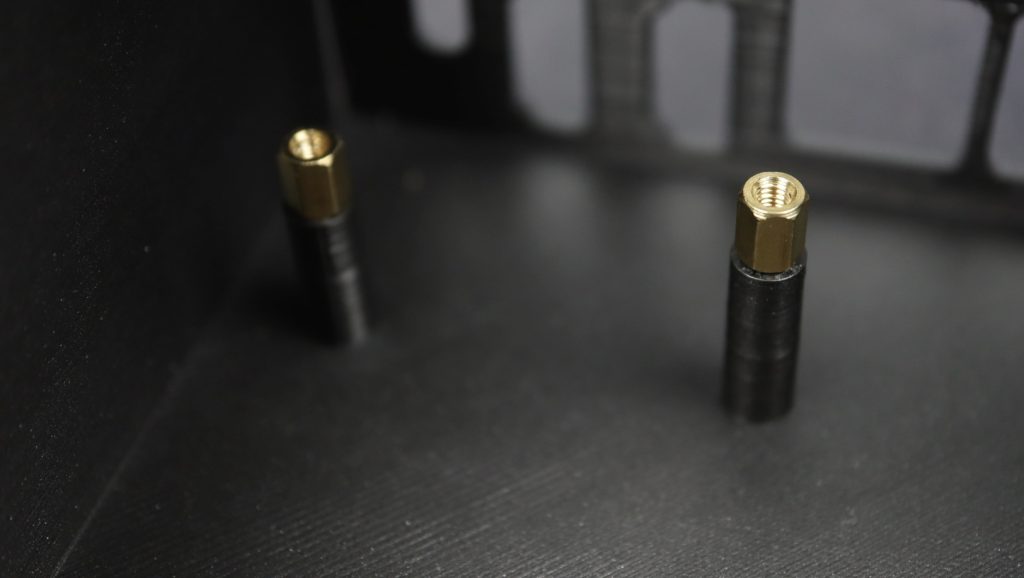
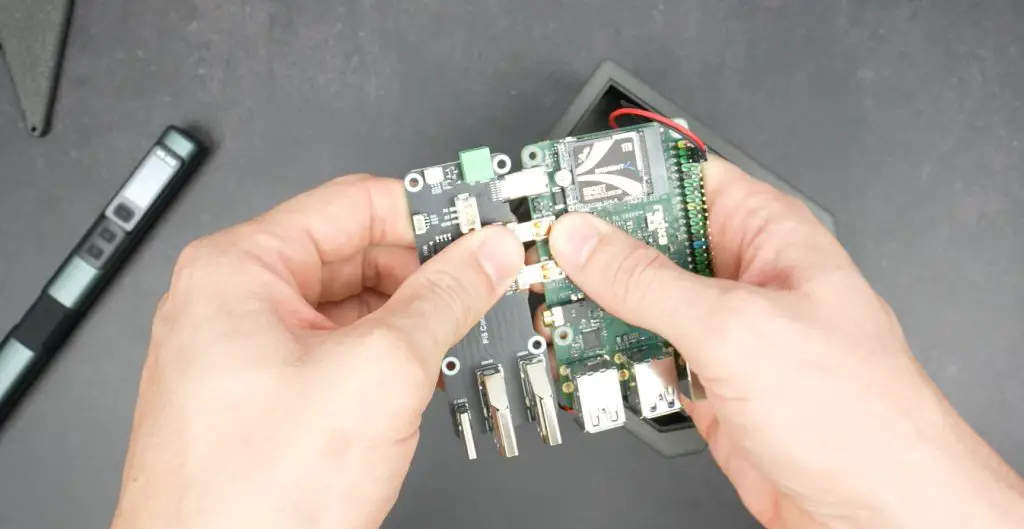
Six M2.5x6mm brass standoffs go into the brass inserts to mount the Radxa X4 and adaptor onto.

6mm Standoff To Mount X4 Onto

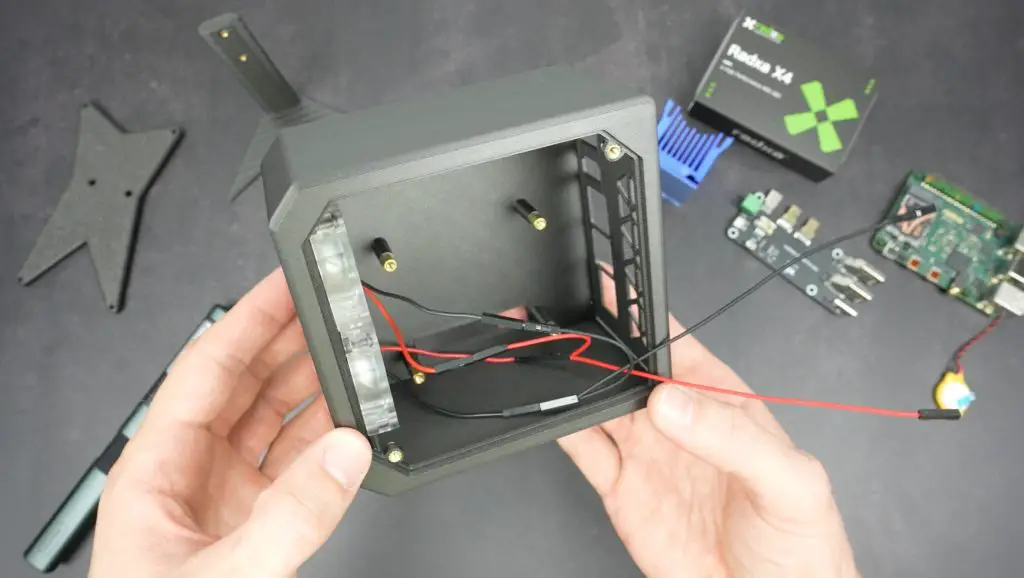
We can then plug the port adaptor into the Radxa X4 and install it into the case. I’ve made up an extension for the fans to plug both into a single set of 5V pins with some extra length to allow them to be plugged into the GPIO pins before the board is installed in the case.

The adaptor is then held in place with some M2.5 x 6mm button head screws.

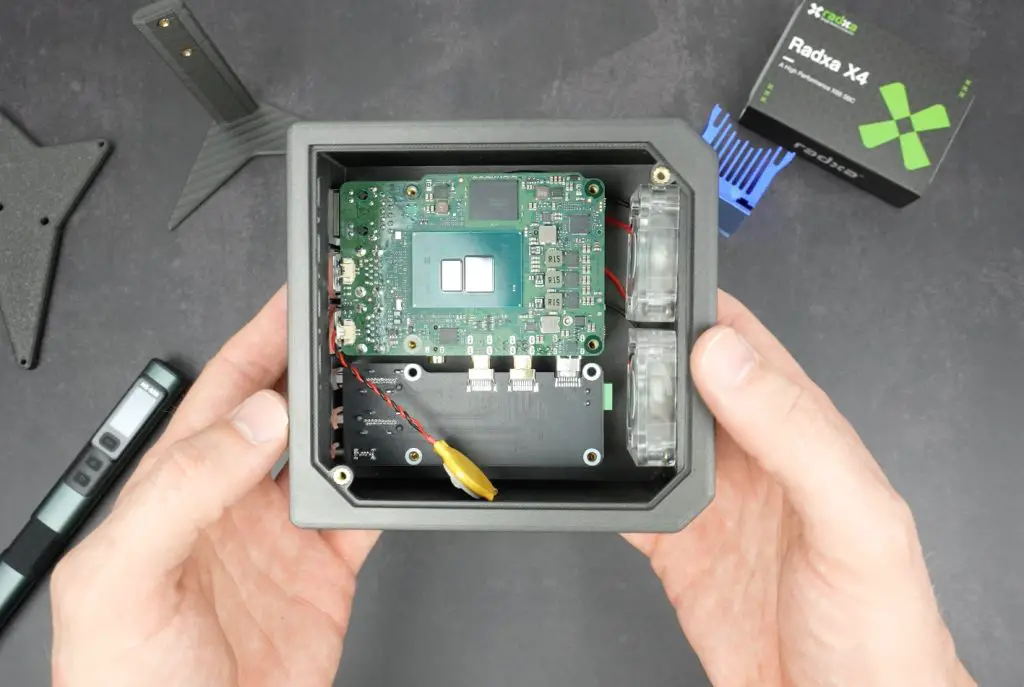
Radxa X4 and Port Adaptor Installed In Case

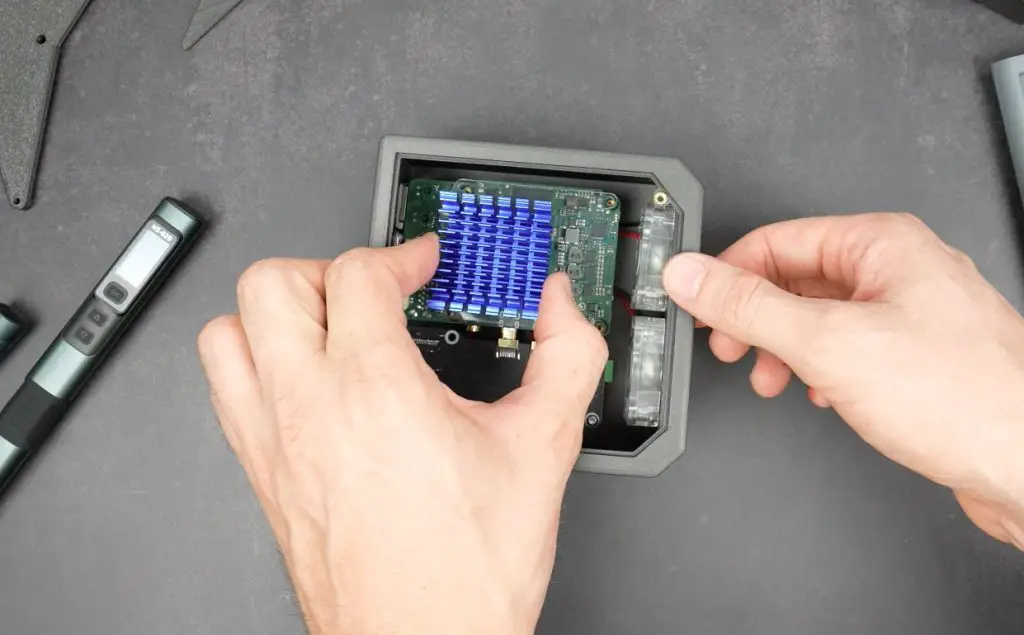
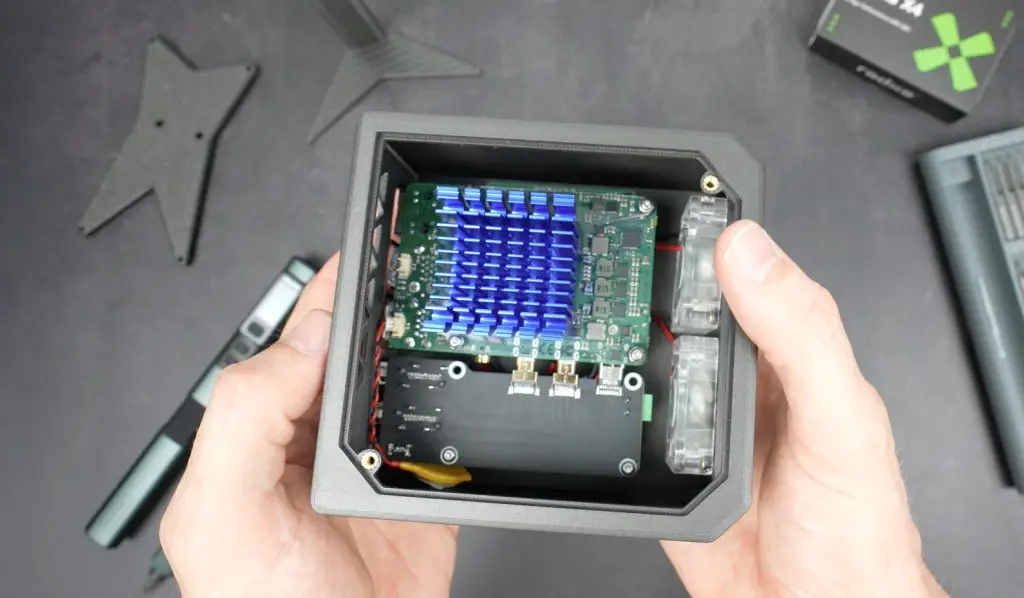
We can apply some thermal paste to the CPU, and the heatsink can be positioned over the X4using the acrylic brackets. The whole assembly is then clamped down with some M2.5 x 8mm button head screws. Be careful not to overtighten the screws or you might break the acrylic arms.

Next, let’s attach the GPU to the adaptor, which I’m just going to do with some double-sided tape.

We can then install the front and side panel.

The front panel is glued into place with some super glue and the side panel is held in place with two M3x8mm button head screws.

And that’s the case complete, now we just need to finish off the monitor.

Side Panel Complete

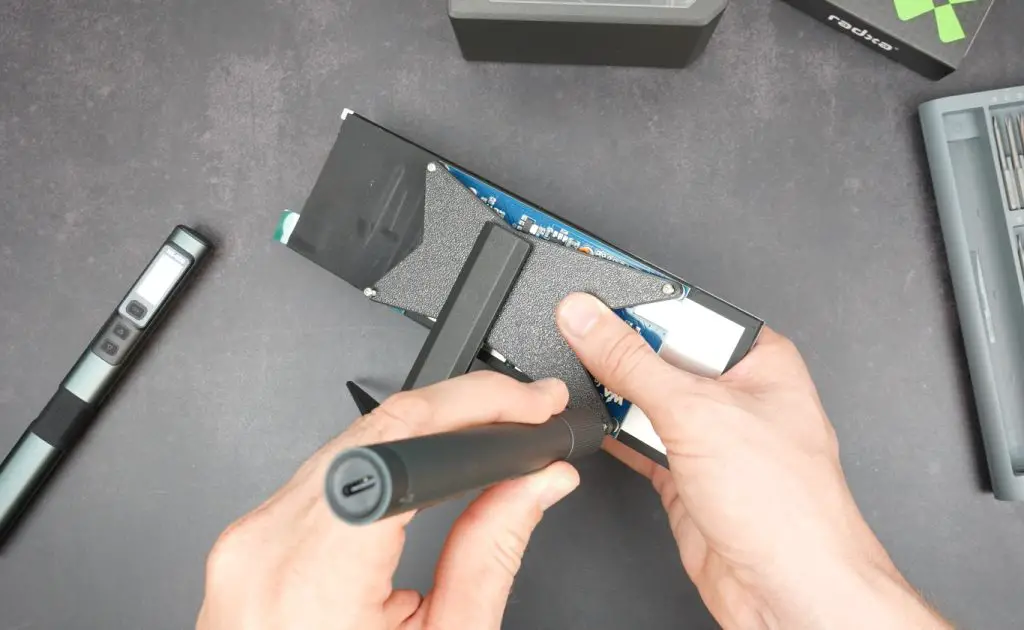
The display holder attaches to the monitor stand with two M3 x 8mm button head screws and then the display holder screws onto the back of the display with four M2.5 x 12mm button head screws.

The monitor is powered by a single USB cable so we can plug that and an HDMI cable into the Radxa X4, and add a mini keyboard and mouse to finish it off.

Now The Big Question: Can We Game On It?

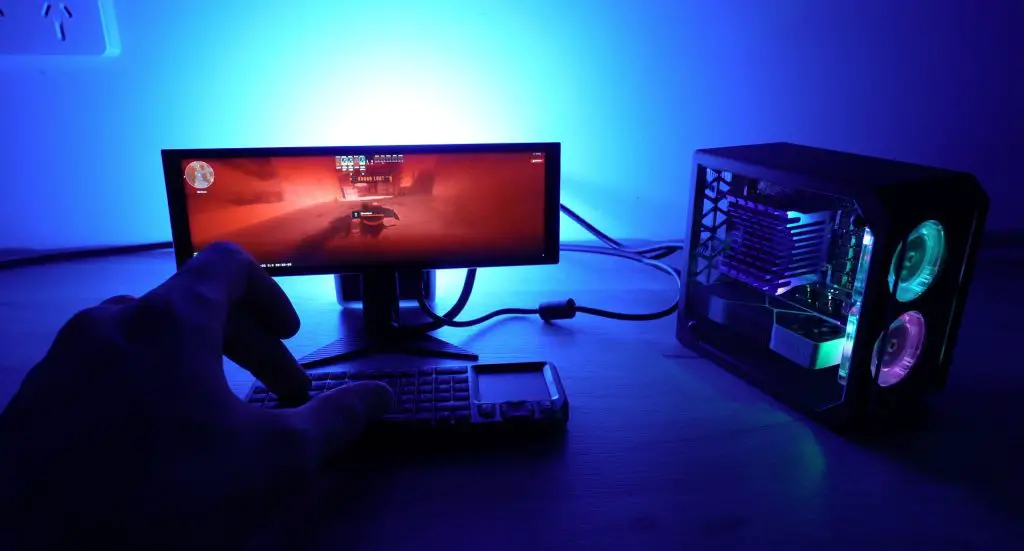
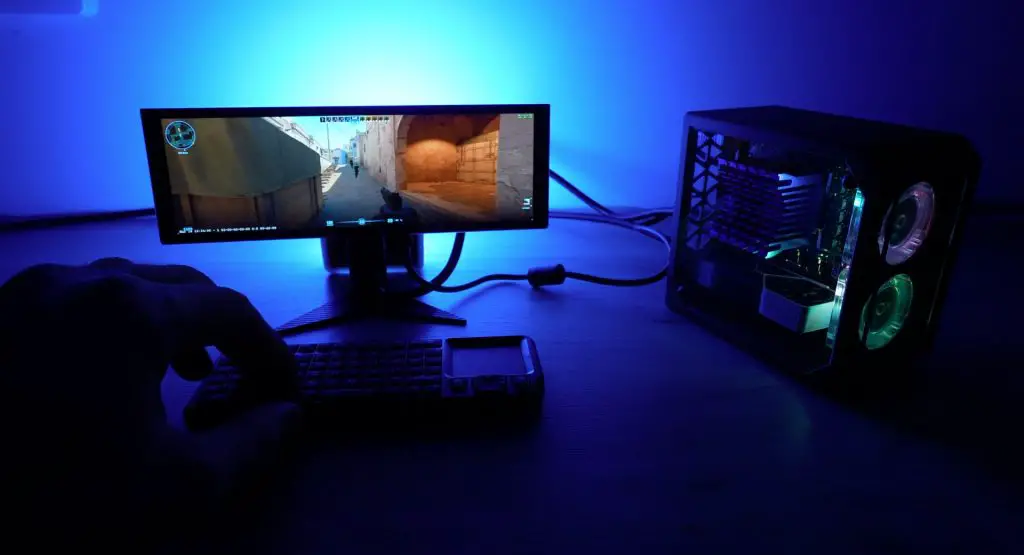
N100 Computer Running Windows 11

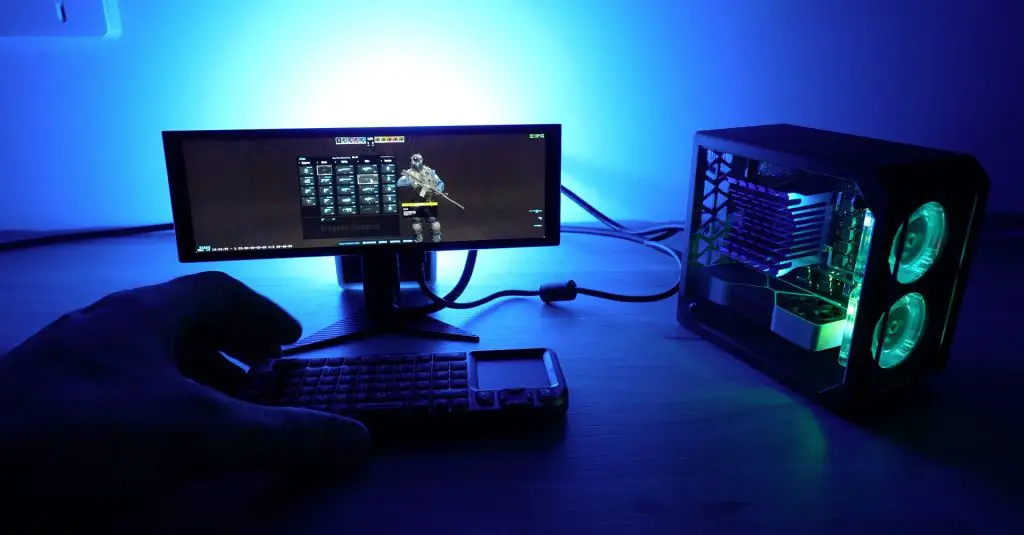
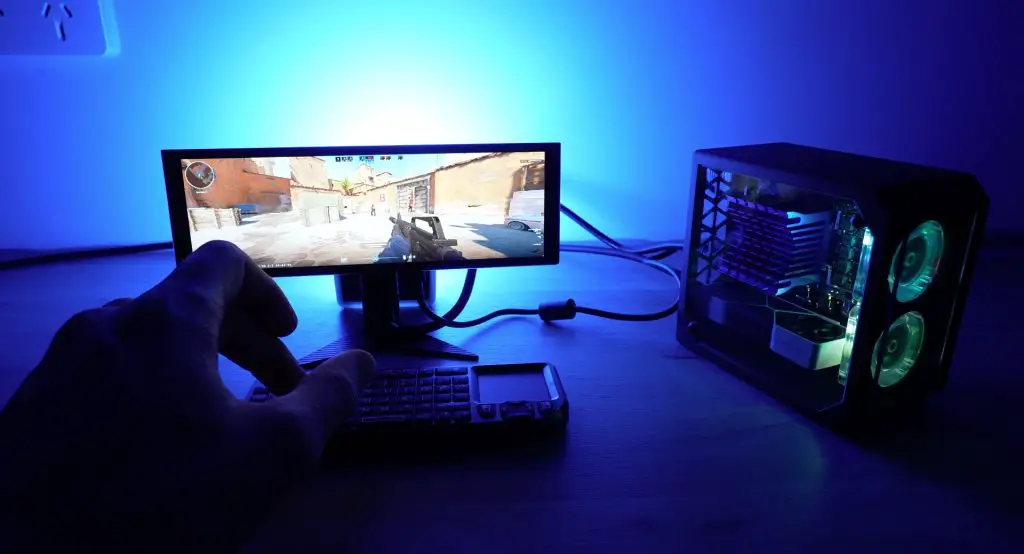
Technically yes. It runs Counter-Strike 2 on low settings and gets about 20-30fps at 720p. It’s not a pleasant experience, even with a proper mouse, it’s almost impossible to press more than one key on the keyboard at a time, and the crosshair is about the size of a human hair, so aiming isn’t easy either.

I did manage to get a couple of kills, though!

But for a PC that is the same size as a Pi 5, I think that’s quite impressive.

N100 Based Mini PC

Other Use Cases For The Radxa X4

Obviously, the Radxa X4 is not built to game on, but its form factor and features leave it with a lot of potential for other use cases like;

  • Home automation
  • Media server applications
  • Retro gaming
  • Tiny workstation setups
  • Low-power home servers

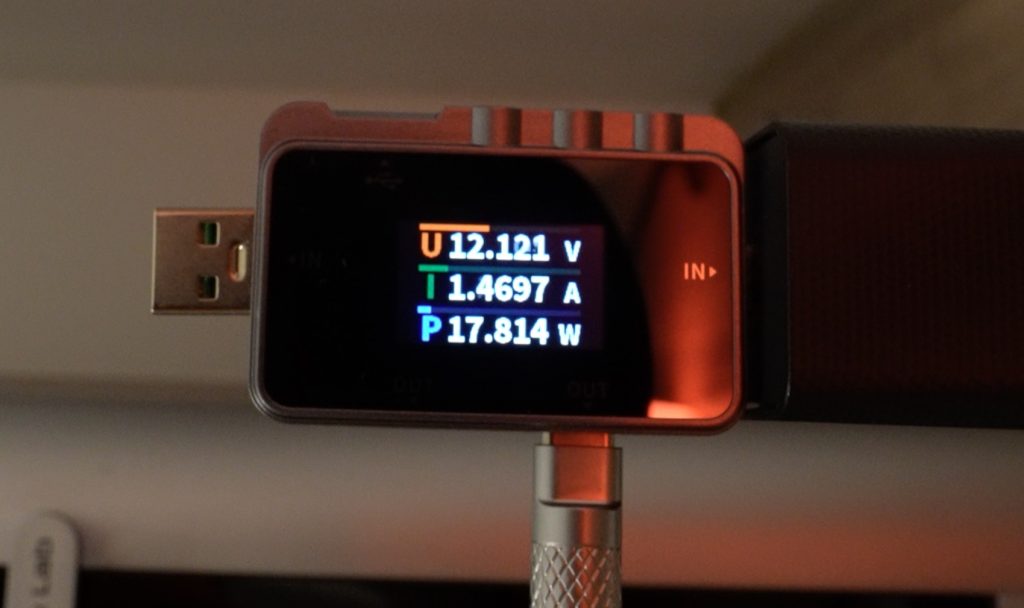
It only draws 17-20W under load during gaming with the monitor attached, making it an excellent option for an energy-efficient mini PC.

Power Consumption Is Less Than 20W While Gaming

Final Thoughts On The Mini Gaming PC Build

The Radxa X4 is a powerful and affordable single-board computer with plenty of possibilities. While gaming performance is limited, its low power consumption, form factor, and expandability make it an excellent choice for home projects.

I’ve put the enclosure up on Bambulab’s Makerworld so you can print your own if you’d like to. Take a look at the Bambulab A1 and A1 Combo if you’re thinking about getting started with 3D printing. The A1 is a great budget-friendly option, and you’ll actually spend your time printing rather than repairing the printer!

What do you think of my Radxa X4 gaming PC? Could you see yourself using it for a home project? Let me know in the comments section!

Build a Smart Family Planner with a Raspberry Pi 5

4

Do You Struggle to Keep Track of Your Family’s Schedule?

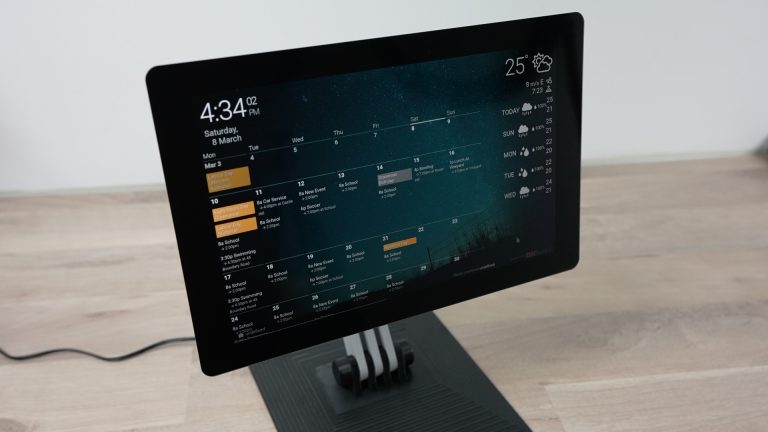
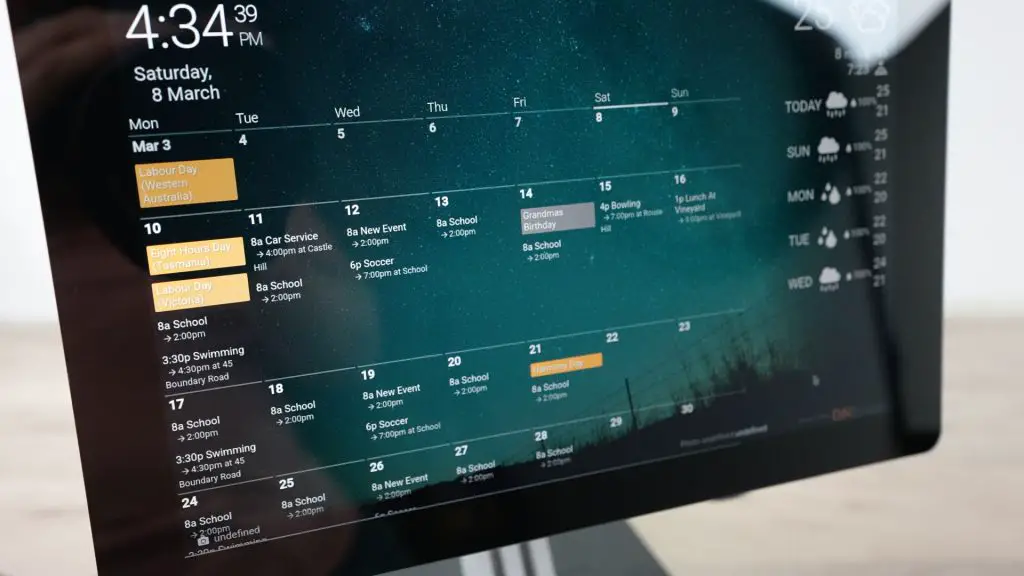
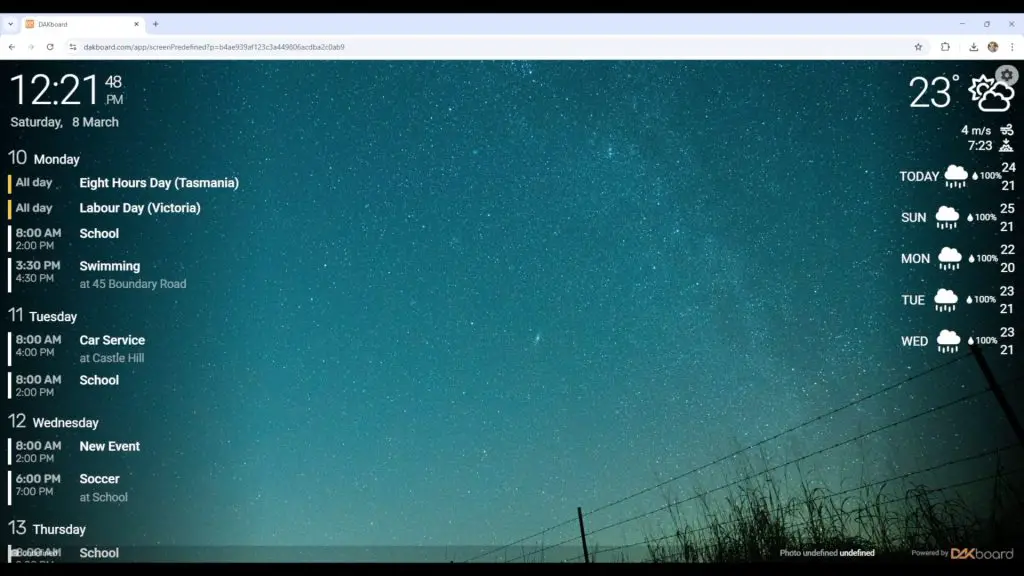
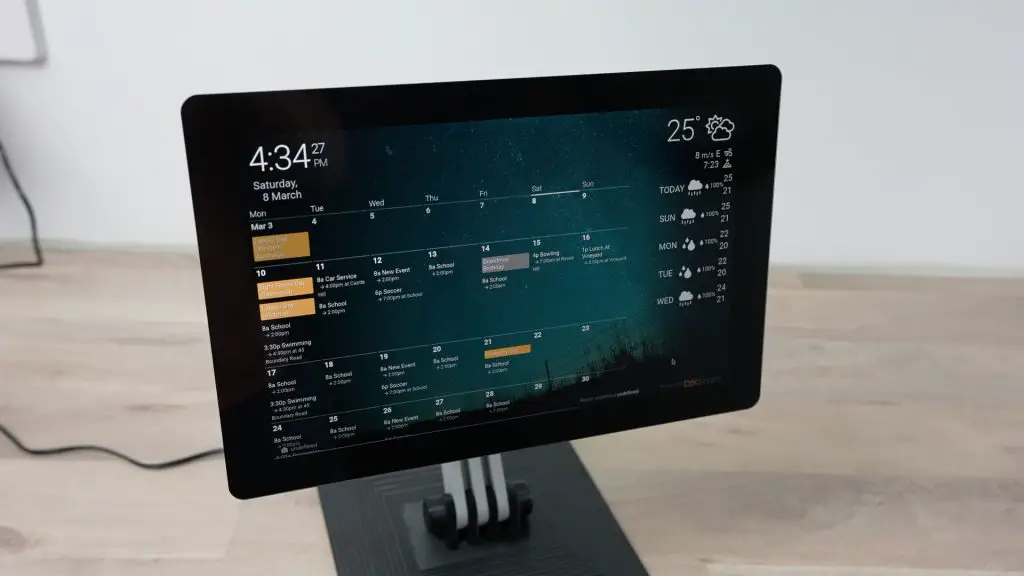
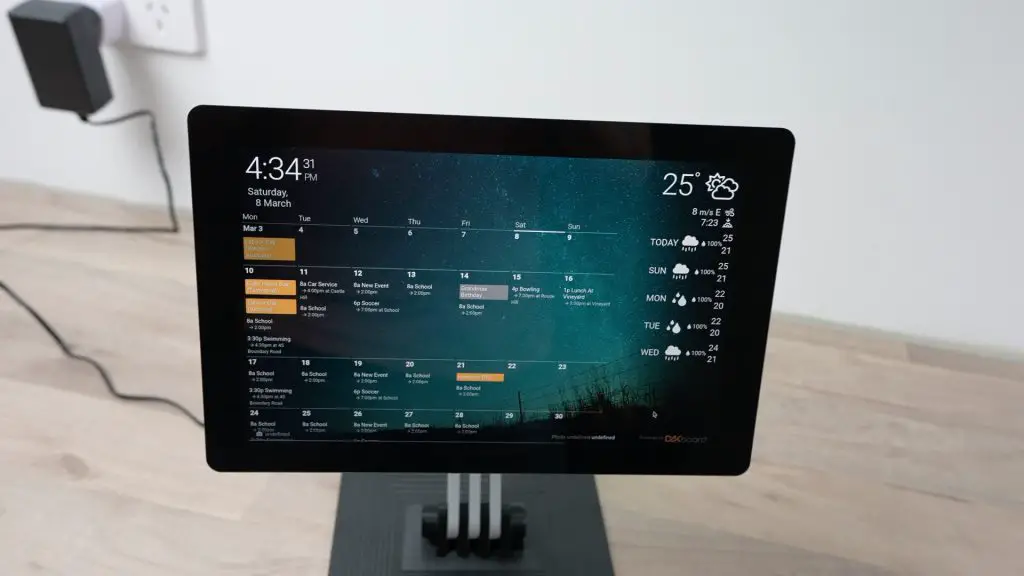
Today, I’m going to show you how to build a simple, smart family planner using a Raspberry Pi 5, a touchscreen display, and a 3D-printed stand! It features a calendar, weather updates, and even plays back photos that sync from your family members’ phones, all powered by free software.

There are some commercial versions of these family planners available, but they’re quite expensive. On top of that, they often hide important features like photo playback behind monthly subscriptions, so there’s an ongoing cost to consider too.

So, let’s get started building our own!

Here’s my video of the build, read on for the write-up.

What You Need To Build Your Own Family Planner

Tool & Equipment Used:

Some of the above parts are affiliate links. By purchasing products through the above links, you’ll be supporting my projects, at no additional cost to you.

Components Used To Build The Family Planner

As the brains behind the planner, I’m going to be using a Raspberry Pi 5. This is a little overkill for this project, but I intend to use the same device for a separate Home Assistant dashboard and some other tasks running in the background, so I’d like to have the extra power available. If you’re just using the planner functionality, then a Pi 3, 4, or even a Pi Zero 2 W will work too.

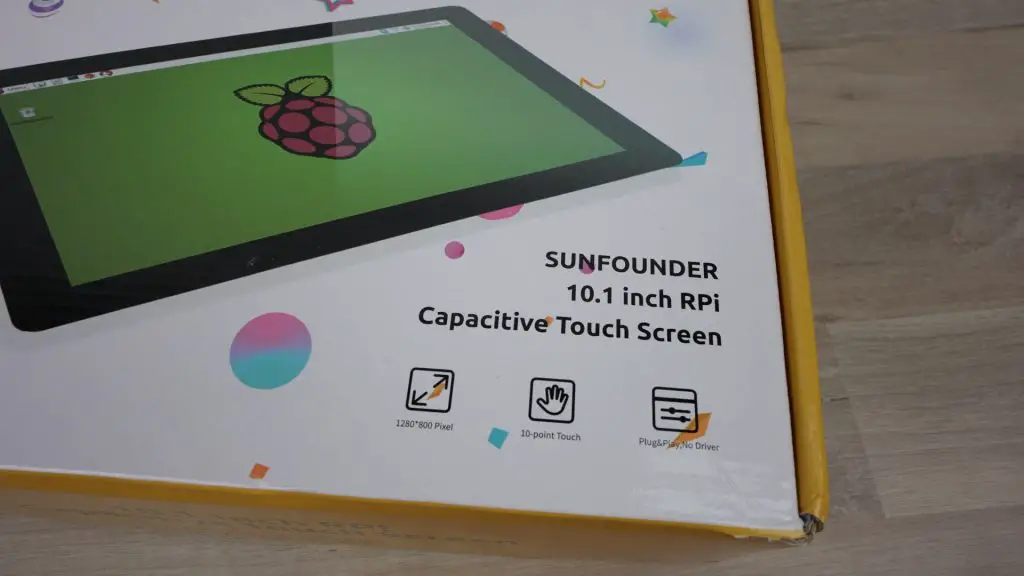
Next, we need a display, and for that, I’m going with this 10.1″ touch display by SunFounder. This is a 1280×800 IPS display with a 178-degree viewing angle, so it’s a good fit for this type of project.

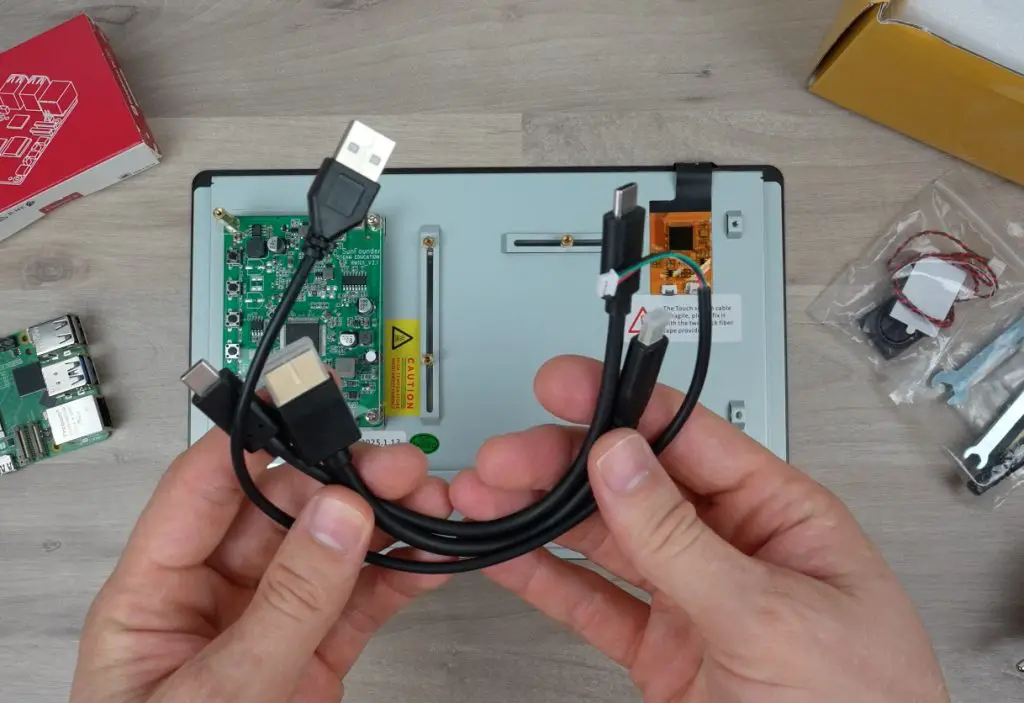
This particular model is nice and easy to use because it’s designed specifically for the Pi 5, so it includes all of the necessary cables to connect the Pi to the display.

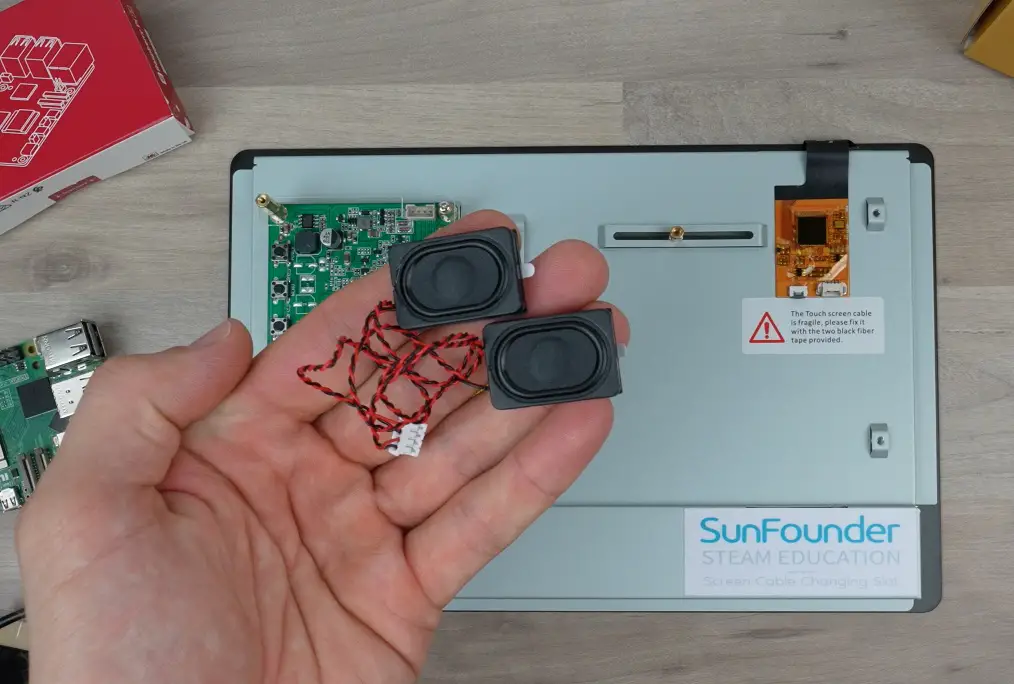
It also caters for the Pi 5’s 5V 5A power requirements, so you don’t need to run separate power supplies. It even includes speakers, so you can make use of audio prompts or voice feedback if you’d like to.

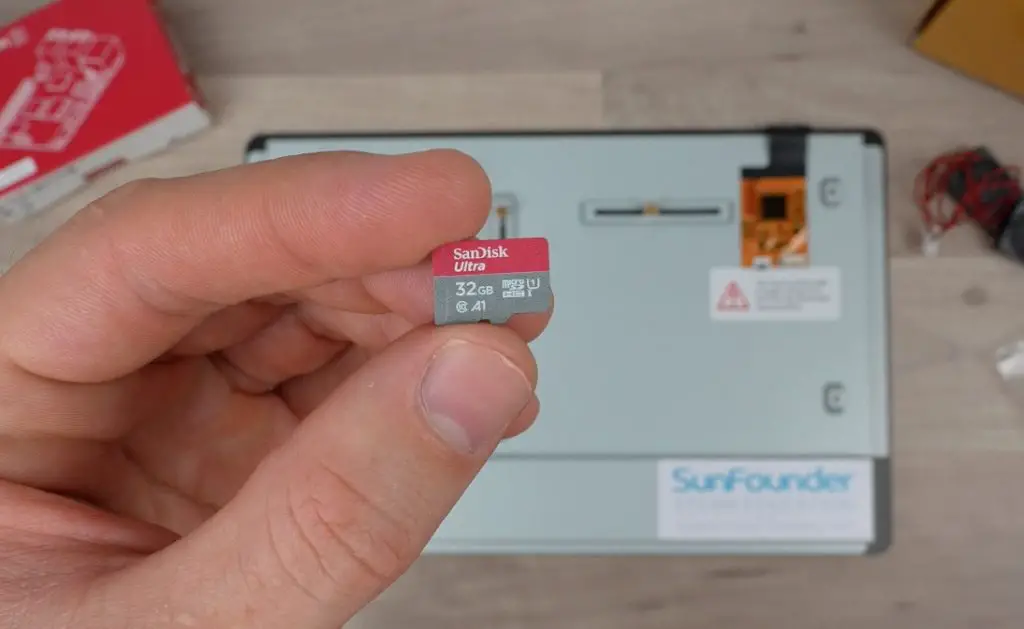
Because the display package includes the power supply and all of the cables we need, the only other item required is a microSD card for the operating system. I’m using a 32GB Sandisk Ultra card, which is more than enough for this project.

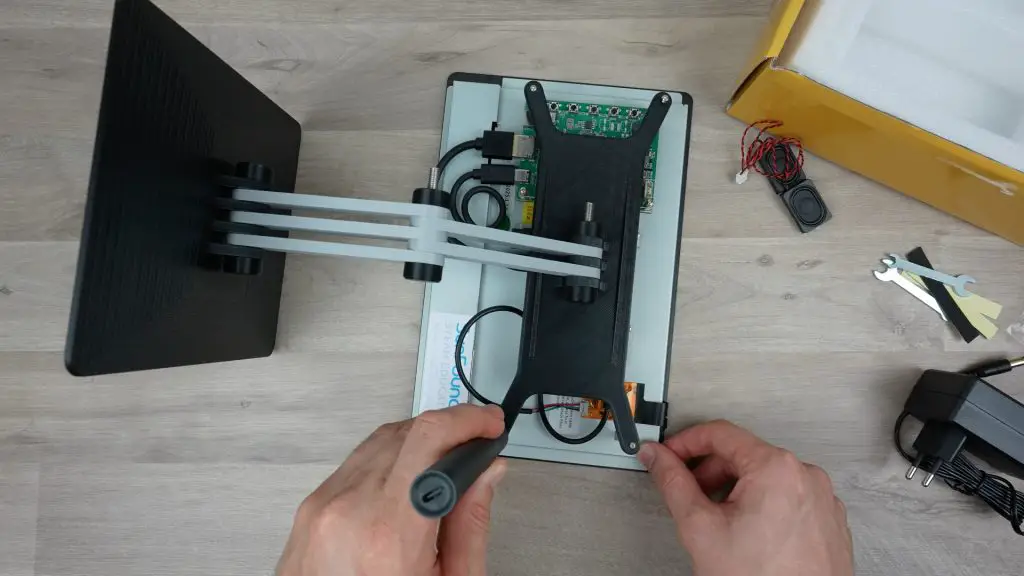
I’ve flashed Raspberry Pi OS onto the microSD card and configured it to connect to my home WiFi network. We can put that straight into the Pi and then mount the Pi onto the back of the display. This is done using little standoffs on adjustable rails, so you can mount any SBC with a square bolt pattern onto it.

The Pi is secured with three M2.5x18mm brass standoffs, and a clear acrylic cover plate goes over it.

I’ve added a small stick-on heatsink. I’m not sure if this is going to provide enough cooling to the Pi yet, but it’s easy to replace if needed. The acrylic cover has a place to mount a 40mm fan as well.

We can then plug in the HDMI cable, the power cable, and the USB cable for the touch display.

The board on the back of the display has buttons to control the display menu and speaker volume, as well as a power button that turns off the display and power to the Pi.

And that’s the hardware basically done!

Assembling the Family Planner’s Stand

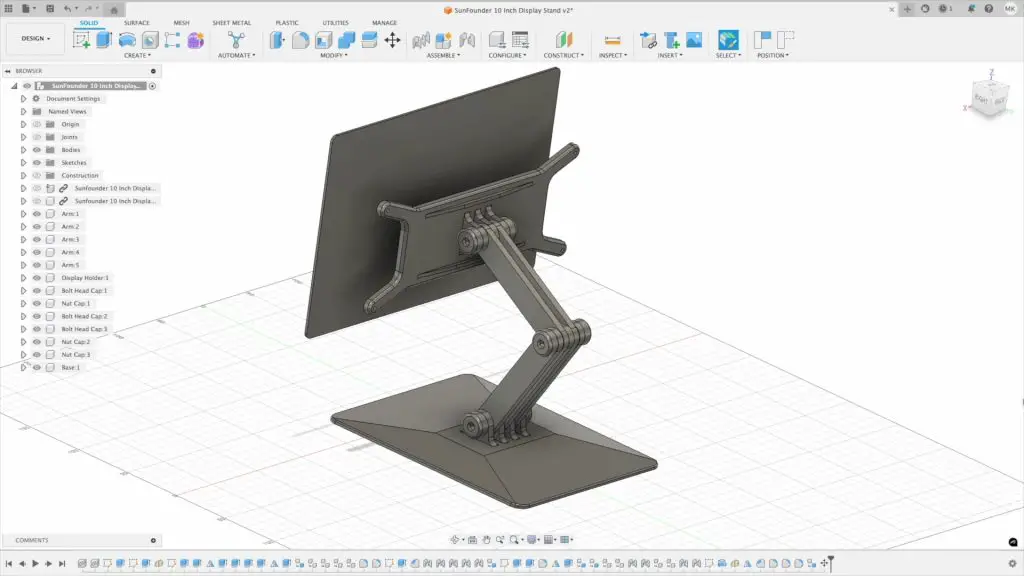
SunFounder has a 3D-printable stand and an enclosure available for this display, but the stand doesn’t suit my needs, and I think the enclosure makes the display look quite bulky.

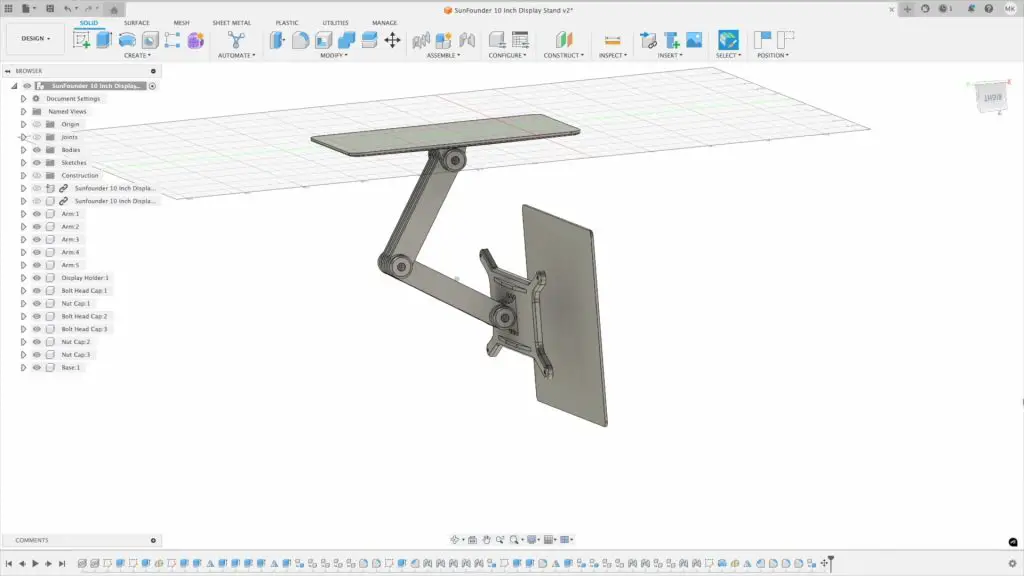
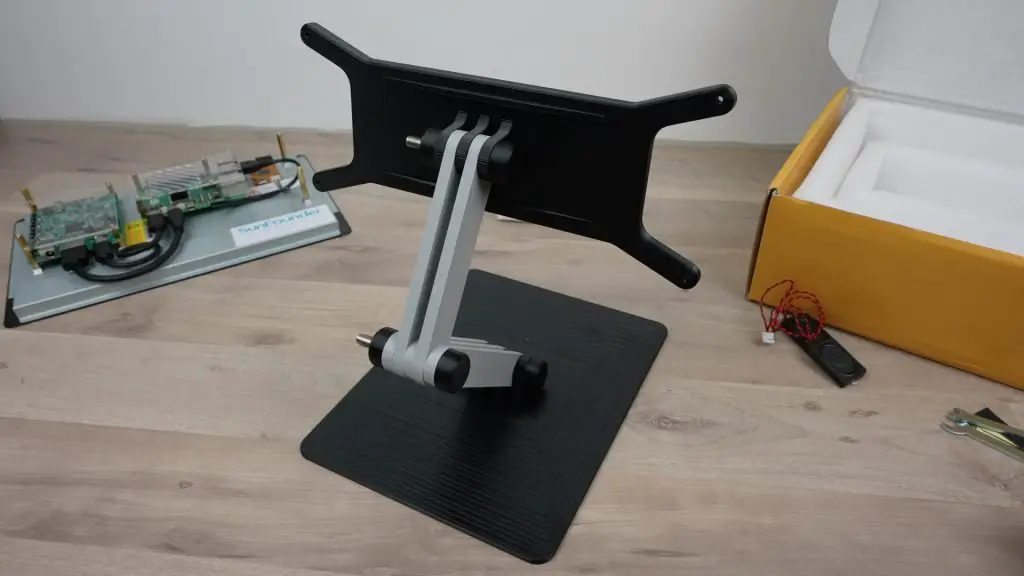
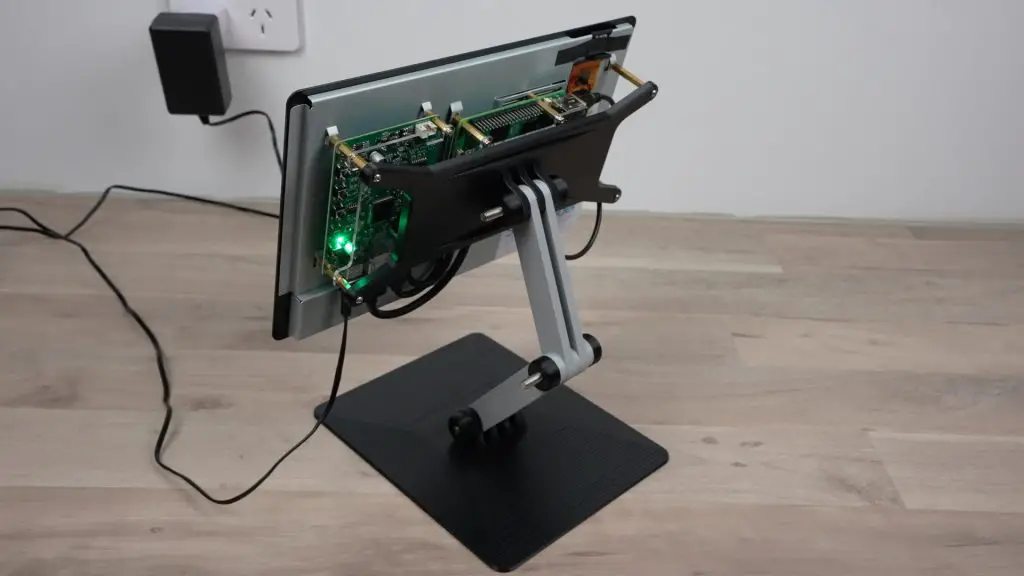
So I decided to design my own stand with an adjustable arm to position it exactly where I want it. The stand can also be hung from the underside of a surface like an overhead kitchen cabinet, which is how I’ll be using it long-term.

I’ve put the 3D print files up on Makerworld – Download print files

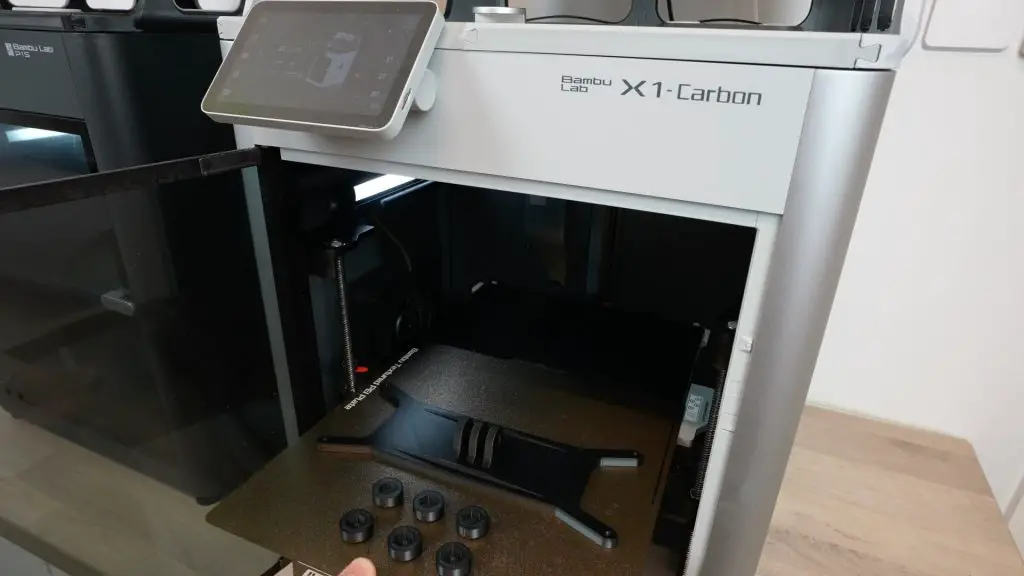
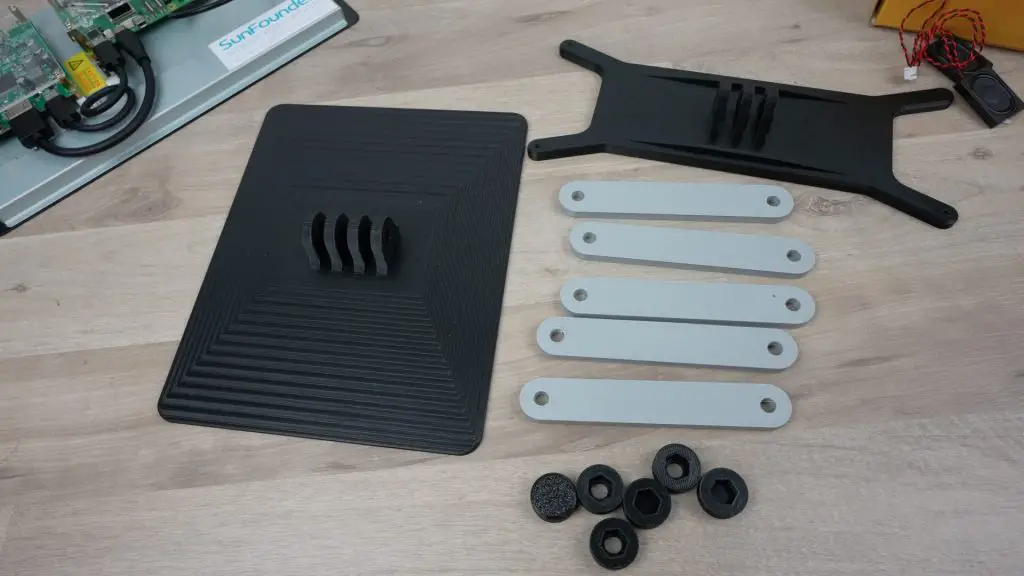
I printed the components in black and grey PETG. I used PETG rather than PLA to provide better long-term strength.

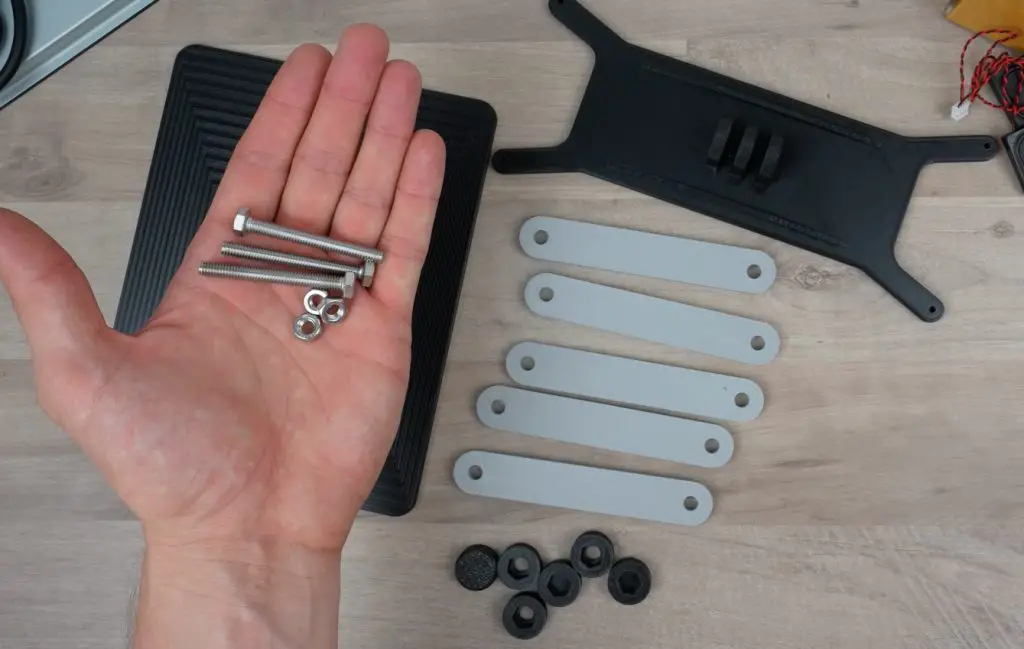
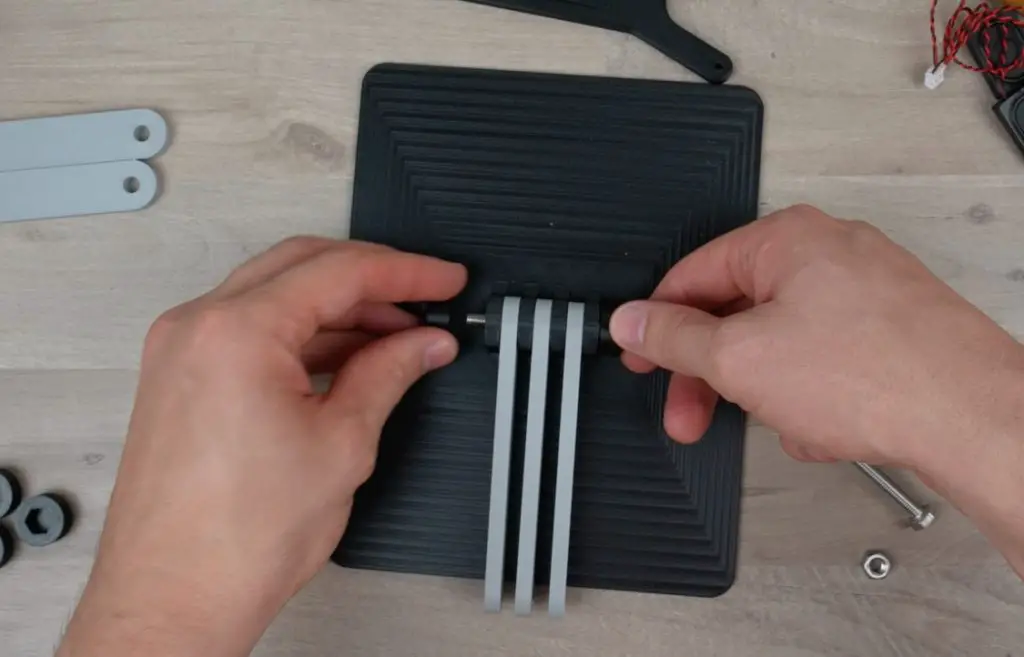
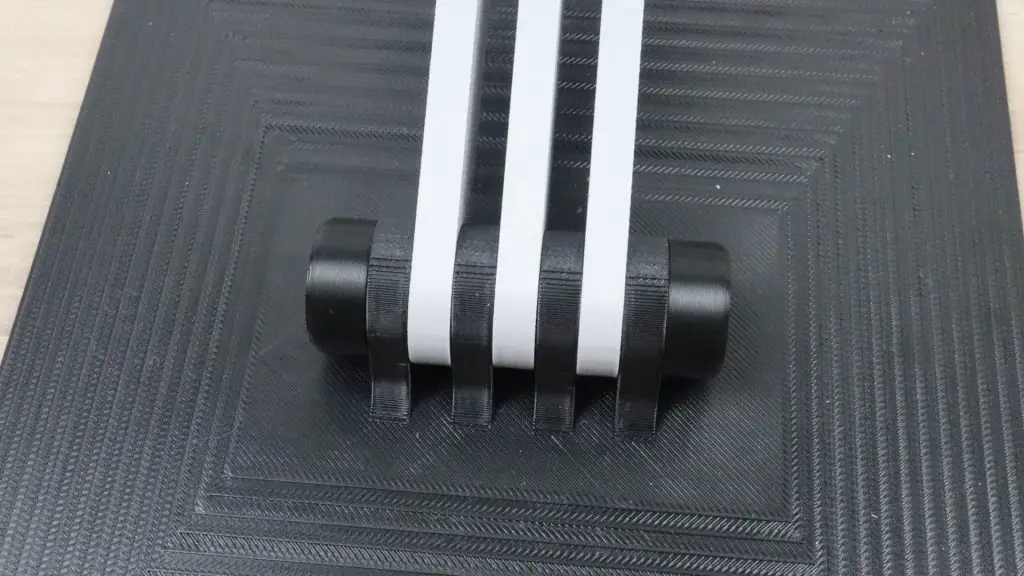
The stand goes together easily with just three M6x50mm bolts holding the joints together. These can be adjusted and tightened using the 3D-printed end caps.

It would actually be best to use two 40mm bolts and one 50mm bolt, but rather than buying two sets, I’ll cut the longer ones down or put caps on them afterwards.

The stand attaches to some brass standoffs on the display with four M2.5x12mm button head screws.

Setting Up The Family Planner Dashboard Software

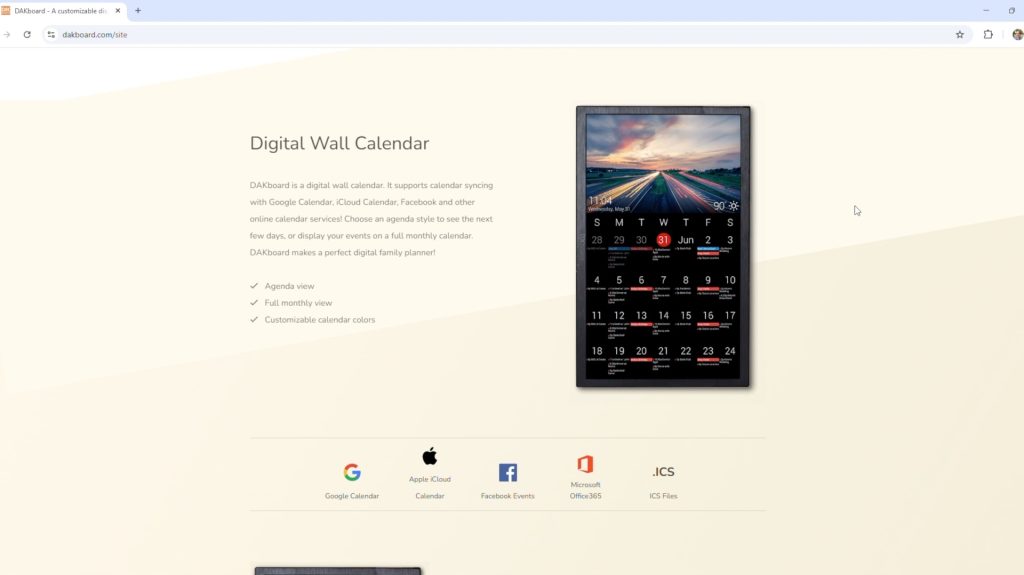
The two software options that I like are Dakboard and MagicMirror.

Dakboard is much easier to set up and run, but it is a bit more limited than MagicMirror. MagicMirror is open-source, free, and has a large community behind it, so it has hundreds of available modules and a lot of flexibility. However, this also means that it takes much longer to install, set up, and run.

Dakboard is great if you want a simple calendar interface with a few basic add-ons. The base features are free to use, including up to two calendar integrations, a choice of predefined layouts, and integration with photos, weather, and a news feed.

Additional calendars, custom layouts, and more integrations are available through two paid tiers. While these aren’t particularly expensive, they defeat the purpose of building our own device. If you feel like the free version of Dakboard isn’t enough for you, then I’d encourage you to try MagicMirror as an alternative.

I’m going to use the free tier of Dakboard as I primarily want to have a shared family calendar available to view.

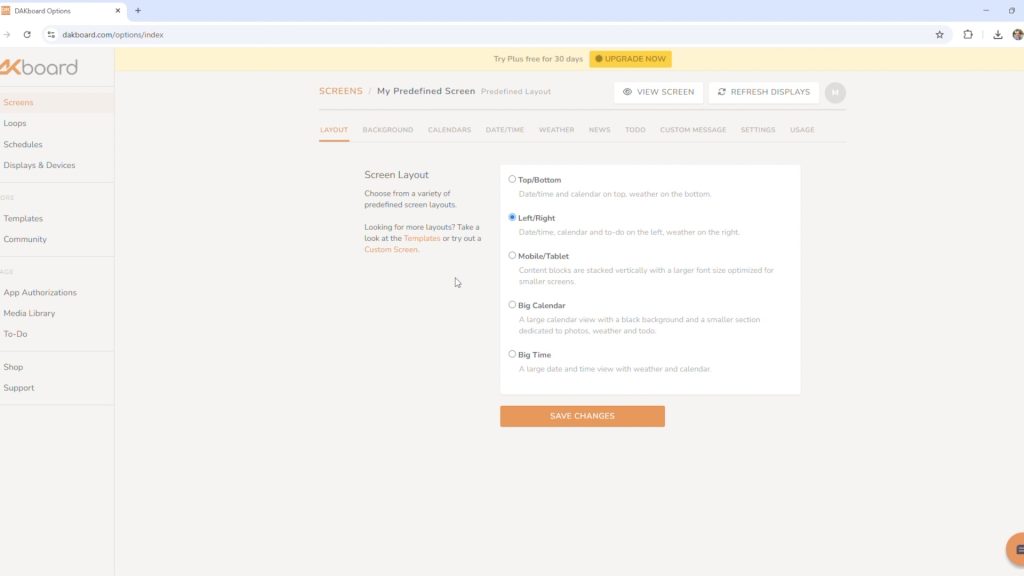
To get set up, create an account, and you can then work through setting up your predefine screen by running through these tabs.

First, choose a layout. I like the calendar on the left and the weather on the right.

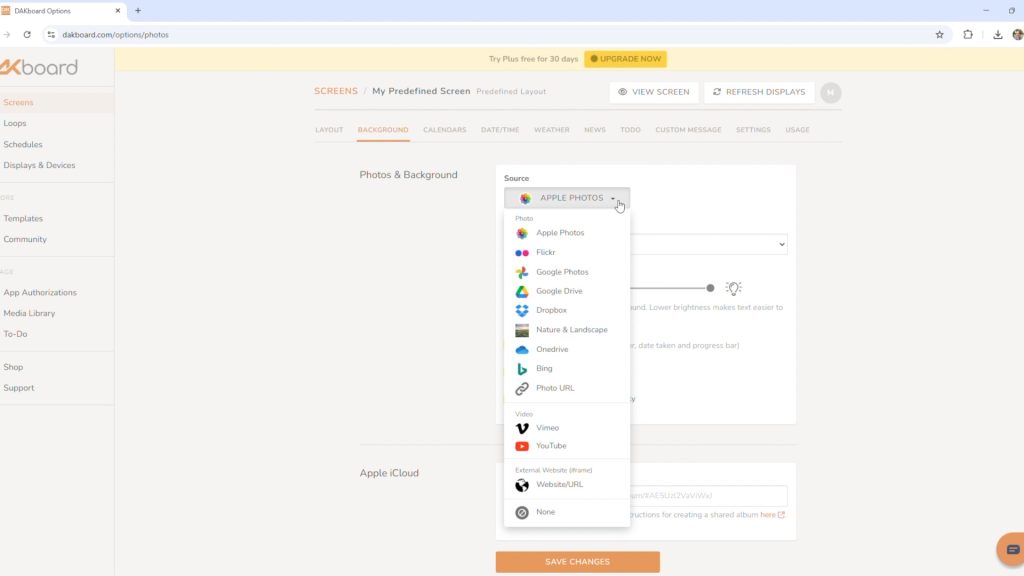
Then, choose a background. There are options for integrations with Apple Photos, Google Photos, OneDrive, Dropbox and a host of other services too. You can even set a Youtube video as the background if you’d like to.

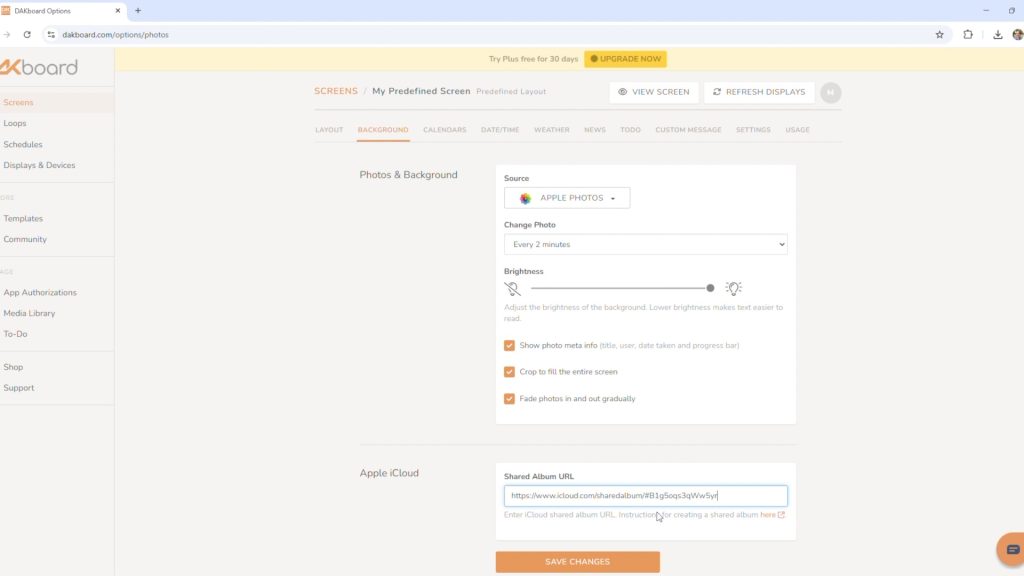
I’m using a shared Apple Photo album that is set up on my family members’ phones.

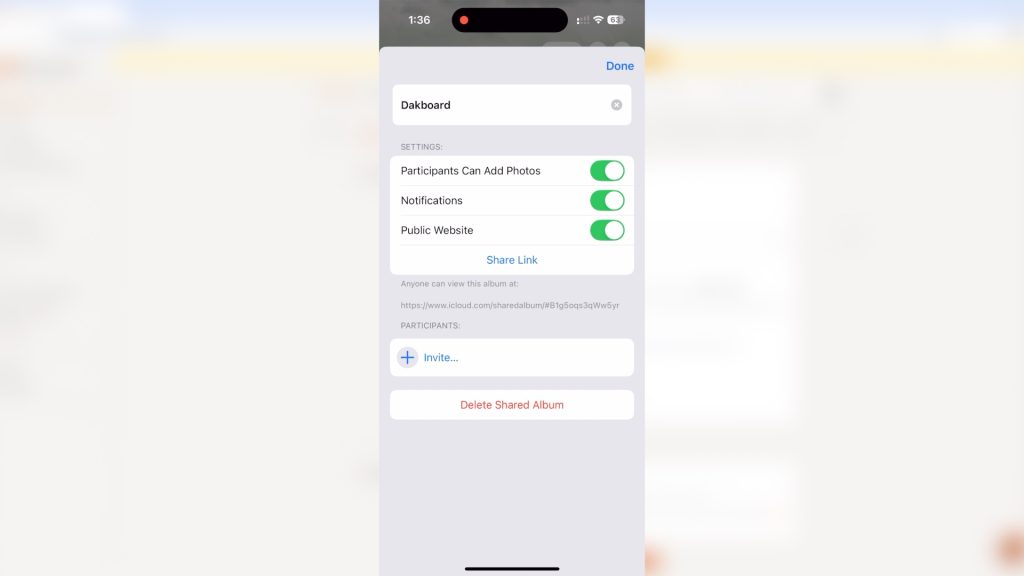
Shared albums are quite easy to make. You just go into the Photos app on your device, scroll down to shared albums, then hit create, give it a name and invite participants that can contribute photos to the album.

To make it accessible through Dakboard, you need to go to Shared Album Details, then make sure that Public Website is enabled and then press Share Link to get a link that you can copy over to Dakboard.

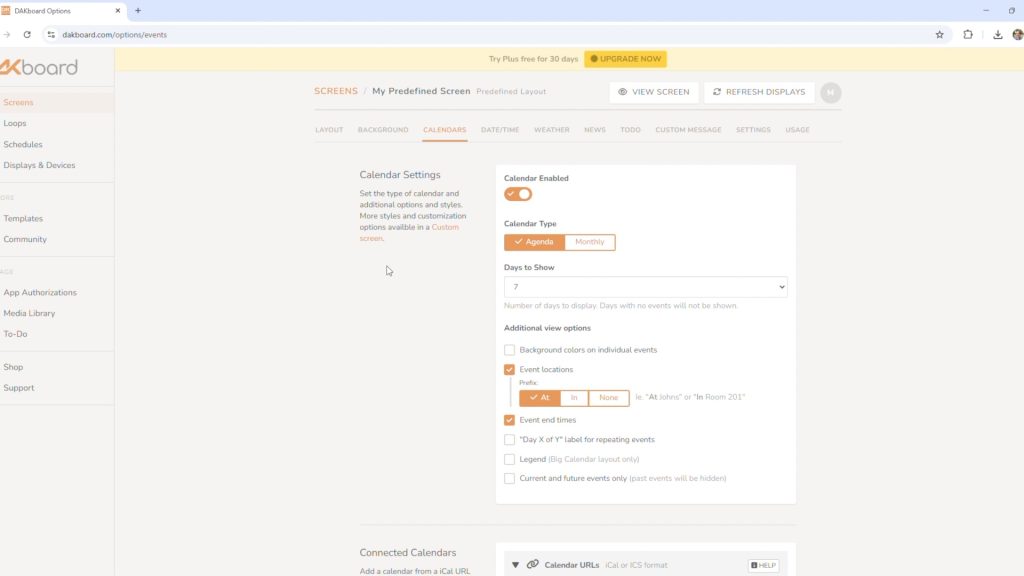
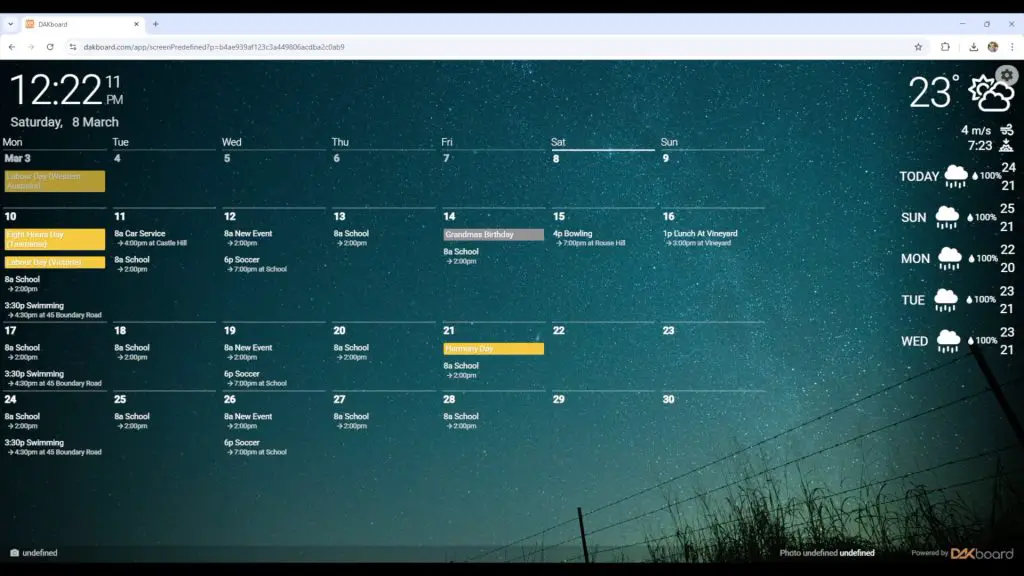
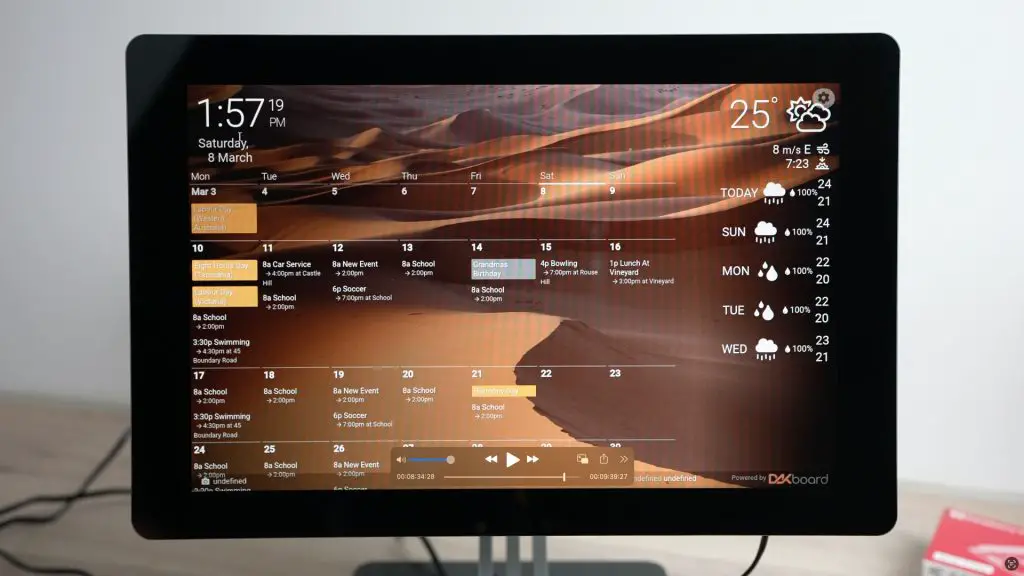
We’ve then got some calendar display settings that affect the way your calendar shows up. I’ll show you both the monthly and agenda views. I like the standard monthly view and the agenda view across 7 days. I also like including the event location and end times.

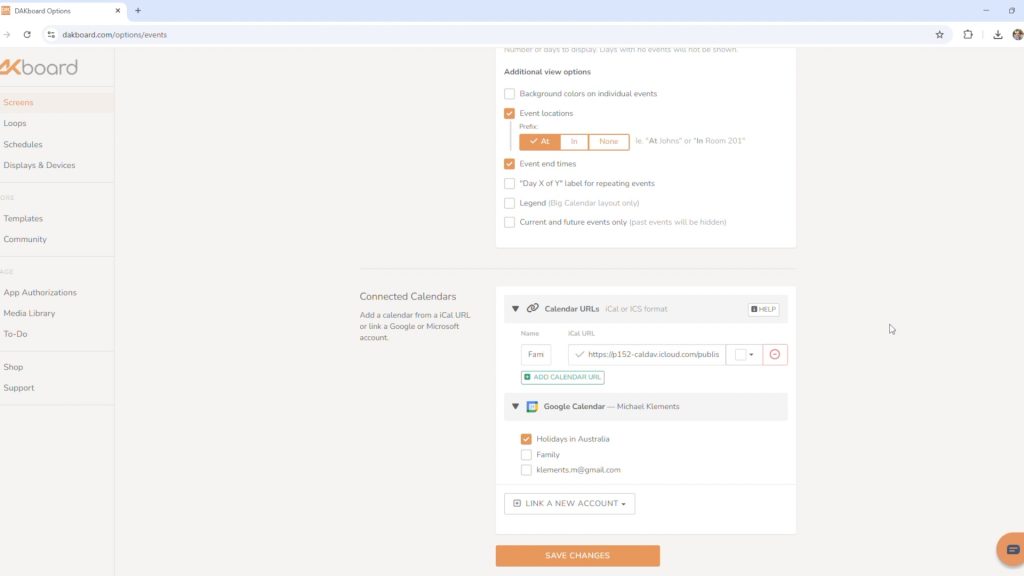
With the free tier, you can connect two calendars. You only really need one as we run a shared iCloud calendar across our family phones, and we can add, change or remove events from any device. There are also similar options available with Google Calendar.

Setting this up is also quite easy to do. First, you need a Calendar to link. You can use an existing calendar or create a new shared calendar with other family members.

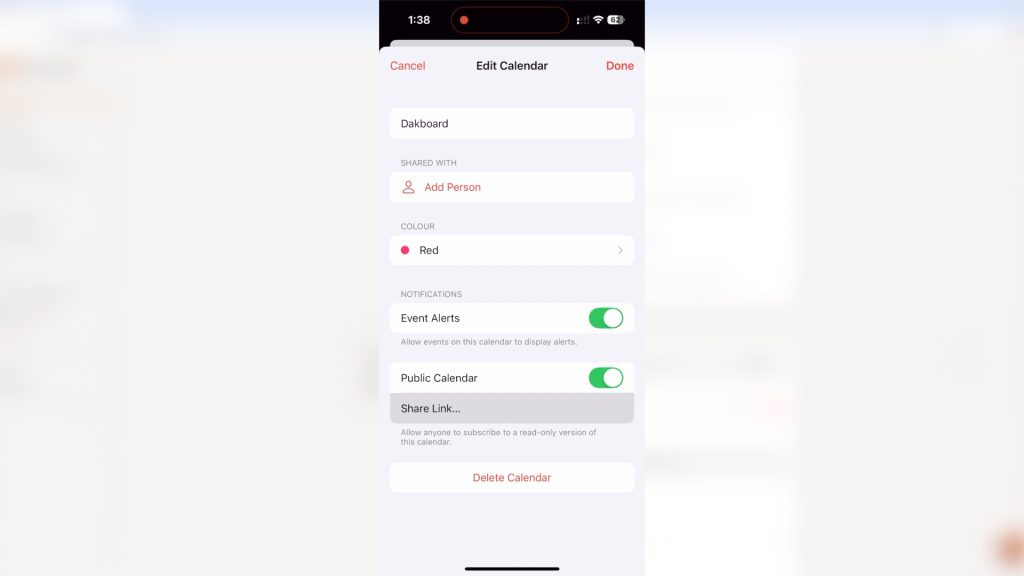
Once you have created your calendar, click on the i alongside it to edit it. In this menu, you can enable it as a Public Calendar and then get a share link like we did with the Photo Album. We then copy this URL across to Dakboard.

I added a second calendar link to a Google Calendar showing the Australian public holidays, just as an illustration.

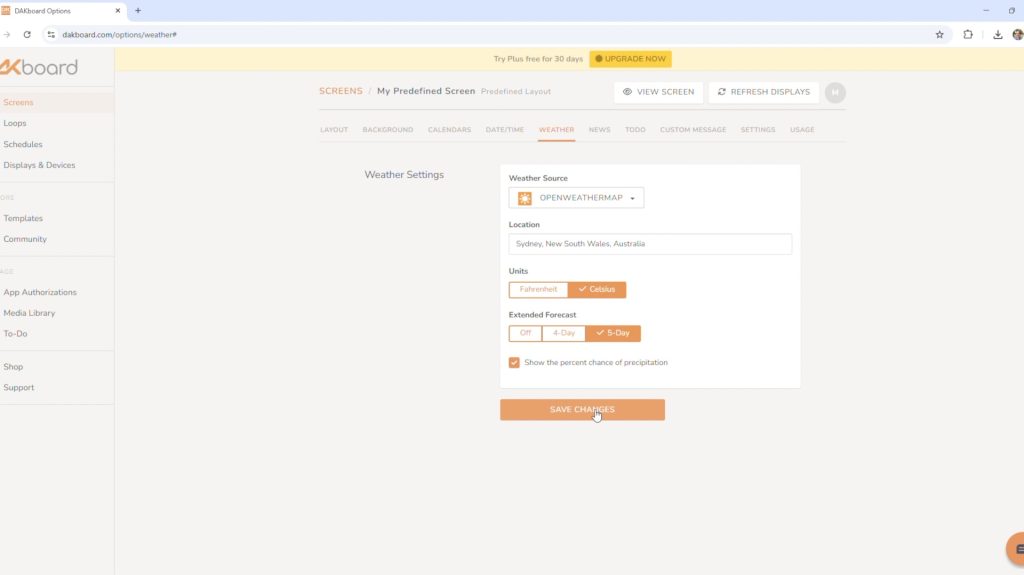
That’s the basic set-up done. You can also add the date and time, weather, news, a to-do list, and some custom text.

To view the screen, we then click on this link at the top.

Try playing around with different settings to customise the screen to your needs.

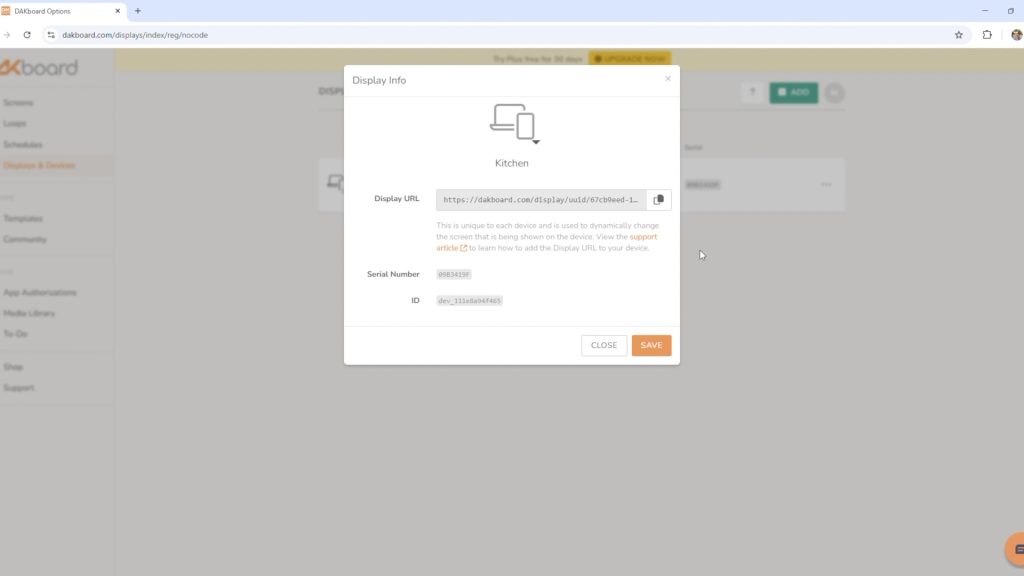
Once you’ve got it set up the way you like, we can link our Raspberry Pi to our account. Go to displays and devices, then create a new display. I’ve called mine Kitchen. Then go to this web address in the Pis browser to link it.

With that set up, your Pi should now be able to display your family planner dashboard.

Automating the Family Planner Functions

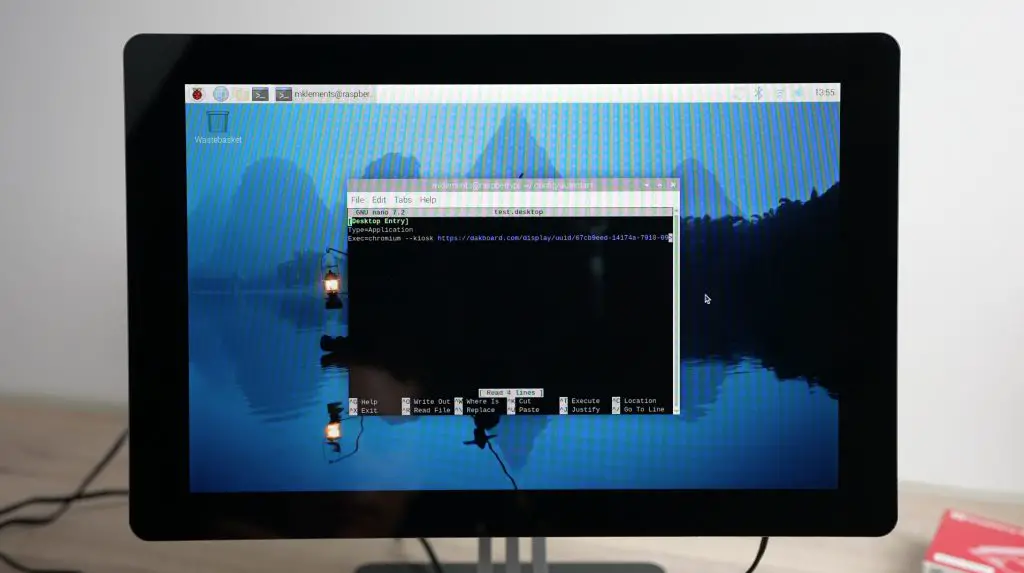
Rather than opening up the browser and then the link each time the Pi boots up, we can set it up to do this automatically.

First, we need to create an autostart directory by entering this command:

mkdir -p /home/pi/.config/autostart

Then make sure that you’re working in the directory by entering:

cd /home/pi/.config/autostart

Then, create a new text file in this location with these lines:

nano test.desktop

Add the following lines to the file and then close it by pressing Ctrl + O:

[Desktop Entry]
Type:Application
Exec=chromium --kiosk https://dakboard.com/display/uuid/<replace with your url>
  • Exec= → This is used in .desktop files to specify the command that should be executed when the application runs.
  • chromium → This launches the Chromium web browser.
  • --kiosk → Runs Chromium in kiosk mode, which means:
    • It opens in full-screen without any toolbars, address bars, or buttons.
    • The user cannot close or navigate away using normal controls.
  • https://dakboard.com/display/uuid/<replace with your url> → This is the URL that Chromium will open in kiosk mode.

Let’s reboot the Pi and see if it works.

Now, we’ve got a family planner running on the Pi, displaying our shared family calendar and cycling through the photos from a shared album on our phones.

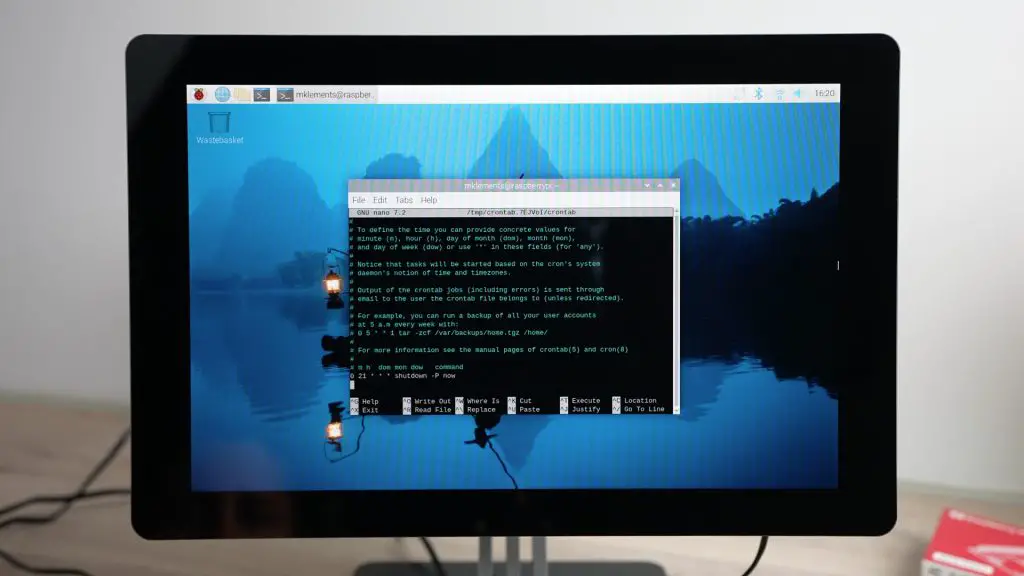
The last thing you might want to do is set the Pi to shut down at night to save power and increase the lifespan of the display. You can do this by adding a shutdown line in crontab, which will turn the Pi off every night at a set time.

Enter this command to open up crontab:

sudo crontab -e

Then, add this line to the end of the file:

0 21 * * * /sbin/shutdown -H now
  • 0 → Minute (Runs at minute 0)
  • 21 → Hour (Runs at 21:00, or 9:00 PM)
  • * → Day of the month (Runs every day)
  • * → Month (Runs every month)
  • * → Day of the week (Runs on all days of the week)
  • /sbin/shutdown → Calls the system shutdown command
  • -H → Halts the system after shutting down (stops hardware but does not power off)
  • now → Executes the shutdown immediately when the cron job triggers

The Pi doesn’t have an easy way to wake up again, but I’ve worked around this by using a smart plug. The plug turns off 10 minutes after the Pi is scheduled to shut down and then turns on again in the morning, which in turn boots the Pi back up.

Final Thoughts On The Family Planner

Building a smart family planner with a Raspberry Pi 5 is a fun and practical project that helps keep everyone organised without relying on expensive commercial options. With a bit of DIY effort, you get a fully customisable dashboard that suits your family’s needs, whether it’s tracking schedules, displaying photos, or checking the weather. With Dakboard and MagicMirror, you can tailor the experience to fit exactly what you’re looking for.

Let me know what you think of this project in the comments section below, and let me know if you’ve tried MagicMirror or any other software that you’d recommend for a home planner!

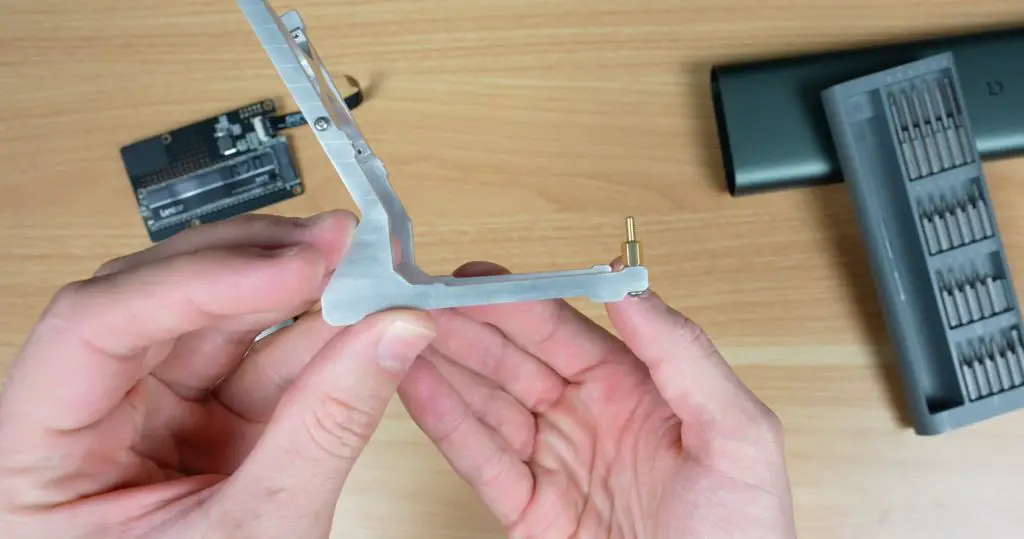
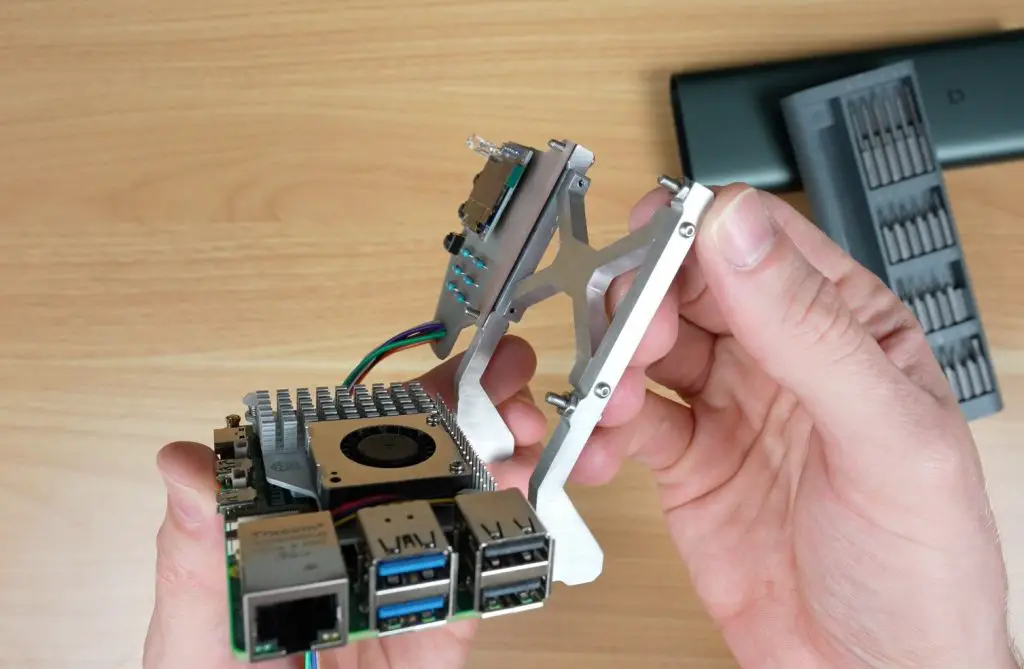
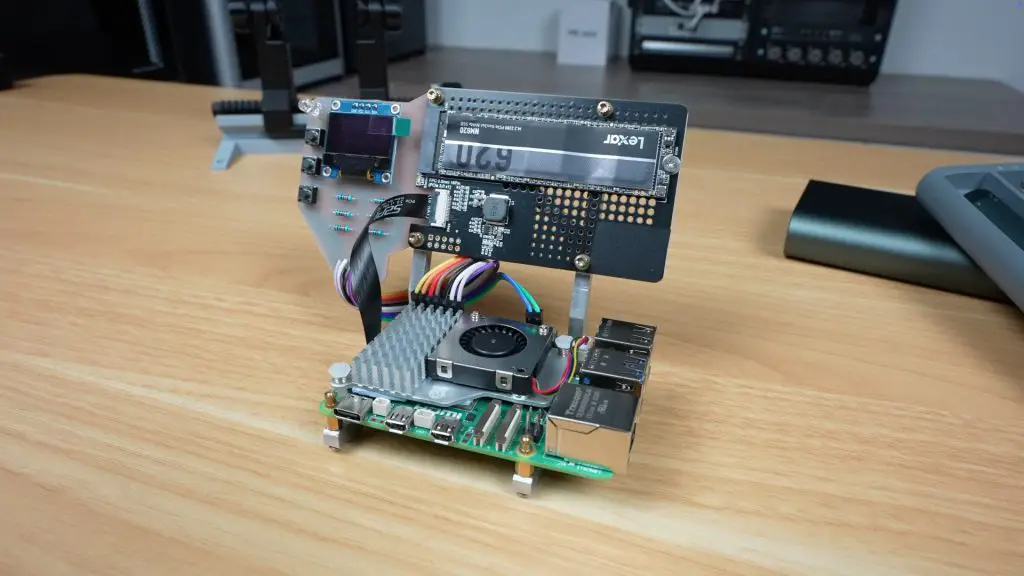
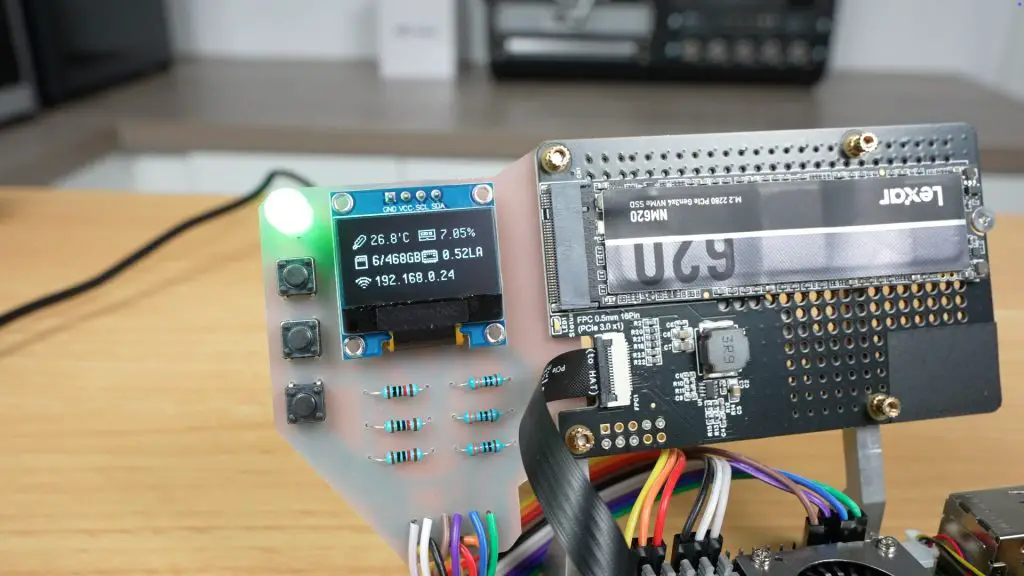
Ultimate Raspberry Pi 5 Desktop Server with UPS, NVMe Drive & Stats Display

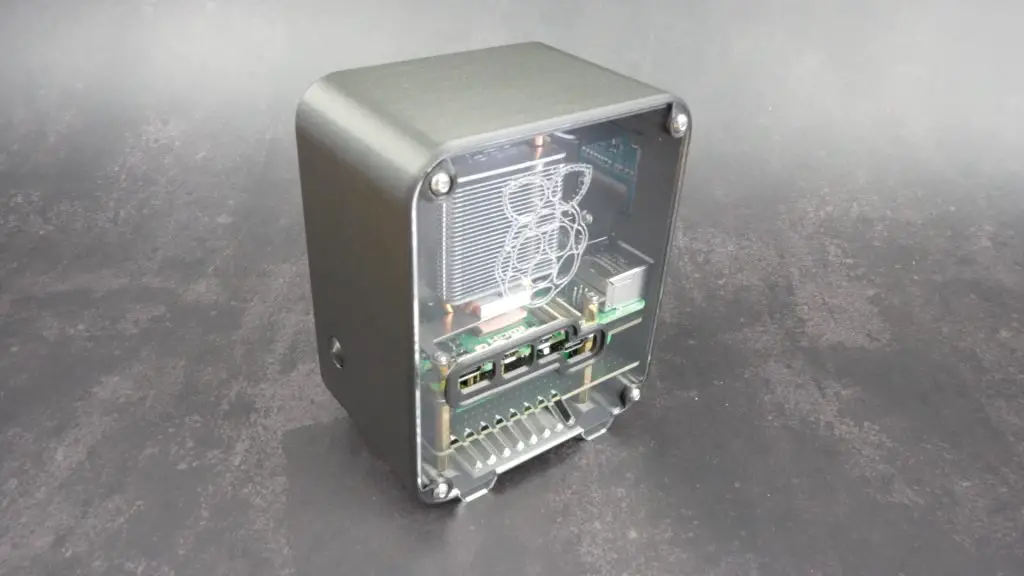
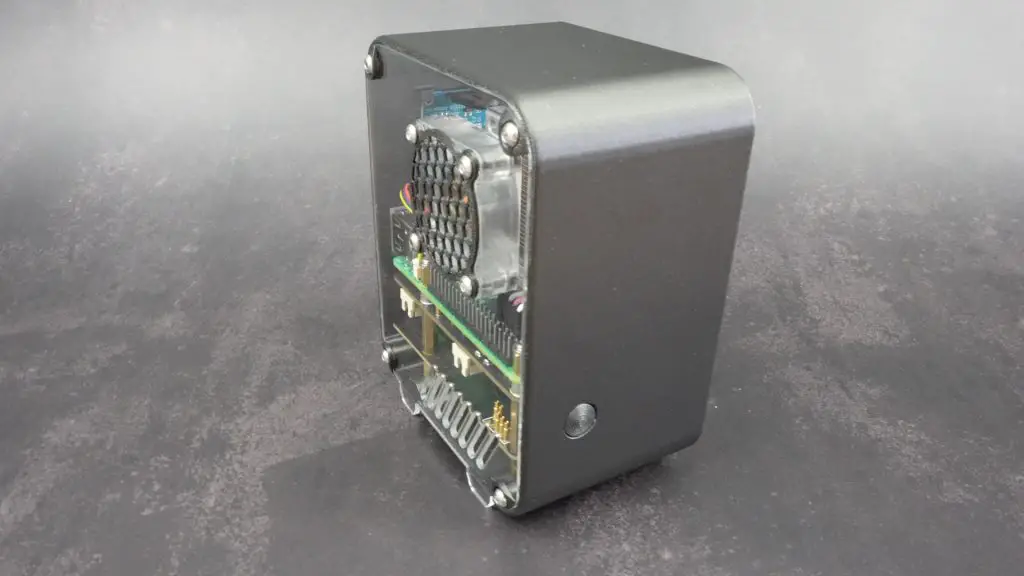
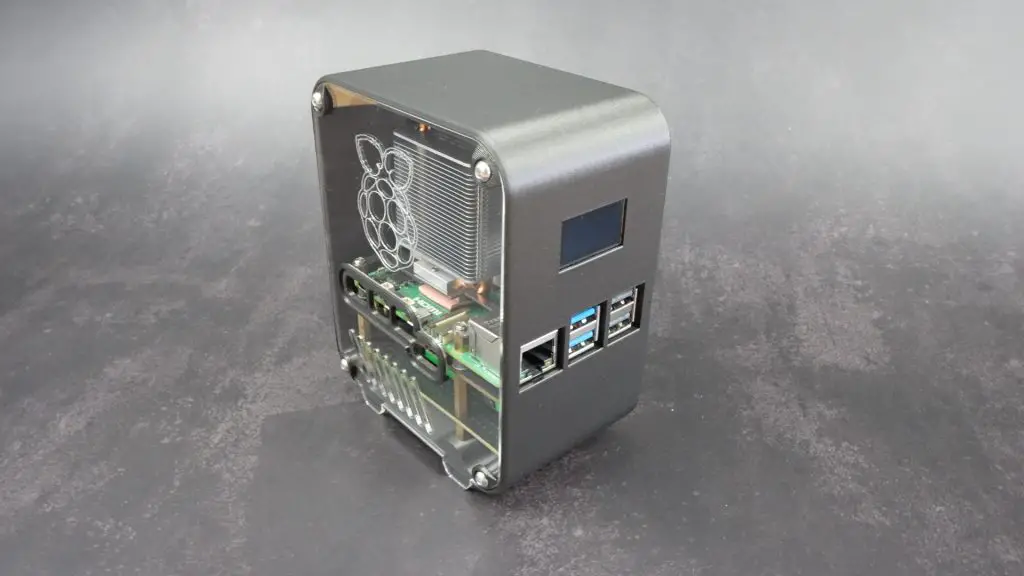
Today I’m taking my Raspberry Pi 5 to the next level by building the ultimate desktop server. This build will feature an NVMe drive for fast storage, a UPS to keep it running during power cuts, and a real-time OLED display to show system stats. I’ll also be designing a custom 3D-printed case for it, complete with active cooling for overclocking.

Here’s my video of the build, read on for the write-up;

Components Used To Build The Ultimate Pi 5 Server

Tool & Equipment Used:

Ultimate Pi 5 Server Hardware

Let’s start out by taking a look at the hardware that I’m going to use.

The Pi 5 is the brain of the project. I’m using the 8GB variant, so it’s got 8GB of LPDDR4x RAM and a BCM2712 SOC that has 4 arm cores running at up to 2.4GHz.

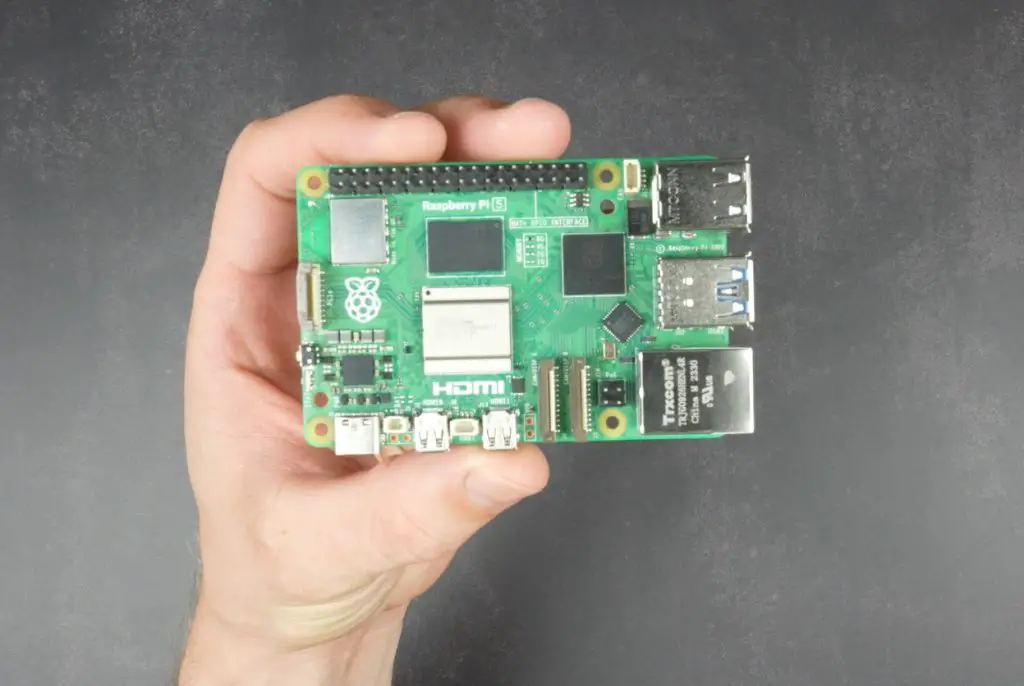
Raspberry Pi 5

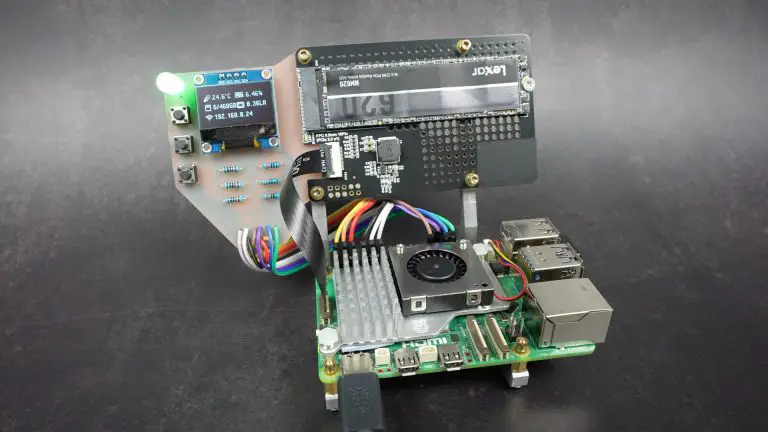
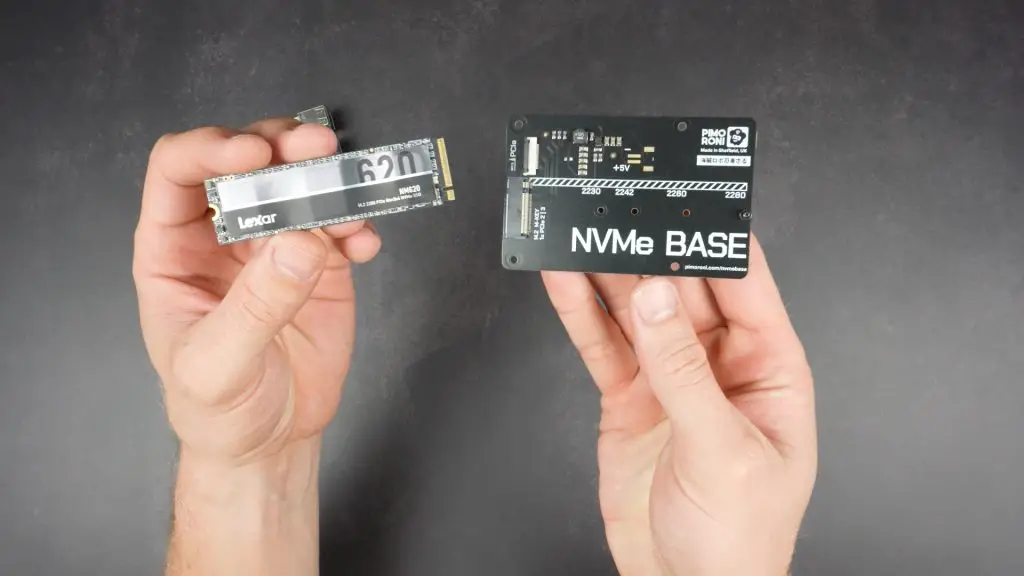
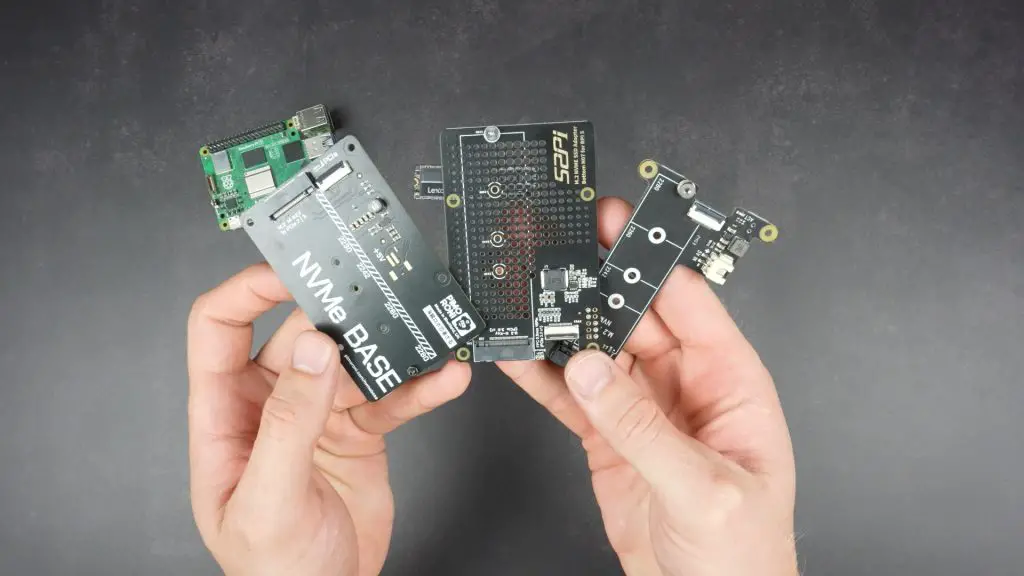
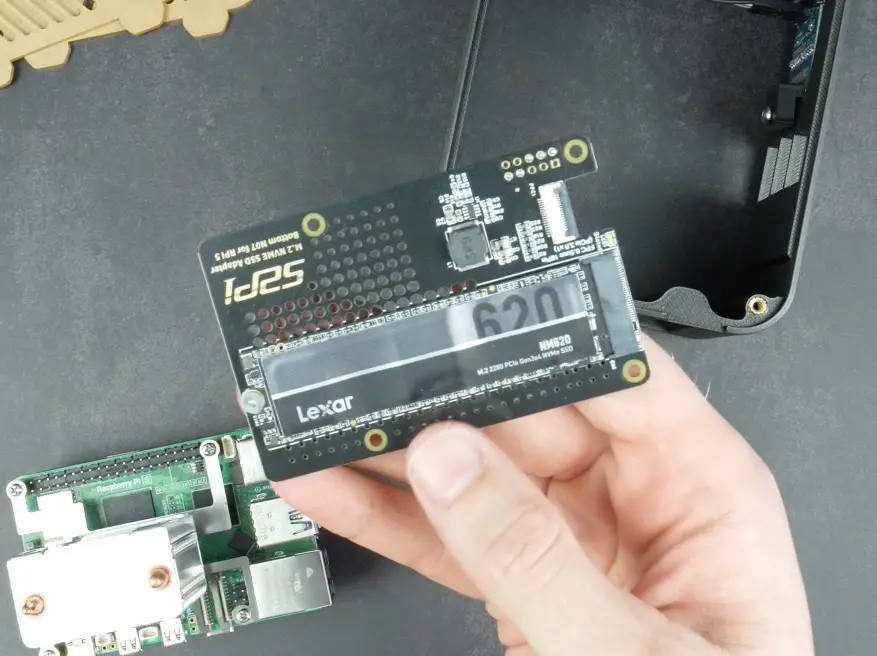
For storage, I’m going to add a 512GB NVMe SSD which will be connected to the Pi’s PCIe port using an NVMe hat. I wanted to keep the design as generic as possible to accommodate a range of NVMe hats, so it will accommodate most NVMe hats that have a similar footprint to the Pi and don’t need the GPIO pins for power. All NVMe bases will need a 50mm PCIe extension, or longer to get up over the UPS.

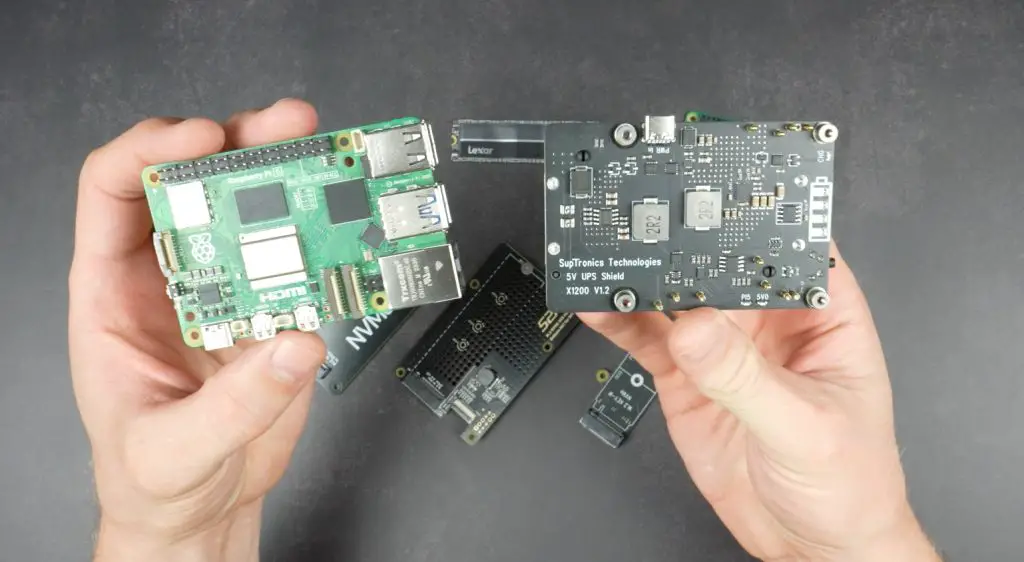
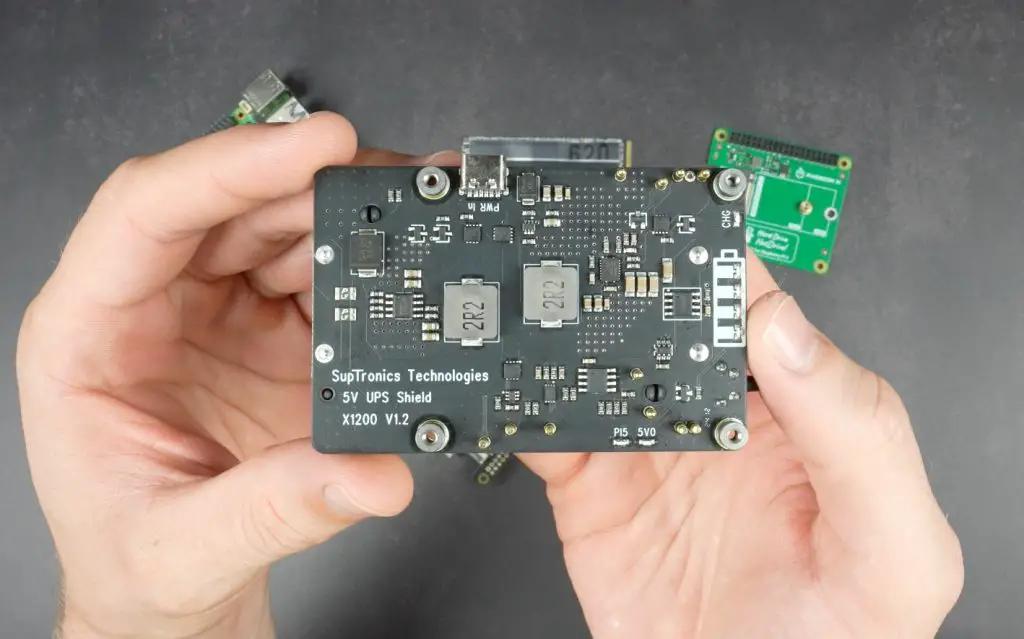
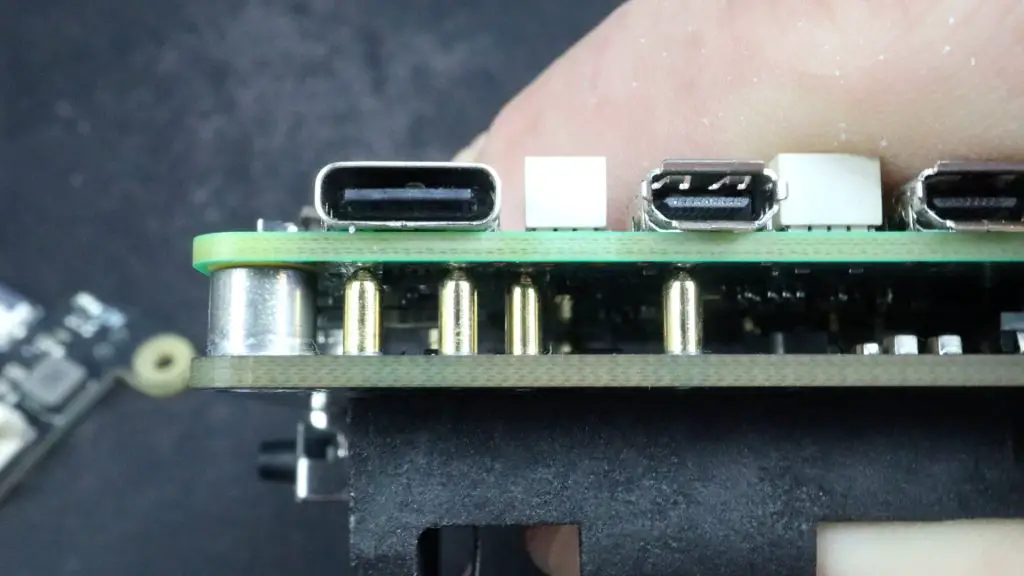
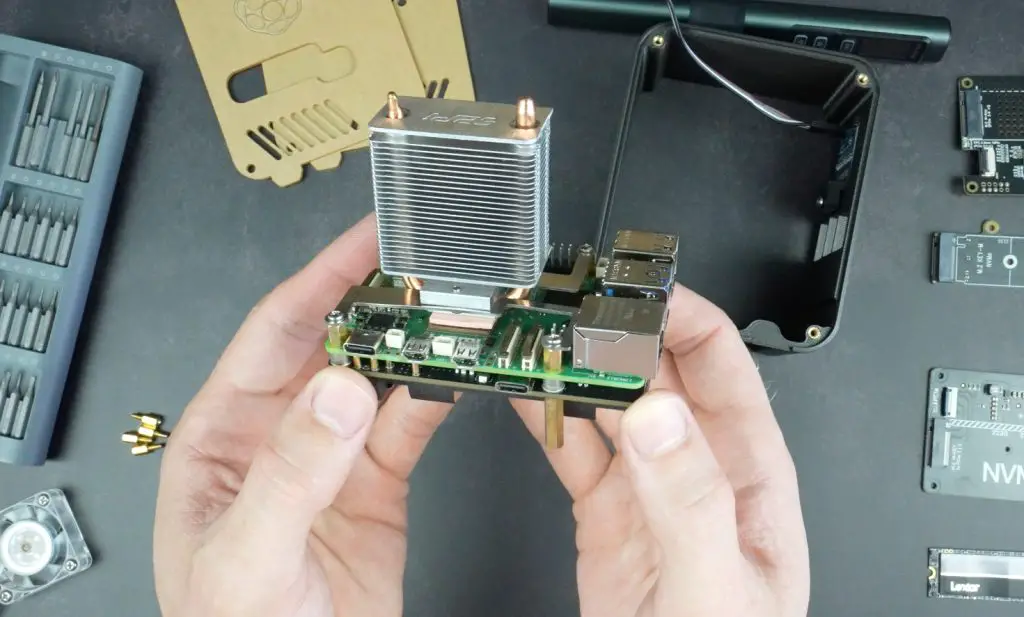
The reason they can’t use the GPIO pins is that between the Pi and NVMe hat, I’m going to install a UPS hat. I’m using the SupTronics X1200 UPS that is powered by a USB C power supply like the Pi. It then passes power through to the Pi using a range of pogo pins that make contact with the test points and GPIO pins underneath it. It stores power in two 18650 cells which can be used to power the Pi for up to 2 hours in the event of a power outage.

Because this hat has so many contact points, it has to be installed underneath the Pi, which means that the NVMe hat needs to be installed either on top of the Pi or below the UPS.

Pogo Pins Pi 5 UPS

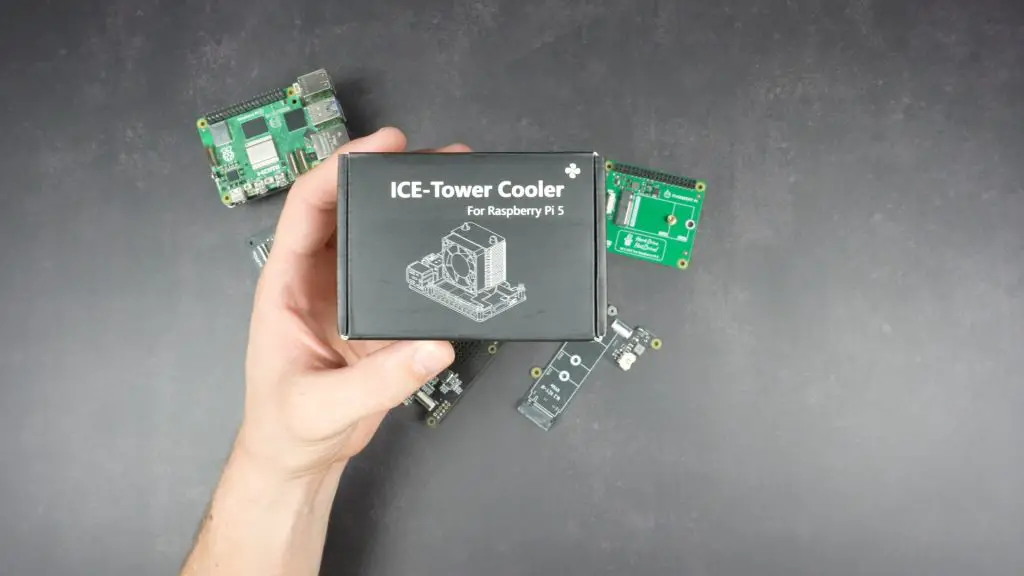
I’m going to go with below the UPS so that I can still use an Ice Tower cooler on the CPU for cooling. This will provide a lot of additional cooling headroom for overclocking.

Ice Tower Cooler For Pi 5

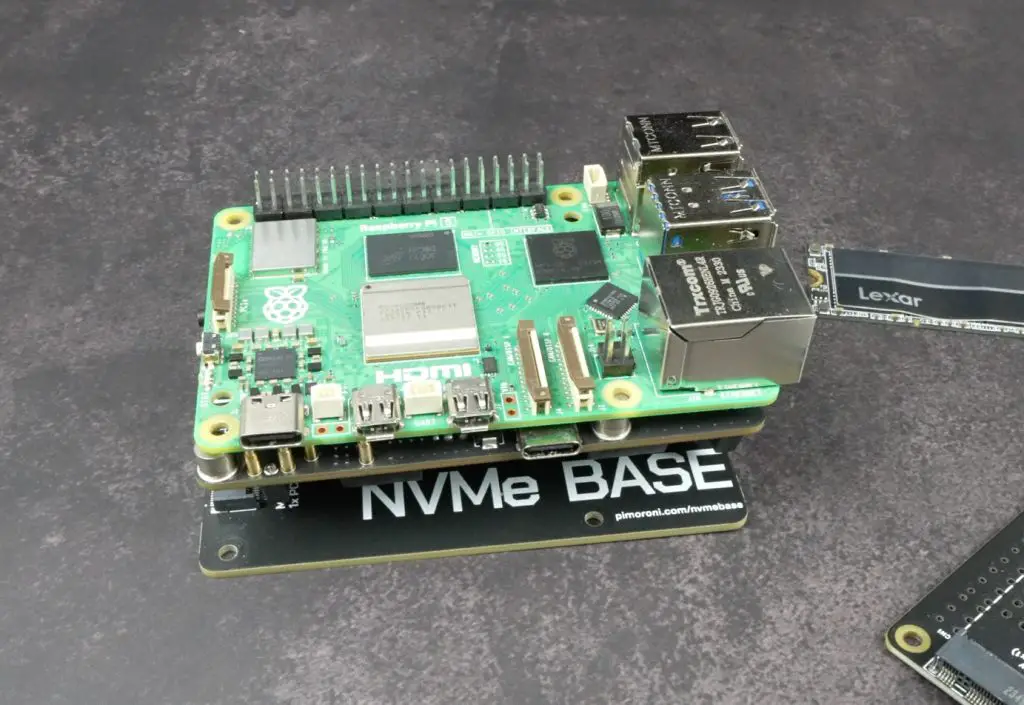
So that’s my Pi mini server stack, now I need to get the case designed for it.

Pi Stack For Ultimate Server Case

Designing The Pi 5 Desktop Server Enclosure

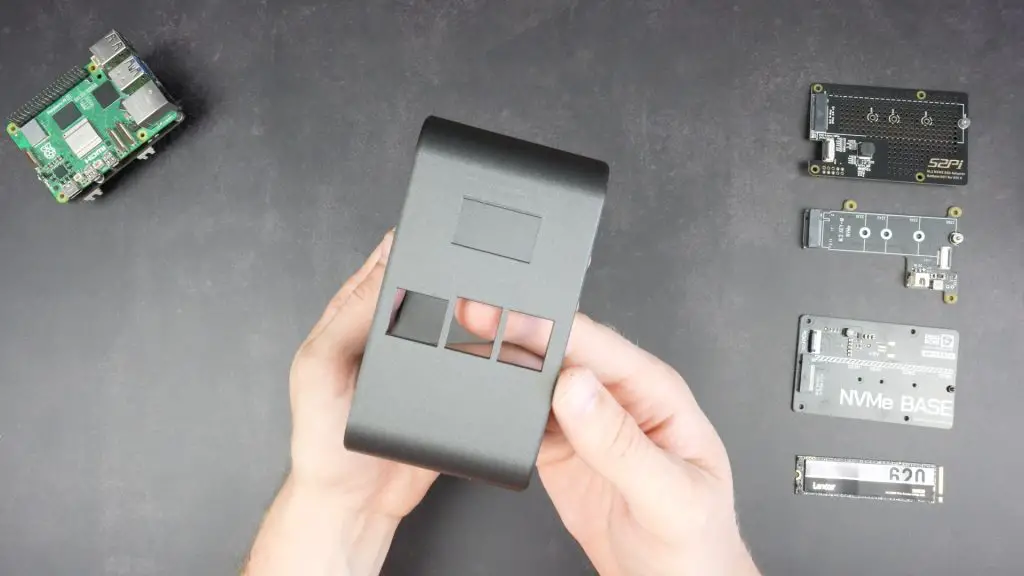
Like my previous projects, I modelled this case in Fusion 360. I refined my previous Pi 4 case design to make assembly smoother and to accommodate the increased stack height. The Pi 5 sits on top, with the UPS shield directly underneath and the NVMe shield below that, connected via a long PCIe ribbon cable.

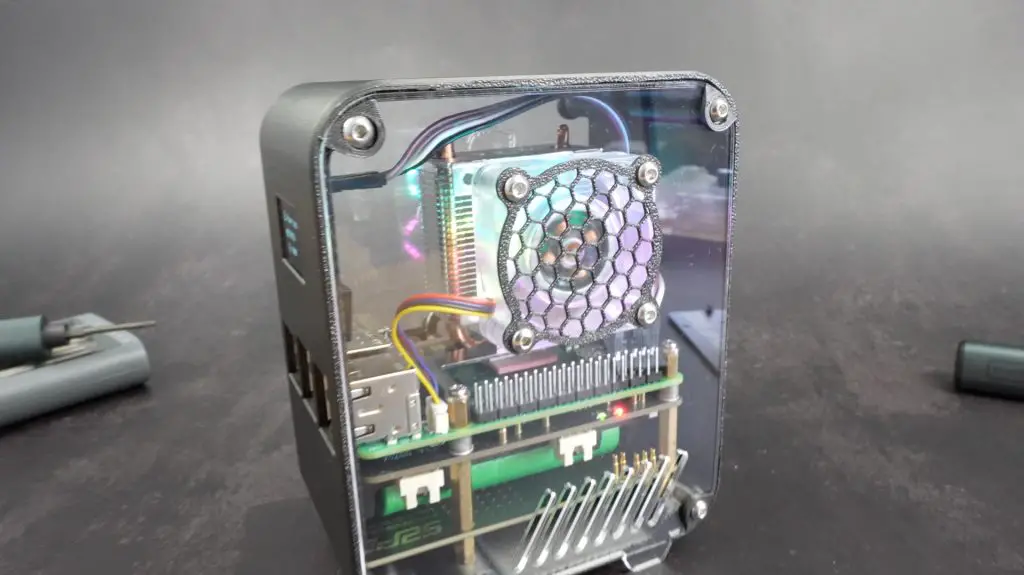
For the side panels, I’m still using clear acrylic, giving it a sleek look while keeping the internals visible but the acrylic is now recessed into the side of the case so that the acrylic edges aren’t visible. The panels screw into place using M3 screws into brass inserts, making the whole build sturdy and easy to disassemble if needed.

Corner Accent Pieces

I added a button adaptor to the back to press the Power button on the UPS and I’ve added some design features to the sides.

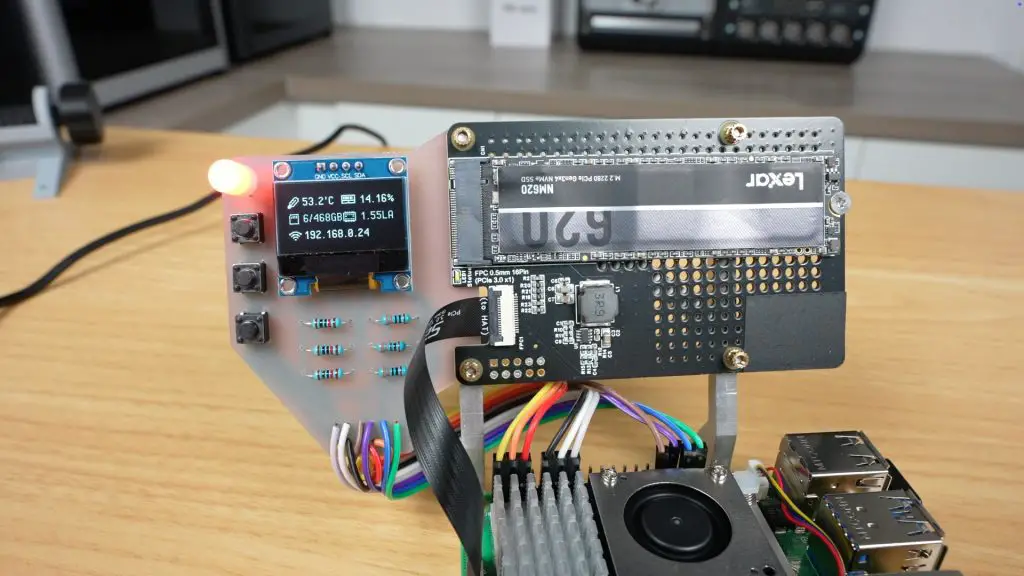
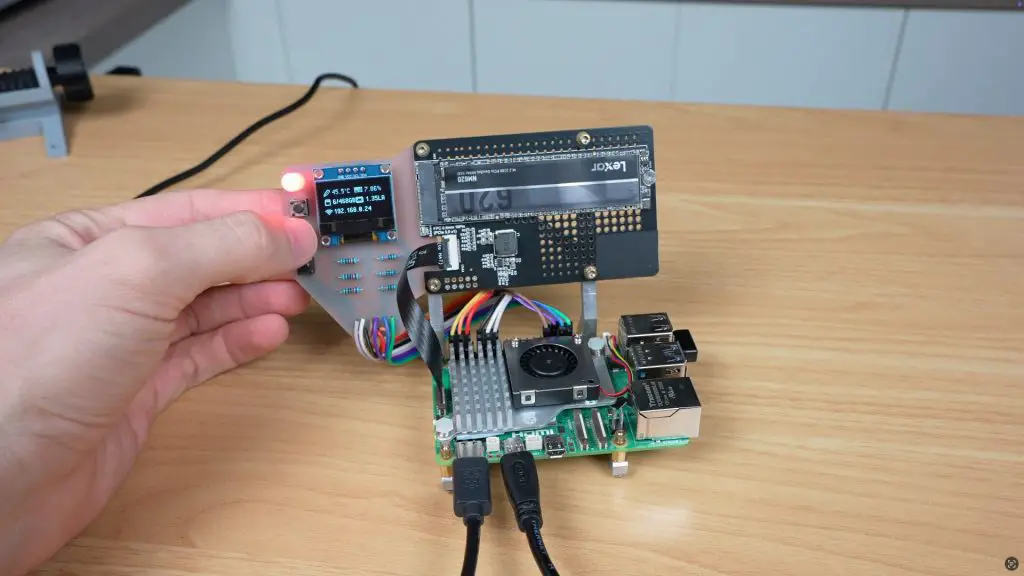
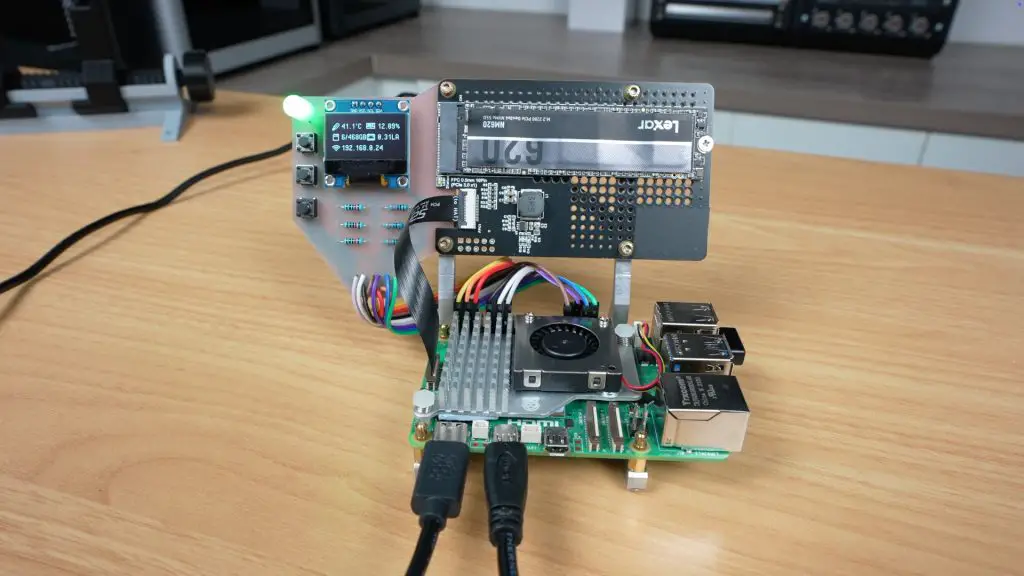
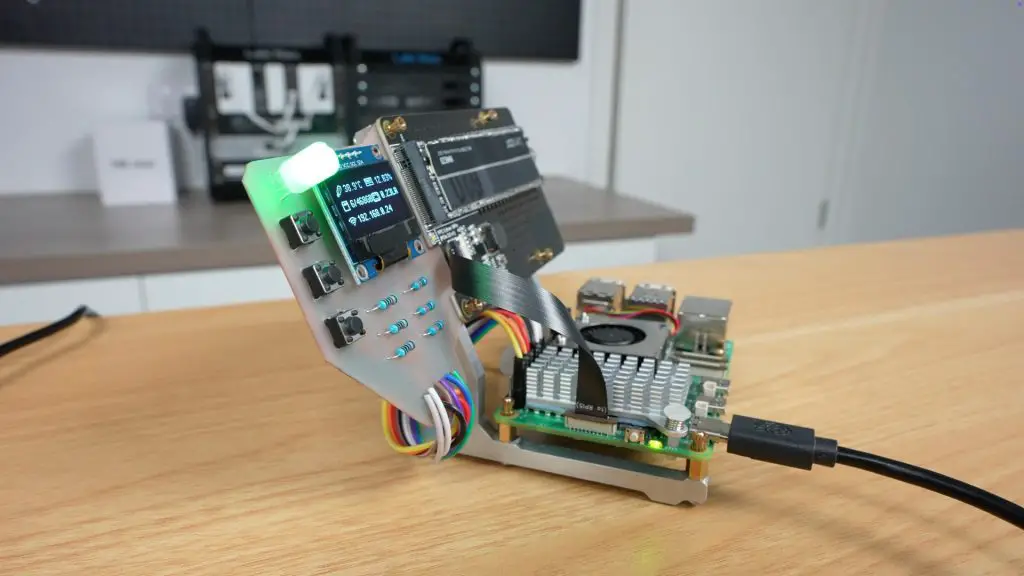
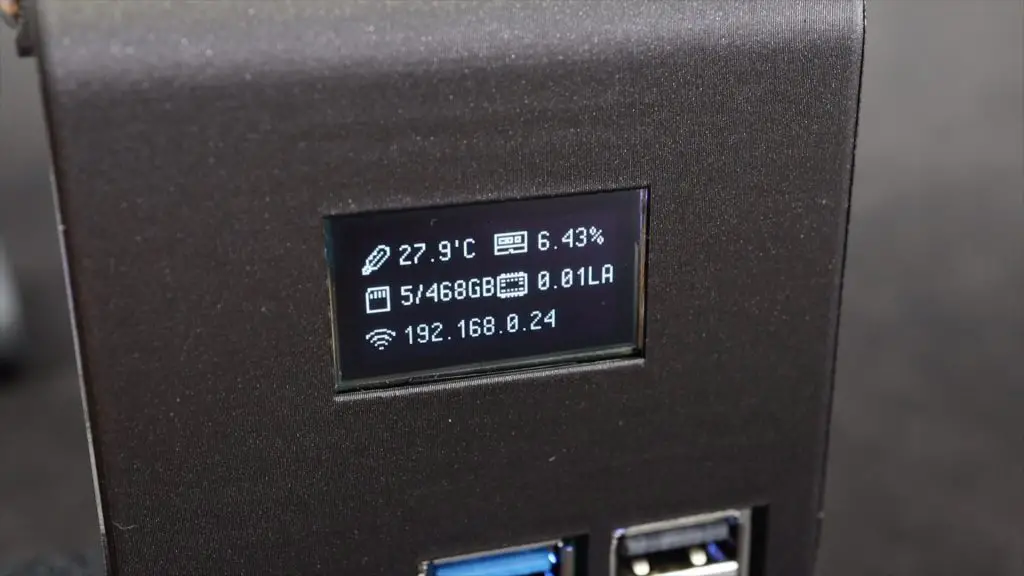
This case also features an I2C OLED display which will be used to display some stats for the Pi 5 and UPS.

Display and Port Cutouts

With the case design complete, we now need to print out the components.

3D Printing The Components Using The Elegoo Centauri Carbon

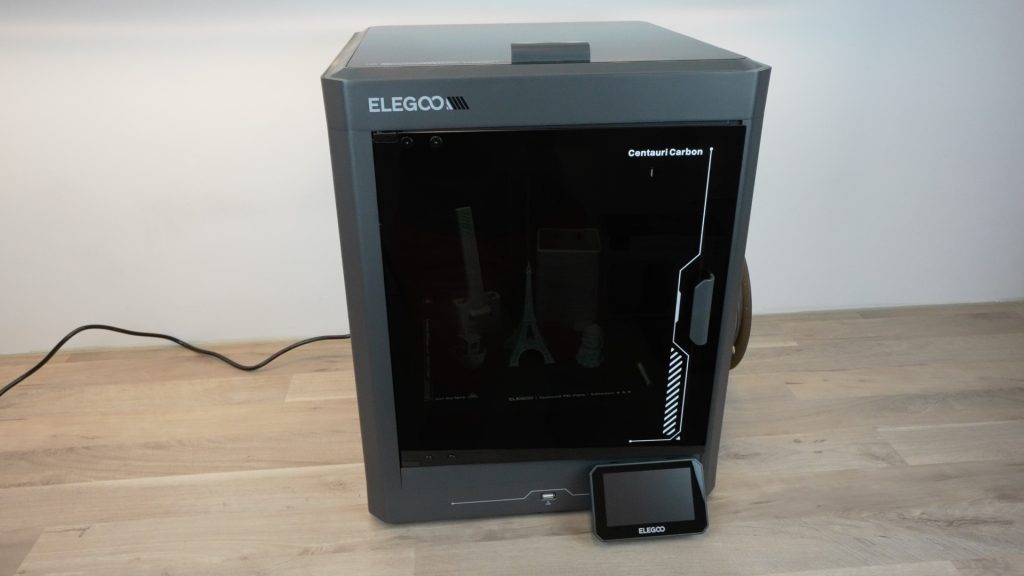
To print out the case components, Elegoo have sent me their new Centauri Carbon core XY 3D printer to try out.

Elegoo Centauri Carbon

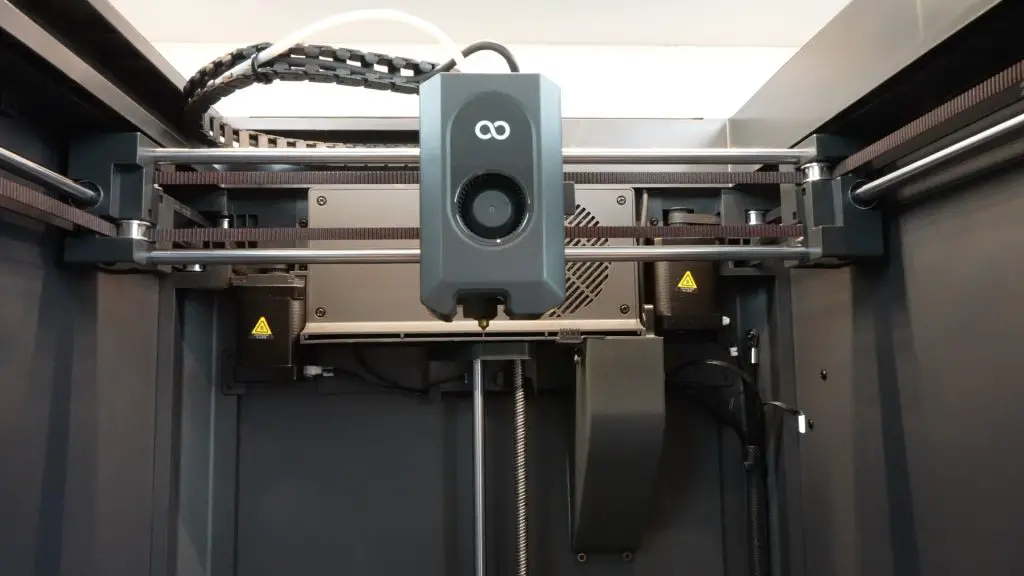
The Centauri Carbon is their first FDM 3D printer with a CoreXY motion system that provides much better precision, stability and speed. It comes fully assembled and ready to print so you don’t need to tinker with levelling the print bed, adjusting belt tensions or squaring up the gantry.

Centauri Carbon Core XY Motion System

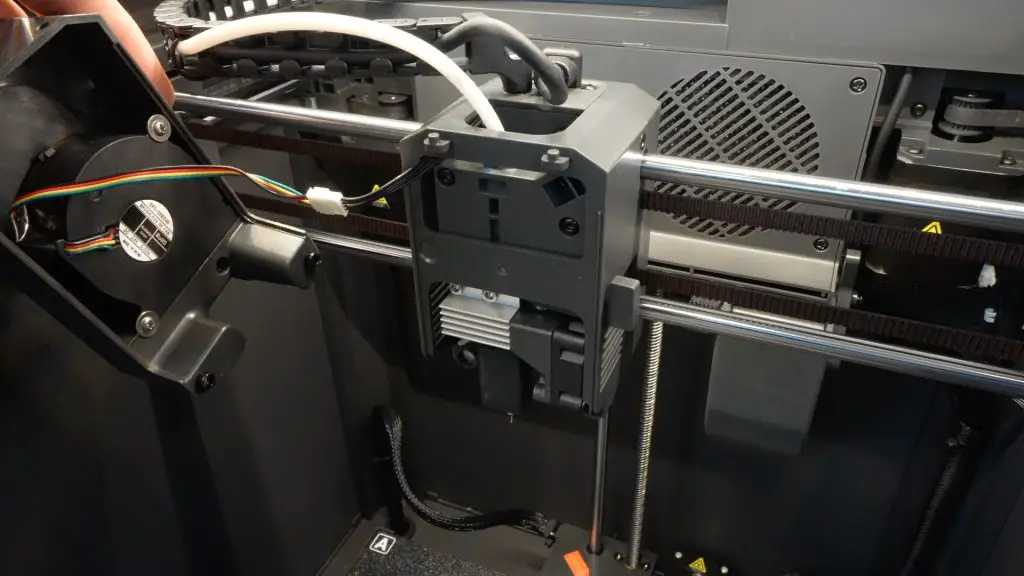
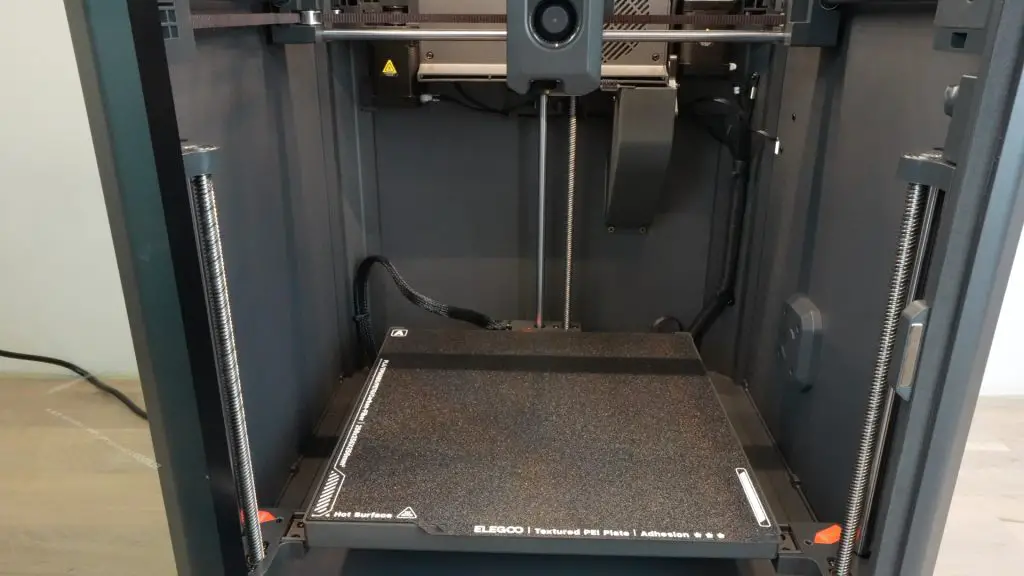
It has a direct drive extruder and a fully enclosed print volume, which means that it can tackle a wide range of print materials.It also includes automatic bed levelling and a magnetic PEI textured build plate.

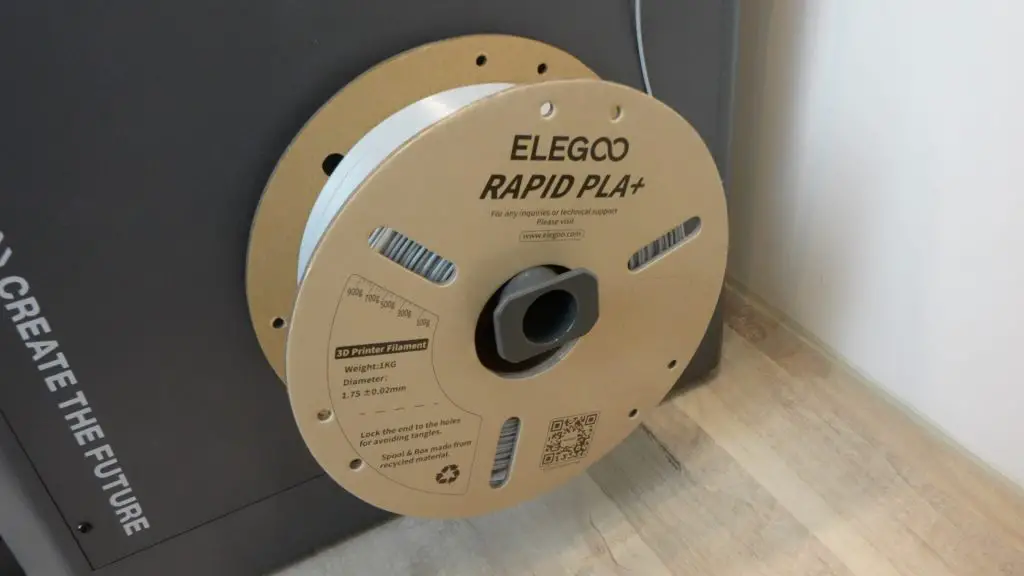
It does not yet support multicolour printing, filament is mounted on the side with a filament runout sensor above it.

Centauri Carbon Filament Holder

Prints can be started locally using the USB port and full-colour touchscreen or they can be sent over WiFi.

This printer is aimed at being a low-cost Core XY option but Elegoo haven’t cut corners on quality. It still feels like a well-built machine and even has high-end features like a glass door and top cover.

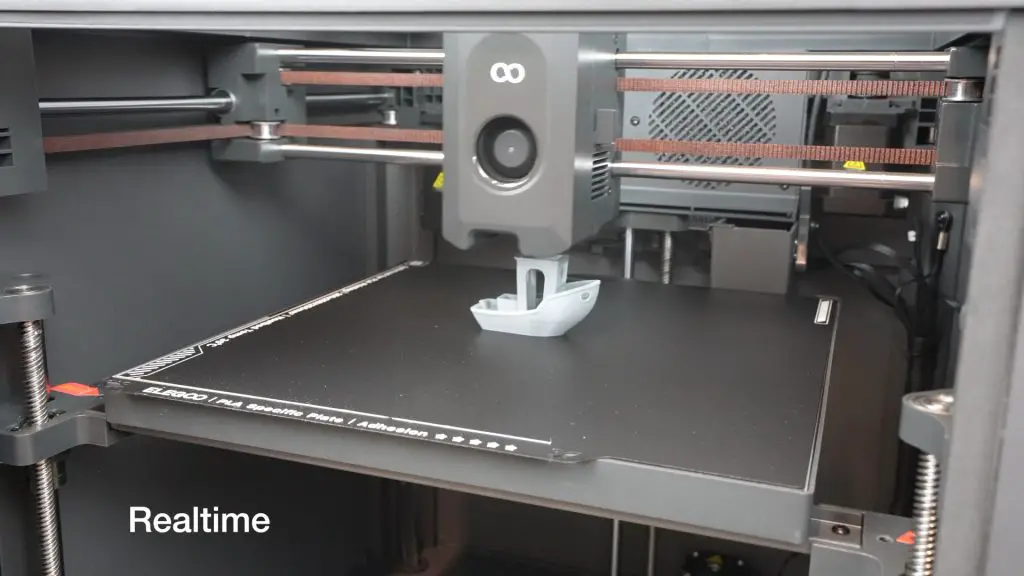
It can tackle a 15-minute benchy and gets pretty good results for the speed.

15 Minute Benchy Test

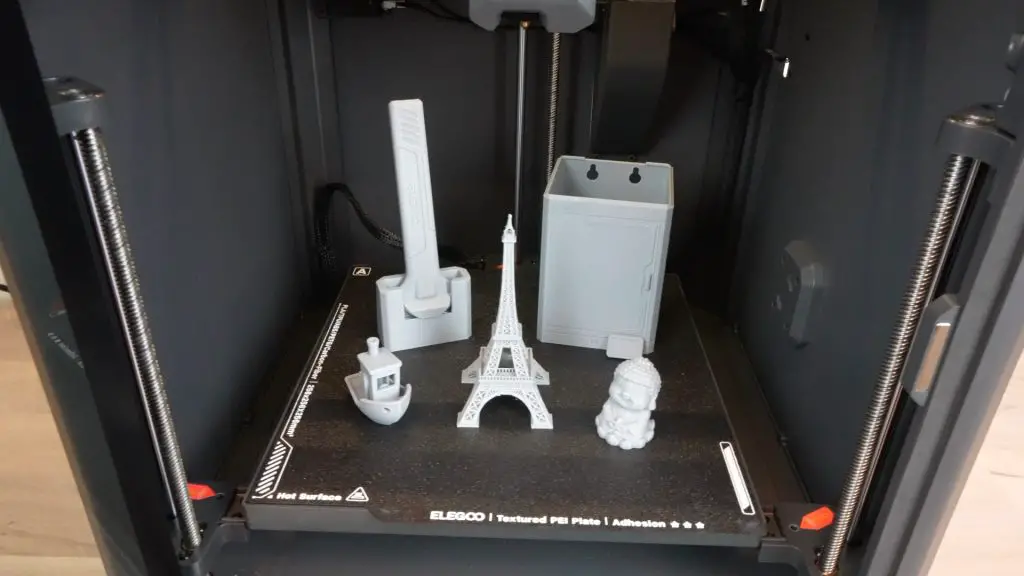
I printed out a couple of other test prints and aside from a little under-extrusion on the scraper which can be resolved by dialing in the filament settings, I was quite impressed by the results. These were all out-of-the-box prints with no setup or tinkering and I didn’t have a single print failure.

Test Prints

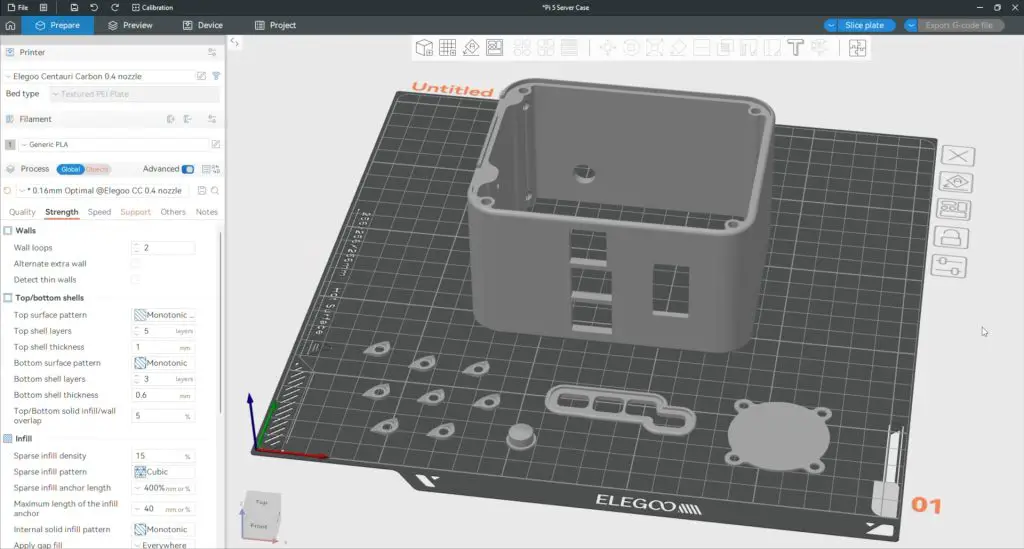
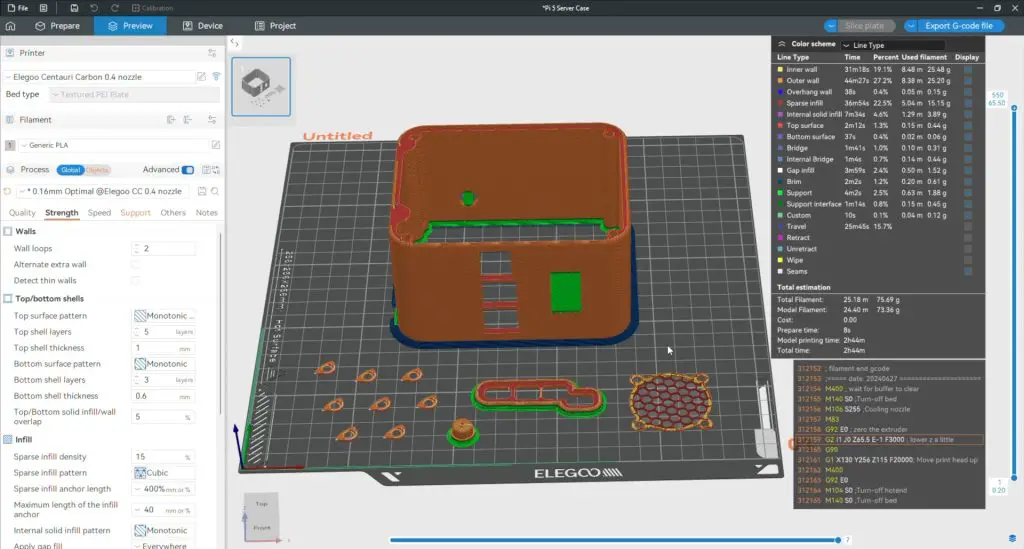
I then prepared my Pi server case print in Elegoo slicer to be printed from PLA with a 0.16mm layer height. The components all easily fit onto the 256mm square build plate so they can be printed in one go.

Elegoo Slider Pi 5 Case

I’ve left all of the settings on their defaults, I’ve only added some supports to the overhung areas and I’ve made some changes to the fan grill settings to get the infill pattern to use as the fan mesh.

Sliced Model Files

All up the print should take 2 hours and 45 minutes and it’ll only use 75g of filament.

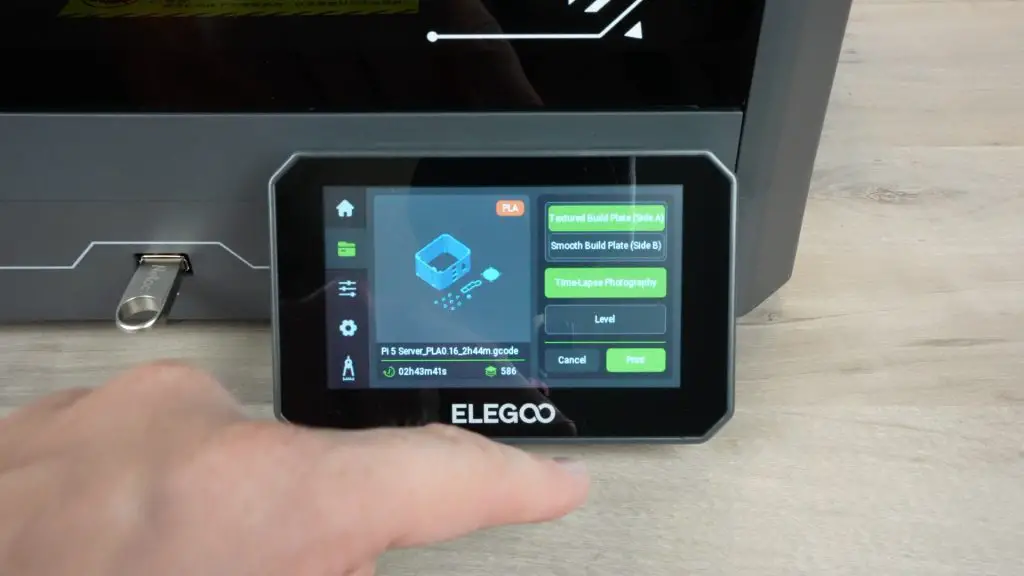
The print can then be sent to the printer over WiFi or it can be started locally from a connected USB drive.

Printing Locally From USB

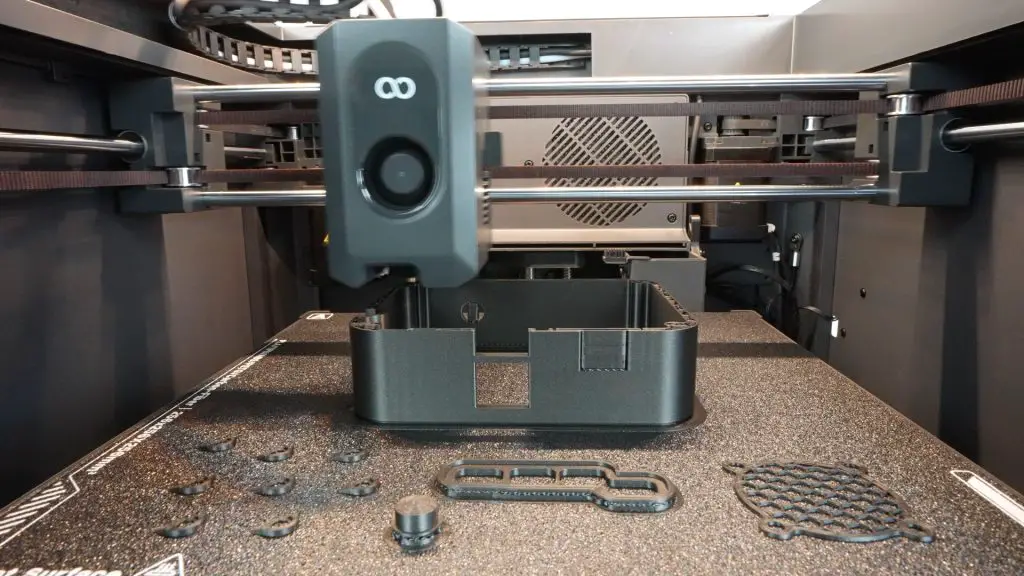
I’m using a metallic grey-coloured filament for all of the case components, hopefully, that looks good with the clear acrylic side panels.

Printing Pi 5 Desktop Server Case

With start-up and levelling, the print took a little under 3 hours to complete but I’m really happy with the quality. The finish is smooth and the layer lines are barely visible. There is some very minor ringing around the button and display cutouts but you have to look hard under bright light to see this.

Finishing Off The Pi 5 Desktop Server Case

Next, let’s make up the side panels from some 2mm laser-cut acrylic. These are slightly undersized so that they fit into the recess that has been designed onto each side of the case.

Laser Cutting Clear Acrylic Side Panels

I initially made these up without a Pi logo on the side but I decided that the logo outline would look quite nice so I added it in afterwards.

Added Raspberry Pi Logo To Side Panel

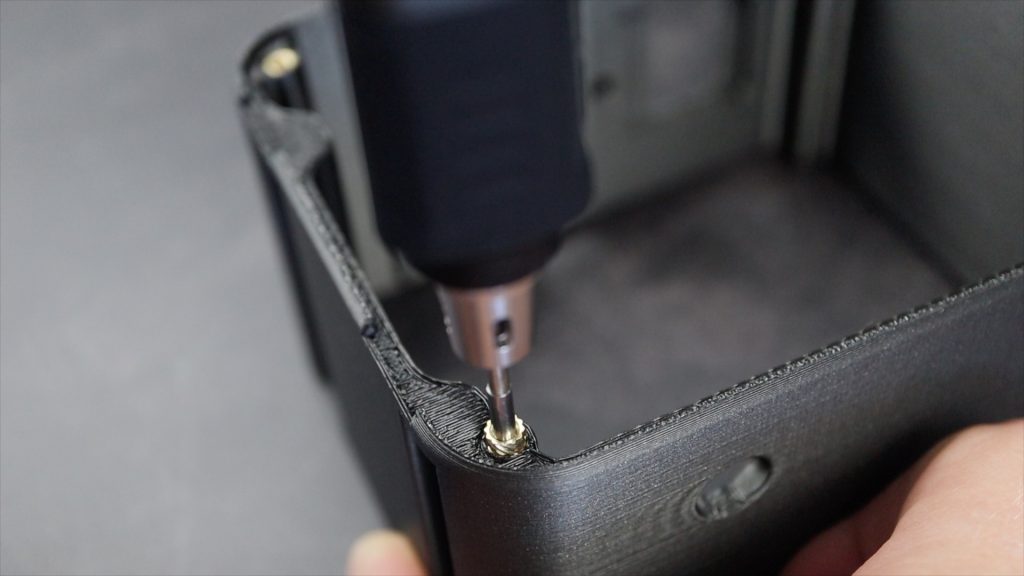
After the supports are removed, to finish the case off we need to add some M3 threaded brass inserts to the corners to hold the side panels and to the inside of the case to hold the display. These are M3x4.4mm inserts and they’re 6mm deep for the side panels and 3mm deep for the display.

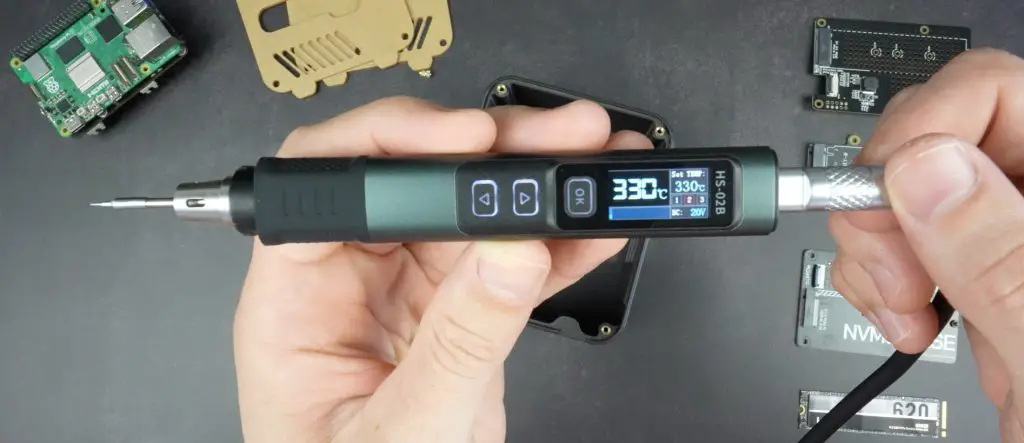
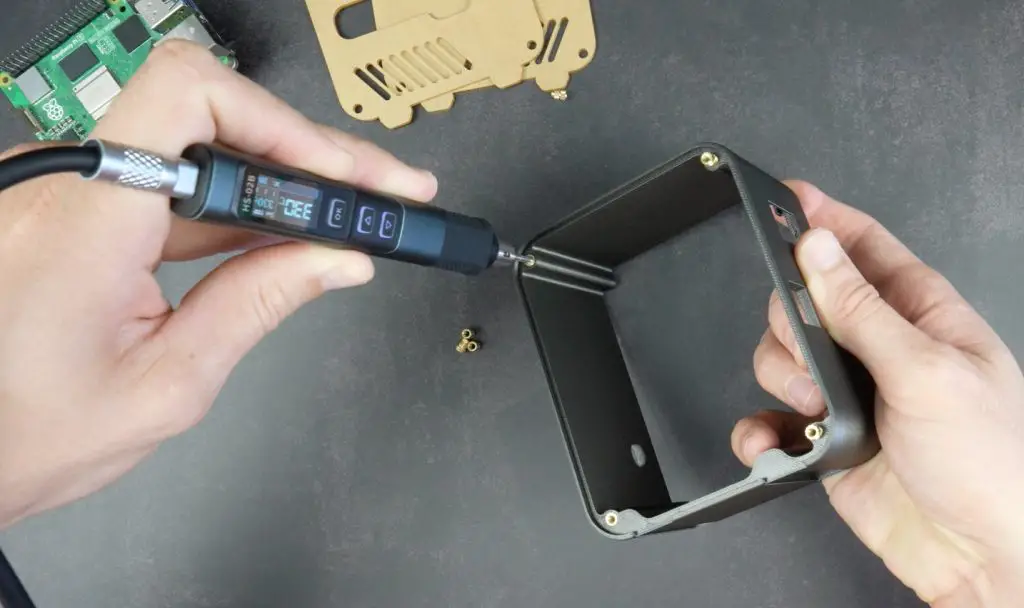
These are melted into place using a soldering iron with a pointed tip. I’m using the Fnirsi HS-02B which has a nice pointed tip for these style inserts and it runs off a USB C power supply.

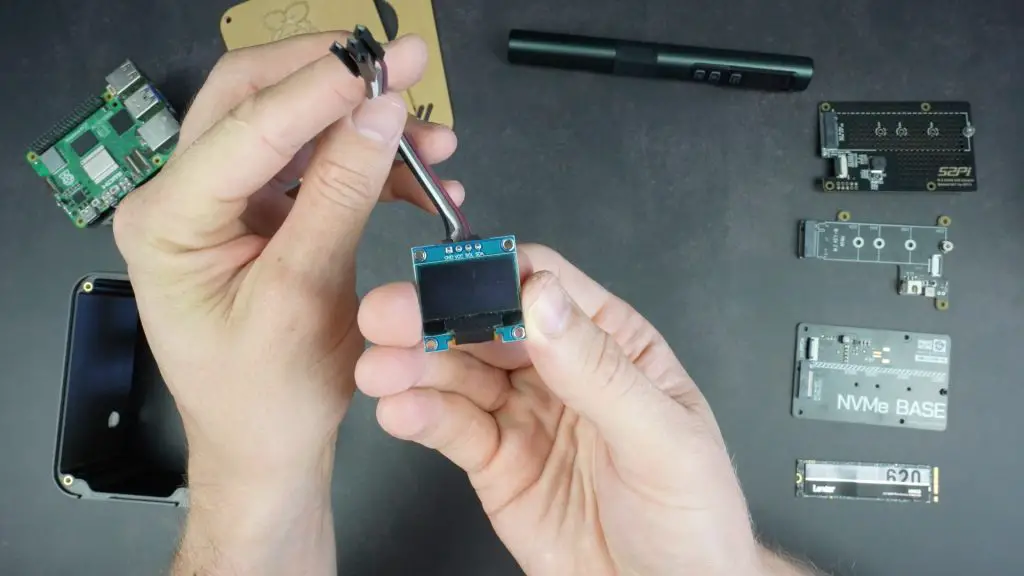
I’ve already connected the ribbon cable up to the display’s pins to plug into the Pi’s GPIO pins. Remember to take note of the terminal labels as they’re hidden once the display is installed.

I2C OLED Display Leads

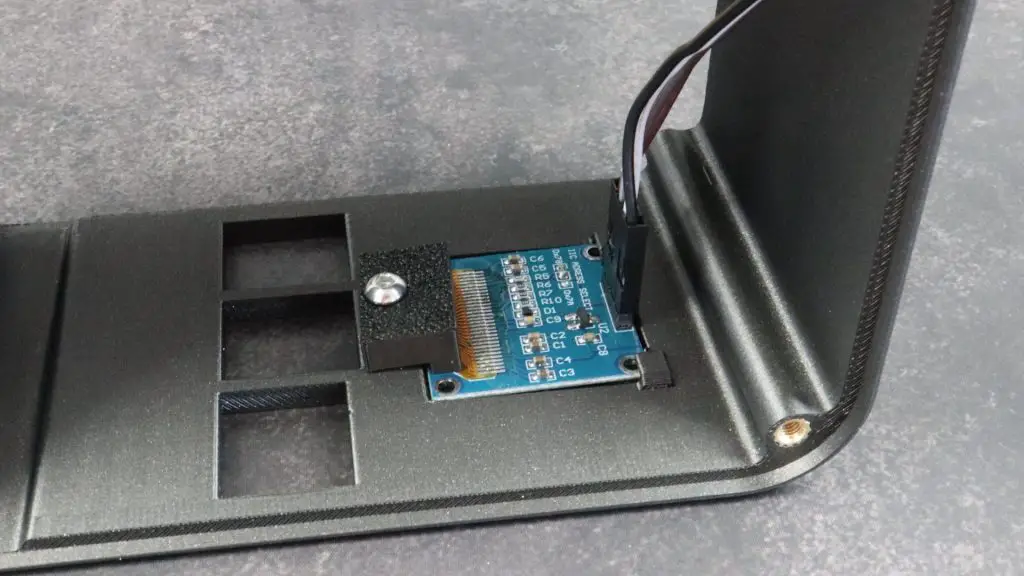
The display slides in under the retaining clips in the body of the case and a single screw and bracket secure it.

I2C OLED Display Installed

Assembling The Raspberry Pi Stack

Now we can start assembling the Pi stack to mount into the case.

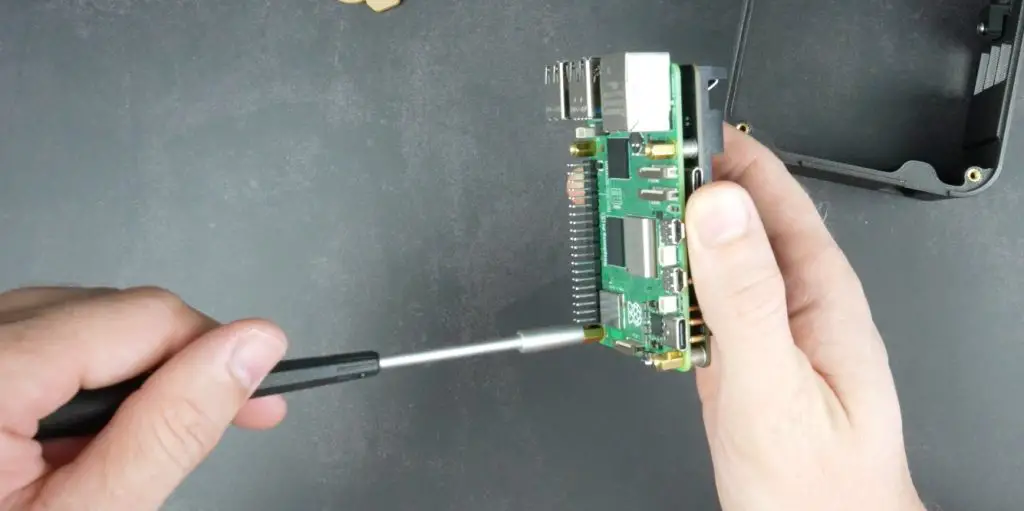
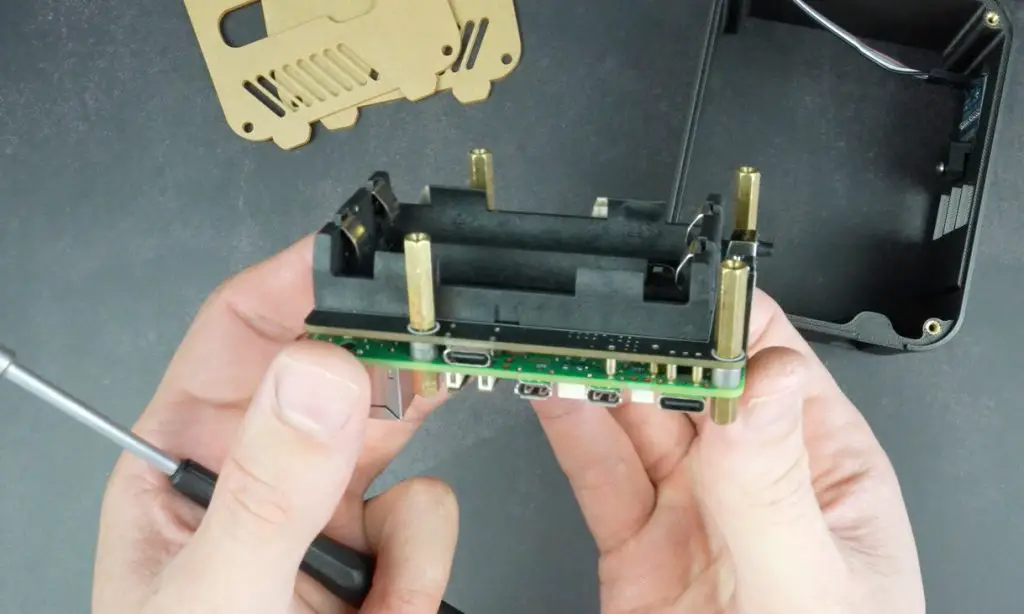
First, let’s get the UPS attached to the Pi. Rather than using the included screws, I’m going to use the standoffs from the Ice Tower cooler. I’ve trimmed down their threads slightly because we’ll also need to screw another set of standoffs into the bottom of the UPS hat. My standoffs had 6mm threads, which is their usual length, but you can sometimes get standoffs with a 3mm thread length.

Securing Pi Standoffs

Below the UPS I’m using a set of 20mm standoffs that I’ve also trimmed the thread down on.

UPS Secured

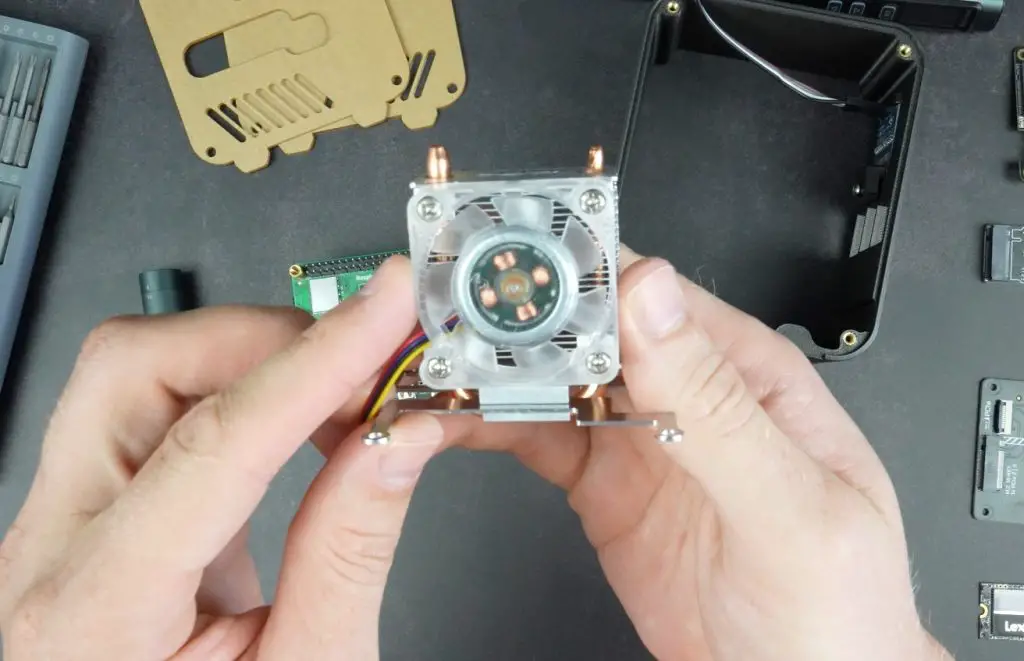
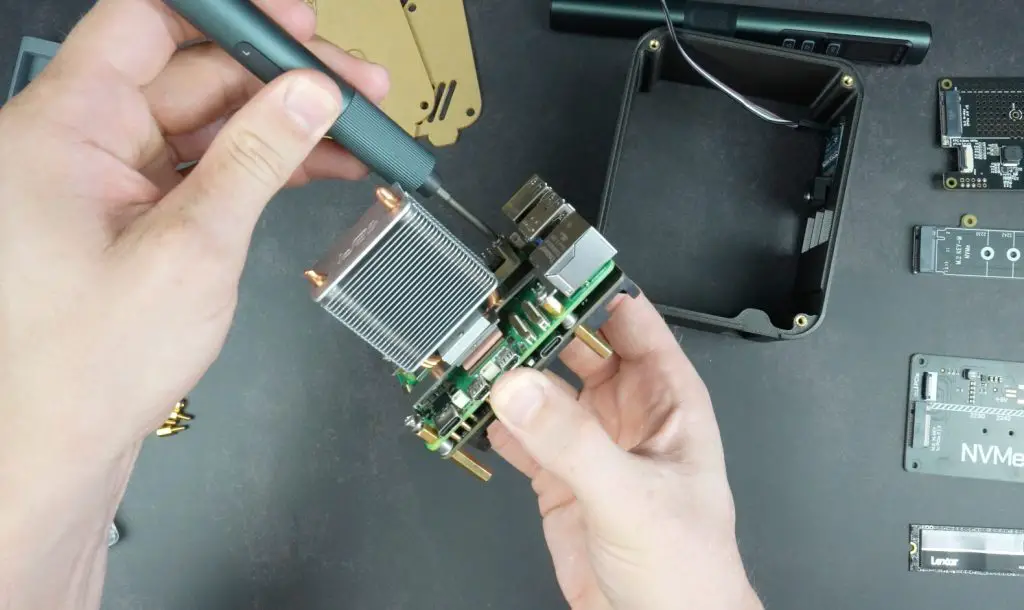
Next, we can install the Ice Tower cooler on top of the Pi. I’m going to take the fan off the heatsink as we’ll move this onto the side panel.

Ice Tower Fan

If you’ve got thermal paste, this works better than a cooling pad between the CPU and heatsink. If not, or if you plan on removing the cooler frequently then use the included thermal pad.

To finish off the stack, let’s install our NVME drive and then install the hat underneath the Pi. Make sure that you flash your OS onto the NVMe drive before installing it as well. I’m using Raspberry Pi OS Bookworm on it. I’m installing the desktop version for now but it’ll be running an installation of TrueNAS on it long term.

Lexar NVMe Drive Installed In Base

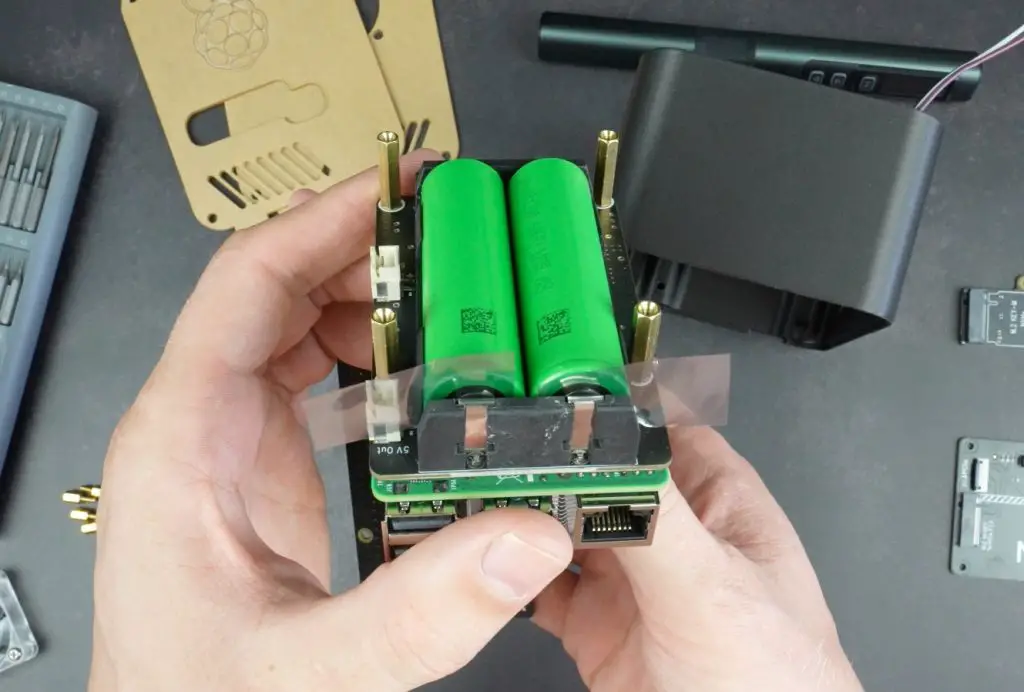
The hat closes off access to the batteries so we need to install those first and then be careful not to short out contacts on the UPS or press the power button.

Better yet, put some thin strips of film between the battery terminals and UPS contacts and you can pull them out before fitting the side panels to ensure the stack remains unpowered.

18650 Cells Installed

The NVMe hat is then held in place with some 8mm standoffs to give the drive some room for airflow at the bottom of the case.

Installing The Stack In The Case

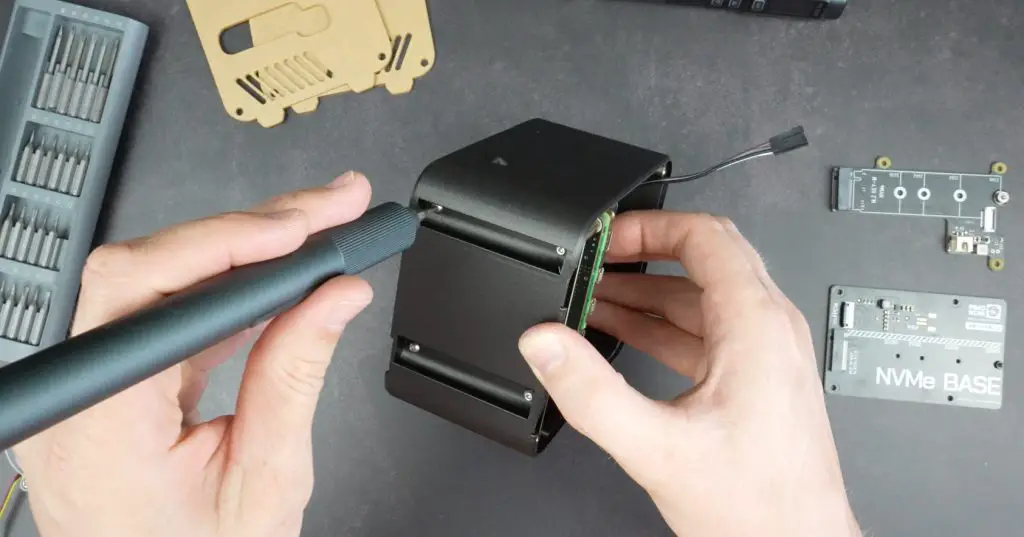
The button adaptor goes into the back of the case and we can then install the stack in the case. This is held in place with four M2.5 screws through the bottom of the case.

We can then plug the display into the power and I2C pins on the Pi.

Next, let’s mount the Ice Tower fan onto the side panel with the fan grill.

I’ve pressed some M3 nuts into the pockets on the back of the fan and some M3x16mm screws hold it in place.

Fan Screwed Onto Side Panel

Plug the fan into the fan port before closing the case up and remember to pull out the film on the battery terminals.

Remove Film From Batteries

The side panels are each held in place with four M3x8mm button head screws. I’ve got a small 3D-printed accent piece around each screw head.

Screw Side Panel Into Place

On the side with the ports, I’ve got another 3D-printed accent piece that is held in place with some super glue.

That’s the case complete and the Pi ready for it’s first boot.

Installing The OLED Stats Display Script

All that is left to do is install the modified stats script which I’ve upgraded for this use case.

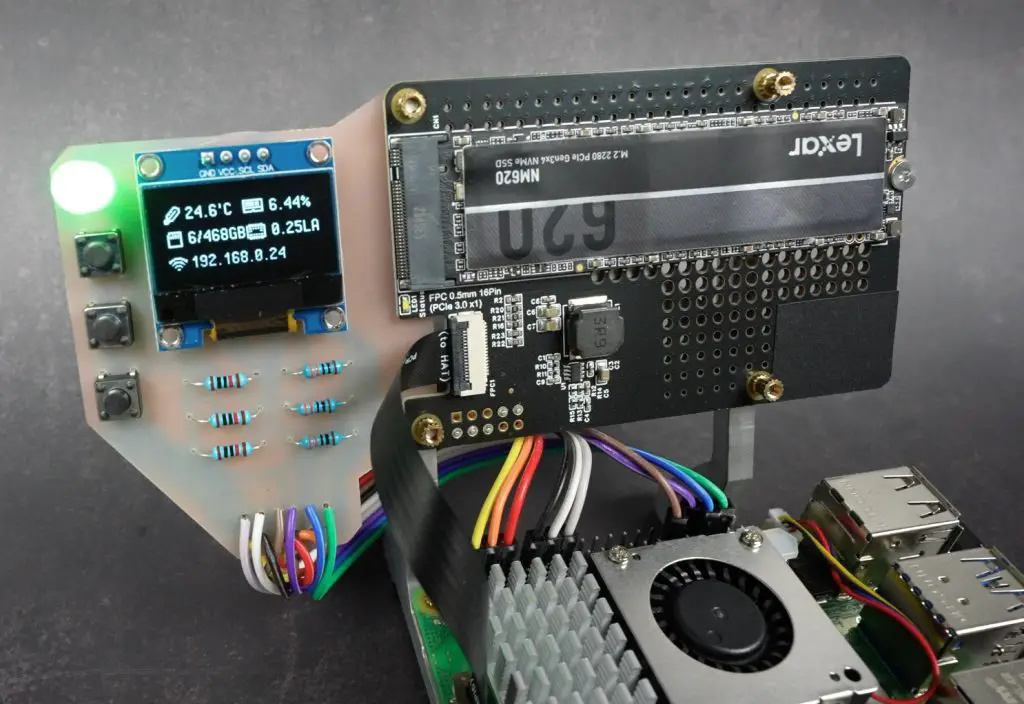
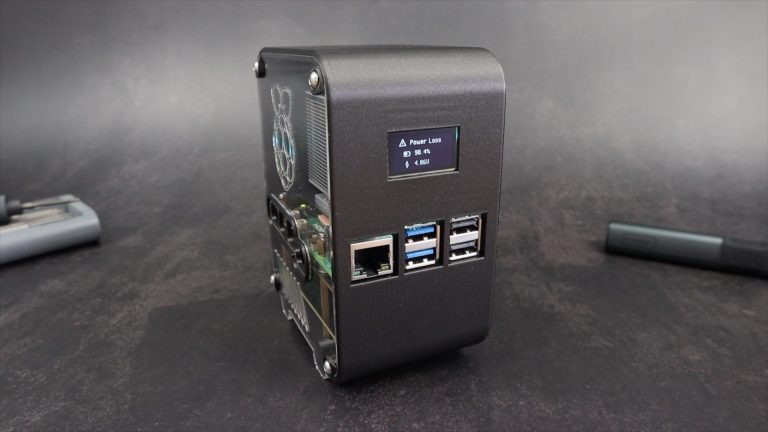
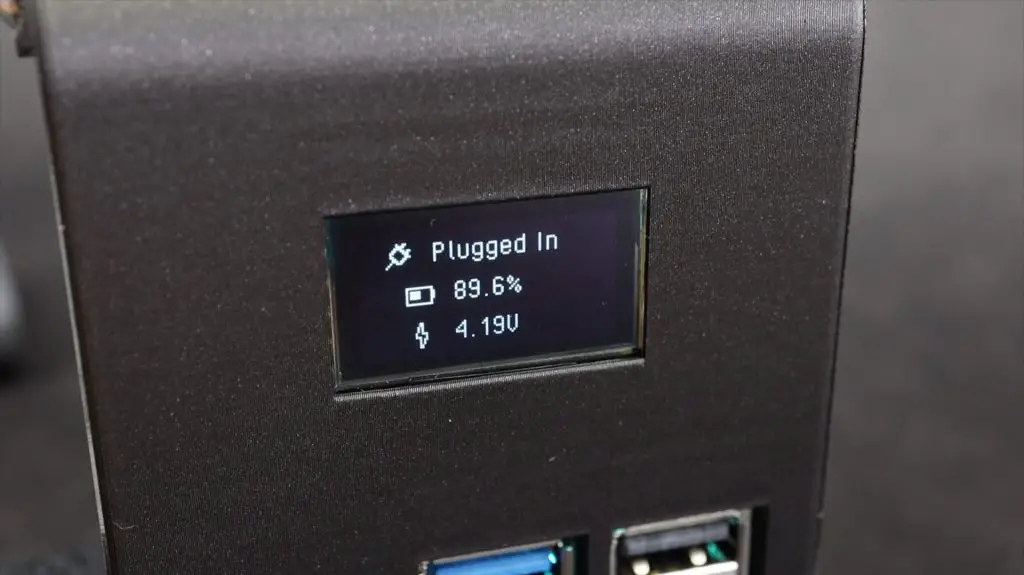
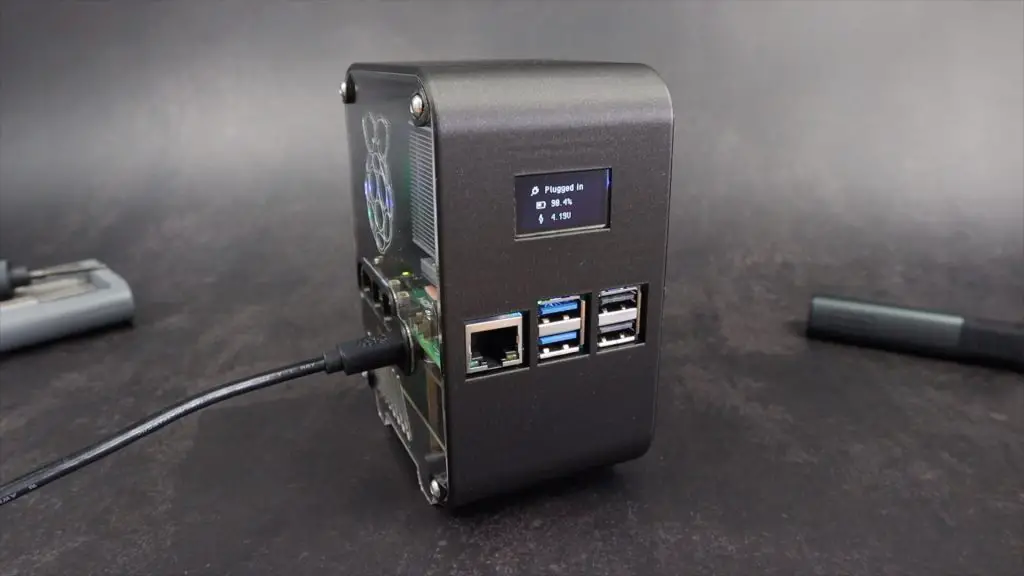
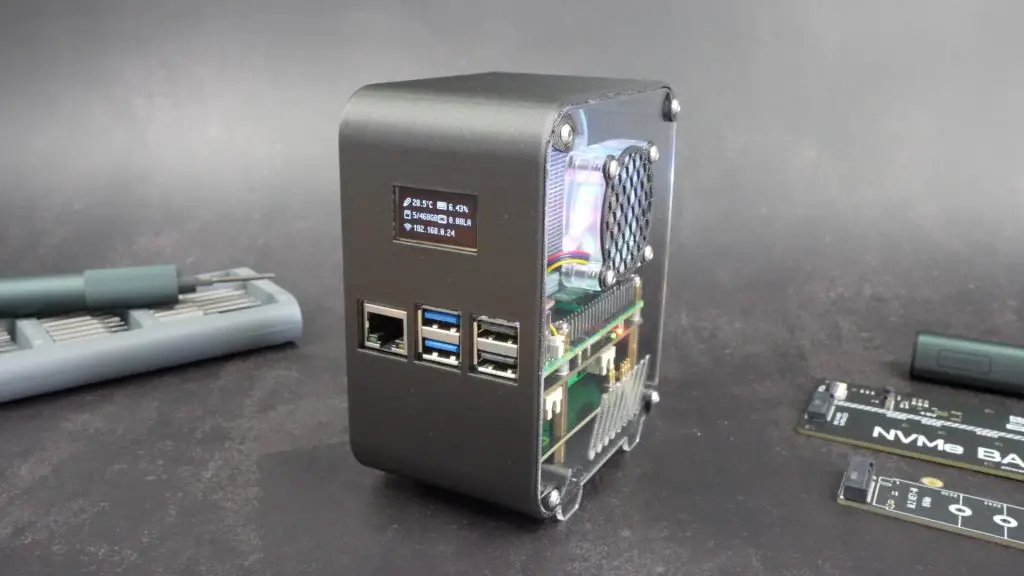
The UPSMonitor.py script cycles between two screens — one showing system stats like temperature, CPU load and the IP address, and another dedicated to the UPS status, displaying the power state and battery level at a glance.

Final Thoughts On My Pi 5 Desktop Server

With the UPS and NVMe drive, this Pi 5 build is now fast and reliable. The clear acrylic design, optimised cooling, and OLED display make it functional and great to look at.

What do you think of this build and case design? Let me know in the comments if you’d add any features or change anything up!

The modified UPS stats script is available to install from my GitHub repository and you can download the 3D printing files to print your own case from my Etsy store.

The Elegoo Centauri Carbon is available for preorder from the 17th of February:

EcoFlow Delta 3 Plus Portable Power Station

Today we’re going to be taking a look at the EcoFlow Delta 3 Plus portable power station. This is the latest iteration of their Delta series, including a 1024Wh battery and 1800W pure sine wave inverter alongside a host of other exciting features.

EcoFlow Delta 3 Plus In Box

If you don’t know what a portable power station is, it is an all-in-one battery, charger, inverter and DC power supply in a compact and portable package. They’re great for taking care of your power needs on days out, at work sites, in the event of a power outage or on camping trips.

EcoFlow have sent me the Delta 3 Plus to try out, so let’s get it unboxed and then we’ll take a look at what it has to offer.

Here’s my video review of the Delta 3 Plus, read on for the written review;

Where To Buy The EcoFlow Delta 3 Plus

  • EcoFlow Delta 3 Plus (Amazon US) – Buy Here
  • EcoFlow Delta 3 Plus (Amazon UK) – Buy Here
  • EcoFlow Delta 3 Plus (Web Store) – Buy Here

Equipment Used For Testing

Unboxing And First Look At The Delta 3 Plus

Delta 3 Plus Unboxed

In the box, we’ve got the Delta 3 Plus Power Station, a quick start guide and three cables;

  • A mains power cable
  • A car charger cable
  • A barrel jack cable
Included Cables

Unlike some other power stations, the AC charger is built-in, so you don’t need to carry a charging brick along too, so you don’t need any more than the power station and a cable or two to connect it up.

Inside the Delta 3 Plus is a 1024Wh LiFePO4 (Lithium Iron Phosphate) battery which is good for over 4000 full power cycles. If you used the full battery capacity every day, it would last almost 10 years and still have 80% of its original capacity.

EcoFlow Delta 3 Plus

The battery is also protected by a 3-layer system;

  • The first is an IP65 battery enclosure which protects it against dust and splashes.
  • The second is a smart battery management system that provides real-time monitoring and regulation.
  • The third is a thermal runaway and fire propagation protection layer.

The battery is expandable up to 5kWh by adding compatible battery packs through the battery port at the back.

Charing Inputs On Back Of Delta 3 Plus

The Delta 3 Plus measures 398mm x 202mm x 284mm for a total volume of 22.6L, making it really compact for the features and battery capacity that it includes. It is about 5% smaller than the previous generation Delta 2 and packs in more powerful charging options. It is also relatively lightweight at 12.5kg.

Charging Options

To charge the Delta 3 Plus up, you’ve got a couple of DC and AC options and they’re all under this newly designed cover on the back, which I quite like.

AC Charging Input

Using the built-in mains charger, you can charge the EcoFlow Delta 3 Plus at up to 1500W which will take it up to 80% charged in under 40 minutes and fully charged in under an hour – something that was previously only available on their River series.

So even if you’ve forgotten to charge your Power Station the day before your trip, you should still have enough time to charge it up while you prepare your things before heading out.

It has dual 500W MPPT charge controllers for up to 1000W of solar charging power. This will take the Delta 3 Plus up to 80% in under an hour, which is better than most of this size. The Delta 3 Plus doesn’t come with a solar charging cable, so you’ll need to buy this separately.

These DC ports can also handle up to 800W from your vehicle’s alternator to charge it up while you drive. Using the alternator input you can have the power station fully charged in a 2-hour drive.

You can also do a combination of charging inputs up to a total of 1500W. So if you have 1000W of solar input, you can increase the total charging input to 1500W by adding 500W of mains power too.

The cover on the back also stows away into the unit to get it out of the way, which is a nice design feature.

Port Cover Stowed Away

To keep the battery and inverter cool, there are some vents and a cooling fan at the top of the Delta 3 Plus. The fan isn’t always on though, it’s PWM controlled and only comes on under higher loads, particularly when charging or when supplying a high AC load, so it shouldn’t be very audible most of the time.

Cooling Fans On Top Of Delta 3 Plus

Power Outlet Options

To use the stored power, the Delta 3 Plus has a range of ports and outlets. The 4 AC outlets are powered by an 1800W pure sine wave inverter which can handle a surge of up to 3600W. Like with some other EcoFlow products, using their X-Boost technology, it can power some devices up to 2600W continuously. We’ll take a look at this a bit later on.

AC Ports and USB Ports On Front

Above the AC outlets, it’s also got 4 USB ports, 2 USB type A ports that can do fast charging up to 36W and 2 USB type C ports that can do PD up to 140W.

And on the back under the charging ports, it’s got 3 DC outlets, 1 car power outlet which can do 12V at up to 10A and two barrel jack outlets which also do 12V but at up to 3A.

DC Ports On Back

Other Features On The Delta 3 Plus

The display on the front of the Delta 3 Plus is similar to that on other EcoFlow models. It gives you a lot of information on the status of the device.

Delta 3 Plus Display On

On the left, it shows you the total power input or charging power in watts, in the centre is the battery capacity within a power draw animation ring, on the right is the total power draw in watts and at the top is the time to fully charged or empty depending on whether the battery is being charged or drained.

Delta 3 Plus Display

Other small indicator icons come up when certain settings are activated.

The display goes to sleep automatically after 5 minutes by default but can be woken up again by pressing the power button. You can also change the sleep duration using the app.

Above the display are three buttons. The centre one turns the power on or off and puts the display into sleep or wake mode. The left and right buttons turn the AC and USB supplies on or off respectively. The button for the DC supply is at the back above the DC ports.

Now that we’ve had a look at the features of the Delta 3 Plus, let’s try to do some tests on it.

Testing Whether It Can Be Fully Charged In Under 1 Hour

It has currently got a 30% charge, so let’s get it drained completely and we can then test whether we can achieve an 80% charge in 40 minutes and a full charge in under an hour.

I’m going to hook up a small 1800w fan heater to it to drain completely.

Fan Heater To Drain Delta 3 Plus

The Delta 3 Plus stops the AC outlet when the battery is depleted to prevent over-discharge, but the battery management system and display remain active a little while longer.

Next, I connected it up to the mains supply and timed how long it took to charge to 100% capacity. After a few seconds, the display indicated that it would be fully charged in 1hr. I checked in at 15 minutes in and the battery was 33% charged and the display indicated 35 minutes remaining, so it was on track to complete the charge in under an hour.

Timing The Charge Duration

After 40 minutes, the battery was at 77% and after an hour it was at 94%. It was fully charged after 1 hour and 8 minutes.

Total Charge Duration

So a bit short of the under-an-hour claim but it’s worth noting that this was in a workshop in summer in Australia so the ambient temperature is around 29 degrees, which reduced the charging speed a bit. A big part of fast charging a battery is keeping it cool, so if the ambient temperature is lower then you’ll be able to charge it faster.

Powering Some Other AC Devices

Now let’s plug some devices into it to test the AC supply.

I’ve already shown the Delta 3 Plus powering an 1800W heater, but you couldn’t hear the Delta’s fan over the sound of the heater. So if I move the heater to another room and use an extension we can see how quiet it runs.

At full load, the fan ramps up almost immediately but it’s still fairly quiet, it stays at around 48db right within 10cm.

Sound Level During Full Load Use

Next, I’m going to run my two 3D printers to print a vortex cube. These each draw about 500W when heating up and settle on an average of under 100W once printing.

Running 3D Printers On Delta 3 Plus

They ran for about half an hour to print both cube components and at the end, the Delta 3 Plus was at 71% capacity.

As I said earlier, the Delta 3 Plus is equipped with an 1800W inverter, but using EcoFlow’s X-Boost technology, they claim that you can run most appliances up to 2600W without overloading it. So I’m going to try to power this electric BBQ that draws a little over 2200W when turned all the way up.

Using Delta 3 Plus To Power A BBQ

So the Delta 3 Plus is able to power the BBQ when it is turned all the way up, but you’ll notice that the power output is still only around 1800W.

X-Boost is able to power the BBQ on the highest setting by still only outputting the inverters maximum continuous power of 1800W. It does this by intelligently reducing the output voltage so that the inverter is not being overloaded but is still powering the appliance. Now obviously this is going to lead to a slight reduction in the performance of the appliance, but it does at least give you a way to use it. The BBQ will likely not get hot as quickly as it would on the full 2200W but it’s at least usable.

There are some limitations with X-Boost. Because it’s lowering the output voltage, which is common to all outlets, you can’t use it if you’ve got multiple devices connected to it.

You can also turn X-Boost on and off in the settings menu in the app if this is something you don’t want to use. It’s off by default.

Testing The DC Power Options

Next, I tried the DC output on a small fridge that you would use for camping. That ran well as you’d expect and the display indicated that it could power the fridge for around 13.5 hours on the remaining 57% charge. It’ll likely land up being a lot longer than this as the fridge will draw much less power once it has cooled down to the target temperature.

Powering A DC Fridge From Delta 3 Plus

I then tried the USB C port to charge my MacBook and it indicated that it was charging at 50-60W because it was over 80% charged already. I added my phone and that increased the draw by another 7W but is still way under the rated 140W output for these USB C ports.

USB Charging From Delta 3 Plus

Testing The UPS Functionality And Changeover Time

One of the features I’m most interested in is the UPS functionality. My 3D printers and a desktop milling machine often run for long periods and a single short power interruption can cause failed prints or projects. So I’d like to put the Delta 3 Plus in line with their mains supply so that they’re kept powered through any interruptions.

Powering 3D Printers In UPS Mode

The UPS on the Delta 3 Plus has a 10ms change over time, which is really fast for these style power stations. Most others have an advertised 20-30ms change over time so this is 2-3 times faster. Its 1kWh capacity will also be able to keep both printers running for 4-5 hours in the case of a longer interruption – which is really good for a UPS.

So I’ve got both 3D printers running off the AC outlets. I’ve used an adaptor because the printer’s power cables are quite short.

UPS Mode Running Printers

There are two important metrics to look at here. The first is the transfer or change-over time of the UPS, which in this case should be under 10ms and the second is the hold time of the device being powered. Because most electronic devices have power supplies with capacitors in them, they can usually handle a total power loss of a couple of milliseconds without the device turning off.

Both 3D printers are now running a print and are being powered through the Delta 3 Plus. Let’s pull out the mains supply to the Delta 3 Plus and see whether the printers notice it.

So both of the printers are still running with the mains power now turned off and they didn’t seem to mind the interruption.

When the power comes back on, the Delta 3 Plus changes back over to the mains supply.

I also connected a handheld oscilloscope to the AC output so that we could visualise the interruption to the sine wave to see what the transfer time is.

UPS Changeover Time Measured On Oscilloscope

The interruption shows up nicely. We have 10 millisecond divisions and the flat line starts a tiny bit after the division starts and the sine wave starts again where the division ends. So the transfer time is a tiny bit faster than 10 milliseconds.

Another nice feature if you’re using it as a UPS long-term is to limit the maximum and minimum depth of charge, which is done through the app.

Charge And Discharge Limits

Limiting the maximum and minimum charge depth improves the longevity of the battery as you aren’t putting as much strain on it for each cycle.

Using The EcoFlow App With The Delta 3 Plus

As I’ve shown a couple of times already, you can also connect the Delta 3 Plus to your smartphone through Bluetooth or WiFi to monitor and control it as well as change its settings.

Delta 3 Plus Power Output

From the main screen, you can see the time remaining to fully charged or empty depending on whether the battery is being used or charged, you can also see the current rates of charge and discharge in watts of each individual port below that. You can turn the AC or DC inputs or outputs on or off remotely through the app as well. So you’ve got a lot of control through the app which is useful if it’s in a hard-to-reach place.

You can also access the device settings which allows you to do things like turn X-Boost on or off, set timeouts, manage charge and discharge levels and even reduce the maximum power that the power station can draw from mains when charging.

So if we turn it down to a maximum of 100W then it limits the mains charger draw to 100W.

This is useful if you’re at a campsite or charging it from another low-capacity power source. Without this, it’ll just trip or overload the device that you’re trying to charge it from.

It also has two presets, one for optimal battery life at 500W and one to keep the unit as quiet as possible during charging, limited to 200W.

It’s got similar options for the DC inputs as well, both set as current limits.

Final Thoughts On The Delta 3 Plus

Overall I’m really impressed with the Delta 3 Plus. Being a third-generation product, it is well-refined and has a good set of features. They’ve also made some nice ease-of-use adjustments over the original like moving the outlets to the front, adding the cover over the ports at the back and improving charging rates.

EcoFlow Delta 3 Plus Running

With the lithium iron phosphate battery, it should also last you around 8-10 years even with moderate use.

If you’re in Australia you can buy the EcoFlow Delta 3 Plus through their distribution partners like Anaconda, Total Tools, Autobarn, Harvey Norman or online from Amazon, eBay or from the EcoFlow website. The Delta 3 Plus comes with a 5-year warranty.

Let me know what you think of it in the comments section below and if there is anything else you’d like to see me test on it.
Raspberry Pi Drag Race: Pi 1 to Pi 5 – Performance Comparison

Today we’re going to be taking a look at what almost 13 years of development has done for the Raspberry Pi. I have one of each generation of Pi from the original Pi that was launched in 2012 through to the Pi 5 which was released just over a year ago.

We’ll take a look at what has changed between each generation and how their performance and power consumption has improved by running some tests on them.

Here’s my video of the testing process and results, read on for the write-up;

Purchase Links For Components Used In These Tests

Equipment Used

Some of the above parts are affiliate links. By purchasing products through the above links, you’ll be supporting this channel, at no additional cost to you.

Hardware Changes Through Each Generation

Raspberry Pi 1

This is the original Raspberry Pi, which was launched in February 2012.

Raspberry Pi 1

This Pi has a Broadcom BCM2835 SOC which features a single ARM1176JZF-S core running at 700MHz along with a VideoCore IV GPU. It has 512 MB of DDR RAM.

In terms of connectivity, it only has 100Mb networking and 2 x USB 2.0 ports. Video output is 1080P through a full-size HDMI port or analogue video out through a composite video connector and audio output is provided through a 3.5mm audio jack. It doesn’t have any WiFi or Bluetooth connectivity but it does have some of the features that we still have on more recent models like DSI and CSI ports, a full size SD card reader for the operating system and GPIO pins, although only 26 of them at this stage.

Power is supplied through a micro USB port and it is rated for 5V and 700mA.

It was priced at $35 – which at the time was incredibly cheap for what was essentially a palm-sized computer.

Raspberry Pi 2

The Raspberry Pi 2 was launched 3 years later, in February 2015 and this Pi looked quite different to the original and similar to the Pi’s we know today.

Raspberry Pi 2

The Pi 2 has a significantly better processor than the original. The Broadcom BCM2836 SOC has 4 Cortex-A7 cores running at 900 MHz and it retained the same VideoCore IV GPU. RAM was also bumped up to 1GB.

It added another 2 x USB 2.0 ports alongside the 100Mb Ethernet port. The composite video port disappeared and the analogue video output was moved into the audio jack.

The GPIO pins were increased to 40 pins which has followed the same pin layout since – which has really helped in maintaining compatibility with hats and accessories. The SD card reader was also changed to a microSD card reader.

Pi 2 MicroSD Card Slot

The power circuitry was bumped up to 800mA to accommodate the more powerful CPU.

Raspberry Pi 3

The Raspberry Pi 3 was launched just a year later, in February 2016.

Raspberry Pi 3

The Pi 3’s new Broadcom BCM2837 SOC retained the same 4-core architecture but these were changed to 64-bit Cortex A53 cores running at 1.2Ghz.

RAM was kept at 1GB but was now DDR2.

There was no change to the USB or Ethernet connectivity on the original Pi 3 but we did see WiFi and Bluetooth added for the first time. WiFi was single band 2.4GHz and we had Bluetooth 4.1.

The version that I have is actually the 3B+, which was launched a little later. The main improvements over the original Pi 3 were a 0.2GHz boost to the clock speed and the upgrade to Gigabit networking with PoE (Power over Ethernet) support and dual-band WiFi.

The power circuitry was again improved, still running at 5V but now up to 1.34A, which was almost double the Pi 2.

Raspberry Pi 4

Next came the Pi 4 in June 2019. This Pi came at one of the worst times for global manufacturing and was notoriously difficult to get hold of due to the impact of COVID on the global supply chain. Quite ironically, this hard-to-get Pi is the one that I’ve got the most of, mainly due to my water-cooled Pi cluster build.

Raspberry Pi 4

The Pi 4 has a Broadcom BCM2711 SOC with 4 Cortex-A72 cores running at 1.5GHz. So again a slight clock speed increase over the Pi 3 but still retaining 4 cores. It also includes a bump up to a VideoCore VI GPU.

This was the first model to feature different RAM configurations. It was originally available in 1, 2, 4GB variants featuring LPDDR4 RAM and in March of 2020 an 8GB variant was added to the linup as well. This obviously resulted in a few different price points but impressively they still managed to keep a $35 offering 7 years after the launch of the first Pi.

It retained the same form factor as the Pi 3 but with the network and Ethernet ports switched around. Notably, two of the USB ports were upgraded to USB 3.0, networking was now gigabit ethernet like the 3B+, WiFi was dual-band and it had Bluetooth 5.0.

They also changed the single full-size HDMI port to two micro HDMI ports. Most people I know don’t like this change and find it annoying to have to use adaptors to work with common displays and these micro HDMI ports are prone to breaking when they are used often. I think general hobbyists and makers would prefer this to still be a single full-size port but Pi’s are often used in commercial display applications so I guess that’s why they went with this dual micro HDMI configuration.

Pi 4 MicroHDMI Ports

The power circuit was actually reduced in this model, from 1.34 down to 1.25A and the port was changed to USB C.

Raspberry Pi 5

Lastly and most recently we have the Pi 5 which was launched in October 2023.

Raspberry Pi 5

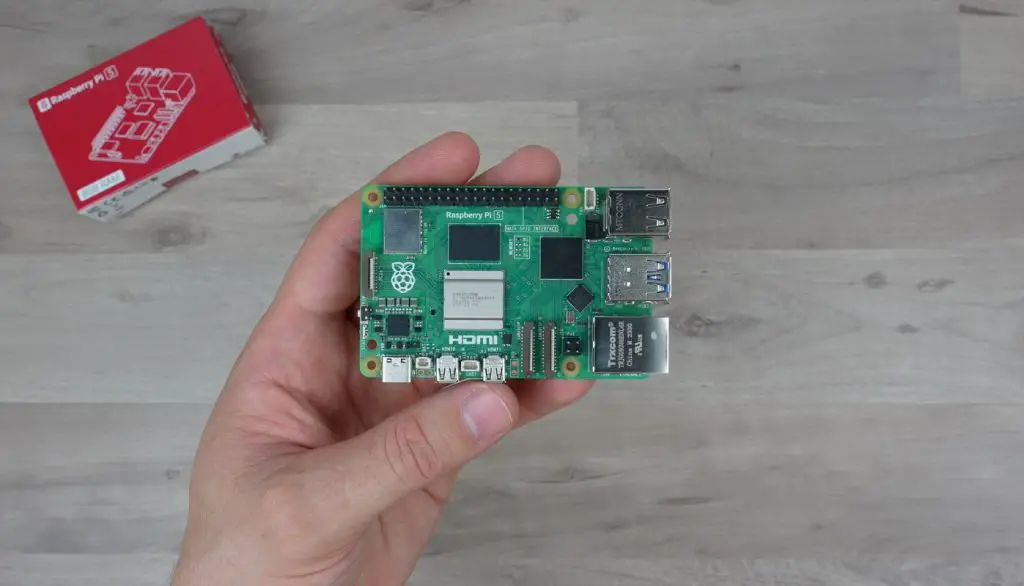
This Pi features a Broadcom BCM2712 SOC with 4 Cortex A76 cores running at a significantly faster 2.4Ghz and a VideoCore VII GPU running at 800MHz.

So quite a bump up in CPU and GPU performance.

It is offered in 3 RAM configurations but the drop in a 1GB offering means that they’re no longer available at the $35 price point. There is a fairly significant increase in price up to $50 for the base 2GB variant.

Pi 5 RAM Configurations

Some other notable changes are the inclusion of a PCIe port which enables IO expansion and a much improved power circuit. The PCIe port is quite commonly used to add an NVMe SSD instead of a microSD card for the operating system.

The power circuit was upgraded to handle the PCIe port addition, now stepping up to 5V at up to 5A, along with a power button for the first time.

Pi 5 Power Button and LED

The change in power supply requirements to 5V and 5A is a bit annoying as most power delivery capable supplies cap out 2.5 or 3A at 5V. It would have been more universal to require a 9V 3A supply to meet the Pis power requirements. I assume they steered away from this because the Pi’s circuitry runs at 5V and 3.3V and they would have then needed to add another onboard DC-DC converter which increases complexity, size and potentially the cost, it would also have made it a bit less efficient. But this does mean that you most likely need to buy a USB C power supply that has been purpose-built for the Pi 5.

The Pi 5 is also the first Pi to have its own dedicated fan socket.

So that’s a summary of the hardware changes, now let’s boot them up and take a look at their performance.

Testing The Performance Of Each Generation Of Pi

To compare the performance between the Pi’s, I’m going to run the following tests.

Raspberry Pi Drag Race Tests
  • I’m going to attempt to playback a 1080P YouTube video in the browser, although I expect we’ll have problems with this up to the Pi 4.
  • We’ll then run a Sysbench CPU benchmark which I’ll do both for a single-core and multicore.
  • Then we’ll run a GLMark2 GPU benchmark.
  • Then test the storage speed using James Chambers Pi Benchmark script.
  • Then we’ll run an iPerf3 Network Speed test.
  • Lastly, we’ll look at Power Consumption, both at idle and with the CPU maxed out.
  • And then use that data to determine each Pi’s Performance per Watt.

To keep things as consistent as possible I’m going to be running the latest available version of Pi OS from Raspberry Pi Imager for each Pi. I was pleasantly surprised to find that you can still flash an OS image for the original Pi in their latest version of Imager.

Raspberry Pi Imager Still Supports Pi 1

I’ll be testing them all running on a 32GB Sandisk Ultra microSD card. I’ll also be using an Ice Tower cooler on each to ensure they don’t run anywhere near thermal throttling.

Ice Tower Cooler On Pi 5

1080P YouTube Video Playback

I started with the original Pi and its first boot and setup process was a lesson in patience. It took me the best part of two hours to get the first boot complete, the Pi updated and the testing utilities installed but I got there in the end.

Pi 1 Booting Up

Even once set up it takes about 8 minutes to boot up to the desktop and the CPU stays pegged at 100% for another two to three minutes before dropping down to about 20% at idle.

Pi 1 Processor At 100%

The original Pi refused to open up the browser, so that’s where my YouTube video playback test ended.

Pi 1 Wouldn't Open Browser

The Pi 2 managed to open the browser and actually started playing back a 1080P video, which was surprising, but playback was terrible. It dropped pretty much all of the frames both in the window and fullscreen.

Pi 2 1080P Video

The Pi 3 played video back noticeably better than the Pi 2, but it’s still quite a long way away from being usable and still drops a lot of frames.

The Pi 4 handled 1080P video reasonably well. It had some initial trouble but then settled down. Fullscreen is also a bit choppy but is also usable.

The Pi 5 handled 1080P playback well without any significant issues both in the window and fullscreen.

Pi 5 1080P Video

Sysbench CPU Benchmark

Next was the Sysbench CPU benchmark. I ran three tests on each and averaged the scores and I did this for both single-core and multicore.

Sysbench CPU Benchmark

In single core, the Pi 1 managed a rather dismal score of 68, the Pi 2 got a bit more than double this score but the real step up was with the Pi 3 which managed 18 times higher than the Pi 2. The Pi 4 and Pi 5 also offered good improvements on the previous generations.

Sysbench Single Core Scores

Similarly in multicore, the Pi 3 scored over 18 times the score of the Pi2 and the Pi 4 and 5 provided good improvements on the Pi 3’s score.

Sysbench Multi-core Scores

Comparing the combined multicore score of the Pi 5 to what the single core on the Pi 1 can do, the Pi 5 is a little over 600 times faster.

GLmark2 GPU Benchmark

Next, I tried running a GLMark2 GPU benchmark on them. I used the GLMark2-es2-wayland version which is designed for OpenGL ES so that the Pi 1 was supported.

I was surprised that the Pi 1 was even able to run GLMark2 – it did complete the benchmark, although the score wasn’t all that impressive.

GLmark2 Scores

These results really show how the Pi’s GPU has improved in the last two generations. Prior to these tests, I had never seen a score below 100 and the Pi 1, 2 and 3 managed to fall short of triple digits. Pi 5 scored over 2.5 times higher than the Pi 4.

Storage Speed Test

Next was the storage speed test using James Chambers Pi Benchmarks script. The bus speed has increased over the years from 25MHz on the Pi 1 to 100MHz on the Pi 5, so I expect we’ll see these reflected in the benchmark scores.

Pi Benchmarks Script

The storage speed test’s results aren’t as dramatic as the CPU and GPU results but show a steady improvement between generations. The Pi 3 did a bit worse than the Pi 2 but this small difference is likely just due to variability in the tests.

Pi Benchmarks Storage Test Scores
Pi Benchmarks Storage Test Scores 2

iPerf Network Speed Test

Next, I ran the iPerf network speed test on each.

iPerf Network Speed Test

The Pi 1 doesn’t quite get close to its theoretical 100Mbps but the Pi 2 does. The Pi 3 B+ although having Gigabit Ethernet is limited by this running over USB 2.0 which only has a theoretical maximum of 300MBps, so it came quite close. Both the Pi 4 and 5 expectedly come close to theoretical Gigabit speeds.

iPerf3 Test Scores

Power Consumption Test

Lastly, I tested the power consumption of each Pi at idle and under load.

Pi Running

I used the same Pi 5 power adaptor to test all of the Pis to keep things consistent and I just used a USB C to micro USB adaptor for the Pi 1, 2 and 3.

The idle results were closer than I expected. The Pi 2 had the lowest idle power draw and the Pi 5 the highest, but all were within a watt or two of each other. At full load, you can see the increase in CPU power draw more physical power with the Pi 5 drawing almost three times the Pi 1 and Pi 2.

Power Consumption Test Scores

Converted to performance per watt using the Sysbench results, we can again see how much better the Pi 4 and 5 are over the Pi 1 and 2. There is a clear improvement in the performance that each generation of Pi is able to get per watt of power, which is essentially its efficiency. Although the Pi 5 draws more power than the Pi 1 under full load, you’re getting almost 200 times more power out of it per watt.

Performance Per Watt Test Scores

Final Thoughts On The Drag Race And Future Pis

I really enjoyed working through this project to see how much Pi’s have changed over the years, particularly in terms of performance. I still remember being amazed at the size and price of the original Pi when it came out and it’s great that they’re still fully supported and can still be used for projects – albeit with less CPU-intensive projects.

Buck Bunny Playing On Raspberry Pi

Let me know what you think has been the biggest improvement to the Pi over the years and what you’d still like to see added to future models in the comments section below.

I personally really like the addition of the PCIe port on the Pi 5 and I’d like to see 2.5Gb networking and a DisplayPort or USB C with DisplayPort added to a future generation of Pi.

Raspberry Pi 1 Original

N97 vs N100 vs Raspberry Pi 5: Which Is Right For You?

I recently did some testing to compare the performance and features of an N100 mini PC as a replacement for a Raspberry Pi 5. In response to that test, quite a few people asked how an N97 PC compares to a Pi 5 or N100 PC. So Today I’ve got a NucBox G5, which is a tiny N97-based mini PC from GMKtec to try out and add to the comparison.

GMKtec NucBox G5 N97 Mini PC

Here’s my video of the test and results, read on for the write-up;

Purchase Links For The Computers and Parts Used For Testing

Equipment Used

Hardware and Features of Each Computer

Like the N100 PC, the N97-based PC is a mini PC built around Intel’s Alder Lake N family of processors, and in this case the N97 CPU. Despite the naming conversion which may suggest that the N100 CPU is the more powerful of the two, the N97 is actually the more powerful and more expensive CPU.

N97 vs N100 Mini PC

The N97 CPU package is a little over double the price and has double the thermal design power or TDP. It has the same number of cores as the N100 CPU but they can run up to 3.6GHz instead of the 3.4GHz that the N100’s cores can do.

Comparison Between N97 and N100

Despite the N97 CPU package being listed as more expensive than the N100 CPU, there are quite a few N97-based mini PCs available for a very similar price.

The Beelink Mini S12 Pro N100 PC that I used previously cost me $159 and there are a number of N97 options available in the $150-$160 range. The NucBox G5 cost me $158 and is currently listed for $150 on their website.

So the three options are very similarly priced once we’ve added some basic accessories to the Pi 5 to match the PC’s inclusions;

  • 8GB Raspberry Pi 5 – $80
  • Official Active Cooler – $5
  • Official Power Supply – $12
  • Pimoroni NVMe Base – $15
  • NVMe SSD – $48

The fully kitted-out Pi 5 (without a case) comes to a total of $160.

Raspberry Pi 5 Setup

In terms of specifications, the N97 PC has 4 CPU cores which run 200MHz faster than the N100 and has integrated UHD graphics which runs 450MHz faster.

The N97 PC has 12GB of DDR5 RAM running at 4800MT/s and a 500GB SSD, so its memory is right in the middle of the Pi 5 and N100 PC and its storage capacity is the same. Besides the SSD and WiFi adaptor, nothing else is upgradeable in the N97 mini pc.

M.2 SATA SSD

The N97 PC has similar connectivity options to the Pi 5 and N100 PC. It has Gigabit Ethernet, two HDMI ports, three USB 3.2 ports, a MicroSD card slot and an audio jack.

Storage is likely going to be quite a bit slower on the N97 PC as it has an M.2 SATA drive, not an NVMe drive. I’m not really sure why they have done this on this PC as the N97 CPU has the same number of PCIe lanes as the N100, but we’ll see what effect this has on performance during testing.

The N97 PC is also an Intel X86-based system and for testing, we’re going to use the same version of Ubuntu that I used to test the N100 PC and Pi 5, Ubuntu Desktop 24.04.

GMKtec NucBox G5 Booting Up

Testing The N97, N100 and Pi 5 Computers

To add to the N100 and Raspberry Pi 5 results, to test performance we’re going to do the following tests;

  • Video Playback at 1080P in a Browser
  • A Sysbench CPU Benchmark
  • An NVMe Storage Speed Benchmark
  • GLMark2 GPU Benchmark
  • Power Consumption Test

Video Playback at 1080P

To test video playback, we’re going to be playing back a YouTube video in the browser – both in a window and fullscreen. Let’s start with video playback at 1080P.

1080P Video Playback N100 Mini PC

The N97 PC has no problem playing back 1080P video, playback was smooth right from the start with very few dropped frames and playback remained unaffected running in the window or fullscreen.

So, like the N100 PC, the N97 PC is great for 1080P video playback.

Also like the N100 PC, but even a little better, it handles 4K playback really well as well. We get a couple of dropped frames in the beginning but nothing ongoing.

4k Video Playback N97 Mini PC

The integrated GPUs in the N97 and N100 PCs far outpaced the Rapsberry Pi 5’s, which struggled a little with even 1080P playback.

Sysbench CPU Benchmark

Next let’s run a Sysbench CPU benchmark. I ran three consecutive tests and then averaged the scores.

I ran the following test three times;

sysbench cpu --threads=4 --cpu-max-prime=20000 --validate run
Sysbench CPU Benchmark Running

The N97 Pc managed an average score of 44,045.

The scores for each of the three tests were 44,021, 44,072 & 44,042.

So the N97 PC scored essentially the same as the N100 PC which scored an average of 44,058. This is a little surprising given the higher available clock speed on the N97 CPU. Both are about 9% faster than the Pi 5 which scored an average of 40,359.

GMKtec may have limited the maximum performance of the CPU a little because of the compact design and very small cooling system.

GMKTec Nucbox G5 Thermals

Storage Drive Speed Benchmark

To test the storage speed, I used James Chamber’s Pi Benchmarks script. This script favours random read/write performance, so is a good representation of how an operating system would be making use of the drive.

To run the test, enter the following command in the terminal;

sudo curl https://raw.githubusercontent.com/TheRemote/PiBenchmarks/master/Storage.sh | sudo bash

Over three tests, the N97 PC managed an average score of 30,819 with average sequential read speeds of 487MB/s and average sequential write speeds of 357MB/s.

Storage Drive Speed Testing

So as expected, the N97 PC’s storage speed is substantially slower than the N100 PC, which scored an average of 44,803 – almost 50% faster. The N97 PC is even slower than the Pi 5, which scored an average of 32,089. The Pi 5 also only uses a single PCIe lane but uses an NVMe drive instead of a SATA drive.

GLMark2 GPU Benchmark

The N97 has the most powerful GPU by a good margin, so I expect it to do quite a lot better than the N100’s results in our GLMark2 GPU benchmark.

This benchmark needs to be downloaded and built from source code, and is then run by entering the below command in the terminal;

glmark2

The N97 PC managed a score of 2,863, beating the N100 PC’s score of 2,070 by over 38% and it is over 9 times faster than the Pi 5’s score of 307.

GLMark 2 Benchmark Testing

So there is a massive difference in GPU performance between the N97 PC and a Pi 5, and even quite a substantial difference between the N97 and N100 PC.

Power Consumption Test

Lastly, let’s look at power consumption, like with the N100 PC, I expect that the N97 PC to do quite poorly in comparison to the Pi 5.

At idle the N97 PC uses around 6W and this goes up to 24W under load.

So power under load and at idle is a little lower than the N100 PC but expectedly higher than the Pi;

  • N100 PC – 8W Idle and 27W Under Load
  • Pi 5 – 4W Idle and 9W Under Load

Like with the CPU test results, this further suggests that they’ve done some performance limiting on the CPU to keep power and thermals down as the N97 CPU should use a lot more power than the N100 CPU.

Power consumption is quite good for a PC but it’s still over 2.5 times the consumption of the Pi under load.

As I said in my original comparison video, this probably makes little difference on mains, but for battery-powered projects that are required to run for many hours or even a few days, this difference can lead to substantial savings in power supply hardware and batteries. There is a significant benefit in using a processor that has been designed for mobile or low-power applications.

Results Discussion and Thoughts on the Three Computers

So the N97 PC beats the N100 PC in all of our tests except for storage speed and the Pi is still the best at power consumption.

Test Results

There are other things that the Pi 5 does much better than either of these PC options. The GPIO pins on the Pi are significantly easier to use than any USB or microcontroller-based option that you can add to a PC like an Arduino Pro Mini or Nano, or even one of these purpose-built Adafruit FT232H USB to GPIO breakout boards. There are also loads of tutorials and software packages for the Pi 5 to help you use them.

Raspberry Pi 5 GPIO Pins

So if you plan on using the computer for electronics or robotics projects with a reliance on the GPIO pins then the Pi 5 is still the best option of the three, but for experimenting with home server projects, running anything reliant on a GPU, or getting started with Docker or Kubernetes then an N97 or N100 mini PC is a great alternative.

Three Compared Mini PCs

If you can find them for a similar price then I’d probably go with an N97 PC over the N100 for any application where the faster storage drive speed isn’t a significant advantage.

I’m still of the opinion that Raspberry Pi have missed the mark a little with the pricing of the Pi 5. If they do launch a 1GB version of the Pi 5 for around $40 then this would be a great starter board for tinkering with electronics projects, but until they do, you’re probably better off going for a base version of the Pi 4. This still has plenty of CPU power to run projects locally and you’ll have access to a similar set of IO to the Pi 5 but without the additional cost.

N97 vs N100 vs Pi 5

Let me know which of these three computers you prefer and what your use case is in the comments section below.

Raspberry Pi 5 Case With An Integrated Water-Cooling Loop

A while back, I built a water-cooled Raspberry Pi 4 computer using a Pi CM4 module and the official IO board. This computer and its water-cooling loop worked well but was quite bulky for a Raspberry Pi build, so I recently wondered how I could make it more compact.

Ultimate Raspberry Pi Computer Build – Water Cooled CM4 with NVMe SSD

One of the challenges with this type of build is that standard water cooling parts for computers are just way too big. Even the most compact pumps, reservoirs and cooling blocks are much larger than a Raspberry Pi. You can comfortably cool a whole cluster of Pis with a single water cooling kit for a full-size PC.

Water Cooled Raspberry Pi Cluster Being Tested

So we’ll need to use more unconventional hardware and in some cases, make our own parts.

Here’s my video of the build, read on for the write-up:

Parts Used To Build My Pi 5 Case With Integrated Water-Cooling

Equipment Used

Designing The Water-Cooling Case

I tried this water cooling kit for a Pi 5 earlier in the year and this kit has a nice waterblock design but the radiator and fan are overkill.

The acrylic top of this block got me thinking that maybe I can design a new top for the copper base that incorporates some of the tubing and perhaps even a reservoir which I can 3D print as an all-in-one design to make the whole water cooling loop a lot more compact.

Ice Pump Water Cooling Block

This way I only need to add a fan, radiator and pump to the case and the 3D print will take care of connecting them all together and will store the additional cooling liquid.

So I opened up Fusion360 and started modelling the components.

The design of this case was quite a long process – probably one of the most complicated ones that I’ve done. In the end, I settled on a design that has the Pi mounted vertically towards the back of the case, with cutouts for the ports out the back.

Whole Case Water Cooling Design

The Pi screws onto the cooling block through the side panel and on the opposite side is the reservoir with an integrated pump. On the front, we’ve got the radiator and fan. The cooling lines are all integrated into the print as far as possible with short flexible runs to the radiator.

Pi Installation At Back

I then went and added some design features to the case like a grill to cover the radiator, a top cover to install the pump through, some feet and a Pi logo on the side of the reservoir which I’m hoping will be a bit more visible with a contrasting coloured coolant.

Download The 3D Print Files

Pi Logo On Side Of Reservoir

3D Printing The Pi 5 Case

My first thought was to try to print the case out as a large single resin print so that the water cooling loop really is a part of the case. This turned out to be a bit of a mess. I couldn’t get good results with a transparent resin and such large overhanging areas. The print came out distorted and generally looked terrible.

I then tried printing the whole case on an FDM printer. This surprisingly holds water better than I expected it to, but you can’t actually see the coolant and under pressure tiny leaks form droplets along the seams and leak into the infill.

FDM Print Result

So, I abandoned the single large print idea and instead separated the tank, block and cooling lines from the case so that I could print each part on the printer best suited for that particular part.

Split Cooling Loop From Case

I printed the tank and block with its cover out first. I printed this in a smokey black transparent resin. This came out looking better than clear – mainly because the clear kept turning a weird shade of yellow when cured. The smokey black still provides some visibility into the tank and water cooling lines. After washing off the uncured resin, I put brass inserts into the print to mount components onto and then cured it under UV light.

I’m really happy with how this print turned out on its own.

Water Cooling Block And Reservoir

Next, we need the case and covers.

I printed the main body of the case in a dark blue sparkle PLA with white accents on the fan grill and top cover, and white feet. These will hopefully work well with the white coolant I plan to use in the reservoir.

3D Printing Other Case Components

These parts also came out well – well at least much better than the sad resin print looked.

Case Body Print

To finish these parts off, I just need to add some M2.5 threaded brass inserts to the main body of the case, which I’ll do with a soldering iron.

Installing Brass Inserts Into Case

Lastly, we need the side panels. Like with my other case designs, I went with clear acrylic for the side panels so that the internals are all visible. These are cut laser cut from a sheet of 2mm clear acrylic.

Laser Cutting Side Panels

Assembling The Water-Cooling Case

I’ll start by assembling the cooling loop. First, let’s add the copper heatsink to the cooling block. My design uses the same o-ring as the original, so we can just swap it over. I hope I’ve got the dimensions right on the o-ring so that this doesn’t become a leak point!

For the pump, I’m using a 5V submersible USB pump. I’ve cut the connector off and I’ve crimped DuPont connectors onto the wires to plug directly into the Pi’s GPIO pins for power.

5V Submersible Pump

The pump also needs a short section of flexible tubing to connect it to the outlet through the top of the reservoir. I’ve put a zip tie on the pump outlet because it felt a little loose.

We can then connect the radiator to the loop.

This also needs some flexible tubing but first I’m going to mount the fan onto it. This is a 60mm radiator and I’ve got a 60mm 5V fan to mount onto it.

Installing Fan On Radiator

Similar to the pump, I’ve crimped connectors onto the wires to plug it into the Pi’s GPIO pins.

Fan And Radiator

With the cooling loop mostly assembled, I’m going to give it a try before closing the reservoir and installing it into the case so that I can fix any issues with leaks or power while I still have easy access to it.

Completed Water Cooling Loop

With some water added to the loop and power being provided by a 5V supply, it doesn’t look like we have any major problems. I left this to run for half an hour just to be sure and I had to repair two tiny holes in the resin print.

We can then close the reservoir up. I’m using a couple of drops of hot glue for this so that it holds it in place enough that it doesn’t fall apart but not too much so that I can’t get it apart again if I need to access the pump.

Water Cooling Loop Ready For Installation

The whole assembly can then be put into the case. One screw holds the reservoir in place for now but this will be supported by a second when the side panel is installed.

Next, let’s mount the Pi to the assembly. I’ve plugged the fan into the Pi’s 3.3V and ground pins and the pump into the 5V and ground pins. I’ve left the cooling pads on the copper block in place and the Pi is secured to the cooling loop with four M2.5 screws through the bottom.

We can then finish the case off by installing the side panels and cover plates.

Installing Front Grill

I realised when installing the side panel on the Pi side that I was supposed to add some ventilation holes to this panel so the air from the radiator could escape after running over the Pi. So I added these in and cut a new side panel out.

Adding Ventilation Holes To Side Panel

I also made up some decals to stick on the opposite side.

Front Panel With White Decals

And that’s the case complete. Let’s fill the reservoir with coolant, boot it up and do some thermal tests on it.
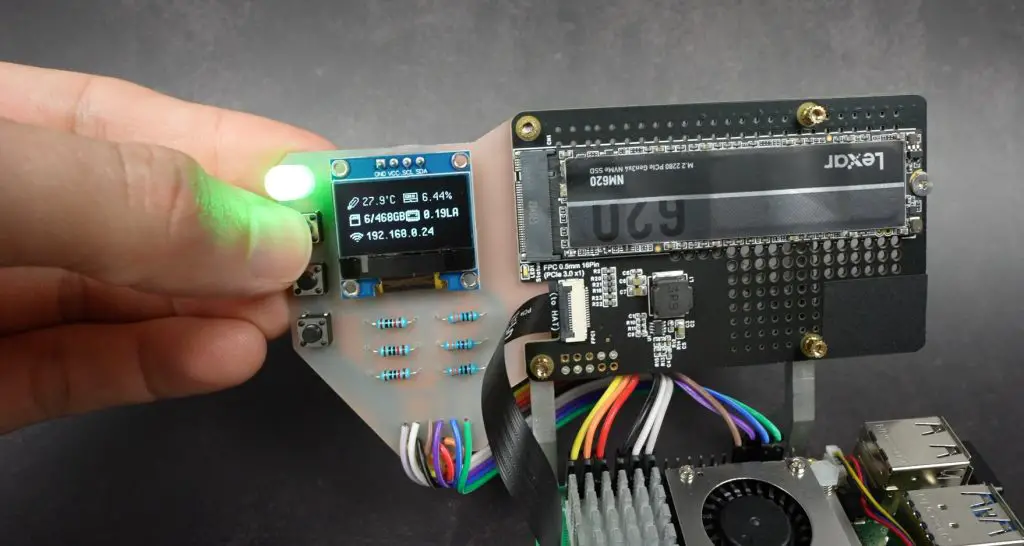
Adding White Coolant To Cooling Loop

Testing The Water-Cooling Case’s Thermals

I used a utility called CPU Burn to put a full load onto all four CPU cores and logged the temperature over a half hour.

It runs much the same as the Pi does on my water-cooling stand. At idle, temperatures are around 28°C, after a minute and a half under full load, the temperature levels off at about 42°C and remained steady for the remainder of the test.

Water Cooling Case Test

If I overlay the results from my water cooling stand, you can see that the results are very similar. The temperature just spikes a bit fast on the cooling stand, I guess because the block has a bit less thermal mass.

Test Overlayed With DIY Stand Results

As expected, the water cooling system performs significantly better than the official Pi 5 Active Cooler, with a 25°C difference in steady-state temperature.

Comparison To Active Cooler Results

At the end of the test, with the CPU unloaded, the temperature drops back down to 28°C in about a minute and a half.

Temperature Drops Down Quickly Once Test Is Stopped

Final Thoughts On My Water Cooled Pi 5 Case

Overall I’m really happy with how this build came out. It took far longer than I expected it to, but I think it was worth it.
Raspberry Pi 5 Water Cooling Case

As usual, there is some room for improvement. My next iteration is going to include a power button for the Pi and allow some space underneath the Pi for an NVMe drive. I’d also like to secure the cooling loop to the case a bit better and improve upon the cable management.

Raspberry Pi 5 Compact Water Cooling Case

Let me know what you think of my water-cooled Pi 5 project in the comments section below or if there’s anything you think I should add to it.
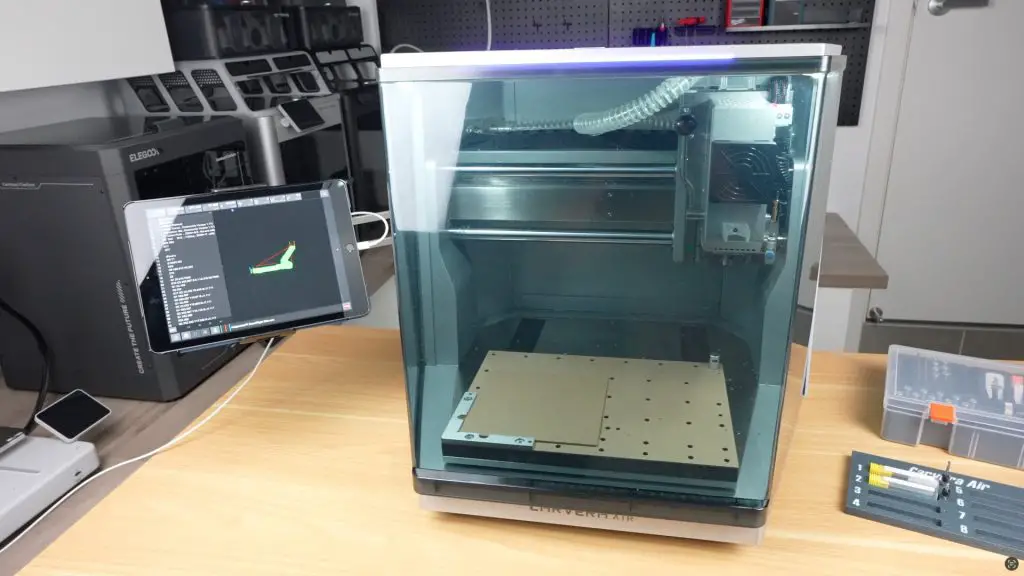
Add an OLED Stats Display to Raspberry Pi OS Bookworm

Raspberry Pi OS Bookworm has been out for a little over a year now. It comes with a few visual changes like a Wayland native taskbar with plugins like a CPU and GPU monitor, and a new default background, but far more changes have been made under the hood. One of these changes is the requirement to use a virtual environment to install third-party packages with pip rather than installing them system-wide. This places packages in a managed space instead of at system level, which lowers the risk of causing conflicts or breaking other software packages or the operating system.

Pi-OS-Bookworm-Changes

Unfortunately, this change along with a few tweaks to the way the GPIO pins are used has made my previous tutorial for installing an OLED stats display on a Pi 4 outdated. If you try to follow this tutorial you’ll end up with a number of errors around virtual environments and broken libraries.

So today I’m going to run through how to connect and program and OLED stats display on a Raspberry Pi 5 running PI OS Bookworm.

Here’s my video tutorial, read on for the written tutorial;

What You Need For This Project

Note: The above parts are affiliate links. By purchasing products through the above links, you’ll be supporting this channel, with no additional cost to you.

Connect the OLED Display to Your Raspberry Pi

To start out, let’s get the OLED display connected to our Raspberry Pi.

OLED-Stats-Display-Hardware

To do this, you’ll need a 4-wire female-to-female jumper cable. The colours don’t matter, they just help you to keep track of which wire goes to which terminal.

4-Wire-Ribbon-Cable

The OLED display’s terminals are labelled on the front, so make sure that you take note of them or label the wires before installing it in a case or you won’t be able to see them.

The pin arrangement on these displays is most commonly GND, VCC, SCL and SDA.

I2C-OLED-Display-Pinout

You can’t just copy this arrangement though as there are versions of this display that have the GND and VCC pins switched around.

I2C-OLED-Pinout-Differences

If you connect power to the display incorrectly, even just a single time, you’ll likely damage it and it will no longer work, even if you correct the wiring afterwards – ask me how I know this.

Plug your jumper cable into these four pins and then take note of which colours you’ve got connected to which pins.

Next, we can plug the other ends into our Raspberry Pi’s GPIO pins. Make sure that your Pi is off and power is disconnected before doing this, you don’t want to short a connection or plug a lead into an incorrect pin and not have a chance to check the connections before powering it up.

GPIO-Pinout-Diagram
Source – https://www.raspberrypi.com/documentation/computers/raspberry-pi.html

There are a few options for the power pins. I usually plug the GND jumper into pin 9 and the VCC jumper into pin 1. You can use any of the pins labelled ground for the ground jumper and these displays will run on 3.3V or 5V so you can use any of these labelled pins for the VCC jumper.

  • GND to Pin 9 (Ground)
  • VCC (3.3V) to Pin 1 (3.3V)
  • SCL to Pin 5 (GPIO 3)
  • SDA to Pin 3 (GPIO 2)

Next, we need to connect the SCL and SDA jumpers, which just get plugged into the corresponding GPIO pins. Plug SCL into pin 5 and SDA into pin 3. Don’t get mixed up with the GPIO numbers and Pin numbers, I’m working off the physical pin numbers.

Display-Connected-To-GPIO-Pins-Both-Sides

Quickly recheck your connections and we can then start programming the display.

Programming The OLED Stats Display

I’m going to be working on a fresh 64-bit install of Raspberry Pi OS Bookworm, which you can flash to your microSD card or SSD using Raspberry Pi Imager.

Plug the microSD card into your Pi’s card reader and then plug in your power adaptor to boot it up.

Plug-MicroSD-Card-Into-Card-Reader

If this is your first boot, you’ll need to go through a few setup steps and you’ll then land on the desktop.

Raspberry-Pi-OS-First-Boot

It’s possible to do this installation on a headless Pi too as we’ll only be working in the terminal.

Updating The Pi & Installing Libraries

Open up a new terminal window or SSH into your headless Pi and we’ll start by making sure that the Pi is up to date by entering the following commands. When the updates are finished installing, reboot the pi.

sudo apt-get update
sudo apt-get -y upgrade
sudo reboot
Terminal-Updates

Once rebooted, open up the terminal again and then enter these commands to install two libraries.

sudo apt-get install python3-pip
sudo apt install --upgrade python3-setuptools
Terminal-Library-Installation

Now we need to create a virtual environment to continue the setup in. We’ll call this stats_env.

sudo apt install python3-venv
python3 -m venv stats_env --system-site-packages
source stats_env/bin/activate

Once activated, you should see stats_env at the start of your current terminal line.

Terminal-Virtual-Environment

Next, let’s install the Adafruit Blinka library. Once complete, confirm yes at the end to reboot your pi.

cd ~
pip3 install --upgrade adafruit-python-shell
wget https://raw.githubusercontent.com/adafruit/Raspberry-Pi-Installer-Scripts/master/raspi-blinka.py
sudo -E env PATH=$PATH python3 raspi-blinka.py
Terminal-Python-Package-Updates

With the Pi rebooted, let’s now check that it can see the connected display. Enter this command and you should then see an address table and importantly you should get the characters 3c in the top right area of the table.

sudo i2cdetect -y 1
        0  1  2  3  4  5  6  7  8  9  a  b  c  d  e  f
    00:                         -- -- -- -- -- -- -- --
    10: -- -- -- -- -- -- -- -- -- -- -- -- -- -- -- --
    20: -- -- -- -- -- -- -- -- -- -- -- -- -- -- -- --
    30: -- -- -- -- -- -- -- -- -- -- -- -- 3c -- -- --
    40: -- -- -- -- -- -- -- -- -- -- -- -- -- -- -- --
    50: -- -- -- -- -- -- -- -- -- -- -- -- -- -- -- --
    60: -- -- -- -- -- -- -- -- -- -- -- -- -- -- -- --
    70: -- -- -- -- -- -- -- --
I2C-Address-Register

If you don’t see any characters in the table then your Pi isn’t recognising the connected display. First, check your display is connected correctly and then make sure that the I2C interface is enabled. If you get a table full of characters then you’ve probably made a wiring mistake as this happens if SDA is shorted to ground.

To check that the I2C interface is enabled, use the below command to open up configuration options, then select “3 Interfacing Options”, then select “I5 I2C”, “Yes” to enable the interface, “Ok” and then “Finish”

sudo raspi-config

Next, we can install the CircuitPython libraries specific to this display. We start by re-entering the virtual environment and then enter these commands to install the libraries.

source stats_env/bin/activate
pip3 install --upgrade adafruit_blinka
pip3 install adafruit-circuitpython-ssd1306
sudo apt-get install python3-pil
Terminal-Python-Packages-Second-Install

Running The Stats Script

We can then exit the virtual environment and download the stats display Python script from my GitHub repository.

deactivate
sudo apt-get install git
git clone https://github.com/mklements/OLED_Stats.git

We then need to re-enter the virtual environment to run the script.
source stats_env/bin/activate
cd OLED_Stats
Terminal-Script-Execution

There are two options for scripts to run. The first is a text-based one called stats.py and the second is one with icons called monitor.py. You’ll need to change the filename in the run command depending on which one you’d like to run.
python3 stats.py

or

python3 monitor.py
OLED-Icons-Stats-Display-Monitor

The script is now running and your display should show your IP address and system stats.

Stats-Display-Script-Running

We can’t leave it like this though, if we close the terminal or reboot the Pi, the script will terminate and the display will stop being updated. So we need to follow some additional steps to get the script to run automatically on startup.

Programming The Pi To Run The Script On Startup

This is quite easy to do, we just need to copy this file from my GitHub repository into the root directory, then make it executable and then use crontab to tell it to run on startup. You’ll need to open a new terminal window for the below steps. Remember to change your username (“pi” below) if you’re not using a default username

curl -OL https://raw.githubusercontent.com/mklements/OLED_Stats/main/OLED_display
sudo chmod +x /home/pi/OLED_display

The OLED_display script runs the stats.py file by default. To change this to the monitor.py file, you’ll need to open it up in a text or code editor and change the target filename from stats.py to monitor.py.
Open up crontab by entering this command. If this is the first time you’re opening crontab then you’ll be prompted to select an editor, select 1 and hit enter.

crontab -e
Crontab-Automation-Running

Then add this line to the end of the file. Make sure to change your name to your username if you’re not using the default username pi.

@reboot /home/pi/OLED_display &
Crontab-Line-Added

You should now have a working OLED stats display that starts up automatically each time your pi boots up.

Text-Based-Stats-Display

You can go ahead and install it into your case if you haven’t done so already. My favourite case at the moment is my Pimoroni NVMe case which accommodates an NVMe drive underneath the Pi and an Ice Tower for cooling.

Let me know what you’re using your OLED stats display for in the comments section below, or if there’s anything you’d like to see added to the display script in the future.